
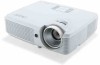
Acer X1320WH User Manual
Acer X1320WH Manual
 |
View all Acer X1320WH manuals
Add to My Manuals
Save this manual to your list of manuals |
Acer X1320WH manual content summary:
- Acer X1320WH | User Manual - Page 1
Acer Projector X1120H/X1220H/X1320WH Series User's Manual - Acer X1320WH | User Manual - Page 2
© 2011. All Rights Reserved. Original Issue: 07/2011 Acer Projector X1120H/X1220H/X1320WH Series Model number Serial number Date of purchase Place of purchase - Acer X1320WH | User Manual - Page 3
and comfort Read these instructions carefully. Keep this document for future reference. Follow all warnings and instructions marked on the product probably cause unexpected short circuits and may damage rotor devices or the lamp. Using electrical power • This product should be operated from the type - Acer X1320WH | User Manual - Page 4
English English iv extension cord ampere rating. Also, make sure that the total rating of all products plugged into the wall outlet does not exceed the fuse rating. • Do not overload a power outlet, strip or receptacle by plugging in too many devices. The overall system load must not exceed 80% of - Acer X1320WH | User Manual - Page 5
performance, indicating a need for service. • The product does not operate normally after following the operating instructions. Note: Adjust only those Do not look into the projector's lens when the lamp is on. The light may hurt your eyes. • Turn on the projector first and then signal sources - Acer X1320WH | User Manual - Page 6
display Management menu after replacing the lamp module. • Do not attempt to disassemble the projector, as opening or removing covers may expose you to dangerous voltage points or other risks. Refer all servicing to qualified service personnel. • Do not stand the projector on its end vertically. The - Acer X1320WH | User Manual - Page 7
Electronics Equipment (WEEE) regulations, visit www.acer-group.com/public/Sustainability/sustainability01.htm Mercury advisory For projectors or electronic products containing an LCD/CRT monitor or display: "Lamp(s) contain Mercury, Dispose Properly." Lamp(s) inside this product contain mercury and - Acer X1320WH | User Manual - Page 8
Adjusting distance and zoom to optimize image size 16 User controls 19 Installation menu 19 Acer Empowering Technology 20 Onscreen Display Menus 22 Color 23 Image 24 Setting 27 Management 31 Audio 31 3D 32 Language 33 3D projection 34 Using DLP 3D technology 34 Setting up - Acer X1320WH | User Manual - Page 9
stereoscopic player 36 Using 3D glasses (optional) 37 Watching 3D DVD content 37 Appendices 39 Troubleshooting 39 LED and alarm definitions 42 Replacing and cleaning the dust filter 43 Replacing the lamp 44 Ceiling mount installation 45 Specifications 48 Compatibility modes 50 - Acer X1320WH | User Manual - Page 10
Product features This product is a single-chip DLP projector, feautring: • DLP technology. • X1120H series: Native 800 x 600 SVGA resolution. • X1220H series : Native 1024 x 768 XGA resolution. • X1320WH: Native 1280 X 800 resolution. • Acer ColorSafe II technology ensures consistent color rendition - Acer X1320WH | User Manual - Page 11
items shown below. Check to make sure your unit is complete. Contact your dealer immediately if anything is missing. 1 Projector Power cord VGA cable Remote control acer Projector Batteries Quick Start Guide Quick Start Guide Carrying case User's Manual CD Screw pack Dust filter (optional) - Acer X1320WH | User Manual - Page 12
English English Projector overview Front / top 1 2 3 4 5 1 6 3 7 8 8 # Description 1 Lamp cover 2 Zoom ring 3 Focus ring 4 Ventilation Rear # Description 5 Remote control receivers 6 Zoom lens 7 Control panel 8 Ventilation (inlet) 12 3 4 5 6 AUDIO IN HDMI AUDIO OUT VIDEO VGA1-IN VGA2- - Acer X1320WH | User Manual - Page 13
Changes the active source. Adjusts the image to compensate for distortion caused by tilting the projector (± 40 degrees). Automatically synchronizes the projector to the input source. Power indicator LED Lamp/Temp Indicator LED • Press MENU to launch the onscreen display (OSD) menu, back to the - Acer X1320WH | User Manual - Page 14
4 ASPECT RATIO 5 ZOOM 6 Four directional select keys Description Sends signals to the projector. Pauses the screen image. Refer to "Turning the projector on/off" on page 9. To choose the desired aspect ratio. Zooms the projector display in or out. Use up, down, left, right buttons to select - Acer X1320WH | User Manual - Page 15
This connector supports analog RGB HDMI/ DVI. 12 HIDE Momentarily turns off the video. Press HIDE to hide the image, press again to display the image. 13 SOURCE Changes the active source. 14 RESYNC Automatically synchronizes the projector to the input source. 15 Empowering Launches Acer - Acer X1320WH | User Manual - Page 16
source to S-Video. This function is only available when a USB cable is not connected to a computer. Note: Buttons marked with * are not operational on this projector. - Acer X1320WH | User Manual - Page 17
8 Getting started Connecting the projector 1 2 HDMI RS232 HDMI VGA USB D-Sub D-Sub 3 4 5 3 D-Sub D-Sub D-Sub AUDIO IN HDMI MINI USB 1 VGA1-IN RS-232 AUDIO OUT VIDEO VGA2-IN VGA-OUT HDMI Y HDMI 1 6 2 7 S-Video output 8 HDMI Y Video output RW # Description - Acer X1320WH | User Manual - Page 18
will detect your source automatically. • If the screen displays the Lock and Source icons, it means the projector is locked onto a specific source type and that input signal type is not detected. • If the screen displays No Signal, please make sure the signal cables are securely connected. • - Acer X1320WH | User Manual - Page 19
LED temp indicator will blink. Contact your local dealer or service center. • Fan Fail. Lamp will automatically turn off soon. This onscreen message indicates that the fan has failed. The lamp will automatically turn off, the projector will automatically shut down, and the LED temp indicator will - Acer X1320WH | User Manual - Page 20
English English 11 To raise/lower the image: 1 Use the elevator foot raise/lower the image to the desired height. 1 Elevator foot - Acer X1320WH | User Manual - Page 21
English English 12 Optimizing image size and distance X1120H/X1220H Series: Consult the table below to find the optimal image sizes achievable when the projector is positioned at a desired distance from the screen. Example: If the projector is 3 m from the screen, good image quality is possible - Acer X1320WH | User Manual - Page 22
13 English English Desired distance (m) Screen size Top (Min zoom) Diagonal W (cm) x (inches) H (cm) From base to top of image (cm) Screen size Top (Max zoom) Diagonal (inches) W (cm) x H (cm) From base to top of image (cm) 1.5 34 69 x 52 68 37 76 x 57 74 2 - Acer X1320WH | User Manual - Page 23
English English 14 X1320WH Series: Max screen size Min screen size B 93" 77" A 3 m Desired distance Height: 135 cm C Height: 163 cm From base to top of image - Acer X1320WH | User Manual - Page 24
15 English English Desired distance (m) Screen size Top (Min zoom) Diagonal W (cm) x (inches) H (cm) From base to top of image (cm) Screen size Top (Max zoom) Diagonal (inches) W (cm) x H (cm) From base to top of image (cm) 1.5 39 83 x 52 68 46 100 x 63 81 2 - Acer X1320WH | User Manual - Page 25
English 16 Adjusting distance and zoom to optimize image size X1120H/X1220H Series: English A 50" iDmeasgireedsize 2.2 m C 2 m B Desired distance D Height From base to top of image - Acer X1320WH | User Manual - Page 26
achieve a desired image size by adjusting either the position or the zoom ring. Example: To obtain an image size of 50" set the projector at a distance between 2 m and 2.2 m from the screen and adjust the zoom level accordingly. Desired image size Distance (m) Top (cm) Diagonal (inches) 30 - Acer X1320WH | User Manual - Page 27
18 X1320WH Series: English English A 50" iDmeasgireedsize D Height From base to top of image 1.9 m 1.6 m B Desired distance Desired image size Distance (m) Top (cm) Diagonal (inches) 30 40 50 60 70 80 90 100 120 150 180 200 250 300 Zoom Ratio: 1.2x W (cm) x H (cm) 65 x 40 86 x 54 108 - Acer X1320WH | User Manual - Page 28
19 User controls Installation menu The installation menu provides an onscreen display (OSD) for projector installation control pad to launch the OSD for projector installation and maintenance. 3 The background pattern acts as a guide for adjusting the calibration and alignment Acer welcome screen. - Acer X1320WH | User Manual - Page 29
time control. Please refer to "Onscreen Display Menus" on page 22 for more details. Acer ePower Management Press to launch Acer ePower Management. Acer ePower Management offers a shortcut to save lamp and projector life. Please refer to "Onscreen Display Menus" on page 22 for more details. - Acer X1320WH | User Manual - Page 30
Acer e3D Management 21 Press to launch Acer e3D Management. Acer e3D Management offers quick access to 3D functions. Please refer to "Onscreen Display Menus" on page 22 for more details. English English - Acer X1320WH | User Manual - Page 31
English English 22 Onscreen Display Menus The projector has a multilingual OSD that allows you to make image adjustments and change a variety of press MENU on the remote control again. The OSD menu will close and the projector will automatically save the new settings. Main menu Setting Submenu - Acer X1320WH | User Manual - Page 32
User-adjustable to suit your environment. Use this function to choose a proper color according to the wall. There are several choices, including white, light yellow, light blue, pink, dark green. The projector will compensate for color deviation due to the wall color to show the correct image tone - Acer X1320WH | User Manual - Page 33
Y: Adjusts the yellow color. • Color M: Adjusts the magenta color. Note: Saturation and Tint are not supported under computer mode. Image Projection • Front: The factory default setting. • Ceiling: When you select this function, the projector inverts the image for ceiling-mounted projection. - Acer X1320WH | User Manual - Page 34
ratio and maximize the image to fit native horizontal or vertical pixels. • Full: Keep the image with its original resolution, and resized to fit within . to move the image up. Frequency Tracking Frequency changes the projector's refresh rate to match the frequency of your computer's graphics card - Acer X1320WH | User Manual - Page 35
input image as full color range data. Adjust the overscan ratio of the HDMI image on screen. • Auto: Automatically adjust using information from the player. • Underscan: Disable overscan on HDMI images. • Overscan: Enable overscan on HDMI images. Note: L.Box function is supported for X1320WH series - Acer X1320WH | User Manual - Page 36
menu location on the display screen. When source lock is turned Off, the projector will search for other signals if the current input signal is lost. When source exit the OSD menu. • Acer: The default Acer projector startup screen. • User: Use a customized picture from the screen capture function. - Acer X1320WH | User Manual - Page 37
the startup screen, follow the instructions below. Note: Before proceeding with the Startup Screen from the default setting (Acer) to User. • Press Screen Capture to customize signal or when you restart the projector. Closed Caption Note: This screen Auto, Full or L.Box. Press the button - Acer X1320WH | User Manual - Page 38
Password displayed. • The password should be between four and eight characters long. • If you select Request password only after plugging power cord, the projector will prompt the user to enter the password every time the power cord is plugged in. • If you select Always request password while - Acer X1320WH | User Manual - Page 39
down the Unlock ID and contact with Acer service center. They will give you a new Administrator Password according to the Unlock ID. Lock User Startup Screen • By default Lock User Startup Screen is Off. If Lock User Startup Screen is On, users cannot change the startup screen anymore. • Choose - Acer X1320WH | User Manual - Page 40
English ECO Mode Choose On to dim the projector lamp which will lower power consumption, extend the lamp life and reduce noise. Choose Off to return normal mode. High Altitutde Choose On to turn on High Altitude mode. Operate the fans at full speed continuously to allow for proper cooling of - Acer X1320WH | User Manual - Page 41
32 3D English English 3D Choose On to enable the 3D functions supported by TI DLP 3D technology. Choose this item when using DLP 3D glasses, a quad buffer (NVIDIA or ATI) graphics card and HQFS format file or DVD with corresponding SW player. Choose Off to turn off 3D mode. 3D Sync Invert - Acer X1320WH | User Manual - Page 42
33 Language English English Language Choose the language for your OSD menu. Use the or key to select your preferred language. Press to confirm the selection. - Acer X1320WH | User Manual - Page 43
Acer projector you have bought has integrated DLP 3D technology. Important: When you turn the 3D technology on, you will be shown a reminder that 3D is enabled. If you do not wish to view 3D content, you should turn it off, otherwise the image may not be projected at full brightness. Using DLP 3D - Acer X1320WH | User Manual - Page 44
English English 35 3 Set 3D to On. 4 Alternatively, press on your projector's remote control to open Acer e3D Management. From the 3D options, select On. 5 If you find that the 3D content is not displaying properly, try selecting 3D Sync Invert from the projector OSD or Acer e3D Management. - Acer X1320WH | User Manual - Page 45
, you may need to disable the Stereoscopic feature to use the DLP 3D technology. Using the stereoscopic player You need to have a stereoscopic player in order to view 3D content. The instructions below explain how to view 3D content using the stereoscopic player that is available at www.3dtv.at - Acer X1320WH | User Manual - Page 46
with your glasses for instructions how to turn them on and how to change the battery. Watching 3D DVD content If you have a DVD player that supports 3D playback, you can watch 3D DVD contant using your Acer 3D-enabled projector. Connect your DVD player to the projector using any of the available - Acer X1320WH | User Manual - Page 47
38 4 If you find that the 3D content is not displaying properly, try selecting 3D Sync Invert from the projector OSD or Acer e3D Management. English English - Acer X1320WH | User Manual - Page 48
Troubleshooting If you experience a problem with your Acer projector, refer to the following troubleshooting guide. If the problem persists, please contact your local reseller or service center. Image problems and solutions # Problem your presentation computer's manual for detailed information. - Acer X1320WH | User Manual - Page 49
Image is reversed • Select Image > Projection on the OSD and adjust the projection direction. Problems with the projector # Condition Solution 1 The projector stops responding If possible, turn off the projector, then unplug to all controls the power cord and wait at least 30 seconds before - Acer X1320WH | User Manual - Page 50
life, it will burn out and may make a loud popping sound. If this happens, the projector will not turn on until the lamp module has been replaced. To replace the lamp, please refer to "Replacing the lamp" on page 44. OSD messages # Condition 1 Message Message Fan Fail - the system fan is not - Acer X1320WH | User Manual - Page 51
operation mode Flashing for 30 seconds after power on then steady blue Download mode V Normal cooling mode V Lamp events Lamp ignition fail V End of lamp lifetime V Thermal events Temperature error V Fan error V Color wheel or DMD V error Temp LED Blue --- Flashing V --- Flashing - Acer X1320WH | User Manual - Page 52
clogged with dust, preventing proper ventilation. This can cause overheating and damage the projector. (Normally 1000 hours is recommended, however the period will vary depending on is broken, please contact your local dealer or service center to obtain a new filter. 2 Dust Filter (Illustration #2) - Acer X1320WH | User Manual - Page 53
life in full power operation. Replacement Suggested! When you see this message, change the lamp as soon as possible. Make sure the projector has cooled down for at least 45 minutes before changing the lamp. Warning! Do not attempt to replace the lamp yourself. Contact the qualified service personnel - Acer X1320WH | User Manual - Page 54
8.4 mm English English 45 Ceiling mount installation If you wish to install the projector using a ceiling mount, please refer to the steps below: 1 Drill four holes into a solid, structurally sound part of the ceiling, and secure the mount base. - Acer X1320WH | User Manual - Page 55
Spacer - For heat dissipation Note: It is recommended that you keep a reasonable space between the bracket and the projector to allow for proper heat distribution. Use two washers for extra support, if deemed necessary. 4 Attach the ceiling bracket to the ceiling rod. Screw Type A 50 mm length 08 - Acer X1320WH | User Manual - Page 56
appropriate type of screw and washer for each model is listed in the table below. 3 mm diameter screws are enclosed in the screw pack. Models X1120H/ X1220H/ X1320WH Screw Type B Diameter (mm) 4 Length (mm) 8 Washer Type Large V Small V SCREW SPEC. M4 x 8 mm 193.6 mm 139.0 mm 210.6 mm - Acer X1320WH | User Manual - Page 57
final specs, please refer to Acer's published marketing specifications. Projection manual zoom lens X1120H/X1220H: 27" - 250" X1320WH: 30" - 315" X1120H/X1220H: 1.2 m - 10 m X1320WH: 1.2 m - 10 m X1120H/X1220H: 1.97 - 2.17 X1320WH: 1.47 - 1.83 30k - 100 kHz 50 - 120 Hz 180 W user-replaceable lamp - Acer X1320WH | User Manual - Page 58
49 English English Standard package contents • Power cord • VGA cable • Remote control • Batteries (for remote control) • User's Manual CD • Quick Start Guide • Carrying case • Screw pack • Dust filter (optional) * Design and specifications are subject to change without notice. - Acer X1320WH | User Manual - Page 59
50 English English Compatibility modes A. VGA analog 1 VGA analog - PC signal Modes VGA SVGA XGA SXGA QuadVGA SXGA+ UXGA PowerBook G4 i Mac DV (G3) Resolution 640 x 480 640 x 480 640 x 480 640 x 480 640 x 480 800 x 600 800 x 600 800 x 600 800 x 600 800 x 600 800 x 600 1024 x 768 1024 x 768 - Acer X1320WH | User Manual - Page 60
45.00 50 37.50 60 (30) 33.75 50 (25) 33.75 60 67.50 50 56.26 30k-100 kHz 50-120 Hz B. HDMI digital 1 HDMI - PC signal Modes VGA SVGA Resolution 640 x 480 640 x 480 640 x 480 640 x 480 640 x 480 800 x 600 800 x 600 V. Frequency [Hz] 60 72 - Acer X1320WH | User Manual - Page 61
.50 77.10 63.98 77.90 79.98 91.15 60.00 75.00 86.00 54.00 65.32 82.00 75.00 2 HDMI - Extended wide timing Modes WXGA Resolution 1280 x 768 1280 x 768 1280 x 768 1280 x 720 1280 x 720 1280 x 720 1280 x 800 1280 x 800 1440 x 900 1680 - Acer X1320WH | User Manual - Page 62
53 English English 3 HDMI - Video signal Modes Resolution 480i 720 x 480 480p 720 x 480 576i 720 x 576 576p 720 x 576 720p 1280 x 720 720p 1280 x 720 1080i 1920 x 1080 - Acer X1320WH | User Manual - Page 63
energy and, if not installed and used in accordance with the instructions, may cause harmful interference to radio communications. However, there is reception, which can be determined by turning the device off and on, the user is encouraged to try to correct the interference by one or more of the - Acer X1320WH | User Manual - Page 64
du Canada. Declaration of Conformity for EU countries Acer hereby declares that this projector series is in compliance with the essential requirements and in 2.4 GHz band To prevent radio interference to the licensed service, this device is intended to be operated indoors and installation outdoors - Acer X1320WH | User Manual - Page 65
Lepetit, 40, 20020 Lainate (MI) Italy Tel: +39-02-939-921, Fax: +39-02 9399-2913, www.acer.it Hereby declare that: Trade Name: Model Number: Machine Type: Product: Projector Acer FSV1101/FNX1102/FWX1103 X1120H/X1220H/X1320WH/ D401D/D411D/D421D/EV-S32H/ EV-X32H/EV-W32H series Is compliant with the - Acer X1320WH | User Manual - Page 66
Acer Incorporated 8F, 88, Sec. 1, Xintai 5th Rd. Xizhi, New Taipei City 221, Taiwan The standards listed below are applied EN300 328 -. EN301 893 (Applicable to 5GHz high performance RLAN). Year to begin affixing CE marking 2011. Easy Lai /Manager Regulation Center, Acer Inc. Jun. 30, 2011 Date - Acer X1320WH | User Manual - Page 67
/ Importer is responsible for this declaration: Product: DLP Projector Model Number: FSV1101/FNX1102/FWX1103 Machine Type: X1120H/X1220H/X1320WH/ D401D/D411D/D421D/EV-S32H/ EV-X32H/EV-W32H series Name of Responsible Party: Acer America Corporation Address of Responsible Party: 333 West San
-
 1
1 -
 2
2 -
 3
3 -
 4
4 -
 5
5 -
 6
6 -
 7
7 -
8
-
9
-
10
-
11
-
12
-
13
-
14
-
15
-
16
-
17
-
18
-
19
-
20
-
21
-
22
-
23
-
24
-
25
-
26
-
27
-
28
-
29
-
30
-
31
-
32
-
33
-
34
-
35
-
36
-
37
-
38
-
39
-
40
-
41
-
42
-
43
-
44
-
45
-
46
-
47
-
48
-
49
-
50
-
51
-
52
-
53
-
54
-
55
-
56
-
57
-
58
-
59
-
60
-
61
-
62
-
63
-
64
-
65
-
66
-
67
 |
 |

Acer Projector
X1120H/X1220H/X1320WH Series
User's Manual