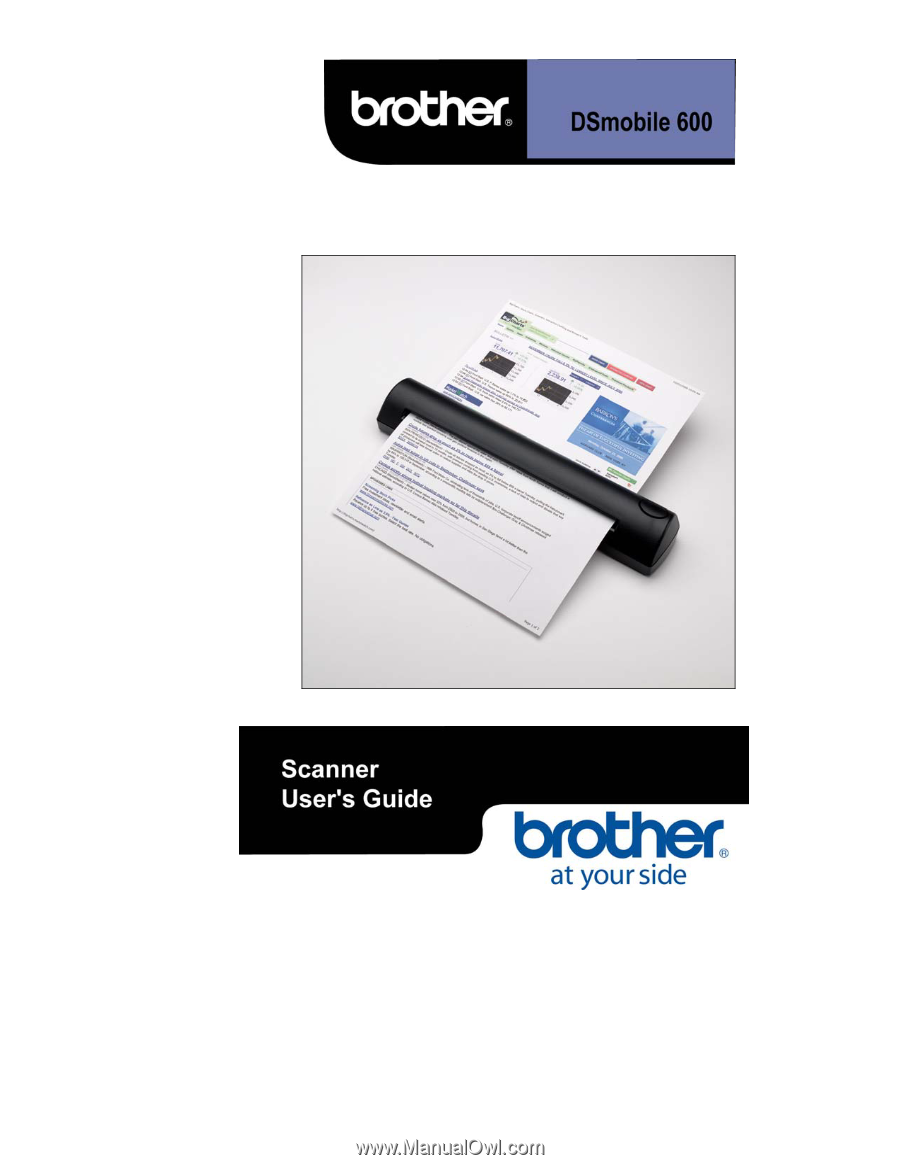
Brother International DSmobile 600/DS600 Users Manual - English
Brother International DSmobile 600/DS600 Manual
 |
View all Brother International DSmobile 600/DS600 manuals
Add to My Manuals
Save this manual to your list of manuals |
Brother International DSmobile 600/DS600 manual content summary:
- Brother International DSmobile 600/DS600 | Users Manual - English - Page 1
- Brother International DSmobile 600/DS600 | Users Manual - English - Page 2
to provide reasonable protection against harmful interference in a residential installation and, if not installed and used in accordance with the instructions, may cause harmful interference to radio communications. However, there is no guarantee that interference will not occur in a particular - Brother International DSmobile 600/DS600 | Users Manual - English - Page 3
Driver Installation 2 DSmobileSCAN II Installation 5 View, Print, Save User's Guide 5 Adobe Reader 8.1.2 Installation 6 PageManager 7 Installation 6 Un-Installing Source 32 Performing Scanner Calibration 33 Tips & Cautions 34 Technical Support 33 Product Warranty Information 36 iii - Brother International DSmobile 600/DS600 | Users Manual - English - Page 4
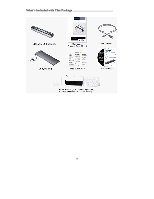
What's Included with This Package iv - Brother International DSmobile 600/DS600 | Users Manual - English - Page 5
documents of many types. We encourage you to read this User's Guide carefully. Your DSmobile 600 scanner Installation CD provides Windows® and Windows instructions. For help with how to use this software, please use the help facility within PageManager. Scanning using Apple® Mac OS® X is supported - Brother International DSmobile 600/DS600 | Users Manual - English - Page 6
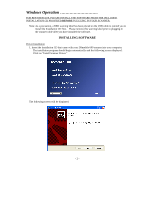
Windows Operation FOR BEST RESULTS, PLEASE INSTALL THE SOFTWARE FROM THE INCLUDED INSTALLATION CD PROVIDED BEFORE PLUGGING IN YOUR SCANNER. Note: As a precaution, a RED warning label has been placed on the USB cable to remind you to install the Installation CD first. Please remove this warning - Brother International DSmobile 600/DS600 | Users Manual - English - Page 7
If the installation does not start automatically, please double-click the MY COMPUTER icon on your Windows desktop, and then double-click the CD icon. If this installation program does not begin, then double-click the SETUP.EXE icon. Note: If using Windows Vista, when the Autoplay window is - Brother International DSmobile 600/DS600 | Users Manual - English - Page 8
3. Select "Complete" (recommended) or "Custom" and then click "Next". 4. The following screen will be displayed. Click "Install". - 4 - - Brother International DSmobile 600/DS600 | Users Manual - English - Page 9
The installation screen will re-appear and you will now have three choices: Install DSmobileSCAN II View/Print the PDF User Guide Install the Adobe Reader 8.1.2 DSmobileSCAN II Installation 1. Click on Install DSmobileSCAN II. 2. Click "Next". 3. Select the box labeled, "I accept . . .", and - Brother International DSmobile 600/DS600 | Users Manual - English - Page 10
you click "View/Print the PDF User Guide." You may then print the User's Guide after installing the Adobe Reader for your future reference. If you choose to install Adobe Reader 8.1.2, you will see the screen below. Please follow the instructions to install the software. PageManager 7 Installation - Brother International DSmobile 600/DS600 | Users Manual - English - Page 11
Note: After you have completed all software installations, we strongly recommend that you remove the CD and restart your computer even though you are not requested by Windows to do so. - 7 - - Brother International DSmobile 600/DS600 | Users Manual - English - Page 12
UN-INSTALLING SOFTWARE If you should need to un-install the driver software later, you simply insert the original installation CD and run the setup again. At this time you will be given three options. Select the REMOVE option, click NEXT, and then click REMOVE. All previously installed DSmobile 600 - Brother International DSmobile 600/DS600 | Users Manual - English - Page 13
shown below and follow the instructions. After you have installed the software (Steps 1-4, p. 2-4), Step 5 will instruct you to install your desktop or laptop computer). If necessary, please check your computer's user guide to identify the USB ports available and their locations. 2. The computer - Brother International DSmobile 600/DS600 | Users Manual - English - Page 14
Note: If using Windows Vista, the following message is displayed. You can then skip to Step 4. 3. Follow the step-by-step Wizard instructions and finish your hardware installation. 4. When you finish your Hardware Wizard Installation, the computer will automatically detect the new hardware device - Brother International DSmobile 600/DS600 | Users Manual - English - Page 15
scanner. 2. Once you have launched DSmobileSCAN II (or any TWAIN/WIA application), select the SCAN button and the step-by-step calibration instructions will appear in a succession of prompts. This calibration process uses the special black and white calibration sheet (see picture on page iv) that - Brother International DSmobile 600/DS600 | Users Manual - English - Page 16
letter size (or A4) printer paper to perform the calibration. Simply fold the paper in half and insert the end opposite the fold into the scanner first when calibrating. The following message will be displayed (see below). - 12 - - Brother International DSmobile 600/DS600 | Users Manual - English - Page 17
USING YOUR SCANNER Please insert documents face down. When using a Windows scanning application, always press the button on top of the scanner to initiate a scanning program. The following window will appear when you press the button on the top of the scanner. A double click on any of the programs - Brother International DSmobile 600/DS600 | Users Manual - English - Page 18
SETTING A DEFAULT PROGRAM To choose a default scanning program, just highlight the program name, click on "Always use this program for this action" and then click on "OK". The program will subsequently automatically launch when you press the button on the top of the scanner to initiate a scan. Note: - Brother International DSmobile 600/DS600 | Users Manual - English - Page 19
for which program to run." 4. Click Apply and then OK, then Exit the Control Panel. Note: When using Windows Vista, in the 'changing programs' instructions, do not right click on the scanner and choose properties. Highlight the scanner as shown below and then press the properties button. - 15 - - Brother International DSmobile 600/DS600 | Users Manual - English - Page 20
Note that there is no 'apply' button on this properties screen, so you must press 'OK.' After this process, the "Select the program to launch for this action" (shown above) will display when the button on the top of the scanner is pressed to initiate a program. - 16 - - Brother International DSmobile 600/DS600 | Users Manual - English - Page 21
Refer to "Using Your Mac OS X Scanning Software", p. 21 for instructions on calibrating with" Image Capture." 13. Under "Import," select "DSmobile 600". 14. Follow the on-screen instructions for calibration and scanning. 15. Note that when using the DSmobile 600 - Brother International DSmobile 600/DS600 | Users Manual - English - Page 22
you do not have administrator privileges or the privileges have somehow become corrupt, the installation and calibration may not be possible. To correct this problem, do the following: 1. Mouse over the Apple in the upper left corner of the desktop and select System Preferences. 2. Select System and - Brother International DSmobile 600/DS600 | Users Manual - English - Page 23
initial scans do not look as good as you expected, perhaps they are too dark or the color is wrong, you will want to perform a manual calibration to correct and improve the scanned images. 1. Turn your Macintosh computer on. 2. Plug your DSmobile 600 scanner into an available USB port on the - Brother International DSmobile 600/DS600 | Users Manual - English - Page 24
at any time you switch the computer that you use with your scanner or change scanners, you will need to calibrate again. The following steps guide you through calibration of your DSmobile 600 scanner using the built-in "Image Capture" software on your Mac OS X along with the Brother driver and - Brother International DSmobile 600/DS600 | Users Manual - English - Page 25
Figure 2. Leopard Device Selection Window 6. The "Image Capture Device Browser" window will appear (See Figure 3). Figure 3. Leopard Image Capture Device Browser Window 7. Click the "Use TWAIN UI" button to the right of "DSmobile 600" (See Figure 3). 8. Click the "Scan" button (See Figure 4). - 21 - - Brother International DSmobile 600/DS600 | Users Manual - English - Page 26
Figure 4. TWAIN Interface Window 9. Click the "Calibrate" button (See Figure 5). Figure 5. Calibrate Button 10. Insert the black and white calibration paper (preferred) or a blank sheet of white paper. 11. Click the "Calibrate" button again (See Figure 6). - 22 - - Brother International DSmobile 600/DS600 | Users Manual - English - Page 27
Figure 6. Initiating the Calibration Step 12. When the calibration scan is complete, click "OK" and then proceed to scan your documents (See Figure 5). - 23 - - Brother International DSmobile 600/DS600 | Users Manual - English - Page 28
Tiger® (Mac OS X v10.4) 1. Install the DSmobile 600 scanner driver using the Installation CD and restart your computer. 2. Connect the scanner to your computer's USB port. 3. Open the "Applications" folder and run "Image Capture" (See Figure 7). Figure 7. Tiger Image Capture Window 4. Close the " - Brother International DSmobile 600/DS600 | Users Manual - English - Page 29
Figure 8. Tiger Device Selection Window 6. The "Image Capture Devices" window will appear (See Figure 9). Figure 9. Tiger Image Capture Device Browser Window 7. Click on "DSmobile 600". - 25 - - Brother International DSmobile 600/DS600 | Users Manual - English - Page 30
8. Click on the "Use TWAIN software" checkbox at the bottom of the window (See Figure 10). Figure 10. Use TWAIN Software Checkbox 9. Click "OK" in the "Image Capture Devices" window. 10. From the "Devices" menu, choose "DSmobile 600". 11. In the "DSmobile 600" window, click "Scan". 12. Click the " - Brother International DSmobile 600/DS600 | Users Manual - English - Page 31
Panther® (Mac OS X v10.3) 1. Install the DSmobile 600 scanner driver using the Installation CD and restart your computer. 2. Open the "Applications" folder and run "Image Capture". 3. From the "Image Capture": menu, choose "Preferences". 4. Click the "Scanner" tab at the top of the window. 5. Click - Brother International DSmobile 600/DS600 | Users Manual - English - Page 32
that is TWAIN compatible. A scanner driver for Mac OS X v10.3 or higher can be downloaded from the Installation CD. For further assistance, call Brother Technical Support at 1-800-543-6144 and press 4. - 28 - - Brother International DSmobile 600/DS600 | Users Manual - English - Page 33
the scanner is pressed, a window will be displayed requiring you to choose a scanning software as shown in Using Your Scanner on page 8. Follow the scanning instructions for the scanning software you have chosen. - 29 - - Brother International DSmobile 600/DS600 | Users Manual - English - Page 34
II software installation. Using this icon will initiate the DSmobileSCAN software but unless DSmobileSCAN II is set as your default it will put it in a "manual" mode which requires the user to click on the green "SCAN" button to initiate the scan. If you have chosen DSmobileSCAN II as your - Brother International DSmobile 600/DS600 | Users Manual - English - Page 35
is compatible with the DSmobile 600 scanner and allows scanning from that software program. Each program will initiate scanning differently. Please follow instruction according to the software program you are using. If the software you have chosen uses the TWAIN interface instead of the application - Brother International DSmobile 600/DS600 | Users Manual - English - Page 36
PageManager 7 folder, open it and double click on the setup.exe file. Follow the on-screen instructions. Refer to the "help" file included with this program for further use instructions. Initial Setup with PageManager 7 NOTE: Calibration is a critical step in setting up your scanner. This process - Brother International DSmobile 600/DS600 | Users Manual - English - Page 37
Performing Scanner Calibration a) To calibrate your scanner select the acquire image data icon (scanner and camera icon) under the toolbar menu. (see Fig. 1) Fig. 1 Fig. 2 a) The TWAIN user interface screen will appear (see Fig. 2). b) Insert the calibration sheet with the printed arrow end first - Brother International DSmobile 600/DS600 | Users Manual - English - Page 38
Tips & Cautions The DSmobile 600 scanner can provide long and productive service. We encourage you to follow the suggestions below to improve the convenience and quality of your scanning and document management experience. Please do not insert - Brother International DSmobile 600/DS600 | Users Manual - English - Page 39
information Brochures Manuals Product Software download information. TECHNICAL SUPPORT Brother Mobile Solutions recommend support calls will usually be responded to within 1 business day; however we strongly suggest that you make contact via e-mail first, provide an explanation of the problem - Brother International DSmobile 600/DS600 | Users Manual - English - Page 40
. Warranty questions? Please contact Brother Mobile Solutions Technical Support 1-800-543-6144 or [email protected] . Brother used outside, the United States and Canada, this warranty covers only warranty service within the United States and Canada. What is the length of the Warranty - Brother International DSmobile 600/DS600 | Users Manual - English - Page 41
Product is eligible for warranty service: Report your issue to our Customer Service Hotline at 1-800-543 will be required to contact the local supplier and, if instructed by the local supplier to deliver the Product to the and if you first reported the problem within the applicable warranty period, - Brother International DSmobile 600/DS600 | Users Manual - English - Page 42
Brother Mobile Solutions, Inc. 100 Technology Drive, Suite 250A Broomfield, Colorado 80021 303-460-1600 (1-800-543-6144) For Updated Drivers and User Guides: http://www.brothermobilesolutions.com 38
-
 1
1 -
 2
2 -
 3
3 -
 4
4 -
 5
5 -
 6
6 -
 7
7 -
8
-
9
-
10
-
11
-
12
-
13
-
14
-
15
-
16
-
17
-
18
-
19
-
20
-
21
-
22
-
23
-
24
-
25
-
26
-
27
-
28
-
29
-
30
-
31
-
32
-
33
-
34
-
35
-
36
-
37
-
38
-
39
-
40
-
41
-
42
 |
 |