
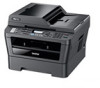
Brother International MFC-7860DW Users Manual - English
Brother International MFC-7860DW Manual
 |
UPC - 012502627029
View all Brother International MFC-7860DW manuals
Add to My Manuals
Save this manual to your list of manuals |
Brother International MFC-7860DW manual content summary:
- Brother International MFC-7860DW | Users Manual - English - Page 1
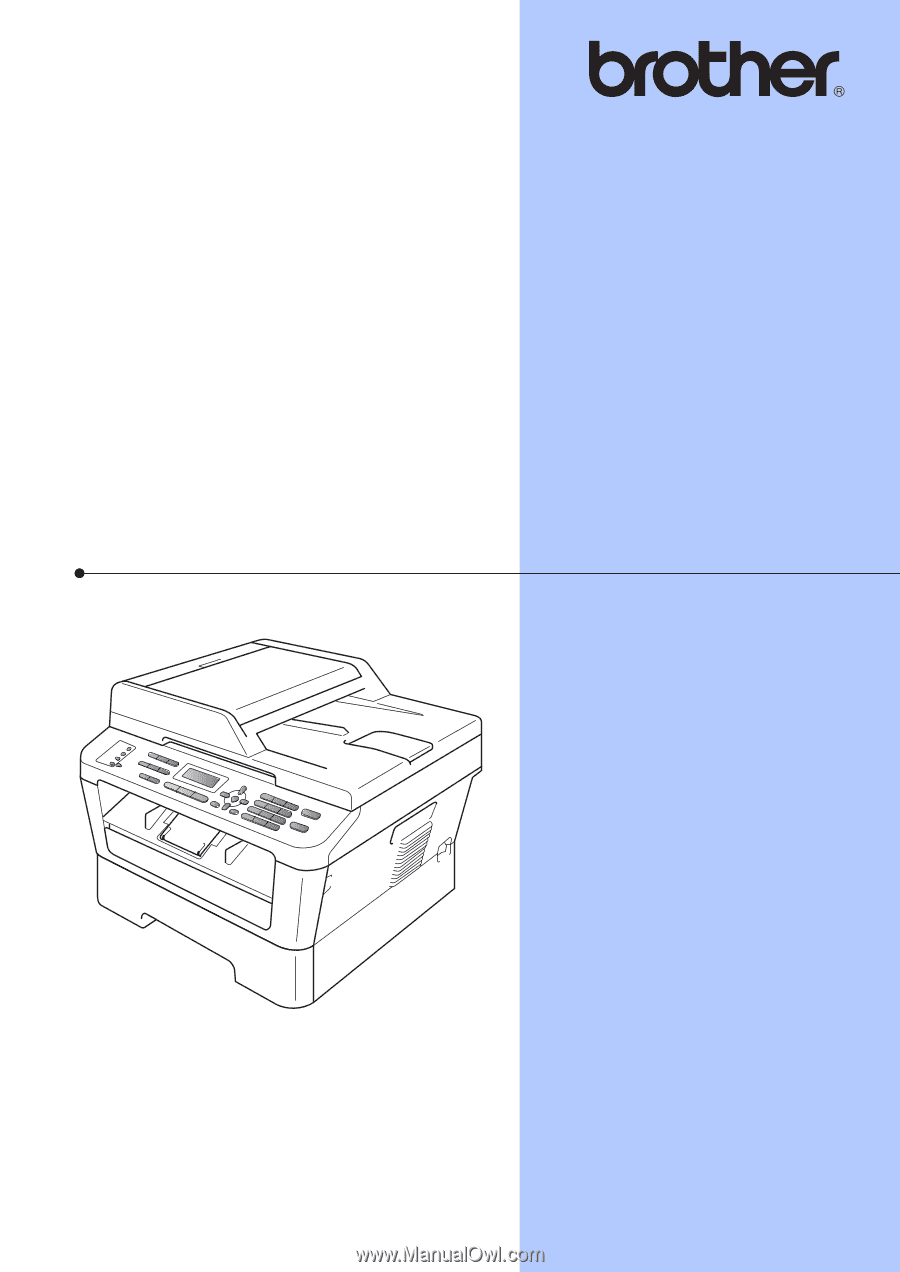
BASIC USER'S GUIDE MFC-7360N MFC-7460DN MFC-7860DW Not all models are available in all countries. Version 0 USA/CAN - Brother International MFC-7860DW | Users Manual - English - Page 2
call Customer Service Please complete the following information for future reference: Model Number: MFC-7360N, MFC-7460DN and MFC-7860DW (Circle your model number) Serial Number: 1 Date of Purchase: Place of Purchase: 1 The serial number is on the back of the unit. Retain this User's Guide with your - Brother International MFC-7860DW | Users Manual - English - Page 3
, register on-line at http://www.brother.com/registration/ FAQs (frequently asked questions) The Brother Solutions Center is our one-stop resource for all your Fax Machine/Multi-Function Center needs. You can download the latest software and utilities and read FAQs and troubleshooting tips to learn - Brother International MFC-7860DW | Users Manual - English - Page 4
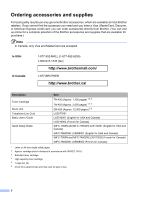
Toner Cartridge Drum Unit Telephone Line Cord Basic User's Guide Quick Setup Guide Item TN-420 (Approx. 1,200 pages) 1 2 3 TN-450 (Approx. 2,600 pages) 1 2 4 DR-420 (Approx. 12,000 pages) 5 6 LG3077001 LX5016001 (English for USA and Canada) LX5016002 (French for Canada) (MFC-7360N and MFC-7460DN - Brother International MFC-7860DW | Users Manual - English - Page 5
, TORT (INCLUDING NEGLIGENCE), PRODUCT LIABILITY OR OTHERWISE), WILL BE LIMITED TO $50. Compilation and Publication Notice Under the supervision of Brother Industries Ltd., this manual has been compiled and published, covering the latest product descriptions and specifications. The contents of this - Brother International MFC-7860DW | Users Manual - English - Page 6
and Accessory Items include but are not limited to print heads, toner, drums, ink cartridges, print cartridges, cordless handset battery, refill ribbons, therma PLUS paper and thermal paper. Except as otherwise provided herein, Brother warrants that the Machine and the accompanying Consumable and - Brother International MFC-7860DW | Users Manual - English - Page 7
the Machine to an Authorized Service Center, the Authorized Service Center will provide you with a replacement Machine after receiving one from Brother. If you are dealing directly with Brother's Express Exchange Service Brother will send to you a replacement Machine shipped for receipt within - Brother International MFC-7860DW | Users Manual - English - Page 8
Service Centre, together with your Canadian Proof of Purchase in the form of a Sales Receipt. When shipping or transporting your MFC/Fax machine, please refer to your Operation Manual for the proper packaging procedures. For Laser units: Failure to remove the Toner Cartridge (and Toner Drum - Brother International MFC-7860DW | Users Manual - English - Page 9
vii - Brother International MFC-7860DW | Users Manual - English - Page 10
, Copy and Scan operations and how to replace consumables. See troubleshooting tips. Learn more advanced operations: Fax, Copy, security features, printing reports, and performing routine maintenance. Follow these instructions for Printing, Scanning, Network Scanning, Remote Setup, PC-Fax, and using - Brother International MFC-7860DW | Users Manual - English - Page 11
User's Guide and Network User's Guide 2 Viewing Documentation 2 Accessing Brother Support (Windows 4 Accessing Brother Support (Macintosh 5 Control panel overview 6 2 Loading paper 9 Loading paper and print media 9 Loading paper in the standard paper tray 9 Loading paper in the manual - Brother International MFC-7860DW | Users Manual - English - Page 12
Mode 27 Using receive modes 29 Fax Only ...29 Fax/Tel ...29 Manual ...29 External TAD 29 Receive Mode settings 30 Ring Delay ...30 F/T Ring Time (Fax/Tel mode only 30 Easy Receive 31 6 Telephone services and external devices 32 Telephone line services 32 Voice Mail ...32 Distinctive Ring - Brother International MFC-7860DW | Users Manual - English - Page 13
the scan key 50 Scanning using a scanner driver 51 A Routine maintenance 52 Replacing the consumable items 52 Replacing the toner cartridge 53 Cleaning the corona wire 58 Replacing the drum unit 59 B Troubleshooting 64 Error and maintenance messages 64 Transferring your faxes or Fax - Brother International MFC-7860DW | Users Manual - English - Page 14
D Specifications 124 General ...124 Document Size 126 Print media...127 Fax ...128 Copy ...129 Scanner ...130 Printer ...131 Interfaces ...132 Computer requirements 133 Consumable items 135 Network (LAN 136 xii - Brother International MFC-7860DW | Users Manual - English - Page 15
overview 5 Dialing and storing numbers Telephone line services Additional dialing operations Additional ways to store numbers 6 Printing reports Fax reports Reports 7 Making copies Copy settings Duplex Copying (1-sided to 2-sided) (For MFC-7460DN and MFC-7860DW) A Routine maintenance Cleaning the - Brother International MFC-7860DW | Users Manual - English - Page 16
xiv - Brother International MFC-7860DW | Users Manual - English - Page 17
1 General information 1 Using the documentation 1 Thank you for buying a Brother machine! Reading the documentation will help you make the most of your machine. Symbols and conventions used in the documentation 1 The following symbols and conventions - Brother International MFC-7860DW | Users Manual - English - Page 18
as how to use the advanced features for Fax, Copy, Printer, Scanner, PC-Fax and Network. When you are ready to learn detailed information about these operations, read the Advanced User's Guide, Software User's Guide, Network Glossary, and Network User's Guide that are on the Documentation CD-ROM - Brother International MFC-7860DW | Users Manual - English - Page 19
or wired network. You can find basic setup instructions in the Quick Setup Guide. If your wireless access point or router supports Wi-Fi Protected Setup or AOSS™, you can also follow the steps in the Quick Setup Guide. For more information about network setup, please see the Network User's Guide. 3 - Brother International MFC-7860DW | Users Manual - English - Page 20
1 You can find all the contacts you will need, such as Web support (Brother Solutions Center), Customer Service and Brother Authorized Service Centers in Brother numbers on page i and on the Installation CD-ROM. Click Brother Support on the main menu. The following screen will appear: To visit - Brother International MFC-7860DW | Users Manual - English - Page 21
, such as Web support (Brother Solutions Center), Customer Service and Brother Authorized Service Centers in Brother numbers on page i and on the Installation CD-ROM. Double-click the Brother Support icon. The following screen will appear: General information 1 To download and install Presto - Brother International MFC-7860DW | Users Manual - English - Page 22
Chapter 1 Control panel overview 1 MFC-7460DN and MFC-7860DW have the same keys. 1 2 34 5 6 1 5 2 6 3 7 4 8 MFC-7360N 1 2 34 5 6 6 - Brother International MFC-7860DW | Users Manual - English - Page 23
General information 1 5 6 7 8 9 10 5 6 7 8 9 10 7 - Brother International MFC-7860DW | Users Manual - English - Page 24
Duplex to copy on both sides of the paper. 4 PRINT keys: Secure (For MFC-7460DN and MFC-7860DW) You can print data saved in the memory when you enter your four-digit password. (For details about using the Secure key, see the Software User's Guide.) When using Secure Function Lock, you can switch - Brother International MFC-7860DW | Users Manual - English - Page 25
does not support it, you can set the paper size in the printer driver or by using the control panel buttons. Loading paper in the standard paper tray 2 You can load up to 250 sheets. Paper can be loaded up to the maximum paper mark (b b b) on the sliding paper with guide. (For recommended paper to - Brother International MFC-7860DW | Users Manual - English - Page 26
c Fan the stack of paper well to avoid paper jams and misfeeds. d Put paper in the tray and make sure: The paper is below the maximum paper mark (b b b) (1). Overfilling the paper tray will cause paper jams. The side to be printed on must be face down. The paper guides touch the sides of the - Brother International MFC-7860DW | Users Manual - English - Page 27
into the machine. f Unfold the support flap (1) to prevent paper from sliding off the face-down output tray. Loading paper Loading paper in the manual feed slot 2 You can load envelopes and special print media one at a time into this slot. Use the manual feed slot to print or copy on labels - Brother International MFC-7860DW | Users Manual - English - Page 28
. d Using both hands, put one sheet of paper in the manual feed slot until the front edge of the paper touches the paper feed roller. When you feel the machine pull in the paper, let go. c Using both hands, slide the manual feed slot paper guides to the width of the paper that you are going to use - Brother International MFC-7860DW | Users Manual - English - Page 29
each printed sheet or envelope immediately to prevent a paper jam. a Open the back cover (back output tray). Loading paper Note Pull down the two green levers, one on the left-hand side and one on the right-hand side, as shown in the following illustration. 2 b Open the manual - Brother International MFC-7860DW | Users Manual - English - Page 30
2 c Using both hands, slide the manual feed slot paper guides to the width of the paper that you are going to use. d Using both hands, put one sheet of paper or one envelope in the manual feed slot until the front edge of the paper or envelope touches the paper feed roller. When you feel the - Brother International MFC-7860DW | Users Manual - English - Page 31
• You can still use the machine while the scanner cover is up. To close the scanner cover, push it down with both hands. Loading paper 2 15 - Brother International MFC-7860DW | Users Manual - English - Page 32
Fax (Send) Letter 0.12 in. (3 mm) 0.16 in. (4 mm) A4 0.12 in. (3 mm) 0.12 in. (3 mm) Copy Letter 0.16 in. (4 mm) 0.16 in. (4 mm) *a single copy A4 or a 1 in 1 copy 0.16 in. (4 mm) 0.16 in. (4 mm) 1 Scan Letter 0.12 in. (3 mm) 0.12 in. (3 mm) A4 0.12 in. (3 mm) 0.12 in. (3 mm) Print - Brother International MFC-7860DW | Users Manual - English - Page 33
you are using. 2 You can use the following types of print media: thin paper, plain paper, thick paper, bond paper, recycled paper, labels or envelopes. For best results, follow the instructions below: DO NOT put different types of paper in the paper tray at the same time because it may cause - Brother International MFC-7860DW | Users Manual - English - Page 34
installed standard paper tray or manual feed slot. The name for the paper trays in the printer driver in this Guide are as follows: 2 Tray and optional unit Standard paper tray Manual feed slot Name Tray 1 Manual Paper capacity of the paper trays 2 Paper Tray (Tray 1) Manual feed slot (Manual - Brother International MFC-7860DW | Users Manual - English - Page 35
• with letterheads using low temperature dyes or thermography • that is multipart or carbonless • that is designed for inkjet printing If you use any of the types of paper listed above, they may damage your machine. This damage is not covered under any Brother warranty or service agreement. 19 - Brother International MFC-7860DW | Users Manual - English - Page 36
of paper. The envelope should lie flat and not be of baggy or flimsy construction. You should buy quality envelopes from a supplier who understands that you will be using the envelopes in a laser machine. Envelopes can be fed from the manual feed slot one at a time. We recommend that you print - Brother International MFC-7860DW | Users Manual - English - Page 37
Loading paper If you use any of the types of envelopes listed above, they may damage your machine. This damage may not be covered under any Brother warranty or service agreement. Labels 2 The machine will print on most types of labels designed for use with a laser machine. Labels should have an - Brother International MFC-7860DW | Users Manual - English - Page 38
to load documents 3 You can send a fax, make copies, and scan from the ADF (Automatic Document Feeder) and the scanner glass. Using the automatic document feeder (ADF) 3 The ADF can hold up to 35 pages and feeds each sheet individually. Use standard 20 lb (80 g/m2) paper and always fan the pages - Brother International MFC-7860DW | Users Manual - English - Page 39
fax, copy or scan pages of a book one page at a time. Document Sizes Supported Length: Width: Weight: Up to 11.7 in. (297 mm) Up to 8.5 in. (215.9 mm) Up to 4.4 lb (2 kg) 3 3 IMPORTANT DO NOT leave thick documents on the scanner glass. If you do this, the ADF may jam. d Adjust the paper guides - Brother International MFC-7860DW | Users Manual - English - Page 40
Chapter 3 a Lift the document cover. b Using the document guidelines on the left and top, place the document face down in the upper left corner of the scanner glass. c Close the document cover. IMPORTANT If the document is a book or is thick do not slam the cover or press on it. 24 - Brother International MFC-7860DW | Users Manual - English - Page 41
and settings, see Sending a fax in Chapter 3 of the Advanced User's Guide: Broadcast Delayed Fax Batch TX Real Time TX Polled TX Overseas Mode Fax Resolution Contrast Coverpg Setup Coverpage Msg d Enter the fax number using the dial pad, a One touch key or (Address Book - Brother International MFC-7860DW | Users Manual - English - Page 42
scan glass size to A4; otherwise, a portion of your faxes will be missing. a Make sure you are in Fax mode . b (MFC-7360N) Press Menu, 1, 7. (MFC-7460DN and MFC-7860DW) Press Menu, 1, 7, 1. Document Scan Transmission in Chapter 3 of the Advanced User's Guide.) • If your transmission is successful, - Brother International MFC-7860DW | Users Manual - English - Page 43
using this service.) Will you be using a Telephone Answering Device on the same telephone line as your Brother machine? Your external telephone answering device (TAD) will automatically answer every call. Voice messages are stored on the external TAD and fax messages are printed. Choose External - Brother International MFC-7860DW | Users Manual - English - Page 44
Chapter 5 To set the receive mode follow the instructions below: a Press Menu, 0, 1. Initial Setup 1.Receive Mode b Press a or b to choose the receive mode. Press OK. c Press Stop/Exit. The LCD will display the current receive mode. 28 - Brother International MFC-7860DW | Users Manual - English - Page 45
in one of the following ways: Faxes will be automatically received. Voice calls will start the F/T ring to tell you to pick up the line. The F/T ring is a fast double-ring made by your machine. (Also see Ring Delay on page 30 and F/T Ring Time (Fax/Tel mode only) on page 30.) Manual 5 Manual - Brother International MFC-7860DW | Users Manual - English - Page 46
Delay setting of 4. (See Easy Receive on page 31.) a Make sure you are in Fax mode . b Press Menu, 2, 1, 1. Setup Receive 1.Ring Delay c Press a or b to choose 00, 01, 02, 03 or 04 for how many times the line rings before the machine answers. Press OK. Note If you choose 00, the machine will - Brother International MFC-7860DW | Users Manual - English - Page 47
lift an extension telephone handset, press the fax receive code l51. • If you send faxes from a computer on the same telephone line and the machine intercepts them, set Easy Receive to Off. a Make sure you are in Fax mode . b Press Menu, 2, 1, 3. Setup Receive 3.Easy Receive c Press a or b to - Brother International MFC-7860DW | Users Manual - English - Page 48
the following: Get the Distinctive Ring service from your telephone company. Distinctive Ring is a feature of your Brother machine that allows a person with one line to receive fax and voice calls through two different telephone numbers on that one line. Brother uses the term 'Distinctive Ring', but - Brother International MFC-7860DW | Users Manual - English - Page 49
When you get a new fax number, make sure you reset this feature. Before you choose the ring pattern to register 6 You can only register one Distinctive Ring pattern with the machine. Some ring patterns cannot be registered. The ring patterns below are supported by your Brother machine. Register the - Brother International MFC-7860DW | Users Manual - English - Page 50
please call your telephone company and ask for one that is shown. The machine will only fax must to the ring pattern (to compare it to the pattern that was 'registered'). (Other telephones on the same line receive faxes automatically. The receive mode is automatically set to Manual and - Brother International MFC-7860DW | Users Manual - English - Page 51
jack on the machine. 1 1 Telephone services and external devices Note If you have problems receiving faxes, reduce the ring delay setting on your EXT. (Make sure this cord is connected to the TAD at the TAD's telephone line jack, and not its handset jack.) c Set your external TAD to four rings or - Brother International MFC-7860DW | Users Manual - English - Page 52
silence because the machine cannot hear fax tones over a loud voice. You may try leaving out this pause, but if your machine has trouble receiving, then you should re-record the OGM to include it. Multi-line connections (PBX) 6 We suggest you ask the company who installed your PBX to connect your - Brother International MFC-7860DW | Users Manual - English - Page 53
services and external devices Using external and extension telephones 6 Using extension telephones 6 If you answer a fax call at an extension telephone, you can make your machine receive the fax by pressing the Fax no one is on the line: 6 You should assume that you're receiving a manual fax. Press - Brother International MFC-7860DW | Users Manual - English - Page 54
Fax Receive Code l51. Wait for the chirping sounds then replace the handset. (See Easy Receive on page 31.) If you answer a fax call at the external telephone, you can make the machine receive the fax a Make sure you are in Fax mode . b Press Menu, 2, 1, 4. Setup Receive 4.Remote Codes c Press a - Brother International MFC-7860DW | Users Manual - English - Page 55
in any of the following ways. Manual dialing 7 Use the dial pad to enter all the digits of the telephone or fax number. Speed Dialing 7 Press (Address numbers on page 44.) One touch dialing 7 Press the One Touch key that stores the number you want to call. (See Storing One Touch Dial numbers on - Brother International MFC-7860DW | Users Manual - English - Page 56
a fax manually and the line is busy, press Redial/Pause and try it again. You can call the last number dialed by pressing Redial/Pause. Redial/Pause only works if you dialed from the control panel. If you are sending a fax automatically and the line is busy, the machine will automatically redial one - Brother International MFC-7860DW | Users Manual - English - Page 57
you download the IFAX and E-mail options for MFC-7460DN and MFC-7860DW. Step 1 Step 2 Step 3 Step 4 Step 5 Step 6 Enter One Touch or Speed Dial Location Select Enter Number Registration Type or E-mail Address Enter Name Select Resolution Select File Type One Touch or Speed Dial Fax - Brother International MFC-7860DW | Users Manual - English - Page 58
Press OK. Press OK if you do not want to change the default resolution. If you downloaded I-FAX and E-mail options (For MFC-7460DN and MFC-7860DW) a Press the One Touch key where you want to store the number. If a number is , you can only use the E-mail address when you are in Scan mode. 42 - Brother International MFC-7860DW | Users Manual - English - Page 59
the number or E-mail address, the scan profile of the One Touch, Speed Dial or Group number you choose first will be applied to the broadcast. • You can also store the number by pressing Menu, 2, 3, 1. • For details about the file format, see the Software User's Guide f Press a or b to select Std - Brother International MFC-7860DW | Users Manual - English - Page 60
with the number, do one of the following: To store the fax resolution, press a or b to select Std, Fine, S.Fine or Photo. Press OK. Press OK if you do not want to change the default resolution. 44 If you downloaded IFAX and E-mail options (For MFC-7460DN and MFC-7860DW) a Press (Address Book - Brother International MFC-7860DW | Users Manual - English - Page 61
e Do one of the following: If you want to save a fax/scan resolution along with the number, go to the appropriate step as shown in the following table: If you do not want to change the default resolution, press OK, then go to step l. Option selected in Go to step step b Fax/Tel f IFAX g - Brother International MFC-7860DW | Users Manual - English - Page 62
do not want to change the default resolution. e Press Stop/Exit. If you downloaded I-FAX and E-mail options (For MFC-7460DN and MFC-7860DW) 7 a Do one of the following: To change a stored One Touch number, press Menu, 2, 3, 1. One Touch Dial Select One Touch Choose the One Touch number you want to - Brother International MFC-7860DW | Users Manual - English - Page 63
b to select one of the following: Fax/Tel IFAX Email Color PDF Email Color JPG Email Color XPS Email Gray PDF Email Gray JPG Email Gray XPS Email B&W PDF Email B&W TIFF Press OK. d Press d or c to position the cursor under the character you want to change, and then press Clear to delete it - Brother International MFC-7860DW | Users Manual - English - Page 64
The LCD shows: Stack Copies:01 100 Auto Note The default setting is Fax mode. You can change the amount of time that the machine stays in Copy mode after the last copy operation. (See Mode Timer in Chapter 1 of the Advanced User's Guide) b Do one of the following to load your document: Place the - Brother International MFC-7860DW | Users Manual - English - Page 65
data from your computer and print it. To print from a computer, install the printer driver. (See Printing for Windows® or Printing and Faxing for Macintosh in Software User's Guide for details about the print settings.) a Install the Brother printer driver on the Installation CD-ROM. (See the Quick - Brother International MFC-7860DW | Users Manual - English - Page 66
/IP address. Install the scanner drivers on the Installation CD-ROM. (See the Quick Setup Guide and Scanning in the Software User's Guide.) Configure the machine with a TCP/IP address if network scanning does not work. (See Configuring Network Scanning in the Software User's Guide.) b Load your - Brother International MFC-7860DW | Users Manual - English - Page 67
the TWAIN driver or Scanning a document using the WIA driver in the Software User's Guide. a Start a scanning application and click the Scan button. b Adjust the settings such as Resolution, Brightness and Scan Type in the Scanner Setup dialog box. c Click Start or Scan to begin scanning. How to - Brother International MFC-7860DW | Users Manual - English - Page 68
toner cartridge on page 53 and Replacing the drum unit on page 59.) Toner cartridge See Replacing the toner cartridge on page 53. Order No. TN-420, TN-450 Drum unit See Replacing the drum unit on page 59. Order No. DR-420 Note • Go to http://www.brother.com/original/index.html for instructions - Brother International MFC-7860DW | Users Manual - English - Page 69
Genuine Brother Brand toner cartridges. When you want to buy toner cartridges, please call Brother Customer Service. • We recommend that you clean the machine when you replace the toner cartridge. See Cleaning the machine in Appendix A of the Advanced User's Guide. • If you change the print density - Brother International MFC-7860DW | Users Manual - English - Page 70
b Open the front cover and leave the machine turned on for 10 minutes to cool down. c Take out the drum unit and toner cartridge assembly. WARNING HOT SURFACE After you have just used the machine, some internal parts of the machine will be extremely hot. Wait for the machine - Brother International MFC-7860DW | Users Manual - English - Page 71
how to clean the machine. Routine maintenance • To avoid print quality problems, DO NOT touch the shaded parts shown in the illustration. Be careful not to inhale toner. IMPORTANT • We recommend that you place the drum unit and/or the toner cartridge on a clean, flat, level, stable surface with - Brother International MFC-7860DW | Users Manual - English - Page 72
use only Genuine Brother Brand replacement toner cartridges. Use or attempted use of potentially incompatible toner and/or cartridges in the Brother machine may cause damage to the machine and/or may result in unsatisfactory print quality. Our warranty coverage does not apply to any problem that is - Brother International MFC-7860DW | Users Manual - English - Page 73
to right and right to left several times. 1 Note Be sure to return the tab to the home position (a) (1). If you do not, printed pages may have a vertical stripe. i Put the drum unit and toner cartridge assembly back into the machine. Close the front cover. A Note Make sure that you put in the - Brother International MFC-7860DW | Users Manual - English - Page 74
the LCD clears the Please Wait message and returns to Ready mode. Cleaning the corona wire A If you have print quality problems, clean the corona wire as follows: a Open the front cover and leave the machine turned on for 10 minutes to cool down. b Slowly take out the drum unit and toner cartridge - Brother International MFC-7860DW | Users Manual - English - Page 75
less than this estimate. Because we have no control over the many factors that determine the actual drum life, we cannot guarantee a minimum number of pages that will be printed by your drum. • For best performance, use only genuine Brother toner. The machine should be used only in a clean - Brother International MFC-7860DW | Users Manual - English - Page 76
cleared, replace the drum unit with a new one. Replace Drum A Replace Drum Please replace the drum unit with a new one. We recommend a genuine Brother drum unit be installed at this time. After replacement, reset the drum counter by following the instructions included with the new drum unit. Drum - Brother International MFC-7860DW | Users Manual - English - Page 77
Routine maintenance d Push down the green lock lever and take the toner cartridge out of the drum unit. c Take out the drum unit and toner cartridge assembly. WARNING DO NOT put a toner cartridge into a fire. It could explode, resulting in injuries. DO NOT use cleaning materials that contain - Brother International MFC-7860DW | Users Manual - English - Page 78
or scatter toner. • To avoid print quality problems, DO NOT touch the shaded parts shown in the illustrations. Note • Be sure to seal up the used drum unit tightly in a bag so that toner powder does not spill out of the unit. • Go to http://www.brother.com/original/ index.html for instructions on - Brother International MFC-7860DW | Users Manual - English - Page 79
h Put the new drum unit and toner cartridge assembly in the machine. Resetting the drum counter A A When you replace the drum unit with a new one, you need to reset the drum counter by completing the following steps: a Press Clear. To confirm you are installing a new drum unit, press 1. b When - Brother International MFC-7860DW | Users Manual - English - Page 80
toner cartridge is not installed Pull out the drum unit and remove the toner properly. cartridge, then re-install the toner cartridge in the drum unit. Poor telephone line quality caused a communication error. Send the fax again or connect the machine to another telephone line. If the problem - Brother International MFC-7860DW | Users Manual - English - Page 81
The machine has a mechanical Open the front cover and close it again. problem. B The temperature of the fuser unit (For MFC-7360N and MFC-7460DN ) does not rise to a specified Received fax messages still in memory will temperature within the specified be lost when the machine is turned off - Brother International MFC-7860DW | Users Manual - English - Page 82
Message Init Unable XX Jam Duplex Jam Inside Jam Rear Jam Tray Limit Exceeded Manual Feed No Paper No Response/Busy No Toner Cause Action The machine has a mechanical problem. (For MFC-7360N and MFC-7460DN) Received fax messages still in memory will be lost when the machine is turned off. See - Brother International MFC-7860DW | Users Manual - English - Page 83
. (See Basic tab in the Software User's Guide.) Clear the faxes from the memory. (See the above explanation.) Print Unable XX The machine has a mechanical Do one of the following: problem. (For MFC-7360N and MFC-7460DN ) Transferring your faxes or Fax Journal report on page 69 before - Brother International MFC-7860DW | Users Manual - English - Page 84
will continue to print data until the LCD shows Toner Ended. For how to operate the machine in Continue mode, see Toner Settings in Chapter 1 of the Advanced User's Guide. The machine has a mechanical problem. (For MFC-7360N and MFC-7460DN ) See Transferring your faxes or Fax Journal report on - Brother International MFC-7860DW | Users Manual - English - Page 85
User's Guide.) If faxes are in the machine's memory when you set up PC-Fax Receive, the LCD will ask if you want to transfer the faxes to your PC. c Do one of the following: To transfer all faxes to your PC, press 1. You will be asked if you want a backup print. To exit and leave the faxes - Brother International MFC-7860DW | Users Manual - English - Page 86
is not jammed. b Open the ADF cover. c Pull the jammed document out to the left. Document is jammed under the document cover B a Take out any paper from the ADF that is not jammed. b Lift the document cover. c Pull the jammed document out to the right. d Close the ADF cover. e Press Stop - Brother International MFC-7860DW | Users Manual - English - Page 87
Troubleshooting Removing small documents jammed in the ADF B a Lift the document cover. b Insert a piece of stiff paper, such as cardstock, into the ADF to push any small paper scraps through. Document is jammed at the output tray B a Take out any paper from the ADF that is not jammed. b Pull the - Brother International MFC-7860DW | Users Manual - English - Page 88
follow the instructions for Paper is jammed inside the machine on page 75. Note Pulling out the jammed paper downwards allows you to remove the paper more easily. c Make sure the paper is below the maximum paper mark (b b b) (1) of the paper tray. While pressing the green paper-guide release lever - Brother International MFC-7860DW | Users Manual - English - Page 89
cool down. Troubleshooting WARNING HOT SURFACE After you have just used the machine, some internal parts of the machine will be extremely hot. Wait for the machine to cool down before you touch the internal parts of the machine. b Slowly take out the drum unit and toner cartridge assembly. B 73 - Brother International MFC-7860DW | Users Manual - English - Page 90
IMPORTANT • We recommend that you place the drum unit and the toner cartridge on a clean, flat surface with a sheet of disposable paper or cloth underneath it in case you accidentally spill or scatter toner. • To prevent damage to the machine caused by static electricity, DO NOT touch the electrodes - Brother International MFC-7860DW | Users Manual - English - Page 91
Troubleshooting Paper is jammed inside the machine B If the LCD shows Jam Inside, follow these steps: a Open the front cover. Leave the machine turned on for 10 minutes to cool down. f Close the fuser cover and the back cover (face-up output tray). g Put the drum unit and toner cartridge assembly - Brother International MFC-7860DW | Users Manual - English - Page 92
machine to cool down before you touch the internal parts of the machine. b Slowly take out the drum unit and toner cartridge assembly. The jammed paper may be pulled out with the drum unit and toner cartridge assembly, or this may release the paper so you can pull it out inside of the machine. 76 - Brother International MFC-7860DW | Users Manual - English - Page 93
, immediately wipe or wash it off with cold water. c Push down the green lock lever and take the toner cartridge out of the drum unit. Clear the jammed paper if there is any inside the drum unit. • To avoid print quality problems, DO NOT touch the shaded parts shown in the illustrations. B 77 - Brother International MFC-7860DW | Users Manual - English - Page 94
the green lock lever will lift automatically. e Do one of the following: If you were able to remove the drum unit and toner cartridge assembly and the jammed paper, then go to step j. If you can not remove the drum unit and toner cartridge assembly easily, do not use extra force. Instead, lift - Brother International MFC-7860DW | Users Manual - English - Page 95
completely out of the machine. Troubleshooting j Put the drum unit and toner cartridge assembly back in the machine. h Pull the jammed paper out of the paper tray opening. k Close the front cover of the machine. If the machine does not start printing automatically, press Start. Note If you turn - Brother International MFC-7860DW | Users Manual - English - Page 96
Paper is jammed in the Duplex Tray (MFC-7460DN and MFC-7860DW) B If the LCD shows Jam Duplex, follow these steps: a Leave the machine turned on for 10 minutes to cool down. WARNING HOT SURFACE After you have just used the machine, some internal parts of the - Brother International MFC-7860DW | Users Manual - English - Page 97
c Pull the jammed paper out of the machine or the duplex tray. Troubleshooting d Make sure that the jammed paper does not remain under the machine from static electricity. e Put the duplex tray back in the machine. B 81 - Brother International MFC-7860DW | Users Manual - English - Page 98
See Paper Size on page 17.) Turn on Auto Reduction. (See Printing a reduced incoming fax in Chapter 4 of the Advanced User's Guide.) Telephone line or connections Difficulties Dialing does not work. Suggestions Check for a dial tone. Change Tone/Pulse setting. (See the Quick Setup Guide.) (Canada - Brother International MFC-7860DW | Users Manual - English - Page 99
External TAD mode. In External TAD mode, your Brother machine will automatically receive incoming faxes and voice callers will be able to leave a message on your answering machine. If your Brother machine shares the line with a Voice Mail subscriber service, please see Voice Mail on page 32. If - Brother International MFC-7860DW | Users Manual - English - Page 100
were not able to receive the fax, then another device or subscriber service may be interfering with your fax reception or there may be a problem with your fax line. If you are using a telephone answering machine (External TAD mode) on the same line as the Brother machine, make sure your answering - Brother International MFC-7860DW | Users Manual - English - Page 101
in memory (see Printing a fax from the memory in Chapter 4 of the Advanced User's Guide) or cancel a delayed fax or polling job (see Checking and canceling waiting jobs in Chapter 3 of the Advanced User's Guide). If the problem continues, ask the telephone company to check your telephone line. If - Brother International MFC-7860DW | Users Manual - English - Page 102
. Check that the toner cartridge and drum unit are installed properly. (See Replacing the drum unit on page 59.) Check the interface cable connection on both the machine and your computer. (See the Quick Setup Guide.) Check that the correct printer driver has been installed and chosen. Check - Brother International MFC-7860DW | Users Manual - English - Page 103
click File, Scan or Get Photo and choose the Brother TWAIN driver. Try increasing the scanning resolution. B (Macintosh users) Make sure you have downloaded and installed Presto! PageManager from http://nj.newsoft.com.tw/download/brother/PM9SEInstaller_BR_multilang.dmg Network scanning does not - Brother International MFC-7860DW | Users Manual - English - Page 104
in the Software User's Guide.) If this problem occurs when making copies or printing received faxes, turn Toner Save mode to Off in the machine menu settings. (See Toner Save in Chapter 1 of the Advanced User's Guide.) Set Toner Save mode to Off in the Advanced tab in the printer driver. (See - Brother International MFC-7860DW | Users Manual - English - Page 105
Troubleshooting Network difficulties (Network models only) Difficulties Suggestions Cannot print over a wired network. If you are having network problems see the Network User's Guide for more information. Make sure your machine is powered on and is on-line and in Ready mode. Print the Network - Brother International MFC-7860DW | Users Manual - English - Page 106
, see the User's Guide for your software or contact the software manufacturer. Re-select your machine in the Device Selector application located in Macintosh HD/Library/Printers/Brother/Utilities/Device Selector or from the model list in ControlCenter2. Investigate the problem using the WLAN - Brother International MFC-7860DW | Users Manual - English - Page 107
you regularly experience interference on your standard telephone line try this setting. If you are using VoIP: VoIP service providers offer fax support using various standards. If you regularly experience fax transmission errors try this setting. Normal sets the modem speed at 14400 bps. High - Brother International MFC-7860DW | Users Manual - English - Page 108
in the printer Properties of the driver. (See Toner save in Chapter 1 of the Advanced User's Guide or Advanced tab in the Software User's Guide.) Clean the corona wire of the drum unit. (See Cleaning the corona wire on page 58.) Put in a new toner cartridge. (See Replacing the toner cartridge on - Brother International MFC-7860DW | Users Manual - English - Page 109
the printer driver. (See Ghost Reduction Setting in the Software User's Guide.) Put in a new toner cartridge. (See Replacing the toner cartridge on page 53.) Put in a new drum unit. (See Replacing the drum unit on page 59.) The fuser unit may be contaminated. Call Brother Customer Service - Brother International MFC-7860DW | Users Manual - English - Page 110
appropriate media type in the printer driver or in the machine's Paper Type menu setting. (See Acceptable paper and other print media on page 17 and Basic tab in the Software User's Guide.) The problem may disappear by itself. Print multiple pages to clear this problem, especially if the machine - Brother International MFC-7860DW | Users Manual - English - Page 111
Guide.) The drum unit may be damaged. Put in a new drum unit. (See Replacing the drum unit on page 59.) White Spots on black text and graphics at 94 mm (3.71 in.) intervals 94 mm (3.71 in.) 94 mm (3.71 in.) Black Spots at 94 mm (3.71 in.) intervals If you use label sheets for laser printers - Brother International MFC-7860DW | Users Manual - English - Page 112
. Call Brother Customer Service. The toner cartridge may be damaged. Put in a new toner cartridge. (See Replacing the toner cartridge on page 53.) The drum unit may be damaged. Put in a new drum unit. (See Replacing the drum unit on page 59.) Check if the Toner Settings of Replace Toner is - Brother International MFC-7860DW | Users Manual - English - Page 113
pages onto the face-up output tray. Choose Reduce Paper Curl mode in the printer driver when you do not use our recommended paper. (See Other Print Options (for Windows®) or Print Settings (For Macintosh) in the Software User's Guide.) Make sure that the paper is loaded properly. (See Loading - Brother International MFC-7860DW | Users Manual - English - Page 114
Examples of poor print quality Recommendation Make sure that the two green envelope levers inside the back cover are pulled down when you print the envelope. Envelope creases Note When you have finished printing, open the back cover and reset the two green levers back to their original position - Brother International MFC-7860DW | Users Manual - English - Page 115
the up position. Poor fixing Choose Improve Toner Fixing mode in the printer driver. (See Other Print Options (for Windows®) or Print Settings (For Macintosh) in the Software User's Guide.) If this selection does not provide enough improvement, select Thicker Paper in Media Type settings. B 99 - Brother International MFC-7860DW | Users Manual - English - Page 116
Reduce Paper Curl mode in the printer driver when you do not use our recommended paper. (See Other Print Options (for Windows®) or Print Settings (For Macintosh) in the Software User's Guide.) Turn the paper over in the paper tray, and print again. (Excluding letterhead paper) If the problems - Brother International MFC-7860DW | Users Manual - English - Page 117
Examples of poor print quality Recommendation Lift up the output tray support flap. Troubleshooting Curled B 101 - Brother International MFC-7860DW | Users Manual - English - Page 118
: 1 Network You can reset the internal print server back to its default factory settings such as the password and IP address information. 2 Address & Fax Address & Fax resets the following settings: Address Book (One Touch Dial/Speed Dial/Setup Groups) Programmed fax jobs in the memory (Polled - Brother International MFC-7860DW | Users Manual - English - Page 119
reset the machine. Do one of the following: To reset the machine press 1. The machine will begin the reset. To exit without resetting the machine, press 2. Go to step f. f Press Stop/Exit. Note You can also reset the Network settings. • For MFC-7360N and MFC-7460DN, press Menu, 5, 0. • For MFC - Brother International MFC-7860DW | Users Manual - English - Page 120
General Setup menu. Press 2 for Fax menu. Press 3 for Copy menu. (MFC-7860DW) Press 4 for Printer menu. Press 5 for Print Reports menu. Press 6 for Network menu. Press 7 for Machine Info. menu. 104 (MFC-7360N and MFC-7460DN) Press 4 for Print Reports menu. Press 5 for Network menu - Brother International MFC-7860DW | Users Manual - English - Page 121
B6 Folio The factory settings are shown in Bold with an asterisk. Descriptions Sets the time to return to Fax mode and the time the machine will change from individual user to Public user mode when using Secure Function Lock. Page See 1. Sets the type of 17 paper in the paper tray. Sets the - Brother International MFC-7860DW | Users Manual - English - Page 122
Level 1 1.General Setup (Continued) Level 2 3.Volume Level 3 1.Ring Level 4 - 2.Beeper - 3.Speaker - 4.Ecology 1.Toner - Save 2.Sleep - Time 5.LCD - - Contrast 6.Security 1.TX Lock - (MFC-7360N and MFC-7460DN) 1 See Advanced User's Guide. 2 See Software User's Guide Options Off Low - Brother International MFC-7860DW | Users Manual - English - Page 123
rate. See 2. The machine will stop printing until you replace the toner cartridge. See 1. Level 1 2.Fax The factory settings are shown in Bold with an asterisk. Level 2 1.Setup Receive (In Fax mode only) Level 3 1.Ring Delay 1 See Advanced User's Guide. Options 00 01 02 03 04* Descriptions - Brother International MFC-7860DW | Users Manual - English - Page 124
-nnnon+ -nnonn+* -nonnn+ -onnnn+ - 8.Fax Rx Stamp On Off* 2.Setup Send (In Fax mode only) 9.Duplex (MFC-7460DN and MFC-7860DW) 1.Contrast 2.Fax Resolution 3.Delayed Fax On Off* Auto* Light Dark Standard* Fine S.Fine Photo Set Time=00:00 1 See Advanced User's Guide. Descriptions Page Sets the - Brother International MFC-7860DW | Users Manual - English - Page 125
time of day into one transmission. See 1. 5.Real Time TX Next Fax:On Next Fax:Off Sends a fax without using the memory. On Off* 6.Polled TX On Off* Sets up your machine with a document to be retrieved by another fax machine. 7.Coverpg Setup Next Fax:On Next Fax:Off On Automatically sends - Brother International MFC-7860DW | Users Manual - English - Page 126
Restrict. 2.Remote Access 3.Print Fax 1.Dial Pad 2.One Touch Dial 3.Speed Dial 7.Remaining - Jobs 1 See Advanced User's Guide. Options Off Every 50 Faxes* Every 6 Hours Every 12 Hours Every 24 Hours Every 2 Days Every 7 Days Off* Fax Forward Paging Fax Storage PC Fax Receive ---l - Off* Enter - Brother International MFC-7860DW | Users Manual - English - Page 127
ID 1 See Advanced User's Guide. Options Normal* Basic(for VoIP) (MFC-7360N and MFC-7460DN) High* Normal Basic(for VoIP) (MFC-7860DW) Off* Set Display# Print Report Descriptions Adjusts the equalization for transmission difficulties. VoIP service providers offer fax support using various standards - Brother International MFC-7860DW | Users Manual - English - Page 128
and MFC-7460DN) 2.Print Report - 5.Print Report (MFC-7860DW) 2.Help List - - 3.Tel Index List 1.Numeric - 2.Alphabetic - 1 See Advanced User's Guide. 2 See Quick Setup Guide. Descriptions You can view the Transmission Verification Report for your last 200 outgoing faxes and print the - Brother International MFC-7860DW | Users Manual - English - Page 129
features Level 1 Level 2 4.Print Report 4.Fax Journal (MFC-7360N and MFC-7460DN) 5.Print Report (MFC-7860DW) (Continued) 5.User Settings 6.Network Config 7.WLAN Report (MFC-7860DW) Level 3 - - - - 1 See Advanced User's Guide. 2 See Quick Setup Guide. Options - - - - Descriptions Lists - Brother International MFC-7860DW | Users Manual - English - Page 130
Network (MFC-7360N and MFC-7460DN) (Continued) Level 2 1.TCP/IP (Continued) Level 3 7.WINS Server Level 4 - 8.DNS Server - 9.APIPA - 0.IPv6 - 2.Ethernet - - 3.Status - - 4.MAC - - Address See Network User's Guide protocol, visit http://solutions. brother.com/ for more information. - Brother International MFC-7860DW | Users Manual - English - Page 131
dpi 1.Reset 2.Exit Descriptions Chooses the file format to send the scanned data via FTP. Restore all network settings to factory default. The factory settings are shown in Bold with an asterisk. Level 1 Level 2 6.Network 1.Wired LAN (MFC-7860DW) Level 3 1.TCP/IP See Network User's Guide - Brother International MFC-7860DW | Users Manual - English - Page 132
Network 1.Wired LAN (MFC-7860DW) (Continued) (Continued) Level 3 1.TCP/IP (Continued) 2.Ethernet 3.Wired Status 4.MAC Address 5.Set to Default See Network User's Guide brother.com MAC address of the machine. - 1.Reset Restore the wired 2.Exit network setting to factory default. The factory - Brother International MFC-7860DW | Users Manual - English - Page 133
1 Level 2 6.Network 1.Wired LAN (MFC-7860DW) (Continued) (Continued) 2.WLAN Level 3 6.Wired Enable 1.TCP/IP See Network User's Guide. Level 4 - Options On* Off Descriptions Enable or Disable the Wired LAN manually. 1.Boot Method Auto* Static RARP Chooses the BOOT method that best suits - Brother International MFC-7860DW | Users Manual - English - Page 134
Level 1 Level 2 6.Network 2.WLAN (MFC-7860DW) (Continued) (Continued) Level 3 2.Setup Wizard 3.WPS/AOSS 4.WPS w/PIN Code 5.WLAN Status 6.MAC Address 7.Set to Default 8.WLAN Enable See Network User's Guide. Level 4 - Options - Descriptions You can configure your print server. - - - - - Brother International MFC-7860DW | Users Manual - English - Page 135
to factory default. The factory settings are shown in Bold with an asterisk. Level 1 6.Machine Info. (MFC-7360N and MFC-7460DN) 7.Machine Info. (MFC-7860DW) Level 2 1.Serial No. Level 3 - 2.Page Counter - 3.Drum Life - Options - Total Fax/List Copy Print - 1 See Advanced User's Guide - Brother International MFC-7860DW | Users Manual - English - Page 136
(MFC-7460DN and MFC-7860DW) - 4.Tone/Pulse (in Canada) 4.Dial Tone (in USA) 5.Dial Tone (in Canada) 5.Dial Prefix (in USA) 6.Dial Prefix (in Canada) 6.Reset (in USA) 7.Reset (in Canada) - - - 1.Network 2.Address & Fax 3.All Settings 1 See Advanced User's Guide. 2 See Quick Setup Guide. 3 See - Brother International MFC-7860DW | Users Manual - English - Page 137
Level 3 0.Local Language - 1 See Advanced User's Guide. 2 See Quick Setup Guide. 3 See Network User's Guide. Options (in USA) English* Español (in Canada) English* Français Descriptions Allows you to change the LCD language for your country. Page See 2. The factory settings are shown in Bold - Brother International MFC-7860DW | Users Manual - English - Page 138
The dial pad keys have letters printed on them. The keys: 0, # and l do not have printed letters because they are used one time A D G J M P T W two times B E H K N Q U X three times C F I L O R V Y four times 2 3 4 5 6 S 8 Z five times A D G J M 7 T 9 Inserting spaces To enter a space in a fax - Brother International MFC-7860DW | Users Manual - English - Page 139
Menu and features Special characters and symbols Press l, # or 0, then press d or c to move the cursor to the symbol or character you want. Press OK to choose it. The symbols and characters below will appear depending on your menu selection. Press l for Press # for Press 0 for (space l + , - Brother International MFC-7860DW | Users Manual - English - Page 140
by semiconductor laser beam scanning Memory Capacity 32 MB LCD (liquid crystal display) 16 characters 2 lines Power Source 110 - 120 V AC 50/60 Hz Power Consumption 1 Peak: 1080 W Copying (Average): Approx. 445 W 2 at 25 C (77 F) Sleep (WLAN: On) (Average): Approx. 3.9 W Deep Sleep - Brother International MFC-7860DW | Users Manual - English - Page 141
Specifications Noise level Sound power Operating Standby: Sound pressure Operating (Printing): Standby: (MFC-7360N) LWAd = 6.74 B (A) (MFC-7460DN / MFC-7860DW) LWAd = 6.81 B (A) LWAd = 4.3 B (A) LPAm = 53 dB (A) LPAm= 30 dB (A) Temperature Humidity ADF (automatic document feeder) Operating: 50 - Brother International MFC-7860DW | Users Manual - English - Page 142
Document Size D Document Size (Single-sided) ADF Width: 5.8 to 8.5 in. (147.3 to 215.9 mm) ADF Length: Scanner Glass Width: Scanner Glass Length: 5.8 to 14 in. (147.3 to 355.6 mm) Max. 8.5 in. (215.9 mm) Max. 11.7 in. (297 mm) 126 - Brother International MFC-7860DW | Users Manual - English - Page 143
Face-Down Output Tray Face-Up Output Tray Up to 100 sheets (face down print delivery to the output paper tray) One sheet (face up print delivery to the Face up output tray) Duplex Printing Paper Size (Automatic Duplex): Letter, Legal and Folio (MFC-7460DN / MFC-7860DW) Paper Weight 16 to - Brother International MFC-7860DW | Users Manual - English - Page 144
Fax D Compatibility Modem Speed 2-sided (Duplex) Print Receiving (MFC-7460DN and MFC-7860DW) Scanning Width Printing Width Gray Scale Resolution One Touch Dial Speed Dial Groups Broadcasting Automatic Redial Memory Transmission Out of Paper Reception (MFC-7360N and MFC-7460DN) Group 3 (MFC-7860DW) - Brother International MFC-7860DW | Users Manual - English - Page 145
Copy Color/Monochrome Copy Width Multiple Copies Reduce/Enlarge Resolution First Copy Out Time Specifications D Monochrome Max. 8.3 in. (210 mm) Stacks or Sorts up to 99 pages 25% to 400% (in increments of 1%) Up to 600 600 dpi Less than 11 seconds (from Ready mode and standard tray) D 129 - Brother International MFC-7860DW | Users Manual - English - Page 146
ADF) Max. 8.3 in. (210 mm) 256 levels 1 For the latest driver updates for the Mac OS X you are using, visit us at http://solutions.brother.com/. 2 Maximum 1200 1200 dpi scanning with the WIA driver in Windows® XP, Windows Vista® and Windows® 7 (resolution up to 19200 19200 dpi can be chosen by - Brother International MFC-7860DW | Users Manual - English - Page 147
Specifications Printer D Automatic 2-sided (Duplex) Print (MFC-7460DN/ MFC-7860DW) Emulations (MFC-7860DW) Resolution Print Speed (Duplex) (MFC-7460DN / MFC-7860DW) Print Speed First Print Out Time Yes PCL6, BR-Script3 (PostScript® 3™ compatible) 600 dpi 600 dpi, HQ1200 (2400 600 dpi) quality - Brother International MFC-7860DW | Users Manual - English - Page 148
LAN (MFC-7860DW) IEEE 802.11 b/g (Infrastructure / Ad-hoc Mode) 1 Your machine has a Hi-Speed USB 2.0 interface. The machine can also be connected to a computer that has a USB 1.1 interface. 2 Third-party USB ports are not supported. 3 See Network (LAN) on page 136 and the Network User's Guide for - Brother International MFC-7860DW | Users Manual - English - Page 149
to install For For Drivers Applications Supported PC Software Functions Supported PC Interface 3 Windows® Operating System 1 Windows® 2000 Professional 5 Windows® XP Home 2 6 Windows® XP Professional 2 6 Intel® Pentium® II or equivalent 64 MB 128 MB 256 MB 150 MB 500 MB Printing, PC-Fax - Brother International MFC-7860DW | Users Manual - English - Page 150
. 4 PC-Fax supports black and white only. 5 PaperPort™ 11SE supports Microsoft® SP4 or higher for Windows® 2000. 6 PaperPort™ 12SE supports Microsoft® SP3 or higher for Windows® XP and SP2 or higher for Windows Vista® and Windows® 7. For the latest driver updates, visit http://solutions.brother.com - Brother International MFC-7860DW | Users Manual - English - Page 151
Consumable items Toner Cartridge Drum Unit Starter Toner Cartridge: Standard Toner Cartridge: TN-420 High-Yield Toner Cartridge: TN-450 DR-420 1 Approx. cartridge yield is declared in accordance with ISO/IEC 19752. 2 Drum yield is approximate, and may vary by type of use. Specifications D Approx - Brother International MFC-7860DW | Users Manual - English - Page 152
specifications, see the Network User's Guide. LAN Security Protocols You can connect your machine to a network for Network Printing, Network Scanning, PC-Fax Send, PC-Fax Receive (Windows® only) and Remote Setup 1. Also included is Brother BRAdmin Light 2 Network Management software. Wired - Brother International MFC-7860DW | Users Manual - English - Page 153
59 Duplex printing 127 E Envelopes 13, 17, 18, 20 Equalization 91 Error messages on LCD 64 Comm. Error 64 Drum Error 60 Drum Stop 60 Init Unable XX 66 No Paper 66 Out of Memory 67 Print Unable XX 67 Replace Drum 60 Replace Toner 53 Scan Unable XX 68 Toner Ended 53 Toner Low 53 - Brother International MFC-7860DW | Users Manual - English - Page 154
reset functions 102 serial number 102 Macintosh See Software User's Guide Maintenance, routine replacing drum unit 59 toner cartridge 53 Manual dialing 39 receive 27, 29 Menu Table 105 Mode, entering copy 48 fax 25 scan 8 Multi-line connections (PBX 36 N Network Printing See Network User - Brother International MFC-7860DW | Users Manual - English - Page 155
profile 44 setting up 44 using 39 R Redial/Pause key 40, 42 Replacing drum unit 59 toner cartridge 53 Reports Transmission Verification 26 Resolution copy 129 fax (standard, fine, superfine, photo) . 128 print 131 scan 130 Resolution key 8 Ring delay, setting 30 RingMaster 32 S Safety - Brother International MFC-7860DW | Users Manual - English - Page 156
multi-line (PBX 36 Text, entering 122 Toner cartridge replacing 53 Troubleshooting 64 document jam 70, 71 error messages on LCD 64 if you are having difficulty copy quality 86 incoming calls 85 network 89 paper handling 88 print quality 88 printing 82, 86 receiving faxes 83 scanning 87 - Brother International MFC-7860DW | Users Manual - English - Page 157
EQUIPMENT ATTACHMENT LIMITATIONS (Canada only) NOTICE This product meets the applicable Industry Canada technical specifications. NOTICE The Ringer Equivalence Number is an indication of the maximum number of devices allowed to be connected to a telephone interface. The termination on an interface - Brother International MFC-7860DW | Users Manual - English - Page 158
Canada) Ltd. 1 rue Hôtel de Ville, Dollard-des-Ormeaux, QC, Canada H9B 3H6 Visit us on the World Wide Web http://www.brother.com/ These machines are approved for use in the country of purchase only. Local Brother companies or their dealers will only support machines purchased in their own countries.
-
 1
1 -
 2
2 -
 3
3 -
 4
4 -
 5
5 -
 6
6 -
 7
7 -
8
-
9
-
10
-
11
-
12
-
13
-
14
-
15
-
16
-
17
-
18
-
19
-
20
-
21
-
22
-
23
-
24
-
25
-
26
-
27
-
28
-
29
-
30
-
31
-
32
-
33
-
34
-
35
-
36
-
37
-
38
-
39
-
40
-
41
-
42
-
43
-
44
-
45
-
46
-
47
-
48
-
49
-
50
-
51
-
52
-
53
-
54
-
55
-
56
-
57
-
58
-
59
-
60
-
61
-
62
-
63
-
64
-
65
-
66
-
67
-
68
-
69
-
70
-
71
-
72
-
73
-
74
-
75
-
76
-
77
-
78
-
79
-
80
-
81
-
82
-
83
-
84
-
85
-
86
-
87
-
88
-
89
-
90
-
91
-
92
-
93
-
94
-
95
-
96
-
97
-
98
-
99
-
100
-
101
-
102
-
103
-
104
-
105
-
106
-
107
-
108
-
109
-
110
-
111
-
112
-
113
-
114
-
115
-
116
-
117
-
118
-
119
-
120
-
121
-
122
-
123
-
124
-
125
-
126
-
127
-
128
-
129
-
130
-
131
-
132
-
133
-
134
-
135
-
136
-
137
-
138
-
139
-
140
-
141
-
142
-
143
-
144
-
145
-
146
-
147
-
148
-
149
-
150
-
151
-
152
-
153
-
154
-
155
-
156
-
157
-
158
 |
 |
BASIC USER’S GUIDE
MFC-7360N
MFC-7460DN
MFC-7860DW
Not all models are available in all countries.
Version 0
USA/CAN