
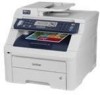
Brother International MFC-9320CW Software Users Manual - English
Brother International MFC-9320CW - Color LED - All-in-One Manual
 |
UPC - 012502622406
View all Brother International MFC-9320CW manuals
Add to My Manuals
Save this manual to your list of manuals |
Brother International MFC-9320CW manual content summary:
- Brother International MFC-9320CW | Software Users Manual - English - Page 1
SOFTWARE USER'S GUIDE MFC-9010CN MFC-9120CN MFC-9320CW Not all models are available in all countries. Version 0 USA - Brother International MFC-9320CW | Software Users Manual - English - Page 2
Brother International Corporation. Windows Vista is either a registered trademark or a trademark of Microsoft Corporation in the United registered in the United States and other Incorporated in the United States and/ its affiliates in the United States and/or other in Canada, the United States and/or - Brother International MFC-9320CW | Software Users Manual - English - Page 3
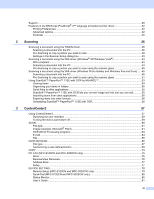
the Brother printer driver...2 Printing a document...3 Duplex printing...4 Guidelines for printing on both sides of the paper 4 Manual duplex printing ...4 Simultaneous scanning, printing and faxing 5 Printer operation keys...6 Job Cancel...6 Secure Key ...6 Printer Emulation Support ...7 Printing - Brother International MFC-9320CW | Software Users Manual - English - Page 4
Support ...28 Features in the BR-Script (PostScript® 3™ language emulation) printer driver 30 Printing Preferences ...30 Advanced options ...32 Ports tab ...35 2 Scanning 36 Scanning a document using the TWAIN driver 36 Scanning a document into the PC ...36 Pre-Scanning to crop a portion you - Brother International MFC-9320CW | Software Users Manual - English - Page 5
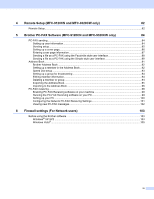
4 Remote Setup (MFC-9120CN and MFC-9320CW only) 82 Remote Setup...82 5 Brother PC-FAX Software (MFC-9120CN and MFC-9320CW only) 84 PC- file as a PC-FAX using the Simple style user interface 89 Address Book ...91 Brother Address Book ...92 Setting up a member in the Address Book 92 Speed Dial - Brother International MFC-9320CW | Software Users Manual - English - Page 6
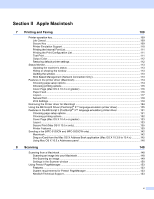
only 135 Printer Features...135 Sending a fax (MFC-9120CN and MFC-9320CW only 142 Macintosh ...142 Drag a vCard from the Mac OS X Address Book application (Mac OS X 10.3.9 to 10.4.x 145 Using Mac OS X 10.5.x Addresses panel 146 8 Scanning 148 Scanning from a Macintosh ...148 Scanning an image - Brother International MFC-9320CW | Software Users Manual - English - Page 7
User-defined button ...165 Scan to Image ...166 Scan to OCR ...167 Scan to E-mail ...168 Scan to File...169 COPY / PC-FAX (PC-FAX is on MFC-9120CN and MFC-9320CW only 170 DEVICE SETTINGS ...172 Remote Setup (MFC-9120CN and MFC-9320CW only 172 Quick-Dial (MFC-9120CN and MFC-9320CW only 173 Status - Brother International MFC-9320CW | Software Users Manual - English - Page 8
Macintosh 188 Using the Scan key...189 Scan to E-mail ...189 Scan to Image ...190 Scan to OCR ...191 Scan to File...192 Scan to FTP (MFC-9120CN and MFC-9320CW only 193 Scan to Network (MFC-9120CN and MFC-9320CW only 196 How to set a new default for the file size (For Scan to FTP and Network 199 - Brother International MFC-9320CW | Software Users Manual - English - Page 9
Section I Windows® I Printing 2 Scanning 36 ControlCenter3 57 Remote Setup (MFC-9120CN and MFC-9320CW only) 82 Brother PC-FAX Software (MFC-9120CN and MFC-9320CW only) 84 Firewall settings (For Network users) 103 - Brother International MFC-9320CW | Software Users Manual - English - Page 10
on the CD-ROM we have supplied. Install the drivers by following the Quick Setup Guide. The latest printer driver can also be downloaded from the Brother Solutions Center at: http://solutions.brother.com Windows® Printing The dedicated printer drivers for Microsoft® Windows® 2000 Professional/XP/XP - Brother International MFC-9320CW | Software Users Manual - English - Page 11
and envelopes. (See the User's Guide for information about the Paper Tray and Recommended paper.) a From your application, choose the Print command. If any other printer drivers are installed on your computer, choose Brother MFC-XXXX Printer* as your printer driver from the Print or Print Settings - Brother International MFC-9320CW | Software Users Manual - English - Page 12
, see Paper jams in the User's Guide. If you have a print quality problem, see Improving the print quality in the User's Guide. Manual duplex printing 1 The machine prints all the even-numbered pages on one side of the paper first. Then, the Windows® driver instructs you (with a pop-up message) to - Brother International MFC-9320CW | Software Users Manual - English - Page 13
, printing and faxing 1 1 Your machine can print from your computer while sending or receiving a fax in memory, or while scanning a document into the computer. Fax sending will not be stopped during PC printing. However, when the machine is copying or receiving a fax on paper, it - Brother International MFC-9320CW | Software Users Manual - English - Page 14
from the memory. To use this function, you need to set your password in the printer driver dialog box. If you turn the power switch Off, the secured data name. c Press a or b to choose the job. Press OK. Enter your four-digit password and press OK. d To print the data, press a or b to choose Print, - Brother International MFC-9320CW | Software Users Manual - English - Page 15
mode. The default setting is Auto laser printer. Many applications support this type of laser printer. Using this mode will allow your printer to run at its best with those applications. „ BR-Script 3 Mode BR-Script is an original Brother a (MFC-9120CN and MFC-9320CW) Press Menu, 4, 1. (MFC-9010CN) - Brother International MFC-9320CW | Software Users Manual - English - Page 16
printer settings. a (MFC-9120CN and MFC-9320CW) Press Menu, 4, 2, 2. (MFC-9010CN) Press Menu, 3, 2, 2. b Press Black Start or Color Start. The machine prints the settings. c Press Stop/Exit. Test Print 1 If you are having problems with print quality, you can do a test print. a (MFC-9120CN and MFC - Brother International MFC-9320CW | Software Users Manual - English - Page 17
Color/Mono on page 15. c Press OK. d Press Stop/Exit. Restoring default printer settings You can return the machine's printer settings to the factory settings. a (MFC-9120CN and MFC-9320CW) Press Menu, 4, 4. (MFC-9010CN) Press Menu, 3, 4. b To restore the default settings, press 1 to choose 1.Reset - Brother International MFC-9320CW | Software Users Manual - English - Page 18
the status of one or more devices, allowing you to get immediate notification of error messages such as paper empty or paper jam. You can check the device status at anytime by double-clicking the icon in the tasktray or by choosing Status Monitor located in Start/All Programs/Brother/MFC-XXXX on - Brother International MFC-9320CW | Software Users Manual - English - Page 19
„ Manual Duplex / Booklet „ Paper Source „ Scaling 1 „ Reverse Print „ Use Watermark 1 „ Header-Footer Print 1 „ Toner Save Mode „ Secure Print „ Administrator 1 „ User Authentication 1 „ Color Calibration „ Improve Print Output 1 These settings are not available with the BR-script printer driver - Brother International MFC-9320CW | Software Users Manual - English - Page 20
1 1 For more information, see the Help text in the printer driver. Note • The screens in this section are from Windows® XP. The screens on your PC will vary depending on your operating system. • You can access - Brother International MFC-9320CW | Software Users Manual - English - Page 21
, Print Quality and Color / Mono (1). b Choose the Multiple Page and Manual Duplex / Booklet (2). c Choose the Paper Source (3). d Confirm your current settings in the window (4). e Click OK to apply your chosen settings. To return to the default settings, click Default - Brother International MFC-9320CW | Software Users Manual - English - Page 22
„ Collate With the Collate check box selected, one complete copy of your document will be printed can use the following types of media in your printer. For the best print quality, select the type you use envelopes, choose Envelopes. If the toner is not fixed to the envelope correctly when Envelopes - Brother International MFC-9320CW | Software Users Manual - English - Page 23
this mode. „ Mono Select this mode if your document has only black and grayscale text and/or objects. If your document contains color, selecting Mono mode prints your document in 256 levels of gray. Note If the Cyan, Magenta or Yellow toner reaches the end of its life, choosing Mono will allow you - Brother International MFC-9320CW | Software Users Manual - English - Page 24
from the Basic tab. 1 1 „ Color Mode The following options are available in Color Matching mode: • Normal This is the default color mode. • Vivid The color of all elements are adjusted to become a more vivid color. • Auto The printer driver automatically selects the Color Mode type. • None If you - Brother International MFC-9320CW | Software Users Manual - English - Page 25
are different from the patterns and fills you see on your computer. „ Settings If you want to change the color settings such as brightness, contrast, intensity or saturation, click the Settings button to access more advanced settings. (1) (2) (3) (4) (5) (7) (6) (8) • Brightness (1) Moving - Brother International MFC-9320CW | Software Users Manual - English - Page 26
printed on one sheet of paper or enlarging the image size for printing one page on manual duplex printing, use this function. „ None Disable duplex printing. „ Manual Duplex In this mode, the printer prints all the even numbered pages first. Then the printer driver will stop and show the instructions - Brother International MFC-9320CW | Software Users Manual - English - Page 27
Source 1 1 You can choose Auto Select, Tray1 or Manual and specify separate trays for printing the first page and for printing from the second page onwards. Note The printer automatically turns on the Manual Feed mode when you put paper in the manual feed slot even if another setting is selected. 19 - Brother International MFC-9320CW | Software Users Manual - English - Page 28
Printing Advanced tab Change the tab settings by clicking one of the following icons: „ Scaling (1) „ Reverse Print (2) „ Use Watermark (3) „ Header-Footer Print (4) „ Toner Save Mode (5) „ Secure Print (6) „ Administrator (7) „ User Authentication (8) „ Other Print Options (9) Scaling You can - Brother International MFC-9320CW | Software Users Manual - English - Page 29
Printing Use Watermark 1 1 You can put a logo or text into your document as a watermark. You can choose one of the preset Watermarks, or you can use a bitmap file that you have created. Check Use Watermark and then click the Settings... button. Watermark Settings 1 - Brother International MFC-9320CW | Software Users Manual - English - Page 30
Enter a title you like in the field. „ Text Enter your Watermark Text into the Text box, and then choose the Font, Style, Size and Choose Color. „ Bitmap Enter the file name and location of your bitmap image in the File box, or click Browse to search for the file. You can - Brother International MFC-9320CW | Software Users Manual - English - Page 31
use with this feature. When you set Toner Save Mode to On, prints appears lighter. The default setting is Off. Note We do not recommend Toner Save Mode for printing photo or grayscale images. Secure Print 1 Secure documents are documents that are password protected when they are sent to the machine - Brother International MFC-9320CW | Software Users Manual - English - Page 32
into this box. Note Click Set Password... to change the password. „ Copies Lock Lock the copy pages selection to prevent multiple copy printing. „ Multiple Page & Scaling Lock Lock the scaling setting and multiple page setting. „ Color / Mono Lock Lock the Color / Mono settings as Mono to prevent - Brother International MFC-9320CW | Software Users Manual - English - Page 33
about Secure Function Lock 2.0, see the Network User's Guide on the CD-ROM we have supplied. Note color density by letting the printer driver use the color calibration data stored in your printer. „ Use Calibration Data If the printer driver successfully gets the calibration data, the printer driver - Brother International MFC-9320CW | Software Users Manual - English - Page 34
this setting. We recommend that you change the printer driver setting in Media Type to a thin setting. 1 1 Note This operation will decrease the temperature of the machine's fusing process. „ Improve Toner Fixing If you choose this setting, the toner fixing on paper may be improved. If this - Brother International MFC-9320CW | Software Users Manual - English - Page 35
the Start menu, select Control Panel and then Printers and Faxes. Right-click the Brother MFC-XXXX Printer icon and select Properties to access the Tray „ Serial No. (2) By clicking Auto Detect (3), the printer driver will probe the printer and display its serial number. If it fails to receive the - Brother International MFC-9320CW | Software Users Manual - English - Page 36
.com/) is a web site offering information about your Brother product including FAQs (Frequently Asked Questions), User's Guides, driver updates and tips for using your printer. „ Genuine Supplies Website (2) You can visit our website for original/genuine Brother supplies by clicking this button. 28 - Brother International MFC-9320CW | Software Users Manual - English - Page 37
Printing „ Print Settings (3) This will print the pages that show how the internal settings of the printer have been configured. 1 „ Check Setting (4) You can check the current driver settings. „ About (5) This will show the list of the printer driver files and version information. 29 - Brother International MFC-9320CW | Software Users Manual - English - Page 38
printer driver. Note The screens in this section are from Windows® XP. The screens on your PC may vary depending on your operating system. Printing Preferences 1 Note You can access the Printing Preferences dialog box by clicking Printing Preferences... in the General tab of the Brother MFC-XXXX - Brother International MFC-9320CW | Software Users Manual - English - Page 39
(tray or manual feed slot) that has a paper size defined in the printer driver that matches your document. Tray1 This setting will pull paper from Tray1. Manual Feed This setting will pull any size of paper from the Manual Feed Slot. • Color Choose how to print color graphics either Black & White or - Brother International MFC-9320CW | Software Users Manual - English - Page 40
with Device Font (the default) to use equivalent printer fonts for printing documents that contain TrueType fonts. This will permit faster printing; however, you might lose special characters not supported by the printer font. Click Download as Softfont to download TrueType fonts for printing - Brother International MFC-9320CW | Software Users Manual - English - Page 41
will be able to print them. Since the documents are secured at the printer, you must enter the password using the control panel of the printer. The secured document must have a Password and Job Name. „ Password Choose the password for your secured document that you send to the machine from the drop - Brother International MFC-9320CW | Software Users Manual - English - Page 42
. The printer driver will not adjust the color. „ Improve Grey Color You can improve the image of a shaded area. „ Enhance Black Printing If a black graphic cannot print correctly, choose this setting. „ Halftone Screen Lock Stops other applications from modifying the Halftone settings. The default - Brother International MFC-9320CW | Software Users Manual - English - Page 43
this setting. We recommend that you change the printer driver setting in Media Type to a thin setting. Note This operation will decrease the temperature of the machine's fusing process. • Improve Toner Fixing If you choose this setting, the toner fixing on paper may be improved. If this selection - Brother International MFC-9320CW | Software Users Manual - English - Page 44
.) Scanning a document using the TWAIN driver 2 The Brother MFL-Pro Suite software includes a TWAIN compliant scanner driver. TWAIN drivers meet installation to scan a document. Note The instructions for scanning in this Guide are for when you use ScanSoft™ PaperPort™ 11SE. The scanning steps may - Brother International MFC-9320CW | Software Users Manual - English - Page 45
scanner you are using from the Available Scanners list. Note Choose TWAIN: TW-Brother MFC-XXXX or TWAIN: TW-Brother MFC-XXXX LAN. 2 f Check the Display scanner dialog box on the Scan or Get Photo panel. g Click Scan. The Scanner Setup dialog box appears. h Adjust the following settings, if needed - Brother International MFC-9320CW | Software Users Manual - English - Page 46
, click the Start button in the Scanner Setup dialog box to scan the image. 2 a Follow the steps from a to g of Scanning a document into the PC on page 36. b Choose the settings for Scan (Image Type), Resolution, Scan Type, Brightness, Contrast and Document Size, as needed. c Click PreScan. The - Brother International MFC-9320CW | Software Users Manual - English - Page 47
The default settings are listed in the table below: Image Type Photo Web Text Resolution Use for scanning photo images. 300 x 300 dpi Use for attaching the scanned image to web pages. 100 x 100 dpi Use for scanning text documents. 200 x 200 dpi Scan Type 24bit Color 24bit Color Black & White - Brother International MFC-9320CW | Software Users Manual - English - Page 48
this selection. The Reduce Noise setting is available when using 24bit Color and scan resolutions of 300 × 300 dpi, 400 × 400 dpi or 600 × 600 dpi. Brightness 2 Adjust the setting (-50 to 50) to get the best image. The default value is 0, representing an average. You can set the Brightness level - Brother International MFC-9320CW | Software Users Manual - English - Page 49
Gray (Error Diffusion) or True Gray is chosen. When scanning photographs or other images for use in a word processor or other graphics application, try different settings for the contrast and resolution to see which setting best suits your needs. Document Size 2 Choose one - Brother International MFC-9320CW | Software Users Manual - English - Page 50
for the document. You can choose 'mm' or 'inch' as the unit for Width and Height. Note • You can see the actual paper size you chose on the screen. 2 • Width: shows the width of scanning area. • Height: shows the height of scanning area. • Data Size: shows the rough data size in Bitmap format - Brother International MFC-9320CW | Software Users Manual - English - Page 51
to scan a document. Note The instructions for scanning in this Guide are for when you use ScanSoft™ PaperPort™ 11SE. The scanning steps Note Choose WIA: Brother MFC-XXXX or WIA: Brother MFC-XXXX LAN. f Check the Display scanner dialog box on the Scan or Get Photo panel. g Click Scan. The Scanner - Brother International MFC-9320CW | Software Users Manual - English - Page 52
1 2 2 3 4 1 Paper source 2 Picture type 3 Adjust the quality of the scanned picture 4 Page size i Choose Document Feeder from the Paper source drop-down list (1). j choose a setting. Note The scanner resolution can be set as high as 1200 dpi. For resolutions greater than 1200 dpi, use the Scanner Utility - Brother International MFC-9320CW | Software Users Manual - English - Page 53
an image for cropping any unwanted portions from the image. When you are satisfied with the preview, click the Scan button in the Scan dialog box to scan the image. a Follow the steps from a to g of Scanning a document into the PC on page 43. b Choose Flatbed in the Paper source drop-down list - Brother International MFC-9320CW | Software Users Manual - English - Page 54
choose Brightness, Contrast, Resolution and Picture type from Advanced Properties. Click OK after you choose a setting. g Click the Scan button in the Scan dialog box. The machine starts scanning the document. This time only the chosen area of the document appears in the PaperPort™ 11SE window (or - Brother International MFC-9320CW | Software Users Manual - English - Page 55
the utility You can run the utility by choosing the Scanner Utility located in the Start/All Programs/Brother/MFC-XXXX (where XXXX is your model name)/ Scanner Settings/Scanner Utility. Note If you scan the document at a resolution greater than 1200 dpi, the file size may be very large. Make sure - Brother International MFC-9320CW | Software Users Manual - English - Page 56
Scanning Note (Windows Vista®) The User Account Control screen appears, do the following. • For users who have administrator rights: Click Allow. 2 • For users who do not have administrator rights: Enter the administrator password and click OK. 48 - Brother International MFC-9320CW | Software Users Manual - English - Page 57
the document, you need to use the scanner glass. (See Pre-Scanning to crop a portion you want to scan using the scanner glass on page 51.) a Load your document. b Open your software application to scan the document. c Do one of the following: „ (Windows Photo Gallery) Click File, then Import from - Brother International MFC-9320CW | Software Users Manual - English - Page 58
Scanning 4 Color format 5 File type 6 Resolution 7 Brightness 2 8 Contrast Note The scanner resolution can be set as high as 1200 dpi. For resolutions greater than 1200 dpi, use the Scanner Utility. For more information, see Scanner Utility on page 47. g Click the Scan button in the Scan - Brother International MFC-9320CW | Software Users Manual - English - Page 59
drop-down list. Adjust the following settings, if needed, in the Scanner dialog box. (1) (2) (3) (8) (4) (5) (6) (7) 1 Profile 2 Source 3 Color format 4 File type 5 Resolution 6 Brightness 7 Contrast 8 Scanning area d Click Preview. The whole image is scanned into the PC and appears in the - Brother International MFC-9320CW | Software Users Manual - English - Page 60
Scanning e Press and hold down the left mouse button and drag it over the portion you want to scan. 2 f Click the Scan button in the Scan dialog box. The machine starts scanning the document. This time only the chosen area of the document appears in your application window. 52 - Brother International MFC-9320CW | Software Users Manual - English - Page 61
Note ScanSoft™ PaperPort™ 11SE supports Windows® 2000 (SP4 or greater), XP (SP2 or greater), XP 2 Professional x64 Edition and Windows Vista® only. ScanSoft™ PaperPort™ 11SE for Brother is a document management application. You can use PaperPort™ 11SE to view scanned documents. PaperPort™ 11SE - Brother International MFC-9320CW | Software Users Manual - English - Page 62
Scanning Viewing items 2 ScanSoft™ PaperPort™ 11SE gives several ways to view items: Desktop displays the item in the chosen folder with a thumbnail (a small graphic that shows - Brother International MFC-9320CW | Software Users Manual - English - Page 63
Scanning Organizing your items in folders 2 PaperPort™ 11SE has an easy-to-use the item to the preferred format. If PaperPort™ 11SE does not automatically recognize one of the applications on your PC, you can manually create a link using the New Program Link command. ScanSoft™ PaperPort™ 11SE with - Brother International MFC-9320CW | Software Users Manual - English - Page 64
Importing items from other applications 2 As well as scanning items, you can bring items into PaperPort™ 11SE in a variety of ways and convert them to PaperPort™ 11SE (MAX) files in several different ways: „ Print - Brother International MFC-9320CW | Software Users Manual - English - Page 65
applications. Using ControlCenter3 eliminates the need to manually launch specific applications. ControlCenter3 has the following operations: a Scan directly to a file, E-mail, word window for each function and a link to the Brother Solutions Center by clicking the Configuration button. (7) 57 - Brother International MFC-9320CW | Software Users Manual - English - Page 66
, you need to install Adobe® Flash® Player 8 or greater. If you do not have Flash® Player 8 or greater, you will be prompted so you can download the latest Flash® Player. 58 - Brother International MFC-9320CW | Software Users Manual - English - Page 67
ControlCenter3 Switching the user interface You can choose the Modern or Classic user interface for ControlCenter3. a To switch the user interface, click Configuration button and select SETUP then SKIN SELECT. b From the SKIN SELECT dialog, you can choose your preferred user interface. 3 3 Turning - Brother International MFC-9320CW | Software Users Manual - English - Page 68
such as Microsoft® Notepad, Microsoft® Word, Corel® WordPerfect® or any word processing application on your PC. „ E-mail (Default: your default E-mail software) Lets you scan a page or document directly into an E-mail application as a standard attachment. You can choose the file type and resolution - Brother International MFC-9320CW | Software Users Manual - English - Page 69
Vista® or when using applications which support XML Paper Specification files. • If Scan to Image, Scan to E-mail and Scan to File. Image (example: Microsoft® Paint) 3 The Scan to Image feature lets you scan an image directly into your graphics application for image editing. To change the default - Brother International MFC-9320CW | Software Users Manual - English - Page 70
Type list, click the icon to open the Set PDF Password dialog box. Enter your password in the Password and Re-type Password box and then click OK. After the password is saved it will be automatically be saved with your document the next time you scan to a Secure PDF. If you want to change it - Brother International MFC-9320CW | Software Users Manual - English - Page 71
a document and converts it into text. This text can be edited using your favorite word processing software. To configure Scan to OCR, right-click the OCR button, click ControlCenter Configuration and click the Software Button tab. 3 To change the word processing application, choose the destination - Brother International MFC-9320CW | Software Users Manual - English - Page 72
to E-mail lets you scan a document to your default E-mail application, so you can send the scanned job as an attachment. To change the default E-mail application or attachment file type, right-click the E-mail button, click ControlCenter Configuration and click the Software Button tab. 3 To change - Brother International MFC-9320CW | Software Users Manual - English - Page 73
ControlCenter3 File 3 The Scan to File button lets you scan an image to a folder on your hard disk in one of the file to the default folder shown in the Destination Folder, or choose your preferred folder by clicking the icon. To display where the scanned image is saved when scanning is finished, - Brother International MFC-9320CW | Software Users Manual - English - Page 74
. You can also choose the file attachment type and create a quick send list of E-mail addresses chosen from your E-mail address book. „ Scan to File Lets you save a scanned image to any folder on a local or network hard disk. You can also choose the file type to be used. Modern 3 Classic 3 66 - Brother International MFC-9320CW | Software Users Manual - English - Page 75
) „ Secure PDF (*.pdf) „ XML Paper Specification (*.xps) Note • The XML Paper Specification is available for Windows Vista® or when using applications which support XML Paper Specification files. • If you set the file type to TIFF or TIFF Multi-Page, you can choose "Uncompressed" or "Compressed - Brother International MFC-9320CW | Software Users Manual - English - Page 76
Customizing a user-defined button 3 To configure a button, right-click the button, then click the ControlCenter Configuration button to see the configuration window. Scan to Image „ General tab 3 3 To create the button name, enter a name in the Please enter a name for the Custom Button text field - Brother International MFC-9320CW | Software Users Manual - English - Page 77
a Secure PDF. If you want to change it, click the icon and set the new password. 3 Note Secure PDF is also available for Scan to E-mail and Scan to File. Scan to OCR 3 „ General tab To create the button name, enter a name in the Please enter a name for the Custom Button text field (up - Brother International MFC-9320CW | Software Users Manual - English - Page 78
ControlCenter3 „ Settings tab Choose the Target Application, File Type, OCR Software, OCR Language, Resolution, Scan Type, Document Size, Brightness and Contrast settings. 3 Scan to E-mail 3 „ General tab To create the button name, enter a name in the Please enter a name for the Custom Button - Brother International MFC-9320CW | Software Users Manual - English - Page 79
ControlCenter3 „ Settings tab Choose the E-mail Application, File Type, Resolution, Scan Type, Document Size, Brightness and Contrast settings. 3 Scan to File 3 „ General tab To create the button name, enter a name in the Please enter a name for the Custom Button text field (up to 30 - Brother International MFC-9320CW | Software Users Manual - English - Page 80
the File Type drop-down list. Save the file to the default folder which is shown in the Destination Folder box or choose your preferred folder by clicking the icon. Check Show Folder to show where the scanned image is saved after scanning. Check Show Save As Window to specify the destination of - Brother International MFC-9320CW | Software Users Manual - English - Page 81
COPY 3 Lets you use the PC and any printer driver for enhanced copy operations. You can scan a page on the machine and print copies using any of the features of the machine's printer driver, or you can direct the copy output to any standard printer driver installed on the PC including network - Brother International MFC-9320CW | Software Users Manual - English - Page 82
ControlCenter3 3 Note You must configure each of the copy buttons before they can be used. 74 - Brother International MFC-9320CW | Software Users Manual - English - Page 83
PC-FAX (MFC-9120CN and MFC-9320CW only) 3 The PC-FAX option lets you send and receive faxes. You can also configure the address book and change some general machine settings. These buttons are for sending or receiving faxes using the Brother PC-FAX application. „ Send 3 Lets you scan a page or - Brother International MFC-9320CW | Software Users Manual - English - Page 84
right-click the Send button and click ControlCenter Configuration. You can change the Resolution, Scan Type, Document Size, Show Scanner Interface, Brightness and Contrast settings. 3 Receive/View Received 3 The Brother PC-FAX Receiving software option lets you view and store your faxes on your - Brother International MFC-9320CW | Software Users Manual - English - Page 85
add, amend or delete contacts from your address book. To edit this address book, click the Address Book button to open the dialog box. (See Brother Address Book on page 92.) Setup 3 By clicking the Setup button, you can configure the user settings of the PC-FAX application. (See Setting up - Brother International MFC-9320CW | Software Users Manual - English - Page 86
82.) „ Quick-Dial (MFC-9120CN and MFC-9320CW only) Lets you open the Set Quick-Dial window of Remote Setup. (See Remote Setup on page 82.) „ Status Monitor Allows you to open the Status Monitor Utility. (See Status Monitor on page 10.) „ User's Guide Lets you view the User's Guide, the Software User - Brother International MFC-9320CW | Software Users Manual - English - Page 87
ControlCenter3 Remote Setup (MFC-9120CN and MFC-9320CW only) 3 The Remote Setup button lets you open the Remote Setup Program window to configure most machine and network setting menus. Note 3 For details, see Remote Setup on page 82. 79 - Brother International MFC-9320CW | Software Users Manual - English - Page 88
-Dial (MFC-9120CN and MFC-9320CW only) 3 The Quick-Dial button lets you open the Address Book window in the Remote Setup Program. You can then easily register or change the Quick-Dial numbers from your PC. 3 Status Monitor 3 The Status Monitor button allows you to monitor the status of one or more - Brother International MFC-9320CW | Software Users Manual - English - Page 89
ControlCenter3 User's Guide 3 The User's Guide button lets you view the Software User's Guide and the Network User's Guide in HTML format. 3 81 - Brother International MFC-9320CW | Software Users Manual - English - Page 90
All Programs, Brother, MFC-XXXX (or MFC-XXXX LAN) and Remote Setup. 4 Note • If your machine is connected via a Network, you have to enter your password. • The default password is "access". You can use BRAdmin Light or Web Based Management to change this password. (See the Network Users Guide for - Brother International MFC-9320CW | Software Users Manual - English - Page 91
Remote Setup (MFC-9120CN and MFC-9320CW only) „ Print Lets you print the chosen items on the machine. You cannot print the data until it is uploaded to the machine. Click - Brother International MFC-9320CW | Software Users Manual - English - Page 92
send Black & White fax documents. Setting up user information 5 Note You can access User Information from the FAX Sending dialog box by clicking the icon. (See Sending a file as a PC-FAX using the Facsimile style user interface on page 88.) a Click the Start button, All Programs, Brother, MFC - Brother International MFC-9320CW | Software Users Manual - English - Page 93
PC-FAX Software (MFC-9120CN and MFC-9320CW only) c Click OK to save the User Information. Note You can set up the User Information separately for each Windows® account. Sending setup From the Brother PC-FAX Setup dialog box, click the Sending tab to display the screen below. 5 5 „ Outside line - Brother International MFC-9320CW | Software Users Manual - English - Page 94
PC-FAX Software (MFC-9120CN and MFC-9320CW only) „ User interface Choose the user interface from two choices: Simple style or Facsimile style. Simple style Facsimile style 5 5 5 Setting up a cover page 5 From the PC-FAX dialog box, click the icon to access the Brother PC-FAX Cover Page Setup - Brother International MFC-9320CW | Software Users Manual - English - Page 95
Brother PC-FAX Software (MFC-9120CN and MFC-9320CW only) Entering cover page information 5 Note If you are sending a fax to more than one recipient, the recipient information will not be printed on the cover page. „ To Choose the recipient information you want to add to the cover page. „ - Brother International MFC-9320CW | Software Users Manual - English - Page 96
PC-FAX Software (MFC-9120CN and MFC-9320CW only) Sending a file as a PC-FAX using the Facsimile style user interface 5 a Create a file in any application on your PC. b Click File, then Print. The Print dialog box appears: 5 c Choose Brother PC-FAX v.2 as your printer, and then click Print. The - Brother International MFC-9320CW | Software Users Manual - English - Page 97
Brother PC-FAX Software (MFC-9120CN and MFC-9320CW only) e To include a cover page, click Cover Page On your PC. b Click File, then Print. The Print dialog box appears: c Choose Brother PC-FAX v.2 as your printer, and then click Print. The Simple style user interface appears: Note If the Facsimile - Brother International MFC-9320CW | Software Users Manual - English - Page 98
Brother PC-FAX Software (MFC-9120CN and MFC-9320CW only) d Enter the fax number using any of the following methods: „ Enter the fax number in the To: field. „ Click the To: button, and - Brother International MFC-9320CW | Software Users Manual - English - Page 99
MFC-9120CN and MFC-9320CW only) Address Book 5 If Outlook or Outlook Express is installed on your PC, you can choose in the Select Address Book pull-down which address book to use for PC-FAX sending. There are four types: Brother Outlook 2000, 2002, 2003 or 2007 as your default E-mail application. 91 - Brother International MFC-9320CW | Software Users Manual - English - Page 100
PC-FAX Software (MFC-9120CN and MFC-9320CW only) Brother Address Book 5 a Click the Start button, All Programs, Brother, MFC-XXXX or MFC-XXXX LAN (where XXXX is your model name), PC-FAX sending, then PC-FAX Address Book. The Brother Address Book dialog box appears: 5 Setting up a member in the - Brother International MFC-9320CW | Software Users Manual - English - Page 101
-FAX Software (MFC-9120CN and MFC-9320CW only) Speed Dial setup 5 From the Brother PC-FAX Setup dialog box, click the Speed Dial tab. (To use this feature, you must choose the Facsimile style user interface.) 5 You can register a - Brother International MFC-9320CW | Software Users Manual - English - Page 102
PC-FAX Software (MFC-9120CN and MFC-9320CW only) Setting up a group for broadcasting 5 You can create a group to send the same PC-FAX to several recipients at one time. a In the Brother Address Book dialog box, click the icon to create a Group. The Brother Address Book Group Setup dialog box - Brother International MFC-9320CW | Software Users Manual - English - Page 103
Brother PC-FAX Software (MFC-9120CN and MFC-9320CW only) Exporting the Address Book 5 You can the member. 5 • If you choose vCard in step a, Save as type: will be vCard (*.vcf). a Do one of the following: „ From the Address Book, click File, Export, then Text. „ From the Address Book, click File - Brother International MFC-9320CW | Software Users Manual - English - Page 104
Brother PC-FAX Software (MFC-9120CN and MFC-9320CW only) e Enter the name of the file, and then click Save. 5 Importing to the Address Book 5 You can import ASCII text files (*.csv), vCards ( - Brother International MFC-9320CW | Software Users Manual - English - Page 105
Brother PC-FAX Software (MFC-9120CN and MFC-9320CW only) e Enter the name of the file, and then click Open. 5 Note If you chose Text file in step a, Files of type: will be Text file (*.txt; *.csv). 97 - Brother International MFC-9320CW | Software Users Manual - English - Page 106
Brother PC-FAX Software (MFC-9120CN and MFC-9320CW only) PC-FAX receiving 5 Note • The PC-FAX software can only receive Black & White fax documents. • be sent to your PC. If you turn your PC off, your machine will continue to receive and store your faxes in its memory. The machine LCD will display - Brother International MFC-9320CW | Software Users Manual - English - Page 107
Brother PC-FAX Software (MFC-9120CN and MFC-9320CW only) Enabling PC-FAX Receiving software on your machine 5 You can Receiving software on your PC 5 Click the Start button, All Programs, Brother, MFC-XXXX/MFC-XXXX LAN, PC-FAX Receiving and Receive. The PC-FAX icon appears in your PC tasktray. 99 - Brother International MFC-9320CW | Software Users Manual - English - Page 108
Brother PC-FAX Software (MFC-9120CN and MFC-9320CW only) Setting up your PC 5 a Right-click the PC -FAX files are saved. c In File Format, choose .tif or .max as the received document format. The default format is .tif. d To play wave files (.wav sound files) when receiving a fax, check Play wave - Brother International MFC-9320CW | Software Users Manual - English - Page 109
Brother PC-FAX Software (MFC-9120CN and MFC-9320CW only) Configuring the Network PC-FAX Receiving Settings 5 The settings to send received faxes to your computer were automatically configured during the installation of MFL-Pro Suite (see the Quick Setup Guide). If you are using a different machine - Brother International MFC-9320CW | Software Users Manual - English - Page 110
Brother PC-FAX Software (MFC-9120CN and MFC-9320CW only) Viewing new PC-FAX messages 5 Each time your PC is receiving a PC-FAX, the icon will alternate between and . Once the fax has - Brother International MFC-9320CW | Software Users Manual - English - Page 111
PC-Fax Network Scanning and Network PC-Fax 1 6 External Port number 54925 54926 137 Internal Port number 54925 54926 137 1 Add Port number 137 if you still have trouble with your network connection after you added port 54925 and 54926. Port number 137 also supports printing and Remote - Brother International MFC-9320CW | Software Users Manual - English - Page 112
Network users) d Add port 54925 for network scanning by entering the information below: 1 In Description of service: Enter any description, for example "Brother Scanner". 2 In Name or IP address (for example 192.168.0.12) of the computer hosting this service on your network: Enter "Localhost". 3 In - Brother International MFC-9320CW | Software Users Manual - English - Page 113
scanning, network printing and Network PC-Fax receiving by entering the information below: 1 In Description of service: Enter any description, for example "Brother rights: Click Continue. 6 6 „ For users who do not have administrator rights: Enter the administrator password and click OK - Brother International MFC-9320CW | Software Users Manual - English - Page 114
users) d Click the Exceptions tab. 6 e Click the Add port... button. f To add port 54925 for network scanning, enter the information below: 1 In Name: Enter any description, for example "Brother Scanner". 2 In Port number: Enter "54925". 3 Make sure UDP is selected. Then, click OK. g Click the - Brother International MFC-9320CW | Software Users Manual - English - Page 115
Firewall settings (For Network users) i Make sure that the new setting is added and is checked, and then click OK. j If you still have trouble with your network connection such as Network Scanning or Printing, check File and Printer Sharing box in the Exceptions tab and then click OK. 6 107 - Brother International MFC-9320CW | Software Users Manual - English - Page 116
Section II Apple Macintosh II Printing and Faxing 109 Scanning 148 ControlCenter2 156 Remote Setup 174 - Brother International MFC-9320CW | Software Users Manual - English - Page 117
is entered. After the document is printed, the data will be cleared from the memory. To use this function, you need to set your password in the printer driver dialog box. a Press Secure. Note If the LCD displays No Data Stored, there is no secured data in the memory. b Press a or b to choose - Brother International MFC-9320CW | Software Users Manual - English - Page 118
which this printer supports the PCL6 language of a Hewlett-Packard LaserJet laser printer. Many applications support this type of laser printer. Using this mode will allow your printer to run at its best with those applications. „ BR-Script 3 Mode BR-Script is an original Brother page description - Brother International MFC-9320CW | Software Users Manual - English - Page 119
You can print a list of current printer settings. a (MFC-9120CN and MFC-9320CW) Press Menu, 4, 2, 2. (MFC-9010CN) Press Menu, 3, 2, 2. b Press Black Start or Color Start. The machine prints the settings. c Press Stop/Exit. 7 7 Test Print 7 If you are having problems with print quality, you can do - Brother International MFC-9320CW | Software Users Manual - English - Page 120
choose the color settings. a (MFC-9120CN and MFC-9320CW) Press Menu, 4, 3. (MFC-9010CN) Press Menu, 3, 3. b Press a or b to choose Auto, Color or B&W. Note For more information about the color settings, see Print Settings on page 119. c Press OK. d Press Stop/Exit. Restoring default printer settings - Brother International MFC-9320CW | Software Users Manual - English - Page 121
Status Monitor icon in the DeviceSettings tab of ControlCenter2 or by choosing Brother Status Monitor located in Macintosh HD/Library/Printers/Brother/Utilities. Updating the machine's status 7 If you want the Web Based Management System, see Web Based Management in the Network User's Guide. 113 - Brother International MFC-9320CW | Software Users Manual - English - Page 122
Printing and Faxing Features in the printer driver (Macintosh) 7 This printer supports Mac OS X 10.3.9 or greater. Note The screens in this section are from Mac OS X 10.5. The screens on your Macintosh will vary depending on your operating system version. Choosing page setup options 7 You can set - Brother International MFC-9320CW | Software Users Manual - English - Page 123
Printing and Faxing „ (Mac OS X 10.5.x) For more page setup options, click the disclosure triangle beside the Printer pop-up menu. Choosing printing options To control special printing features, choose Print Settings from the Print dialog box. 7 7 115 - Brother International MFC-9320CW | Software Users Manual - English - Page 124
Printing and Faxing Cover Page (Mac OS X 10.4.x or greater) 7 You can make the following cover page settings: „ Billing Info box. Paper Feed 7 7 You can choose Auto Select, Tray1 or Manual, and specify separate trays for printing the first page and for printing from the second page onwards. 116 - Brother International MFC-9320CW | Software Users Manual - English - Page 125
pages per sheet, you can also specify the direction of the layout. „ Border If you want to add a border, use this function. „ Reverse Page Orientation (Mac OS X 10.5.x) Check Reverse Page Orientation to reverse the data from up to down. 117 - Brother International MFC-9320CW | Software Users Manual - English - Page 126
using the control panel of the machine to print them. To send a secured document: a Check Secure Print. b Enter your password, user name and job name and click Print. c You must print the secured document from the control panel of the machine. (See Secure Key on - Brother International MFC-9320CW | Software Users Manual - English - Page 127
7 You can change settings by choosing a setting in the Print Settings list: Basic tab 7 „ Media Type You can change the media type to one of the following: • Plain Paper • Thin Paper • Thick Paper • Thicker Paper • Bond Paper • Recycled Paper • Envelopes • Env. Thick • Env. Thin • Label „ Print - Brother International MFC-9320CW | Software Users Manual - English - Page 128
.brother.com) and our web site for original/genuine Brother supplies by clicking the Support button. The Brother Solutions Center is a web site offering information about your Brother product including FAQs (Frequently Asked Questions), User's Guides, driver updates and tips for using your printer - Brother International MFC-9320CW | Software Users Manual - English - Page 129
is the Default color mode. • Vivid The color of all elements are adjusted to become a more vivid color. • None If you want to apply the color management settings of your application, choose this setting. The printer driver will not adjust the color. „ Enhance Black Printing If a black graphic cannot - Brother International MFC-9320CW | Software Users Manual - English - Page 130
this setting, the toner fixing on paper may be improved. If this selection does not provide enough improvement, select Thicker Paper in Media Type settings. Note This operation will increase the temperature of the machine's fusing process. „ Settings If you want to change the color settings such as - Brother International MFC-9320CW | Software Users Manual - English - Page 131
Printing and Faxing Duplex Printing 7 „ Manual duplex Select Paper Handling. • (Mac OS X 10.3.9 to 10.4.x) Choose Even numbered pages and print, and then choose Odd numbered pages and print. 7 • (Mac OS X 10.5.x) Choose Even Only and print, and then choose Odd Only and print. 123 - Brother International MFC-9320CW | Software Users Manual - English - Page 132
Setup Utility (from the Go menu, choose Applications, Utilities), then choose the printer you want to remove and remove it by clicking the Delete button. e Restart the Macintosh. For Mac OS X 10.5 a (USB cable users) If you are using a USB cable, disconnect it from your machine. (Network users - Brother International MFC-9320CW | Software Users Manual - English - Page 133
BR-Script3 printer driver using the following instructions. Note If you use a USB cable and Mac OS, only one printer driver for a machine can be registered in Printer Setup Utility (Mac OS X 10.3.9 to 10.4.x) or Print & Fax in System Preferences (Mac OS X 10.5.x). If a Brother Laser driver is - Brother International MFC-9320CW | Software Users Manual - English - Page 134
Printing and Faxing c Open the Printer Setup Utility icon. d Click Add. 7 (Mac OS X 10.3.9) Go to step e. (Mac OS X 10.4.x) Go to step f. e Choose USB. 126 - Brother International MFC-9320CW | Software Users Manual - English - Page 135
f Choose the printer name and make sure that Brother is shown in Printer Model (Print Using). Select the printer name that shows BR-Script in the Model Name (Model), and then click Add. (Mac OS X 10.3.9) (Mac OS X 10.4.x) 7 g Choose Quit Printer Setup Utility from the Printer Setup Utility menu - Brother International MFC-9320CW | Software Users Manual - English - Page 136
Printing and Faxing „ (Mac OS X 10.5.x) a Choose System Preferences from the Apple menu. b Click the Print & Fax icon. 7 c Click the + button which is located below the Printers section. 128 - Brother International MFC-9320CW | Software Users Manual - English - Page 137
Printing and Faxing d Click the Default icon which is located at the top of the dialog box. e Choose your machine from the Printer Name list and Select a driver to use... in Print Using. 7 f Choose the model name which shows BR-Script3 in Print Using, and then click Add. 129 - Brother International MFC-9320CW | Software Users Manual - English - Page 138
Printing and Faxing g Choose Quit System Preferences from the System Preferences menu. 7 130 - Brother International MFC-9320CW | Software Users Manual - English - Page 139
Features in the BR-Script 3 (PostScript® 3™ language emulation) printer driver 7 Choosing page setup options 7 You can set the Paper Size, Orientation and Scale. a From an application such as Apple TextEdit, click File, then Page Setup. Make sure MFC-XXXX (where XXXX is your model name) is chosen in - Brother International MFC-9320CW | Software Users Manual - English - Page 140
Printing and Faxing „ (Mac OS X 10.5.x) For more page setup options, click the disclosure triangle beside the Printer pop-up menu. Choosing printing options To control special printing features, choose Printer Features from the Print dialog box. 7 7 132 - Brother International MFC-9320CW | Software Users Manual - English - Page 141
Printing and Faxing Cover Page (Mac OS X 10.4.x or greater) 7 You can make the following cover page settings: „ Print Cover Page If you want to add a cover page to your document, - Brother International MFC-9320CW | Software Users Manual - English - Page 142
If you want to add a border, use this function. „ Reverse Page Orientation (Mac OS X 10.5.x) Check Reverse Page Orientation to reverse the data from up to down. Duplex Printing „ Manual duplex Select Paper Handling. (Mac OS X 10.3.9 to 10.4.x) Choose Even numbered pages and print, and then choose - Brother International MFC-9320CW | Software Users Manual - English - Page 143
a secure print job, click Secure Print and check the Secure Print box. Enter a password 7 in the Password box and click Print. (For more information about Secure Print, See Secure Key on page 109.) Printer Features 7 (Mac OS X 10.3.9 to 10.4.x) Feature Sets: Set 1 „ Print Quality You can choose the - Brother International MFC-9320CW | Software Users Manual - English - Page 144
secured document that you sent to the machine, from the drop-down list. „ Toner Save You can conserve toner using this feature. When you check Toner Save Mode, your prints appear lighter. The default setting is Off. Note We do not recommend Toner Save for printing photo or gray scale images. 136 - Brother International MFC-9320CW | Software Users Manual - English - Page 145
follows: • Normal This is the Default color mode. • Vivid The color of all elements are adjusted to become a more vivid color. • None If you want to apply the setting of the application, choose this setting. The printer driver does not adjust the color. „ Improve Gray Color You can improve the image - Brother International MFC-9320CW | Software Users Manual - English - Page 146
this setting. We recommend that you change the printer driver setting in Media Type to a thin setting. Note This operation will decrease the temperature of the machine's fusing process. • Improve Toner Fixing If you choose this setting, the toner fixing on paper may be improved. If this selection - Brother International MFC-9320CW | Software Users Manual - English - Page 147
Printing and Faxing (Mac OS X 10.5.x) Feature Sets: General 1 „ Print Quality 7 You can data transfer time and printing time will be longer. „ Media Type You can change the media type to one of the following: • Plain Paper • Thin Paper • Thick Paper • Thicker Paper • Bond Paper • Recycled - Brother International MFC-9320CW | Software Users Manual - English - Page 148
: • Normal This is the Default color mode. • Vivid The color of all elements are adjusted to become a more vivid color. • None If you want to apply the setting of the application, choose this setting. The printer driver does not adjust the color. „ Improve Gray Color You can improve the image - Brother International MFC-9320CW | Software Users Manual - English - Page 149
this setting. We recommend that you change the printer driver setting in Media Type to a thin setting. Note This operation will decrease the temperature of the machine's fusing process. • Improve Toner Fixing If you choose this setting, the toner fixing on paper may be improved. If this selection - Brother International MFC-9320CW | Software Users Manual - English - Page 150
a fax (MFC-9120CN and MFC-9320CW only) Macintosh You can send a fax directly from a Macintosh application. Note Fax documents will be sent in Black and White only. a Create a document in a Macintosh application. b From an application such as Apple TextEdit, click File, then Print. „ (Mac OS X 10 - Brother International MFC-9320CW | Software Users Manual - English - Page 151
Printing and Faxing „ (Mac OS X 10.5.x) For more page setup options, click the disclosure triangle beside the Printer pop-up menu. 7 c Choose Send Fax from the pop-up menu. 143 - Brother International MFC-9320CW | Software Users Manual - English - Page 152
number in the Input Fax Number box, and then click Print to send the fax. Note If you want to send a fax to more than one number, click Add after entering the first fax number. The destination fax numbers will be listed in the dialog box. 144 - Brother International MFC-9320CW | Software Users Manual - English - Page 153
OS X 10.3.9 to 10.4.x) 7 You can address a fax number using a vCard (an electronic business card) from the Mac OS X Address Book application. a Click Address Book. b Drag a vCard from the Mac OS X Address Book application to the Destination Fax Numbers field. 7 Note If both work and home fax numbers - Brother International MFC-9320CW | Software Users Manual - English - Page 154
Printing and Faxing c When you are finished addressing your fax, click Print. Note The vCard used must contain a work fax or home Fax number. Using Mac OS X 10.5.x Addresses panel You can address a fax number using Addresses button. a Click Addresses. 7 7 146 - Brother International MFC-9320CW | Software Users Manual - English - Page 155
Printing and Faxing b Choose the fax number from Addresses panel and then click To. c When you are finished addressing your fax, click Print. 7 147 - Brother International MFC-9320CW | Software Users Manual - English - Page 156
HD/Library/Printers/Brother/Utilities/DeviceSelector or from the Model pop-up menu of ControlCenter2. Run your Macintosh TWAIN-compliant application. The first time you use the Brother TWAIN driver, set it as the default driver by choosing Select Source. For each document you scan after this - Brother International MFC-9320CW | Software Users Manual - English - Page 157
document in the ADF again. Note If you put the document on the scanner glass in step a, skip this step. e Adjust the settings for Resolution, Scan Type, Brightness and Contrast in the Scanner Setup dialog box as needed. f Click Start. This time only the chosen area of the document appears in - Brother International MFC-9320CW | Software Users Manual - English - Page 158
Yes No No No No No True Gray/24 Bit Color Yes Yes Yes Yes Yes Yes Yes Yes 8 Yes Yes Yes Scan Type 8 „ Black & White Use for text or line art images. „ Gray (Error Diffusion) Use for photographic images or graphics. (Error Diffusion is a method for creating simulated gray images - Brother International MFC-9320CW | Software Users Manual - English - Page 159
Choose one of the following document sizes: „ A4 „ JIS B5 „ Letter „ Legal 8 „ A5 „ Executive „ Business Card To scan mm to 215.9 × 355.6 mm.) After you choose a custom size, you can adjust the scanning area. Click and hold the mouse button as you drag the mouse to crop the image. Width - Brother International MFC-9320CW | Software Users Manual - English - Page 160
the document again. If the image is too dark, set a higher Brightness level and scan the document again. 8 Note The Brightness setting is only available if you have set Scan Type to Black & White, Gray (Error Diffusion) or True Gray. „ Contrast You can increase or decrease the contrast level by - Brother International MFC-9320CW | Software Users Manual - English - Page 161
Guide. Note The complete NewSoft Presto! PageManager 7 User's Guide can be viewed from the Help icon in NewSoft Presto! PageManager 7. Features 8 „ OCR: In one step you can scan ! PageManager 8 „ Mac OS X 10.3.9 or disk space for installation NewSoft Technical Support 8 For USA Company name: - Brother International MFC-9320CW | Software Users Manual - English - Page 162
Scanning For Canada E-mail Address: Germany Company name: Postal Address: Telephone: E-mail Address: URL: UK Company name: Postal Address: Telephone: Fax: E-mail Address: URL: France Company - Brother International MFC-9320CW | Software Users Manual - English - Page 163
Scanning Spain Company name: Postal Address: Telephone: E-mail Address: Other countries E-mail Address: 5CA Not Open 0807505598 (For callers from within Spain only, this is not a - Brother International MFC-9320CW | Software Users Manual - English - Page 164
your often used applications. Using ControlCenter2 eliminates the need to manually launch specific applications. The icon will appear on the ControlCenter2 has a Scan directly to a file, E-mail, word processor or graphics application of your choice. (1) b Custom Scan buttons let you configure - Brother International MFC-9320CW | Software Users Manual - English - Page 165
preference window appears. b Uncheck Start ControlCenter on computer startup. c Click OK to close the window. Note The ControlCenter2 application icon is in Macintosh HD/Library/Printers/Brother/Utilities/ControlCenter. 9 157 - Brother International MFC-9320CW | Software Users Manual - English - Page 166
® Word or any word processing application on your Macintosh. You must have Presto! PageManager installed on your Macintosh. „ E-mail (Default: your default E-mail software) Lets you scan a page or document directly into an E-mail application as a standard attachment. You can choose the file type and - Brother International MFC-9320CW | Software Users Manual - English - Page 167
Compressed". • Secure PDF is available for Scan to Image, Scan to E-mail and Scan to File. Image (example: Apple Preview) 9 9 The Scan To Image feature lets you scan an image directly into your graphics application for image editing. To change the default settings, click the button while holding - Brother International MFC-9320CW | Software Users Manual - English - Page 168
choose Secure PDF from the File Type list, the Set PDF Password dialog box appears. Enter your password in the Password and Re-type Password box and then click OK. Note • Secure PDF is also available for Scan to E-mail and Scan to File. • Secure PDF is available for Mac OS 10.4. X or greater. 160 - Brother International MFC-9320CW | Software Users Manual - English - Page 169
To OCR converts the graphic page image data into text which can be edited by any word processing application. You can change the default word processing application. To configure Scan To OCR, click the button while holding down the Ctrl key and choose Software Button. 9 To change the word processing - Brother International MFC-9320CW | Software Users Manual - English - Page 170
mail applications will appear in the pop-up menu. If you are having trouble using a custom application with ControlCenter2 you should choose an application from the list. If you want to scan and then crop a portion of a page after pre-scanning the document, check the Show Scanner Interface box. 162 - Brother International MFC-9320CW | Software Users Manual - English - Page 171
type for the saved image from the File Type pop-up menu. You can save the file to the default folder, or choose your preferred folder by clicking the Browse button. To show where the scanned image is saved when scanning is finished, check Show Folder box. To specify the destination of the - Brother International MFC-9320CW | Software Users Manual - English - Page 172
button while holding down the Ctrl key, and the configuration window appears. There are four scan functions: Scan to Image, Scan to OCR, Scan to E-mail and Scan to File. „ Scan to Image Lets you scan a page directly into any image viewer/editor software. You can choose any image editor application - Brother International MFC-9320CW | Software Users Manual - English - Page 173
If you set the file type to TIFF or TIFF Multi-Page, you can choose "Uncompressed" or "Compressed". • Secure PDF is available for Scan to Image, Scan to E-mail and Scan to File. User-defined button To customize a button, click the button while holding down the Ctrl key, and the configuration window - Brother International MFC-9320CW | Software Users Manual - English - Page 174
ControlCenter2 Scan to Image 9 „ General tab Enter a name in Name for Custom (up to 30 characters) to create the button name. Choose the type of scan from the Scan Action field. 9 „ Settings tab Choose the Target Application, File Type, Resolution, Scan Type, Document Size, Brightness and Contrast - Brother International MFC-9320CW | Software Users Manual - English - Page 175
Custom (up to 30 characters) to create the button name. Choose the type of scan from the Scan Action field. 9 „ Settings tab Choose the Target Application, File Type, OCR Software, OCR Language, Resolution, Scan Type, Document Size, Show Scanner Interface, Brightness and Contrast settings. Note The - Brother International MFC-9320CW | Software Users Manual - English - Page 176
tab Enter a name in Name for Custom (up to 30 characters) to create the button name. Choose the type of scan from the Scan Action field. 9 „ Settings tab Choose the E-mail Application, File Type, Resolution, Scan Type, Document Size, Show Scanner Interface, Brightness and Contrast settings. 168 - Brother International MFC-9320CW | Software Users Manual - English - Page 177
tab Choose the file format from the File Type pop-up menu. Save the file to the default folder or choose your preferred folder by clicking the Browse button. Choose the Resolution, Scan Type, Document Size, Show Scanner Interface, Brightness and Contrast settings and enter the file name if you - Brother International MFC-9320CW | Software Users Manual - English - Page 178
you can direct the copy output to any standard printer driver installed on your Macintosh including network printers. PC-FAX - Lets you scan a page or document and automatically send the image as a fax from the Macintosh. (MFC-9120CN and MFC-9320CW only) You can configure your preferred settings on - Brother International MFC-9320CW | Software Users Manual - English - Page 179
the pop-up menu. To fax, choose Send Fax from the pop-up menu. (See Sending a fax (MFC-9120CN and MFC-9320CW only) on page 142.) „ (Mac OS X 10.5.x) For more options click the triangle beside the Printer pop-up menu. To copy, click the Print button. To fax, click the disclosure triangle beside the - Brother International MFC-9320CW | Software Users Manual - English - Page 180
window of Remote Setup. (See Remote Setup on page 174.) „ Status Monitor Allows you to open the Status Monitor Utility. 9 Remote Setup (MFC-9120CN and MFC-9320CW only) 9 The Remote Setup button lets you open the Remote Setup Program window to configure most machine and network setting menus. Note - Brother International MFC-9320CW | Software Users Manual - English - Page 181
(MFC-9120CN and MFC-9320CW only) 9 The Quick-Dial button lets you open the Set Quick-Dial window in the Remote Setup Program, so you can easily register or change the Quick-Dial numbers on your Macintosh. 9 Status Monitor 9 The Status Monitor button allows you to monitor the status of one devices - Brother International MFC-9320CW | Software Users Manual - English - Page 182
settings on your machine will be downloaded automatically to your Macintosh and displayed on your Macintosh screen. If you change the settings, you can upload them directly to the machine. Note The Remote Setup application icon is in Macintosh HD/Library/Printers/Brother/Utilities. 10 „ OK Lets you - Brother International MFC-9320CW | Software Users Manual - English - Page 183
machine. • If you need to change the machine that was registered to your Macintosh during the installation of MFL-Pro Suite (see the Quick Setup Guide), or if the network environment was changed, you need to specify the new machine. Open the Device Selector and choose the new machine. (For network - Brother International MFC-9320CW | Software Users Manual - English - Page 184
Section III Using The Scan key II I Scanning (For USB cable users) 177 Network Scanning 184 - Brother International MFC-9320CW | Software Users Manual - English - Page 185
the application of your choice using ControlCenter2 on page 156. (Scan), see Using ControlCenter3 on page 57 or Using Scan to USB (MFC-9320CW only) 11 You can scan black & white and color documents directly to a USB Flash memory drive. Black and white documents will be stored in the TIFF (*.TIF - Brother International MFC-9320CW | Software Users Manual - English - Page 186
If you choose color or Gray in the resolution setting, you cannot choose TIFF. • If you choose black & white in the resolution setting, you cannot choose JPEG or XPS. • If you choose Secure PDF, the machine will ask you to enter a 4 digit password using numbers 1-9 before it starts scanning. h The - Brother International MFC-9320CW | Software Users Manual - English - Page 187
when you scan a document in black and white. Black and white documents will be stored in the TIFF file format and the data will not be compressed. Changing the default resolution and file type a Press Menu, 5, 2, 1. b Press a or b to choose Color 100 dpi, Color 200 dpi, Color 300 dpi, Color 600 dpi - Brother International MFC-9320CW | Software Users Manual - English - Page 188
with the types of errors that can occur while you are using the Scan to USB, you can easily identify and troubleshoot any problems. „ Protected Device memory drive is not supported by your Brother machine. Scan to E-mail 11 You can scan either a black and white or color document into your E-mail - Brother International MFC-9320CW | Software Users Manual - English - Page 189
color in scan type on the Device Button tab of the ControlCenter3 or ControlCenter2 configuration. If you want the scanned data in black and white, choose black and white in scan type on the Device Button tab of the ControlCenter3 or ControlCenter2 configuration. • If you want to change the default - Brother International MFC-9320CW | Software Users Manual - English - Page 190
type on the Device Button tab of the ControlCenter3 or ControlCenter2 configuration. (Windows®) • „ If you want to change between color & black and white scanning, choose color or black and white in the 11 scan type option on the Device Button tab of the ControlCenter configuration screen. (See - Brother International MFC-9320CW | Software Users Manual - English - Page 191
scanned data in color, choose color in scan type on the Device Button tab of the ControlCenter3 or ControlCenter2 configuration. If you want the scanned data in black and white, choose black and white in scan menu for each of the SCAN buttons. • If you want to change the default file size for JPEG, - Brother International MFC-9320CW | Software Users Manual - English - Page 192
software. If you installed the machine following the instructions for a network user in the Quick Setup Guide then the machine should already be configured for your network. Note • For network scanning, a maximum of 25 clients can be connected to one machine on a network. For example, if 30 clients - Brother International MFC-9320CW | Software Users Manual - English - Page 193
, Control Panel, Printers and Other Hardware, then Scanners and Cameras (or Control Panel, Scanners and Cameras). (Windows Vista®) Click the Start button, Control Panel, Hardware and Sound, then Scanner and Cameras. b Do one of the following: „ (Windows® 2000) Select your Brother machine from the - Brother International MFC-9320CW | Software Users Manual - English - Page 194
Network Scanning Note (Windows Vista®) When the User Account Control screen appears, do the following. • For users who have administrator rights: Click Continue. • For users who do not have administrator rights: Enter the administrator password and click OK. c Click the Network Setting tab and - Brother International MFC-9320CW | Software Users Manual - English - Page 195
the Scan To Button tab and enter your PC name in the Display Name field. The machine's LCD displays the name you enter. The default setting is your PC name. You can enter any name that you like (Max. 15 characters). e If you want to avoid receiving unwanted documents, enter a 4-digit - Brother International MFC-9320CW | Software Users Manual - English - Page 196
choose Printers, Brother, Utilities and DeviceSelector, and then double-click Device Selector. The Device Selector window appears. This window can also be opened from ControlCenter2. For more information, see Using ControlCenter2 on page 156. b Specify your machine by IP address or mDNS service Name - Brother International MFC-9320CW | Software Users Manual - English - Page 197
on your network. ControlCenter3 or ControlCenter2 will activate the default E-mail application on the designated computer. You can scan and send a black and white or color document from the computer as an attachment. You can change the scan configuration. (For Windows®, see E-mail on page 64. For - Brother International MFC-9320CW | Software Users Manual - English - Page 198
. Press OK. 12 If the LCD prompts you to enter a PIN number, enter the 4-digit PIN number for the destination computer on the control panel. Press OK. f Press Black Start or Color Start. The machine starts the scanning process. Note • Scan type depends on the settings of the DeviceButton tab - Brother International MFC-9320CW | Software Users Manual - English - Page 199
send to. Press OK. If the LCD prompts you to enter a PIN number, enter the 4-digit PIN number for the destination computer on the control panel. Press OK. f Press Black Start or Color Start. The machine starts the scanning process. Note • Scan type depends on the settings of the Device Button tab - Brother International MFC-9320CW | Software Users Manual - English - Page 200
digit PIN number for the destination computer on the control panel. Press OK. f Press Black Start or Color Start. The machine starts the scanning process. Note • Scan in the configuration menu for each of the SCAN buttons. • If you want to change the default file size, choose your preferred rate by - Brother International MFC-9320CW | Software Users Manual - English - Page 201
Network Scanning Scan to FTP (MFC-9120CN and MFC-9320CW only) 12 When you choose Scan to FTP, you can scan a black and white or color document directly to an FTP server on your local network or on the internet. The details required to use Scan to FTP can be entered by using Web Based Management to - Brother International MFC-9320CW | Software Users Manual - English - Page 202
/brother/abc/) (up to 60 characters). h Choose the file name you want to use for the scanned color or gray scale documents and PDF, Secure PDF or TIFF for B/W documents. Note If you choose Secure PDF, the machine will ask you to enter a 4 digit password using numbers 1-9 before it starts scanning - Brother International MFC-9320CW | Software Users Manual - English - Page 203
4 digit password using numbers 1-9 before it starts scanning. h Do one of the following: „ If you want to start scanning, press Black Start or Color Start Black Start or Color Start and go to step k. Note If you want to change the file name manually, go to step j. j Press a or b to choose - Brother International MFC-9320CW | Software Users Manual - English - Page 204
Network (MFC-9120CN and MFC-9320CW only) 12 When you choose Scan to Network, you can scan documents directly to a shared folder on a CIFS server located on your local network or the internet. (For more information about CIFS severs, see the Network User's Guide.) The Scan to Network feature supports - Brother International MFC-9320CW | Software Users Manual - English - Page 205
for color or gray scale documents and PDF, Secure PDF or TIFF for B/W document. Note If you choose Secure PDF, the machine will ask you to enter the password before it starts scanning. i If you want to protect the profile, check Use PIN for authentication and enter a 4-digit PIN number in PIN Code - Brother International MFC-9320CW | Software Users Manual - English - Page 206
or TIFF. Press OK. Note If you chose Secure PDF, the machine will ask you to enter a 4 digit password using numbers 1-9 before it starts scanning. i Do one of the following: „ If you want to start scanning, press Black Start or Color Start. „ If you want to change the file name, go to step j. 198 - Brother International MFC-9320CW | Software Users Manual - English - Page 207
a or b to choose . Press OK. Enter the file name you want to use (up to 32 characters) and press OK. Press Black Start or Color Start. Note Scan type depends on the settings of the DeviceButton tab, Black Start or Color Start do not change the settings. How to set a new default for the file - Brother International MFC-9320CW | Software Users Manual - English - Page 208
85 simple style 89 M Manual duplex printing 18 N Network PC FAX Macintosh (Send only 142 Windows 84 P PaperPort™ 11SE (Windows®) importing 56 OCR 55 Presto! PageManager (Macintosh 153 Print quality 15 Printer driver Macintosh 114 Windows 12 PS printer driver Macintosh 131 Windows 30 - Brother International MFC-9320CW | Software Users Manual - English - Page 209
Corporation (Canada) Ltd. 1 rue Hôtel de Ville, Dollard-des-Ormeaux, QC, CANADA H9B 3H6 Visit us on the World Wide Web http://www.brother.com These machines are made for use in the USA and CANADA only. We cannot recommend using them overseas because it may violate the Telecommunications
-
 1
1 -
 2
2 -
 3
3 -
 4
4 -
 5
5 -
 6
6 -
 7
7 -
8
-
9
-
10
-
11
-
12
-
13
-
14
-
15
-
16
-
17
-
18
-
19
-
20
-
21
-
22
-
23
-
24
-
25
-
26
-
27
-
28
-
29
-
30
-
31
-
32
-
33
-
34
-
35
-
36
-
37
-
38
-
39
-
40
-
41
-
42
-
43
-
44
-
45
-
46
-
47
-
48
-
49
-
50
-
51
-
52
-
53
-
54
-
55
-
56
-
57
-
58
-
59
-
60
-
61
-
62
-
63
-
64
-
65
-
66
-
67
-
68
-
69
-
70
-
71
-
72
-
73
-
74
-
75
-
76
-
77
-
78
-
79
-
80
-
81
-
82
-
83
-
84
-
85
-
86
-
87
-
88
-
89
-
90
-
91
-
92
-
93
-
94
-
95
-
96
-
97
-
98
-
99
-
100
-
101
-
102
-
103
-
104
-
105
-
106
-
107
-
108
-
109
-
110
-
111
-
112
-
113
-
114
-
115
-
116
-
117
-
118
-
119
-
120
-
121
-
122
-
123
-
124
-
125
-
126
-
127
-
128
-
129
-
130
-
131
-
132
-
133
-
134
-
135
-
136
-
137
-
138
-
139
-
140
-
141
-
142
-
143
-
144
-
145
-
146
-
147
-
148
-
149
-
150
-
151
-
152
-
153
-
154
-
155
-
156
-
157
-
158
-
159
-
160
-
161
-
162
-
163
-
164
-
165
-
166
-
167
-
168
-
169
-
170
-
171
-
172
-
173
-
174
-
175
-
176
-
177
-
178
-
179
-
180
-
181
-
182
-
183
-
184
-
185
-
186
-
187
-
188
-
189
-
190
-
191
-
192
-
193
-
194
-
195
-
196
-
197
-
198
-
199
-
200
-
201
-
202
-
203
-
204
-
205
-
206
-
207
-
208
-
209
 |
 |
SOFTWARE
USER’S GUIDE
MFC-9010CN
MFC-9120CN
MFC-9320CW
Not all models are available in all
countries.
Version 0
USA