
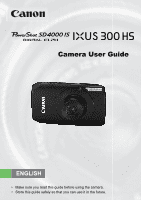
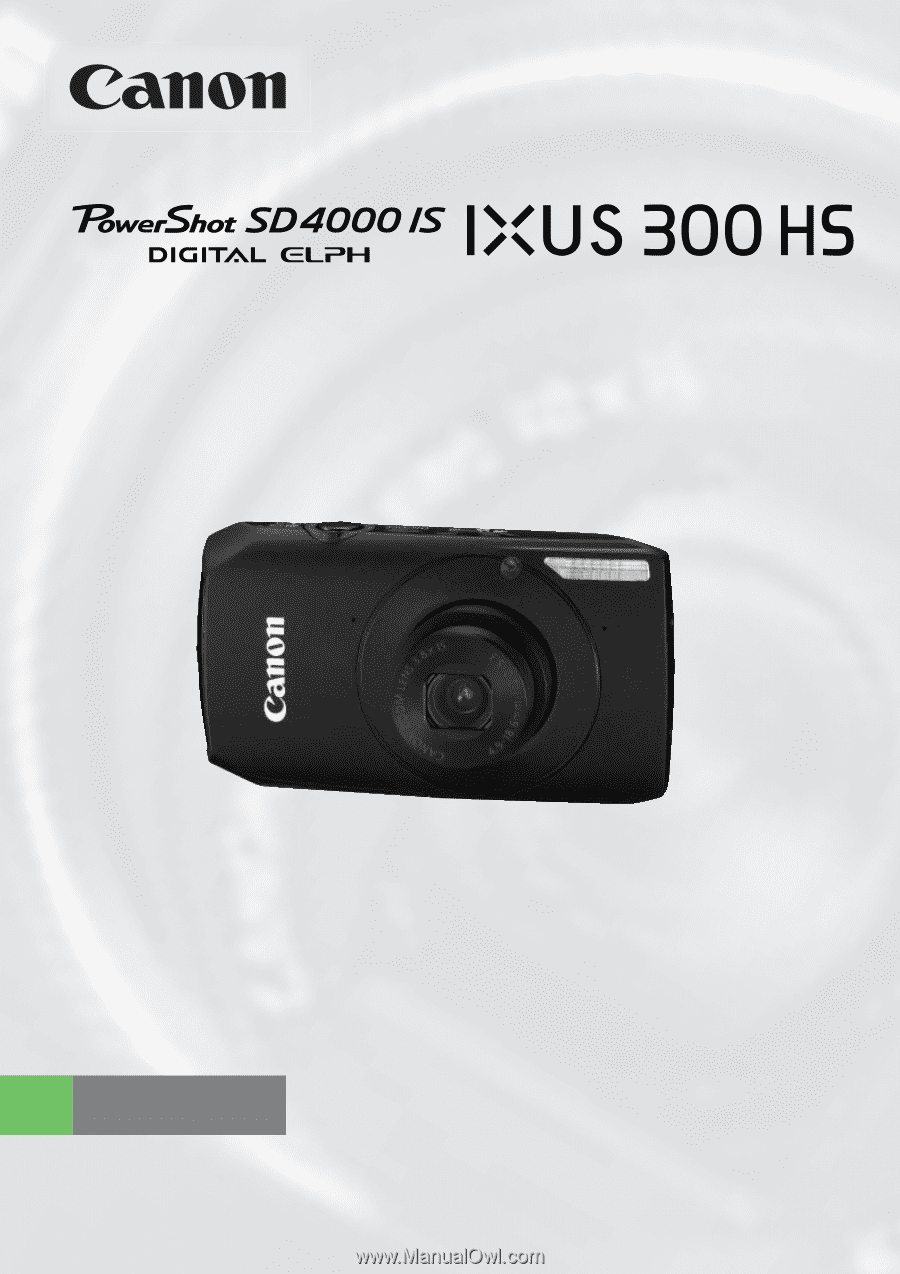
Canon PowerShot SD4000 IS PowerShot SD4000 IS / IXUS 300 HS Camera User Guide
Canon PowerShot SD4000 IS Manual
 |
View all Canon PowerShot SD4000 IS manuals
Add to My Manuals
Save this manual to your list of manuals |
Canon PowerShot SD4000 IS manual content summary:
- Canon PowerShot SD4000 IS | PowerShot SD4000 IS / IXUS 300 HS Camera User Guide - Page 1
Camera User Guide ENGLISH • Make sure you read this guide before using the camera. • Store this guide safely so that you can use it in the future. - Canon PowerShot SD4000 IS | PowerShot SD4000 IS / IXUS 300 HS Camera User Guide - Page 2
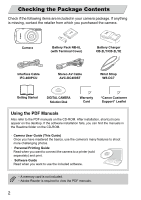
the camera. Camera Battery Pack NB-6L (with Terminal Cover) Battery Charger CB-2LY/CB-2LYE Interface Cable IFC-400PCU Stereo AV Cable AVC-DC400ST Wrist Strap WS-DC7 Getting Started DIGITAL CAMERA Solution Disk Warranty Card "Canon Customer Support" Leaflet Using the PDF Manuals Also - Canon PowerShot SD4000 IS | PowerShot SD4000 IS / IXUS 300 HS Camera User Guide - Page 3
effective in the country of sale. If there is a problem with the camera while abroad, please return it to the country of sale before proceeding with a warranty claim to a Canon Customer Support Help Desk. For Canon Customer Support contacts, please see the customer support list supplied with your - Canon PowerShot SD4000 IS | PowerShot SD4000 IS / IXUS 300 HS Camera User Guide - Page 4
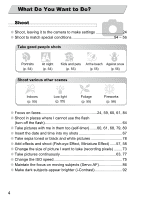
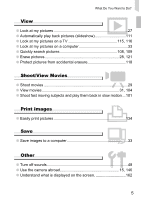
too (self-timer).......60, 61, 68, 79, 80 ● Insert the date and time into my shots 67 ● Take sepia toned or black and white pictures 78 ● Add effects and shoot (Fish-eye Effect, Miniature Effect) ......57, 58 ● Change the size of picture I want to take (recording pixels) ........73 ● Take pictures - Canon PowerShot SD4000 IS | PowerShot SD4000 IS / IXUS 300 HS Camera User Guide - Page 5
movies 29 ● View movies 31, 104 ● Shoot fast moving subjects and play them back in slow motion ...101 2 Print Images ● Easily print pictures 134 Save ● Save images to a computer 33 3 Other ● Turn off sounds 48 ● Use the camera abroad 15, 146 ● Understand what is displayed on the screen 162 - Canon PowerShot SD4000 IS | PowerShot SD4000 IS / IXUS 300 HS Camera User Guide - Page 6
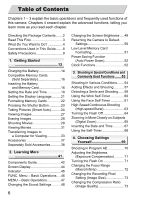
camera. Chapters 4 onward explain the advanced functions, letting you learn more as you read each chapter. Checking the Package Contents .......2 Read This First 3 What Do You Want to Do 4 Conventions Used in This Guide .......8 Safety Precautions 9 1. Getting Started 13 Charging the Battery - Canon PowerShot SD4000 IS | PowerShot SD4000 IS / IXUS 300 HS Camera User Guide - Page 7
Camera 83 Changing the AF Frame Mode........ 84 Magnifying the Focal Point 85 Shooting with the AF Lock 86 Shooting with Servo AF 86 Changing the Metering Method....... 87 Shooting with the AE Lock 88 Shooting with the FE Lock 88 Shooting Contrast 131 Correcting the Red-Eye Effect....... 132 - Canon PowerShot SD4000 IS | PowerShot SD4000 IS / IXUS 300 HS Camera User Guide - Page 8
Conventions Used in This Guide 9. Customizing Camera Settings 141 Changing Camera Settings............142 Changing Shooting Function Settings 148 Changing Playback Function Settings 152 10.Useful Information 153 Using Household Power 154 Using an Eye-Fi Card 155 Troubleshooting 157 List of - Canon PowerShot SD4000 IS | PowerShot SD4000 IS / IXUS 300 HS Camera User Guide - Page 9
to also check the guides included with any separately camera interior, immediately turn the camera power off and remove the battery. • Use only recommended power sources. Using other power sources could result in fire or electrical shock. Battery and Battery Charger • Use only recommended batteries - Canon PowerShot SD4000 IS | PowerShot SD4000 IS / IXUS 300 HS Camera User Guide - Page 10
battery charger becomes wet, unplug it from the outlet and consult your camera distributor or the closest Canon Customer Support Help Desk. • Use only the specified battery charger to charge the battery lens. This could damage the camera or lead to injury. • Avoid using, placing or storing the camera - Canon PowerShot SD4000 IS | PowerShot SD4000 IS / IXUS 300 HS Camera User Guide - Page 11
charger while it is charging. Leaving the unit plugged in for a long period of time may cause it to overheat and distort, resulting in fire. • Remove and store the battery when you are not using the camera. If the battery is left inside the camera, damage caused by leakage may occur. • Before - Canon PowerShot SD4000 IS | PowerShot SD4000 IS / IXUS 300 HS Camera User Guide - Page 12
12 - Canon PowerShot SD4000 IS | PowerShot SD4000 IS / IXUS 300 HS Camera User Guide - Page 13
images to a computer. Attaching the Strap/Holding the Camera • Be sure to attach the supplied strap to the camera and wrap it around your wrist when shooting to avoid dropping the camera. • Keep your arms tight against your body while holding the camera firmly by the sides. Be sure that your fingers - Canon PowerShot SD4000 IS | PowerShot SD4000 IS / IXUS 300 HS Camera User Guide - Page 14
a power outlet. The charge lamp lights red and charging starts. The charge lamp will light green when charging has finished. Charging takes approx. 1 hour and 55 minutes. Remove the battery. ∆ Unplug the battery charger from the power outlet, then remove the battery by sliding it in and up . To - Canon PowerShot SD4000 IS | PowerShot SD4000 IS / IXUS 300 HS Camera User Guide - Page 15
a bulge. This is a normal characteristic of the battery and does not indicate a problem. However, if the battery bulges to the point where it will no longer fit into the camera, please contact a Canon Customer Support Help Desk. • If the battery is quickly depleted even after charging, it has - Canon PowerShot SD4000 IS | PowerShot SD4000 IS / IXUS 300 HS Camera User Guide - Page 16
available card reader. Check to make sure that your OS supports this function beforehand. About Eye-Fi Cards This product is not guaranteed to support please check with the card manufacturer. Inserting the Battery and Memory Card Insert the included battery and a memory card (sold separately). Check - Canon PowerShot SD4000 IS | PowerShot SD4000 IS / IXUS 300 HS Camera User Guide - Page 17
. Insert the battery. ∆ Insert the battery as shown until it locks into place with a click. ∆ Be sure to insert the battery in the correct oriented correctly. Inserting the memory card in the wrong direction could damage the camera. Terminals Close the cover. ∆ Close the cover , and press downward - Canon PowerShot SD4000 IS | PowerShot SD4000 IS / IXUS 300 HS Camera User Guide - Page 18
Card Removing the Battery and Memory Card Remove the battery. ∆ Open the cover and press the battery lock in the direction of the arrow. The battery will pop up • The number of shots that can be taken will vary depending on camera settings, the subject and the memory card used. Can you check the - Canon PowerShot SD4000 IS | PowerShot SD4000 IS / IXUS 300 HS Camera User Guide - Page 19
Date/Time screen will close. ∆ Pressing the power button will turn off the camera. Reappearing Date/Time screen Set the correct date and time. If you have not time, the Date/Time screen will appear each time you turn on the camera. Daylight saving time settings If you choose in Step 2 and press the - Canon PowerShot SD4000 IS | PowerShot SD4000 IS / IXUS 300 HS Camera User Guide - Page 20
m button. Change the date and time. ∆ Follow Steps 2 and 3 on p. 19 to adjust the setting. ∆ Pressing the n button will close the menu. Date/Time battery • The camera has a built-in date/time battery (backup battery) that allows the date/time settings to be retained for about three weeks after the - Canon PowerShot SD4000 IS | PowerShot SD4000 IS / IXUS 300 HS Camera User Guide - Page 21
Setting the Display Language You can change the language that displays on the screen. Enter Playback mode. ∆ Press the 1 button. Display the settings screen. ∆ Press and hold the m button, then immediately press the n button. Set the display language. ∆ Press the opqr buttons or turn the - dial to - Canon PowerShot SD4000 IS | PowerShot SD4000 IS / IXUS 300 HS Camera User Guide - Page 22
Memory Cards Before you use a new memory card or one that has been formatted in other devices, you should format the card with this camera. Formatting (initializing) a memory card erases all data on the memory card. As you cannot retrieve the erased data, exercise adequate caution before formatting - Canon PowerShot SD4000 IS | PowerShot SD4000 IS / IXUS 300 HS Camera User Guide - Page 23
the shot. ∆ Since the shot is being taken while the shutter sound plays, be careful not to move the camera. Does the length of the shutter sound change? • Since the time required to shoot differs according to the scene you want to take, the length of the shutter sound may change. • If - Canon PowerShot SD4000 IS | PowerShot SD4000 IS / IXUS 300 HS Camera User Guide - Page 24
scene will appear in the upper right of the screen. The camera will focus on detected faces and display frames on them. Black bars will appear on the left and right sides of the screen. There areas cannot be recorded when shooting. Compose the shot. ∆ Moving the zoom lever toward i will zoom in - Canon PowerShot SD4000 IS | PowerShot SD4000 IS / IXUS 300 HS Camera User Guide - Page 25
, it will beep twice and AF frames will appear where the camera focused. Several AF frames will appear when the camera focuses on more than one point. Shoot. ∆ Press the shutter button fully to shoot. The camera will play the shutter sound and shoot. The image will appear on the screen for about two - Canon PowerShot SD4000 IS | PowerShot SD4000 IS / IXUS 300 HS Camera User Guide - Page 26
• What if white and gray frames appear when you point the camera toward a subject? When faces are detected, a white frame appears on toward j and hold it until the lens stops moving. The camera will be at its maximum wide angle setting and you can shoot within the effective flash range of - Canon PowerShot SD4000 IS | PowerShot SD4000 IS / IXUS 300 HS Camera User Guide - Page 27
the qr buttons pressed. ∆ The lens will retract after approximately 1 minute elapses. ∆ When the lens is retracted, pressing the 1 button once more will turn off the power. Switching to Shooting mode Pressing the shutter button halfway while in Playback mode switches the camera to Shooting mode. 27 - Canon PowerShot SD4000 IS | PowerShot SD4000 IS / IXUS 300 HS Camera User Guide - Page 28
Erasing Images You can choose and erase images one at a time. Please note that erased images cannot be recovered. Exercise adequate caution before erasing an image. Enter Playback mode. ∆ Press the 1 button. The last image you took will appear. Choose an image to erase. ∆ Press the qr buttons or - Canon PowerShot SD4000 IS | PowerShot SD4000 IS / IXUS 300 HS Camera User Guide - Page 29
movies just by pressing the shutter button. The audio will record in stereo. If you continue shooting for a long time, the camera may become warm. This is not a malfunction. Shooting Time Enter E mode. ∆ Set the mode switch to E. ∆ After pressing the m button, press the op buttons or turn the - Canon PowerShot SD4000 IS | PowerShot SD4000 IS / IXUS 300 HS Camera User Guide - Page 30
, other than pressing the shutter button, will be recorded in the movie. Finish shooting. ∆ Press the shutter button fully again. The camera will beep once and stop shooting the movie. The movie will record to the memory card. Shooting will automatically stop when the memory card fills. Estimated - Canon PowerShot SD4000 IS | PowerShot SD4000 IS / IXUS 300 HS Camera User Guide - Page 31
Viewing Movies You can view the movies you have shot on the screen. Enter Playback mode. ∆ Press the 1 button. The last image you took will appear. appears on movies. Choose a movie. ∆ Press the qr buttons or turn the - dial to choose a movie, then press the m button. Movie Control Panel Play the - Canon PowerShot SD4000 IS | PowerShot SD4000 IS / IXUS 300 HS Camera User Guide - Page 32
's capabilities. • If you use the supplied software to copy the movie back onto the memory card, you can play back the movie smoothly with the camera. For enhanced playback you can also connect the - Canon PowerShot SD4000 IS | PowerShot SD4000 IS / IXUS 300 HS Camera User Guide - Page 33
software to transfer images you have shot with the camera to a computer for viewing. If you are 7 Windows Vista (including Service Pack 1 and 2) Windows XP Service Pack 2, Service Pack 3 The above OS or more USB ImageBrowser: 300 MB or more PhotoStitch: 50 MB or more 1,024 x 768 pixels or higher 33 - Canon PowerShot SD4000 IS | PowerShot SD4000 IS / IXUS 300 HS Camera User Guide - Page 34
ROM drive. ∆ Place the supplied CD-ROM (DIGITAL CAMERA Solution Disk) (p. 2) into the computer's CD-ROM drive. Begin installation. ∆ Click [Easy Installation] and follow the on- screen instructions to proceed with the installation. ∆ If the [User Account Control] window appears, follow the on-screen - Canon PowerShot SD4000 IS | PowerShot SD4000 IS / IXUS 300 HS Camera User Guide - Page 35
the computer. For connection details, refer to the user guide provided with the computer. Turn on the camera. ∆ Press the 1 button to turn on the camera. Open CameraWindow. Windows ∆ Click [Downloads Images From Canon Camera using Canon CameraWindow]. CameraWindow will appear. ∆ If CameraWindow does - Canon PowerShot SD4000 IS | PowerShot SD4000 IS / IXUS 300 HS Camera User Guide - Page 36
Click [Downloads Images From Canon Camera using Canon CameraWindow], then click [OK]. • Double Software Guide. You can transfer images without installing the included software by simply connecting your camera a computer. • There may be problems transferring images or image information correctly - Canon PowerShot SD4000 IS | PowerShot SD4000 IS / IXUS 300 HS Camera User Guide - Page 37
with Camera Wrist Strap WS-DC7 DIGITAL CAMERA Battery Pack NB-6L Solution Disk (with Terminal Cover)* Battery Charger CB-2LY/CB-2LYE* Stereo AV Cable AVC-DC400ST* Interface Cable IFC-400PCU* *Also available for purchase separately. Memory Card Card Reader Windows/Macintosh Canon-Brand - Canon PowerShot SD4000 IS | PowerShot SD4000 IS / IXUS 300 HS Camera User Guide - Page 38
be available. Power Supplies AC Adapter Kit ACK-DC40 This kit lets you power the camera using household power. Recommended for powering the camera for an extended period of time or when connecting to a computer or printer. Cannot be used to charge the battery inside the camera. Battery Charger CB - Canon PowerShot SD4000 IS | PowerShot SD4000 IS / IXUS 300 HS Camera User Guide - Page 39
camera to the HDMI™ terminal on a high-definition TV set. Printers SELPHY series Canon-Brand PictBridge Compliant Printers By connecting your camera to a Canon by the malfunction of non-genuine Canon accessories (e.g., a leakage and/or explosion of a battery pack). Please note that this warranty - Canon PowerShot SD4000 IS | PowerShot SD4000 IS / IXUS 300 HS Camera User Guide - Page 40
40 - Canon PowerShot SD4000 IS | PowerShot SD4000 IS / IXUS 300 HS Camera User Guide - Page 41
2 Learning More This chapter explains the parts of the camera and what appears on the screen, as well as the basic operating instructions. 41 - Canon PowerShot SD4000 IS | PowerShot SD4000 IS / IXUS 300 HS Camera User Guide - Page 42
) Memory Card / Battery Cover (p. 17) Strap Mount (p. 13) Mode Switch Use the mode switch to change the Shooting mode. Movie Mode Auto Mode For shooting movies (pp. 29, 99). You can leave it to the camera Shooting Mode to select settings (p. 24). You can shoot with the best settings for the - Canon PowerShot SD4000 IS | PowerShot SD4000 IS / IXUS 300 HS Camera User Guide - Page 43
Guide Screen (LCD Monitor) (pp. 44, 162, 163) Indicator (p. 45) 1 (Playback) Button (pp. 27, 31, 107) HDMI Terminal (p. 116) A/V OUT (Audio/Video Output) (p. 115) / DIGITAL p, q, r buttons. If you touch the control dial in shooting mode, a button description appears on the screen. When you switch - Canon PowerShot SD4000 IS | PowerShot SD4000 IS / IXUS 300 HS Camera User Guide - Page 44
for details on information that appears on the screen. Shooting Information Display Playback No Information Display No Information Display p button while the image displays shortly after shooting. However, Simple Information Display is not available. You can change the display that appears first - Canon PowerShot SD4000 IS | PowerShot SD4000 IS / IXUS 300 HS Camera User Guide - Page 45
Shooting preparation complete (flash on) Camera shake warning (pp. 26, 64) When the indicator blinks green, data is being recorded to/read from the memory card or various information is being transmitted. Do not turn off the power, open the memory card slot/battery cover, shake or jolt the camera - Canon PowerShot SD4000 IS | PowerShot SD4000 IS / IXUS 300 HS Camera User Guide - Page 46
FUNC. Menu - Basic Operations Commonly used shooting functions can be set with the ø menu. The menu items and options differ depending on the mode (p. 164). You can also use the ø menu in Playback mode. Display the ø menu. ∆ Press the m button. Available Options Menu Items Choose a menu item. ∆ - Canon PowerShot SD4000 IS | PowerShot SD4000 IS / IXUS 300 HS Camera User Guide - Page 47
MENU - Basic Operations Various functions can be set from the menus. The menu items are organized under tabs, such as for shooting (4) and playback (1). The available menu items differ depending on the mode (p. 166). Display the menu. ∆ Press the n button. Choose a tab. ∆ Press the qr buttons, or - Canon PowerShot SD4000 IS | PowerShot SD4000 IS / IXUS 300 HS Camera User Guide - Page 48
Changing the Sound Settings You can silence or adjust the volume of camera sounds. Muting Sounds Display the menu. ∆ Press the n button. Choose [Mute]. ∆ Press the qr buttons to choose the 3 tab. ∆ Press the op buttons or turn - Canon PowerShot SD4000 IS | PowerShot SD4000 IS / IXUS 300 HS Camera User Guide - Page 49
3 tab. ∆ Pressing the p button again for more than one second will return the screen to the original brightness. • The next time you turn on the camera, the screen will be at the brightness setting chosen in the 3 tab. • When you have set the brightness to its highest setting in the 3 tab - Canon PowerShot SD4000 IS | PowerShot SD4000 IS / IXUS 300 HS Camera User Guide - Page 50
turn the - dial to choose [OK] and press the m button. The camera will reset to the default settings. Are there functions that cannot be reset? • saved data for custom white balance (p. 76). • Colors that were chosen in Color Accent (p. 95) or Color Swap (p. 96). • Shooting modes set with the mode - Canon PowerShot SD4000 IS | PowerShot SD4000 IS / IXUS 300 HS Camera User Guide - Page 51
complete] will appear. ∆ Press the m button. About low level formatting When the [Memory card error] message appears, or when the camera does not work correctly, low level formatting the memory card may solve the problem. Copy the images from the memory card to a computer or other device before low - Canon PowerShot SD4000 IS | PowerShot SD4000 IS / IXUS 300 HS Camera User Guide - Page 52
problem. Power Saving Function (Auto Power Down) To save battery power, the camera shuts down automatically when it is not operated for a certain time. Power Saving during Shooting The screen will turn off approximately 1 minute after the camera is last operated. After about 2 more minutes, the lens - Canon PowerShot SD4000 IS | PowerShot SD4000 IS / IXUS 300 HS Camera User Guide - Page 53
the self-timer. • When you choose a Shooting mode that matches a particular set of conditions, the camera will automatically select any necessary settings. All you the Self-Timer" (p. 68). When shooting in a mode other than A, check which functions are available in that mode (pp. 164 - 166). 53 - Canon PowerShot SD4000 IS | PowerShot SD4000 IS / IXUS 300 HS Camera User Guide - Page 54
in Various Conditions The camera will select the necessary settings for the conditions in which you wish to shoot when you choose the matching mode. Set the mode switch to 4 (p. 42). Choose the Shooting mode. ∆ After pressing the m button, press the op buttons or turn the - dial to choose G, then - Canon PowerShot SD4000 IS | PowerShot SD4000 IS / IXUS 300 HS Camera User Guide - Page 55
as children and pets, without missing photo opportunities. ' Take indoor shots (Indoor) ∆ Lets you shoot indoors with natural colors. Take shots shutter speed faster than in A mode so that you can shoot in dark places with reduced camera shake and subject blur. ∆ A recording pixel setting of will - Canon PowerShot SD4000 IS | PowerShot SD4000 IS / IXUS 300 HS Camera User Guide - Page 56
the camera to a tripod, you should set [IS Mode] to [Off] (p. 151). In F, V or ' mode, images may appear coarse because the ISO speed (p. 75) is increased to match the shooting conditions. Modes for other scenes In addition to the modes explained here, the following scene modes are also available - Canon PowerShot SD4000 IS | PowerShot SD4000 IS / IXUS 300 HS Camera User Guide - Page 57
effects to images when shooting. Shoot with the Effects of a Fish-Eye Lens (Fish-eye Effect) Lets you shoot with the distorting effect of a fish-eye lens. Choose . ∆ . Shoot. Since you may not achieve the expected results depending on the shooting conditions, try taking some test shots first. 57 - Canon PowerShot SD4000 IS | PowerShot SD4000 IS / IXUS 300 HS Camera User Guide - Page 58
Shooting area to keep in focus. ∆ Press the n button for more than one second. A white frame (the area that will not be blurred) appears on the screen. ∆ Move the zoom Pressing the n button restores the settings screen. Shoot. • Holding the camera vertically will change the orientation of the frame. - Canon PowerShot SD4000 IS | PowerShot SD4000 IS / IXUS 300 HS Camera User Guide - Page 59
or turn the - dial to choose and press the n button. The camera will enter shooting stand-by, and [Smile Detection on] will appear on the screen. Point the camera toward a person. ∆ Each time the camera detects a smile it will shoot after the lamp lights. The second and third shots will continue in - Canon PowerShot SD4000 IS | PowerShot SD4000 IS / IXUS 300 HS Camera User Guide - Page 60
Using the Wink Self-Timer Point the camera at the subject and press the shutter button fully. The camera will shoot three times approximately two seconds after it detects a wink. Choose . ∆ Follow Steps 1 - 2 on p. 54 to choose , then press the n button for more than one second. ∆ - Canon PowerShot SD4000 IS | PowerShot SD4000 IS / IXUS 300 HS Camera User Guide - Page 61
Face Self-Timer To take a photo that includes the photographer, such as a group photo, compose the shot and press the shutter button. The camera will shoot three times approximately two seconds after you sure a green frame appears on the face focused on and white frames appear on other faces. 61 - Canon PowerShot SD4000 IS | PowerShot SD4000 IS / IXUS 300 HS Camera User Guide - Page 62
Press the shutter button fully. The camera will enter shooting stand-by, and [Look straight at camera to start count down] will appear on the screen. The lamp will blink and the self-timer sound will play. Join the subjects and look at the camera. When the camera detects a new face, the lamp and - Canon PowerShot SD4000 IS | PowerShot SD4000 IS / IXUS 300 HS Camera User Guide - Page 63
. As long as you hold the shutter button down, the camera will shoot successive images. • Focus, exposure and white balance settings are set with the first shot. • Depending on the shooting conditions, camera settings and the zoom position, the shooting speed may slow down. • As the number of images - Canon PowerShot SD4000 IS | PowerShot SD4000 IS / IXUS 300 HS Camera User Guide - Page 64
Turning the Flash Off You can shoot with the flash turned off. Press the r button. Choose !. ∆ Press the qr buttons or When you press the shutter button halfway in low light conditions where camera shake is likely, the indicator will blink orange and a flashing will appear on the screen. Attach the - Canon PowerShot SD4000 IS | PowerShot SD4000 IS / IXUS 300 HS Camera User Guide - Page 65
zoom factor without image deterioration has been reached, and the zoom factor will appear when you release the zoom lever. Move it toward i again. The digital zoom will zoom in even further on the subject. What if the zoom factor appears in blue? Images shot at zoom factors that appear in - Canon PowerShot SD4000 IS | PowerShot SD4000 IS / IXUS 300 HS Camera User Guide - Page 66
Zooming in More Closely on Subjects (Digital Zoom) Digital Tele-Converter The focal length of the lens can be increased by an equivalent of 1.4x or 2.3x. This enables a faster shutter speed and less chance of camera shake than the zoom (including digital zoom) used by itself at the same zoom factor. - Canon PowerShot SD4000 IS | PowerShot SD4000 IS / IXUS 300 HS Camera User Guide - Page 67
to the original setting, choose [Off] in Step 2. You can insert and print the shooting date in images which do not have an embedded date and time as follows.However, if software to print. Refer to the Software Guide for details. • Print using printer functions. Refer to the Personal Printing - Canon PowerShot SD4000 IS | PowerShot SD4000 IS / IXUS 300 HS Camera User Guide - Page 68
Using the Self-Timer The self-timer can be used to shoot a group photo that includes the photographer. The camera will activate approximately 10 seconds after the shutter button is pressed. Choose Ò. ∆ After pressing the m button, press the op buttons or turn the - dial to choose , then press the m - Canon PowerShot SD4000 IS | PowerShot SD4000 IS / IXUS 300 HS Camera User Guide - Page 69
progressively advance your shooting skills. • This chapter assumes that the mode switch is set to 4 and the camera is in G mode. • G stands for Program AE. • Before attempting to shoot using a function explained in this chapter in modes other than G mode, check if the function is available in those - Canon PowerShot SD4000 IS | PowerShot SD4000 IS / IXUS 300 HS Camera User Guide - Page 70
switch to 4 (p. 42). Choose G. ∆ Choose G in Step 2 on p. 54 and press the m button. Adjust the settings according to your purposes (pp. 71 - 80). Shoot. What if the shutter speed and aperture value appear in orange? If a correct exposure cannot be obtained when pressing the shutter button halfway - Canon PowerShot SD4000 IS | PowerShot SD4000 IS / IXUS 300 HS Camera User Guide - Page 71
Compensation) You can adjust the standard exposure set by the camera in 1/3-stop increments in the range of -2 to +2. will appear on the screen. Turning the Flash On You can make the flash fire every time you shoot. At maximum wide angle, the flash range is approximately 30 cm - 6.0 m (12 in. - - Canon PowerShot SD4000 IS | PowerShot SD4000 IS / IXUS 300 HS Camera User Guide - Page 72
, which is the maximum wide angle setting of the lens. The edges of the image may darken if the flash fires in macro shooting. How can I take better close-ups? • Try attaching the camera to a tripod and shooting in Î, to prevent the camera from moving and blurring the image (p. 79). • You can - Canon PowerShot SD4000 IS | PowerShot SD4000 IS / IXUS 300 HS Camera User Guide - Page 73
an option, then press the m button. The setting you chose will appear on the screen. If you choose you cannot use Digital Zoom (p. 65) or Digital TeleConverter (p. 66). Changing the Compression Ratio (Image Quality) You can choose from the following two levels of compression ratio (image quality - Canon PowerShot SD4000 IS | PowerShot SD4000 IS / IXUS 300 HS Camera User Guide - Page 74
3648×2048 1920 918 1978 4022 8101 16473 • The values in the table are measured according to Canon standards and may change depending on the subject, memory card and camera settings. Approximate Values for Paper Size ∆ Suitable for sending images as e-mail A2 attachments. A3 ∆ For printing - Canon PowerShot SD4000 IS | PowerShot SD4000 IS / IXUS 300 HS Camera User Guide - Page 75
ISO speed results in sharper images, but there may be an increased chance of image blurring in certain shooting conditions. • Raising the ISO speed results in a faster shutter speed, reducing camera shake and letting the flash reach greater distances to the subject. The images, however, will appear - Canon PowerShot SD4000 IS | PowerShot SD4000 IS / IXUS 300 HS Camera User Guide - Page 76
H Daylight fluorescent, daylight-type (3-wavelength) fluorescent lighting Custom Manually sets a custom white balance. Custom White Balance You can adjust the white balance to the light source at the shooting location. Make sure that you set the white balance under the light source of the actual - Canon PowerShot SD4000 IS | PowerShot SD4000 IS / IXUS 300 HS Camera User Guide - Page 77
used with the self-timer (pp. 68, 79, 80). • Continuous shooting speed increases in mode (p. 55). • Depending on the shooting conditions, the camera settings and the zoom position, the shooting speed may slow down. • For continuous shooting, the focus and exposure are locked when the shutter button - Canon PowerShot SD4000 IS | PowerShot SD4000 IS / IXUS 300 HS Camera User Guide - Page 78
My Colors) You can change the tone of an image to sepia or black and white when shooting. Choose My Colors. ∆ After pressing the m button, press the op foliage and other green subjects more vivid. Vivid Red Emphasizes red tints. Makes red subjects more vivid. Custom Color You can adjust - Canon PowerShot SD4000 IS | PowerShot SD4000 IS / IXUS 300 HS Camera User Guide - Page 79
Shooting Using the Two Second Self-Timer Custom Color The contrast, sharpness, color saturation, red, green, blue, and skin tones in setting. Shooting Using the Two Second Self-Timer The camera will shoot approximately two seconds after the shutter button is pressed, avoiding any camera shake that - Canon PowerShot SD4000 IS | PowerShot SD4000 IS / IXUS 300 HS Camera User Guide - Page 80
the time delay (0 - 30 seconds) and the number of shots (1 - 10 shots). Choose $. ∆ After pressing the m button, press the op buttons button. ∆ Follow Step 2 on p. 68 to shoot. What if the number of shots is set to two or more shots? • Exposure and white balance settings are set with the first shot. - Canon PowerShot SD4000 IS | PowerShot SD4000 IS / IXUS 300 HS Camera User Guide - Page 81
TV You can use a TV to display the camera screen content while shooting. • Connect the camera to a TV as described in "Viewing Images on a TV" (p. 115). • Shooting procedures are the same as when using the camera screen. TV display is not available when using HDMI Cable HTC-100 (sold separately) to - Canon PowerShot SD4000 IS | PowerShot SD4000 IS / IXUS 300 HS Camera User Guide - Page 82
82 - Canon PowerShot SD4000 IS | PowerShot SD4000 IS / IXUS 300 HS Camera User Guide - Page 83
. • This chapter assumes that the mode switch is set to 4 and the camera is in G mode. • The sections "Setting the Shutter Speed" (p. 90), "Setting the Aperture Value" (p. 91), "Changing the Color and Shooting" (p. 95), "Shooting Stitch Assist Images" (p. 98), assume you have set the mode switch to - Canon PowerShot SD4000 IS | PowerShot SD4000 IS / IXUS 300 HS Camera User Guide - Page 84
shoot. Face AiAF Choose [AF Frame]. ∆ Press the n button, choose the 4 tab, and then choose the [AF Frame] menu item. Press the qr buttons to choose an option. • Detects people's faces and sets the focus, exposure (evaluative metering only) and white balance ( only). • When the camera is pointed - Canon PowerShot SD4000 IS | PowerShot SD4000 IS / IXUS 300 HS Camera User Guide - Page 85
The setting is configured to [Normal] when the Digital Zoom (p. 65) or Digital Tele-converter (p. 66) is used. If the camera cannot focus when you press the shutter button halfway, the AF frame will turn yellow and will appear. Magnifying the Focal Point If you press the shutter button halfway, the - Canon PowerShot SD4000 IS | PowerShot SD4000 IS / IXUS 300 HS Camera User Guide - Page 86
. ∆ If you release your finger from the shutter button and press the q button, % will disappear and the focus will unlock. Compose the scene and shoot. Shooting with Servo AF While the shutter button is pressed halfway, the focus and exposure will continue to adjust, allowing you to take pictures of - Canon PowerShot SD4000 IS | PowerShot SD4000 IS / IXUS 300 HS Camera User Guide - Page 87
Method • The camera may not be exposure are locked. • The [AF-Point Zoom] option in the 4 tab is not available in Servo AF mode. • Not available when using Self-Timer (pp. 68 standard shooting conditions, including back lit shots. Automatically adjusts the exposure to match the shooting conditions. - Canon PowerShot SD4000 IS | PowerShot SD4000 IS / IXUS 300 HS Camera User Guide - Page 88
with the FE Lock Just as with the AE lock, you can lock the exposure for shooting with the flash. FE stands for "Flash Exposure". Choose h (p. 71). Lock the flash exposure. ∆ Point the camera toward the subject and press the o button while pressing the shutter button halfway. The flash will fire - Canon PowerShot SD4000 IS | PowerShot SD4000 IS / IXUS 300 HS Camera User Guide - Page 89
choose ..., then press the m button. Once set, ... will appear on the screen. Shoot. ∆ Even if the flash fires, ensure that the subject does not move until the shutter sound ends. Attach the camera to a tripod to prevent the camera from moving and blurring the image. You should set [IS Mode] to [Off - Canon PowerShot SD4000 IS | PowerShot SD4000 IS / IXUS 300 HS Camera User Guide - Page 90
to choose M. Make the setting. ∆ Turn the - dial to set the shutter speed. Shoot. Available Shutter Speeds 15", 13", 10", 8", 6", 5", 4", 3"2, 2"5, 2", 1"6, 1"3, 1", 0"8, 0"6, 0"5, 0"4, 0"3, 1/4, 1/5, 1/6, 1/8, 1/10, 1/13, 1/15, 1/20, 1/25, 1/30, 1/40, 1/50, 1/60, 1/80, 1/100, 1/125, 1/160, 1/200 - Canon PowerShot SD4000 IS | PowerShot SD4000 IS / IXUS 300 HS Camera User Guide - Page 91
"Aperture value", which refers to the size of the aperture opening inside the lens. Enter B mode. ∆ Follow Steps 1 - 2 on p. 54 to choose B. Make the setting. ∆ Turn the - dial to set the aperture value. Shoot. Available Aperture Values F2.0, F2.2, F2.5, F2.8, F3.2, F3.5, F4.0, F4.5, F5.0, F5.3, F5 - Canon PowerShot SD4000 IS | PowerShot SD4000 IS / IXUS 300 HS Camera User Guide - Page 92
or dark and automatically adjust them to the optimum brightness when shooting. Also, when the overall image is lacking in contrast, the camera will automatically correct the image for a sharper impression when shooting. Choose [i-Contrast]. ∆ Press the n button, choose the 4 tab, and then choose - Canon PowerShot SD4000 IS | PowerShot SD4000 IS / IXUS 300 HS Camera User Guide - Page 93
-Eye Corr.] and press the qr buttons to choose [On]. Once set, Œ will appear on the screen. Red-eye correction may be applied to areas other than red eyes. For example, when red make-up has been used around eyes. • You can correct recorded images (p. 132). • If you press the r button and immediately - Canon PowerShot SD4000 IS | PowerShot SD4000 IS / IXUS 300 HS Camera User Guide - Page 94
, and then choose the [Blink Detection] menu item. Press the qr buttons to choose [On]. Shoot. When a person with shut eyes is detected, a frame and appear. • In or $ mode, when the number of shots is set to two or more shots, this function is only available for the last image shot. • Not - Canon PowerShot SD4000 IS | PowerShot SD4000 IS / IXUS 300 HS Camera User Guide - Page 95
the look of an image when shooting. However, depending on shooting conditions the image may become coarse, or the colors may not come out as expected. Color Accent You can choose to retain a single color and change the rest to black and white in a composition. Choose T. ∆ Follow Steps 1 - 2 on - Canon PowerShot SD4000 IS | PowerShot SD4000 IS / IXUS 300 HS Camera User Guide - Page 96
Changing the Color and Shooting Color Swap You can swap one color in an image for another when recording it. You can only swap one color. Choose Y. ∆ Follow Steps 1 - 2 on p. - Canon PowerShot SD4000 IS | PowerShot SD4000 IS / IXUS 300 HS Camera User Guide - Page 97
Changing the Color and Shooting Specify the range of colors to be swapped. ∆ Press the op range of colors to similar colors. ∆ Pressing the n button accepts the setting and restores the shooting screen. • Using the flash may cause unexpected results in this mode. • Under some conditions, the - Canon PowerShot SD4000 IS | PowerShot SD4000 IS / IXUS 300 HS Camera User Guide - Page 98
the images are merged. ∆ Up to 26 shots can be recorded with the same procedures. Finish shooting. ∆ Press the m button. Merge the images on a computer. ∆ For details on how to merge the images, refer to the Software Guide. This function is not available when a TV is used as the monitor (p. 81). 98 - Canon PowerShot SD4000 IS | PowerShot SD4000 IS / IXUS 300 HS Camera User Guide - Page 99
6 Using Various Functions for Shooting Movies This chapter provides more advanced information than the "Shooting Movies" and "Viewing Movies" sections of Chapter 1. • This chapter assumes that the mode switch is set to E. • Press the 1 button to enter Playback mode before - Canon PowerShot SD4000 IS | PowerShot SD4000 IS / IXUS 300 HS Camera User Guide - Page 100
modes let you change all colors except the chosen color to black and white, or z Color Swap exchange the chosen color for another color, when shooting. See "Changing the Color and Shooting" (p. 95) for details. Under some conditions, colors may not turn out as expected in > and z modes. 100 - Canon PowerShot SD4000 IS | PowerShot SD4000 IS / IXUS 300 HS Camera User Guide - Page 101
2 on p. 100 to choose . Shoot. ∆ Follow Steps 2 - 5 on p. 29 to shoot. Black bars will appear on the left and Guide for details. • Even if you press the zoom lever, the zoom will not operate while shooting. • The focus is set when the shutter button is pressed halfway, and the exposure and white - Canon PowerShot SD4000 IS | PowerShot SD4000 IS / IXUS 300 HS Camera User Guide - Page 102
sec. 8 hrs. 4 min. 30 sec. • Based on Canon's testing standards. • Recording will automatically stop when the clip file size reaches 4 GB, or when the recording time reaches approximately 10 minutes when shooting in , and approximately 1 hour when shooting in or . • Recording may stop even if the - Canon PowerShot SD4000 IS | PowerShot SD4000 IS / IXUS 300 HS Camera User Guide - Page 103
Exposure Shift You can lock the exposure or change it in 1/3 steps within a range of ±2 before shooting. Focus. ∆ Press the shutter button halfway to focus. Lock the exposure. ∆ After releasing the the exposure. ∆ While watching the screen, turn the - dial to adjust the brightness. Shoot. 103 - Canon PowerShot SD4000 IS | PowerShot SD4000 IS / IXUS 300 HS Camera User Guide - Page 104
White Balance (p. 76) • Changing the Tone of an Image (My Colors) (p. 78) • Shooting Using the Two Second Self-Timer (p. 79)* • Shooting Using a TV (p. 81)* • Shooting with the AF Lock (p. 86) • Turning Off the AF Assist Beam (p. 148)* • Displaying the Overlay (p. 150)* [3:2 Guide] is not available - Canon PowerShot SD4000 IS | PowerShot SD4000 IS / IXUS 300 HS Camera User Guide - Page 105
the m button.) Display the last frame * Edit (p. 105) Appears when connected to a PictBridge compliant printer (p. 134). Refer to the Personal Printing Guide for details. Editing You can trim the beginnings and ends of recorded movies in one-second increments. Movie Editing Panel Movie Editing Bar - Canon PowerShot SD4000 IS | PowerShot SD4000 IS / IXUS 300 HS Camera User Guide - Page 106
Editing Even if you move to a point other than a point, only the portion from the nearest to the enough space left on the memory card, only [Overwrite] can be chosen. • If the battery is depleted partway through editing, the edited movie clips may not be saved. When editing movies, you should - Canon PowerShot SD4000 IS | PowerShot SD4000 IS / IXUS 300 HS Camera User Guide - Page 107
Playback and Editing Functions This chapter explains various ways to play back and edit images. • Press the 1 button to enter Playback mode before operating the camera. • It may not be possible to play back or edit images that have been edited on a computer, had their file name changed, or have been - Canon PowerShot SD4000 IS | PowerShot SD4000 IS / IXUS 300 HS Camera User Guide - Page 108
Quickly Searching Images Searching Images Using Index Display Displaying multiple images at a time lets you quickly find the image you want. Move the zoom lever toward g. Images will display in an index. ∆ Move the zoom lever toward g to increase the number of images. The number of images increases - Canon PowerShot SD4000 IS | PowerShot SD4000 IS / IXUS 300 HS Camera User Guide - Page 109
Viewing Images in Filtered Playback Searching Images Using the Control Dial Turn the control dial to quickly search images. You can also jump by the shooting date (Scroll Display). Choose an image. ∆ If you set single image playback and turn the - dial quickly, the images will display as shown on - Canon PowerShot SD4000 IS | PowerShot SD4000 IS / IXUS 300 HS Camera User Guide - Page 110
Viewing Images in Filtered Playback Search filters Favorites Shot Date ; My Category File Type View the filtered images. ∆ Press the op buttons or turn the - dial to choose a filter for playback, then press the m button (except for ). Filtered playback starts and a yellow frame appears. ∆ If you - Canon PowerShot SD4000 IS | PowerShot SD4000 IS / IXUS 300 HS Camera User Guide - Page 111
Viewing Slideshows You can automatically play back images recorded to a memory card. Each image displays for approximately 3 seconds. Choose .. ∆ Press the m button to choose . in the ø menu, then press the m button again. Choose a transition effect. ∆ Press the op buttons or turn the - dial to - Canon PowerShot SD4000 IS | PowerShot SD4000 IS / IXUS 300 HS Camera User Guide - Page 112
Viewing Slideshows Changing the Settings You can set a slideshow to repeat, or change transition effects and the time that slideshow images are displayed. You can choose from six transition effects when switching between images. Choose [Slideshow]. ∆ Press the n button, choose [Slideshow] from the 1 - Canon PowerShot SD4000 IS | PowerShot SD4000 IS / IXUS 300 HS Camera User Guide - Page 113
AF Frame, or the area of a face that was detected, to check the focus. Press the p button, and switch to the focus check display (p. 44). A white frame will appear where the AF frame or face was when the focus was set. A gray frame will appear on a face detected during playback. The - Canon PowerShot SD4000 IS | PowerShot SD4000 IS / IXUS 300 HS Camera User Guide - Page 114
Magnifying Images Approximate Location of Displayed Area Move the zoom lever toward k. ∆ The display will zoom in on the image and, if you continue to hold the zoom lever, it will continue to zoom in up to a maximum factor of 10x. ∆ If you press the opqr buttons, you can move the location of the - Canon PowerShot SD4000 IS | PowerShot SD4000 IS / IXUS 300 HS Camera User Guide - Page 115
to a TV to view images you have shot. Turn off the camera and TV. Connect the camera to the TV. ∆ Open the camera's terminal cover and fully insert the cable plug into the camera's terminal. Yellow Yellow White Red Red White ∆ Insert the cable plug fully into the video input terminals as shown - Canon PowerShot SD4000 IS | PowerShot SD4000 IS / IXUS 300 HS Camera User Guide - Page 116
to a high-definition TV for an enhanced viewing experience. Turn off the camera and TV. Connect the camera to the TV. ∆ Open the cover and fully insert the cable plug into the camera's HDMI terminal. ∆ Fully insert the cable plug into the TV's HDMI terminal. ∆ Follow Steps 3 and 4 on p. 115 to - Canon PowerShot SD4000 IS | PowerShot SD4000 IS / IXUS 300 HS Camera User Guide - Page 117
those images, the camera will choose four more images letting you enjoy the playing back of images in an unexpected order. This will work best if you take camera will play back in Smart Shuffle. • is not available in the following situations: • If there are less than 50 images taken with this camera - Canon PowerShot SD4000 IS | PowerShot SD4000 IS / IXUS 300 HS Camera User Guide - Page 118
the m button. If you format the memory card (pp. 22, 51), protected images will also be erased. Protected images cannot be erased with the camera's erase function. To erase an image, cancel protection first. Using the Menu Choose [Protect]. ∆ Press the n button, choose the 1 tab and [Protect], and - Canon PowerShot SD4000 IS | PowerShot SD4000 IS / IXUS 300 HS Camera User Guide - Page 119
Protecting Images Choosing Images Individually Choose [Select]. ∆ Follow Step 2 on p. 118 to choose [Select] and press the m button. ∆ Press the qr buttons or turn the - dial to choose the image and press the m button. Once set, will appear on the screen. ∆ Pressing the m button once more deselects - Canon PowerShot SD4000 IS | PowerShot SD4000 IS / IXUS 300 HS Camera User Guide - Page 120
Protecting Images ∆ Press the qr buttons or turn the - dial to choose the image and press the m button. Choose the ending image. ∆ Press the r button, choose [Last image] and press the m button. ∆ Press the qr buttons or turn the - dial to choose the image and press the m button. ∆ You cannot - Canon PowerShot SD4000 IS | PowerShot SD4000 IS / IXUS 300 HS Camera User Guide - Page 121
Erasing Images Protect images. ∆ Press the op buttons or turn the - dial to choose [Protect] and press the m button. You can unlock the images you protected if you choose [Unlock] in Step 4, while in [Select Range], or Step 2 while in [All Images]. Erasing Images You can select images to erase. - Canon PowerShot SD4000 IS | PowerShot SD4000 IS / IXUS 300 HS Camera User Guide - Page 122
Erasing Images ∆ Pressing the m button once more deselects the image, and will disappear. ∆ To choose multiple images, repeat the above operation. Press the n button. Erase the image. ∆ Press the qr buttons or turn the - dial to choose [OK] and press the m button. Select Range Choose [Select - Canon PowerShot SD4000 IS | PowerShot SD4000 IS / IXUS 300 HS Camera User Guide - Page 123
the n button will display [Accept changes?]. ∆ Press the qr buttons or turn the - dial to choose [OK], then press the m button. If you switch Shooting modes or turn off the power before making the setting in Step 3, images will not be tagged as My Category. Images are automatically categorized by - Canon PowerShot SD4000 IS | PowerShot SD4000 IS / IXUS 300 HS Camera User Guide - Page 124
Organizing Images by Category (My Category) Using the Menu Choose [My Category]. ∆ Press the n button, choose the 1 tab and [My Category], and press the m button. Choose a selection method. ∆ Press the op buttons or turn the - dial to choose a selection method, and press the m button. ∆ Pressing the - Canon PowerShot SD4000 IS | PowerShot SD4000 IS / IXUS 300 HS Camera User Guide - Page 125
Select Range Tagging Images as Favorites Choose [Select Range]. ∆ Follow Step 2 on p. 124 to choose [Select Range] and press the m button. ∆ Follow Steps 2 and 3 on pp. 119 - 120 to choose images. ∆ Press the op buttons, choose the item and press the qr buttons or turn the - dial to choose a type. - Canon PowerShot SD4000 IS | PowerShot SD4000 IS / IXUS 300 HS Camera User Guide - Page 126
. ∆ Pressing the n button will display [Accept changes?]. ∆ Press the qr buttons or turn the - dial to choose [OK] and press the m button. If you switch Shooting modes or turn off the power before making the setting in Step 3, images will not be tagged as favorites. 126 - Canon PowerShot SD4000 IS | PowerShot SD4000 IS / IXUS 300 HS Camera User Guide - Page 127
Rotating Images You can change the orientation of an image and save it. Choose \. ∆ Press the m button to choose \ in the ø menu, then press the m button again. Rotate the image. ∆ Press the qr buttons to rotate the image 90° in the chosen direction. ∆ Press the m button to make the setting. Using - Canon PowerShot SD4000 IS | PowerShot SD4000 IS / IXUS 300 HS Camera User Guide - Page 128
Resizing Images You can resize images to a lower pixel setting and save the resized image as a separate file. Choose [Resize]. ∆ Press the n button and choose the 1 tab, then choose [Resize] and press the m button. Choose an image. ∆ Press the qr buttons or turn the - dial to choose the image and - Canon PowerShot SD4000 IS | PowerShot SD4000 IS / IXUS 300 HS Camera User Guide - Page 129
Trimming You can cut out a portion of a recorded image and save it as a new image file. Trimming Area Trimming Area Display Recorded pixels after trimming Choose [Trimming]. ∆ Press the n button, choose the 1 tab and [Trimming], then press the m button. Choose an image. ∆ Press the qr buttons or - Canon PowerShot SD4000 IS | PowerShot SD4000 IS / IXUS 300 HS Camera User Guide - Page 130
Adding Effects with the My Colors Function • Images recorded at a pixel setting of or (p. 74), or images resized as cannot be edited. • The width and height ratio of an image that can be changed is fixed at 4:3 (for a vertical image 3:4). • The number of recorded pixels in a trimmed image will be - Canon PowerShot SD4000 IS | PowerShot SD4000 IS / IXUS 300 HS Camera User Guide - Page 131
, that are too dark and automatically adjust them to the optimum brightness. Also, when the overall image is lacking in contrast, the camera will automatically correct the image for a sharper impression. You can choose from 4 levels of correction: [Auto], [Low], [Medium] or [High]. Corrected images - Canon PowerShot SD4000 IS | PowerShot SD4000 IS / IXUS 300 HS Camera User Guide - Page 132
the m button. Choose an image. ∆ Press the qr buttons or turn the - dial to choose an image. Correct the image. ∆ Press the m button. Red-eye detected by the camera will be corrected and a frame will appear around the corrected portion. ∆ You can magnify or reduce the size of the image using the - Canon PowerShot SD4000 IS | PowerShot SD4000 IS / IXUS 300 HS Camera User Guide - Page 133
8 Printing This chapter explains how to choose images for printing, and print using a Canon-brand PictBridge capable printer (sold separately, p. 39). Please also refer to the Personal Printing Guide. Canon-Brand PictBridge Compliant Printers SELPHY series PIXMA series 133 - Canon PowerShot SD4000 IS | PowerShot SD4000 IS / IXUS 300 HS Camera User Guide - Page 134
shown. ∆ Insert the cable's larger plug into the printer. For connection details, refer to the user guide provided with the printer. Turn on the printer. Turn on the camera. ∆ Press the 1 button to turn on the camera. Choose an image to print. ∆ Press the qr buttons or turn the - dial to choose - Canon PowerShot SD4000 IS | PowerShot SD4000 IS / IXUS 300 HS Camera User Guide - Page 135
After printing has completed, turn off the camera and printer, and unplug the interface cable. • Refer to the Personal Printing Guide for details on printing. • Refer to p. 39 for Canon-brand Pictbridge compliant printers. Index printing is not available with the CP710/CP510/CP500/CP400/CP330/ CP300 - Canon PowerShot SD4000 IS | PowerShot SD4000 IS / IXUS 300 HS Camera User Guide - Page 136
can add images to the print list (DPOF) directly after shooting or during playback by using the ø menu. You can print from a print list simply by connecting your camera and printer. These selection methods comply with the DPOF (Digital Print Order Format) standards. Easily Add Images to the Print - Canon PowerShot SD4000 IS | PowerShot SD4000 IS / IXUS 300 HS Camera User Guide - Page 137
Printing from the Print List (DPOF) Print Added Images The following examples use the Canon SELPHY series printers. Number of copies to print Connect the camera to the printer. ∆ Follow Steps 1 - 4 on p. 134. Print images. ∆ Press the op buttons, choose [Print now] and press the m button. - Canon PowerShot SD4000 IS | PowerShot SD4000 IS / IXUS 300 HS Camera User Guide - Page 138
printed together or processed at a photo developer service. These selection methods comply with the DPOF (Digital Print Order Format) standards. Print Prints the shooting date. - Prints the file number. - Removes all print settings after printing. - • Some printers or photo developer services may - Canon PowerShot SD4000 IS | PowerShot SD4000 IS / IXUS 300 HS Camera User Guide - Page 139
Choosing Images for Printing (DPOF) • With [Index] chosen, the [Date] and [File No.] options cannot be set to [On] at the same time. • The date will be printed in the style set in the [Date/Time] function in the 3 tab (p. 20). Choosing the Number of Copies Choose [Select Images & Qty.]. ∆ Press the - Canon PowerShot SD4000 IS | PowerShot SD4000 IS / IXUS 300 HS Camera User Guide - Page 140
Choosing Images for Printing (DPOF) Select Range Choose [Select Range]. ∆ In Step 1 on p. 139, choose [Select Range] and then press the m button. ∆ Choose images according to Steps 2 and 3 on pp. 119 - 120. Make print settings. ∆ Press the op buttons, choose [Order] and press the m button. Set All - Canon PowerShot SD4000 IS | PowerShot SD4000 IS / IXUS 300 HS Camera User Guide - Page 141
9 Customizing Camera Settings You can customize various settings to suit your shooting preferences. The first part of this chapter explains convenient and commonly used functions. The latter part explains how to change shooting and playback settings to suit your purposes. 141 - Canon PowerShot SD4000 IS | PowerShot SD4000 IS / IXUS 300 HS Camera User Guide - Page 142
Settings You can customize convenient and commonly used functions from the 3 tab (p. 47). Change Sounds You can change each of the camera's operation sounds. ∆ Choose [Sound Options], then press the m button. ∆ Press the op buttons or turn the - dial to choose an option. ∆ Press the qr buttons - Canon PowerShot SD4000 IS | PowerShot SD4000 IS / IXUS 300 HS Camera User Guide - Page 143
images. Setting a Recorded Image as the Start-up Screen Image When you press the 1 button and set the camera to Playback mode, you can register sounds and images. ∆ Choose [Start-up Image], then press the m come with the included software to the camera. Refer to the Software Guide for details. 143 - Canon PowerShot SD4000 IS | PowerShot SD4000 IS / IXUS 300 HS Camera User Guide - Page 144
Changing Camera Settings Changing the File Number Assignment Images you shoot are automatically assigned file numbers 22, 51). • Refer to the Software Guide for information regarding folder structure or image types. Creating Folders by Shooting Date Images are saved into folders created each month - Canon PowerShot SD4000 IS | PowerShot SD4000 IS / IXUS 300 HS Camera User Guide - Page 145
Changing Camera Settings Changing the Lens Retract Time For safety reasons, the lens retracts about 1 minute after pressing the 1 button when in a Shooting mode (p. 27). If you want the lens to retract immediately when you press the 1 button, set the retract time to [0 sec.]. ∆ Choose [Lens Retract - Canon PowerShot SD4000 IS | PowerShot SD4000 IS / IXUS 300 HS Camera User Guide - Page 146
Changing Camera Settings Setting the Screen Shut-Off Time You can adjust the - dial to choose [Display Off], then press the qr buttons to choose a time. ∆ In order to save battery power, you should choose less than [1 min.]. Using the World Clock When traveling abroad, you can record images with - Canon PowerShot SD4000 IS | PowerShot SD4000 IS / IXUS 300 HS Camera User Guide - Page 147
Changing Camera Settings Set the world time zone. ∆ Press the op buttons or turn the - dial dial to choose [ World], then press the n button. will appear in the [Time Zone] or shooting screen (p. 162). If you change the date or time in the setting (p. 20), your [ Home] time and date will - Canon PowerShot SD4000 IS | PowerShot SD4000 IS / IXUS 300 HS Camera User Guide - Page 148
47). Before attempting to shoot using a function explained in this chapter in modes other than G mode, check if the function is available in those modes (pp Off the Red-Eye Reduction Function The red-eye reduction lamp lights in order to reduce the red-eye effect that occurs when shooting in dark - Canon PowerShot SD4000 IS | PowerShot SD4000 IS / IXUS 300 HS Camera User Guide - Page 149
You can change the length of time the images display right after shooting. ∆ Choose [Review], then press the qr buttons to choose an option. 2 - 10 sec. Hold Off Displays images for the set time. The image displays until you press the shutter button halfway. No image displays Changing the - Canon PowerShot SD4000 IS | PowerShot SD4000 IS / IXUS 300 HS Camera User Guide - Page 150
Changing Shooting Function Settings Displaying the Overlay You can display gridlines for vertical and horizontal guidance, or a 3:2 guide to confirm the printable area for postcard size prints. ∆ Choose [Disp. Overlay], then press the qr buttons to choose an option. Grid Lines 3:2 Guide Both A - Canon PowerShot SD4000 IS | PowerShot SD4000 IS / IXUS 300 HS Camera User Guide - Page 151
Only Image stabilization is only active at the moment of shooting. Panning Image stabilization only counters up and down motion. This option is recommended for shooting objects moving horizontally. • If camera shake is too strong, attach the camera to a tripod. You should set the IS Mode to [Off - Canon PowerShot SD4000 IS | PowerShot SD4000 IS / IXUS 300 HS Camera User Guide - Page 152
Changing Playback Function Settings You can adjust the settings in the 1 tab by pressing the 1 button (p. 47). Choosing the Image that First Displays in Playback ∆ Choose [Resume], then press the qr buttons to choose an option. Last seen Last shot Resumes with the image last viewed. Resumes with - Canon PowerShot SD4000 IS | PowerShot SD4000 IS / IXUS 300 HS Camera User Guide - Page 153
10 Useful Information This chapter introduces how to use the AC adapter kit and Eye-Fi card (both sold separately), troubleshooting tips, and contains lists of functions and items that appear on the screen. The index also appears at the end. 153 - Canon PowerShot SD4000 IS | PowerShot SD4000 IS / IXUS 300 HS Camera User Guide - Page 154
Using Household Power If you use AC Adapter Kit ACK-DC40 (sold separately), you can use the camera without worrying about how much charge is left in the battery. Terminals Turn off the camera. Insert the coupler. ∆ Open the cover (p. 17) and insert the coupler as shown until it locks into place - Canon PowerShot SD4000 IS | PowerShot SD4000 IS / IXUS 300 HS Camera User Guide - Page 155
the camera, you can automatically transfer your images wirelessly to a computer, or upload them to a web service. Image transfer is a function of the Eye-Fi card. For details on how to setup and use the card, and concerning problems transferring images, please refer to the Eye-Fi card user guide, or - Canon PowerShot SD4000 IS | PowerShot SD4000 IS / IXUS 300 HS Camera User Guide - Page 156
Fi Card Checking Connection Information You can check the Eye-Fi card's access point SSID, or connection status. Choose [Connection info]. ∆ Press the n [Eye-Fi Settings] will only appear when the Eye-Fi card is inserted in the camera. If the Eye-Fi card has a write-protect tab, you will not be able - Canon PowerShot SD4000 IS | PowerShot SD4000 IS / IXUS 300 HS Camera User Guide - Page 157
Troubleshooting If you think there is a problem with the camera, first check the following. If the items below do not solve your problem, contact a Canon Customer Support Help Desk as listed on the included customer support list. Power You pressed the power button, but nothing happened. • Confirm - Canon PowerShot SD4000 IS | PowerShot SD4000 IS / IXUS 300 HS Camera User Guide - Page 158
grainy (pp. 56, 75). Eyes appear red (p. 93). • Set the [Red-Eye Lamp] to [On] (p. 148). When shooting with the flash, the lamp (on the front of the camera) lights (p. 42), and for approximately 1 second while the camera is reducing red-eye, it is not possible to shoot. It is more effective if the - Canon PowerShot SD4000 IS | PowerShot SD4000 IS / IXUS 300 HS Camera User Guide - Page 159
Troubleshooting Shooting movies Correct shooting time does not display, or stops. • Format the memory card in the camera, or use a memory card capable of recording at high speeds. Even when the shooting It may be possible to solve the problem when the camera is connected to the computer via cable by - Canon PowerShot SD4000 IS | PowerShot SD4000 IS / IXUS 300 HS Camera User Guide - Page 160
shoot (p. 17). Memory card error (p. 51) • If the same message appears even when a formatted memory card is installed in the correct direction, contact your Canon Customer Support file name changed, or have been taken with a different camera may not be magnified, tagged as favorites, rotated, edited, - Canon PowerShot SD4000 IS | PowerShot SD4000 IS / IXUS 300 HS Camera User Guide - Page 161
51). Lens Error • This error can occur if you hold the lens while it is in motion or when using it in a location with excessive dust or sand in the air. • If this error message continues to appear, contact a Canon Customer Support Help Desk as there may be a problem with the lens. A camera error was - Canon PowerShot SD4000 IS | PowerShot SD4000 IS / IXUS 300 HS Camera User Guide - Page 162
Eye-Fi Connection Status (p. 155) AF Frame (p. 84) Spot AE Point (p. 87) Digital Zoom Magnification (p. 65) / Digital Tele-converter (p. 66) Focus Range (p. 72) / AF Lock (p. 86) Shooting Mode (p. 42) Flash Mode (pp. 64, 71, 89) Red-Eye Correction (p. 93) Date Stamp (p. 67) ISO Speed (p. 75) Self - Canon PowerShot SD4000 IS | PowerShot SD4000 IS / IXUS 300 HS Camera User Guide - Page 163
Shooting Mode (p. 42) ISO Speed (p. 75) ND Filter (p. 26) White Balance (p. 76) Histogram (p. 45) Compression (Image Quality) (p. 73) / (Movies) (p. 102) Recording Pixels (p. 73) Eye-Fi Transfer Complete (p. 155) Battery (p. 103) Red-Eye Correction (pp. 93, 132) Shooting Date and Time (p. 19) 163 - Canon PowerShot SD4000 IS | PowerShot SD4000 IS / IXUS 300 HS Camera User Guide - Page 164
Functions Available in Each Shooting Mode Shooting Mode 4 Function Exposure Compensation (p. 71) AE Lock /Exposure Shift (p. 103) ) (p. 73) *1 Not selectable, but turned on whenever flash is used. *2 White Balance data not recordable. *3 Recording pixels are fixed to . *4 Unavailable when set - Canon PowerShot SD4000 IS | PowerShot SD4000 IS / IXUS 300 HS Camera User Guide - Page 165
Functions Available in Each Shooting Mode 4 E ' TY w O P t vx E >z FUNC. Menu 2 3 *3 4 5 { { Selectable, or set automatically. - Not selectable 165 - Canon PowerShot SD4000 IS | PowerShot SD4000 IS / IXUS 300 HS Camera User Guide - Page 166
90, 91) On/Off -{ {---- Review (p. 149) Off/2 - 10 sec./Hold {{{{{{{ Review Info (p. 149) Off/Detailed/Focus Check Blink Detection (p. 94) On/Off {{{{{{{ Disp. Overlay (p. 150) Off/Grid Lines 3:2 Guide/Both IS Mode (p. 151) Continuous/Off Shoot Only/Panning *4 Date Stamp (p. 67 - Canon PowerShot SD4000 IS | PowerShot SD4000 IS / IXUS 300 HS Camera User Guide - Page 167
Menus 4 E ' TY w O P t vx E >z 1 *1 *1 4 3 *3 { Selectable, or set automatically. - Not selectable 167 - Canon PowerShot SD4000 IS | PowerShot SD4000 IS / IXUS 300 HS Camera User Guide - Page 168
up Image Format File Numbering Create Folder Lens Retract Power Saving Time Zone Date/Time sounds (5 levels). p. 48 Set the sounds for each camera operation. p. 142 On*/Off p. 142 Set within a min.*/0 sec. p. 145 Auto Power Down: On*/Off Display Off: 10, 20 or 30 sec./1*, 2 or 3 min. pp. 52, - Canon PowerShot SD4000 IS | PowerShot SD4000 IS / IXUS 300 HS Camera User Guide - Page 169
Slideshow Erase Protect Rotate Favorites My Category i-Contrast Red-Eye Correction Trimming Resize My Colors Scroll Display Resume favorites. Categorizes images. Corrects dark portions and contrast in still images. Corrects red eyes in still images. Trims portions of still images. Resizes and saves - Canon PowerShot SD4000 IS | PowerShot SD4000 IS / IXUS 300 HS Camera User Guide - Page 170
organic solvents to wipe the camera or screen. • Use a commercially available blower brush to remove dust from the lens. For stubborn dirt contact a Canon Customer Support Help Desk as listed on the customer support leaflet supplied with your camera. • When you move the camera rapidly from cold to - Canon PowerShot SD4000 IS | PowerShot SD4000 IS / IXUS 300 HS Camera User Guide - Page 171
, Fluorescent H, Custom Built-in Flash Auto, On, Slow Synchro, Off * Red-eye correction/Red-eye reduction/FE lock settings available Built-in Flash Range 30 cm - 6.0 m (W)/50 cm - 2.0 m (T) (12 in. - 20 ft. (W)/1.6 - 6.6 ft. (T)) Shooting Modes Auto, Av, Tv, P, Portrait, Night Snapshot, Kids&Pets - Canon PowerShot SD4000 IS | PowerShot SD4000 IS / IXUS 300 HS Camera User Guide - Page 172
, Red-Eye Correction Direct Print Type PictBridge capable Interface Digital input 10 - 90 % Dimensions (CIPA compliant) .100.0 x 54.1 x 23.6 mm (3.94 x 2.13 x 0.93 in.) Weight (CIPA compliant).........Approx. 175 g (6.17 oz.) (Including the battery and memory card) Approx. 150 g (5.29 oz.) (Camera - Canon PowerShot SD4000 IS | PowerShot SD4000 IS / IXUS 300 HS Camera User Guide - Page 173
(2.31 x 3.40 x 0.95 in.) Weight Approx. 70 g (2.47 oz.) (CB-2LY) Approx. 61 g (2.15 oz.) (CB-2LYE) (excluding power cord) • All data is based on tests by Canon. • Camera specifications or appearance are subject to change without notice. 173 - Canon PowerShot SD4000 IS | PowerShot SD4000 IS / IXUS 300 HS Camera User Guide - Page 174
52, 145, 146 Recharge 14 Battery Charger 14 Beach (Scene Mode 55 Black and White Images 78 C Camera Shake 64, 151 Color Accent (Scene Mode) ......... 95, 100 Color Swap (Scene Mode 96, 100 Components Guide 42 Compression J Image Quality Continuous Shooting 77 High-speed Burst 63 Control - Canon PowerShot SD4000 IS | PowerShot SD4000 IS / IXUS 300 HS Camera User Guide - Page 175
Mode 84 AF Frames 25 AF Lock 86 AF-Point Zoom 85 Servo AF 86 Focus Check 113 Focus 55 M Macro 72 Magnified Display 114 Memory Card 16 Available Shots 18, 74 Formatting 22, 51 Memory Card J (Frame Rate).......... 102 Recording Pixels 102 Shooting Time 30, 102 Viewing (Playback 31, - Canon PowerShot SD4000 IS | PowerShot SD4000 IS / IXUS 300 HS Camera User Guide - Page 176
56 Software DIGITAL CAMERA Solution Disk ...... 2 Software Guide 2 Transferring Images to a Computer for Viewing 33 Sound Settings 48 Stitch Assist 98 Strap 2, 13 T Terminal 35, 115, 154 Time Zone 146 Tone (White Balance 76 Travel Abroad 15, 146 Trimming 129 Troubleshooting 157 V Video - Canon PowerShot SD4000 IS | PowerShot SD4000 IS / IXUS 300 HS Camera User Guide - Page 177
W White Balance 76 Wide (Recording Pixels 73, 74 Wink Self-Timer 60 World Clock 146 Wrist Strap J Strap Z Zoom 24, 29, 65 Index 177 - Canon PowerShot SD4000 IS | PowerShot SD4000 IS / IXUS 300 HS Camera User Guide - Page 178
MEMO 178 - Canon PowerShot SD4000 IS | PowerShot SD4000 IS / IXUS 300 HS Camera User Guide - Page 179
MEMO 179 - Canon PowerShot SD4000 IS | PowerShot SD4000 IS / IXUS 300 HS Camera User Guide - Page 180
effort has been made to ensure that the information contained in this guide is accurate and complete. However, if you notice any errors or omissions, please contact the Canon customer service center indicated on the customer support list included with the product. • The above items notwithstanding
-
 1
1 -
 2
2 -
 3
3 -
 4
4 -
 5
5 -
 6
6 -
 7
7 -
8
-
9
-
10
-
11
-
12
-
13
-
14
-
15
-
16
-
17
-
18
-
19
-
20
-
21
-
22
-
23
-
24
-
25
-
26
-
27
-
28
-
29
-
30
-
31
-
32
-
33
-
34
-
35
-
36
-
37
-
38
-
39
-
40
-
41
-
42
-
43
-
44
-
45
-
46
-
47
-
48
-
49
-
50
-
51
-
52
-
53
-
54
-
55
-
56
-
57
-
58
-
59
-
60
-
61
-
62
-
63
-
64
-
65
-
66
-
67
-
68
-
69
-
70
-
71
-
72
-
73
-
74
-
75
-
76
-
77
-
78
-
79
-
80
-
81
-
82
-
83
-
84
-
85
-
86
-
87
-
88
-
89
-
90
-
91
-
92
-
93
-
94
-
95
-
96
-
97
-
98
-
99
-
100
-
101
-
102
-
103
-
104
-
105
-
106
-
107
-
108
-
109
-
110
-
111
-
112
-
113
-
114
-
115
-
116
-
117
-
118
-
119
-
120
-
121
-
122
-
123
-
124
-
125
-
126
-
127
-
128
-
129
-
130
-
131
-
132
-
133
-
134
-
135
-
136
-
137
-
138
-
139
-
140
-
141
-
142
-
143
-
144
-
145
-
146
-
147
-
148
-
149
-
150
-
151
-
152
-
153
-
154
-
155
-
156
-
157
-
158
-
159
-
160
-
161
-
162
-
163
-
164
-
165
-
166
-
167
-
168
-
169
-
170
-
171
-
172
-
173
-
174
-
175
-
176
-
177
-
178
-
179
-
180
 |
 |
Camera User Guide
ENGLISH
•
Make sure you read this guide before using the camera.
•
Store this guide safely so that you can use it in the future.