
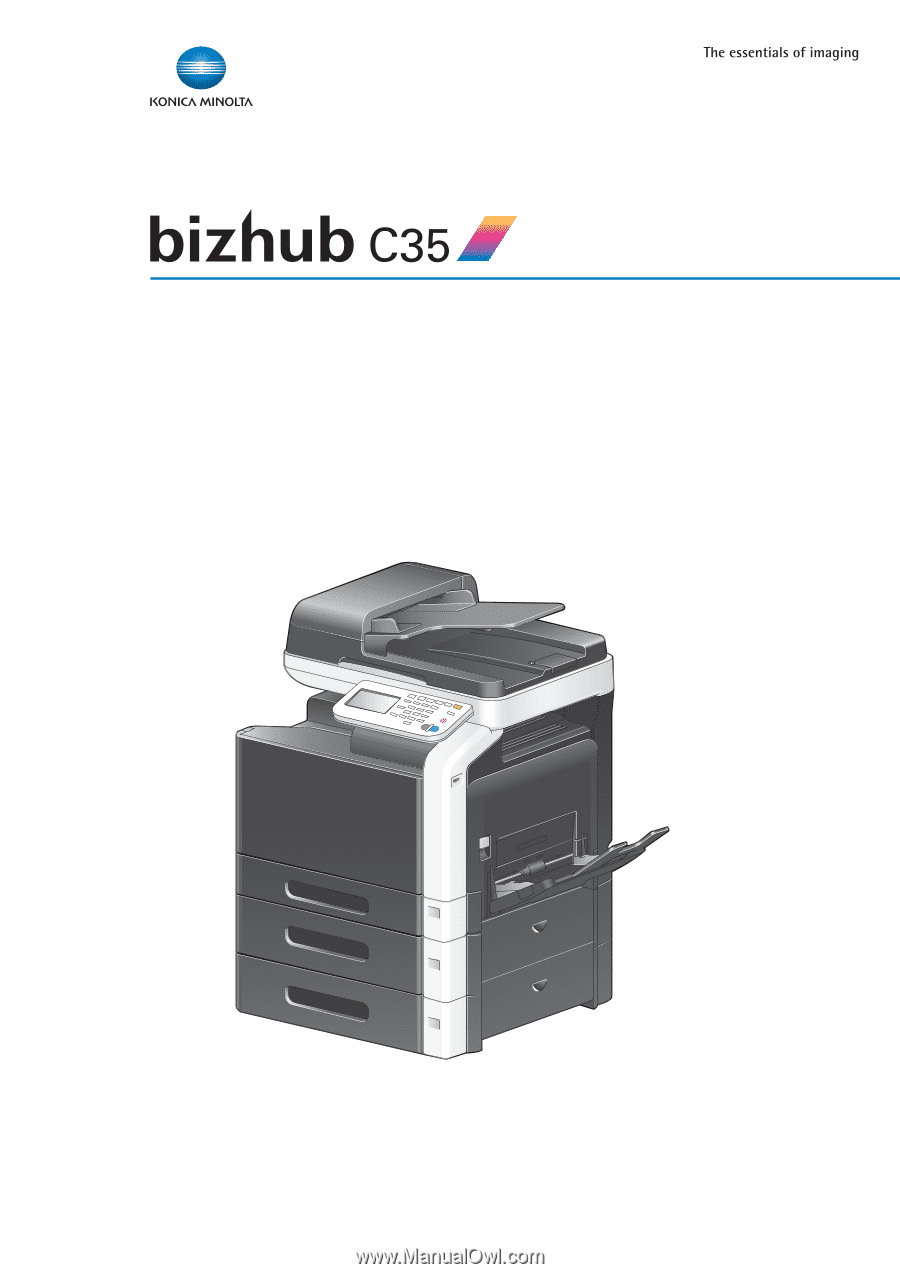
Konica Minolta bizhub C35 bizhub C35 Security Operations User Guide
Konica Minolta bizhub C35 Manual
 |
View all Konica Minolta bizhub C35 manuals
Add to My Manuals
Save this manual to your list of manuals |
Konica Minolta bizhub C35 manual content summary:
- Konica Minolta bizhub C35 | bizhub C35 Security Operations User Guide - Page 1
User's Guide [Security Operations] 2010. 10 Ver. 1.00 - Konica Minolta bizhub C35 | bizhub C35 Security Operations User Guide - Page 2
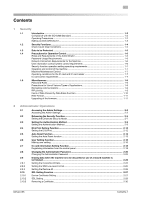
Reset function ...2-13 User Setting Function ...2-16 Making user setting...2-16 IC card information Setting Function 2-18 Registering information from the control panel 2-18 Changing the Administrator Password 2-20 Changing the Administrator Password a Certificate...2-30 bizhub C35 Contents-1 - Konica Minolta bizhub C35 | bizhub C35 Security Operations User Guide - Page 3
or restore 4-2 Accessing from PageScope Data Administrator 4-2 Setting the user authentication method 4-4 Changing the authentication mode...4-6 Making the user settings...4-9 Setting the IC card information...4-10 TWAIN driver...4-12 Accessing from the TWAIN driver...4-12 bizhub C35 Contents-2 - Konica Minolta bizhub C35 | bizhub C35 Security Operations User Guide - Page 4
1 Security - Konica Minolta bizhub C35 | bizhub C35 Security Operations User Guide - Page 5
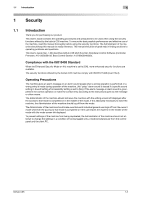
Administrator of the machine should keep this manual for ready reference. The manual should be of great help in finding solutions to operating problems and questions. This User's Guide (Ver. 1.00) describes bizhub C35 to the instructions given by the message or other means. The Administrator of the - Konica Minolta bizhub C35 | bizhub C35 Security Operations User Guide - Page 6
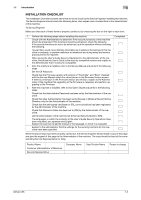
of the machine, check that the User's Guide is the security-compatible version and explain to the Administrator that it is security-compatible. 2. After this machine is installed, refer to the Service Manual and perform the following steps. Set the CE Password. Check that the Firmware version and - Konica Minolta bizhub C35 | bizhub C35 Security Operations User Guide - Page 7
turning [ON] the Enhanced Security Mode, see page 2-5. Setting the Enhanced Security Mode to [ON] will enhance the authentication function. Access control is then provided through password authentication for any access to the Admin Settings, User Authentication mode, and Secured Job file. Access is - Konica Minolta bizhub C35 | bizhub C35 Security Operations User Guide - Page 8
image file processing - Destination recipient data (e-mail address, telephone number) - Administrator passwords, SNMP passwords, trusted channel setting data, and machine setting data stored in the NVRAM - User identification information, user IC card information, User passwords . bizhub C35 1-5 - Konica Minolta bizhub C35 | bizhub C35 Security Operations User Guide - Page 9
for the Administrator Password, auth-password, and priv-password. - If a User Password has been changed, the Administrator should have the corresponding user change the password as soon as possible. - If the Administrator Password has been changed by the Service Engineer, the Administrator should - Konica Minolta bizhub C35 | bizhub C35 Security Operations User Guide - Page 10
adequate control over the machine to ensure that any physical service operations performed on the machine by the Service Engineer are overseen by the Administrator of the machine. Operating conditions for the IC card and IC card reader The machine supports the following types of IC card and IC card - Konica Minolta bizhub C35 | bizhub C35 Security Operations User Guide - Page 11
be accessed from the control panel as follows: [Utility/Counter] ö [Admin Settings Security Settings] ö [Security Details]. Types of passwords User Password Administrator Password Secured Job Password SNMP Password • auth-password • priv-password No. of digits 8 digits or more 8 digits 8 digits - Konica Minolta bizhub C35 | bizhub C35 Security Operations User Guide - Page 12
192.168.1.20/ipp To set IPPS printing: Type https:// /ipp. Windows Vista/Server2008, which offers enhanced security functions, gives a certificate error message if the SSL certificate is one that is not issued by - Konica Minolta bizhub C35 | bizhub C35 Security Operations User Guide - Page 13
generated during print image file processing Deletes all destination recipient data including e-mail addresses and telephone numbers Clears the currently set password, resetting it to the factory setting Clears the currently set password, resetting it to the factory setting (MAC address) Deletes the - Konica Minolta bizhub C35 | bizhub C35 Security Operations User Guide - Page 14
example, to initialize the HDD (to be reset to the default state) or when the HDD is replaced with a referent one. Executing HDD format deletes settings, see page 2-5. Upgrading of the firmware If upgrading of the firmware has been performed by the service engineer, the Administrator of the machine - Konica Minolta bizhub C35 | bizhub C35 Security Operations User Guide - Page 15
2 Administrator Operations - Konica Minolta bizhub C35 | bizhub C35 Security Operations User Guide - Page 16
. NOTICE Make sure that none of the general users of the machine will know the Administrator Password. If the Administrator Password is forgotten, it must be set again by the Service Engineer. Contact your Service Representative. Accessing the Admin Settings The machine does not accept access to the - Konica Minolta bizhub C35 | bizhub C35 Security Operations User Guide - Page 17
has failed appears. Enter the correct Administrator Password. % A failure in authentication as a result of the entry of a wrong password is counted as unauthorized access. If the ensure that the machine functions properly. 6 Press the [Reset] key to log off from the Admin Settings. bizhub C35 2-3 - Konica Minolta bizhub C35 | bizhub C35 Security Operations User Guide - Page 18
address of the machine in the address bar. 3 Press the [Enter] key to start PageScope Web Connection. 4 Click the Administrator radio button and [Log in]. 5 Enter the 8-digit Administrator Password in the password box. % When accessing the Admin you to log off from the Admin Mode. bizhub C35 2-4 - Konica Minolta bizhub C35 | bizhub C35 Security Operations User Guide - Page 19
digits used for each password are restricted. For details of the Password Rules, see page 1-8. Turning ON the Enhanced Security Mode does not enable the ID & Print function. Enable the function manually to protect image files. For details of the ID & Print function, see page 2-12. bizhub C35 2-5 - Konica Minolta bizhub C35 | bizhub C35 Security Operations User Guide - Page 20
the Security Function 2 The Enhanced Security Mode is set to [OFF], if the Administrator of the machine executes any of the following functions. Set the Enhanced Security Mode to executed. - [Restore All] is executed. - [Restore Network] is executed. - [Restore System] is executed. bizhub C35 2-6 - Konica Minolta bizhub C35 | bizhub C35 Security Operations User Guide - Page 21
to call the Admin Settings on the display, see page 2-2. 0 Do not leave the machine with the setting screen of Admin Settings left shown Mode so as to enable the security function of the machine. 1 Call the Admin Settings on the display from the control panel. 2 Touch [↓]. 3 Touch [Security - Konica Minolta bizhub C35 | bizhub C35 Security Operations User Guide - Page 22
the necessary settings beforehand. For details of the necessary settings, see page 2-5. % If the Enhanced Security Mode is properly set to [ON], a key icon appears at the portion enclosed by a red frame of the screen, indicating that the machine is in the Enhanced Security Mode. bizhub C35 2-8 - Konica Minolta bizhub C35 | bizhub C35 Security Operations User Guide - Page 23
page 2-2. 0 Do not leave the machine with the Admin Mode setting screen left shown on the display. If it is abso- lutely necessary to leave the machine, be sure first to log off from the Admin Mode. 1 Start PageScope Web Connection and access the Admin Mode. 2 Click the [Security] tab. bizhub C35 - Konica Minolta bizhub C35 | bizhub C35 Security Operations User Guide - Page 24
and entry of a user password for authentication, in addition to that based on entry of a user name and a user password. % If the IC card function is to be used, it is necessary to register user IC card information in the machine. For details, see page 2-18. 5 Click [Apply]. bizhub C35 2-10 - Konica Minolta bizhub C35 | bizhub C35 Security Operations User Guide - Page 25
2.3 Setting the Authentication Method 2 6 If [External Server] is selected, click [External Server List] from [Authentication] menu. 7 Click [Edit]. 8 Select [Active Directory] and click [Next]. 9 Make the necessary settings. 10 Click [Apply]. bizhub C35 2-11 - Konica Minolta bizhub C35 | bizhub C35 Security Operations User Guide - Page 26
print data of the user in question. NOTICE The Administrator must first make User Authentication settings before setting the ID & Print function. For details of the User Authentication, see page 2-9. Setting the ID & Print 0 For the procedure to access the Admin Mode, see page 2-2. 0 Do not leave - Konica Minolta bizhub C35 | bizhub C35 Security Operations User Guide - Page 27
by the Administrator of the machine through the Admin Settings from the control panel is authenticated, the machine enables setting of the operation of the Auto Reset function. If no operations are performed for a predetermined period of time during access to the Admin Settings or user mode (during - Konica Minolta bizhub C35 | bizhub C35 Security Operations User Guide - Page 28
2.5 Auto Reset Function 2 5 Touch [Enable]. 6 Select [ON] and touch [OK]. % If no operations are performed for 1 min. even with Auto Reset set to [OFF], the function is activated to cause the user to log off from the mode automatically. 7 Touch [Auto Reset]. bizhub C35 2-14 - Konica Minolta bizhub C35 | bizhub C35 Security Operations User Guide - Page 29
2.5 Auto Reset Function 2 8 Enter the period of time (1 min. to 9 min.) after which Auto Reset is activated using [-]/[+] key. % The time for Auto Reset can be set to a value between 1 min. and 9 min., variable in 1-min. increments. 9 Touch [OK]. bizhub C35 2-15 - Konica Minolta bizhub C35 | bizhub C35 Security Operations User Guide - Page 30
, be sure first to log off from the Admin Mode. 0 If a user has been registered, promptly notify the user in question of the registration and have him or her change the password. 1 Start PageScope Web Connection and access the Admin Mode. 2 Click the [Security] tab and [User List]. bizhub C35 2-16 - Konica Minolta bizhub C35 | bizhub C35 Security Operations User Guide - Page 31
completed. Then, click [OK]. % To delete a previously registered user, click [Delete] in step 3. Check the contents of registration on the confirmation screen and click [OK] if the user is to be deleted. If a user is deleted, the image files owned by that specific user are deleted. bizhub C35 2-17 - Konica Minolta bizhub C35 | bizhub C35 Security Operations User Guide - Page 32
the machine by the Administrator of the machine through the Admin Settings is authenticated, the machine enables setting of the operation of the IC card information. The machine allows authentication using an IC card, in addition to that based on entry of a user name and a user password. To use the - Konica Minolta bizhub C35 | bizhub C35 Security Operations User Guide - Page 33
[Input the card ID directly] of PageScope Data Administrator. % To delete a previously registered IC card information, touch [Delete]. Select [Yes] and touch [OK] on the confirmation screen that will appear. 6 Place the IC card on the IC card reader and touch [OK]. 7 Touch [Close]. bizhub C35 2-19 - Konica Minolta bizhub C35 | bizhub C35 Security Operations User Guide - Page 34
first to log off from the Admin Settings. 1 Call the Security Settings screen on the display from the control panel. 2 Touch [Administrator Password]. 3 Touch the upper [Password]. 4 Enter the new 8-digit Administrator Password from the keyboard or keypad. bizhub C35 % Press the [C] key to clear - Konica Minolta bizhub C35 | bizhub C35 Security Operations User Guide - Page 35
be used appears. Enter the correct Administrator Password. For details of the Password Rules, see page 1-8. % If the entered Administrator Password does not match, a message that tells that the Administrator Password does not match appears. Enter the correct Administrator Password. bizhub C35 2-21 - Konica Minolta bizhub C35 | bizhub C35 Security Operations User Guide - Page 36
the machine by the Administrator of the machine through the Admin Settings from the control an error occurs during execution of the erase operations, contact your Service Representative 1 through 3 of page 2-7. 0 Do not leave the machine with the setting screen of Admin Settings left shown on - Konica Minolta bizhub C35 | bizhub C35 Security Operations User Guide - Page 37
2.9 Erasing data when the machine is to be discarded or use of a leased machine is terminated 2 1 Call the Security Settings screen on the display from the control panel. 2 Touch [HDD Settings]. 3 Touch [Overwrite All Data]. 4 Touch [Mode]. 5 Select the desired mode. bizhub C35 2-23 - Konica Minolta bizhub C35 | bizhub C35 Security Operations User Guide - Page 38
turned off during the execution of Overwrite All Data and the machine, as a result, fails to recognize the HDD or develops other fault, contact your Service Representative. bizhub C35 2-24 - Konica Minolta bizhub C35 | bizhub C35 Security Operations User Guide - Page 39
Security Settings screen on the display, see steps 1 through 3 of page 2-7. 0 Do not leave the machine with the setting screen of Admin Settings left shown on the display. If it is absolutely necessary to machine, as a result, develops a fault, contact your Service Representative. bizhub C35 2-25 - Konica Minolta bizhub C35 | bizhub C35 Security Operations User Guide - Page 40
is initialized and reset to the default state. 0 For the procedure to call the Admin Settings on the display, see page 2-2. 0 Do not leave the machine with the setting screen of Admin Settings left shown machine, as a result, develops a fault, contact your Service Representative. bizhub C35 2-26 - Konica Minolta bizhub C35 | bizhub C35 Security Operations User Guide - Page 41
the Administrator of the machine through the Admin Settings is authenticated, the machine enables the setting of encryption of image data Admin Mode. 2 Click the [Security] tab and [PKI Settings]. 3 Click [New Registration]. 4 Select [Create a Self-signed Certificate] and click [Next]. bizhub C35 - Konica Minolta bizhub C35 | bizhub C35 Security Operations User Guide - Page 42
2.10 SSL Setting Function 2 5 Make the necessary settings. % Settings are all cleared if [Apply] is clicked with data entered for each item not meeting the requirements. 6 Click [Apply]. The certificate can now be registered. bizhub C35 2-28 - Konica Minolta bizhub C35 | bizhub C35 Security Operations User Guide - Page 43
in the machine. For the procedure to register the device certificate, see page 2-27. 1 Start PageScope Web Connection and access the Admin Mode. 2 Click the [Security] tab and [SSL/TLS Settings] from setting cannot be changed to one containing strength lower than AES/3DES. bizhub C35 2-29 - Konica Minolta bizhub C35 | bizhub C35 Security Operations User Guide - Page 44
sure first to log off from the Admin Mode. 0 In the Enhanced Security Mode, no certificates can be removed. 1 Start PageScope Web Connection and access the Admin Mode. 2 Click the [Security] tab and [PKI Settings]. 3 Click [Edit]. 4 Select [Delete a Certificate] and click [Next]. bizhub C35 2-30 - Konica Minolta bizhub C35 | bizhub C35 Security Operations User Guide - Page 45
2.10 SSL Setting Function 2 5 Click [OK]. bizhub C35 2-31 - Konica Minolta bizhub C35 | bizhub C35 Security Operations User Guide - Page 46
and [SNMP Settings]. 3 Click the [Change Password] check box and enter the auth-password and priv-password in the boxes marked by the rectangle, that is, the Write side SNMP v3 Setting. % The default setting of auth-password and priv-password is the MAC address set in the machine. 4 Click [Apply - Konica Minolta bizhub C35 | bizhub C35 Security Operations User Guide - Page 47
control functions that can be used over the network using SNMP is granted to the Administrator who is identified by a matching SNMP password for the Write User Name. Reference - If [auth-password] has been selected for Security Level, hashing is used for the authentication informa- tion (auth - Konica Minolta bizhub C35 | bizhub C35 Security Operations User Guide - Page 48
them up (or download them). NOTICE The image files stored as "Personal" are protected. The Administrator of the machine should instruct the user to use "Personal" when saving highly confidential files. Accessing the image file 0 For the procedure to access the Admin Mode, see page 2-2. 0 Do not - Konica Minolta bizhub C35 | bizhub C35 Security Operations User Guide - Page 49
2.12 Accessing the Scan to HDD file 2 4 Select [Save] to back up (download) the image file in the PC. % The backed up (downloaded) file is not deleted from the machine. bizhub C35 2-35 - Konica Minolta bizhub C35 | bizhub C35 Security Operations User Guide - Page 50
the Administrator of the machine through the Admin Settings is authenticated, the machine enables setting of the IP Address and registration of the DNS Server. 2.13.1 Setting the IP Address 0 For the procedure to call the Admin Settings on the display, see page 2-2. 0 Do - Konica Minolta bizhub C35 | bizhub C35 Security Operations User Guide - Page 51
Administrator of the machine through the Admin Admin Mode, see page 2-2. 0 Do not leave the machine with the Admin Mode Admin Mode. 1 Start PageScope Web Connection and access the Admin Mode. 2 Click the [Network] tab and [Netware Settings]. 3 Make the necessary settings. 4 Click [Apply]. bizhub C35 - Konica Minolta bizhub C35 | bizhub C35 Security Operations User Guide - Page 52
to the machine by the Administrator of the machine through the Admin Settings is authenticated, the machine enables making of the SMB Settings. Making the SMB Setting 0 For the procedure to access the Admin Mode, see page 2-2. 0 Do not leave the machine with the Admin Mode setting screen left shown - Konica Minolta bizhub C35 | bizhub C35 Security Operations User Guide - Page 53
Administrator of the machine through the Admin Admin Mode, see page 2-2. 0 Do not leave the machine with the Admin Admin Mode. 1 Start PageScope Web Connection and access the Admin Mode. 2 Click the [Network] tab and [AppleTalk Settings]. 3 Make the necessary settings. 4 Click [Apply]. bizhub C35 - Konica Minolta bizhub C35 | bizhub C35 Security Operations User Guide - Page 54
machine by the Administrator of the machine through the Admin Settings is authenticated, Admin Mode. 1 Start PageScope Web Connection and access the Admin Mode. 2 Click the [Network] tab and [E-mail TX (SMTP)] from [E-mail Settings] menu. 3 Make the necessary settings. 4 Click [Apply]. bizhub C35 - Konica Minolta bizhub C35 | bizhub C35 Security Operations User Guide - Page 55
3 User Operations - Konica Minolta bizhub C35 | bizhub C35 Security Operations User Guide - Page 56
user's guide. NOTICE Before operating the machine, the user him/herself should change the User Password from that registered by the Administrator of the machine. For details of changing the User Password, see page 3-16. For more details of User Name and User Password, ask the Administrator - Konica Minolta bizhub C35 | bizhub C35 Security Operations User Guide - Page 57
user name and user password) 0 Do not leave the machine while you are in the user operation mode. If it is absolutely necessary to leave the machine, be sure first to log off from the user operation mode. 0 If any User , see page 3-14. 2 Touch [Direct Input]. bizhub C35 3-3 - Konica Minolta bizhub C35 | bizhub C35 Security Operations User Guide - Page 58
Enter the User Name from the keyboard or keypad. % Press the [C] key to clear all characters. % Touch [Delete] to delete the last character entered. % Touch [↑] to show the upper case screen. % Touch [!#?/] to show the symbol screen. 4 Touch [OK]. 5 Touch [OK]. 6 Touch [Password]. bizhub C35 3-4 - Konica Minolta bizhub C35 | bizhub C35 Security Operations User Guide - Page 59
Function 3 7 Enter the 8-to-64-digit User Password from the keyboard or keypad. % Press the [C] key to clear [Access Basic Screen] Description Prints only the ID & Print file of the corresponding user. The user operation mode screen is not called to the screen. Only the ordinary login procedure - Konica Minolta bizhub C35 | bizhub C35 Security Operations User Guide - Page 60
User Name. % If a wrong User Password is entered, a message that tells that the authentication has failed appears. Enter the correct User Password . % A failure in authentication as a result of the entry of a wrong password subsequent password ID & Print files, see page 3-14. % If the - Konica Minolta bizhub C35 | bizhub C35 Security Operations User Guide - Page 61
to log off from the user operation mode. 1 Touch [ how to access the ID & Print file, see page 3-14. 2 Placing the IC card on the & Print file of the corresponding user. The user operation mode screen is not called procedure to access the ID & Print files, see page 3-14. % If the ID & Print file is - Konica Minolta bizhub C35 | bizhub C35 Security Operations User Guide - Page 62
user password) 0 Do not leave the machine while you are in the user operation mode. If it is absolutely necessary to leave the machine, be sure first to log off from the user file, see page 3-14. 2 Place the IC card on the IC card reader. 3 Touch [Password]. bizhub C35 3-8 - Konica Minolta bizhub C35 | bizhub C35 Security Operations User Guide - Page 63
Function 3 4 Enter the 8-to-64-digit User Password from the keyboard or keypad. % Press the [C] key to clear [Access Basic Screen] Description Prints only the ID & Print file of the corresponding user. The user operation mode screen is not called to the screen. Only the ordinary login procedure - Konica Minolta bizhub C35 | bizhub C35 Security Operations User Guide - Page 64
User Password. % A failure in authentication as a result of the entry of a wrong password an access lock state and prohibits any subsequent password entry operations. To cancel the access lock the detailed procedure to access the ID & Print files, see page 3-14. % If the ID & Print file is not saved - Konica Minolta bizhub C35 | bizhub C35 Security Operations User Guide - Page 65
address of the machine in the address bar. 3 Press the [Enter] key to start PageScope Web Connection. 4 Click the Registered User radio button and enter the User Name and User Password. 5 Click [Log in]. % If a wrong User Password [Log out] to log off from the user operation mode. bizhub C35 3-11 - Konica Minolta bizhub C35 | bizhub C35 Security Operations User Guide - Page 66
the printer driver side. - If the Administrator of the machine sets the ID & Print function, a direct print file from PageScope Web Connection is also saved as an ID & Print file. 3.2.1 Registering ID & Print files 1 Click [Properties] in the Print dialog box to show the Printing Preference window - Konica Minolta bizhub C35 | bizhub C35 Security Operations User Guide - Page 67
specifying a user name that contains ["] (a double quotation mark), a login error results and the machine cancels the print job. % A failure in authentication as a result of the entry of a wrong password is counted ensure that the machine functions properly. 6 Print the document. bizhub C35 3-13 - Konica Minolta bizhub C35 | bizhub C35 Security Operations User Guide - Page 68
user operation mode. If it is absolutely necessary to leave the machine, be sure first to log off from the user operation mode. 1 Log on to the user operation mode through User Authentication from the control panel. 2 Touch [USB/HDD]. 3 Touch [ID & Print]. 4 Touch [Login User]. bizhub C35 3-14 - Konica Minolta bizhub C35 | bizhub C35 Security Operations User Guide - Page 69
3.2 ID & Print Function 3 5 Select the desired ID & Print file and touch [Print]. % The ID & Print file is automatically deleted as soon as the printing is normally terminated. bizhub C35 3-15 - Konica Minolta bizhub C35 | bizhub C35 Security Operations User Guide - Page 70
User Authentication from the PageScope Web Connection. 2 Click the [System] tab and [Authentication]. 3 Enter the currently registered User Password and a new User Password. Then, to make sure that you have entered the correct new password, enter the new User Password once again. bizhub C35 - Konica Minolta bizhub C35 | bizhub C35 Security Operations User Guide - Page 71
the correct User Password. For details of the Password Rules, see page 1-8. % If the entered User Password in the "New Password" box and "Retype New Password" box does not match, a message that tells that the User Password does not match appears. Enter the correct User Password. bizhub C35 3-17 - Konica Minolta bizhub C35 | bizhub C35 Security Operations User Guide - Page 72
window. 2 Click the [Basic] tab. 3 Select [Secured Job (Encryption)] in [Job Retention]. % If the Enhanced Security mode is turned ON, select "Secured Job (Encryption)". Selection of "Secured Job" does not result in the print data being saved in the machine. 4 Click [User Settings]. bizhub C35 - Konica Minolta bizhub C35 | bizhub C35 Security Operations User Guide - Page 73
Job Password in the Password box. 6 Click [OK]. 7 Click [Authentication/Account Track]. 8 Enter the user name and password, and then click [OK]. % If the user password does not correspond to the user name to ensure that the machine functions properly. 9 Print the document. bizhub C35 3-19 - Konica Minolta bizhub C35 | bizhub C35 Security Operations User Guide - Page 74
0 For the logon procedure, see page 3-2. 0 Do not leave the machine while you are in the user operation mode. If it is absolutely necessary to leave the machine, be sure first to log off from the user operation mode. 0 Enter the Secured Job password through the printer driver on the PC side. The - Konica Minolta bizhub C35 | bizhub C35 Security Operations User Guide - Page 75
For the Secured Job Password, enter the 8-digit one set on the printer driver side. % Press the [C] key to clear all characters. % Touch [Delete] to delete the last character entered. % Touch [↑] to show the upper case screen. % Touch [!#?/] to show the symbol screen. 8 Touch [OK]. bizhub C35 3-21 - Konica Minolta bizhub C35 | bizhub C35 Security Operations User Guide - Page 76
operation of the machine, the machine is set into an access lock state and prohibits any subsequent password entry operations. To cancel the access lock state, turn off, then on, the power switch Job file is automatically deleted as soon as the printing is normally terminated. bizhub C35 3-22 - Konica Minolta bizhub C35 | bizhub C35 Security Operations User Guide - Page 77
through authentication of the user name and password. Encryption communication using the SSL/TLS protocol is performed when the image file is downloaded from the machine to the PC, so that the data is protected. 3.5.1 Registering image files 0 For the logon procedure, see page 3-2. 0 Do not leave - Konica Minolta bizhub C35 | bizhub C35 Security Operations User Guide - Page 78
3.5 Scan to HDD Function 3 4 Touch [Save Document]. 5 Select the destination to which the file is to be saved and touch [OK] or [Start]. % The image file stored in [Personal] is protected. Select [Personal] whenever saving a highly confidential file. bizhub C35 3-24 - Konica Minolta bizhub C35 | bizhub C35 Security Operations User Guide - Page 79
HDD Function 3 3.5.2 Accessing the image file 0 For the logon procedure, see page 3-2. 0 Do not leave the machine while you are in the user operation mode. If it is absolutely necessary to leave the machine, be sure first to log off from the user operation mode. 1 Log on - Konica Minolta bizhub C35 | bizhub C35 Security Operations User Guide - Page 80
3.5 Scan to HDD Function 3 5 A list of documents saved will appear. % To delete image file, select the specific document and press [Delete]. bizhub C35 3-26 - Konica Minolta bizhub C35 | bizhub C35 Security Operations User Guide - Page 81
page 3-2. 0 Do not leave the machine while you are in the user operation mode. If it is absolutely necessary to leave the machine, be sure first to log off from the user operation mode. 1 Log on to the user operation mode through User downloaded file is not deleted from the machine. bizhub C35 3-27 - Konica Minolta bizhub C35 | bizhub C35 Security Operations User Guide - Page 82
4 Application Software - Konica Minolta bizhub C35 | bizhub C35 Security Operations User Guide - Page 83
Directory. NOTICE Make sure that none of the general users of the machine will know the Administrator Password. If the Administrator Password is forgotten, it must be set again by the Service Engineer. Contact your Service Representative. Precautions during backup or restore This machine allows - Konica Minolta bizhub C35 | bizhub C35 Security Operations User Guide - Page 84
and click [Import]. 4 Type the 8-digit Administrator Password registered in the machine and click [OK]. % If the "Save" check box has been selected, the Administrator Password entered is stored in the PC being used data displayed on the SSL certificate check screen and click [Yes]. bizhub C35 4-3 - Konica Minolta bizhub C35 | bizhub C35 Security Operations User Guide - Page 85
absolutely necessary to leave the site, be sure first to log off from the PageScope Data Administrator. 1 Access the machine through [Authentication Settings/Address Settings] mode of PageScope Data Ad- ministrator. 2 Click [Authentication settings]. 3 Click [User authentication]. bizhub C35 4-4 - Konica Minolta bizhub C35 | bizhub C35 Security Operations User Guide - Page 86
Data Administrator 4 4 From the pull-down menu of User authentication, select the user authentication method. % To change the user device]. % If there is a job being executed or a reserved job (timer TX, fax redial waiting, etc.) in the machine, the machine displays a message that tells that - Konica Minolta bizhub C35 | bizhub C35 Security Operations User Guide - Page 87
Data Administrator. 1 Access the machine through [Authentication Settings/Address Settings] mode of PageScope Data Ad- ministrator. 2 Click [Authentication settings]. 3 From [Edit] on the tool bar, select [Authentication] and click [Change authentication mode]. 4 Click [Next]. bizhub C35 4-6 - Konica Minolta bizhub C35 | bizhub C35 Security Operations User Guide - Page 88
% If there is a job being executed or a reserved job (timer TX, fax redial waiting, etc.) in the machine, the machine displays a message that tells that the write operation has not been successful because of a device lock error. Click [OK] and wait for some while before attempting to execute [Export - Konica Minolta bizhub C35 | bizhub C35 Security Operations User Guide - Page 89
selected in step 5, [Synchronize] is set for "Synchronize user authentication and account track." If you want user authentication not synchronized with account track, click to deselect [Synchronize user authentication and account track] and execute [Export to the device] once again. bizhub C35 4-8 - Konica Minolta bizhub C35 | bizhub C35 Security Operations User Guide - Page 90
the write operation has not been successful because of a device lock error. Click [OK] and wait for some while before attempting to execute [Export to the device] again. % If a previously registered user is deleted in step 4, the image files owned by that specific user are deleted. bizhub C35 4-9 - Konica Minolta bizhub C35 | bizhub C35 Security Operations User Guide - Page 91
IC card driver (USB driver) of the IC card reader and the IC card plug-in must be installed in the PC of the Administrator of the machine in advance. For details, refer to the User's Guide furnished with the machine. 0 For the procedure to access the machine, see steps 1 through 5 of page 4-2. 0 Do - Konica Minolta bizhub C35 | bizhub C35 Security Operations User Guide - Page 92
4.1 PageScope Data Administrator 4 6 Place the IC card on the IC card reader, and the user IC card information is registered through [Input the card ID directly], the user must be associated with the card through the Admin Settings of the machine. For more details, see page 2-18. bizhub C35 4-11 - Konica Minolta bizhub C35 | bizhub C35 Security Operations User Guide - Page 93
from the TWAIN driver. 1 Start the image processing application. 2 From the [File] menu, click [Read], and then select [KONICA MINOLTA bizhub C35 TWAIN Ver.1]. 3 Select the "Login as the Registered user" radio button and enter the User Name and the 8-to-64-digit User Password. % If [External Server - Konica Minolta bizhub C35 | bizhub C35 Security Operations User Guide - Page 94
http://konicaminolta.com A121-9301B-00 2010 Copyright
-
 1
1 -
 2
2 -
 3
3 -
 4
4 -
 5
5 -
 6
6 -
 7
7 -
8
-
9
-
10
-
11
-
12
-
13
-
14
-
15
-
16
-
17
-
18
-
19
-
20
-
21
-
22
-
23
-
24
-
25
-
26
-
27
-
28
-
29
-
30
-
31
-
32
-
33
-
34
-
35
-
36
-
37
-
38
-
39
-
40
-
41
-
42
-
43
-
44
-
45
-
46
-
47
-
48
-
49
-
50
-
51
-
52
-
53
-
54
-
55
-
56
-
57
-
58
-
59
-
60
-
61
-
62
-
63
-
64
-
65
-
66
-
67
-
68
-
69
-
70
-
71
-
72
-
73
-
74
-
75
-
76
-
77
-
78
-
79
-
80
-
81
-
82
-
83
-
84
-
85
-
86
-
87
-
88
-
89
-
90
-
91
-
92
-
93
-
94
 |
 |
User’s Guide
[Security Operations]
2010. 10
Ver. 1.00