
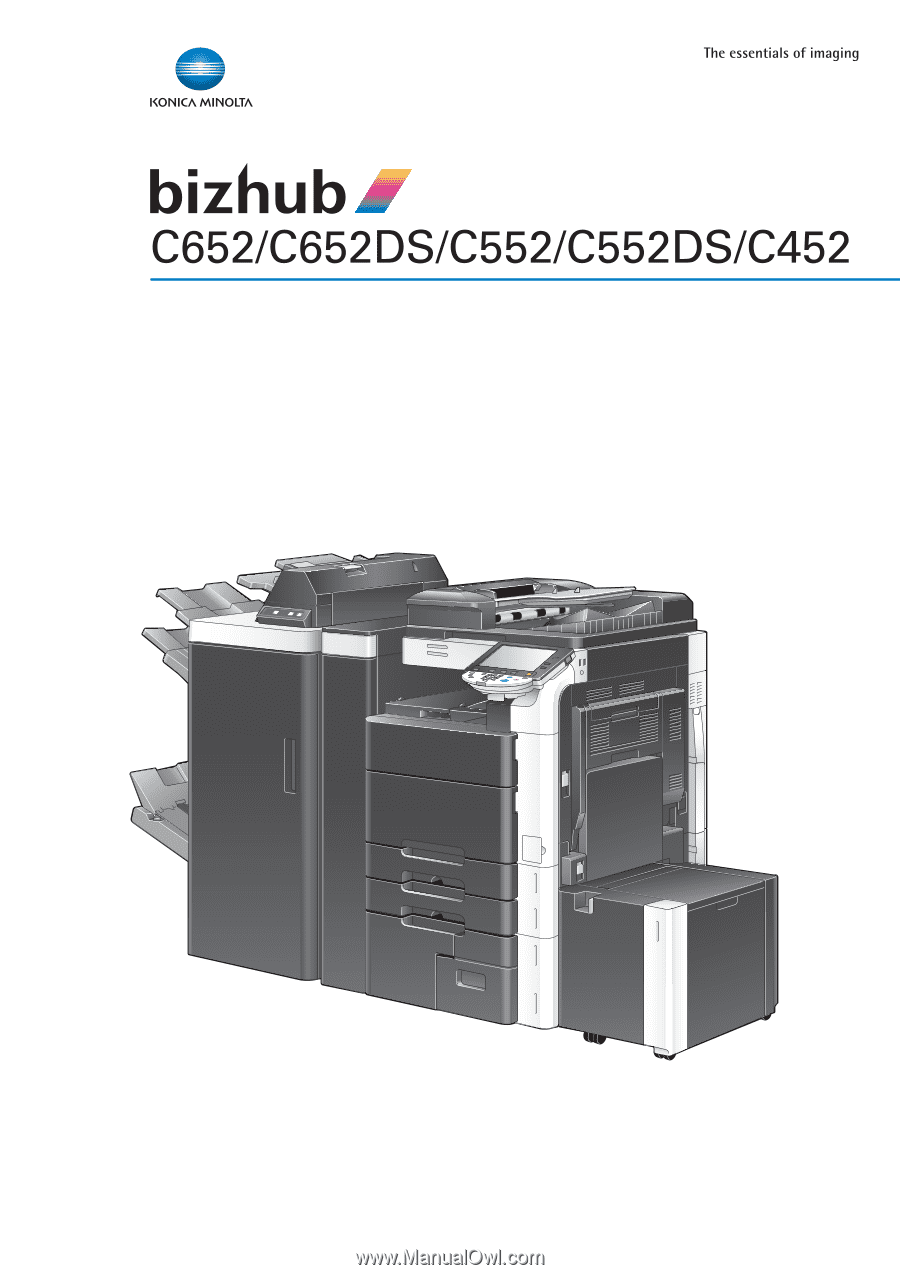
Konica Minolta bizhub C652 bizhub C452/C552/C552DS/C652/C652DS Enlarge Display
Konica Minolta bizhub C652 Manual
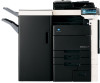 |
View all Konica Minolta bizhub C652 manuals
Add to My Manuals
Save this manual to your list of manuals |
Konica Minolta bizhub C652 manual content summary:
- Konica Minolta bizhub C652 | bizhub C452/C552/C552DS/C652/C652DS Enlarge Display - Page 1
User's Guide [Enlarge Display Operations] - Konica Minolta bizhub C652 | bizhub C452/C552/C552DS/C652/C652DS Enlarge Display - Page 2
User's guides ...1-2 User's Guide ...1-3 Conventions used in this manual 1-4 Symbols used in this manual ...1-4 To use this machine safely...1-4 Procedural instruction Fax/Scan]...2-5 [Copy]...2-5 [Fax/Scan] ...2-6 [Utility/Counter] ...2-6 Default bizhub C652/C652DS/C552/C552DS/C452 Contents-1 - Konica Minolta bizhub C652 | bizhub C452/C552/C552DS/C652/C652DS Enlarge Display - Page 3
13 File Type...4-13 Color ...4-14 Scan Size ...4-15 Background Removal ...4-16 Original Settings...4-17 Original Direction ...4-17 Binding Position ...4-18 Destination Settings ...4-19 5 Index 5.1 Index by item ...5-2 5.2 Index by button...5-3 bizhub C652/C652DS/C552/C552DS/C452 Contents-2 - Konica Minolta bizhub C652 | bizhub C452/C552/C552DS/C652/C652DS Enlarge Display - Page 4
1 Introduction - Konica Minolta bizhub C652 | bizhub C452/C552/C552DS/C652/C652DS Enlarge Display - Page 5
describes details on the fax driver function that transmits faxes directly from a computer. • PC-FAX This manual describes details on setting methods for each function using the network connection. • Network settings • Settings using PageScope Web Connection bizhub C652/C652DS/C552/C552DS/C452 1-2 - Konica Minolta bizhub C652 | bizhub C452/C552/C552DS/C652/C652DS Enlarge Display - Page 6
is required to enable users to perform maintenance work or troubleshooting operations. Limit your maintenance and troubleshooting operations to the areas explained in this manual. Should you experience any problems, please contact our service representative. bizhub C652/C652DS/C552/C552DS/C452 1-3 - Konica Minolta bizhub C652 | bizhub C452/C552/C552DS/C652/C652DS Enlarge Display - Page 7
steps. % This symbol indicates a supplementary explanation of a procedural instruction. A procedural operation is illustrated. % This symbol indicates transition of the control panel to access a desired menu item. This symbol indicates a desired page. bizhub C652/C652DS/C552/C552DS/C452 1-4 - Konica Minolta bizhub C652 | bizhub C452/C552/C552DS/C652/C652DS Enlarge Display - Page 8
and paper sizes The following explains the indication for originals and paper described in this manual. When indicating the original or paper size, the Y side represents the width and the paper size with the length (X) being shorter than the width (Y). bizhub C652/C652DS/C552/C552DS/C452 1-5 - Konica Minolta bizhub C652 | bizhub C452/C552/C552DS/C652/C652DS Enlarge Display - Page 9
2 Before use - Konica Minolta bizhub C652 | bizhub C452/C552/C552DS/C652/C652DS Enlarge Display - Page 10
name and function of each component in the control panel, refer to the "User's Guide [Copy Operations]" and the "User's Guide [Network Scan/Fax/Network Fax Operations]". 1 22 21 20 19 18 17 16 15 "3 How to use Copy mode", "4 How to use Fax/Scan mode" - - bizhub C652/C652DS/C552/C552DS/C452 2-2 - Konica Minolta bizhub C652 | bizhub C452/C552/C552DS/C652/C652DS Enlarge Display - Page 11
in the enlarge display mode. Press this key to enter Fax/Scan mode. While the machine is in Fax/Scan mode, the indicator on the [Fax/Scan] key lights up in green. Reference - p. 2-7 p. 2-6 p. 2-5 p. 2-5 p. 2-12 p. 2-5 - p. 2-11 p. 2-10 p. 2-8 p. 2-10 p. 2-6 bizhub C652/C652DS/C552/C552DS/C452 2-3 - Konica Minolta bizhub C652 | bizhub C452/C552/C552DS/C652/C652DS Enlarge Display - Page 12
panel and functions 2 Overview 22 [Copy] Press this key to enter Copy mode. (As a default, the machine is in Copy mode. ) While the machine is in Copy mode, the indicator on of the control panel, and then adjust the panel in the horizontal direction. bizhub C652/C652DS/C552/C552DS/C452 2-4 - Konica Minolta bizhub C652 | bizhub C452/C552/C552DS/C652/C652DS Enlarge Display - Page 13
returns to the default settings, and the Scan] Select a function according to your desired operation. The indicator on the selected function key lights up in green. [Copy] % Press the [Copy] key to enter Copy mode. The basic settings screen for Copy mode appears. bizhub C652/C652DS/C552/C552DS/C452 - Konica Minolta bizhub C652 | bizhub C452/C552/C552DS/C652/C652DS Enlarge Display - Page 14
the settings in advance. % Display the enlarged display screen of the mode to be configured, and then press the [Utility/Counter] key ö [User Settings] ö [Copier Settings] or [Scan/Fax Settings] ö [Default Enlarge Display Setting] to apply the settings. bizhub C652/C652DS/C552/C552DS/C452 2-6 - Konica Minolta bizhub C652 | bizhub C452/C552/C552DS/C652/C652DS Enlarge Display - Page 15
the [Mode Memory] key. Settings Recall Scan/Fax Program Page List Previous page Next page Select the desired program. Only one program can be selected. Select the page to be displayed. Press either of the two buttons to move to the previous or next page. bizhub C652/C652DS/C552/C552DS/C452 2-7 - Konica Minolta bizhub C652 | bizhub C452/C552/C552DS/C652/C652DS Enlarge Display - Page 16
be added to the selected program. For details on adding an address, refer to page 4-5. 2.1.5 [Accessibility] To configure the control panel settings or adjust the touch panel, . • If the touch panel cannot be adjusted, contact your service representative. bizhub C652/C652DS/C552/C552DS/C452 2-8 - Konica Minolta bizhub C652 | bizhub C452/C552/C552DS/C652/C652DS Enlarge Display - Page 17
before the [Ac- cessibility] key is pressed can be selected. • You can also change the default settings in User Settings. For details, refer to page 2-6. d Reference To return to the basic settings screen, press the [Accessibility], [Close], or [Reset] key. bizhub C652/C652DS/C552/C552DS/C452 2-9 - Konica Minolta bizhub C652 | bizhub C452/C552/C552DS/C652/C652DS Enlarge Display - Page 18
be used for logging in to the machine. For details, refer to the "User's Guide [Copy Operations]". % Configure the necessary settings for logging in to the machine, and then press the [Access] key. The basic settings screen appears. bizhub C652/C652DS/C552/C552DS/C452 2-10 - Konica Minolta bizhub C652 | bizhub C452/C552/C552DS/C652/C652DS Enlarge Display - Page 19
specific registered user. User Name Enter the user name. User Name List Press this button to display the list of user names and select a user name from the list. Password Enter the user password the touch panel is cleared. A new value can be entered. bizhub C652/C652DS/C552/C552DS/C452 2-11 - Konica Minolta bizhub C652 | bizhub C452/C552/C552DS/C652/C652DS Enlarge Display - Page 20
specify multiple copies. 1 Load the original. 2 Press the [Proof Copy] key. The original is scanned and a single proof copy is printed. % If the original is placed on the original glass, on printing a stored job, refer to "User's Guide [Copy Operations]". bizhub C652/C652DS/C552/C552DS/C452 2-12 - Konica Minolta bizhub C652 | bizhub C452/C552/C552DS/C652/C652DS Enlarge Display - Page 21
. - By using the ADF, a multi-page original can be fed automatically one page at a time. The double-sided originals can also be scanned automatically. - When you are using the original or loaded into the ADF, refer to the "User's Guide [Copy Operations]". bizhub C652/C652DS/C552/C552DS/C452 2-13 - Konica Minolta bizhub C652 | bizhub C452/C552/C552DS/C652/C652DS Enlarge Display - Page 22
3 How to use Copy mode - Konica Minolta bizhub C652 | bizhub C452/C552/C552DS/C652/C652DS Enlarge Display - Page 23
, refer to the "User's Guide [Copy Operations]". General page 3-14. 4 Using the keypad, enter the desired number of copies. % If the number of copies was incorrectly entered, press the [C] (clear) key in the keypad, and then enter the correct number of copies. bizhub C652/C652DS/C552/C552DS/C452 - Konica Minolta bizhub C652 | bizhub C452/C552/C552DS/C652/C652DS Enlarge Display - Page 24
with a password embedded by the password copy function is scanned, the copy operation starts after you enter the password. - If multiple originals with different passwords are scanned at the same time, you will need to enter a password for each original. bizhub C652/C652DS/C552/C552DS/C452 3-3 - Konica Minolta bizhub C652 | bizhub C452/C552/C552DS/C652/C652DS Enlarge Display - Page 25
the scanned original is in color or in black and white, and then select the appropriate color setting (full color or black). Select this setting to print the copy in full color, regardless of whether the scanned original is in color or in black and white. bizhub C652/C652DS/C552/C552DS/C452 3-4 - Konica Minolta bizhub C652 | bizhub C452/C552/C552DS/C652/C652DS Enlarge Display - Page 26
blue, green, cyan and magenta. Select this setting to print the copy in black and white, regardless of whether the scanned original is in color or in black and white. Press this button to return to the basic settings screen with the changed settings applied. bizhub C652/C652DS/C552/C552DS/C452 3-5 - Konica Minolta bizhub C652 | bizhub C452/C552/C552DS/C652/C652DS Enlarge Display - Page 27
size is automatically selected according to the original size. Select the corresponding try button to manually select the desired paper. Press this button to specify the paper type and size for The paper size larger than the original size can be selected. bizhub C652/C652DS/C552/C552DS/C452 3-6 - Konica Minolta bizhub C652 | bizhub C452/C552/C552DS/C652/C652DS Enlarge Display - Page 28
Side User Paper 4 Duplex 2nd Side User Paper 5 Duplex 2nd Side User Paper 6 Reference - You can select User Paper when weighing capacity is specified by your service representative. For details on the user paper, refer to the "User's Guide [Copy Operations]". bizhub C652/C652DS/C552/C552DS/C452 - Konica Minolta bizhub C652 | bizhub C452/C552/C552DS/C652/C652DS Enlarge Display - Page 29
paper. % Press [Basic] ö [Zoom]. Settings Auto Zoom Full Size Enlarge Reduce Minimal Manual Set Zoom Ratio Main Screen The most appropriate zoom ratio is automatically selected based on the size the basic settings screen with the changed settings applied. bizhub C652/C652DS/C552/C552DS/C452 3-8 - Konica Minolta bizhub C652 | bizhub C452/C552/C552DS/C652/C652DS Enlarge Display - Page 30
page. Using these functions helps to reduce the number of sheets of paper. % Press [Basic] ö [Duplex/Combine]. Settings Original > Copy Combine 1 > 1 1 > 2 2 > 1 2 > 2 2in1 Select this setting to print two original images on one sheet of paper. No bizhub C652/C652DS/C552/C552DS/C452 Select - Konica Minolta bizhub C652 | bizhub C452/C552/C552DS/C652/C652DS Enlarge Display - Page 31
" and "Tri-Fold" cannot be used together with any of "Offset", "Staple" and "Punch". % Press [Basic] ö [Finishing]. Reference - The displayed window varies depending on the installed options. bizhub C652/C652DS/C552/C552DS/C452 3-10 - Konica Minolta bizhub C652 | bizhub C452/C552/C552DS/C652/C652DS Enlarge Display - Page 32
multi-page originals are copied for multiple sets, copies can be fed out sorted by pages. 432 11 1 1 Offset When multi-page originals separator JS-504 is installed: The copies are fed out and stacked on top of each other with each set staggered to separate them. bizhub C652/C652DS/C552/C552DS/C452 - Konica Minolta bizhub C652 | bizhub C452/C552/C552DS/C652/C652DS Enlarge Display - Page 33
this setting to fold copies at the center in half before feeding them out. Center Staple & Fold Select this setting to staple copies at the center before feeding them out. Tri-Fold Select this setting to fold copies in three before feeding them out. bizhub C652/C652DS/C552/C552DS/C452 3-12 - Konica Minolta bizhub C652 | bizhub C452/C552/C552DS/C652/C652DS Enlarge Display - Page 34
to "User's Guide [Copy Operations]". 3.2.6 Auto Rotate OFF You can copy the original according to the paper orientation without rotating the image. % Press [Basic] ö [Auto Rotate OFF]. % To cancel the setting, press [Auto Rotate OFF] again to deselect it. bizhub C652/C652DS/C552/C552DS/C452 3-13 - Konica Minolta bizhub C652 | bizhub C452/C552/C552DS/C652/C652DS Enlarge Display - Page 35
condition. Originals of different sizes can be loaded into the ADF and scanned at the same time. If folded originals are loaded into the ADF to page of the original will be arranged in the correct orientation. % Press [Original/Density] ö [Binding Position]. bizhub C652/C652DS/C552/C552DS/C452 - Konica Minolta bizhub C652 | bizhub C452/C552/C552DS/C652/C652DS Enlarge Display - Page 36
original is selected if the original length is 11-11/16 in (297 mm) or less. A page margin position along the short side of the original is selected if the original length exceeds 11-11/16 text is reproduced so that it is darker, making it easier to read. bizhub C652/C652DS/C552/C552DS/C452 3-15 - Konica Minolta bizhub C652 | bizhub C452/C552/C552DS/C652/C652DS Enlarge Display - Page 37
the original is loaded. This can arrange the images in the front page and back page in the correct orientation with correct page order. % Press [Original/Density] ö [Original Direction]. % Alternatively, of the original toward the right side of this machine. bizhub C652/C652DS/C552/C552DS/C452 3-16 - Konica Minolta bizhub C652 | bizhub C452/C552/C552DS/C652/C652DS Enlarge Display - Page 38
the density is lightened by one level. Press this button to select the center setting (default setting). Each time this button is pressed, the density is darkened by one level. Press background prints of the original. Normally, select [Bleed Removal]. bizhub C652/C652DS/C552/C552DS/C452 3-17 - Konica Minolta bizhub C652 | bizhub C452/C552/C552DS/C652/C652DS Enlarge Display - Page 39
Background Removal Level Main Screen If the original to be scanned has a colored background, adjust the background with this Press this button to select the third level from the right (default). Dark Each time this button is pressed, the background density bizhub C652/C652DS/C552/C552DS/C452 3-18 - Konica Minolta bizhub C652 | bizhub C452/C552/C552DS/C652/C652DS Enlarge Display - Page 40
. 1 Slide the adjustable lateral guides of the ADF to fit the size of the largest page. 2 Load the original face up in the ADF and arrange according to the scanning order. 3 Press [Original/Density a message appears prompting you to place an original. bizhub C652/C652DS/C552/C552DS/C452 3-19 - Konica Minolta bizhub C652 | bizhub C452/C552/C552DS/C652/C652DS Enlarge Display - Page 41
4 How to use Fax/Scan mode - Konica Minolta bizhub C652 | bizhub C452/C552/C552DS/C652/C652DS Enlarge Display - Page 42
details on loading originals, refer to page 2-13. 3 Specify the destination. % For details on specifying a destination, refer to page 4-5. % If the destination was incorrectly specified, press the [C] (clear) key, and then specify the destination again. bizhub C652/C652DS/C552/C552DS/C452 4-2 - Konica Minolta bizhub C652 | bizhub C452/C552/C552DS/C652/C652DS Enlarge Display - Page 43
an original with a password embedded by the password copy function is scanned, the data is sent after you enter the password. - If multiple originals with different passwords are scanned at the same time, you will need to enter a password for each original. bizhub C652/C652DS/C552/C552DS/C452 4-3 - Konica Minolta bizhub C652 | bizhub C452/C552/C552DS/C652/C652DS Enlarge Display - Page 44
Scanned data will be sent directly to a specific computer on the network. To send a file by SMB, you must configure shared file settings in Windows scanned data. Fax transmission is limited within an intranet. You can send or receive color images by fax. bizhub C652/C652DS/C552/C552DS/C452 4-4 - Konica Minolta bizhub C652 | bizhub C452/C552/C552DS/C652/C652DS Enlarge Display - Page 45
For details on registering destinations, refer to the "User's Guide [Network Scan/Fax/Network Fax Operations]". Overview Address Book Job History ] - [Copy guard] or [Password copy] is set to [Yes] in Administrator Settings, [Off-hook] is not displayed. bizhub C652/C652DS/C552/C552DS/C452 4-5 - Konica Minolta bizhub C652 | bizhub C452/C552/C552DS/C652/C652DS Enlarge Display - Page 46
were specified when destinations were registered. Configure various settings for scan operations. For details, refer to page 4-10. The selected destinations appear, allowing you to check destination-first basis, allowing you to select the desired destination. bizhub C652/C652DS/C552/C552DS/C452 4-6 - Konica Minolta bizhub C652 | bizhub C452/C552/C552DS/C652/C652DS Enlarge Display - Page 47
Settings Scan Settings Dest. Settings 4 Configure various settings for scan operations. For details, refer to page 4-10. The selected destinations appear, allowing you to check the destinations before sending data. For details, refer to page 4-19. bizhub C652/C652DS/C552/C552DS/C452 4-7 - Konica Minolta bizhub C652 | bizhub C452/C552/C552DS/C652/C652DS Enlarge Display - Page 48
in Administrator Settings in advance. For details on the LDAP settings, refer to the "User's Guide [Network Administrator]". % Press [Address Search] ö [Search]. Press [Address Search] in combination. Last Name First Name City Company Name Department bizhub C652/C652DS/C552/C552DS/C452 4-8 - Konica Minolta bizhub C652 | bizhub C452/C552/C552DS/C652/C652DS Enlarge Display - Page 49
services to separate a User's Guide [Network Administrator]". If user authentication is enabled, whether to permit "Manual Destination Input" is determined for each registered user. For details on user registration, refer to the "User's Guide [Copy Operations]". bizhub C652/C652DS/C552/C552DS/C452 - Konica Minolta bizhub C652 | bizhub C452/C552/C552DS/C652/C652DS Enlarge Display - Page 50
p. 4-12 p. 4-13 p. 4-13 p. 4-14 p. 4-15 p. 4-16 p. 4-17 4.3.1 Simplex/Duplex Specify whether to scan one side or both sides of the original. % Press [Scan Settings] ö [Simplex/Duplex]. Settings 1-Sided Select this setting to scan single-sided originals. bizhub C652/C652DS/C552/C552DS/C452 4-10 - Konica Minolta bizhub C652 | bizhub C452/C552/C552DS/C652/C652DS Enlarge Display - Page 51
for scanning originals with an even density produced using a copier or printer. Appropriate for scanning originals scanning printed originals, such as pamphlets or catalogs. Press this button to return to the Address Book screen with the changed settings applied. bizhub C652/C652DS/C552/C552DS/C452 - Konica Minolta bizhub C652 | bizhub C452/C552/C552DS/C652/C652DS Enlarge Display - Page 52
to the Address Book screen with the changed settings applied. Reference - The finer the scan resolution is, the larger the data volume becomes, resulting in longer transmission time. To send the specified resolution, the resolution is reduced accordingly. bizhub C652/C652DS/C552/C552DS/C452 4-12 - Konica Minolta bizhub C652 | bizhub C452/C552/C552DS/C652/C652DS Enlarge Display - Page 53
data in PDF format. Select this setting to save data in a highly compressed PDF format. Use this setting to reduce the file size when scanned in full color. Select this setting to save data in TIFF format. Select this setting to save data in JPEG format. bizhub C652/C652DS/C552/C552DS/C452 4-13 - Konica Minolta bizhub C652 | bizhub C452/C552/C552DS/C652/C652DS Enlarge Display - Page 54
for scanning originals with many halftones, such as black and white photos. Appropriate for scanning originals with distinct black and white areas, such as line drawings. Press this button to return to the Address Book screen with the changed settings applied. bizhub C652/C652DS/C552/C552DS/C452 - Konica Minolta bizhub C652 | bizhub C452/C552/C552DS/C652/C652DS Enlarge Display - Page 55
the standard metric sizes. Select the scan size from the standard inch sizes. Select the scan size from the standard sizes other than standard metric or inch sizes. Press this button to return to the Address Book screen with the changed settings applied. bizhub C652/C652DS/C552/C552DS/C452 4-15 - Konica Minolta bizhub C652 | bizhub C452/C552/C552DS/C652/C652DS Enlarge Display - Page 56
adjust the background density such as when the original to be scanned has a colored background. Light Each time this button is this button to select the third level from the right (default). Dark Each time this button is pressed, the background density bizhub C652/C652DS/C552/C552DS/C452 4-16 - Konica Minolta bizhub C652 | bizhub C452/C552/C552DS/C652/C652DS Enlarge Display - Page 57
loaded original can be specified. The top of the back page of the original will be arranged in the correct orientation when scanning double-sided originals. 0 The [Original Direction] setting will the Address Book screen with the changed settings applied. bizhub C652/C652DS/C552/C552DS/C452 4-17 - Konica Minolta bizhub C652 | bizhub C452/C552/C552DS/C652/C652DS Enlarge Display - Page 58
, specify the binding position. The top of the back page of the original will be arranged in the correct orientation. % Press [Scan Settings] ö [Original Settings] ö [Binding Position]. Settings to the Address Book screen with the changed settings applied. bizhub C652/C652DS/C552/C552DS/C452 4-18 - Konica Minolta bizhub C652 | bizhub C452/C552/C552DS/C652/C652DS Enlarge Display - Page 59
and then press [Delete] to delete it from the list. Press this button to return to the Address Book screen with the changed settings applied. bizhub C652/C652DS/C552/C552DS/C452 4-19 - Konica Minolta bizhub C652 | bizhub C452/C552/C552DS/C652/C652DS Enlarge Display - Page 60
5 Index - Konica Minolta bizhub C652 | bizhub C452/C552/C552DS/C652/C652DS Enlarge Display - Page 61
4-10 Scan size 4-15 Simplex/Duplex 4-10 Stapling/punching 3-10 Start 2-5 Stop 2-5 T Touch panel 2-5 Transmission options 4-4 Turning off automatic rotation 3-13 U User authentication 2-10 Utility/counter 2-6 Z Z-folded original 3-19 Zoom 3-8 bizhub C652/C652DS/C552/C552DS/C452 5-2 - Konica Minolta bizhub C652 | bizhub C452/C552/C552DS/C652/C652DS Enlarge Display - Page 62
Direction 3-16, 4-17 Original Settings 4-17 Original Type 3-15, 4-11 Original/Density 3-14 Other Dest 4-6 Output Bind Direction 3-10 P Page Separation 4-14 Paper 3-6 Paper Discoloration Adj 3-18, 4-16 Paper Size 3-6 Paper Type 3-6 Password 2-11 bizhub C652/C652DS/C552/C552DS/C452 5-3 - Konica Minolta bizhub C652 | bizhub C452/C552/C552DS/C652/C652DS Enlarge Display - Page 63
2-9 T Text 3-15, 4-11 Text/Photo 3-16, 4-11 TIFF 4-13 Tray 1 3-6 Tray 2 3-6 Tray 3 3-6 Tray 4 3-6 Tri-Fold 3-12 U User Name 2-11 User Name List 2-11 Utility/Counter 2-6 W Wide Paper 3-6 X XPS 4-14 Z Z-Fold 3-13 Z-Folded Original 3-19 Zoom 3-8 bizhub C652/C652DS/C552/C552DS/C452 5-4 - Konica Minolta bizhub C652 | bizhub C452/C552/C552DS/C652/C652DS Enlarge Display - Page 64
http://konicaminolta.com A1DM-9585EN-00 2009 Copyright 2009.11
-
 1
1 -
 2
2 -
 3
3 -
 4
4 -
 5
5 -
 6
6 -
 7
7 -
8
-
9
-
10
-
11
-
12
-
13
-
14
-
15
-
16
-
17
-
18
-
19
-
20
-
21
-
22
-
23
-
24
-
25
-
26
-
27
-
28
-
29
-
30
-
31
-
32
-
33
-
34
-
35
-
36
-
37
-
38
-
39
-
40
-
41
-
42
-
43
-
44
-
45
-
46
-
47
-
48
-
49
-
50
-
51
-
52
-
53
-
54
-
55
-
56
-
57
-
58
-
59
-
60
-
61
-
62
-
63
-
64
 |
 |
User’s Guide
[Enlarge Display Operations]