Kyocera FS-1035MFP/DP KM-NET Viewer Operation Guide Rev-5.3 2011.7
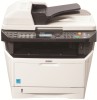
Kyocera FS-1035MFP/DP Manual
 |
View all Kyocera FS-1035MFP/DP manuals
Add to My Manuals
Save this manual to your list of manuals |
Kyocera FS-1035MFP/DP manual content summary:
- Kyocera FS-1035MFP/DP | KM-NET Viewer Operation Guide Rev-5.3 2011.7 - Page 1
- Kyocera FS-1035MFP/DP | KM-NET Viewer Operation Guide Rev-5.3 2011.7 - Page 2
this guide is prohibited. The information in this guide is subject to change without notice. We cannot be held liable for any problems arising their respective companies. Examples of the operations given in this guide support the Windows 7 printing environment. Essentially the same operations are - Kyocera FS-1035MFP/DP | KM-NET Viewer Operation Guide Rev-5.3 2011.7 - Page 3
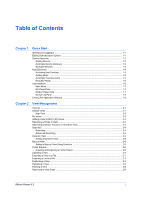
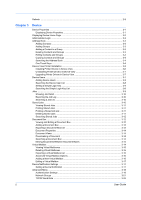
Services ...1-4 Adding Hosts ...1-5 Automatic Host Discovery ...1-5 Excluded Hosts ...1-6 User Interface ...1-6 Main Menu ...1-7 My Views Pane ...1-7 Default Dynamic View ...2-5 Adding a Dynamic View ...2-5 Manual View ...2-6 Adding a Manual View Using Selection 2-6 Folder Reports ...2-6 Creating - Kyocera FS-1035MFP/DP | KM-NET Viewer Operation Guide Rev-5.3 2011.7 - Page 4
Printer Drivers in Device View 3-7 Upgrading Printer Drivers in Device View 3-7 Device Users ...3-7 Adding Device Users ...3-8 Searching the Device User List 3-8 Setting a Simple Login Key ...3-9 Searching the Simple Login Key List 3-9 Jobs ...3-9 Showing ...3-14 Downloading a Document User Guide - Kyocera FS-1035MFP/DP | KM-NET Viewer Operation Guide Rev-5.3 2011.7 - Page 5
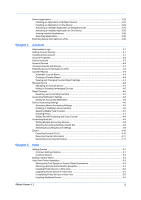
4-5 Hiding or Showing Unmanaged Devices 4-5 Printer Installation ...5-3 Allowing the Print Spooler to Access Client Connections 5-3 Allowing a Remote Administration Exception 5-3 Installing Printer Drivers in Host View 5-4 Upgrading Printer Drivers in Host View 5-4 Uninstalling Printer Drivers - Kyocera FS-1035MFP/DP | KM-NET Viewer Operation Guide Rev-5.3 2011.7 - Page 6
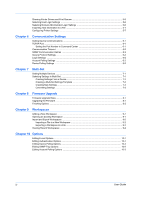
Showing Printer Drivers and Print Queues 5-6 Selecting Host Login Settings ...5-6 Selecting Domain Administrator Login Settings 5-6 Exporting Host Information to a File 5-7 Configuring Printer Chapter 8 Firmware Upgrade Firmware Upgrade Risks ...8-1 Upgrading the Firmware ...8-1 iv User Guide - Kyocera FS-1035MFP/DP | KM-NET Viewer Operation Guide Rev-5.3 2011.7 - Page 7
does not have administrator rights on the computer with the application installed, the administrator can set up a user login password. If no password has been set up for a user without administrator rights, the application does not start, and an access error message appears. 1 In the menu bar at - Kyocera FS-1035MFP/DP | KM-NET Viewer Operation Guide Rev-5.3 2011.7 - Page 8
Quick Start 3 In the New password text box, type a password for a local user. A password is a maximum of 32 characters. A blank password is allowed. 4 In Confirm password, type the password again. 5 Click OK to save the password. Device Discovery Device Discovery is a process that checks networks - Kyocera FS-1035MFP/DP | KM-NET Viewer Operation Guide Rev-5.3 2011.7 - Page 9
Devices window can be included again. When a device is included, it is available to be found the next time Discovery is performed. 1 Click Device > Discovery > Show excluded devices. 2 In the list, select an excluded device to include. 3 Click Include device. KMnet Viewer 5.3 1-3 - Kyocera FS-1035MFP/DP | KM-NET Viewer Operation Guide Rev-5.3 2011.7 - Page 10
can be performed manually for single or multiple services must be active on the host and target computers. Installing Certificates for Signed Drivers For Windows Vista and later, digitally signed drivers Catalog file from the driver package. 2 In the dialog box, click Services and Applications. 3 - Kyocera FS-1035MFP/DP | KM-NET Viewer Operation Guide Rev-5.3 2011.7 - Page 11
Computer Management. 2 In the Computer Management dialog box, click Services and Applications > Services. 3 Right-click Remote Procedure Call (RPC), then click remove a host by selecting it in Host view and clicking Delete Host. Driver and queue information is also removed. The host is added to the - Kyocera FS-1035MFP/DP | KM-NET Viewer Operation Guide Rev-5.3 2011.7 - Page 12
, it is available to be found the next time Discovery is performed. 1 Click Host > Discovery > Show excluded hosts. 2 In the list, select an excluded host to include. 3 Click Include Host. User Interface The user interface is designed to help you quickly get the information you need about your - Kyocera FS-1035MFP/DP | KM-NET Viewer Operation Guide Rev-5.3 2011.7 - Page 13
View, or View > Add manual view using selection. Default Views Pane Default Views are standard list or further information, refer to the Operation Guide. Customizing the Device List The application Changes made to Default Views are not saved after you leave the view. Showing or Hiding Columns - Kyocera FS-1035MFP/DP | KM-NET Viewer Operation Guide Rev-5.3 2011.7 - Page 14
. To exit the application, click File > Exit. The application saves the currently displayed workspace before exiting. This saved workspace appears the next time the same user opens the application. 1-8 User Guide - Kyocera FS-1035MFP/DP | KM-NET Viewer Operation Guide Rev-5.3 2011.7 - Page 15
views defined by the application that are listed under Default Views. The default views are: Device General view, Capability view, Counter view, Firmware view, Asset view, Map view Account Accounting devices view, Accounts view Host Host view, Host driver view, Host queue view You can create, change - Kyocera FS-1035MFP/DP | KM-NET Viewer Operation Guide Rev-5.3 2011.7 - Page 16
support accounting. Accounts View Displays account information for managed devices, such as counter totals for print, copy, FAX, and scan. The following default Host views are available: Host view Displays general information about network host computers. Host Driver View Displays printer drivers - Kyocera FS-1035MFP/DP | KM-NET Viewer Operation Guide Rev-5.3 2011.7 - Page 17
, select Map > Clear map background. My Views You can set up custom views in addition to the default views. Custom views appear on the left side of the screen under My Views. Dynamic or manual views can be created or deleted. If desired, views can be placed in folders. My Views lets - Kyocera FS-1035MFP/DP | KM-NET Viewer Operation Guide Rev-5.3 2011.7 - Page 18
Host name, Model name Account search: Account ID Host search: Host name, Driver name, Queue name, IP address, OS Information 1 Type an alphanumeric search the search. Advanced Searching The Advanced Search feature is available for Default Views. It finds all printing devices, accounts, or hosts in - Kyocera FS-1035MFP/DP | KM-NET Viewer Operation Guide Rev-5.3 2011.7 - Page 19
matches the current display in the right pane: Device General View, Capability View, Counter View, Firmware View, Asset view, Map view Account Accounting devices view, Accounts View Host Host view, Host driver view, Host Queue View Once created, you can name and modify the dynamic view as desired - Kyocera FS-1035MFP/DP | KM-NET Viewer Operation Guide Rev-5.3 2011.7 - Page 20
Counter View, Firmware View, Asset view, Map view Account Accounting devices view, Accounts View Host Host view, Host Driver View, Host Queue View Once created, you can name and modify the manual view as desired , you can create and export an accounts or accounting devices report. 2-6 User Guide - Kyocera FS-1035MFP/DP | KM-NET Viewer Operation Guide Rev-5.3 2011.7 - Page 21
View Management 1 Right-click on the desired folder and select Folder report, then select Accounts or Accounting devices. 2 In the Accounts Folder Report or Accounting Devices Folder Report dialog box, select one or more accounts or devices to include in the report. 3 Click Export to open the Export - Kyocera FS-1035MFP/DP | KM-NET Viewer Operation Guide Rev-5.3 2011.7 - Page 22
can change the name of a view in My Views. Default views cannot be renamed. 1 Under My Views, select Views. A deleted view cannot be restored. Default views cannot be deleted. 1 Under My Views click the top of the Default Views border and drag it up time, you can manually update this information for - Kyocera FS-1035MFP/DP | KM-NET Viewer Operation Guide Rev-5.3 2011.7 - Page 23
occurring, and any troubleshooting measures that can be taken. Media Input This area shows the trays and shows a variety of counters for different types of paper or media and output. Firmware versions This area lists the versions of firmware for various parts of the system. Memory This area shows - Kyocera FS-1035MFP/DP | KM-NET Viewer Operation Guide Rev-5.3 2011.7 - Page 24
password is not needed. The information that can be stored for each contact includes: Number Name (and furigana, if applicable) Cover page (recipient, company, department). This information is transmitted on a Network FAX. E-mail FTP (File Transfer Protocol) SMB (Server Message Block) FAX 3-2 User - Kyocera FS-1035MFP/DP | KM-NET Viewer Operation Guide Rev-5.3 2011.7 - Page 25
Device Internet FAX You can create One Touch keys to let you access address In the Group Settings dialog box, click the Add members icon. The user list is downloaded from the device and appears in the dialog box. 3 Select one or more users to add, and click Add. 4 Click OK in the Add Group Members - Kyocera FS-1035MFP/DP | KM-NET Viewer Operation Guide Rev-5.3 2011.7 - Page 26
contact or group information. Address book information can be searched by Number, Name, Email, FTP, SMB, FAX number or Internet FAX address. 1 In the Searchable fields list, choose the field to search. 2 Enter the name or groups by pressing one key on the printing system's operation panel. User Guide - Kyocera FS-1035MFP/DP | KM-NET Viewer Operation Guide Rev-5.3 2011.7 - Page 27
2 Click Device > Address book. 3 In the Address Book dialog box, click the Show One Touch keys icon, then click the Add One Touch key icon. 4 In the 2 Click Device > Address book. 3 In the Address Book dialog box, click the Show One Touch keys icon. 4 In the One Touch Key dialog box, select a list - Kyocera FS-1035MFP/DP | KM-NET Viewer Operation Guide Rev-5.3 2011.7 - Page 28
can click Export and save current configuration settings in a .KVP file. Click Next. 6 On the Confirm settings page, review your settings. 7 Click Finish to install the printer drivers. 8 When installation is finished, you can click Export to save an installation log file (.TXT). 3-6 User Guide - Kyocera FS-1035MFP/DP | KM-NET Viewer Operation Guide Rev-5.3 2011.7 - Page 29
Confirm Settings page, review your selections. 5 Click Finish to begin the uninstallation process. When uninstallation is finished, you can click Export to save an uninstallation log file (.TXT). 6 Click OK. Upgrading Printer Drivers in Device View You can upgrade printer drivers to a later version - Kyocera FS-1035MFP/DP | KM-NET Viewer Operation Guide Rev-5.3 2011.7 - Page 30
Advanced to select additional options: Language Select the default operation panel language for the user. Default screen Select the default operation panel screen for the user. If Send or FAX is selected, choose the default Send/FAX screen. ID card information Enter the alphanumeric information - Kyocera FS-1035MFP/DP | KM-NET Viewer Operation Guide Rev-5.3 2011.7 - Page 31
your device. 1 Select a device. 2 Click Device > Users. 3 In the Users dialog box, click Show Simple Login keys. 4 In the Simple Login Keys dialog box a Login user name and Login password. For Password login, select On to require a password at login. Select Off to disable the password requirement. - Kyocera FS-1035MFP/DP | KM-NET Viewer Operation Guide Rev-5.3 2011.7 - Page 32
of job log are available: Print job log, Send job log, and Store job log. Showing Job Detail You can view detailed information about a particular job. The information displayed depends on the of stored jobs. This feature is supported for some models with a hard disk installed. 3-10 User Guide - Kyocera FS-1035MFP/DP | KM-NET Viewer Operation Guide Rev-5.3 2011.7 - Page 33
Device Viewing Stored Jobs You can view information about Temporary or Permanent print jobs stored on the hard disk. 1 Select a device. 2 Select Device > Stored jobs. 3 At any time, click Refresh to update the view. Printing Stored Jobs You can print selected Temporary or Permanent jobs stored on - Kyocera FS-1035MFP/DP | KM-NET Viewer Operation Guide Rev-5.3 2011.7 - Page 34
on the device. Note: If authentication is set, accessing the document box requires the correct Login user name and Password in the Communication Settings for the device. If authentication on the device is not set, the from 1 to 31 days. Shared Select to enable the box for multiple users. User Guide - Kyocera FS-1035MFP/DP | KM-NET Viewer Operation Guide Rev-5.3 2011.7 - Page 35
default box type is Custom box. Some devices also support a FAX box for receiving faxes. 6 Specify the password if you want to create a password-protected document box. 7 Specify values or use the default . Once saved, it can be imported into a printer driver. 1 Select a device. 2 Select Device > - Kyocera FS-1035MFP/DP | KM-NET Viewer Operation Guide Rev-5.3 2011.7 - Page 36
to your local computer. 1 Select a document to download. 2 Click the Download document icon. 3 In the Save As dialog box, select a location to save the file to, type a file name, select PDF, TIF, JPG, or XPS file type, and the details of virtual mailboxes created on the hard disk. 3-14 User Guide - Kyocera FS-1035MFP/DP | KM-NET Viewer Operation Guide Rev-5.3 2011.7 - Page 37
confirm. If a password was set, type the password. If the typed password is not correct, the virtual mailbox is not deleted. Exporting a Virtual Mailbox List You can save the virtual mailbox list to your computer or network. Once saved, it can be imported into the printer driver. 1 Select a device - Kyocera FS-1035MFP/DP | KM-NET Viewer Operation Guide Rev-5.3 2011.7 - Page 38
password Click Password, then enter the old and new passwords, and reenter the new password. To remove the password, leave the New password and Confirm new password supported. 1 Select a device. 2 Select Device > Virtual mailboxes. 3 In the Virtual Mailboxes dialog box, click New mailbox. User Guide - Kyocera FS-1035MFP/DP | KM-NET Viewer Operation Guide Rev-5.3 2011.7 - Page 39
. 4 In the Mailbox Properties dialog box, type a new Name, and type a password from 1 to 65535. In Confirm new password, type the password again. 5 Click OK. Device Notification Settings The Notification feature is used to inform users of changes in the status of the printing device. There are three - Kyocera FS-1035MFP/DP | KM-NET Viewer Operation Guide Rev-5.3 2011.7 - Page 40
This wizard guides you in installing the most current firmware on devices. Device default settings This sets the default settings of the selected device, such as duplex, print quality, paper input and output; plus copy, scan, and FAX settings. Only one device may be selected at a time. Settings - Kyocera FS-1035MFP/DP | KM-NET Viewer Operation Guide Rev-5.3 2011.7 - Page 41
the login user. Support varies by , select one for the default. 6 Select a Server type printer properties for the device, you must also click Device Settings > Administrator, and select User Login. Type the user name and password for a specific user, or choose to have the device prompt for the user - Kyocera FS-1035MFP/DP | KM-NET Viewer Operation Guide Rev-5.3 2011.7 - Page 42
is selected, you can select Password login to require a password. 5 Click OK to save new settings. Setting Network User Properties An administrator can set network user properties as a device setting. Settings for user properties vary by model. 1 Click to select a supported MFP in the device list - Kyocera FS-1035MFP/DP | KM-NET Viewer Operation Guide Rev-5.3 2011.7 - Page 43
the Acquisition of user information settings for search and retrieval of login user information from the LDAP server. Type a valid user name in the and search for groups. The list of groups can be refreshed to show the latest additions and deletions. The number of groups currently selected and the - Kyocera FS-1035MFP/DP | KM-NET Viewer Operation Guide Rev-5.3 2011.7 - Page 44
group. The maximum number of alphanumeric characters is 32. 7 For Access level select either User or Administrator. User is selected by default. 8 In the Job authorization settings, there is a list of printing system properties. search by Group ID or Group name to find a specific group. User Guide - Kyocera FS-1035MFP/DP | KM-NET Viewer Operation Guide Rev-5.3 2011.7 - Page 45
can select the Default TCP port or a Specified TCP port as the transmission method. The port number must match one of the logical printers defined in the Command the file. Use this option to send macros or printable files, such as PDF or PRN. To send data as text, select Text and type the text in - Kyocera FS-1035MFP/DP | KM-NET Viewer Operation Guide Rev-5.3 2011.7 - Page 46
1 In any Device view, select one or more printer models. 2 Click Device > Advanced > Manage applications keys page does not appear. Click Next. 6 On the Confirmation page, review your settings. 7 Click Finish to install the application. 8 When installation is and clicking Uninstall. User Guide - Kyocera FS-1035MFP/DP | KM-NET Viewer Operation Guide Rev-5.3 2011.7 - Page 47
find a valid license key file (.CSV), and click Open. Click Next. 8 On the Confirmation page, review your settings. 9 Click Finish to activate the application. When activation is finished, you can click Save dialog box. 1 In any Device view, select a printer model. KMnet Viewer 5.3 3-25 - Kyocera FS-1035MFP/DP | KM-NET Viewer Operation Guide Rev-5.3 2011.7 - Page 48
except Map view displayed you can export current information for all workspace devices to a .CSV or .XML file. The .CSV export uses UTF-8 encoding. 3-26 User Guide - Kyocera FS-1035MFP/DP | KM-NET Viewer Operation Guide Rev-5.3 2011.7 - Page 49
Device 1 Click File > Export > Devices. 2 In the Export Devices to CSV/XML dialog box, type or select a file path. The file must have an extension of .CSV or .XML. 3 Click Save. KMnet Viewer 5.3 3-27 - Kyocera FS-1035MFP/DP | KM-NET Viewer Operation Guide Rev-5.3 2011.7 - Page 50
of the following in the Administrator Login dialog box: Command Center password Administrator login and Administrator password (with optional Use local authentication) Accounting administrator code Operations on furigana up to 32 characters. 4 Click OK, then click Yes to confirm. 4-1 User Guide - Kyocera FS-1035MFP/DP | KM-NET Viewer Operation Guide Rev-5.3 2011.7 - Page 51
. General ID number and name of the account (and furigana, if applicable). Counters by function Counters for number of pages printed, copied, or faxed. Counters by media Counters for number of pages used of various media types or sizes. Counters by duplex/combine Counters for single-sided, double - Kyocera FS-1035MFP/DP | KM-NET Viewer Operation Guide Rev-5.3 2011.7 - Page 52
export uses UTF-8 encoding. 1 Click File > Export > Accounts, then select an export option: Account IDs Exports the account ID list that is saved in the printer driver. Counters Exports device counter information. Information Exports device accounting information. 4-3 User Guide - Kyocera FS-1035MFP/DP | KM-NET Viewer Operation Guide Rev-5.3 2011.7 - Page 53
. The report contains the same printer system and counter information that is monthly. The e-mail can contain a user-specified message in the subject line. Add counter report. 3 Change the default settings, as needed. 4 Click OK the main menu, click Account > Show counter reports. 3 In the Counter - Kyocera FS-1035MFP/DP | KM-NET Viewer Operation Guide Rev-5.3 2011.7 - Page 54
may be prompted to enter a password. To unmanage a managed device, select the device, click Account > Don't manage device, then click Yes to confirm. Hiding or Showing Unmanaged Devices In Accounting devices view, , the Send e-mail to option in Notification Settings is unavailable. 4-5 User Guide - Kyocera FS-1035MFP/DP | KM-NET Viewer Operation Guide Rev-5.3 2011.7 - Page 55
. To connect to the selected device, either the Login user name and Password, or the Accounting administrator code must be set correctly, Type, Error Handling, and Additional settings. If a property is not supported by the selected device, it is shown as unavailable. Accessing Device Accounting - Kyocera FS-1035MFP/DP | KM-NET Viewer Operation Guide Rev-5.3 2011.7 - Page 56
system functions: Job accounting for copying Job accounting for printing Job accounting for scanning Job accounting for FAX 3 If you are finished selecting Job accounting options, you can select other options in the dialog Prohibit from next job, Prohibit at once, or Alert only. 4-7 User Guide - Kyocera FS-1035MFP/DP | KM-NET Viewer Operation Guide Rev-5.3 2011.7 - Page 57
the context menu. The Multi-Set wizard opens. 3 In the Device Group page, the application has filtered the selected devices by those Multi-Set supports. The devices are organized by product group. Select one group to apply settings to, and click Next. Selecting Accounting Settings in Multi-Set The - Kyocera FS-1035MFP/DP | KM-NET Viewer Operation Guide Rev-5.3 2011.7 - Page 58
with information about print, copy, scan and FAX counts. On the Settings page, select the device from the list. Click Next. 3 The Confirmation page shows a list of the settings you have made. You can Open, and then click Next. 4 The Confirmation page shows a list of the settings you have made. You can - Kyocera FS-1035MFP/DP | KM-NET Viewer Operation Guide Rev-5.3 2011.7 - Page 59
shows printer driver . Counters: Displays job accounting counters by account ID. Information: Displays all accounting counters. Exporting Account ID List You can export a device's account ID list to a .CSV file. 1 In My Views or Default Views, select an account or select a device that supports - Kyocera FS-1035MFP/DP | KM-NET Viewer Operation Guide Rev-5.3 2011.7 - Page 60
information to a .CSV or .XML file. 1 Under My Views or Default Views, select an account or a device that supports accounting: Accounts View: select the desired account Accounting devices view: select a Information. 5 Select .CSV or .XML as the file type. 6 Name and save the file. 4-11 User Guide - Kyocera FS-1035MFP/DP | KM-NET Viewer Operation Guide Rev-5.3 2011.7 - Page 61
can click Import to browse for a settings file (.KVP) for the selected driver, or save your current settings by clicking Export. 7 You can click Common settings and apply some settings to all selected printer models. 8 Click Conflicts, and select from available options. 9 After you have finished - Kyocera FS-1035MFP/DP | KM-NET Viewer Operation Guide Rev-5.3 2011.7 - Page 62
settings for printer drivers. You can printer is not shared. Port is not available: File The port is set as File. LPT1 The port is set as LPT1. Fail The printer is not installed. Editing a Queue Name You can change the name of a queue. 1 In Host Queue View, select a queue to rename. 5-2 User Guide - Kyocera FS-1035MFP/DP | KM-NET Viewer Operation Guide Rev-5.3 2011.7 - Page 63
system. You can remotely install printer drivers onto a host computer. Once installed, drivers can be upgraded or uninstalled. Allowing the Print Spooler to Access Client Connections The administrator can set policies that are applied to the computer for any user who logs on. The Allow Print - Kyocera FS-1035MFP/DP | KM-NET Viewer Operation Guide Rev-5.3 2011.7 - Page 64
View You can upgrade installed printer drivers to a later version. 1 In Host view, select one or more host computers from the list. 2 Click Host > Upgrade driver. 3 In the Driver Upgrade wizard, select printer drivers to be upgraded. Select at least one driver under each host. Click Next. User Guide - Kyocera FS-1035MFP/DP | KM-NET Viewer Operation Guide Rev-5.3 2011.7 - Page 65
expand the list of printer drivers under each host. 4 Select the check box next to each driver or queue to uninstall. Select at least one driver under each host. Selecting a driver also selects the associated queue. Click Next. 5 On the Confirm Settings page, review your selections. 6 Click Finish - Kyocera FS-1035MFP/DP | KM-NET Viewer Operation Guide Rev-5.3 2011.7 - Page 66
be upgraded or uninstalled. Showing Printer Drivers and Print Queues You can view detailed information about installed printer drivers and their print queues for a selected host. 1 In Host view, select a host. 2 Select Host > Show printer drivers to view drivers, or Host > Show print queues to view - Kyocera FS-1035MFP/DP | KM-NET Viewer Operation Guide Rev-5.3 2011.7 - Page 67
accessed from Host view, select one or more installed printer drivers. Click Next. 3 Click on the available options under each selected driver to change the settings. When finished making your changes, click Next. 4 On the Confirm Settings page, review your selections. 5 Click Finish to begin the - Kyocera FS-1035MFP/DP | KM-NET Viewer Operation Guide Rev-5.3 2011.7 - Page 68
logical printer port. The default logical printer port printer. One of these logical printer ports must match the port number entered in Communication Settings. A restart may be required for logical printer changes to take effect. Use the Reset page in the Command Center Basic tab. 6-1 User Guide - Kyocera FS-1035MFP/DP | KM-NET Viewer Operation Guide Rev-5.3 2011.7 - Page 69
Logical Printers. support user information as Device Management (available when user information is stored in Communication Settings) or Use another user's information. If Use another user's information is selected, enter the Login user name and Password prints, copies, FAX, scans, low toner levels - Kyocera FS-1035MFP/DP | KM-NET Viewer Operation Guide Rev-5.3 2011.7 - Page 70
pages printed, number of black and white pages, number of faxes received, and so on. The available range is between 1 and 10000 minutes. Toner level polling Information is gathered about the current level of toner in the device. The available range is between 1 and 10000 minutes. 6-3 User Guide - Kyocera FS-1035MFP/DP | KM-NET Viewer Operation Guide Rev-5.3 2011.7 - Page 71
those Multi-Set supports. The devices user name and Password in the Login section of the Communication settings for the device. All settings and passwords Default Settings Settings that define default behavior for print, copy, scan and FAX jobs including paper size, print and scan quality, and default - Kyocera FS-1035MFP/DP | KM-NET Viewer Operation Guide Rev-5.3 2011.7 - Page 72
user name, user name (and furigana, if applicable), password, e-mail address, account name, account ID on the device, and administrator access permission. Device Address Book Number, name, furigana (if applicable), e-mail, FTP address, SMB address, FAX, internet FAX page shows a User Guide - Kyocera FS-1035MFP/DP | KM-NET Viewer Operation Guide Rev-5.3 2011.7 - Page 73
Multi-Set Address Editor for FAX data file (.FED) Address Book export file from the previous software version (.ABF or .CSV) User list export file (.CSV) 3 Click Open, and then click Next. 4 The Confirmation page shows a list of the settings you have made. You can click Edit settings to open a - Kyocera FS-1035MFP/DP | KM-NET Viewer Operation Guide Rev-5.3 2011.7 - Page 74
be copied over the destination device settings. Clear this check box to ensure that only settings that do not overlap with existing settings are written. 7-4 User Guide - Kyocera FS-1035MFP/DP | KM-NET Viewer Operation Guide Rev-5.3 2011.7 - Page 75
a Login user name and Password in Device > Communication Settings > Login. All settings and passwords for the source and destination devices must be correct in Communication Settings for a successful Firmware Upgrade completion. The Start of Job String must be blank for the logical printer used. You - Kyocera FS-1035MFP/DP | KM-NET Viewer Operation Guide Rev-5.3 2011.7 - Page 76
Consult your dealer. 5 On the Firmware Information page: If the firmware file cannot be validated, click Back and select another firmware file. If valid firmware and device information is displayed, click are already being upgraded. Close indicates all upgrades are completed. 8-2 User Guide - Kyocera FS-1035MFP/DP | KM-NET Viewer Operation Guide Rev-5.3 2011.7 - Page 77
device list or map, and the left pane of the screen. A workspace is identified with a user name and password. When a user opens the application, the last workspace from that user's history is automatically opened. When the user closes the application, the workspace is automatically saved. Normally - Kyocera FS-1035MFP/DP | KM-NET Viewer Operation Guide Rev-5.3 2011.7 - Page 78
. To copy a workspace to another user, you must export the workspace, then the other user must import it. The workspace is identified with a user name and password. Importing a File to a New Workspace use recently opened workspaces. The last five workspaces are displayed in the list. 9-2 User Guide - Kyocera FS-1035MFP/DP | KM-NET Viewer Operation Guide Rev-5.3 2011.7 - Page 79
Workspaces 1 In the menu bar at the top left of the screen, click File > Open recent. 2 Select the desired workspace from the list. If another workspace is already open, the application automatically saves and closes it before opening the selected workspace. KMnet Viewer 5.3 9-3 - Kyocera FS-1035MFP/DP | KM-NET Viewer Operation Guide Rev-5.3 2011.7 - Page 80
connect to the SMTP server. If necessary, correct the host name and port number and test the connection again. Note: Test connection does not check the validity of the user name and password. 7 To save your settings and close the Options dialog box, click OK. Editing Authentication Options - Kyocera FS-1035MFP/DP | KM-NET Viewer Operation Guide Rev-5.3 2011.7 - Page 81
password. 3 In the New password text box, type a password for a local user. A password is a maximum of 32 characters. A blank password is allowed. 4 In Confirm password, type the password again. 5 Click OK to save the password. Editing Device Polling Options The application lets you set default - Kyocera FS-1035MFP/DP | KM-NET Viewer Operation Guide Rev-5.3 2011.7 - Page 82
2 In the Options list, click Trap. 3 Server status shows if the trap server is running. If the trap server . See the log file at C:\Program Files\Kyocera\KMnet Viewer\KMNV\log for an error message as run trap server when the program starts. The default is for the option to be cleared: to User Guide - Kyocera FS-1035MFP/DP | KM-NET Viewer Operation Guide Rev-5.3 2011.7 - Page 83
. The polling action issues a warning when either 60% or more of available accounts are counted, or 80% or more of available accounts are counted. The default is 60%. 8 Click OK to save your account polling settings. If you do not want to save the settings you just made, click Cancel. KMnet - Kyocera FS-1035MFP/DP | KM-NET Viewer Operation Guide Rev-5.3 2011.7 - Page 84
- Kyocera FS-1035MFP/DP | KM-NET Viewer Operation Guide Rev-5.3 2011.7 - Page 85
- Kyocera FS-1035MFP/DP | KM-NET Viewer Operation Guide Rev-5.3 2011.7 - Page 86
Rev. 5.3 2011.7
-
 1
1 -
 2
2 -
 3
3 -
 4
4 -
 5
5 -
 6
6 -
 7
7 -
8
-
9
-
10
-
11
-
12
-
13
-
14
-
15
-
16
-
17
-
18
-
19
-
20
-
21
-
22
-
23
-
24
-
25
-
26
-
27
-
28
-
29
-
30
-
31
-
32
-
33
-
34
-
35
-
36
-
37
-
38
-
39
-
40
-
41
-
42
-
43
-
44
-
45
-
46
-
47
-
48
-
49
-
50
-
51
-
52
-
53
-
54
-
55
-
56
-
57
-
58
-
59
-
60
-
61
-
62
-
63
-
64
-
65
-
66
-
67
-
68
-
69
-
70
-
71
-
72
-
73
-
74
-
75
-
76
-
77
-
78
-
79
-
80
-
81
-
82
-
83
-
84
-
85
-
86
 |
 |