
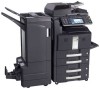
Kyocera TASKalfa 500ci KM-NET ADMIN Operation Guide for Ver 2.0
Kyocera TASKalfa 500ci Manual
 |
View all Kyocera TASKalfa 500ci manuals
Add to My Manuals
Save this manual to your list of manuals |
Kyocera TASKalfa 500ci manual content summary:
- Kyocera TASKalfa 500ci | KM-NET ADMIN Operation Guide for Ver 2.0 - Page 1
KMnet Admin 2.0 User Guide - Kyocera TASKalfa 500ci | KM-NET ADMIN Operation Guide for Ver 2.0 - Page 2
Legal Notes Unauthorized reproduction of all or part of this guide is prohibited. The information in this guide is subject to change for improvement without notice. We cannot be held liable for any problems arising from the use of this product, regardless of the information herein. Regarding - Kyocera TASKalfa 500ci | KM-NET ADMIN Operation Guide for Ver 2.0 - Page 3
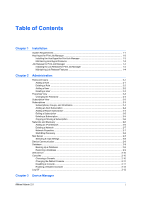
Deleting a User ...2-2 Properties View ...2-3 Changing the Password ...2-3 Subscription View ...2-3 Subscriptions ...2-3 Subscriptions, Groups, and Server ...2-10 Consoles ...2-10 Choosing a Console ...2-10 Changing the Default Console 2-11 Disabling a Console ...2-11 Enabling a Disabled Console - Kyocera TASKalfa 500ci | KM-NET ADMIN Operation Guide for Ver 2.0 - Page 4
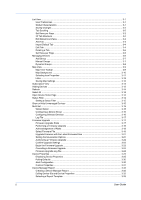
Default List Views ...3-2 Add Tab ...3-3 Import Default Tab ...3-4 Edit Tab ...3-4 Deleting a Tab ...3-6 Set Rows per Page ...3-6 Managing Devices ...3-6 Add Group ...3-7 Manual ...3-24 Displaying Device Properties 3-25 Polling Defaults ...3-30 Alert Configuration ...3-30 Custom Properties - Kyocera TASKalfa 500ci | KM-NET ADMIN Operation Guide for Ver 2.0 - Page 5
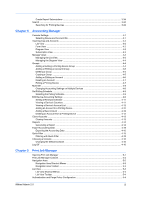
Data ...4-15 Exporting the Accounting Data 4-15 Quick Filter ...4-15 Filtering with Quick Filter ...4-15 Choosing a Console ...4-16 Changing the Default Console 4-16 Log Off ...4-16 Chapter 5 Print Job Manager Opening Print Job Manager ...5-1 Print Job Manager Console ...5-2 Navigation Area - Kyocera TASKalfa 500ci | KM-NET ADMIN Operation Guide for Ver 2.0 - Page 6
Host Agent ...5-12 KM Service Manager ...5-13 Configure Queues ...5-14 Consoles ...5-14 Choosing a Console ...5-14 Changing the Default Console 5-15 Log Off ...6-3 Completed Jobs Toolbar ...6-4 KM Service Manager ...6-5 Queue Management ...6-5 Configure Queues ...6-6 Glossary ...v i iv User Guide - Kyocera TASKalfa 500ci | KM-NET ADMIN Operation Guide for Ver 2.0 - Page 7
new Windows User account which runs the Postgres database must be entered into a page that displays the following instructions: Please enter a PostgreSQL service account password. The password must comply with any password constraints you may have in your domain. The KMnet Admin installer by default - Kyocera TASKalfa 500ci | KM-NET ADMIN Operation Guide for Ver 2.0 - Page 8
GB Supported Client Operating Systems Microsoft Windows® 98/ME Microsoft Windows® 2000 Microsoft Windows® Server 2003/2008 Microsoft Windows® XP Professional 32 bit Microsoft Windows® XP Professional 64 bit with Service Pack 2 or newer Windows Vista™ 32 bit Windows Vista™ 64 bit with Service Pack - Kyocera TASKalfa 500ci | KM-NET ADMIN Operation Guide for Ver 2.0 - Page 9
Supported Printers Kyocera network printers and most third party network printers that support the standard printer queues, see the Print Job Manager User Guide. To configure queues later, clear the check run the Host Agent installation program, a maintenance page appears letting you repair or remove - Kyocera TASKalfa 500ci | KM-NET ADMIN Operation Guide for Ver 2.0 - Page 10
Features If Job Release is already installed, and you run the Job Release installation program, a maintenance page appears letting you repair or remove Job release features. Select one of the following options Release is completely uninstalled. To exit the uninstaller, click Finish. 1-4 User Guide - Kyocera TASKalfa 500ci | KM-NET ADMIN Operation Guide for Ver 2.0 - Page 11
to edit Administration, Device Manager, Print Job Manager, and full access to Accounting Manager console. Adding a Role You can add new roles to the existing default roles. 1 In the navigation area, select a role or user. 2 Click the Add Role icon. 3 In the Add Role dialog box for Role name, enter - Kyocera TASKalfa 500ci | KM-NET ADMIN Operation Guide for Ver 2.0 - Page 12
in the confirmation message. Adding a User You can add a new user to the existing default users. 1 In the navigation area, select a role or user. 2 Click the Add Enter information under Required Properties: User login name, Password, Confirm password, Role (privilege level), and E-mail address 1. - Kyocera TASKalfa 500ci | KM-NET ADMIN Operation Guide for Ver 2.0 - Page 13
used in subscriptions, accounting, and reports. Changing the Password An administrator or user can change the password used to log on to the application. 1 You can set up a subscription to notify a user when toner or paper is low in a particular printer. Alert e-mails can be sent to any user. In - Kyocera TASKalfa 500ci | KM-NET ADMIN Operation Guide for Ver 2.0 - Page 14
groups inherit subscriptions from parent groups. Inheritance is only available for dynamic groups, and not for manual groups. A dynamic group is a device group established by user defined device filters which select Report Subscription icon. The Create Report Subscription dialog box opens. User Guide - Kyocera TASKalfa 500ci | KM-NET ADMIN Operation Guide for Ver 2.0 - Page 15
Administration 5 In the Devices area, select a group of devices. 6 Under Reports, select the reports for this user. 7 To the right of the report name, select a format for the report. PDF, HTML, and CSV are the current available formats. 8 In the Destinations area, select at least one e-mail - Kyocera TASKalfa 500ci | KM-NET ADMIN Operation Guide for Ver 2.0 - Page 16
either the network address or the subnet mask may create an orphan device that no longer belongs to this network or to any network. 2-6 User Guide - Kyocera TASKalfa 500ci | KM-NET ADMIN Operation Guide for Ver 2.0 - Page 17
Administration 3 Type the Domain. This text box is available only if the Device Communication option in the Administration console is set to Device IP addresses are volatile and may change. The network domain is applied to a device's domain field when the device is first discovered. For more - Kyocera TASKalfa 500ci | KM-NET ADMIN Operation Guide for Ver 2.0 - Page 18
is a process for scanning a network for IP addresses of network printers to identify what devices are currently on the network. This function software may resolve the issue. Authentication Specifies the User name and Password, if SMTP authentication is required. E-mail setup When alerts and - Kyocera TASKalfa 500ci | KM-NET ADMIN Operation Guide for Ver 2.0 - Page 19
backup compresses files into a zip file and saves it to a folder called KMnetAdmin/backup. Backing Up a Database You can back up KMnet Admin information you installed to the default location, backup files are located in C:\KMNetAdmin\backup; otherwise they are in a folder called backup in the KMnet - Kyocera TASKalfa 500ci | KM-NET ADMIN Operation Guide for Ver 2.0 - Page 20
default location. 5 Type restore C:\KMnetAdmin\backup\backup-filename.zip. 6 In Control Panel, open Administrative Tools, then open Services. 7 Select KMnetAdmin Service, then click Start the service. 8 Select KMnetAdmin Report Service, then click Start the service appear at the top of the Guide - Kyocera TASKalfa 500ci | KM-NET ADMIN Operation Guide for Ver 2.0 - Page 21
console: 1 Log on to KMnet Admin. 2 In the navigation area, click Switch Console, then select a default console. 3 Click Switch Console, then click Set As Default Console. Your new preferred console is displayed each time you log on. Disabling a Console Disabling consoles you do not plan to use - Kyocera TASKalfa 500ci | KM-NET ADMIN Operation Guide for Ver 2.0 - Page 22
navigation area, click Switch Console, then select log off. A user is automatically logged off if the software is not used for 30 minutes. 2-12 User Guide - Kyocera TASKalfa 500ci | KM-NET ADMIN Operation Guide for Ver 2.0 - Page 23
of multiple printing driver systems connected locally or through a network. These features include creating groups of devices, manually adding a device Tab Add a tab of your own design to List View or import a system default tab. Edit Tab Edit an existing List View tab. You change the tab name - Kyocera TASKalfa 500ci | KM-NET ADMIN Operation Guide for Ver 2.0 - Page 24
, but the default list view preferences . Resize the window. Change the supports a maximum of 32 tabs. An error message will be generated if the maximum is exceeded. Edit Default List Views The Edit Default default tabs. Any time you log on under the guest account, List View displays the default - Kyocera TASKalfa 500ci | KM-NET ADMIN Operation Guide for Ver 2.0 - Page 25
box: Create a new tab by entering a column name, a tab position, or changing the column tabs and their order. Import and edit one of the system default tabs. There is a maximum of 32 tabs. Creating a Tab You can create a new tab. 1 Select Add Tab from the Manage List Views list on the - Kyocera TASKalfa 500ci | KM-NET ADMIN Operation Guide for Ver 2.0 - Page 26
the tab. Import Default Tab Each user has a personal list of tabs default List Views mode. Rather than manually creating this new tab, each existing user can import it. Importing a Default Tab You can import a system default system default tabs. Renaming a Tab You can rename a tab. 1 Select the - Kyocera TASKalfa 500ci | KM-NET ADMIN Operation Guide for Ver 2.0 - Page 27
up moves it to the left. Moving the highlighted tab down moves it to the right. 4 Click OK. Resetting System Defaults You can eliminate all tab customizations and revert to the system default tabs. 1 From the Manage List Views list on the toolbar, select Edit Tab. 2 In the Edit Tab dialog box - Kyocera TASKalfa 500ci | KM-NET ADMIN Operation Guide for Ver 2.0 - Page 28
Console Allows you to change between enabled consoles. Add Group Adds a device group to the tree. You can create either a dynamic group or a manual group. Edit Group For a dynamic group, you can change the group name and the filter criteria which determine the device group members. delete group - Kyocera TASKalfa 500ci | KM-NET ADMIN Operation Guide for Ver 2.0 - Page 29
any subnode of Networks is selected, Add Group is unavailable. If a manual group is selected when you click Add Group, the Add Group dialog box hold down the Ctrl key and select multiple devices. Creating a Manual Group You can create a manual group. 1 Select a group in the navigation area. This is - Kyocera TASKalfa 500ci | KM-NET ADMIN Operation Guide for Ver 2.0 - Page 30
subscriptions from parent groups. Inheritance is only available for dynamic groups, and not for manual groups. Device Filters Device filters determine the characteristics of a dynamic group. Setting device filters group: 1 In the navigation area, select the group you want to edit. 3-8 User Guide - Kyocera TASKalfa 500ci | KM-NET ADMIN Operation Guide for Ver 2.0 - Page 31
Background Add a map background or change the current one. Clear Background Removes the current map background and returns Map View to the default white background. Save Map Settings Saves the device positions on the current map background. Create map link / Create Link Creates a link between - Kyocera TASKalfa 500ci | KM-NET ADMIN Operation Guide for Ver 2.0 - Page 32
250%. Select Auto Fit to display the entire image within the map viewer. Printing device icons that are still in the icon waiting area may cover part of the image. If the image is distorted after changing its size, you can edit the image outside of the application and add it again - Kyocera TASKalfa 500ci | KM-NET ADMIN Operation Guide for Ver 2.0 - Page 33
appears below the icon. Popup Properties Descriptive text that appears as a ScreenTip when the mouse pointer hovers over a printing device icon. To select printer device icons: 1 Click Device Icon Setup on the toolbar. 2 In the Device Icon Setup dialog box, Icon Size list, select the desired size - Kyocera TASKalfa 500ci | KM-NET ADMIN Operation Guide for Ver 2.0 - Page 34
link all printing devices in a department, or link all color models. This is useful for managing a large number of printers. A printing device can be in more than one group. Once a link is created, the linked group icon represents the Save Map Settings button to save all settings. 3-12 User Guide - Kyocera TASKalfa 500ci | KM-NET ADMIN Operation Guide for Ver 2.0 - Page 35
reports on a regular schedule. For example, a user can be notified when toner or paper is low in a particular device. Alert e-mails can be sent Adding Devices A printing device that is not automatically displayed can be added manually to the list of devices. For example, the device may be located on - Kyocera TASKalfa 500ci | KM-NET ADMIN Operation Guide for Ver 2.0 - Page 36
and toner levels, are automatically updated according to the polling schedule. At any time, you can manually update this information by clicking Refresh. This may take a few minutes. Select All Click Select All to select all displayed printing devices. As an example, it would support Polling - Kyocera TASKalfa 500ci | KM-NET ADMIN Operation Guide for Ver 2.0 - Page 37
group. Select models within a device group. One or more selected devices. Multi-Set does not support all device models. Multi-Set can configure a device's settings for Kyocera devices appearing in the Supported Model list in the Release Notes available from the login page. Multi-Set can be started - Kyocera TASKalfa 500ci | KM-NET ADMIN Operation Guide for Ver 2.0 - Page 38
. 1 Select the device or devices you want to configure from List View or Map View. Use Shift and Ctrl to select multiple devices. 3-16 User Guide - Kyocera TASKalfa 500ci | KM-NET ADMIN Operation Guide for Ver 2.0 - Page 39
folder. Note: Path may differ if you did not install the application to the default location. Firmware Upgrade The Firmware Upgrade wizard provides a guided method of for installing the most current printer or engine firmware on devices. The upgrade will be performed only on models compatible with - Kyocera TASKalfa 500ci | KM-NET ADMIN Operation Guide for Ver 2.0 - Page 40
dealer or service organization and become inoperable and require a servicing to replace damaged components. your dealer or service organization and be device operation panel displays Erasing, Writing, or Downloading. For System, processing is about 3 to Upgrade Error Indicators Any Device The result of - Kyocera TASKalfa 500ci | KM-NET ADMIN Operation Guide for Ver 2.0 - Page 41
panel. Upgrade Error Recovery System The the IB-2x called Boot Loader mode. Windows utility named IBVERUP can be used to load a new firmware file. Performing a Firmware Upgrade The Firmware Upgrade wizard initiates the firmware upgrade. The upgrade wizard guides you with step-by-step instructions - Kyocera TASKalfa 500ci | KM-NET ADMIN Operation Guide for Ver 2.0 - Page 42
appears, This type of firmware is not supported from the local client. Please copy the next step. 4 Type in your username and password for the secure server, and click Next. 5 printer to upgrade, the Retain Firmware File page appears. If the firmware file was successfully located, it is downloaded - Kyocera TASKalfa 500ci | KM-NET ADMIN Operation Guide for Ver 2.0 - Page 43
Device Manager After the upgrade activity completes, the process deletes the file from the temporary folder. 6 Click Next. Confirm Selected Firmware When upgrading a group, the process bypasses any devices that do not match the model(s) for the selected firmware. If there are no matching devices - Kyocera TASKalfa 500ci | KM-NET ADMIN Operation Guide for Ver 2.0 - Page 44
top of the Command Center page. 2 On the left of the screen, select Advanced > TCP/IP > Logical Printers. The TCP/IP Port Number appears for each logical printer. One of these logical printer is provided by the Admin password set on each device. 1 Type the Admin password in the text box. Only 7-bit - Kyocera TASKalfa 500ci | KM-NET ADMIN Operation Guide for Ver 2.0 - Page 45
Group The group name for the collection of devices that will be upgraded together. For single device upgrades, the IP address appears here. Model The printer model being upgraded. Model should match the Confirm Selected Firmware page. For IB-2x, Model should be, for example, Any with an IB-21E. Type - Kyocera TASKalfa 500ci | KM-NET ADMIN Operation Guide for Ver 2.0 - Page 46
device could become inoperable. Also, once you begin the upgrade, the wizard closes, and the upgrade process is controlled by the server. Cancelling a Firmware such as downloading firmware to a device. Therefore, aborting an upgrade may take several minutes until downloading to the 3-24 User Guide - Kyocera TASKalfa 500ci | KM-NET ADMIN Operation Guide for Ver 2.0 - Page 47
. Options for a Single Device Model name and home page The device's display name appears at the top of the dialog box, along with the IP address. Open Device Home Page Click this button at Supplies Displays the current quantity of consumables in the printing device. Toner KMnet Admin 2.0 3-25 - Kyocera TASKalfa 500ci | KM-NET ADMIN Operation Guide for Ver 2.0 - Page 48
by graphic image and percentage. Monochrome models display black toner only. Media Input Displays the media available in the status Displays the current stapler status for models that support stapling. The options are: Yes Stapler contains staples. Error Stapler is empty. No Stapler is not installed - Kyocera TASKalfa 500ci | KM-NET ADMIN Operation Guide for Ver 2.0 - Page 49
supported. Custom Properties Displays the custom properties set by the administrator. Firmware Displays firmware versions for printer devices: System Firmware Printer Total pages printed with black toner only. Single Color Page Count Total pages printed with a single toner color (cyan, magenta, or - Kyocera TASKalfa 500ci | KM-NET ADMIN Operation Guide for Ver 2.0 - Page 50
support for stapling. Punch Devices with support for hole punching. Hard Disk Devices with hard disks. Troubleshooting When an error occurs in a printing device, the Troubleshooting tab displays the error and helps you fix the problem counter totals in the Device Settings tab. Toner levels User Guide - Kyocera TASKalfa 500ci | KM-NET ADMIN Operation Guide for Ver 2.0 - Page 51
administrator can set default polling settings. If Traps are enabled, we recommend reducing the frequency of KMnet Admin Status polling. Traps Traps are unsolicited notifications sent from the printing device, usually when an error occurs. Click each link to open a separate window: What are Traps - Kyocera TASKalfa 500ci | KM-NET ADMIN Operation Guide for Ver 2.0 - Page 52
Toner Level Polling are selected by default. 3 Under Default Interval, enter the default time within the range displayed under Allowed Range. 4 Click Submit. Alert Configuration KMnet Admin polls supported printers name. Do not use invisible Unicode or extended ASCII characters. 3-30 User Guide - Kyocera TASKalfa 500ci | KM-NET ADMIN Operation Guide for Ver 2.0 - Page 53
maintenance, for unresponsive devices, or disconnected devices. For maintenance alerts, set the intervals for Minor Maintenance, Medium Maintenance, and Major Maintenance custom properties. This feature is supported only for Kyocera printers. Not all properties are supported on all devices. Setting - Kyocera TASKalfa 500ci | KM-NET ADMIN Operation Guide for Ver 2.0 - Page 54
tables and graphics, using default or custom report templates. under Rank by, Selected errors, or Sort by. 4 automatically set to the end of the previous unit of time selected under Range. For example, report. The report opens in a new window. Editing Device IDs and Device Properties You can - Kyocera TASKalfa 500ci | KM-NET ADMIN Operation Guide for Ver 2.0 - Page 55
Device Manager The Report type of Usage Totals, Error Totals and Error Rates have Edit options of Device ID. The Report type of Device Properties has Edit Options of Selected Properties. 1 Select the desired report option under - Kyocera TASKalfa 500ci | KM-NET ADMIN Operation Guide for Ver 2.0 - Page 56
Search Type, select a Boolean operator to define the search logic. 4 Under Search Criteria, select device features or properties to find in the search. 3-34 User Guide - Kyocera TASKalfa 500ci | KM-NET ADMIN Operation Guide for Ver 2.0 - Page 57
Device Manager 5 Click OK. The application searches the printing devices and displays those that match the selected criteria. In Map View, save the map settings before searching. The search result devices appear in their saved position in the office map. The search results are displayed until they - Kyocera TASKalfa 500ci | KM-NET ADMIN Operation Guide for Ver 2.0 - Page 58
Switch Console to open other consoles from the Accounting Manager console. By default, the right pane displays 20 devices or accounts. You can change the or accounts that have similar properties. Set up a subscription service for users to be notified about specified printing device and User Guide - Kyocera TASKalfa 500ci | KM-NET ADMIN Operation Guide for Ver 2.0 - Page 59
Accounting Manager 1 Click Switch console and select Console Settings, or click Console Settings in the toolbar. The Console Settings dialog box opens. 2 Select custom IDs: Device ID - type a string to represent the device by using any device variables in the application, enclosed in % signs. - Kyocera TASKalfa 500ci | KM-NET ADMIN Operation Guide for Ver 2.0 - Page 60
Admin polls printers for information default settings 3 Click Add Tab, or select a tab and click Edit Tab. The Add Tab or Edit Tab dialog box opens. 4 Under Tab Name, type a name for the tab. 5 Under Tab Position, use the up and down arrow buttons to position the tab among existing tabs. The top - Kyocera TASKalfa 500ci | KM-NET ADMIN Operation Guide for Ver 2.0 - Page 61
. 9 To return all columns to the original settings, click Restore Defaults. Managing the Diagram View You can select the Diagram View options to the up and down arrow buttons on the right to position each item. The top position appears as the leftmost tab. 5 To remove an item from Selected Diagrams - Kyocera TASKalfa 500ci | KM-NET ADMIN Operation Guide for Ver 2.0 - Page 62
or extended ASCII characters. 4 Click each menu button to select from available options: Properties: Name, code, lock status, and balance Counter Properties: Counter options for total, color, function, and page original group. 1 In the navigation area, select the group to copy. 4-5 User Guide - Kyocera TASKalfa 500ci | KM-NET ADMIN Operation Guide for Ver 2.0 - Page 63
ASCII characters. Note: Not all printing device models support account names. In this case, the associated name is saved only in KMnet Admin. 5 Type a numeric code in Account Code, or for greater security, use the supplied random code. You can click Generate Code to let KMnet Admin change the random - Kyocera TASKalfa 500ci | KM-NET ADMIN Operation Guide for Ver 2.0 - Page 64
1 Select one of the following in the navigation area: A printing device that supports accounting management All accounts An account group A single account 2 If necessary, click List Click OK to save changes. If an error occurs, try changing the administrator code in Device Settings. 4-7 User Guide - Kyocera TASKalfa 500ci | KM-NET ADMIN Operation Guide for Ver 2.0 - Page 65
instructions in error occurs, a status report window will appear. Set Polling Schedule You can set a schedule for KMnet Admin to obtain counter information from all devices in a group. For the All Devices group, the default schedule is every 3 hours. Other groups do not have polling set by default - Kyocera TASKalfa 500ci | KM-NET ADMIN Operation Guide for Ver 2.0 - Page 66
to display the supported device settings in the right pane. General Settings Accounting Controls: Type a 4-digit or 15-digit administrator code in the total printer count and full-color printer count. Anonymous Access: Select the print permission setting for jobs that have no account code specified - Kyocera TASKalfa 500ci | KM-NET ADMIN Operation Guide for Ver 2.0 - Page 67
On." This assures that the settings always remain on. Manual Account function restriction and balance limit remain unchanged. A Error Report Output: Select to print a one-page error report when the user makes an error: On Account-code Error The user enters an invalid account code. On Over-limit Error - Kyocera TASKalfa 500ci | KM-NET ADMIN Operation Guide for Ver 2.0 - Page 68
a Renewal Schedule You can set or change the renewal schedule for a printing device that supports accounting management. Each renewal resets the account counters in the device to zero. When set, in the navigation area. 2 Click Device Counters Overview. The counter list appears. 4-11 User Guide - Kyocera TASKalfa 500ci | KM-NET ADMIN Operation Guide for Ver 2.0 - Page 69
Accounting Manager 3 Click each tab to change the time period. You can also view a device's counters from the Edit Device Account Settings dialog box by clicking Device Counters Overview in the toolbar. Viewing a Device's Account List You can view a printing device's account list and add or delete - Kyocera TASKalfa 500ci | KM-NET ADMIN Operation Guide for Ver 2.0 - Page 70
security, use the supplied random code. You can click Generate Code to let KMnet Admin change the random code. Deleting an Account from a settings that you want cloned to the target device, select Clone, if supported by the appropriate setting. The settings shown in Accounting Settings can be - Kyocera TASKalfa 500ci | KM-NET ADMIN Operation Guide for Ver 2.0 - Page 71
window will appear. If an error occurs, a status report window that the report will cover. 2 Click Generate default). Other available formats are PDF, XML, and CSV. 6 In the Period for list, select the number of days, weeks, months, quarters, or years. Select From or To and the number of time units - Kyocera TASKalfa 500ci | KM-NET ADMIN Operation Guide for Ver 2.0 - Page 72
Excel, or select Save to name and save the file. 8 After the report is generated, click Close to close the Export Accounting Data dialog box. Quick Filter Use the Quick Filter to select which printers or accounts are displayed in the list pane. The criteria available in the Quick Filter depend on - Kyocera TASKalfa 500ci | KM-NET ADMIN Operation Guide for Ver 2.0 - Page 73
, the list can be filtered by account name, account subname, or account code. Choosing a Console You can choose a console when logging on to KMnet click Switch Console, then select a default console. 3 Click Switch Console, then click Set As Default Console. Your new preferred console is displayed - Kyocera TASKalfa 500ci | KM-NET ADMIN Operation Guide for Ver 2.0 - Page 74
Accounting Manager A user is automatically logged off if the software is not used for 30 minutes. 4-17 User Guide - Kyocera TASKalfa 500ci | KM-NET ADMIN Operation Guide for Ver 2.0 - Page 75
access to KMnet Admin: Administrator User User name: admin Password: admin Read Only User User name: guest Password: guest Note: An administrator can set user names and passwords. We strongly recommend for the user to change assigned default passwords. 1 To open the Print Job Manager console, first - Kyocera TASKalfa 500ci | KM-NET ADMIN Operation Guide for Ver 2.0 - Page 76
2 Type a user name and password. KMnet Admin ships with the default logon of admin for User name and admin for Password. 3 If Print Job Manager is the list viewin the right pane. Each pane displays a toolbar at the top. Navigation Area The navigation area displays a layout of pre-configured groups - Kyocera TASKalfa 500ci | KM-NET ADMIN Operation Guide for Ver 2.0 - Page 77
Delete Host from Database. Navigation Area Toolbar The toolbar appears at the top of the navigation area. To make icons available, select an item in column by clicking the arrow in the heading. Some columns are hidden by default. You can adjust the visibility of a column by right-clicking the column - Kyocera TASKalfa 500ci | KM-NET ADMIN Operation Guide for Ver 2.0 - Page 78
Count and Data Size (KB). The Port, Driver, and Version (of the Driver) are optional columns hidden by default. All Users, or User-defined User Groups is Report. List View Toolbar On the screen, the toolbar appears at the top of list view. The features are available when an item in the list view - Kyocera TASKalfa 500ci | KM-NET ADMIN Operation Guide for Ver 2.0 - Page 79
Manager 1 The default selection for Authentication is Off. Select Off for the server not to verify the user name and password at logon. report for all queues belonging to a queue group, or a ranking report of the top ten queues in a group. User Group This selection creates a usage report for all - Kyocera TASKalfa 500ci | KM-NET ADMIN Operation Guide for Ver 2.0 - Page 80
top ten user groups. All Hosts This selection provides a ranking report of the top The default type is The default type the database. The default period is today's default format is HTML. An HTML report is a view-only report that opens in a new window A separate window opens with click Close instead - Kyocera TASKalfa 500ci | KM-NET ADMIN Operation Guide for Ver 2.0 - Page 81
Print Job Manager Ranking Report The ranking report is available for all report time periods. It produces a bar chart and data table. The X-axis of the bar chart is the rank (1-10), and the Y-axis is the counter type (Pages, Count or Data Size). The application also produces a data table beneath the - Kyocera TASKalfa 500ci | KM-NET ADMIN Operation Guide for Ver 2.0 - Page 82
is no delete confirmation dialog box. Resetting Counters of a Queue or User You can reset all the counters in a queue or user to zero. 5-8 User Guide - Kyocera TASKalfa 500ci | KM-NET ADMIN Operation Guide for Ver 2.0 - Page 83
Print Job Manager 1 In the list view, click to select a queue or user. 2 On the toolbar, click Reset Counters. Alternatively, right-click on a queue or user, and click Reset Counters in the shortcut menu. 3 Click OK to reset the counters to zero , then click OK in the confirmation box. Adding a - Kyocera TASKalfa 500ci | KM-NET ADMIN Operation Guide for Ver 2.0 - Page 84
Manager Users In the application, a user is an individual who sends print jobs to the printing systems. Each user is provided a user name and password by the administrator. The administrator can set job restrictions or privileges by user. To create a new user group: 1 In the navigation are, select - Kyocera TASKalfa 500ci | KM-NET ADMIN Operation Guide for Ver 2.0 - Page 85
Print Job Manager Navigation Area The options in the navigation area are Report, and Reset all Counters in Group. The options New Group, Delete Group, and Delete are also available on the toolbar. The Delete option is also available on the shortcut menu. List View The options in list view are Add to - Kyocera TASKalfa 500ci | KM-NET ADMIN Operation Guide for Ver 2.0 - Page 86
is a networked computer dedicated to providing a certain kind of processing service. The host for this application serves communications between the application and associated KMnet Admin, Print Job Manager and the KX Driver 4.2 or later must be installed before installing the Host Agent. 5-12 User - Kyocera TASKalfa 500ci | KM-NET ADMIN Operation Guide for Ver 2.0 - Page 87
the Queue Management dialog box of the KM Service Manager, you can: Start or stop the service Test the connection of the server that is the number of days, from a minimum of 0 to a maximum of 90. The default value is 3 days. The application will store completed print jobs for the specified number - Kyocera TASKalfa 500ci | KM-NET ADMIN Operation Guide for Ver 2.0 - Page 88
close the Queue Management dialog box, click OK. 11 In KM Service Manager, click Start to start the service again, and then click Close . Configure Queues In the Configure Queues dialog box of the KM Service and close the top - Kyocera TASKalfa 500ci | KM-NET ADMIN Operation Guide for Ver 2.0 - Page 89
console: 1 Log on to KMnet Admin. 2 In the navigation area, click Switch Console, then select a default console. 3 Click Switch Console, then click Set As Default Console. Your new preferred console is displayed each time you log on. To log off from the application, in the navigation area, click - Kyocera TASKalfa 500ci | KM-NET ADMIN Operation Guide for Ver 2.0 - Page 90
Print Jobs logon screen, you are asked to provide a user name and password. The process after this screen depends on whether authentication is switched on or on again. Authentication Although authentication is switched off by default, administrators are advised to switch authentication on. If - Kyocera TASKalfa 500ci | KM-NET ADMIN Operation Guide for Ver 2.0 - Page 91
List Unavailable" message appears in both of the jobs panes. Active Jobs The top right pane on the screen is the Active Jobs list. It contains all active their order in the queue. The current print job appears at the top of the list. Following are descriptions of each Active Jobs column: Document - Kyocera TASKalfa 500ci | KM-NET ADMIN Operation Guide for Ver 2.0 - Page 92
only their own completed print jobs. By default, completed print jobs are stored for three days. Administrators can change the job storage period in KM Service Manager. Click a column heading to sort completed successfully. Failed means the print job timed out and was not printed. 6-3 User Guide - Kyocera TASKalfa 500ci | KM-NET ADMIN Operation Guide for Ver 2.0 - Page 93
in the selected queue does not exceed the user-defined limit for print jobs per page, then page options are not shown. The Completed Jobs top toolbar contains the following options for moving between pages of print jobs, and deleting all jobs: First Page This option shows the first page of - Kyocera TASKalfa 500ci | KM-NET ADMIN Operation Guide for Ver 2.0 - Page 94
time (affecting disk space) in KM Service Manager. The following notifications are the defaults for the application: "Low on disk space Service Status is Running in KM Service Manager, click Stop to stop the service. Configure only becomes operational after you stop the service. 6-5 User Guide - Kyocera TASKalfa 500ci | KM-NET ADMIN Operation Guide for Ver 2.0 - Page 95
of days, from a minimum of 0 to a maximum of 90. The default value is 3 days. The application will store completed print jobs for the specified and close the Queue Management dialog box, click OK. 11 In KM Service Manager, click Start to start the service again, and then click Close. Configure - Kyocera TASKalfa 500ci | KM-NET ADMIN Operation Guide for Ver 2.0 - Page 96
select a printing system in the right list, then click the left arrow. 3 When you are finished managing queues, click OK to save your changes and close the Configure Queues dialog. Queues moved to the Managed Queues list will now appear and are tracked in Print Job Manager and My Print Jobs - Kyocera TASKalfa 500ci | KM-NET ADMIN Operation Guide for Ver 2.0 - Page 97
balance for all counters included in an account. Account Code An account user's number or password. Account Group A group of accounts that is , scanning, and faxing counters in network printing devices that support Accounting Manager. Printer data can be organized either by device or by account. - Kyocera TASKalfa 500ci | KM-NET ADMIN Operation Guide for Ver 2.0 - Page 98
Default A default setting whose value may change depending on the device it is applied to. Configure Queues Software component in KM Service Default Console The console that opens upon login if "Open the default console" is selected at the login screen. The default Default older Kyocera models defaults - Kyocera TASKalfa 500ci | KM-NET ADMIN Operation Guide for Ver 2.0 - Page 99
support the device's internal software. The manufacturer may upgrade firmware to correct incompatibility with third party software or mechanical problems in the computer. Firmware is provided in a computer file for download secure a network-enabled device. Developed by Kyocera. Includes IB-22, IB - Kyocera TASKalfa 500ci | KM-NET ADMIN Operation Guide for Ver 2.0 - Page 100
Service Manager is also used to configure Job Release. KX Printer Driver Intelligent Universal Printer driver that supports all Kyocera products by providing a common user interface and configuration. Developed by Kyocera using KMnet Admin. Manual Group A group to which devices must be - Kyocera TASKalfa 500ci | KM-NET ADMIN Operation Guide for Ver 2.0 - Page 101
Console The console that KMnet opens upon login if "Open my preferred (or default) console" is selected at the login screen. Print Job A file or the print server, and the print server sends each print job to a printer when ready. Privileges A property of roles that determine whether and to what - Kyocera TASKalfa 500ci | KM-NET ADMIN Operation Guide for Ver 2.0 - Page 102
driver to prompt for a PIN number for every print job. Service Status A control in the KM Service as a password. There are error occurs. Special Alert An alert triggered either by an unresponsive device or by a device that is due for scheduled maintenance program. In this manual, "trap" refers to - Kyocera TASKalfa 500ci | KM-NET ADMIN Operation Guide for Ver 2.0 - Page 103
managed. User Account A file that contains the user name and password information for a particular KMnet Admin user. User Accounts distinguish -in-one controller concept to handle the various functions of MFPs and printers. Only one controller is needed to manage the printing, copying, scanning - Kyocera TASKalfa 500ci | KM-NET ADMIN Operation Guide for Ver 2.0 - Page 104
KYOCERA MITA AMERICA, INC. Headquarters: 225 Sand Road Fairfield, New Jersey 07004-0008 Telephone: (973) 808-8444 Fax: (973) 882-6000 New York Branch: 1410 Broadway, 23rd Floor New York, NY 10018 Telephone: (917) 286-5400 Fax: (917) 286-5402 Northeastern Region: 225 Sand Road Fairfield, - Kyocera TASKalfa 500ci | KM-NET ADMIN Operation Guide for Ver 2.0 - Page 105
150 Oppsal, NO 0619 Oslo Olaf Helsetsvei 6, NO 0694 Oslo, Norway Telephone: +47.22.62.73.00 Kyocera Mita Danmark A/S Ejby Industrivej 1, DK-2600 Glostrup Denmark Telephone: +45.5687.1100 Kyocera Mita Portugal, IDA. Rua do Centro Cultural, 41 (Alvalade) 1700-106 Lisbon, Portugal Telephone: +351.21 - Kyocera TASKalfa 500ci | KM-NET ADMIN Operation Guide for Ver 2.0 - Page 106
(Thailand) Corp., LTD. 9/209 Ratchada-Prachachem Road Bang Sue, Bangkok 10800, Thailand Telephone: (02) 586.0320 Kyocera Mita Singapore PTE, LTD. 121 Genting Lane, 3rd Level Singapore 349572 Telephone: 67418733 Kyocera Mita Hong Kong, LTD. 11/F., Mita Centre 552-566, Castle Peak Road Tsuen Wan, New - Kyocera TASKalfa 500ci | KM-NET ADMIN Operation Guide for Ver 2.0 - Page 107
Rev. 1.0_073009
-
 1
1 -
 2
2 -
 3
3 -
 4
4 -
 5
5 -
 6
6 -
 7
7 -
8
-
9
-
10
-
11
-
12
-
13
-
14
-
15
-
16
-
17
-
18
-
19
-
20
-
21
-
22
-
23
-
24
-
25
-
26
-
27
-
28
-
29
-
30
-
31
-
32
-
33
-
34
-
35
-
36
-
37
-
38
-
39
-
40
-
41
-
42
-
43
-
44
-
45
-
46
-
47
-
48
-
49
-
50
-
51
-
52
-
53
-
54
-
55
-
56
-
57
-
58
-
59
-
60
-
61
-
62
-
63
-
64
-
65
-
66
-
67
-
68
-
69
-
70
-
71
-
72
-
73
-
74
-
75
-
76
-
77
-
78
-
79
-
80
-
81
-
82
-
83
-
84
-
85
-
86
-
87
-
88
-
89
-
90
-
91
-
92
-
93
-
94
-
95
-
96
-
97
-
98
-
99
-
100
-
101
-
102
-
103
-
104
-
105
-
106
-
107
 |
 |

KMnet Admin 2.0
User Guide