
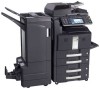
Kyocera TASKalfa 500ci FS-C2126MFP Network Fax Driver Operation Guide Rev. 3
Kyocera TASKalfa 500ci Manual
 |
View all Kyocera TASKalfa 500ci manuals
Add to My Manuals
Save this manual to your list of manuals |
Kyocera TASKalfa 500ci manual content summary:
- Kyocera TASKalfa 500ci | FS-C2126MFP Network Fax Driver Operation Guide Rev. 3 - Page 1
Network FAX Driver Operation Guide - Kyocera TASKalfa 500ci | FS-C2126MFP Network Fax Driver Operation Guide Rev. 3 - Page 2
- Kyocera TASKalfa 500ci | FS-C2126MFP Network Fax Driver Operation Guide Rev. 3 - Page 3
manual. Operating Environment The Network FAX Transmission Function is compatible for use under the following operating environments: • Hardware... IBM PC-AT compatible computer • Interface... 10BASE-T or 100BASE-TX • Operating system... Windows 2000 (Professional, Server, Advanced Server), Windows - Kyocera TASKalfa 500ci | FS-C2126MFP Network Fax Driver Operation Guide Rev. 3 - Page 4
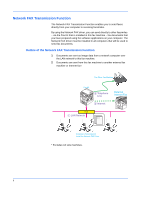
documents that you have prepared using the software applications on your computer. The Network FAX driver must be installed in all computers that will be used to send fax documents. Outline of the Network FAX Transmission Function 1 Documents are sent as image data from a network computer over the - Kyocera TASKalfa 500ci | FS-C2126MFP Network Fax Driver Operation Guide Rev. 3 - Page 5
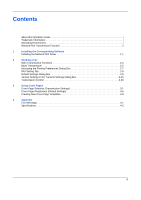
Contents About this Operation Guide i Trademark Information i Operating Environment i Network FAX Transmission Function ii 1 Installing the Corresponding Software Installing the Network FAX Driver 1-1 2 Sending a Fax Main Transmission Functions 2-2 Basic Transmission 2-5 Accessing - Kyocera TASKalfa 500ci | FS-C2126MFP Network Fax Driver Operation Guide Rev. 3 - Page 6
iv - Kyocera TASKalfa 500ci | FS-C2126MFP Network Fax Driver Operation Guide Rev. 3 - Page 7
. For information regarding machine setup, refer to the Operation Guide for the machine. 2 Insert the provided Product Library CD-ROM into the CD-ROM drive of the computer in which to install the Network FAX Driver. If the AutoPlay window appears, click Run setup.exe. If a warning message regarding - Kyocera TASKalfa 500ci | FS-C2126MFP Network Fax Driver Operation Guide Rev. 3 - Page 8
the Discover option, you can let the system find all the devices available for driver installation. If you use this option, proceed to step 7. With the Custom select option, you can choose the printing system and printer port to install. Select the Custom select and click on the Next button. Proceed - Kyocera TASKalfa 500ci | FS-C2126MFP Network Fax Driver Operation Guide Rev. 3 - Page 9
Information button if you want to open a dialog box with details about IP Address, Host Name, Printer Model (the machine's product name), Contact, Location, and Serial Number. 9 On the Printing System page, Select the printing System (the machine's product name) and click on the Next button. 1-3 - Kyocera TASKalfa 500ci | FS-C2126MFP Network Fax Driver Operation Guide Rev. 3 - Page 10
Installing the Corresponding Software 10 Select Standard TCP/IP Port and click on the Add Port... button. If Standard TCP/IP Port has been already installed, proceed to step 14. 11 Click on the Next button. 12 Enter the IP address of the machine in the Printer Name or IP Address field and - Kyocera TASKalfa 500ci | FS-C2126MFP Network Fax Driver Operation Guide Rev. 3 - Page 11
Confirm Settings page, click Install if the settings are correct. Click Back to correct the settings. Follow the instructions in the installation wizard to continue the installation procedure. NOTE: If Windows Security and User Account Control are displayed, no trouble should be found with operation - Kyocera TASKalfa 500ci | FS-C2126MFP Network Fax Driver Operation Guide Rev. 3 - Page 12
Task Bar and then select All Programs, Kyocera, and Uninstall Kyocera Product Library to display the Uninstall Wizard. 2 Place a check in the check box of the driver to be deleted and click on Uninstall. The driver is deleted. 3 Follow the instructions in the uninstallation wizard to continue the - Kyocera TASKalfa 500ci | FS-C2126MFP Network Fax Driver Operation Guide Rev. 3 - Page 13
directly from that computer to the other fax machine by using the Network FAX Driver. IMPORTANT: The Network FAX Driver must be installed on the computer from which you want to send the documents. Refer to Installing the Network FAX Driver on page 1-1 for the procedure to install the software - Kyocera TASKalfa 500ci | FS-C2126MFP Network Fax Driver Operation Guide Rev. 3 - Page 14
achieve highly confidential communication. When making the transmission settings, the sub-address and password of the other party (when these are set by the other party) must be entered. NOTE: For more information on Subaddress-Based communication, refer to the Operation Guide for the Fax Kit. 2-2 - Kyocera TASKalfa 500ci | FS-C2126MFP Network Fax Driver Operation Guide Rev. 3 - Page 15
function enables you to print out the documents at the same time as you send them by fax. (4) Attaching a Cover Page This function enables you to add a Cover Page to your transmission that includes such TTI (Transmitting Terminal Information) data as your company name, department - Kyocera TASKalfa 500ci | FS-C2126MFP Network Fax Driver Operation Guide Rev. 3 - Page 16
Letter) size machines. This machine supports Internet fax. This machine can perform Internet fax transmission using the Network FAX driver. (6) User Login and Job Accounting When the fax machine is set to User Login, the Login User Name and Password must be registered in the Network - Kyocera TASKalfa 500ci | FS-C2126MFP Network Fax Driver Operation Guide Rev. 3 - Page 17
Sending a Fax be used as the Network FAX. 4 Enter the page numbers, etc., to be faxed. NOTE: Confirm that the number of copies is window. 6 Specify all of the desired settings under the FAX Setting tab, such as the original size, and then click on the OK button. NOTE: Refer to FAX Setting Tab on page - Kyocera TASKalfa 500ci | FS-C2126MFP Network Fax Driver Operation Guide Rev. 3 - Page 18
in the dialog box. 8 If you are using a cover page, refer to (3) Cover Page Settings on page 217. 9 For Internet fax transmission, refer to (6) Internet fax Setting on page 219 to enter the subject and the message in E-mail message. 10 Select the transmission mode. (Excludes A4(Letter) size machines - Kyocera TASKalfa 500ci | FS-C2126MFP Network Fax Driver Operation Guide Rev. 3 - Page 19
button. 13 Click on the Send button to initiate the fax transmission operation. Accessing the Printing Preferences Dialog FAX related settings. 1 Click the Start button on the taskbar and then click Control Panel. Click to open Printers in that order from the successive menus to access the Printers - Kyocera TASKalfa 500ci | FS-C2126MFP Network Fax Driver Operation Guide Rev. 3 - Page 20
600 × 600dpi* *Excludes A4(Letter) size machines. 4 FAX TX Setting button Click this button to change the default settings for fax transmission. The Default Settings dialog box will be displayed. NOTE: Refer to Default Settings Dialog Box on page 2-9 for more detailed information on the settings in - Kyocera TASKalfa 500ci | FS-C2126MFP Network Fax Driver Operation Guide Rev. 3 - Page 21
to access the Printers dialog box. Right click the name of the machine to be used as the network fax and select Printing Preferences from the resulting drop-down menu. Click the FAX TX Setting button in the Printing Preferences window. (1) Sending Options Tab 1 2 1 FAX Delayed Transmit checkbox - Kyocera TASKalfa 500ci | FS-C2126MFP Network Fax Driver Operation Guide Rev. 3 - Page 22
Page Registration (Default Settings) on page 3-6. (3) Authentication Tab 1 2 3 1 User Login checkbox If the fax machine is set to User Login, select either Use Specific Login User Name or Prompt for Login User Name as desired. Use Specific Login User Name: Enter the Login User Name and Password - Kyocera TASKalfa 500ci | FS-C2126MFP Network Fax Driver Operation Guide Rev. 3 - Page 23
Sending a Fax 2 Job Accounting checkbox If the fax machine is set to Job Accounting, select either Use Specific Account ID or Prompt for Account ID , and prevent unauthorized printing to the SNMPv3 printing system. SNMP settings must be set in the driver and in the machine's COMMAND CENTER. 2-11 - Kyocera TASKalfa 500ci | FS-C2126MFP Network Fax Driver Operation Guide Rev. 3 - Page 24
Sending a Fax SNMPv1/v2c: This option ensures successful Auto Configure communication using the driver to enter the write community name in Community Name of Configure Standard TCP/IP Port Monitor. SNMPv3: This option ensures secure Auto Configure communication using a user name and password. - Kyocera TASKalfa 500ci | FS-C2126MFP Network Fax Driver Operation Guide Rev. 3 - Page 25
Sending a Fax SHA1: This option produces a message digest that is 160 bits long. SHA1 is It encrypts and decrypts data using 8-byte blocks and a 56-bit key. AES: This option uses the Advanced Encryption Standard for encryption. AES is a symmetric block cipher that can process data blocks of 128 bits, - Kyocera TASKalfa 500ci | FS-C2126MFP Network Fax Driver Operation Guide Rev. 3 - Page 26
6 Enter your own information into fields 1 - 5 explained below to send a cover page with your faxes. 1 Company: A maximum of 64 characters can be entered. 2 results report by e-mail. (The fax machine must be set to transmit e-mail. For details, refer to the Operation Guide for the machine.) 2-14 - Kyocera TASKalfa 500ci | FS-C2126MFP Network Fax Driver Operation Guide Rev. 3 - Page 27
need to enter the write community name in COMMAND CENTER. If you are using SNMPv3 in the network FAX driver, you need to enter the user name and the password specified in Read/Write User in COMMAND CENTER. For details, refer to COMMAND CENTER Operation Guide. 1 Click on the Select from Address Book - Kyocera TASKalfa 500ci | FS-C2126MFP Network Fax Driver Operation Guide Rev. 3 - Page 28
Sending a Fax 3 The destinations registered in the Address Book are shown in the list on the left side of the dialog box. To select an Internet fax destination or a group of destinations, select Internet FAX or Group from the filter's dropdown menu. NOTE: The list can be sorted. Click on the list - Kyocera TASKalfa 500ci | FS-C2126MFP Network Fax Driver Operation Guide Rev. 3 - Page 29
Sending a Fax box will be displayed. 2 Enter the sub-address and password as it is registered in the destination fax. • A maximum of 20 characters can be entered Cover Page Settings A Cover Page can be set as the first page of a fax transmission. In addition to the standard templates for Cover Pages, - Kyocera TASKalfa 500ci | FS-C2126MFP Network Fax Driver Operation Guide Rev. 3 - Page 30
made in the Default Settings dialog box once that transmission is completed. 2 Refer to (1) Sending Options Tab on page 2-9 for more detailed information on the corresponding settings in that tab. 3 To start the fax transmission, click on the Send - Kyocera TASKalfa 500ci | FS-C2126MFP Network Fax Driver Operation Guide Rev. 3 - Page 31
made in the Default Settings dialog box once that transmission is completed. 2 Refer to (4) Sender Information Tab on page 2-14 for more detailed information on the corresponding settings in that tab. 3 To start the fax transmission, click on the Send button. (6) Internet fax Setting *Excludes A4 - Kyocera TASKalfa 500ci | FS-C2126MFP Network Fax Driver Operation Guide Rev. 3 - Page 32
want to use your computer to verify the status of a fax transmission currently being processed, or to actually terminate that transmission. 1 Once a fax transmission starts being processed, a Transmission Control icon will be displayed in the Windows Task Bar. 2 Double-click on that icon to access - Kyocera TASKalfa 500ci | FS-C2126MFP Network Fax Driver Operation Guide Rev. 3 - Page 33
as the first page. About Cover Pages The Cover Page can be selected from a template. The Cover Page contains such destination information and sender information as that shown below. Sample of English template 01 2 43 1 5 76 8 9 10 1 Destination Fax number or Internet fax Address 2 Recipient - Kyocera TASKalfa 500ci | FS-C2126MFP Network Fax Driver Operation Guide Rev. 3 - Page 34
box. When selecting the destination from an Address Book, refer to (1) Selecting a Destination from the Address Book on page 2-15, select the destination, and go to Step 5. 2 In the Address Setting tab, enter the destination fax number and click on the Option Settings button. NOTE: For Internet - Kyocera TASKalfa 500ci | FS-C2126MFP Network Fax Driver Operation Guide Rev. 3 - Page 35
the OK button. 1 2 3 4 1 FAX Number (Internet FAX Address): The fax number or the Internet fax address cannot be changed. 2 Company: A set in the Default Settings dialog box, click on the Sender Information tab and set the sender information. Refer to (4) Sender Information Tab on page 2-14. 56 - Kyocera TASKalfa 500ci | FS-C2126MFP Network Fax Driver Operation Guide Rev. 3 - Page 36
, then the action of selecting the Cover Page for each transmission can be omitted. Refer to Cover Page Registration (Default Settings) on page 3-6. Original Cover Page templates can be created. Refer to Creating New Cover Page Templates on page 3-8. 9 Click on the Preview button. A preview of - Kyocera TASKalfa 500ci | FS-C2126MFP Network Fax Driver Operation Guide Rev. 3 - Page 37
Using Cover Pages IMPORTANT: Before transmitting the fax, be sure to use 10 Click on the Close button. 11 Click on the Edit Message button. 12 Enter the message to be added to the Cover Page and click on the OK button. 10 10 Message: A maximum of 1,000 characters can be entered. 13 Click on the Send - Kyocera TASKalfa 500ci | FS-C2126MFP Network Fax Driver Operation Guide Rev. 3 - Page 38
Settings Dialog Box procedure shown on page 2-9, open the Default Settings dialog box, and click on the Cover Page tab. 2 Place a check in the Attach Cover Page checkbox. 3 Select a Cover Page template from the Cover Page Templates list. NOTE: Original Cover Page templates can be created. Refer to - Kyocera TASKalfa 500ci | FS-C2126MFP Network Fax Driver Operation Guide Rev. 3 - Page 39
5 Click on the Close button. 6 Click on the Edit Message button. 7 Enter the message to be added to the Cover Page and click on the OK button. A maximum of 1,000 characters can be entered. 8 Click on the OK button. Sender Information Registration Please register the sender - Kyocera TASKalfa 500ci | FS-C2126MFP Network Fax Driver Operation Guide Rev. 3 - Page 40
the following procedure to create an original Cover Page template. 1 Perform the Default Settings Dialog Box procedure shown on page 2-9, open the Default Settings dialog box, and click on the Cover Page tab. 2 Place a check in the Attach Cover Page checkbox and click on the New... button. The - Kyocera TASKalfa 500ci | FS-C2126MFP Network Fax Driver Operation Guide Rev. 3 - Page 41
Using Cover Pages 4 Position the field box. From the Menu bar's Insert menu, select the that the inserted information will fit in the field box. NOTE: When a fax is transmitted, the information entered in the Default Settings and Destination Settings will automatically be entered in the fields. 3-9 - Kyocera TASKalfa 500ci | FS-C2126MFP Network Fax Driver Operation Guide Rev. 3 - Page 42
Sender information department name Name Sender - Name Sender information sender name FAX Number Sender - FAX Number Sender information FAX number Telephone Number Sender Telephone Number Sender information telephone number Comment Comment Message entered in the Cover Page tab 3-10 - Kyocera TASKalfa 500ci | FS-C2126MFP Network Fax Driver Operation Guide Rev. 3 - Page 43
the figures, textboxes, etc., to create a Cover Page. NOTE: For information regarding the operation method, refer to Help. 6 From the Menu bar click on File and then Save As, enter the file name, and click on the Save button. 7 Close the Edit Cover Page screen. 8 The new template will be registered - Kyocera TASKalfa 500ci | FS-C2126MFP Network Fax Driver Operation Guide Rev. 3 - Page 44
Using Cover Pages 3-12 - Kyocera TASKalfa 500ci | FS-C2126MFP Network Fax Driver Operation Guide Rev. 3 - Page 45
? Check the product name of the machine and reinstall the Network FAX driver. For details, refer to Installing the Network FAX Driver on page 1-1. For network FAX transmission, install the Fax Kit. Turn on the machine. Clear the error and then perform transmission. Is the IP address of the machine - Kyocera TASKalfa 500ci | FS-C2126MFP Network Fax Driver Operation Guide Rev. 3 - Page 46
Password in the Network FAX Driver when User Login, is turn ON in the fax machine. Requires the input of an Account ID in the Network FAX Driver when Job Accounting, is turned ON in the fax machine. A format can be selected using the Network FAX Driver or a template can be created. Up to 1000 pages - Kyocera TASKalfa 500ci | FS-C2126MFP Network Fax Driver Operation Guide Rev. 3 - Page 47
Appendix 4-3 - Kyocera TASKalfa 500ci | FS-C2126MFP Network Fax Driver Operation Guide Rev. 3 - Page 48
Rev. 3 2010. 3
-
 1
1 -
 2
2 -
 3
3 -
 4
4 -
 5
5 -
 6
6 -
 7
7 -
8
-
9
-
10
-
11
-
12
-
13
-
14
-
15
-
16
-
17
-
18
-
19
-
20
-
21
-
22
-
23
-
24
-
25
-
26
-
27
-
28
-
29
-
30
-
31
-
32
-
33
-
34
-
35
-
36
-
37
-
38
-
39
-
40
-
41
-
42
-
43
-
44
-
45
-
46
-
47
-
48
 |
 |
Network FAX Driver
Operation Guide