
Lenovo B575 Lenovo B575 User Guide V1.0
Lenovo B575 Manual
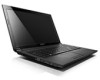 |
View all Lenovo B575 manuals
Add to My Manuals
Save this manual to your list of manuals |
Lenovo B575 manual content summary:
- Lenovo B575 | Lenovo B575 User Guide V1.0 - Page 1
Lenovo B575 User Guide V1.0 Read the safety notices and important tips in the included manuals before using your computer. - Lenovo B575 | Lenovo B575 User Guide V1.0 - Page 2
before using wireless devices on your computer. • To refer to it, go to http://www.lenovo.com, click Support, and then click User's guides and manuals. First Edition (Apr 2011) © Copyright Lenovo 2011. LENOVO products, data, computer software, and services have been developed exclusively at private - Lenovo B575 | Lenovo B575 User Guide V1.0 - Page 3
status indicators 16 Securing your computer 17 Chapter 3. Connecting to the Internet ......18 Wired connection 18 Wireless connection 19 Chapter 4. OneKey Rescue system ..........23 OneKey Rescue system 23 Appendix A. CRU instructions 24 Replacing the battery 24 Replacing the hard disk drive - Lenovo B575 | Lenovo B575 User Guide V1.0 - Page 4
- Lenovo B575 | Lenovo B575 User Guide V1.0 - Page 5
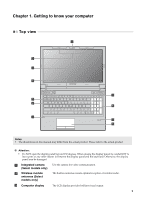
Chapter 1. Getting to know your computer Top view $ % & ' B575 . ( ) - * , + Notes: • The illustrations in this manual may differ from the actual product. Please refer to the actual product. Attention: • Do NOT open the display panel beyond 130 degrees. When closing the - Lenovo B575 | Lenovo B575 User Guide V1.0 - Page 6
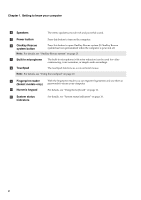
. f OneKey Rescue system button Press this button to open OneKey Rescue system (If OneKey Rescue system has been preinstalled) when the computer is powered off. Note: For details, see "OneKey Rescue system" on page 23. g Built-in microphone The built-in microphone (with noise reduction) can - Lenovo B575 | Lenovo B575 User Guide V1.0 - Page 7
)" on page 17. b AC power adapter jack Connect the AC adapter here. Note: For details, see "Using AC adapter and battery" on page 9. c Fan louvers Dissipate internal heat. Note: Make sure that none of the fan louvers are blocked or else overheating of the computer may occur. d VGA port - Lenovo B575 | Lenovo B575 User Guide V1.0 - Page 8
Chapter 1. Getting to know your computer Right-side view ab c d ce a Headphone jack Connects to external headphones. Attention: • Listening to music at high volume over extended periods of time may damage your hearing. b Microphone jack Connects to external microphones. c USB port - Lenovo B575 | Lenovo B575 User Guide V1.0 - Page 9
Chapter 1. Getting to know your computer Front view a System status indicators For details, see "System status indicators" switch to turn on/off the wireless radio of all wireless devices on your computer. Insert memory cards (not supplied) here. Note: For details, see "Using memory cards (not supplied)" - Lenovo B575 | Lenovo B575 User Guide V1.0 - Page 10
Chapter 1. Getting to know your computer Bottom view $ % & ' ( a Battery latch - manual The manual battery latch is used to keep the battery pack secured in place. b Battery pack For details, see "Using AC adapter and battery" on page 9. c Battery latch - spring loaded d SIM card slot ( - Lenovo B575 | Lenovo B575 User Guide V1.0 - Page 11
Refer to the supplied Setup Poster to install the battery pack. Connecting the computer to an electrical outlet 1 Connect the power cord to the AC adapter. 2 Connect the AC adapter to the AC power adapter jack of the computer firmly. 3 Plug the power cord into an electrical outlet. „ Turning on the - Lenovo B575 | Lenovo B575 User Guide V1.0 - Page 12
Click and select Sleep from the Start menu. • Press Fn + F1. Note: Wait until the power indicator light starts blinking (indicating that the computer is in sleep state) before you move your computer. Moving your computer while the hard disk is spinning can damage the hard disk, causing loss of data - Lenovo B575 | Lenovo B575 User Guide V1.0 - Page 13
, or if you need to send your computer to Lenovo for service, etc. remove the battery pack from the computer. Before removing the battery pack, make sure the computer has been shut down. „ Handling the battery If the rechargeable battery pack is replaced with an incorrect type, there may be danger - Lenovo B575 | Lenovo B575 User Guide V1.0 - Page 14
Chapter 2. Learning the basics Using the touchpad B575 $ %& a Touchpad b Left click button c Right click button To move the cursor on the screen, slide your fingertip over the pad in the direction in which you want the cursor to move. The function corresponds to that of the left - Lenovo B575 | Lenovo B575 User Guide V1.0 - Page 15
Chapter 2. Learning the basics Using the keyboard Your computer has a numeric keypad and function keys incorporated in its standard keyboard. „ Numeric keypad The keyboard has a separate numeric keypad. To enable or disable the numeric - Lenovo B575 | Lenovo B575 User Guide V1.0 - Page 16
describes the features of each function key. Fn + Esc: Turn on/off the integrated camera. Fn + F1: Enter sleep mode. Fn + F2: Turn on/off the backlight of the LCD screen. Fn + F3: Open the interface for the display device switch to select this notebook or an external display. Fn + F4 - Lenovo B575 | Lenovo B575 User Guide V1.0 - Page 17
card reader does not support SDIO devices (e.g., SDIO computer comes with three USB ports and an eSATA/USB port compatible with USB devices or four USB ports compatible with USB devices. Note: When using a high power consumption USB device such as USB ODD, use the external device's power adapter - Lenovo B575 | Lenovo B575 User Guide V1.0 - Page 18
computer has an integrated Bluetooth adapter card, it can connect to and transfer data wirelessly to other Bluetooth enabled devices, such as notebook computers , turn it off to save battery power. • You need to pair the Bluetooth enabled device with your computer before you can transfer data between - Lenovo B575 | Lenovo B575 User Guide V1.0 - Page 19
Special keys and buttons B575 „ OneKey Rescue system button • When the computer is powered-off, press this button to enter the OneKey Rescue system if Lenovo OneKey Rescue system has been preinstalled. • In Windows operating system, press this button to start Lenovo OneKey Recovery. Note: For - Lenovo B575 | Lenovo B575 User Guide V1.0 - Page 20
Chapter 2. Learning the basics System status indicators These indicators inform you of the computer status. $ % & B575 ' ( ) a Caps lock indicator b Num lock indicator c Hard disk drive indicator d Power status indicator e Battery status indicator f Wireless communication indicator 16 - Lenovo B575 | Lenovo B575 User Guide V1.0 - Page 21
computer to help prevent it from being removed without your permission. For details on installing the security lock, please refer to the instructions and security features. Lenovo offers no comment the screen each time you power on the computer. Enter your password at the prompt. The computer - Lenovo B575 | Lenovo B575 User Guide V1.0 - Page 22
wiring to connect. Wireless network technology: connect without wiring. Wired connection Wired connections are a reliable and safe way to connect the computer to the Internet. Cable Cable Internet services use a cable modem connected to the residential cable TV line. DSL DSL is a family of - Lenovo B575 | Lenovo B575 User Guide V1.0 - Page 23
switch from to . 2 Press Fn + F5 to make configuration. Hardware connection Access point * B575 Wi-Fi/WiMAX network * Not supplied Software configuration Consult your Internet Service Provider (ISP) and search Windows Help and Support Center for details on how to configure your computer. 19 - Lenovo B575 | Lenovo B575 User Guide V1.0 - Page 24
Module (SIM) card after activation. For instructions on inserting the SIM card, refer to "Inserting the SIM card" on page 21. Notes: • Various standards are in use by mobile operators to provide Mobile Broadband services. The Lenovo Mobile Broadband module may support one or more of the following - Lenovo B575 | Lenovo B575 User Guide V1.0 - Page 25
to the Internet Inserting the SIM card To insert the SIM card: 1 Turn off the computer; then disconnect the AC adapter and all cables from the computer. 2 Close the computer display and turn it over. 3 Remove the battery. 4 Insert the SIM card in the card slot until it clicks into place as shown - Lenovo B575 | Lenovo B575 User Guide V1.0 - Page 26
to the Internet Removing the SIM card To remove the SIM card: 1 Turn off the computer, then disconnect the AC adapter and all cables from the computer. 2 Close the computer display and turn it over. 3 Remove the battery. 4 Push the SIM card in until you hear a click, and then pull the SIM card - Lenovo B575 | Lenovo B575 User Guide V1.0 - Page 27
(C drive) for easy restore when required. You can run Lenovo OneKey Recovery under the Windows AC adapter and battery pack to your computer. • After the recovery discs are burned, please number them so that you can use them in the correct order. • Computers without an integrated optical drive support - Lenovo B575 | Lenovo B575 User Guide V1.0 - Page 28
A. CRU instructions Replacing the battery Note: Use only the battery provided by Lenovo. Any other battery could ignite or explode. To replace the battery, do the following: 1 Turn off the computer, or enter hibernation mode. Disconnect the AC adapter and all cables from the computer. 2 Close - Lenovo B575 | Lenovo B575 User Guide V1.0 - Page 29
Appendix A. CRU instructions Replacing the hard disk drive You can increase the storage capacity of your computer by replacing the hard disk drive with one of greater capacity. You can purchase a new hard disk drive from your reseller or Lenovo marketing representative. Notes: • Replace the hard - Lenovo B575 | Lenovo B575 User Guide V1.0 - Page 30
Appendix A. CRU instructions To replace the hard disk drive, do the following: 1 Turn off the computer; then disconnect the AC adapter and all cables from the computer. 2 Close the computer display, and then turn the computer over. 3 Remove the battery pack. 4 Remove the Hard disk drive (HDD)/Memory - Lenovo B575 | Lenovo B575 User Guide V1.0 - Page 31
5 Remove the frame fixing screw c . Appendix A. CRU instructions c 6 Pull the tab in the direction shown by arrow d . d 27 - Lenovo B575 | Lenovo B575 User Guide V1.0 - Page 32
Appendix A. CRU instructions 7 Take out the hard disk drive secured in a metal frame e . e 8 Remove the screws the frame fixing screw. B Reinstall the compartment cover and tighten the screws. C Reinstall the battery pack. D Turn the computer over again. Connect the AC adapter and the cables to the - Lenovo B575 | Lenovo B575 User Guide V1.0 - Page 33
Do not touch the contact edge of the DDR3 SDRAM. 2 Turn off the computer. Disconnect the AC adapter and all cables from the computer. 3 Close the computer display, and turn the computer over. 4 Remove the battery pack. 5 Remove the Hard disk drive (HDD)/Memory/Mini PCI Express Card slot compartment - Lenovo B575 | Lenovo B575 User Guide V1.0 - Page 34
Appendix A. CRU instructions 6 If two DDR3 SDRAMs are already installed in the memory slot, remove one of into the closed position. 9 Reinstall the compartment cover and tighten the screws. 0 Reinstall the battery pack. A Turn the computer over again. Connect the AC adapter and the cables to the - Lenovo B575 | Lenovo B575 User Guide V1.0 - Page 35
Appendix A. CRU instructions Note: If only one DDR3 SDRAM is used on the computer you are servicing, the card must be installed in SLOT-0 ( : lower slot), but not in SLOT-1 ( : upper slot). To make sure that the DDR3 SDRAM is installed correctly, do as follows: 1 Turn the computer on. 2 Hold F2 - Lenovo B575 | Lenovo B575 User Guide V1.0 - Page 36
Appendix A. CRU instructions Removing the optical drive To remove the optical drive, do the following: 1 Turn off the computer; then disconnect the AC adapter and all cables from the computer. 2 Close the computer display, and then turn the computer over. 3 Remove the battery pack. 4 Remove the - Lenovo B575 | Lenovo B575 User Guide V1.0 - Page 37
instructions The following table provides a list of CRUs (Customer Replaceable Units) for your computer, and informs you of where to find replacement instructions. AC adapter Power cord for AC adapter Battery Bottom access doors Hard disk drive Memory Optical drive Setup Poster O O O User Guide - Lenovo B575 | Lenovo B575 User Guide V1.0 - Page 38
or registered trademarks of Lenovo in the United States, other countries, or both. Lenovo OneKey Microsoft and Windows are trademarks of Microsoft Corporation in the United States, other countries, or both. Other company, products, or service names may be trademarks or service marks of others. 34 - Lenovo B575 | Lenovo B575 User Guide V1.0 - Page 39
Index A AC adapter Using 9 B Battery Charging 9 Bluetooth Connecting 14 C Camera 1 F Fingerprint reader 17 Function key combinations 11 K Keyboard Using 11 M Meomory card reader 13 Microphone Built-in 2 O OneKey Rescue system - Lenovo B575 | Lenovo B575 User Guide V1.0 - Page 40
THE STORE. For technical assistance, contact a Lenovo support specialist 24 hours a day by calling toll free 1-877-4 LENOVO (1-877-453-6686). Additionally, you can find support information and updates on the Lenovo Web site located at http://consumersupport.lenovo.com. * Only for the users from the - Lenovo B575 | Lenovo B575 User Guide V1.0 - Page 41
©Lenovo China 2011 New World. New Thinking.TM www.lenovo.com V1.0_en-US
-
 1
1 -
 2
2 -
 3
3 -
 4
4 -
 5
5 -
 6
6 -
 7
7 -
8
-
9
-
10
-
11
-
12
-
13
-
14
-
15
-
16
-
17
-
18
-
19
-
20
-
21
-
22
-
23
-
24
-
25
-
26
-
27
-
28
-
29
-
30
-
31
-
32
-
33
-
34
-
35
-
36
-
37
-
38
-
39
-
40
-
41
 |
 |

Read the safety notices and important tips in the
included manuals before using your computer.
Lenovo B575
User Guide
V1.0