
Oki B6500 Guide: User's, B6500 (English)
Oki B6500 Manual
 |
View all Oki B6500 manuals
Add to My Manuals
Save this manual to your list of manuals |
Oki B6500 manual content summary:
- Oki B6500 | Guide: User's, B6500 (English) - Page 1
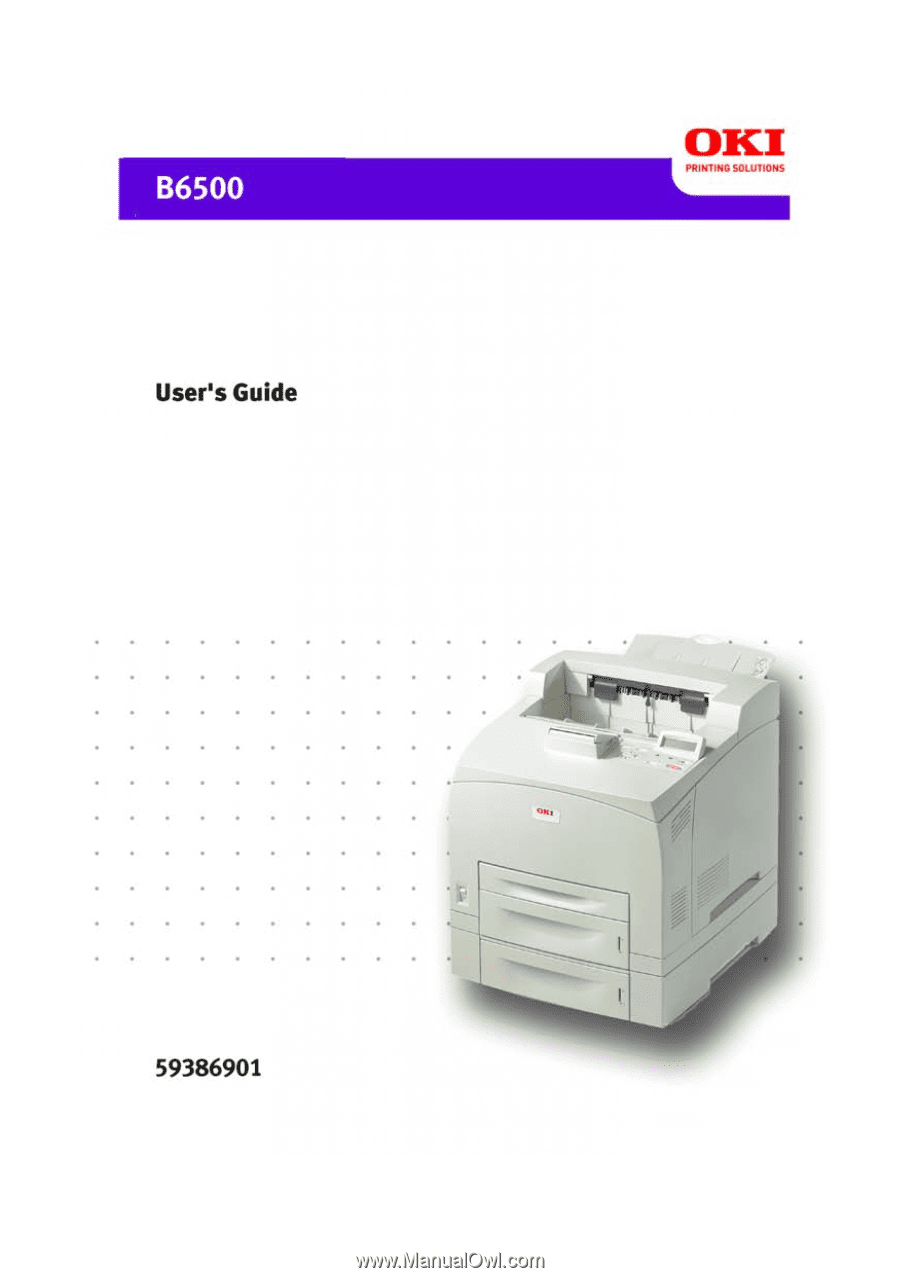
59386901_cvr.jpg - Oki B6500 | Guide: User's, B6500 (English) - Page 2
Information Copyright © 2007 by Oki Data. All Rights Reserved Document Information B6500 User's Guide P/N 59386901, Revision 2.0 March drivers and manuals are available from the web site: http://www.okiprintingsolutions.com Trademark Information Oki and Microline are registered trademarks of Oki - Oki B6500 | Guide: User's, B6500 (English) - Page 3
(Network Information Services) are trademarks manuals or other documentation. OKI is not responsible for such data loss and any consequence caused by such data loss. Damage related to computer virus OKI manual. Unauthorized operation can cause faults or accidents. OKI is not liable for any problems - Oki B6500 | Guide: User's, B6500 (English) - Page 4
handy for a quick reference on using the printer. This guide is written with the assumption that you are familiar with the basic knowledge and way of operating your computer environment and the network environment. In this manual, safety instructions are described with the following symbol: Always - Oki B6500 | Guide: User's, B6500 (English) - Page 5
sources. 3. The following conventions are used in this guide: Refer to "xxx"The cross-reference is within this guide. Refer to YYYThe cross-reference is not within this guide. [ ] Indicates items displayed on the computer and the printer control panel. Also indicates the title of printed - Oki B6500 | Guide: User's, B6500 (English) - Page 6
list is not inclusive and no liability is assumed for either its completeness or accuracy. In case of doubt, contact your legal counsel. B6500 User's Guide> 6 - Oki B6500 | Guide: User's, B6500 (English) - Page 7
Print Jobs Menu 51 Information Menu 53 Print Menu 55 Media Menu 58 Sys Config Menu 63 PCL Emulation 65 FX Emulation 67 B6500 User's Guide> 7 - Oki B6500 | Guide: User's, B6500 (English) - Page 8
Menu 87 Comp FLASH Menu 89 Job Accounting 91 Spooling 92 Troubleshooting 94 When Paper Jams 94 When Problems Occur 98 When the Print Quality is Poor 104 Message List 108 Network Related Troubles 112 Mail Related Troubles 117 Daily Care 118 Replacing the Drum/Toner Cartridge 118 Printing - Oki B6500 | Guide: User's, B6500 (English) - Page 9
buttons, indicators and display. Releases heat to prevent the interior of the printer from heating up. A meter to check the amount of remaining paper. Attached . Sets the 150 tray. Sets the 550 tray. Switches the power of the printer on and off. Pressing the switch to the position switches it on and - Oki B6500 | Guide: User's, B6500 (English) - Page 10
For connecting the parallel cable. 12 Network connector For connecting the network cable when connecting this printer to the network for use. 13 USB connector For connecting the USB cable. 14 Serial is jammed inside the duplex unit, it is described as cover C. B6500 User's Guide> 10 - Oki B6500 | Guide: User's, B6500 (English) - Page 11
up to two levels of an Letter/A4 universal tray (550) to this printer. Right detachable Remove this when installing optional accessories cover such as hard disk Fixes the toner on the paper. Do not touch this when using the printer as it is hot. Transfers the toner image on the surface of the - Oki B6500 | Guide: User's, B6500 (English) - Page 12
menu map (2pages) will print with all the current printer settings. 3 indicator When the light is on, the printer is ready to receive data from the computer. 4 LCD display Displays the setting move to the required menu, item and candidate value on the display. B6500 User's Guide> 12 - Oki B6500 | Guide: User's, B6500 (English) - Page 13
status. Print Screen The Print screen appears when the machine is printing or waiting for data. The following contents are shown on the screen. Current printer status Printing USB Port Receiving Data (USB, Net, LPD, etc.) PCL Language (PCL, PS, etc.) Menu Screen Screen for configuring settings - Oki B6500 | Guide: User's, B6500 (English) - Page 14
the memory of this printer will be deleted. 1. By checking the display on the control panel, confirm that the Online printer is not processing any data. "Online" or "Power Saver Mode" should be displayed. 2. Press the power switch to the position to switch the power off. B6500 User's Guide> 14 - Oki B6500 | Guide: User's, B6500 (English) - Page 15
no print data is received for 5 minutes, the printer will enter the low power mode. When no data is received for 45 minutes respectively, the printer will go into sleep mode after no data has been received for The printer automatically cancels its power save status once it receives data from the - Oki B6500 | Guide: User's, B6500 (English) - Page 16
Print Jobs at the Computer Double-click the printer icon in Windows. at the bottom right of key. Checking Status of Print Data Checking in Windows Double-click the printer icon of the screen. on printer as a network printer and with SNMP protocol enabled, you can display on the printer driver - Oki B6500 | Guide: User's, B6500 (English) - Page 17
be used. 2. Click the [Device Options] tab. 3. Click [Get Information from Printer]. NOTE The properties of the printer can be displayed on the printer driver. 4. Click [OK]. The contents of the [Device Options] tab will be updated based on the data obtained from the printer. B6500 User's Guide> 17 - Oki B6500 | Guide: User's, B6500 (English) - Page 18
, refer to the Online Help for the printer driver. Important: • If the paper tray information is not correct, change the settings on the [Set Up] tab of the printer driver before continuing. For details on how to , 2-up, 4-up, 6-up, 8-up, 9-up, 16-up, PosterPrint, and Booklet. B6500 User's Guide> 18 - Oki B6500 | Guide: User's, B6500 (English) - Page 19
> You can set the print features in the properties dialog box from the printer icon by selecting [Printers and Faxes] (or [Settings] > [Printers] depending on the OS). Printing on Envelopes For details on the envelopes that , refer to "Loading Paper in a Paper Tray" on page 40. B6500 User's Guide> 19 - Oki B6500 | Guide: User's, B6500 (English) - Page 20
to the right side. 2. Slide the length guide and right width guide to the size of the loaded envelopes. 3. printer properties dialog box differs according to the application software. Refer to the manual of each application software. 1. From the [File] menu, select [Print]. 2. Select this printer - Oki B6500 | Guide: User's, B6500 (English) - Page 21
way to display the printer properties dialog box differs according to the application software. Refer to the manual of your respective application software. > Printing transparencies continuously may lead to the output transparencies sticking to each other. As a guide - Oki B6500 | Guide: User's, B6500 (English) - Page 22
This section explains how to print on custom size paper such as long paper. The paper sizes that can be set on this printer are as follows: „ For tray 1 „ For trays 2 - 4 Long edge: 127 to 900 mm (5 to 35.4 to extend the paper tray, refer to " Loading Paper" (P. 40). B6500 User's Guide> 22 - Oki B6500 | Guide: User's, B6500 (English) - Page 23
refer to " Setting Custom Paper Sizes" (P. 43). Important: • When setting the paper size on the printer driver and the control panel, be sure to specify the same size as the actual paper used. Setting the Custom Size. C. In the Name Field, Type a name for your custom size. B6500 User's Guide> 23 - Oki B6500 | Guide: User's, B6500 (English) - Page 24
to the application software. Refer to the manual of your respective application software. 1. From the [File] menu, select [Print]. 2. Select this printer as the printer to be used and click [Preferences]. 3. [OK]. 7. Click [Print] in the [Print] dialog box to start printing. B6500 User's Guide> 24 - Oki B6500 | Guide: User's, B6500 (English) - Page 25
hard disk may be damaged and erase important data saved in the hard disk. We recommend you back up your data. About Secure Print Secure Print is a feature it is printed. By storing frequently-used data in the printer, you can print the job from the printer control panel, without sending it from the - Oki B6500 | Guide: User's, B6500 (English) - Page 26
manual of your respective application software. 1. From the [File] menu, select [Print]. 2. Select this printer as the printer be used at the printer to retreive the job. data stored in the printer by Secure Print. NOTE > You can also delete, without printing, secure print data stored in the printer - Oki B6500 | Guide: User's, B6500 (English) - Page 27
flash has been installed, you can use the proof print feature. Important: • We recommend you back up your data. About Proof Print Proof Print is a feature that allows you to store the print data of multiple copies in the hard disk or compact flash, print out only the first set to check - Oki B6500 | Guide: User's, B6500 (English) - Page 28
as an example. NOTE > The way to display the printer properties dialog box differs according to the application software. Refer to the manual of your respective application software. 1. From the [File] [Job Identification] group at [Job Pin]. Enter four numeric characters. B6500 User's Guide> 28 - Oki B6500 | Guide: User's, B6500 (English) - Page 29
to start printing. At the Control Panel This section explains the procedure to print and delete data stored in the printer by Proof Print. Refer to: "Print Jobs Menu" on page 51 1. Press the to store the data in the printer beforehand and then print it out automatically at the specified time. - Oki B6500 | Guide: User's, B6500 (English) - Page 30
data. Registering Timed Job The procedure to configure Delayed Print is as follows. This section explains the procedure using WordPad on Windows XP as an example. The procedure is the same for other OS. 1. From the [File] menu, select [Print]. 2. Select this printer as the printer User's Guide> 30 - Oki B6500 | Guide: User's, B6500 (English) - Page 31
compact flash is installed. You can send a PDF file directly to the printer for printing without using the printer driver. As the print data is sent directly to the printer, the printing process is simpler than printing with the printer driver and it is done at a faster speed. The way to print a PDF - Oki B6500 | Guide: User's, B6500 (English) - Page 32
PDF file to the printer for printing using lpr > indicates space. Example: Printing a [event.pdf] file with a printer IP address of 192.168.1.100. C:\>lpr -S 192.168.1.100 -P hard disk or compact flash has been installed and the printer is connected to a network, enabling it to receive e-mails via - Oki B6500 | Guide: User's, B6500 (English) - Page 33
Important: • It is recommended that you back up your data. A = E-Mail B = Prints automatically B A B Environment Settings for E-mail Printing To use the E-mail Printing feature, you need printed by using the PostScript feature and according to the [PDF] setting on the control B6500 User's Guide> 33 - Oki B6500 | Guide: User's, B6500 (English) - Page 34
-rate contract with the Internet provider exists and the user is not always connected to the network, a telephone charge will be incurred every time this printer retrieves data regularly from the mail server. B6500 User's Guide> 34 - Oki B6500 | Guide: User's, B6500 (English) - Page 35
an exclusive email account for the printer. Using a common e-mail account data. • There are also providers that allow reception of e-mails via SMTP. Detailed adjustments with the provider is required for such cases. • When setting up the e-mail configuration in an environment where MTA support - Oki B6500 | Guide: User's, B6500 (English) - Page 36
is recommended here. When you use paper that is not recommended, contact service. Usable Paper The types of paper that can be used on this printer are as follows. When printing on paper that is commonly sold, use g/m2 (16 - 57.5 lb) 150 sheets (P paper) or 17. 5 mm or below B6500 User's Guide> 36 - Oki B6500 | Guide: User's, B6500 (English) - Page 37
different from the paper size or paper type selected on the printer driver or loading paper into an unsuitable paper tray for printing may or vapor. For details, contact service. Standard Paper The following table shows the standard paper for this printer. PAPER NAME WEIG HT PAPER PAPER Guide> 37 - Oki B6500 | Guide: User's, B6500 (English) - Page 38
general office use. Special Media The following types of paper can be used for printing on this printer. These types of paper are called special media. PAPER NAME PAPER TYPE PAPER CHARACTERISTICS AND CAUTION about 20 sheets, and then fan them to lower their temperature. B6500 User's Guide> 38 - Oki B6500 | Guide: User's, B6500 (English) - Page 39
media, such as heavyweight not listed in the table, contact service. > For details on printing transparencies and envelopes, refer to transparencies (example: V556, V558, V302) • Paper exclusively for ink-jet printer use • Paper that is too thick or thin • Paper that has been User's Guide> 39 - Oki B6500 | Guide: User's, B6500 (English) - Page 40
that can be loaded in paper tray: " Usable Paper" (P. 36) 1. Place the paper tray on a flat surface and remove the lid (if installed). B6500 User's Guide> 40 - Oki B6500 | Guide: User's, B6500 (English) - Page 41
the paper tray and pull its extendable part to the front until it reaches its maximum. 5. Squeeze the length guide and slide it to the desired paper size (1). Squeeze the right width guide and slide it to the desired paper size (2). 6. Load the paper with the side to be printed facing up - Oki B6500 | Guide: User's, B6500 (English) - Page 42
capacity allowed. • Align the right width guide with the paper width correctly. If the right width guide is not in place, the paper will Automatic Tray Selection If you display the properties dialog box of the printer driver and select a paper type for [Specify Paper Type] and [Auto] for - Oki B6500 | Guide: User's, B6500 (English) - Page 43
can configure the printer not to display Type: Online Help for the printer driver Setting Custom Paper Sizes To print to set it on the printer driver, depending on the paper size the paper size on the printer driver and control panel, be in step below. This printer will automatically detect the size - Oki B6500 | Guide: User's, B6500 (English) - Page 44
be processed accurately. Toner may not fuse properly on the paper, resulting in dirty and poor quality printouts. • Changes in paper type settings on the printer driver are not reflected in this printer. Refer to: • Paper sizes that can be loaded: "Usable Paper" on page 36 B6500 User - Oki B6500 | Guide: User's, B6500 (English) - Page 45
the < > or < > button until the desired media type is displayed, then press the button. 5. Press the button to exit the menu. B6500 User's Guide> 45 - Oki B6500 | Guide: User's, B6500 (English) - Page 46
and change the printer settings. Web access to the printer is also discussed. Control that allow you to view and change the printer settings. Name Description button with all the current printer settings. When the light is on, the printer is ready to receive data from the computer. Displays - Oki B6500 | Guide: User's, B6500 (English) - Page 47
also displays menus, submenus, and printer settings when you are in the menu system. The display contains two lines of text, each with a maximum of sixteen characters. Current printer status Printing USB Port Receiving Data (USB, Net, LPD, etc.) PCL Language (PCL, PS, etc.) B6500 User's Guide> 47 - Oki B6500 | Guide: User's, B6500 (English) - Page 48
Navigating the Control Panel Menus When you press the MENU button on the control panel, you enter the printer's menu system. At that point, the first line of the display lists the active menu. You can Menu • Sys Adjust Menu • Date/Time Menu • Maintenance Menu • Usage Menu B6500 User's Guide> 48 - Oki B6500 | Guide: User's, B6500 (English) - Page 49
first line of the display. 7. Press the Select button to print the list, or press the CANCEL button to exit the menu system. B6500 User's Guide> 49 - Oki B6500 | Guide: User's, B6500 (English) - Page 50
Menu Network Menu Sys Adjust Menu Date/Time Menu Maintenance Menu Usage Menu Flash Menu Disk Menu Comp FLASH Menu Job Accounting Spooling B6500 User's Guide> 50 - Oki B6500 | Guide: User's, B6500 (English) - Page 51
and "****" is displayed on the second line. NOTE The password is entered by you at the PC using the print driver, see "Print Confidential Document - Secure Print" on page 25. 4. To enter the first digit of your password following table to access and change the system settings. B6500 User's Guide> 51 - Oki B6500 | Guide: User's, B6500 (English) - Page 52
Submenu Default Setting Enter Password User Selected Available Settings User Selected Procedure for Changing Setting See Steps Above B6500 User's Guide> 52 - Oki B6500 | Guide: User's, B6500 (English) - Page 53
to print the displayed submenu. Use the procedures in the following table to access and change the printer information settings: Submenus Default Setting Print Menu Map This function allows you to print the menu map. fonts list. Press SELECT to print the FX Fonts list. B6500 User's Guide> 53 - Oki B6500 | Guide: User's, B6500 (English) - Page 54
Submenus Default Setting Print Demo This function allows you to print a demo page. Print Error Log This function allows you to print the error log. Available Settings Procedure for Changing Setting Press SELECT to print a Demo Page. Press SELECT to print the Error Log. B6500 User's Guide> 54 - Oki B6500 | Guide: User's, B6500 (English) - Page 55
The Print Menu provides access to the print setup procedures. These settings are defaults for the printer. A print job can specify and use other settings. Use the following procedure to enter the toggle between Long Edge and Short Edge. Press to save this setting. B6500 User's Guide> 55 - Oki B6500 | Guide: User's, B6500 (English) - Page 56
submenu allows you to set the print density. Toner Save OFF Mode This submenu allows you to set the printer to draft mode Available Settings Tray 1 Tray 2 Tray 3 Tray 4 On Off Procedure for Changing Setting Press between ON and OFF. Press to save this setting. B6500 User's Guide> 56 - Oki B6500 | Guide: User's, B6500 (English) - Page 57
and Landscape. Press to save this setting. Press < > or < > buttons to increase or decrease the setting. Press to save this setting. B6500 User's Guide> 57 - Oki B6500 | Guide: User's, B6500 (English) - Page 58
button to enter the submenu. Use the procedures in the following table to access and change the printer media settings: Submenus Default Setting Tray1 Auto- On Sense This submenu allows you to set the the available sizes. Press to save the selected size. B6500 User's Guide> 58 - Oki B6500 | Guide: User's, B6500 (English) - Page 59
, Label, Card Stock, Postcard, Envelope, Other, Thick 1, Thick 2 Press < > or < > button to scroll through the available media types Press to set a type. B6500 User's Guide> 59 - Oki B6500 | Guide: User's, B6500 (English) - Page 60
types Press to set a type. On Press < > or < > button Off to toggle on or off. Press to save the selected size. B6500 User's Guide> 60 - Oki B6500 | Guide: User's, B6500 (English) - Page 61
.00 in (279.4mm) 5.83 - 14.00 in (148 255.6mm) Press < > or < > buttons to select the Y dimension Press to set dimension. B6500 User's Guide> 61 - Oki B6500 | Guide: User's, B6500 (English) - Page 62
to set dimension. 5.83 - 14.00 in (148 255.6mm) Press < > or < > button to select the Y dimension Press to set dimension. B6500 User's Guide> 62 - Oki B6500 | Guide: User's, B6500 (English) - Page 63
Changing Setting Power Save 15 Time This submenu allows you to change the time (in minutes) when the printer enters the Power Saver Mode. 1 to 999 Press < > or < > buttons to select the buttons to scroll through the selections. Press to save the selection. B6500 User's Guide> 63 - Oki B6500 | Guide: User's, B6500 (English) - Page 64
been detected, and there is no more data to process. 00020 Toner Low This submenu sets the printer to either stop or continue printing when and Stop. Press to save this setting. On Off English and other supported languages Press < > or < > buttons to toggle between On and Off. Press - Oki B6500 | Guide: User's, B6500 (English) - Page 65
. Press to save the selection. 1.00 - 1008.00 Press < > or < > buttons to scroll through the selections. Press to save the selection. B6500 User's Guide> 65 - Oki B6500 | Guide: User's, B6500 (English) - Page 66
> to save the selection. LF LF+CR Press < > or < > buttons to toggle between LF and LF+CR. Press to save the selection. B6500 User's Guide> 66 - Oki B6500 | Guide: User's, B6500 (English) - Page 67
through the selections. Press to save the selection. Press < > or < > buttons to scroll through the selections. Press to save the selection. B6500 User's Guide> 67 - Oki B6500 | Guide: User's, B6500 (English) - Page 68
through the selections. Press to save the selection. Press < > or < > buttons to scroll through the selections. Press to save the selection. B6500 User's Guide> 68 - Oki B6500 | Guide: User's, B6500 (English) - Page 69
and Disable. Press to save the selection. Press < > or < > buttons to toggle between EASCII and RAW. Press to save the selection. B6500 User's Guide> 69 - Oki B6500 | Guide: User's, B6500 (English) - Page 70
change the Serial Menu settings: Submenus Serial Default Setting Enable Baud Rate 9600 Data Bits 8 Stop Bits 1 Available Settings Procedure for Changing Setting Enable Disable Press > 2 buttons to toggle between 1 and 2. Press to save the selection. B6500 User's Guide> 70 - Oki B6500 | Guide: User's, B6500 (English) - Page 71
and On. Press to save the selection. Press < > or < > buttons to toggle between Off and On. Press to save the selection. B6500 User's Guide> 71 - Oki B6500 | Guide: User's, B6500 (English) - Page 72
and On. Press to save the selection. Press < > or < > buttons to toggle between ASCII and RAW. Press to save the selection. B6500 User's Guide> 72 - Oki B6500 | Guide: User's, B6500 (English) - Page 73
and Disable. Press to save the selection. Press < > or < > buttons to toggle between ASCII and RAW. Press to save the selection. B6500 User's Guide> 73 - Oki B6500 | Guide: User's, B6500 (English) - Page 74
Menu provides access to the printer network settings. Use the following Automatic Available Settings Enabled Disabled Enabled Disabled Automatic Manual Procedure for Changing Setting Press < > or buttons to toggle between Automatic and Manual. Press to save the selection. B6500 User - Oki B6500 | Guide: User's, B6500 (English) - Page 75
. When the last set of numbers is set, press to save the IP address. Execute Execute Press to initialize the NIC. B6500 User's Guide> 75 - Oki B6500 | Guide: User's, B6500 (English) - Page 76
to save the selection. ASCII ASCII RAW Press < > or < > buttons to toggle between ASCII and RAW. Press to save the selection. B6500 User's Guide> 76 - Oki B6500 | Guide: User's, B6500 (English) - Page 77
move the image to the right or press < > (decrease number) to move the image to the left. Press to save the selection. B6500 User's Guide> 77 - Oki B6500 | Guide: User's, B6500 (English) - Page 78
move the image to the down or press < > (decrease number) to move the image to the up. Press to save the selection. B6500 User's Guide> 78 - Oki B6500 | Guide: User's, B6500 (English) - Page 79
. Press the < > to select the digit and move to the next position Press after changing the last digit to save this setting. B6500 User's Guide> 79 - Oki B6500 | Guide: User's, B6500 (English) - Page 80
> after changing the last digit to save this setting. Press < > or < > to toggle between Enable and Disable. Press to save this setting. B6500 User's Guide> 80 - Oki B6500 | Guide: User's, B6500 (English) - Page 81
Date/Time Menu The Date/Time Menu provides access to the printer time settings. Use the following procedure to enter the date/time menu: 1. Press the MENU button on the control panel. 1 PM to 11 PM Press < > or < > to scroll through the hours. Press to set the hour. B6500 User's Guide> 81 - Oki B6500 | Guide: User's, B6500 (English) - Page 82
offset selections. Press to set the offset hours. Press < > or < > to toggle between 0 and 30. Press to set the offset hours. B6500 User's Guide> 82 - Oki B6500 | Guide: User's, B6500 (English) - Page 83
Maintenance Menu The Maintenance Menu provides access to the printer maintenance settings. Use the following procedure to enter the maintenance menu: 1. Press the MENU button on the control < > or < > to toggle between enable and disable. Press to save the setting. B6500 User's Guide> 83 - Oki B6500 | Guide: User's, B6500 (English) - Page 84
Usage Menu The Usage Menu provides access to the printer status. Use the following procedure to enter the usage menu: 1. Press the MENU button on the control panel. 2. Press display the paper supply level in tray 3. Press to display the paper supply level in tray 4. B6500 User's Guide> 84 - Oki B6500 | Guide: User's, B6500 (English) - Page 85
Submenus Procedure for Changing Setting Data Security When set to ON, as data is deleted, the location where the data was stored, is overwritten by random data. When set to OFF, the data is deleted. Press < > scroll through the files. Press to delete the file. B6500 User's Guide> 85 - Oki B6500 | Guide: User's, B6500 (English) - Page 86
to print the FLASH summary. WARNING All files on the FLASH DIMM will be deleted if the Format FLASH function is selected. B6500 User's Guide> 86 - Oki B6500 | Guide: User's, B6500 (English) - Page 87
Submenus Procedure for Changing Setting Data Security When set to ON, as data is deleted, the location where the data was stored, is overwritten by random data. When set to OFF, the data is deleted. Press < > scroll through the files. Press to delete the file. B6500 User's Guide> 87 - Oki B6500 | Guide: User's, B6500 (English) - Page 88
to print the Disk summary. WARNING All files on the hard disk will be deleted if the Format Disk function is selected B6500 User's Guide> 88 - Oki B6500 | Guide: User's, B6500 (English) - Page 89
. Submenus Procedure for Changing Setting Data Security When set to ON, as data is deleted, the location where the data was stored, is overwritten by random data. When set to OFF, the data is deleted. Press < > scroll through the files. Press to delete the file. B6500 User's Guide> 89 - Oki B6500 | Guide: User's, B6500 (English) - Page 90
print the Compact Flash summary. WARNING All files on the compact flash will be deleted if the Format Cmp Flash function is selected B6500 User's Guide> 90 - Oki B6500 | Guide: User's, B6500 (English) - Page 91
the Job Accounting Summary Report. Press to reset the Job Accounting Information. This will delete all stored information related to jobs received by the printer. B6500 User's Guide> 91 - Oki B6500 | Guide: User's, B6500 (English) - Page 92
between Yes and No. Press to save this setting. Press < > or < > to scroll through the settings. Press to save this setting. B6500 User's Guide> 92 - Oki B6500 | Guide: User's, B6500 (English) - Page 93
< > to select the file. Press to delete the file. Press < > or < > to scroll through the settings. Press to save this setting. B6500 User's Guide> 93 - Oki B6500 | Guide: User's, B6500 (English) - Page 94
Troubleshooting When Paper Jams CAUTION • When removing so can cause injuries or burns. Switch off the machine immediately, and contact your dealer or service. Following the message on the control panel, open the cover and remove the jammed paper. "Remove cartridge Clear jam" B6500 User's Guide> 94 - Oki B6500 | Guide: User's, B6500 (English) - Page 95
holding the drum/toner cartridge by the grip, remove it from the printer (1). 2. Turn the roll as shown in the diagram and remove with the offset catch tray folded, this may cause a paper jam. Always use the printer with the tray open. Inside Paper Tray Follow the procedure below to remove any jammed - Oki B6500 | Guide: User's, B6500 (English) - Page 96
remove any wrinkled paper. 2. Examine the inside of the printer and remove any jammed paper. After removing paper, 1. Push the paper trays completely back into the printer. 2. Open and close cover A. Doing this will clear the hot. You may get burned if you touch it directly B6500 User's Guide> 96 - Oki B6500 | Guide: User's, B6500 (English) - Page 97
Cover C Duplex unit Remove the rear tray when opening the back cover. Push up the lever shown in the diagram to open the cover. Cover D Offset catch tray B6500 User's Guide> 97 - Oki B6500 | Guide: User's, B6500 (English) - Page 98
problem as a machine breakdown, refer to the following table and check the printer condition again. WARNING • Never open or remove machine covers that are secured with screws unless specifically instructed in the user guide and check the print status. Print data that cannot be correctly processed may - Oki B6500 | Guide: User's, B6500 (English) - Page 99
problem. "Message List" on page 108 When a parallel cable is used for connection, are you using a computer that supports bi-directional communication? By default, the bi-directional communication setting of the printer the problem. When the printer driver is the printer driver. Is the printer driver. - Oki B6500 | Guide: User's, B6500 (English) - Page 100
outlet, and then contact service. Did you switch on the power of the computer after switching on the power to the printer? Pressing the of the printer driver. Online Help for the printer driver There are jobs remaining in the printer. Cancel printing or force the remaining data to be - Oki B6500 | Guide: User's, B6500 (English) - Page 101
on the [Detailed Settings] tab of the printer driver. Top section of printed document is missing. Text is reduced. Online Help for the printer driver Are the paper tray guides set in the correct positions? Set the length guide and the right width guide in the correct positions. " Loading Paper in - Oki B6500 | Guide: User's, B6500 (English) - Page 102
tray completely into the printer. Is the printer placed on a flat location? Place the printer on a stable surface. Setup and Quick Reference Guide Safety Notes Are the paper tray guides set in the correct positions? Set the length guide and right width guide in the correct positions. " Loading - Oki B6500 | Guide: User's, B6500 (English) - Page 103
tray set correctly? Push the paper tray completely into the printer. Are there foreign objects inside the printer? Switch off the power and remove any foreign objects inside the printer. If the object cannot be removed unless the printer is disassembled, contact service. B6500 User's Guide> 103 - Oki B6500 | Guide: User's, B6500 (English) - Page 104
to rectify the problem. If the print quality does not improve after carrying out the appropriate action, contact service. Symptom Reason/ tab of the printer driver. Online Help for the printer driver Levers on both sides of the fuser unit are raised. Open cover B of this printer and push down - Oki B6500 | Guide: User's, B6500 (English) - Page 105
or damaged. Replace with a new drum/toner cartridge. " Replacing the Drum/Toner Cartridge" (P. 118) This may be due to breakdown of high voltage power. Contact service. B6500 User's Guide> 105 - Oki B6500 | Guide: User's, B6500 (English) - Page 106
" (P. 118) This may be due to breakdown of high voltage power. Contact service. The paper is damp. Replace with paper from a new ream. " Loading (P. 118) The paper tray guides are not set in the correct positions. Set the length guide and the right width guide in the correct positions. " - Oki B6500 | Guide: User's, B6500 (English) - Page 107
printer driver or the control panel is correctly set. " Setting Paper Types" (P. 44) The Draft Mode feature is turned on and the resolution is set at a low level on the printer driver. Change the settings on the [Detailed Settings] or [Graphics] tab of the printer driver. B6500 User's Guide> 107 - Oki B6500 | Guide: User's, B6500 (English) - Page 108
Header Cmd Bad LINE Cmd Bad PAGE Cmd Bad PORT Cmd Bad Target Str Bad TEntry CMD Call Service Cancel Job Canceling Job Clock Not Set Close Duplexer Close Rear Cover Close Top Cover Code FLASH Error Display for the files status. Recovery action displayed when cover is open B6500 User's Guide> 108 - Oki B6500 | Guide: User's, B6500 (English) - Page 109
Up Tray Failure. Displayed for Main Motor Failure. Used for error/warning when Maintenance is required (replace fuser/rollers/etc.) Paper jam detected inside the printer. B6500 User's Guide> 109 - Oki B6500 | Guide: User's, B6500 (English) - Page 110
no paper Tray 4 has no paper Used to report Paper Size Error has occurred. Displayed when printer is "Warming Up" Prompts the user to press the "ONLINE" button Printer is actively processing job data. Status display for file status "Receive xx" (where xx is percentage received). A help message to - Oki B6500 | Guide: User's, B6500 (English) - Page 111
SELECT to Format Service Error Toner Low displayed when unformatted disk detected. Report Service errors ("Service Error xx"). Toner cartridge is low Error when unformatted disk detected. Printer has completed processing data, but has not detected end-of-job. Displayed when printer is "Warming Up". - Oki B6500 | Guide: User's, B6500 (English) - Page 112
Using TCP/IP This section describes how to identify the cause and fix an error when a problem occurs in the TCP/IP environment. For the troubles that occur in other environments, refer to the Network Print Environment User Guide. When the printer is not printing This section explains how to fix the - Oki B6500 | Guide: User's, B6500 (English) - Page 113
printer is switched off after a print instruction has been sent from a computer. Or the print instruction is sent to the printer which is switched off. Print instructions from multiple computers are sent to the printer free space available. Switch on the printer. None (Printing will be resumed - Oki B6500 | Guide: User's, B6500 (English) - Page 114
the printer is not printing Cause Verification Incorrect IP address. When [LPD Spool] is set to [Memory], the print data sent from a computer in a single print instruction has Switch off and then on the printer. Select the same transport protocol as that of the computer. B6500 User's Guide> 114 - Oki B6500 | Guide: User's, B6500 (English) - Page 115
for the web browser Wait for a while as instructed. If the problem persists, refresh the Web browser. If nothing happens, check if the printer is working properly. Are you using the supported OS and Web browser? Refer to "Checking/Managing the Printer Status on the Computer" on page 123 to check - Oki B6500 | Guide: User's, B6500 (English) - Page 116
Symptom Clicking the [Submit] button prompts messages such as "no data" or "the server has returned invalid or unrecognizable response". Reason/Action Are the user name and password correct? Enter the correct user name and password. Switch off and then on the printer. B6500 User's Guide> 116 - Oki B6500 | Guide: User's, B6500 (English) - Page 117
troubles when the mail notification services and E-mail Printing features are used. Symptom Reason/Action Cannot perform E-mail printing. During E-mail printing, the attached PDF file was not printed. During mail notification services, the printer network administrator. B6500 User's Guide> 117 - Oki B6500 | Guide: User's, B6500 (English) - Page 118
recommended to install a new drum/toner cartridge. > You can set whether to stop printing when the drum/toner cartridge is due for replacement. B6500 User's Guide> 118 - Oki B6500 | Guide: User's, B6500 (English) - Page 119
cover A. NOTE > When the offset catch tray (optional) is installed, fold the tray first before opening cover A. Important: • Do not touch any parts inside the printer. B6500 User's Guide> 119 - Oki B6500 | Guide: User's, B6500 (English) - Page 120
or bump the drum/toner cartridge. 5. Hold the drum/toner cartridge by the grip and insert it into the slot inside the printer. Important: • Do not touch any parts inside the printer. • Ensure that the drum/toner cartridge is firmly set. • After opening cover A, remove any dust or stains inside the - Oki B6500 | Guide: User's, B6500 (English) - Page 121
cause a paper jam. Always use the printer with the tray open. Printing Reports/Lists Other than print data from the computer, this printer has the feature status of the printer such as hardware in this printer. Prints the status of the printer. Part of used in this printer. Prints information on - Oki B6500 | Guide: User's, B6500 (English) - Page 122
about the selected storage device, including a list of all the current existing files and directories. Use the following procedure to enter the menu: B6500 User's Guide> 122 - Oki B6500 | Guide: User's, B6500 (English) - Page 123
89 Checking/Managing the Printer Status on the Computer When the printer is installed in a TCP/IP environment, you can check printer status and configure settings using the remaining volume of consumables and paper loaded in this printer via the network. Settings for network This section explains - Oki B6500 | Guide: User's, B6500 (English) - Page 124
® Windows® Me Operating System • Microsoft® Windows NT® Workstation 4.0 (Service Pack 4 or later) • Microsoft® Windows® 2000 Professional • Microsoft to bypass the proxy server and specify the printer's address directly. NOTE > Specifying the printer's address via the proxy server may slow down - Oki B6500 | Guide: User's, B6500 (English) - Page 125
Printer To use Printer Web Page, the IP address of this printer must be set and the printer web page [Web] enable under the [Network] menu. When [Printer of the web browser, enter the IP address or URL of the printer and then press the key. • Example of an IP address entry • Example - Oki B6500 | Guide: User's, B6500 (English) - Page 126
printer, press [Login] to login to this printer. NOTE > The user name (administrator's name) for login to the printer printer. This will limit IP address used for receiving print data. From the printer the IP address for receiving print data is 129.249.110.* (* is possible, this printer can send an - Oki B6500 | Guide: User's, B6500 (English) - Page 127
be sent through Mail Notice Service are listed below. TYPES OF DESCRIPTION INFORMATION Job Completion Printer status is set through the printers Web Server Notifies the status of print jobs (completed, cancelled or confirm) from the computer (set in driver). Off-line Consumable message Toner - Oki B6500 | Guide: User's, B6500 (English) - Page 128
printer to reboot. ITEM ITEM TO BE SET Maintenance > Services Option Network > General Settings Network > TCP/IP Network > E-mail Settings Network > Mail Notice Settings Mail Notice Service Printer Driver Properties Configure the following settings in the properties of the PCL printer driver in - Oki B6500 | Guide: User's, B6500 (English) - Page 129
Menu] is displayed and then press the < > button. 3. Press the < > or < > button until [Page Count] is displayed. 4. After checking, press the button. B6500 User's Guide> 129 - Oki B6500 | Guide: User's, B6500 (English) - Page 130
detergent may enter the printer through a gap and cause problems. Never use cleaning agents other than water or neutral detergent. Cleaning the Interior After clearing paper jams or replacing the drum/toner cartridge, inspect the inside of the printer before closing cover A. B6500 User's Guide> 130 - Oki B6500 | Guide: User's, B6500 (English) - Page 131
wrapped around the heat roller, do not try to remove it bym yourself to avoid injuries or burns. Switch off the machine immediately, and contact service. • Remove any remaining pieces of paper. • Remove any dust or stains with a clean dry cloth. Cleaning the Feed Roll When feeding cannot be done - Oki B6500 | Guide: User's, B6500 (English) - Page 132
There are feed rolls in the interior of this printer (two locations, total of four), tray module (one location) and paper tray (one location). this procedure also when cleaning the feed rolls inside of the printer and the tray module. NOTE > The feed roll is a regular replacement part. 1. Pull - Oki B6500 | Guide: User's, B6500 (English) - Page 133
cloth. 4. Turn the short tab of the feed roll to the right and slowly push it onto the shaft of the paper tray. B6500 User's Guide> 133 - Oki B6500 | Guide: User's, B6500 (English) - Page 134
of the shaft. 5. Push the paper tray completely into the printer. When Moving the Printer Carry out the following procedure when moving the printer. • The machine, without the optional accessories, paper trays, consumables not tilt the machine more than 10 degrees Important: B6500 User's Guide> 134 - Oki B6500 | Guide: User's, B6500 (English) - Page 135
printer. If these are not fixed securely to the printer, they may fall to the ground and cause injuries. 1. Press the power switch of this printer the printer and remove printer. 6. Open cover A. Important: • Do not touch any parts inside the printer move the printer with the drum from the printer. The - Oki B6500 | Guide: User's, B6500 (English) - Page 136
-775 2010Z:SERCROAT 1 9N:ISO L9 2009Z:GREEK-737 2008Z:ARABIC 864 8U:Roman 8 0N:ISO 8859-1 2N:ISO 8859-2 5N:ISO 8859-5 B6500 User's Guide> 136
-
 1
1 -
 2
2 -
 3
3 -
 4
4 -
 5
5 -
 6
6 -
 7
7 -
8
-
9
-
10
-
11
-
12
-
13
-
14
-
15
-
16
-
17
-
18
-
19
-
20
-
21
-
22
-
23
-
24
-
25
-
26
-
27
-
28
-
29
-
30
-
31
-
32
-
33
-
34
-
35
-
36
-
37
-
38
-
39
-
40
-
41
-
42
-
43
-
44
-
45
-
46
-
47
-
48
-
49
-
50
-
51
-
52
-
53
-
54
-
55
-
56
-
57
-
58
-
59
-
60
-
61
-
62
-
63
-
64
-
65
-
66
-
67
-
68
-
69
-
70
-
71
-
72
-
73
-
74
-
75
-
76
-
77
-
78
-
79
-
80
-
81
-
82
-
83
-
84
-
85
-
86
-
87
-
88
-
89
-
90
-
91
-
92
-
93
-
94
-
95
-
96
-
97
-
98
-
99
-
100
-
101
-
102
-
103
-
104
-
105
-
106
-
107
-
108
-
109
-
110
-
111
-
112
-
113
-
114
-
115
-
116
-
117
-
118
-
119
-
120
-
121
-
122
-
123
-
124
-
125
-
126
-
127
-
128
-
129
-
130
-
131
-
132
-
133
-
134
-
135
-
136
 |
 |
59386901_cvr.jpg