
Panasonic KXTG7741 KXTG7741 User Guide
Panasonic KXTG7741 Manual
 |
View all Panasonic KXTG7741 manuals
Add to My Manuals
Save this manual to your list of manuals |
Panasonic KXTG7741 manual content summary:
- Panasonic KXTG7741 | KXTG7741 User Guide - Page 1
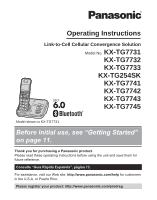
Convergence Solution Model No. KX-TG7731 KX-TG7732 KX-TG7733 KX-TG254SK KX-TG7741 KX-TG7742 KX-TG7743 KX-TG7745 Model shown is KX-TG7731. Before initial use, see "Getting Started" on page 11. Thank you for purchasing a Panasonic product. Please read these operating instructions before using the unit - Panasonic KXTG7741 | KXTG7741 User Guide - Page 2
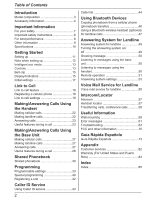
Remote operation 51 Answering system settings 53 Voice Mail Service for Landline Voice mail service for landline 55 Intercom/Locator Intercom 57 Handset locator 57 Transferring calls, conference calls 58 Useful Information Wall mounting 59 Error messages 61 Troubleshooting 62 FCC and other - Panasonic KXTG7741 | KXTG7741 User Guide - Page 3
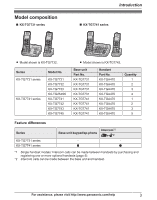
KX-TG7731 KX-TG7731 KX-TG7731 KX-TG7741 KX-TG7741 KX-TG7741 KX-TG7741 Handset Part No. KX-TGA470 KX-TGA470 KX-TGA470 KX-TGA470 KX-TGA470 KX-TGA470 KX-TGA470 KX-TGA470 Quantity 1 2 3 4 1 2 3 5 Feature differences Series KX-TG7731 series KX-TG7741 series Intercom*1 Base unit keypad/sp-phone - Panasonic KXTG7741 | KXTG7741 User Guide - Page 4
1 1 2 4 6 8 10 1 2 3 4 5 1 2 3 4 5 - 1 2 3 4 *1 KX-TG7731/KX-TG7741 *2 KX-TG7732/KX-TG7742 *3 KX-TG7733/KX-TG7743 *4 KX-TG254SK *5 KX-TG7745 *6 The handset cover comes attached to the handset. A B C D E F G 4 For assistance, please visit http://www.panasonic.com/help - Panasonic KXTG7741 | KXTG7741 User Guide - Page 5
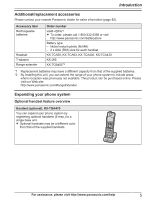
product can be purchased online. Please visit our Web site: http://www.panasonic.com/RangeExtender Expanding your phone system Optional handset feature overview Handset (optional): KX-TGA470 You can expand your phone system by registering optional handsets (6 max.) to a single base unit. R Optional - Panasonic KXTG7741 | KXTG7741 User Guide - Page 6
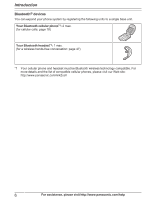
for a wireless hands-free conversation: page 47) *1 Your cellular phone and headset must be Bluetooth wireless technology compatible. For more details and the list of compatible cellular phones, please visit our Web site: http://www.panasonic.com/link2cell 6 For assistance, please visit http://www - Panasonic KXTG7741 | KXTG7741 User Guide - Page 7
fire or electric shock. Confirm that smoke has stopped emitting and contact the Panasonic Call Center at 1-800-211-PANA (1-800-211-7262). R Unplug from the product in health care facilities if any regulations posted in the area instruct you not to do so. Hospitals or health care facilities may be - Panasonic KXTG7741 | KXTG7741 User Guide - Page 8
batteries indicated in this manual. Do not dispose of batteries in a fire. They may explode. Check with local codes for possible special disposal instructions. SAVE THESE INSTRUCTIONS For best performance Base unit location/avoiding noise The base unit and other compatible Panasonic units use radio - Panasonic KXTG7741 | KXTG7741 User Guide - Page 9
incorrect type. Dispose of used batteries according to the instructions. Important Information Notice for product disposal, transfer, or return return the product. Notice ENERGY STAR As an ENERGY STAR® Partner, Panasonic has determined that this product meets the ENERGY STAR guidelines for energy - Panasonic KXTG7741 | KXTG7741 User Guide - Page 10
W R Operating conditions: 0 °C - 40 °C (32 °F - 104 °F), 20 % - 80 % relative air humidity (dry) Note: R Design and specifications are subject to change without notice. R The illustrations in these instructions may vary slightly from the actual product. 10 For assistance, please visit http://www - Panasonic KXTG7741 | KXTG7741 User Guide - Page 11
-line telephone jack (RJ11C) DSL/ADSL filter* Correct Incorrect Rechargeable Ni-MH ONLY *DSL/ADSL filter (not supplied) is required if you have DSL/ADSL service. R When the date and time setting is displayed, see page 17. For assistance, please visit http://www.panasonic.com/help 11 - Panasonic KXTG7741 | KXTG7741 User Guide - Page 12
is exposed to grease, dust, or high humidity. Battery level Note when setting up Note for connections R The AC adaptor must remain connected at all . Icon Battery level High Medium Low Needs charging. Empty Panasonic Ni-MH battery performance (supplied batteries) Operation In continuous use - Panasonic KXTG7741 | KXTG7741 User Guide - Page 13
mode is turned off when the clarity booster is activated (page 24). Controls Base unit n KX-TG7731 series (page 3) AB CD E FGHI J K L Charge contacts Speaker HEADSET indicator Message MLOCATORN MANSWER ON/OFFN ANSWER ON/OFF indicator For assistance, please visit http://www.panasonic.com/help 13 - Panasonic KXTG7741 | KXTG7741 User Guide - Page 14
Getting Started n KX-TG7741 series (page 3) G MCELL 2N CELL 2 indicator Message counter C H Dial keypad (*: TONE) D I Microphone E F J Speaker MjN/MkN (VOL.: Volume up/down) M N (SP-PHONE: Speakerphone) M N (TALK) Headset jack 14 For assistance, please visit http://www.panasonic.com/help - Panasonic KXTG7741 | KXTG7741 User Guide - Page 15
rapidly: A cellular call is being received. A cellular phone is connected.*1 Ready to make/ receive cellular calls. R When turned off: A cellular phone is not connected to the base unit (page 20). - The cellular line is selected for the ringer setting. - A cellular call is being received on that - Panasonic KXTG7741 | KXTG7741 User Guide - Page 16
CELL 2 indicators show each cellular line status. Status Green (On) Green (Flashing) Meaning A cellular phone is connected. Ready to make/receive cellular calls. - The cellular line is in use. - Phonebook registered to the base unit. 16 For assistance, please visit http://www.panasonic.com/help - Panasonic KXTG7741 | KXTG7741 User Guide - Page 17
calls, change this setting according to your telephone line service. The default setting is "Tone". "Tone": For tone dial service. "Pulse": For rotary/pulse dial service. 1 MMENUN#120 2 MbN: Select the desired setting. 3 MSAVEN a MOFFN For assistance, please visit http://www.panasonic.com/help 17 - Panasonic KXTG7741 | KXTG7741 User Guide - Page 18
Registering a cellular phone http://www.panasonic.com/link2cell R Before registering a Bluetooth enabled cellular phone to the base unit phone is set to connect to this product automatically. Refer to your cellular phone's operating instructions. R Make sure you cancel your cellular phone's - Panasonic KXTG7741 | KXTG7741 User Guide - Page 19
unit ringer volume (page 35). (KX-TG7741 series: page 3) R When you change the setting to "All", the base unit ringer phone must support Bluetooth in-band ringtone. Refer to your cellular phone's operating instructions. 1 MMENUN 2 For CELL 1: #6141 For CELL 2: #6142 3 MbN: Select the desired setting - Panasonic KXTG7741 | KXTG7741 User Guide - Page 20
on your cellular phone. You can also manually reconnect the cellular phone to the base or MCELL 2N) set for the cellular line selection (page 20, 27). (KX-TG7741 series: page 3) R Once you set this mode, the KX-TG7741 series: page 3) 20 For assistance, please visit http://www.panasonic.com/help - Panasonic KXTG7741 | KXTG7741 User Guide - Page 21
CELL 2 is selected. 1 MMENUN 2 For handset: #634 For base unit*1: #*634 3 MbN: Select the desired setting. 4 MSAVEN a MOFFN *1 KX-TG7741 series: page 3 Storing your area code (for dialing only a 7-digit phone number to make a local call) You need to add your area code when making cellular calls to - Panasonic KXTG7741 | KXTG7741 User Guide - Page 22
list 1 MEN REDIAL 2 MbN: Select the desired phone number. 3M N Pause (for PBX/long distance service users) A pause is sometimes required when making calls using a PBX or long distance service. When storing a calling card access number 22 For assistance, please visit http://www.panasonic.com/help - Panasonic KXTG7741 | KXTG7741 User Guide - Page 23
phone is registered. - the line is set to make cellular calls (page 20). R The base unit user can take the call by pressing MCELL 1N or MCELL 2N. (KX-TG7741 phone is connected to the same line, you can also take the call by lifting its handset. For assistance, please visit http://www.panasonic - Panasonic KXTG7741 | KXTG7741 User Guide - Page 24
ID service users To use call waiting or Call Waiting Caller ID, you must first subscribe with your service provider/ telephone company. This feature allows you to receive calls while you are already talking on the phone. If you receive a call while on the phone panasonic.com/help - Panasonic KXTG7741 | KXTG7741 User Guide - Page 25
users from joining your conversations with outside callers, turn call sharing mode off (page 38). 1 During a conversation using a cellular phone, press MCELLN. R The call is transferred to the handset when: - only 1 cellular phone is registered. - the line is set http://www.panasonic.com/help 25 - Panasonic KXTG7741 | KXTG7741 User Guide - Page 26
Making/Answering Calls Using the Handset 2 MbN: "Hold" a MSELECTN 3 To make a 2nd call: Dial the phone number. a M N To answer a 2nd call: MN R To hold the 2nd call: MMENUN a MbN: "Hold" a MSELECTN 4 To hang up the 2nd call and return to the - Panasonic KXTG7741 | KXTG7741 User Guide - Page 27
for: KX-TG7741 series (page 3) 1 Press MCELL 1N or MCELL 2N. 2 Dial the phone number phone. a MSELECTN a Press MSP-PHONEN on the base unit. - When only 1 cellular phone is registered or the line is set service users) A pause is sometimes required when making calls using a PBX or long distance service - Panasonic KXTG7741 | KXTG7741 User Guide - Page 28
A handset user can take the call: MCELLN*1 a MSELECTN *1 The call is taken when: - only 1 cellular phone is registered. - the line is set to make service provider/ telephone company for details and availability of this service in your area. 28 For assistance, please visit http://www.panasonic - Panasonic KXTG7741 | KXTG7741 User Guide - Page 29
service users) You can temporarily switch the dialing mode to tone when you need to access touch-tone services (for example, answering services, telephone banking services users phone Transferring a cellular call from the base unit to a cellular phone Dial the phone number. To Dial the phone number. To - Panasonic KXTG7741 | KXTG7741 User Guide - Page 30
you to make calls without having to dial manually. Any handset registered to the base unit can use the shared phonebook. You can add 3,050 names and phone numbers to the shared phonebook, and assign each Caller ID subscribers (page 43). 30 For assistance, please visit http://www.panasonic.com/help - Panasonic KXTG7741 | KXTG7741 User Guide - Page 31
only 1 cellular phone is registered. - a specific line is set to make cellular calls (page 20). 4 MbN: Select the desired cellular phone. a MSELECTN name if necessary (16 characters max.; page 30). a MOKN 4 Edit the phone number if necessary (24 digits max.). a MOKN 5 MbN: Select the desired group - Panasonic KXTG7741 | KXTG7741 User Guide - Page 32
MOFFN Chain dial This feature allows you to dial phone numbers in the phonebook while you are on a the phonebook, without having to dial manually. 1 During an outside call: MMENUN R If you have rotary/pulse service, you need to press * phone numbers you wish to chain dial (page 30). 32 For - Panasonic KXTG7741 | KXTG7741 User Guide - Page 33
settings MCN or MDN to select the desired setting. a MSAVEN R This step may vary MMENUN#101. 2 Select the desired setting. a MSAVEN R This step may < > indicates the default settings. R In the following table greeting Pre-recorded*1 (Reset to pre-recorded greeting) Settings - - - - - - Code #323 51 - Panasonic KXTG7741 | KXTG7741 User Guide - Page 34
Answer on*1 Answer off*1 Sub-menu 2 Ring count*1 Recording time*1 Remote code*1 Screen call - - Settings Code 2-7: 2-7 rings #211 53 0: Toll saver 1: 1 min #305 53 3: 0: Greeting only*2 #274 57 34 For assistance, please visit http://www.panasonic.com/help - Panasonic KXTG7741 | KXTG7741 User Guide - Page 35
Ringer volume - Base unit*1 Ringer tone*7, *8 Select unit to ring*1 Ring as cell (limited)*1 Registration Settings - 0-6: Off-6 0-6: Off-6 1-5: Tone 1-5 *5 *6 6-0: Melody 1-5 46 #621 47 #622 47 #621 47 For assistance, please visit http://www.panasonic.com/help 35 - Panasonic KXTG7741 | KXTG7741 User Guide - Page 36
*2 - - #134 21 Main menu: "Set date & time" Sub-menu 1 Date and time*1 Alarm Sub-menu 2 - - Time - adjustment*1, *10 Settings - 1: Once 2: Daily 0: 1: 0: Manual Code #101 17 #720 40 #226 - 36 For assistance, please visit http://www.panasonic.com/help - Panasonic KXTG7741 | KXTG7741 User Guide - Page 37
#238 40 Silent mode - Start/End Set date & time Date and time*1 - #101 17 Alarm 1: Once 2: Daily 0: #720 40 Time adjustment*1, *10 1: 0: Manual #226 - Talking Caller ID Handset 1: 0: Off #162 43 Base unit*1 1: On 0: - Panasonic KXTG7741 | KXTG7741 User Guide - Page 38
42 #131 42 #110 17 #112 17 Main menu: "Customer support" Operation Displaying customer support Web address. Code #680 - *1 If you program these settings using one of the handsets, you do not need to program answer the call. 38 For assistance, please visit http://www.panasonic.com/help - Panasonic KXTG7741 | KXTG7741 User Guide - Page 39
this feature on, select "Caller ID auto". To turn this feature off, select "Manual". (Caller ID subscribers only) To use this feature, set the date and time first (page 17). *11 If you subscribe to a distinctive ring service (such as IDENTA-RING), select a tone (tone 1 to 5). If you select a melody - Panasonic KXTG7741 | KXTG7741 User Guide - Page 40
set time for 3 minutes once or daily. Alarm can be set for each handset. Important: R Set set time. An alarm sounds daily at the set time. Go to step 4. 3 Enter the desired month and date. a MOKN 4 Set is set, set for each handset. Important: R Set set the setting. mode is set, is displayed setting - Panasonic KXTG7741 | KXTG7741 User Guide - Page 41
phone number You can reject a call when no phone number is provided, such as a call just showing "Out of area". 1 MMENUN#240 2 MbN: Select the desired setting if the blocking incoming calls without phone number feature is turned on. For assistance, please visit http://www.panasonic.com/help 41 - Panasonic KXTG7741 | KXTG7741 User Guide - Page 42
in registering" is displayed on all registered handsets. R When you purchase an additional handset, refer to the additional handset's installation manual for registration. Deregistering a handset A handset can cancel its own registration to the base unit, or other handsets registered to 42 For - Panasonic KXTG7741 | KXTG7741 User Guide - Page 43
Caller ID service. - "Private service of your service phone number received from your service R Caller ID service has a limit the answering system and set the number of phone, the 2nd caller's name services. Phonebook name announcement When caller information is received and it matches a phone phone - Panasonic KXTG7741 | KXTG7741 User Guide - Page 44
Caller ID Service (page 30). When a call is received starts dialing when: - only 1 cellular phone is registered. - a specific line is set to make cellular calls (page 20). 5 MbN: Select the desired cellular phone. a MSELECTN n Using the landline 1 MFN , please visit http://www.panasonic.com/help - Panasonic KXTG7741 | KXTG7741 User Guide - Page 45
the call has ended, the caller's phone number is displayed in the same format can use this feature to set the unit to ignore the set for each handset (page 38). The default setting is "On". Note: R Phone numbers from the 4 most recently edited area codes are automatically edited. Caller ID Service - Panasonic KXTG7741 | KXTG7741 User Guide - Page 46
Manual": Copy entries you selected. R "Select mode" menu is displayed only when the cellular phone supports PBAP (Phone Book Access Profile) for Bluetooth connection. 4 Cellular phone: Follow the instructions of your cellular phone . 46 For assistance, please visit http://www.panasonic.com/help - Panasonic KXTG7741 | KXTG7741 User Guide - Page 47
other Bluetooth device. 1 Your headset: Set your headset to registration mode. R Refer to the headset operating instructions. 2 Handset: MMENUN#621 3 Enter phone, you may need to disconnect it from the base unit. Important: R Make sure that the headset is turned on. Base unit*1 *1 KX-TG7741 - Panasonic KXTG7741 | KXTG7741 User Guide - Page 48
on the base unit. *1 KX-TG7731 series: page 3 R You can only switch from the base unit to your headset. Turn on the headset referring to your headset operating instructions. Call sharing between your headset and the handset Important: R To activate this feature, you should set call sharing mode to - Panasonic KXTG7741 | KXTG7741 User Guide - Page 49
for you when you are unavailable to answer the phone. You can also set the unit to play a greeting message but not can be set for each handset. The default setting is "On". 1 MMENUN#310 2 MbN: Select the desired setting. a MSAVEN a MOFFN Base unit*1 *1 KX-TG7741 series: page .panasonic.com/help 49 - Panasonic KXTG7741 | KXTG7741 User Guide - Page 50
recorded greeting asking callers to leave a message. - If the message recording time (page 53) is set to "Greeting only", callers' messages are not recorded and the unit plays a different pre-recorded greeting "New message" is displayed. 50 For assistance, please visit http://www.panasonic.com/help - Panasonic KXTG7741 | KXTG7741 User Guide - Page 51
operation Using a touch-tone phone, you can call your phone number from outside and access the unit to listen to messages or change answering system settings. The unit's voice guidance prompts remotely. The default setting is "111". For assistance, please visit http://www.panasonic.com/help 51 - Panasonic KXTG7741 | KXTG7741 User Guide - Page 52
remotely If the answering system is off, you can turn it on remotely. 1 Dial your phone number from a touch-tone phone. 2 Let the phone ring 15 times. R A long beep is heard. 3 Enter your remote access code within operation (page 51). 52 For assistance, please visit http://www.panasonic.com/help - Panasonic KXTG7741 | KXTG7741 User Guide - Page 53
there are no new messages when the phone rings for the 3rd time. You can then hang up without being charged for the call. 1 MMENUN#211 2 MbN: Select the desired setting. a MSAVEN a MOFFN For voice mail service subscribers If you subscribe to a flat-rate service package that includes Caller ID, call - Panasonic KXTG7741 | KXTG7741 User Guide - Page 54
Answering System for Landline Note: R While message alert is on, battery operating time is shortened (page 12). 54 For assistance, please visit http://www.panasonic.com/help - Panasonic KXTG7741 | KXTG7741 User Guide - Page 55
Handset / Base unit*1 *1 KX-TG7741 series: page 3 Your service provider/telephone company sends special signals service. - Your service provider/telephone company does not send voice mail tones. - Your phone is connected to a PBX. If you are not sure which setting is required, contact your service - Panasonic KXTG7741 | KXTG7741 User Guide - Page 56
Voice Mail" is displayed on the handset if message indication service is available. - The message indicator on the handset flashes KX-TG7741 series: page 3 To listen to voice mail messages, you have to dial your voice mail access number manually. 56 For assistance, please visit http://www.panasonic - Panasonic KXTG7741 | KXTG7741 User Guide - Page 57
series: page 3 Press MOFFN. n KX-TG7741 series: page 3 Press M N, then press MOFFN. Answering an intercom call Handset 1 Press M N to answer the page. 2 When you finish talking, press MOFFN. Base unit*1 *1 KX-TG7741 series: page 3 For assistance, please visit http://www.panasonic.com/help 57 - Panasonic KXTG7741 | KXTG7741 User Guide - Page 58
put the outside call on hold, press MHOLDN. To resume the conference, press MCONFN. Answering a transferred call Handset Press M N to answer the page. Base unit*1 *1 KX-TG7741 series: page 3 Press MSP-PHONEN to answer the page. 58 For assistance, please visit http://www.panasonic.com/help - Panasonic KXTG7741 | KXTG7741 User Guide - Page 59
mounting Note: R Make sure that the wall and the fixing method are strong enough to support the weight of the unit. Useful Information 3 Insert the hooks on the wall mounting adaptor into line cord (B). B A Hook AC adaptor cord For assistance, please visit http://www.panasonic.com/help 59 - Panasonic KXTG7741 | KXTG7741 User Guide - Page 60
the wall mounting adaptor While pushing down the release levers (A), remove the adaptor (B). 1 83 mm (3 1/4 inches) or 102 mm (4 inches) 2 Wall phone plate 83 mm 102 mm (3 1/4 inches) (4 inches) 1 2 A A B Charger Drive the screws (not supplied) into the wall. 25.4 mm (1 inch) Screws - Panasonic KXTG7741 | KXTG7741 User Guide - Page 61
phone is registered to the base unit. Register a cellular phone use only cellular lines, set the cellular line only mode service. Once you receive caller information after subscribing to a Caller ID service, this message will not be displayed. For assistance, please visit http://www.panasonic - Panasonic KXTG7741 | KXTG7741 User Guide - Page 62
batteries noted on page 5, 8. Troubleshooting If you still have difficulties after following the instructions in this section, disconnect the base compatibility of the cellular phone, you may not be able to register it to the base unit. Confirm that your cellular phone supports the hands-free - Panasonic KXTG7741 | KXTG7741 User Guide - Page 63
Information Problem I cannot connect a cellular phone to the base unit. I cannot hear a dial tone. The indicator on the handset flashes slowly. The receiver volume is changed to level 4 (default), even though I set it to level 5 (maximum level). Cause/solution R Confirm that your cellular phone is - Panasonic KXTG7741 | KXTG7741 User Guide - Page 64
Problem Making/answering calls, intercom Problem is displayed. Noise is use a DSL/ADSL service, we recommend connecting phone number when making cellular calls (page 21). R Depending on the cellular phone cellular phone phone is being used separately from your system. 64 For assistance, please - Panasonic KXTG7741 | KXTG7741 User Guide - Page 65
to the operating instructions of your cellular phone. R The dialing mode may be set incorrectly. Change the setting (page 17). R The cellular line only mode is turned on. Turn it off (page 20). R Make sure that you have long distance service. Caller ID/Talking Caller ID Problem Caller information - Panasonic KXTG7741 | KXTG7741 User Guide - Page 66
(for example, the long distance "1" or the area code is missing). Edit the phone number with another pattern (page 44). R Incorrect time information from incoming Caller ID changes the time. Set the time adjustment to "Manual" (off) (page 36). R In order to use Caller ID, call waiting, or Call - Panasonic KXTG7741 | KXTG7741 User Guide - Page 67
devices Problem I cannot copy phonebook entries from a cellular phone. the cellular phone supports Bluetooth wireless technology. R Confirm that the cellular phone supports the Phone Book setting. Wait a few seconds and try again. For assistance, please visit http://www.panasonic.com/help 67 - Panasonic KXTG7741 | KXTG7741 User Guide - Page 68
set to "Greeting only". Change the setting (page 53). R If you subscribe to a voice mail service, messages are recorded by your service cannot operate the answering system when calling a cellular phone registered to the base unit. Bluetooth PIN Problem I cannot remember the PIN. Cause/solution R - Panasonic KXTG7741 | KXTG7741 User Guide - Page 69
Useful Information Liquid damage Problem Liquid or other form of moisture has entered the handset/ the batteries and charge fully before use. If the unit does not work properly, contact an authorized service center. Caution: R To avoid permanent damage, do not use a microwave oven to speed up the - Panasonic KXTG7741 | KXTG7741 User Guide - Page 70
part trouble is experienced with this equipment, for repair or warranty information, please contact a Factory Service Center or other Authorized Servicer problem is resolved. Connection to party line service is subject to state tariffs. Contact the state public utility commission, public service phone - Panasonic KXTG7741 | KXTG7741 User Guide - Page 71
cause undesired operation. Privacy of communications may not be ensured when using this phone. CAUTION: Any changes or modifications not expressly approved by the party responsible for compliance could void the user's authority to operate this device. NOTE: This equipment has been tested and found - Panasonic KXTG7741 | KXTG7741 User Guide - Page 72
interference when used with T-Coil equipped hearing aids and cochlear implants. Compatible with Hearing Aid T-Coil T TIA-1083 72 For assistance, please visit http://www.panasonic.com/help - Panasonic KXTG7741 | KXTG7741 User Guide - Page 73
Guía Rápida Española Guía Rápida Española Instalación Unidad base L Use solo el adaptador de corriente Panasonic PNLV226 incluido. "Clic" Oprima firmemente el contacto. Correcto Incorrecto Gancho A la toma de corriente A la toma de teléfono de línea única (RJ11C) Filtro DSL/ - Panasonic KXTG7741 | KXTG7741 User Guide - Page 74
cm (8 pulgadas) y hable con claridad en el micrófono (máx. de 2 minutos). 3 Oprima {ALTO} para dejar de grabar. s {OFF} 74 Para obtener ayuda, visite http://www.panasonic.com/help (solo en ingls) - Panasonic KXTG7741 | KXTG7741 User Guide - Page 75
L La marca denominativa y los logotipos de Bluetooth® son propiedad de Bluetooth SIG, Inc. y cualquier uso de dichas marcas por parte de Panasonic Corporation se hace bajo licencia. Todas las demás marcas comerciales que se identifican en el presente pertenecen a sus respectivos propietarios. Para - Panasonic KXTG7741 | KXTG7741 User Guide - Page 76
o desconectarlo: Para CELL 1: {MENU} (6251 (suena un pitido largo.) Para CELL 2: {MENU} (6252 (suena un pitido largo.) 2 {OFF} 76 Para obtener ayuda, visite http://www.panasonic.com/help (solo en ingls) - Panasonic KXTG7741 | KXTG7741 User Guide - Page 77
(Unidad base: Serie KX-TG7741) Para hacer llamadas de PHONE} s Marque el número telefónico. terrestre Para contestar llamadas {SP-PHONE} Para colgar {SP-PHONE} Para ajustar el volumen del altavoz Oprima {+} o {-} repetidamente mientras habla. Para obtener ayuda, visite http://www.panasonic - Panasonic KXTG7741 | KXTG7741 User Guide - Page 78
llamadas (Unidad base: Serie KX-TG7741) Remarcación del último número marcado 1 Para hacer una llamada celular: {CELL 1}/{CELL 2} Para hacer una llamada terrestre: {SP-PHONE} 2 {REDIAL} Para los mensajes: {MENU} (324 78 Para obtener ayuda, visite http://www.panasonic.com/help (solo en ingls) - Panasonic KXTG7741 | KXTG7741 User Guide - Page 79
modo" : {r}: Seleccione "Auto" o "Manual". s {SELEC.} "Auto": Descargue todas las entradas del teléfono celular automáticamente. Vaya al paso 5. "Manual": Copie las entradas que seleccionó. L El "Completo". s {OFF} Para obtener ayuda, visite http://www.panasonic.com/help (solo en ingls) 79 - Panasonic KXTG7741 | KXTG7741 User Guide - Page 80
ón de su audífono. L Si no puede colgar la llamada usando su audífono; oprima { } (STOP) en la unidad base. (serie KX-TG7731) oprima {SP-PHONE} en la unidad base 2 veces. (serie KX-TG7741) N Cómo cambiar entre la unidad base y su audífono Puede cambiar entre la unidad base y su audífono: durante una - Panasonic KXTG7741 | KXTG7741 User Guide - Page 81
6 auriculares (incluyendo los que se venden con su unidad base) a una sola unidad base. L Para adquirir auriculares accesorios adicionales (KX-TGA470), visite http://www.panasonic.com o llame al 1-800-332-5368. Los usuarios TTY (usuarios con impedimentos auditivos o del habla) pueden llamar al 1-866 - Panasonic KXTG7741 | KXTG7741 User Guide - Page 82
am to 9 pm; Saturday - Sunday 10 am to 7 pm, EST. TTY users (hearing or speech impaired users) can call 1-877-833-8855. Accessory Purchases (United States and Puerto Rico) Purchase Parts, Accessories and Instruction Books online for all Panasonic Products by visiting our Web Site at: http://www.pstc - Panasonic KXTG7741 | KXTG7741 User Guide - Page 83
your records. A copy of valid registered receipt is required under the 1 year parts and labor Limited Warranty. For Limited Warranty service for headsets if a headset is included with this product please follow instructions above. IF REPAIR IS NEEDED DURING THE LIMITED WARRANTY PERIOD THE PURCHASER - Panasonic KXTG7741 | KXTG7741 User Guide - Page 84
, set-up Service Center. If the problem is not handled to your satisfaction, then write to the warrantor's Consumer Affairs Department at the addresses listed for the warrantor. PARTS AND SERVICE Panasonic) Exchange Center, prepaid and adequately insured. L Do not send your unit to Panasonic - Panasonic KXTG7741 | KXTG7741 User Guide - Page 85
: 22, 27 Ringer ID: 43 Ringer tone: 35, 37, 43 Rotary/pulse service: 24 S Silent mode: 40 SP-PHONE (Speakerphone): 22 T Talking Caller ID: 43 Temporary tone dialing: 24, 29 Time adjustment: 36 Transferring calls: 58 Troubleshooting: 62 TTY: 82 V VM (Voice mail): 55 Voice guidance language: 17 Voice - Panasonic KXTG7741 | KXTG7741 User Guide - Page 86
Index W Wall mounting: 59 86 - Panasonic KXTG7741 | KXTG7741 User Guide - Page 87
Notes 87 - Panasonic KXTG7741 | KXTG7741 User Guide - Page 88
Ni-MH batteries. (Alkaline/Manganese/Ni-Cd batteries CANNOT be used.) 4 Read troubleshooting page in the Operating Instructions. Visit our Web site: http://www.panasonic.com/help L FAQ and troubleshooting hints are available. For your future reference We recommend keeping a record of the
-
 1
1 -
 2
2 -
 3
3 -
 4
4 -
 5
5 -
 6
6 -
 7
7 -
8
-
9
-
10
-
11
-
12
-
13
-
14
-
15
-
16
-
17
-
18
-
19
-
20
-
21
-
22
-
23
-
24
-
25
-
26
-
27
-
28
-
29
-
30
-
31
-
32
-
33
-
34
-
35
-
36
-
37
-
38
-
39
-
40
-
41
-
42
-
43
-
44
-
45
-
46
-
47
-
48
-
49
-
50
-
51
-
52
-
53
-
54
-
55
-
56
-
57
-
58
-
59
-
60
-
61
-
62
-
63
-
64
-
65
-
66
-
67
-
68
-
69
-
70
-
71
-
72
-
73
-
74
-
75
-
76
-
77
-
78
-
79
-
80
-
81
-
82
-
83
-
84
-
85
-
86
-
87
-
88
 |
 |
Operating Instructions
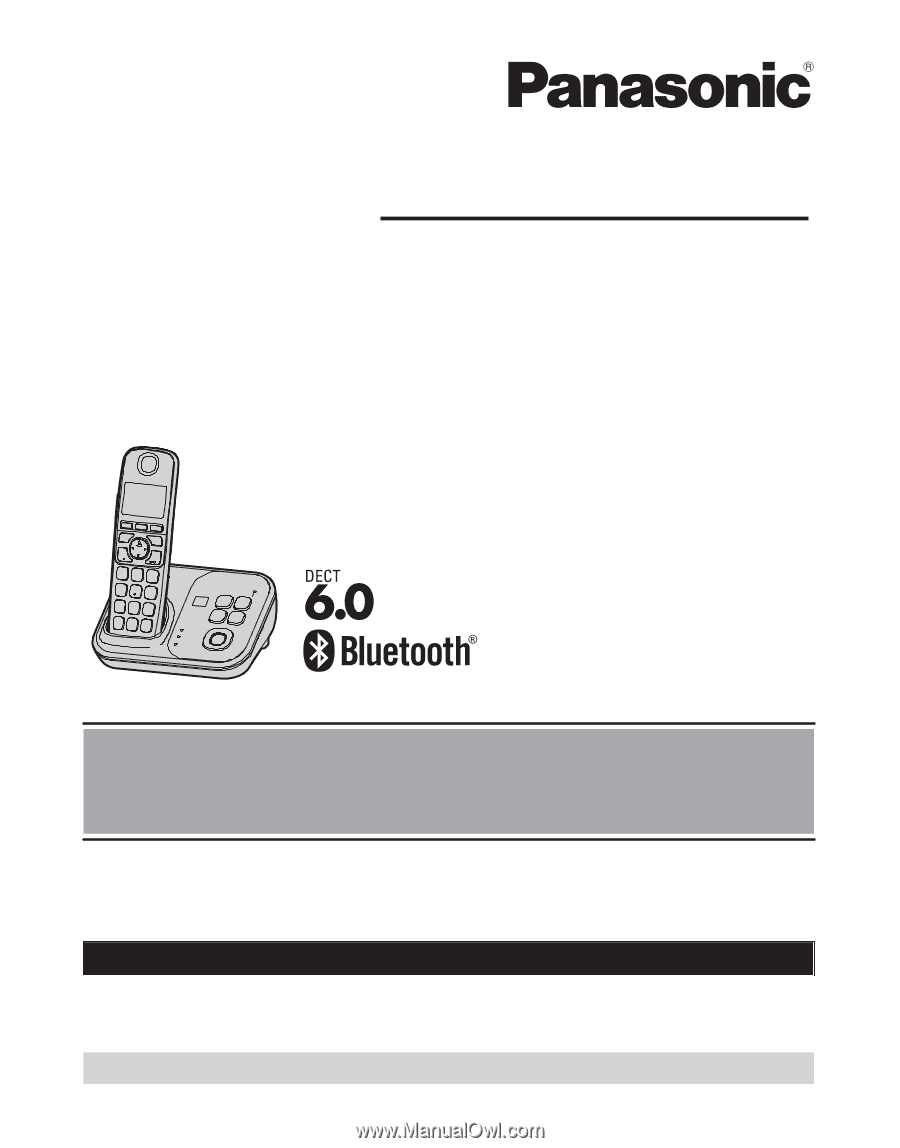
Model shown is KX-TG7731.
Link-to-Cell Cellular Convergence Solution
Model No.
KX-TG7731
KX-TG7732
KX-TG7733
KX-TG254SK
KX-TG7741
KX-TG7742
KX-TG7743
KX-TG7745
Before initial use, see “Getting Started”
on page 11.
Thank you for purchasing a Panasonic product.
Please read these operating instructions before using the unit and save them for
future reference.
Consulte “Guía Rápida Española”, página 73.
For assistance, visit our Web site:
for customers
in the U.S.A. or Puerto Rico.
Please register your product: http://www.panasonic.com/prodreg