
Texas Instruments TI-89 User Manual
Texas Instruments TI-89 - Graphing Calculator Manual
 |
UPC - 033317196326
View all Texas Instruments TI-89 manuals
Add to My Manuals
Save this manual to your list of manuals |
Texas Instruments TI-89 manual content summary:
- Texas Instruments TI-89 | User Manual - Page 1
TI-89 Titanium Graphing Calculator - Texas Instruments TI-89 | User Manual - Page 2
use of these materials, and the sole and exclusive liability of Texas Instruments, regardless of the form of action, shall not exceed the purchase price of this product. Moreover, Texas Instruments circuit different from that to which the receiver is connected. TI-89 Titanium Graphing Calculator 2 - Texas Instruments TI-89 | User Manual - Page 3
help. Caution: Any changes or modifications to this equipment not expressly approved by Texas Instruments may void your authority to operate the equipment. © 2005 Texas Instruments Incorporated Windows and Macintosh are trademarks of their respective owners. TI-89 Titanium Graphing Calculator 3 - Texas Instruments TI-89 | User Manual - Page 4
the AAA Batteries The TI-89 Titanium uses four AAA alkaline batteries and a backup silver oxide battery (SR44SW or 303). The backup battery is already installed, and the AAA batteries are provided with the product. 1. Remove the battery cover from the back of the calculator. 2. Unwrap the four AAA - Texas Instruments TI-89 | User Manual - Page 5
Turning on your TI-89 Titanium for the first time After installing the batteries included with the calculator, press ´. The Apps desktop appears. Note: If your calculator initializes the preinstalled Apps, a progress bar will appear with the message "Installation in progress . . . Do not interrupt!" - Texas Instruments TI-89 | User Manual - Page 6
and edit categories of Apps. • View all of the Apps installed on your calculator. • View the full name of the highlighted App. • View and edit the time and date. • Check status line information. • View split-screen mode information. Ê Ï Ë Ì Í Î TI-89 Titanium Apps desktop Ê View full name - Texas Instruments TI-89 | User Manual - Page 7
with the same settings and memory contents retained. (If you turned off the Apps desktop, the calculator Home screen appears.) You can use either of the following keys to turn off the TI-89 Titanium. Press: Description 2 ® (press 2 Settings and memory contents are retained by and then press - Texas Instruments TI-89 | User Manual - Page 8
the same as before APD. • All settings and memory contents are retained. Note: APD does not occur if a calculation or program is in progress, unless the program is paused. If a program is running but waiting for a key press, APD will occur after several minutes of inactivity. Getting Started 8 - Texas Instruments TI-89 | User Manual - Page 9
TI-89 Titanium keys Ê Í Getting Started Ë Ì 9 - Texas Instruments TI-89 | User Manual - Page 10
TI-89 Titanium keys Ê Function keys (ƒ- Š) open toolbar menus, access Apps, and edit categories of Apps. Ë Cursor keys (A, B, C, D) move the cursor. Ì Numeric keypad performs math and scientific functions. Í Modifier keys (2, 8, 7) add features by increasing the number of key commands. Entering - Texas Instruments TI-89 | User Manual - Page 11
Example: Enter the right arrow symbol (→) in the Text Editor. Press 2G Result 4 Scroll down for more characters. 9 - or - Press D repeatedly to select 9:→ and press ¸ Symbol displayed at cursor location. To open the keyboard map, press 8 ". The keyboard map appears. Getting Started 11 - Texas Instruments TI-89 | User Manual - Page 12
To type most characters, press 8 and the corresponding key. Press N to close the map. Example: Use the keyboard map to find the "not equal to" symbol (ƒ) shortcut and enter the symbol in the Program Editor. Press 8" Result ¥Á Symbol displayed at cursor location. Getting Started 12 - Texas Instruments TI-89 | User Manual - Page 13
their corresponding keys in the same color as the 2 key. Accesses Apps, menu options, and other operations. Diamond functions are printed above their Types an uppercase character for the next letter key you press. Also used with A and B to highlight characters when editing. Lets you type - Texas Instruments TI-89 | User Manual - Page 14
VAR-LINK [All] screen, where you can manage variables and Apps. Press 2° Result Function keys Use the function keys to perform the following operations: • On the Apps desktop, open Apps and select or edit Apps categories. • On the calculator Home screen, open toolbar menus to select math-related - Texas Instruments TI-89 | User Manual - Page 15
as an integer with up to three digits. (As the following example shows, you can use a negative exponent.) Example: On the calculator Home screen, enter 0.00685 using scientific notation. Press 6¶85 ^ Result ?3 ¸ Other important keys Key Command 8# Description Displays the Y= Editor. Getting - Texas Instruments TI-89 | User Manual - Page 16
Displays the Window Editor. Displays the Graph screen. Sets parameters for the Table screen. Displays the Table screen. These keys let you edit entered information by performing a cut, copy, or paste operation. Displays the Apps desktop. With the Apps desktop off, displays the FLASH APPLICATIONS - Texas Instruments TI-89 | User Manual - Page 17
desktop. • In split-screen mode, displays the full-screen view of the active App. • With the Apps desktop off, displays the calculator Home screen. Mode settings Modes control how the TI-89 Titanium displays and interprets information. All numbers, including elements of matrices and lists, are - Texas Instruments TI-89 | User Manual - Page 18
1. Press 3. Page 1 of the MODE dialog box appears. 2. Press „ or ... to display the modes listed on Page 2 or Page 3. Note: Modes that are grayed out are available only if other required mode settings are selected. For example, the Custom Units mode listed on Page 3 is available only if the Unit - Texas Instruments TI-89 | User Manual - Page 19
Press ... Result Changing mode settings Example: Change the Language mode setting to Spanish (Español). Press 3 Result ... Getting Started 19 - Texas Instruments TI-89 | User Manual - Page 20
Press Scroll down to the Language field. D Press B and then press D until 3:Español is highlighted. Note: Your menu list might vary, depending on the languages installed. ¸ Result Getting Started 20 - Texas Instruments TI-89 | User Manual - Page 21
to access commands Use the Catalog to access a list of TI-89 Titanium commands, including functions, instructions, and user-defined programs. Commands are listed alphabetically. Commands not beginning with a letter are found at the end of the list etc.). The Catalog Help App includes details about - Texas Instruments TI-89 | User Manual - Page 22
½ (displays Built-in commands) Result ... (displays Flash Apps commands, if any) † (displays User-Defined commands, if any) Select commands from the Catalog and insert them onto the calculator Home screen entry line or paste them to other Apps, such as the Y= Editor, Text Editor, or CellSheet - Texas Instruments TI-89 | User Manual - Page 23
Example: Insert the comDenom( command on the calculator Home screen entry line. Note: Before selecting a command, position the cursor where you want the command to appear. Pressing 2 D advances the Catalog list one page at a time. Press ½ C 2D Then press D until the pointer is at the comDenom( - Texas Instruments TI-89 | User Manual - Page 24
is the starting point for math operations, including executing instructions, evaluating expressions, and viewing results. To display the calculator Home screen, press: " You can also display the calculator Home screen from the Apps desktop by highlighting the Home icon and pressing ¸. Getting - Texas Instruments TI-89 | User Manual - Page 25
. Ì Result of last entry is displayed here. (Note that results are not displayed on the entry line.) Í Status line shows the current state of the calculator. Î Entry line displays your current entry. Ï Your previous entry is displayed here. To return to the - Texas Instruments TI-89 | User Manual - Page 26
previous entries and answers. Use the cursor keys to view entries and answers that have scrolled off the screen. • Recall or auto-paste a previous entry or answer onto the entry line to reuse or edit. (For more information, see the electronic Operating the Calculator chapter.) The cursor, which - Texas Instruments TI-89 | User Manual - Page 27
Interpreting history information on the status line Use the history indicator on the status line for area To change the number of pairs that can be saved: 1. From the calculator Home screen, press ƒ and select 9:Format. 2. Press B and use C or D to highlight the new number. 3. Press ¸ ¸. To clear - Texas Instruments TI-89 | User Manual - Page 28
calculator Home screen entry line. To delete an entry/answer pair, move the cursor to either the entry or answer, and press 0 or M. Working with Apps The TI-89 Titanium organizes Apps by category on the Apps the App: Note: The TI-89 Titanium uses the general term variable to refer to the App data - Texas Instruments TI-89 | User Manual - Page 29
Option New Description Creates a new file with the name typed in the field. Select an option, enter any required information, and press ¸. The App appears. Example: Create a new program using the Program Editor. Press Use cursor keys to highlight Result ¸ 3 Getting Started 29 - Texas Instruments TI-89 | User Manual - Page 30
Press ¸ DD program1 ¸¸ Result The newly created program variable, program1, is saved to the Main folder. Getting Started 30 - Texas Instruments TI-89 | User Manual - Page 31
. To return to the last open App from the Apps desktop, press 2 a. Selecting an Apps category On the TI-89 Titanium, the Apps category names appear only in the F1 Menu. To select an Apps category, press ƒ 2:Select Category and use the cursor keys to highlight an Apps category, and then press ¸ to - Texas Instruments TI-89 | User Manual - Page 32
Customizable category. Graphing is the default. 2 ‰ Science Customizable category. Science is the default. 2 Š Organizr Customizable category. Organizr (organizer) is the default. Example: Select the All category. Press „ Result If you select an Apps category containing no Apps, a message - Texas Instruments TI-89 | User Manual - Page 33
Customizing the Apps categories The TI-89 Titanium organizes your Apps into seven categories, six of which you can customize to fit your individual needs. (The All category contains every installed App and cannot be edited.) To customize the ... through 2 Š Apps categories: 1. Select ƒ 1:Edit - Texas Instruments TI-89 | User Manual - Page 34
Example: Replace the Social Studies category with the Business category and add the CellSheet and Finance App shortcuts. Press ƒ Result B 2 - or - D¸ Getting Started 34 - Texas Instruments TI-89 | User Manual - Page 35
Press 2 ™ ¤Business D © B D © B Result Getting Started 35 - Texas Instruments TI-89 | User Manual - Page 36
screens simultaneously to see the list of functions and how they are graphed. Select the Split Screen mode from Page 2 of the MODE screen. The TI-89 Titanium displays the selected Apps in the split-screen view as shown. Split the screen horizontally (top-bottom) or vertically (left-right). Getting - Texas Instruments TI-89 | User Manual - Page 37
status appears at the top of the Apps desktop with the names of the open Apps and the portions of the screen in which each is displayed. The highlighted numeral indicates the split-screen portion where the next App you open will appear. Note: The Apps desktop always appears in the full-screen - Texas Instruments TI-89 | User Manual - Page 38
is available about using split screens. (For more information, see the electronic Split Screens chapter.) Checking status information Look to the status line, located at the bottom of the screen, for information about the current state of your TI-89 Titanium. Ê Ë ÌÍ Î ÏÐ ÑÒ Indicator Meaning - Texas Instruments TI-89 | User Manual - Page 39
BUSY-Calculation or graph is in progress PAUSE-You paused a graph or program Œ-Variable opened in the current editor is locked or archived and cannot be modified Turning off the Apps desktop You can turn off the Apps desktop from the MODE dialog box. If you do, open Apps - Texas Instruments TI-89 | User Manual - Page 40
¸¸ Note: The previous open App appears (in this example, the calculator Home screen). To turn on the Apps desktop, repeat the procedure, selecting ON in the Apps Desktop mode field. To return to the Apps desktop from the calculator Home screen, press O. Using the clock Use the CLOCK dialog box to - Texas Instruments TI-89 | User Manual - Page 41
Clock ON/OFF are grayed out. 6 indicates you can scroll down for more options) Displaying the CLOCK dialog box 1. Use the cursor keys to highlight the Clock icon on the Apps desktop. 2. Press ¸. The CLOCK dialog box appears with the Time Format field highlighted. Note: Because the CLOCK dialog box - Texas Instruments TI-89 | User Manual - Page 42
(for procedures, see Setting the date). - or - To save your settings and exit, press ¸. The time is updated in the top right corner of the Apps desktop. Setting the date 1. Press C or D as required to highlight the Date Format field. 2. Press B to open the list of date formats. 3. Press C or D to - Texas Instruments TI-89 | User Manual - Page 43
9. Type the day, then press ¸ ¸ to save your settings and exit. The date is updated in the top right corner of the Apps desktop. Example: Set the time and date to 19/10/02 (October 19, 2002) at 1:30 p.m. Press Use cursor keys to highlight Result Time and date ¸ D1D Getting Started 43 - Texas Instruments TI-89 | User Manual - Page 44
Press 30D BD ¸D Result Getting Started 44 - Texas Instruments TI-89 | User Manual - Page 45
Press BD ¸D 2002 Result Getting Started 45 - Texas Instruments TI-89 | User Manual - Page 46
Press DB Scroll down to October and press ¸ D19 Result Getting Started 46 - Texas Instruments TI-89 | User Manual - Page 47
Press ¸¸ Result Revised time and date Turning off the clock From the Apps desktop, open the CLOCK dialog box and select OFF in the Clock field. Example: Turn off the clock. Press Use cursor keys to highlight Result Clock on Getting Started 47 - Texas Instruments TI-89 | User Manual - Page 48
Press ¸ Scroll down to the Clock field. BC¸ Result ¸ Clock off To turn on the clock, repeat the procedure, selecting ON in the Clock field. Remember to reset the time and date. Getting Started 48 - Texas Instruments TI-89 | User Manual - Page 49
function keys corresponding to the toolbars at the top of the calculator Home screen and most App screens. Select other menus using key commands. Toolbar menus The starting point for TI-89 Titanium math operations, the calculator Home screen displays toolbar menus that let you choose math-related - Texas Instruments TI-89 | User Manual - Page 50
menu. Lists the installed Apps. (Menu is available only when the Apps desktop is turned off; Apps are normally accessed from the Apps desktop.) FLASH APPLICATIONS menu. Lists the installed Flash Apps. (Menu is available only when Apps desktop is turned off; Flash Apps are normally accessed from the - Texas Instruments TI-89 | User Manual - Page 51
Example: Select factor( from the Algebra menu on the calculator Home screen. Press Press: " - or - From the Apps desktop, use the cursor keys to highlight Result and press ¸ „ 6 indicates Algebra menu will open when you press „. 2 - or - D¸ Getting Started 51 - Texas Instruments TI-89 | User Manual - Page 52
Selecting submenu options A small arrow symbol (ú) to the right of a menu option indicates that selecting the option will open a submenu. $ points to additional options. Example: Select ord( from the MATH menu on the calculator Home screen. Press 2I Result Getting Started 52 - Texas Instruments TI-89 | User Manual - Page 53
Press D - or - CCB B - or - C¸ Result Using dialog boxes An ellipsis (...) at the end of a menu option indicates that choosing the option will open a dialog box. Select the option and press ¸. Getting Started 53 - Texas Instruments TI-89 | User Manual - Page 54
Example: Open the SAVE COPY AS dialog box from the Window Editor. Press O Use the cursor keys to highlight Result and press ¸ ƒ 2 - or - D¸ Press B to display Type the name of a list of folders. the variable. Getting Started Press ¸ twice to save and 54 - Texas Instruments TI-89 | User Manual - Page 55
the SAVE COPY AS dialog box in most Apps. Canceling a menu To cancel a menu Calculator chapter.) Custom menu The custom menu provides quick access to your most commonly used options. Use the default custom menu or create your own using the Program Editor. You can include any available TI-89 Titanium - Texas Instruments TI-89 | User Manual - Page 56
custom menu replaces the standard toolbar menu on the calculator Home screen. (For details on creating a custom menu, see the electronic Programming chapter.) More information is available about custom menus. (See the electronic Operating the Calculator chapter.) Example: Turn on and turn off the - Texas Instruments TI-89 | User Manual - Page 57
Note: Restoring the default custom menu erases the previous custom menu. If you created the previous custom menu with a program, you can run the program again to reuse the menu. Press 2F (to turn off the custom menu and turn on the standard toolbar menu) Result 2 ˆ 3 - or - DD¸ Getting Started - Texas Instruments TI-89 | User Manual - Page 58
Press ¸ Result Opening Apps with the Apps desktop turned off If you turn off the Apps desktop, use the APPLICATIONS menu to open Apps. To open the APPLICATIONS menu with the Apps desktop off, press O. Note: If you press O with the Apps desktop turned on, the Apps desktop will appear instead of the - Texas Instruments TI-89 | User Manual - Page 59
Press 3 - or - DD¸ Result To access Apps not listed on the APPLICATIONS menu, select 1:FlashApps. Using split screens The TI-89 Titanium lets you split the screen to show two Apps at the same time. For example, display both the Y= Editor and Graph screens to compare the list of functions and how - Texas Instruments TI-89 | User Manual - Page 60
Example: Set split-screen mode to TOP-BOTTOM. Press 3 Result „ BD Getting Started 60 - Texas Instruments TI-89 | User Manual - Page 61
Press ¸ ¸ Result Setting the initial Apps for split screen After you select either TOP-BOTTOM or LEFT-RIGHT split-screen mode, additional mode settings become available. Full-screen mode Split-screen mode Getting Started 61 - Texas Instruments TI-89 | User Manual - Page 62
portion of the split screen. Lets you set up and display two independent graphs. To set the initial App for each split-screen portion: 1. Select the Split 1 App mode setting and press B to display a menu of available Apps. (See "Setting split-screen mode" on page 59.) 2. Press D or C to highlight - Texas Instruments TI-89 | User Manual - Page 63
Press 2 DB 4 ¸ Result Getting Started 63 - Texas Instruments TI-89 | User Manual - Page 64
If you set Split 1 App and Split 2 App to the same nongraphing App or to the same graphing App with Number of Graphs set to 1, the TI-89 Titanium exits split-screen mode and displays the App in full-screen mode. Selecting the active App In split-screen mode, only one App can be active at a time. • - Texas Instruments TI-89 | User Manual - Page 65
graphing calculator. Adding Apps to your TI-89 Titanium is like loading software on a computer. All you need is TI Connect software and the USB computer cable that came with your TI-89 Titanium. For system requirements and instructions to link to compatible calculators and download TI Connect - Texas Instruments TI-89 | User Manual - Page 66
the following information about your TI-89 Titanium: Ê Î Ë Í Ì Ê OS version Ë Hardware version Ì Unit ID (required to obtain certificates for installing purchased Apps). Similar to a serial number. Write this number down and keep it in a safe place in case the calculator is ever lost or stolen - Texas Instruments TI-89 | User Manual - Page 67
your TI-89 Titanium to other devices The TI-89 Titanium includes both a mini-USB port and a standard I/O port. Ports are used to link two compatible graphing calculators or connect to a computer or peripheral device. In addition, the teacher model of the TI-89 Titanium includes an accessory port - Texas Instruments TI-89 | User Manual - Page 68
cable to connect the TI-89 Titanium to a compatible graphing calculator or peripheral device, such as a TI-89 or TI-92 Plus graphing calculator or the CBL 2™ and CBR™ systems. To show your calculator's display to the classroom - Use the accessory port to connect the TI-Presenter™ video adapter to - Texas Instruments TI-89 | User Manual - Page 69
port Accessory port TI-89 Titanium ports (teacher model) Batteries The TI-89 Titanium uses four AAA alkaline batteries and a backup silver oxide battery (SR44SW or 303). The backup battery is already installed, and the AAA batteries are provided with your product. Important OS download information - Texas Instruments TI-89 | User Manual - Page 70
another TI-89 Titanium using a USB unit-to-unit cable . If you accidentally interrupt the transfer before it is complete, you will need to reinstall the OS via a computer. Again, remember to install new batteries before downloading. Please contact Texas Instruments as described in Service & Support - Texas Instruments TI-89 | User Manual - Page 71
calculations. If you find yourself increasing the contrast frequently, replace the AAA alkaline batteries. The status line also gives battery information. Indicator Meaning Batteries are low. Replace batteries as soon as possible. Before replacing the batteries, turn off the TI-89 Titanium - Texas Instruments TI-89 | User Manual - Page 72
Replacing the backup (silver oxide) battery 1. To replace the silver oxide backup battery, remove the battery cover and unscrew the tiny screw holding the BACK UP BATTERY cover in place. 2. Remove the old battery and install a new SR44SW or 303 battery, positive (+) side up. Replace the cover and - Texas Instruments TI-89 | User Manual - Page 73
Previews Performing Computations This section provides several examples for you to perform from the Calculator Home screen that demonstrate some of the computational features of the TI-89 Titanium. The history area in each screen was cleared by pressing ƒ and selecting 8:Clear Home, before - Texas Instruments TI-89 | User Manual - Page 74
Finding the Factorial of Numbers Steps and keystrokes Display Compute the factorial of several numbers to see how the TI-89 Titanium handles very large integers. To get the factorial operator (!), press 2 I, select 7:Probability, and then select 1:!. Press 5 2 I 7 1 ¸ 20 2 I 7 1 ¸ 30 2 I 7 1 ¸ - Texas Instruments TI-89 | User Manual - Page 75
the root of the expression (x,y). You can enter "root" on the entry line by typing ROOT on the keyboard, or by pressing 8 9. This example illustrates using the root function and how the expression is displayed in "pretty print" in the history area. Press 8 9 X b Y d ¸ Previews 75 - Texas Instruments TI-89 | User Manual - Page 76
Expanding Expressions Steps and keystrokes Display Expand the expression (xN5)3. You can enter "expand" on the entry line by typing EXPAND on the keyboard, or by pressing „ and selecting 3:expand(. Press „ 3 c X | 5 d Z 3 d ¸ (Optional) Enter other expressions on your own. Reducing Expressions - Texas Instruments TI-89 | User Manual - Page 77
Factoring Polynomials Steps and keystrokes Display Factor the polynomial (x2N5) with respect to x. You can enter "factor" on the entry line by typing FACTOR on the keyboard or by pressing „ and selecting 2:factor(. Press „ 2 X Z 2 | 5 b X d ¸ Solving Equations Steps and keystrokes Display - Texas Instruments TI-89 | User Manual - Page 78
Solving Equations with a Domain Constraint Steps and keystrokes Display Solve the equation x2N2xN6=2 with respect to x where x is greater than zero. The "with" (I) operator provides domain constraint. Press „ 1 X Z 2 | 2 X | 6 Á 2 b X d Í X 2 Ã 0 ¸ Solving Inequalities Steps and keystrokes - Texas Instruments TI-89 | User Manual - Page 79
Finding the Derivative of Functions Steps and keystrokes Find the derivative of (xNy)3/(x+y)2 with respect to x. Display This example illustrates using the calculus differentiation function and how the function is displayed in "pretty print" in the history area. Press 2 = c X | Y d Z 3 e c X « Y - Texas Instruments TI-89 | User Manual - Page 80
Functions Steps and keystrokes Display Find the integral of x...sin(x) with respect to x. This example illustrates using the calculus integration function. Press 2 < X p 2 W X d b X d ¸ Solving Problems Involving Vectors Steps and keystrokes Display 1. Input a row or column of vectors. Press - Texas Instruments TI-89 | User Manual - Page 81
Log to Any Base Steps and keystrokes Display Find log (x,b). You can enter "log" on the entry line by typing LOG on the keyboard, or by pressing 8 7. Press 8 7 X , j b d ¸ Converting Angle Measures Steps and keystrokes Display 1. Display the MODE dialog box. For Angle mode select DEGREE. - Texas Instruments TI-89 | User Manual - Page 82
the Catalog menu, or from the Math menu by pressing 2 I and selecting 2:angle, B:úRad. Press 3 D D D B 2 ¸ 345 2 v2I2 jB ¸ Note: You can also use ó,ô, or G to override the angle mode setting temporarily. Symbolic Manipulation Solve the system of equations 2x N 3y = 4 and Lx + 7y = L12. Solve the - Texas Instruments TI-89 | User Manual - Page 83
¸ 2. Begin to solve the equation Lx + 7y = L12 for y, but do not press ¸ yet. Press „ 1 ? X « 7 Y Á ? 12 b Y d 3. Use the "with" operator to substitute the expression for x that was calculated from the first equation. This gives the value of y. The "with" operator is displayed as | on the screen - Texas Instruments TI-89 | User Manual - Page 84
a demonstration of symbolic manipulation. A one-step function is available for solving systems of equations. Constants and Measurement Units Using the equation f = m...a, calculate the force when m = 5 kilograms and a = 20 meters/second2. What is the force when a = 9.8 meters/second2. (This is the - Texas Instruments TI-89 | User Manual - Page 85
/second2 named _ms2. The UNITS dialog box lets you select units from an alphabetical list of categories. You can use 2 D and 2 C to scroll one page at a time through the categories. If you use the UNITS dialog box to select a unit, the _ is entered automatically. Now, instead of re-entering _m/_s2 - Texas Instruments TI-89 | User Manual - Page 86
¸ 4. Using the same m, calculate the force for an acceleration due to gravity (the constant _g). For _g, you can use the pre-defined Graphing I The example in this section demonstrates some of the graphing capabilities of the TI-89 Titanium keystrokes. It illustrates how to graph a function using - Texas Instruments TI-89 | User Manual - Page 87
of the function, trace a curve, find a minimum point, and transfer the minimum coordinates to the Home screen. Explore the graphing capabilities of the TI-89 Titanium by graphing the function y=(|x2N3|N10)/2. Steps and keystrokes 1. Display the Y= Editor. Press 8 # Display entry line 2. Enter the - Texas Instruments TI-89 | User Manual - Page 88
Steps and keystrokes 4. Turn on Trace. The tracing cursor, and the x and y coordinates are displayed. Press ... 5. Open the MATH menu and select 3:Minimum. Press ‡ D D ¸ Display tracing cursor 6. Set the lower bound. Press B (right cursor) to move the tracing cursor until the lower bound for x is - Texas Instruments TI-89 | User Manual - Page 89
the Home screen. Press 8 ? " minimum point minimum coordinates Basic Function Graphing II Graph a circle of radius 5, centered on the origin of the coordinate system. View the circle using the standard viewing window (ZoomStd). Then use ZoomSqr to adjust the viewing window. Steps and keystrokes - Texas Instruments TI-89 | User Manual - Page 90
Display and clear the Y= Editor. Then define y1(x) = (r2 - x2) , the top half of a circle. In function graphing, you must define separate functions for the top and bottom halves of a circle. Press 8 # , 8 ¸ ¸ 2 ] Use the full function name y1(x), not simply y1. Press ¸ ? Y 1 c X d ¸ Previews 90 - Texas Instruments TI-89 | User Manual - Page 91
Steps and keystrokes Display 5. Select the ZoomStd viewing window, which automatically graphs the functions. In the standard viewing window, both the x and y axes range from L10 to 10. However, this range is spread over a longer distance along - Texas Instruments TI-89 | User Manual - Page 92
Basic Function Graphing III Use the "Detect Discontinuities" graph format to eliminate faux asymptotes and connections in a jump discontinuity. Steps and keystrokes Display 1. Display the MODE dialog box. For Graph mode, select FUNCTION. For Angle mode, select RADIAN. Press 3 B 1 D D D B 1 ¸ 2. - Texas Instruments TI-89 | User Manual - Page 93
order is set to sequential "Seq". Press 8 Í D D D D D D B 2 ¸ 6. Execute the Graph command, which automatically displays the Graph screen. No"faux" asymptotes are present on the graph. Note: Graphing speed may slow considerably when "Detect Discontinuities" is set to ON. Press 8 %(q Previews 93 - Texas Instruments TI-89 | User Manual - Page 94
is the maximum height of the ball and when does it hit the ground? Steps and keystrokes Display 1. Display the MODE dialog box. For Graph mode, select PARAMETRIC. Press 3 B 2 ¸ 2. Display and clear the Y= Editor. Then define the horizontal component xt1(t) = v0t cos q. Enter values for v0 and - Texas Instruments TI-89 | User Manual - Page 95
appropriate for this example. You can press either D or ¸ to enter a value and move to the next variable. Press 8 $ 0 D 3 D .02 D ? 2 D 25 D 5 D ? 2 D 10 D 5 5. Graph the parametric equations to model the path of the ball. Press 8 % 6. Select Trace. Then move the cursor along the path to find the - Texas Instruments TI-89 | User Manual - Page 96
and B=2.5. Then explore the appearance of the rose for other values of A and B. Steps and keystrokes 1. Display the MODE dialog box. For Graph mode, select POLAR. For Angle mode, select RADIAN. Press 3 B 3 D D D B 1 ¸ Display 2. Display and clear the Y= Editor. Then define the polar equation r1 - Texas Instruments TI-89 | User Manual - Page 97
Steps and keystrokes Display 3. Select the ZoomStd viewing window, which graphs the equation. • The graph shows only five rose petals. - In the standard viewing window, the Window variable qmax = 2p. The remaining petals have q values greater than 2p. • The rose - Texas Instruments TI-89 | User Manual - Page 98
for A and B as necessary and regraph the equation. Display Sequence Graphing A small forest contains 4000 trees. Each year, 20% of the trees will be harvested (with 80% remaining) and 1000 new trees will be planted. Using a sequence, calculate the number of trees in the forest at the end of each - Texas Instruments TI-89 | User Manual - Page 99
1. Display the MODE dialog box. For Graph mode, select SEQUENCE. Press 3 B 4 ¸ Display 2. Display and clear the Y= Editor. Then define the sequence as u1(n) = iPart(.8...u1(nN1)+1000). Use iPart to take the integer part of the result. No fractional trees are harvested. To access iPart(, you - Texas Instruments TI-89 | User Manual - Page 100
to appropriate values for this example. Press 0 D 50 D 10 D 0 D 6000 D 1000 6. Display the Graph screen. Press 8 % 7. Select Trace. Move the cursor to trace year by year. How many years (nc) year n. Press ... B and A as necessary By default, sequences use the Square display style. Previews 100 - Texas Instruments TI-89 | User Manual - Page 101
and clear the Y= Editor. Then define the 3D equation z1(x,y) = (x3y N y3x) / 390. Notice that implied multiplication is used in the keystrokes. Press 8 # , 8 ¸ ¸ c X Z 3 Y | Y Z 3 X d e 390 ¸ 3. Change the graph format to display and label the axes. Also set Style = WIRE FRAME. You can animate any - Texas Instruments TI-89 | User Manual - Page 102
percentages" are shown in the upper-left part of the screen. Press „ 6 Note: If you have already used 3D graphing, the graph may be shown in expanded view. When you animate the graph, the screen returns to normal view automatically. (Except for animation, you can do the same things in normal and - Texas Instruments TI-89 | User Manual - Page 103
initial orientation. Then move the viewing angle along the "viewing orbit" around the graph. Press 0 (zero, not the letter O) A A A 7. View the graph along the x axis, the y axis, and then the z axis. Press X This graph has the same shape along the y axis and x axis. Press Y Press Z 8. Return - Texas Instruments TI-89 | User Manual - Page 104
Steps and keystrokes 9. Display the graph in different graph format styles. Press Í (press Í to switch from each style to the next) Display HIDDEN SURFACE CONTOUR LEVELS (may require extra time to calculate contours) WIRE AND CONTOUR Previews WIRE FRAME 104 - Texas Instruments TI-89 | User Manual - Page 105
Note: You can also display the graph as an implicit plot by using the GRAPH FORMATS dialog box (8 Í). If you press Í to switch between styles, the implicit plot is not displayed. Differential Equation Graphing Graph the solution to the logistic 1st-order differential equation y' = .001y...(100Ny). - Texas Instruments TI-89 | User Manual - Page 106
...(100Ny1) Press p to enter the ... shown above. Do not use implied multiplication between the variable and parentheses. If you do, it selected, the device will graph the y1 solution curve, not the derivative y1'. Press 8 # , 8 ¸ ¸ .001 Y1 p c 100 | Y1 d ¸ 3. Display the GRAPH FORMATS dialog box. - Texas Instruments TI-89 | User Manual - Page 107
the Window Editor, and set the Window variables as shown to the right. Press 8 $ 0 D 10 D .1 D 0 D ? 10 D 110 D 10 D ? 10 D 120 D 10 D 0 D .001 D 20 5. Display the Graph screen. Because you did not specify an initial condition, only the slope field is drawn (as specified by Fields=SLPFLD in the - Texas Instruments TI-89 | User Manual - Page 108
Steps and keystrokes Display 8. Return to the Y= Editor and change yi1 to enter two initial conditions as a list: yi1={10,20} Press 8 # C ¸ 2 [ 10 b 20 2 \ ¸ 9. Return to the Graph screen. Press 8 % Previews 108 - Texas Instruments TI-89 | User Manual - Page 109
Editor. Instead of entering t and y1 after pressing 2 Š you can move the cursor to a point on the screen and then press ¸. You can use ... to trace curves for initial conditions specified in the Y= Editor. However, you cannot trace the curve for an initial condition selected interactively. Press - Texas Instruments TI-89 | User Manual - Page 110
from the Other toolbar menu and automatically adds a space. Press " † 2 2 ™ WHEN j c X 2 Â 0 b ? X b 5 p 2 X X d d 3. Execute the Graph command, which automatically displays the Graph screen. The graph uses the current Window variables, which are assumed to be their standard values („ 6) for this - Texas Instruments TI-89 | User Manual - Page 111
4. Draw a horizontal line across the top of the cosine curve. The calculator remains in "horizontal" mode until you select a different operation or press N. Press 2 ‰ 5 C (until the line is positioned) ¸ 5. Save a picture of the graph. Use PIC1 as the variable name for the picture. Be sure to set - Texas Instruments TI-89 | User Manual - Page 112
Steps and keystrokes Display 7. Open the saved picture variable to redisplay the graph with the line. Be sure to set Type = Picture. By default, it is set to GDB. Press Steps and keystrokes 1. Display the MODE dialog box. For the Graph mode, select FUNCTION. Press 3 B 1 ¸ Display Previews 112 - Texas Instruments TI-89 | User Manual - Page 113
clear the Y= Editor. Then define y1(x) = x3 N 2x. Press 8 # , 8 ¸ ¸ X Z 3 | 2 X ¸ 3. Set the table parameters to: tblStart = M10 @tbl = 1 Graph < - > Table = OFF Independent = AUTO Press 8 & ? 10 D 1 D B 1 D B 1 ¸ 4. Display the Table screen. Press 8 ' 5. Scroll through the table. Notice that y1 - Texas Instruments TI-89 | User Manual - Page 114
the behavior of a polynomial as its coefficients change. Steps and keystrokes 1. Display the MODE dialog box. For Graph, select FUNCTION. For Split Screen, select LEFT-RIGHT. For Split 1 App, select Y= Editor. For Split 2 App, select Graph. Press 3 B 1 „ B 3 D B 2 D B 4 ¸ Display Previews 114 - Texas Instruments TI-89 | User Manual - Page 115
the way across the display. Press , 8 ¸ ‡ 5 ¸ .1 X Z 3 | 2 X « 6 ¸ 3. Select the ZoomStd viewing window, which switches to the Graph screen and graphs the function. The thick border is now around the Graph screen. Press „ 6 4. Switch to the Y= Editor and edit y1(x) to change .1x3 to .5x3. 2 a is - Texas Instruments TI-89 | User Manual - Page 116
Steps and keystrokes 5. Switch to the Graph screen, which regraphs the edited function. The thick border is around the Graph screen. Press 2 a 6. Switch to the Y= Editor and open the Window Editor in its place. Press 2 a 8 $ Display 7. Open the Home screen and then exit to a full- - Texas Instruments TI-89 | User Manual - Page 117
can have only one column) is automatically converted into a data variable (which can have multiple columns). Steps and keystrokes 1. Use O to display the Data/Matrix Editor. Create a new list variable named TEMP. Press 3 B 3 D D TEMP ¸ ¸ Display 2. Enter a column of numbers. Then move the cursor - Texas Instruments TI-89 | User Manual - Page 118
. Simply clearing the data does not convert the data variable back into a list variable. Press , 8 ¸ Note: If you don't need to save the current variable, use it as a scratchpad. The next time you need a variable for temporary data, clear the current variable and re - Texas Instruments TI-89 | User Manual - Page 119
of buildings with more than 12 stories. Using Median-Median and linear regression calculations, find and plot equations to fit the 1. Display the MODE dialog box. For Graph mode, select FUNCTION. Press 3 B 1 ¸ Display 2. Use•O to display the Data/Matrix Editor. Create a new data variable named - Texas Instruments TI-89 | User Manual - Page 120
Steps and keystrokes Display 3. Using the sample data below, enter the population in column 1. Pop. (in 1000s) 150 500 800 250 500 750 950 Bldgs > 12 stories 4 31 42 9 20 - Texas Instruments TI-89 | User Manual - Page 121
1, the cursor can be anywhere in column 1. This example has you press 8C so that you can see the first four rows. Press A 8 C 2 ˆ 4 6. Display the Calculate dialog box. Set Calculation Type = MedMed x = C1 y = C2 Store RegEQ to = y1(x) Press ‡ B 7 D C j 1 D j C2 D B D ¸ 7. Perform the - Texas Instruments TI-89 | User Manual - Page 122
keystrokes 8. Close the STAT VARS screen. The Data/Matrix Editor displays. Press ¸ 9. Display the Calculate dialog box. Set: Calculation Type = LinReg x = C1 y = C2 Store RegEQ to = y2(x) Press ‡ B 5 D D D B D ¸ 10. Perform the calculation to display the LinReg regression equation. This equation is - Texas Instruments TI-89 | User Manual - Page 123
Steps and keystrokes Display 13. Define Plot 1 as: Plot Type = Scatter Mark = Box x = C1 y = C2 Notice the similarities between this and the Calculate dialog box. Press , B 1 D B 1 D C j 1 D j C2 14. Save the plot definition and return to the Plot Setup screen. Notice the shorthand notation for - Texas Instruments TI-89 | User Manual - Page 124
2 16. Scroll up to highlight Plot 1. The displayed shorthand definition is the same as on the Plot Setup screen. Press C 17. Use ZoomData to graph Plot 1 and the regression equations y1(x) and y2(x). ZoomData examines the data for all selected stat plots and adjusts the viewing window to include - Texas Instruments TI-89 | User Manual - Page 125
Steps and keystrokes Display 18. Return to the current session of the Data/Matrix Editor. Press O D ¸ ¸ 19. Enter a title for column 3. Define column 3's header as the values predicted by the MedMed line. To enter a title, the cursor must highlight - Texas Instruments TI-89 | User Manual - Page 126
define it as: Plot Type = Scatter Mark = Box x = C1 y = C4 (MedMed residuals) Press D , D D C j 1 D j C4 ¸ ¸ 25. Highlight Plot 3 and define it as: Plot Type = Scatter Mark = Plus x = C1 y = C6 (LinReg residuals) Press D , D B 3 D C j 1 D j C6 ¸ ¸ Previews 126 - Texas Instruments TI-89 | User Manual - Page 127
2 and 3 are still selected. Press 8 # ‡ 3 27. Use ZoomData to graph the residuals. › marks the MedMed residuals; + marks the LinReg residuals. Press „ 9 28. Display the Home screen. Press " 29. Use the MedMed (y1(x)) and LinReg (y2(x)) regression equations to calculate values for x = 300 (300,000 - Texas Instruments TI-89 | User Manual - Page 128
a program that prompts the user to enter an integer, sums all integers from 1 to the entered integer, and displays the result. Steps and keystrokes 1. Use O to display the Program Editor. Create a new program. Press 3 Display 2. Type PROG1 (with no spaces) as the name of the new program variable - Texas Instruments TI-89 | User Manual - Page 129
Steps and keystrokes Display 4. Type the following program lines. Request "Enter an integer",n Displays a dialog box that prompts "Enter an integer", waits for the user to enter a value, and stores it (as a string) to variable n. expr(n)!n Converts the string to a numeric expression. 0!temp - Texas Instruments TI-89 | User Manual - Page 130
is the sum of the integers from 1 through 5. Although the Program I/O screen looks similar to the Home screen, it is for program input and output only. You cannot perform calculations on the Program I/O screen. Press ¸ twice Output from other programs may still be on the screen. Result of integer - Texas Instruments TI-89 | User Manual - Page 131
Steps and keystrokes Display 8. Leave the Program I/O screen and return to the Home screen. You can also press N, 2 K, or " to return to the Home screen. Press ‡ Text Operations Start a new Text Editor session. Then practice using the Text Editor by typing whatever text you want. As you type, - Texas Instruments TI-89 | User Manual - Page 132
key). - To type a period, press j to turn alpha-lock off, press ¶, and then press 2 ™ to turn alpha-lock on again. Practice editing your text by using: • The cursor pad to move the text cursor. • 0 or 8 . to delete the character to the left or right of the cursor, respectively. Press 2 ™ and type - Texas Instruments TI-89 | User Manual - Page 133
the equation a=(m2Nm1)/(m2+m1)...g, where the known values are m2=10 and g=9.8. If you assume that a=1/3 g, find the value of m1. Steps and keystrokes 1. Use O to display the Numeric Solver. Display 2. Enter the equation. When you press ¸ or D, the screen lists the variables - Texas Instruments TI-89 | User Manual - Page 134
right sides of the equation are evaluated separately. The difference is shown as left-rt. If the solution is precise, left-rt=0. Press „ 0 marks the calculated values. Previews 134 - Texas Instruments TI-89 | User Manual - Page 135
Steps and keystrokes Display 6. Graph the solution using a ZoomStd viewing window. The graph is displayed in a split screen. You can explore the graph by tracing, zooming, etc. The variable marked by the cursor (unknown variable m1) is on the x axis, and left-rt is on the y axis. Press ... 3 7. - Texas Instruments TI-89 | User Manual - Page 136
. Integer results are displayed according to the Base mode. Fractional and floatingpoint results are always displayed in decimal form. Press 3 „ (use D to move to Base mode) B 1 ¸ 2. Calculate 0b10+0hF+10. To enter a binary or hex number, you must use the 0b or 0h prefix (zero and the letter B or - Texas Instruments TI-89 | User Manual - Page 137
2 ™ HEX j ¸ 5. Add 1 to the result and leave it in the default decimal base. Results use the 0b or 0h prefix to identify the base. Press « 1 ¸ 6. Change the Base certain size limitations. Press 3 „ (use D to move to Base mode) B 2 ¸ 7. Calculate 0b10+0hF+10. Press 0 j B 10 « 0 2 ™ HF - Texas Instruments TI-89 | User Manual - Page 138
0b10+0hF+10. Press ¸ Display Memory and Variable Management Assign values to a variety of variable data types. Use the VAR-LINK screen to view a list of the defined variables. Then move a variable to the user data archive memory and explore the ways in which you can and cannot access an archived - Texas Instruments TI-89 | User Manual - Page 139
, assign variables with the following variable types. Expression: 5 !x1 Function: List: Matrix: x2+4 !f(x) {5,10} !L1 [30,25] !m1 Press " M 5 b 25 2 h 9 j M1 ¸ 2. Suppose you start to perform an operation using a function variable but 5... can't remember its name. Press 5 p 3. Display the - Texas Instruments TI-89 | User Manual - Page 140
variables of all different types. Press „ D D B 5 ¸ 5. Highlight the f function variable, and view its contents. Notice that the function was assigned using f(x) but is listed as f on the screen. Press D 2 ˆ 6. Close the Contents window. Press N 7. With the f variable still highlighted, close VAR - Texas Instruments TI-89 | User Manual - Page 141
the variable you want to archive. The previous change in view is no longer in effect. The screen lists all defined variables. Press 2 ° (use D to highlight x1) 2. Use the , Manage toolbar menu to archive the variable. û indicates the variable is archived. Press , 8 3. Return to the Home screen and - Texas Instruments TI-89 | User Manual - Page 142
4. Attempt to store a different value to the archived variable. Press 10 9 X1 ¸ Display 5. Cancel the error message. Press N 6. Use VAR-LINK to unarchive the variable. Press 2 ° (use D to highlight x1) , 9 7. Return to the Home screen and store a different value to the unarchived variable. Press - Texas Instruments TI-89 | User Manual - Page 143
selected. Notice that this also selected the MAIN folder. Note: Instead of using ‡ (if you don't want to delete all your variables), you can select individual variables. Highlight each variable to delete and press †. Press ‡ 1 2. Use , to delete. Note: You can press 0 (instead of , 1) to delete the - Texas Instruments TI-89 | User Manual - Page 144
is redisplayed, the deleted variables are not listed. Press ¸ 5. Close VAR-LINK and return to the current application (Home screen in this example). When you use N (instead of ¸) to close VAR-LINK, the highlighted name is not pasted to the entry line. Press N Previews 144 - Texas Instruments TI-89 | User Manual - Page 145
On and Off You can turn your graphing calculator on and off manually by using the ´ and 2 ® (or 8 ®) keys. To prolong battery life, the APD™ (Automatic Power Down™) feature lets the calculator turn itself off automatically. Turning the Calculator On Press ´. • If you turned the unit off by - Texas Instruments TI-89 | User Manual - Page 146
on again, it displays either the Home screen or the Apps desktop (regardless of the last application you used). 8 ® Similar to 2 ® except: (press 8 and then press ®) • You can use 8 ® if an error message is displayed. • When you turn the calculator on again, it will be exactly as you left it - Texas Instruments TI-89 | User Manual - Page 147
APD does not occur if a calculation or program is in progress, unless the program is paused. If a program is running, but waiting for the display contrast. The contrast setting is retained in memory when the graphing calculator is turned off. Adjusting the Display Contrast You can adjust the - Texas Instruments TI-89 | User Manual - Page 148
the display also gives battery information. Indicator in status line Description Batteries are low. Replace batteries as soon as possible. The TI-89 Titanium Keyboard Most keys can perform two or more functions, depending on whether you first press a modifier key. Operating the Calculator 148 - Texas Instruments TI-89 | User Manual - Page 149
8) Ë 2, 8, ¤, and j add functionality by increasing the available key commands. Ì X, Y, and Z are often used in symbolic calculations. Í A, B, C, and D move the cursor. Î O lets you select an application. Ï ¸ evaluates an expression, executes an instruction, selects a menu item, etc. Operating the - Texas Instruments TI-89 | User Manual - Page 150
about using ¤ and j. Examples of [2nd] and [diamond] Modifiers The N key is one of several keys that can perform three operations, depending on whether you first press 2 or 8. The following TI-89 Titanium example shows using the 2 or 8 modifier key with the N key. Operating the Calculator 150 - Texas Instruments TI-89 | User Manual - Page 151
is printed on the keyboard and where it is positioned above the key. CUT 2nd On the TI-89 Titanium, 8 5 accesses CUT, which is the same color as the 8 key. When you press . Displays the Window Editor. Displays the Graph screen. Sets parameters for the Table screen. Operating the Calculator 151 - Texas Instruments TI-89 | User Manual - Page 152
a cut, copy, or paste operation. Toggles between the last two chosen Apps or between split screen portions. Toggles the custom menu on and off. the cursor. Enters the "with" operator, which is used in symbolic calculations. Performs integrations and derivatives. Designates an angle in polar, - Texas Instruments TI-89 | User Manual - Page 153
and in the Text Editor (Text Editor module). Entering a Letter Character on the TI-89 Titanium The letters x, y, z, and t are commonly used in algebraic expressions. So that you can type them quickly, these letters are primary keys on the TI-89 Titanium keyboard. XYZT Operating the Calculator 153 - Texas Instruments TI-89 | User Manual - Page 154
an A, which is the same color as the j key. Typing Alphabetic Characters on the TI-89 Titanium To: Type a single lowercase alpha character. Type a single uppercase alpha character. Type a space ¤™ (status line shows ) j (turns off upperand lowercase lock) Notes: Operating the Calculator 154 - Texas Instruments TI-89 | User Manual - Page 155
you must use ¤ or uppercase ALPHA-lock for X, Y, Z, or T. • On the TI-89 Titanium, alpha-lock is always turned off when you change applications, such as going from the Text Editor to the Home screen. On the TI-89 Titanium, while New Folder, Rename, and Save Copy As. Operating the Calculator 155 - Texas Instruments TI-89 | User Manual - Page 156
are: Resize Matrix, Zoom Factors, and Table Setup. For Special Characters Use the 2 ¿ calculations. You can also enter numbers in scientific notation. Entering a Negative Number 1. Press the negation key ·. (Do not use the subtraction key |.) 2. Type the number. To see how your graphing calculator - Texas Instruments TI-89 | User Manual - Page 157
you have any doubt about how a negation will be evaluated. Evaluated as M(22) If you use | instead of · (or vice versa), you may get an error message or you may and then adds 4. Important: Use | for subtraction and use · for negation. Entering a Number in Scientific Notation 1. Type the part of - Texas Instruments TI-89 | User Manual - Page 158
not cause the answers to be displayed in scientific or engineering notation. The display format is determined by the mode settings and the magnitude of the number. Represents 123.45 × 10⁻² Entering Expressions and Instructions You perform a calculation by evaluating an expression. You initiate an - Texas Instruments TI-89 | User Manual - Page 159
(5,8). Initiates an action. • Instructions cannot be used in expressions. • Some instructions do not require an argument. instructions, do not put the arguments in parentheses. Notes: • The Technical Reference module describes all of the built-in functions and instructions. Operating the Calculator - Texas Instruments TI-89 | User Manual - Page 160
This guidebook uses the word command as a generic reference to both functions and instructions. Implied Multiplication The graphing calculator recognizes a[1,2] The calculator interprets it as: 2ùp 4ùsin(46) 5ù(1+2) or (1+2)ù5 [a 2a] 2ùa Single variable named xy Function call Matrix index to - Texas Instruments TI-89 | User Manual - Page 161
Type the name letter-by-letter from the keyboard. (On the TI-89 Titanium, use j and 2 ™ to type letters.) You can use any mixture of uppercase or lowercase letters. For example, type sin( or Sin(. Example Type the function name in Calculate 3.76 ÷ (M7.9 + ‡5) + 2 log 45. this example. Operating the - Texas Instruments TI-89 | User Manual - Page 162
TI-89 Titanium Press 3.76 e c · 7.9 « 2 ] 5 d d Display 3.76/( M7.9+‡( 2 ] inserts ‡( because its argument must be in parentheses. 3.76/( M7.9+‡(5)) Use d once to close ‡(5) and again to close (M7.9 + ‡5). « 2 2 ™ LOG j c 45 d 3.76/( M7.9+‡(5))+2log(45) log requires ( ) around its argument. ¸ - Texas Instruments TI-89 | User Manual - Page 163
Entering Multiple Expressions on a Line To enter more than one expression or Ê instruction at a time, separate them with a colon by pressing 2 Ë. Ê Displays last result only. Ë Ë ! is displayed when line up into the history area. This highlights the last answer. Operating the Calculator 163 - Texas Instruments TI-89 | User Manual - Page 164
beginning of the line. 4. To return to the entry line, press N. Continuing a Calculation When you press ¸ to evaluate an expression, the graphing calculator leaves the expression on the entry line and highlights it. You can continue to use the last answer or enter a new expression. If you press - Texas Instruments TI-89 | User Manual - Page 165
TI-89 Titanium Press 3.76 e c · 7.9 « 2 ] 5 d d ¸ « 2 2 ™ LOG j c 45 d ¸ Display When you press «, the entry line is replaced with the variable ans(1), which contains the last answer. Stopping a Calculation When a calculation is in progress, BUSY appears on the right end of the status line. To - Texas Instruments TI-89 | User Manual - Page 166
= ON. Exponents, roots, fractions, etc., are displayed in the same form in which they are traditionally written. You can use 3 to turn pretty print off press ¸. Exact/Approx Mode By default, Exact/Approx = AUTO. You can use 3 to select from three settings. Because AUTO is a combination of the other - Texas Instruments TI-89 | User Manual - Page 167
number is displayed in a fractional or symbolic form (1/2, p, 2 , etc.). Shows whole-number results. Shows simplified fractional results. Shows symbolic p. Shows and display a floating-point result. Note: By retaining fractional and symbolic forms, EXACT reduces rounding errors that could be introduced - Texas Instruments TI-89 | User Manual - Page 168
- All numeric results, where possible, are displayed in floating-point (decimal) form. Note: Results are rounded to the precision of your graphing calculator and displayed according to current mode settings. Fractional results are evaluated numerically. Symbolic forms, where possible, are evaluated - Texas Instruments TI-89 | User Manual - Page 169
Note: To retain an EXACT form, use fractions instead of decimals. For example, use 3/2 instead of 1.5. The following chart compares the three settings. Entry 8/4 8/6 to a maximum of six digits. You can use 3 to select different settings. The settings apply to all exponential formats. Operating - Texas Instruments TI-89 | User Manual - Page 170
decimal places varies, depending on the result. Results are rounded to the total number of selected digits. Notes: • Regardless of the Display Digits setting, the full value is used for internal floatingpoint calculations to ensure maximum accuracy. • A result is automatically shown in scientific - Texas Instruments TI-89 | User Manual - Page 171
be displayed in the number of digits specified by the Display Digits mode, the calculator switches from NORMAL to SCIENTIFIC for that result only. 1.23456 × 10⁴ 12.3456 × 10³ Ê Always 1 digit to the left of the decimal point. Ë Exponent (power of 10). Ì May have 1, 2, or 3 digits to the left of the - Texas Instruments TI-89 | User Manual - Page 172
the Highlight from the Previous Entry After you press ¸ to evaluate an expression, the calculator leaves that expression on the entry line and highlights it. To edit the expression, you the history area. Press N or press D until the cursor returns to the entry line. Operating the Calculator 172 - Texas Instruments TI-89 | User Manual - Page 173
of the entry line. The first press deletes all characters to the right of the cursor, and the second clears the entry line. Operating the Calculator 173 - Texas Instruments TI-89 | User Manual - Page 174
has both an insert and an overtype mode. By default, the calculator is in the insert mode. To toggle between the insert and overtype modes, press 2 /. If in: First, highlight the applicable characters. Then, replace or delete all the highlighted characters. Operating the Calculator 174 - Texas Instruments TI-89 | User Manual - Page 175
you highlight characters to replace, remember that some function keys automatically add an open parenthesis. Menus To leave the keyboard uncluttered, the calculator uses menus to access many operations. This section gives an overview of how to select an item from any menu. Specific menus Operating - Texas Instruments TI-89 | User Manual - Page 176
you select operations useful for that application. Apps desktop or functions and instructions. Also lets you select user-defined instruction, or character. The calculator includes a default custom menu, which you can modify or redefine. Refer to the Calculator Home Screen and/or the Programming - Texas Instruments TI-89 | User Manual - Page 177
the number or letter shown to the left of that item. For a letter on the TI-89 Titanium, press j and then a letter key. - or - • Use the cursor pad D and C to highlight the item, and then press ¸. (Note submenu is displayed. You then select an item from the submenu. Operating the Calculator 177 - Texas Instruments TI-89 | User Manual - Page 178
TI-89 Titanium overlaps these menus. $ indicates that you can use the cursor pad to scroll down for additional items. For example, List displays a submenu that lets you select a specific List function. For items that have a submenu, you can use menu item, press D. Operating the Calculator 178 - Texas Instruments TI-89 | User Manual - Page 179
. An input box indicates that you must type a value. (Alpha-lock is automatically turned on for the TI-89 Titanium.) After typing in an input box such as Variable, you must press ¸ twice to save the information and to press N several times to cancel all displayed menus. Operating the Calculator 179 - Texas Instruments TI-89 | User Manual - Page 180
the last menu moves to the first menu, and vice versa. When using B, be sure that an item with a submenu is not highlighted. Example: Selecting a Menu Item Round the value of p to three decimal places. Starting from a clear entry line on the Home screen: entry line. Operating the Calculator 180 - Texas Instruments TI-89 | User Manual - Page 181
Selecting an Application The graphing calculator has different applications that let you solve and explore a variety of problems. You can select an application from a menu, the Apps desktop, or you can access commonly used applications directly from the keyboard. From the APPLICATIONS Menu 1. If - Texas Instruments TI-89 | User Manual - Page 182
and graph statistical plots. Enter and edit programs and functions. Enter and edit a text session. Enter an expression or equation, define values for all but one variable, and then solve for the unknown variable. Enter expressions and instructions, and perform calculations. From the Apps Desktop - Texas Instruments TI-89 | User Manual - Page 183
Select an option and press ¸. The application appears. Note: The general term variable is used to refer to the application data files that you create. Use any of these methods to return to the Apps desktop from within an application: • Press O. • In full-screen mode, press 2 K. • In split-screen - Texas Instruments TI-89 | User Manual - Page 184
From the Keyboard Operating the Calculator 184 - Texas Instruments TI-89 | User Manual - Page 185
You can access commonly used applications from the keyboard. On the TI-89 Titanium for example, 8 # is the same as pressing 8 and then ƒ. This guidebook uses the notation 8 #, similar to the notation used in second functions. Application: Home Y= Editor Window Editor Graph Table Setup Table Screen - Texas Instruments TI-89 | User Manual - Page 186
Modes that are not currently valid are dimmed. For example, on Page 2, Split 2 App is not valid when Split Screen = FULL. When you scroll through the list, From the MODE dialog box: 1. Highlight the mode setting you want to change. Use D or C (with ƒ, „, or ...) to scroll through the list. 2. Press - Texas Instruments TI-89 | User Manual - Page 187
Mode Graph Current Folder Display Digits Angle Description Type of graphs to plot: FUNCTION, PARAMETRIC, POLAR, SEQUENCE, 3D, or DE. Folder used to "Using Folders to Store Independent Sets of Variables" in Calculator Home Screen. Maximum number of digits (FLOAT) or fixed number of decimal places ( - Texas Instruments TI-89 | User Manual - Page 188
Exponential Format Complex Format Vector Format Pretty Print Split Screen Split 1 App Split 2 App Number of Graphs Graph 2 Exact/Approx Base Description Notation used to display results: NORMAL, SCIENTIFIC, or ENGINEERING. Format used to display complex results, if any: REAL (complex results are - Texas Instruments TI-89 | User Manual - Page 189
until you select Unit System, 3:CUSTOM. Lets you localize the calculator into one of several languages, depending on which language Flash applications are installed. Turns the Apps desktop ON or OFF. Using the Clean Up Menu to Start a New Problem On the Home screen, the Clean Up toolbar menu lets - Texas Instruments TI-89 | User Manual - Page 190
current folder, unless the variables are locked or archived. You will be prompted to press ¸ to confirm the action. Single-character variable names are often used in symbolic calculations such as: solve(a¦x2+b¦x+c=0,x) If any of the variables have already been assigned a value, your - Texas Instruments TI-89 | User Manual - Page 191
Box The CATALOG provides a way to access any built-in command (functions and instructions) from one convenient list. In addition, the CATALOG dialog box lets you select functions used in Flash applications or user-defined functions (if any have been loaded or defined). Displaying the CATALOG To - Texas Instruments TI-89 | User Manual - Page 192
valid are dimmed. For example, ... Flash Apps is dimmed if you have not installed a Flash application. † User-Defined is dimmed if you have not created a function or a program. Selecting a Built-in Command from the CATALOG , it starts at the same place you left it. Operating the Calculator 192 - Texas Instruments TI-89 | User Manual - Page 193
or type: One function or program at a time D or C One page at a time 2 D or 2 C To the first function that begins with a specified letter The letter key. (On the TI-89 Titanium, do not press j first. and its parameters Ë Brackets [ ] indicate optional parameters Operating the Calculator 193 - Texas Instruments TI-89 | User Manual - Page 194
not display on the status line and you will see Unavailable if you press ƒ Help. Press N to exit the CATALOG Help dialog box. Operating the Calculator 194 - Texas Instruments TI-89 | User Manual - Page 195
... Flash Apps. (This program at a time D or C One page at a time 2 D or 2 C To the first function that begins with a specified letter The letter key. (On the TI-89 Titanium, do not press j first. If you do, you need to press j or 2 ™ again before you can type a letter.) Operating the Calculator - Texas Instruments TI-89 | User Manual - Page 196
own functions or programs and then use † User-Defined to access them. For instructions on how to create functions, see "Creating and Evaluating User-Defined Functions" in Calculator Home Screen, and "Overview of Entering a Function" in the Programming module. See Programming for instructions on how - Texas Instruments TI-89 | User Manual - Page 197
or program that The letter key. (On the TI-89 begins with a specified letter Titanium, do use the name instead of the value in expressions. When the calculator encounters the name in an expression, it substitutes the variable's stored value. Rules for Variable Names A variable name: • Can use - Texas Instruments TI-89 | User Manual - Page 198
as a name that is preassigned by the calculator. Preassigned names include: - Built-in functions (such as abs) and instructions (such as LineVert). Refer to the Technical Reference module. - System variables (such as xmin and xmax, which are used to store graphrelated values). Refer to the Technical - Texas Instruments TI-89 | User Manual - Page 199
3. Type the variable name. Note: TI-89 Titanium users should use j as necessary when typing variable names. 4. Press ¸. To store to a variable temporarily, you can use the "with" operator. Refer to "Substituting Values and Setting Constraints" in Symbolic Manipulation. Operating the Calculator 199 - Texas Instruments TI-89 | User Manual - Page 200
. Therefore, it is used as a symbolic variable. Note: Refer to Symbolic Manipulation for information about symbolic manipulation. Using a Variable in an The variable's value Note: To view a list of existing variable names, use 2 ° as described in did not change. Memory and Variable Management. - Texas Instruments TI-89 | User Manual - Page 201
Recalling a Variable's Value In some cases, you may want to use a variable's actual value in an expression instead of the variable all application screens. It shows information about the current state of the calculator, including several important mode settings. Status Line Indicators Ê ËÌ Í ÎÏÐ - Texas Instruments TI-89 | User Manual - Page 202
feature of the next key you press. ¤ - will type the uppercase letter for the next key you press. On the TI-89 Titanium, you can use ¤ to type a letter without having to use j. j - will type the lowercase letter for the next key you press. 2 ™ - lowercase alpha-lock is on. Until you turn this - Texas Instruments TI-89 | User Manual - Page 203
Degrees Gradian Shows how answers are calculated and displayed. To change the Exact/Approx mode, use the 3 key. Auto Exact Approximate If the screen is split to show two independent graphs, this indicates which graph is active - G1 or G2. Indicates the type of graphs that can be plotted. To change - Texas Instruments TI-89 | User Manual - Page 204
history area. Refer to History Information on the Status Line in the Calculator Home Screen module. A calculation or graph is in progress. You paused a graph or program. The variable opened in the current editor (Data/Matrix Editor, Program Editor, or Text Editor) is locked or archived and cannot be - Texas Instruments TI-89 | User Manual - Page 205
more. Note: The term "calculator Home screen" is used in this module. Other modules use the term "Home screen." Both terms are interchangeable and refer to the same screen. Displaying the Calculator Home Screen When you first turn on your TI-89 Titanium, the Apps desktop is displayed. To display - Texas Instruments TI-89 | User Manual - Page 206
Pretty Print Display Shows exponents, roots, fractions, etc., in traditional form. Ì Last Entry Your last entry. Í Entry Line Where you enter expressions or instructions. Î Status Line Shows the current state of the calculator, including several important mode settings. Calculator Home Screen 206 - Texas Instruments TI-89 | User Manual - Page 207
displayed on the entry line. Note: 8 ¸ (Approx) was used in this example. The following example shows an answer that is Í Ê Last Entry "Pretty print" is ON. Exponents, roots, fractions, etc., are displayed in the same form in which they are traditionally the entry line. Calculator Home Screen 207 - Texas Instruments TI-89 | User Manual - Page 208
this: • From the entry line, press C to highlight the last answer. • Continue using C to move the cursor from answer to entry, up through the history area. If the or answer. Use A and B to scroll left and right (or 2 A and 2 B to go to the beginning or end), respectively. Calculator Home Screen 208 - Texas Instruments TI-89 | User Manual - Page 209
line. Note: An example of viewing a long answer is available. History Information on the Status Line Use the history indicator on the status line for information about the entry/answer pairs. For example: If the pair is deleted. The history indicator does not change. Calculator Home Screen 209 - Texas Instruments TI-89 | User Manual - Page 210
pair Do this: Press ƒ and select 9:Format, or press @ 8Í Then press B, use C or D to highlight the new number, and press ¸ twice. Press ƒ and history area, you can save the calculator Home screen to a text variable. When you want to reexecute those entries, use the Text Editor to open the variable - Texas Instruments TI-89 | User Manual - Page 211
be changed. Shows the folder in which the text variable will be stored. To use a different folder, press B to display a menu of existing folders. Then select you cannot restore them from the calculator Home screen. (On the calculator Home screen's ƒ toolbar menu, 1:Open is not available.) Instead - Texas Instruments TI-89 | User Manual - Page 212
Home screen. This split screen shows the Text Editor (with the command line script) and the restored calculator Home screen. Note: For complete information on using the Text Editor and executing a command script, refer to the Text Editor module. Cutting, Copying, and Pasting Information Cut - Texas Instruments TI-89 | User Manual - Page 213
to auto-paste that item to the entry line. To copy or move information in the entry line, you must use a cut, copy, or paste operation. (You can perform a copy operation in the history area, but not of the cursor, respectively. 2. Press ƒ and select 4:Cut or 5:Copy. Calculator Home Screen 213 - Texas Instruments TI-89 | User Manual - Page 214
Clipboard = x^4-3x^3-6x^2+8x Clipboard = x^4-3x^3-6x^2+8x Note: You can cut, copy or paste without having to use the ƒ toolbar menu. Press: @ 8 5, 8 6, or 8 7 Cutting is not the same as deleting. When 1. Position the cursor where you want to paste the information. Calculator Home Screen 214 - Texas Instruments TI-89 | User Manual - Page 215
: @ 87 Example: Copying and Pasting Suppose you want to reuse an expression without retyping it each time. 1. Copy the applicable information. a) Use ¤ B or ¤ A to highlight the expression. b) Press: @ 86 c) For this example, press ¸ to evaluate the entry. 2. Paste the copied information into a new - Texas Instruments TI-89 | User Manual - Page 216
d) Complete the new entry, and press ¸. Note: You can also reuse an expression by creating a user-defined function. 3. Paste the copied information into a different application. a) Press 8 # to display the can easily transfer information from one application to another. Calculator Home Screen 216 - Texas Instruments TI-89 | User Manual - Page 217
it as necessary. For example, using a variable, find the square of 1, 2, 3, etc. As shown below, set the initial variable value and then enter the variable expression. Next, reenter to increment the variable and calculate the square. TI-89 Titanium Display 0 § 2 ™ NUM ¸ NUM j « 1 § 2 ™ NUM - Texas Instruments TI-89 | User Manual - Page 218
entry. The example below uses 8 as the first guess and then displays the answer in its approximate floating-point form. You can edit and reexecute using 7.95 and continue until the answer is as accurate as you want. TI-89 Titanium 8 § j R 2 Ë 2 T j R Z 2 ¸ 8 ¸ Display Calculator Home Screen 218 - Texas Instruments TI-89 | User Manual - Page 219
TI-89 Titanium A 8 8 7.95 ¸ Display Note: When the entry contains a decimal point, the result is automatically displayed in floating-point one shown on the entry line. Note: You can also use the entry function to recall any previous entry. Refer to entry( ) in the Technical Reference module - Texas Instruments TI-89 | User Manual - Page 220
the TI-89 Titanium stores the answer to the variable ans(1). To insert this variable in the entry line, press 2 ±. For example, calculate the 147 e 2 ± ¸ Variable ans(1) is inserted, and its value is used in the calculation. Just as ans(1) always contains the last answer, ans(2), ans(3), etc., - Texas Instruments TI-89 | User Manual - Page 221
answer into a new expression without having to retype the previous information. Why Use Auto-Paste The effect of using auto-paste is similar to 2 ` and 2 ± as described in answer only. Each time you enter a calculation, ans(1) is updated to the latest answer. Note: You can also paste information by - Texas Instruments TI-89 | User Manual - Page 222
history area. This highlights the last answer. 3. Use C and D to highlight the entry or answer to auto-paste up through the history area. • You can use C to highlight items that have scrolled off the for one line (indicated by 8 at the end of the line), use B and A or 2 B and 2 A. 4. Press ¸. The highlighted - Texas Instruments TI-89 | User Manual - Page 223
with different values) multiple times. User-defined functions can also extend your TI-89 Titanium's capabilities beyond the built-in functions. Format of a Function The following examples show user-defined functions with one argument and two arguments. You can use as many arguments as necessary. In - Texas Instruments TI-89 | User Manual - Page 224
as the arguments when you evaluate the function. Creating a User-Defined Function Use one of the following methods. Method § Description Store an list) as an expression. Program Editor Refer to Programming or information on creating a user-defined function. Calculator Home Screen 224 - Texas Instruments TI-89 | User Manual - Page 225
user-defined function whose definition consists of multiple statements. The definition can include many of the control and decision-making structures (If, ElseIf, Return, etc.) used in programming function. Ë Variables not in the argument list must be declared as local. Calculator Home Screen 225 - Texas Instruments TI-89 | User Manual - Page 226
colon to separate each statement. Define sumrecip(nn)=Func:Local temp,i: ... :EndFunc Use argument names that will never be used when calling the function or program. On the calculator Home screen: Multi-statement functions show as Enter a multi-statement function on one line. Be sure to include - Texas Instruments TI-89 | User Manual - Page 227
of all user-defined functions Press 2 ° to display the VAR-LINK screen. You may need to use the „ View toolbar menu to specify the Function variable type. (Refer to Memory and Variable Management.) - or - Press: @ ½† Display a list of Flash Press: application functions @ ½ ... Calculator - Texas Instruments TI-89 | User Manual - Page 228
cases, an entry or answer may be "too long" and/or "too tall" to be displayed completely in the history area. In other cases, the TI-89 Titanium may not be able to display an answer because there is not enough free memory. Calculator Home Screen 228 - Texas Instruments TI-89 | User Manual - Page 229
This example uses the randMat function to generate a 25 x 25 matrix. Ê @ Press C or ¤ C to scroll up Ê Ë @ Press ¤ D to scroll down Ì Press A or 2 A to scroll left Í Press B or 2 B to scroll right Ì ËÍ If There Is not Enough Memory A > symbol is displayed when the TI-89 Titanium does - Texas Instruments TI-89 | User Manual - Page 230
the problem into smaller parts that can be calculated and displayed with less memory. Using the Custom Menu The TI-89 Titanium has a custom menu that you can turn on and off at any time. You can use the default custom menu or create your own as described in the Programming module. Calculator Home - Texas Instruments TI-89 | User Manual - Page 231
the normal toolbar menu. When you turn it off, the normal menu returns. For example, from the calculator Home screen's normal toolbar menu, press 2 ½ to toggle the custom menu on and off. 2 ¾ Calculator Home screen normal toolbar menu Custom menu Note: You can also turn the custom menu on and off - Texas Instruments TI-89 | User Manual - Page 232
access to commonly used items. The Programming module shows you how to create custom menus for the items you use most often. Restoring the Default Custom Menu If a custom menu other than the default is displayed and you want to restore the default: 1. From the calculator Home screen, use 2 ½ to turn - Texas Instruments TI-89 | User Manual - Page 233
for your TI-89 Titanium, you may need to provide your current software version and/or the ID number of your unit. • If you have difficulties with your TI-89 Titanium and need to contact technical support, knowing the software version may make it easier to diagnose the problem. Calculator Home - Texas Instruments TI-89 | User Manual - Page 234
the following information about your calculator: • Hardware version • OS (Advanced Mathematics Software) version • Product identifier (Product ID) • Unit ID • Apps certificate revision number (Cert. Rev.) Ê Ë Í Ì Î Ê OS version Ë Product identifier Ì Apps certificate revision number Í Hardware - Texas Instruments TI-89 | User Manual - Page 235
the effect of using undefined and defined variables. Otherwise, you may get a number for a result instead of the algebraic expression that you anticipated. How Undefined and Defined Variables Are Treated When you enter an expression that contains a variable, the TI-89 Titanium treats the variable - Texas Instruments TI-89 | User Manual - Page 236
be in a form you did not expect. Note: When defining a variable, it's a good practice to use more than one character in the name. Leave one-character names undefined for symbolic calculations. Unless you knew that 5 had been stored to x previously, the answer 75 could be misleading. Determining - Texas Instruments TI-89 | User Manual - Page 237
Method: Use the getType function. Example: If defined, the variable's type is displayed. If undefined, "NONE" is displayed. Note: Use 2 ° to view a list of defined variables, as described in Memory and Variable Management. Symbolic Manipulation 237 - Texas Instruments TI-89 | User Manual - Page 238
function. All variables of a specific type You can also delete variables by using the VAR-LINK screen (2 °) as described in Memory and Variable Management. Use the Deltype function. Note: The Deltype function deletes all variables of the specified type in all folders. Symbolic Manipulation - Texas Instruments TI-89 | User Manual - Page 239
in the current folder. Note: For information about folders, refer to the Calculator Home Screen module. Do this: From the Home screen Clean Up menu, prompted to press ¸ to confirm the deletion. Temporarily Overriding a Variable By using the "with" operator ( | ), you can: • Temporarily override a - Texas Instruments TI-89 | User Manual - Page 240
, directly affect the precision and accuracy with which the TI-89 Titanium calculates a result. This section describes these mode settings as they relate to symbolic manipulation. EXACT Setting When Exact/Approx = EXACT, the handheld uses exact rational arithmetic with up to 614 digits in the - Texas Instruments TI-89 | User Manual - Page 241
, but it is not displayed in the EXACT setting. Advantages Results are exact. Disadvantages As you use more complicated rational numbers and irrational constants, calculations can: • Use more memory, which may exhaust the memory before a solution is completed. • Take more computing time. • Produce - Texas Instruments TI-89 | User Manual - Page 242
results are not needed, this might save time and/or use less memory than the EXACT setting. Approximate results are . If you do not plan to use symbolic computations, approximate results are similar to familiar, traditional numeric calculators. Symbolic operations such as limits and integration - Texas Instruments TI-89 | User Manual - Page 243
functions such as solve determine as many solutions as possible exactly, and then use approximate numerical methods if necessary to determine additional solutions. Similarly, ä (integrate) uses approximate numerical methods if appropriate where exact symbolic methods fail. Advantages Disadvantages - Texas Instruments TI-89 | User Manual - Page 244
an expression on the entry line and press ¸, the TI-89 Titanium automatically simplifies the expression according to its default simplification that use path names to indicate a folder. For example, x+class\x does not simplify to 2x. Note: For information about folders, refer to the Calculator Home - Texas Instruments TI-89 | User Manual - Page 245
• Numeric subexpressions are combined. • Products and sums are sorted into order. Products and sums involving undefined variables are sorted according to the first letter of the variable name. - Undefined variables r through z are assumed to be true variables, and are placed in alphabetical order at - Texas Instruments TI-89 | User Manual - Page 246
• Polynomial greatest common divisors are canceled. • Polynomials are expanded unless no key cancellation can occur. • Common denominators are formed unless no key cancellation can occur. No key cancellation • Functional identities are exploited. For example: ln(2x) = ln(2) + ln(x) and sin(x)2 + - Texas Instruments TI-89 | User Manual - Page 247
simplified to the lowest level at which it remains a variable (even if it could be further simplified to a non-variable value). 2. The function is performed using the variable. 3. If var can be further simplified, that value is then substituted into the result. Symbolic Manipulation 247 - Texas Instruments TI-89 | User Manual - Page 248
may or may not want to define a numeric value for var, depending on the situation. For example: x cannot be simplified. x is not simplified. The function uses x3, and then substitutes 5 for x. Note: The example to the right finds the derivative of x3 at x=5. If x3 was initially simplified to 75, you - Texas Instruments TI-89 | User Manual - Page 249
of a specified variable, you can substitute a numeric value or an expression. First derivative of x3 at x = 5 To substitute for multiple variables at the same time, use the Boolean and operator. Symbolic Manipulation 249 - Texas Instruments TI-89 | User Manual - Page 250
values. All undefined variables are treated as real numbers in symbolic calculations. To perform complex symbolic analysis, you must define a complex variable. For example: x+yi!z Then you can use z as a complex variable. You can also use z_. For more information see the _ (underscore) topic in the - Texas Instruments TI-89 | User Manual - Page 251
Note: • For an overview of complex numbers, refer to the Technical Reference module. • To get the complex i, press 2 ). Do not simply type the letter i on the keyboard. Be Aware of the Limitations of Substitutions • Substitution occurs only where there is an Only x2 was exact match for the - Texas Instruments TI-89 | User Manual - Page 252
• Infinite recursions can occur when you define a substitution variable in terms of itself. sin(x)|x=x+1 Substitutes sin(x+1), sin(x+1+1), sin(x+1+1+1), etc When you enter a substitution that causes an infinite recursion: - An error message is displayed. - When you press N, an error is shown in - Texas Instruments TI-89 | User Manual - Page 253
a particular domain. For example: ln(x†y) = ln(x) + ln(y) Sin-1(sin(q)) = q only if x and/or y is not negative only if q , Lp/2 and q p/2 radians Use the "with" operator to specify the domain constraint. Because ln(x†y) = ln(x) + ln(y) is not always valid, the logarithms are not combined. With - Texas Instruments TI-89 | User Manual - Page 254
them from a menu. Using Substitutions vs. Defining a Variable In many cases, you can achieve the same effect as a substitution by defining the variable. However, substitution is preferable for most cases because the variable is defined only for the current calculation and does not accidentally - Texas Instruments TI-89 | User Manual - Page 255
Storing 1!x affects the subsequent calculations.calculation. Caution: After x is defined, it can affect all calculations that involve x (until you delete x). Overview of the Algebra Menu You can use the „ Algebra toolbar menu to select the most commonly used algebraic functions. The Algebra Menu - Texas Instruments TI-89 | User Manual - Page 256
/Approx = APPROXIMATE (or using 8 ¸ to evaluate an expression). Calculates a common denominator for all terms in an expression and transforms the expression into a reduced ratio of a numerator and denominator. Returns an expression as a proper fraction expression. Calculates a single solution for an - Texas Instruments TI-89 | User Manual - Page 257
Menu Item Trig Description Displays the submenu: Complex tExpand - Expands trig expressions with angle sums and multiple angles. TCollect - Collects the products of integer powers of trig functions into angle sums and multiple angles. tCollect is the opposite of tExpand. Displays the submenu: - Texas Instruments TI-89 | User Manual - Page 258
Menu Item Description right - Returns the right-hand side of an equation or inequality. Note: The left and right functions are also used to return a specified number of elements or characters from the left or right side of a list or character string. Common Algebraic Operations This section - Texas Instruments TI-89 | User Manual - Page 259
Factoring and Expanding Polynomials Use the factor („ 2) and expand („ 3) functions. factor(expression [,var]) for factoring with respect to a variable expand(expression [,var]) for partial expansion with respect to a variable Factor - Texas Instruments TI-89 | User Manual - Page 260
. Do a full expansion of (x2Nx) (y2Ny) with respect to all variables. Then do a partial expansion with respect to x. Solving an Equation Use the solve („ 1) function to solve an equation for a specified variable. solve(equation, var) Solve x + y N 5 = 2x N 5y for x. Notice that solve displays - Texas Instruments TI-89 | User Manual - Page 261
: 2x N 3y = 4 Lx + 7y = L12 To solve this system of equations, use any of the following methods. Method Example Use the solve function for a one-step solve(2xN3y=4 and Lx+7y=L12,{x,y}) solution. Use the solve function with substitution ( | ) for step-by-step manipulation. Substitutions are in - Texas Instruments TI-89 | User Manual - Page 262
. Example Enter the coefficients as a matrix and the results as a constant column matrix. Use the rref function with a matrix. Enter the coefficients as an augmented matrix. Note: The simult and rref matrix functions are not on the „ Algebra menu. Use 2 I 4 or the Catalog. Symbolic Manipulation - Texas Instruments TI-89 | User Manual - Page 263
Zeros of an Expression Use the zeros („ 4) function. zeros(expression, var) Use the expression x sin(x) + cos(x). Find the zeros with respect to x in the interval 0 x and x 3. Note: For , or , type 8 Ã or 8 Â.You can also use 2 I 8 or 2 G 2 to select them from a menu. Use the "with" operator - Texas Instruments TI-89 | User Manual - Page 264
fraction for the expression (x4 N 2x2 + x) / (2x2 + x + 4). Then transform the answer into a ratio of a fully expanded numerator and a fully expanded denominator. Notice that propFrac and comDenom perform opposite operations. Note: You can use comDenom with an expression, list, or matrix. If - Texas Instruments TI-89 | User Manual - Page 265
is the remainder of x4N2x2+x divided by 2x2+x+4. 8 • x---2- - -x- - 15/8 is the quotient. 24 Overview of the Calc Menu You can use the ... Calc toolbar menu to select commonly used calculus functions. The Calc Menu From the Home screen, press ... to display: This menu is also available from the MATH - Texas Instruments TI-89 | User Manual - Page 266
the numerical derivative of an expression with respect to a specified variable. Calculates an integral as a floating-point number using quadrature (an approximation using weighted sums of integrand values). Symbolically solves many 1st and 2nd order differential equations, with or without initial - Texas Instruments TI-89 | User Manual - Page 267
symbol. It is not the same as typing the letter D on the keyboard. Use ... 1 or 2 =. Common Calculus Operations This section gives examples for some function, refer to the Technical Reference module. Integrating and Differentiating Use the ‰ integrate (... 2) and d differentiate (... 1) functions. - Texas Instruments TI-89 | User Manual - Page 268
Note: You can integrate an expression only; you can differentiate an expression, list, or matrix. Finding a Limit Use the limit (... 3) function. limit(expression, var, point [,direction]) negative number = from left positive number= from right omitted number or 0 = both Find the limit of sin( - Texas Instruments TI-89 | User Manual - Page 269
graph sin(x) and the Taylor polynomial. Graph sin(x):Graph y1(x) Important: Degree-mode scaling by p/180 may cause calculus application results to appear in a different form. User-Defined Functions and Symbolic Manipulation You can use a user-defined function as an argument for the TI-89 Titanium - Texas Instruments TI-89 | User Manual - Page 270
Evaluating User-Defined Functions" in the Calculator Home Screen module. • "Graphing a Function Defined on the Home Screen" and "Graphing a Piecewise Defined Function" in the Calculator Home Screen module. • "Overview of Entering a Function" in the Programming module. Undefined Functions You can use - Texas Instruments TI-89 | User Manual - Page 271
the limit of sec(x) as x approaches p/4. Note: To select limit from the Calc toolbar menu, press ... 3. • Use Define to create a user-defined function h(x), where: h(x) = x ∫ -s--i--n----t t 0 Define h(x)= ‰(sin(t)/t,t,0,x). Then find a 5th order Taylor polynomial for h(x) with respect to - Texas Instruments TI-89 | User Manual - Page 272
an equivalent single-statement function. For example, consider a piecewise function with two pieces. When: x < 0 x | 0 Use expression: Lx 5 cos(x) • If you were to create a multi-statement user-defined function with the form: Func If x - Texas Instruments TI-89 | User Manual - Page 273
• Create an equivalent single-statement user-defined function. Use the TI-89 Titanium's built-in when function. Then integrate y1 Error The TI-89 Titanium stores intermediate results in memory and then deletes them when the calculation is complete. Depending on the complexity of the calculation, the - Texas Instruments TI-89 | User Manual - Page 274
or EXACT. For results that have only a few digits, this uses more memory.) Simplifying Problems • Split the problem into parts. - Split solve(a†b=0,var) into solve(a=0,var) and solve variables at an earlier stage, particularly if they are simple integers or fractions. Symbolic Manipulation 274 - Texas Instruments TI-89 | User Manual - Page 275
• Reformulate a problem to avoid fractional powers. • Omit relatively small terms to find an approximation. Special Constants Used in Symbolic Manipulation The result of a calculation may include one of the special constants described in this section. In some cases, you may also need to enter a - Texas Instruments TI-89 | User Manual - Page 276
multiple times in the same session, each occurrence is numbered consecutively. After it reaches 255, arbitrary integer consecutive numbering restarts at @n0. Use Clean Up 2:NewProb to reset to @n1. Note: For @, press: 8 9 Both @n and @n2 represent any arbitrary integer, but this notation identifies - Texas Instruments TI-89 | User Manual - Page 277
. After it reaches 255, arbitrary integer consecutive numbering restarts at @0. Use Clean Up 2:NewProb to reset to @1. Note: For @, press: represents the constant 2.71828... (base of the natural logarithms). These constants are often used in entries as well as results. Notes: For ˆ, press: @ 8* For - Texas Instruments TI-89 | User Manual - Page 278
undef This indicates that the result is undefined. Mathematically undefined „ˆ (undetermined sign) Non-unique limit Symbolic Manipulation 278 - Texas Instruments TI-89 | User Manual - Page 279
constants and units, or you can type them directly from the keyboard. From a Menu The following shows how to select a unit, but you can use the same general procedure to select a constant. From the Home screen: 1. Type the value or expression. 6.3 2. Display the UNITS dialog box. Press: 29 - Texas Instruments TI-89 | User Manual - Page 280
Then highlight the applicable unit, and press ¸. Note: If you created a user-defined unit for an existing category, it is listed in the menu. The . 6.3_pF From the Keyboard If you know the abbreviation that the TI-89 Titanium uses for a particular constant or unit, you can type it directly from - Texas Instruments TI-89 | User Manual - Page 281
_s from the Length and Time categories, respectively. 3†9.8_m/_s Combine the units _m and _s. There is no pre-defined m/_s unit. Note: Create a user-defined unit for frequently used combinations. Constants and Measurement Units 281 - Texas Instruments TI-89 | User Manual - Page 282
and its units so that they are evaluated properly. This is particularly true for division problems. For example: To calculate: 1---0---0----_---m--- 2_s Enter: 100_m/(2_s) 50 • _---m---_s You must use parentheses for (2_s). This is important for division. If you omit the parentheses, you will - Texas Instruments TI-89 | User Manual - Page 283
to Another You can convert from one unit to another in the same category, including any userdefined units. For All Units Except Temperature If you use a unit in a calculation, it is converted and displayed automatically in the current default unit for that category, unless you - Texas Instruments TI-89 | User Manual - Page 284
If you want to convert to a unit other than the default, use the 4 conversion operator. expression_unit1 4 _unit2 For 4, press 2 4. To convert 4 light years to kilometers: 4_ltyr 4 _km To convert 186000 miles/second to kilometers/hour: 186000_mi/_s 4 _km/_hr Constants and Measurement Units 284 - Texas Instruments TI-89 | User Manual - Page 285
If an expression uses a combination of units, you can specify a conversion for some of the units only. Any units for which you do not specify a conversion will be displayed - Texas Instruments TI-89 | User Manual - Page 286
For Temperature Values To convert a temperature value, you must use tmpCnv( ) instead of the 4 operator. tmpCnv(expression_¡tempUnit1, _¡tempUnit2) For ¡, press 2 v" . For example, to convert 100_¡C to _¡F: tmpCnv(100_¡c, _¡f) 0 100 _oC _oF 32 212 Constants - Texas Instruments TI-89 | User Manual - Page 287
For Temperature Ranges To convert a temperature range (the difference between two temperature values), use @tmpCnv( ). @tmpCnv(expression_¡tempUnit1, _¡tempUnit2) For example, to convert a 100_¡C range to its if you entered _km or _ft in the calculation). Constants and Measurement Units 287 - Texas Instruments TI-89 | User Manual - Page 288
SI or ENG/US System The SI and ENG/US systems of measurement (set from Page 3 of the MODE screen) use built-in default units, which you cannot change. The default units for these systems are available. If Unit System=SI or ENG/US, the Custom - Texas Instruments TI-89 | User Manual - Page 289
save your changes and exit the MODE screen. You can also move the cursor by typing the first letter of a unit. Notes: • You can also use setUnits( ) or getUnits( ) to set or return information about default units. Refer to the Technical Reference module. • When the CUSTOM UNIT DEFAULTS dialog box - Texas Instruments TI-89 | User Manual - Page 290
such as Length and Mass that have no components. Creating Your Own User-Defined Units In any category, you can expand the list of available as a single unit named _ms2. • You want to calculate how many times someone blinks. You can use _blinks as a valid unit without defining it. This "standalone - Texas Instruments TI-89 | User Manual - Page 291
Rules for User-Defined Unit Names The naming rules for units are similar to variables. • Can have up to 8 characters. • First character must be an underscore. For _, press: 8 5 • - Texas Instruments TI-89 | User Manual - Page 292
10_m !_dm To define an acceleration unit: _m/_s^2 !_ms2 To calculate 195 blinks in 5 minutes as _blinks/_min: 195_blinks/(5_min) Assuming unit to _s. Notes: • User-defined units are displayed in lowercase characters, regardless of the case you use to define them. • User-defined units such as _dm - Texas Instruments TI-89 | User Manual - Page 293
category. You can select any of these from the UNITS dialog box. If you use 3 to set default units, note that categories with only one defined unit are for SI and ENG/US The SI and ENG/US systems of measurement use built-in default units. In this section, the built-in defaults are indicated by - Texas Instruments TI-89 | User Manual - Page 294
quantum 2.06783372E'M15_Wb _m0 permeability of a vacuum 1.2566370614359E'M6_N/_A2 _mb Bohr magneton 9.27400949E'M24_J ø_m2/_Wb Notes: • The calculator simplifies unit expressions and displays results according to your default units. Therefore, constant values displayed on your screen may appear - Texas Instruments TI-89 | User Manual - Page 295
• These values represent the most up-to-date constants available at time of printing from the CODATA Internationally recommended values of the Fundamental Physical Constants available on the National Institute of Standards and Technology (NIST) web site. (http://physics.nist.gov/cuu/Constants/index. - Texas Instruments TI-89 | User Manual - Page 296
Volume _cup _floz _flozUK _gal _galUK _l cup fluid ounce British fluid ounce gallon British gallon liter _ml milliliter _pt pint _qt quart _tbsp tablespoon _tsp teaspoon NONE (SI) (ENG/US) Time _day _hr _min _ms _ns day hour minute millisecond nanosecond _s second (SI) (ENG/US) _week week - Texas Instruments TI-89 | User Manual - Page 297
Acceleration no pre-defined units Temperature _¡C ¡Celsius (For ¡, press 2 ".) _¡F ¡Fahrenheit _¡K ¡Kelvin _¡R ¡Rankine (no default) Luminous Intensity _cd candela (no default) Amount of Substance _mol mole (no default) Mass _amu _gm _kg _lb atomic mass unit gram kilogram (SI) pound (ENG/US) - Texas Instruments TI-89 | User Manual - Page 298
_mg milligram _mton metric ton _tonUK long ton Force _dyne dyne _kgf kilogram force _lbf pound force (ENG/US) _N _tonf newton (SI) ton force Energy _Btu _cal _erg _eV _ftlb British thermal unit (ENG/US) calorie erg electron volt foot-pound _J joule (SI) _kcal _kWh _latm kilocalorie - Texas Instruments TI-89 | User Manual - Page 299
Pressure _atm _bar _inH2O atmosphere bar inches of water _inHg inches of mercury _mmH2O millimeters of water _mmHg _Pa _psi _torr millimeters of mercury pascal (SI) pounds per square inch (ENG/US) millimeters of mercury Viscosity, Kinematic _St stokes Viscosity, Dynamic _P poise - Texas Instruments TI-89 | User Manual - Page 300
Electric Current _A ampere (SI) (ENG/US) _kA kiloampere _mA _mA milliampere microampere Charge _coul coulomb (SI) (ENG/US) Potential _kV _mV kilovolt millivolt _V _volt volt (SI) (ENG/US) volt Resistance _kJ _MJ kilo ohm megaohm _ohm _J ohm ohm (SI) (ENG/US) Conductance _mho - Texas Instruments TI-89 | User Manual - Page 301
Capacitance _F farad (SI) (ENG/US) _nF nanofarad _pF picofarad _mF microfarad Mag Field Strength _Oe oersted NONE (SI) (ENG/US) Mag Flux Density _Gs gauss _T tesla (SI) (ENG/US) Magnetic Flux _Wb weber (SI) (ENG/US) Inductance _henry _mH henry (SI) (ENG/US) millihenry _nH - Texas Instruments TI-89 | User Manual - Page 302
of Steps in Graphing Functions To graph one or more y(x) functions, use the general steps shown below. For a detailed description of each step, refer to the following pages. You may not need to do all the steps each time you graph a function. Graphing Functions 1. Set Graph mode (3) to FUNCTION - Texas Instruments TI-89 | User Manual - Page 303
window (8 $). „ Zoom also changes the viewing window. 6. Change the graph format if necessary. ƒ9 - or - 8Í 7. Graph the selected functions (8 %). Exploring the Graph From the Graph screen, you can: • Display the coordinates of any pixel by using the free-moving cursor, or of a plotted point by - Texas Instruments TI-89 | User Manual - Page 304
which affects how the TI-89 Titanium graphs trigonometric functions. Graph Mode 1. Press 3 to display the MODE dialog box, which shows the current mode settings. 2. Set the Graph mode to FUNCTION. Refer to "Setting Modes" in Operating the Calculator. For graphs that do not use complex numbers, set - Texas Instruments TI-89 | User Manual - Page 305
, check the status line at the bottom of the screen. Angle Mode Graph Mode Defining Functions for Graphing In FUNCTION graphing mode, you can graph functions named y1(x) through y99(x). To define and edit these functions, use the Y= Editor. (The Y= Editor lists function names for Basic Function - Texas Instruments TI-89 | User Manual - Page 306
full name y1(x). 2. Press D and C to move the cursor to any undefined function. (Use 2 D and 2 C to scroll one page at a time.) 3. Press ¸ or the expression to define the function. • The independent variable in function graphing is x. • The expression can refer to other variables, including matrices - Texas Instruments TI-89 | User Manual - Page 307
shows the new function, which is automatically selected for graphing. Note: If you accidentally move the cursor to any of the following: • Use B and A to move the cursor within the expression and edit it. Refer to "Editing an Expression in the Entry Line" in Operating the Calculator. - or - • Press - Texas Instruments TI-89 | User Manual - Page 308
for confirmation, press ¸. Note: ƒ 8 does not erase any stat plots. You don't have to clear a function to prevent it from being graphed. You can select the functions you want to graph. Shortcuts to Move the Cursor From the Y= Editor: Press: 8 C or 8D To: Go to function 1 or to the last defined - Texas Instruments TI-89 | User Manual - Page 309
in Operating the Calculator. - "Creating and Evaluating User-Defined Functions" in Calculator Home Screen. Note: User-defined functions can have almost any name. However, if you want them to appear in the Y= Editor, use function names y1(x), y2(x), etc. Selecting Functions to Graph Regardless of how - Texas Instruments TI-89 | User Manual - Page 310
You don't have to select a function when you enter or edit it; it is selected automatically. To turn off any stat plots, press ‡ 5 or use † to deselect them. From the Home Screen or a Program You can also select or deselect functions from the Home screen or a program. Basic Function Graphing 310 - Texas Instruments TI-89 | User Manual - Page 311
menu) for functions. Refer to the Technical Reference module. • Use the PlotsOn and PlotsOff commands for stat plots. Refer to the Technical can set a style that specifies how that function will be graphed. This is useful when graphing multiple functions. For example, set one as a solid line, - Texas Instruments TI-89 | User Manual - Page 312
and does leave a path. Shades the area above the graph. Shades the area below the graph. To set Line as the style for all functions, press ‡ and select 4:Reset Styles. If You Use Above or Below Shading The TI-89 Titanium has four shading patterns, used on a rotating basis. If you set one function - Texas Instruments TI-89 | User Manual - Page 313
also set a function's style from the Home screen or a program. Refer to the Style command in the Technical Reference module. Defining the Viewing Window The viewing window represents the portion of the coordinate plane displayed on the Graph screen. By setting Window variables, you can define the - Texas Instruments TI-89 | User Manual - Page 314
at every 10th pixel along the x axis. To turn off tick marks, set xscl=0 and/or yscl=0. Small values of xres improve the graph's resolution but may reduce the graphing speed. Changing the Values From the Window Editor: 1. Move the cursor to highlight the value you want to change. 2. Do any of - Texas Instruments TI-89 | User Manual - Page 315
You can also store values directly to the Window variables from the Home screen or a program. Refer to "Storing and Recalling Variable Values" in Operating the Calculator. Changing the Graph Format You can set the graph format to show or hide reference elements such as the axes, a grid, and the - Texas Instruments TI-89 | User Manual - Page 316
) or hides (OFF) the x and y axes. Leading Cursor Shows (ON) or hides (OFF) a reference cursor that tracks the functions as they are graphed. Labels Shows (ON) or hides (OFF) labels for the x and y axes. Discontinuity Detection Eliminates (ON) or allows (OFF) faux asymptotes and connections in - Texas Instruments TI-89 | User Manual - Page 317
Functions When you are ready to graph the selected functions, display the Graph screen. This screen uses the display style and viewing window that you previously defined. Displaying the Graph Screen Press 8 %. The TI-89 Titanium automatically graphs the selected functions. BUSY indicator shows - Texas Instruments TI-89 | User Manual - Page 318
side of the screen. To correct this: • Redefine the viewing window with different boundaries. • Use a Zoom operation. Smart Graph When you display the Graph screen, the Smart Graph feature displays the previous window contents immediately, provided nothing has changed that requires regraphing. Smart - Texas Instruments TI-89 | User Manual - Page 319
are cursor coordinates. The values are stored in the xc and yc system variables. Rectangular coordinates use xc and yc. Polar coordinates use rc and qc. If your screen does not show coordinates, set the graph format so that Coordinates = RECT or POLAR. Press: 8Í To move the free-moving cursor: To - Texas Instruments TI-89 | User Manual - Page 320
may be near the function but not on it. Cursor coordinates are for the center of the pixel, not the function. To increase the accuracy: • Use the Trace tool described on the next page to display coordinates that are on the function - Texas Instruments TI-89 | User Manual - Page 321
graphed function, use the ... Trace tool. Unlike the free-moving cursor, the trace cursor moves only along a function's plotted points. Beginning a Trace From the Graph at the bottom of the screen. If multiple functions are graphed, the trace cursor appears on the lowest-numbered function selected - Texas Instruments TI-89 | User Manual - Page 322
If your screen does not show coordinates, set the graph format so that Coordinates = RECT or POLAR. Press: 8Í Each displayed y value is calculated from the x value; that is, y=yn(x). correct coordinates. Note: Use QuickCenter to trace a function that goes above or below the window. Basic Function - Texas Instruments TI-89 | User Manual - Page 323
selected functions in the Y= Editor, not the appearance of the functions as graphed on the screen. Automatic Panning If you trace a function off the left right. There is a slight pause while the new portion of the graph is drawn. Before automatic pan After automatic pan After an automatic pan, - Texas Instruments TI-89 | User Manual - Page 324
the viewing window on the cursor location. Before using QuickCenter After using QuickCenter After QuickCenter, the cursor stops tracing. If you want Graph screen and press ... to begin tracing: • If Smart Graph regraphed the screen, the cursor appears at the middle x value. • If Smart Graph does - Texas Instruments TI-89 | User Manual - Page 325
Graph screen. Procedures for using ZoomBox, ZoomIn, ZoomOut, ZoomStd, Memory, and SetFactors are given later in this section. For more information about the other items, refer to the Technical Reference module. Note: If you select a Zoom tool from the Y=Editor or Window Editor, the TI-89 Titanium - Texas Instruments TI-89 | User Manual - Page 326
stat plots are in view. Adjusts the viewing window to display the full range of dependent variable values for the selected functions. In function graphing, this maintains the current xmin and xmax and adjusts ymin and ymax. Lets you store and recall Window variable settings so that you can - Texas Instruments TI-89 | User Manual - Page 327
square, and the screen prompts for 2nd Corner? Note: To move the cursor in larger increments, use 2 B, 2 D, etc. 3. Move the cursor to the opposite corner of the zoom box. on, press ¸. The Graph screen shows the zoomed area. You can cancel ZoomBox by pressing N before you press ¸. Basic Function - Texas Instruments TI-89 | User Manual - Page 328
cursor to the point where you want to zoom in or out, and then press ¸. The TI-89 Titanium adjusts the Window variables by the Zoom factors defined in SetFactors. • For a ZoomIn, the x The Zoom factors define the magnification and reduction used by ZoomIn and ZoomOut. Basic Function Graphing 328 - Texas Instruments TI-89 | User Manual - Page 329
default setting is 4. Note: To exit without saving any changes, press N. 2. Use D and C to highlight the value you want to change. Then: • Type changes and exit the dialog box. Saving or Recalling a Viewing Window After using various Zoom tools, you may want to return to a previous viewing window - Texas Instruments TI-89 | User Manual - Page 330
set. Restoring the Standard Viewing Window You can restore the Window variables to their default values at any time. From the „ Zoom menu, select 6:ZoomStd. Using Math Tools to Analyze Functions On the Graph screen, the ‡ Math toolbar menu has several tools that help you analyze - Texas Instruments TI-89 | User Manual - Page 331
screen. On the Derivatives submenu, only dy/dx is available for function graphing. The other derivatives are available for other graphing modes (parametric, polar, etc.). Math Tool Value Zero, Minimum, Maximum Intersection Derivatives ‰f(x)dx Inflection Distance Tangent Arc Description Evaluates - Texas Instruments TI-89 | User Manual - Page 332
are stored in system variables xc and yc (rc and qc if you use polar coordinates). Derivatives, integrals, distances, etc., are stored in the system variable sysMath. Finding y(x) at a Specified Point 1. From the Graph screen, press ‡ and select 1:Value. 2. Type the x value, which must be a real - Texas Instruments TI-89 | User Manual - Page 333
(...), typing an x value, and pressing ¸. Finding a Zero, Minimum, or Maximum within an Interval 1. From the Graph screen, press ‡ and select 2:Zero, 3:Minimum, or 4:Maximum. 2. As necessary, use D and C to select the applicable function. Note: Typing x values is a quick way to set bounds. 3. Set - Texas Instruments TI-89 | User Manual - Page 334
its x value. 4. Press ¸. The derivative at that point is displayed. Finding the Numerical Integral over an Interval 1. From the Graph screen, press ‡ and select 7:‰f(x)dx. 2. As necessary, use D and C to select the applicable function. Note: Typing x values is a quick way to set the limits. Basic - Texas Instruments TI-89 | User Manual - Page 335
integral is displayed. Finding an Inflection Point within an Interval 1. From the Graph screen, press ‡ and select 8:Inflection. 2. As necessary, use D and C to select the applicable function. 3. Set the lower bound for x. Either use A and B to move the cursor to the lower bound or type its - Texas Instruments TI-89 | User Manual - Page 336
The distance between the two points is displayed, along with the connecting line. Drawing a Tangent Line 1. From the Graph screen, press ‡ and select A:Tangent. 2. As necessary, use D and C to select the applicable function. Note: To erase a drawn tangent line, press † (ReGraph). 3. Set the tangent - Texas Instruments TI-89 | User Manual - Page 337
Finding an Arc Length 1. From the Graph screen, press ‡ and select B:Arc. 2. As necessary, use D and C to select the applicable function. 3. Set the first point of the arc. Either use A or B to move the cursor or type the x value. 4. Press ¸. A + marks the first point. 5. Set the second point, and - Texas Instruments TI-89 | User Manual - Page 338
only one function, the Shade tool shades the area between the function and the x axis. 1. From the Graph screen, press ‡ and select C:Shade. The screen prompts for Above? 2. As necessary, use D or C to select a function. (Shading will be above this function.) 3. Press ¸. The cursor moves to the next - Texas Instruments TI-89 | User Manual - Page 339
its x value. Note: If you do not press A or B, or type an x value when setting the lower and upper bound, xmin and xmax will be used as the lower and upper bound, respectively. 7. Press ¸. A 4 at the top of the screen marks the lower bound. 8. Set the upper bound, and press ¸. The - Texas Instruments TI-89 | User Manual - Page 340
of Steps in Graphing Polar Equations To graph polar equations, use the same general steps used for y(x) functions as described in Basic Function Graphing. Any differences that apply to polar equations are described on the following pages. Graphing Polar Equations 1. Set Graph mode (3) to POLAR - Texas Instruments TI-89 | User Manual - Page 341
window (8 $). „ Zoom also changes the viewing window. 6. Change the graph format if necessary. ƒ9 - or - 8 Í 7. Graph the selected equations (8 %). Exploring the Graph From the Graph screen, you can: • Display the coordinates of any pixel by using the free-moving cursor, or of a plotted point by - Texas Instruments TI-89 | User Manual - Page 342
This module assumes that you already know how to graph y(x) functions as described in Basic Function Graphing. This section describes the differences that apply to polar equations. Setting the Graph Mode Use 3 to set Graph = POLAR before you define equations or set Window variables. The Y= Editor - Texas Instruments TI-89 | User Manual - Page 343
Window Variables The Window Editor maintains an independent set of Window variables for each Graph mode setting (just as the Y= Editor maintains independent function lists). Polar graphs use the following Window variables. Variable qmin, qmax Description Smallest and largest q values to evaluate - Texas Instruments TI-89 | User Manual - Page 344
the viewing window. Distance between tick marks on the x and y axes. Note: You can use a negative qstep. If so, qmin must be greater than qmax. Standard values (set when you that enough points are plotted. Setting the Graph Format To display coordinates as r and q values, use: Polar Graphing 344 - Texas Instruments TI-89 | User Manual - Page 345
will be displayed as x and y. When you trace a polar equation, the q coordinate is shown even if Coordinates = RECT. Exploring a Graph As in function graphing, you can explore a graph by using the following tools. Any displayed coordinates are shown in polar or rectangular form as set in the - Texas Instruments TI-89 | User Manual - Page 346
not available. If you move the cursor off the left or right side of the screen, the TI-89 Titanium / Voyage™ 200 Graphing Calculator will not automatically pan the viewing window. However, you can use QuickCenter. Only 1:Value, 6:Derivatives, 9:Distance, A:Tangent, and B:Arc are available for polar - Texas Instruments TI-89 | User Manual - Page 347
Overview of Steps in Graphing Parametric Equations To graph parametric equations, use the same general steps used for y(x) functions as described in Basic Function Graphing. Any differences that apply to parametric equations are described on the following pages. Graping Parametic Equations 1. Set - Texas Instruments TI-89 | User Manual - Page 348
window (8 $). „ Zoom also changes the viewing window. 6. Change the graph format if necessary. ƒ9 - or - 8 Í 7. Graph the selected equations (8 %). Exploring the Graph From the Graph screen, you can: • Display the coordinates of any pixel by using the free-moving cursor, or of a plotted point by - Texas Instruments TI-89 | User Manual - Page 349
equation, you must define both its x and y components. If you define only one component, the equation cannot be graphed. (However, you can use single components to generate an automatic table as described in Tables.) Enter x and y components on separate lines. You can define xt1(t) through - Texas Instruments TI-89 | User Manual - Page 350
. So the TI-89 Titanium simply returns the function name, not a number. Note: When using t, be sure implied multiplication is valid for your situation. You can use the Define command from the Home screen (see the Technical Reference module) to define functions and equations for any graphing mode - Texas Instruments TI-89 | User Manual - Page 351
set the x component to Dot, the TI-89 Titanium automatically sets the y component to Dot. Note: Use the Animate and Path styles for interesting Graph mode setting (just as the Y= Editor maintains independent function lists). Parametric graphs use the following Window variables. Note: You can use - Texas Instruments TI-89 | User Manual - Page 352
change the standard values for the t variables (tmin, tmax, tstep) to ensure that enough points are plotted. Exploring a Graph As in function graphing, you can explore a graph by using the following tools. Note: During a trace, you can also evaluate x(t) and y(t) by typing the t value and pressing - Texas Instruments TI-89 | User Manual - Page 353
off the left or right side of the screen, the TI-89 Titanium will not automatically pan the viewing window. However, you can use QuickCenter. Only 1:Value, 6:Derivatives, 9:Distance, A:Tangent, and B:Arc are available for parametric graphs. These tools are based on t values. For example: • 1:Value - Texas Instruments TI-89 | User Manual - Page 354
Define sequences and, if needed, initial values on Y= Editor (8 #). 3. Select (†) which defined sequences to graph. Do not select initial values. Note: To turn off any stat data plots, press ‡ 5 or use † to deselect them. 4. Set the display style for a sequence. 2 ˆ For sequences, the default style - Texas Instruments TI-89 | User Manual - Page 355
window (8 $). „ Zoom also changes the viewing window. 6. Change the graph format if necessary. ,9 - or - 8Í 7. Graph the selected equations (8 %). Exploring the Graph From the Graph screen, you can: • Display the coordinates of any pixel by using the free-moving cursor, or of a plotted point by - Texas Instruments TI-89 | User Manual - Page 356
This module assumes that you already know how to graph y(x) functions as described in Basic Function Graphing. This section describes the differences that apply to sequences. Setting the Graph Mode Use 3 to set Graph = SEQUENCE before you define sequences or set Window variables. The Y= Editor - Texas Instruments TI-89 | User Manual - Page 357
but you do not enter one, you will get an error when graphing. On the Y= Editor, Axes lets you select the axes that are used to graph the sequences. Optionally, for sequences only, you can select different axes for the graph. TIME is the default. Axes TIME WEB CUSTOM Description Plots n on the - Texas Instruments TI-89 | User Manual - Page 358
Sequences With TIME and WEB axes, the TI-89 Titanium graphs only the selected sequences. If you entered any value. With CUSTOM axes, when you specify a sequence in the custom settings, it is graphed regardless of whether it is selected. Selecting the Display Style Only the Line, Dot, Square, - Texas Instruments TI-89 | User Manual - Page 359
Window Variables The Window Editor maintains an independent set of Window variables for each Graph mode setting (just as the Y= Editor maintains independent function lists). Sequence graphs use the following Window variables. Variable nmin, nmax plotStrt plotStep xmin, xmax, ymin, ymax xscl, yscl - Texas Instruments TI-89 | User Manual - Page 360
are plotted. To see how plotstrt affects graph, look at the following examples of a recursive sequence. This graph is plotted beginning with the 1st term. plotStrt=1 This graph is plotted beginning with the 9th term. plotStrt=9 Note: Both of these graphs use the same Window variables, except for - Texas Instruments TI-89 | User Manual - Page 361
multiple sequences are always plotted simultaneously. • With WEB axes, multiple sequences are always plotted sequentially. Exploring a Graph As in function graphing, you can explore a graph by using the following tools. Any displayed coordinates are shown in rectangular or polar form as set in the - Texas Instruments TI-89 | User Manual - Page 362
graphs. • Only x (xmin, xmax, xscl) and y (ymin, ymax, yscl) Window variables are affected. • The n and plot Window variables (nmin, nmax, plotStrt, plotStep) are not affected unless you select 6:ZoomStd (which sets all Window variables to their standard values). Depending on whether you use graphs. - Texas Instruments TI-89 | User Manual - Page 363
typing a value for n and pressing ¸. You can use QuickCenter at any time during a trace, even if the cursor is still on the screen. Setting Axes for Time, Web, or Custom Plots For sequences only, you can select different types of axes for the graph. Examples of the different types are given later - Texas Instruments TI-89 | User Manual - Page 364
these settings, use the same procedure that you use to change other types of dialog boxes, such as the MODE dialog box. Using Web Plots A web plot graphs u(n) vs. When You Display the Graph Screen After you select WEB axes and display the Graph screen, the TI-89 Titanium: Sequence Graphing 364 - Texas Instruments TI-89 | User Manual - Page 365
form for graphing. For example, consider the sequence u1(n) = 5 - u1(n - 1) and an initial value of ui1=1. The TI-89 Titanium draws the y=x reference line and then plots y = y = 5 - x . Drawing the Web After the sequence is plotted, the web may be displayed manually or automatically, depending - Texas Instruments TI-89 | User Manual - Page 366
the Window Editor (8 $), set the Window variables. nmin=1 nmax=25 plotstrt=1 plotstep=1 xmin=0 xmax=25 xscl=1 ymin=L10 ymax=10 yscl=1 4. Graph the sequence (8 %). u(n) By default, a sequence uses the Square display style. n 5. On the Y= Editor, set Axes = WEB and Build Web = AUTO. Sequence - Texas Instruments TI-89 | User Manual - Page 367
, the cursor is on the sequence. The next time you press B, nc stays the same but the cursor is now on the y=x reference line. Sequence Graphing 367 - Texas Instruments TI-89 | User Manual - Page 368
the Window Editor (8 $), set the Window variables. nmin=0 nmax=10 plotstrt=1 plotstep=1 xmin=0 xmax=10 xscl=1 ymin=L75 ymax=10 yscl=1 4. Graph the sequence (8 %). u(n) n Because the sequence quickly diverges to large negative values, only a few points are plotted. 5. On the Y= Editor, set Axes - Texas Instruments TI-89 | User Manual - Page 369
how the initial value can affect a sequence. 1. On the Y= Editor (8 #), use the same sequence defined in the divergence example: u1(n) = 3.2u1(nN1) N xmax=100 xscl=10 ymin=0 ymax=5 yscl=1 4. Graph the sequence (8 %). u(n) Note: Compare this graph with the divergence example. This is the same - Texas Instruments TI-89 | User Manual - Page 370
orbit oscillating between two stable points. y=x u(n) u(nN1) y=3.2xN.8x2 8. Press .... Then use B to trace the web. As you trace to larger values of nc, notice that xc orbit is shown more clearly. Using Custom Plots CUSTOM axes give you great flexibility in graphing sequences. As shown in the - Texas Instruments TI-89 | User Manual - Page 371
of rabbits if there are no foxes (use .05) K = Rate at which foxes can kill rabbits (use .001) W = Number of foxes G = Growth rate of foxes if there are rabbits (use .0002) D = Death rate of = 50 Note: Assume there are initially 200 rabbits and 50 foxes. 2. Set Axes = TIME. Sequence Graphing 371 - Texas Instruments TI-89 | User Manual - Page 372
Editor (8 $), set the Window variables. nmin=0 nmax=400 plotstrt=1 plotstep=1 xmin=0 xmax=400 xscl=100 ymin=0 ymax=300 yscl=100 4. Graph the sequence (8 %). Note: Use ... to individually trace the number of rabbits u1(n) and foxes u2(n) over time (n). u(n) u1(n) u2(n) 5. On the Y= Editor, set - Texas Instruments TI-89 | User Manual - Page 373
a Sequence to Generate a Table Previous sections described how to graph a sequence. You can also use a sequence to generate a table. Refer to Tables for detailed information. Example: Fibonacci Sequence In a Fibonacci sequence, the first two terms are 1 and 1. Each succeeding term - Texas Instruments TI-89 | User Manual - Page 374
3. Set Window variables (8 $) so that nmin has the same value as tblStart. 4. Display the table (8 '). Fibonacci sequence is in column 2. 5. Scroll down the table (D or 2 D) to see more of the sequence. Sequence Graphing 374 - Texas Instruments TI-89 | User Manual - Page 375
Overview of Steps in Graphing 3D Equations To graph 3D equations, use the same general steps used for y(x) functions as described in Basic Function Graphing. Any differences that apply to 3D equations are described on the following pages. Graphing 3D Equations 1. Set Graph mode (3) to 3D. Also - Texas Instruments TI-89 | User Manual - Page 376
. Some of the menu items are dimmed because they are not available for 3D graphs. • Use the ‡ Math toolbar menu to evaluate the equation at a specified point. Only 1:Value is available for 3D graphs. You can also evaluate z(x,y) while tracing. Type the x value and press ¸; then type the y value and - Texas Instruments TI-89 | User Manual - Page 377
This module assumes that you already know how to graph y(x) functions as described in Basic Function Graphing. This section describes the differences that apply to 3D equations. Setting the Graph Mode Use 3 to set Graph = 3D before you define equations or set Window variables. The Y= Editor and - Texas Instruments TI-89 | User Manual - Page 378
SURFACE. Window Variables The Window Editor maintains an independent set of Window variables for each Graph mode setting (just as the Y= Editor maintains independent function lists). 3D graphs use the following Window variables. Variable eyeq, eyef, eyeψ Description Angles (always in degrees - Texas Instruments TI-89 | User Manual - Page 379
grid wires) intersect. The incremental value along x and y is calculated as: x increment = x---m-----a----x----------x---m-----i-n-xgrid y increment = y---m-----a----x----------y---m-----i-n-ygrid The number of contours evenly distributed along the displayed range of z values. 3D Graphing 379 - Texas Instruments TI-89 | User Manual - Page 380
Note: If you enter a fractional number for xgrid or ygrid, it is rounded to the nearest whole number the graphing speed. Setting the Graph Format The Axes and Style formats are specific to the 3D graphing mode. Exploring a Graph As in function graphing, you can explore a graph by using the - Texas Instruments TI-89 | User Manual - Page 381
Cursor „ Zoom ... Trace The free-moving cursor is not available. Works essentially the same as it does for function graphs, but remember that you are now using three dimensions instead of two. • Only the following zooms are available: 2:ZoomIn, 3:ZoomOut, 5:ZoomSqr, 6:ZoomStd, A:ZoomFit, B:Memory - Texas Instruments TI-89 | User Manual - Page 382
along a 3D surface, it may not be obvious why the cursor moves as it does. 3D graphs have two independent variables (x,y) instead of one, and the x and y axes have a different orientation than other graphing modes. How to Move the Cursor On a 3D surface, the cursor always follows along a grid wire - Texas Instruments TI-89 | User Manual - Page 383
=20 eyef=70 eyeψ=0 Note: To show the axes and their labels from the Y= Editor, Window Editor, or Graph screen, use: 8Í Simple Example of Moving the Cursor The following graph shows a sloped plane that has the equation z1(x,y) = 'M(x + y) / 2. Suppose you want to trace around the displayed boundary - Texas Instruments TI-89 | User Manual - Page 384
When you press ..., the trace cursor appears at the midpoint of the xy grid. Use the cursor pad to move the cursor to any edge. B moves in a positive x direction, up to xmax. D moves in a a grid point. This is an optical illusion caused when the cursor is on a hidden surface. 3D Graphing 384 - Texas Instruments TI-89 | User Manual - Page 385
For example, consider a saddle shape z1(x,y) = (x2Ny2) / 3. The following graph shows the view looking down the y axis. Now look at the same shape at 10¡ from the x axis (eyeq = at all. This occurs when the z axis is too short to show z(x,y) for the corresponding x and y values. 3D Graphing 385 - Texas Instruments TI-89 | User Manual - Page 386
is physically displayed at zmin or zmax (although the screen shows the correct trace coordinates). Rotating and/or Elevating the Viewing Angle In 3D graphing mode, the eyeq and eyef Window variables let you set viewing angles that determine your line of sight. The eyeψ Window variable lets you - Texas Instruments TI-89 | User Manual - Page 387
: • eyeq - angle in degrees from the positive x axis. • eyef - angle in degrees from the positive z axis. • eyeψ - angle in degrees by which the graph is rotated counter-clockwise around the line of sight set by eyeq and eyef. Z eyef eye X Y eyeq Do not enter a ¡symbol. For example, type 20, - Texas Instruments TI-89 | User Manual - Page 388
Effect of Changing eyeq theta The view on the Graph screen is always oriented along the viewing angle. From this point of view, you can change eyeq to rotate the viewing angle around the z axis. - Texas Instruments TI-89 | User Manual - Page 389
on the xy plane (eyef = 90) and decrements eyef by 20 to elevate the viewing angle. Effect of Changing eyeψ psi The view on the Graph screen is always oriented along the viewing angles set by eyeq and eyef. You can change eyeψ to rotate the - Texas Instruments TI-89 | User Manual - Page 390
eyeψ=0, the z axis runs the height of the screen. z=10 z=ë10 When eyeψ=90, the z axis runs the width of the screen. z=10 z=ë10 3D Graphing 390 - Texas Instruments TI-89 | User Manual - Page 391
or contract. From the Home Screen or a Program The eye values are stored in the system use the Greek menu. Animating a 3D Graph Interactively After plotting any 3D graph, you can change the viewing angle interactively by using the cursor. The Viewing Orbit When using A and B to animate a graph - Texas Instruments TI-89 | User Manual - Page 392
cursor quickly. Move along the viewing orbit. A or B Change the viewing orbit's elevation. C or D (primarily increases or decreases eyef) Animate the graph continuously. Press and hold the cursor for about 1 second, and then release it. To stop, press N, ¸, ´, or 8 (space). Change between - Texas Instruments TI-89 | User Manual - Page 393
Topics. This method gives you more control over the Window variable values, particularly eyeψ, which rotates the graph. Changing the Axes and Style Formats With its default settings, the TI-89 Titanium displays hidden surfaces on a 3D graph but does not display the axes. However, you can change the - Texas Instruments TI-89 | User Manual - Page 394
- or 8Í • The dialog box shows the current graph format settings. • To exit without making a change, press N. To change any of these settings, use the same procedure that you use to change other types of dialog boxes, such as the MODE dialog box. Examples of Axes Settings To display the valid Axes - Texas Instruments TI-89 | User Manual - Page 395
of 3D axes. Examples of Style Settings Note: WIRE FRAME is faster to graph and may be more convenient when you're experimenting with different shapes. To . Be Aware of Possible Optical Illusions The eye angles used to view a graph (eyeq, eyef, and eyeψ Window variables) can result in optical - Texas Instruments TI-89 | User Manual - Page 396
the xy plane eyeq = 20, eyef = 55, eyeψ = 0 eyeq = 20, eyef = 120, eyeψ= 0 Note: The first two examples show the graphs as displayed on the screen. The second two examples use artificial shading (which is not displayed on the screen) to show the front of the box. To minimize the effect of - Texas Instruments TI-89 | User Manual - Page 397
angle is set initially so that you are viewing the contours by looking down the z axis. You can change the viewing angle as necessary. - The graph is shown in expanded view. To switch between expanded and normal view, press p. - The Labels format is set to OFF automatically. • For WIRE AND CONTOUR - Texas Instruments TI-89 | User Manual - Page 398
-y3x) / 390 z1(x,y)=x2+.5y2-5 Looking down z axis CONTOUR LEVELS WIRE AND CONTOUR Using eyeq=20, eyef=70, eyeψ=0 Note: These examples use the same x, y, and z Window variable values as a ZoomStd viewing cube. If you use ZoomStd, press Z to look down the z axis. Do not confuse the contours with - Texas Instruments TI-89 | User Manual - Page 399
: zmin + increment zmin + 2(increment) zmin + 3(increment) © zmin + ncontour(increment) The default is 5. You can set this to 0 through 20. If ncontour=5 and you use the standard viewing window (zmin=L10 and zmax=10) , the increment is 3.333. Five contours are drawn for z=L6.666, L3.333, 0, 3.333 - Texas Instruments TI-89 | User Manual - Page 400
y value and press ¸. - or - • Move the cursor to the applicable point. (The cursor moves along the grid lines.) Then press ¸. For example, suppose the current graph is z1(x,y)=x2+.5y2-5. If you specify x=2 and y=3, a contour is drawn for z=3.5. Note: Any existing contours remain on the - Texas Instruments TI-89 | User Manual - Page 401
contour is not drawn if the specified z value is outside the viewing cube or if the 3D graph is not defined at that z value.) Notes about Contour Plots For a contour plot: • You can use the cursor keys to animate the contour plot. • You cannot trace (...) the contours themselves. However, you can - Texas Instruments TI-89 | User Manual - Page 402
this example, let f(x)=x3+1. By substituting the general complex form x+yi for x, you can express the complex surface equation as z(x,y)=abs((x+yi)3+1). 1. Use 3 to set Graph=3D. 2. Press 8 #, and define the equation: z1(x,y)=abs((x+yùi)^3+1) 3. Press 8 $, and set the Window variables as shown. 3D - Texas Instruments TI-89 | User Manual - Page 403
the trace cursor to the zero in the fourth quadrant. The coordinates let you estimate .428-.857i as the zero. 7. Press N. Then use the cursor keys to animate the graph and view it from different eye angles. The zero is precise when z=0. This example shows eyeq=70, eyef=70, and eyeψ=0. 3D - Texas Instruments TI-89 | User Manual - Page 404
p to toggle between normal and expanded views. Implicit Plots An implicit plot is used primarily as a way to graph 2D implicit forms that cannot be graphed in function graphing mode. Technically, an implicit plot is a 3D contour plot with a single contour drawn for z=0 only. Explicit and Implicit - Texas Instruments TI-89 | User Manual - Page 405
By using implicit plots in 3D graphing mode, you can graph these implicit forms without solving for y or x. Rearrange z1(x,y)=f(x,y)-g(x,y) If x2+.5y2=30, then z1(x,y)=x2+.5y2-30. Notes: You can also graph many implicit forms if you either: • Express them as parametric equations. • Break them - Texas Instruments TI-89 | User Manual - Page 406
screen, you can switch to the other graph format styles by and then set Style = IMPLICIT PLOT. pressing: Í However, to return to IMPLICIT PLOT press: 8Í set to OFF automatically. Style IMPLICIT PLOT x2-y2=4 z1(x,y)=x2-y2-4 sin(x)+cos(y)= e(xùy) z1(x,y)=sin(x)+cos(y)-e(xùy) 3D Graphing 406 - Texas Instruments TI-89 | User Manual - Page 407
displayed plot shows where the implicit form intersects the xy plane. • You can use the cursor keys to animate the plot. • You cannot trace (...) the implicit plot itself. However, you can trace the unseen wire frame graph of the 3D equation. • It may take awhile to evaluate the equation initially - Texas Instruments TI-89 | User Manual - Page 408
sin(x4+y-x3 y) = .1. 1. Use 3 to set Graph=3D. 2. Press 8 #, and define the equation: z1(x,y)=sin(x^4+y- x^3y)-.1 3. Press 8 $, and set the Window variables as shown. 4. Press: 8 ÍTurn on the axes, set Style = IMPLICIT PLOT, and return to the Window editor. 5. Press 8 % to graph the equation. It - Texas Instruments TI-89 | User Manual - Page 409
6. Use the cursor keys to animate the graph and view it from different eye angles. Note: For more detail, increase the xgrid and ygrid Window variables. However, In expanded view, this this increases the graph evaluation time. example shows eyeq=L127.85, eyef=52.86, and eyeψ=L18.26. Note: When you - Texas Instruments TI-89 | User Manual - Page 410
Equation Graphing Overview of Steps in Graphing Differential Equations To graph differential equations, use the same general steps used for y(x) functions as described in Basic Function Graphing. Any differences are described on the following pages. Graphing Differential Equations 1. Set Graph mode - Texas Instruments TI-89 | User Manual - Page 411
4. Set the display style for a function. @ 2ˆ 5. Set the graph format. Solution Method and Fields are unique to differential equations. , 9 - or - @ 8Í Note: The Fields formats, different Window variables are displayed. „ Zoom also changes the viewing window. Differential Equation Graphing 411 - Texas Instruments TI-89 | User Manual - Page 412
you define differential equations or set Window variables. The Y= Editor and the Window Editor let you enter information for the current Graph mode setting only. Defining Differential Equations on the Y= Editor Use t0 to specify when initial conditions occur. You can also set t0 in the Window Editor - Texas Instruments TI-89 | User Manual - Page 413
. Detailed information is available on setting initial conditions. Selecting Differential Equations You can use † to select a differential equation, but not its initial condition. Important: Selecting y1' will graph the y1 solution curve, not the derivative y1', depending on the axis setting - Texas Instruments TI-89 | User Manual - Page 414
8Í The formats affected by differential equations are: Graph format Description Graph Order Not available. Solution Method Specifies the method used to solve the differential equations. • RK - Runge-Kutta method. For information about the algorithm used for this method, refer to the Technical - Texas Instruments TI-89 | User Manual - Page 415
This is valid for equations of any order, but you must use it for 3rd- or higher-order. You must enter the graphing, press ´. Setting Axes In the Y= Editor, Axes may or may not be available, depending on the current graph format. If it is available, you can select the axes that are used to graph - Texas Instruments TI-89 | User Manual - Page 416
differential equations) on the y axis. Lets you select the x and y axes. Window Variables Differential equation graphs use the following Window variables. Depending on the Solution Method and Fields graph formats, not all of these variables are listed in the Window Editor (8 $) at the same time - Texas Instruments TI-89 | User Manual - Page 417
be interesting visually. By setting tplot greater than t0, you can start the plot at the interesting area, which speeds up the graphing time and avoids unnecessary clutter on the Graph screen. Note: If tmax < t0, tstep must be negative. If Fields=SLPFLD, tplot is ignored and is assumed to be the - Texas Instruments TI-89 | User Manual - Page 418
solving the equation; must be ,1EL14. (Fields = SLPFLD or DIRFLD only) Number of columns (1 through 80) used to draw a slope or direction field across the full width of the screen. (Solution Method = EULER only) ) Point in time at which a direction field is drawn. Differential Equation Graphing 418 - Texas Instruments TI-89 | User Manual - Page 419
, the TI-89 Titanium reuses the picture in fldpic instead of having to redraw the field. This can speed up the regraphing time significantly. fldpic is deleted automatically when you exit the differential equation graphing mode or when you display a graph with Fields = FLDOFF. Exploring a Graph As - Texas Instruments TI-89 | User Manual - Page 420
initial conditions in the Y= Editor or let the ncurves Window variable plot curves automatically, you can trace the curves. If you use: @ 2Š IC from the Graph screen to select initial conditions interactively, you cannot trace the curves. QuickCenter applies to all directions. If you move the cursor - Texas Instruments TI-89 | User Manual - Page 421
, let the TI-89 Titanium calculate initial conditions automatically, or select them interactively from the Graph screen. Entering Initial equation, use the yi1 line, etc. To specify when the initial conditions occur, use t0. This is also the first t evaluated for the graph. To graph a family - Texas Instruments TI-89 | User Manual - Page 422
if Axes = TIME (or if Axes = Custom and the x axis is t). Otherwise, a Diff Eq setup error occurs. When ncurves is used, t0 is set temporarily at the middle of the Graph screen. However, the value of t0 as set in the Y= Editor or Window Editor is not changed. Notes: • Without entering initial - Texas Instruments TI-89 | User Manual - Page 423
(regardless of whether a solution curve is displayed), you can select a point on the Graph screen and use it as an initial condition. If Fields = SLPFLD - or - DIRFLD Do this: Press: @ 2Š A circle marks the initial condition and the solution curve is drawn. Differential Equation Graphing 423 - Texas Instruments TI-89 | User Manual - Page 424
you want to enter initial conditions. t is a valid selection. It will let you specify a value for t0. Your selections will be used as the axes for the graph. • You can accept the defaults or change them. Then press ¸. • Specify an initial condition as described for SLPFLD or DIRFLD. Note: With - Texas Instruments TI-89 | User Manual - Page 425
any references to derivative values. Note: To produce a 1st-order equation, the right side must contain non-derivative variables only. y'' + y' + y = ex y'' = ex N y' N y y'' = et N y' N y Differential Equation Graphing 425 - Texas Instruments TI-89 | User Manual - Page 426
of the equation, substitute for the derivative value as shown below. In place of: y' y'' y''' y(4) © Substitute: y1' y2' y3' y4' © y2' = et N y2 N y1 Differential Equation Graphing 426 - Texas Instruments TI-89 | User Manual - Page 427
system. Example of a 2nd-Order Equation The 2nd-order differential equation y''+y = 0 represents a simple harmonic oscillator. Transform this into a system of equations for the Y= Editor. Then, graph the solution for initial conditions y(0) = 0 and y'(0) = 1. Differential Equation - Texas Instruments TI-89 | User Manual - Page 428
conditions: yi1=0 and yi2=1 Note: t0 is the time at which the initial conditions occur. It is also the first t evaluated for the graph. By default, t0=0. 5. Press: , 9 - or - @ 8 Í and set Axes = ON, Labels = OFF, Solution Method = RK, and Fields = DIRFLD. Important: For 2nd-order equations, you - Texas Instruments TI-89 | User Manual - Page 429
variables. t0=0 tmax=10 tstep=.1 tplot=0 xmin=L2 xmax=2 xscl=1 ymin=L2 ymax=2 yscl=1 ncurves=0 diftol=.001 fldres=14 dtime=0 8. Display the Graph screen (8 %). x axis = y1 = y y axis = y2 = y' If you select ZoomSqr („ 5), you can see that the phase-plane orbit is actually a circle. However - Texas Instruments TI-89 | User Manual - Page 430
to time (t). 9. Press 3 and change the mode settings on Page 2 as shown. Then close the MODE dialog box, which redraws the graph. Note: To display different graphs in both parts of a split screen, you must use the 2-graph mode. 10. Press 2 a to switch to the right side of the split screen. 11 - Texas Instruments TI-89 | User Manual - Page 431
curve and its derivative. y' y 16. To return to a full screen of the original graph, press 2 a to switch to the left side. Then press 3 and change the of equations to enter in the Y= Editor. Then graph the solution as a function of time. Use initial conditions y(0) = 0, y'(0) = 1, and y''(0) - Texas Instruments TI-89 | User Manual - Page 432
Example 1. Press 3 and set Graph=DIFF EQUATIONS. 2. Define a system of equations for the 3rd- y''' + 2y'' + 2y' + y = order equation. Rewrite the equation and the 3rdorder equation. 5. Be sure that only y1' is selected. Use † to deselect any other equations. Differential Equation Graphing 432 - Texas Instruments TI-89 | User Manual - Page 433
= RK, and Fields = FLDOFF. Important: For 3rd- or higher-order equations, you must set Fields=FLDOFF. Otherwise, an Undefined variable error occurs when graphing. 7. In the Y= Editor, press: @ 2 ‰ Set Axes = TIME. Note: With Axes=TIME, the solution to the selected equation is plotted against time - Texas Instruments TI-89 | User Manual - Page 434
screen (8 %). Note: To find the solution at a particular time, use ... to trace the graph. Setting Axes for Time or Custom Plots Setting the axes can give you great flexibility in graphing differential equations. Custom axes are particularly effective for showing different kinds of relationships - Texas Instruments TI-89 | User Manual - Page 435
Note: t is not valid for either Axis when Fields=DIRFLD. If you select t, an Invalid axes error occurs when graphing. Example of Time and Custom Axes Using the predator-prey model from biology, determine the numbers of rabbits and foxes that maintain population equilibrium in a certain region - Texas Instruments TI-89 | User Manual - Page 436
Ny1 ùy2 where: y1 = Population of foxes yi1 = Initial population of foxes (2) y2 = Population of rabbits yi2 = Initial population of rabbits (5) 1. Use 3 to set Graph = DIFF EQUATIONS. 2. In the Y= Editor (8 #), define the differential equations and enter the initial conditions. Note: To speed up - Texas Instruments TI-89 | User Manual - Page 437
Window Editor (8 $), set the Window variables. t0=0 tmax=10 tstep=p/24 tplot=0 xmin=L1 xmax=10 xscl=5 ymin=L10 ymax=40 yscl=5 ncurves=0 diftol=.001 6. Graph the differential equations (8 %). 7. Press ... to trace. Then press 3 ¸ to see the number of foxes (yc for y1) and rabbits (yc for y2) at - Texas Instruments TI-89 | User Manual - Page 438
Note: In this example, DIRFLD is used for two related differential equations that do not represent a 2nd-order equation. 9. Press: @ 2‰ Confirm that the axes are set as shown. 10. In the Y= Editor, clear the initial conditions for yi1 and yi2. 11. Return to the Graph screen, which displays only the - Texas Instruments TI-89 | User Manual - Page 439
condition curve to another. Example Comparison of RK and Euler Consider a logistic growth model dP/dt = .001ùPù(100NP), with the initial condition P(0) = 10. Use the BldData instruction to compare the graphing points calculated by the RK and Euler solution methods. Then plot those points along with - Texas Instruments TI-89 | User Manual - Page 440
terms of y1'=.001y1ù(100Ny1) y1' and y1. Do not use implied multiplication between the variable and parentheses. If you do, it - @ 8Í Set Solution Method = RK and Fields = FLDOFF. Note: To speed up graphing times, clear any other equations in the Y= Editor. With FLDOFF, all equations are evaluated - Texas Instruments TI-89 | User Manual - Page 441
: Change tstep from .1 (its default) to 1. Otherwise, BldData calculates too many rows for the data variable and a Dimension error occurs. 7. In the Home screen @ "" use BldData to create a data variable containing the RK graphing points. 8. Return to the Y= Editor, press: ,9 - or - @ 8Í Set - Texas Instruments TI-89 | User Manual - Page 442
column 1 and 2 in rklog, respectively. Likewise with eulerlog[2]. 12. In the Data/Matrix Editor, press „. Then press , and define Plot 1 for the RK data, as 2 for the Euler data. Use the values shown to the right. 14. Return to the Y= Editor, press 3, and set Graph = FUNCTION. Plot Type=xyline Mark - Texas Instruments TI-89 | User Manual - Page 443
the Window Editor, set the Window variables. You can use C to scroll up to see Plot 1 and Plot 2. xmin=L10 xmax=100 xscl=10 ymin=L10. ymax=120. yscl=10. xres=2. 17. Display the Graph screen (8 %). Note: The fuzzy line on the graph indicates differences between the RK and Euler values. 18. In - Texas Instruments TI-89 | User Manual - Page 444
) is 85.8486, rounded to six digits. • The RK solution (Plot 1) is 85.8952. • The Euler solution (Plot 2) is 85.6527. You can also use the Data/Matrix Editor to open the errorlog data variable and scroll to time = 40. Example of the deSolve( ) Function The deSolve( ) function lets you solve many - Texas Instruments TI-89 | User Manual - Page 445
between the variable and parentheses. If you do, it will be treated as a function call. Notes: • For maximum accuracy, use 1/1000 instead of .001. A floating-point number can introduce round-off errors. • This example does not involve graphing, so you can use any Graph mode. Differential Equation - Texas Instruments TI-89 | User Manual - Page 446
entry line. 3. For an initial condition y=10 with t=0, use solve( ) to find the @1 constant. Note: If you got a different constant (@2, etc.), solve for that constant. @1 represents a constant. You may get a different constant (@2, etc.). For @, type @ 89 H 2R Differential Equation Graphing 446 - Texas Instruments TI-89 | User Manual - Page 447
100 to obtain the particular solution shown. You can also use deSolve( ) to solve this problem directly. Enter: deSolve(y' = 1/1000 yù(100Ny) and y(0)=10,t,y) Troubleshooting with the Fields Graph Format If you have difficulties graphing a differential equation, this section can help you correct the - Texas Instruments TI-89 | User Manual - Page 448
setting, a common error message is shown to the right. When you see this or any other error message: • For your order of equation, use the previous table to find the valid Fields settings. Change to the applicable setting. • For a particular Fields setting, check the following for information that - Texas Instruments TI-89 | User Manual - Page 449
Use † to select one and only one 1st-order equation. You can enter mulNotele equations, but only one at a time can be selected. The selected equation must not refer to any other equation in the Y= Editor. For example: If y1'=y2, an Undefined variable error occurs when you graph. In the Graph - Texas Instruments TI-89 | User Manual - Page 450
number of initial conditions. Otherwise, a Dimension error occurs when you graph. With custom axes Set axes that are valid for your system of select t for either axis. Otherwise, an Invalid axes error occurs when you graph. The two axes must refer to different equations in your system of equations - Texas Instruments TI-89 | User Manual - Page 451
Notes If the direction field is drawn but no curve is plotted, enter initial conditions in the Y= Editor or select one interactively from the Graph screen. If you did enter initial conditions, select ZoomFit: @ „jA The ncurves Window variable is ignored with DIRFLD. Default curves are not drawn - Texas Instruments TI-89 | User Manual - Page 452
by specifying them as the axes. If You Use the Table Screen to View Differential Equations You can use the Table screen to view the points for a differential equation graph. However, the table may show different equations than those graphed. The table shows only the selected equations, regardless - Texas Instruments TI-89 | User Manual - Page 453
Differential Equation Graphing 453 - Texas Instruments TI-89 | User Manual - Page 454
To generate a table of values for one or more functions, use the general steps shown below. For specific information about setting table parameters and displaying the table, refer to the following pages. Generating a Table 1. Set Graph mode and, if necessary, Angle mode (3). Note: Tables are not - Texas Instruments TI-89 | User Manual - Page 455
see values on other pages. • Highlight a cell to see its full value. • Change the table's setup parameters. By changing the starting or incremental value used for the independent variable, you can zoom in or out on the table to see different levels of detail. • Change the cell width. • Edit selected - Texas Instruments TI-89 | User Manual - Page 456
for the independent variable. @tbl can be positive or negative, but not zero. Graph < - > Table If Independent = AUTO: OFF - The table is based on based on the same independent variable values that are used to graph the functions on the Graph screen. These values depend on the Window variables set - Texas Instruments TI-89 | User Manual - Page 457
Setup Parameter Description Independent AUTO - The TI-89 Titanium automatically generates a series of values for the independent variable based on tblStart, @tbl, and Graph < - > Table. ASK - Lets you build a table manually by entering specific values for the independent variable. Note: The table - Texas Instruments TI-89 | User Manual - Page 458
1. Use D and C to highlight the value or setting to change. 2. Specify the new value or setting. To change: tblStart or @tbl Graph < - > Table or box. From the Home Screen or a Program You can set up a table's parameters from the Home screen or a program. You can: • Store values directly - Texas Instruments TI-89 | User Manual - Page 459
the table matches the trace values from the Graph screen. If Graph < - > Table = OFF, the table is based on the values you entered for tblStart and @tbl. Before You Begin Define and select the applicable functions on the Y= Editor (¹ #). This example uses y1(x) = x3Nx/3. Then enter the initial table - Texas Instruments TI-89 | User Manual - Page 460
First column shows values of the independent variable. Header row shows names of independent variable (x) and selected functions (y1). Other columns show corresponding values of the functions selected in the Y= Editor. Entry line shows full value of highlighted cell. Note: You can scroll back - Texas Instruments TI-89 | User Manual - Page 461
Changing the Cell Width Cell width determines the maximum number of digits and symbols (decimal point, minus sign, and "í" for scientific notation) that can be displayed in a cell. All cells in the table have the same width. Note: By default, the cell width is 6. To change - Texas Instruments TI-89 | User Manual - Page 462
cell width, the number is rounded and shown in scientific notation. • If the cell width is too narrow even for scientific notation, "..." is shown. Notes: • If a function is undefined at a particular value, undef is displayed in the cell. • Use 3 to set the display modes. By default, Display Digits - Texas Instruments TI-89 | User Manual - Page 463
the function names (y1, etc.). 2. Press † to move the cursor to the entry line, where the function is displayed and highlighted. Note: You can use this feature to view a function without leaving the table. 3. Make any changes, as necessary. • Type the new function. The old function is erased when - Texas Instruments TI-89 | User Manual - Page 464
or ¹ & to display the TABLE SETUP dialog box. Then make your changes. Building a Manual (Ask) Table If Independent = ASK on the TABLE SETUP dialog box, the TI-89 Titanium lets you build a table manually by entering specific values for the independent variable. Displaying the Table Screen To display - Texas Instruments TI-89 | User Manual - Page 465
. Note: To enter a new value in a cell, you do not need to press .... Simply begin typing. The cursor returns to the entered cell. You can use D to move to the next row. Tables 465 - Texas Instruments TI-89 | User Manual - Page 466
Enter values in any numerical order. Enter a new value here. Shows full value of highlighted cell. Note: In this example, you can move the cursor to column 2, but you can enter values in column 1 only. Entering a List in the Independent Variable Column 1. Move the cursor to highlight any cell in the - Texas Instruments TI-89 | User Manual - Page 467
how numbers are displayed in a table. From the Home Screen or a Program System variable tbl[nput contains a list of all independent variable values entered the table, even those not currently displayed. tbl[nput is also used for an automatic table, but it contains only the independent variable values - Texas Instruments TI-89 | User Manual - Page 468
Tables 468 - Texas Instruments TI-89 | User Manual - Page 469
points in a system data variable that can be opened in the Data/Matrix Editor. Collecting the Points 1. Display the graph. (This example shows y1(x)=5ùcos(x).) 2. Display the coordinates or math (such as Minimum or Maximum). You can also use the freemoving cursor. Additional Graphing Topics 469 - Texas Instruments TI-89 | User Manual - Page 470
or vector. Displayed coordinates are stored in a data variable named sysData, which you can open in the Data/Matrix Editor. Note: Use a split screen to show a graph and the Home screen or Data/Matrix Editor at the same time. Notes about SysData Variable • When you press: 8 b - If sysData does not - Texas Instruments TI-89 | User Manual - Page 471
many cases, you may create a function or expression on the Home screen and then decide to graph it. You can copy an expression to the Y= Editor, or graph it directly from the Home screen without using the Y= Editor. What Is the "Native" Independent Variable? On the Y= Editor, all functions must be - Texas Instruments TI-89 | User Manual - Page 472
on the Home screen, you can use any of the following methods to using ƒ 5 or ƒ 6 to copy and paste, use:8 6 or 8 7 Store the expression to a Y= function name. 2x^3+3x^2N4x+12!y1(x) Use the entry line, use the auto-paste feature or copy and paste. Define the expression as a user-defined Y= function. - Texas Instruments TI-89 | User Manual - Page 473
that does not correspond to the Y= Editor, such as a1 or f1(x). Graphing Directly from the Home Screen The Graph command lets you graph an expression from the Home screen without using the Y= Editor. Unlike the Y= Editor, Graph lets you specify an expression in terms of any independent variable - Texas Instruments TI-89 | User Manual - Page 474
equations. For parametric, polar, and 3D graphs, use the following variations. In PARAMETRIC graphing mode: In POLAR graphing mode: In 3D graphing mode: Graph xExpr, yExpr, t Graph expr, q Graph expr, x, y Note: To create a table from the Home screen, use the Table command. It is similar to - Texas Instruments TI-89 | User Manual - Page 475
's † Other toolbar menu). - or - • Display the Y= Editor. The next time you display the Graph screen, it will use the functions selected on the Y= Editor. Extra Benefits of User-Defined Functions You can define a user-defined function in terms of any independent variable. For example: Define f1(aa - Texas Instruments TI-89 | User Manual - Page 476
easier to create a multistatement, user-defined function. Using the When Function To define a two-piece function, use the syntax: when(condition, trueExpression, falseExpression) For example, suppose you want to graph a function with two pieces. When: x < 0 x | 0 Use expression: Mx 5 cos(x) In - Texas Instruments TI-89 | User Manual - Page 477
Note: To enter when, type it or use the CATALOG. When: x < Mp x | M p and x < 0 x | 0 In the Y= Editor: Use expression: 4 sin(x) 2x + 6 x - Texas Instruments TI-89 | User Manual - Page 478
functions and programs, refer to Programming. A multi-statement, user-defined function can have many of the control and decisionmaking structures (If, ElseIf, Return, etc.) used in programming. When or Home screen, you must enter the entire function on a single line. Additional Graphing Topics 478 - Texas Instruments TI-89 | User Manual - Page 479
copying a function from the Home screen to the Y= Editor. From the Program Editor, you can create a user-defined function. For example, use the Program Editor to create a function named f1(xx). In the Y= Editor, set y1(x) = f1(x). Graphing a Family of Curves By entering a list in an expression, you - Texas Instruments TI-89 | User Manual - Page 480
x) and graph the functions. Graphs three functions: 2 sin(x), 4 sin(2x), 6 sin(3x) Note: The commas are shown in the entry line but not in the function list. Example Using the Graph Command Similarly, you can use the Graph command from the Home screen or a program. Additional Graphing Topics 480 - Texas Instruments TI-89 | User Manual - Page 481
sin(x) graph {2,4,6}sin({1,2,3}x) Simultaneous Graphs with Lists When the graph format is set for Graph Order = SIMUL, the functions are graphed in groups according to the element number in the list. For these example functions, the TI-89 Titanium / Voyage™ 200 Graphing Calculator graphs three - Texas Instruments TI-89 | User Manual - Page 482
Using the Two-Graph Mode In two-graph mode, the calculator's graph-related features are duplicated, giving you two independent graphing calculators. The two-graph mode is only available in split screen mode. For more information about split screens, refer to Split Screens. Setting the Mode Several - Texas Instruments TI-89 | User Manual - Page 483
for top or left side • Split 2 App = application for bottom or right side • Graph 2 = Graph mode for bottom or right side • 4. Press ¸ to close the dialog box. The Two-Graph Screen A two-graph screen is similar to a regular split screen. Graph 1: left or top side Thick border indicates - Texas Instruments TI-89 | User Manual - Page 484
, Data/Matrix Editor, etc.) are shared and can be displayed on only one side at a time. The Y= Editor in Two-Graph Mode Even in two-graph mode, there is actually only one Y= Editor, which maintains a single function list for each Graph mode setting. However, if both sides use the same graphing mode - Texas Instruments TI-89 | User Manual - Page 485
one graph side to the other, press 2 a (second function of O). • To display different applications: - Switch to the applicable graph side and display the application as you normally would. - or - - Use 3 to change Split 1 App and/or Split 2 App. • To exit two-graph mode: Additional Graphing Topics - Texas Instruments TI-89 | User Manual - Page 486
related when, in fact, they are not. For example: For Graph 1, the Y= Editor lists y(x) functions. For Graph 2, the polar graph uses r(q) equations that are not shown. After the two-graph mode is set up, graph-related operations refer to the active graph side. For example: 10!xmax affects either - Texas Instruments TI-89 | User Manual - Page 487
, Parametric, or Polar Equation Execute DrawFunc, DrawParm, or DrawPol from the Home screen or a program. You cannot draw a function or equation interactively from the Graph screen. DrawFunc expression DrawParm expression1, expression2 [,tmin] [,tmax] [,tstep] DrawPol expression [,qmin] [,qmax - Texas Instruments TI-89 | User Manual - Page 488
or - 2 ˆ and select 1:ClrDraw DrawFunc y1(x)N6 Drawing the Inverse of a Function Execute DrawInv from the Home screen or a program. You cannot draw an inverse function interactively from the Graph screen. DrawInv expression For example, use the graph of y1(x)=.1x3-2x+6 as shown above. Additional - Texas Instruments TI-89 | User Manual - Page 489
, specify the inverse function. 3. Press ¸. The inverse is plotted as (y,x) instead of (x,y). DrawInv y1(x) Drawing a Line, Circle, or Text Label on a Graph You can draw one or more objects on the Graph screen, usually for comparisons. For example, draw a horizontal line to show that two parts of - Texas Instruments TI-89 | User Manual - Page 490
. - or - • Press † to regraph. Note: You can also enter ClrDraw on the Home screen's entry line. You can also do anything that causes the Smart Graph feature to redraw the graph (such as change the Window variables or deselect a function on the Y= Editor). Additional - Texas Instruments TI-89 | User Manual - Page 491
Drawing a Point or a Freehand Line From the Graph screen: 1. 2 ‰ and select 1:Pencil. 2. Move the cursor to the applicable location. To draw a: Point (pixel-sized) Freehand line on a black pixel, the pencil draws a white point or line (which can act as an eraser). Additional Graphing Topics 491 - Texas Instruments TI-89 | User Manual - Page 492
the box Press ¸. Along a freehand line Press and hold ¤, and move the cursor to erase the line. Note: These techniques also erase parts of graphed functions. After erasing, you are still in Eraser mode. • To continue erasing, move the box cursor to another location. • To quit, press N. Drawing - Texas Instruments TI-89 | User Manual - Page 493
(As you move, a line extends from the 1st point to the cursor.) Note: Use 2 to move the cursor in larger increments; 2 B, etc. After drawing the line cursor to a new 1st point. • To quit, press N. Drawing a Circle From the Graph screen: 1. 2 ‰ and select 4:Circle. 2. Move the cursor to the center of - Texas Instruments TI-89 | User Manual - Page 494
still in "line" mode. • To continue, move the cursor to another location. • To quit, press N. Note: Use 2 to move the cursor in larger increments; 2 B, etc. Drawing a Tangent Line To draw a tangent line, use the ‡ Math toolbar menu. From the Graph screen: 1. Press ‡ and select A:Tangent. Additional - Texas Instruments TI-89 | User Manual - Page 495
a line through a specified point with a specified slope, execute the DrawSlp command from the Home screen or a program. Use the syntax: DrawSlp x, y, slope You can also access DrawSlp from the Graph screen. 1. 2 ˆ and select 6:DrawSlp. This switches to the Home screen and puts DrawSlp in the entry - Texas Instruments TI-89 | User Manual - Page 496
cursor indicates the upper-left corner of the next character you type. From the Home Screen or a Program Commands are available for drawing any of the objects described in this section. There are also commands , refer to "Drawing on the Graph Screen" in Programming. Additional Graphing Topics 496 - Texas Instruments TI-89 | User Manual - Page 497
, at a later time, you can open that variable and display the image. This saves the image only, not the graph settings used to produce it. Saving a Picture of the Whole Graph Screen A picture includes any plotted functions, axes, tick marks, and drawn objects. The picture does not include lower and - Texas Instruments TI-89 | User Manual - Page 498
the outer edge of the screen. Note: You cannot save a portion of a 3D graph. 2. Set the 1st corner of the box by moving its top and left sides. Then press ¸. Note: Use D and C to move the top or bottom, and use B and A to move the sides. 3. Set the 2nd corner by moving the - Texas Instruments TI-89 | User Manual - Page 499
Picture When you open a graph picture, it is superimposed over the current Graph screen. To display only the picture, use the Y= Editor to deselect any other functions before opening the graph picture. From the Graph screen: 1. Press ƒ and select 1:Open. 2. Select the type (Picture), folder, and - Texas Instruments TI-89 | User Manual - Page 500
Picture Unwanted Picture variables take up calculator memory. To delete a variable, use the VAR-LINK screen (2 °) as described in Memory and Variable Management. From a Program or the Home Screen To save (store) and open (recall) a graph picture, use the StoPic, RclPic, AndPic, XorPic, and RplcPic - Texas Instruments TI-89 | User Manual - Page 501
of pictures in quotes, such as "pic" Ë # of pictures to cycle Ì seconds between Í # of times to repeat cycle Example This example program (named cyc) generates 10 views of a 3D graph, with each view rotated 10¿¡ further around the Z axis. For information about each command, refer to the Additional - Texas Instruments TI-89 | User Manual - Page 502
Technical Reference module. For information about using the Program Editor, refer to Programming. Program Listing Every Other Graph from Program :cyc() :Prgm :local I :¦Set mode and Window variables :setMode("graph","3d") :70!eyef :M10!xmin :10!xmax :14!xgrid :M10!ymin :10!ymax :14!ygrid :M10! - Texas Instruments TI-89 | User Manual - Page 503
takes several minutes to run. After entering this program on the Program Editor, go to the Home screen and enter cyc( ). Saving and Opening a Graph Database A graph database is the set of all elements that define a particular graph. By saving a graph database as a GDB variable, you can recreate that - Texas Instruments TI-89 | User Manual - Page 504
¸. After typing in an input box such as Variable, you must press ¸ twice. Note: If you start from the Graph screen, be sure to use Type=GDB. Opening a Graph Database Caution: When you open a graph database, all information in the current database is replaced. You may want to store the current - Texas Instruments TI-89 | User Manual - Page 505
3. Press ¸. Note: If you start from the Graph screen, be sure to use Type=GDB. Deleting a Graph Database Unused GDB variables take up calculator memory. To delete them, use the VAR-LINK screen (2 °) described in Memory and Variable Management. From a Program or the Home Screen You can save (store - Texas Instruments TI-89 | User Manual - Page 506
the Split Screen Mode To set up a split screen, use the MODE dialog box to specify the applicable mode settings. related to split screens are listed on the second page of the MODE dialog box, either: • Use D to scroll down. - or - • Press „ to display Page 2. 3. Set the Split Screen mode to - Texas Instruments TI-89 | User Manual - Page 507
to select the applications you want to use. Mode Split 1 App Split 2 App Specifies the application in the: Top or left part of the split screen. Bottom or right part of the split screen. If you set Split 1 App and Split 2 App to the same application, the calculator exits the split screen mode and - Texas Instruments TI-89 | User Manual - Page 508
to "Drawing on the Graph Screen" in Programming. • Due to the border that indicates the active application, split screens have a smaller displayable area than a full screen. TI-89 Titanium: Split FULL Ratio N/A Split 1 App x y 0 - 158 0 - 76 Split 2 App x y N/A N/A Split Screens 508 - Texas Instruments TI-89 | User Manual - Page 509
x y 0 - 154 0 - 34 0 - 76 0 - 72 Voyage™ 200: Split FULL TOP-BOTTOM LEFT-RIGHT Ratio N/A 1:1 1:2 2:1 1:1 1:2 2:1 Split 1 App Split 2 App x y x y 0 - 238 0 - 102 N/A N/A 0 - 234 0 - 234 0 - 234 0 - 46 0 - 26 0 - 68 0 - 234 0 - 234 0 - 234 0 - 46 0 - 68 0 - 26 0 - 116 0 - 76 0 - 156 - Texas Instruments TI-89 | User Manual - Page 510
Press 2 K twice to display a full-sized Home screen. When You Turn Off the Calculator Turning the calculator off does not exit the split screen mode. If the calculator is turned off: When you press 2 : When you turn the calculator on again: The split screen is still in effect, but the Home screen - Texas Instruments TI-89 | User Manual - Page 511
Split-screen indicator Names of open Apps Split screen indicator Description Top-bottom split screen • 1 indicates the application that will appear in the top portion of the screen. • 2 indicates the application that - Texas Instruments TI-89 | User Manual - Page 512
Selecting the Active Application With a split screen, only one of the two applications can be active at a time. You can easily switch between existing applications, or you can open a different application. The Active Application • The active application is indicated by a thick border. • The toolbar - Texas Instruments TI-89 | User Manual - Page 513
and then „. 4. Change Split 1 App and/or Split 2 App. If you set Split 1 App and Split 2 App to the same application, the calculator exits the split screen mode and displays the application full screen. Note: In two-graph mode, described in Additional Graphing Topics, the same application can be in - Texas Instruments TI-89 | User Manual - Page 514
active application. Exits the split screen mode and displays a full-sized Home screen. When Using a Top-Bottom Split When you select a TOP-BOTTOM split, remember that the entry the active Y= Editor, not the Graph screen. Toolbar is for the active Graph screen, not the Y= Editor. Split Screens 514 - Texas Instruments TI-89 | User Manual - Page 515
Note: Both Top-Bottom and Left-Right splits use the same methods to select an application. Split Screens 515 - Texas Instruments TI-89 | User Manual - Page 516
Editor Overview of List, Data, and Matrix Variables To use the Data/Matrix Editor effectively, you must understand list, data, and matrix variables. List Variable A list is a series of items (numbers, expressions, or character strings) that may or may not be related. Each item is called an - Texas Instruments TI-89 | User Manual - Page 517
shown to the right. Ê Name of list variable Ë Element number (or index number) list1[1] ÊË Note: After creating a list in the Data/Matrix Editor, you can use the list in any application (such as the Home screen). Data Variable A data variable is essentially a collection of lists that may or may - Texas Instruments TI-89 | User Manual - Page 518
Note: For stat calculations, columns must have the same length. From the Home screen or a program, you can use the NewData command to create a data variable that consists of existing lists 1 of the variable data1. Ë Displays element 1 in column 1 of the variable data1. Ë Data/Matrix Editor 518 - Texas Instruments TI-89 | User Manual - Page 519
the same length. • Is initially created with 0 in each cell. You can then enter the applicable value in place of 0. From the Home screen or a program, you can use 9 to store a matrix with either of the equivalent methods shown to the right. Ê row 1 Ë row 2 Ì row 1 Í row 2 Although you enter the - Texas Instruments TI-89 | User Manual - Page 520
the last time you used the Data/Matrix Editor), or open an existing variable. Creating a New Data, Matrix, or List Variable 1. Press O and then select the Data/Matrix icon. Press ¸. existing folders. For information about folders, refer to the Calculator Home Screen module. Data/Matrix Editor 520 - Texas Instruments TI-89 | User Manual - Page 521
If you do not type a variable name, your calculator displays the Home screen. 4. Press ¸ (after typing in an input box such as Variable, press ¸ twice) to create and display an empty variable in the Data/Matrix Editor. Using the Current Variable You can leave the Data/Matrix Editor and go to another - Texas Instruments TI-89 | User Manual - Page 522
and columns. Opening Another Variable You can open another variable at any time. 1. From the Data/Matrix Editor, press ƒ and select 1:Open. - or - From any application, launch Data/Matrix Editor again and select 2:Open. 2. Select the type, folder, and variable to open. 3. Press ¸. Note: Variable - Texas Instruments TI-89 | User Manual - Page 523
few variables, which take up memory. To delete a variable, use the VAR-LINK screen (2 °). For information about VAR-LINK, refer to Memory and Variable Management. Entering and Viewing Cell Values If you create a new variable, the Data/Matrix Editor is initially blank (for a list or data variable) or - Texas Instruments TI-89 | User Manual - Page 524
line shows the full value of the highlighted cell. Note: Use the title cell at the very top of each column typing without pressing ¸ or ... first. However, you must use ¸ or ... to edit an existing value. Variable Type List or data Matrix After pressing ¸, the cursor moves: Down to the cell in - Texas Instruments TI-89 | User Manual - Page 525
C, B, or A 8 C or 8 D 8 A or 8 B Note: To enter a value from the entry line, you can also use D or C. When you scroll down/up, the header row remains at the top of the screen so that the column numbers are always visible. cells, your device handles the gaps automatically. Data/Matrix Editor 525 - Texas Instruments TI-89 | User Manual - Page 526
variable. • In a data variable, gaps in a column are handled the same as a list. However, if you leave a gap between columns, that column is blank. & • In a matrix variable, when you enter a value in a cell outside the current boundaries, additional rows and/or columns are added automatically to the - Texas Instruments TI-89 | User Manual - Page 527
Changing the Cell Width The cell width affects how many characters are displayed in any cell. To change the cell width in the Data/Matrix Editor: 1. To display the FORMATS dialog box, press: ƒ 9 - or - 8 Í Cell width is the maximum number of characters that can be displayed in a cell. All cells - Texas Instruments TI-89 | User Manual - Page 528
columns Do this: 1. Move the cursor to any cell in the column. 2. Press: 2 ˆ and select 5:Clear Column. (This item is not available for a matrix.) Press ƒ and select 8:Clear Editor. When prompted for confirmation, press ¸ (or N to cancel). Note: For a list or data variable, a clear column is empty - Texas Instruments TI-89 | User Manual - Page 529
† or move the cursor to the header cell and look at the entry line. 2. Type the new expression, which replaces any existing definition. If you used † or ¸ in Step 1, the cursor moved to the entry line and highlighted the existing definition, if any. You can also: • Press M to clear the highlighted - Texas Instruments TI-89 | User Manual - Page 530
cancel any changes, press N before pressing ¸. You can use an expression that: For example: Generates a series of an empty column, you will get an error message unless Auto-calculate = OFF. 3. Press ¸, D, or C to save the the Data/ Matrix Editor. For a list variable, the definitions are - Texas Instruments TI-89 | User Manual - Page 531
a Column Suppose you have one or more existing lists, and you want to use those existing lists as columns in a data variable. From the: Data/Matrix Editor Home screen or a program Do this: In the applicable column, use † to define the column header. Refer to the existing list variable. For example - Texas Instruments TI-89 | User Manual - Page 532
list variables. To Fill a Matrix with a List You cannot use the Data/Matrix Editor to fill a matrix with a list. However, you can use the list8mat command from the Home screen or a program. For information, refer to the Technical Reference module. The Auto-calculate Feature For list and data - Texas Instruments TI-89 | User Manual - Page 533
are not recalculated until you set Auto-calculate = ON. Note: You may want to set Auto-calculate = OFF to make changes without recalculating use the functions in the Data/Matrix Editor. The Technical Reference module gives a more general description for the Home screen or a program. Using - Texas Instruments TI-89 | User Manual - Page 534
it from the CATALOG. Using the CumSum Function The cumSum function returns a cumulative sum of the elements in a base column. Use † to define a column header with the syntax: cumSum (column) Column used as the base for the cumulative sum. For example - Texas Instruments TI-89 | User Manual - Page 535
column in numeric or alphabetical order. You can also sort all columns as a whole, based on a "key" column. Sorting a Single Column In the Data/Matrix Editor: 1. Move the cursor to any cell in the column. 2. Press: 2 ˆ and select 3:Sort Column. Numbers are sorted in ascending order. C1 C1 - Texas Instruments TI-89 | User Manual - Page 536
a single column would destroy the relationship between the columns. In the Data/Matrix Editor: 1. Move the cursor to any cell in the "key" column. Note: This menu item is not available if any column is locked. When using this procedure for a data variable: • All columns must have the same length - Texas Instruments TI-89 | User Manual - Page 537
a column from a data variable and copy that column to a list. Valid Copy Types You can copy a: List Data Data column Matrix To a: List or data Data List Matrix Note: A list is automatically converted to a data variable if you enter more than one column of information. Procedure From the Data - Texas Instruments TI-89 | User Manual - Page 538
be replaced. Ê Column is dimmed unless you copy a data column to a list. The column information is not used for other types of copies. 4. Press ¸ (after typing in an input box such as Variable, you must press list. By default, this shows the column that contains the cursor. Data/Matrix Editor 538 - Texas Instruments TI-89 | User Manual - Page 539
Data/Matrix Editor 539 - Texas Instruments TI-89 | User Manual - Page 540
gives an overview of the steps used to perform a statistical calculation or graph a statistical plot. For detailed descriptions, refer to the following pages. 1. Set Graph mode (3) to FUNCTION. 2. Enter stat data in the Data/Matrix Editor. Note: Refer to the Data/Matrix Editor module for details on - Texas Instruments TI-89 | User Manual - Page 541
6. Change the graph format if necessary. 7. , 9 - or - @ 8Í Graph the selected equations (8 %). Performing a Statistical Calculation From the Data/Matrix Editor, use the ‡ Calc toolbar menu to perform statistical calculations. You can analyze one-variable or two-variable statistics, or perform - Texas Instruments TI-89 | User Manual - Page 542
From the Data/Matrix Editor: 1. Press ‡ to display the Calculate dialog box. This example shows all items as active. On your calculator, items are active only if they are valid for the current settings of Calculation Type and Freq and Categories. Note: If an item is not valid for the current - Texas Instruments TI-89 | User Manual - Page 543
settings for the active items. Item Description Calculation Type Select the type of calculation. x Type the column number in the Data/Matrix Editor (C1, C2, etc.) used for x values, the independent variable. Y Type the column number used for y values, the dependent variable. This is - Texas Instruments TI-89 | User Manual - Page 544
Any undefined data points (shown as undef) are ignored in a stat calculation. 4. To close the STAT VARS screen, press ¸. Redisplaying the STAT VARS Screen The Data/Matrix Editor's Stat toolbar menu redisplays the previous calculation results (until they are cleared from memory). @ 2‰ Statistics and - Texas Instruments TI-89 | User Manual - Page 545
if you leave and then reopen the Data/Matrix Editor with a data variable. • Change the current folder (if the calculation referred to a list variable in the previous folder). Statistical Calculation Types As described in the previous section, the Calculate dialog box lets you specify the statistical - Texas Instruments TI-89 | User Manual - Page 546
Calculation Type. Calc Type OneVar TwoVar CubicReg ExpReg Description One-variable statistics - Calculates the statistical variables. Two-variable statistics - Calculates y=abx (where a is the y-intercept) using a leastsquares fit and transformed values x and ln(y). Statistics and Data Plots 546 - Texas Instruments TI-89 | User Manual - Page 547
data to the model y=ax+b (where a is the slope, and b is the y-intercept) using the medianmedian line, which is part of the resistant line technique. Summary points medx1, medy1, medx2, medy2, medx3, and medy3 are calculated and stored to variables, but they are not displayed on the STAT VARS screen - Texas Instruments TI-89 | User Manual - Page 548
, Freq or Category) must have the same length. From the Home Screen or a Program Use the applicable command for the calculation that you want to perform. The commands have the same name as the corresponding Calculation Type. Refer to the Technical Reference module for information about each command - Texas Instruments TI-89 | User Manual - Page 549
Management. All statistical variables are cleared when you edit the data or change the calculation type. Other conditions that clear the variables are listed. Calculated Variables Statistical variables are stored as system variables. However, regCoef and regeq are treated as a list and a function - Texas Instruments TI-89 | User Manual - Page 550
; R2 is defined for all polynomial regressions. Note: • If regeq is 4x + 7, then regCoef is {4 7}. To access the "a" coefficient (the 1st element in the list), use an index such as regCoef[1]. Statistics and Data Plots 550 - Texas Instruments TI-89 | User Manual - Page 551
medStat and maxX. Defining a Statistical Plot From the Data/Matrix Editor, you can use the entered data to define several types of statistical plots. as active. On your calculator, items are active only if they are valid for the current setting of Plot Type and use Freq and Categories?. Pathname - Texas Instruments TI-89 | User Manual - Page 552
used to plot the data points: Box (›), Cross (x), Plus (+), Square (0), or Dot (¦). x Type the column number in the Data/Matrix Editor (C1, C2, etc.) used , you can use this to limit the calculation to specified category values. For example, if you specify {1,4}, the plot uses only data points - Texas Instruments TI-89 | User Manual - Page 553
with column numbers always use the last data variable in the Data/Matrix Editor, even if that variable was not used to create the definition. • To use an existing list variable for x, y, Freq, or Category, type the list name instead of the column number. • An example using Freq, Category, and - Texas Instruments TI-89 | User Manual - Page 554
• Execute a Graph command. • Open a different variable in the Data/Matrix Editor. Copying a Plot Definition From Plot Setup: 1. first; you can make changes to the existing definition. To prevent a plot from graphing, you can deselect it. Statistical Plot Types When you define a plot as described - Texas Instruments TI-89 | User Manual - Page 555
points are plotted and connected in the order in which they appear in x and y. You may want to sort all the columns in the Data/Matrix Editor before plotting. @ 2 ˆ 3 or 2 ˆ 4 Statistics and Data Plots 555 - Texas Instruments TI-89 | User Manual - Page 556
one above the other in the same order as their plot numbers. • Use NewPlot to show statistical data as a modified box plot. • Select Mod Box Plot as the Plot Type when you define a plot in the Data/Matrix Editor. A modified box plot excludes points outside the interval [Q1NX, Q3+X], where - Texas Instruments TI-89 | User Manual - Page 557
in the bar to the right. xmin + Hist. Bucket Width xmin • ZoomData („ 9 from the Graph screen, Y= Editor, or Window Editor) adjusts xmin and xmax to include all data points, but it does not adjust the y axis. - Use 8 $ to set ymin = 0 and ymax = the number of data points expected in the tallest - Texas Instruments TI-89 | User Manual - Page 558
bar. Trace cursor Range of the traced bar # of data points in the traced bar Using the Y= Editor with Stat Plots The previous sections described how to define and select stat plots from the Data/Matrix Editor. You can also define and select stat plots from the Y= Editor. Statistics and Data - Texas Instruments TI-89 | User Manual - Page 559
. For example, PLOTS 23 means that Plots 2 & 3 are selected. To see the list of stat plots, use C to scroll above the y(x) functions. If a Plot is highlighted, this shows the data variable that will be used for the plots. If a Plot is defined, it shows the same shorthand notation as the Plot Setup - Texas Instruments TI-89 | User Manual - Page 560
Data/Matrix Editor. Highlight the plot and press †. Press ‡ and select the applicable item. You can also use this menu to turn all functions on. Note: You can not use @ 2 ˆ to set a plot's display style. However, the plot definition lets you select the mark used for the plot. To Graph Plots and - Texas Instruments TI-89 | User Manual - Page 561
Defining the Viewing Window Stat plots are displayed on the current graph, and they use the Window variables that are defined in the Window Editor. Use 8 $ to display the Window Editor. You can either: • Enter appropriate values. - or - • Select 9:ZoomData from the „ Zoom toolbar menu. (Although you - Texas Instruments TI-89 | User Manual - Page 562
change the settings as necessary. Tracing a Stat Plot From the Graph screen, press ... to trace a plot. The movement of each bar, starting from the leftmost bar. Note: When a stat plot is displayed, the Graph screen does not automatically pan if you trace off the left or right side of the screen. - Texas Instruments TI-89 | User Manual - Page 563
data points. Example of a Frequency Column In a data variable, you can use any column in the Data/Matrix Editor to specify a frequency value (or weight) for the data points on each row. A frequency value must be an integer , 0 if Calculation Type = OneVar or MedMed or if Plot Type = Box Plot. For - Texas Instruments TI-89 | User Manual - Page 564
c1 85 97 92 Ê 92 Ê 89 91 95 Ë 95 Ë 95 Ë Ê Frequency of 2 Ë Frequency of 3 Note: A frequency value of 0 effectively removes the data point from analysis. To use frequency values, specify the frequency column when you perform a statistical calculation or define a stat plot. For example: Statistics - Texas Instruments TI-89 | User Manual - Page 565
categories such as 10th grade girls, 10th grade boys, 10th grade girls and boys, etc. First, determine the category values you want to use. Category Value 1 2 3 4 Used to indicate: 10th grade girl 10th grade boy 11th grade girl 11th grade boy Note: You do not need a category value for the whole - Texas Instruments TI-89 | User Manual - Page 566
. Test scores c1 85 97 92 88 90 95 79 68 92 84 82 Category values c2 1 3 2 3 2 1 4 2 4 3 1 To use category values, specify the category column and the category values to include in the analysis when you perform a statistical calculation or define a stat plot. Statistics and Data Plots 566 - Texas Instruments TI-89 | User Manual - Page 567
(or list name) that contains the category values. Within braces { }, type the category values to use, separated by commas. (Do not type a column number or list name.) Note: You can also use category values from a list variable instead of a column. To analyze: 10th grade girls 10th grade boys - Texas Instruments TI-89 | User Manual - Page 568
Laboratory™ System (CBL 2) and Calculator-Based Ranger™ System (CBR) are optional accessories, available separately, that let you collect data from a variety of real-world experiments. TI-89 Titanium, CBL 2 and CBR programs are available from the TI web site at education.ti.com. How CBL 2™ Data Is - Texas Instruments TI-89 | User Manual - Page 569
Note: For specifics about using the CBL 2 and retrieving data to the TI-89 Titanium, refer to the guidebook that comes with the CBL 2 unit. Referring to the CBL 2™ Lists When you perform a statistical calculation or define a plot, you can refer explicitly to the CBL 2 list variables. For example: - Texas Instruments TI-89 | User Manual - Page 570
• From the Home screen or a program, use the NewData command. NewData dataVar, list1 [,list2 ] [,list3 ] time, column 2 as temp. Note: To define or clear a column header, use †. For more information, refer to the Data/Matrix Editor module. At this point, the columns are linked to the CBL 2 lists. - Texas Instruments TI-89 | User Manual - Page 571
CBR™ You can also use the Calculator-Based Ranger™ (CBR) to explore the mathematical and scientific relationships between distance, velocity, acceleration, and time using data collected from activities you perform. Statistics and Data Plots 571 - Texas Instruments TI-89 | User Manual - Page 572
, in a dialog box, or on the Graph screen. Running a Program On the Home screen: 1. Type the name of the program. 2. You must always type a set of parentheses after the name. Some programs require you to pass an argument to the program. Note: Use 2 ° to list existing PRGM variables. Highlight - Texas Instruments TI-89 | User Manual - Page 573
execution if an error occurs, press N. You can then correct any problems and run the program again. Note: The TI-89 Titanium also checks for run-time errors that are found within the program itself. "Breaking" a Program When a program is running, the BUSY indicator is displayed in the status line - Texas Instruments TI-89 | User Manual - Page 574
information on the applicable screen. • Most output and input commands use the Program I/O screen. (Input commands prompt the user to enter information.) • Graph-related commands typically use the Graph screen. After the program stops, the TI-89 Titanium shows the last screen that was displayed. The - Texas Instruments TI-89 | User Manual - Page 575
are similar). The Program I/O screen is used only to display output or to prompt the user for input. You cannot perform calculations on this screen. Note: If Home screen calculations don't work after you run a program, you may be on the Program I/O screen. Leaving the Program I/O Screen From the - Texas Instruments TI-89 | User Manual - Page 576
or function (that was displayed the last time you used the Program Editor), open an existing program or function, or start a new program or function. Starting a New Program or Function 1. Press O and then select Program Editor. 2. Select 3:New. 3. Specify the applicable information for the new - Texas Instruments TI-89 | User Manual - Page 577
(or function) is saved automatically as you type. You do not need to save it manually before leaving the Program Editor, starting a new program, or opening a previous one. Resuming the Current Program You can leave the Program Editor and go to another application at any time. To return to the - Texas Instruments TI-89 | User Manual - Page 578
3:New. 2. Specify the type, folder, and variable for the new program or function. 3. Press ¸ twice. Opening a Previous Program You can open a previously created program or function at any time. 1. From within the Program Editor, press ƒ and select 1:Open. - or - From another application, launch - Texas Instruments TI-89 | User Manual - Page 579
functions, which take up memory storage space. To delete programs and functions, use the VAR-LINK screen (2 °). For information about VAR-LINK, refer to the Memory and Variable Management module. Overview of Entering a Program A program is a series of commands executed in sequential order (although - Texas Instruments TI-89 | User Manual - Page 580
lines begin with a colon. Note: Use the cursor pad to scroll through the program for entering or editing commands. Use 8 C or 8 D to go to the top or bottom of a program, respectively. You enter and edit program commands in the Program Editor by using the same techniques used to enter and edit text - Texas Instruments TI-89 | User Manual - Page 581
n :Request "Enter an integer",n Ë :expr(n)!n:¦Convert to numeric expression :------ Ê Description of the program . Ë Description of expr. Note: Use comments to enter information that is useful to someone reading the program code. To enter the comment symbol, press: • 8d - or - • Press „ and select - Texas Instruments TI-89 | User Manual - Page 582
is > 5" such as For...EndFor, you can make :Else the programs easier to read and : Disp "x is < or = 5" understand by using indentation. :EndIf Displaying Calculated Results In a program, calculated results are not displayed unless you use an output command. This is an important difference between - Texas Instruments TI-89 | User Manual - Page 583
Displaying a calculation result does not store that result. If you need to refer to a result later, store it to a variable. :cos(p/4)!maximum :Disp maximum Note: A list of output commands is available. Getting Values into a Program To input values into a program, you can: • Require the users to - Texas Instruments TI-89 | User Manual - Page 584
and the radius r. • When you write the program in the Program Editor: In the ( ) beside the program name, specify the variables that will be used to store the passed values. Notice that the program also contains commands that set up the Graph screen. :circ(x,y,r) Ê :Prgm :FnOff :ZoomStd :ZoomSqr - Texas Instruments TI-89 | User Manual - Page 585
of Entering a Function A function created in the Program Editor is very similar to the functions and instructions that you typically use from the Home screen. Why Create a User-Defined Function? Functions (as well as programs) are ideal for repetitive calculations or tasks. You only need to write - Texas Instruments TI-89 | User Manual - Page 586
functions that expand on the TI-89 Titanium's built-in functions. You can then use the new functions the same as any other function. • Functions return values that can be graphed or entered in a table; programs cannot. • You can use a function (but not a program) within an expression. For example - Texas Instruments TI-89 | User Manual - Page 587
the function. • Cannot call a program as a subroutine, but it can call another user-defined function. • Cannot define a program. • Cannot define a global create a new function in the Program Editor, the TI-89 Titanium displays a blank "template." Note: Use the cursor pad to scroll through the - Texas Instruments TI-89 | User Manual - Page 588
, and it cannot use instructions that prompt the user for input.) How to Return a Value from a Function There are two ways to return a value from a function: • As the last line in the function :cube(x) (before EndFunc), calculate the :Func value to be returned. :x^3 :EndFunc Programming 588 - Texas Instruments TI-89 | User Manual - Page 589
: Return 0 :x^3 :EndFunc Note: This example calculates the cube if x|0; otherwise, it returns a 0. The argument x is automatically treated as a local variable. However, if the example needed another variable, the function would need to declare it as local by using the Local command. There is an - Texas Instruments TI-89 | User Manual - Page 590
!y 20 5 :xroot(x,y) :Func :y^(1/x) :EndFunc Calling One Program from Another One program can call another program as a subroutine. The subroutine can be external (a separate program) or internal (included in the main program). Subroutines are useful when a program needs to repeat the same group of - Texas Instruments TI-89 | User Manual - Page 591
To call a separate program, use the same syntax used to run the program from the Home screen. :subtest1() :Prgm :For i,1,4,1 : subtest2(i,iù1000) :EndFor :EndPrgm :subtest2(x,y) :Prgm : Disp x,y :EndPrgm Calling an Internal Subroutine To define an internal subroutine, use the Define command with - Texas Instruments TI-89 | User Manual - Page 592
† Var toolbar menu to enter the Define and Prgm...EndPrgm commands. Notes about Using Subroutines At the end of a subroutine, execution returns to the calling program. To exit a subroutine at any other time, use the Return command. A subroutine cannot access local variables declared in the calling - Texas Instruments TI-89 | User Manual - Page 593
about the state of the calculator. For example, Window variables (xmin, xmax, ymin, ymax, etc.) are globally available from any folder. • You can always refer to these variables by using the variable name only, regardless of the current folder. • A program cannot create system variables, but - Texas Instruments TI-89 | User Manual - Page 594
and still take up memory. Local Variables Temporary variables that exist only while a program is running. When the program stops, local variables are deleted automatically. • To create a local variable in a program, use the Local command to declare the variable. • A local variable is treated as - Texas Instruments TI-89 | User Manual - Page 595
: Local a 5!a Graph aùcos(x) may display an error or an unexpected result (if a is an existing variable in the current folder). Circular Definition Errors When evaluating a user-defined function or running a program, you can specify an argument that includes the same variable that was used to define - Texas Instruments TI-89 | User Manual - Page 596
variables from RAM to user data archive memory. Lets you create a data variable based on the graph information entered in the Y= Editor, Window Editor, etc. Copies the contents of a variable. Defines a program (subroutine) or function variable within a program. Deletes a folder. All variables - Texas Instruments TI-89 | User Manual - Page 597
a picture variable based on a matrix. Renames a variable. Moves specified variables from user data archive memory to RAM. Unlocks a locked variable. Note: The Define, DelVar, and Local commands are available from the Program Editor's † Var toolbar menu. Using Local Variables in Functions or - Texas Instruments TI-89 | User Manual - Page 598
local, it is deleted automatically when the program stops so that it does not use up memory. What Causes an Undefined Variable Error Message? An Undefined variable error message displays when you evaluate a user-defined function or run a user-defined program that references a local variable that is - Texas Instruments TI-89 | User Manual - Page 599
be assigned an initial value before they are referenced. Define fact(n)=Func: Ê Local m: 1!m: While n>1: nùm!m: n-1!n: EndWhile: Return m: EndFunc Ê 1 is stored as the initial value for m. The calculator cannot use a local variable to perform symbolic calculations. Programming 599 - Texas Instruments TI-89 | User Manual - Page 600
If you want a function or program to perform symbolic calculations, you must use a global variable instead of a local. However, you must be certain that the global variable does not already exist outside of the program. The following methods can help. • Refer to a global variable name, typically - Texas Instruments TI-89 | User Manual - Page 601
input commands (such as InputStr) automatically store user input as a string and do not require the user to enter quotation marks. A string cannot use a string such as "61" or "2x+4" in a calculation, you can convert a string into a numeric expression by using the expr command. Programming 601 - Texas Instruments TI-89 | User Manual - Page 602
expression. This is the opposite of the string command. Important: Some user input commands store the entered value as a string. Before you expression as a character string based on the format template (fixed, scientific, engineering, etc.) Searches a string to see if it contains . Programming 602 - Texas Instruments TI-89 | User Manual - Page 603
opposite of the expr command. Conditional Tests Conditional tests let programs make decisions. For example, depending on whether a test is true or false, a program can decide which of two actions to perform. Conditional tests are used with control structures such as If...EndIf and loops such as - Texas Instruments TI-89 | User Manual - Page 604
if: Greater than Less than Greater than or equal to Less than or equal to Equal Not equal to Example a>8 a - Texas Instruments TI-89 | User Manual - Page 605
function changes the result of a test from true to false and vice versa. For example: not x>2 is true if x{2 is false if x>2 Note: If you use not from the Home screen, it is shown as ~ in the history area. For example, not x>2 is shown as - Texas Instruments TI-89 | User Manual - Page 606
to execute one or more commands. Lbl (label) and Goto commands can also be used to branch (or jump) from one place to another in a program. F2 Control Toolbar Menu To enter If...EndIf structures, use the Program Editor's „ Control toolbar menu. The If command is available directly from the „ menu - Texas Instruments TI-89 | User Manual - Page 607
otherwise, skipped. Ë Always displays the value of x. In this example, you must store a value to x before executing the If command. Note: Use indentation to make your programs easier to read and understand. If...Then...EndIf Structures To execute one group of commands if a conditional test is true - Texas Instruments TI-89 | User Manual - Page 608
commands if a conditional test is true and a different group if the condition is false, use this structure: :If x>5 Then Ê : Disp "x is greater than 5" Ê : If command lets you test a series of conditions. Suppose your program prompts the user for a number that corresponds to one of four options. To - Texas Instruments TI-89 | User Manual - Page 609
and Goto Commands You can also control the flow of your program by using Lbl (label) and Goto commands. Use the Lbl command to label (assign a name to) a particular location in the program. Lbl labelName name to assign to this location (use the same naming convention as a variable name) You can then - Texas Instruments TI-89 | User Manual - Page 610
Ë :Disp x Lbl GT5 :Disp "The number was > 5" Ê If x>5, branches directly to label GT5. Ë For this example, the program must include commands (such as Stop) that prevent Lbl GT5 from being executed if x{5. Using Loops to Repeat a Group of Commands To repeat the same group of commands successively - Texas Instruments TI-89 | User Manual - Page 611
command marks the end of the loop. For...EndFor Loops A For...EndFor loop uses a counter to control the number of times the loop is repeated. The syntax , begin, end [, increment]) Ê ËÌ Í Ê variable used as a counter Ë counter value used the first time For is executed Ì exits the loop when - Texas Instruments TI-89 | User Manual - Page 612
is executed, the variable value is compared to the end value. If variable does not exceed end, the loop is executed; otherwise, program control jumps to the command following EndFor. i>5 i{5 :For i,0,5,1 EndFor :-------- Note: The For command automatically increments the counter variable so that - Texas Instruments TI-89 | User Manual - Page 613
be true. • Any variables referenced in the condition must be set before the While command. (You can build the values into the program or prompt the user to enter the values.) • The loop must contain commands that change the values in the condition, eventually causing it to be false. Otherwise - Texas Instruments TI-89 | User Manual - Page 614
not executed. Loop...EndLoop Loops A Loop...EndLoop creates an infinite loop, which is repeated endlessly. The Loop command does not have any arguments. :Loop EndLoop :-------- Programming 614 - Texas Instruments TI-89 | User Manual - Page 615
Typically, the loop contains commands that let the program exit from the loop. Commonly used commands are: If, Exit, Goto, and Lbl (label). For example: :0!x :Loop : Disp x : x+1!x Ê : If x>5 : Exit :EndLoop Ë :Disp x Ê An If command checks the condition. Ë Exits the loop - Texas Instruments TI-89 | User Manual - Page 616
EndLoop, the loop should contain commands that let the program exit from the loop. Configuring the TI-89 Titanium Programs can contain commands that change the configuration of the calculator. Because mode changes are particularly useful, the Program Editor's Mode toolbar menu makes it easy to enter - Texas Instruments TI-89 | User Manual - Page 617
screen, or returns the number of the active window. Note: The parameter/mode strings used in the setMode( ), getMode( ), setGraph( ), and setTable( ) functions do not translate into other languages when used in a program. See the Technical Reference module. Entering the SetMode Command In the - Texas Instruments TI-89 | User Manual - Page 618
be built into a program (or stored to variables in advance), a program can prompt the user to enter information while the program is running. Likewise, a program can display information such as the result of a calculation. F3 I/O Toolbar Menu To enter most of the commonly used input/output commands - Texas Instruments TI-89 | User Manual - Page 619
. • An expression enclosed in "quotes" is treated as a string. Input can also display the Graph screen and let the user update the variables xc and yc (rc and qc in polar mode) by positioning the graph cursor. Prompts the user to enter an expression. The expression is always treated as a string; the - Texas Instruments TI-89 | User Manual - Page 620
as a string. Note: String input cannot be used in a calculation. To convert a string to a numeric expression, use the expr command. Output Commands Command Clr[O Disp DispG DispHome DispTbl Output Format Pause Description Clears the Program I/O screen. Displays an expression or string on the - Texas Instruments TI-89 | User Manual - Page 621
performing a calculation does not display the result. You must use an output command. • After Disp and Output, the program immediately continues. You may want to add a Pause command. Graphical User Interface Commands Command Description Dialog... EndDlog Defines a program block (consisting - Texas Instruments TI-89 | User Manual - Page 622
commands that can also be used outside of a dialog box or toolbar program block. Creating a Custom Menu The custom menu feature lets you create your own toolbar menu. A custom menu can contain any available function, instruction, or set of characters. The calculator has a default custom menu that - Texas Instruments TI-89 | User Manual - Page 623
create a custom menu, you can let the user turn it on and off manually, or you can let a program turn it on and off automatically. To: Turn This pastes CustmOff in the entry line. 2. Press ¸. You can also use CustmOff in a program. CustmOff Note: When the custom menu is turned on, it replaces the - Texas Instruments TI-89 | User Manual - Page 624
use the following general structure. Custom : Title title of F1 menu: : Item item 1 : Item item 2 :... : Title title of F2 menu :: ... : Title title of F3 menu :... Note: When the user Define f(x) =" :Title "Solve" :Item "Solve(":Item " and ":Item "{x,y}" :Item "Solve( and ,{x,y})" Programming 624 - Texas Instruments TI-89 | User Manual - Page 625
The following may be slightly different than the default custom menu on your calculator. Ê Ë Note: See how "_\o\C" and "_\o\F" display as ¡C and menu, use 3:Restore custom default (as described below) to get the commands for the default menu. Copy those commands, use the Program Programming 625 - Texas Instruments TI-89 | User Manual - Page 626
a single line. You do not need to split them into separate lines. You can create and use only one custom menu at a time. If you need more, write a separate program for each custom menu. Then run the program for the menu you need. Restoring the Default Custom Menu To restore the default: 1. From - Texas Instruments TI-89 | User Manual - Page 627
use the commands listed in this section. Table Commands Command DispTbl setTable Table Description Displays the current contents of the Table screen. Sets the Graph that were graphed with the Graph command. Creates a user-defined function. Displays the current contents of the Graph screen. - Texas Instruments TI-89 | User Manual - Page 628
display style for a function. Lets a program trace a graph. Perform all of the Zoom operations that are available from the „ toolbar menu on the Y= Editor, Window Editor, and Graph screen. Note: More information is available about using setMode. Graph Picture and Database Commands Command AndPic - Texas Instruments TI-89 | User Manual - Page 629
variable based on a matrix. Restores all settings stored in a graph database. Displays the Graph screen and superimposes a stored graph picture by using OR logic. Clears the Graph screen and displays a stored graph picture. Stores the current graph settings to a graph database variable. Copies the - Texas Instruments TI-89 | User Manual - Page 630
of viewing window) Point coordinates (for standard viewing window) Note: For information about pixel coordinates in split screens, refer to the Data/Matrix Editor module. Many drawing commands have two forms: one for pixel coordinates and one for point coordinates. Note: Pixel commands start with - Texas Instruments TI-89 | User Manual - Page 631
or PxlTest PtText or PxlText Description Toggles (inverts) a pixel at the specified coordinates. PtChg, which uses point coordinates, affects the pixel closest to the specified point. If the pixel is off, it point. Draws, erases, or inverts a line between two sets of coordinates. Programming 631 - Texas Instruments TI-89 | User Manual - Page 632
a specified expression. Draws the inverse of a specified expression. Draws a parametric equation using specified expressions as its x and y components. Draws a specified polar expression. Draws contours in 3D graphing mode. Draws two expressions and shades the areas where expression1 < expression2 - Texas Instruments TI-89 | User Manual - Page 633
If you link two graphing calculators (described in the Connectivity module), programs on both units can transmit variables between them. If you link a TI-89 Titanium to a Calculator-Based Laboratory™ (CBL 2™) or a Calculator-Based Ranger™ (CBR™), a program on the TI-89 Titanium can access the CBL - Texas Instruments TI-89 | User Manual - Page 634
Accessing Another TI-89 Titanium When two calculators are linked, one acts as a receiving unit and the other as a sending unit. Command GetCalc SendCalc Description Executed on the receiving unit. Sets up the - Texas Instruments TI-89 | User Manual - Page 635
Sends a list variable from the graphing calculator to the CBL 2 or CBR. Debugging Programs and Handling Errors After you write a program, you can use several techniques to find and correct errors. You can also build an error-handling command into the program itself. Run-Time Errors The first - Texas Instruments TI-89 | User Manual - Page 636
variables. - Disp and Pause cannot be used in a user-defined function. To temporarily change the function into a program, change Func and EndFunc to Prgm and EndPrgm. Use Disp and Pause to debug the program. Then remove Disp and Pause and change the program back into a function. • To confirm that - Texas Instruments TI-89 | User Manual - Page 637
a program that prompts the user to enter an integer, sums all integers from 1 to the entered integer, and displays the result. This section gives several approaches that you can use to achieve the same goal. Example 1 This example uses InputStr for input, a While...EndWhile loop to calculate the - Texas Instruments TI-89 | User Manual - Page 638
:Prgm Ê :Prompt n :0!temp:1!I Ë :Lbl top © : temp+i!temp © : i+1!I © : If i{n Ë : Goto top Ì :Disp temp :EndPrgm Ê Prompts for input on Program I/O screen. Ë Loop calculation. Ì Displays output on Program I/O screen. Note: Because Prompt returns n as a number, you do not need to use expr to convert - Texas Instruments TI-89 | User Manual - Page 639
Dialog...EndDlog to create dialog boxes for input and output. It uses Loop...EndLoop to calculate the result. :prog3() :Prgm Ê :Dialog © : Title "Enter an integer" © : Converts string entered with Request to an expression. Ì Loop calculation. Í Defines a dialog box for output. Programming 639 - Texas Instruments TI-89 | User Manual - Page 640
seq(i,i,1,n))!temp Ì :Disp temp :EndPrgm Ê Prompts for input on Program I/O. Ë Calculates sum. Ì Displays output on Program I/O screen. Note: Because Input returns n as a number, you do not need to use expr to convert n. Function seq Used in this example to: Generate the sequence of integers from - Texas Instruments TI-89 | User Manual - Page 641
Check the Texas Instruments web site for up-to-date information. After downloading a program from the web to your computer, use a USB cable or TI-GRAPH LINK™ computer-to-calculator cable and TI Connect software to send the program to your TI-89 Titanium. For Flash App installation instructions, see - Texas Instruments TI-89 | User Manual - Page 642
You can purchase computer-to-calculator and unit-to-unit cables from the TI Online Store at education.ti.com/buy. Running an Assembly-Language Program After a TI-89 Titanium assembly-language program is stored on your unit, you can run the program from the Home screen just as you would any other - Texas Instruments TI-89 | User Manual - Page 643
Cannot Edit an Assembly-Language Program You cannot use your TI-89 Titanium to edit an assembly-language program. The built-in Program Editor will not open assembly-language programs. Displaying a List of Assembly-Language Programs To list the assembly-language programs stored in memory: 1. Display - Texas Instruments TI-89 | User Manual - Page 644
TI-89 Titanium features. The graphing calculator also includes an Exec command that executes a string consisting of a series of Motorola 68000 op-codes. These codes act as another form of an assembly-language program. Check the Texas Instruments web site for available information. Note: You must use - Texas Instruments TI-89 | User Manual - Page 645
box is displayed. 3. Specify a folder and text variable that you want to use to store the new session. Item Type Folder Description Automatically set as Text and stored. For information about folders, refer to the Calculator Home Screen module. To use a different folder, press B to display a menu - Texas Instruments TI-89 | User Manual - Page 646
) to display an empty Text Editor screen. A colon marks the beginning of a paragraph. The blinking cursor shows where typed text will appear. You can now use the Text Editor as described in the remaining sections of this module. Note: Your session is saved automatically as you type. You do not need - Texas Instruments TI-89 | User Manual - Page 647
Starting a New Session from the Text Editor To leave the current Text Editor session and start a new one: 1. Press ƒ and select 3:New. 2. Specify a folder and text variable for the new session. 3. Press ¸ twice. Opening a Previous Session You can open a previous Text Editor session at any time. 1. - Texas Instruments TI-89 | User Manual - Page 648
Editor sessions are saved automatically, you can accumulate quite a few previous sessions, which take up memory storage space. To delete a session, use the VAR-LINK screen (2 °) to delete that session's text variable. For information about VAR-LINK, refer to Memory and Variable Management. Entering - Texas Instruments TI-89 | User Manual - Page 649
then send that file to the TI-89 Titanium. This is useful if you need to create a lengthy text file. For information about obtaining cables or updated TI Connect™ software, check the TI web site at education.ti.com, or contact Texas Instruments at TI-Cares™. Notes: • Use the cursor pad to scroll - Texas Instruments TI-89 | User Manual - Page 650
(status line shows ) j (turns off upper- and lowercase lock) Note: On the TI-89 Titanium, you do not need j or alpha-lock to type x, y, z, or t. But you must use ¤ or uppercase ALPHA-lock for X, Y, Z, or T. On the TI-89 Titanium, alpha-lock is always turned off when you change applications, such as - Texas Instruments TI-89 | User Manual - Page 651
On the TI-89 Titanium, while either type of alpha-lock is on: • To type a period, comma, or other character that is the primary function of a key, you must turn - Texas Instruments TI-89 | User Manual - Page 652
Highlighting Text To: Highlight text Do this: Move the cursor to the beginning or end of the text. Hold ¤ and press: • A or B to highlight characters to the left or right of the cursor, respectively. • D or C to highlight all characters up to the cursor position on the next or previous line, - Texas Instruments TI-89 | User Manual - Page 653
Cutting, Copying, and Pasting Text Cutting and copying both place highlighted text into the clipboard of the TI-89 Titanium. Cutting deletes the text from its current location (used to move text) and copying leaves the text. 1. Highlight the text you want to move or copy. 2. Press ƒ. 3. Select the - Texas Instruments TI-89 | User Manual - Page 654
Finding Text From the Text Editor: 1. Place the text cursor at any location preceding the text you want to search for. All searches start at the current cursor location. 2. Press ‡. 3. Type the search text. The search is not case sensitive. For example: CASE, case, and Case have the same effect. - Texas Instruments TI-89 | User Manual - Page 655
between insert and overtype mode, press 2 /. If the TI-89 Titanium is in: Thin cursor between characters Cursor highlights a character Special Characters You can use the CHAR menu to select any special character from a list. You can also type certain commonly used characters from the keyboard. - Texas Instruments TI-89 | User Manual - Page 656
For accented characters, select International. Commonly used international characters are also available from the keyboard. It also shows some shortcuts for other calculator features. The keyboard map does not display all TI-89 Titanium: • Press ¹ ^ to display the keyboard map. Text Editor 656 - Texas Instruments TI-89 | User Manual - Page 657
through ¹ 6) - If you have user-defined or assembly- language programs named kbdprgm1() through kbdprgm6(), these shortcuts run the corresponding program. • OFF (¹ :) - Similar to 2 : except: - You can use ¹ : if an error message is displayed. - When you turn the TI-89 Titanium on again, it will be - Texas Instruments TI-89 | User Manual - Page 658
• HOMEDATA (¹ ?) - Copies the current graph coordinates to the Home screen's history area. Typing Special Symbols from the Keyboard Note: To help you find the applicable keys, these maps show only the special symbols. On the TI-89 Titanium: f Press ¹ and then the key for the symbol. For example: ¹ p - Texas Instruments TI-89 | User Manual - Page 659
, you get the normal letter for that key. Your calculator does not display a map of Greek letters; the map shown here is for reference only. Several keys let you access lowercase and uppercase Greek letters. For example: On the TI-89 Titanium: • Press ¹ c to access the Greek character set. • Press - Texas Instruments TI-89 | User Manual - Page 660
for X, Y, Z, or T.) ¹ c j W displays ω. ¹ c 7 W displays Ω. (7 is used for uppercase letters.) ¹ c X displays ξ. ¹ c W displays ω. ¹ c 7 W displays Ω. ¹ c X displays ξ. ¹ c W displays Ω. ¹ c 7 W displays Ω. Important: If you press j on the TI-89 Titanium to access a Greek letter while alphalock is - Texas Instruments TI-89 | User Manual - Page 661
Entering and Executing a Command Script By using a command script, you can use the Text Editor to type a series of command lines that can be executed at any time on the Home screen. This lets you create interactive - Texas Instruments TI-89 | User Manual - Page 662
4. Type a command just as you would on the Home screen. The line can contain only the command, with no additional text. Note: You can mark a line as a command either before or after typing the command on that line. You can type multiple commands on the same line if you type a colon to separate the - Texas Instruments TI-89 | User Manual - Page 663
the next line in the script so that you can continue to execute a series of commands. Note: To examine the result on the Home screen, use a split screen or press @ " Splitting the Text Editor/ Home Screen With a split screen, you can view your command script and see the result of an - Texas Instruments TI-89 | User Manual - Page 664
in the Text Editor and execute the entries as commands. For information, refer to "Saving the Home Screen Entries as a Text Editor Script" in the Calculator Home Screen module. Text Editor 664 - Texas Instruments TI-89 | User Manual - Page 665
until the Busy indicator disappears before pressing † again. 4. Continue using † to execute each command, but stop just before executing the Graph command. 5. Execute the Graph command. Note: In this example, the Graph command displays the Graph screen in place of the Home screen. 6. Press ... and - Texas Instruments TI-89 | User Manual - Page 666
Numeric Solver Displaying the Solver and Entering an Equation After you display the Numeric Solver, start by entering the equation that you want to solve. Displaying the Numeric Solver To display the Numeric Solver, press O and then select the Numeric Solver icon. Press ¸. The Numeric Solver screen - Texas Instruments TI-89 | User Manual - Page 667
to a function or equation defined elsewhere. Notes: • Do not use system function names (such as y1(x) or r1(q)) as simple variables enter: y1(x)=0 or y1(t)=0, etc. The argument does not have to match the one used to define the function or equation. Type an expression without an = sign. Note: When - Texas Instruments TI-89 | User Manual - Page 668
select the one you want. Note: You can specify how many equations are retained. From the Numeric Solver, press , and select 9:Format (or use @ 8 Í). Then select a number from 1 through 11. Only unique equations are listed. If you reenter the same equation 5 times, it appears only once. 3. Press - Texas Instruments TI-89 | User Manual - Page 669
of equations that you can recall with ‡ Eqns is limited, a particular equation may not be retained indefinitely. To store the current equation for future use, save it to a variable. 1. From the Numeric Solver screen, press , and select 2:Save Copy As. 2. Specify a folder and a variable name for the - Texas Instruments TI-89 | User Manual - Page 670
2. Select the applicable folder and equation variable. 3. Press ¸. Variable eqn contains the current equation; it always appears alphabetically in the list. Defining the Known Variables After you type an equation in the Numeric Solver, enter the applicable values for all variables except the unknown - Texas Instruments TI-89 | User Manual - Page 671
Enter a number or expression for all variables except the one you want to solve for. Notes and Common Errors • If you define a variable: - In terms of another variable in the equation, that variable must be defined first. - In terms of another variable that is not Since a is defined in in the - Texas Instruments TI-89 | User Manual - Page 672
contains a system variable (xmin, xmax, etc.), that variable is not listed. The solver uses the system variable's existing value. Note: You cannot solve for a system In the a system variable, you cannot use ... to graph. • Although you can use a system variable in the equation, an error occurs if - Texas Instruments TI-89 | User Manual - Page 673
a reserved name incorrectly or refer to an undefined system function as a simple variable without parentheses. For example, y1(x) is undefined and you use y1. Editing the Equation In the Numeric Solver, press C until the cursor is on the equation. The screen automatically changes to show only the - Texas Instruments TI-89 | User Manual - Page 674
For the bounds, you can also enter variables or expressions that evaluate to appropriate values (bound={lower,upper}) or a valid list variable that contains a two-element list (bound=list). The bounds must be two floating point elements with the first one less than or equal to the second one. Note: - Texas Instruments TI-89 | User Manual - Page 675
(break) a calculation, press ´. The unknown variable shows the value being tested when the break occurred. Using the solution and your process is used to solve an equation. If the iterative process cannot converge on a solution, this error occurs. Graphing the Solution You can graph an equation - Texas Instruments TI-89 | User Manual - Page 676
: • The unknown variable is plotted on the x axis. • leftNrt is plotted on the y axis. Solutions for the equation exist at leftNrt=0, where the graph crosses the x axis. The current graph format settings are used. Note: For more information, refer to the Split Screens module. Numeric Solver 676 - Texas Instruments TI-89 | User Manual - Page 677
Solver, the Graph screen may continue to display the equation's solution, ignoring any selected Y= functions. If so, display the Y= Editor and then return to the Graph screen. Also, the graph is reset when you change the Graph mode or use ClrGraph from the Home screen († 5) or a program. Numeric - Texas Instruments TI-89 | User Manual - Page 678
and xmax values are set as the bounds. Returning to a Full Screen From the split screen: • To display the Numeric Solver full screen, use 2 a to make the solver screen active, press ..., and then select 2:Clear Graph View. - or - • To display the Home screen, press 2 K twice. Numeric Solver 678 - Texas Instruments TI-89 | User Manual - Page 679
Solver. If the equation contains single-character variables, their values may inadvertently affect later symbolic calculations. Before leaving the Numeric Solver, you may want to: 1. Press: @ 2ˆ to you want to clear single-character variables listed in the solver, use: @ 2 ˆ. Numeric Solver 679 - Texas Instruments TI-89 | User Manual - Page 680
not the letter O, and the letter b To enter a hexadecimal number, use the form: 0h hexadecimalNumber (for example: 0h89F2C) Hexadecimal number with up the 0b or 0h prefix, such as 11, it is always treated as a decimal number. If you omit the 0h prefix on a hexadecimal number containing A - F, all - Texas Instruments TI-89 | User Manual - Page 681
For 4, press 2 4. Also, you can select base conversions from the MATH/Base menu. For example, to convert 256 from decimal to binary: 256 4 Bin For a binary or hex entry, you must use the 0b or 0h prefix. Note: If your entry is not an integer, a Domain error is displayed. To convert 101110 - Texas Instruments TI-89 | User Manual - Page 682
the Home screen, type the number If Base mode = HEX: that you want to convert (using the correct prefix) and press ¸. Performing Math Operations with Hex or Bin Numbers For any operation that uses an integer number, you can enter a hexadecimal or binary number. Results are displayed according to - Texas Instruments TI-89 | User Manual - Page 683
= HEX: of integer results only. Note: The Base mode affects output only. You must always use the 0h or 0b prefix to enter a hex or binary number. Fractional and floating-point results are always shown in decimal form. 0h prefix in result identifies the base. Dividing When Base = HEX or BIN When - Texas Instruments TI-89 | User Manual - Page 684
= HEX or BIN When Base=HEX or BIN, an integer result is stored internally as a signed, 32-bit binary number, which uses the range (shown in hexadecimal and decimal): 0hFFFFFFFF 0h1 L1 1 0h80000000 0h0 'L2,147,483,648 0 0h7FFFFFFF 2,147,483,647 If a result's magnitude is too large to be - Texas Instruments TI-89 | User Manual - Page 685
bits are 1. The returned value represents the bit results. Note: You can select these operators from the MATH/Base menu. For an example using each operator, refer to the Technical Reference module. Suppose you enter: 0h7AC36 and 0h3D5F If Base mode = HEX: Internally, the hexadecimal integers are - Texas Instruments TI-89 | User Manual - Page 686
0h7AC36 = 0b00000000000001111010110000110110 and and 0h3D5F 0b00000000000000000011110101011111 0b00000000000000000010110000010110 = 0h2C16 Leading zeros are not shown in the result. Note: If you enter an integer that is too large to be stored in a signed, 32-bit binary form, a symmetric modulo - Texas Instruments TI-89 | User Manual - Page 687
Function with syntax shift(integer) - or - shift(integer,#ofShifts) Description If #ofShifts is: • omitted - bits shift once to the right (default is L1). • negative - bits shift the specified number of times to the right. • positive - bits shift the specified number of times to the left. In a - Texas Instruments TI-89 | User Manual - Page 688
Each bit shifts to the right. 7AC36 = 0b00000000000001111010110000110110 Inserts 0 if leftmost bit is 0, or 1 if leftmost bit is 1 Dropped b00000000000000111101011000011011 = 0h3D61B Leading zeros are not shown in the result. The result is displayed according to the Base mode. Note: If you - Texas Instruments TI-89 | User Manual - Page 689
variables are stored in RAM or the user data archive. You can also use this screen to reset the memory. Displaying the MEMORY Screen Press 2 ;. (The numbers on your MEMORY screen may vary from those shown.) Prgm/Asn: Includes programs written for the TI-89 Titanium as well as any assembly-language - Texas Instruments TI-89 | User Manual - Page 690
from Flash ROM. Resetting will delete all data, programs, and Flash applications from RAM and Flash ROM. Important: To delete individual (instead of all) variables, use VAR-LINK. 3. When prompted for confirmation, press ¸. The TI-89 Titanium displays a message when the reset is complete. Note - Texas Instruments TI-89 | User Manual - Page 691
can manipulate the variables and/or folders. Displaying the VAR-LINK Screen Press 2 °. By default, the VAR-LINK screen lists all user-defined variables in all folders and with all data types. Ë Ê Ì Î Í Ê Folder names (alphabetically listed) Ë Shows installed Flash applications Ì Size in bytes - Texas Instruments TI-89 | User Manual - Page 692
for more variables and/or folders (in bottom left corner of screen). If selected with †. Locked Archived To scroll through the list: • Press D or C. (Use 2 D or 2 C to scroll one page at a time.) - or - • Type a letter. If there are any variable names that start with that letter, the cursor moves - Texas Instruments TI-89 | User Manual - Page 693
PRGM STR TEXT Description Assembly-language program Data Expression (includes numeric values) Function Graph database List Matrix Picture of a graph Program String Text Editor session Types not listed above are miscellaneous data types used by software applications. Closing the VAR-LINK Screen - Texas Instruments TI-89 | User Manual - Page 694
requires you to enclose the variable name in parentheses. • To determine if a variable is archived, use the IsArchiv() function. IsArchiv (var_name) • To determine if a variable is locked, use the IsLocked() function. IsLocked (var_name) Manipulating Variables and Folders with VAR-LINK On the VAR - Texas Instruments TI-89 | User Manual - Page 695
types except ASM, DATA, GDB, and variables created by Flash Apps. For example, you must open a DATA variable in the Data/Matrix Editor. 1. On VAR-LINK, move the cursor to highlight all variables in that folder are selected.) Use † to select or deselect an item. Memory and Variable Management 695 - Texas Instruments TI-89 | User Manual - Page 696
Folders give you a convenient way to manage variables by organizing them into related groups. The TI-89 Titanium has one built-in folder named MAIN. Unless you create other folders and designate a user-created folder as the current folder, all variables are stored in the MAIN folder by default - Texas Instruments TI-89 | User Manual - Page 697
defined functions). For example, you can create separate folders for different TI-89 Titanium applications (Math, Text Editor, etc.) or classes. You can store a user-defined variable in any existing folder. The user-defined variables in one folder are independent of the variables in any other folder - Texas Instruments TI-89 | User Manual - Page 698
The system variables in the MAIN folder are always directly accessible, regardless of the current folder. Note: User-defined variables are stored in the "current folder" unless you specify otherwise. Creating a Folder from the VAR-LINK Screen 1. Press 2 °. 2. Press ƒ Manage and select 5:Create - Texas Instruments TI-89 | User Manual - Page 699
Setting the Current Folder from the Home Screen Enter the setFold function on the Home screen. setFold (folderName) setFold is a function, which requires you to enclose the folder name in parentheses. When you execute setFold, it returns the name of the folder that was previously set as the current - Texas Instruments TI-89 | User Manual - Page 700
a unique name, and press ¸ twice. If you selected multiple items, you are prompted to enter a new name for each one. Using Variables in Different Folders You can access a user-defined variable or function that is not in the current folder. Specify the complete pathname instead of only the variable - Texas Instruments TI-89 | User Manual - Page 701
For example: If Current Folder = MAIN Folders and Variables MAIN a=1 f(x)=x³+x²+x MATH a=42 f(x)=3x²+4x+25 To see a list of existing folders and variables, press 2 °. On the VAR-LINK screen, you can highlight a variable and press ¸ to paste that variable name to the open application's entry line. - Texas Instruments TI-89 | User Manual - Page 702
From the VAR-LINK screen: 1. Press „ View. 2. Highlight the setting you want to change, and press B. This displays a menu of valid choices. (To cancel a menu, press N.) View - Allows you to choose variables, Flash applications, or system variables to view. Note: To list system variables (window - Texas Instruments TI-89 | User Manual - Page 703
folder. 4. Press ¸. The copied or moved variables retain their original names. Note: To copy a variable to a different name in the same folder, use 9 (such as a1!a2) or the CopyVar command from the Home screen. Locking or Unlocking Variables Folders, or Flash Applications When a variable is locked - Texas Instruments TI-89 | User Manual - Page 704
2. Press ƒ Manage and select 6:Lock or 7:UnLock. Œ indicates a locked variable or folder in RAM. û indicates an archived variable, which is locked automatically. Deleting a Folder from the VAR-LINK Screen When you delete a folder from the VAR-LINK screen, all of the variables in that folder are also - Texas Instruments TI-89 | User Manual - Page 705
. • To delete an empty folder, enter the DelFold command on the calculator Home screen. DelFold folder1 [, folder2] [, folder3] ... Note: You are typing an expression on the Home screen and can't remember which variable to use. You can display the VAR-LINK screen, select a variable from the list - Texas Instruments TI-89 | User Manual - Page 706
Editor, or Data/Matrix Editor - The cursor must be on the entry line. • Text Editor, Window Editor, Numeric Solver, or Program Editor - The cursor the variable name. Note: This pastes the variable's name, not its contents. Use 2 £, instead of 2 °, to recall a variable's contents. 5. Finish typing - Texas Instruments TI-89 | User Manual - Page 707
need to edit or change, or variables that you are not using currently but need to retain for future use. Note: You cannot archive variables with reserved names or system variables. - If you acquire additional programs for your TI-89 Titanium, particularly if they are large, you may need to create - Texas Instruments TI-89 | User Manual - Page 708
free RAM can improve performance times for certain types of calculations. From the VAR-LINK Screen To archive or unarchive: an archived variable is still in its original folder; it is simply stored in the user data archive instead of RAM. Note: An archived variable is locked automatically. You can - Texas Instruments TI-89 | User Manual - Page 709
a Garbage Collection Message Is Displayed If you use the user data archive extensively, you may see a Garbage Collection message. This occurs if you try to archive a variable when there is not enough free archive memory. However, the TI-89 Titanium will attempt to rearrange the archived variables to - Texas Instruments TI-89 | User Manual - Page 710
archive will take longer than usual. It also alerts you that the archive may fail if there is not enough memory. • Can alert you when a program is caught in a loop that repetitively fills the user data archive. Cancel the archive and investigate the reason. Why Is Garbage Collection Necessary? The - Texas Instruments TI-89 | User Manual - Page 711
any empty block. How Unarchiving a Variable Affects the Process When you unarchive a variable, it is copied to RAM but it is not actually deleted from user data archive memory. Memory and Variable Management 711 - Texas Instruments TI-89 | User Manual - Page 712
Free Space Even if the MEMORY screen shows enough free space to archive a variable, you may still get a Garbage Collection message. This TI-89 Titanium memory screen shows free space that will be available after all "marked for deletion" variables are deleted. When you unarchive a variable, the - Texas Instruments TI-89 | User Manual - Page 713
Process The garbage collection process: • Deletes unarchived variables from the user data archive. • Rearranges the remaining variables into consecutive blocks. v This may cause you to ask, "If the variable is in the user data archive, why does it matter how much RAM is available?" The answer - Texas Instruments TI-89 | User Manual - Page 714
matrix in the Data/Matrix Editor. • Opening a program or function in the Program Editor. • Running a program TI-89 Titanium performs a "behind-the scenes" copy. For example, if you run a program that is in the user data archive, the TI-89 Titanium: 1. Copies the program to RAM. 2. Runs the program - Texas Instruments TI-89 | User Manual - Page 715
3. Free up the needed amount of memory by: • Deleting unnecessary variables from RAM. • Archiving large variables or programs (moving them from RAM to the user data archive). Note: Typically, the RAM free size must be larger than the archived variable. Memory and Variable Management 715 - Texas Instruments TI-89 | User Manual - Page 716
-to-unit cable is included with the TI-89 Titanium; use the calculator's USB port with this cable. Note: The TI-89 Titanium features both a USB port and an I/O port, so you can connect TI graphing calculators with either type of link port. However, using the I/O port requires the I/O unit-to-unit - Texas Instruments TI-89 | User Manual - Page 717
USB Port USB unit-to-unit cable USB Port Two TI-89 Titanium calculators linked together USB unit-to-unit cable Position so that the USB symbols face each other; then insert the connector. Connectivity 717 - Texas Instruments TI-89 | User Manual - Page 718
I/O Port I/O unit-to-unit cable I/O Port A TI-89 Titanium and a Voyage™ 200 linked together Connectivity 718 - Texas Instruments TI-89 | User Manual - Page 719
cable TI-89 I/O Port A TI-89 Titanium and a TI-89 linked together Transmitting Variables, Flash Applications, and Folders Transmitting variables is a convenient way to share any variable listed on the VAR-LINK screen - functions, programs, etc. You can also transmit Flash applications (Apps) and - Texas Instruments TI-89 | User Manual - Page 720
applications will transfer only between certain units. For example, you can transfer an App from a TI-89 Titanium to another TI-89 Titanium, or from a TI-89 Titanium to a TI89. 1. Connect two graphing calculators using the appropriate cable. 2. On the sending unit, press 2 ° to display the VAR-LINK - Texas Instruments TI-89 | User Manual - Page 721
beside the folder, but not beside the contents. Collapsed Flash App folders do not automatically become expanded. • To select multiple variables, Flash applications, or folders, highlight each one and press † to place a checkmark (Ÿ) beside it. Use † again to deselect any that you do not want to - Texas Instruments TI-89 | User Manual - Page 722
, the receiving unit must have the appropriate certificate, if required. A certificate is a file that is generated by TI. Free and concept Apps do not require a certificate. Rules for Transmitting Variables, Flash Applications, or Folders Unlocked and unarchived variables that have the same name on - Texas Instruments TI-89 | User Manual - Page 723
Locked variables that have the same name on both the sending and receiving units must be unlocked on the receiving unit before they can be overwritten from the sending unit. If archived variables have the same names on both the sending and receiving units, a message asks you to confirm that you will - Texas Instruments TI-89 | User Manual - Page 724
Canceling a Transmission From either the sending or receiving unit: 1. Press ´. An error message is displayed. 2. Press N or ¸. Common Error and Notification Messages Shown on: Sending unit Message and Description: This is displayed after several seconds if: • A cable is not attached to the - Texas Instruments TI-89 | User Manual - Page 725
Shown on: Sending unit Message and Description: Receiving unit The receiving unit does not have the correct certification for the operating system (OS) or Flash application being sent. New Name is active only if you change Overwrite to NO. The receiving unit has a variable with the same name as - Texas Instruments TI-89 | User Manual - Page 726
become expanded when selected. - If selecting a Flash App (from the F7 tab), this selects the App folder and its contents. A checkmark appears beside folders highlight each one and press † to place a checkmark (Ÿ) beside it. Use † again to deselect any that you do not want to transmit. • To - Texas Instruments TI-89 | User Manual - Page 727
from the Texas Instruments Web site to a computer, and use a TI Connectivity Cable USB to install the application or certificate on your TI-89 Titanium. For Flash App installation instructions, see education.ti.com/guides. Transmitting Variables under Program Control You can use a program containing - Texas Instruments TI-89 | User Manual - Page 728
port or I/O port. (See Appendix A for details.) If you do not include these parameters, the TI-89 Titanium communicates through the USB port. The "Chat" Program The following program uses GetCalc and SendCalc. The program sets up two loops that let the linked devices take turns sending and receiving - Texas Instruments TI-89 | User Manual - Page 729
msg : SendCalc msg Ï Î : GetCalc msg : Disp msg : EndWhile :EndIf :EndPrgm Notes: Ê Sets up this unit to receive and display the variable msg. Ë Then lets this user enter a message in msg and send it. Ì Loop executed by the unit that receives the first message. Í Lets this - Texas Instruments TI-89 | User Manual - Page 730
is waiting for the user to enter a message. Running the Program This procedure assumes that: • The two devices are linked with the connecting cable. • The Chat program is loaded on both devices. - Use each device's Program Editor to enter the program. - or - - Enter the program on one device and - Texas Instruments TI-89 | User Manual - Page 731
example, from a TI-89 Titanium to a TI-89 Titanium or from a Voyage™ 200 to a Voyage™ 200). Installing OS software resets all device memory to the original factory settings. This means that all user-defined variables (in both RAM and the user data archive), functions, programs, lists, and folders - Texas Instruments TI-89 | User Manual - Page 732
to install new batteries before downloading. Backing Up Your Unit Before an Operating System Installation When you install an OS upgrade, the installation process: • Deletes all user-defined variables (in both RAM and the user data archive), functions, programs, and folders. • Could delete all - Texas Instruments TI-89 | User Manual - Page 733
Texas Instruments Web site to a computer, and use a USB computer cable to install the OS or application on your TI-89 Titanium. For complete information, refer to the instructions on the web. Transferring the Operating System OS software will transfer only from a TI-89 Titanium to a TI-89 Titanium - Texas Instruments TI-89 | User Manual - Page 734
the transfer is complete: • The sending unit returns to the VAR-LINK screen. • The receiving unit returns to either the Apps desktop or the Home screen. You may need to use 8 | (lighten) or 8 « (darken) to adjust the contrast. Do Not Attempt to Cancel an Operating System Transfer After the transfer - Texas Instruments TI-89 | User Manual - Page 735
a certificate, you can download it again from the Texas Instruments Web site at education.ti.com and then install the App again on your calculator. An error occurred during the transfer. The current OS in the receiving unit is corrupted. You must reinstall the product software from a computer - Texas Instruments TI-89 | User Manual - Page 736
. After the IDs are collected, transmit them to Texas Instruments so a group certificate can be issued. A group certificate allows distribution of purchased software to multiple TI-89 Titanium, TI-89, Voyage™ 200, or TI-92 Plus units. The software can be loaded, deleted from, and reloaded to - Texas Instruments TI-89 | User Manual - Page 737
To send an ID number from one device to another, first connect two units by using a USB unit-to-unit cable or I/O unit-to-unit cable. Step: On the: 1. Collecting unit (Receiving unit) 2. Sending unit Do this: Display the Home screen. - Texas Instruments TI-89 | User Manual - Page 738
the VAR-LINK screen. 2. Press ƒ Manage and select A:Clear ID List. Compatibility among the TI-89 Titanium, Voyage™ 200, TI-89, and TI-92 Plus In general, TI-89 Titanium, TI-89, Voyage™ 200, and TI-92 Plus data and programs are compatible with each other, with a few exceptions. Connectivity 738 - Texas Instruments TI-89 | User Manual - Page 739
room for Apps and user archive) and the TI-89 Titanium has a USB port. The Voyage™ 200 is the same as the TI-92 Plus except it has more memory, and thus more room for applications (Apps). All data is compatible among the TI-89 Titanium, TI-89, Voyage™ 200, and TI-92 Plus, but some programs written - Texas Instruments TI-89 | User Manual - Page 740
89 Titanium TI-89 TI-89 Titanium OS Apps Variables Apps Variables Voyage™ 2 Variables 00 TI-89 Apps Variables OS Apps Variables Variables TI-92 Plus Variables Variables Voyage™ 2 00 TI-92 Plus Variables Variables Variables Variables OS Apps Variables Apps Variables Apps Variables OS Apps - Texas Instruments TI-89 | User Manual - Page 741
Activities Analyzing the Pole-Corner Problem A ten-foot-wide hallway meets a five-foot-wide touching the interior corner and opposite sides of the two hallways as shown in the diagram below. Use proportional sides and the Pythagorean theorem to find the length c with respect to w. Then find the - Texas Instruments TI-89 | User Manual - Page 742
10 w a c b a = w+5 b = 10a w 5 1. Define the expression for side a in terms of w and store it in a(w). Note: When you want to define a function, use multiple character names as you build the definition. 2. Define the expression for side b in terms of w and store it in b(w). 3. Define the - Texas Instruments TI-89 | User Manual - Page 743
4. Use the zeros( ) function to compute the zeros of the first derivative of c(w) Enter: c (2 ±) 6. Compute the approximate maximum length of the pole. Result: Approximately 20.8097 feet. Note: Use the auto-paste feature to copy the result from step 4 to the entry line inside the parentheses of c( ) - Texas Instruments TI-89 | User Manual - Page 744
the Home screen, enter the generalized quadratic equation: ax2+bx+c=0. 3. Subtract c from both sides of the equation. 2±| j C Note: This example uses the result of the last answer to perform computations on the TI-89 Titanium. This feature reduces keystroking and chances for error. Activities 744 - Texas Instruments TI-89 | User Manual - Page 745
4. Divide both sides of the equation by the leading coefficient a. Note: Continue to use the last answer (2 ±) as in step 3 in steps 4 through 9. 5. Use the expand( ) function to expand the result of the last answer. 6. Complete the square by adding ((b/a)/2)2 to both sides of the equation. 7. - Texas Instruments TI-89 | User Manual - Page 746
both sides and then dividing by 2a. Note: This is only one of the two general quadratic solutions due to the constraint in step 9. Exploring a Matrix This activity shows you how to perform several - Texas Instruments TI-89 | User Manual - Page 747
to set the random number generator seed to the factory default, and then use randMat( ) to create a random 3x3 matrix and store it in a. 2. Replace the [2,3] element of the matrix with the variable x, and then use the augment( ) function, to augment the 3x3 identity to a and store the result - Texas Instruments TI-89 | User Manual - Page 748
of the matrix to be invalid. Enter: solve(getDenom( 2 ± [1,4] )=0,x) Result: x= L70/17 Note: Use the cursor in the history area to scroll the result. Exploring cos(x) = sin(x) This activity uses two methods to find where cos(x) = sin(x) for the values of x between 0 and 3p. Method 1: Graph Plot - Texas Instruments TI-89 | User Manual - Page 749
the equation sin(x)=cos(x) with respect to x. 1. On the Home screen, enter solve(sin(x)= cos(x),x). The solution for x is where @n1 is any integer. 2. Using the ceiling( ) and floor( ) functions, find the ceiling and floor values for the intersection points as shown. Note: Move the cursor into the - Texas Instruments TI-89 | User Manual - Page 750
of the Surface Area of a Parallelepiped Perform the following steps to define a function for the surface area of a parallelepiped, draw a 3D graph, and use the Trace tool to find a point close to the minimum surface area. 1. On the Home screen, define the function sa(x,y,v) for the surface area - Texas Instruments TI-89 | User Manual - Page 751
[0,15,15] z= [260,300] ncontour= [5] 4. Graph the function and use Trace to go to the point close to the minimum value of the surface area function. Finding the Minimum Surface Area Analytically Perform the following steps to solve the problem - Texas Instruments TI-89 | User Manual - Page 752
Press ¸ to obtain the exact result in symbolic form. Press 8 ¸ to obtain the approximate result in decimal form. Running a Tutorial Script Using the Text Editor This activity shows you how to use the Text Editor to run a tutorial script. Running a Tutorial Script Perform the following steps to write - Texas Instruments TI-89 | User Manual - Page 753
2. Type the following lines into the Text Editor. : Compute the maximum value of f on the closed interval [a,b] : assume that f is differentiable on [a,b] C : define f(x)=x^3N2x^2+xN7 C : 1!a:3.22!b C : d(f(x),x)!df(x) C : zeros(df(x),x) C : f(ans(1)) C : f({a,b}) : The largest number from the - Texas Instruments TI-89 | User Manual - Page 754
the Home screen. Decomposing a Rational Function This activity examines what happens when a rational function is decomposed into a quotient and remainder. Detailed information about the steps used in this example can be found in Basic Function Graphing and Symbolic Manipulation. Activities 754 - Texas Instruments TI-89 | User Manual - Page 755
x3N10x2Nx+50)/(xN2) on a graph: 1. On the Home screen, enter the rational function as shown below and store it in a function f(x). Enter: (x^3N10x^2Nx+50)/(xN2)!f(x) Note: Actual entries are displayed in reverse type in the example screens. 2. Use the proper fraction function (propFrac) to split - Texas Instruments TI-89 | User Manual - Page 756
5. In the Y= Editor, select the thick graphing style for y2(x). 6. Add the original function f(x) to y3(x) and select the square graphing style. 7. In the Window Editor, set the window variables to: x= [L10,15,10] y= [L100,100,10] 8. Draw the graph. Note: Be sure the Graph mode is set to Function. - Texas Instruments TI-89 | User Manual - Page 757
expression is basically a quadratic function as x gets very large in both the positive and negative directions. The lower graph is y3(x)=f(x) graphed separately using the line style. Studying Statistics: Filtering Data by Categories This activity provides a statistical study of the weights of high - Texas Instruments TI-89 | User Manual - Page 758
and academic year (freshman, sophomore, junior, or senior). The data (weight in pounds) and respective categories are entered in the Data/Matrix Editor. Table 1: Category vs. Description Category (C2) Academic Year and Sex 1 Freshman boys 2 Freshman girls 3 Sophomore boys 4 Sophomore girls - Texas Instruments TI-89 | User Manual - Page 759
Perform the following steps to compare the weight of high school students to their year in school. 1. Start the Data/Matrix Editor, and create a new Data variable named students. 2. Enter the data and categories from Table 2 into columns c1 and c2, respectively. 3. Open the „ Plot Setup - Texas Instruments TI-89 | User Manual - Page 760
5. Copy Plot 1 to Plot 2. 6. Repeat step 5 and copy Plot 1 to Plot 3, Plot 4, and Plot 5. 7. Press ƒ, and modify the Include Categories item for Plot 2 through Plot 5 to the following: Plot 2: {1,2} (freshman boys, girls) Plot 3: {7,8} (senior boys, girls) Plot 4: {1,3,5,7} (all boys) Plot 5: - Texas Instruments TI-89 | User Manual - Page 761
activity provides a program that can be used when the TI-89 Titanium is connected to a Calculator-Based Laboratory™ (CBL 2™) unit. This program works with the "Newton's Law of Cooling" experiment. You can use your computer keyboard to type lengthy text and then use TI Connect™ software to send it - Texas Instruments TI-89 | User Manual - Page 762
previous graphs. Clear the TI-89 Titanium Program IO (input/output) screen. Set up the Window variables. Create and/or clear a list named data. Create and/or clear a list named time. Send a command to clear the CBL 2™ unit. Set up Chan. 2 of the CBL 2™ to AutoID to record temp. Prompt the user to - Texas Instruments TI-89 | User Manual - Page 763
or data sample number. Plot time and data using NewPlot and the Trace tool. Display the graph. Re-label the axes. Stop the program. You can also use the Calculator-Based Ranger™ system (CBR™) to explore the mathematical and scientific relationships between distance, velocity, acceleration, and time - Texas Instruments TI-89 | User Manual - Page 764
Setting Up a Parametric Graph and Table Perform the following steps to study the flight of a hit baseball that has an initial velocity of 95 feet per second and an - Texas Instruments TI-89 | User Manual - Page 765
300,50] y values= [0,100,10] 6. Switch to the right side and display the graph. Note: Press 2 a. 7. Display the TABLE SETUP dialog box, and change tblStart to Note: Press 8 '. 9. Switch to the right side. Press ..., and trace the graph to show the values of xc and yc when tc=2. Note: As you move the - Texas Instruments TI-89 | User Manual - Page 766
. Visualizing Complex Zeros of a Cubic Polynomial This activity describes graphing the complex zeros of a cubic polynomial. Visualizing Complex Roots value of the function, graph the modulus surface, and use the Trace tool to explore the modulus surface. 1. On the Home screen, use the expand( ) - Texas Instruments TI-89 | User Manual - Page 767
3. Use the abs( ) function to find the absolute value of f(x+yi). (This calculation may take about 2 minutes.) it in the function z1(x,y). Note: The graph of z1(x,y) will be the modulus surface. 5. Set the unit to 3D graph mode, turn on the axes for graph format, and set the Window variables to: eye - Texas Instruments TI-89 | User Manual - Page 768
: Axes= ON Labels= ON Style= HIDDEN SURFACE Note: Calculating and drawing the graph takes about three minutes. 7. Graph the modulus surface. The 3D graph is used to visually display a picture of the roots where the surface touches the xy plane. 8. Use the Trace tool to explore the function values at - Texas Instruments TI-89 | User Manual - Page 769
1,Li, i of the polynomial x3Nx2+xN1 can be visualized with the three points where the graph of the modulus surface touches the xy plane. Solving a Standard Annuity Problem This activity can be used to find the interest rate, starting principal, number of compounding periods, and future value of an - Texas Instruments TI-89 | User Manual - Page 770
1. On the Home screen, enter the equation to solve for p. 2. Enter the equation to solve for n. 3. Enter the equation to solve for i using the with operator. solve(s=p†(1+i)^n,i) | s=2000 and p=1000 and n=6 Result: The interest rate is 12.246%. Note: • To enter the "with" ( | ) operator: Í • Press - Texas Instruments TI-89 | User Manual - Page 771
Money This activity creates a function that can be used to find the cost of financing an item. Detailed information about the steps used in this example can be found in the electronic chapter Programming, which is available from the TI Web site at education.ti.com and on the CD in this package. Time - Texas Instruments TI-89 | User Manual - Page 772
(tempfunc=0,#tempstr1) | #tempstr1>0 and #tempstr1 - Texas Instruments TI-89 | User Manual - Page 773
.8308. Finding Rational, Real, and Complex Factors This activity shows how to find rational, real, or complex factors of expressions. Detailed information about the steps used in this example can be found in Symbolic Manipulation. Activities 773 - Texas Instruments TI-89 | User Manual - Page 774
Finding Factors Enter the expressions shown below on the Home screen. 1. factor(x^3N5x) ¸ displays a rational result. 2. factor(x^3+5x) ¸ displays a rational result. 3. factor(x^3N5x,x) ¸ displays a real result. 4. cfactor(x^3+5x,x) ¸ displays a complex result. Activities 774 - Texas Instruments TI-89 | User Manual - Page 775
colored balls from an urn without replacing them. Detailed information about the steps used in this example can be found in the electronic chapter Programming. Sampling-without- Replacement Function In the Program Editor, define drawball( ) as a function that can be called with two parameters. The - Texas Instruments TI-89 | User Manual - Page 776
and 25 white balls, simulate picking 5 balls at random from the urn without replacement. Enter drawball({10,25},5). Result: 2 red balls and 3 white balls. Using Vectors to Determine Velocity A small fishing boat leaves from the south bank of the Allegheny River and heads at an 80° angle with an - Texas Instruments TI-89 | User Manual - Page 777
Actual Path river bank 1. Set the modes for Page 1 as shown in this screen. (Show angles in degrees and display all digits with a floating decimal point.) Press: 3 D D D. On the Angle option, select 2:DEGREE. On the Display Digits option, select E:FLOAT. 2. Set the modes for Page 2 as shown in - Texas Instruments TI-89 | User Manual - Page 778
of the boat. Store these vectors as i, c, and r. Use the value a for the unknown speed of the current. Use the value b for the speed of the boat. Enter: [ are commonly written in either polar or rectangular form, so it is useful to convert polar vectors into rectangular form. 4. Define function p2r. - Texas Instruments TI-89 | User Manual - Page 779
When converted to rectangular form, the sum of vectors i and c equals the resultant vector r. 5. Using function p2r, convert vectors i, c, and r to rectangular form. Enter: p2r(i)!i p2r(c)!c p2r(r)!r Because the vectors are equal, the xcoordinate of i+c must equal the x-coordinate of - Texas Instruments TI-89 | User Manual - Page 780
7. Solve eq2 for b to calculate the actual speed of the boat. solve(eq2,b) 8. Substitute the known value of b into eq1, and solve eq1 for a to determine a, the speed of the - Texas Instruments TI-89 | User Manual - Page 781
the syntax and action of each TI-89 Titanium function and instruction that is included in the operating system (OS). See modules relating to calculator software applications (Apps) for functions and instructions specific to those Apps. Name of the function or instruction. Key or menu for entering - Texas Instruments TI-89 | User Manual - Page 782
Algebra Calculus Graphics Lists This section lists the TI-89 Titanium functions and instructions in functional groups along with the page Style 895 ZoomBox 897 ZoomFit 898 ZoomOut 899 ZoomSqr 900 ZoomTrig 790 Circle 792 793 CyclePic 803 812 DrawParm 813 813 DrwCtour 814 822 Graph 829 - Texas Instruments TI-89 | User Manual - Page 783
Fill 820 LU 841 max() 842 min() 844 newMat() 846 QR 859 rowAdd() 866 rowSwap() 867 stdDev() 882 sum() 884 variance() 893 Appendix A: Functions and Instructions 783 - Texas Instruments TI-89 | User Manual - Page 784
Programming = 905 ≤ 906 # (indirection) 908 and 786 checkTmr() 791 ClrErr 792 ClrIO 793 CustmOff 802 Cycle 803 DelFold 807 Dialog setFold() 870 setTable() 872 setTmZn() 873 Stop 883 Table 886 timeCnv() 889 Try 891 when() 893 784 Appendix A: Functions and Instructions - Texas Instruments TI-89 | User Manual - Page 785
dim() 810 expr() 818 format() 822 inString() 832 left() 834 mid() 843 ord() 850 right() 865 rotate() 865 shift() 874 string() 883 Appendix A: Functions and Instructions 785 - Texas Instruments TI-89 | User Manual - Page 786
Boolean list1 and list2 ⇒ Boolean list Boolean matrix1 and matrix2 ⇒ Boolean matrix x,3 and x,4 ¸ x,4 {x,3,x0} and {x,4,xë2} ¸ {x , 4 treated as decimal (base 10). If you enter a decimal integer that is too large for a signed, 32-bit binary form, a symmetric modulo operation is used to bring - Texas Instruments TI-89 | User Manual - Page 787
Graph screen and logically "ANDS" the picture stored in picVar and the current graph are (0,0), which is the upper left corner of the screen. In function graphing mode and Y= Editor: y1(x) = cos(x) C @ 2 ˆ Style ) ⇒ list angle(matrix1) ⇒ matrix Returns a list or matrix of angles of the elements in - Texas Instruments TI-89 | User Manual - Page 788
variables, use Unarchiv. N Unarchiv arctest ¸ Done 15!arctest ¸ 15 arcLen( ) MATH/Calculus menu arcLen(expression1,var,start,end) ⇒ expression Returns the arc length of expression1 from start to end with respect to variable var. Regardless of the graphing mode, arc length is calculated as an - Texas Instruments TI-89 | User Manual - Page 789
). The result is displayed in binary, regardless of the Base mode. If you enter a decimal integer that is too large for a signed, 32-bit binary form, a symmetric modulo operation is used to bring the value into the appropriate range. 0b100000000 0b11111 Appendix A: Functions and Instructions 789 - Texas Instruments TI-89 | User Manual - Page 790
calculated according to the Window variable values. For information about the increments used to evaluate a graph, refer to the module that describes that graphing mode. In function graphing is from a 3D graph. ceiling( ) MATH matrix ceiling({ë3.1,1,2.5}) ¸ {ë3. 1 3.} Returns a list or matrix of - Texas Instruments TI-89 | User Manual - Page 791
the char(65) ¸ "A" character numbered integer from the TI-89 Titanium/Voyage™ 200 character set. See Appendix B for a complete returned from the startTmr() function. You can also use a list or matrix of starttime integers. Valid starttime integers must fall A: Functions and Instructions 791 - Texas Instruments TI-89 | User Manual - Page 792
Graph screen and resets the Smart Graph feature so that the next time the Graph screen is displayed, the graph will be redrawn. While viewing the Graph the program should use ClrErr or PassErr. If the error is to be processed or ignored, use ClrErr. If what to do with the error is not known, use - Texas Instruments TI-89 | User Manual - Page 793
graphed with the Graph command or were created with the Table command. (See Graph or Table.) Any previously selected Y= functions will be graphed the next time that the graph CATALOG ClrIO Clears the Program I/O screen. ClrTable the columns in matrix. Note: Undefined matrix elements are not matrix - Texas Instruments TI-89 | User Manual - Page 794
exist, CopyVar creates it. Note: CopyVar is similar to the store instruction (! ) when you are copying an expression, list, matrix, or character string except that no simplification takes place when using CopyVar. You must use CopyVar with non-algebraic variable types such as Pic and GDB variables - Texas Instruments TI-89 | User Manual - Page 795
Radian angle mode: Returns the matrix cosine of squareMatrix1. This is not the same as calculating the cosine of each element. 0 0 cos(λ2) ... 0... 0 0 0 0 ... cos(λn) All computations are performed using floatingpoint arithmetic. Appendix A: Functions and Instructions 795 - Texas Instruments TI-89 | User Manual - Page 796
the matrix hyperbolic cosine of squareMatrix1. This is not the same as calculating the hyperbolic cosine of each element. For information about the calculation method, ...øi 1.662...+.623...øi ... ... ë.322...ì 2.083...øi 1.267...+1.790...øi ... 796 Appendix A: Functions and Instructions - Texas Instruments TI-89 | User Manual - Page 797
.293... cothL1({L2,2.1,6}) ¸ { Lln(3) 2 .518... ln(27/5)} crossP( ) MATH/Matrix/Vector ops menu crossP(list1, list2) ⇒ list Returns the cross product of list1 and list2 or 3. crossP([1,2,3],[4,5,6]) ¸ [ë 3 6 ë 3] crossP([1,2],[3,4]) ¸ [0 0 ë 2] Appendix A: Functions and Instructions 797 - Texas Instruments TI-89 | User Manual - Page 798
in real mode. Although the TI-89 Titanium/Voyage™ 200 processes all undefined variables that do not end with an underscore (_) as if they were real, cSolve() can solve polynomial equations for complex solutions. cSolve(x^3=ë 1,x) ¸ solve(x^3=ë 1,x) ¸ 798 Appendix A: Functions and Instructions - Texas Instruments TI-89 | User Manual - Page 799
fractional powers having odd denominators use the principal rather than the real branch. Consequently, solutions from solve() to equations involving such fractional use var_ , the variable is treated as complex. You should also use () uses the . Note: The following examples use an underscore (¥ ) so - Texas Instruments TI-89 | User Manual - Page 800
all of its variables nor linear in its solution variables, cSolve() determines at most one solution using an approximate iterative method. To do so, the number of solution variables must equal the number =.149... + 4.891...øi and z_=1.588... + 1.540...øi 800 Appendix A: Functions and Instructions - Texas Instruments TI-89 | User Manual - Page 801
[list3] [, list4, list5]] In function graphing mode. Calculates the cubic polynomial regression and updates all the must be a variable name or c1-c99 (columns in the last data variable shown in the Data/Matrix Editor). list5 does not have to be a variable name and cannot be c1-c99 . ¸ regeq - Texas Instruments TI-89 | User Manual - Page 802
) ⇒ matrix Returns a matrix of the program to control a custom toolbar. Manually Program listing: :Test() :Prgm :Custom :Title :Item :Item :Item :Title :Item :Item :Title :EndCustm :EndPrgm "Lists" "List1" "Scores" "L3" "Fractions" "f(x)" "h(x)" "Graph" 802 Appendix A: Functions and Instructions - Texas Instruments TI-89 | User Manual - Page 803
three looping structures (For, While, or Loop). Program listing: :¦ Sum the integers from 1 to ",3,.5,4,ë1 specified interval. The user has optional control 3. The = 1. 4Cylind MATH/Matrix/Vector ops menu vector you use var_ , the variable is treated as complex. You should also use var_ matrix - Texas Instruments TI-89 | User Manual - Page 804
same as the varOrGuess list. To extract a row, index the matrix by [row]. Note: The following examples use an underscore so that the variables will be treated as complex. +1/2øi e w_ì 2 i cZeros({e^(z_)ìw_,w_ìz_^2}, {w_,z_}) ¸ [.494... ë.703...] 804 Appendix A: Functions and Instructions - Texas Instruments TI-89 | User Manual - Page 805
w_ìz_^2}, {w_,z_=1+ i}) ¸ [.149...+4.89...øi 1.588...+1.540...øi] d( ) 2 = key or a matrix. order, [,col2] Converts data to a matrix. Each argument [,row1][,col1][,row2 size. When data is saved as a matrix, empty cells will be populated with " a day of the week. Use dayOfWk() to determine on which - Texas Instruments TI-89 | User Manual - Page 806
list matrix1 4DD ⇒ matrix Returns the decimal equivalent of the argument expressed in degrees. The argument is a number, list, or matrix that is interpreted integer1 is treated as decimal. The result is displayed in decimal, regardless of the Base mode. 806 Appendix A: Functions and Instructions - Texas Instruments TI-89 | User Manual - Page 807
(such as If, Then, Else, and For). This allows the function funcName() to use the Return instruction to return a specific result. Note: It is usually easier to author and edit this form of Function in the program editor rather than on the entry line. Define progName(arg1Name, arg2Name, ...) = Prgm - Texas Instruments TI-89 | User Manual - Page 808
comparing your results with textbook or manual solutions, be aware that different methods introduce arbitrary constants at different points in the calculation, which may produce different general y(0)=0,x,y)!soln ¸ ë(2øsin(y)+yñ) 2 =ë(exì1)øeëxøsin(y) 808 Appendix A: Functions and Instructions - Texas Instruments TI-89 | User Manual - Page 809
, any matrix element is treated as zero if its absolute value is less than tol. This tolerance is used only if the matrix has floating /Approx=APPROXIMATE, computations are done using floating-point arithmetic. • If tol is omitted or not used, the default tolerance is calculated as: 5Eë 14 ù max - Texas Instruments TI-89 | User Manual - Page 810
zero. Program listing matrix as a twoelement list {rows, columns}. dim(string) ⇒ integer Returns the number of characters contained in character string string. dim({0,1,2}) ¸ dim([1,ë 1,2;ë 2,3,5]) ¸ dim("Hello") ¸ dim("Hello"&" there") ¸ 3 {2 3} 5 11 810 Appendix A: Functions and Instructions - Texas Instruments TI-89 | User Manual - Page 811
display the Home screen, or a program can use DispHome. DispG CATALOG DispG In function graphing mode: Displays the current contents of the Graph screen. Program segment: © :5ù cos(x)! y1 resume execution if in a program. 5ùcos(x)!y1(x) ¸ DispTbl ¸ Appendix A: Functions and Instructions 811 - Texas Instruments TI-89 | User Manual - Page 812
( ¡ ), no conversion will occur. You can use 4DMS only at the end of an entry line. dotP( ) MATH/Matrix/Vector ops menu dotP(list1, list2) ⇒ expression Returns all drawn items. In function graphing mode and ZoomStd window: DrawInv 1.25xù cos(x) ¸ 812 Appendix A: Functions and Instructions - Texas Instruments TI-89 | User Manual - Page 813
graph and draws a line using the formula yì y1=slopeø (xì x1). Note: Regraphing erases all drawn items. In function graphing mode and ZoomStd window: DrawSlp 2,3,ë 2 ¸ DropDown CATALOG DropDown titleString, {item1String, item2String, ...}, varName See Dialog program Functions and Instructions 813 - Texas Instruments TI-89 | User Manual - Page 814
decimal value result, use 10^integer. 2.3í 4 ¸ 2.3í 9+4.1í 15 ¸ 3ù 10^4 ¸ 23000. 4.1í 15 30000 ¥ s key e^(expression1) ⇒ expression e^(1) ¸ e Returns e raised to the expression1 power. Note: On the TI-89 Titanium the matrix exponential of squareMatrix1. This is not the same as calculating e - Texas Instruments TI-89 | User Manual - Page 815
the eigenvectors are computed via a Schur factorization. eigVl( ) MATH/Matrix menu eigVl(squareMatrix) ⇒ list Returns a list of the eigenvalues of blockN EndIf © ElseIf can be used as a program instruction for program branching. EndCustm See Custom, page 802. Program segment: © :If choice=1 Then - Texas Instruments TI-89 | User Manual - Page 816
tol]) ⇒ expression exact(list1 [, tol]) ⇒ list exact(matrix1 [, tol]) ⇒ matrix Uses Exact mode arithmetic regardless of the Exact/Approx mode setting to return, when possible, 333333 1000000 1/3 7ø x 2 + y exact({.2,.33,4.125}) ¸ {1à5 33 100 33à8} 816 Appendix A: Functions and Instructions - Texas Instruments TI-89 | User Manual - Page 817
calculator contents before attempting to use the Exec command. Exit CATALOG Exit Exits the current For, While, or Loop block. Exit is not allowed outside the three looping structures (For, While, or Loop). Program matrix for polynomials and partial fraction expansion for rational expressions. - Texas Instruments TI-89 | User Manual - Page 818
Even when there is only one variable, using var might make the denominator factorization used for partial fraction expansion more complete. Hint: For rational + 1 "Define cube(x)=x^3"! funcstr ¸ "Define cube(x)=x^3" expr(funcstr) ¸ Done cube(2) ¸ 8 818 Appendix A: Functions and Instructions - Texas Instruments TI-89 | User Manual - Page 819
]] In function graphing mode: Calculates the exponential regression c1-c99 (columns in the last data variable shown in the Data/Matrix Editor). list5 does not have to be a variable name and cannot be + ‡3)ø (x ì ‡3) factor(x^2ì a,x) ¸ (x + ‡a)ø (x ì ‡a) Appendix A: Functions and Instructions 819 - Texas Instruments TI-89 | User Manual - Page 820
want to determine if a number is prime, use isPrime() instead. It is much faster, particularly if digits. Fill MATH/Matrix menu Fill expression, matrixVar ⇒ matrix Replaces each element . floor(list1) ⇒ list floor(matrix1) ⇒ matrix Returns a list or matrix of the floor of each element. Note: See - Texas Instruments TI-89 | User Manual - Page 821
Use graph. FnOff [1] [, 2] ... [,99] Deselects the specified Y= functions for the current graphing mode. In function graphing mode: FnOff 1,3 ¸ deselects y1(x) and y3(x). In parametric graphing mode: FnOff 1,3 ¸ deselects xt1(t), yt1(t), xt3(t), and yt3(t). Appendix A: Functions and Instructions - Texas Instruments TI-89 | User Manual - Page 822
graph modes, previously selected functions are not affected. For CATALOG For var, low, high [, step] Program decimal point. S[n]: Scientific format. n is the number of digits to display after the decimal is adjusted to a multiple of three, and the decimal point is moved to the right by zero, - Texas Instruments TI-89 | User Manual - Page 823
matrix Returns the fractional part of the argument. fPart(ë 1.234) ¸ ë.234 fPart({1, ë 2.3, 7.003}) ¸ {0 ë.3 .003} For a list or matrix, returns the fractional used to define and graph piecewise-defined functions. In function graphing of fractional floating matrix2) ⇒ matrix Returns the greatest - Texas Instruments TI-89 | User Manual - Page 824
port. If port = 2, the TI-89 Titanium waits for data from the I/O port. getConfg() CATALOG getConfg() ⇒ ListPairs Returns a list of calculator attributes. The attribute name is listed first, followed by its value. getConfg() ¸ {"Product Name" "Advanced Mathematics Software" "Version" "2.00, 09/25 - Texas Instruments TI-89 | User Manual - Page 825
by themselves; however, they modify the keycodes of the key that follows them. For example 2 Ù. For a listing of key codes, see Appendix B. Program listing: :Disp :Loop : getKey()!key : while key=0 : getKey()!key : EndWhile : Disp key : If key = ord("a") : Stop :EndLoop Appendix A: Functions and - Texas Instruments TI-89 | User Manual - Page 826
you must store the getMode("ALL") result in a variable, and then use setMode() to restore the modes. For a listing of mode names and "ON" "Split Screen" "FULL" "Split 1 App" "Home" "Split 2 App" "Graph" "Number of Graphs" "1" "Graph 2" "FUNCTION" "Split Screen Ratio" "1,1" "Exact/ Instructions - Texas Instruments TI-89 | User Manual - Page 827
(includes complex/arbitrary/undefined TRUE, FALSE, pi, e) Function Graph data base List Matrix Variable does not exist Real number Miscellaneous data type for future use by software applications Picture Program String Text type Name of another variable Appendix A: Functions and Instructions 827 - Texas Instruments TI-89 | User Manual - Page 828
Your screen may display different default units. Goto CATALOG Goto labelName Transfers program control to the label labelName. labelName must be defined in the same program using a Lbl instruction. Program segment: © :0!temp :1!i :Lbl TOP : temp+i!temp : If i - Texas Instruments TI-89 | User Manual - Page 829
valid variations of this instruction are: Function graphing Graph expr, x Parametric graphing Graph xExpr, yExpr, t Polar graphing Graph expr, q Sequence graphing Not allowed. 3D graphing Graph expr, x, y Diff Equations graphing Not allowed. Note: Use ClrGraph to clear these functions - Texas Instruments TI-89 | User Manual - Page 830
identity( ) MATH/Matrix menu identity(expression) ⇒ matrix Returns the identity matrix with a dimension of expression. Boolean expression evaluates to false, skips block1 but executes block2. Program segment: © :If x - Texas Instruments TI-89 | User Manual - Page 831
⇒ matrix Returns a matrix of Graph Screen :For i,1,10 : Input : xc! XLIST[i] : yc! YLIST[i] :EndFor © Program segment: © :For i,1,9,1 : "Enter x" & string(i)! str1 : Input str1,#(right(str1,2)) :EndFor © Program segment: © :InputStr "Enter Your Name",str1 © Appendix A: Functions and Instructions - Texas Instruments TI-89 | User Manual - Page 832
srcString, returns zero. int( ) CATALOG int(expression) ⇒ integer int(list1) ⇒ list int(matrix1) ⇒ matrix Returns the greatest integer that is less than or equal to the argument. This function is identical to floor(). false if the clock is OFF. 832 Appendix A: Functions and Instructions - Texas Instruments TI-89 | User Manual - Page 833
. See Custom example. Lbl CATALOG Lbl labelName Defines a label with the name labelName in the program. You can use a Goto labelName instruction to transfer program control to the instruction immediately following the label. labelName must meet the same naming requirements as a variable name - Texas Instruments TI-89 | User Manual - Page 834
, matrix2) ⇒ matrix Returns the least common multiple of the two arguments. The lcm of two fractions is the lcm of their numerators divided by the gcd of their denominators. The lcm of fractional floatingpoint numbers is is the entire set of such numbers. 834 Appendix A: Functions and Instructions - Texas Instruments TI-89 | User Manual - Page 835
limit() uses methods such as L'Hopital it. Line 0,0,6,9 ¸ " Line 0,0,6,9,0 ¸ LineHorz CATALOG LineHorz y [, drawMode] Displays the Graph screen and draws, erases, or inverts a horizontal line at window position y. If drawMode window: LineHorz 2.5 ¸ Appendix A: Functions and Instructions 835 - Texas Instruments TI-89 | User Manual - Page 836
graphed separately. LineTan does not graph expression1. In function graphing mode and a ZoomTrig window: Graph list4, list5]] Calculates the linear list. In function graphing mode: {0,1,2,3,4,5,6}! Regeq(x)"y1(x) ¸ Done shown in the Data/Matrix Editor). list5 does not NewPlot 1,1,L1,L2 - Texas Instruments TI-89 | User Manual - Page 837
Returns the matrix natural logarithm of squareMatrix1. This is not the same as calculating the natural logarithm of each element. For information about the calculation method, refer ...+.623øi ... ... ë.266...ì 2.083...øi 1.124...+1.790...øi ... Appendix A: Functions and Instructions 837 - Texas Instruments TI-89 | User Manual - Page 838
graphing mode: Calculates data variable shown in the Data/Matrix Editor). list5 does not have to program executes. Lock CATALOG Lock var1[, var2] ... Locks the specified variables. This prevents you from accidentally deleting or changing the variable without first using the unlock instruction - Texas Instruments TI-89 | User Manual - Page 839
2 is omitted, 10 is used as base. If complex format mode is RECTANGULAR: log({ë 3,1.2,5}) ¸ {log(3)+ 1.364...( i .079... log(5)} log(squareMatrix1) ⇒ squareMatrix Returns the matrix base-expression2 logarithm of squareMatrix1. This is not the same as calculating the base-expression2 logarithm of - Texas Instruments TI-89 | User Manual - Page 840
function graphing mode: Calculates the logistic . If omitted, 64 is used. Typically, larger values result data variable „9 shown in the Data/Matrix Editor). list5 does not have to instruction is executed within block. block is a sequence of statements separated with the ":" character. Program - Texas Instruments TI-89 | User Manual - Page 841
0 0 1 • If tol is omitted or not used, the default tolerance is calculated as: 5Eë 14 ù max(dim(matrix)) ù rowNorm(matrix) The LU factorization algorithm uses partial pivoting with row interchanges. [m,n;o,p]!m1 ¸ [ ] m default is "max column." Appendix A: Functions and Instructions 841 - Texas Instruments TI-89 | User Manual - Page 842
filled with the elements in matrix. The elements are copied from matrix row by row. mat4list list2) ⇒ list max(matrix1, matrix2) ⇒ matrix Returns the maximum of the two arguments. If max(matrix1) ⇒ matrix Returns a row vector ]) ⇒ matrix Returns list1. median(matrix1) ⇒ matrix Returns a row vector - Texas Instruments TI-89 | User Manual - Page 843
[, list4, list5]] Calculates the median-median line in the Data/Matrix Editor). list5 does not have to be a variable name and cannot be c1- c99. In function graphing mode: {0,1,2,3,4,5,6}! L1 6} {8 7} {9 8} {} mid({"A","B","C","D"},2,2) ¸ {"B" "C"} Appendix A: Functions and Instructions 843 - Texas Instruments TI-89 | User Manual - Page 844
oldFolder to newFolder. If newFolder does not exist, MoveVar creates it. {1,2,3,4}! L1 ¸ {1 2 3 4} MoveVar L1,Main,Games ¸ Done mRow( ) MATH/Matrix/Row ops menu mRow(expression, matrix1, index) ⇒ matrix Returns a copy of matrix1 with each element in row index of matrix1 multiplied by expression - Texas Instruments TI-89 | User Manual - Page 845
menu nDeriv(expression1, var[, h]) ⇒ expression nDeriv(expression1, var, list) ⇒ list nDeriv(list, var[, h]) ⇒ list nDeriv(matrix, var[, h]) ⇒ matrix Returns the numerical derivative as an expression. Uses the central difference quotient formula. h is the step value. If h is omitted, it defaults to - Texas Instruments TI-89 | User Manual - Page 846
NewData sysData, matrix Loads the contents of matrix into the system data variable sysData. NewFold CATALOG NewFold folderName NewFold games ¸ Done Creates a user-defined folder with the name folderName, and then sets the current folder to that folder. After you execute this instruction, you are - Texas Instruments TI-89 | User Manual - Page 847
1 = è (box) 2 = × (cross) 3 = + (plus ) 4 = é (square) 5 = ø (dot) bucketSize is the data variable shown in the Data/Matrix Editor), except for includeCatList, which begin a new problem from a cleared PlotsOff) in the current graphing mode. • Perfoms ClrDraw A: Functions and Instructions 847 - Texas Instruments TI-89 | User Manual - Page 848
y,ë x,x),x,0,1) ¸ 3.304... norm( ) MATH/Matrix/Norms menu norm(matrix) ⇒ expression Returns the Frobenius norm. norm([a,b;c,d]) you must use the 0b or 0h prefix, respectively. Without a prefix, the integer is treated as decimal (base 10). If you enter a decimal integer that is and Instructions - Texas Instruments TI-89 | User Manual - Page 849
matrix can use a used using program, you can use getType() to check for a numeric result before using it in an algebraic expression. Note: See also cSolve(), cZeros(), solve(), and zeros(). OneVar MATH/Statistics menu OneVar list1 [[, list2] [, list3] [, list4]] {0,2,3,4,3,4,6}! L1 ¸ Calculates - Texas Instruments TI-89 | User Manual - Page 850
binary or hexadecimal entry, you must use the 0b or 0h prefix, respectively. Without a prefix, integers are treated as decimal (base 10). In Hex base From the Program I/O screen, you can press ‡ to display the Home screen, or a program can use DispHome. 850 Appendix A: Functions and Instructions - Texas Instruments TI-89 | User Manual - Page 851
can use ó , G o r ô to override the angle mode setting temporarily. In Radian angle mode: P4Ry(r,q) ¸ sin(q)ø r P4Ry(4,60¡) ¸ 2ø ‡3 P4Ry({ë 3,10,1.3},{p/3,ë p/4,0}) ¸ { } ë 3ø ‡3 2 ë 5ø ‡2 0. part() CATALOG part(expression1[ ,nonNegativeInteger]) This advanced programming function lets - Texas Instruments TI-89 | User Manual - Page 852
matrix, remember that matrices are stored as lists of lists, as illustrated in the example to the right. The example Program Editor function to the right uses part(y,1),x) :If f="{" : Return seq(d(part(y,k),x), k,1,part(y)) :Return undef :EndFunc 852 Appendix A: Functions and Instructions - Texas Instruments TI-89 | User Manual - Page 853
any arguments, turns on all plots. 4Polar MATH/Matrix/Vector ops menu vector 4Polar Displays vector in polar form [r q]. The vector must be of dimension 2 and can be a row or a column. Note: 4Polar is a display-format instruction, not a conversion function. You can use it only at the end of an - Texas Instruments TI-89 | User Manual - Page 854
can have any complex form. However, an reiq entry causes an error in Degree angle mode. Note: You must use the parentheses for an (rq) polar entry. In Gradian angle mode: 4i 4Polar ¸ In Degree angle mode: (4100) must contain at least one choice. 854 Appendix A: Functions and Instructions - Texas Instruments TI-89 | User Manual - Page 855
Calculates graphing mode: {1,2,3,4,5,6,7}! L1 ¸ {1,2,3,4,3,4,6}! L2 ¸ PowerReg L1,L2 ¸ ShowStat ¸ ¸ Regeq(x)"y1(x) ¸ NewPlot 1,1,L1,L2 ¸ ¥% {1 2 3 ...} {1 2 3 ...} Done Done Done Prgm CATALOG Prgm © EndPrgm Required instruction that identifies the beginning of a program end]]) ⇒ matrix Returns a - Texas Instruments TI-89 | User Manual - Page 856
with var as the main variable. If var is omitted, a proper fraction expansion is done with respect to the most main variable. The coefficients PtOn x, y PtOn xList, yList PtOn 3,5 ¸ Displays the Graph screen and turns on the screen pixel nearest to window coordinates (x, Functions and Instructions - Texas Instruments TI-89 | User Manual - Page 857
also Circle. PxlCrcl 40,80,30,1 ¸ PxlHorz CATALOG PxlHorz row [, drawMode] PxlHorz 25,1 ¸ Displays the Graph screen and draws a horizontal line at pixel position row. If drawMode = 1, draws the line (default). If also Line. PxlLine 50,15,20,90,1 ¸ Appendix A: Functions and Instructions 857 - Texas Instruments TI-89 | User Manual - Page 858
25,50 ¸ " PxlTest(25,50) ¸ true false PxlText CATALOG PxlText string, row, col Displays the Graph screen and places character string string on the screen, starting at pixel coordinates (row, col). string is positioned See also LineVert. PxlVert 50,1 ¸ 858 Appendix A: Functions and Instructions - Texas Instruments TI-89 | User Manual - Page 859
tol is omitted or not used, the default tolerance is calculated as: 5Eë 14 ù max(dim(matrix)) ù rowNorm(matrix) [m,n;o,p]!m1 ¸ [ ] m n o p The QR factorization is computed numerically using Householder transformations. The symbolic solution is computed using Gram-Schmidt. The columns in qMatName - Texas Instruments TI-89 | User Manual - Page 860
QuartReg list1, list2[, [list3] [, list4, list5]] Calculates the quartic polynomial regression and updates the system statistics variable shown in the Data/Matrix Editor). list5 does not have to be a variable name and cannot be c1- c99. In function graphing mode: {ë 2,ë 1,0,1,2,3,4,5,6}! L1 - Texas Instruments TI-89 | User Manual - Page 861
, yExpression) ⇒ expression R4Pq (xList, yList) ⇒ list R4Pq (xMatrix, yMatrix) ⇒ matrix Returns the equivalent q-coordinate of the (x,y) pair arguments. Note: The result is returned as random-number) rand() ¸ rand(6) ¸ rand(ë 100) ¸ .158... 5 ë 49 Appendix A: Functions and Instructions 861 - Texas Instruments TI-89 | User Manual - Page 862
in this matrix will change each time you press ¸. randNorm( ) MATH/Probability menu randNorm(mean, sd) ⇒ expression Returns a decimal number from the Graph screen and adds the picture stored in picVar at the upper left-hand corner pixel coordinates (row, column) using Functions and Instructions - Texas Instruments TI-89 | User Manual - Page 863
b,3;c,i]) ¸ [ac 30] 4Rect MATH/Matrix/Vector ops menu vector 4Rect Displays vector in rectangular form [x, y, z]. The vector must be of dimension 2 or 3 and can be a row or a column. Note: 4Rect is a display-format instruction, not a conversion function. You can use it only at the end of an - Texas Instruments TI-89 | User Manual - Page 864
) ⇒ list remain(matrix1, matrix2) ⇒ matrix Returns the remainder of the first argument with an input box for the user to type in data. If it is a stand-alone instruction, it creates a dialog box answer:EndFunc ¸ Done Note: Use Return without an argument to exit a program. factoral(3) ¸ 6 Note - Texas Instruments TI-89 | User Manual - Page 865
. 0b00000000000001111010110000110101 Important: To enter a binary or hexadecimal number, always use the 0b or 0h prefix (zero, not the letter O). Rightmost ë 1 (rotate right one element). rotate({1,2,3,4},ë2) ¸ {3 4 1 2} rotate({1,2,3,4},1) ¸ {2 3 4 1} Appendix A: Functions and Instructions 865 - Texas Instruments TI-89 | User Manual - Page 866
after the decimal point. matrix) ⇒ expression rowNorm([-5,6,-7;3,4,9;9,-9,-7]) Returns the maximum of the sums of the absolute ¸ 25 values of the elements in the rows in matrix. Note: All matrix elements must simplify to numbers. See also colNorm(). 866 Appendix A: Functions and Instructions - Texas Instruments TI-89 | User Manual - Page 867
not been assigned a value. Otherwise, tol is ignored. • If you use ¥ ¸ or set the mode to Exact/Approx=APPROXIMATE, computations are done using floating-point arithmetic. • If tol is omitted or not used, the default tolerance is calculated as: 5Eë 14 ù max(dim(matrix1)) ù rowNorm(matrix1) Note: See - Texas Instruments TI-89 | User Manual - Page 868
GetCalc from a program. If you send from a TI-89, TI-92 Plus, or Voyage™ 200 to a TI-92, an error occurs if the TI-92 executes GetCalc from a program. In this case, the sending unit must use SendChat instead. Program segment: © :a+b! x :SendCalc x © 868 Appendix A: Functions and Instructions - Texas Instruments TI-89 | User Manual - Page 869
2, the TI-89 Titanium sends data using the I/O port only. SendChat CATALOG SendChat var Program segment: A general alternative to SendCalc, this is useful if the receiving unit is a TI-92 (or for a generic "chat" program that allows either a TI-92, Voyage™ 200, or TI-92 Plus to be used). Refer to - Texas Instruments TI-89 | User Manual - Page 870
"SlpFld", "DirFld", "FldOff" 5 "Discontinuity Detection" "Off', "On" 6 1Not available in Sequence, 3D, or Diff Equations graph mode. Also not available in Function graph mode with "Discontinuity Detection" set to "On." 2Not available in 3D graph mode. 870 Appendix A: Functions and Instructions - Texas Instruments TI-89 | User Manual - Page 871
mode, use setUnits() or getUnits() instead of setMode() or getMode(). setMode ("Display Digits", "Float") ¸ p ¥¸ "RADIAN" ‡2 2 "DEGREE" ‡2 2 "RADIAN" ‡2 2 "FLOAT" 3.14 "FIX 2" 3.141... setMode ({"Split Screen", "Left-Right","Split 1 App", "Graph","Split 2 App","Table"}) ¸ {"Split 2 App" "Graph - Texas Instruments TI-89 | User Manual - Page 872
App" "Home", "Y= Editor", "Window Editor", "Graph", "Table", "Data/Matrix Editor", "Program Editor", "Text Editor", "Numeric Solver", "Flash App" "Split 2 App" "Home", "Y= Editor", "Window Editor", "Graph", "Table", "Data/Matrix Editor", "Program 44 49} 872 Appendix A: Functions and Instructions - Texas Instruments TI-89 | User Manual - Page 873
ENG/US system, list1 uses the form: You can also select a custom set of default units, list1 uses the form: {"CUSTOM", "cat1", " user-defined units.) Any category not specified will use default units, list1 uses the form: {" use a set of defaults, specify that list name in setUnits(). You can use - Texas Instruments TI-89 | User Manual - Page 874
Graph screen, graphs expr1 and expr2, and shades areas in which expr1 is less than expr2. (expr1 and expr2 must be expressions that use Graph screen through the Shade instruction. Automatic shading of a specific function is available through the Style instruction. Shade is not valid in 3D graphing - Texas Instruments TI-89 | User Manual - Page 875
automatically if the data to compute them has changed. Use this instruction after a statistics calculation, such as LinReg. {1,2,3,4,5}! L1 ¸ {0,2,6,10,25 (0) represents the unit circle in the complex domain. For a list or matrix, returns the signs of all the elements. sign(ë 3.2) ¸ sign({2,3,4,ë - Texas Instruments TI-89 | User Manual - Page 876
matrix element is treated as zero if its absolute value is less than tol. This tolerance is used only if the matrix used, the default tolerance is calculated as: 5Eë 14 ù max(dim(coeffMatrix)) ù rowNorm(coeffMatrix) simult(coeffMatrix, constMatrix[, tol]) ⇒ matrix matrix mode. You can use ó ,G o r - Texas Instruments TI-89 | User Manual - Page 877
Returns the matrix hyperbolic sine of squareMatrix1. This is not the same as calculating the hyperbolic sine of each element. For information about the calculation method, refer of list1. sinhê (0) ¸ 0 sinhê ({0,2.1,3}) ¸ {0 1.487... sinhê (3)} Appendix A: Functions and Instructions 877 - Texas Instruments TI-89 | User Manual - Page 878
matrix inverse hyperbolic sine of squareMatrix1. This is not the same as calculating the inverse hyperbolic sine of each element. For information about the calculation include list. In function graphing mode: seq(x,x,1,361,30)! If omitted, 8 is used. Typically, larger values result Instructions - Texas Instruments TI-89 | User Manual - Page 879
When you find a solution in one interval, you can use the inequality operators to exclude that interval from subsequent searches. Otherwise, multiple branched expressions such as fractional powers, logarithms, and inverse trigonometric functions x=3. Appendix A: Functions and Instructions 879 - Texas Instruments TI-89 | User Manual - Page 880
solve() uses the crosses the positive x-axis. Use solve() to find the The suffix resets to 1 when you use ClrHome or ƒ 8:Clear Home. solve(x^2+y^2=r^2 the solution variables, solve() uses Gaussian elimination to attempt to determines at most one solution using an approximate iterative method. To - Texas Instruments TI-89 | User Manual - Page 881
4 1 2} 4Sphere MATH/Matrix/Vector ops menu vector 4Sphere Displays the row or column vector in spherical form [r q f]. vector must be of dimension 3 and can be either a row or a column vector. Note: 4Sphere is a display-format instruction, not a conversion function. You can use it only at the end - Texas Instruments TI-89 | User Manual - Page 882
least two elements. stdDev({1.3,2.5,L6.4},{3,2,5}) ¸ 4.33345 stdDev(matrix1[, freqmatrix]) ⇒ matrix Returns a row vector of the standard deviations of the columns in matrix1. ¸ stdDevPop([L1.2,5.3;2.5,7.3;6,L4],[4, 2;3,3;1,7]) ¸ 882 Appendix A: Functions and Instructions - Texas Instruments TI-89 | User Manual - Page 883
mode * Table flags * tblStart, @tbl, tblInput You can use RclGDB GDBvar to restore the graph environment. *Note: These items are saved for both graphs in 2-Graph mode. Stop CATALOG Stop Used as a program instruction to stop program execution. Program segment: © For i,1,10,1 If i=5 Stop EndFor - Texas Instruments TI-89 | User Manual - Page 884
system graphing function equanum in the current graph mode to use the graphing property a range of elements. sum(matrix1[, start[, end]]) ⇒ matrix Returns a row vector containing the sums of the elements in ([1,2,3;4,5,6;7,8,9],2,3) ¸ [11,13,15] 884 Appendix A: Functions and Instructions - Texas Instruments TI-89 | User Manual - Page 885
ignored if the TI-89 Titanium/Voyage™ 200 is not displaying a split screen. T (transpose) MATH/Matrix menu matrix1î ⇒ matrix Returns the complex ¸ [ac bd] mat2î ¸ [ab cd] [1+i,2+i;3+i,4+i]! mat3 ¸ [13++ii 24++ii] mat3î ¸ [12ìì i i 3ì 4ì ii] Appendix A: Functions and Instructions 885 - Texas Instruments TI-89 | User Manual - Page 886
variations of this instruction are: Function graphing: Table expr, x Parametric graphing: Table xExpr, yExpr, t Polar graphing: Table expr as a degree, gradian or radian angle, according to the current angle mode. You can use ó , G o r ô to override the angle mode setting temporarily. In Degree - Texas Instruments TI-89 | User Manual - Page 887
matrix hyperbolic tangent of squareMatrix1. This is not the same as calculating the hyperbolic tangent of each element. For information about the calculation ... squareMatrix1 must be diagonalizable. The result always contains floating-point numbers. Appendix A: Functions and Instructions 887 - Texas Instruments TI-89 | User Manual - Page 888
) ⇒ squareMatrix Returns the matrix inverse hyperbolic tangent of squareMatrix1. This is not the same as calculating the inverse hyperbolic tangent of order, or if it would require negative or fractional exponents. Use substitution and/or temporary multiplication by a power of Instructions - Texas Instruments TI-89 | User Manual - Page 889
box. If used as part of a Dialog...EndDlog block, promptString is displayed inside that dialog box. If used as a standalone instruction, Text , it allows the menu choice to branch to a specified label inside the program. Program segment: © :Dialog :Title :Request :Dropdown :EndDlog © "This is - Texas Instruments TI-89 | User Manual - Page 890
to 212_¡F: 0 100 _¡C _¡F 32 212 To convert a temperature range, use @tmpCnv() instead. @tmpCnv() CATALOG @tmpCnv(expression1_¡tempUnit1, _¡tempUnit2) ⇒ 32 212 180_¡F To convert a particular temperature value instead of a range, use tmpCnv(). 890 Appendix A: Functions and Instructions - Texas Instruments TI-89 | User Manual - Page 891
" : Item "Trig", t : Item "Calc", c : Item "Stop", Pexit :EndTbar © Note: When run in a program, this segment creates a menu with three choices that branch to three places in the program. Trace CATALOG Trace Draws a Smart Graph and places the trace cursor on the first defined Y= function at the - Texas Instruments TI-89 | User Manual - Page 892
¸ Calculates the arctest ¸ 10 Moves the specified variables from the user data archive memory to RAM. Archive arctest ¸ use Archive. N Unarchiv arctest ¸ 15!arctest ¸ Done 15 unitV( ) MATH/Matrix The variables can be locked using the Lock command. 892 Appendix A: Functions and Instructions - Texas Instruments TI-89 | User Manual - Page 893
⇒ matrix Returns Use an undef falseResult to define an expression that graphs Graph when(x - Texas Instruments TI-89 | User Manual - Page 894
statements separated with the ":" character. Program segment: © :1! i :0! bit-by-bit using an xor operation use the 0b or 0h prefix, respectively. Without a prefix, integers are treated as decimal decimal integer that is too large for a signed, 32-bit binary form, a symmetric modulo operation is used - Texas Instruments TI-89 | User Manual - Page 895
picVar[, row] [, column] Displays the picture stored in picVar on the current Graph screen. Uses xor logic for each pixel. Only those pixel positions that are exclusive to either the screen or the picture are turned on. This instruction turns off pixels that are turned on in both images. picVar must - Texas Instruments TI-89 | User Manual - Page 896
are linear in the unknowns, zeros() uses Gaussian elimination to attempt to determine all real graphing mode: 1.25xù cos(x)! y1(x) ¸ ZoomStd:ZoomBox ¸ Done 1st corner 2nd corner The display after defining ZoomBox by pressing ¸ the second time. 896 Appendix A: Functions and Instructions - Texas Instruments TI-89 | User Manual - Page 897
4 5} Done " ZoomData ¸ ZoomDec CATALOG ZoomDec In function graphing mode: Adjusts the viewing window so that @x and 1.25xù cos(x)! y1(x) ¸ Done @y = 0.1 and displays the Graph screen with the ZoomStd ¸ origin centered on the screen. " ZoomDec ¸ Appendix A: Functions and Instructions 897 - Texas Instruments TI-89 | User Manual - Page 898
ZoomFit CATALOG ZoomFit In function graphing mode: Displays the Graph screen, and calculates the 1.25xù cos(x)! y1(x) ¸ Done necessary window dimensions for the dependent ZoomStd ¸ variables to view all the picture for the current independent variable settings. " ZoomFit ¸ - Texas Instruments TI-89 | User Manual - Page 899
before the last zoom. ZoomRcl CATALOG ZoomRcl Displays the Graph screen, and updates the viewing window using the settings stored with the ZoomSto instruction. ZoomSqr CATALOG ZoomSqr In function graphing mode: Displays the Graph screen, adjusts the x or y 1.25xù cos(x)! y1(x) ¸ Done window - Texas Instruments TI-89 | User Manual - Page 900
, fldres=14, dtime=0 ZoomSto CATALOG ZoomSto Stores the current Window settings in the Zoom memory. You can use ZoomRcl to restore the settings. ZoomTrig CATALOG ZoomTrig Displays the Graph screen, sets @x to p/24, and xscl to p/2, centers the origin, sets the y settings to [ë 4, 4, .5], and updates - Texas Instruments TI-89 | User Manual - Page 901
¸ {25 30 35} {25 30 35} [231 224] Note: Use .+ (dot plus) to add an expression to each element. ì (subtract) | key expression1 - expression2 ⇒ expression Returns expression1 minus expression2. list1 - list2 ⇒ list matrix1 - matrix2 ⇒ matrix Subtracts each element in list2 (or matrix2) from the - Texas Instruments TI-89 | User Manual - Page 902
{a,b,c}/(aù bù c) ¸ {bø1 c 1 aø c 1 aø b} matrix1 à expression ⇒ matrix [a,b,c]/(aù bù c) ¸ Returns a matrix containing the quotients of matrix1àexpression. Note: Use . / (dot divide) to divide an expression by each element. [bø1c 1 aøc aø1b] 902 Appendix A: Functions and Instructions - Texas Instruments TI-89 | User Manual - Page 903
the elements in list1 raised to the power of the corresponding elements in list2. In the real domain, fractional powers that have reduced exponents with odd denominators use the real branch versus the principal branch for complex mode. expression ^ list1 ⇒ list Returns expression raised to the - Texas Instruments TI-89 | User Manual - Page 904
matrix expression . / matrix1 ⇒ matrix [a,2;b,3]./[c,4;5,d] ¸ x./[c,4;5,d] ¸ matrix1 . / matrix2 returns a matrix matrix expression . ^ matrix1 ⇒ matrix matrix1 .^ matrix2 returns a matrix a matrix where each % ⇒ matrix argument Returns 100 . For a list or matrix, returns a list or matrix with each - Texas Instruments TI-89 | User Manual - Page 905
lists and matrices, returns comparisons element by element. Example function listing using math test symbols :g(x) :Func :If xë 5 Then : Return Graph g(x) ¸ ≠ ¥ Á key expression1 ≠ expression2 ⇒ Boolean expression list1 ≠ list2 ⇒ Boolean list matrix1 ≠ matrix2 ⇒ Boolean matrix Instructions 905 - Texas Instruments TI-89 | User Manual - Page 906
5! ¸ {5,4,3}! ¸ Returns the factorial of the argument. For a list or matrix, returns a list or matrix of factorials of the elements. [1,2;3,4]! ¸ The TI-89 computes a numeric value for only nonnegative whole-number values. 120 {120 24 6} [16 224] 906 Appendix A: Functions and Instructions - Texas Instruments TI-89 | User Manual - Page 907
⇒ list ‰(matrix1,var [,order]) ⇒ matrix Returns the integral of expression1 with respect ‰(1/(2ì cos(x)),x)! tmp(x) ¸ ClrGraph:Graph tmp(x):Graph 1/(2ì cos(x)):Graph ‡(3) (2tanê (‡(3)(tan(x/2)))/3) ¸ Approx mode, numerical integration is used where applicable when an anti-derivative Instructions 907 - Texas Instruments TI-89 | User Manual - Page 908
using strings. G(1/n^2,n,1,ˆ) ¸ pñ 6 G(k,k,4,3) ¸ 0 G(k,k,4,1) ¸ ë5 G(k,k,4,1)+G(k,k,2,4) ¸ 4 Program segment: © :Request "Enter Your Name",str1 :NewFold #str1 © © :For i,1,5,1 : ClrGraph : Graph iù x : StoPic #("pic" & string(i)) :EndFor © 908 Appendix A: Functions and Instructions - Texas Instruments TI-89 | User Manual - Page 909
program is used. In Degree, Gradian or Radian angle mode: cos((p/4)ô ) ¸ ‡2 2 cos({0ô,(p/12)ô,ë pô }) ¸ {1 ( 3+1r4e)cøtan2guëla1r} cylindrical spherical ¡ (degree) 2 " key expression1 ⇒ expression list1¡ ⇒ list matrix1¡ ⇒ matrix , or spherical. Appendix A: Functions and Instructions 909 - Texas Instruments TI-89 | User Manual - Page 910
with an underscore. Note: To type 4, press 2 . You can use pre-defined units or create your own units. For a list of pre Note: You can store a complex number to a variable without using _ . However, for best results in calculations such as cSolve() and cZeros(), the _ is recommended. 9.842 - Texas Instruments TI-89 | User Manual - Page 911
The 4 conversion operator does not handle temperature units. Use tmpCnv() and @tmpCnv() instead. 9.842...ø_ft calculating 10 raised to the power of each element. For information about the calculation ¸ squareMatrix1 must be a non-singular square matrix. Appendix A: Functions and Instructions 911 - Texas Instruments TI-89 | User Manual - Page 912
, replaces its contents with expression, list, or matrix. p/4! myvar ¸ 2cos(x)! Y1(x) ¸ {1,2,3,4}! used to annotate program instructions. ¦ can be at the beginning or anywhere in the line. Everything to the right of ¦, to the end of the line, is the comment. © :¦ Get 10 points from the Graph - Texas Instruments TI-89 | User Manual - Page 913
. To enter a binary or hex number, you must enter the 0b or 0h prefix regardless of the Base mode. Without a prefix, a number is treated as decimal (base 10). 0b10+0hF+10 ¸ In Hex base mode: 0b10+0hF+10 ¸ Results are displayed according to the Base mode. 27 0b11011 0h1B Appendix A: Functions - Texas Instruments TI-89 | User Manual - Page 914
includes information about how certain TI-89 Titanium / Voyage™ 200 operations are calculated. TI-89 Titanium / Voyage™ 200 Error Messages integer 70 Argument must be a decimal number 80 Argument must be a label name 90 Argument must be a list 100 Argument must be a matrix 110 Argument must be a Pic - Texas Instruments TI-89 | User Manual - Page 915
graph math functions like 2:Zero, the lower bound must be less than the upper bound to define the search interval. 180 Break The ´ key was pressed during a long calculation or during program save to a variable. Please use F6 Util to reduce the size 230 Dimension A list or matrix index is not valid. - Texas Instruments TI-89 | User Manual - Page 916
matrix 307 Flash application extension (function or program not exist. 335 Graph functions y1(x)...y99(x) not Matrix Editor, and Solver as well as system prompts such as Lower Bound cannot contain any commands or a colon (:). See also "Creating and Evaluating User-Defined Functions" in the Calculator - Texas Instruments TI-89 | User Manual - Page 917
500 Invalid label Label names must follow the same rules used for naming variables. 510 Invalid list or matrix For example, a list inside a list such as or program A number of commands are not valid outside a program or a function. For example, Local cannot be used unless it is in a program or - Texas Instruments TI-89 | User Manual - Page 918
of block syntax 740 Missing Then in the If..EndIf block 750 Name is not a function or program 765 No functions selected 780 No solution found Using the interactive math features (F5:Math) in the Graph application can give this error. For example, if you attempt to find an inflection point of the - Texas Instruments TI-89 | User Manual - Page 919
850 855 860 870 875 880 885 890 895 900 910 930 940 950 955 960 965 970 980 990 1000 1010 Program not found A program reference inside another program could not be found in the provided path during execution. Rand type functions not allowed in 3D graphing Recursion is limited to 255 calls deep - Texas Instruments TI-89 | User Manual - Page 920
: Domain of result may be smaller TI-89 Titanium / Voyage™ 200 Modes This section describes the modes of the TI-89 Titanium /Voyage™ 200 and lists the possible settings of each mode. These mode settings are displayed when you press 3. Graph Specifies the type of graphs you can plot. 1:FUNCTION - Texas Instruments TI-89 | User Manual - Page 921
information about using folders, see Calculator Home Screen. 1:main Default folder included with the TI-89 Titanium / Voyage™ 200. 2: - Other folders are available only if they have (custom folders) been created by a user. Display Digits Selects the number of digits. These decimal settings - Texas Instruments TI-89 | User Manual - Page 922
answer cannot be displayed in the number of digits selected by Display Digits, the TI-89 Titanium / Voyage™ 200 displays the answer in SCIENTIFIC notation. If Display Digits = FLOAT, scientific notation will be used for exponents of 12 or more and exponents of -4 or less. Complex Format Specifies - Texas Instruments TI-89 | User Manual - Page 923
are to the left and right of each other. To determine what and how information is displayed on a split screen, use this mode in conjunction with other modes such as Split 1 App, Split 2 App, Number of Graphs, and Split Screen Ratio. (Split Screen Ratio is available on the Voyage™ 200 only.) Split - Texas Instruments TI-89 | User Manual - Page 924
Exact/Approx Specifies how fractional and symbolic expressions are calculated and displayed. By retaining rational and symbolic forms in the EXACT setting, the TI-89 Titanium / Voyage™ 200 increases precision by eliminating most numeric rounding errors. 1:AUTO Uses EXACT setting in most cases. - Texas Instruments TI-89 | User Manual - Page 925
within the same category, and create your own user-defined units. 1:SI 2:ENG/US 3:CUSTOM Lets you localize the TI-89 Titanium / Voyage™ 200 App that is displayed in full screen mode. • Does not display the navigable Apps desktop. • The unit defaults to the calculator Home screen. • The calculator - Texas Instruments TI-89 | User Manual - Page 926
TI-89 Titanium / Voyage™ 200 Character Codes The char() function lets you refer to any character by its numeric character code. For example, to display 2 on the Program I/O screen, use Disp char(127). You can use 82. R 83. S 84. T 85. U 86. V 87. W 88. X 89. Y 90. Z 91. [ 92. \ 93. ] 94. ^ 95. _ 96. - Texas Instruments TI-89 | User Manual - Page 927
TI-89 Titanium Key Codes The getKey() function returns a value that corresponds to the last key pressed, according to the tables shown in this section. For example, if your program 270 F3 270 F3 270 Graph 8462 F3 270 † F4 ESC 264 O APPS 265 APPS 265 Switch 4361 8457 APPS 265 " HOME - Texas Instruments TI-89 | User Manual - Page 928
Table 1: Key Codes for Primary Keys Key None Modifier Û¤ 2 ¥ j Assoc. Value Assoc. Value Assoc. Value Assoc. Value Assoc Value CR STO4 = EE - 13 CR 258 P 61 A 149 K 173 SPACE 13 ENTRY 4109 Approx 8205 CR 13 80 RCL 4354 @ 64 p 112 65 ' 39 "# 157 a 97 75 , 159 SYMB 8341 - Texas Instruments TI-89 | User Manual - Page 929
Codes The getKey() function returns a value that corresponds to the last key pressed, according to the tables shown in this section. For example, if your program contains a getKey() function, pressing 2 ƒ will return a value of 268. Appendix B: Technical Reference 930 - Texas Instruments TI-89 | User Manual - Page 930
MODE 266 MODE 266 8458 CLEAR 263 CLEAR 263 CLEAR 263 8455 LN ESC 262 LN 264 ESC 262 e x 264 QUIT 4358 4360 8454 8456 APPS 265 APPS 265 SWITCH 4361 8457 CR SIN COS TAN ^ 13 CR 259 SIN 260 COS 261 TAN 94 ^ 13 ENTRY 259 SIN-1 260 COS-1 261 - Texas Instruments TI-89 | User Manual - Page 931
8269 N n 110 N 78 Table 7 NEW 8270 O o 111 O 79 Table 8 OPEN 8271 P p 112 P Q q 113 Q R r 114 R Appendix B: Technical Reference 80 _ 81 ? 82 @ 95 UNITS 63 CALCHOME 64 GRAPH 932 8272 8273 8274 - Texas Instruments TI-89 | User Manual - Page 932
8275 T t 116 T 84 # 35 TBLSET 8276 U u 117 U 85 Table 9 8277 V v 118 V 86 ≠ 157 PASTE 8278 W w 119 W 87 ! 33 Y= 8279 X x 120 X 88 ¦ 169 CUT 8280 Y y 121 Y 89 4 18 TABLE 8281 Z z 122 Z 90 CAPS 8282 Appendix B: Technical Reference 933 - Texas Instruments TI-89 | User Manual - Page 933
Table 2: Arrow Keys (including diagonal movement) Key C B D A C and A C and B D and A D and B Normal 338 340 344 337 339 342 345 348 ¤ 16722 16724 16728 16721 16723 16726 16729 16732 2 4434 4436 4440 4433 4435 4438 4441 4444 ¥ 8530 8532 8536 8529 8531 8534 8537 8540 , 33106 33108 33112 33105 - Texas Instruments TI-89 | User Manual - Page 934
Table 5: Acute Accent Letters (prefixed by 2 E) Key Assoc. Normal Û¤ A á 225 193 E é 233 201 I í 237 205 O ó 243 211 U ú 250 218 Y ý 253 221 Table 6: Greek Letters (prefixed by 2 G) Key Assoc. Normal Û¤ A α 128 B β 129 D δ 133 132 E ε 134 F φ 145 G - Texas Instruments TI-89 | User Manual - Page 935
Table 7: Tilde Letters (prefixed by 2 N) Key Assoc. Normal Û¤ N ñ 241 209 O õ 245 Table 8: Caret Letters (prefixed by 2 O) Key Assoc. Normal ¤ A â 226 194 E ê 234 202 I î 238 206 O ô 244 212 U û 251 219 Table 9: Umlaut Letters (prefixed by 2 U) Key Assoc. - Texas Instruments TI-89 | User Manual - Page 936
As shown below, the form that you can enter depends on the current Angle mode. You can use the form: a+bi r ei q (r,ùq) When the Angle mode setting is: Radian, Degree , this form causes a Domain error.) Radian, Degree or Gradian Use the following methods to enter a complex number. To enter the: - Texas Instruments TI-89 | User Manual - Page 937
. Substitute the applicable values or variable names for r and q, where q is interpreted according to the Angle mode setting. TI-89 Titanium: j [R] ¥ s 2 ) ¥ Ï d Ð or - c j [R] 2 ' ¥ Ï d Important: Do not use the r e iq polar form in Degree angle mode. It will cause a Domain error. Note: To get the - Texas Instruments TI-89 | User Manual - Page 938
as a complex variable. Note: For best results in calculations such as cSolve() and cZeros(), use Method 1. Complex Numbers and Degree Mode Radian angle mode is recommended for complex number calculations. Internally, the TI-89 Titanium / Voyage™ 200 converts all entered trig values to radians - Texas Instruments TI-89 | User Manual - Page 939
Accuracy Information To maximize accuracy, the TI-89 Titanium / Voyage™ 200 carries more digits internally than it displays. Computational Accuracy Floating-point (decimal) values in memory are stored using up to 14 digits with a 3-digit exponent. • For min and max Window variables (xmin, xmax, ymin - Texas Instruments TI-89 | User Manual - Page 940
zc qc nc zfact xmin xgrid ymin ygrid xres zmin zmax eyef eyeψ qmax qstep tstep t0 diftol dtime fldres nmin plotStep sysMath Graph Zoom zxmin zymin zxres ztmin ztmaxde zzmax zeyeψ zpltstep zxmax zymax zqmin ztmax ztstepde zzscl znmin zxscl zyscl zqmax ztstep ztplotde zeyeq - Texas Instruments TI-89 | User Manual - Page 941
Table tblStart @tbl tblInput Data/Matrix c1-c99 sysData* Miscellaneous main ok errornum Solver eqn* exp* EOS (Equation Operating System) Hierarchy This section describes the Equation Operating System (EOSé) that is used by the TI-89 Titanium / Voyage™ 200. Numbers, variables, and - Texas Instruments TI-89 | User Manual - Page 942
the TI-89 Titanium / use explicit multiplication: aù(b+c). Indirection The indirection operator (#) converts a string to a variable or function name. For example, #("x"&"y"&"z") creates the variable name xyz. Indirection also allows the creation and modification of variables from inside a program - Texas Instruments TI-89 | User Manual - Page 943
how the statistical regressions are calculated. Least-Squares Algorithm Most of the regressions use non-linear recursive least-squares sin(bxi + c) + d − yi 2 i =1 Regressions Regression Description CubicReg Uses the least-squares algorithm to fit the thirdorder polynomial: y=ax3+bx2+cx+d For - Texas Instruments TI-89 | User Manual - Page 944
algorithm and transformed values ln(x) and y to fit the model equation: y=a+b ln(x) Uses the least-squares algorithm to fit the model equation: y=a/(1+b*e^(c*x))+d Uses the median-median line (resistant line) technique to calculate summary points x1, y1, x2, y2, x3, and y3, and fits the model - Texas Instruments TI-89 | User Manual - Page 945
, the difference between the point's z value and the contour value is calculated. • A sign change between any two adjacent points implies that a contour Runge-Kutta integrations of ordinary differential equations, the TI-89 Titanium / Voyage™ 200 uses the Bogacki-Shampine 3(2) formula as found in - Texas Instruments TI-89 | User Manual - Page 946
-order formula. For a problem of the form: y' used to control the step size automatically. For a thorough discussion of how this can be done, refer to Numerical Solution of Ordinary Differential Equations by L. F. Shampine (New York: Chapman & Hall, 1994). The TI-89 Titanium / Voyage™ 200 software - Texas Instruments TI-89 | User Manual - Page 947
Battery Information The TI-89 Titanium / Voyage™ 200 uses two types of batteries: four alkaline batteries, and a lithium battery as a backup for retaining memory while you change the alkaline batteries. When to Replace the - Texas Instruments TI-89 | User Manual - Page 948
two slots at the bottom of the battery compartment, and then push the cover until the latch snaps closed. Replacing the Lithium Battery in the TI-89 Titanium To replace the lithium backup battery, remove the battery cover and unscrew the tiny screw holding the BACK UP BATTERY cover in place. Remove - Texas Instruments TI-89 | User Manual - Page 949
Replacing the Lithium Battery in the Voyage 200 To replace the lithium backup battery, remove the battery cover. Insert a blunt object into the circular indentation next to the battery. Gently place a finger on the lithium battery and pry the battery out. Slide in a new CR1616 or CR1620 battery, - Texas Instruments TI-89 | User Manual - Page 950
you have difficulty operating the TI-89 Titanium / Voyage™ 200, the following suggestions may help you correct the problem. If: You cannot as possible. A calculation is in progress. If you want to stop the calculation, press ´. A graph or program is paused and the TI-89 Titanium / Voyage 200 is - Texas Instruments TI-89 | User Manual - Page 951
If: The TI-89 Titanium appears to be "locked up" and will not respond to keyboard input. The Voyage™ 200 appears to be "locked up" and will not respond to keyboard input. Suggested action: The following action clears RAM. This erases all data, programs, and user-defined variables, functions, or - Texas Instruments TI-89 | User Manual - Page 952
for these strings. The following examples show how to substitute digits in the setMode( ) function. Example 1: A program using alpha parameter/mode strings: setMode("Graph","Sequence") Example 2: The same program, substituting digits for those strings: setMode("1","4") Appendix C: Programmer - Texas Instruments TI-89 | User Manual - Page 953
setMode( ) and getMode( ) Parameter/Mode Setting ALL Graph FUNCTION PARAMETRIC POLAR SEQUENCE 3D DIFF EQUATIONS DisplayDigits FIX 0 FIX 1 FIX 2 FIX 3 FIX 4 FIX 5 FIX 6 FIX 7 FIX 8 Strings 0 1 1 2 3 4 5 6 2 1 2 3 4 5 6 7 8 9 Appendix C: Programmer's Guide 956 - Texas Instruments TI-89 | User Manual - Page 954
Parameter/Mode Setting FIX 9 FIX 10 FIX 11 FIX 12 FLOAT FLOAT 1 FLOAT 2 FLOAT 3 FLOAT 4 FLOAT 5 FLOAT 6 FLOAT 7 FLOAT 8 FLOAT 9 FLOAT 10 FLOAT 11 FLOAT 12 Angle RADIAN Strings 10 11 12 13 14 15 16 17 18 19 20 21 22 23 24 25 26 3 1 Appendix C: Programmer's Guide 957 - Texas Instruments TI-89 | User Manual - Page 955
Parameter/Mode Setting DEGREE GRADIAN Exponential Format NORMAL SCIENTIFIC ENGINEERING Complex Format REAL RECTANGULAR POLAR Vector Format RECTANGULAR CYLINDRICAL SPHERICAL Pretty Print OFF ON SplitScreen FULL Strings 2 3 4 1 2 3 5 1 2 3 6 1 2 3 7 1 2 8 1 Appendix C: Programmer's Guide 958 - Texas Instruments TI-89 | User Manual - Page 956
Setting TOP-BOTTOM LEFT-RIGHT Split1App (applications are not numbered) Split2App (applications are not numbered) Number of Graphs 1 2 Parameter/Mode Setting Graph 2 FUNCTION PARAMETRIC POLAR SEQUENCE 3D DIFF_EQUATIONS Split Screen Ratio 1:1 1:2 Strings 2 3 9 10 11 1 2 Strings 12 1 2 3 4 5 6 13 - Texas Instruments TI-89 | User Manual - Page 957
Parameter/Mode Setting 2:1 Exact/Approx AUTO EXACT APPROXIMATE Base DEC HEX BIN Strings 3 14 1 2 3 15 1 2 3 Appendix C: Programmer's Guide 960 - Texas Instruments TI-89 | User Manual - Page 958
setGraph( ) Parameter/Mode Setting Coordinates RECT POLAR OFF Graph Order SEQ SIMUL Grid OFF ON Axes In 3D Mode: OFF AXES BOX Not in 3D Mode: OFF Strings 1 1 2 3 2 1 2 3 1 2 4 1 2 3 1 Appendix C: Programmer's Guide 961 - Texas Instruments TI-89 | User Manual - Page 959
ON 2 Leading Cursor 5 OFF 1 ON 2 Labels 6 OFF 1 ON 1 Seq Axes 7 TIME 1 WEB 2 Custom 3 Solution Method 8 RK 1 EULER 2 Fields 9 SLPFLD 1 DIRFLD 2 FLDOFF 3 DE Axes 10 TIME 1 Appendix C: Programmer's Guide 962 - Texas Instruments TI-89 | User Manual - Page 960
Y1-VS-Y2 2 T-VS-Y' 3 Y-VS-Y' 4 Y1-VS-Y2' 5 Y1'-VS-Y2' 6 XR Style 11 WIRE FRAME 1 HIDDEN SRUFACE 2 CONTOUR LEVELS 3 WIRE AND CONTOUR 4 IMPLICIT PLOT 5 Appendix C: Programmer's Guide 963 - Texas Instruments TI-89 | User Manual - Page 961
setTable( ) Parameter/Mode Setting Graph Table OFF ON Independent AUTO ASK Axes Strings 1 1 2 2 1 2 4 964 - Texas Instruments TI-89 | User Manual - Page 962
and Warranty Information Texas Instruments Support and Service For general information Home Page: education.ti.com education.ti.com KnowledgeBase and e-mail inquires: education.ti.com/support education.ti.com/support Phone: (800) TI-CARES; (800) 842-2737 For U.S., Canada, Mexico, Puerto - Texas Instruments TI-89 | User Manual - Page 963
Islands: Always contact Texas Instruments Customer Support before returning a product for service. All other customers: Refer to the leaflet enclosed with this product (hardware) or contact your local Texas Instruments retailer/distributor. Texas Instruments (TI) Warranty Information Customers - Texas Instruments TI-89 | User Manual - Page 964
quality (at TI's option) when the product is returned, postage prepaid, to Texas Instruments Service Facility. The warranty TI strongly recommends that you insure the product for value prior to mailing. Software. Software is licensed, not sold. TI and its licensors do not warrant that the software - Texas Instruments TI-89 | User Manual - Page 965
the original purchase date. Warranty Coverage. This Texas Instruments electronic product is warranted against defective materials and construction. This warranty is void if the product has been damaged by accident or unreasonable use, neglect, improper service, or other causes not arising out of - Texas Instruments TI-89 | User Manual - Page 966
statement enclosed with this product, or contact your local Texas Instruments retailer/distributor. Battery Precautions Take these precautions when replacing batteries: • Do not leave batteries within the reach of children. • Do not mix new and used batteries. Do not mix brands (or types within - Texas Instruments TI-89 | User Manual - Page 967
TI-89 Titanium Shortcut Keys General ¥O List of Flash applications 2a Toggle between last two chosen applications or split screens ¥ |, ¥ « Lighten or darken contrast ¥ ¸ Calculate ¦−(comment) Copy graph coordinates to sysdata ! (factorial) Display FORMATS dialog box Run programs kbdprgm1( ) - Texas Instruments TI-89 | User Manual - Page 968
dialog box Copy graph coordinates to Home screen history Create new variable Open existing variable Save copy as Lighten or darken contrast Calculate approximate answer Turn off unit so that it returns to current application the next time you turn it on Run programs kbdprgm1() through kbdprgm6 - Texas Instruments TI-89 | User Manual - Page 969
Keystroke Differences There are certain differences in keystrokes using the TI-89 Titanium / Voyage™ 200 for various operations. The following table shows the keystrokes for major commands for the two calculators. FUNCTION LETTERS One lowercase letter (a-s, u, v, w) One lowercase letter (t, x, y, - Texas Instruments TI-89 | User Manual - Page 970
θ (Theta) | ("With") ' (Prime) ° (Degree) ∠ (Angle) Σ (Sigma) x (Reciprocal) Space HIDDEN SHORTCUTS Place data in sysdata variable Greek characters Keyboard map Place data in Home screen history Grave Cedilla (ç) Acute Tilde Caret Umlaut Question mark) β (Beta) # (Indirection) & (Append) @ ( - Texas Instruments TI-89 | User Manual - Page 971
80, 240, 242, 243, 247, 266, 267, 908 (*, multiply 903 (*f(x)dx (graph math tool 331, 334 (+, add 901 (,-- (function keys) moving among toolbar menus . . . 55 selecting categories 28, 31 selecting menus 49 uses 14 (-, degree notation 764, 910, 911 (-, negate 905 (-, subtract - Texas Instruments TI-89 | User Manual - Page 972
calculator 7 (4, convert 283, 912 (4Bin, display as binary 681, 790 (4Cylind, display as cylindrical vector . 804 (4DD, display as decimal angle . . . . . 807 (4Dec, display as decimal ) entering commands 23 opening Apps 28 selecting entry/answer pairs . . . . . 26 using the CHAR menu 10 (M, - Texas Instruments TI-89 | User Manual - Page 973
) mode 38 3D graphing 375-409 animation 101 calculation or program . . . . . 8 turning on after 8 append 602, 908 APPLICATIONS menu 181 APPLICATIONS menu (O) . . . 50, 58 approx( ), approximate 789 Approximate mode . .166, 188, 203, 241 approximate, approx 256 Apps (calculator software - Texas Instruments TI-89 | User Manual - Page 974
Apps desktop calculator Home screen and . . . . 24 categories 28, 32 clock 41 date and time 43 initial startup 5 mode 18, 39 parts of 7 split-screen status 37 turning off 39 turning off the calculator 7 arbitrary integer 276, 277 Arc (graph calculation or program . . . . . 8 in OS download - Texas Instruments TI-89 | User Manual - Page 975
17 toolbar menus 49 turning off the calculator 7 calculator software applications (Apps) 7 icons 5 Calculator-Based Laboratory system connecting 68 Calculator-Based Laboratory. See CBL Calculator-Based Ranger See CBR Calculator-Based Ranger system connecting 68 calculus operations 782 - Texas Instruments TI-89 | User Manual - Page 976
system connecting 68 programs 761 ceiling( drawing 493 graphing 86, 89 circle, Circle 631 Circle, draw circle 631, 793 Circular definition error 595 Clean Up menu 189 clear drawing, ClrDraw 630 error, ClrErr 636 graph error 636, 793 ClrGraph, clear graph . . . . 627, 677 - Texas Instruments TI-89 | User Manual - Page 977
ViewScreen overhead panel . . 68 TI-Presenter video adapter . . . . . 68 Constant Memory 146 Constant Memory feature 17 constants 279 predefined 293 contact information 965 contour plots 396, 400, 401 DrwCtour, draw contour 400 contour-level graphing . . . . 104, 395, 947 contrast adjusting - Texas Instruments TI-89 | User Manual - Page 978
38 Current mode 18 cursor 3D graph 382 deleting characters 16 free-moving opening Apps 28 selecting entry/answer pairs . . . . . 26 using the toolbar 621, 803 customer support and service 965 cut 212, 653 cycle filtering 757 data plots 119 Data/Matrix Editor cell width 527 column header - Texas Instruments TI-89 | User Manual - Page 979
/matrix editor 469 data4mat 806 date reset 48 setting 40 dayOfWk( ), day of week 807 DE (differential equation) mode . . . . . 38 decimal angle 846 Derivatives (graph math tool) . 331, 334, 346 353 deSolve( ), solution 266, 444, 809 det( ), matrix determinant 810 diag( ), matrix diagonal 811 - Texas Instruments TI-89 | User Manual - Page 980
948 third order 431 troubleshooting 447 diftol window variable graph, DispG 620, 627, 812 Home screen, DispHome . . 620, 812 I/O screen, Disp 130, 582, 620, 636, 812 table, DispTbl 620, 627, 812 display as binary, 4Bin 681, 790 cylindrical vector, 4Cylind 804 decimal angle, 4DD 807 decimal - Texas Instruments TI-89 | User Manual - Page 981
582, 606, 831 loop, EndLoop 614, 841 program, EndPrgm . . . 128, 591, 856 toolbar, EndTBar 621, 892 try, EndTry 636, 892 while, EndWhile 613, 895 EndCustm, end custom 621, 803 EndDlog, end dialog solving . . .666, 670, 674, 675 error conditions after APD 8 errors and troubleshooting 952 11 - Texas Instruments TI-89 | User Manual - Page 982
on/off the custom menu . . 56 using dialog boxes 54 using the CHAR menu 11 using the keyboard map . . . . . 12, 13 examples, previews, activities 3D graphing 101, 750 additional graphing topics . . . . . 110 angle modes 81 baseball 763 CBL 2 program 761 complex factors 773 complex modulus - Texas Instruments TI-89 | User Manual - Page 983
parametric graphing 94, 764 path of a ball 94 polar rose 96 pole-corner problem 741 population 119 predator-prey model 371, 435 prime factors 73 programming 128, 130, 637 Pythagorean theorem 741 quadratic formula 743 rational factors 773 real factors 773 reducing expressions 76 sampling - Texas Instruments TI-89 | User Manual - Page 984
Fill, matrix fill 821 Flash applications . . 181, 195, 273, 689, 690 693 deleting 724 FLASH APPLICATIONS (8 O) accessing Apps not box . . . 104, 105, 315, 393 395, 397, 657 fpart( ), function part 824 fractions 256, 264, 755, 857 free-moving cursor . 319, 345, 352, 361, 381 419 Frobenius norm - Texas Instruments TI-89 | User Manual - Page 985
graphing 302 maximum, fMax( ) . . . 240, 266, 822 minimum, fMin( ) . . . . 240, 266, 822 multistatement 477 off, FnOff 311, 627, 822 on, FnOn 311, 627, 823 part, fPart 824 program function, Func . . . 587, 824 user getUnits 617, 829 GetCalc, get/return calculator . 634, 727, 728 825 getConfg( - Texas Instruments TI-89 | User Manual - Page 986
databases 503 graph, Graph 473, 628, 830 Home screen 471, 473 implicit plots 404, 407 independent variable 471 Inflection 331, 335 Intersection 331, 333 inverse functions 488 line styles . .311, 343, 351, 358, 378 math functions 331 matrix data 469 Maximum 331, 333 Minimum 87, 331, 333 - Texas Instruments TI-89 | User Manual - Page 987
programs 627 QuickCenter 324 recall graph 875 simultaneous graphs 481 split screen 482, 485, 506 store graph database, StoGDB 324, 346, 353, 362, 381 420 two-graph mode .482, 483, 484, 506 Value , 351, 359, 379 Y= editor 86, 89, 305, 343, 349, 356, 377 412 657, 658 Grid graph format 316 H - Texas Instruments TI-89 | User Manual - Page 988
(graph math tool) . . . . 331, 335 initial conditions 421 initial startup 5 input string, InputSt . .601, 619, 728, 832 Input, input 832 input, Input 619, 628 InputSt, input string . .601, 619, 728, 832 insert mode (2 16 inString( ), within string 602, 833 instructions 159 calculator Home - Texas Instruments TI-89 | User Manual - Page 989
, 657 keys function 14 modifier 13 L label, Lbl 593, 609, 616 Labels graph format 316 Language mode 189, 926 language mode changing mode setting 19 viewing 18 last left 257, 602 left-right split screen setting 59 setting initial Apps 61 status 36 less than or equal 907 less than or equal - Texas Instruments TI-89 | User Manual - Page 990
/CBR value, Get 825 program 633, 727, 728 send chat, SendChat . . . . . 727, 728 send list variable, Send . . . 635, 869 send to calculator, SendCalc . . . expression to list, exp4list( ) . . . . 818 list to matrix, list4mat 838 matrix to list, mat4list 843 maximum, max 843 mid-string, mid 844 - Texas Instruments TI-89 | User Manual - Page 991
and addition, mRowAdd 845 row norm, rowNorm 867 row operation, mRow 845 row swap, rowSwap 868 submatrix, subMat 885 summation, sum 866, 885 transpose, T 886 matrix to list, mat4list 843 max( ), maximum 843 Maximum (graph math tool) . . . 331, 333 mean( ), mean 843 measurement 21 - Texas Instruments TI-89 | User Manual - Page 992
using 175 messages BATT 204, 949, 952 false 275 Garbage collection . . 709, 710, 711, 712 713 insufficient display memory, . 229 true 275 undef (undefined 278 messages See also errors and troubleshooting mid( ), mid-string 844 mid-string, mid 602 min( ), minimum 845 Minimum (graph - Texas Instruments TI-89 | User Manual - Page 993
, 926 language 18, 19 Number of Graphs 188, 925 overwrite (2 16 PAR (parametric 38 POL (polar 38 Pretty Print . . . . . .18, 166, 188, 924 RAD (radian 38 SEQ (sequence 38 setting in programs 616 setting, setMode( ) . . . 617, 628, 872 settings 17 Split App 188, 925 Split Screen 188, 924 - Texas Instruments TI-89 | User Manual - Page 994
597, 847 list, newList 847 matrix, newMat 847 picture, NewPic . . . . . 597, 629, 847 plot, NewPlot 556, 628, 848 problem, NewProb 190, 848 NewData, new Boolean operations 684 conversions 681 math operations 682 Number of Graphs mode 188, 925 numbers irrational 240, 241 negative 156 - Texas Instruments TI-89 | User Manual - Page 995
. . . 850 operating system 733, 734, 735 operating system (OS) downloading 69 Operating System (OS) version . . . . 234 operating system, 852 panning 323 PAR (parametric) mode 38 parallelepiped activity 750 parametric graphing 347 parentheses, brackets, and braces . 160, 943 part( ), part - Texas Instruments TI-89 | User Manual - Page 996
.18, 166, 188, 924 Prgm, execute program . . . 128, 591, 856 prime number test, isPrime 834 prime numbers 75 prime 911 problems (new), NewProb . . . . . , 609 calling another program 591 CBL 633 CBL 2 system 761 CBR 633 CBR system 761 clear error, ClrErr 636, 793 clear graph, ClrGraph . 475 - Texas Instruments TI-89 | User Manual - Page 997
128, 591, 856 end toolbar, EndTBar . . . . . 621, 892 end try, EndTry 636, 892 end while, EndWhile 613, 895 entering 576, 579 execute assembly language, Exec . . 644 818 execute program, Prgm . . 128, 591, 856 exit, Exit 818 for, For 582, 611, 823 format string, format( ) 620, 627, 823 - Texas Instruments TI-89 | User Manual - Page 998
606, 607, 831 title, Title 622, 890 try, Try 636, 892 variables 593 while, While 613, 895 Prompt( ), prompt 619, 857 prompt, Prompt 619 proper fraction, propFrac . 256, 264, 755 propFrac, proper fraction .256, 264, 755, 857 PtChg, point change 631, 857 PtOff, point off 631, 857 PtOn, point - Texas Instruments TI-89 | User Manual - Page 999
norm 863 random matrix, randMat 747, 863 norm, randNorm 863 number seed, RandSeed . . 747, 863 number, rand 862 polynomial, randPoly 863 randPoly( ), random polynomial . . . . 863 RandSeed, random number seed . . 747, 863 rational functions activity 755 RclGDB, recall graph database 505, 629 - Texas Instruments TI-89 | User Manual - Page 1000
, send list variable 635, 869 SendCalc, send to calculator . . 634, 727, 728 869 SendChat, send chat . . . . . 727, 728, 870 SEQ (sequence) mode 38 seq( ), sequence 870 sequence graphing 354-374 serial number 233 set folder, setFold 617, 871 graph, setGraph 617, 628 mode, setMode 617, 628 - Texas Instruments TI-89 | User Manual - Page 1001
. . . . 415, 423, 448 Smart Graph 318 SocialSt (social studies) category . . . . 31 software version 233 Solution Method graph format 414 solution, deSolve 266, 444, 809 solve 655, 656, 658 spherical vector display, (Sphere . . . 882 Split App mode 188, 925 split screen . . . .482, 485, 663, - Texas Instruments TI-89 | User Manual - Page 1002
71 on Apps desktop 6 split-screen 36 status line 201, 305 command parameters 23 history information 27 stdDev( ), standard deviation 883 stdDevPop 883 StoGDB, store graph database 505, 629, 884 Stop, stop 884 stop, Stop 579 StoPic, store picture 629, 884 stopping a calculation 165 Store - Texas Instruments TI-89 | User Manual - Page 1003
key 14 sum( ), summation 866, 885 sum 266, 909 support and service 965 switch( ), switch 886 switch, switch 617 symbolic manipulation with sequence 373 graphing, GraphTable 456 incrementing, @tbl 456 Independent AUTO/ASK . . 457, 459, 464 manual 464 overview 454 programs 627 setTable - Texas Instruments TI-89 | User Manual - Page 1004
graphing TI Connectivity Cable .65, 716, 733, 737 TI ViewScreen overhead panel connecting 68 TI Connect software calculator Home screen 49 moving among 55 replaced by custom menu 56 selecting math operations 14 Toolbar, toolbar 621, 892 top-bottom split screen setting 59 setting initial Apps - Texas Instruments TI-89 | User Manual - Page 1005
893 units converting 283 defaults 287, 293 displaying 287 get/return, getUnits 829 measurement 279 modes 189, 926 setting, setUnits 617, 874 user-defined 290 unit-to-unit cable 70 connecting 68 unitV( ), unit vector 893 Unlock, unlock 893 unlock, Unlock 597 upgrading operating system - Texas Instruments TI-89 | User Manual - Page 1006
V Value (graph math tool) . .331, 332, 353, 382 420 839 locking, Lock 597 locking/unlocking 204, 703 matrix 519 moving, MoveVar 597 overriding 239 pasting name 705, 706 recall 17 referring to App files 28 renaming 700 reserved names 942, 943 894 when, when 475 While, while 895 36 - Texas Instruments TI-89 | User Manual - Page 1007
352, 359, 417 zmax 379 zmin 379 wire-and-contour graphing . . . . 104, 395 wire-frame graphing 104, 395 with 80, 83, 239, 249, 913, 895 XorPic, exclusive or picture . . . . 629, 896 xres window variable 314 xscl window variable 314, 344, 352, 359, 417 941 xyline plots 555 Y Y= editor 86, 89 - Texas Instruments TI-89 | User Manual - Page 1008
359 379, 417, 941 yscl window variable 314, 344, 352, 359, 417 Z Zero (graph math tool 331, 333 zeroes activity 766 zeroes, zeroes 240, 256, 263 zeroes, zeros 325 ZoomBox, zoom box 897 ZoomData, zoom data 898 ZoomDec, zoom decimal 898 ZoomFit, zoom fit 899 ZoomIn, zoom in 899 ZoomInt, zoom
-
 1
1 -
 2
2 -
 3
3 -
 4
4 -
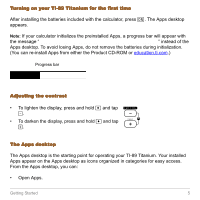 5
5 -
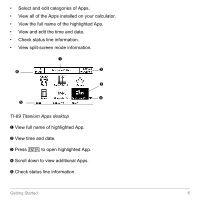 6
6 -
 7
7 -
8
-
9
-
10
-
11
-
12
-
13
-
14
-
15
-
16
-
17
-
18
-
19
-
20
-
21
-
22
-
23
-
24
-
25
-
26
-
27
-
28
-
29
-
30
-
31
-
32
-
33
-
34
-
35
-
36
-
37
-
38
-
39
-
40
-
41
-
42
-
43
-
44
-
45
-
46
-
47
-
48
-
49
-
50
-
51
-
52
-
53
-
54
-
55
-
56
-
57
-
58
-
59
-
60
-
61
-
62
-
63
-
64
-
65
-
66
-
67
-
68
-
69
-
70
-
71
-
72
-
73
-
74
-
75
-
76
-
77
-
78
-
79
-
80
-
81
-
82
-
83
-
84
-
85
-
86
-
87
-
88
-
89
-
90
-
91
-
92
-
93
-
94
-
95
-
96
-
97
-
98
-
99
-
100
-
101
-
102
-
103
-
104
-
105
-
106
-
107
-
108
-
109
-
110
-
111
-
112
-
113
-
114
-
115
-
116
-
117
-
118
-
119
-
120
-
121
-
122
-
123
-
124
-
125
-
126
-
127
-
128
-
129
-
130
-
131
-
132
-
133
-
134
-
135
-
136
-
137
-
138
-
139
-
140
-
141
-
142
-
143
-
144
-
145
-
146
-
147
-
148
-
149
-
150
-
151
-
152
-
153
-
154
-
155
-
156
-
157
-
158
-
159
-
160
-
161
-
162
-
163
-
164
-
165
-
166
-
167
-
168
-
169
-
170
-
171
-
172
-
173
-
174
-
175
-
176
-
177
-
178
-
179
-
180
-
181
-
182
-
183
-
184
-
185
-
186
-
187
-
188
-
189
-
190
-
191
-
192
-
193
-
194
-
195
-
196
-
197
-
198
-
199
-
200
-
201
-
202
-
203
-
204
-
205
-
206
-
207
-
208
-
209
-
210
-
211
-
212
-
213
-
214
-
215
-
216
-
217
-
218
-
219
-
220
-
221
-
222
-
223
-
224
-
225
-
226
-
227
-
228
-
229
-
230
-
231
-
232
-
233
-
234
-
235
-
236
-
237
-
238
-
239
-
240
-
241
-
242
-
243
-
244
-
245
-
246
-
247
-
248
-
249
-
250
-
251
-
252
-
253
-
254
-
255
-
256
-
257
-
258
-
259
-
260
-
261
-
262
-
263
-
264
-
265
-
266
-
267
-
268
-
269
-
270
-
271
-
272
-
273
-
274
-
275
-
276
-
277
-
278
-
279
-
280
-
281
-
282
-
283
-
284
-
285
-
286
-
287
-
288
-
289
-
290
-
291
-
292
-
293
-
294
-
295
-
296
-
297
-
298
-
299
-
300
-
301
-
302
-
303
-
304
-
305
-
306
-
307
-
308
-
309
-
310
-
311
-
312
-
313
-
314
-
315
-
316
-
317
-
318
-
319
-
320
-
321
-
322
-
323
-
324
-
325
-
326
-
327
-
328
-
329
-
330
-
331
-
332
-
333
-
334
-
335
-
336
-
337
-
338
-
339
-
340
-
341
-
342
-
343
-
344
-
345
-
346
-
347
-
348
-
349
-
350
-
351
-
352
-
353
-
354
-
355
-
356
-
357
-
358
-
359
-
360
-
361
-
362
-
363
-
364
-
365
-
366
-
367
-
368
-
369
-
370
-
371
-
372
-
373
-
374
-
375
-
376
-
377
-
378
-
379
-
380
-
381
-
382
-
383
-
384
-
385
-
386
-
387
-
388
-
389
-
390
-
391
-
392
-
393
-
394
-
395
-
396
-
397
-
398
-
399
-
400
-
401
-
402
-
403
-
404
-
405
-
406
-
407
-
408
-
409
-
410
-
411
-
412
-
413
-
414
-
415
-
416
-
417
-
418
-
419
-
420
-
421
-
422
-
423
-
424
-
425
-
426
-
427
-
428
-
429
-
430
-
431
-
432
-
433
-
434
-
435
-
436
-
437
-
438
-
439
-
440
-
441
-
442
-
443
-
444
-
445
-
446
-
447
-
448
-
449
-
450
-
451
-
452
-
453
-
454
-
455
-
456
-
457
-
458
-
459
-
460
-
461
-
462
-
463
-
464
-
465
-
466
-
467
-
468
-
469
-
470
-
471
-
472
-
473
-
474
-
475
-
476
-
477
-
478
-
479
-
480
-
481
-
482
-
483
-
484
-
485
-
486
-
487
-
488
-
489
-
490
-
491
-
492
-
493
-
494
-
495
-
496
-
497
-
498
-
499
-
500
-
501
-
502
-
503
-
504
-
505
-
506
-
507
-
508
-
509
-
510
-
511
-
512
-
513
-
514
-
515
-
516
-
517
-
518
-
519
-
520
-
521
-
522
-
523
-
524
-
525
-
526
-
527
-
528
-
529
-
530
-
531
-
532
-
533
-
534
-
535
-
536
-
537
-
538
-
539
-
540
-
541
-
542
-
543
-
544
-
545
-
546
-
547
-
548
-
549
-
550
-
551
-
552
-
553
-
554
-
555
-
556
-
557
-
558
-
559
-
560
-
561
-
562
-
563
-
564
-
565
-
566
-
567
-
568
-
569
-
570
-
571
-
572
-
573
-
574
-
575
-
576
-
577
-
578
-
579
-
580
-
581
-
582
-
583
-
584
-
585
-
586
-
587
-
588
-
589
-
590
-
591
-
592
-
593
-
594
-
595
-
596
-
597
-
598
-
599
-
600
-
601
-
602
-
603
-
604
-
605
-
606
-
607
-
608
-
609
-
610
-
611
-
612
-
613
-
614
-
615
-
616
-
617
-
618
-
619
-
620
-
621
-
622
-
623
-
624
-
625
-
626
-
627
-
628
-
629
-
630
-
631
-
632
-
633
-
634
-
635
-
636
-
637
-
638
-
639
-
640
-
641
-
642
-
643
-
644
-
645
-
646
-
647
-
648
-
649
-
650
-
651
-
652
-
653
-
654
-
655
-
656
-
657
-
658
-
659
-
660
-
661
-
662
-
663
-
664
-
665
-
666
-
667
-
668
-
669
-
670
-
671
-
672
-
673
-
674
-
675
-
676
-
677
-
678
-
679
-
680
-
681
-
682
-
683
-
684
-
685
-
686
-
687
-
688
-
689
-
690
-
691
-
692
-
693
-
694
-
695
-
696
-
697
-
698
-
699
-
700
-
701
-
702
-
703
-
704
-
705
-
706
-
707
-
708
-
709
-
710
-
711
-
712
-
713
-
714
-
715
-
716
-
717
-
718
-
719
-
720
-
721
-
722
-
723
-
724
-
725
-
726
-
727
-
728
-
729
-
730
-
731
-
732
-
733
-
734
-
735
-
736
-
737
-
738
-
739
-
740
-
741
-
742
-
743
-
744
-
745
-
746
-
747
-
748
-
749
-
750
-
751
-
752
-
753
-
754
-
755
-
756
-
757
-
758
-
759
-
760
-
761
-
762
-
763
-
764
-
765
-
766
-
767
-
768
-
769
-
770
-
771
-
772
-
773
-
774
-
775
-
776
-
777
-
778
-
779
-
780
-
781
-
782
-
783
-
784
-
785
-
786
-
787
-
788
-
789
-
790
-
791
-
792
-
793
-
794
-
795
-
796
-
797
-
798
-
799
-
800
-
801
-
802
-
803
-
804
-
805
-
806
-
807
-
808
-
809
-
810
-
811
-
812
-
813
-
814
-
815
-
816
-
817
-
818
-
819
-
820
-
821
-
822
-
823
-
824
-
825
-
826
-
827
-
828
-
829
-
830
-
831
-
832
-
833
-
834
-
835
-
836
-
837
-
838
-
839
-
840
-
841
-
842
-
843
-
844
-
845
-
846
-
847
-
848
-
849
-
850
-
851
-
852
-
853
-
854
-
855
-
856
-
857
-
858
-
859
-
860
-
861
-
862
-
863
-
864
-
865
-
866
-
867
-
868
-
869
-
870
-
871
-
872
-
873
-
874
-
875
-
876
-
877
-
878
-
879
-
880
-
881
-
882
-
883
-
884
-
885
-
886
-
887
-
888
-
889
-
890
-
891
-
892
-
893
-
894
-
895
-
896
-
897
-
898
-
899
-
900
-
901
-
902
-
903
-
904
-
905
-
906
-
907
-
908
-
909
-
910
-
911
-
912
-
913
-
914
-
915
-
916
-
917
-
918
-
919
-
920
-
921
-
922
-
923
-
924
-
925
-
926
-
927
-
928
-
929
-
930
-
931
-
932
-
933
-
934
-
935
-
936
-
937
-
938
-
939
-
940
-
941
-
942
-
943
-
944
-
945
-
946
-
947
-
948
-
949
-
950
-
951
-
952
-
953
-
954
-
955
-
956
-
957
-
958
-
959
-
960
-
961
-
962
-
963
-
964
-
965
-
966
-
967
-
968
-
969
-
970
-
971
-
972
-
973
-
974
-
975
-
976
-
977
-
978
-
979
-
980
-
981
-
982
-
983
-
984
-
985
-
986
-
987
-
988
-
989
-
990
-
991
-
992
-
993
-
994
-
995
-
996
-
997
-
998
-
999
-
1,000
-
1,001
-
1,002
-
1,003
-
1,004
-
1,005
-
1,006
-
1,007
-
1,008
 |
 |

TI-89 Titanium
Graphing Calculator