
Dymo LabelManager 160 User Guide 1
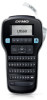
Dymo LabelManager 160 Manual
 |
View all Dymo LabelManager 160 manuals
Add to My Manuals
Save this manual to your list of manuals |
Dymo LabelManager 160 manual content summary:
- Dymo LabelManager 160 | User Guide 1 - Page 1
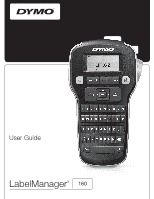
User Guide LabelManager® 160 - Dymo LabelManager 160 | User Guide 1 - Page 2
Copyright © 2011 Sanford, L.P. All rights reserved. No part of this document may be reproduced or transmitted in any form or by any means or translated into another language without the prior written consent of Sanford, L.P. Trademarks DYMO and LabelManager are registered marks in the US and other - Dymo LabelManager 160 | User Guide 1 - Page 3
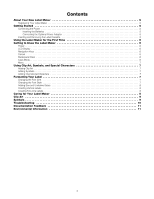
International Characters 7 Formatting Your Label 7 Changing the Font Size 7 Changing the Font Style 7 Adding Box and Underline Styles 8 Creating Vertical Labels 8 Creating Two-Line Labels 8 Caring for Your Label Maker 8 Clip Art 9 Symbols 9 Troubleshooting 10 Documentation Feedback 11 - Dymo LabelManager 160 | User Guide 1 - Page 4
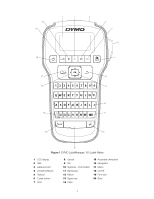
Figure 1 DYMO LabelManager 160 Label Maker 1 LCD display 2 Italic 3 Label exit slot 4 Underline/Boxes 5 Vertical 6 Cutter button 7 Print 8 Cancel 9 OK 10 Symbols - Punctuation 11 Backspace 12 Return 13 Space bar 14 Caps 15 Accented characters 16 Navigation 17 Menu 18 On/Off 19 Font size 20 Bold - Dymo LabelManager 160 | User Guide 1 - Page 5
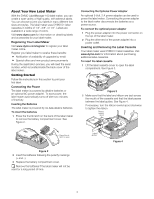
Your New Label Maker With the DYMO LabelManager 160 label maker, you can create a wide variety of high-quality, self-adhesive labels. You can choose to print your labels in many different font sizes and styles. The label maker uses DYMO D1 label cassettes in widths of 1/4", 3/8", or 1/2". Labels are - Dymo LabelManager 160 | User Guide 1 - Page 6
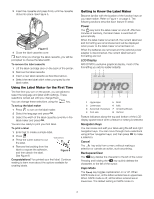
adapter is disconnected, the current label text and formatting are lost. LCD Display With DYMO's exclusive graphical display, most of the formatting you add is visible instantly. 1 23 4 5 6 7 8 1 Uppercase 5 Bold 2 Lowercase 6 Italic 3 Accented characters 7 Underline/Boxes 4 Font size - Dymo LabelManager 160 | User Guide 1 - Page 7
image to your label. Adding Symbols The label maker supports the extended symbol labels. Changing the Font Size Six font sizes are available for your labels. The font sizes available depend on the label width selected. The font size applies to all characters on a label. Label Width Font Sizes - Dymo LabelManager 160 | User Guide 1 - Page 8
2 Enter text for the second line. 3 Press to print. Caring for Your Label Maker Your label maker is designed to give you long and trouble-free service, while requiring very little maintenance. Clean your label maker regularly to keep it working properly. Clean the cutter blade each time you replace - Dymo LabelManager 160 | User Guide 1 - Page 9
Clip Art © ®™ ☺ Symbols ' " , . ; ! ? ¡ ¿ _ ! ' : / \ | § • ¶ ° ∞ € $ ¢ £ ¥ @ & # % ‰ + - * ÷ √ ^ ~ ≈ = ≠ ± < > ≤ ≥ [ ] ½ ¼ ¾ ( ) { } ⅓ ₀ ₁ ₂ ₃ ₄ ₅ ₆ ₇ ₈ ₉ ⁰ ¹ ² ³ ⁴ ⁵ ⁶ ⁷ ⁸ ⁹ α β γ δ ε ζ η θ ι κ λ μ ν ξ ο π - Dymo LabelManager 160 | User Guide 1 - Page 10
Troubleshooting Review the following possible solutions if you encounter a problem while using your label maker. Problem/Error Message Solution No display Ensure the label maker is turned on. Replace batteries or connect the optional power adapter. Poor print quality Replace batteries - Dymo LabelManager 160 | User Guide 1 - Page 11
, and User Guide page number Brief description of instructions that are inaccurate or unclear, areas where more detail is needed, and so on We also welcome your suggestions about additional topics you would like to see covered in the documentation. Send email messages to: [email protected]
-
 1
1 -
 2
2 -
 3
3 -
 4
4 -
 5
5 -
 6
6 -
 7
7 -
8
-
9
-
10
-
11
 |
 |
LabelManager
®
160
User Guide