2000 Oldsmobile Silhouette Owner's Manual
2000 Oldsmobile Silhouette Manual
2000 Oldsmobile Silhouette manual content summary:
- 2000 Oldsmobile Silhouette | Owner's Manual - Page 1
- 2000 Oldsmobile Silhouette | Owner's Manual - Page 2
Bumper-to-Bumper 3-years/36,000 miles (60 000 km) Limited Warranty Every 2000 Silhouette under warranty is backed with the following services: 1-800-442-OLDS ( For vehicles purchased in Canada, call 1-800-268-6800) that provides in an emergency: Courtesy Transportation Trip Routing Free lockout - 2000 Oldsmobile Silhouette | Owner's Manual - Page 3
2000 Oldsmobile Silhouette Owner's Manual Litho in U.S.A. Part Number 10423673 A First Edition © Copyright General Motors Corporation 1999 All Rights Reserved i - 2000 Oldsmobile Silhouette | Owner's Manual - Page 4
Table of Contents Seats and Restraint Systems Section 1 Seats and Seat Controls Safety Belts Air Bag Systems Child Restraints Features and Controls Section 2 Keys and Door Locks Remote Lock Control (Option) Automatic Transaxle Parking Brake Windows Tilt Wheel Turn Signal/Multifunction Lever - 2000 Oldsmobile Silhouette | Owner's Manual - Page 5
Comfort Controls and Audio Systems Section 3 Heating and Air Conditioning Setting the Radio Clock Radio/Cassette Player/CD Player Radio Theft-Deterrent Feature Steering Wheel Controls (If Equipped) Your Driving and the Road Section 4 Defensive Driving Drunken Driving Control of a Vehicle Braking - 2000 Oldsmobile Silhouette | Owner's Manual - Page 6
Air Filter Brakes Bulb Replacement Windshield Wiper Blade Replacement Tires and Wheels Appearance Care Electrical System/Fuses and Circuit Breakers Capacities and Specifications Normal Maintenance Replacement Parts Maintenance Schedule Section 7 Scheduled Maintenance Owners Checks and Services - 2000 Oldsmobile Silhouette | Owner's Manual - Page 7
Roadside Assistance and Courtesy Transportation Warranty Information Reporting Safety Defects on page 8-10 Service Publications Index Section 9 In the Index you will find an alphabetical listing of almost every subject in this manual. You can use it to quickly find something you want to read - 2000 Oldsmobile Silhouette | Owner's Manual - Page 8
We support voluntary technician certification. GENERAL MOTORS, GM, the GM Emblem, OLDSMOBILE, the OLDSMOBILE Rocket Emblem and the name SILHOUETTE are registered trademarks of General Motors Corporation. This manual includes the latest information at the time it was printed. We reserve the right to - 2000 Oldsmobile Silhouette | Owner's Manual - Page 9
this, it will help you learn about the features and controls for your vehicle. In this manual, you'll find that pictures and words work together to Warnings and Symbols You will find a number of safety cautions in this book. We use a box and the word CAUTION to tell you about things that could hurt - 2000 Oldsmobile Silhouette | Owner's Manual - Page 10
Vehicle Damage Warnings Also in this book you will find these notices: NOTICE: These mean there you what to do to help avoid the damage. When you read other manuals, you might see CAUTION and NOTICE warnings in different colors or in different words. You'll also see warning labels on your vehicle. - 2000 Oldsmobile Silhouette | Owner's Manual - Page 11
WASHER BATTERY CHARGING SYSTEM FUSE DOOR LOCK UNLOCK TURN SIGNALS LIGHTER PARKING LAMPS FASTEN SEAT BELTS WINDSHIELD DEFROSTER HORN BRAKE HAZARD WARNING FLASHER POWER WINDOW DAYTIME RUNNING LAMPS REAR WINDOW DEFOGGER COOLANT SPEAKER ENGINE OIL PRESSURE VENTILATING FAN FUEL AIR BAG - 2000 Oldsmobile Silhouette | Owner's Manual - Page 12
Service Station Guide Battery See Section 6 Windshield Washer Fluid See Section 6 Tire Pressure See Section 6 For a More Detailed Look at What's Under the Hood See Section 6 Spare Tire Pressure See Section 5 Engine Oil Dipstick See Section 6 Oil Viscosity Engine Oil See Section 6 Secondary - 2000 Oldsmobile Silhouette | Owner's Manual - Page 13
Safety Belt Comfort Guides for Children and Small Adults Center Passenger Position (Bench Seat) Center Passenger Position (Bucket Seat) Children Built-in Child Restraint (Option) Child Restraints Larger Children Safety Belt Extender Checking Your Restraint Systems Replacing Restraint System Parts - 2000 Oldsmobile Silhouette | Owner's Manual - Page 14
Seats and Seat Controls This section tells you about the seats -- how to adjust them, take them out, put them back in, fold and unfold them. To make sure the seat is locked into place, release the lever and try to move the seat with your body. Driver's 4-Way Manual Seat To raise the seat, pull up - 2000 Oldsmobile Silhouette | Owner's Manual - Page 15
. Center Control (B): Move the seat forward or rearward by holding the control to the front or rear. Raise or lower the seat by holding the control up or down. Slide the seat to where you want it. To make sure the seat is locked into place, release the lever and try to move the seat with your body - 2000 Oldsmobile Silhouette | Owner's Manual - Page 16
lower cushions and lower back of the driver's and front passenger's seats for added comfort. Reclining Front Seatbacks All front seats recline. To adjust switch is for the front passenger's seat. Press the top of the switch to turn the heater on. The indicator light on the switch will glow. Press - 2000 Oldsmobile Silhouette | Owner's Manual - Page 17
up, your safety belts can't do their job when you're reclined like this. The shoulder belt can't do its job because it won't be against your body. Instead, it will the seatback upright. Then sit well back in the seat and wear your safety belt properly. But don't have a seatback reclined if your vehicle - 2000 Oldsmobile Silhouette | Owner's Manual - Page 18
a crash. Rear Seats Seat Controls The rear seats in your vehicle have levers and straps used to adjust, remove and reinstall the seats. By using the levers and straps, in the correct order, you can easily remove the seats from your vehicle. Floor Seat Pin Diagram When you put the seats back in the - 2000 Oldsmobile Silhouette | Owner's Manual - Page 19
your vehicle has a split bench seat in the second row, follow this procedure: 1. Pull the belt out and slide the sleeve along the belt until it reaches the patch of the seat or lifting up on the lever located on the front of the seatback. If the seat adjusts, slide it all the way back. 3. Release - 2000 Oldsmobile Silhouette | Owner's Manual - Page 20
Folding or Reclining the Seatbacks The seatbacks on each section of the split bench seat can be either folded down or reclined. The following explains how to use an upright position, push and pull on the seatback to check that it is locked upright. To raise a seatback, pull the nylon strap while - 2000 Oldsmobile Silhouette | Owner's Manual - Page 21
up either lever and slide the seat forward to allow for extra storage behind the seat, or slide the seat back to allow extra room for passengers. Release the lever. Push and pull on the seat to be sure it is locked into place. One is located below the center, in the front of each section - 2000 Oldsmobile Silhouette | Owner's Manual - Page 22
belt, if needed. 5. From behind the bench seat, pull the nylon strap at the center of the base of the seat to release the rear latches from the floor pins. 3. Lift the seatback recliner lever or pull the nylon strap on the back of the seat to fold the seatback forward. 4. Slide the seat all the way - 2000 Oldsmobile Silhouette | Owner's Manual - Page 23
won't latch that way. If you want more storage room behind the seat, adjust each section by sliding it forward. The split benches have seat position labels, located on the back of each seat, showing where the seat must go. Follow that diagram. D The left (40) section of the 40/60 split bench uses - 2000 Oldsmobile Silhouette | Owner's Manual - Page 24
1. Squeeze the angled bar toward the solid crossbar while placing the front hooks of the bench seat onto the front two floor pins. 2. Make sure the bench seat is angled so that the front hooks clear the floor pins. If the front legs are not attached correctly, the rear legs will not attach - 2000 Oldsmobile Silhouette | Owner's Manual - Page 25
when installing it. 5. Lift the seatback recliner lever or pull the nylon strap on the back of the seat and raise the seatback until it locks upright. If the front latches are not attaching correctly, check that the seat is in the full rear position. 3. Firmly push the rear hooks onto the rear floor - 2000 Oldsmobile Silhouette | Owner's Manual - Page 26
CAUTION: A safety belt that is improperly routed, not properly attached, or twisted won't provide the protection needed in a crash. The person wearing the belt could be seriously injured. After installing the seat, always check to be sure that the safety belts are properly routed and attached, and - 2000 Oldsmobile Silhouette | Owner's Manual - Page 27
recline the seatback. To fold down the seatback, pull this nylon strap located on the rear of the seat. To fold down the seatback, lift up on this lever located on the front of the seatback. Use seatback to an upright position, push and pull on the seatback to check that it is locked upright. 1-15 - 2000 Oldsmobile Silhouette | Owner's Manual - Page 28
up either lever and slide the seat forward to allow for extra storage behind the seat, or slide the seat back to allow extra room for passengers. Release the lever. Push and pull on the seat to be sure it is locked into place. One is located below the center, in front of the bucket seat. 1-16 - 2000 Oldsmobile Silhouette | Owner's Manual - Page 29
fully down. 1. Lift the seatback recliner lever or pull the nylon strap on the back of the seat to fold the seatback forward. 2. Slide the seat all the way back by lifting either one of the adjuster levers and sliding the seat fully rearward. You can also lift the lever on the side of the - 2000 Oldsmobile Silhouette | Owner's Manual - Page 30
that way. If you want more storage room behind the seat, adjust the seat by sliding it forward. The bucket seats have seat position labels, located on the back of the seat, showing where the seat must go. Follow that diagram. See "Seat Controls" in the beginning of this section for more details. The - 2000 Oldsmobile Silhouette | Owner's Manual - Page 31
toward the solid crossbar while placing the front hooks of the bucket seat onto the front two floor pins. If the front latches are not attaching correctly, check that the seat is in the full rear position. 2. Make sure the bucket seat is angled so that the front hooks clear the floor pins. If - 2000 Oldsmobile Silhouette | Owner's Manual - Page 32
the vehicle could be injured. Be sure to lock the seat into place properly when installing it. 4. Try to raise the seat to check that it is locked down. 5. Lift the seatback recliner lever or pull the nylon strap on the back of the seat and raise the seatback until it locks upright. 6. Push and - 2000 Oldsmobile Silhouette | Owner's Manual - Page 33
second row captain chairs fold forward to put items behind the left and right seats. Removing the Captain's Chairs Lift the lever and fold the seatback forward. The seatback will lock into place when you push it back to the upright position. The seatback lever will not lift and fold if the - 2000 Oldsmobile Silhouette | Owner's Manual - Page 34
Replacing the Captain's Chairs The left chair goes in the A and C sets of floor pins. The right chair goes in the D and F sets of floor pins. 2. The seat can then be lifted off the front floor pins and removed from the vehicle. 1. Hook the front latches over the front floor pins. 1-22 - 2000 Oldsmobile Silhouette | Owner's Manual - Page 35
vehicle could be injured. Be sure to lock the seat into place properly when installing it. CAUTION: 2. Push the rear of the seat down to lock the rear latches onto the rear set of floor pins. 3. Push and pull on the seat to be sure it is properly attached. If the seatback isn't locked - 2000 Oldsmobile Silhouette | Owner's Manual - Page 36
They're for Everyone This part of the manual tells you how to use safety belts properly. It also tells you some things you should not do with safety belts. And it explains the Supplemental Restraint System (SRS), or air bag system. CAUTION: It is extremely dangerous to ride in a cargo area, inside - 2000 Oldsmobile Silhouette | Owner's Manual - Page 37
law says to wear safety belts. Here's why: They work walk away. Without belts they could have been badly hurt or killed. After more than 30 years of safety belts in vehicles, the facts are clear. In most crashes buckling up does matter ...a lot! Why Safety Belts Work - 2000 Oldsmobile Silhouette | Owner's Manual - Page 38
Put someone on it. Get it up to speed. Then stop the vehicle. The rider doesn't stop. 1-26 - 2000 Oldsmobile Silhouette | Owner's Manual - Page 39
The person keeps going until stopped by something. In a real vehicle, it could be the windshield ... or the instrument panel ... 1-27 - 2000 Oldsmobile Silhouette | Owner's Manual - Page 40
being conscious during and after an accident, so you can unbuckle and get out, is much greater if you are belted. If my vehicle has air bags, why should I have to wear safety belts? Air bags are in many vehicles today and will be in most of them in the future. But they are supplemental systems - 2000 Oldsmobile Silhouette | Owner's Manual - Page 41
size. Be aware that there are special things to know about safety belts and children. And there are different rules for smaller children and babies. If a child will be riding in your vehicle, see the part of this manual called "Children." Follow those rules for everyone's protection. First, you'll - 2000 Oldsmobile Silhouette | Owner's Manual - Page 42
Driver Position This part describes the driver's restraint system. Lap-Shoulder Belt The driver has a lap-shoulder belt. Here's how to wear it properly. 1. Close and lock the door. 2. Adjust the seat (to see how, see "Seats" in the Index) so you can sit up straight. 3. Pick up the latch plate and - 2000 Oldsmobile Silhouette | Owner's Manual - Page 43
go over the shoulder and across the chest. These parts of the body are best able to take belt restraining forces. 5. To make the lap part tight, pull down on the buckle end of the belt as you pull up on the shoulder belt. The safety belt locks if there's a sudden stop or crash, or if you - 2000 Oldsmobile Silhouette | Owner's Manual - Page 44
position. You can move the adjuster up just by pushing up on the shoulder belt guide. After you move the adjuster to where you want it, try to move it so that the shoulder portion of the belt is centered on your shoulder. The belt should be away from your face and neck, but not falling off - 2000 Oldsmobile Silhouette | Owner's Manual - Page 45
's wrong with this? CAUTION: You can be seriously hurt if your shoulder belt is too loose. In a crash, you would move forward too much, which could increase injury. The shoulder belt should fit against your body. A: The shoulder belt is too loose. It won't give nearly as much protection this way - 2000 Oldsmobile Silhouette | Owner's Manual - Page 46
is buckled in the wrong place like this. In a crash, the belt would go up over your abdomen. The belt forces would be there, not at the pelvic bones. This could cause serious internal injuries. Always buckle your belt into the buckle nearest you. A: The belt is buckled in the wrong place. 1-34 - 2000 Oldsmobile Silhouette | Owner's Manual - Page 47
Q: What's wrong with this? CAUTION: You can be seriously injured if your belt goes over an armrest like this. The belt would be much too high. In a crash, you can slide under the belt. The belt force would then be applied at the abdomen, not at the pelvic bones, and that could cause serious or - 2000 Oldsmobile Silhouette | Owner's Manual - Page 48
wrong with this? CAUTION: You can be seriously injured if you wear the shoulder belt under your arm. In a crash, your body would move too far forward, which would increase the chance of head and neck injury. Also, the belt would apply too much force to the ribs, which aren't as strong as shoulder - 2000 Oldsmobile Silhouette | Owner's Manual - Page 49
wrong with this? CAUTION: You can be seriously injured by a twisted belt. In a crash, you wouldn't have the full width of the belt to spread impact forces. If a belt is twisted, make it straight so it can work properly, or ask your dealer to fix it. A: The belt is twisted across the body. 1-37 - 2000 Oldsmobile Silhouette | Owner's Manual - Page 50
if they don't wear safety belts. To unlatch the belt, just push the button on the buckle. The belt should go back out of the way. Before you close the door, be sure the belt is out of the way. If you slam the door on it, you can damage both the belt and your vehicle. A pregnant woman - 2000 Oldsmobile Silhouette | Owner's Manual - Page 51
buckle, tilt the latch plate and keep pulling until you can buckle the belt. On some vehicles, if you pull the shoulder portion of the belt out all the way, you will engage the child restraint locking feature. If this happens, just let the belt go back all the way and start again. 1-39 - 2000 Oldsmobile Silhouette | Owner's Manual - Page 52
your chance of hitting things inside the vehicle or being ejected from it. Air bags are "supplemental restraints" to the safety belts. All air bags are designed to work with safety belts but don't replace them. Frontal air bags for the driver and right front passenger are designed to work only in - 2000 Oldsmobile Silhouette | Owner's Manual - Page 53
, see the part of this manual called "Children." There is an air bag readiness light on the instrument panel, which shows an air bag symbol. The system checks the air bag electrical system for malfunctions. The light tells you if there is an electrical problem. See "Air Bag Readiness Light" in the - 2000 Oldsmobile Silhouette | Owner's Manual - Page 54
Bag Systems Work Where are the air bags? The right front passenger's frontal air bag is in the instrument panel on the passenger's side. The driver's frontal air bag is in the middle of the steering wheel. The driver's side impact air bag is in the side of the driver's seatback closest to the door - 2000 Oldsmobile Silhouette | Owner's Manual - Page 55
an air bag, and don't attach or put anything on the steering wheel hub or on or near any other air bag covering and don't let seat covers block the inflation path of a side impact air bag. The right front passenger's side impact air bag is in the side of the passenger's seatback closest to the door - 2000 Oldsmobile Silhouette | Owner's Manual - Page 56
side impact air bags, the sensing system triggers a release of gas from the inflator, which inflates the air bag. The inflator, air bag and related hardware are all part of the air bag modules inside the steering wheel, instrument panel and the side of the front seatbacks closest to the door. 1-44 - 2000 Oldsmobile Silhouette | Owner's Manual - Page 57
problems for people with a history of asthma or other breathing trouble. To avoid this, everyone in the vehicle should get out as soon as it is safe to do so. If you have breathing problems but can't get out of the vehicle after an air bag inflates, then get fresh air by opening a window or a door - 2000 Oldsmobile Silhouette | Owner's Manual - Page 58
parts. The service manual for your vehicle covers the need to replace other parts. diagnostic module, which records information about the frontal air bag system. The module records information about the readiness of the system, when the system commands air bag inflation and driver's safety belt - 2000 Oldsmobile Silhouette | Owner's Manual - Page 59
, and probably other new parts for your safety belt system. See "Replacing Restraint System Parts After a Crash" in the Index. CAUTION: For up to 10 seconds after the ignition key is turned off and the battery is disconnected, an air bag can still inflate during improper service. You can be injured - 2000 Oldsmobile Silhouette | Owner's Manual - Page 60
properly. 1. Pick up the latch plate and pull the belt across you. Don't let it get twisted. The shoulder belt may lock if you pull the belt across you very quickly. If this happens, let the belt go back slightly to unlock it. Then pull the belt across you more slowly. 2. Push the latch plate into - 2000 Oldsmobile Silhouette | Owner's Manual - Page 61
pulled out all the way, it will lock. If it does, let it go back all the way and start again. If the belt is not long enough, see "Safety Belt Extender" at the end of this section. Make sure the release button on the buckle is positioned so you would be able - 2000 Oldsmobile Silhouette | Owner's Manual - Page 62
would apply force at your abdomen. This could cause serious or even fatal injuries. The shoulder belt should go over the shoulder and across the chest. These parts of the body are best able to take belt restraining forces. The safety belt locks if there's a sudden stop or a crash, or if you pull the - 2000 Oldsmobile Silhouette | Owner's Manual - Page 63
children who have outgrown child restraints and for small adults. When installed on a shoulder belt, the comfort guide pulls the belt away from the neck and head. If your vehicle has bucket seats in the second row, there is one guide for each outside passenger position. If your vehicle has a bench - 2000 Oldsmobile Silhouette | Owner's Manual - Page 64
Here's how to install a comfort guide and use the safety belt: 2. Place the guide over the belt and insert the two edges of the belt into the slots of the guide. 1. Remove the guide from its storage clip on the side of the seatback. 1-52 - 2000 Oldsmobile Silhouette | Owner's Manual - Page 65
must be on top of the belt. 4. Buckle, position and release the safety belt as described in "Rear Seat Outside Passenger Positions" earlier in this section. Make sure that the shoulder belt crosses the shoulder. To remove and store the comfort guides, squeeze the belt edges together so that you can - 2000 Oldsmobile Silhouette | Owner's Manual - Page 66
(Bench Seat) Lap Belt If your vehicle has a third row rear bench seat, someone can sit in the center position. When you sit in the center position of the bench seat, you have a lap safety belt, which has no retractor. To make the belt longer, tilt the latch plate and pull it along the belt. 1-54 - 2000 Oldsmobile Silhouette | Owner's Manual - Page 67
Center Passenger Position (Bucket Seat) Lap Belt To make the belt shorter, pull its free end as shown until the belt is snug. Buckle, position and release it the same way as the lap part of a lap-shoulder belt. If the belt isn't long enough, see "Safety Belt Extender" at the end of this section. - 2000 Oldsmobile Silhouette | Owner's Manual - Page 68
buckle, let it go back all the way and start again. Pull up on the latch plate to make sure it is secure. 3. Feed the lap belt into the retractor to tighten it. 4. Position and release it the same way as the lap part of a lap-shoulder belt. If the belt isn't long enough, see - 2000 Oldsmobile Silhouette | Owner's Manual - Page 69
. If the CENTER OR LEFT bucket seat is used on the left side of the vehicle, the person sitting there should use the lap-shoulder belt. See "Rear Seat Outside Passenger Positions" in the Index. Smaller Children and Babies CAUTION: Children who are up against, or very close to, any air bag when it - 2000 Oldsmobile Silhouette | Owner's Manual - Page 70
instructions for the restraint will say whether it is the right type and size for your child. A very young child's hip bones are so small that a regular belt so the crash forces can be distributed across the strongest part of the infant's body, the back and shoulders. A baby should be secured in an - 2000 Oldsmobile Silhouette | Owner's Manual - Page 71
baby would be almost impossible to hold. Secure the baby in an infant restraint. CAUTION: Never hold a baby in your arms while riding in a vehicle. A baby doesn't weigh much -- until a crash. During a crash a baby will become so heavy you can't hold it. For example, in a crash - 2000 Oldsmobile Silhouette | Owner's Manual - Page 72
child restraint must be located in your vehicle, see "Removable Rear Bucket Seats" in the Index. If your vehicle has this option in a 60/40 bench seat, you may have one or two built-in child restraints. This bench seat will only fit in the second row of your vehicle. In both types - 2000 Oldsmobile Silhouette | Owner's Manual - Page 73
body the support they would need in a crash. See "Child Restraints" later in this section for more information. Q: A: What if the top of my child's shoulders is above the shoulder belt sit on the vehicle's regular seat cushion and use the vehicle's adult safety belts. CAUTION: BEFORE YOU USE THIS - 2000 Oldsmobile Silhouette | Owner's Manual - Page 74
Securing a Child in the Built-In Child Restraint 1. Raise the head restraint until the lower edge of the head restraint is even with the top of the seatback. 2. Rotate the head restraint rearward until it touches the top of the seatback. Make sure there is no gap between the lower edge of the head - 2000 Oldsmobile Silhouette | Owner's Manual - Page 75
3. Lower the child restraint cushion. You'll be using the child restraint's harness (A) to secure your child. Don't use the vehicle's safety belts. 1-63 - 2000 Oldsmobile Silhouette | Owner's Manual - Page 76
children who are too large for the built-in child restraint should sit on the vehicle's regular seat and use the vehicle's adult safety belts. WARNING! FAILURE TO FOLLOW THE MANUFACTURER'S INSTRUCTIONS ON THE USE OF THIS CHILD RESTRAINT SYSTEM CAN RESULT IN YOUR CHILD STRIKING THE VEHICLE'S INTERIOR - 2000 Oldsmobile Silhouette | Owner's Manual - Page 77
is free of any foreign objects that may prevent you from securing the latch plates. If you can't secure a latch plate, see your dealer for service before using the child restraint. 8. Place the other side of the harness over the child's shoulder. 9. Push the latch plate into the buckle until it - 2000 Oldsmobile Silhouette | Owner's Manual - Page 78
the harness in place on the child's shoulders. If the harness isn't on the child's shoulders, it won't be able to restrain the child's upper body in a sudden stop or crash. The child could be seriously injured. Make sure the harness clip is properly fastened. 11. Now fasten the left and - 2000 Oldsmobile Silhouette | Owner's Manual - Page 79
the harness on the child's shoulder by moving the clip up or down along the harness. On each side of the harness, the shoulder part should be centered on the child's shoulder. The harness should be away from the child's face and neck, but not falling from the child's shoulders. If you - 2000 Oldsmobile Silhouette | Owner's Manual - Page 80
Removing the Child from the Built-In Child Restraint 2. Unlatch the harness by pushing the button on the buckle. 1. Unfasten the shoulder harness clip. 3. Move one side of the harness off the child's shoulder. 4. Move the other side of the harness off the child's shoulder. 5. Remove the child from - 2000 Oldsmobile Silhouette | Owner's Manual - Page 81
Storing the Built-In Child Restraint Always properly store the built-in child restraint before using the vehicle's lap-shoulder belt. 2. Fold the child restraint cushion and leg rest up into the seatback. 3. Press the child restraint cushion firmly into the seatback. 1. Move both latch plates - 2000 Oldsmobile Silhouette | Owner's Manual - Page 82
way down. Just like the other restraint systems in your vehicle, your built-in child restraint needs to be periodically checked and may need to have parts replaced after a crash. See "Checking Your Restraint Systems" and "Replacing Seat and Restraint System Parts After a Crash" in the Index. 1-70 - 2000 Oldsmobile Silhouette | Owner's Manual - Page 83
system designed to restrain or position a child on a continuous flat surface. With an infant car bed, make sure that the infant's head rests toward the center of the vehicle. 1-71 - 2000 Oldsmobile Silhouette | Owner's Manual - Page 84
to about 20 lbs. (9 kg) and about one year of age. This type of restraint faces the rear so that the infant's head, neck and body can have the support they need in a frontal crash. Some infant seats come in two parts -- the base stays secured in the vehicle and the - 2000 Oldsmobile Silhouette | Owner's Manual - Page 85
cm) in height, or up to around four years of age. One type, a convertible restraint, is designed to be used either as a rear-facing infant seat or a forward-facing child - 2000 Oldsmobile Silhouette | Owner's Manual - Page 86
will show you how to do that. Both the owner's manual and the child restraint instructions are important, so if either one of these is not available, obtain a replacement copy from the manufacturer. Where to Put the Restraint A booster seat (F) is designed for children who are about 40 to 60 - 2000 Oldsmobile Silhouette | Owner's Manual - Page 87
air bag inflates. This is because the back of the rear-facing child restraint would be very close to the inflating air bag. Always secure a rear-facing child restraint in a rear seat your vehicle -- even when no child is in it. In Canada, the law requires that forward-facing child restraints have a - 2000 Oldsmobile Silhouette | Owner's Manual - Page 88
be used in the second or third row. Don't use a child restraint with a top strap in the right front passenger's position or in the center position of a third row seat, because there's no place to anchor the top strap. An anchor bar for a top strap is located at the rear of the - 2000 Oldsmobile Silhouette | Owner's Manual - Page 89
Securing a Child Restraint in a Rear Outside Seat Position You'll be using the lap-shoulder belt. See the earlier part about the top strap if the child restraint has one. Be sure to follow the instructions that came with the child restraint. Secure the child in the child restraint when and as the - 2000 Oldsmobile Silhouette | Owner's Manual - Page 90
Second Row Outside Passenger Position Third Row Outside Passenger Positions 3. Tilt the latch plate to adjust the belt if needed. If the shoulder belt goes in front of the child's face or neck, put it behind the child restraint. 1-78 - 2000 Oldsmobile Silhouette | Owner's Manual - Page 91
. You can tell if your vehicle has this feature by pulling the shoulder belt all the way out of the retractor. Then, let the belt go back a few inches, and try to pull the belt out again. If you can't pull the belt out because it has locked, it means the retractor has the child - 2000 Oldsmobile Silhouette | Owner's Manual - Page 92
, pull the rest of the shoulder belt all the way out of the retractor to set the lock. To remove the child restraint, just unbuckle the vehicle's safety belt and let it go back all the way. The safety belt will move freely again and be ready to work for an adult or larger - 2000 Oldsmobile Silhouette | Owner's Manual - Page 93
Securing a Child Restraint in the Center Seat Position (Third Row Bench Seat) You'll be using the lap belt. Be sure to follow the instructions that came with the child restraint. Secure the child in the child restraint when and as the instructions say. See the earlier part about the top strap if - 2000 Oldsmobile Silhouette | Owner's Manual - Page 94
restraint in different directions to be sure it is secure. You'll be using the lap belt. See the earlier part about the top strap if the child restraint has one. Be sure to follow the instructions that came with the child restraint. Secure the child in the child restraint when and as - 2000 Oldsmobile Silhouette | Owner's Manual - Page 95
out without stopping. 3. While holding it out, run the belt through or around the child restraint. The child restraint instructions will show you how. 4. Buckle the belt. Make sure the release button is positioned so you would be able to unbuckle the safety belt quickly if you ever had to. 1-83 - 2000 Oldsmobile Silhouette | Owner's Manual - Page 96
Restraint in the Right Front Seat Position 5. To tighten the belt, feed it back into the retractor while you belt. 6. Push and pull the child restraint in different directions to be sure it is secure. Your vehicle has a front passenger air bag. Never put a rear-facing child restraint in this seat - 2000 Oldsmobile Silhouette | Owner's Manual - Page 97
belt. See the earlier part about the top strap if the child restraint has one. Be sure to follow the instructions that came with the child restraint. Secure the child in the child restraint when and as the instructions say. 1. Because your vehicle has a front passenger air bag, always move the seat - 2000 Oldsmobile Silhouette | Owner's Manual - Page 98
. You can tell if your vehicle has this feature by pulling the shoulder belt all the way out of the retractor. Then, let the belt go back a few inches, and try to pull the belt out again. If you can't pull the belt out because it has locked, it means the retractor has the child - 2000 Oldsmobile Silhouette | Owner's Manual - Page 99
child restraint in different directions to be sure it is secure. To remove the child restraint, just unbuckle the vehicle's safety belt and let it go back all the way. The safety belt will move freely again and be ready to work for an adult or larger child passenger. D If your vehicle has - 2000 Oldsmobile Silhouette | Owner's Manual - Page 100
Larger Children Accident statistics show that children are safer if they are restrained in the rear seat. But they need to use the safety belts properly. D Children who aren't buckled up can be thrown out in a crash. D Children who aren't buckled up can strike other people who are. Children who - 2000 Oldsmobile Silhouette | Owner's Manual - Page 101
child toward the center of the vehicle, but be sure that the shoulder belt still is on the child's shoulder, so that in a crash the child's upper body would have the restraint that belts provide. If the child is sitting in a rear seat outside position, see "Rear Safety Belt Comfort Guides" in the - 2000 Oldsmobile Silhouette | Owner's Manual - Page 102
CAUTION: Never do this. Here a child is sitting in a seat that has a lap-shoulder belt, but the shoulder part is behind the child. If the child wears the belt in this way, in a crash the child might slide under the belt. The belt's force would then be applied right on the child's abdomen. That could - 2000 Oldsmobile Silhouette | Owner's Manual - Page 103
forces just like torn or frayed safety belts can. They may not protect a child in a crash. If a harness strap is torn or frayed, get a new harness right away. Also look for any opened or broken air bag covers, and have them repaired or replaced. (The air bag system does not need regular maintenance - 2000 Oldsmobile Silhouette | Owner's Manual - Page 104
restraint or seat parts repaired or replaced. New parts and repairs may be necessary even if the safety belt or built-in child restraint wasn't being used at the time of the collision. If an air bag inflates, you'll need to replace air bag system parts. See the part on the air bag system earlier - 2000 Oldsmobile Silhouette | Owner's Manual - Page 105
Door Locks Remote Lock Control (Option) Multifunction Alarm Locks and Lighting Choices Sliding Door Power Sliding Door (Option) Liftgate Theft Content Theft-Deterrent (Option) PASS-KeyR III New Vehicle "Break-In" Ignition Positions Starting Your Engine Engine Coolant Heater (If Equipped) Automatic - 2000 Oldsmobile Silhouette | Owner's Manual - Page 106
Keys CAUTION: Leaving children in a vehicle with the ignition key is dangerous for many reasons. A child or others could be badly injured or even killed. They could operate the power windows or other controls or even make the vehicle move. Don't leave the keys in a vehicle with children. 2-2 - 2000 Oldsmobile Silhouette | Owner's Manual - Page 107
may even have to damage your vehicle to get in. So be sure you have an extra key. If you need a new key, contact your Oldsmobile dealer, who can obtain the correct key code. In an emergency, call Oldsmobile Roadside Assistance at 1-800-442-OLDS (6537). (In Canada, call 1-800-268-6800.) 2-3 - 2000 Oldsmobile Silhouette | Owner's Manual - Page 108
safety belts properly, lock your doors, and you will be far better off whenever you drive your vehicle. There are several ways to lock and unlock your vehicle. From the outside, use your key or the remote lock control transmitter (if your vehicle has this option). To unlock either front door from - 2000 Oldsmobile Silhouette | Owner's Manual - Page 109
from the inside by pressing the rear of the power lock switch on either front door. If your vehicle is equipped with the content theft-deterrent system, the power door lock switch may cause the system to arm. See "Content Theft-Deterrent" in the Index for more details. To override this safety - 2000 Oldsmobile Silhouette | Owner's Manual - Page 110
control transmitter a second time. If the ignition is in RUN or ACCESSORY, this feature will not lock the doors. To turn the last door closed locking feature off or on, see "Multifunction Alarm Locks and Lighting Choices" in the Index. Automatic Door Locks All of the doors will lock automatically - 2000 Oldsmobile Silhouette | Owner's Manual - Page 111
out and close the door. Your remote lock control system operates on a radio frequency subject to Federal Communications Commission (FCC) Rules and with Industry Canada. This device complies with Part 15 of the FCC Rules. Operation is subject to the following two conditions: (1) this device may not - 2000 Oldsmobile Silhouette | Owner's Manual - Page 112
transmitter higher, and try again. D Check the location. Other vehicles or objects may be D Check to determine if battery replacement or resynchronization is necessary. See the instructions that follow. qualified technician for service. D If you're still having trouble, see your dealer or a 2-8 - 2000 Oldsmobile Silhouette | Owner's Manual - Page 113
and Lighting Choices" in the Index. Remote Alarm (If Equipped) When you press the horn button on the remote lock control transmitter, to open or close the sliding door. If the sliding door is locked, first unlock all doors (see "Remote Driver's Door and All Door Unlock" earlier in this section - 2000 Oldsmobile Silhouette | Owner's Manual - Page 114
. Static from your body transferred to these surfaces may damage the transmitter. 1. Insert a flat object like a dime into the slot on the side of the transmitter and twist to separate the halves. Battery Replacement Under normal use, the battery in your remote lock control transmitter should last - 2000 Oldsmobile Silhouette | Owner's Manual - Page 115
the battery. 3. Replace the battery. 4. Reassemble the transmitter. Make sure the halves are snapped together tightly so water will not get in. 5. Check the transmitter operation. If needed, follow the instructions on resynchronizing your remote transmitter. If your remote lock control transmitter - 2000 Oldsmobile Silhouette | Owner's Manual - Page 116
is located in the overhead console. The switches that you may find in this switchbank are the interior lights override, power sliding door override, power sliding door and the power rear quarter windows. If your vehicle does not have some of the options controlled by these switches, there will - 2000 Oldsmobile Silhouette | Owner's Manual - Page 117
Multifunction Alarm Locks and Lighting Choices Your vehicle's locks and lighting systems can be programmed with several different features. The features you can program depend on the options that came with your vehicle. The following chart - 2000 Oldsmobile Silhouette | Owner's Manual - Page 118
BCM PRGRM fuse from the instrument panel fuse block, located to the right of the glove box. (See "Fuses and Circuit Breakers" in the Index.) 3. Close the driver's door. 4. Turn the ignition key towards you to ACCESSORY doors and liftgate are closed, or until you lock the doors.) Mode 3: Exit Lighting - 2000 Oldsmobile Silhouette | Owner's Manual - Page 119
instructions later in this section or program the next feature available on your vehicle. Programmable Modes Your vehicle can be programmed to one of the following modes. Mode 1: Both Features Off (Automatic door locking and unlocking is disabled. You will always need to lock your doors manually - 2000 Oldsmobile Silhouette | Owner's Manual - Page 120
programming mode by following the instructions later in this section or program the next feature available on your vehicle. D When you press LOCK on the power door lock switch or remote lock control transmitter (if equipped) while any door or the liftgate is open, the doors will not lock. Instead - 2000 Oldsmobile Silhouette | Owner's Manual - Page 121
: 1. Follow the instructions for "Entering Programming Mode" listed previously. 2. Press UNLOCK on the power door lock switch. 3. control transmitter, the driver's door will unlock and, control transmitter again within five seconds, all doors and the liftgate will unlock. Mode 1: Remote All Doors - 2000 Oldsmobile Silhouette | Owner's Manual - Page 122
can either exit the programming mode by following the instructions later in this section or program the next feature available on your vehicle. D When you use the remote lock control transmitter to unlock your vehicle or operate your power sliding door (if equipped), your parking lamps will flash - 2000 Oldsmobile Silhouette | Owner's Manual - Page 123
the programming mode by following the instructions later in this section or program armed, the horn will sound and your parking lamps will flash for two minutes. The content theft shock sensor detects if anyone damages your vehicle. The shock sensors sensitivity can be adjusted, by your Oldsmobile - 2000 Oldsmobile Silhouette | Owner's Manual - Page 124
Damage Detection Off (If anyone opens a door or the liftgate while your content theft-deterrent system is armed, an alarm will sound and your parking delivered programmed in Mode 4. To change the mode: 1. Follow the instructions for "Entering Programming Mode" listed previously. 2. Turn the parking - 2000 Oldsmobile Silhouette | Owner's Manual - Page 125
or the content theft-deterrent system will not arm. with your key or remote lock control transmitter. D The system will disarm when you unlock the doors Mode 2: Remote Lock Control Transmitter Arm/Disarm Only D Arm the system when you lock the doors with your D Disarm the system when you unlock - 2000 Oldsmobile Silhouette | Owner's Manual - Page 126
provides increased security, it can be a problem if your remote lock control transmitter is damaged, lost or if it fails to operate for any reason while the content theft-deterrent system is armed. The content theft-deterrent system must be disarmed for the engine to run while in Mode 2; your key - 2000 Oldsmobile Silhouette | Owner's Manual - Page 127
Just close the driver's side sliding door. Then when the fuel filler door is closed, the driver's side sliding door can be opened normally. Exiting Programming Mode To exit programming mode, just turn the key from ACCESSORY to OFF and put the BCM PRGRM fuse back into the instrument panel fuse block - 2000 Oldsmobile Silhouette | Owner's Manual - Page 128
facing downward on a steep grade (15 percent or more), the door may not stay open and could slam shut, possibly injuring someone. To make sure the door does not slam shut, be sure to hold it open until everyone is clear of the door, and only then allow it to slowly close. 2-24 - 2000 Oldsmobile Silhouette | Owner's Manual - Page 129
override switch. Lock the sliding door from inside the vehicle by moving the manual locking lever down. Unlock it by moving the lever up. With power door locks, the sliding door lock has a delay feature. See "Power Door Locks" or "Multifunction Alarm Locks and Lighting Choices" in the Index. 2-25 - 2000 Oldsmobile Silhouette | Owner's Manual - Page 130
on the overhead console switchbank, the wall-mounted switch in front of the passenger's sliding door or the remote lock control transmitter. The other switch is mounted on the wall, just in front of the passenger's side sliding door. NOTICE: When your vehicle goes through an automatic car wash, be - 2000 Oldsmobile Silhouette | Owner's Manual - Page 131
of the vehicle and be injured. Always make sure the power sliding door is closed and latched before you drive away. If anything obstructs the power sliding door while it is closing, the door will automatically reverse to the open position, provided it meets sufficient resistance. Resistance must - 2000 Oldsmobile Silhouette | Owner's Manual - Page 132
want to open the power sliding door when the switch is turned on, pull the inside or outside handle and let go. The door will open fully. To open the power sliding door when the power sliding door switch is off, pull the inside or outside handle and slide the door all the way back. 2-28 - 2000 Oldsmobile Silhouette | Owner's Manual - Page 133
slam shut, possibly injuring someone. To make sure the door does not slam shut, turn on the power sliding door feature. Then if the door closes, it will close under the control of the power door system. If you want to close the power sliding door when the switch is turned on, pull the inside or - 2000 Oldsmobile Silhouette | Owner's Manual - Page 134
still does not operate correctly, see your dealer for service. Resetting the Power Sliding Door The power sliding door may operate incorrectly or not at all because of the following conditions: D A low voltage or dead battery, D disconnecting the battery, or D if the IGN 1, B/U LAMP, RADIO or PWR - 2000 Oldsmobile Silhouette | Owner's Manual - Page 135
the seal between the body and the liftgate: D Make sure all other windows are shut. D Turn the fan on your heating or cooling system to its highest speed with the setting on bi-level (outside air button is pressed). That will force outside air into your vehicle. See "Comfort Controls" in the Index - 2000 Oldsmobile Silhouette | Owner's Manual - Page 136
so don't do it. When you park your vehicle and open the driver's door, you'll hear a chime reminding you to remove your key from the drive with the liftgate open, even slightly. See "Engine Exhaust" in the Index. A message in your message center will warn you if the liftgate is not completely - 2000 Oldsmobile Silhouette | Owner's Manual - Page 137
your valuables in a storage area, like your glove box. D If your vehicle has a remote lock control system, take the transmitter with you. D Lock all the doors except the driver's. A light located on top of your instrument panel (near the center of the vehicle, next to the windshield) will flash - 2000 Oldsmobile Silhouette | Owner's Manual - Page 138
may be opened with the remote lock control transmitter or with a key. Arming with the Remote Lock Control Transmitter Your alarm system will arm when you use your remote lock control transmitter to lock the doors, if the key is not in the ignition. The security light will turn on to let you know - 2000 Oldsmobile Silhouette | Owner's Manual - Page 139
Transmitter Your alarm system will disarm when you use your remote lock control transmitter to unlock the doors. The security light will stop flashing to let you know the system is no longer armed. If you are still having trouble with nuisance alarms, you can turn off the content theft-deterrent - 2000 Oldsmobile Silhouette | Owner's Manual - Page 140
complies with RSS-210 of Industry Canada. Operation is subject to the following two conditions: (1) this device may not also want to check the fuse (see "Fuses and Circuit Breakers" in the Index). If the engine still does not start with the other key, your vehicle needs service. If your vehicle - 2000 Oldsmobile Silhouette | Owner's Manual - Page 141
and start the engine. If the engine will not start see your dealer for service. 2. After the engine has started, turn brake linings aren't yet broken in. Hard stops with new linings can mean premature wear and earlier replacement. Follow this breaking-in guideline every time you get new brake - 2000 Oldsmobile Silhouette | Owner's Manual - Page 142
and release the switch. The switch stays in RUN when the engine is running. But even when the engine is not running, you can use RUN to operate your electrical power accessories, and to display some instrument panel warning lights. ACCESSORY (A): This is an on position in which you can operate your - 2000 Oldsmobile Silhouette | Owner's Manual - Page 143
warm. Retained Accessory Power (RAP) With RAP, the power windows, the power rear quarter windows (if equipped), audio system and electronic level control (ELC) will continue to work up to 10 minutes after the ignition key is turned to OFF and none of the doors are opened. Starting Your Engine Move - 2000 Oldsmobile Silhouette | Owner's Manual - Page 144
. If you add electrical parts or accessories, you could change the way the engine operates. Before adding electrical equipment, check with your dealer. If you don't, your engine might not perform properly. If you ever have to have your vehicle towed, see the part of this manual that tells how to do - 2000 Oldsmobile Silhouette | Owner's Manual - Page 145
Engine Coolant Heater (If Equipped) CAUTION: Plugging the cord into an ungrounded outlet could cause an electrical shock. Also, the wrong kind of extension cord could overheat and cause a fire. You could be seriously injured. Plug the cord into a properly grounded three-prong 110-volt AC outlet. If - 2000 Oldsmobile Silhouette | Owner's Manual - Page 146
engine. Your vehicle has an automatic transaxle shift lock control system. You must fully apply your regular brakes engine running, the vehicle can move suddenly. You or others could be injured. To be sure your vehicle won't move, even when you're on fairly level ground, always set your parking brake - 2000 Oldsmobile Silhouette | Owner's Manual - Page 147
REVERSE (R) only after your vehicle is stopped. To rock your vehicle back and forth to get out of snow, ice or sand without damaging your brake pedal, your vehicle could move very rapidly. You could lose control and hit people or objects. Don't shift out of PARK (P) or NEUTRAL (N) while your engine - 2000 Oldsmobile Silhouette | Owner's Manual - Page 148
vehicle serviced right away. Until then, you can use SECOND (2) when you are driving less than 35 mph (55 km/h) and AUTOMATIC OVERDRIVE (D) for higher speeds. SECOND (2): This position gives you more power, but lower fuel economy. You can use SECOND (2) on hills. It can help control - 2000 Oldsmobile Silhouette | Owner's Manual - Page 149
your transaxle. Use THIRD (3) or AUTOMATIC OVERDRIVE (D) as much as possible. Don't km/h) or you can damage your engine. FIRST (1): This position gives you and damage the transaxle. Use your brakes or shift into PARK (P) to if this happens, have your vehicle serviced right away. Until then, you can - 2000 Oldsmobile Silhouette | Owner's Manual - Page 150
brake, hold the regular brake pedal down with your right foot while you push down on the parking brake pedal with your left foot. (To release the tension on the parking brake brake on can cause your rear brakes to overheat. You may have to replace them, and you could also damage other parts of - 2000 Oldsmobile Silhouette | Owner's Manual - Page 151
have left the engine running, the vehicle can move suddenly. You or others could be injured. To be sure your vehicle won't move, even when you're on fairly level ground, use the steps that follow. If you're pulling a trailer, see "Towing a Trailer" in the Index. 1. Hold the brake pedal down with - 2000 Oldsmobile Silhouette | Owner's Manual - Page 152
. You or others could be injured. Don't leave your vehicle with the engine running unless you have to. If you have to leave your vehicle with the engine running, be sure your vehicle is in PARK (P) and your parking brake is firmly set before you leave it. After you've moved the shift - 2000 Oldsmobile Silhouette | Owner's Manual - Page 153
To prevent torque lock, set the parking brake and then shift into PARK (P) properly before you leave the driver's seat. To find out how, see " PARK (P) Your vehicle has an automatic transaxle shift lock control system. You have to fully apply your regular brakes before you can shift from PARK - 2000 Oldsmobile Silhouette | Owner's Manual - Page 154
Parking Over Things That Burn Engine Exhaust CAUTION: Engine exhaust can kill. It contains the gas carbon monoxide (CO fixed immediately. CAUTION: Things that can burn could touch hot exhaust parts under your vehicle and ignite. Don't park over papers, leaves, dry grass or other things that can burn - 2000 Oldsmobile Silhouette | Owner's Manual - Page 155
running unless you have to. If you've left the engine running, the vehicle can move suddenly. You or others could be injured. To be sure your vehicle won't move, even when you're on fairly level ground, always set your parking brake and move the shift lever to PARK (P). Follow the proper - 2000 Oldsmobile Silhouette | Owner's Manual - Page 156
Windows To activate the auto-down feature, push the center of the latch to secure the window in the open position. The switches on the driver's door armrest control the front windows (when the ignition is in RUN, ACCESSORY or when retained accessory power (RAP) is active. See "Retained Accessory - 2000 Oldsmobile Silhouette | Owner's Manual - Page 157
or only part way depending on how long the button is pushed. The ignition must be in RUN, ACCESSORY or when retained accessory power (RAP) is active to use the power rear quarter windows. See "Retained Accessory Power" in the Index . Move the steering wheel to a comfortable level, then release - 2000 Oldsmobile Silhouette | Owner's Manual - Page 158
up or down. When the turn is finished, the lever will return automatically. An arrow on the instrument panel cluster will flash in the direction of Change Indicator Headlamp High/Low-Beam Changer Windshield Wiper and Washer Control Cruise Control Flash-to-Pass To signal a lane change, just raise or - 2000 Oldsmobile Silhouette | Owner's Manual - Page 159
replace it to help avoid an accident. If the arrows don't go on at all when you signal a turn, check for burned-out bulbs and check turn off the signal and then turn it back on. Headlamp High/Low-Beam Changer To change When the high beams are on, this light on the instrument panel cluster will also - 2000 Oldsmobile Silhouette | Owner's Manual - Page 160
Windshield Wipers You control the windshield wipers by turning the band marked WIPER. For a single wiping you can set the wiper speed for a long or short delay between wipes. This can be very useful in light rain or snow. Turn the band to choose the delay time. The closer to LOW, the shorter the - 2000 Oldsmobile Silhouette | Owner's Manual - Page 161
Rear Window Washer/Wiper The rear window wiper switch is located in the instrument panel switchbank. To wash and wipe the rear window, push in the washer symbol on the top of the button. Washer fluid will spray as long as the button is held in. When the top of the button is released, the wiper will - 2000 Oldsmobile Silhouette | Owner's Manual - Page 162
limit wheel spin, the cruise control will automatically disengage. (See "Traction Control System" in the Index.) When road conditions allow you to safely use it again, you may turn the cruise control back on. Setting Cruise Control CAUTION: CAUTION: D Cruise control can be dangerous where you can - 2000 Oldsmobile Silhouette | Owner's Manual - Page 163
go right back up to your chosen speed and stay there. If you hold the switch at R/A, the vehicle will keep going faster until you release the switch or apply the brake. So unless you want to go faster, don't hold the switch at R/A. Increasing Speed While Using Cruise Control There are two - 2000 Oldsmobile Silhouette | Owner's Manual - Page 164
gear to keep your speed down. Of course, applying the brake takes you out of cruise control. Many drivers find this to be too much trouble and don't use cruise control on steep hills. Ending Cruise Control There are two ways to turn off the cruise control: D Push in the SET button at the end of - 2000 Oldsmobile Silhouette | Owner's Manual - Page 165
setting turns on the headlamps, together with: D D D D Parking Lamps Sidemarker Lamps Taillamps Instrument Panel Lights Turning the dial to this setting turns off all the lamps and lights. Lamps on Reminder If the driver's door is opened and you turn the ignition to OFF or LOCK while leaving the - 2000 Oldsmobile Silhouette | Owner's Manual - Page 166
in many different driving conditions, but they can be especially helpful in the short periods after dawn and before sunset. A light sensor on top of up. When it's dark enough outside, the exterior lamps will come on automatically. When it's bright enough outside, the exterior lamps will go out and - 2000 Oldsmobile Silhouette | Owner's Manual - Page 167
the fog lamps can be turned on. At night, when the light sensor automatically turns on your headlamps, the fog lamps can be turned on when Intensity Control The indicator light will glow when the fog lamps are on. Push the ribbed part of the switch to turn them off. The indicator light will go - 2000 Oldsmobile Silhouette | Owner's Manual - Page 168
to override control of the interior lamps and turn off power to the courtesy lamps, reading lamps, visor vanity lamps (if equipped) and glove box lamp. This feature allows you to have the lamps off when any door is open. Press the top of the interior lamps override switch to turn power back on - 2000 Oldsmobile Silhouette | Owner's Manual - Page 169
25 seconds after all doors have been closed so that you can find your ignition and buckle your safety belt at night. Delayed illumination will not occur while the ignition is in RUN or ACCESSORY. After 25 seconds have passed, the interior lamps will slowly fade out. The lights will fade out before - 2000 Oldsmobile Silhouette | Owner's Manual - Page 170
the outboard seating positions. To turn on or off either reading lamp, press the lens of the lamp. If your vehicle does not have dual sliding doors, there is the center of your vehicle and has two buttons of its own to manually turn on and off the lamps. It will go on each time you open the doors, - 2000 Oldsmobile Silhouette | Owner's Manual - Page 171
is in LOCK or OFF, they will automatically turn off after 10 minutes. The lamps won't come back on again until you: Power Remote Control Mirrors The control on the driver's door operates both outside rearview mirrors. D Turn the ignition to RUN or ACCESSORY, D turn the interior lamps dial all the - 2000 Oldsmobile Silhouette | Owner's Manual - Page 172
in automatic car driver's seat. Glove Box CAUTION: Check your inside mirror or glance over your shoulder before changing lanes. Your vehicle has a glove box below the instrument panel. To open the glove box, lift the latch release. Use the key to lock or unlock the glove box. The glove box door - 2000 Oldsmobile Silhouette | Owner's Manual - Page 173
Compact Overhead Console Overhead Console (If Equipped) The front overhead console includes two reading lamps, a storage compartment and a switchbank. The switchbank has switches for the optional power sliding door, power sliding door override, interior lights override and the power rear quarter - 2000 Oldsmobile Silhouette | Owner's Manual - Page 174
the rear compartment of your overhead console, and operate it from this position. To install your garage door opener, follow these instructions: 1. Open the compartment by pressing the latch forward. Remove the piece of self-sticking VelcroR. 2. Peel the protective backing from the Velcro and press - 2000 Oldsmobile Silhouette | Owner's Manual - Page 175
the base of the center instrument panel console, there is a storage bin. To open the bin, lift the latch release and the door will fold down. replace the selection of CDs or cassettes. Slide the tray back into the storage bin before closing the bin door. The tray can also be placed in the glove box - 2000 Oldsmobile Silhouette | Owner's Manual - Page 176
tabs click into place. To reinstall the tray, line up the guides on the bottom of the tray with the guide rails in the storage bin door. Slide the tray back in. Front Seat Storage Bin The storage bin is located under the manual front passenger's seat. To open the bin, lift the handle and slide the - 2000 Oldsmobile Silhouette | Owner's Manual - Page 177
(Option) The optional convenience net is designed to help keep small loads, like grocery bags, from falling over during sharp turns or quick stops and starts. Install the convenience net rear exit clear. Store the net in the pouch behind either front seat or in one of the side convenience nets. 2-73 - 2000 Oldsmobile Silhouette | Owner's Manual - Page 178
and retain their elasticity. To store the net, lift the hooks up and out of the holes. The net does not detach from the driver's seat. When not in use, it is recommend that you unhook the net to extend its life and retain its elasticity. 2-74 - 2000 Oldsmobile Silhouette | Owner's Manual - Page 179
the luggage carrier -- like paneling, plywood, a mattress, and so forth -- the wind can catch it as you drive along. This can cause you to lose control. What you are carrying could be violently torn off, and this could cause you or other drivers to have a collision, and of course damage your - 2000 Oldsmobile Silhouette | Owner's Manual - Page 180
Your Vehicle" in the Index. To prevent damage or loss of cargo as you're driving, check now and then to make sure the luggage carrier and cargo are still securely fastened. Your luggage the crossrails. Slide the crossrails forward or back, as needed, to accommodate loads of various sizes. 2-76 - 2000 Oldsmobile Silhouette | Owner's Manual - Page 181
help secure large loads. NOTICE: Don't hold a cigarette lighter in with your hand while it is heating. If you do, it won't be able to back away from the heating element when it's ready. That can make it overheat, damaging the lighter and the heating element. NOTICE: Ashtray and Cigarette Lighter - 2000 Oldsmobile Silhouette | Owner's Manual - Page 182
to expose the vanity mirror. Lighted Visor Vanity Mirrors (If Equipped) Pull down the sun visor. Flip up the cover to expose the vanity mirror. The lamps will come on when you open the cover. Accessory Inflator System (Option) Your vehicle may be equipped with an air inflator. With it, you can - 2000 Oldsmobile Silhouette | Owner's Manual - Page 183
restarting the air inflator. To turn off the inflator, press OFF and detach the hose, first from the inflated object, then from the outlet. Replace the protective cap. Place the inflator kit tools in the pouch, and store in the glove box. To replace the cover, line up the tabs at the back of the - 2000 Oldsmobile Silhouette | Owner's Manual - Page 184
it off. To replace the cover on the rear outlet, line up the tabs at the back of the cover and put the cover in place. Push down the tab to secure the cover. When not in use, always cover the rear outlet with the protective cap. NOTICE: When using the accessory power outlet - 2000 Oldsmobile Silhouette | Owner's Manual - Page 185
Services D D D D D D Automatic Notification of Air Bag Deployment Theft Notification and Stolen-Vehicle Tracking Roadside Assistance with Location Remote Diagnostics OnStar MED-NET Accident Assist D D D D Remote Door Unlock Route Support Concierge Services Ride Assist A complete user's guide - 2000 Oldsmobile Silhouette | Owner's Manual - Page 186
The Instrument Panel -- Your Information System 2-82 - 2000 Oldsmobile Silhouette | Owner's Manual - Page 187
(Option) L. Horn M. Ignition Switch N. Steering Wheel Touch Controls (Option) O. Climate Controls P. Rear Fan Controls (Option) Q. Accessory Power Outlet R. Storage Bin S. Instrument Panel Switchbank T. Ashtray and Cigarette Lighter U. Glove Box V. Front Vents W. Instrument Panel Fuse Block 2-83 - 2000 Oldsmobile Silhouette | Owner's Manual - Page 188
fast you're going, how much fuel you're using, and many other things you'll need to drive safely and economically. The indicator warning lights and gages are explained on the following pages. United States shown - 2000 Oldsmobile Silhouette | Owner's Manual - Page 189
on the driver's door to show the old mileage reading when the new odometer was installed. If your vehicle has the optional driver information center (DIC), you used in the United States) or kilometers (used in Canada). See "Driver Information Center" in the Index. Dual Trip Odometers In addition to - 2000 Oldsmobile Silhouette | Owner's Manual - Page 190
that is displayed will be effected by the retro-active reset so that both trip odometers can be used separately. Tachometer The tachometer displays the engine speed in revolutions per minute (rpm). NOTICE: Do not operate the - 2000 Oldsmobile Silhouette | Owner's Manual - Page 191
, or when one of the gages shows there may be a problem, check the section that tells you what to do about it. Please follow this manual's advice. Waiting to do repairs can be costly -- and even dangerous. So please get to know your warning lights and gages. They're a big help. Your vehicle also - 2000 Oldsmobile Silhouette | Owner's Manual - Page 192
Air Bag Readiness Light There is an air bag readiness light on the instrument panel, which shows an air bag symbol. The system checks the air bag's electrical system for malfunctions. The light tells you if there is an electrical problem. The system check includes the air bag sensor, the air bag - 2000 Oldsmobile Silhouette | Owner's Manual - Page 193
is divided into two parts. If one part isn't working, the other part can still work and stop you. For good braking, though, you need both parts working well. If the warning light comes on, there could be a brake problem. Have your brake system inspected right away. This light should come on briefly - 2000 Oldsmobile Silhouette | Owner's Manual - Page 194
warn you if there is a problem. Traction Control System Warning Light (Option) The traction control system warning light may come on for the following reasons: D If you turn the system off by pressing the TCS button located in the center console switchbank the warning light will come on and stay - 2000 Oldsmobile Silhouette | Owner's Manual - Page 195
Lamp (Service Engine Soon Light in the United States or Check Engine Light in Canada) United States United States Canada Canada This gage shows the engine coolant temperature. If the gage pointer moves into the red area, your engine is too hot! Your vehicle is equipped with a computer which - 2000 Oldsmobile Silhouette | Owner's Manual - Page 196
) and is intended to assure that emissions are at acceptable levels for the life of the vehicle, helping to produce a cleaner environment. The SERVICE ENGINE SOON or CHECK ENGINE light comes on to indicate that there is a problem and service is required. Malfunctions often will be indicated by the - 2000 Oldsmobile Silhouette | Owner's Manual - Page 197
amounts of air are sucked into the fuel line causing a misfire. The system can detect this. Adding fuel should correct this condition. Make sure to install the fuel cap properly. See "Filling Your Tank" in the Index. It will take a few driving trips to turn the light off. If the Light Is Flashing - 2000 Oldsmobile Silhouette | Owner's Manual - Page 198
experience one or more of these conditions, change the fuel brand you use. It will require at least one full tank of the proper fuel to turn the light off. If none of the above steps have made the light turn off, have your dealer or qualified service center check the vehicle. Your dealer has the - 2000 Oldsmobile Silhouette | Owner's Manual - Page 199
is wrong with the fuel gage. D At the gas station, the gas pump shuts off before the gage reads FULL (F). D It takes a little more capacity to fill it. or speeding up. United States Canada D The gage pointer may move while cornering, braking D The gage may not indicate EMPTY (E) when the - 2000 Oldsmobile Silhouette | Owner's Manual - Page 200
the message center could drain your battery. If you must drive a short distance with the message on, be certain to turn off all your accessories, such as the radio and air conditioner. D If there's a brake system problem that is specifically related to traction control, the traction control system - 2000 Oldsmobile Silhouette | Owner's Manual - Page 201
this message comes on, it means that your engine coolant has overheated. If you have been operating your vehicle under normal driving conditions, you should pull off the road, stop your vehicle and turn off the engine as soon as possible. In "Problems on the Road," this manual shows what to do. See - 2000 Oldsmobile Silhouette | Owner's Manual - Page 202
may also be another problem causing low oil pressure. CAUTION: Don't keep driving if the oil pressure is low. If you do, your engine can become so hot that it catches fire. You or others could be burned. Check your oil as soon as possible and have your vehicle serviced. See "Engine Coolant" in the - 2000 Oldsmobile Silhouette | Owner's Manual - Page 203
This message will come on if the power sliding door is not completely closed and the ignition is turned to RUN or START. You need to check the oil level right away. Have your vehicle serviced immediately. Change Engine Oil Message If the CHANGE ENGINE OIL message comes on and stays on after you - 2000 Oldsmobile Silhouette | Owner's Manual - Page 204
you are ever driving and this message comes on and stays on, you will be able to restart your engine if you turn it off. It may also come on if a sliding door is not in the fully latched position. Rear Hatch Ajar Warning Message This message will come on when the - 2000 Oldsmobile Silhouette | Owner's Manual - Page 205
Information Center (DIC) (Option) D MODE: Press this button to cycle through three modes of operation -- off, compass/temperature and trip computer mode. In the trip computer mode, pressing the MODE button cycles through the five displays. Press the MODE button after the last trip computer display - 2000 Oldsmobile Silhouette | Owner's Manual - Page 206
operation. The display will show all the display segments briefly to acknowledge the change in zone number. Automatic Compass Calibration The compass is self-calibrating, which eliminates the need to manually set the compass. When the vehicle is new, the calibration process may not be complete. In - 2000 Oldsmobile Silhouette | Owner's Manual - Page 207
erratic and the calibration symbol does not appear, you must manually put the compass into the calibration mode. Turn the ignition displayed. If one of these error messages appear, see your dealer. Resetting the Trip Computer Press and hold the MODE and E/M buttons for at least two seconds. The - 2000 Oldsmobile Silhouette | Owner's Manual - Page 208
3-9 3-16 Comfort Controls Air Conditioning Heating Defogging and Defrosting Rear Window Defogger (If Equipped) Rear Climate Control (Option) Ventilation System Audio Systems Setting the Clock AM-FM Stereo with Cassette Tape Player with Radio Data Systems (RDS) and Automatic Tone Control AM-FM Stereo - 2000 Oldsmobile Silhouette | Owner's Manual - Page 209
could obstruct airflow to the rear of the vehicle. Fan Knob The left knob is the fan knob and selects the force of air you want. Turn the knob clockwise to increase fan speed and counterclockwise to decrease fan speed. The fan must be turned on for the air conditioning compressor to operate. 3-2 - 2000 Oldsmobile Silhouette | Owner's Manual - Page 210
the HVAC system in the OUTSIDE AIR mode. Air Conditioning On very hot days, your vehicle will cool down more quickly and economically if you open the windows long enough to let hot, inside air escape. For all settings, adjust the temperature control knob and fan speed as desired. To get maximum - 2000 Oldsmobile Silhouette | Owner's Manual - Page 211
When the air conditioner compressor is on, you may sometimes notice slight changes in your vehicle's engine performance and power. This is normal. The system is designed to help fuel economy while it maintains the desired cooling level. The air conditioner removes moisture from the air, so you may - 2000 Oldsmobile Silhouette | Owner's Manual - Page 212
) If you have the optional rear climate control, the rear seat passengers can control the temperature and the amount of air directed to the rear of the vehicle. You can also adjust the amount of air directed to the rear of the vehicle using the front fan control knob. When it's cold outside, set the - 2000 Oldsmobile Silhouette | Owner's Manual - Page 213
To send conditioned air to the rear of the vehicle, press the A/C button (the light will glow) on the main climate controls. If you do not select A/C, air directed to the rear of the vehicle will be cabin temperature. Rear Fan Control This option comes with the rear climate controls. Keep the area - 2000 Oldsmobile Silhouette | Owner's Manual - Page 214
the forward position (see "Adjusting Rear Seats" in the Index). The vent behind the left rear seat is the cold air return vent. Be sure to keep it free of obstructions. Keep the area around the base of the center instrument panel console, between and under, the front seats free of objects that could - 2000 Oldsmobile Silhouette | Owner's Manual - Page 215
of your windows. fan knob to "5", the highest setting, for a few moments before driving off. This helps clear the intake ducts of snow and moisture, and reduces the chance of fogging the inside of your windows. instrument panel console and the air path under the front seats clear of objects. This - 2000 Oldsmobile Silhouette | Owner's Manual - Page 216
power door locks, your vehicle has a feature called Retained Accessory Power (RAP). With RAP, you can play your audio system even after the ignition is off. See "Retained Accessory Power" in the Index. AM-FM Stereo with Cassette Tape Player with Radio Data System (RDS) and Automatic Tone Control - 2000 Oldsmobile Silhouette | Owner's Manual - Page 217
Speed-Compensated Volume (SCV). With SCV, your audio system adjusts automatically to make up for road and wind noise as you drive. Set the volume at the desired level. Press AUTO VOL to adjust the SCV. AVOL will appear on the display. Each time you press AUTO VOL, another volume setting (LOW, MEDIUM - 2000 Oldsmobile Silhouette | Owner's Manual - Page 218
The AUTO TONE setting stored for that pushbutton will be automatically level. When you use this control, the radio's AUTO TONE setting will switch to manual and the AUTO TONE display will go blank. To set the tone and speaker controls to the middle position, press and hold the P-TYPE LIST/AUDIO - 2000 Oldsmobile Silhouette | Owner's Manual - Page 219
between the speakers. The display will show the speaker balance. To set the control to the middle position, select the control and press and hold the P-TYPE LIST/AUDIO button. The radio will produce one beep and set the display level to the middle position. FADE: Press and release the P-TYPE LIST - 2000 Oldsmobile Silhouette | Owner's Manual - Page 220
appear on the display, each time you press this button, the next part of the message will appear on the display until the message is disappear from the display until another new message is received. P-TYPE LIST/AUDIO: Turn this knob clockwise or counterclockwise to select the Program Type (PTY - 2000 Oldsmobile Silhouette | Owner's Manual - Page 221
tape is playing, use the VOL, FADE, BAL, TREB, BASS, and SEEK controls just as you do for the radio. The display will show TAPE and an arrow . If you press the button more than once, the player will continue moving back through the tape. SEEK and a negative number will appear on the display. Your - 2000 Oldsmobile Silhouette | Owner's Manual - Page 222
button to advance quickly to another part of the tape. Press the button again to return to playing speed. The radio will play the last selected station while the tape advances. You may select stations during FWD operation by using TUNE, SEEK and P SCAN controls. SIDE (5): Press this button to play - 2000 Oldsmobile Silhouette | Owner's Manual - Page 223
bypass feature, use the following steps: 1. Turn the ignition to RUN or ACCESSORY. 2. Turn the radio off. 3. Press and hold the TAPE AUX button FM Stereo with Compact Disc Player with Radio Data System (RDS) and Automatic Tone Control (If Equipped) Playing the Radio PWR: Press this button to turn - 2000 Oldsmobile Silhouette | Owner's Manual - Page 224
Speed-Compensated Volume (SCV). With SCV, your audio system adjusts automatically to make up for road and wind noise as you drive. Set the volume at the desired level. Press AUTO VOL to adjust the SCV. AVOL will appear on the display. Each time you press AUTO VOL, another volume setting (LOW, MEDIUM - 2000 Oldsmobile Silhouette | Owner's Manual - Page 225
The AUTO TONE setting stored for that pushbutton will be automatically level. When you use this control, the radio's AUTO TONE setting will switch to manual and the AUTO TONE display will go blank. To set the tone and speaker controls to the middle position, press and hold the P-TYPE LIST/AUDIO - 2000 Oldsmobile Silhouette | Owner's Manual - Page 226
between the speakers. The display will show the speaker balance. To set the control to the middle position, select the control and press and hold the P-TYPE LIST/AUDIO button. The radio will produce one beep and set the display level to the middle position. FADE: Press and release the P-TYPE LIST - 2000 Oldsmobile Silhouette | Owner's Manual - Page 227
appear on the display, each time you press this button, the next part of the message will appear on the display until the message is disappear from the display until another new message is received. P-TYPE LIST/AUDIO: Turn this knob clockwise or counterclockwise to select the Program Type (PTY - 2000 Oldsmobile Silhouette | Owner's Manual - Page 228
Whenever you press that numbered button, the PTY you set will return and the AUTO TONE equalization that you selected will also be automatically selected for that button. 5. Repeat the steps for each pushbutton. ALERT!: , write it down and provide it to your dealer when reporting the problem. 3-21 - 2000 Oldsmobile Silhouette | Owner's Manual - Page 229
and the track number will appear on the display. If you hold the button or press it more than once, the player will continue moving back through the disc. The sound will mute while seeking. NEXT (2): Press this button to go to the next track. TRACK and the track number will - 2000 Oldsmobile Silhouette | Owner's Manual - Page 230
is displayed when the TheftlockR system has locked up. You must return to the dealership for service. AM-FM Stereo with Cassette Tape and Compact Disc Player with Radio Data System (RDS) and Automatic Tone Control (If Equipped) Playing the Radio PWR: Press this button to turn the system on and off - 2000 Oldsmobile Silhouette | Owner's Manual - Page 231
Speed-Compensated Volume (SCV). With SCV, your audio system adjusts automatically to make up for road and wind noise as you drive. Set the volume at the desired level. Press AUTO VOL to adjust the SCV. AVOL will appear on the display. Each time you press AUTO VOL, another volume setting (LOW, MEDIUM - 2000 Oldsmobile Silhouette | Owner's Manual - Page 232
with weak reception. The AUTO TONE setting stored for that pushbutton will be automatically chosen. Press P SCAN level. When you use this control, the radio's AUTO TONE setting will switch to manual. To set bass to the middle position, select the control and press and hold the P-TYPE LIST/AUDIO - 2000 Oldsmobile Silhouette | Owner's Manual - Page 233
to the middle position. To set all tone and speaker controls to the middle position, press and hold the P-TYPE LIST/AUDIO knob when no tone or speaker control is active. The radio will produce one beep and display ALL with the level display in the middle position. FADE: Press and release the P-TYPE - 2000 Oldsmobile Silhouette | Owner's Manual - Page 234
RDS Mode: 1. Push the SEEK TYPE button or turn the P-TYPE LIST/AUDIO knob to display the program type list. 2. Turn the knob either clockwise or not appear on the display, parts of the message will appear every three seconds until the message is completed. To see the parts of the message faster than - 2000 Oldsmobile Silhouette | Owner's Manual - Page 235
TYPE LIST/AUDIO: Turn this stronger stations. Press and hold AM-FM again for two seconds to turn alternate frequency off. AF OFF will appear on the display. The radio will not is playing, use the VOL, FADE, BAL, TREB, BASS and SEEK controls just as you do for the radio. The display will show TAPE and - 2000 Oldsmobile Silhouette | Owner's Manual - Page 236
If you want to insert a tape when the ignition is off, first press EJT or DISP. If CHK TAPE appears on the radio display, the tape won't play because of an error. CHK TAPE may be displayed when the tape is tight and the player can't turn the tape hubs. Remove the tape. Hold the tape with the open - 2000 Oldsmobile Silhouette | Owner's Manual - Page 237
and REV will appear on the display. You may select stations during REV operation by using TUNE, SEEK and P SCAN controls. FWD (4): Press this button to advance quickly to another part of the tape. Press the button again to return to playing speed. The radio will play the last selected station while - 2000 Oldsmobile Silhouette | Owner's Manual - Page 238
re driving on a very rough road or if it's very hot, the disc may not play and CHECK CD may appear on the display. When the road becomes smooth or the temperature returns to normal, the it more than once, the player will continue moving back through the disc. The sound will mute while seeking. 3-31 - 2000 Oldsmobile Silhouette | Owner's Manual - Page 239
NEXT (2): Press this button or the right SEEK arrow to go to the next track. TRACK and the track number will appear on the display. If you hold the button or the right SEEK arrow, or press it more than once, the player will continue moving forward through the disc. The sound will mute while seeking. - 2000 Oldsmobile Silhouette | Owner's Manual - Page 240
return to the dealership for service. Rear Seat Audio (If Equipped) This feature allows rear seat passengers to listen to any of the music sources including AM-FM, automatic tone control, cassette tapes or CDs. However, the rear seat passengers can only control the music sources that the front - 2000 Oldsmobile Silhouette | Owner's Manual - Page 241
knob back into its stored position when you're not using it. The upper VOL knob controls the upper headphone and the lower VOL knob controls the lower headphone. AM-FM: Press this button to switch between AM, FM1 and FM2. If the front passengers are already listening to AM-FM, the rear seat audio - 2000 Oldsmobile Silhouette | Owner's Manual - Page 242
discourage theft of your radio. The feature works automatically by learning a portion of the Vehicle Identification Number stop and the radio will play. Audio Steering Wheel Controls (If Equipped) If your vehicle has this feature, you can control certain radio and remote playback functions using - 2000 Oldsmobile Silhouette | Owner's Manual - Page 243
Audio System Hearing damage from loud noise is almost undetectable until it is too late. Your hearing can adapt to higher volumes of sound. Sound that seems normal can be loud and harmful to your hearing. Take precautions by adjusting the volume control on your radio to a safe sound level before - 2000 Oldsmobile Silhouette | Owner's Manual - Page 244
cassette is available through your dealership (GM Part No. 12344789). When using a scrubbing the following steps. 1. Turn the ignition to RUN or ACCESSORY. 2. Turn the radio off. 3. Press and hold wet-type cleaner which uses a cassette with a fabric belt to clean the tape head. This type of cleaning - 2000 Oldsmobile Silhouette | Owner's Manual - Page 245
cassette tape is in good condition before you have your tape player serviced. Care of Your Compact with remote transmitters, such as a garage door opener, try pointing the device through the neutral detergent solution and clean it, wiping from the center to the edge. Be sure never to touch the - 2000 Oldsmobile Silhouette | Owner's Manual - Page 246
on different kinds of roads and in varying weather conditions. We've also included many other useful tips on driving. 4-2 4-3 4-6 4-6 4-9 4-11 4-13 4-13 4-15 4-16 Defensive Driving Drunken Driving Control of a Vehicle Braking Traction Control System (Option) Steering Off-Road Recovery Passing Loss - 2000 Oldsmobile Silhouette | Owner's Manual - Page 247
city and rural driving. You never know when the vehicle in front of you is going to brake or turn suddenly. Defensive driving requires that a driver concentrate on the driving task. Anything that distracts important safety device in your vehicle: Buckle up. (See "Safety Belts" in the Index.) 4-2 - 2000 Oldsmobile Silhouette | Owner's Manual - Page 248
to drive a vehicle: The obvious way to solve the leading highway safety problem is for people never to drink alcohol and then drive. But what if Vision Attentiveness. D The amount of alcohol consumed D The drinker's body weight D The amount of food that is consumed before and during drinking - 2000 Oldsmobile Silhouette | Owner's Manual - Page 249
that a woman generally will reach a higher BAC level than a man of her same body weight when each has the same number of drinks. The law in many U.S. states sets the legal limit at a BAC of 0.10 percent. In a growing number of U.S. states, and throughout Canada, the limit is 0.08 percent. In some - 2000 Oldsmobile Silhouette | Owner's Manual - Page 250
The body takes about an hour to rid itself of the alcohol in one drink. No amount of coffee or number of cold showers will speed that - 2000 Oldsmobile Silhouette | Owner's Manual - Page 251
with another. Age, physical condition, alertness, coordination and eyesight all play a part. So do alcohol, drugs and condition of your brakes; the weight of the vehicle and the amount of brake force applied. Sometimes, as when you're driving on snow or ice, it's easy to ask more of those control - 2000 Oldsmobile Silhouette | Owner's Manual - Page 252
be harder to push. Anti-Lock Brakes (ABS) Your vehicle has anti-lock brakes (ABS). ABS is an advanced electronic braking system that will help prevent a braking skid. When you start your engine, or when you begin to drive away, your anti-lock brake system will check itself. You may hear a momentary - 2000 Oldsmobile Silhouette | Owner's Manual - Page 253
to make the most of available tire and road conditions. Here's how anti-lock works. Let's say the road is wet. You're driving safely. Suddenly an animal jumps out in front of you. You slam on the brakes. Here's what happens with ABS. A computer senses that wheels are slowing down. If one of - 2000 Oldsmobile Silhouette | Owner's Manual - Page 254
begins to limit wheel spin, the cruise control will automatically disengage. When road conditions allow you to safely use it again, you may reengage the cruise control. (See "Cruise Control" in the Index.) Braking in Emergencies With anti-lock, you can steer and brake at the same time. In many - 2000 Oldsmobile Silhouette | Owner's Manual - Page 255
on the center console switchbank. See "Service Traction System Warning Message" in the Index. When this warning message is on, the TRAC OFF light will come on to remind you that the system will not limit wheel spin. Adjust your driving accordingly. The traction control system automatically comes on - 2000 Oldsmobile Silhouette | Owner's Manual - Page 256
engine stops or the system is not functioning, you can steer but it will take much more effort. Suppose you're steering through a sharp curve. Then you suddenly accelerate. Both control speeds are based on good weather and road conditions. Under less favorable conditions you'll want to go slower. If - 2000 Oldsmobile Silhouette | Owner's Manual - Page 257
child darts out from between parked cars and stops right in front of you. You can avoid these problems by braking -- if you can stop in time. But sometimes you can't; there isn't room. That's the time for reason to practice defensive driving at all times and wear safety belts properly. 4-12 - 2000 Oldsmobile Silhouette | Owner's Manual - Page 258
, moves around the vehicle ahead, then goes back into the right lane again. A simple maneuver , wait for a better time. If the level of the shoulder is only slightly below the turn or an intersection, delay your pass. A broken center line usually indicates it's all right to pass (providing - 2000 Oldsmobile Silhouette | Owner's Manual - Page 259
back again and wait for another opportunity. your turn. But take care that someone isn't trying to pass you as you pull out to pass the slow vehicle. Remember to glance over your shoulder and check the blind spot. D Check make it easy for the Even though the brake lamps are not flashing, it may be - 2000 Oldsmobile Silhouette | Owner's Manual - Page 260
. Remember: Any anti-lock brake system (ABS) helps avoid only the braking skid. Skidding In a skid, a driver can lose control of the vehicle. Defensive drivers avoid most skids by taking reasonable care suited to existing conditions, and by not "overdriving" those conditions. But skids are always - 2000 Oldsmobile Silhouette | Owner's Manual - Page 261
and keep more space between you and other vehicles. headlamps can light up only so much road ahead. D Slow down, especially on wise to wear sunglasses. Your eyes will have less trouble adjusting to night. But if you're driving, with night vision problems, or by fatigue. Here are some tips on night driving - 2000 Oldsmobile Silhouette | Owner's Manual - Page 262
headlamps should be checked regularly for proper aim, so should your eyes be examined regularly. Some drivers suffer from night blindness -- the inability to see in dim light -- and aren't even aware of it. Driving in Rain and on Wet Roads Rain and wet roads can mean driving trouble. On a wet road - 2000 Oldsmobile Silhouette | Owner's Manual - Page 263
washer tank filled with washer fluid. Replace your windshield wiper inserts when they washes can cause problems, too. The water may affect your brakes. Try to avoid puddles control of the vehicle. After driving through a large puddle of water or a car wash, apply your brake pedal lightly until your brakes - 2000 Oldsmobile Silhouette | Owner's Manual - Page 264
Deep Standing Water NOTICE: If you drive too quickly through deep puddles or standing water, water can come in through your engine's air intake and badly damage your engine. Never drive through water that is slightly lower than the underbody of your vehicle. If you can't avoid deep puddles or - 2000 Oldsmobile Silhouette | Owner's Manual - Page 265
Get a city map and plan your trip into an unknown part of the city just as you would for a cross-country trip. most light turns green, and just before you start to move, check both ways for vehicles that have not cleared the intersection or may be running the red light. One of the biggest problems - 2000 Oldsmobile Silhouette | Owner's Manual - Page 266
's slower. Stay in the right lane unless you want to pass. Before changing lanes, check your mirrors. Then use your turn signal. Just before you leave the lane, glance quickly do not, under any circumstances, stop and back up. Drive on to the next exit. The exit ramp can be curved, sometimes quite - 2000 Oldsmobile Silhouette | Owner's Manual - Page 267
, you'll find experienced and able service experts in Oldsmobile dealerships all across North America. They'll be ready and willing to help if you need it. D Wiper Blades: Are they in good shape? D Fuel, Engine Oil, Other Fluids: Have you checked all levels? D Lamps: Are they all working? Are - 2000 Oldsmobile Silhouette | Owner's Manual - Page 268
actually such a condition as "highway hum of the tires on the road, the drone of the engine, and the rush of the wind against the vehicle that can and to the sides. Check your mirrors and your instruments frequently. D If you get sleepy, pull off the road into a rest, service or parking area and - 2000 Oldsmobile Silhouette | Owner's Manual - Page 269
none going down a hill. You could crash. Always have your engine running and your vehicle in gear when you go downhill. D Keep your vehicle in good shape. Check all fluid levels and also the brakes, tires, cooling system and transaxle. These parts can work hard on mountain roads. D Know how to go - 2000 Oldsmobile Silhouette | Owner's Manual - Page 270
, a small shovel, a flashlight, a red cloth and reflective warning triangles. And, if you will be driving under severe conditions, include a small bag of sand, a piece of old carpet or a couple of burlap bags to help provide traction. Be sure you properly secure these items in your vehicle. 4-25 - 2000 Oldsmobile Silhouette | Owner's Manual - Page 271
be slick and hard to drive on. But wet ice can be even more trouble because it may offer the least traction of all. You can get wet ice crews can get there. Whatever the condition -- smooth ice, packed, blowing or loose snow -- drive with caution. If you have traction control, keep the system on. It - 2000 Oldsmobile Silhouette | Owner's Manual - Page 272
a hard stop on a slippery road. Even though you have an anti-lock braking system, you'll want to begin stopping sooner than you would on dry pavement clear. If you see a patch of ice ahead of you, brake before you are on it. Try not to brake while you're actually on the ice, and avoid sudden steering - 2000 Oldsmobile Silhouette | Owner's Manual - Page 273
make body insulators from newspapers, burlap bags, exhaust pipe. And check around again from engine, make it go a little faster than just idle. That is, push the accelerator slightly. This uses less fuel for the heat that you get and it keeps the battery charged. You will need a well-charged battery - 2000 Oldsmobile Silhouette | Owner's Manual - Page 274
all the way to preserve the heat. Start the engine again and repeat this only when you feel really uncomfortable drivetrain components. The Certification/Tire label is found on the rear edge of the driver's door. The label shows the size of your original tires and the inflation pressures needed to - 2000 Oldsmobile Silhouette | Owner's Manual - Page 275
, inside the vehicle so that some of them are above the tops of the seats. D Don't leave an unsecured child restraint in your vehicle. D When you carry If you do, parts on your vehicle can break, and it can change the way your vehicle handles. These could cause you to lose control and crash. Also, - 2000 Oldsmobile Silhouette | Owner's Manual - Page 276
level control, the rear of the vehicle is automatically kept level as you load or unload your vehicle. However, you should still not exceed the GVWR or the GAWR. If the engine is running or the ignition key is in ACCESSORY or when retained accessory power (RAP) is active, you may hear the compressor - 2000 Oldsmobile Silhouette | Owner's Manual - Page 277
if your trailer will weigh more than 2,000 lbs. (900 kg). You can ask a hitch dealer about sway controls. (800 km) your new vehicle is driven. Your engine, axle or other parts could be damaged. tow a trailer, don't drive over 50 mph (80 km/h) and don't make starts at full throttle. This helps - 2000 Oldsmobile Silhouette | Owner's Manual - Page 278
for our trailering information or advice, or you can write us at: Oldsmobile Customer Assistance Network 16 E. Judson Street P.O. Box 436006 Pontiac, MI 48343-6006 In Canada, write to: General Motors of Canada Limited Customer Communication Centre 1908 Colonel Sam Drive Oshawa, Ontario L1H 8P7 - 2000 Oldsmobile Silhouette | Owner's Manual - Page 279
on the Certification/Tire Label at the rear edge of the driver's door, or see "Tire Loading" in the Index. Then be sure you bumper. D If you'll be pulling a trailer that, when loaded, will weigh more than 2,000 lbs. (900 kg), be sure to use a properly mounted, weight-carrying hitch and sway control - 2000 Oldsmobile Silhouette | Owner's Manual - Page 280
be adequate. Be sure to read and follow the instructions for the trailer brakes so you'll be able to install, adjust and maintain them properly. Because you have anti-lock brakes, do not try to tap into your vehicle's brake system. If you do, both brake systems won't work well, or at all. Safety - 2000 Oldsmobile Silhouette | Owner's Manual - Page 281
fan on any speed. This will bring fresh, outside air into your vehicle. Do not use RECIRCULATION because it only recirculates the air inside your vehicle. (See "Comfort Controls" in the Index.) Before you start, check yourself with the feel of handling and braking with the added weight of the - 2000 Oldsmobile Silhouette | Owner's Manual - Page 282
the right. Always back up slowly and, if possible, have someone guide you. Turn Signals are not. It's important to check occasionally to be sure the down, you might have to use your brakes so much that they would get hot in THIRD (3) instead of AUTOMATIC OVERDRIVE (D) (or, as you need to, - 2000 Oldsmobile Silhouette | Owner's Manual - Page 283
are automatic transaxle fluid (don't overfill), engine oil, belts, cooling system and brake system. Each of these is covered in this manual, and the Index will help you find them quickly. If you're trailering, it's a good idea to review these sections before you start your trip. Check periodically - 2000 Oldsmobile Silhouette | Owner's Manual - Page 284
on the Road Here you'll find what to do about some problems that can occur on the road. 5-2 5-2 5-3 5-8 5-9 Hazard Warning Flashers Other Warning Devices Jump Starting Towing Your Vehicle Engine Overheating 5-12 5-20 5-21 5-33 5-33 Cooling System If a Tire Goes Flat Changing a Flat Tire Compact - 2000 Oldsmobile Silhouette | Owner's Manual - Page 285
key isn't in. To turn off the flashers, push the button down and it will pop back up by itself. Your hazard warning flashers let you warn others. They also let police know you have a problem. Your front and rear turn signal lamps will flash on and off. When the hazard warning - 2000 Oldsmobile Silhouette | Owner's Manual - Page 286
or jump start the battery if the hydrometer looks clear or light yellow. Replace the battery when there is a clear or light yellow hydrometer and a cranking complaint. Trying to start your vehicle by pushing or pulling it won't work, and it could damage your vehicle. 1. Check the other vehicle. It - 2000 Oldsmobile Silhouette | Owner's Manual - Page 287
in the jump start procedure. Put an automatic transaxle in PARK (P) or a manual transaxle in NEUTRAL before setting the parking brake. 3. Turn off the ignition on both vehicles. Unplug unnecessary accessories plugged into the cigarette lighter or accessory power outlet. Turn off all lamps that - 2000 Oldsmobile Silhouette | Owner's Manual - Page 288
a tethered cap at the front of the underhood fuse and relay center. CAUTION: Using a match near a battery can cause battery gas to light. Be sure the battery has enough water. You don't need to add water to the ACDelcoR battery installed in every new GM vehicle. But if a battery has filler caps - 2000 Oldsmobile Silhouette | Owner's Manual - Page 289
6. Check that the jumper cables don't have loose or missing insulation. If they do, you could get a shock. The vehicles could metal engine part or a body metal surface. Don't connect positive (+) to negative (-) or you will get a short that would damage the battery and maybe other parts, too - 2000 Oldsmobile Silhouette | Owner's Manual - Page 290
of the negative (-) cable doesn't go to the dead battery. It goes to a heavy, unpainted metal part on the engine of the vehicle with the dead battery. The electrical connection is just as good there, but the chance of sparks getting back to the battery is much less. 11. Now start the vehicle with - 2000 Oldsmobile Silhouette | Owner's Manual - Page 291
that is being towed. D Never tow faster than safe or posted speeds. D Never tow with damaged parts not fully secured. D Never get under your vehicle after it has been lifted by the tow truck. correct hooks. Removal Procedure A. Heavy, Unpainted Metal Engine Part B. Good Battery C. Dead Battery 5-8 - 2000 Oldsmobile Silhouette | Owner's Manual - Page 292
Use the proper towing equipment to avoid damage to the bumper, fascia or fog lamp areas of the vehicle. notice a significant loss in power and engine performance. The low coolant level message may come on and the temperature gage will indicate an overheat condition exists. Towing a trailer in the - 2000 Oldsmobile Silhouette | Owner's Manual - Page 293
off and get everyone away from the vehicle until it cools down. Wait until there is no sign of steam or coolant before you open the hood. If you keep driving when your engine is overheated, the liquids in it can catch fire. You or others could be badly burned. Stop your - 2000 Oldsmobile Silhouette | Owner's Manual - Page 294
1. If your air conditioner is on, turn it off. 2. Turn on your heater to full hot at the highest fan speed and open service help right away. If No Steam Is Coming From Your Engine If you get an engine overheat warning but see or hear no steam, the problem may not be too serious. Sometimes the engine - 2000 Oldsmobile Silhouette | Owner's Manual - Page 295
the engine is not running and can injure you. Keep hands, clothing and tools away from any underhood electric fan. If the coolant inside the coolant recovery tank is boiling, don't do anything else until it cools down. A. Radiator Pressure Cap B. Electric Engine Cooling Fans C. Coolant Recovery - 2000 Oldsmobile Silhouette | Owner's Manual - Page 296
and you could be burned. Get any leak fixed before you drive the vehicle. When the engine is cold, the coolant level should be at or above the FULL COLD mark. If it isn't, you may have a leak in the radiator hoses, heater hoses, radiator, water pump or somewhere else in the cooling system. NOTICE - 2000 Oldsmobile Silhouette | Owner's Manual - Page 297
no leak, with the engine on, check to see if the electric engine cooling fans are running. If the engine is overheating, both fans should be running. If they aren't, your vehicle needs service. How to Add Coolant to the Coolant Recovery Tank If you haven't found a problem yet, but the coolant level - 2000 Oldsmobile Silhouette | Owner's Manual - Page 298
mixture. CAUTION: You can be burned if you spill coolant on hot engine parts. Coolant contains ethylene glycol and it will burn if the engine parts are hot enough. Don't spill coolant on a hot engine. When the coolant in the coolant recovery tank is at or above the FULL COLD mark, start your - 2000 Oldsmobile Silhouette | Owner's Manual - Page 299
are under pressure, and if you turn the radiator pressure cap -- even a little -- they can come out at high speed. Never turn the cap when the cooling system, including the radiator pressure cap, is hot. Wait for the cooling system and the radiator pressure cap to cool if you ever have to turn the - 2000 Oldsmobile Silhouette | Owner's Manual - Page 300
down while turning the pressure cap.) If you hear a hiss, wait for that to stop. A hiss means there is still some pressure left. CAUTION: You can be burned if you spill coolant on hot engine parts. Coolant contains ethylene glycol and it will burn if the engine parts are hot enough. Don't spill - 2000 Oldsmobile Silhouette | Owner's Manual - Page 301
tube. 4. Fill the radiator with the proper DEX-COOLR coolant mixture, up to the base of the filler neck. (See "Engine Coolant" in the Index for more information about the proper coolant mixture.) If you see a stream of coolant coming from an air bleed valve, close the valve. Otherwise, close the - 2000 Oldsmobile Silhouette | Owner's Manual - Page 302
for the engine cooling fans. 7. By this time, the coolant level inside the radiator filler neck may be lower. If the level is lower, add more of the proper DEX-COOLR coolant mixture through the filler neck until the level reaches the base of the filler neck. 8. Then replace the pressure cap. At any - 2000 Oldsmobile Silhouette | Owner's Manual - Page 303
can still steer. Gently brake to a stop -- well off the road if possible. If a tire goes flat, the next part shows how to use your jacking equipment to change a flat tire safely. 9. Then fill the coolant recovery tank to the FULL COLD mark. 10. Put the cap back on the coolant recovery tank. 5-20 - 2000 Oldsmobile Silhouette | Owner's Manual - Page 304
you or other people. You and they could be badly injured. Find a level place to change your tire. To help prevent the vehicle from moving: 1. Set the parking brake firmly. 2. Put the shift lever in PARK (P). 3. Turn off the engine. To be even more certain the vehicle won't move, you can put blocks - 2000 Oldsmobile Silhouette | Owner's Manual - Page 305
net. 2. Open the jack storage compartment by lifting up the tab and pulling the cover off. A. Jack B. Strap C. Bracket D. Wing Nut E. Jacking Instructions F. Bag and Tools Remove the jack and jacking tools by loosening the wing nut and bracket. Separate the plastic pouch from the jack and remove - 2000 Oldsmobile Silhouette | Owner's Manual - Page 306
about the compact spare.) Attach the folding wrench to the extension and insert the chisel end on an angle through the hole in the rear bumper and into the hoist shaft. Then, turn the folding wrench counterclockwise to lower the spare tire to the ground. Continue to turn the wrench so - 2000 Oldsmobile Silhouette | Owner's Manual - Page 307
The tools you'll be using include the jack (A), extension (B) and folding wrench (C). Tilt the retainer at the end of the cable so it can be pulled up through the wheel opening. 5-24 - 2000 Oldsmobile Silhouette | Owner's Manual - Page 308
the Flat Tire and Installing the Spare Tire 1. If your vehicle has aluminum wheels, use the handle of the folding wrench to pry the large center cap off. Then, with the other end of the folding wrench, loosen the nuts. If your vehicle has the plastic "bolt-on" wheel covers, loosen them - 2000 Oldsmobile Silhouette | Owner's Manual - Page 309
the folding wrench. (Turn the handle about 180 degrees, then flip the handle back to the starting position. This avoids taking the wrench off the lug nut lock nut and folding wrench. The key is supplied in the front passenger door pocket. NOTICE: To help avoid damage to the lock nut or the wheel - 2000 Oldsmobile Silhouette | Owner's Manual - Page 310
each wheel, there is a notch in the vehicle's body. Position the jack and raise the jack head until or killed. Never get under a vehicle when it is supported only by a jack. CAUTION: NOTICE: Do not place the jack under the rear axle control arms. Only use the areas shown for proper jack location. - 2000 Oldsmobile Silhouette | Owner's Manual - Page 311
spare tire to fit. 6. Remove all the wheel nuts and take off the flat tire. CAUTION: Rust or dirt on the wheel, or on the parts to which it is fastened, can make the wheel nuts become loose after a time. The wheel could come off and cause an accident. When you - 2000 Oldsmobile Silhouette | Owner's Manual - Page 312
on studs or nuts. If you do, the nuts might come loose. Your wheel could fall off, causing a serious accident. 8. Install the spare tire and replace the wheel nuts with the rounded end of the nuts toward the wheel. Tighten each nut by hand until the wheel is held against the - 2000 Oldsmobile Silhouette | Owner's Manual - Page 313
brake repairs, evenly tighten the wheel nuts in the proper sequence and to the proper torque specification. 11. Don't try to put a wheel cover on the compact spare tire. It won't fit. Store the wheel cover securely in the rear of the vehicle until you have the flat tire repaired or replaced replace - 2000 Oldsmobile Silhouette | Owner's Manual - Page 314
someone. Store all these in the proper place. 1. Lay the tire near the rear of the vehicle with the valve stem down. 2. Remove the small center cap by tapping the back of the cap with the extension of the shaft. 5-31 - 2000 Oldsmobile Silhouette | Owner's Manual - Page 315
Put back all jacking tools as they were stored in the jack storage compartment and put the compartment cover back on. To put the cover back A. Strap B. Bag and Tools C. Jack Unless you have the plastic "bolt-on" wheel covers, be sure to also store the center cap. When you replace the compact spare - 2000 Oldsmobile Silhouette | Owner's Manual - Page 316
was new, it can lose air after a time. Check the inflation pressure regularly. It full-size tire repaired or replaced where you want. Of course, it's best to replace your spare with a full- 't take your vehicle through an automatic car wash with guide rails. The compact spare can get caught on - 2000 Oldsmobile Silhouette | Owner's Manual - Page 317
parts of the vehicle can overheat. That could cause an engine control system off. (See "Traction Control System" in the Index.) Then shift back and forth between REVERSE (R) and a forward gear, spinning the wheels as little as possible. Release the accelerator pedal while you shift, and press lightly - 2000 Oldsmobile Silhouette | Owner's Manual - Page 318
Your Tank Filling a Portable Fuel Container Checking Things Under the Hood Engine Oil Engine Air Cleaner/Filter Passenger Compartment Air Filter Replacement Automatic Transaxle Fluid Engine Coolant Radiator Pressure Cap Power Steering Fluid Windshield Washer Fluid Brakes 6-31 6-32 6-39 6-40 6-48 - 2000 Oldsmobile Silhouette | Owner's Manual - Page 319
To order the proper service manual, see "Service and Owner Publications" in the Index. Your vehicle has an air bag system. Before attempting to do your own service work, see "Servicing Your Air Bag-Equipped Vehicle" in the Index. You should keep a record with all parts receipts and list the mileage - 2000 Oldsmobile Silhouette | Owner's Manual - Page 320
: You can be injured and your vehicle could be damaged if you try to do service work on a vehicle without knowing enough about it. D Be sure you have sufficient knowledge, experience, the proper replacement parts and tools before you attempt any vehicle maintenance task. D Be sure to use the proper - 2000 Oldsmobile Silhouette | Owner's Manual - Page 321
plug life may be reduced and your emission control system performance may be affected. The malfunction indicator lamp on your instrument panel may turn on. If this occurs, return to your authorized Oldsmobile dealer for service. To provide cleaner air, all gasolines in the United States are now - 2000 Oldsmobile Silhouette | Owner's Manual - Page 322
United States or Canada, the proper fuel may be hard to find. Never use leaded gasoline or any other fuel not recommended in the previous text on fuel. Costly repairs caused by use of improper fuel wouldn't be covered by your warranty. To check on fuel availability, ask an auto club, or contact - 2000 Oldsmobile Silhouette | Owner's Manual - Page 323
with dual sliding doors, the driver's side sliding door will only open partway. While refueling, let the cap hang by the tether as shown. To remove the cap, turn it slowly to the left (counterclockwise). The cap has a spring in it; if you let go of the cap too soon, it will spring back to the right - 2000 Oldsmobile Silhouette | Owner's Manual - Page 324
the Outside of Your Vehicle" in the Index. When you put the cap back on, turn it to the right (clockwise) until you hear a clicking sound. Make sure you fully install the cap. The diagnostic system can determine if the fuel cap has been left off or improperly installed. This would allow fuel to - 2000 Oldsmobile Silhouette | Owner's Manual - Page 325
The malfunction indicator lamp (SERVICE ENGINE SOON or CHECK ENGINE light) will come on if the fuel cap is not properly installed. Filling a Portable Fuel Container CAUTION: NOTICE: If you need a new cap, be sure to get the until the filling is complete. D Don't smoke while pumping gasoline. 6-8 - 2000 Oldsmobile Silhouette | Owner's Manual - Page 326
running. Keep hands, clothing and tools away from any underhood electric fan. Hood Release To open the hood: CAUTION: Things that burn can get on hot engine parts and start a fire. These include liquids like fuel, oil, coolant, brake fluid, windshield washer and other fluids, and plastic or rubber - 2000 Oldsmobile Silhouette | Owner's Manual - Page 327
3. Lift the hood. The hood prop may be hot due to increased engine temperatures under the hood, so be careful when handling it. Use your hood prop sleeve when handling the hood prop. 4. Pull forward on the hood - 2000 Oldsmobile Silhouette | Owner's Manual - Page 328
Relay Center B. Remote Positive (+) Terminal C. Windshield Washer Fluid Reservoir D. E. F. G. Radiator Pressure Cap Power Steering Fluid Reservoir Engine Oil Fill Cap Engine Oil Dipstick H. I. J. K. Transaxle Fluid Dipstick Brake Master Cylinder Engine Air Cleaner/Filter Engine Coolant Reservoir - 2000 Oldsmobile Silhouette | Owner's Manual - Page 329
firmly. Checking Engine Oil It's a good idea to check your engine oil every time you get fuel. In order to get an accurate reading, the oil must be warm and the vehicle must be on level ground. The engine oil dipstick is located at the front of the engine compartment, near the center. The dipstick - 2000 Oldsmobile Silhouette | Owner's Manual - Page 330
must use the right kind. This part explains what kind of oil to use. For crankcase capacity, see "Capacities and Specifications" in the Index. Be sure to fill it enough to put the level somewhere in the proper operating range. Push the dipstick all the way back in when you're through. NOTICE - 2000 Oldsmobile Silhouette | Owner's Manual - Page 331
the starburst symbol on the front of the oil container. If you have your oil changed for you, be sure the oil put into your engine is American Petroleum Institute certified for gasoline engines. You should also use the proper viscosity oil for your vehicle, as shown in the following chart: 6-14 - 2000 Oldsmobile Silhouette | Owner's Manual - Page 332
computer that lets you know when to change your engine oil. This is not based on mileage, but on engine revolutions and engine operating temperature. When the computer 12 500 km) since your last oil and filter change. Under severe conditions, the system may come on before 3,000 miles (5 000 km). - 2000 Oldsmobile Silhouette | Owner's Manual - Page 333
comes back on, the engine oil life monitor has not reset. Repeat the procedure. Instead, recycle it by taking it to a place that collects used oil. If you have a problem properly disposing of your used oil, ask your dealer, a service station or a local recycling center for help. Engine Air Cleaner - 2000 Oldsmobile Silhouette | Owner's Manual - Page 334
Checking or Replacing the Air Cleaner/Filter 1. Unlatch the two hooks on top of the air cleaner housing. 2. Turn back the air inlet panel and rest it on top of the housing. The air intake tube is designed to flex back; you do not need to disconnect it. 3. After replacing the air cleaner filter, seat - 2000 Oldsmobile Silhouette | Owner's Manual - Page 335
back of the glove box. 2. Then squeeze the tab on the left of the inner access panel. 1. Pull the tab up and out on the outer access panel. 3. The first air filter will pull straight out. To remove the second, reach in and slide it toward the opening. Pull the second filter out. 4. Replace - 2000 Oldsmobile Silhouette | Owner's Manual - Page 336
the back of the glove box. How to Check Because this operation can be a little difficult, you may choose to have this done at the dealership service department. If you do it yourself, be sure to follow all the instructions here, or you could get a false reading on the dipstick. Automatic Transaxle - 2000 Oldsmobile Silhouette | Owner's Manual - Page 337
Checking the Fluid Level Prepare your vehicle as follows: Then, without shutting off the engine, follow these steps: D Park your vehicle on a level place. Keep the engine running. in PARK (P). D With the parking brake toward the back of the engine compartment, next to the brake master cylinder. - 2000 Oldsmobile Silhouette | Owner's Manual - Page 338
especially for your automatic transaxle. Damage caused by fluid other than DEXRONR-III is not covered by your new vehicle warranty. 3. After adding fluid, recheck the fluid level as described under "How to Check." 4. When the correct fluid level is obtained, push the dipstick back in all the way - 2000 Oldsmobile Silhouette | Owner's Manual - Page 339
000 km), whichever occurs first, if you add only DEX-COOLR extended life coolant. The following explains your cooling system and how to add coolant when it is low. If you have a problem with engine overheating, see "Engine Overheating" in the Index. A 50/50 mixture of clean, drinkable water and DEX - 2000 Oldsmobile Silhouette | Owner's Manual - Page 340
by your warranty. Too much water in the mixture can freeze and crack the engine, radiator, heater core and other parts. If you have to add coolant more than four times a year, have your dealer check your cooling system. CAUTION: Adding only plain water to your cooling system can be dangerous - 2000 Oldsmobile Silhouette | Owner's Manual - Page 341
Checking Coolant If the LOW COOLANT LEVEL message comes on and stays on, it means you're low on engine coolant. If you need more coolant, add the proper DEX-COOLR coolant mixture at the coolant recovery tank. Adding Coolant CAUTION: The engine coolant reservoir is located on the driver's side of - 2000 Oldsmobile Silhouette | Owner's Manual - Page 342
the cap line up with the overflow tube on the radiator filler neck. CAUTION: You can be burned if you spill coolant on hot engine parts. Coolant contains ethylene glycol, and it will burn if the engine parts are hot enough. Don't spill coolant on a hot engine. Occasionally check the coolant level - 2000 Oldsmobile Silhouette | Owner's Manual - Page 343
fluid reservoir, at the back of the engine compartment. How to Check Power Steering Fluid Turn the key off, let the engine compartment cool down, wipe the cap and the top of the reservoir clean, then unscrew the cap and wipe the dipstick with a clean rag. Replace the cap and completely tighten it - 2000 Oldsmobile Silhouette | Owner's Manual - Page 344
. Don't use engine coolant (antifreeze) in your windshield washer. It can damage your washer system and paint. Adding Washer Fluid The windshield washer fluid reservoir is located on the passenger's side of the engine compartment, near the fuse and relay center. Open the cap labeled WASHER FLUID - 2000 Oldsmobile Silhouette | Owner's Manual - Page 345
Brakes Brake Fluid fluid level goes back up. The other reason is that fluid is leaking out of the brake system. If it is, you should have your brake system fixed, since a leak means that sooner or later your brakes won't work well, or won't work at all. So, it isn't a good idea to "top off" your - 2000 Oldsmobile Silhouette | Owner's Manual - Page 346
the reservoir. NOTICE: D Using the wrong fluid can badly damage brake system parts. For example, just a few drops of mineral-based oil, such as engine oil, in your brake system can damage brake system parts so badly that they'll have to be replaced. Don't let someone put in the wrong kind of fluid - 2000 Oldsmobile Silhouette | Owner's Manual - Page 347
you have the front brake pads replaced, have the rear brakes inspected, too. Brake linings should always be replaced as complete axle sets. See "Brake System Inspection" in Section 7 of this manual under Part C "Periodic Maintenance Inspections." CAUTION: The brake wear warning sound means that - 2000 Oldsmobile Silhouette | Owner's Manual - Page 348
your vehicle for 25 days or more, remove the black, negative (-) cable from the battery. This will help keep your battery from running down. Replacing Brake System Parts The braking system on a vehicle is complex. Its many parts have to be of top quality and work well together if the vehicle is to - 2000 Oldsmobile Silhouette | Owner's Manual - Page 349
type of bulb, see "Replacement Bulbs" in the Index. For any bulb changing procedure not listed in this section, contact your dealer's service department. Headlamps 1. Open Be sure to read and follow the instructions on the bulb package. 3. Remove the two wing nuts located on top of the headlamp - 2000 Oldsmobile Silhouette | Owner's Manual - Page 350
4. Unscrew the black retainer ring that holds the bulb assembly in place. 5. Pull the bulb assembly straight up from the lamp housing. 6. Unhook the electrical connector by lifting up the blue tabs and pulling the bulb out. 7. Install the new bulb through the black retainer ring and into the - 2000 Oldsmobile Silhouette | Owner's Manual - Page 351
with the holes in the lamp support bracket while placing the holes in the assembly over the bolts where the wing nuts attach. 10. Reinstall and tighten the wing nuts. 11. Reinstall the parking/turn signal lamp assembly by lining up the tabs at the back of the assembly with the holes - 2000 Oldsmobile Silhouette | Owner's Manual - Page 352
Front Turn Signal/Parking Lamps 1. Open the hood. 5. Replace the bulb by pulling the old one out and gently pushing the new one into the lamp up the tabs on the sockets with the gaps in the socket holes and screw the bulb socket back into the lamp housing until a click is heard (the tab popping - 2000 Oldsmobile Silhouette | Owner's Manual - Page 353
Front Sidemarker 1. Open the hood. 7. To reinstall the lamp assembly, line up and insert the tabs on the back of the assembly with the slots in the fender. Engage the lower clip on the front of the lamp assembly, keeping the upper tab on - 2000 Oldsmobile Silhouette | Owner's Manual - Page 354
5. Replace the bulb by pulling the old one out and gently pushing the new one into the lamp socket. 6. Line up the tabs on the sockets with the gaps in the socket holes and screw the bulb socket back into the lamp housing. 7. To reinstall the lamp assembly, line up and insert the - 2000 Oldsmobile Silhouette | Owner's Manual - Page 355
on the inboard side. 3. Pull off the entire taillamp housing. The locator/retaining pins on the outboard side are part of the lamp assembly and will remain intact during removal. 5. Replace the bulb(s) by pulling the old one(s) out and gently pushing the new one(s) into the bulb holder socket - 2000 Oldsmobile Silhouette | Owner's Manual - Page 356
twice a year for wear and cracking. See "Wiper Blade Check" in the Index for more information. Replacement blades come in different types and are removed in different ways. For proper type and length, see "Normal Maintenance Replacement Parts" in the Index. Here's how to remove the Sheperd's Hook - 2000 Oldsmobile Silhouette | Owner's Manual - Page 357
and where to obtain service, see your Oldsmobile Warranty booklet for details. Check all tires frequently to maintain the recommended pressure. Tire pressure should be checked when your tires are cold. CAUTION: (Continued) 5. Push the release clip at the connecting point of the blade and the arm - 2000 Oldsmobile Silhouette | Owner's Manual - Page 358
overinflation is all right. It's not. If your tires don't have enough air (underinflation), you can get the following: D Too much flexing D Too much been damaged, replace them. D Inflation -- Tire Pressure The Certification/Tire label, which is on the rear edge of the driver's door, shows the - 2000 Oldsmobile Silhouette | Owner's Manual - Page 359
check tire pressure. You can't tell if your tires are properly inflated simply by looking at them. Radial tires may look properly inflated even when they're underinflated. Be sure to put the valve caps back on the valve stems. They help prevent leaks See "Scheduled Maintenance Services" in the Index - 2000 Oldsmobile Silhouette | Owner's Manual - Page 360
for New Tires One way to tell when it's time for new tires is to check the treadwear indicators, which will appear when your tires have only 1/16 inch (1.6 of tread remaining. CAUTION: Rust or dirt on a wheel, or on the parts to which it is fastened, can make wheel nuts become loose after a time. - 2000 Oldsmobile Silhouette | Owner's Manual - Page 361
other things during normal service on your vehicle. replace your tires with those not having a TPC Spec number, make sure they are the same size, load range, speed rating and construction type (bias, bias-belted or radial) as your original tires. CAUTION: Mixing tires could cause you to lose control - 2000 Oldsmobile Silhouette | Owner's Manual - Page 362
to stop on wet pavement as measured under controlled conditions on specified government test surfaces of asphalt and concrete. A tire marked C may have poor traction performance. Warning: The traction grade assigned to this tire is based on straight-ahead braking traction tests, and does not include - 2000 Oldsmobile Silhouette | Owner's Manual - Page 363
heat when tested under controlled conditions on a specified indoor Grades B and A represent higher levels of performance on the laboratory test replaced. If the wheel leaks air, replace it (except some aluminum wheels, which can sometimes be repaired). See your dealer if any of these conditions - 2000 Oldsmobile Silhouette | Owner's Manual - Page 364
nuts, replace them only with new GM original equipment parts. This way, you will be sure to have the right wheel, wheel bolts and wheel nuts for your vehicle. NOTICE: The wrong wheel can also cause problems with bearing life, brake cooling, speedometer or odometer calibration, headlamp aim, bumper - 2000 Oldsmobile Silhouette | Owner's Manual - Page 365
can burst into flame if you strike a match or get them on a hot part of the vehicle. Some are dangerous if you breathe their fumes in a closed your vehicle, be sure to follow the manufacturer's warnings and instructions. And always open your doors or windows when you're cleaning the inside. Never use - 2000 Oldsmobile Silhouette | Owner's Manual - Page 366
use any of these unless this manual says you can. In many uses, Non-Solvent Dry Spot and Soil Remover for cleaning fabric and carpet. They will clean normal spots and stains very well. You cleaning tips: D Always read the instructions on the cleaner label. D Clean up stains as soon as you can -- - 2000 Oldsmobile Silhouette | Owner's Manual - Page 367
Special Fabric Cleaning Problems Stains caused by such things as catsup, coffee (black), egg, fruit soiled area with cool water. 2. If a stain remains, follow the multi-purpose interior cleaner instructions described earlier. 3. If an odor lingers after cleaning vomit or urine, treat the area with - 2000 Oldsmobile Silhouette | Owner's Manual - Page 368
make it difficult to see through the windshield under certain conditions. CAUTION: Do not bleach or dye safety belts or the built-in child restraint harness. If you Restraint Pad The built-in child restraint pad is attached to the seat frame with fastener strips. You can remove the pad and hand wash - 2000 Oldsmobile Silhouette | Owner's Manual - Page 369
glass cleaning powder), GM Part No. 1050011. The Check the wiper blades and clean them as necessary; replace automatic car wash, if your vehicle is equipped with the optional power sliding door, be sure to have the switch for the power sliding door override feature enabled. See "Power Sliding Door - 2000 Oldsmobile Silhouette | Owner's Manual - Page 370
a car washing soap to clean exterior lamps and lenses. Follow instructions under "Washing Your Vehicle." NOTICE: Machine compounding or aggressive polishing paint finish. The clearcoat gives more depth and gloss to the colored basecoat. Always use waxes and polishes that are non-abrasive and made for - 2000 Oldsmobile Silhouette | Owner's Manual - Page 371
wheels. Don't take your vehicle through an automatic vehicle wash that has silicon carbide tire cleaning brushes replacement, make sure the body repair shop applies anti-corrosion material to the parts repaired or replaced to restore corrosion protection. Original manufacturer replacement parts - 2000 Oldsmobile Silhouette | Owner's Manual - Page 372
with touch-up materials available from your dealer or other service outlets. Larger areas of finish damage can be corrected in your dealer's body and paint shop. Chemical Paint Spotting Some weather and atmospheric conditions can create a chemical fallout. Airborne pollutants can fall upon and - 2000 Oldsmobile Silhouette | Owner's Manual - Page 373
wood, acrylics, Plexiglas , plastic, rubber and vinyl Cleans carpets, seats, interior trim, door panels and floor mats Spray on and rinse with water oz. (0.473 L) Surface Cleaner See your General Motors Parts Department for these products. See "Recommended Fluids and Lubricants" in the Index. 6-56 - 2000 Oldsmobile Silhouette | Owner's Manual - Page 374
your vehicle. The VIN also appears on the Vehicle Certification and Service Parts labels and the certificates of title and registration. D D D Engine Identification The 8th character in your VIN is the engine code. This code will help you identify your engine, specifications and replacement parts - 2000 Oldsmobile Silhouette | Owner's Manual - Page 375
Servicing Your Air Bag-Equipped Vehicle" in the Index. Windshield Wipers The windshield wiper motor is protected by an internal circuit breaker and a fuse. If the motor overheats due to heavy snow, etc., the wiper will stop until the motor cools. If the overload is caused by some electrical problem - 2000 Oldsmobile Silhouette | Owner's Manual - Page 376
the right amperage. Replace it as soon as you can. There are two fuse blocks in your vehicle: the instrument panel fuse block and the underhood fuse and relay center. Instrument Panel Fuse Block The instrument panel fuse block is located to the right of the glove box. Pull the door open to access - 2000 Oldsmobile Silhouette | Owner's Manual - Page 377
Module, Switch and Release Switch Powertrain Control Module (PCM), Ignition Crank PASS-Key III System Body Control Module (BCM) Heated Mirrors Not Used Not Used Cigarette Lighter and Data Link Connector (DLC) Turn Signal Switch PWR WDO PWR HEATED SEAT/PSD FRT HVAC/ HI BLWR PWR QTR VENT Indicator - 2000 Oldsmobile Silhouette | Owner's Manual - Page 378
Canister Vent Solonoid Valve Electronic Level Control (ELC) Air Compressor and ELC Relay, Trailer Harness BCM BCM, Electronic Brake Control Indicator Lamp Driver Module, Instrument Panel Cluster, Rear Side Door Actuator Control Module, Rear Windows Rear HVAC-A/C Control Rear Window Wiper Motor, Rear - 2000 Oldsmobile Silhouette | Owner's Manual - Page 379
HEADLP HIGH RAP RELAY HVAC/DIC/DRL HEATED SEAT Usage Not Used Not Used Retained Accessory Power (RAP) Relay Air Inlet Actuator, Driver Information Display, DRL Control Module, Heater-A/C Control, Temperature Door Actuator (Front) and Rear Window Defogger Relay BCM Not Used Not Used IGN MAIN Relay - 2000 Oldsmobile Silhouette | Owner's Manual - Page 380
Fuses: A/C CLU, ELEK IGN, IGN 1-U/H, INJ, TCC)] Coolant Fans Fuses (Instrument Panel): ABS MOD BATT, CIGAR/DLC, CTSY LAMP, FRT PWR SCKT, PWR LOCK, PWR MIRROR and RR PWR SCKT Ignition Switch to Fuses (I/P): BCM PRGRM, FRT HVAC LOW/MED BLWR, FRT WPR/WSHR, HVAC/DRL, MALL/RADIO/DIC, PWR QRT VENT, RR - 2000 Oldsmobile Silhouette | Owner's Manual - Page 381
2, Mass Air Flow (MAF) Sensor Not Used Not Used Not Used Ignition Control Module (ICM) Not Used Transaxle Range Switch to Back-up Lamps A/C CLU Relay to A/C Compressor Clutch Oil Driver Information Display, Heater A/C Control, Radio, Rear Side Door Actuator Control Motor, Remote Control Door Lock - 2000 Oldsmobile Silhouette | Owner's Manual - Page 382
Fuse 30-ALT SENSE 31-TCC Usage Generator Automatic Transaxle (Torque Converter Clutch Solenoids) Stoplamp Switch to PCM Fuel Pump Relay Powertrain Control Module (PCM) Not Used Fog Lamp Relay Horn Relay Daytime Running Lamps (DRL) Control Module, Headlamps and Instrument Panel Dimmer Switch Theft - 2000 Oldsmobile Silhouette | Owner's Manual - Page 383
the appropriate level, as recommended in this manual. Normal Maintenance Replacement Parts Air Cleaner Filter ...AC Type A-1208C Battery Replacement ...CCA=600 Engine Oil Filter ...PF47 Passenger Compartment Air Cleaner Filter (2) ...52482929 Radiator Pressure Cap ...RC27 Spark Plugs ...AC Type 41 - 2000 Oldsmobile Silhouette | Owner's Manual - Page 384
needs these services to retain its safety, dependability and emission control performance. 7-2 7-4 7-5 7-15 Introduction Part A: Scheduled Maintenance Services Scheduled Maintenance Part B: Owner Checks and Services 7-20 7-22 7-24 Part C: Periodic Maintenance Inspections Part D: Recommended Fluids - 2000 Oldsmobile Silhouette | Owner's Manual - Page 385
and Owner Assistance booklet, or your dealer for details. Maintenance intervals, checks, inspections and recommended fluids and lubricants as prescribed in this manual are necessary to keep your vehicle in good working condition. Any damage caused by failure to follow recommended maintenance may not - 2000 Oldsmobile Silhouette | Owner's Manual - Page 386
let your dealer's service department or another qualified service center do these jobs. "Part B: Owner Checks and Services" tells you what should be checked and when. It also explains what you can easily do to help keep your vehicle in good condition. "Part C: Periodic Maintenance Inspections - 2000 Oldsmobile Silhouette | Owner's Manual - Page 387
needs vary. You may need more frequent checks and replacements. So please read the following and note how you drive. If you have any questions on how to keep your vehicle in good condition, see your dealer. This part tells you the maintenance services you should have done and when you should - 2000 Oldsmobile Silhouette | Owner's Manual - Page 388
. We, however, urge that all recommended maintenance services be performed at the indicated intervals and the maintenance be recorded. + A good time to check your brakes is during tire rotation. See "Brake System Inspection" under "Periodic Maintenance Inspections" in Part C of this schedule. 7-5 - 2000 Oldsmobile Silhouette | Owner's Manual - Page 389
System" in the Index for information on resetting. An Emission Control Service. Lubricate chassis components with each engine oil and filter change. Lubricate the suspension, steering linkage, transaxle shift linkage, parking brake cable guides and the underbody contact points and linkage. t 7-6 - 2000 Oldsmobile Silhouette | Owner's Manual - Page 390
Scheduled Maintenance 7-7 - 2000 Oldsmobile Silhouette | Owner's Manual - Page 391
Scheduled Maintenance 7-8 - 2000 Oldsmobile Silhouette | Owner's Manual - Page 392
. (See footnote +.) DATE ACTUAL MILEAGE SERVICED BY: 15,000 Miles (25 000 km) j Inspect engine air cleaner filter if you are driving in dusty conditions. Replace filter if necessary. An Emission Control Service. (See footnote [.) j Replace passenger compartment air filter. If you drive regularly - 2000 Oldsmobile Silhouette | Owner's Manual - Page 393
. (See footnote +.) DATE ACTUAL MILEAGE SERVICED BY: 45,000 Miles (75 000 km) j Inspect engine air cleaner filter if you are driving in dusty conditions. Replace filter if necessary. An Emission Control Service. (See footnote [.) j Replace passenger compartment air filter. If you drive regularly - 2000 Oldsmobile Silhouette | Owner's Manual - Page 394
000 km) j Change automatic transaxle fluid and filter if the vehicle is mainly driven under one or more of these conditions: - In heavy city such as found in taxi, police or delivery service. If you do not use your vehicle under any of these conditions, change the fluid and filter at 100,000 miles - 2000 Oldsmobile Silhouette | Owner's Manual - Page 395
dusty conditions, the filter may require replacement more often. j Rotate tires. See "Tire Inspection and Rotation" in the Index for proper rotation pattern and additional information. (See footnote +.) j Inspect engine accessory drive belt. An Emission Control Service. j Replace engine air cleaner - 2000 Oldsmobile Silhouette | Owner's Manual - Page 396
. (See footnote +.) DATE ACTUAL MILEAGE SERVICED BY: j Replace passenger compartment air filter. If you drive regularly under dusty conditions, the filter may require replacement more often. j Replace engine air cleaner filter. An Emission Control Service. j Rotate tires. See "Tire Inspection - 2000 Oldsmobile Silhouette | Owner's Manual - Page 397
plug wires. An Emission Control Service. j Replace spark plugs. An Emission Control Service. j Change automatic transaxle fluid and filter if the vehicle is mainly driven 100,000 Miles (166 000 km) DATE ACTUAL MILEAGE SERVICED BY: under one or more of these conditions: - In heavy city traffic - 2000 Oldsmobile Silhouette | Owner's Manual - Page 398
for you or a service station attendant to perform these underhood checks at each fuel fill. Engine Oil Level Check Check the engine oil level and add the proper oil if necessary. See "Engine Oil" in the Index for further details. Engine Coolant Level Check Check the engine coolant level and add DEX - 2000 Oldsmobile Silhouette | Owner's Manual - Page 399
its job, have it repaired. Have any torn or frayed safety belts or harness straps replaced. Also look for any opened or broken air bag coverings, and have them repaired or replaced. (The air bag system does not need regular maintenance.) Wiper Blade Check Inspect wiper blades for wear or cracking - 2000 Oldsmobile Silhouette | Owner's Manual - Page 400
release pawl, hood and door hinges, rear folding seats, fuel door hinge, liftgate hinges, power sliding door cable and sliding door track(s). Part D tells you what to use. More frequent lubrication may be required when exposed to a corrosive environment. Starter Switch Check CAUTION: When you are - 2000 Oldsmobile Silhouette | Owner's Manual - Page 401
Automatic Transaxle Shift Lock Control System Check 2. Firmly apply the parking brake (see "Parking Brake" in the Index if necessary). NOTE: Be ready to apply the regular brake immediately if the vehicle begins to move. 3. With the engine off, turn the key to the RUN position, but don't start the - 2000 Oldsmobile Silhouette | Owner's Manual - Page 402
Do this until the vehicle is held by the parking brake only. With the engine running, shift to PARK (P). Then release the parking brake followed by the regular brake. D To check the PARK (P) mechanism's holding ability: Underbody Flushing Service At least every spring, use plain water to flush any - 2000 Oldsmobile Silhouette | Owner's Manual - Page 403
all pipes, fittings and clamps; replace as needed. Clean the outside of the radiator and air conditioning condenser. To help ensure proper operation, a pressure test of the cooling system and pressure cap is recommended at least once a year. Steering, Suspension and Front Drive Axle Boot and - 2000 Oldsmobile Silhouette | Owner's Manual - Page 404
hook-up, binding, leaks, cracks, chafing, etc. Inspect disc brake pads for wear and rotors for surface condition. Also inspect drum brake linings for wear and cracks. Inspect other brake parts, including drums, wheel cylinders, calipers, parking brake, etc. Check parking brake adjustment. You may - 2000 Oldsmobile Silhouette | Owner's Manual - Page 405
DEX-COOLR or HavolineR DEX-COOLR Coolant. See "Engine Coolant" in the Index. USAGE Hydraulic Brake System Windshield Washer Solvent Parking Brake Cable Guides FLUID/LUBRICANT Delco Supreme 11R Brake Fluid (GM Part No. 12377967 or equivalent DOT-3 Brake Fluid). GM OptikleenR Washer Solvent (GM - 2000 Oldsmobile Silhouette | Owner's Manual - Page 406
requirements of NLGI # 2, Category LB or GC-LB. USAGE Rear Folding Seat, Fuel Door Hinge, Liftgate Hinges, Power Sliding Door Cable Sliding Door Track FLUID/LUBRICANT Multi-Purpose Lubricant, SuperlubeR (GM Part No. 12346241 or equivalent). Hood Latch Assembly, Secondary Latch, Pivots, Spring - 2000 Oldsmobile Silhouette | Owner's Manual - Page 407
Part E: Maintenance Record After the scheduled services are performed, record the date, odometer reading and who performed the service in the boxes provided after the maintenance interval. Any additional information from "Owner Checks and Services" or "Periodic Maintenance" can be added on the - 2000 Oldsmobile Silhouette | Owner's Manual - Page 408
Maintenance Record DATE ODOMETER READING SERVICED BY MAINTENANCE PERFORMED 7-25 - 2000 Oldsmobile Silhouette | Owner's Manual - Page 409
Maintenance Record DATE ODOMETER READING SERVICED BY MAINTENANCE PERFORMED 7-26 - 2000 Oldsmobile Silhouette | Owner's Manual - Page 410
Assistance Information Here you will find out how to contact Oldsmobile if you need assistance. This section also tells you how to obtain service publications and how to report any safety defects. 8-2 Reporting Safety Defects to General Motors Ordering Owner Publications in Canada 8- 8-1 - 2000 Oldsmobile Silhouette | Owner's Manual - Page 411
Oldsmobile. Normally, any concerns with the sales transaction or the operation of your vehicle will be resolved by your dealer's sales or service concerns can be quickly resolved at that level. If the matter has already been reviewed with the sales, service or parts manager, contact the owner of the - 2000 Oldsmobile Silhouette | Owner's Manual - Page 412
without further help, contact the Oldsmobile Customer Assistance Network by calling 1-800-442-6537. In Canada, contact GM of Canada Customer Communication Centre in Oshawa outlined in Steps One and Two, file with the GM/BBB Auto Line Program to enforce any additional rights you may have. Canadian - 2000 Oldsmobile Silhouette | Owner's Manual - Page 413
or write them at the following address: BBB Auto Line Council of Better Business Bureaus, Inc. Oldsmobile, the letter should be addressed to Oldsmobile's Customer Assistance Network. United States Customer Assistance Representative Oldsmobile Customer Assistance Network 16 E. Judson Street P.O. Box - 2000 Oldsmobile Silhouette | Owner's Manual - Page 414
adaptive equipment you may require for your vehicle (hand controls, wheelchair/scooter lifts, etc.). This program can also provide details or call the GM Mobility Assistance Center at 1-800-323-9935. Text telephone (TTY) users, call 1-800-833-9935. GM of Canada also has a Mobility Program. Call 1- - 2000 Oldsmobile Silhouette | Owner's Manual - Page 415
and Benefits Security While You Travel 1-800-442-OLDS (6537) As the proud owner of a new Oldsmobile vehicle, you are automatically enrolled in the Oldsmobile Roadside Assistance program. This value-added service is intended to provide you with peace of mind as you drive in the city or travel the - 2000 Oldsmobile Silhouette | Owner's Manual - Page 416
an extensive roadside assistance program accessible from anywhere in Canada or the United States. Please refer to the separate brochure provided by the dealer or call 1-800-268-6800 for emergency services. Courtesy Transportation Oldsmobile has always exemplified quality and value in its offering - 2000 Oldsmobile Silhouette | Owner's Manual - Page 417
service, unless, of course, the problem is safety-related. If it is, please call your dealership, let them know this, and ask for instructions. If the dealer requests that you simply drop the vehicle off for service should reflect actual costs and be supported by original receipts. Courtesy Rental - 2000 Oldsmobile Silhouette | Owner's Manual - Page 418
the Bumper-to-Bumper warranty coverage period, but it is not part of options, such as shuttle service, may not be available at General Motors of Canada New Vehicle Limited Warranty, alternative transportation may be pursuant to the terms and conditions described herein at its sole discretion - 2000 Oldsmobile Silhouette | Owner's Manual - Page 419
of vehicles, it may order a recall and remedy campaign. However, NHTSA cannot become involved in individual problems between you, your dealer or General Motors. To contact NHTSA, you may either call the Auto Safety Hotline toll-free at 1-800-424-9393 (or 366-0123 in the Washington, D.C. area) or - 2000 Oldsmobile Silhouette | Owner's Manual - Page 420
write: Oldsmobile Customer Assistance Network 16 E. Judson Street P.O. Box 436006 Pontiac, MI 48343-6006 In Canada, please Canada Owner's manuals are available for purchase for all current and most past model General Motors vehicles. The toll-free telephone number for ordering information in Canada - 2000 Oldsmobile Silhouette | Owner's Manual - Page 421
book and mailing it in with your check, money order, or credit card information to Helm, Incorporated (address below.) CURRENT PUBLICATIONS FOR 2000 OLDSMOBILE SERVICE MANUALS Service Manuals have the diagnosis and repair information on engines, transmission, axle, suspension, brakes, electrical - 2000 Oldsmobile Silhouette | Owner's Manual - Page 422
. VEHICLE MODEL NAME YEAR 2000 2000 2000 2000 QTY. PRICE EACH* $120.00 $50.00 $20.00 $15.00 TOTAL PRICE 2 0 0 0 G M S H I P T O PUBLICATION FORM NUMBER ITEM DESCRIPTION Service Manual Car & Light Truck Transmission Unit Repair Owner's Manual In Portfolio Owner's Manual Without Portfolio NOTE
-
 1
1 -
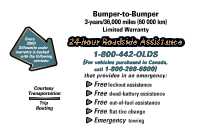 2
2 -
 3
3 -
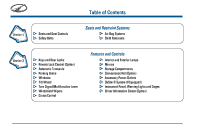 4
4 -
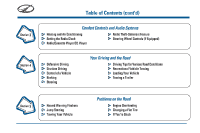 5
5 -
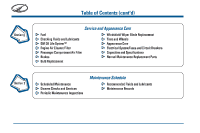 6
6 -
 7
7 -
8
-
9
-
10
-
11
-
12
-
13
-
14
-
15
-
16
-
17
-
18
-
19
-
20
-
21
-
22
-
23
-
24
-
25
-
26
-
27
-
28
-
29
-
30
-
31
-
32
-
33
-
34
-
35
-
36
-
37
-
38
-
39
-
40
-
41
-
42
-
43
-
44
-
45
-
46
-
47
-
48
-
49
-
50
-
51
-
52
-
53
-
54
-
55
-
56
-
57
-
58
-
59
-
60
-
61
-
62
-
63
-
64
-
65
-
66
-
67
-
68
-
69
-
70
-
71
-
72
-
73
-
74
-
75
-
76
-
77
-
78
-
79
-
80
-
81
-
82
-
83
-
84
-
85
-
86
-
87
-
88
-
89
-
90
-
91
-
92
-
93
-
94
-
95
-
96
-
97
-
98
-
99
-
100
-
101
-
102
-
103
-
104
-
105
-
106
-
107
-
108
-
109
-
110
-
111
-
112
-
113
-
114
-
115
-
116
-
117
-
118
-
119
-
120
-
121
-
122
-
123
-
124
-
125
-
126
-
127
-
128
-
129
-
130
-
131
-
132
-
133
-
134
-
135
-
136
-
137
-
138
-
139
-
140
-
141
-
142
-
143
-
144
-
145
-
146
-
147
-
148
-
149
-
150
-
151
-
152
-
153
-
154
-
155
-
156
-
157
-
158
-
159
-
160
-
161
-
162
-
163
-
164
-
165
-
166
-
167
-
168
-
169
-
170
-
171
-
172
-
173
-
174
-
175
-
176
-
177
-
178
-
179
-
180
-
181
-
182
-
183
-
184
-
185
-
186
-
187
-
188
-
189
-
190
-
191
-
192
-
193
-
194
-
195
-
196
-
197
-
198
-
199
-
200
-
201
-
202
-
203
-
204
-
205
-
206
-
207
-
208
-
209
-
210
-
211
-
212
-
213
-
214
-
215
-
216
-
217
-
218
-
219
-
220
-
221
-
222
-
223
-
224
-
225
-
226
-
227
-
228
-
229
-
230
-
231
-
232
-
233
-
234
-
235
-
236
-
237
-
238
-
239
-
240
-
241
-
242
-
243
-
244
-
245
-
246
-
247
-
248
-
249
-
250
-
251
-
252
-
253
-
254
-
255
-
256
-
257
-
258
-
259
-
260
-
261
-
262
-
263
-
264
-
265
-
266
-
267
-
268
-
269
-
270
-
271
-
272
-
273
-
274
-
275
-
276
-
277
-
278
-
279
-
280
-
281
-
282
-
283
-
284
-
285
-
286
-
287
-
288
-
289
-
290
-
291
-
292
-
293
-
294
-
295
-
296
-
297
-
298
-
299
-
300
-
301
-
302
-
303
-
304
-
305
-
306
-
307
-
308
-
309
-
310
-
311
-
312
-
313
-
314
-
315
-
316
-
317
-
318
-
319
-
320
-
321
-
322
-
323
-
324
-
325
-
326
-
327
-
328
-
329
-
330
-
331
-
332
-
333
-
334
-
335
-
336
-
337
-
338
-
339
-
340
-
341
-
342
-
343
-
344
-
345
-
346
-
347
-
348
-
349
-
350
-
351
-
352
-
353
-
354
-
355
-
356
-
357
-
358
-
359
-
360
-
361
-
362
-
363
-
364
-
365
-
366
-
367
-
368
-
369
-
370
-
371
-
372
-
373
-
374
-
375
-
376
-
377
-
378
-
379
-
380
-
381
-
382
-
383
-
384
-
385
-
386
-
387
-
388
-
389
-
390
-
391
-
392
-
393
-
394
-
395
-
396
-
397
-
398
-
399
-
400
-
401
-
402
-
403
-
404
-
405
-
406
-
407
-
408
-
409
-
410
-
411
-
412
-
413
-
414
-
415
-
416
-
417
-
418
-
419
-
420
-
421
-
422
 |
 |