
Konica Minolta bizhub C650 bizhub C650 Print Operations User Guide
Konica Minolta bizhub C650 Manual
 |
View all Konica Minolta bizhub C650 manuals
Add to My Manuals
Save this manual to your list of manuals |
Konica Minolta bizhub C650 manual content summary:
- Konica Minolta bizhub C650 | bizhub C650 Print Operations User Guide - Page 1
User's Guide [Print Operations] - Konica Minolta bizhub C650 | bizhub C650 Print Operations User Guide - Page 2
, carefully read the Quick Guide [Copy/Print/Fax/Scan/Box Operations] before using the machine. The illustrations used in this User's Guide may differ from the actual model. Trademarks and copyright - KONICA MINOLTA, the KONICA MINOLTA logo, and The essentials of imaging are registered trademarks of - Konica Minolta bizhub C650 | bizhub C650 Print Operations User Guide - Page 3
United States and use in source code must features or use of this software must display the following acknowledgment: "This product includes software developed by the OpenSSL Project for use developed by the OpenSSL Project for use OR SERVICES; LOSS OF USE, DATA WAY OUT OF THE USE OF THIS SOFTWARE, - Konica Minolta bizhub C650 | bizhub C650 Print Operations User Guide - Page 4
All advertising materials mentioning features or use of this software used are not cryptographic related. 4. If you include any Windows specific code (or a derivative thereof) from the apps directory (application code TO, PROCUREMENT OF SUBSTITUTE GOODS OR SERVICES; LOSS OF USE, DATA, OR PROFITS; OR - Konica Minolta bizhub C650 | bizhub C650 Print Operations User Guide - Page 5
SERVICES; LOSS OF USE, code are copyright © 2001-2003, Cambridge Broadband Ltd. All rights reserved. Redistribution and use Use is subject to license terms below. This distribution may include materials developed used to endorse or promote products derived from this software without specific C650 x-4 - Konica Minolta bizhub C650 | bizhub C650 Print Operations User Guide - Page 6
supporting documentation, and that the name of M.I.T. not be used in advertising or publicity pertaining to distribution of the software without specific makes no representations about the suitability of this software for any purpose. It is provided "as is" without express or implied warranty. C650 - Konica Minolta bizhub C650 | bizhub C650 Print Operations User Guide - Page 7
TECHNOLOGIES, INC. will not be held liable for any incidents caused by using this printing system or User's Guide. - Information included in this User's Guide is subject to change without notice. - KONICA MINOLTA BUSINESS TECHNOLOGIES, INC. maintains the copyright of the printer drivers. C650 x-6 - Konica Minolta bizhub C650 | bizhub C650 Print Operations User Guide - Page 8
C.F.R. 227.7202-1 through 227.7202-4, all U.S. Government End Users acquire the Software with only those rights set forth herein. 12. You agree that you will not export the Software in any form in violation of any applicable laws and regulations regarding export control of any countries. C650 x-7 - Konica Minolta bizhub C650 | bizhub C650 Print Operations User Guide - Page 9
Color Profile ADOBE SYSTEMS INCORPORATED COLOR PROFILE LICENSE AGREEMENT NOTICE TO USER: PLEASE READ THIS CONTRACT CAREFULLY. BY USING provide any support under Software except as expressly set forth in this United States and other countries. With the exception of referential use, you will not use - Konica Minolta bizhub C650 | bizhub C650 Print Operations User Guide - Page 10
control. 8. GOVERNMENT REGULATIONS If any part of the Software is identified as an export controlled item under the United rights to use the Software will be will not be governed by the conflict of law rules of any jurisdiction or the United Nations Convention on Contracts for the International Sale - Konica Minolta bizhub C650 | bizhub C650 Print Operations User Guide - Page 11
made from printing test with using TOYO INK's sheet-fed offset printing inks and TOYO INK's own printing conditions. "TOYO INK Standard Color on Coated paper" is compatible with "JAPAN COLOR". Agreement 1. The reproduction of images on a printer or a monitor using this ICC Profile do not completely - Konica Minolta bizhub C650 | bizhub C650 Print Operations User Guide - Page 12
. YOU SHALL ASSUME AND BE FULLY LIABLE AND RESPONSIBLE FOR ALL RISKS IN CONNECTION WITH YOUR USE OF THE PROFILE. DIC DOES NOT WARRANT THAT THE PROFILE IS FREE OF DEFECTS OR FLAWS OR WILL OPERATE WITHOUT INTERRUPTION, AND IS NOT RESPONSIBLE FORCORRECTING OR REPAIRING ANY DEFECTS OR FLAWS, FOR FEE - Konica Minolta bizhub C650 | bizhub C650 Print Operations User Guide - Page 13
BUSINESS INTERRUPTION OR THE LIKE), ARISING OUT OF THE USE OF, OR INABILITY TO USE, THE PROFILE AND BASED ON ANY THEORY OF LIABILITY law, that provision will be enforced to the maximum extent permissible, and the remaining provisions of this License Agreement will remain in full force . C650 x-12 - Konica Minolta bizhub C650 | bizhub C650 Print Operations User Guide - Page 14
COLOR PROFILE LICENSE AGREEMENT x-11 Contents ...x-13 About this user's guide ...x-21 User's Guides...x-21 Printed manuals ...x-21 User's Guide CD manuals ...x-21 Notations ...x-22 Screen images in this user's guide ...x-22 Using this user's guide ...x-22 1 Overview 1.1 Printer controller - Konica Minolta bizhub C650 | bizhub C650 Print Operations User Guide - Page 15
Operations on this machine...3-8 Printer driver settings...3-8 For Windows 2000/XP/Server 2003/Vista 3-8 For Windows NT 4.0 ...3-8 3.6 Port 9100 printing (Windows 2000/XP/Server 2003/Vista 3-10 Operations on this machine...3-10 Printer driver settings (Windows 2000/XP/Server 2003/Vista - Konica Minolta bizhub C650 | bizhub C650 Print Operations User Guide - Page 16
hole punching...4-11 Center Staple and Fold/Fold ...4-12 Paper Arrangement...4-12 Cover Mode and Transparency Interleave 4-13 Per Page Setting...4-13 Watermark ...4-13 Overlay...4-14 Copy Protect...4-14 Date/Time and Page Number ...4-14 Header/Footer ...4-14 Quality Adjustment ...4-15 Use Printer - Konica Minolta bizhub C650 | bizhub C650 Print Operations User Guide - Page 17
...6-10 Specifying duplex/booklet printing...6-11 Setting the binding margin ...6-11 Shifting images ...6-12 6.4 Specifying the Finish tab settings ...6-13 Stapling...6-13 Specifying the center staple and fold setting 6-13 Hole punching...6-14 Folding ...6-14 Specifying the output - Konica Minolta bizhub C650 | bizhub C650 Print Operations User Guide - Page 18
pages on one page 7-6 Printer specific options (Finishing Options 1 to 5 7-7 7.4 Setting options...7-9 8 Setting up the PPD driver (Mac OS X) 8.1 Settings...8-1 Page Setup dialog box ...8-1 Print dialog box...8-2 Common settings in the Print dialog box 8-4 8.2 Page Setup ...8-5 Page - Konica Minolta bizhub C650 | bizhub C650 Print Operations User Guide - Page 19
23 Setting up the printer driver...9-23 For Windows...9-23 For Macintosh OS X ...9-25 Recalling a job from the control panel...9-26 Entering user information and printing 9-26 Specifying documents to be printed from the ID & Print User Box 9-27 Logging in using an authentication unit 9-28 - Konica Minolta bizhub C650 | bizhub C650 Print Operations User Guide - Page 20
ICC profiles in the printer driver 9-36 Setting up the printer driver...9-36 For Windows...9-36 For Macintosh OS X ...9-37 10 Various settings 10.1 Print settings in Utility mode ...10-1 Default settings...10-1 To display the User Settings screen...10-1 PDL Setting...10-2 Number of Copies - Konica Minolta bizhub C650 | bizhub C650 Print Operations User Guide - Page 21
Specifications...12-1 12.2 Configuration page ...12-3 12.3 Font list ...12-4 PCL font list ...12-4 PS font list ...12-5 Demo page ...12-6 12.4 PPD driver (Linux and applications 12-7 PPD driver types...12-7 About the PPD driver for Linux ...12-7 To register the PPD driver for Linux ...12-7 To set - Konica Minolta bizhub C650 | bizhub C650 Print Operations User Guide - Page 22
this user's guide This User's Guide contains information for using the printing functions of the Konica Minolta printer controller. For details on the copy functions, scanning functions, box functions, and fax functions, refer to the respective User's Guide. This User's Guide is aimed at users who - Konica Minolta bizhub C650 | bizhub C650 Print Operations User Guide - Page 23
, please read this User's Guide. The following models support the advanced function. bizhub C650/C550/C451/C353/C253/C203 Notations Product name bizhub C650 This machine Integrated network controller Printer controller, including this machine, and printing system Microsoft Windows This machine or - Konica Minolta bizhub C650 | bizhub C650 Print Operations User Guide - Page 24
is sent from a printer driver installed on a computer - Support of network protocols including TCP/IP (IPv4/IPv6), IPX/SPX, and AppleTalk - Direct printing over a network using Web Service Printing (Windows Vista), SMB Printing (Windows), LPR Printing, and IPP printing - Access to settings for this - Konica Minolta bizhub C650 | bizhub C650 Print Operations User Guide - Page 25
the control panel. [Copy] This machine can be used as a copier. [Fax/Scan] This machine can be used as a fax or as a scanner. [User Box] This machine can be used to store jobs and as a document folder for forwarding data to a computer over the network. 2 Note You can use this machine as a printer - Konica Minolta bizhub C650 | bizhub C650 Print Operations User Guide - Page 26
driver Printer driver USB Print Ethernet (TCP/IP, IPX/SPX, or AppleTalk) Machine Printer controller PS/PCL processing (rasterizing) Original documents can be scanned in the copy function or network scan function while this machine is operating as a printer. To use this machine as a copier - Konica Minolta bizhub C650 | bizhub C650 Print Operations User Guide - Page 27
Web Browser (when using PageScope Web Connection) Macintosh Operating environment Windows NT Workstation /Server Version4.0 (Service Pack 6 or later), Windows 2000 Professional/Server (Service Pack 3 or later), Windows XP Home Edition/Windows XP Professional, Windows XP Professional x64 Edition - Konica Minolta bizhub C650 | bizhub C650 Print Operations User Guide - Page 28
addition, the Ethernet interface supports the TCP/IP (LDP/LPR, IPP, SMB), Web Service, IPX/SPX (NetWare), and AppleTalk (EtherTalk). USB interface Connect when using this printing system as a network printer. The USB interface can be connected to a computer running Windows. A USB cable is required - Konica Minolta bizhub C650 | bizhub C650 Print Operations User Guide - Page 29
" on page 1-5. 2 Note To update an existing printer driver, delete the existing printer driver first. For details, refer to "Uninstalling the printer driver" on page 2-12 and page 2-18. As necessary, set the interface timeout settings in the Utility mode on the control panel. For details, refer to - Konica Minolta bizhub C650 | bizhub C650 Print Operations User Guide - Page 30
required printer driver. Printer driver Konica Minolta PCL Driver (PCL driver) Konica Minolta PostScript Driver (PS driver) PostScript PPD driver (PS-PPD) Fax driver Page description language PCL6 PostScript3 Emulation Supported operating systems Windows NT Workstation /Server Version4.0 (Service - Konica Minolta bizhub C650 | bizhub C650 Print Operations User Guide - Page 31
of Windows that you are using. Refer to the table below for the appropriate procedure for installing the printer driver on your computer. Printer driver Konica Minolta PCL Driver Konica Minolta PostScript Driver Fax driver Konica Minolta PCL Driver Konica Minolta PostScript Driver PostScript - Konica Minolta bizhub C650 | bizhub C650 Print Operations User Guide - Page 32
.exe", and then continue with step 3. 2 Click "Printer Install". - When installing the printer driver under Windows Vista and the User Account Control dialog box appears, click the [Yes] button or the [Continue] button. The installation of the printer driver starts. 3 Click the [AGREE] button if you - Konica Minolta bizhub C650 | bizhub C650 Print Operations User Guide - Page 33
Installation Settings dialog box, click the [Install] button. Follow the on-screen instructions to complete the installation. 2 Note When the Windows Logo Test, Windows Security or Digital Signature message appears, click the [Continue] button or the [Yes] button. Installing the printer driver using - Konica Minolta bizhub C650 | bizhub C650 Print Operations User Guide - Page 34
the printer driver, and then click the [OK] button. - Select the specified folder according to the printer driver to be used, the operating system, and the language. - Printer drivers that can be selected: Windows XP/Server 2003: PCL driver, PS driver, Fax driver 10 Click the [OK] button. C650 2-5 - Konica Minolta bizhub C650 | bizhub C650 Print Operations User Guide - Page 35
the control panel is in the classic view, double-click "Printers". The Printers window appears. 4 Click "Add a printer" on the toolbar. The "Add Printer" dialog box appears. 5 Click "Add a local printer". - For details on installing the printer driver in a network environment, refer to "Setting up - Konica Minolta bizhub C650 | bizhub C650 Print Operations User Guide - Page 36
driver, and then click the [OK] button. Select the specified folder according to the printer driver to be used, the operating system, and the language. Printer drivers that can be selected: Windows Vista: PCL driver, PS driver, Fax driver 10 Click the [OK] button. The "Printers" list appears. C650 - Konica Minolta bizhub C650 | bizhub C650 Print Operations User Guide - Page 37
the on-screen instructions. - If the User Account Control dialog box appears, click the [Continue] button. - If the Windows Security dialog box appears, click "Install this driver software anyway". - When using a network connection, perform a test print after the network settings have been specified - Konica Minolta bizhub C650 | bizhub C650 Print Operations User Guide - Page 38
according to the printer driver to be used, the operating system, and the language. Printer drivers that can be selected: Windows Vista: PCL driver, PS driver, Fax driver 10 Click the [Next] button. 11 Follow the on-screen instructions. - If the User Account Control dialog box appears, click the - Konica Minolta bizhub C650 | bizhub C650 Print Operations User Guide - Page 39
driver, PS driver, Fax driver Windows NT 4.0: PCL driver, Fax driver 10 Click the [OK] button. The "Printers" list appears. 11 Click the [Next] button. 12 If the screen for specifying the port appears, select "LPT1" here. 13 Follow the on-screen instructions. - When the Digital Signature dialog box - Konica Minolta bizhub C650 | bizhub C650 Print Operations User Guide - Page 40
used, the operating system, and the language. - Printer drivers that can be selected: Windows XP/Server 2003: PCL driver, PS driver, Fax driver 7 Click the [Next] button, and then follow the on-screen instructions. - When the Digital Signature dialog box appears, click the [Continue] button. C650 - Konica Minolta bizhub C650 | bizhub C650 Print Operations User Guide - Page 41
this machine appears. 5 Specify the desired printer driver name, and then click the [Next] button. Printer drivers that can be selected: Windows Vista: PCL driver, PS driver, Fax driver 6 Follow the on-screen instructions. - If the User Account Control dialog box appears, click the [Continue] button - Konica Minolta bizhub C650 | bizhub C650 Print Operations User Guide - Page 42
printer driver is not included. 1 For Windows 2000/NT 4.0, click the [Start] button, point to "Settings", and then click "Printers". For Windows XP/Server 2003, click the [Start] button, and then click "Printers and Faxes". For Windows Vista, click the [Start] button, and then click "Control panel - Konica Minolta bizhub C650 | bizhub C650 Print Operations User Guide - Page 43
Reminder Be sure to restart the computer. 2 Note Even if the printer driver is deleted using the method described above, the model information file will remain in the computer for Windows 2000/XP/Server 2003. Therefore, the driver may not be able to be overwritten when reinstalling the same version - Konica Minolta bizhub C650 | bizhub C650 Print Operations User Guide - Page 44
started when the Macintosh computer was turned on. 3 Open the desired folder on the CD-ROM that contains the printer driver. Select the specified folder according to the printer driver to be used, the operating system, and the language. 4 Select the Mac OS version being used, and then copy the drive - Konica Minolta bizhub C650 | bizhub C650 Print Operations User Guide - Page 45
X 10.2 and Mac OS X 10.3, skip to step 4. - If usable printers have already been set up, the Add Printer dialog box does not appear. 3 If this machine appears as a printer with a Bonjour connection, select "KONICA MINOLTA" from the "Print Using" drop-down list, select "KONICA MINOLTA C650 PS" in the - Konica Minolta bizhub C650 | bizhub C650 Print Operations User Guide - Page 46
printer driver 2 6 Select "KONICA MINOLTA C650 PS", and then click the [Add] button. The selected printer is registered in the printer list. For Mac OS 9.2 After connecting this machine, it can be used as a printer by selecting "PostScript printer" under "Chooser" and by specifying the printer - Konica Minolta bizhub C650 | bizhub C650 Print Operations User Guide - Page 47
the "Trash" icon. For Mac OS 10.2, drag all the "KONICA MINOLTA C650" folders, which are located in "Library" - "Printers" - "PPD Plugins", to the "Trash" icon. 6 Restart the computer. This completes the printer driver uninstallation procedure. For Mac OS 9.2 1 Drag PPD file "KONICAMINOLTAC650UVxxx - Konica Minolta bizhub C650 | bizhub C650 Print Operations User Guide - Page 48
3 3 Setting up network printing 3.1 Overview of network functions Network functions By connecting this machine to a network through the Ethernet port, this printing system can be used as a network printer. Printing system Ethernet This machine Network Hub This printing system supports 10Base - Konica Minolta bizhub C650 | bizhub C650 Print Operations User Guide - Page 49
Port 9100 printing Protocol used TCP/IP, NetBEUI TCP/IP TCP/IP TCP/IP Windows 2000 o Windows XP/Vista o o o o o o o Windows NT 4.0 o Windows Server 2003 o o o o 2 Reminder Before setting up network printing, install the printer driver. For details on installing the printer driver - Konica Minolta bizhub C650 | bizhub C650 Print Operations User Guide - Page 50
machine. 2 Reminder When specifying network settings, follow the instructions of the network administrator. 1 Press the [Utility/Counter] key in this machine's control panel, touch [Administrator Settings], and then enter the administrator password. - The administrator password is required to enter - Konica Minolta bizhub C650 | bizhub C650 Print Operations User Guide - Page 51
Setting up network printing 3 2 Reminder When turning the power off, then on again, wait at least 10 seconds before turning the power on again; otherwise, this machine may not function properly. ! Detail Although the method for entering a static IP address without using the DHCP server is - Konica Minolta bizhub C650 | bizhub C650 Print Operations User Guide - Page 52
Web Connection, you can change the network settings of this machine from a computer. Use your Web browser to directly access PageScope Web User's Guide [PageScope Web Connection Operations]. 2 Note If the user authentication function is enabled, you must enter a user name and password. C650 - Konica Minolta bizhub C650 | bizhub C650 Print Operations User Guide - Page 53
can also be specified from PageScope Web Connection. 1 Press the [Utility/Counter] key in this machine's control panel, touch [Administrator Settings], and then enter the administrator password. - The administrator password is required to enter Administrator mode. Ask the administrator of this - Konica Minolta bizhub C650 | bizhub C650 Print Operations User Guide - Page 54
3 Printer driver settings 1 For Windows 2000, click the [Start] button, point to "Settings", and then click "Printers". For Windows XP/Server 2003, click the [Start] button, and then click "Printers and Faxes". For Windows Vista, click the [Start] button, and then click "Control panel", "Hardware - Konica Minolta bizhub C650 | bizhub C650 Print Operations User Guide - Page 55
Windows 2000, Windows XP, Windows NT 4.0, Windows Server 2003, and Windows Vista. TCP/IP is used as the network protocol. Operations on this machine Set the IP address for this machine. For the setting procedure, refer to "Setting the IP address for this machine" on page 3-3. Printer driver settings - Konica Minolta bizhub C650 | bizhub C650 Print Operations User Guide - Page 56
Setting up network printing 3 ! Detail If LPD printing is not used with the LPD setting, printing cannot be performed. To specify the LPD settings, refer to User's Guide [PageScope Web Connection Operations]. C650 3-9 - Konica Minolta bizhub C650 | bizhub C650 Print Operations User Guide - Page 57
this machine" on page 3-3. Printer driver settings (Windows 2000/XP/Server 2003/Vista) When using Port 9100 to print, change the printer driver port to the Port 9100 port. 1 For Windows 2000, click the [Start] button, point to "Settings", and then click "Printers". For Windows XP/Server 2003, click - Konica Minolta bizhub C650 | bizhub C650 Print Operations User Guide - Page 58
can also be specified from PageScope Web Connection. 1 Press the [Utility/Counter] key in this machine's control panel, touch [Administrator Settings], and then enter the administrator password. - The administrator password is required to enter Administrator mode. Ask the administrator of this - Konica Minolta bizhub C650 | bizhub C650 Print Operations User Guide - Page 59
up network printing 3 - Printer Information: Specify the printer manufacturer details (up to 127 characters). 6 Touch [Support Information], and then specify the print operations supported by IPP. After specifying the settings, touch [OK]. 7 Touch [Forward]. 8 Specify settings for the following - Konica Minolta bizhub C650 | bizhub C650 Print Operations User Guide - Page 60
seconds before turning the power on again; otherwise, this machine may not function properly. ! Detail When using IPPS printing, a certificate must be registered to this machine. For details, refer to User's Guide [PageScope Web Connection Operations]. Installing the printer driver (Windows 2000/XP - Konica Minolta bizhub C650 | bizhub C650 Print Operations User Guide - Page 61
have been specified, you can use the printer in the same way as a default local printer. Installing the printer driver (Windows Vista) 1 Insert the printer driver CD-ROM into the computer's CD-ROM drive. 2 Click the [Start] button, and then click "Control Panel". 3 Click "Hardware and Sound", and - Konica Minolta bizhub C650 | bizhub C650 Print Operations User Guide - Page 62
User Account Control dialog box appears, click the [Continue] button. - If Verify the publisher" in the Windows Security dialog box appears, click "Install this driver software anyway". 14 Click the [Finish] button. 15 When installation is complete, make sure that the icon of the installed printer - Konica Minolta bizhub C650 | bizhub C650 Print Operations User Guide - Page 63
. 1 Press the [Utility/Counter] key in this machine's control panel, touch [Administrator Settings], and then enter the administrator password. - The administrator password is required to enter Administrator mode. Ask the administrator of this machine for the administrator password. C650 3-16 - Konica Minolta bizhub C650 | bizhub C650 Print Operations User Guide - Page 64
Print Settings], and then specify settings for the following. - NetWare Print Settings: Select [ON]. - NetWare Print Mode: Select [Nprinter/Rprinter]. 5 Specify settings for the following. After specifying the settings, touch [Close]. - Print Server Name: Specify the Print Server Name. C650 3-17 - Konica Minolta bizhub C650 | bizhub C650 Print Operations User Guide - Page 65
network environment, select [OFF].) 8 In the NetWare Settings screen, touch [Close]. 9 Restart this machine (turn the main power off, then on again). 10 Use the NetWare server console to display the print server screen, and then check that the created printer is shown as "Waiting for Job" for the - Konica Minolta bizhub C650 | bizhub C650 Print Operations User Guide - Page 66
can also be specified from PageScope Web Connection. 1 Press the [Utility/Counter] key in this machine's control panel, touch [Administrator Settings], and then enter the administrator password. - The administrator password is required to enter Administrator mode. Ask the administrator of this - Konica Minolta bizhub C650 | bizhub C650 Print Operations User Guide - Page 67
ON]. - NetWare Print Mode: Select [PServer]. 5 Specify settings for the following. After specifying the settings, touch [Forward]. - Print Server Name: Specify the print server name created with Pconsole. - Print Server Password: Specify only when setting from the NetWare server. - Polling Interval - Konica Minolta bizhub C650 | bizhub C650 Print Operations User Guide - Page 68
. After specifying the settings, touch [Close]. - User Authentication Setting (NDS): Select [ON]. (Depending on the network environment, select [OFF].) 9 In the NetWare Settings screen, touch [Close]. 10 Restart this machine (turn the main power off, then on again). 11 Use the NetWare server - Konica Minolta bizhub C650 | bizhub C650 Print Operations User Guide - Page 69
can also be specified from PageScope Web Connection. 1 Press the [Utility/Counter] key in this machine's control panel, touch [Administrator Settings], and then enter the administrator password. - The administrator password is required to enter Administrator mode. Ask the administrator of this - Konica Minolta bizhub C650 | bizhub C650 Print Operations User Guide - Page 70
the Print Server Name. - Printer Number: Specify the printer number (0 to 254), or select [Auto]. 6 Touch [Close]. 7 In the NetWare Settings screen, touch [User Authentication Setting (NDS)], and then specify settings for the following. After specifying the settings, touch [Close]. C650 3-23 - Konica Minolta bizhub C650 | bizhub C650 Print Operations User Guide - Page 71
].) 8 In the NetWare Settings screen, touch [Close]. 9 Restart this machine (turn the main power off, then on again). 10 Use the NetWare server console to load PSERVER.NLM. 11 Use the NetWare server console to display the print server screen, and then check that "C650" (created printer) is shown as - Konica Minolta bizhub C650 | bizhub C650 Print Operations User Guide - Page 72
Utility/Counter] key in this machine's control panel, touch [Administrator Settings], and then enter the administrator password. - The administrator password environment.) 4 In the NetWare Settings screen, touch [NetWare Print Settings], and then specify settings for the following. After the - Konica Minolta bizhub C650 | bizhub C650 Print Operations User Guide - Page 73
name created in NWadmin. - Print Server Password: Specify only when setting from the NetWare server. - Polling Interval: Specify 1. (Change as necessary.) - NDS/Bindery Setting: Select [NDS]. 6 Specify settings for the following. After specifying the settings, touch [Close]. - File Server Name - Konica Minolta bizhub C650 | bizhub C650 Print Operations User Guide - Page 74
. After specifying the settings, touch [Close]. - User Authentication Setting (NDS): Select [ON]. (Depending on the network environment, select [OFF].) 9 In the NetWare Settings screen, touch [Close]. 10 Restart this machine (turn the main power off, then on again). 11 Use the NetWare server - Konica Minolta bizhub C650 | bizhub C650 Print Operations User Guide - Page 75
folder according to the printer driver to be used, the operating system, and the language. - Printer drivers that can be selected: Windows 2000/XP/Server 2003/Vista: PCL driver, PS driver Windows NT 4.0: PCL driver 5 Follow the on-screen instructions to complete the installation. C650 3-28 - Konica Minolta bizhub C650 | bizhub C650 Print Operations User Guide - Page 76
machine to a Macintosh computer using AppleTalk, the AppleTalk settings must be specified. 1 Press the [Utility/Counter] key in this machine's control panel, touch [Administrator Settings], and then enter the administrator password. - The administrator password is required to enter Administrator - Konica Minolta bizhub C650 | bizhub C650 Print Operations User Guide - Page 77
before turning the power on again; otherwise, this machine may not function properly. Setting the Macintosh computer Use the Macintosh computer that is connected to specify the TCP/IP and AppleTalk settings. 2 Note For network settings, consult the network administrator. For the printer driver - Konica Minolta bizhub C650 | bizhub C650 Print Operations User Guide - Page 78
that the "Make AppleTalk Active" check box is selected. 7 Click the close button at the top left of the dialog box. The "Apply configuration changes?" message appears. 8 Click the [Apply] button. The changed setting are saved. For Mac OS 9.2 1 On the Apple menu, point to "Control Panel", and then - Konica Minolta bizhub C650 | bizhub C650 Print Operations User Guide - Page 79
each model in the printer driver dialog box that appears. For details, refer to "Setting up the PCL driver (Windows)" on page 5-1, or "Setting up the PostScript driver (Windows)" on page 6-1. - If the changed settings are not saved in the Print dialog box, the original settings are restored when the - Konica Minolta bizhub C650 | bizhub C650 Print Operations User Guide - Page 80
driver Properties dialog box. 1 For Windows 2000/NT 4.0, click the [Start] button, point to "Settings", and then click "Printers". For Windows XP/Server 2003, click the [Start] button, and then click "Printers and Faxes". For Windows Vista, click the [Start] button, and then click "Control panel - Konica Minolta bizhub C650 | bizhub C650 Print Operations User Guide - Page 81
. 2 Note If the printer name does not appear in the list, select the printer from the Chooser window. For details, refer to "Selecting a printer" on page 2-16. The Print dialog box differs depending on the application. The settings can be saved by clicking the [Save Settings] button. C650 4-3 - Konica Minolta bizhub C650 | bizhub C650 Print Operations User Guide - Page 82
margin. Prints by shifting the entire print image. Specifies stapling. Specifies hole punching. Specifies folding. Specifies to saddle stitch a printed document. Printer driver PCL Post Script o o o o o o o o o o o o o o o o o o o o o o o o o + (N in 1 printing only - Konica Minolta bizhub C650 | bizhub C650 Print Operations User Guide - Page 83
image. Prints using a gloss finish. Specifies the replacement of TrueType fonts with printer fonts. Printer driver PCL Post Script o o o o o o o o o o o o o o o o o o o o o o o o o o o o o + (No two color se- lection) o o o o o o o o o o Mac OS X Mac - Konica Minolta bizhub C650 | bizhub C650 Print Operations User Guide - Page 84
size Output size Operating system Windows Mac OS X Mac OS 9.2 Printer driver Konica Minolta PCL Konica Minolta PostScript PostScript PPD Refer to "Specifying the Basic tab settings" on page 5-5 "Specifying the Basic tab settings" on page 6-6 "Page Attributes (basic settings)" on page 8-5 "Page - Konica Minolta bizhub C650 | bizhub C650 Print Operations User Guide - Page 85
enlargement or reduction ratio using numeric values. ABCD Original ABCD ABCD Reduced Enlarged ABCD ABC Operating system Windows Mac OS X Mac OS 9.2 Printer driver Konica Minolta PCL Konica Minolta PostScript PostScript PPD Refer to "Specifying the Basic tab settings" on page 5-5 "Specifying - Konica Minolta bizhub C650 | bizhub C650 Print Operations User Guide - Page 86
"Save in User Box", which saves documents in a document folder. Operating system Windows Mac OS X Mac OS 9.2 Printer driver Konica Minolta PCL Konica Minolta PostScript PostScript PPD Refer to "Specifying the Basic tab settings" on page 5-5 "Specifying the Basic tab settings" on page 6-6 "Output - Konica Minolta bizhub C650 | bizhub C650 Print Operations User Guide - Page 87
specify not to print blank pages in the data. Operating system Windows Printer driver Konica Minolta PCL Refer to "Specifying the Layout tab settings" on page 5-9 "Specifying the Basic tab settings" on page 6-6 "Print dialog box" on page 8-2 "Layout/Finish" on page 8-11 "Layout (printing multiple - Konica Minolta bizhub C650 | bizhub C650 Print Operations User Guide - Page 88
Operating system Windows Mac OS X Mac OS 9.2 Printer driver Konica Minolta PCL Konica Minolta PostScript PostScript PPD Refer to "Specifying the Layout tab settings" on page 5-9 "Specifying the Layout tab settings" on page 6-10 "Layout/Finish" on page 8-11 "Printer specific options (Finishing - Konica Minolta bizhub C650 | bizhub C650 Print Operations User Guide - Page 89
The staple function is available only when the optional finisher is installed. The hole punch function is available only when the punch kit or the Z folding unit is installed with the optional finisher. Operating system Windows Mac OS X Mac OS 9.2 Printer driver Konica Minolta PCL Konica Minolta - Konica Minolta bizhub C650 | bizhub C650 Print Operations User Guide - Page 90
staples. Half-fold Tri-fold Z-fold Center Staple and Fold 2 Reminder Center Staple unit is installed with the optional finisher. Operating system Windows Mac OS X Mac OS 9.2 Printer driver Konica Minolta PCL Konica Minolta PostScript PostScript PPD Refer to "Specifying the Finish tab settings - Konica Minolta bizhub C650 | bizhub C650 Print Operations User Guide - Page 91
system Windows Mac OS X Mac OS 9.2 Printer driver Konica Minolta PCL Konica Minolta PostScript PostScript PPD Refer to "Specifying the Cover Mode tab settings" on page 5-15 "Specifying the Cover Mode tab settings" on page 6-16 "Cover Mode/Transparency Interleave" on page 8-17 "Printer specific - Konica Minolta bizhub C650 | bizhub C650 Print Operations User Guide - Page 92
/Composition" on page 8-21 OS Windows Mac OS X Printer driver Konica Minolta PCL Konica Minolta PostScript PostScript PPD Refer to "Specifying the Stamp/Composition tab settings" on page 5-17 "Specifying the Stamp/Composition tab settings" on page 6-18 "Stamp/Composition" on page 8-21 C650 4-14 - Konica Minolta bizhub C650 | bizhub C650 Print Operations User Guide - Page 93
image quality. Operating system Windows Mac OS X Mac OS 9.2 Printer driver Konica Minolta PCL Konica Minolta PostScript PostScript PPD Refer to "Specifying the Quality tab settings" on page 5-26 "Specifying the Quality tab settings" on page 6-27 "Quality" on page 8-27 "Printer specific options - Konica Minolta bizhub C650 | bizhub C650 Print Operations User Guide - Page 94
can be specified in the printer driver setup dialog box, which can be displayed from the Printers window (for Windows XP/Server 2003, Printers and Faxes window). Settings specified in the printer driver setup dialog box displayed using the procedure described below will be applied when printing from - Konica Minolta bizhub C650 | bizhub C650 Print Operations User Guide - Page 95
specified with each printer driver, refer to the following: Konica Minolta PCL Driver: "Setting up the PCL driver (Windows)" on page 5-1 Konica Minolta PostScript Driver: "Setting up the PostScript driver (Windows)" on page 6-1 Use each tab in the dialog box to set up the printer driver. To specify - Konica Minolta bizhub C650 | bizhub C650 Print Operations User Guide - Page 96
the [Save Settings] button. 2 Note The settings cannot be saved from the Page Setup dialog box. "General" cannot be saved from the Print dialog box. For details on the settings that can be specified in the printer driver, refer to "Setting up the PPD driver (Mac OS 9.2)" on page 7-1. C650 4-18 - Konica Minolta bizhub C650 | bizhub C650 Print Operations User Guide - Page 97
the PCL driver (Windows) 5.1 Settings Common settings The following describes the common settings and buttons that are displayed on all tabs. Button OK Cancel Help Add (Favorite Setting) Edit (Favorite Setting) Default Printer Information View Function Click this button to close the dialog box and - Konica Minolta bizhub C650 | bizhub C650 Print Operations User Guide - Page 98
the entire print image. Click the [Image Shift Settings] button to specify the image shift values. Item Staple Center Staple and Fold Punch Fold Output Tray Paper Arrangement Function Specifies stapling. Specifies to saddle stitch a printed document. Specifies hole punching. Specifies folding - Konica Minolta bizhub C650 | bizhub C650 Print Operations User Guide - Page 99
image. Prints with a gloss. Selects whether the fonts are downloaded to the printer as bitmap or outline. Selects whether to use TrueType fonts or the printer fonts when printing. Other tab Item Excel Job Control Remove White Background Thin Line Support Check Driver Version Function Controls - Konica Minolta bizhub C650 | bizhub C650 Print Operations User Guide - Page 100
from the printer driver. Uses the paper that was added in [Server Properties] of the printer folder. Verifies the authentication settings for this machine before printing and displays a message if the settings are not compatible. Displays the User Authentication/Account Track dialog box when a print - Konica Minolta bizhub C650 | bizhub C650 Print Operations User Guide - Page 101
specify "Paper Tray" as the tray to be used with the printer driver. On the machine side, load 11 × 17 size paper into the tray to be used, select the tray in [Basic screen (Paper)], select [Change Tray Setting] - [Wide Paper] on the control panel, specify "8-1/2 × 11W", and then check that [Auto - Konica Minolta bizhub C650 | bizhub C650 Print Operations User Guide - Page 102
"Paper Size" drop-down list, select "Custom Size". The Custom Size Settings dialog box appears. 2 Specify settings for the following: - Width: Specifies the width of the custom paper size according to the selected measurement unit. - Length: Specifies the length of the custom paper size according to - Konica Minolta bizhub C650 | bizhub C650 Print Operations User Guide - Page 103
are required to enter the ID and password in this machine's control panel. Select when printing highly confidential documents. - Save in User Box: Saves the document to be printed in a box on this machine. - Save in User Box and Print: Saves the document in a box and prints at the same time. - Proof - Konica Minolta bizhub C650 | bizhub C650 Print Operations User Guide - Page 104
Setting up the PCL driver (Windows) 5 - ID & Print: Saves the document to be printed in the ID & Print User Box on this machine. When printing, user authentication must be performed via the control panel of this machine. ! Detail For details on Output Method, refer to "Function detail description" - Konica Minolta bizhub C650 | bizhub C650 Print Operations User Guide - Page 105
up the PCL driver (Windows) 5 5.3 Specifying the Layout tab settings Printing multiple pages on one page (N in 1, Poster Mode) You can specify whether to print multiple pages of text on one page with N in 1 printing, or print one sheet of an original document divided on multiple pages with - Konica Minolta bizhub C650 | bizhub C650 Print Operations User Guide - Page 106
up the PCL driver (Windows) 5 2 Note When entering multiple page numbers, separate the page numbers with commas such as "2, 4, 6" or enter a page range using a hyphen such as "6-10". The "Chapters" check box can only be selected when the duplex printing or the booklet printing setting is enabled - Konica Minolta bizhub C650 | bizhub C650 Print Operations User Guide - Page 107
the PCL driver (Windows) 5 Shifting images The entire print image of a document is shifted and then printed. You can use this function when you want to adjust the print position. 1 Click the Layout tab. 2 Select the "Image Shift" check box. 3 To set the image shift settings, click the [Image Shift - Konica Minolta bizhub C650 | bizhub C650 Print Operations User Guide - Page 108
up the PCL driver (Windows) 5 5.4 Specifying the Finish tab settings Stapling Multiple-page documents can be stapled. 2 Reminder The staple function is available only when the optional finisher is installed. 1 Click the Finish tab. 2 Select the "Staple" check box. 3 From the drop-down list - Konica Minolta bizhub C650 | bizhub C650 Print Operations User Guide - Page 109
Setting up the PCL driver (Windows) 5 Hole punching Holes can be punched into the printed document. 2 Reminder The hole punch function is available only when the punch kit or the Z folding unit is installed with the optional finisher. 1 Click the Finish tab. 2 Select the "Punch" check box. 3 From - Konica Minolta bizhub C650 | bizhub C650 Print Operations User Guide - Page 110
Setting up the PCL driver (Windows) 5 Specifying the procedure for adjusting the binding position You can specify the procedure for adjusting the binding position Arranging Papers". 1 Click the Finish tab. 2 From the "Paper Arrangement" drop-down list, specify the processing method. C650 5-14 - Konica Minolta bizhub C650 | bizhub C650 Print Operations User Guide - Page 111
driver (Windows) 5 5.5 Specifying the Cover Mode tab settings Printing documents with a front cover/back cover 1 Click the Cover Mode tab. 2 Select the "Front Cover" and "Back Cover" check boxes. 3 From the "Front Cover" and "Back Cover" drop-down lists, select the desired print settings boxes. - Konica Minolta bizhub C650 | bizhub C650 Print Operations User Guide - Page 112
Type: Specifies Print Insert, Insert Blank Sheet, Print (1-Sided), and Print (2-Sided). - Paper Tray: Specifies the paper tray. - Staple: Specifies the number of staples and the stapling position. 7 Click the [OK] button. 2 Note To change existing print settings, select the desired row and change - Konica Minolta bizhub C650 | bizhub C650 Print Operations User Guide - Page 113
up the PCL driver (Windows) 5 5.6 Specifying the Stamp/Composition tab settings Printing a watermark You can print specific text in the background as a watermark. 1 Click the Stamp/Composition tab. 2 Select the "Watermark" check box. 3 From the list, select the watermark that you want to print - Konica Minolta bizhub C650 | bizhub C650 Print Operations User Guide - Page 114
the PCL driver (Windows) 5 5 Specify settings for the following: - Watermark Name: Enters the name of the on page 5-20. 1 Create the print data using any application. 2 From the [File] menu, select "Print". 3 Select this machine in "Printer Name", and then click the [Properties] button or - Konica Minolta bizhub C650 | bizhub C650 Print Operations User Guide - Page 115
Setting up the PCL driver (Windows) 5 5 Select the "Print in Overlay" check box. 6 From the list, select the overlay that you want to print. 7 Click the [Edit] button under "Print in Overlay". The Edit Print In Overlay dialog box dialog box appears again. 11 Click the [Print] button. The - Konica Minolta bizhub C650 | bizhub C650 Print Operations User Guide - Page 116
Setting up the PCL driver (Windows) 5 Editing an overlay file To use an overlay, an overlay file must be created and added to the overlay file list. You can create and save a new overlay file by selecting the "Create Overlay File" check box, specifying the document that you want to create as an - Konica Minolta bizhub C650 | bizhub C650 Print Operations User Guide - Page 117
Setting up the PCL driver (Windows) 5 Instead of executing a print, the overlay file is saved and is added to the list to be used [Delete] button in the Edit Print In Overlay dialog box, the selected overlay file can be deleted from the check box. 3 Click the [Edit] button under "Copy - Konica Minolta bizhub C650 | bizhub C650 Print Operations User Guide - Page 118
Setting up the PCL driver (Windows) 5 4 Specify the copy protection Number: Embeds the serial number of this machine in a pattern. - Distribution Control Number: Embeds the number of copies in a pattern when printing multiple copies to read the copy protect settings of the machine. C650 5-22 - Konica Minolta bizhub C650 | bizhub C650 Print Operations User Guide - Page 119
contrast can be specified by clicking the [Adjust Color] button. 6 Click the [OK] button. 2 Note Click the [Acquire Device Information] button to communicate with this machine and read the status of the settings specified on this machine. You cannot use this function if you are not connected to or - Konica Minolta bizhub C650 | bizhub C650 Print Operations User Guide - Page 120
Setting up the PCL driver (Windows time. - Text Color: Specifies the text color to print. - check box. 3 From the drop-down list, select the Header/Footer setting. - box appears. 5 Specify the print settings and pages for the header and the footer. - The number of digits for the distribution control - Konica Minolta bizhub C650 | bizhub C650 Print Operations User Guide - Page 121
addition, when use the [Acquire Device Information] function, in the Administrator Settings of the machine, select [System Connection] - [Open API Settings] - [Authentication], and then select "OFF". For details, refer to "Authentication Setting for the OpenAPI Settings" on page 10-38. C650 5-25 - Konica Minolta bizhub C650 | bizhub C650 Print Operations User Guide - Page 122
driver (Windows) 5 5.7 Specifying the Quality tab settings Adjusting the color and quality 1 Click the Quality tab. 2 Specify settings for the following: Select Color Quality Adjustment Color Settings Resolution Pattern Image Compression Glossy Mode Specifies the color for printing. Full Color - Konica Minolta bizhub C650 | bizhub C650 Print Operations User Guide - Page 123
driver (Windows) 5 Font Settings You can replace the TrueType fonts used in Windows with the printer fonts of this machine. 1 Click the Quality tab. 2 Click the [Font Settings] button. 3 Specify settings for the following: - Download Font Format: Selects the TrueType font downloading method. - Use - Konica Minolta bizhub C650 | bizhub C650 Print Operations User Guide - Page 124
" setting cannot be used with Windows XP Professional x64, Windows Vista x64 or Windows Server 2003 x64. The "Excel Job Control" setting can only be changed when the printer driver dialog box is displayed from the Printers window (for Windows XP/Server 2003, Printers and Faxes window). C650 - Konica Minolta bizhub C650 | bizhub C650 Print Operations User Guide - Page 125
options and the user authentication and account track functions are not specified on the Configure tab, the option functions cannot be used from the printer driver. When installing options or using the authentication function, be sure to make the proper settings. 1 For Windows 2000/NT 4.0, click - Konica Minolta bizhub C650 | bizhub C650 Print Operations User Guide - Page 126
machine and the paper specified from the printer driver are different, printing cannot be performed correctly. Be sure to make the proper settings. 1 Click the Configure tab. 2 Click the [Paper Tray Settings] button. The Paper Tray Settings dialog box appears. 3 Select the desired tray in "Paper - Konica Minolta bizhub C650 | bizhub C650 Print Operations User Guide - Page 127
and Faxes". - For Windows Vista, if the control panel is in the classic view, double-click "Printers". 2 Right-click the icon of the installed printer, and then click "Properties". 3 Click the Settings tab. 4 Specify settings for the following: - EMF Spool: When using an original system environment - Konica Minolta bizhub C650 | bizhub C650 Print Operations User Guide - Page 128
driver (Windows) 5 Registering custom paper sizes You can register the custom paper sizes that you use often. The paper registered is shown in the paper size list and can be selected like the other paper sizes. 1 Click the Settings Name" text box. From the Save Custom Size dialog box, the selected - Konica Minolta bizhub C650 | bizhub C650 Print Operations User Guide - Page 129
PCL driver (Windows) 5 5.11 Saving the driver settings You can save the setting values of the changed driver and recall them as necessary. Saving the driver settings 1 Change the driver settings from the Basic tab and the Layout tab. 2 Click the [Add] button next to the "Favorite Setting" drop - Konica Minolta bizhub C650 | bizhub C650 Print Operations User Guide - Page 130
up the PCL driver (Windows) 5 Recalling the settings You can select the settings to recall from the "Favorite Setting" drop-down list on the Printing Preferences dialog box. The setting values are recalled, and the settings for the printer driver are changed. Editing the settings You can edit - Konica Minolta bizhub C650 | bizhub C650 Print Operations User Guide - Page 131
exporting the driver settings You can also save (export) or read (import) the settings that were specified to a file. This comes in handy when you want to use the same settings on another computer. 1 In the Printing Preferences dialog box, click the [Edit] button next to the "Favorite Setting" drop - Konica Minolta bizhub C650 | bizhub C650 Print Operations User Guide - Page 132
PostScript driver (Windows) 6.1 Settings Common settings The following describes the common settings and buttons that are displayed on all tabs. Button OK Cancel Help Add (Favorite Setting) Edit (Favorite Setting) Default Printer Information View Function Click this button to close the dialog box - Konica Minolta bizhub C650 | bizhub C650 Print Operations User Guide - Page 133
the entire print image. Click the [Image Shift Settings] button to specify the image shift values. Item Staple Center Staple and Fold Punch Fold Output Tray Paper Arrangement Function Specifies stapling. Specifies to saddle stitch a printed document. Specifies hole punching. Specifies folding - Konica Minolta bizhub C650 | bizhub C650 Print Operations User Guide - Page 134
Mode Font Settings Download Font Format Use Printer Fonts Function Specifies the color for printing. Adjusts the image quality. You can select "Simple" to adjust entire documents or "Detailed" to adjust the text, photos, and charts in the document. The profile can also be controlled. Prints with - Konica Minolta bizhub C650 | bizhub C650 Print Operations User Guide - Page 135
larger than the maximum specified size are downloaded as outline fonts. 2 Note To display the Device Settings tab in Windows 2000/XP/Server 2003/Vista, right-click the icon of the installed printer, and then click "Properties". Configure tab Item Device Option Paper Tray Information Acquire - Konica Minolta bizhub C650 | bizhub C650 Print Operations User Guide - Page 136
from the printer driver. Uses the paper that was added in [Server Properties] of the printer folder. Verifies the authentication settings for this machine before printing and displays a message if the settings are not compatible. Displays the User Authentication/Account Track dialog box when a print - Konica Minolta bizhub C650 | bizhub C650 Print Operations User Guide - Page 137
specify "Paper Tray" as the tray to be used with the printer driver. On the machine side, load 11 × 17 size paper into the tray to be used, select the tray in [Basic screen (Paper)], select [Change Tray Setting] - [Wide Paper] on the control panel, specify "8-1/2 × 11W", and then check that [Auto - Konica Minolta bizhub C650 | bizhub C650 Print Operations User Guide - Page 138
Setting up the PostScript driver (Windows) 6 - Unit: Selects the measurement unit that specifies the size. 3 Click the [OK] button. Selecting the paper tray You can specify the paper you want to use for printing by selecting the paper tray that contains the loaded paper. 1 Click the Basic tab. 2 - Konica Minolta bizhub C650 | bizhub C650 Print Operations User Guide - Page 139
are required to enter the ID and password in this machine's control panel. Select when printing highly confidential documents. - Save in User Box: Saves the document to be printed in a box on this machine. - Save in User Box and Print: Saves the document in a box and prints at the same time. - Proof - Konica Minolta bizhub C650 | bizhub C650 Print Operations User Guide - Page 140
Setting up the PostScript driver (Windows) 6 ! Detail For details on Account Track function, refer to "Printing with the machine enabling the Account Track function" on page 9-20. C650 6-9 - Konica Minolta bizhub C650 | bizhub C650 Print Operations User Guide - Page 141
the PostScript driver (Windows) 6 6.3 Specifying the Layout tab settings Printing multiple pages on one page (N in 1) You can specify to print multiple pages of text on one page with N in 1 printing. 1 Click the Layout tab. 2 Select the "Combination" check box, and then specify the setting from - Konica Minolta bizhub C650 | bizhub C650 Print Operations User Guide - Page 142
PostScript driver (Windows) 6 2 Note When entering multiple page numbers, separate the page numbers with commas such as "2, 4, 6" or enter a page range using a hyphen such as "6-10". The "Chapters" check box can only be selected when the duplex printing or the booklet printing setting is enabled - Konica Minolta bizhub C650 | bizhub C650 Print Operations User Guide - Page 143
up the PostScript driver (Windows) 6 Shifting images The entire print image of a document is shifted and then printed. You can use this function when you want to adjust the print position. 1 Click the Layout tab. 2 Select the "Image Shift" check box. 3 To set the image shift settings, click the - Konica Minolta bizhub C650 | bizhub C650 Print Operations User Guide - Page 144
up the PostScript driver (Windows) 6 6.4 Specifying the Finish tab settings Stapling Multiple-page documents can be stapled. 2 Reminder The staple function is available only when the optional finisher is installed. 1 Click the Finish tab. 2 Select the "Staple" check box. 3 From the drop-down - Konica Minolta bizhub C650 | bizhub C650 Print Operations User Guide - Page 145
Setting up the PostScript driver (Windows) 6 Hole punching Holes can be punched into the printed document. 2 Reminder The hole punch function is available only when the punch kit or the Z folding unit is installed with the optional finisher. 1 Click the Finish tab. 2 Select the "Punch" check box. - Konica Minolta bizhub C650 | bizhub C650 Print Operations User Guide - Page 146
Setting up the PostScript driver (Windows) 6 Specifying the procedure for adjusting the binding position You can specify the procedure for adjusting the binding Arranging Papers". 1 Click the Finish tab. 2 From the "Paper Arrangement" drop-down list, specify the processing method. C650 6-15 - Konica Minolta bizhub C650 | bizhub C650 Print Operations User Guide - Page 147
driver (Windows) 6 6.5 Specifying the Cover Mode tab settings Printing documents with a front cover/back cover 1 Click the Cover Mode tab. 2 Select the "Front Cover" and "Back Cover" check boxes Post Inserter" check boxes. 3 Select the Setting" check box. 3 From the "Per Page Setting" drop-down - Konica Minolta bizhub C650 | bizhub C650 Print Operations User Guide - Page 148
Type: Specifies Print Insert, Insert Blank Sheet, Print (1-Sided), and Print (2-Sided). - Paper Tray: Specifies the paper tray. - Staple: Specifies the number of staples and the stapling position. 7 Click the [OK] button. 2 Note To change existing print settings, select the desired row and change - Konica Minolta bizhub C650 | bizhub C650 Print Operations User Guide - Page 149
up the PostScript driver (Windows) 6 6.6 Specifying the Stamp/Composition tab settings Printing a watermark You can print specific text in the background as a watermark. 1 Click the Stamp/Composition tab. 2 Select the "Watermark" check box. 3 From the list, select the watermark that you want - Konica Minolta bizhub C650 | bizhub C650 Print Operations User Guide - Page 150
up the PostScript driver (Windows) 6 5 Specify settings for the following: - Watermark Name: Enters the name of the on page 6-21. 1 Create the print data using any application. 2 From the [File] menu, select "Print". 3 Select this machine in "Printer Name", and then click the [Properties] button - Konica Minolta bizhub C650 | bizhub C650 Print Operations User Guide - Page 151
Setting up the PostScript driver (Windows) 6 5 Select the "Print in Overlay" check box. 6 From the list, select the overlay that you want to print. 7 Click the [Edit] button under "Print in Overlay". The Edit Print In Overlay dialog box box appears again. 11 Click the [Print] button. The - Konica Minolta bizhub C650 | bizhub C650 Print Operations User Guide - Page 152
Setting up the PostScript driver (Windows) 6 Editing an overlay file To use an overlay, an overlay file must be created and added to the overlay file list. You can create and save a new overlay file by selecting the "Create Overlay File" check box, specifying the document that you want to create - Konica Minolta bizhub C650 | bizhub C650 Print Operations User Guide - Page 153
Setting up the PostScript driver (Windows) 6 9 Click the [Save] button. Instead of executing a print, the overlay file is saved and is added to the list to be used in the Edit Print In Overlay dialog box, the selected overlay file can be deleted box. 3 Click the [Edit] button under " - Konica Minolta bizhub C650 | bizhub C650 Print Operations User Guide - Page 154
Setting up the PostScript driver (Windows) 6 4 Specify the copy protection : Embeds the serial number of this machine in a pattern. - Distribution Control Number: Embeds the number of copies in a pattern when printing multiple copies to read the copy protect settings of the machine. C650 6-23 - Konica Minolta bizhub C650 | bizhub C650 Print Operations User Guide - Page 155
contrast can be specified by clicking the [Adjust Color] button. 6 Click the [OK] button. 2 Note Click the [Acquire Device Information] button to communicate with this machine and read the status of the settings specified on this machine. You cannot use this function if you are not connected to or - Konica Minolta bizhub C650 | bizhub C650 Print Operations User Guide - Page 156
Setting up the PostScript driver (Windows . - Text Color: Specifies the text color to print. check box. 3 From the drop-down list, select the Header/Footer setting. box appears. 5 Specify the print settings and pages for the header and the footer. - The number of digits for the distribution control - Konica Minolta bizhub C650 | bizhub C650 Print Operations User Guide - Page 157
addition, when use the [Acquire Device Information] function, in the Administrator Settings of the machine, select [System Connection] - [Open API Settings] - [Authentication], and then select "OFF". For details, refer to "Authentication Setting for the OpenAPI Settings" on page 10-38. C650 6-26 - Konica Minolta bizhub C650 | bizhub C650 Print Operations User Guide - Page 158
ICC profiles in the printer driver" on page 9-36. Font Settings You can replace the TrueType fonts used in Windows with the printer fonts of this machine. 1 Click the Quality tab. 2 Click the [Font Settings] button. 3 Specify settings for the following: - Download Font Format: Selects the - Konica Minolta bizhub C650 | bizhub C650 Print Operations User Guide - Page 159
the PostScript driver (Windows) 6 - Use Printer Fonts: Replaces the TrueType fonts with the printer fonts. 2 Note Using the printer fonts will shorten the printing time, however, there may be a difference in the screen display and the print results. By selecting the TrueType font download method - Konica Minolta bizhub C650 | bizhub C650 Print Operations User Guide - Page 160
Control "setting cannot be used with Windows XP Professional x64, Windows Vista x64 or Windows Server 2003 x64. The "Excel Job Control" setting can only be changed when the printer driver dialog box is displayed from the Printers window (for Windows XP/Server 2003, Printers and Faxes window). C650 - Konica Minolta bizhub C650 | bizhub C650 Print Operations User Guide - Page 161
options and the user authentication and account track functions are not specified on the Configure tab, the option functions cannot be used from the printer driver. When installing options or using the authentication function, be sure to make the proper settings. 1 For Windows 2000, click the - Konica Minolta bizhub C650 | bizhub C650 Print Operations User Guide - Page 162
machine and the paper specified from the printer driver are different, printing cannot be performed correctly. Be sure to make the proper settings. 1 Click the Configure tab. 2 Click the [Paper Tray Settings] button. The Paper Tray Settings dialog box appears. 3 Select the desired tray in "Paper - Konica Minolta bizhub C650 | bizhub C650 Print Operations User Guide - Page 163
Setting up the PostScript driver (Windows) 6 Starting up a software tool You can start up tools such as PageScope Web Connection that can be used by this machine. 1 Click the Configure tab. 2 From the "Software Tools" drop-down list, select the function. 3 Click the [Start] button. C650 6-32 - Konica Minolta bizhub C650 | bizhub C650 Print Operations User Guide - Page 164
] button, point to "Settings", and then click "Printers". For Windows XP/Server 2003, click the [Start] button, and then click "Printers and Faxes". For Windows Vista, click the [Start] button, and then click "Control panel", "Hardware and Sound", and "Printers". - If "Printers and Faxes" does not - Konica Minolta bizhub C650 | bizhub C650 Print Operations User Guide - Page 165
PostScript driver (Windows) 6 6.11 Saving the driver settings You can save the setting values of the changed driver and recall them as necessary. Saving the driver settings 1 Change the driver settings from the Basic tab and the Layout tab. 2 Click the [Add] button next to the "Favorite Setting - Konica Minolta bizhub C650 | bizhub C650 Print Operations User Guide - Page 166
the driver settings" on page 6-36. Recalling the settings You can select the settings to recall from the "Favorite Setting" drop-down list on the Printing Preferences dialog box. The setting values are recalled, and the settings for the printer driver are changed. Editing the settings You - Konica Minolta bizhub C650 | bizhub C650 Print Operations User Guide - Page 167
exporting the driver settings You can also save (export) or read (import) the settings that were specified to a file. This comes in handy when you want to use the same settings on another computer. 1 In the Printing Preferences dialog box, click the [Edit] button next to the "Favorite Setting" drop - Konica Minolta bizhub C650 | bizhub C650 Print Operations User Guide - Page 168
up the PPD driver (Mac OS 9.2) 7 7 Setting up the PPD driver (Mac OS 9.2) 7.1 Settings The functions of this machine can be specified on the Page Setup and Print dialog boxes displayed from an application. The settings can only be applied while using the application. When the application is - Konica Minolta bizhub C650 | bizhub C650 Print Operations User Guide - Page 169
Paper Source Print Color Intent Printer Profile Background Printing Save as File Font Settings Layout Print in Print Time Format PostScript Level Data Format Font Inclusion Font Documentation Font Downloading Pages per sheet Layout direction Job Logging Border If there is a PostScript error Job - Konica Minolta bizhub C650 | bizhub C650 Print Operations User Guide - Page 170
driver (Mac OS 9.2) 7 Menu Finishing Options 2 Finishing Options 3 Item Fold Front Cover Front Cover Tray Back Cover Back Cover Tray PI Front Cover PI Back Cover Transparency Interleave Interleave Tray Output Method Finishing Options 4 Resolution Select Color Glossy Mode Color Settings Color - Konica Minolta bizhub C650 | bizhub C650 Print Operations User Guide - Page 171
up the PPD driver (Mac OS 9.2) 7 7.2 Page Setup Page Attributes (basic settings) 1 Select "Page Setup" or "Paper Setup" from the [File] menu. 2 Select "Page Attributes". 3 Specify settings for the following: - Paper: Specifies the paper size. - Orientation: Specifies the orientation. - Scale - Konica Minolta bizhub C650 | bizhub C650 Print Operations User Guide - Page 172
Setting up the PPD driver (Mac OS 9.2) 7 - Units: Selects the specified unit. 5 Click the [OK] button. This saves the custom page size, which can be selected from the "Paper" drop-down list when "Page Attributes" is selected. - Konica Minolta bizhub C650 | bizhub C650 Print Operations User Guide - Page 173
driver (Mac OS 9.2) 7 7.3 Printing General (basic settings) 1 From the [File] menu, select "Print". 2 Select "General". 3 Specify settings for the following: - Copies: Specifies the number of copies to print. - Collated: Prints multiple copies in sets settings for the following: - Pages per sheet - Konica Minolta bizhub C650 | bizhub C650 Print Operations User Guide - Page 174
Setting up the PPD driver (Mac OS 9.2) 7 - Border: Specifies the borders around pages. Printer specific options (Finishing Options 1 to 5) You can specify printer-specific options. You can specify these options when using the staple or hole punch - Color Matching (Photo): Adjusts the color quality - Konica Minolta bizhub C650 | bizhub C650 Print Operations User Guide - Page 175
PPD driver (Mac OS 9.2) 7 - Smoothing (Graphic): Adjusts the smoothing process of a chart and graph in a document to the text or photo settings. 2 Reminder The staple function is available only when the optional finisher is installed. The hole punch function is available only when the punch kit - Konica Minolta bizhub C650 | bizhub C650 Print Operations User Guide - Page 176
", the option function cannot be used with the printer driver. When installing options, be sure to make the proper settings. 1 On the Apple menu, click "Chooser". 2 Select the printer name. 3 Click the [Create] button. 4 Click the [Configure] button. The setting screen for adding options appears - Konica Minolta bizhub C650 | bizhub C650 Print Operations User Guide - Page 177
up the PPD driver (Mac OS X) 8 8 Setting up the PPD driver (Mac OS X) 8.1 Settings The functions of this machine can be specified on the Page Setup and Print dialog boxes recalled from the application. The settings can only be applied while using the application. When the application is quit - Konica Minolta bizhub C650 | bizhub C650 Print Operations User Guide - Page 178
Setting up the PPD driver (Mac OS X) 8 Print dialog box Print items Menu Copies & Pages Layout Output Options*2 Scheduler*1 Paper Handling*1 ColorSync*1 Cover Page*1 Error Handling Output Method Item Copies Collated Pages Pages per Sheet Layout Direction Border Save as File Format Print Document - Konica Minolta bizhub C650 | bizhub C650 Print Operations User Guide - Page 179
up the PPD driver (Mac OS X) 8 Menu Layout/Finish Paper Tray/Output Tray Cover Mode/Transparency Interleave Per Page Setting Stamp/Composition Quality Item Print Type Binding Position Poster Mode Overlap width line Rotate 180 Image Shift Chapters Staple Punch Fold & Staple Paper Arrangement Paper - Konica Minolta bizhub C650 | bizhub C650 Print Operations User Guide - Page 180
, which were selected when the driver was installed. 2 Note Click the [Acquire Device Information] button on the Printer Information dialog box to communicate with this machine and read the status of the settings specified on this machine. You cannot use this function if you are not connected - Konica Minolta bizhub C650 | bizhub C650 Print Operations User Guide - Page 181
specify "Paper Tray" as the tray to be used with the printer driver. On the machine side, load 11 × 17 size paper into the tray to be used, select the tray in [Basic screen (Paper)], select [Change Tray Setting] - [Wide Paper] on the control panel, specify "8-1/2 × 11W", and then check that [Auto - Konica Minolta bizhub C650 | bizhub C650 Print Operations User Guide - Page 182
10.4) button. 4 Enter the paper size name. 5 Specify settings for the following: - Page Size (Paper Size): Specifies any paper size. - Printer Margins: Specifies the paper margins. 6 For Mac OS X 10.4, continue with step 7. For Mac OS 10.2 and Mac OS 10.3, click the [Save] button. 7 Click the [OK - Konica Minolta bizhub C650 | bizhub C650 Print Operations User Guide - Page 183
up the PPD driver (Mac OS X) 8 8.3 Printing General settings 1 From the [File] menu, select "Print". 2 Select "Copies & Pages". 3 Specify settings for the following: - Copies: Specifies the number of copies to print. - Collated: Prints multiple copies in sets. - Pages: Specifies the print range - Konica Minolta bizhub C650 | bizhub C650 Print Operations User Guide - Page 184
, you are required to enter the ID and password in this machine's control panel. Select when printing highly confidential documents. Save in User Box: Saves the document to be printed in a box on this machine. Save in User Box and Print: Saves the document in a box and prints at the same time. Proof - Konica Minolta bizhub C650 | bizhub C650 Print Operations User Guide - Page 185
up the PPD driver (Mac OS X) 8 Specifying the user authentication settings If the user authentication settings have been specified on this machine, you must enter a user name and password. 2 Reminder If a job is printed using a user name or password that is not a registered account on this machine - Konica Minolta bizhub C650 | bizhub C650 Print Operations User Guide - Page 186
Setting up the PPD driver (Mac OS X) 8 Secure Print: Displays the Secure Print dialog box for entering an ID and password. This is the same dialog box that appears when "Secure Print" is specified from the "Output Method" drop-down list. Save in User Box: Displays the Save in User Box dialog box - Konica Minolta bizhub C650 | bizhub C650 Print Operations User Guide - Page 187
box, and then specify the number of staples and the stapling position from the drop-down list. Punch: Specifies hole punching. Select the "Punch" check box, and then specify the number of punched holes from the drop-down list. Fold&Staple: Specifies to saddle stitch or fold a printed document. C650 - Konica Minolta bizhub C650 | bizhub C650 Print Operations User Guide - Page 188
with the "Poster Mode" setting specified, images may be missing or overlapping when the document is printed. The staple function is available only when the optional finisher is installed. The hole punch function is available only when the punch kit or the Z folding unit is installed with the - Konica Minolta bizhub C650 | bizhub C650 Print Operations User Guide - Page 189
up the PPD driver (Mac OS X) 8 Shifting images The entire print image of a document is shifted and then printed. You can use this function when you want to adjust the print position. 1 Select the "Image Shift" check box. 2 Select the shift direction and set the values. By clearing the "Same - Konica Minolta bizhub C650 | bizhub C650 Print Operations User Guide - Page 190
up the PPD driver (Mac OS X) 8 2 Note When entering multiple page numbers, separate the page numbers with commas such as "2, 4, 6" or enter a page range using a hyphen such as "6-10". The "Chapters" check box can only be selected when the duplex printing or the booklet printing setting is enabled - Konica Minolta bizhub C650 | bizhub C650 Print Operations User Guide - Page 191
up the PPD driver (Mac OS X) 8 8.6 Paper Tray/Output Tray Paper Tray: Selects the paper tray for printing. Paper Type: Selects the paper type for printing. This setting can be specified when the paper tray setting is set to "Auto". Paper Settings for Each Tray: Specifies the paper type for - Konica Minolta bizhub C650 | bizhub C650 Print Operations User Guide - Page 192
up the PPD driver (Mac OS X) 8 Specifying the paper type for a paper tray You can specify the paper type for a paper tray. 1 Click the [Paper Settings for Each Tray] button. The dialog box for setting the detailed settings appears. 2 Select the desired paper tray, and then select the paper type - Konica Minolta bizhub C650 | bizhub C650 Print Operations User Guide - Page 193
Setting up the PPD driver (Mac OS X) 8 8.7 Cover Mode/Transparency Interleave You can switch between the Cover Mode dialog box and the Transparency Interleave dialog box. Front Cover: Attaches a front cover page. Select this check box, and then select the print conditions from the upper drop-down - Konica Minolta bizhub C650 | bizhub C650 Print Operations User Guide - Page 194
Setting up the PPD driver (Mac OS X) 8 2 Note To print on the front cover and back cover, select "Print". To only add a when the Front Cover function and the Back Cover function are specified. The "Transparency Interleave" setting can be specified if "Transparency" is selected as the paper type - Konica Minolta bizhub C650 | bizhub C650 Print Operations User Guide - Page 195
the PPD driver (Mac OS X) 8 8.8 Per Page Setting You can specify the print type and paper tray for each page. This comes in handy when you want to change the paper tray during a print job when printing multiple pages. The settings are added to the per page setting list and can be used as necessary - Konica Minolta bizhub C650 | bizhub C650 Print Operations User Guide - Page 196
Type: Specifies Print Insert, Insert Blank Sheet, Print (1-Sided), and Print (2-Sided). - Paper Tray: Specifies the paper tray. - Staple: Specifies the number of staples and the stapling position. 5 Click the [OK] button. 2 Note To change existing print settings, select the desired row and change - Konica Minolta bizhub C650 | bizhub C650 Print Operations User Guide - Page 197
Setting up the PPD driver (Mac OS X) 8 8.9 Stamp/Composition Copy Protect: Prints a special pattern to prevent copying. Date/Time: Prints the embedded in the pattern appear to prevent an illegal copy. 1 Select the "Copy Protect" check box. The Copy Protect dialog box appears. C650 8-21 - Konica Minolta bizhub C650 | bizhub C650 Print Operations User Guide - Page 198
Setting up the PPD driver (Mac OS X) 8 2 Specify the copy protection type Serial Number: Embeds the serial number of this machine in a pattern. - Distribution Control Number: Embeds the number of copies in a pattern when printing multiple copies. The - Angle: Specifies the pattern angle. C650 8-22 - Konica Minolta bizhub C650 | bizhub C650 Print Operations User Guide - Page 199
. - Adjust Color: Specifies the color of the pattern. 4 Click the [OK] button. 2 Note If the "Do not show this window when setting" check box is selected, the dialog box does not appear when this function is specified. The dialog box can be displayed by clicking the [Settings] button. C650 8-23 - Konica Minolta bizhub C650 | bizhub C650 Print Operations User Guide - Page 200
pages to print the date and time. - Text Color: Specifies the text color to print. - Print Position: Specifies the print position. 3 Click the [OK] button. 2 Note If the "Do not show this window when setting" check box is selected, the dialog box does not appear when this function is specified. The - Konica Minolta bizhub C650 | bizhub C650 Print Operations User Guide - Page 201
cover page or the back cover page. - Text Color: Specifies the text color to print. - Print Position: Specifies the print position. 3 Click the [OK] button. 2 Note If the "Do not show this window when setting" check box is selected, the dialog box does not appear when this function is specified. The - Konica Minolta bizhub C650 | bizhub C650 Print Operations User Guide - Page 202
- Pages: Specifies the pages to print the header or the footer. - Text Color: Specifies the color of the text for printing. 3 Click the [OK] button. 2 Note If the "Do not show this window when setting" check box is selected, the dialog box does not appear when this function is specified. The dialog - Konica Minolta bizhub C650 | bizhub C650 Print Operations User Guide - Page 203
Specifies the color matching and the profile for the text, photos, and charts of each object in a document. ! Detail The profile can also be managed in the Quality Adjustment dialog box. For details, refer to "ICC profile settings" on page 9-34 and "Registering ICC profiles in the printer driver" on - Konica Minolta bizhub C650 | bizhub C650 Print Operations User Guide - Page 204
they can be used from the printer driver. 2 Reminder If the installed options on this machine are not set from "Installable Options", the option function cannot be used with the printer driver. When installing options, be sure to make the proper settings. 1 Open Printer Setup Utility or Print Center - Konica Minolta bizhub C650 | bizhub C650 Print Operations User Guide - Page 205
"Presets" from the Print dialog box to recall the settings. The setting values are recalled, and the settings for the printer driver are changed. Changing the settings 1 Select "Presets" from the Print dialog box to change the settings. 2 Change the driver settings in "Copies & Pages" and "Layout - Konica Minolta bizhub C650 | bizhub C650 Print Operations User Guide - Page 206
use the control panel to execute printing of the remaining number of copies. Setting up the printer driver The following four printer drivers support setup of this feature: - Konica Minolta PCL Printer Driver for Windows - Konica Minolta PostScript Printer Driver for Windows - PostScript PPD Printer - Konica Minolta bizhub C650 | bizhub C650 Print Operations User Guide - Page 207
"Output Method" in the "Finishing Option 3" dialog box. Recalling a job from the control panel 1 Touch [Job List] in the main control panel, then [Job Details]. - For details on using the keys in the control panel, refer to the User's Guide [Copy Operations]. The Print screen appears. C650 9-2 - Konica Minolta bizhub C650 | bizhub C650 Print Operations User Guide - Page 208
is to be printed from the job list, and then press the [Proof Copy] key on the control panel. One copy is printed for checking. Using the [Proof Copy] key restores the previous settings. Specify the settings again as necessary. The Release Held Job screen appears again. 6 Touch [OK], or press the - Konica Minolta bizhub C650 | bizhub C650 Print Operations User Guide - Page 209
, and then use the control panel to execute printing. Setting up the printer driver The following three printer drivers support setup of this feature: - Konica Minolta PCL Printer Driver for Windows - Konica Minolta PostScript Printer Driver for Windows - PostScript PPD Printer Driver for Mac OS - Konica Minolta bizhub C650 | bizhub C650 Print Operations User Guide - Page 210
are required to print a secured document can be preregistered in the User Settings dialog box on the Basic tab. If the same ID and password always used, by preregistering them, the dialog box for entering the ID and password will not appear when selecting "Secure Print". For Macintosh OS X 1 Display - Konica Minolta bizhub C650 | bizhub C650 Print Operations User Guide - Page 211
window when setting" check box is selected, the dialog box does not appear when the function is specified. Recalling a job from the control panel "Secure Print" jobs are saved in the secure print user box. To print a secured document, the ID and password that were specified in the printer driver - Konica Minolta bizhub C650 | bizhub C650 Print Operations User Guide - Page 212
Document Access Method" is set to "Mode 1" 1 Press the [User Box] key in the control panel of this machine, and then touch [Use Document]. - If the Application Menu appears, press the [User Box] key. 2 Select [System User Box], touch [Secure Print User Box], and then touch [OK]. C650 9-7 - Konica Minolta bizhub C650 | bizhub C650 Print Operations User Guide - Page 213
9 3 Type in the ID for the secured document, and then touch [OK]. 4 Type in the password for the secured document, and then touch [OK]. The secure print document list that match the entered ID and password appears. 5 Select the document to be printed, and then touch [Print]. - The contents and - Konica Minolta bizhub C650 | bizhub C650 Print Operations User Guide - Page 214
. When "Confidential Document Access Method" is set to "Mode 2" 1 Press the [User Box] key in the control panel of this machine, and then touch [Use Document]. - If the Application Menu appears, press the [User Box] key. 2 Select [System User Box], and touch [Secure Print User Box]. C650 9-9 - Konica Minolta bizhub C650 | bizhub C650 Print Operations User Guide - Page 215
Functions When Authentication Error" in Administrator mode is set to "Mode 2" and an incorrect document password is entered password appears. 6 Select the document to be printed, and then touch [Print]. - The contents and a preview of the document can be checked by touching [Document Details]. C650 - Konica Minolta bizhub C650 | bizhub C650 Print Operations User Guide - Page 216
Function detail description 9 7 If necessary, change the print settings. 8 Touch [Start], or press the [Start] key in the control panel. - To cancel printing the job, touch [Cancel]. The document is printed. C650 9-11 - Konica Minolta bizhub C650 | bizhub C650 Print Operations User Guide - Page 217
User Box", and then use the control panel to execute output or transmission. ! Detail For details on the User Box functions of this machine, refer to the User's Guide [Box Operations]. Setting up the printer driver The following three printer drivers support setup of this feature: - Konica Minolta - Konica Minolta bizhub C650 | bizhub C650 Print Operations User Guide - Page 218
required to save in a user box can be preregistered in the User Settings dialog box on the Basic tab. If the same file name and user box number are always used to save document, by preregistering them, the dialog box for entering the file name and user box number will not appear when selecting "Save - Konica Minolta bizhub C650 | bizhub C650 Print Operations User Guide - Page 219
To print a document saved in a user box, open the specified user box to retrieve the document. If a password is specified for the user box, the user box password is required. ! Detail For details on using the keys in the control panel, refer to the User's Guide [Copy Operations]. For details on the - Konica Minolta bizhub C650 | bizhub C650 Print Operations User Guide - Page 220
detail description 9 - If a password is specified for the user box, continue with step 3. - If a password is not specified for the user box, continue with step 4. 3 Type in the password for the user box, and then touch [OK]. A list of documents in the specified user box appears. 4 Select the - Konica Minolta bizhub C650 | bizhub C650 Print Operations User Guide - Page 221
Function detail description 9 5 If necessary, change the print settings. 6 Touch [Start], or press the [Start] key in the control panel. - To cancel printing the job, touch [Cancel]. The document is printed. C650 9-16 - Konica Minolta bizhub C650 | bizhub C650 Print Operations User Guide - Page 222
three printer drivers support setup of this feature: Konica Minolta PCL Printer Driver for Windows Konica Minolta PostScript Printer Driver for Windows PostScript PPD Printer Driver for Mac OS X 2 Note If printing is not allowed, printing cannot be performed even when used by a registered user. For - Konica Minolta bizhub C650 | bizhub C650 Print Operations User Guide - Page 223
be performed. If using the user authentication function, be sure to specify the settings on the "Device Option". For details, refer to "Specifying the Configure tab settings" on page 5-29, page 6-30. For Macintosh OS X 1 In the "File" menu, select "Print". 2 Select "Output Method". C650 9-18 - Konica Minolta bizhub C650 | bizhub C650 Print Operations User Guide - Page 224
enter the user name and password. - If the machine has been set to permit public users, "Public User" can be selected to access the machine. C650 - Select the "Save Settings" check box to save the specified settings. In addition, if the "Do not show this window when setting" check box is selected - Konica Minolta bizhub C650 | bizhub C650 Print Operations User Guide - Page 225
may be locked and access may fail. The following three printer drivers support setup of this feature: Konica Minolta PCL Printer Driver for Windows Konica Minolta PostScript Printer Driver for Windows PostScript PPD Printer Driver for Mac OS X 2 Note If printing is not allowed, printing cannot be - Konica Minolta bizhub C650 | bizhub C650 Print Operations User Guide - Page 226
print the document. If the entered password is a password registered on this machine, the job is printed and counted as a job for the account. 2 Reminder If the account track settings are not specified on the Configure tab, account track cannot be performed. If using the Account Track function, be - Konica Minolta bizhub C650 | bizhub C650 Print Operations User Guide - Page 227
the entered password is a password registered on this machine, the job is printed and counted as a job for the account. Note Select the "Save Settings" check box to save the specified settings. In addition, if the "Do not show this window when setting" check box is selected, the dialog box does not - Konica Minolta bizhub C650 | bizhub C650 Print Operations User Guide - Page 228
the user to print or log on. ! Detail For details on printing or logging in using an authentication unit, refer to "Logging in using an authentication unit" on page 9-28. Setting up the printer driver For Windows ! Detail To use ID & Print, it must be specified in the Configure tab. Make sure - Konica Minolta bizhub C650 | bizhub C650 Print Operations User Guide - Page 229
/Account Track] [User Authentication Settings] - [Administrative Settings] is set to "ON" in the Administrator Settings of the machine, general print jobs are also saved in the ID & Print User Box. For details, refer to "ID & Print Settings" on page 10-33. 5 Print the document. C650 9-24 - Konica Minolta bizhub C650 | bizhub C650 Print Operations User Guide - Page 230
To use ID & Print, it must be specified in "Printer Info". Make sure that ID & Print is specified in "Printer Info". For details, refer to "Setting options" on page 8-28. 1 Select "Output Method". 2 Select the "User Authentication" check box. 3 Select "Recipient User", and then enter the user name - Konica Minolta bizhub C650 | bizhub C650 Print Operations User Guide - Page 231
jobs are also saved in the ID & Print User Box. For details, refer to "ID & Print Settings" on page 10-33. 5 Print the document. Recalling a job from the control panel Entering user information and printing 1 On the control panel, enter the user name and password. 2 Touch [Begin Printing]. Once the - Konica Minolta bizhub C650 | bizhub C650 Print Operations User Guide - Page 232
to be printed from the ID & Print User Box 1 On the control panel, enter the user name and password. 2 Touch [Login]. Log in to this machine. 3 Press the [User Box] key on the control panel, and then touch [Use Document]. - If the Application Menu appears, press the [User Box] key. C650 9-27 - Konica Minolta bizhub C650 | bizhub C650 Print Operations User Guide - Page 233
Print User Box], and then touch [OK]. 5 Select the document to be printed, and then touch [Print]. - The contents and a preview of the document can be checked by touching [Document Details]. - To cancel the operation, touch [Cancel]. The document is printed. Logging in using an authentication unit - Konica Minolta bizhub C650 | bizhub C650 Print Operations User Guide - Page 234
. For details, refer to "ID & Print Operation Settings" on page 10-34. If there are multiple print jobs and you wish to select the documents to print, touch [Access], and then print the documents from the ID & Print User Box. Even when the authentication unit is installed, jobs can be printed by - Konica Minolta bizhub C650 | bizhub C650 Print Operations User Guide - Page 235
[Driver Password Encryption Setting]. 3 Touch [User-Defined]. - To do without specifying a user definition for "Encryption Passphrase", touch "Use Factory Default". 4 Enter the encryption passphrase, and then touch [OK]. 5 Enter the encryption passphrase again, and then touch [OK]. C650 9-30 - Konica Minolta bizhub C650 | bizhub C650 Print Operations User Guide - Page 236
the printer driver. An encryption key using a series of the same character is invalid. Setting up the printer driver The following three printer drivers support setup of this feature: - Konica Minolta PCL Printer Driver for Windows (PCL driver) - Konica Minolta PostScript Printer Driver for Windows - Konica Minolta bizhub C650 | bizhub C650 Print Operations User Guide - Page 237
and the printer driver can obtain the device information automatically, it is also possible to obtain the common encryption key from this machine automatically. For Macintosh OS X 1 Display the Output Method dialog box. 2 Click the [Detail Settings] button. The Detail Settings dialog box appears - Konica Minolta bizhub C650 | bizhub C650 Print Operations User Guide - Page 238
without specifying a user definition for "Encryption Passphrase", clear "Encryption Passphrase". 5 Click the [OK] button. 2 Note When entering the encryption passphrase, use 20 alphanumeric characters. Specify the same encryption passphrase for the machine and the printer driver. An encryption key - Konica Minolta bizhub C650 | bizhub C650 Print Operations User Guide - Page 239
ICC profiles in the printer driver" on page 9-36. Setting up the printer driver The following two printer drivers support setup of this feature: - Konica Minolta PostScript Printer Driver for Windows (PS driver) - PostScript PPD Printer Driver for Mac OS X For Windows 1 Display the Quality tab - Konica Minolta bizhub C650 | bizhub C650 Print Operations User Guide - Page 240
Quality Adjustment dialog box appears. 3 Select relevant items for "RGB Source", "Destination Profile", and "Simulation Profile" according to the type of the document to be printed. - This enables to select ICC profiles registered in the printer driver. When printing, color processing is performed - Konica Minolta bizhub C650 | bizhub C650 Print Operations User Guide - Page 241
, use the Download Manager (bizhub) application. For details, refer to the Help for the application software. Setting up the printer driver The following two printer drivers support setup of this feature: - Konica Minolta PostScript Printer Driver for Windows - PostScript PPD Printer Driver for Mac - Konica Minolta bizhub C650 | bizhub C650 Print Operations User Guide - Page 242
registered on the machine is displayed. 5 Click the tab and select a color profile type. 6 Select a desired profile from the "Available Profile" list, and then click the [Add] button. - To register the current driver settings as a profile, click the [New] button, and then enter a file name - Konica Minolta bizhub C650 | bizhub C650 Print Operations User Guide - Page 243
], and the Download Manager (bizhub) application starts. This function is only available when Download Manager (bizhub) is installed. The Color Profile Management dialog box appears. 4 Check that a list of available profiles that are additionally registered on the machine is displayed. C650 9-38 - Konica Minolta bizhub C650 | bizhub C650 Print Operations User Guide - Page 244
register the current driver settings as a profile, click [New], and then enter a file name and a profile name. - The profile name can be changed from "New/Edit". The selected profile is added to "Driver Profile List". Then it can be selected in the Quality Adjustment dialog box from profile entries - Konica Minolta bizhub C650 | bizhub C650 Print Operations User Guide - Page 245
.1 Various settings Print settings in Utility mode You can change the settings of the printer functions in this machine's control panel. Default settings To display the User Settings screen 1 Press the [Utility/Counter] key. 2 Touch [2 User Settings]. The User Settings screen appears. C650 10-1 - Konica Minolta bizhub C650 | bizhub C650 Print Operations User Guide - Page 246
switches between PCL and PS. PCL: Only uses PCL. PS: Only uses PS. ! Detail For details on displaying the User Settings screen, refer to "To display the User Settings screen" on page 10-1. 1 In the User Settings screen, touch [5 Printer Settings]. 2 Touch [1 Basic Settings]. C650 10-2 - Konica Minolta bizhub C650 | bizhub C650 Print Operations User Guide - Page 247
Various settings 10 3 Touch [PDL Setting]. 4 Touch the button for the desired setting. C650 10-3 - Konica Minolta bizhub C650 | bizhub C650 Print Operations User Guide - Page 248
has been specified from the printer driver. (Default setting: 1) ! Detail For details on displaying the User Settings screen, refer to "To display the User Settings screen" on page 10-1. 1 In the User Settings screen, touch [5 Printer Settings]. 2 Touch [1 Basic Setting]. 3 Touch [Number of Copies - Konica Minolta bizhub C650 | bizhub C650 Print Operations User Guide - Page 249
"To display the User Settings screen" on page 10-1. 1 In the User Settings screen, touch [5 Printer Settings]. 2 Touch [1 Basic Setting]. 3 Touch [Original Direction]. 4 Touch the button for the desired setting. Spool setting You can specify whether or not a spool is used. (Default setting: ON) ON - Konica Minolta bizhub C650 | bizhub C650 Print Operations User Guide - Page 250
for each other when there is no paper of the size specified with the printer driver. (Default setting: OFF) 2 Reminder The image may be defected since printing is forced. ! Detail For details on displaying the User Settings screen, refer to "To display the User Settings screen" on page 10 - Konica Minolta bizhub C650 | bizhub C650 Print Operations User Guide - Page 251
Various settings 10 1 In the User Settings screen, touch [5 Printer Settings]. 2 Touch [1 Basic Setting]. 3 Touch [A4/A3⇔LTR/LGR Auto Switch]. 4 Touch the button for the desired setting. C650 10-7 - Konica Minolta bizhub C650 | bizhub C650 Print Operations User Guide - Page 252
displaying the User Settings screen, refer to "To display the User Settings screen" on page 10-1. 1 In the User Settings screen, touch [5 Printer Settings]. 2 Touch [1 Basic Setting]. 3 Touch [↑] or [↓], and then touch [Banner Sheet Setting]. 4 Touch the button for the desired setting. C650 10-8 - Konica Minolta bizhub C650 | bizhub C650 Print Operations User Guide - Page 253
. Control Adjustment: Follows the settings specified in the printer driver without adjusting the binding position. ! Detail For details on displaying the User Settings screen, refer to "To display the User Settings screen" on page 10-1. 1 In the User Settings screen, touch [5 Printer Settings - Konica Minolta bizhub C650 | bizhub C650 Print Operations User Guide - Page 254
Settings screen, refer to "To display the User Settings screen" on page 10-1. 1 In the User Settings screen, touch [5 Printer Settings]. 2 Touch [1 Basic Settings]. 3 Touch [↑] or [↓] to switch the page, and then touch [Line Width Adjustment]. 4 Touch the button for the desired setting. C650 10 - Konica Minolta bizhub C650 | bizhub C650 Print Operations User Guide - Page 255
the input tray to use when none has been specified from the printer driver. (Default setting: Auto) ! Detail For details on displaying the User Settings screen, refer to "To display the User Settings screen" on page 10-1. 1 In the User Settings screen, touch [5 Printer Settings]. 2 Touch [2 Paper - Konica Minolta bizhub C650 | bizhub C650 Print Operations User Guide - Page 256
use when no setting has been specified from the printer driver. (Default setting: 8-1/2 × 11) ! Detail For details on displaying the User Settings screen, refer to "To display the User Settings screen" on page 10-1. 1 In the User Settings screen, touch [5 Printer Settings]. 2 Touch [2 Paper Setting - Konica Minolta bizhub C650 | bizhub C650 Print Operations User Guide - Page 257
setting: OFF) ! Detail For details on displaying the User Settings screen, refer to "To display the User Settings screen" on page 10-1. 1 In the User Settings screen, touch [5 Printer Settings]. 2 Touch [2 Paper Setting]. 3 Touch [2-Sided Print]. 4 Touch the button for the desired setting. C650 - Konica Minolta bizhub C650 | bizhub C650 Print Operations User Guide - Page 258
Bind) ! Detail For details on displaying the User Settings screen, refer to "To display the User Settings screen" on page 10-1. 1 In the User Settings screen, touch [5 Printer Settings]. 2 Touch [2 Paper Setting]. 3 Touch [Binding Position]. 4 Touch the button for the desired setting. C650 10-14 - Konica Minolta bizhub C650 | bizhub C650 Print Operations User Guide - Page 259
display the User Settings screen" on page 10-1. 1 In the User Settings screen, touch [5 Printer Settings]. 2 Touch [2 Paper Setting]. 3 Touch [Staple]. 4 Touch the button for the desired setting. 2 Reminder The staple function is available only when the optional finisher is installed. C650 10-15 - Konica Minolta bizhub C650 | bizhub C650 Print Operations User Guide - Page 260
1 In the User Settings screen, touch [5 Printer Settings]. 2 Touch [2 Paper Setting]. 3 Touch [↑] or [↓], and then touch [Punch]. 4 Touch the button for the desired setting. 2 Reminder The hole punch function is available only when the punch kit is installed on the optional finisher. C650 10-16 - Konica Minolta bizhub C650 | bizhub C650 Print Operations User Guide - Page 261
tray to be used for banner page printing. (Default setting: Auto) ! Detail For details on displaying the User Settings screen, refer to "To display the User Settings screen" on page 10-1. 1 In the User Settings screen, touch [5 Printer Settings]. 2 Touch [2 Paper Setting]. 3 Touch [↑] or [↓], and - Konica Minolta bizhub C650 | bizhub C650 Print Operations User Guide - Page 262
the font to use when no setting has been specified from the printer driver. (Default setting: Courier) ! Detail For details on displaying the User Settings screen, refer to "To display the User Settings screen" on page 10-1. 1 In the User Settings screen, touch [5 Printer Settings]. 2 Touch [3 PCL - Konica Minolta bizhub C650 | bizhub C650 Print Operations User Guide - Page 263
selected font number and font size units. 6 Touch [OK]. Symbol Set You can specify the font symbol set to use when no setting has been specified from the printer driver. (Default setting: Depends on the location.) ! Detail For details on displaying the User Settings screen, refer to "To display the - Konica Minolta bizhub C650 | bizhub C650 Print Operations User Guide - Page 264
or [↓] to switch the pages, and then touch the button for the desired setting. 5 Touch [OK]. Font Size You can specify the font size to use when no setting has been specified from the printer driver. (Default settings: Scalable Font - 12.00 point; Bitmap Font - 10.00 pitch) Scalable Font: Specifies - Konica Minolta bizhub C650 | bizhub C650 Print Operations User Guide - Page 265
text. (Default setting: Depends on the location.) ! Detail For details on displaying the User Settings screen, refer to "To display the User Settings screen" on page 10-1. 1 In the User Settings screen, touch [5 Printer Settings]. 2 Touch [3 PCL Settings]. 3 Touch [4 Line/Page]. C650 10-21 - Konica Minolta bizhub C650 | bizhub C650 Print Operations User Guide - Page 266
to CR-LF. [OFF]: Does not perform substitution. ! Detail For details on displaying the User Settings screen, refer to "To display the User Settings screen" on page 10-1. 1 In the User Settings screen, touch [5 Printer Settings]. 2 Touch [3 PCL Settings]. 3 Touch [5 CR/LF Mapping]. C650 10-22 - Konica Minolta bizhub C650 | bizhub C650 Print Operations User Guide - Page 267
the error message when an error occurs during PS rasterization. (Default setting: OFF) ! Detail For details on displaying the User Settings screen, refer to "To display the User Settings screen" on page 10-1. 1 In the User Settings screen, touch [5 Printer Settings]. 2 Touch [4 PS Setting]. C650 - Konica Minolta bizhub C650 | bizhub C650 Print Operations User Guide - Page 268
[Print PS Errors]. 4 Touch the button for the desired setting. ICC Profile Settings You can specify the profiles to use when no setting has been specified from the printer driver. ! Detail For details on displaying the User Settings screen, refer to "To display the User Settings screen" on page - Konica Minolta bizhub C650 | bizhub C650 Print Operations User Guide - Page 269
ON", printing cannot be performed if the name is invalid. (Default setting: OFF) ! Detail For details on displaying the User Settings screen, refer to "To display the User Settings screen" on page 10-1. 1 In the User Settings screen, touch [5 Printer Settings]. 2 Touch [5 XPS Settings]. C650 10-25 - Konica Minolta bizhub C650 | bizhub C650 Print Operations User Guide - Page 270
Font List: Outputs the PCL font list. PS Font List: Outputs the PS font list. ! Detail For details on displaying the User Settings screen, refer to "To display the User Settings screen" on page 10-1. 1 In the User Settings screen, touch [5 Printer Settings]. 2 Touch [6 Print Reports]. C650 10-26 - Konica Minolta bizhub C650 | bizhub C650 Print Operations User Guide - Page 271
Various settings 10 3 Touch the button for the desired setting. 4 Touch the button for the desired paper tray and touch [1-Sided] or [2-Sided]. 5 To print a report, touch [Start] or press the [Start] key. C650 10-27 - Konica Minolta bizhub C650 | bizhub C650 Print Operations User Guide - Page 272
] key. 2 Touch [3 Administrator Settings]. 3 Enter the password, and then touch [OK]. - In the Utility mode, an item can also be selected by pressing the key in the keypad for the number beside the desired button. For [3 Administrator Settings], press the [3] key in the keypad. C650 10-28 - Konica Minolta bizhub C650 | bizhub C650 Print Operations User Guide - Page 273
the password, refer to the User's Guide [Copy Operations]. The Administrator Settings screen appears. 2 Note To quit specifying the Utility mode settings, press the [Utility/Counter] key. Otherwise, cancel the Utility mode by touching [Close] in each screen until the screen for the Copy, Fax/Scan - Konica Minolta bizhub C650 | bizhub C650 Print Operations User Guide - Page 274
is received and the print job is queued. Output Tray Setting You can specify the output tray to use when none has been specified from the printer driver. (Default setting: Printer - Tray 1) ! Detail For details on displaying the Administrator Settings screen, refer to "To display the Administrator - Konica Minolta bizhub C650 | bizhub C650 Print Operations User Guide - Page 275
page 10-28. 1 In the Administrator Settings screen, touch [1 System Settings]. 2 In the Systems Settings screen, touch [0 User Box Settings]. 3 In the User Box Settings screen, touch [2 Delete Secure Print Documents]. 4 To delete the secure print documents, touch [Yes]. 5 Touch [OK]. C650 10-31 - Konica Minolta bizhub C650 | bizhub C650 Print Operations User Guide - Page 276
can be specified. ! Detail For details on displaying the Administrator Settings screen, refer to "To display the Administrator Settings screen" on page 10-28. 1 In the Administrator Settings screen, touch [1 System Settings]. 2 In the System Settings screen, touch [0 User Box Settings]. C650 10-32 - Konica Minolta bizhub C650 | bizhub C650 Print Operations User Guide - Page 277
specify whether to use the authenticate and print function if this machine is performing the user authentication or account track function. (Default setting: OFF) ID & Print "ON": All the general print jobs and ID & Print jobs from the registered user are saved in the ID & Print User Box. ID & Print - Konica Minolta bizhub C650 | bizhub C650 Print Operations User Guide - Page 278
" is permitted. ID & Print Operation Settings Specify the printing method when using the ID & Print function with an optional authentication unit.(Default setting:Print All Jobs) Print All Jobs:When multiple documents are stored in the ID & Print User Box, all the documents authenticated in a single - Konica Minolta bizhub C650 | bizhub C650 Print Operations User Guide - Page 279
Account Track is not specified in the printer driver and this machine is performing User Authentication or Account Track. Select [Restrict] if you want control usage or for security reasons. ! Detail For details on displaying the Administrator Settings screen, refer to "To display the Administrator - Konica Minolta bizhub C650 | bizhub C650 Print Operations User Guide - Page 280
For details on displaying the Administrator Settings screen, refer to "To display the Administrator Settings screen" on page 10-28. 1 In the Administrator Settings screen, touch [7 Printer Settings]. 2 In the Printer Settings screen, touch the button of the desired interface setting. C650 10-36 - Konica Minolta bizhub C650 | bizhub C650 Print Operations User Guide - Page 281
an error occurs during XPS printing. (Default setting: No) ! Detail For details on displaying the Administrator Settings screen, refer to "To display the Administrator Settings screen" on page 10-28. 1 In the Administrator Setting screen, touch [7 Printer Setting]. 2 Touch [Print XPS Errors]. C650 - Konica Minolta bizhub C650 | bizhub C650 Print Operations User Guide - Page 282
Touch [OK]. Authentication Setting for the OpenAPI Settings If user authentication is performed with the Relay Server (PageScope Authentication Manager) or obtain the device information, specify the Authentication Setting of the OpenAPI Settings screen of this machine to "OFF". (Default setting: OFF - Konica Minolta bizhub C650 | bizhub C650 Print Operations User Guide - Page 283
. Driver Password Encryption Setting For the encryption common key for the password that is added to a print job, you can specify whether to use the encryption key that was specified at the factory or change it to a user-defined encryption password. (Default setting: User Factory Default) User - Konica Minolta bizhub C650 | bizhub C650 Print Operations User Guide - Page 284
2 In the Security Settings screen, touch [Driver Password Encryption Setting]. 3 Touch the button for the desired setting. ! Detail For the procedure for specifying encryption password to be defined by the user, refer to "Specifying a user-defined encryption passphrase" on page 9-30. C650 10-40 - Konica Minolta bizhub C650 | bizhub C650 Print Operations User Guide - Page 285
printing settings are incorrect. The printer driver selected for printing is not compatible with the printer controller. The network cable, or USB cable is disconnected. An error has occurred in this machine. A print job is queued in this machine, delaying printing. "Save in User Box" was selected - Konica Minolta bizhub C650 | bizhub C650 Print Operations User Guide - Page 286
. Check the stapling position in the printer driver setup dialog box. Check each setting in the printer driver. Install the required optional finisher and enable it using the printer driver. Check the orientation setting. Check the punch position in the printer driver setup dialog box. Simplify the - Konica Minolta bizhub C650 | bizhub C650 Print Operations User Guide - Page 287
Troubleshooting 11 11.3 Error message Message Cannot connect to the network. Cause and remedy A connection to the network could not be established. Check if the network cable is correctly connected. In addition, check that the Network Setting parameters on the Administrator Setting screen have - Konica Minolta bizhub C650 | bizhub C650 Print Operations User Guide - Page 288
Specifications Item Model Power supply RAM Hard disk Interface Frame type Supported protocols Printer language Operating environment conditions Resolution Data processing Printing Supported paper sizes Printer fonts Compatible computers Printer driver Konica Minolta PCL Driver (PCL driver - Konica Minolta bizhub C650 | bizhub C650 Print Operations User Guide - Page 289
Appendix Item Utility MetaFrame operating environment 12 Specifications PageScope Web Connection Web browsers: Microsoft Internet Explorer 6 This driver performs the confirmation of the operation only in the following environments. Server operating systems: Windows 2000 Advanced Server/Windows 2003 - Konica Minolta bizhub C650 | bizhub C650 Print Operations User Guide - Page 290
Appendix 12 12.2 Configuration page C650 12-3 - Konica Minolta bizhub C650 | bizhub C650 Print Operations User Guide - Page 291
Appendix 12 12.3 Font list PCL font list C650 12-4 - Konica Minolta bizhub C650 | bizhub C650 Print Operations User Guide - Page 292
Appendix 12 PS font list C650 12-5 - Konica Minolta bizhub C650 | bizhub C650 Print Operations User Guide - Page 293
Appendix 12 Demo page C650 12-6 - Konica Minolta bizhub C650 | bizhub C650 Print Operations User Guide - Page 294
PPD", and then click the [OK] button. 7 From the "Please Select a Suitable driver." list, select "KONICA MINOLTA C650 OpenOffice PPD", and then click the [Next] button. 8 In the Choose a command line dialog box, select the printer that was added to CUPS, and then click the [Next] button. 9 Click the - Konica Minolta bizhub C650 | bizhub C650 Print Operations User Guide - Page 295
[OK] button in the OpenOffice print dialog box. About the PPD driver for applications PPD registration destination (example: Adobe From the "PPD" box in the print dialog box, select this machine. 3 Specify "Paper" or "Features" for the printer. 4 To print, click the [Print] button. C650 12-8 - Konica Minolta bizhub C650 | bizhub C650 Print Operations User Guide - Page 296
a display screen Unit of information (data quantity) on a computer or printer. Configured as 1 byte equals 8 bits. A computer that uses the services provided by a server through a network. Abbreviation for Cyan, Magenta, Yellow, and Black. The colors in the toner and ink used for color printing can - Konica Minolta bizhub C650 | bizhub C650 Print Operations User Guide - Page 297
power is turned off the data may or may not be erased. Abbreviation for Novell Distributed Print Services. Provides a highly efficient printing solution in an NDS environment. By using the NDPS as a printer server, you can output from the desired printer, automatically download the printer driver - Konica Minolta bizhub C650 | bizhub C650 Print Operations User Guide - Page 298
that develops picture images from described text data using the PostScript page description language. The processor is usually integrated in the printer. Abbreviation for Red, Green, and Blue. Represents all colors by changing the brightness ratio of the RGB 3 colors using the primary colors used by - Konica Minolta bizhub C650 | bizhub C650 Print Operations User Guide - Page 299
you to print the job that was sent from the printer driver when performing user authentication by only positioning the finger or IC card on the authentication unit that is connected to this machine. To use the Touch & Print function, an authentication unit must be installed on this machine, and the - Konica Minolta bizhub C650 | bizhub C650 Print Operations User Guide - Page 300
F Fax driver 2-1 Finish 8-11 Finish tab 5-12, 6-13 Finishing 7-7 Folding 4-12, 5-13, 6-14, 7-7, 8-11 Font list 12-4 Font settings 5-27, 6-27, 10-18 Font size 10-20 Front cover 4-13, 5-15, 6-16, 7-7, 8-17 G General settings 7-6, 8-7 Glossy mode 5-26, 6-27, 7-7, 8-27 H Hole punching 4-11 - Konica Minolta bizhub C650 | bizhub C650 Print Operations User Guide - Page 301
10-1 Print type 4-10, 5-10, 6-11, 7-7, 8-11 Print/fax output setting 10-29 Printer controller 1-1 Printer driver 2-1 Printer fonts 4-15 Printer specific options 7-7 Printing 1-3, 7-2, 7-6, 8-2, 8-7 Printing methods 4-1 Printing operations 4-1 Printing reports 10-26 Printing without - Konica Minolta bizhub C650 | bizhub C650 Print Operations User Guide - Page 302
to specify desired settings 11-2 Uninstalling 2-12, 2-18 USB 1-5 USB connection 2-2 Use Document 9-7 User authentication 4-8, 5-8, 6-8, 8-9, 9-17 User settings 10-1 Utility mode 10-1 V Various settings 10-1 W Watermark 4-13, 5-17, 6-18 Windows 1-4, 2-2 Z Zoom 4-7, 5-5, 6-6 C650 13-3 - Konica Minolta bizhub C650 | bizhub C650 Print Operations User Guide - Page 303
http://konicaminolta.com A00H-9648-33 2007 Copyright 2008. 4
-
 1
1 -
 2
2 -
 3
3 -
 4
4 -
 5
5 -
 6
6 -
 7
7 -
8
-
9
-
10
-
11
-
12
-
13
-
14
-
15
-
16
-
17
-
18
-
19
-
20
-
21
-
22
-
23
-
24
-
25
-
26
-
27
-
28
-
29
-
30
-
31
-
32
-
33
-
34
-
35
-
36
-
37
-
38
-
39
-
40
-
41
-
42
-
43
-
44
-
45
-
46
-
47
-
48
-
49
-
50
-
51
-
52
-
53
-
54
-
55
-
56
-
57
-
58
-
59
-
60
-
61
-
62
-
63
-
64
-
65
-
66
-
67
-
68
-
69
-
70
-
71
-
72
-
73
-
74
-
75
-
76
-
77
-
78
-
79
-
80
-
81
-
82
-
83
-
84
-
85
-
86
-
87
-
88
-
89
-
90
-
91
-
92
-
93
-
94
-
95
-
96
-
97
-
98
-
99
-
100
-
101
-
102
-
103
-
104
-
105
-
106
-
107
-
108
-
109
-
110
-
111
-
112
-
113
-
114
-
115
-
116
-
117
-
118
-
119
-
120
-
121
-
122
-
123
-
124
-
125
-
126
-
127
-
128
-
129
-
130
-
131
-
132
-
133
-
134
-
135
-
136
-
137
-
138
-
139
-
140
-
141
-
142
-
143
-
144
-
145
-
146
-
147
-
148
-
149
-
150
-
151
-
152
-
153
-
154
-
155
-
156
-
157
-
158
-
159
-
160
-
161
-
162
-
163
-
164
-
165
-
166
-
167
-
168
-
169
-
170
-
171
-
172
-
173
-
174
-
175
-
176
-
177
-
178
-
179
-
180
-
181
-
182
-
183
-
184
-
185
-
186
-
187
-
188
-
189
-
190
-
191
-
192
-
193
-
194
-
195
-
196
-
197
-
198
-
199
-
200
-
201
-
202
-
203
-
204
-
205
-
206
-
207
-
208
-
209
-
210
-
211
-
212
-
213
-
214
-
215
-
216
-
217
-
218
-
219
-
220
-
221
-
222
-
223
-
224
-
225
-
226
-
227
-
228
-
229
-
230
-
231
-
232
-
233
-
234
-
235
-
236
-
237
-
238
-
239
-
240
-
241
-
242
-
243
-
244
-
245
-
246
-
247
-
248
-
249
-
250
-
251
-
252
-
253
-
254
-
255
-
256
-
257
-
258
-
259
-
260
-
261
-
262
-
263
-
264
-
265
-
266
-
267
-
268
-
269
-
270
-
271
-
272
-
273
-
274
-
275
-
276
-
277
-
278
-
279
-
280
-
281
-
282
-
283
-
284
-
285
-
286
-
287
-
288
-
289
-
290
-
291
-
292
-
293
-
294
-
295
-
296
-
297
-
298
-
299
-
300
-
301
-
302
-
303
 |
 |
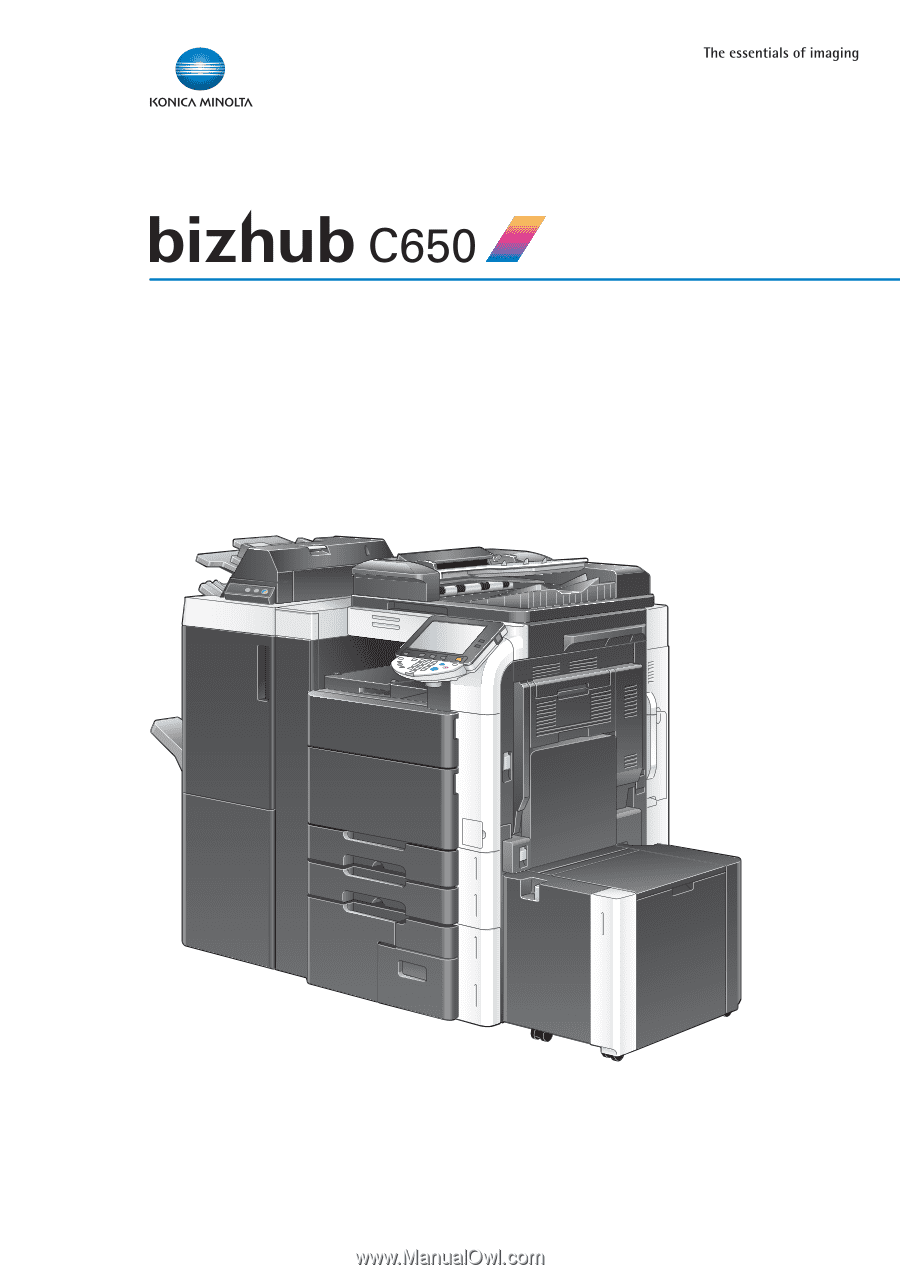
User’s Guide
[Print Operations]