
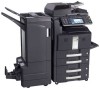
Kyocera TASKalfa 500ci Data Security Kit (E) Operation Guide
Kyocera TASKalfa 500ci Manual
 |
View all Kyocera TASKalfa 500ci manuals
Add to My Manuals
Save this manual to your list of manuals |
Kyocera TASKalfa 500ci manual content summary:
- Kyocera TASKalfa 500ci | Data Security Kit (E) Operation Guide - Page 1
Data Security Kit (E) Operation Guide - Kyocera TASKalfa 500ci | Data Security Kit (E) Operation Guide - Page 2
Introduction This Setup Guide explains the procedures for installing and operating the optional Data Security Kit (E) (hereinafter called Security Kit) and the procedure for system initialization. Instructions for General Users (for Both General Users and Administrators) • Security Kit Functions 2 - Kyocera TASKalfa 500ci | Data Security Kit (E) Operation Guide - Page 3
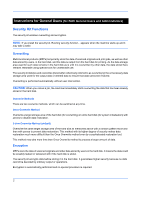
Instructions for General Users (for Both General Users products (MFPs) temporarily store the data of scanned originals and print jobs, as well as other data stored by users, in the zeroes to disable data restoration. 3-time Overwrite Method (default) Overwrite the same target storage area of the hard - Kyocera TASKalfa 500ci | Data Security Kit (E) Operation Guide - Page 4
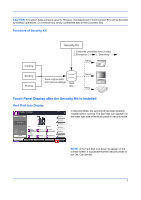
CAUTION: Encryption helps enhance security. However, the data Finishing Color/ Image Quality Copies Shortcut 1 Shortcut 2 Normal 0 Density Off Staple/Punch Layout/Edit Shortcut 3 Shortcut 4 Shortcut 5 Shortcut 6 Advanced Setup 10/10/2008 10:10 In Security Mode is not ON. Call service. 3 - Kyocera TASKalfa 500ci | Data Security Kit (E) Operation Guide - Page 5
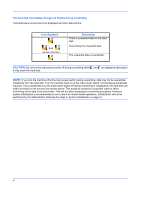
The hard disk icon display changes as follows during overwriting The table below shows the icons displayed and their descriptions. Icon displayed displayed alternately Description There is unwanted data on the hard disk. Overwriting the unwanted data The unwanted data is overwritten. CAUTION: - Kyocera TASKalfa 500ci | Data Security Kit (E) Operation Guide - Page 6
performed by the service personnel. The only thing required by the administrator during the installation is to enter the encryption code. Encryption Code An encryption code of 8 alphanumeric characters (0 to 9, A to Z, a to z) to encrypt data needs to be entered. By default, the code is set 00000000 - Kyocera TASKalfa 500ci | Data Security Kit (E) Operation Guide - Page 7
privileges. Refer to the machine's Operation Guide for the default login user name and password. 4 Press [Data Security]. 5 Enter the default security password, 000000. 6 Press [Change] of Security Password. System - Security Password Set password. Enter new password, then re-enter it to confirm - Kyocera TASKalfa 500ci | Data Security Kit (E) Operation Guide - Page 8
login user name and password. 4 Press [Data Security]. 5 Enter the security password. By default, the code is set 000000. 6 Press [Change] of Data Overwrite Method. 7 Press [3-time Overwrite] (default) or [Once Overwrite]. 8 Press [OK]. Once Overwrite 3-time Overwrite Status Cancel OK 10/10 - Kyocera TASKalfa 500ci | Data Security Kit (E) Operation Guide - Page 9
user authentication screen appears, enter the login user name and login password, and press [Login]. If the user authentication screen does not appear, go to Step 4. 4 Press [Data Security]. 5 Enter the default security password, main power switch off and then on. Status Close 10/10/2008 10:10 8 - Kyocera TASKalfa 500ci | Data Security Kit (E) Operation Guide - Page 10
OK 10/10/2008 10:10 CAUTION: Even though entering a different encryption code can also enable continuation of a job, this will overwrite all the data stored in the hard disk. Exercise extreme caution when entering an encryption code. The encryption code is not the same as the security password - Kyocera TASKalfa 500ci | Data Security Kit (E) Operation Guide - Page 11
10 - Kyocera TASKalfa 500ci | Data Security Kit (E) Operation Guide - Page 12
First edition 2009.1
-
 1
1 -
 2
2 -
 3
3 -
 4
4 -
 5
5 -
 6
6 -
 7
7 -
8
-
9
-
10
-
11
-
12
 |
 |

Data Security Kit (E)
Operation Guide