
HP W2007 1859m,2009m,2009v, 2009f, 2159m,2159v,2309m,2309v, 2509m, 2709m LCD M
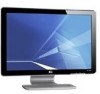
HP W2007 - 20.1" LCD Monitor Manual
 |
UPC - 882780774742
View all HP W2007 manuals
Add to My Manuals
Save this manual to your list of manuals |
HP W2007 manual content summary:
- HP W2007 | 1859m,2009m,2009v, 2009f, 2159m,2159v,2309m,2309v, 2509m, 2709m LCD M - Page 1
User's Guide 1859m 2009m/v/f 2159m/v 2309m/v - HP W2007 | 1859m,2009m,2009v, 2009f, 2159m,2159v,2309m,2309v, 2509m, 2709m LCD M - Page 2
HP products and services are set forth in the express warranty statements accompanying such products and services. Nothing herein should be construed as constituting an additional warranty. HP and used by Hewlett-Packard Company under license. HP supports lawful use of technology and does not endorse - HP W2007 | 1859m,2009m,2009v, 2009f, 2159m,2159v,2309m,2309v, 2509m, 2709m LCD M - Page 3
Notational Conventions The following section describes notational conventions used in this document. Notes, Cautions, and Warnings Throughout this guide, blocks of text may be accompanied by an icon. These blocks are notes, cautions, and warnings, and they are used as follows: WARNING: Indicates - HP W2007 | 1859m,2009m,2009v, 2009f, 2159m,2159v,2309m,2309v, 2509m, 2709m LCD M - Page 4
iv Features may vary by model. User's Guide - HP W2007 | 1859m,2009m,2009v, 2009f, 2159m,2159v,2309m,2309v, 2509m, 2709m LCD M - Page 5
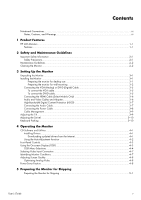
...4-3 Using the On-screen Display (OSD) ...4-3 OSD Menu Selections ...4-4 Selecting Video Input Connectors ...4-7 Identifying Monitor Conditions ...4-7 Adjusting Screen Quality ...4-8 Optimizing Analog Video ...4-8 Power-Saver Feature ...4-8 5 Preparing the Monitor for Shipping Preparing the - HP W2007 | 1859m,2009m,2009v, 2009f, 2159m,2159v,2309m,2309v, 2509m, 2709m LCD M - Page 6
A Troubleshooting Solving Common Problems ...A-1 Getting Support from hp.com ...A-3 Preparing to Call Technical Support...A-3 Locating the Rating Label...A-3 B Technical Specifications HP LCD Monitors ...B-1 Preset Video and High-Definition Modes B-4 LCD Monitor Quality and Pixel Policy...B-6 Power - HP W2007 | 1859m,2009m,2009v, 2009f, 2159m,2159v,2309m,2309v, 2509m, 2709m LCD M - Page 7
monitor ■ 2159m/v LCD monitor ■ 2309m/v LCD monitor Features ■ Large diagonal display ■ Optimum resolution: ❏ 1859m: 1366 x 768 @ 60Hz ❏ 2009m/v/f: 1600 x 900 @ 60Hz ❏ 2159m/v: 1920 x 1080 @ 60Hz ❏ 2309m/v: 1920 x 1080 @ 60Hz Plus full-screen support for lower resolutions ■ Video inputs supported - HP W2007 | 1859m,2009m,2009v, 2009f, 2159m,2159v,2309m,2309v, 2509m, 2709m LCD M - Page 8
Product Features ■ CD included: ❏ Drivers ❏ Auto-adjustment software ❏ Webcam software (select models only) ❏ Documents ❏ Adobe® Acrobat® Reader 1-2 Features may vary by model. User's Guide - HP W2007 | 1859m,2009m,2009v, 2009f, 2159m,2159v,2309m,2309v, 2509m, 2709m LCD M - Page 9
labeled as having this ability. Use a power strip whose manufacturer offers a damage replacement policy, so you can replace your equipment if surge protection fails. Safety Precautions ■ Use only a power source and connection compatible with this monitor, as indicated on the label/back plate - HP W2007 | 1859m,2009m,2009v, 2009f, 2159m,2159v,2309m,2309v, 2509m, 2709m LCD M - Page 10
dealer, reseller, or service provider. ■ Adjust only those controls that are described in the operating instructions. ■ Turn your monitor off when not in use. You can substantially increase the life expectancy of the monitor by using a screen saver program and turning off the monitor when not in use - HP W2007 | 1859m,2009m,2009v, 2009f, 2159m,2159v,2309m,2309v, 2509m, 2709m LCD M - Page 11
to the LCD screen; doing so can cause damage. Unfold the monitor by lifting it from the top edge of the bezel. 1. Set the monitor screen face down on a flat, soft, protected surface. Unfolding the monitor 2. Grip the base near where it attaches to the monitor with one hand and lift the top part of - HP W2007 | 1859m,2009m,2009v, 2009f, 2159m,2159v,2309m,2309v, 2509m, 2709m LCD M - Page 12
to the instructions supplied with the wall-mounting fixture and check that it is capable of supporting the monitor. 1. Disconnect the power cable and any other cables from the monitor. 2. Place the monitor face down on a flat, protected surface. 3. Remove the four screws that fasten monitor base to - HP W2007 | 1859m,2009m,2009v, 2009f, 2159m,2159v,2309m,2309v, 2509m, 2709m LCD M - Page 13
4. Slide the base away from the bottom of the monitor. Setting Up the Monitor Sliding the base away from the monitor 5. Remove the square plate on the back of monitor. Use a coin at the base of the plate to pry it loose. Removing the plate from the back of the monitor User's Guide 3-3 - HP W2007 | 1859m,2009m,2009v, 2009f, 2159m,2159v,2309m,2309v, 2509m, 2709m LCD M - Page 14
Setting Up the Monitor Four threaded holes are exposed. These holes are for screws to attach the swing arm or other mounting fixture to the back of the monitor. Threaded holes for attaching wall mount 6. Follow the instructions included with the mounting fixture to ensure that the monitor is safely - HP W2007 | 1859m,2009m,2009v, 2009f, 2159m,2159v,2309m,2309v, 2509m, 2709m LCD M - Page 15
card. Connectors are located on the back of the monitor. Be sure the computer and monitor are turned off and unplugged. Some graphic cards have both a monitor DVI-D connector and cable are included with select models only. NOTE: If you use a DVI-to-HDMI adapter, you must connect the green audio - HP W2007 | 1859m,2009m,2009v, 2009f, 2159m,2159v,2309m,2309v, 2509m, 2709m LCD M - Page 16
Connect one end of the HDMI cable to the back of the monitor and the other end to a computer with an HDMI connector. Audio and Video Cables and Adapters The following table shows the cable and adapter types that may be required to connect the monitor to the computer, TV, or set-top box. The number - HP W2007 | 1859m,2009m,2009v, 2009f, 2159m,2159v,2309m,2309v, 2509m, 2709m LCD M - Page 17
have an HDCP-enabled monitor, you may see a black screen or a lower resolution picture when playing high-definition protected content. Your computer graphic card and monitor must both support HDCP to display protected content. Connecting the Audio Cable Connect the built-in monitor speakers to the - HP W2007 | 1859m,2009m,2009v, 2009f, 2159m,2159v,2309m,2309v, 2509m, 2709m LCD M - Page 18
Setting Up the Monitor Connecting the Power Cable 1. Read the warning below. WARNING: To reduce the risk of electric shock or damage to your equipment: ■ Do not disable the power cord grounding plug. The grounding plug is an important safety feature. Plug the power place anything on power cords or - HP W2007 | 1859m,2009m,2009v, 2009f, 2159m,2159v,2309m,2309v, 2509m, 2709m LCD M - Page 19
Setting Up the Monitor Cable Management The HP LCD monitors have cable management. Cables can be easily routed through the square hole in the base and are partially hidden when viewed from the front. . Adjusting the Tilt For optimal viewing, adjust the screen tilt to your own preference, as follows - HP W2007 | 1859m,2009m,2009v, 2009f, 2159m,2159v,2309m,2309v, 2509m, 2709m LCD M - Page 20
Setting Up the Monitor Adjusting the Swivel The HP LCD monitor allows a usable range of motion with the swivel feature. CAUTION: To avoid breakage or other damage, avoid applying pressure to the LCD screen while swiveling it or changing the tilt. Keyboard Parking If you need more space on your - HP W2007 | 1859m,2009m,2009v, 2009f, 2159m,2159v,2309m,2309v, 2509m, 2709m LCD M - Page 21
to: http://www.hp.com/support 2. Select your country/region. 3. Select Download Drivers and Software. 4. Enter the model number of your monitor. The software-download pages for your monitor are displayed. 5. Download and install the driver and software files by using the instructions in the download - HP W2007 | 1859m,2009m,2009v, 2009f, 2159m,2159v,2309m,2309v, 2509m, 2709m LCD M - Page 22
-in image damage may occur on monitors that display the same static image on screen for a prolonged period of time (12 consecutive hours of non-use). To avoid burn-in image damage on your monitor screen, you should always activate a screen saver application or turn off the monitor when it is not in - HP W2007 | 1859m,2009m,2009v, 2009f, 2159m,2159v,2309m,2309v, 2509m, 2709m LCD M - Page 23
screen picture, commonly used by monitors, televisions, VCRs, and DVD players to display information such as volume, channel, and time. NOTE: You can use My Display OSD software or the front-panel control buttons to adjust settings. 1. If the monitor is not already on, press the Power button to turn - HP W2007 | 1859m,2009m,2009v, 2009f, 2159m,2159v,2309m,2309v, 2509m, 2709m LCD M - Page 24
(select models only) Brightness Description Switches the video input signal source when the monitor is connected to two active and valid video sources. Switching video input sources may take several seconds. Adjusts the brightness level of the screen. Contrast Adjusts the contrast level of the - HP W2007 | 1859m,2009m,2009v, 2009f, 2159m,2159v,2309m,2309v, 2509m, 2709m LCD M - Page 25
Saver Mode Display Power-On Status Display Description (Continued) Selects the screen color. The factory default is 6500 K or Custom Color, depending on the model. Changes to slightly blueish white. Changes to slightly reddish white. Selects and adjusts your own color scales: R - Sets your own - HP W2007 | 1859m,2009m,2009v, 2009f, 2159m,2159v,2309m,2309v, 2509m, 2709m LCD M - Page 26
Operating the Monitor Icon Main Menu Options Information Factory Reset Submenu Options DDC/CI Support Bezel Power LED Sleep Timer Default Video Input Current Settings Recommended Settings Serial Number Version Backlight Hours Service Support Description (Continued) Allows the computer to control - HP W2007 | 1859m,2009m,2009v, 2009f, 2159m,2159v,2309m,2309v, 2509m, 2709m LCD M - Page 27
input source may take several seconds. Identifying Monitor Conditions Special messages appear on the monitor screen for the following monitor conditions: ■ Input Signal Out of Range - Indicates the monitor does not support the video card's input signal because its resolution or refresh rate are set - HP W2007 | 1859m,2009m,2009v, 2009f, 2159m,2159v,2309m,2309v, 2509m, 2709m LCD M - Page 28
" (Appendix B). The monitor also supports a power-saver mode that is controlled by the computer. When the monitor is in the reduced-power state, the monitor screen is blank, the backlight is off, and the Power light is amber. The monitor uses minimum power. When the monitor is "awakened," a brief - HP W2007 | 1859m,2009m,2009v, 2009f, 2159m,2159v,2309m,2309v, 2509m, 2709m LCD M - Page 29
. Avoid applying pressure to the LCD screen; doing so can cause damage. Preparing the Monitor for Shipping 1. Disconnect the power, video, and audio cables from the monitor. 2. Set the monitor base on a soft, protected surface. Preparing the monitor for shipping 3. Hold the base with one hand, where - HP W2007 | 1859m,2009m,2009v, 2009f, 2159m,2159v,2309m,2309v, 2509m, 2709m LCD M - Page 30
Preparing the Monitor for Shipping 5-2 Features may vary by model. User's Guide - HP W2007 | 1859m,2009m,2009v, 2009f, 2159m,2159v,2309m,2309v, 2509m, 2709m LCD M - Page 31
. See "Setting Up the Monitor" for more information. Press a key on the keyboard or move the mouse to turn off the screen-blanking utility. Screen is black or displaying at a lower resolution while displaying high-definition (HD) content. Check if your monitor and computer support HDCP. Refer - HP W2007 | 1859m,2009m,2009v, 2009f, 2159m,2159v,2309m,2309v, 2509m, 2709m LCD M - Page 32
. Refer to "Installing Drivers" in the Operating the Monitor chapter for more information. HP monitor drivers are also available at: http://www.hp.com/support Picture bounces, flickers, or wave pattern is present in the picture. Move electrical devices that may cause electrical interference as far - HP W2007 | 1859m,2009m,2009v, 2009f, 2159m,2159v,2309m,2309v, 2509m, 2709m LCD M - Page 33
Troubleshooting Getting Support from hp.com Before you contact customer service, refer to HP Technical Support at: http://www.hp.com/support Select your country/region, and then follow the links to the support page for your monitor. Preparing to Call Technical Support If you cannot solve a problem - HP W2007 | 1859m,2009m,2009v, 2009f, 2159m,2159v,2309m,2309v, 2509m, 2709m LCD M - Page 34
Troubleshooting A-4 Features may vary by model. User's Guide - HP W2007 | 1859m,2009m,2009v, 2009f, 2159m,2159v,2309m,2309v, 2509m, 2709m LCD M - Page 35
may vary either higher or lower. HP LCD Monitors Face treatment: Glare polarizer with hard coating Input Terminals: ■ VGA connector (select models) ■ DVI-D 24-pin D-type connector (select models) ■ HDMI connector (select models) Specifications model 1859m Display Type: Viewable Image Size: Tilt - HP W2007 | 1859m,2009m,2009v, 2009f, 2159m,2159v,2309m,2309v, 2509m, 2709m LCD M - Page 36
Technical Specifications Specifications (Continued) model 2009m/v/f Display Type: Viewable Image Size: Tilt: Humidity: Non-operating Humidity: Power Source: Power Consumption: Sleep Power Consumption: TFT LCD active matrix 20 in. (50.8 cm) diagonal -5o to +25o 18 vary by model. User's Guide - HP W2007 | 1859m,2009m,2009v, 2009f, 2159m,2159v,2309m,2309v, 2509m, 2709m LCD M - Page 37
Specifications (Continued) model 2309m/v Display Type: Viewable Image Size: Tilt: Maximum Humidity: Non-operating Humidity: Power Source: Power Consumption: Sleep Power Consumption: TFT LCD active matrix 23.0 in. (58.42 cm) diagonal -5o to +25o 21 typical Technical Specifications User's Guide B-3 - HP W2007 | 1859m,2009m,2009v, 2009f, 2159m,2159v,2309m,2309v, 2509m, 2709m LCD M - Page 38
monitor automatically recognizes many preset video input modes that will appear properly sized and centered on the screen. Factory Preset Video Input .09 60.32 60.00 60.00 60.02 59.79 Factory Preset Video Input Modes, 2009m/v/f Preset Resolution Horizontal Frequency (kHz) 1 640 x 480 31 Guide - HP W2007 | 1859m,2009m,2009v, 2009f, 2159m,2159v,2309m,2309v, 2509m, 2709m LCD M - Page 39
x 576 720 x 576 1280 x 1920 1920 x 1080 1920 x 1080 1920 x 1080 Horizontal Frequency (kHz) 15.73 31.47 45.00 33.75 15.63 31.25 37.50 28.13 67.50 56.25 Vertical Frequency (Hz) 60 60 60 60 50 50 50 50 60 50 User - HP W2007 | 1859m,2009m,2009v, 2009f, 2159m,2159v,2309m,2309v, 2509m, 2709m LCD M - Page 40
are made. For more information about your HP LCD Monitor, refer to the HP Web site at: http://www.hp.com/support Power Cord Set Requirements The monitor power supply is provided with Automatic Line Switching (ALS). This feature allows the monitor to operate on input voltages between 100-240Vv, 50/60 - HP W2007 | 1859m,2009m,2009v, 2009f, 2159m,2159v,2309m,2309v, 2509m, 2709m LCD M - Page 41
and used in accordance with the instructions, may cause harmful interference to radio radio or television reception, which can be determined by turning the equipment off and on, the user is encouraged Logo, United States Only This device complies with Part 15 of the FCC Rules. Operation is subject - HP W2007 | 1859m,2009m,2009v, 2009f, 2159m,2159v,2309m,2309v, 2509m, 2709m LCD M - Page 42
This HP product contains mercury in the fluorescent lamp in the display LCD that might eiae.org). Chemical Substances HP is committed to providing our customers with information about the listed on the EU Declaration of Conformity issued by Hewlett-Packard for this product or product 's Guide - HP W2007 | 1859m,2009m,2009v, 2009f, 2159m,2159v,2309m,2309v, 2509m, 2709m LCD M - Page 43
for the recycling of waste electrical and electronic equipment. The service or the shop where you purchased the product. Japanese Notice Japanese Power sale after July 1, 2006. To view the JIS-C-0950 material declaration for this product, visit www.hp.com/go/jisc0950 Korean Notice User's Guide - HP W2007 | 1859m,2009m,2009v, 2009f, 2159m,2159v,2309m,2309v, 2509m, 2709m LCD M - Page 44
trademark owned by the U.S. government. HP Recycling Program HP offers product end-of-life return programs for HP and other manufacturers' hardware in requirements and local customer demand. For information on the HP recycling program, refer to the HP Web site at: http://www.hp.com/recycle C-4 - HP W2007 | 1859m,2009m,2009v, 2009f, 2159m,2159v,2309m,2309v, 2509m, 2709m LCD M - Page 45
biphenyls (PBB) Polybrominated diphenyl ethers (PBDE) Liquid Crystal Display X X O O O O Panel Chassis/Other X O O O O O O: Indicates that this toxic or hazardous substance contained in all of the homogeneous materials for this part is below the limit requirement in SJ/T11363-2006 - HP W2007 | 1859m,2009m,2009v, 2009f, 2159m,2159v,2309m,2309v, 2509m, 2709m LCD M - Page 46
Agency Regulatory Notices C-6 Features may vary by model. User's Guide - HP W2007 | 1859m,2009m,2009v, 2009f, 2159m,2159v,2309m,2309v, 2509m, 2709m LCD M - Page 47
3-6 B base assembling 3-2 C cable management 3-9 cleaning 2-2 connecting audio cable 3-7 HDMI 3-6 power cable 3-8 Input Signal Out of Range 4-7 Monitor Going to Sleep 4-7 No Input Signal 4-7 OSD Lock-out 4-7 monitor operation 4-1 - 4-8 monitor setup 3-1 - 3-10 P power cable connecting 3-8 power - HP W2007 | 1859m,2009m,2009v, 2009f, 2159m,2159v,2309m,2309v, 2509m, 2709m LCD M - Page 48
Index T technical specifications B-1 - B-6 tilt adjustment 3-9 troubleshooting A-1 - A-3 U unpacking 3-1 V video and audio cables and adapters 3-6 video input connectors selecting 4-7 W wall-mounting 3-2 Part number: 507981-001 D-2 Features may vary by model. User's Guide
-
 1
1 -
 2
2 -
 3
3 -
 4
4 -
 5
5 -
 6
6 -
 7
7 -
8
-
9
-
10
-
11
-
12
-
13
-
14
-
15
-
16
-
17
-
18
-
19
-
20
-
21
-
22
-
23
-
24
-
25
-
26
-
27
-
28
-
29
-
30
-
31
-
32
-
33
-
34
-
35
-
36
-
37
-
38
-
39
-
40
-
41
-
42
-
43
-
44
-
45
-
46
-
47
-
48
 |
 |

User’s Guide
1859m
2009m/v/f
2159m/v
2309m/v