
Vtech V.Flash Home Edutainment Learning System User Manual
Vtech V.Flash Home Edutainment Learning System Manual
 |
View all Vtech V.Flash Home Edutainment Learning System manuals
Add to My Manuals
Save this manual to your list of manuals |
Vtech V.Flash Home Edutainment Learning System manual content summary:
- Vtech V.Flash Home Edutainment Learning System | User Manual - Page 1
- Vtech V.Flash Home Edutainment Learning System | User Manual - Page 2
. With V.FLASHTM - an educational video game system designed for kids 6-10 - VTech® continues its tradition of providing unique and fun alternatives to with three modes of play, so your child is free to explore, play and learn in any way that they choose. Game Zone offers fast-paced video game fun, with - Vtech V.Flash Home Edutainment Learning System | User Manual - Page 3
AC Adaptor 4 Connecting to a TV 5 Connecting to a VCR 6 Connecting the V.FLASHTM Controller 6 • SYSTEM OPERATION 7 To begin play 7 To change a V.DISCTM 7 To play an audio CD 8 To setup 13 • CARE & MAINTENCE 13 • WARNING 13 • TROUBLESHOOTING 13 • TECHNICAL SUPPORT 15 • OTHER INFO 16 - Vtech V.Flash Home Edutainment Learning System | User Manual - Page 4
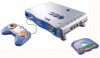
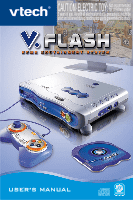
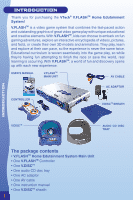
VTech® V.FLASHTM Home Edutainment System! V.FLASHTM is a video game system models and animations. They play, learn and explore at their own pace Home Edutainment System Main Unit • One V.FLASHTM Controller • One V.DISCTM • One audio CD disc tray • One AC adaptor • One AV cable • One instruction manual - Vtech V.Flash Home Edutainment Learning System | User Manual - Page 5
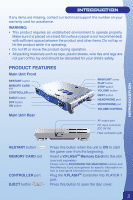
INTRODUCTION If any items are missing, contact our technical support line number on your warranty card for assistance. WARNING: • This product requires an undisturbed environment to operate properly. Make sure it is placed on a hard - Vtech V.Flash Home Edutainment Learning System | User Manual - Page 6
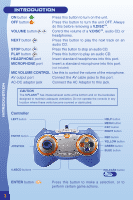
DC adaptor jack Connect the AC Adaptor to this jack. CAUTION The V.FLASHTM has intake/exhaust vents at the bottom and on the backsides designed to maintain adequate ventilation. Do not operate the console in any location where these vents become covered or obstructed. Controller LEFT button ENTER - Vtech V.Flash Home Edutainment Learning System | User Manual - Page 7
that the JOYSTICK is on the side you prefer. • Press it down until you hear a locking sound. INTRODUCTION \ GETTING STARTED GETTING STARTED AC ADAPTOR • Use a VTech® DC 9V 1200mA AC/DC adaptor.(included) • Make sure the unit is turned OFF. • Plug the power jack end of the adaptor on the back - Vtech V.Flash Home Edutainment Learning System | User Manual - Page 8
GETTING STARTED GETTING STARTED NOTE: When the toy is not going to be in use for an extended period of time, it is recommended to unplug the adaptor and remove the adaptor from the Main Unit. Standard Guidelines for Adaptor Toys: • Not for use by children under 3 years of age. • Only use the - Vtech V.Flash Home Edutainment Learning System | User Manual - Page 9
GETTING STARTED GETTING STARTED CONNECTING TO A VCR If there is no video IN and audio IN terminal on your TV set, you can connect V.FLASHTM to a VCR. - Connect the yellow plug on the V.FLASHTM cable to the yellow video input terminal on your VCR. - Connect the white and red plugs on the V.FLASHTM - Vtech V.Flash Home Edutainment Learning System | User Manual - Page 10
, since all TVs vary, please refer to your TV or VCR manual for further details. • Make sure that both the Controller and AC adaptor are properly plugged into the console and the wall outlet. • Turn the V.FLASHTM Home Edutainment System on by pressing the ON button. Enjoy your game! • When not - Vtech V.Flash Home Edutainment Learning System | User Manual - Page 11
• Close the Main unit cover. Enjoy your Music! Please refer to ACCESSING THE MAIN MENU section and then V.FLASHTM CD Player for instructions on the function of the CD Player. SYSTEM OPERATION TO STOP AN AUDIO CD • Press the STOP button . • Press the EJECT button to open the Main Unit cover and - Vtech V.Flash Home Edutainment Learning System | User Manual - Page 12
ACCESSING THE MAIN MENU ACCESSING THE MAIN MENU The Main Menu allows you to create your own setup, see information about the game you have saved, play an audio CD, and access information stored on a Memory Card if you have one inserted into the unit. ACCESSING THE MAIN MENU To go to the Main Menu - Vtech V.Flash Home Edutainment Learning System | User Manual - Page 13
ACCESSING THE MAIN MENU ACCESSING THE MAIN MENU Set console setup. Main Menu, Console Setup Play, Pause, Stop, Rewind, Fast V.FLASHTM CD Player Backward, Fast Forward current CD track or play the Next CD track. Left and right cursor to view the Zoomed-in V.FLASHTM Picture previous or next - Vtech V.Flash Home Edutainment Learning System | User Manual - Page 14
ACCESSING THE MAIN MENU ACCESSING THE MAIN MENU V.FLASHTM CD Player From the Main Menu Screen, go to the V.FLASH™ CD Player Screen by selecting the 4th icon of the top row of the Main Menu. Move the joystick to the left or right and - Vtech V.Flash Home Edutainment Learning System | User Manual - Page 15
ACCESSING THE MAIN MENU V.FLASHTM Media Player From the Main Menu Screen, go to the V.FLASHTM Media Player Screen by selecting the 3rd icon of the top row of the Main Menu. You will enter a general Media Player Screen first. Move the joystick up or down to highlight a media track and then press the - Vtech V.Flash Home Edutainment Learning System | User Manual - Page 16
certain types of flashing colors or patterns, especially on television. While the V.FLASHTM Home Edutainment System does not TROUBLESHOOTING Go through this section if you experience difficulty in operating the V.FLASHTM Home Edutainment System. Should any problem persist, call the customer service - Vtech V.Flash Home Edutainment Learning System | User Manual - Page 17
TROUBLESHOOTING TROUBLESHOOTING Problem Solution There is no picture on the TV Check the connections between the console and the TV or VCR (if used) and review the appropriate connection in this manual. 5. Make sure that all cable connectors are securely plugged into the appropriate sockets - Vtech V.Flash Home Edutainment Learning System | User Manual - Page 18
you are experiencing. • The actions you took right before the problem occurred. If you wish to buy additional controllers for your V.FLASHTM Home Edutainment System, please visit us online, or contact our Consumer Services Department. Internet : www.vtechkids.com Phone : 1-800-521-2010 in the - Vtech V.Flash Home Edutainment Learning System | User Manual - Page 19
may arise through the use of this software. VTech® Electronics North America, L.L.C. and its suppliers assume of the FCC Rules. These limits are designed to provide reasonable protection against harmful interference in and used in accordance with the instructions, may cause harmful interference to - Vtech V.Flash Home Edutainment Learning System | User Manual - Page 20
2006 © VTech Printed in China 91-02177-000-000
-
 1
1 -
 2
2 -
 3
3 -
 4
4 -
 5
5 -
 6
6 -
 7
7 -
8
-
9
-
10
-
11
-
12
-
13
-
14
-
15
-
16
-
17
-
18
-
19
-
20
 |
 |
