
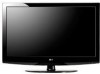
LG 32LG30 Owner's Manual (English)
LG 32LG30 - LG - 32" LCD TV Manual
 |
UPC - 719192173057
View all LG 32LG30 manuals
Add to My Manuals
Save this manual to your list of manuals |
LG 32LG30 manual content summary:
- LG 32LG30 | Owner's Manual (English) - Page 1
a set of power-saving guidelines issued by the U.S. Environmental Protection Agency (EPA). As an ENERGY STAR Partner LG Electronics USA, Inc. has determined that this product meets the ENERGY STAR guidelines for energy efficiency. LCD TV PLASMA TV OWNER'S MANUAL LCD TV MODELS 32LG30 37LG30 42LG30 - LG 32LG30 | Owner's Manual (English) - Page 2
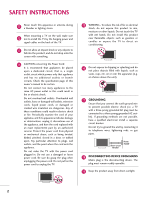
REDUCE THE RISK OF ELECTRIC SHOCK DO NOT REMOVE COVER (OR BACK). NO USER SERVICEABLE PARTS INSIDE. REFER TO QUALIFIED SERVICE PERSONNEL. The lightning flash with arrowhead symbol, within an equilateral triangle, is intended to alert the user to the presence of uninsulated "dangerous voltage" within - LG 32LG30 | Owner's Manual (English) - Page 3
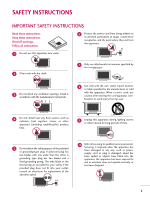
in accordance with the manufacturer's instructions. 8 Use only with the cart, stand, tripod, bracket, or replacement of the obsolete outlet. 10 Refer all servicing to qualified service personnel. Servicing is required when the apparatus has been damaged in any way, such as power- supply cord - LG 32LG30 | Owner's Manual (English) - Page 4
exact replacement part by an authorized servicer. Protect the power cord from physical or mechanical abuse, such as being twisted, kinked, pinched, closed in a door, or walked upon. Pay particular attention to plugs, wall outlets, and the point where the cord exits the appliance. Do not make the TV - LG 32LG30 | Owner's Manual (English) - Page 5
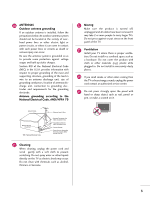
(NEC Section 810-21) Ground Clamps Power Service Grounding Electrode System (NEC Art 250, Part H) 21 Cleaning When cleaning, unplug the power cord and scrub gently with a soft cloth to prevent scratching. Do not spray water or other liquids directly on the TV as electric shock may occur. Do not - LG 32LG30 | Owner's Manual (English) - Page 6
Information 8 Back Panel Information 10 Stand Instruction 13 VESA Wall Mounting 17 Cable Management 18 Desktop Pedestal Installation 20 Swivel Stand 20 Attaching the TV to a Desk 20 Securing the TV to the wall to prevent falling when the TV is used on a stand 21 Antenna or Cable Connection - LG 32LG30 | Owner's Manual (English) - Page 7
off Setting 105 PARENTAL CONTROL / RATINGS Set Password & Lock System 106 Channel Blocking 109 Movie & TV Rating 110 Downloadable Rating 115 External Input Blocking 116 Key lock 117 APPENDIX Troubleshooting 118 Maintenance 120 Product Specifications 121 Programming the Remote Control 124 - LG 32LG30 | Owner's Manual (English) - Page 8
can be made through the ISFccc mode. Detailed calibration requires a licensed technician. Please contact your local dealer to inquire about an ISF certified technician. FOR LCD TV I If the TV feels cold to the touch, there may be a small "flicker" when it is turned on. This is normal, there - LG 32LG30 | Owner's Manual (English) - Page 9
models.) Remote Control, Batteries Option Extras Power Cord D-sub 15 pin Cable When using the VGA (D-sub 15 pin cable) PC connection, the user must use shielded signal interface cables with ferrite cores to maintain standards compliance. For Plasma TV models (Only 42PG25) x 4 Bolts for stand - LG 32LG30 | Owner's Manual (English) - Page 10
Buttons CH LCD TV Models 32/42/47/52LG70, 47LG90 CH CHANNEL (E,D)Buttons CH CHANNEL ( , ) Buttons Intelligent Sensor Adjusts picture according to the surrounding VOL conditions VOLUME (+, -) Buttons Power/Standby Indicator Illuminates red in standby mode. Illuminates blue when the set is - LG 32LG30 | Owner's Manual (English) - Page 11
LCD TV Models 32/37/42LG30, 37/42/47/52LG50 PREPARATION CH Intelligent Sensor (Except 32/37/42LG30) Adjusts picture according to the surrounding conditions VOL Power/Standby Indicator Illuminates red in standby mode. Illuminates blue when the set is switched on. (Can be adjusted using Power - LG 32LG30 | Owner's Manual (English) - Page 12
. Supports standard definition video only (480i). 10 USB INPUT Used for viewing photos and listening to MP3s. 11 USB SERVICE ONLY or RS-232C IN (SERVICE ONLY) Used for software updates. 12 Power Cord Socket For operation with AC power. Caution: Never attempt to operate the TV on DC power. 10 - LG 32LG30 | Owner's Manual (English) - Page 13
LCD TV Models R R PREPARATION 12 32/37/42LG30 1 3 RGB IN RGB(PC) 5 4 DIGITAL AUDIO REMOTE (RGB/DVI) CONTROL IN AUDIO OUT OPTICAL ANTENNA/ CABLE IN 6 7 HDMI/DVI IN 2 2 1 1 RS-232C IN AUDIO OUT (CONTROL & SERVICE) VIDEO AUDIO COMPONENT IN 2 S-VIDEO VIDEO (MONO) AUDIO R AV IN - LG 32LG30 | Owner's Manual (English) - Page 14
from your TV. LCD TV Models 12 42/47/52LG70, 47LG90 1 HDMI/DVI IN 3 2 3 5 ANTENNA/ CABLE IN 6 4 RGB IN DIGITAL AUDIO OUT RGB(PC) AUDIO REMOTE (RGB/DVI) CONTROL IN OPTICAL COAXIAL 7 RS-232C IN AUDIO OUT (CONTROL & SERVICE) 8 2 AV IN 1 1 1 9 ( ) VIDEO AUDIO COMPONENT IN - LG 32LG30 | Owner's Manual (English) - Page 15
STAND INSTRUCTION I Image shown may differ from your TV. Plasma TV models INSTALLATION (Only 42PG25) 1 Carefully place the TV screen side down on a cushioned surface to protect the screen from damage. DETACHMENT 1 Carefully place the TV screen side down on a cushioned surface to protect the screen - LG 32LG30 | Owner's Manual (English) - Page 16
32/37/42/47/52LG60, 42/47LGX I Image shown may differ from your TV. INSTALLATION (Only 32/37/42LG60, 42LGX) 1 Carefully place the TV screen side down on a cushioned surface to protect the screen from damage. 2 Assemble the parts of the STAND BODY with COVER BASE of the TV. 32LG60 37LG60 - LG 32LG30 | Owner's Manual (English) - Page 17
side down on a cushioned surface to protect the screen from damage. PROTECTION COVER After removing the stand, install the included p r otection cover over the hole for the stand. 2 Loose the bolts from TV. 3 Detach the stand from TV. After removing the protection paper from the protection cover - LG 32LG30 | Owner's Manual (English) - Page 18
the screen from damage. 2 Assemble the parts of the STAND BODY with COVER BASE of the TV. STAND BODY 2 Loose the bolts from TV. COVER BASE 3 Assemble the TV as shown. 3 Detach the stand from TV. 4 Fix the 4 bolts securely using the holes in the back of the TV. PROTECTION COVER After removing - LG 32LG30 | Owner's Manual (English) - Page 19
wall. LG recommends that wall mounting be performed by a qualified professional installer. A B Product LCD TV PLASMA TV Model 32LG30, 32LG60, 32LG70 VESA (A * B) 200 * 100 37LG30, 37LG60, 37LG50 42LG30, 42LG50, 42LG60, 42LG70, 42LGX 200 * 200 47LG50, 47LG60, 47LG70, 47LG90, 47LGX Standard Screw - LG 32LG30 | Owner's Manual (English) - Page 20
EQUIPMENT SETUP section. PREPARATION 2 Install the CABLE MANAGEMENT CLIP as shown. If your TV has the CABLE HOLDER, install it as shown and bundle the cables. CABLE HOLDER CABLE MANAGEMENT CLIP How to remove the CABLE MANAGEMENT CLIP 42PG25 G First, press the cable management. Hold the CABLE - LG 32LG30 | Owner's Manual (English) - Page 21
PREPARATION LCD TV Models 32/37/42LG30, 37/42/47/52LG50, 32/42/47/52LG70, 47LG90 1 Connect the cables as necessary. To connect additional equipment, see the EXTERNAL EQUIPMENT SETUP section. 32/37/42/47/52LG60, 42/47LGX 1 Align the hole with the tab on the CABLE MANAGEMENT CLIP. Turn the CABLE - LG 32LG30 | Owner's Manual (English) - Page 22
all four sides from the wall. 4 inches 4 inches 4 inches 4 inches CAUTION G Ensure adequate ventilation by following the clearance recommendations. G Do not mount near or above any type of heat source. SWIVEL STAND After installing the TV, you can adjust the TV set manually to the left or right - LG 32LG30 | Owner's Manual (English) - Page 23
) to tie the product. It is safer to tie the rope so it becomes horizontal between the wall and the product. ! NOTE G Use a platform or cabinet strong enough and large enough to support the size and weight of the TV. G To use the TV safely make sure that the height of the bracket on the - LG 32LG30 | Owner's Manual (English) - Page 24
power outlet until all connections are made between the devices. ANTENNA OR CABLE CONNECTION 1. Antenna (Analog or Digital) Wall Antenna Socket or Outdoor Antenna without a Cable Box Connection. For optimum picture TV Wall Jack RF Coaxial Wire (75 ohm) ANTENNA/ CABLE IN I To improve the picture - LG 32LG30 | Owner's Manual (English) - Page 25
. (Refer to the owner's manual for the digital set-top box. operation) I Select the Component 1 input source on the TV using the INPUT button on the remote control. I If connected to COMPONENT IN2 input, select the Component 2 input source on the TV. Supported Resolutions Signal Component 480i - LG 32LG30 | Owner's Manual (English) - Page 26
RGB(PC) AUDIO REMOTE (RGB/DVI) CONTROL IN OPT 2 Y 1 PB PR L R VIDEO AUDIO COMPONENT IN RS-232 (CONTROL & S-VIDEO 32/37/42/47/52LG60, 42/47LGX 2 RGB IN HDMI/DVI IN 1 VIDEO COMPONENT IN RS-232C IN (SERVICE ONLY) AUDIO 1 DIGITAL AUDIO OUT COAXIAL 23 AUDIO (RGB/DVI) OPTICAL RGB(PC - LG 32LG30 | Owner's Manual (English) - Page 27
necessary. HDMI supports both audio and video. 2. How to use I Turn on the digital set-top box. (Refer to the owner's manual for the digital set-top box.) I Select the HDMI1, HDMI2, HDMI3, or HDMI4 input source on the TV using the INPUT button on the remote control. HDMI-DTV Resolution Horizontal - LG 32LG30 | Owner's Manual (English) - Page 28
Y PB PR 1 VIDEO COMPON 1 HDMI-DTV OUTPUT 32/37/42/47/52LG60, 42/47LGX HDMI-DTV OUTPUT 2 RGB IN HDMI/DVI IN 1 VIDEO COMPONENT IN 1 HDMI-DTV OUTPUT RS-232C IN (SERVICE ONLY) AUDIO 1 DIGITAL AUDIO OUT COAXIAL 23 AUDIO (RGB/DVI) OPTICAL RGB(PC) ANTENNA/ CABLE IN REMOTE CONTROL IN 26 - LG 32LG30 | Owner's Manual (English) - Page 29
the AUDIO (RGB/DVI) jack on the TV. 2. How to use I Turn on the digital set-top box. (Refer to the owner's manual for the digital set-top box.) I 32/37/42LG30, 37/42/47/52LG50, 32LG70, Plasma TV - Select the HDMI1, HDMI2, or HDMI3 input source on the TV using the INPUT button on the remote control - LG 32LG30 | Owner's Manual (English) - Page 30
COMPONENT IN AV IN 1 ( ) 1 2 1 2 DVI-DTV OUTPUT L R 32/37/42/47/52LG60, 42/47LGX 2 1 VIDEO COMPONENT IN 1 2 1 DIGITAL AUDIO OUT COAXIAL 23 AUDIO (RGB/DVI) AUDIO RS-232C IN (SERVICE ONLY) OPTICAL RGB(PC) ANTENNA/ CABLE IN REMOTE CONTROL IN RGB IN HDMI/DVI IN DVI-DTV OUTPUT - LG 32LG30 | Owner's Manual (English) - Page 31
1 input source on the TV using the INPUT button on the remote control. I If connected to COMPONENT IN 2 input, select the Component 2 input source on the TV. I Refer to the DVD player's manual for operating instructions. Component Input ports To get better picture quality, connect a DVD player - LG 32LG30 | Owner's Manual (English) - Page 32
PC) AUDIO REMOT (RGB/DVI) CONTROL ( 2 Y 1 PB PR L R VIDEO AUDIO COMPONENT IN 32/37/42/47/52LG60, 42/47LGX 2 RGB IN HDMI/DVI IN 1 VIDEO COMPONENT IN RS-232C IN (SERVICE ONLY) AUDIO 1 DIGITAL AUDIO OUT COAXIAL 23 AUDIO (RGB/DVI) OPTICAL RGB(PC) ANTENNA/ CABLE IN REMOTE CONTROL IN - LG 32LG30 | Owner's Manual (English) - Page 33
button on the remote control. I Refer to the DVD player's manual for operating instructions. S-VIDEO AUDIO L R ANTENNA/ CABLE IN UDIO REMOTE B/DVI) CONTROL IN 1 2 DIGITAL AUDIO OUT OPTICAL COAXIAL RS-232C IN AUDIO OUT (CONTROL & SERVICE) AV IN 1 L R AUDIO N S-VIDEO VIDEO L(MONO - LG 32LG30 | Owner's Manual (English) - Page 34
No separate audio connection is necessary. HDMI supports both audio and video. 2. How to use I Select the HDMI1, HDMI2, HDMI3, or HDMI4 input source on the TV using the INPUT button on the remote control. I Refer to the DVD player's manual for operating instructions. 32/37/42LG30, 37/42/47/52LG50 - LG 32LG30 | Owner's Manual (English) - Page 35
VCR owner's manual.) EO L(MONO) AUDIO R ANT OUT S-VIDEO VIDEO L R ANT IN OUTPUT SWITCH Wall Jack 2 Antenna AV IN 1 COMP AUDIO 32/37/42/47/52LG60, 42/47LGX COAX OPTIC 1 S-VIDEO VIDEO L R ANT OUT RS-232C IN ANTENNA/ CABLE IN (SERVICE ONLY) OUTPUT SWITCH ANT IN Wall Jack 2 REMOTE - LG 32LG30 | Owner's Manual (English) - Page 36
OUTPUT SWITCH 1 ANTENNA/ CABLE IN DIGITAL AUDIO OUT AUDIO REMOTE (RGB/DVI) CONTROL IN OPTICAL COAXIAL RS-232C IN AUDIO OUT (CONTROL & SERVICE) AV IN 1 L R AUDIO NT IN S-VIDEO VIDEO L(MONO) AUDIO R VIDEO L/MONO AUDIO R HDMI IN 4 USB IN 32/37/42/47/52LG60, 42/47LGX 1 AV IN 34 ANT IN - LG 32LG30 | Owner's Manual (English) - Page 37
on the TV. 2 Connect the audio outputs of the VCR to the AUDIO input jacks on the TV. 2. How to use I Insert a video tape into the VCR and press PLAY on the VCR. (Refer to the VCR owner's manual.) I Select the A V 1 input source on the TV using the INPUT button on the remote control. ! NOTE - LG 32LG30 | Owner's Manual (English) - Page 38
, Audio Left = white, and Audio Right = red) 2. How to use I Select the A V 2 input source on the TV using the INPUT button on the remote control. I If connected to AV IN1 input, select the A V 1 input source on the TV. I Operate the corresponding external equipment. Camcorder Video Game Set - LG 32LG30 | Owner's Manual (English) - Page 39
the PC adjusts automatically to the TV's settings. VGA (D-Sub 15 pin) Connection Plasma TV, 32/37/42LG30, 37/42/47/52LG50, 32/42/47/52LG70, 47LG90 32/37/42/47/52LG60, 42/47LGX RGB IN HDMI/D VIDEO COMPONENT IN RGB IN RGB(PC) AUDIO REMOTE (RGB/DVI) CONTROL IN N (CO 2 Y 1 PB PR L R VIDEO - LG 32LG30 | Owner's Manual (English) - Page 40
, HDMI3, or HDMI4 input source on the TV using the INPUT button on the remote control. ! NOTES G 32/37/42LG30, 42/50PG25: To get the the best picture quality, adjust the PC graphics card to 1360x768. G 37/42/47/52LG50, 32/37/42/47/52LG60, 32/42/47/52LG70, 42/47LGX, 47LG90, 50/60PG60, 50/60PG70: To - LG 32LG30 | Owner's Manual (English) - Page 41
COMPONENT IN ( ) 1 2 DVI-PC OUTPUT AUDIO 32/37/42/47/52LG60, 42/47LGX 2 1 VIDEO COMPONENT IN 1 RS-232C I2N (SERVICE ONLY) AUDIO 1 2 3 DIGITAL AUDIO OUT AUDIO (RGB/DVI) COAXIAL OPTICAL RGB(PC) ANTENNA/ CABLE IN REMOTE CONTROL IN DVI-PC OUTPUT AUDIO RGB IN HDMI/DVI IN DVI-PC - LG 32LG30 | Owner's Manual (English) - Page 42
Supported Display Specifications (RGB-PC, HDMI-PC) ! NOTE G Depending on the graphics card, some resolution settings may not allow the image to be positioned on the screen PC mode For 37/42/47/52LG50, 32/37/42/47/52LG60, 32/42/47/52LG70, 42/47LGX, 47LG90 Resolution Horizontal Vertical Frequency( - LG 32LG30 | Owner's Manual (English) - Page 43
EXTERNAL EQUIPMENT SETUP For 42/50PG25, 50/60PG60, 50/60PG70 Resolution 640x350 720x400 Horizontal Vertical Frequency(KHz) Frequency(Hz) 31.468 70.09 31.469 70.08 640x480 31.469 37.500 37.861 59.94 - LG 32LG30 | Owner's Manual (English) - Page 44
PC) TruMotion Demo 1 MENU 2 ENTER 3 ENTER 4 ENTER 5 ENTER Select PICTURE. Select Screen (RGB-PC). Select Resolution. Select the desired resolution. SCREEN Resolution G Auto config. Position Size Phase Reset Move MENU Prev. 1024 x 768 1280 x 768 1360 x 768 1366 x 768 Only for 32/37/42LG30 42 - LG 32LG30 | Owner's Manual (English) - Page 45
, if the image is still not correct, try using the manual settings or a different resolution or refresh rate on the PC. PICTURE Move Enter E • Brightness 50 • Sharpness 60 • Color 60 • Tint 0R G • Advanced Control • Reset Screen (RGB-PC) TruMotion Demo 1 MENU 2 ENTER 3 ENTER Select - LG 32LG30 | Owner's Manual (English) - Page 46
are still trembling, adjust the picture phase manually. This feature operates only in RGB-PC mode. PICTURE Move Enter E • Brightness 50 • Sharpness 60 • Color 60 • Tint 0R G • Advanced Control • Reset Screen (RGB-PC) TruMotion Demo SCREEN Resolution Auto config. Position G Size Phase - LG 32LG30 | Owner's Manual (English) - Page 47
Color 60 • Tint 0R G • Advanced Control • Reset Screen (RGB-PC) TruMotion Demo 1 MENU 2 ENTER 3 ENTER 4 ENTER 5 ENTER Select PICTURE. Select Screen (RGB-PC). Select Reset. Select Y e s. SCREEN Resolution Auto config. Position Size Phase Reset G Move MENU Prev. To Set Yes No 45 - LG 32LG30 | Owner's Manual (English) - Page 48
EXTERNAL EQUIPMENT SETUP USB CONNECTION (Except 32/37/42LG30) i.e) or 1 VIDEO L/MONO AUDIO R HDMI IN 3 USB IN AV IN 2 1. How to connect 1 Connect the USB device to the USB I N jack on the side of TV. 2. How to use I After connecting the USB I N jack, you use the USB function. (G p.64) 46 - LG 32LG30 | Owner's Manual (English) - Page 49
Audio Output port. Analog (Except 32/37/42/47/52LG60, 42/47LGX) 1. How to connect RS-232C IN AUDIO OUT (CONTROL & SERVICE) 1 Connect audio outputs to the TV's AUDIO OUT jacks. 2 Set the "TV Speaker option - Off" in the AUDIO menu. (G p.93). See the external audio equipment instruction manual - LG 32LG30 | Owner's Manual (English) - Page 50
the remote control sensor on the TV. TV/STB/DVD/VCR Select the remote operating mode: TV, STB, DVD, or VCR. POWER Turns your TV or any other programmed equipment on or off, depending on the mode. Q.MENU Select the desired quick menu source. G p.51 MENU Displays the main menu. Clear all on-screen - LG 32LG30 | Owner's Manual (English) - Page 51
application or other user interaction function. SIMPLINK See a list of AV devices connected to TV. When you toggle this button, the SIMPLINK menu appears at the screen. G p.62-63 AV MODE It helps you select and set images and sounds. G p.61 WATCHING TV / CHANNEL CONTROL Installing Batteries - LG 32LG30 | Owner's Manual (English) - Page 52
remember which power state it was last set to, even if the power cord is out. 3 When finished using the TV, press the POWER button on the remote control. The TV reverts to standby mode. ! NOTE G If you intend to be away on vacation, disconnect the power plug from the wall power outlet. CHANNEL - LG 32LG30 | Owner's Manual (English) - Page 53
TV / CHANNEL CONTROL QUICK MENU Your TV's OSD (On Screen Display) may differ slightly from what is shown in this manual. Q.Menu (Quick Menu) is a menu of features which users might use frequently. I Aspect Ratio: Selects your desired picture format. I Power Saving (Plasma TV Only): Adjusts screen - LG 32LG30 | Owner's Manual (English) - Page 54
WATCHING TV / CHANNEL CONTROL WATCHING TV / CHANNEL CONTROL INITIAL SETTING This Function guides the user to easily set the essential items for viewing the TV for the first time when purchasing the TV. If will be displayed on the screen when turning the TV on for the first time. It can also be - LG 32LG30 | Owner's Manual (English) - Page 55
WATCHING TV / CHANNEL CONTROL Step3. Option setting Step3. Option Setting 1. OSD Language Setting 2. Audio Language Setting F English G French Enter RETURN Exit Step4. Auto Tuning Step4. Auto Tuning Auto Tuning can change channel map. Do you want to start Auto Tuning? Enter - LG 32LG30 | Owner's Manual (English) - Page 56
50 • Bass 50 • Reset E WATCHING TV / CHANNEL CONTROL OPTION Language Input Label SIMPLINK Key Lock Caption ISM Method Power Saving Set ID E Move Enter : English : On : Off : Off : Normal : Level 0 : 1 CHANNEL PICTURE AUDIO TIME OPTION LOCK INPUT USB TIME Move Enter Clock : Feb/21 - LG 32LG30 | Owner's Manual (English) - Page 57
Off Time : Off On Time : Off Sleep Timer : Off Auto Sleep : Off CHANNEL PICTURE AUDIO TIME OPTION LOCK OPTION Language Input Label SIMPLINK Key Lock Caption Set ID Power Indicator Initial Setting Move Enter : English : On : Off : Off : 1 : Home 1 MENU Display each menu. 2 ENTER Select - LG 32LG30 | Owner's Manual (English) - Page 58
CONTROL WATCHING TV / CHANNEL CONTROL CHANNEL SETUP Auto Scan (Auto Tuning) Automatically finds all channels available through antenna or cable inputs, and stores them in memory on the channel list. Run Auto Tuning again after any Antenna/Cable connection changes. CHANNEL Auto Tuning Manual - LG 32LG30 | Owner's Manual (English) - Page 59
TV / CHANNEL CONTROL Add/Delete Channel (Manual Tuning) If selecting DTV or CADTV input signal, you can view the on-screen signal strength monitor to see the quality of the signal being received. CHANNEL Auto Tuning Manual Tuning Channel Edit Move Enter CHANNEL Auto Tuning Manual Manual Tuning - LG 32LG30 | Owner's Manual (English) - Page 60
and the channels deleted from the Custom List are displayed in gray. Once a channel is highlighted you can add or delete the channel by referring to the small window at the topright corner of the screen. WATCHING TV / CHANNEL CONTROL CHANNEL Auto Tuning Manual Tuning Channel Edit Move Enter Add - LG 32LG30 | Owner's Manual (English) - Page 61
TV can be activated and selected. WATCHING TV / CHANNEL CONTROL Antenna Cable AV1 AV2 Component1 1 INPUT ENTER Select the desired input source. I You can also select the desired input source in the INPUT menu (Except 32/37/42LG30). 32/37/42LG30, 37/42 set-top box. I RGB-PC: - LG 32LG30 | Owner's Manual (English) - Page 62
AV2 SIMPLINK Key Lock Caption ISM Method Power Saving Set ID : On Component1 : Off : Off : Normal : Level 0 : 1 E Component2 RGB-PC HDMI1 HDMI2 HDMI3 Close 32/37/42LG30, 37/42/47/52LG50, 32LG70 AV1 F G AV2 Component1 Component2 RGB-PC HDMI1 HDMI2 HDMI3 HDMI4 Close Plasma TV, 42/47 - LG 32LG30 | Owner's Manual (English) - Page 63
WATCHING TV / CHANNEL CONTROL AV MODE You can select the optimal images and sounds AV mode, Cinema will be selected both for "PICTURE menu - Picture Mode" and "AUDIO menu - Sound Mode" respectively. I If you select "O f f" in AV mode, the "Picture Mode" and "Sound Mode" return to previous selected - LG 32LG30 | Owner's Manual (English) - Page 64
function. This allows you to control and play other AV devices connected with HDMI cable without additional cables and settings. To start using SIMPLINK, turn it on in the user menus. OPTION Language Input Label SIMPLINK Key Lock Caption ISM Method Power Saving Set ID E Move Enter : English : On - LG 32LG30 | Owner's Manual (English) - Page 65
devices are turned off. I Switch audio-out: Offers an easy way to switch audio-out. I Sync Power on: When you play the connected AV device, TV will automatically turn on. (A device, which is connected to the TV through a HDMI cable but does not support SIMPLINK, does not provide this function - LG 32LG30 | Owner's Manual (English) - Page 66
Except 32/37/42LG30 ENTRY MODES When you connect a USB device, this screen is displayed automatically. In USB device, you can not add a new folder or delete the existing folder. 1 Connect the USB device to the USB IN jacks on the side of TV. I It doesn't support USB HDD I This TV supports JPG and - LG 32LG30 | Owner's Manual (English) - Page 67
photos 5 Usable USB memory 1 6 Corresponding buttons on the remote control 2 ENTER ENTER Select P H O T O L I S T. PHOTO LIST TOP FOLDER Drive1 3 4 Page 1/1 No Marked Drive1 1 2Folders, 4Files Upper Navigate PopUp Menu CH Move Page 6 FAV Mark 5 USB Device Free Space 150MB RETURN - LG 32LG30 | Owner's Manual (English) - Page 68
125KB Upper USB Device Free Space 150MB 1366x768 125KB View Mark All Delete Cancel Navigate PopUp Menu CH Move Page FAV Mark RETURN Exit When you select a file (not folder), this PopUp menu is displayed. G View: Display the selected item. G Mark All: Mark all photos on the screen. G Unmark All - LG 32LG30 | Owner's Manual (English) - Page 69
view so that it fills the screen. More operations are available in full screen mode. PHOTO LIST TOP FOLDER Drive1 Page 1/1 Drive1 No Marked USB Device Free Space 150MB 2Folders, 4Files Upper Navigate PopUp Menu CH Move Page FAV Mark RETURN Exit PHOTO LIST Drive1 Butterfly Page 1/1 No Marked - LG 32LG30 | Owner's Manual (English) - Page 70
next photo. I Use button to select and control the menu on the full-sized screen. USB G Sideshow: Selected photos are displayed during the show will end and go to TV mode or external input mode. G B G M: Listen to music while viewing photos in full size. I Set the BGM device and album in - LG 32LG30 | Owner's Manual (English) - Page 71
You can use the Music List menu to play MP3 files form a USB storage device. This TV cannot play back copy-protected files. The On Screen Display on your model may be slightly different. Supported music file: *.MP3 Bit rate range 40Kbps ~ 320Kbps • Sampling rate (Sampling Frequency) MPEG1 : 32000 - LG 32LG30 | Owner's Manual (English) - Page 72
3945 KB, 128 Kbps Upper Navigate PopUp Menu CH Move Page USB Device Free Space 150MB Play Time 3945 KB 128 Kbps Play Play with 3 ENTER Show the Popup menu. 4 ENTER Select the desired Popup menu. 5RETURN Return to TV viewing I Use the C H button to navigation in the music page. I Use F - LG 32LG30 | Owner's Manual (English) - Page 73
USB I The play information box (as shown below) will automatically move across the screen when there is no user input to prevent a fixed image remaining on the screen for a extended period of A , or RETURN button to stop the screen saver. G This TV can not play music files less than 16 Kbytes. 71 - LG 32LG30 | Owner's Manual (English) - Page 74
PICTURE CONTROL PICTURE CONTROL PICTURE SIZE (ASPECT RATIO) CONTROL This feature lets you choose the way an analog picture with a 4:3 aspect ratio is displayed on your TV. I RGB-PC input source use 4:3 or 16:9 aspect ratio. ! NOTE G If a fixed image is displayed on the screen for a long time, the - LG 32LG30 | Owner's Manual (English) - Page 75
PICTURE CONTROL Set by program Selects the proper picture proportion to match the source's image. (4:3 4:3) Zoom 1 Choose Zoom 1 when you want to view the picture without any alteration. However, the top and bottom portions of the picture will be cropped. (16:9 16:9) Zoom 2 Choose Zoom 2 when - LG 32LG30 | Owner's Manual (English) - Page 76
PICTURE CONTROL PICTURE CONTROL PRESET PICTURE SETTINGS Picture Mode - Preset There are factory presets for picture settings available in the user menus. You can use a preset, change each setting manually, or use the Intelligent Sensor. PICTURE Move Aspect Ratio : 16:9 Picture Mode : Standard - LG 32LG30 | Owner's Manual (English) - Page 77
colors such as red, or set to cool to see less intense colors with more blue. PICTURE CONTROL PICTURE Move Enter E • Brightness 50 • Sharpness 60 • Color 60 • Tint 0R G • Advanced Control • Reset Screen (RGB-PC) TruMotion Demo PICTURE Move Enter E • Brightness 50 • Sharpness - LG 32LG30 | Owner's Manual (English) - Page 78
E PICTURE CONTROL PICTURE CONTROL MANUAL PICTURE ADJUSTMENT Picture Mode - User Mode Adjust the picture appearance to suit your preference and viewing situations. LCD TV only: This feature is disable in "Picture Mode-Intelligent Sensor". 50/60PG60, 50/60PG70 only: This feature is disabled in " - LG 32LG30 | Owner's Manual (English) - Page 79
PICTURE CONTROL Picture Mode - Expert Control By segmenting categories, Expert1 and Expert2 provide more categories which users can set as they see fit, offering the optimal picture quality for users. PICTURE Move Aspect Ratio : 16:9 Picture Mode : Standard • Backlight • Contrast • Brightness • - LG 32LG30 | Owner's Manual (English) - Page 80
. Noise Reduction: Removes interference up to the point where it does not damage the original picture. Gamma: High Picture Mode-Vivid, Sport". PICTURE Move Enter E • Brightness 50 • Sharpness 60 • Color 60 • Tint 0R G • Advanced Control • Reset Screen (RGB-PC) TruMotion Demo PICTURE - LG 32LG30 | Owner's Manual (English) - Page 81
Control. 3 ENTER Select Black Level. 4 Select L o w or H i g h. 5 RETURN Return to the previous menu. MENU Return to TV viewing. I L o w: The reflection of the screen gets darker. I H i g h: The reflection of the screen gets brighter. I A u t o: Realizing the black level of the screen and set - LG 32LG30 | Owner's Manual (English) - Page 82
PICTURE CONTROL PICTURE CONTROL ADVANCED CONTROL - EYE CARE - LCD TV Only Dims extremely bright pictures. This feature is disabled in "Picture Mode-Vivid, Cinema". PICTURE Move Enter E • Brightness 50 • Sharpness 60 • Color 60 • Tint 0R G • Advanced Control • Reset Screen (RGB-PC) - LG 32LG30 | Owner's Manual (English) - Page 83
ADVANCED CONTROL - REAL CINEMA / FILM MODE Set up the TV for the best picture appearance for viewing movies. When you operate Real Cinema/Film Mode (3:2 Pull-Down Mode or Cinema Correction Mode), the TV will adjust 24 fps video from movies to 30 fps video for display. I Plasma TV, 32/37/42LG30 This - LG 32LG30 | Owner's Manual (English) - Page 84
may appear on the screen. If this occurs, set "TruMotion" to "Off". PICTURE CONTROL TRUMOTION DEMO - Only 37/42/47/52LG60, 42/47/52LG70, 42/47LGX, 47LG90 Use this feature to see the difference TruMotion makes. TruMotion works with all inputs except PC mode. PICTURE Move Enter E • Brightness 50 - LG 32LG30 | Owner's Manual (English) - Page 85
the previous menu. MENU Return to TV viewing. PICTURE CONTROL LOCAL DIMMING DEMO - Only 47LG90 Use this feature to see the difference Local Dimming makes. PICTURE Move Enter E • Color 60 • Tint 0R G • Advanced Control • Reset Local Dimming : On Screen (RGB-PC) TruMotion Demo Local - LG 32LG30 | Owner's Manual (English) - Page 86
factory settings. PICTURE Move Enter E • Brightness 50 • Sharpness 60 • Color 60 • Tint 0R G • Advanced Control • Reset Screen (RGB-PC) TruMotion Demo 1 MENU Select PICTURE. 2 ENTER Select Reset. 3 ENTER Initialize the adjusted value. 4 MENU Return to TV viewing. PICTURE Move - LG 32LG30 | Owner's Manual (English) - Page 87
POWER INDICATOR - LCD TV Only PICTURE CONTROL OPTION Language Input Label SIMPLINK Key Lock Caption Set ID Power Indicator Initial Setting Move Enter : English : On : Off : Off : 1 : Home OPTION Move Enter Language : English Input Label SIMPLINK : On Key Lock : Off Caption Sr:aOrtfufp - LG 32LG30 | Owner's Manual (English) - Page 88
displayed on the screen for prolonged periods can result in a ghost image. You can use Orbiter to help prevent image sticking. The other two functions are for removing a ghost image. OPTION Move Enter Language Input Label SIMPLINK Key Lock Caption ISM Method Power Saving Set ID : English : On - LG 32LG30 | Owner's Manual (English) - Page 89
PICTURE CONTROL POWER SAVING PICTURE MODE - Plasma TV Only It reduces the plasma display's power consumption. OPTION Move Enter Language Input Label SIMPLINK Key Lock Caption ISM Method Power Saving Set ID : English : On : Off : Off : Normal : Level 0 : 1 E OPTION Move Enter Language : - LG 32LG30 | Owner's Manual (English) - Page 90
SOUND & LANGUAGE CONTROL AUTO VOLUME LEVELER (AUTO VOLUME) Auto Volume makes sure that the volume level remains consistent whether you are watching a commercial or a regular TV program. AUDIO Move Enter Auto Volume : Off Clear Voice : On Balance 0L R Sound Mode : Standard • SRS TruSurround - LG 32LG30 | Owner's Manual (English) - Page 91
best sound without any special adjustment as the TV sets the appropriate sound options based on the program content. Standard, Music, Cinema, Sport, and Game are preset for optimum sound quality at the factory and are not adjustable. AUDIO Reset E AUDIO Move Enter ENTER Select AUDIO. Select Sound - LG 32LG30 | Owner's Manual (English) - Page 92
LANGUAGE CONTROL SOUND & LANGUAGE CONTROL SOUND SETTING ADJUSTMENT - USER MODE Adjust the sound to suit your taste and room situations. AUDIO Move Enter Return to the previous menu. MENU Return to TV viewing. SRS TRUSURROUND XT 1 MENU Select AUDIO. 2 ENTER Select SRS TruSurround XT 3 ENTER - LG 32LG30 | Owner's Manual (English) - Page 93
: Standard • SRS TruSurround XT: Off • Treble 50 • Bass 50 • Reset E AUDIO Move Enter Auto Volume Clear Voice Balance : Off : On Off 0 L On R XT: Off • Treble 50 • Bass 50 • Reset E 1 MENU 2 ENTER Select AUDIO. Select Clear Voice. 3 ENTER Select O n or O f f. 4 RETURN Return to - LG 32LG30 | Owner's Manual (English) - Page 94
CONTROL BALANCE Adjust the left/right sound of speaker to suit your taste and room situations. AUDIO Move Enter Auto Volume Clear Voice Balance Sound Mode : Off : On 0L R : Standard • SRS TruSurround XT: Off • Treble 50 • Bass 50 • Reset E AUDIO 3 ENTER Select AUDIO. Select Balance. - LG 32LG30 | Owner's Manual (English) - Page 95
. 3 ENTER Select O n or O f f. 4 RETURN Return to the previous menu. MENU Return to TV viewing. AUDIO Move Enter E Clear Voice : On Balance 0L R Sound Mode : Standard • SRS TruSurround XT: Off • Treble 50 • Bass 50 • Reset TV Speaker : On Off On SOUND & LANGUAGE CONTROL 93 - LG 32LG30 | Owner's Manual (English) - Page 96
CONTROL AUDIO RESET Settings of the selected Sound Mode return to the default factory settings. AUDIO Move Enter Auto Volume : Off Clear Voice : On Balance 0L R Sound Mode : Standard • SRS TruSurround XT: Off • Treble 50 • Bass 50 • Reset E 1 MENU 2 ENTER Select AUDIO. Select - LG 32LG30 | Owner's Manual (English) - Page 97
only in Mono. Plasma TV Q.Menu Aspect Ratio Power Saving Clear Voice Picture Mode Sound Mode Caption Multi Audio Sleep Timer CH Del/Add/Fav USB Eject 16:9 3 Off Vivid Standard Off F English G Off Add Eject Close LCD TV Q.Menu Aspect Ratio Backlight Clear Voice Picture Mode Sound Mode Caption - LG 32LG30 | Owner's Manual (English) - Page 98
Off : Normal : Level 0 : 1 OPTION Language Input Label SIMPLINK Key Lock Caption ISM Method Power Saving Set ID Move Enter : English Menu : On Audio : Off : Off : Normal : Level 0 : 1 E English F English G Close SOUND & LANGUAGE CONTROL 1 MENU Select OPTION. 2 ENTER Select Language. 3 ENTER - LG 32LG30 | Owner's Manual (English) - Page 99
on the screen in the selected language. OPTION Language Input Label SIMPLINK Key Lock Caption ISM Method Power Saving Set ID E Move Enter : English : On : Off : Off : Normal : Level 0 : 1 OPTION Move Enter Language Input Label SIMPLINK : EnglMishenu F English G Audio : On English Key Lock - LG 32LG30 | Owner's Manual (English) - Page 100
or Text1-4. 5 RETURN Return to the previous menu. MENU Return to TV viewing. OPTION Move Enter Language : English Input Label SIMPLINK : On Key Lock : Off Caption : CC1 F On G ISM Method Power Saving Set ID : Normal : Level 0 : 1 E Mode CC1 Digital Option Close I When selecting - LG 32LG30 | Owner's Manual (English) - Page 101
only if they are included on the program. This function in only available when Caption Mode is set On. OPTION Language Input Label SIMPLINK Key Lock Caption ISM Method Power Saving Set ID Move Enter : English : On : Off : Off : Normal : Level 0 : 1 E OPTION Move Enter Language : English Input - LG 32LG30 | Owner's Manual (English) - Page 102
SOUND & LANGUAGE CONTROL SOUND & LANGUAGE CONTROL Caption Option Customize the DTV/CADTV captions that appear on your screen. This function in only available when Caption Mode is set On. OPTION Language Input Label SIMPLINK Key Lock Caption ISM Method Power Saving Set ID Move Enter : English : - LG 32LG30 | Owner's Manual (English) - Page 103
includes information for the current time provided by the broadcasting station. Set the clock manually if the current time is set incorrectly by the auto clock function. TIME Move Enter Clock : Daylight Saving time). Return to the previous menu. MENU Return to TV viewing. TIME SETTING 101 - LG 32LG30 | Owner's Manual (English) - Page 104
Return to the previous menu. MENU Return to TV viewing. TIME Move Enter Clock : Feb/21/2008 2:10 AM F Off Time : Off On Time : Off Sleep Timer : Off Auto Sleep : Off Year Month Date Hour Minute Manual G 2008 2 21 2 AM 10 Time Zone Daylight Saving Eastern Auto Close TIME SETTING 102 - LG 32LG30 | Owner's Manual (English) - Page 105
the On Time function if they are both set to the same time. The TV must be in standby mode for the On Time to work. If you do not press any button within 2 hours after the TV turns on with the On Time function, the TV will automatically revert to standby mode. TIME Move - LG 32LG30 | Owner's Manual (English) - Page 106
at the preset time. Note that this setting is cleared when the TV is turned off. TIME Move Enter Clock Select O f f, 1 0, 2 0, 3 0, 6 0, 9 0, 1 2 0, 1 8 0, or 2 4 0 minutes. 4 RETURN Return to the previous menu. MENU Return to TV viewing. I You can also adjust Sleep Timer in the Q-Menu. TIME - LG 32LG30 | Owner's Manual (English) - Page 107
AUTO SHUT-OFF SETTING TV will be automatically turned off, in case of no ENTER Select Auto Sleep. 3 ENTER Select O n or O f f. 4 RETURN Return to the previous menu. MENU Return to TV viewing. TIME Move Enter Clock : Feb/21/2008 2:10 AM Off Time : Off On Time : Off Sleep Timer : Off - LG 32LG30 | Owner's Manual (English) - Page 108
to block specific channels, ratings, and external viewing sources. A password is required to gain access to this menu. For USA For Canada LOCK Move Enter Lock System : Off Set Password Block Channel Movie Rating TV Rating-Children TV Rating-General Downloadable Rating Input Block - LG 32LG30 | Owner's Manual (English) - Page 109
Return to the previous menu. MENU Return to TV viewing. LOCK Move Enter Lock System : On Off Set Password On Block Channel Movie Rating TV Rating-Children TV Rating-General Downloadable Rating Input Block I When you select O n, the Lock System is enable. PARENTAL CONTROL / RATING 107 - LG 32LG30 | Owner's Manual (English) - Page 110
PARENTAL CONTROL / RATINGS Set Password Change the password by inputting a new password twice. LOCK Move Enter Lock System : Off Set Password Block Channel Movie Rating TV Rating-Children TV Rating-General Downloadable Rating Input Block LOCK Move Enter Lock System : Off Set - LG 32LG30 | Owner's Manual (English) - Page 111
your children to watch. LOCK Move Enter Lock System : Off Set Password Block Channel Movie Rating TV Rating-Children TV Rating-General Downloadable Rating Input Block Block/Unblock Move . 6 MENU Return to the previous menu. RETURN Return to TV viewing. PARENTAL CONTROL / RATING 109 - LG 32LG30 | Owner's Manual (English) - Page 112
13, R, NC-17, X, or Blocking Off. Return to the previous menu. MENU Return to TV viewing. LOCK Move Enter Lock System : Off Set Password Block Channel Movie Rating TV Rating-Children TV Rating-General Downloadable Rating Input Block Blocking off : Permits all programs G PG PG-13 R NC-17 - LG 32LG30 | Owner's Manual (English) - Page 113
those programs. LOCK Move Enter Lock System : Off Set Password Block Channel Movie Rating TV Rating-Children TV Rating-General Downloadable Rating Input Block LOCK Move Enter Lock System : Off Set Password Block Channel Movie Rating TV Rating-Children TV Rating-General Age Fantasy - LG 32LG30 | Owner's Manual (English) - Page 114
PARENTAL CONTROL / RATINGS TV Rating General - For USA only Based on the ratings, blocks certain TV programs that you and your family do not want to view. LOCK Move Enter Lock System : Off Set Password Block Channel Movie Rating TV Rating-Children TV Rating-General Downloadable Rating - LG 32LG30 | Owner's Manual (English) - Page 115
previous menu. MENU Return to TV viewing. LOCK Move Enter Lock System : Off Set Password Block Channel TV Rating-English TV Rating-French Downloadable Rating Input Block Blocking off : ) I 18+ (Adult programming) I Blocking Off (Permits all programs) PARENTAL CONTROL / RATING 113 - LG 32LG30 | Owner's Manual (English) - Page 116
PARENTAL CONTROL / RATINGS TV Rating French - For CANADA only Selecting canadian french language rating system. LOCK Move Enter Lock System : Off Set Password Block Channel TV Rating-English TV Rating-French Downloadable Rating Input Block LOCK Move Enter Lock System : Off Set - LG 32LG30 | Owner's Manual (English) - Page 117
Lock System : Off Set Password Block Channel Movie Rating TV Rating-Children TV Rating-General Downloadable Rating Input Block Humor Sport Cruelty Language Sadness Genre Age E Close I Based on rating table, your TV's OSD (On Screen Display) may differ slightly from what is shown in this manual - LG 32LG30 | Owner's Manual (English) - Page 118
input. LOCK Move Enter Lock System : Off Set Password Block Channel Movie Rating TV Rating-Children TV Rating-General Downloadable Rating Input Block AV1 F Off G AV2 Off Component1 Off Component2 Off RGB-PC Off HDMI1 Off HDMI2 Off HDMI3 Off Close 32/37/42LG30, 37/42/47 - LG 32LG30 | Owner's Manual (English) - Page 119
off, press the r / I, INPUT, CH (DE or ) button on the TV or POWER, INPUT, CH or NUMBER buttons on the remote control. I With the Key Lock On, the display ' ! Key Lock' appears on the screen if any button on the front panel is pressed while viewing the TV. PARENTAL CONTROL / RATING 117 - LG 32LG30 | Owner's Manual (English) - Page 120
the sleep timer set? I Check the power control settings. Power interrupted. The video function does not work. No picture &No sound I Check whether the product is turned on. I Try another channel. The problem may be with the broadcast. I Is the power cord inserted into wall power outlet? I Check - LG 32LG30 | Owner's Manual (English) - Page 121
product. No sound when connecting HDMI/USB I Check HDMI cable over version 1.3. I Check USB cable over version 2.0. I Use normal MP3 file. APPENDIX There is a problem in PC mode. (Only PC mode applied) The signal is out of range I Adjust resolution, horizontal frequency, or vertical frequency - LG 32LG30 | Owner's Manual (English) - Page 122
your TV. Cleaning the Cabinet I To remove dirt or dust, wipe the cabinet with a soft, dry, lint-free cloth. I Please be sure not to use a wet cloth. Extended Absence CAUTION G If you expect to leave your TV dormant for a long time (such as a vacation), it's a good idea to unplug the power cord to - LG 32LG30 | Owner's Manual (English) - Page 123
Height x Depth) With stand Without stand Weight With stand Without stand Power requirement Television System Program Coverage External Antenna Impedance Environment condition Operating Temperature Operating Humidity Storage Temperature Storage Humidity 32LG30 (32LG30-UA) (32LG30-UD) 31.5 x 23 - LG 32LG30 | Owner's Manual (English) - Page 124
42LG60 (42LG60-UA) (42LG60-UG) 40.8 x 31.3 x 14.9 inches 1037.8 x 796.4 x 379.5 mm 40.8 x 29.4 x 3.1 inches 1037.8 x 747.0 x 80.8 mm Weight With stand Without stand MODELS Dimensions (Width x Height x Depth) With stand Without stand Weight With stand Without stand MODELS Dimensions (Width - LG 32LG30 | Owner's Manual (English) - Page 125
x Height x Depth) With stand Without stand Weight With stand Without stand Power requirement Television System Program Coverage External Antenna Impedance Environment condition Operating Temperature Operating Humidity Storage Temperature Storage Humidity 42PG25 (42PG60-UA) 41.1 x 28.9 x 12 - LG 32LG30 | Owner's Manual (English) - Page 126
without programming, turn on a component such as a STB and press the corresponding mode button (such as a S T B) on the remote control, while pointing at the component. Test the POWER and C H buttons to see if the component responds correctly. If the component does not operate correctly, the - LG 32LG30 | Owner's Manual (English) - Page 127
Remote Control Code VCR Brand Codes AIWA 034 AKAI 016 043 046 124 125 146 AMPRO 072 ANAM 031 033 103 AUDIO DYNAMICS 012 023 039 043 033 043 048 050 055 060 130 150 152 KENWOOD 014 034 039 043 047 048 LG (GOLDSTAR) 001 012 013 020 101 106 114 123 LLOYD 034 LXI 003 009 - LG 32LG30 | Owner's Manual (English) - Page 128
043 074 SAMSUNG 123 SATELLITE SERVICE CO 028 035 047 057 085 SCIENTIFIC ATLANTA 032 138 SONY 103 STARCAST 041 SUPER GUIDE 020 124 125 TEECOM 023 084 091 120 DVD Brand Codes APEX DIGITAL 022 DENON 020 014 GE 005 006 HARMAN KARDON 027 JVC 012 LG 001 010 016 025 MAGNAVOX - LG 32LG30 | Owner's Manual (English) - Page 129
to Connect I Connect your wired remote control to the Remote Control port on the TV. 2. Remote Control IR Codes I Output waveform Single pulse, modulated D7 D0 D1 D2 D3 D4 D5 D6 D7 Repeat frame Repeat code Tf I Lead code 9 ms I Repeat code 4.5 ms 0.55 ms 9 ms 2.25 ms I Bit description Bit - LG 32LG30 | Owner's Manual (English) - Page 130
Note Code (Hexa) POWER Remote control Button (Power On/Off) D6 Q.MENU Remote control Button MENU Remote control Button C4 INPUT Remote control Button Number Key 0-9 Remote control Button C5 - (Dash) Remote control Button FLASHBK Remote control Button 5A MUTE Remote control Button - LG 32LG30 | Owner's Manual (English) - Page 131
hardware and software. The instructions below are provided to help with programming software or to test functionality using telenet software. RS-232C Setup i.e) CABLE IN DIGITAL AUDIO OUT REMOTE CONTROL IN OPTICAL COAXIAL RS-232C IN AUDIO OUT (CONTROL & SERVICE) R AV IN 1 S-VIDEO VIDEO - LG 32LG30 | Owner's Manual (English) - Page 132
TXD RXD GND DTR DSR RTS CTS APPENDIX 130 Set ID Use this function to specify a TV ID number. Refer to 'Real Data Mapping1'. G p.133. OPTION Move Enter Language Input Label SIMPLINK Key Lock Caption ISM Method Power Saving Set ID : English : On : Off : Off : Level 0 : 1 E OPTION Move Enter - LG 32LG30 | Owner's Manual (English) - Page 133
COMMAND2 DATA (Hexadecimal) 01. Power k 02. Input Select x 03. Aspect Ratio k 04. Screen Mute k 05. Volume Mute k 06. Volume Control k 07. Contrast k 08. Brightness k 09. Color k 10. Tint k 11. Sharpness k 12. OSD Select k 13. Remote Control Lock Mode k a 00 ~ 01 14 - LG 32LG30 | Owner's Manual (English) - Page 134
APPENDIX 01. Power (Command: k a) To control Power On/Off of the TV. Transmission [k][a][ ][Set ID][ ][Data][Cr] Data 00: Power Off Data 01: Power On Acknowledgement [a][ ][Set ID][ ][OK/NG][Data][x] * In a like manner, if other functions transmit 'FF' data based on this format, - LG 32LG30 | Owner's Manual (English) - Page 135
using the remote control and front panel controls on the TV, use this mode. When main power is on/off, remote control lock is released. 17. Color Temperature (Command: k u) To adjust color temperature. You can also adjust color temperature in the PICTURE menu. Transmission [k][u][ ][Set ID][ ][Data - LG 32LG30 | Owner's Manual (English) - Page 136
having a fixed image remain on screen. Transmission [ j ][p][ ][Set ID][ ][Data][Cr] Data 01: Inversion 02: Orbiter 04: White Wash 08: Normal Acknowledgement [p][ ][Set ID][ ][OK/NG][Data][x] 19. Power saving (Command: j q) (Only Plasma TV model) To control the power saving function on/off - LG 32LG30 | Owner's Manual (English) - Page 137
(Command: m c) To send IR remote key code. Transmission [m][c][ ][Set ID][ ][Data][Cr] Data Key code: Refer to page 128. Acknowledgement [c][ ][Set ID][ ][OK/NG][Data][x] 24. Backlight (Command: m g) (Only LCD TV model) To adjust screen backlight. Transmission [m][g][ ][Set ID][ ][Data][Cr] Data Min - LG 32LG30 | Owner's Manual (English) - Page 138
free software, we are referring to freedom, not price. Our General Public Licenses are designed to make sure that you have the freedom to distribute copies of free software (and charge for this service if you wish), that you receive source code any problems introduced constitute a work based on the - LG 32LG30 | Owner's Manual (English) - Page 139
to each and every part regardless of who wrote it. Thus, it is not the intent of this section to claim rights or contest your rights to work written entirely by you; rather, the intent is to exercise the right to control the distribution of derivative or collective works based on the program. In - LG 32LG30 | Owner's Manual (English) - Page 140
Free Software Foundation. 10.If you wish to incorporate parts of the program into other free PROVE DEFECTIVE, YOU ASSUME THE COST OF ALL NECESSARY SERVICING, REPAIR OR CORRECTION. 12.IN NO EVENT but may differ in detail to address new problems or concerns. Each version is given a distinguishing - LG 32LG30 | Owner's Manual (English) - Page 141
to the public, the best way to achieve this is to make it free software which everyone can w' and 'show c' should show the appropriate parts of the General Public License. Of course, suits your program. You should also get your employer (if you work as a programmer) or your school, if any, to sign - LG 32LG30 | Owner's Manual (English) - Page 142
price. Our General Public Licenses are designed to make sure that you have the freedom to distribute copies of free software (and charge for this service if you wish); that you receive source code of the two is legally speaking a combined work, a derivative of the original library. The ordinary - LG 32LG30 | Owner's Manual (English) - Page 143
to each and every part regardless of who wrote it. Thus, it is not the intent of this section to claim rights or contest your rights to work written entirely by you; rather, the intent is to exercise the right to control the distribution of derivative or collective works based on the library. In - LG 32LG30 | Owner's Manual (English) - Page 144
works made from that copy. This option is useful when you wish to copy part of the code work that the library is used in it and that the Library and its use are covered by this license. You must supply a copy of this license. If the work already present on the user's computer system, rather than - LG 32LG30 | Owner's Manual (English) - Page 145
part of it is a work based on the library, and explaining where to find the accompanying uncombined form of the same work the body of this license. 13.The Free Software Foundation may publish revised and/or but may differ in detail to address new problems or concerns. Each version is given a - LG 32LG30 | Owner's Manual (English) - Page 146
Free Software Foundation. 14.If you wish to incorporate parts of the library into other free PROVE DEFECTIVE, YOU ASSUME THE COST OF ALL NECESSARY SERVICING, REPAIR OR CORRECTION. 16.IN NO paper mail. You should also get your employer (if you work as a programmer) or your school, if any, to sign - LG 32LG30 | Owner's Manual (English) - Page 147
new file that contains any part of the original code or previous modifications. 1.10. "Original code" means source code of computer software 2. Source Code License. 2.1. The initial developer grant. The initial developer hereby grants You a world-wide, royalty-free, non-exclusive license, subject - LG 32LG30 | Owner's Manual (English) - Page 148
on an unmodified basis, with other modifications, as covered code and/or as part of a larger work; and (b) under patent claims infringed by the making, as notifying appropriate mailing lists or newsgroups) reasonably calculated to inform those who received the covered code that new knowledge has - LG 32LG30 | Owner's Manual (English) - Page 149
code where You describe recipients' rights or ownership rights relating to covered code. You may choose to offer, and to charge a fee for, warranty, support in the source code version from the rights set forth in applicable to covered code created under this license. 6.3. Derivative works. If You - LG 32LG30 | Owner's Manual (English) - Page 150
(NOT THE INITIAL DEVELOPER OR ANY OTHER CONTRIBUTOR) ASSUME THE COST OF ANY NECESSARY SERVICING, REPAIR OR CORRECTION. THIS DISCLAIMER OF WARRANTY CONSTITUTES AN ESSENTIAL PART OF THIS LICENSE. NO USE OF ANY COVERED CODE IS AUTHORIZED HEREUNDER EXCEPT UNDER THIS DISCLAIMER. 8. TERMINATION. 8.1. This - LG 32LG30 | Owner's Manual (English) - Page 151
costs and reasonable attorneys' fees and expenses. The application of the united nations convention on contracts for the International sale specific language governing rights and limitations under the License. The Original Code is The Initial Developer of the Original Code work and replace them - LG 32LG30 | Owner's Manual (English) - Page 152
-
 1
1 -
 2
2 -
 3
3 -
 4
4 -
 5
5 -
 6
6 -
 7
7 -
8
-
9
-
10
-
11
-
12
-
13
-
14
-
15
-
16
-
17
-
18
-
19
-
20
-
21
-
22
-
23
-
24
-
25
-
26
-
27
-
28
-
29
-
30
-
31
-
32
-
33
-
34
-
35
-
36
-
37
-
38
-
39
-
40
-
41
-
42
-
43
-
44
-
45
-
46
-
47
-
48
-
49
-
50
-
51
-
52
-
53
-
54
-
55
-
56
-
57
-
58
-
59
-
60
-
61
-
62
-
63
-
64
-
65
-
66
-
67
-
68
-
69
-
70
-
71
-
72
-
73
-
74
-
75
-
76
-
77
-
78
-
79
-
80
-
81
-
82
-
83
-
84
-
85
-
86
-
87
-
88
-
89
-
90
-
91
-
92
-
93
-
94
-
95
-
96
-
97
-
98
-
99
-
100
-
101
-
102
-
103
-
104
-
105
-
106
-
107
-
108
-
109
-
110
-
111
-
112
-
113
-
114
-
115
-
116
-
117
-
118
-
119
-
120
-
121
-
122
-
123
-
124
-
125
-
126
-
127
-
128
-
129
-
130
-
131
-
132
-
133
-
134
-
135
-
136
-
137
-
138
-
139
-
140
-
141
-
142
-
143
-
144
-
145
-
146
-
147
-
148
-
149
-
150
-
151
-
152
 |
 |
Please read this manual carefully before operating
your set.
Retain it for future reference.
Record model number and serial number of the set.
See the label attached on the back cover and quote
this
information to your dealer
when you require service.
LCD TV
PLASMA TV
OWNER’S MANUAL
LCD TV MODELS
32LG30
37LG50
37LG30
42LG50
42LG30
47LG50
42LGX
52LG50
47LGX
32LG60
32LG70
37LG60
42LG70
42LG60
47LG70
47LG60
52LG70
52LG60
47LG90
PLASMA TV MODELS
42PG25
50PG25
50PG60
60PG60
50PG70
60PG70
P/NO : SAC30708020 (0809-REV08)
www.lgusa.com / www.lg.ca
As an ENERGY STAR Partner
LG Electronics USA, Inc.
has determined that this
product meets the ENERGY
STAR guidelines for energy
efficiency.
ENERGY STAR is a set of power-saving
guidelines issued by the U.S.
Environmental Protection Agency (EPA).