
Sony PS-LX300USB Operating Instructions
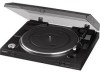
Sony PS-LX300USB - USB Stereo Turntable System Manual
 |
UPC - 027242731271
View all Sony PS-LX300USB manuals
Add to My Manuals
Save this manual to your list of manuals |
Sony PS-LX300USB manual content summary:
- Sony PS-LX300USB | Operating Instructions - Page 1
Stereo Turntable System Owner's Record The model number and serial numbers are located at the rear. Record these numbers in the spaces provided below. Refer to these numbers whenever you call upon your Sony dealer regarding this product. Model No. PS-LX300USB Serial No Operating Instructions PS - Sony PS-LX300USB | Operating Instructions - Page 2
for replacement of Part 15 of the FCC Rules. These limits are designed to provide reasonable protection against harmful interference in a residential installation. This equipment generates, uses, and can radiate radio frequency energy and, if not installed and used in accordance with the instructions - Sony PS-LX300USB | Operating Instructions - Page 3
manual could void your authority to operate this equipment. If you have any questions about this product, you may call: Sony Customer Information Services Center 1-800-222-7669 or http://www.sony.com/ Declaration of Conformity Trade Name : SONY Model Name : PS-LX300USB (Stereo Turntable be replaced, - Sony PS-LX300USB | Operating Instructions - Page 4
7 Operations Playing a Vinyl Record 8 Recording Audio Tracks on Your Computer 9 Additional Information Precautions 13 Maintenance 14 Troubleshooting 15 Specifications 18 Parts and Controls 19 About This Manual Thank you for purchasing the Sony Stereo Turntable System. Before operating the - Sony PS-LX300USB | Operating Instructions - Page 5
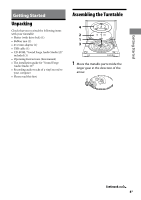
your turntable: Platter (with drive belt) (1) Rubber mat (1) 45 r/min adaptor (1) USB cable (1) CD-ROM, "Sound Forge Audio Studio LE" included (1) Operating Instructions (this manual) The installation guide for "Sound Forge Audio Studio LE" Recording audio tracks of a vinyl record to - Sony PS-LX300USB | Operating Instructions - Page 6
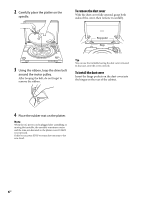
pocket Hinge 3 Using the ribbon, loop the drive belt around the motor pulley. After looping the belt, do not forget to remove the ribbon. Tip You can use the turntable leaving the dust cover removed. In that case, store the cover correctly. To install the dust cover Insert the hinge pockets on the - Sony PS-LX300USB | Operating Instructions - Page 7
The phono cable comes attached to the rear of the cabinet. 1 Set the PHONO/LINE switch (on the rear of the turntable) according to the jacks of your stereo system (amplifier). 3 Connect the AC power cord. Connect the AC power cord to an AC wall outlet after completing all of the connections - Sony PS-LX300USB | Operating Instructions - Page 8
the platter at a time. If two or more vinyl records are stacked on the platter, the stylus will not make proper contact with the grooves and the quality of reproduction will be impaired. 2 Press the Speed select button to select the speed. 3 Set the SIZE SELECTOR to 17 or 30. 4 Turn the protective - Sony PS-LX300USB | Operating Instructions - Page 9
or higher Windows® XP Professional Service Pack 2 or higher Pre-installed (manufacturer installed only) - Operating systems other than those listed above are not supported. - 64bit operating systems are not supported. • Hardware Environment: - Port: USB port** * Required when recording audio tracks - Sony PS-LX300USB | Operating Instructions - Page 10
computer. 2 Install the software according to on- screen instructions. Tip For details about installing the software, refer to the "Sound Forge Audio Studio LE" installation guide. Connecting the USB cable Connect the turntable and the computer with the supplied USB cable. To the USB jack USB cable - Sony PS-LX300USB | Operating Instructions - Page 11
Windows Vista ([Control Panel] is in the [Control Panel Home] view) 1 Select [Settings] from the [Start] menu. 2 Select [Control Panel]. 3 Click [Hardware and Sound]. 4 Click [Sound]. 5 Click the [Recording] tab. 6 Select [USB Audio CODEC] for [Microphone]. 7 Click [Set default]. 8 Select [USB Audio - Sony PS-LX300USB | Operating Instructions - Page 12
instructions: The installation guide for "Sound Forge Audio Studio LE": Refer to this supplied manual to install "Sound Forge Audio Studio LE." The "Sound Forge Audio Studio LE" tutorial: This tutorial provides easy instructions on how to operate the software. After installing the software - Sony PS-LX300USB | Operating Instructions - Page 13
provide an ideal container to transport the unit. If you have any question or problem concerning your unit that is not covered in this manual, please consult your nearest Sony dealer. Note on recording The recorded music is limited to private use only. Use of the music beyond this limit requires - Sony PS-LX300USB | Operating Instructions - Page 14
sound quality and avoid damage to your records, we recommend replacing the stylus within this time limit. For a replacement stylus, consult your nearest Sony dealer. To remove the stylus 1 Turn off and unplug the AC power cords of the turntable and amplifier. 2 Protect the stylus with the stylus - Sony PS-LX300USB | Operating Instructions - Page 15
not advance. The turntable is not level. Place the turntable on a level surface. The record is dirty or scratched. Clean the record with a commercially available record cleaning kit, or replace the record. Poor sound quality, excessive noise, intermittent sound, etc... The stylus is dirty or - Sony PS-LX300USB | Operating Instructions - Page 16
not be set correctly. - If the turntable is connected to the computer with the USB cable for the first time, the USB Composite Device, HID-compliant consumer control device, USB Human Interface Device and USB Audio Device (Windows XP)/USB Audio CODEC (Windows Vista) are installed automatically. To - Sony PS-LX300USB | Operating Instructions - Page 17
[USB Audio CODEC] under [Sound, video and game controllers] - [USB Composite Device] under [Universal Serial Bus controllers] Notes When connecting to different USB ports, you may have to install USB drivers. When connecting to different USB ports, the computer automatically installs the driver - Sony PS-LX300USB | Operating Instructions - Page 18
Supplied Accessories: 45 r/min adaptor (1) Platter (with drive belt) (1) Rubber mat (1) USB cable (1) CD-ROM (1) Operating Instructions (this manual) The installation guide for "Sound Forge Audio Studio LE" Recording audio tracks of a vinyl record to your computer Please read this first. Design and - Sony PS-LX300USB | Operating Instructions - Page 19
Parts and Controls Spindle 45 r/min adaptor Speed select button Rubber mat Platter Cartridge and headshell START button Insulator Dust cover Front Hinge Tone arm Arm stand Finger lift SIZE SELECTOR STOP button UP/DOWN button PHONO/LINE switch USB jack Additional - Sony PS-LX300USB | Operating Instructions - Page 20
Printed in China
-
 1
1 -
 2
2 -
 3
3 -
 4
4 -
 5
5 -
 6
6 -
 7
7 -
8
-
9
-
10
-
11
-
12
-
13
-
14
-
15
-
16
-
17
-
18
-
19
-
20
 |
 |

3-198-123-
14
(1)
Stereo
Turntable System
Owner’s Record
T
he model number and serial numbers are located at the rear. Record these
numbers in the spaces provided below. Refer to these numbers whenever you call
upon your Sony dealer regarding this product.
Model No. PS-LX300USB
Serial No.________________
© 2008 Sony Corporation
PS-LX300USB
Operating Instructions