
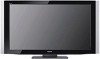
Sony KDL-40SL140 Operating Instructions
Sony KDL-40SL140 - 40" Bravia Sl Series Lcd Tv Manual
 |
UPC - 027242248960
View all Sony KDL-40SL140 manuals
Add to My Manuals
Save this manual to your list of manuals |
Sony KDL-40SL140 manual content summary:
- Sony KDL-40SL140 | Operating Instructions - Page 1
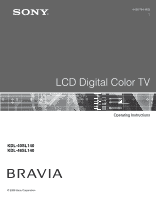
4-000-704-11(2) LCD Digital Color TV Operating Instructions KDL-40SL140 KDL-46SL140 © 2008 Sony Corporation - Sony KDL-40SL140 | Operating Instructions - Page 2
instructions on, the user is encouraged TV. s To obtain the best picture, do not expose the screen Sony TVs only with the following WALL-MOUNT BRACKET or TV-stand. Sony Wall-Mount Bracket Model No. Sony TV Stand Model No. Sony Floor Stand Model No. Sony TV Model No. KDL-40SL140 KDL-46SL140 service - Sony KDL-40SL140 | Operating Instructions - Page 3
38 Other Information Troubleshooting 41 Specifications 44 Index 45 Quick Setup Guide (separate volume) Provides a variety of optional equipment connection diagrams. Customer Support United States http://www.sony.com/tvsupport Canada http://www.sony.ca/support On-line Registration United States - Sony KDL-40SL140 | Operating Instructions - Page 4
HDTV, visit: U.S.A http://www.sony.com/HDTV Canada http://www.sonystyle.ca/hd The Four Steps to Stunning HD Experience: Set, Sound, Source, and Setup Along with your BRAVIA TV set, a complete HD system requires an HD sound system, a source of HD programming and proper setup connections. This manual - Sony KDL-40SL140 | Operating Instructions - Page 5
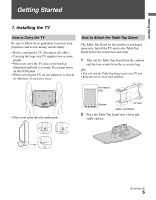
Do not put stress on the LCD panel. • When carrying the TV, do not subject it to shocks or vibration, or excessive force. How to Attach the Table-Top Stand The Table-Top Stand for this product is packaged separately. Install the TV unit to the Table-Top Stand before the connection and setup. 1 Take - Sony KDL-40SL140 | Operating Instructions - Page 6
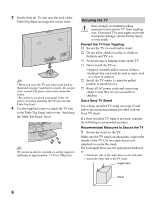
specified TV stand (see page 2) and follow the instruction manual provided with the Sony TV stand. If a Sony specified TV stand is not used, consider the following recommended measures. Recommended Measures to Secure the TV 1 Secure the stand for the TV. Make sure the TV stand can adequately support - Sony KDL-40SL140 | Operating Instructions - Page 7
three measures recommended above. Screw hole on the Table-Top stand Screw ~ Contact Sony Customer Support to obtain the optional Support Belt Kit by providing your TV model name. • For United States call: 1-800-488-7669 or visit: www.sony.com/accessories • For Canada call: 1-877-899-7669 3 Anchor - Sony KDL-40SL140 | Operating Instructions - Page 8
following WALL-MOUNT BRACKET only. Sony TV Model No. KDL-40SL140 KDL-46SL140 Sony Wall-Mount Bracket Model No. SU-WL500 • For bracket installation, refer to the instructions on page 9 and the instruction guide provided by the WallMount Bracket model for your TV. Sufficient expertise is required - Sony KDL-40SL140 | Operating Instructions - Page 9
the Wall-Mount Bracket To Customers Your KDL-40SL140/KDL-46SL140 can be wall-mounted using a Wall-Mount Bracket (sold separately). See table on page 8 showing the WallMount Bracket model appropriate for your TV. For product protection and safety, Sony strongly recommends that you use the Wall - Sony KDL-40SL140 | Operating Instructions - Page 10
KDL-40SL140 KDL-46SL140 d, g b Screw location When installing the Mounting Hooks on the TV. Unit: inches (mm) Center line of the screen when installed on the wall Hook location When installing the TV onto Base Bracket. Wall TV 3 Install the Base Bracket on the wall. Refer to the instruction - Sony KDL-40SL140 | Operating Instructions - Page 11
Against a Wall or Enclosed Area Make sure that your TV has adequate air circulation. Allow enough space around the TV as shown below. Installed on the wall 11 7/8 inches (30 cm) 4 inches (10 cm) 4 inches (10 cm) 4 inches (10 cm) Installed with stand Leave at least this much space around the set - Sony KDL-40SL140 | Operating Instructions - Page 12
Rear of TV VIDEO IN 1 3 1 S VIDEO VIDEO L (MONO) AUDIO R COMPONENT IN PC IN 1 2 Y RGB P B IN DIGITAL 1 AUDIO OUT (OPTICAL) 3 P R L AUDIO R AUDIO (1080i/720p/480p/480i) 4 AUDIO OUT R AUDIO L L AUDIO R (VAR/FIX) 23 4 SERVICE ONLY 5 6 CABLE / ANTENNA 7 Side panel IN - Sony KDL-40SL140 | Operating Instructions - Page 13
S VIDEO does not provide sound; you will need to located on the left side panel of the TV. 2 COMPONENT Connects to your TV displays all video input signals in a resolution of 1,920 dots × 1,080 lines supports signals up to 1080p. • 1080p format can only be supported through HDMI inputs. • This TV - Sony KDL-40SL140 | Operating Instructions - Page 14
HD Cable Box/HD Satellite Box You can also enjoy high-definition programming by subscribing to high-definition cable service or highdefinition satellite service. For the best possible picture, connect these components to your TV via the HDMI or component video (with audio) input on the back of your - Sony KDL-40SL140 | Operating Instructions - Page 15
AUDIO OUT R AUDIO L L AUDIO R (VAR/FIX) AUDIO-L (white) AUDIO-R (red) Audio cable ~ • If the equipment has a DVI jack and not an HDMI jack Component Connection CATV/ Satellite antenna cable HD cable box/HD satellite box Rear of TV VIDEO IN 1 3 S VIDEO VIDEO L (MONO) AUDIO R COMPONENT IN - Sony KDL-40SL140 | Operating Instructions - Page 16
(page 13). • The PC IN does not support 1080p format. PC Input Signal Reference Chart After connecting the PC to the TV, set the output signal from the PC according to the chart below. Signals VGA SVGA XGA WXGA ~ Resolution Horizontal × Vertical (Pixel) (Line) 640 × 480 640 × 480 800 - Sony KDL-40SL140 | Operating Instructions - Page 17
Equipment Personal computer Blu-ray Digital Disc Player/ DVD satellite Digital Audio "PS3" player receiver cable box system Side Panel IN 2 Rear of TV VIDEO IN 1 3 S VIDEO VIDEO L (MONO) AUDIO R COMPONENT IN PC IN 1 2 Y RGB PB IN DIGITAL 1 AUDIO OUT (OPTICAL) 3 PR L AUDIO - Sony KDL-40SL140 | Operating Instructions - Page 18
, you can do it later by selecting the Auto Program option in the Channel menu (see page 34). 1 POWER Press to turn on the TV. The Initial Setup screen appears. Initial Setup Press to choose a language. To run Auto Program at a later time ❑ Use the Auto Program feature at Channel menu as - Sony KDL-40SL140 | Operating Instructions - Page 19
Control for HDMI This TV is equipped with BRAVIA Theatre Sync™. The Control for HDMI function enables BRAVIA Theatre Sync to allow communication between Sony TV's and Sony equipment. Only Sony equipment with Control for HDMI capability is supported. To connect Sony equipment with Control for HDMI - Sony KDL-40SL140 | Operating Instructions - Page 20
no objects are blocking the path between the remote control and IR sensor on your TV. • Fluorescent lamps can interfere with your remote control; try turning off the fluorescent lamps. • If you are having troubles with the remote control, reinsert or replace your batteries and make sure that they - Sony KDL-40SL140 | Operating Instructions - Page 21
audio output of the attached speakers of your BRAVIA Theatre Sync audio system. Your BRAVIA Theatre Sync audio system must be connected by an HDMI connection to your TV (see page 14 for details). Press repeatedly to step through the Sound Mode settings: Dynamic, Standard, Game, Clear Voice, Custom - Sony KDL-40SL140 | Operating Instructions - Page 22
channel number, without a program title or description. Press to go back to the previous screen or exit from the screen when displaying menu items and settings. Press to display the menu with TV functions and settings. See "Using TV Menus" on page 27. Press to turn on and off the Closed Captions (CC - Sony KDL-40SL140 | Operating Instructions - Page 23
Remote Control and TV Controls/Indicators SOUND GUIDE Button qg WIDE qg TOOLS MENU Description Press repeatedly to step through the Wide Mode settings: Wide Zoom, Normal, Full, Zoom. The Wide Mode settings can be also accessed in the Screen menu (see page 32). Changing the Wide Screen Mode 4:3 - Sony KDL-40SL140 | Operating Instructions - Page 24
Inputs and TV mode. Press repeatedly to toggle through the inputs. qj V/v/B/b qk TOOLS ql JUMP w; FAVORITES • See page 38 (Label Inputs) on setting up the External Inputs labels. Press V/v/B/b to move the on-screen cursor. Press to select/confirm an item. This button supports different functions - Sony KDL-40SL140 | Operating Instructions - Page 25
to scan through channels. In the menu screen, these buttons serve as up/down buttons. Press to turn on and off the TV. 6 PIC OFF/TIMER Lights up in TV is turned off. For details, see page 39. If the LED blinks in red continuously, this may indicate the TV needs servicing (see contacting Sony - Sony KDL-40SL140 | Operating Instructions - Page 26
- Sony KDL-40SL140 | Operating Instructions - Page 27
Auto Sort Control, Control for HDMI, Backlight or Alternate Audio/MTS. Update Control for HDMI List or Product Support. The Screen menu allows you to change the proportions of the screen. Select from: Wide Mode, Auto Wide, 4:3 Default, Vertical Center, Vertical Size or Phase. (Continued) 27 - Sony KDL-40SL140 | Operating Instructions - Page 28
press CH +/- to go through the channels or repeat steps 1-2 and select TV; or press FAVORITES to select a channel from your Favorites list. • You FAVORITES to see your Favorites list. This option is a direct shortcut to the Screen menu to adjust the picture size in the Wide Mode option (see page 32 - Sony KDL-40SL140 | Operating Instructions - Page 29
. Main Window (PC) Sub Window (TV Channel) • You need a PC input signal to use PC-PIP function. • PIP window is only supported for the PC resolutions described on the PC Input Signal Reference Chart (page 16). • To turn on or off the Sub Window on the screen press from the remote control while - Sony KDL-40SL140 | Operating Instructions - Page 30
intensity, then press to set. Press B/b to increase or decrease the green or red tones, then press to set. Cool Gives the white colors a bluish tint. Neutral automatic picture (screen) brightness control. The light sensor measures the room brightness which allows the TV to automatically adjust - Sony KDL-40SL140 | Operating Instructions - Page 31
then press to set. Press B/b to increase or decrease lower-pitched sounds, then press to set. Press B/b to emphasize left or right speaker balance, then press to set. Adjusts the volume level of the current input (TV or video input) relative to other inputs. Select to turn on or off the internal - Sony KDL-40SL140 | Operating Instructions - Page 32
are watching 1080p source. Full Select to enlarge the picture horizontally to fill the screen when the vertically to fill the screen while maintaining the aspect ratio. Full Pixel Displays the picture for 1080p the picture horizontally to fill the screen when the original source is 4:3 - Sony KDL-40SL140 | Operating Instructions - Page 33
below. Wide Mode Wide Zoom Normal Full Zoom Fills the screen with minimum distortion. Select to display the picture in its original resolution and . Select to enlarge the picture to fill the screen. Select to enlarge the picture to fill the screen, while maintaining its original aspect ratio. • Wide - Sony KDL-40SL140 | Operating Instructions - Page 34
. • To exit press MENU . • To quickly access the Favorites list, press FAVORITES when there is no menu on the screen. Cable On Select if you are receiving cable channels via cable TV provider. Off Select if you are using an antenna. Add Digital Channels Select to add digital channels without - Sony KDL-40SL140 | Operating Instructions - Page 35
the TV. Rating TV-14 Custom Select to set ratings manually: U.S: See page 37 for details. Canada: See page 37 for details. • If you are not familiar with the Parental Guideline rating system, you should select Child, Youth or Young Adult to help simplify the rating selection. To set more specific TV - Sony KDL-40SL140 | Operating Instructions - Page 36
view a blocked channel Press when tuned to a blocked program, then enter the password. To reactive the Parental Lock settings, turn off and on the TV. Allows you to block individual video inputs. Press V/v to scroll through the video inputs and press to Block or Allow. Select to change your password - Sony KDL-40SL140 | Operating Instructions - Page 37
Custom Rating System Chart US Models: Selecting Custom Parental Lock Rating Options To select custom rating options for the U.S., select U.S.A. in the Select Country setting (see page 36). Movie Rating TV Rating Block programs by their rating, content or both G All children and general audience - Sony KDL-40SL140 | Operating Instructions - Page 38
version of the dialog or sound effects of a program ( if the broadcaster offers this service). The Info Banner displays for to identify A/V equipment you connected to the TV, such as a VCR, DVD, etc. the label you assigned to that input appears on screen. 1 Press V/v to highlight the input (from - Sony KDL-40SL140 | Operating Instructions - Page 39
(see page 19). Update equipments list connected to the HDMI input. Sony Contact information is available from this screen for your convenience. This option also provides specific information such as Model Name, Serial Number and Software Version. Select OK to reset the TV to factory default values - Sony KDL-40SL140 | Operating Instructions - Page 40
- Sony KDL-40SL140 | Operating Instructions - Page 41
Troubleshooting If you have additional questions, service needs, or required technical assistance related to the use of your Sony TV, please visit our website or call one of the following numbers: http://www.sony.com/tvsupport for US Support http://www.sony.ca/support for Canadian Support - Sony KDL-40SL140 | Operating Instructions - Page 42
the volume control. ❑ Press or VOL + so that "Muting" disappears from the screen (page 22). ❑ Set Speakers to On in the Sound menu (page 31). If it is set to Off, sound is not output from the TV's speakers regardless of the TV's volume control. ❑ When using HDMI input with Super Audio CD or DVD - Sony KDL-40SL140 | Operating Instructions - Page 43
sides of the screen are added by the broadcaster. You can manually change the Wide Mode to Wide Zoom or Zoom to fill the screen, which will Turn on the TV. While holding down V on the remote control, press POWER on the TV. Release the V button. ❑ Select OK on the Product Support option under Setup - Sony KDL-40SL140 | Operating Instructions - Page 44
120 V AC, 60 Hz Power consumption in use 220 W 300 W in standby All models less than 1 W Screen size (inches measured diagonally) 40 46 Display resolution (horizontal × vertical) 1,920 dots × 1,080 lines Speaker/Full range (2) Dimensions (W × H × D) with stand mm (inches) without - Sony KDL-40SL140 | Operating Instructions - Page 45
Lock 35 Picture 30 Screen 32 Setup 38 Shortcuts 28 Sound 31 MENU button Sound 31 T THEATER button 21 TOOLS button 24 Treble 31 Troubleshooting 41, 42, 43 Turning on/off the TV 22, 25 TV Rating 37 U U.S.A. Rating 37 Unrated 35 Update Control for HDMI List 39 US Models 37 V Vertical Center 32 Vertical - Sony KDL-40SL140 | Operating Instructions - Page 46
- Sony KDL-40SL140 | Operating Instructions - Page 47
- Sony KDL-40SL140 | Operating Instructions - Page 48
after reading your Operating Instruction manual and Quick Setup Guide • Experience difficulty operating your television For United States http://www.sony.com/tvsupport or to speak with a support representative: 1-800-222-SONY (7669) For Canada http://www.sony.ca/support or to speak with
-
 1
1 -
 2
2 -
 3
3 -
 4
4 -
 5
5 -
 6
6 -
 7
7 -
8
-
9
-
10
-
11
-
12
-
13
-
14
-
15
-
16
-
17
-
18
-
19
-
20
-
21
-
22
-
23
-
24
-
25
-
26
-
27
-
28
-
29
-
30
-
31
-
32
-
33
-
34
-
35
-
36
-
37
-
38
-
39
-
40
-
41
-
42
-
43
-
44
-
45
-
46
-
47
-
48
 |
 |

KDL-40SL140
KDL-46SL140
© 2008 Sony Corporation
4-000-704-
11
(2)
LCD Digital Color TV
Operating Instructions