
1995 Oldsmobile Aurora Owner's Manual
1995 Oldsmobile Aurora Manual
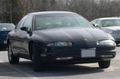
1995 Oldsmobile Aurora manual content summary:
- 1995 Oldsmobile Aurora | Owner's Manual - Page 1
... - 1995 Oldsmobile Aurora | Owner's Manual - Page 2
- 1995 Oldsmobile Aurora | Owner's Manual - Page 3
@ The 1995 Aurora Owner's Manual How to Use This Manual ...111 This section tells you how to use your manual at~d includes safct/ and vehicle damage warninls and symbols. Seats and Restraint Systems ...1-1 This section tells you how to use your seats and safcty belts properly. I t also explains the - 1995 Oldsmobile Aurora | Owner's Manual - Page 4
new in it owner can use it. WE SUPPORT VOLUNTARY TECHNICIAN CERTIFICATIONTHROUGH National Inslilute for We support voluntary technician certification. 1 AUTOMOTIVE SERVICE EXCELLENCE For Canadian OwnersWho Prefer a French Language Manual: Aux propriktaires canadiens: Vous pouvez vous procurer un - 1995 Oldsmobile Aurora | Owner's Manual - Page 5
This will helpyou learn about the features controls for and your vehicle. In this manual, you'll find that pictures and wordswork together to explain things hurt. You will also find a circle with a slash through in it this book. This safety symbol means "Don't,""Don't do this,'' or "Don't let this - 1995 Oldsmobile Aurora | Owner's Manual - Page 6
Vehicle Damage Warnings Also in this book you will find these notices: In the notice area, tell you what to do to help avoid the damage. When you read other manuals, you might see CAUTION and NOTICE warnings i n different colors or in different words. You'll also see warning labels on your vehicle. - 1995 Oldsmobile Aurora | Owner's Manual - Page 7
your controls: WINDSHIELD WIPER ENGINE COOLANT TEMP BATTERY CHARGING SYSTEM BRAKE -F& FUSE RELEASE a BELTS 4 TURN SIGNALS e =OOz c ( ) 0 RADIO VOLUME PARKING LAMPS WINDSHIELD DEFROSTER RADIATOR COOLANT a b CONDITIONING AIR a t POWER WINDOW WINDOW DEFOGGER FUEL ENGINE OIL PRESSURE - 1995 Oldsmobile Aurora | Owner's Manual - Page 8
NOTES vi - 1995 Oldsmobile Aurora | Owner's Manual - Page 9
Aurora and how to use your safety belts properly. You can also learn about some things you should not do with air bags and safety belts. To Adjust the Six-Way Power Seats Horizontal Control (A): Raise the front and Seat Controls This part tells you about the seats--how to adjust them - 1995 Oldsmobile Aurora | Owner's Manual - Page 10
Reclining Front Seatbacks The vertical control described previously in this section reclines thefront seatbacks. But don't have a seatback reclined if your vehicle is moving. 1-2 - 1995 Oldsmobile Aurora | Owner's Manual - Page 11
..._ ... The seat and memory positions will be stored for the The rear lumbar control adjusts upper lumbar support; number pressed. Repeat the procedure to store another the front control adjusts lower lumbar support. position with the other numberif desired. To adjust the seat and mirrors to the - 1995 Oldsmobile Aurora | Owner's Manual - Page 12
its full rear position. This featurewill quickly heat the lower cushions and lower backof the driver and front passenger seats for added comfort. I Press the button once to turn the heater on The HI high. indicator light below button will glow. Press it again the I to turn the heater on The LO - 1995 Oldsmobile Aurora | Owner's Manual - Page 13
part of the manual tellsyou how to use safety belts properly. It also tells you some thingsyou should not do with safety belts. And it explains the Supplemental Restraint System, or "air bag" system. Your vehicle has a light that comes onas a reminder to buckle up. (See "Safety Belt Reminder Light - 1995 Oldsmobile Aurora | Owner's Manual - Page 14
Why Safety BeltsWork When you ride in or on anything,you go as fast asit goes. Put someoneon it. Take the simplest vehicle. Suppose just a seat on it's wheels. 1-6 - 1995 Oldsmobile Aurora | Owner's Manual - Page 15
. . .. . Get it up to speed. Then stop the vehicle. rider The doesn't stop. The person keeps goinguntil stopped by something. In a real vehicle, it could be the windshield ... 1-7 - 1995 Oldsmobile Aurora | Owner's Manual - Page 16
or the instrument panel ... or the safety belts! With safety belts, you slow down as the vehicle does. You get more time to stop. You stop over more distance, and your strongest bones take the forces. That's why safety belts make such good sense. 1-8 - 1995 Oldsmobile Aurora | Owner's Manual - Page 17
from things beyond your control, such as bad drivers. Most accidents occur within 25 miles (40 km) of home. And the greatest number of serious injuries and deaths occur at speeds of less than 40 mph (65 km/h). Safety belts are for everyone. Why don't they just put in air bags so people won - 1995 Oldsmobile Aurora | Owner's Manual - Page 18
size. Be aware that there are special things to know about safety belts and children. And there are different rules for smaller children and babies. If a child will be riding in your Aurora, see the part of this manual called "Children." Follow those rules for everyone's protection. First, you'll - 1995 Oldsmobile Aurora | Owner's Manual - Page 19
If you slid underit, the belt would apply force at your abdomen. This could cause serious or even fatal injuries. shoulder belt The should go over the shoulder and across the chest. The parts of the body are best able to take belt restraining forces. The safety belt locks there's a sudden stop crash - 1995 Oldsmobile Aurora | Owner's Manual - Page 20
Adjustment Your car has a shoulder belt tightness adjustment feature. If the shoulder belt seems tootight, adjust it before you begin to drive. 1. Sit well back in the seat. 4. Let the belt go back all the way. You should hear a slight clicking sound. If you don't, the adjustment feature won't set - 1995 Oldsmobile Aurora | Owner's Manual - Page 21
&.' What's wrong with this? A: The shoulder beltis too loose. It won't give nearly as much protection this way. 1-13 - 1995 Oldsmobile Aurora | Owner's Manual - Page 22
What's wrong with this? A: The belt is buckled in the wrong place. - 1995 Oldsmobile Aurora | Owner's Manual - Page 23
What's wrong with this? 1 I I J A: The shoulder belt is worn under the arm. It should be worn over the shoulder at all times. 1-15 - 1995 Oldsmobile Aurora | Owner's Manual - Page 24
&= What's wrong with this? L I I I I I I I I 1 1 I rh: The belt is twisted across the body. - 1995 Oldsmobile Aurora | Owner's Manual - Page 25
on the buckle. The belt should go back out of the way. Your Aurora has two air bags -- one a i r bag for the driver and another air bag for the right front passenger. Here are the most important things to know about the air bag system: Before you close the door, be sure the belt is out of the way - 1995 Oldsmobile Aurora | Owner's Manual - Page 26
AIR BAG There is an air bag readiness light on the instrument panel, which shows AIR BAG. The system checks the air bag's electrical system for malfunctions. The light tells you if there is an electrical problem. See "Air Bag Readiness Light" in the Index for more information. - 1995 Oldsmobile Aurora | Owner's Manual - Page 27
How the Air Bag System Works I I The right front passenger's air bag is in the instrument panel on the passenger's side. Where is the air bag? The driver's air bagis inthe middle of the steering wheel. 1-19 - 1995 Oldsmobile Aurora | Owner's Manual - Page 28
nitrogen about 8 to 11 mph (13 to 18 kmh). The threshold level gas, which inflates the air bag. The inflator,air bag, and can vary, however, with specific vehicle design, that so related hardware are all part the air bag modules of it can be somewhat above or below this range. If your packed inside - 1995 Oldsmobile Aurora | Owner's Manual - Page 29
and will be some smoke and dust coming from vents in the possibly other parts. The service manual for your deflated air bags. Air bag inflation will not prevent the vehicle covers the need to replace other parts. driver from seeing or from being able to steer the vehicle, nor will it stop people - 1995 Oldsmobile Aurora | Owner's Manual - Page 30
the system to inflate while someone is working onyour vehicle. Your Aurora retailer and the 1995 Aurora Service Manual have information about servicing your vehicle and the air bag system. purchase a service manual, see To "Service and Owner Publications'' in the Index. The airbag system doesnot - 1995 Oldsmobile Aurora | Owner's Manual - Page 31
a crash. For pregnant women, as for anyone, the key to making safety belts effective is wearing them properly. Right Front Passenger Position The right front passenger's safety belt works the same way as the driver's safety belt. See "Driver Position,'' earlier in this section. When the lap portion - 1995 Oldsmobile Aurora | Owner's Manual - Page 32
Rear Seat Outside Passenger Positions Lap-Shoulder Belt The positions next to the windows have lap-shoulder belts. Here's how to wear one properly. 1. Pick up the latch plate and pull the belt across you. Don't let it get twisted. 2. Push the latch plate into the buckle until it clicks. 1-24 - 1995 Oldsmobile Aurora | Owner's Manual - Page 33
the latch plate to make sure it is secure. 3. To make the lap part tight, pull down on the buckle end of the belt as you pull up on the shoulder part. If the belt is not long enough, see "Safety Belt Extender" at the end of this section. Makesure the release button on the - 1995 Oldsmobile Aurora | Owner's Manual - Page 34
cause serious or even fatal injuries. The shoulder belt should go over the shoulder and across the chest. These parts of the body are best able to take belt restraining forces. The safety belt locks if there's a sudden stop or a crash. To unlatch the belt, just push the button on the buckle. 1-26 - 1995 Oldsmobile Aurora | Owner's Manual - Page 35
and head. how you should install the edge of the seatback. Here is comfort guides on the shoulder belts: 1. Pull the elastic cord out frombetween the edge of the seatback and the interior body to removethe guide from its storage clip. There is one guide for each outside passenger position in - 1995 Oldsmobile Aurora | Owner's Manual - Page 36
. The elastic cord must be under the belt and the guide on top. 4. Buckle the belt around the child, and make sure that both the lap belt and the shoulder belt are secured properly. Make sure that the shoulder belt crosses the shoulder. See "Safety Belts, Rear Seat Passengers" in the Index. 1-2s - 1995 Oldsmobile Aurora | Owner's Manual - Page 37
expose its storage clip, and then slide the guide onto the clip. Rotate the guide and clip inward and in between the seatback and the interior body, leaving only the loop elastic cord exposed. of Lap Belt Center Passenger Position When you sit in the center seating position, have a you lap safety - 1995 Oldsmobile Aurora | Owner's Manual - Page 38
To make the belt shorter, pull its free end as shown until the belt is snug. Children Everyone in a vehicle needs Buckle, position and release it the same way as the lap part of a lap-shoulder belt. If the belt isn't long enough, see "Safety Belt Extender" at the end of this section. Make sure the - 1995 Oldsmobile Aurora | Owner's Manual - Page 39
1-31 - 1995 Oldsmobile Aurora | Owner's Manual - Page 40
if they are restrained in the rear rather than the front seat. We at General Motors therefore recolnmend that you put your child restraint in the rear seat. Never put a rear-facing child restraint in the front passenger seat. Here's why: Wherever you install it, be sure to secure the child restraint - 1995 Oldsmobile Aurora | Owner's Manual - Page 41
can tell you how to do it. For cars first sold i n Canada, child restraints with a top strap must be anchored according to Canadian Law. Your retailer can obtain the hardware kit and install it for you, or you may install it yourself using the instructions provided in the kit. Use the tether - 1995 Oldsmobile Aurora | Owner's Manual - Page 42
you would be able to unbuckle the safety belt quickly if you eves had to. You'll be using the lap-shoulder belt. See the earlier part about the top strap if the child restraint has one. 1. Put the restraint on the seat. Follow the instructions for the child restraint. 2. Secure the child in - 1995 Oldsmobile Aurora | Owner's Manual - Page 43
you push down on the child restraint. Securing a Child Restraint in the Center Rear Seat Position You'll be using the lap belt: See the earlier part about the top strap if the child restraint has one. 6. Push and pull the child restraint in different directions to be sure it is secure. - 1995 Oldsmobile Aurora | Owner's Manual - Page 44
3. Secure the child in the child restraint as the instructions say. 5. Buckle the belt. Make sure the release button is positioned so you would be able tounbuckle the safety belt quickly if you ever had to. 6. To tighten the belt, pull its free end while you push down on the child restraint. 1-36 - 1995 Oldsmobile Aurora | Owner's Manual - Page 45
remove the child restraint,just unbuckle the vehicle's o safety belt. It will be ready to work for an adult or larger child passenger. Securing a Child Restraint in the Right Front Seat Position Your vehicle h a s a right front passenger air bag. Neverput a rear-facing child restraint in this seat - 1995 Oldsmobile Aurora | Owner's Manual - Page 46
part about the top strap the child restraint one. if has 1. Because your vehicle has a right front passenger air bag, alwaysmove the seat as far back it will go as before securing a forward-facing child restraint. (See "Seats"in the Index.) 2. Put the restraint on the seat. Follow the instructions - 1995 Oldsmobile Aurora | Owner's Manual - Page 47
6. Pull the rest of the lap beltall the way out of the retractor to set the lock. 7. To tighten the belt, feed the lap belt back into the retractor while you push down on the child restraint. 8. Push and pull the child restraint in different directions to be sure is - 1995 Oldsmobile Aurora | Owner's Manual - Page 48
statistics show that cl-uldren are safer if they are restrained in the rear seat. Butthey need to use the safety belts properly. 0 Children who aren't buckled up can be thrown out in a crash. Children who aren't buckled up can strike other people who are... 0 ,. : . . 4 8. - . . .1 I 1-40 - 1995 Oldsmobile Aurora | Owner's Manual - Page 49
child toward the center of the vehicle, but be sure that the shoulder belt still is on the child's shoulder, so that in a crash the child's upper body would have the restraint that belts provide. I f the child is sitting in a rear seat outside position, see "Rear Safety Belt Comfort Guides" in the - 1995 Oldsmobile Aurora | Owner's Manual - Page 50
Wherever the child sits, the lap portion of the belt should be worn low and snug on the hips, just touching the child's thighs. This applies belt force to the child's pelvic bones in a crash. 1-42 - 1995 Oldsmobile Aurora | Owner's Manual - Page 51
safety belt isn't long enough to fasten, your retailer will order you an extender. 1t.s free. When belt. Checking Your RestraintSystems Now and then, make sure all your belts. parts. If you see anything that might keep a restraint system from doing its job. have it repaired. Torn or frayed belts - 1995 Oldsmobile Aurora | Owner's Manual - Page 52
accident. You would see this label on the belt near the latch plate. If belts are cut ordamaged, replace them. Collision damage also may mean you will need tohave safety belt or seat parts repaired or replaced. New parts and repairs may be necessary even if the belt wasn't being used at the time of - 1995 Oldsmobile Aurora | Owner's Manual - Page 53
and Controls Here you can lexn about the many standard and optional features on your Aurora, and informationon starting, shifting and braking.Also explained are the instrument panel and the warning systems that tell you if everything is working properly -- and what to do if you have a problem - 1995 Oldsmobile Aurora | Owner's Manual - Page 54
ignition key. The door keys are for the doors and all other locks. There are 15 alternative PASS-Key@II blanks, to help discourage theft. Your retailer can he1 determine which key code you need. (See "PASS-Key 1 " in the Index.) 1 8 NOTICE: Your Aurora has a number of new features that can help - 1995 Oldsmobile Aurora | Owner's Manual - Page 55
Door Locks From theoutside, use your door key or Remote Lock Control. There are several ways to lock and unlock your vehicle. 2-3 - 1995 Oldsmobile Aurora | Owner's Manual - Page 56
a red mark on the switch when the door is unlocked. Door Ajar Reminder If a door is not fully closed when the transaxle is in gear, a chime will sound and the information center will display one of these messages: DRIVER DOOR AJAR PASSENGER DOOR AJAR LEFT REAR DOOR AJAR RIGHT REAR DOOR AJAR 2-4 - - 1995 Oldsmobile Aurora | Owner's Manual - Page 57
have that person use the lnanual or power lock. When the door is closed again, it will not lock automatically. Just use the manual or power lock to lock the door again. You can program the automatic door lock feature to allow the doors to remain locked after you shift into PARK (Pj. 1. Close your - 1995 Oldsmobile Aurora | Owner's Manual - Page 58
When the SecurityLock is On s i 1. 2. Move the lever on the door all the way up to the ENGAGED position. Unlockthe door from the inside. 2. Then open the door from the outside. If you don't cancel the security lock feature, adults or older children who ride i n the rear won't be able to open - 1995 Oldsmobile Aurora | Owner's Manual - Page 59
To Cancel the Rear Door Lock 1 . Unlock the door from the inside and open the door from the outside. Remote Lock Control 2. Move the lever all the way down. 3. Do the same for the other rear door. The rear door locks will now work normally. Yo11 can lock and unlock your doors or unlock your - 1995 Oldsmobile Aurora | Owner's Manual - Page 60
. See the instructions on battery replacement. Check the distance. You may be too far from your vehicle. This product has a maximum range. Check the location. Other vehicles or objects may be blocking the signal. service. Matching Transmitter(s)To Your Vehicle Each key chain transmitter is coded to - 1995 Oldsmobile Aurora | Owner's Manual - Page 61
to change the batteries. To Replace Batteries in the Remote Lock Control 1. Remove the screw from the back cover. 2. Lift the front cover off, bottom half first. 3. Remove and replace the two batteries (Duracell@type DL-2016). 4. Reassemble the transmitter. 5 . Check the transmitter operation - 1995 Oldsmobile Aurora | Owner's Manual - Page 62
Trunk Lock To unlock the trunk from the outside, insert the door key and turnit. 2-10 - 1995 Oldsmobile Aurora | Owner's Manual - Page 63
will work in any transaxle position. The system also works with the Remote Lock Control. Move the switch to OFF to disable the remote trunk release button. Then lock your glove box with the door key. If you have your door key with you, this will help keep someone from gettinginto your trunk. Move - 1995 Oldsmobile Aurora | Owner's Manual - Page 64
. Move the trunk security override switch to OFF. Lock the glove box. Lock all the doors except the driver's. Take the door key with you. Take the Remote Lock Control key chain with you. When you park your Aurora and open the driver's door, you'll hear a chime reminding you to remove your key from - 1995 Oldsmobile Aurora | Owner's Manual - Page 65
it's inserted in the ignition or the engine may not start. If the engine does not stat and the SECURITY light is on or you get the CLEAN also want to check the fuses (see "Fuses and Circuit Breakers" i n the Index). If the starter won't work with the other key, your vehicle needs service. If your - 1995 Oldsmobile Aurora | Owner's Manual - Page 66
information. If you're ever drivingand the SECURITY light comes on or PASS-KEY SYSTEM FAULT appears, you will be able to restart your engine if you turn it off. Your PASS-Key@II system, however, is not working properly and must be serviced by your Aurora retailer. Your vehicle is not protected by - 1995 Oldsmobile Aurora | Owner's Manual - Page 67
stays in the RUN position when the engine is running. But even when the engine is not running, you can use R U N to operate your electrical power accessories, and to display some instrument panel warning lights. START: Starts the engine. When the engine starts, release the key. The ignition switch - 1995 Oldsmobile Aurora | Owner's Manual - Page 68
RUN are ON positions that allow you to operate your electrical accessories, such as the radio. Starting Your Engine Move your shift lever toPARK (P) or NEUTRAL (N). Your engine won't start in any other position -- that's a safety feature, To restart when you're already moving, use NEUTRAL (N) only - 1995 Oldsmobile Aurora | Owner's Manual - Page 69
excessive heat can damage your starter motor. NOTICE: Your engine is designed to work with the electronics in your vehicle. If you add electrical parts oraccessories, you could change the way the fuel injection system operates. Before adding electrical equipment, check with your retailer. If you - 1995 Oldsmobile Aurora | Owner's Manual - Page 70
standing water, drive through them very slowly. Engine Coolant Heater (Option) I In very cold weather, 0" F (- 1 8°C) or colder, the engine coolant heater can help. You'll get easier starting and better fuel economy during engine warm-up. Usually, the coolant heater should be plugged in a minimum - 1995 Oldsmobile Aurora | Owner's Manual - Page 71
To Use the Coolant Heater 1. Turn off the engine. NOTICE: After you've used the coolant heater, be sure to store the cordas it was before, to keep it away from movingengine parts. If you don't, it could be damaged. How long should you keep the coolant heater plugged in? The answer dependson the - 1995 Oldsmobile Aurora | Owner's Manual - Page 72
Automatic Transaxle Your automatic transaxle has a shift lever located on the console between the seats. There are several shift positions for your shift lever. PARK (P): This locks your frontwheels. It's the best position to use when you start your engine because your vehicle can't move easily. - 1995 Oldsmobile Aurora | Owner's Manual - Page 73
PARK (P) range before in starting the engine. Your Aurora has a brake-transaxle shift interlock.You have to fully apply your regular brakes before you can shift fromPARK (P) when the ignition key is in the position. If you cannot shift ON out of PARK (P), ease pressure on the shift lever--push the - 1995 Oldsmobile Aurora | Owner's Manual - Page 74
way, your vehicle can be damaged. So, if this happens, have your vehicle serviced right away. Until then, you can use SECOND ( 2 ) when you are position gives you more power but lower fuel economy. You can use SECOND (2) on hills. It can help control your speed as you go down steep engine. (a) 2-22 - 1995 Oldsmobile Aurora | Owner's Manual - Page 75
mode. For general driving conditions, use the normal mode. NOTICE: If your front wheels can't rotate,don't This could overheat and damage the transaxle. Use your brakes orshift intoPARK (P) to hoId your vehicle in position engine speeds. For increased performance, you may choose the POWER mode. 2-23 - 1995 Oldsmobile Aurora | Owner's Manual - Page 76
"Towing a Trailer" in the Index. That part shows what to do first to keep the trailer from moving. If you try to drive off with the parking brake on, the parking brake indicator light stays on. ThePARK BRAKE SET message will appear in the Driver Information Center, and a chime will sound until you - 1995 Oldsmobile Aurora | Owner's Manual - Page 77
IntoPARK (P) 0 Hold in the button on the lever. Push the lever all the way toward the front of your vehicle. 1. Hold the brake pedal down with your right foot and set the parking brake. 2. Move the shift lever intothe PARK (P) positions as follows: 3. Move the ignition key to LOCK. 4. Remove - 1995 Oldsmobile Aurora | Owner's Manual - Page 78
't shift your transaxle into PARK (P) properly, the weight of the vehicle may put too much force on pressure from the transaxle, so you can pullthe shift lever out of PARK (P). I If you have to leave your vehicle with the engine *running,be sure your vehicle in PARK (P) and your is parking brake - 1995 Oldsmobile Aurora | Owner's Manual - Page 79
but can't still shift out of PARK (P), try this: 1. Turn the key to OFF. Open and close the driver's door to turn off the Retained Accessory Power feature. 2. Apply and hold the brake until the end of step 4. Parking Over Things That Burn 3. Shift to NEUTRAL (N). 4. Start the vehicle and then - 1995 Oldsmobile Aurora | Owner's Manual - Page 80
Engine Exhaust Running Your Engine While You're Parked It's better not to park with the engine running. But if you ever have to, here are some things to know. 2-28 - 1995 Oldsmobile Aurora | Owner's Manual - Page 81
"Towing a Trailer" in the Index. Switches on the driver's armrest control each the of windows when the ignition is on. In addition, each passenger door has a switch for its own window. The driver's window switch has an express down feature. When it is held rearward for more than half a second, the - 1995 Oldsmobile Aurora | Owner's Manual - Page 82
Window Lock Press the right side of the WINDOW LOCK switch on the driver's armrest to disable all passenger window switches. This is a useful feature when you have children as passengers. Press the left side of the WINDOW LOCK switch to allow passengers to use their window switches again. Tilt - 1995 Oldsmobile Aurora | Owner's Manual - Page 83
the right side of your steering column controls your windshield wipers. For a single wiping or short delay can between wiper cycles. This can be very useful in light rain or snow. Push the lever down to the first detent, DELAY. the motor cools. Clear away snow or ice to prevent an overload. 2-31 - 1995 Oldsmobile Aurora | Owner's Manual - Page 84
leveron the right side of your steering column also controls your windshield washer. To spray washer fluid on the manufacturer's instructions for adding water. Don't mix water with ready-to-use washer fluid. Water can cause the solution to freeze and damage your washer fluid tank and other parts of - 1995 Oldsmobile Aurora | Owner's Manual - Page 85
The lever on the left side of the steering column includes your: Turn Signal and Lane Change Indicator Cruise Control Headlamp High-Low Beam Parking Lamps Flash-To-Pass Feature t The turn signal has two upward (for right) and two downward (for left) positions. These positions allow you to - 1995 Oldsmobile Aurora | Owner's Manual - Page 86
out, replace it to help avoid an accident. With cruise control, you can maintain a speed of about 25 mph (40 km/h) or more without keeping your foot on the accelerator. This can really help on long trips. I f the green arrows don't go on at all when you signal a turn, check the fuse (see "Fuses - 1995 Oldsmobile Aurora | Owner's Manual - Page 87
. To Set Cruise Control 1. Move the cruise control switch toON. If your vehicleis in cruise control when the traction control system begins to limit wheel spin, the cruise control will automatically disengage. (See "Traction Control System" in the Index.) When road conditions allow you to safely - 1995 Oldsmobile Aurora | Owner's Manual - Page 88
of the lever and release it. The CRUISE light on your instrument panel will come on. 4. Take your foot off the accelerator pedal. Suppose you set your cruise control at a desired speed and then you apply the brake. This, of course, shuts off the cruise control. But you don't need to reset it. Once - 1995 Oldsmobile Aurora | Owner's Manual - Page 89
speed. Here's the first: 1. Use the accelerator pedal to get to the higher speed. To Reduce Speed While Using Cruise Control There are two ways to reduce your speed while using cruise control: 0 2. Push the button at the end of the lever, then release the button and the accelerator pedal. You'll - 1995 Oldsmobile Aurora | Owner's Manual - Page 90
down. Of course, applying the brake takes yon out of cruise control. Many drivers find this to be too much trouble and don't use cruise control on steep hills. To Get Out of Cruise Control There are two ways to turn off the cruise control: Step lightly on the brake pedal; or Move the cruise switch - 1995 Oldsmobile Aurora | Owner's Manual - Page 91
Turn the band to OFF to turn off the lamps/lights. Headlamp High-Low Beam To change the headlamps from low symbol to turn on: Parking Lamps 0 0 Side Marker Lamps Taillamps Instrument Panel Lights License Plate Lamps - Q the band to this symbol to turn on: ' / , Turn Headlamps When the high - 1995 Oldsmobile Aurora | Owner's Manual - Page 92
Flash-To-PassFeature This feature lets use yourhigh beam headlamps to you signal a driver front of you that you want to pass.It in works even if your headlamps are off. you. The cornering lamps are designed to come when you on signal a turn. This provide more light for cornering will at night. 2-40 - 1995 Oldsmobile Aurora | Owner's Manual - Page 93
front of your vehicle during the day. DRL can be helpful in many different driving conditions, but they can be especially helpful in the short periods after dawn and before sunset. A light If it's dark, you must also move the Twilight Sentinel control to MIN. As with any vehicle, you should turn on - 1995 Oldsmobile Aurora | Owner's Manual - Page 94
SENTINEL Twilight Sentinel You can brighten or dim your instrument cluster, radio and climate control displays and control lights by rotating the lNTERlOR LIGHTS control betweenLO and HI when your lights are on. Rotate the control all the way to HI and you will turn on the interior courtesy lamps - 1995 Oldsmobile Aurora | Owner's Manual - Page 95
it toward MIN to reduce the delay. Rotate the control all the way to MIN to turn off the Twilight Sentinel. These lamps work even when the ignition is off. To avoid draining your vehicle's battery, be sure to turn off all front and rear reading lamps when leaving your vehicle. Rear Reading - 1995 Oldsmobile Aurora | Owner's Manual - Page 96
a GarageDoor Opener 2. Remove the square height adapters from the door. To install a garage door opener in the overhead console, follow these directions: 1. Push the extended tab, which is located in front of the GARAGE button, and pull the door downward. 3. Refer to the chart on the following - 1995 Oldsmobile Aurora | Owner's Manual - Page 97
the GARAGE button. If the unit does not work, try different pin and hole combinations. 4 3 2 1 Your Garage Door Transmitter Vehicle Console Door Name CHAMBERLAIN G-3684 1 -BUTTON Button 1 Position For Model 5 Number Of Adapters Adap 4 5 I 6l 7l CRUSADER 1 1 9 3 5 5 3 3 I I GENIE GENIE - 1995 Oldsmobile Aurora | Owner's Manual - Page 98
Model 1 Vehicle Console Door I Adapters 6 3 F MULTIELMAC MULTIELMAC MULTIELMAC MULTIELMAC MULTIELMAC ~ 1054 1 1 2 3034 6 3 3 6 3 4 1048 1087 3060 4 2 1 1 1 1 5 6 2 4 2 I MULTIELMAC MULTIELMAC 1098 1-BTN 5 I 1 2-46 OVERHEAD DOOR OVERHEAD DOOR '"-1 2 1 1 2 I 7 1 OR 10 - 1995 Oldsmobile Aurora | Owner's Manual - Page 99
3-BTN 242 Button 1 2 3 Vehicle Console Door Position For Adapters 10 10 Number Of Adapters 3 ~ Your Garage Door Transmitter Name STANLEY ~~ Vehicle Console Door Position For Model Button 1047 1050 1076 1 Number Of Adapters Adap 3 3 5 6 1 OVERHEAD DOOR 4-BTN 232 PULSAR PULSAR 93 1 3 832 - 1995 Oldsmobile Aurora | Owner's Manual - Page 100
the functions of up to three individual hand-held transmitters. It will operate garage doors and gates, or with the accessory package, other devices controlled by radio frequency such as home/office lighting systems and security systems. The transmitter will learn and transmit the frequencies of - 1995 Oldsmobile Aurora | Owner's Manual - Page 101
HomeLink Transmitterhas been programmed. Release both buttons once the light starts to flash rapidly. If you have trouble programming the HomeLink Transmitter, make sure that you have followed the directions exactly as described and that the batteries in the hand-held transmitter are not dead. If - 1995 Oldsmobile Aurora | Owner's Manual - Page 102
the light from behind your car. At night, when the glare is too high, it changes to the night mode. Then, it reflects only part of the light from conditions automatically. Press the button again to turn off the automatic setting. r I m I Time Delay The automatic mirror has a time delay feature - 1995 Oldsmobile Aurora | Owner's Manual - Page 103
the far left of the instrumentpanel control both outside rearview mirrors. Move the center switch to the left to select of your vehicle when you are sitting in a comfortable driving position. To lock the controls, leave the selector switch in the middle position. When you operate the rear window - 1995 Oldsmobile Aurora | Owner's Manual - Page 104
inside the back wall of the trunk. Put small loads, like grocery bags, behind the net. It can help keep them from falling over during sharp the cargo. Use this position for slightly larger loads. When installing the net in either position, be sure the "up label" (A) is pointing up. Use - 1995 Oldsmobile Aurora | Owner's Manual - Page 105
Sun Visors Lighted Visor Vanity Mirrors To block out glare, you can swing down the visors. You can also remove them from the center mount and swing them to the side, while the auxiliary visor remains to block glare from the front. To extend the visor at the sides, pull out the extension. m e n - 1995 Oldsmobile Aurora | Owner's Manual - Page 106
when the ignition is on, or when Retained Accessory Power is active. To open the sunroof, press the control switch rearward and release it to open the glass panel and sunshade. If you want to stop the sunroof in a partially open position, lightly press the switch again. To fully open the sunroof - 1995 Oldsmobile Aurora | Owner's Manual - Page 107
to open the panel. To close the access panel, push until it clicks. The front armrest opens into a storage area.To open it, lift the front edge. Inside you will find storage for cassettes, compact discsand coins. In front of the storage area is a cupholder. Press and release the cupholder cover to - 1995 Oldsmobile Aurora | Owner's Manual - Page 108
during trips. Press on the lower portion to extend the hook. Press on the top part to return the hook to its recessed position. Push and release the cover to reveal the front ashtray, lighter and accessory power outlet. NOTICE: Don't put papersand other things that burn into your ashtrays. If you - 1995 Oldsmobile Aurora | Owner's Manual - Page 109
The power outlet inside the front ashtray can be used to plug in electrical equipment such as a cellulartelephone, CB radio, etc. Follow the proper installation instructions that are included with any electrical equipment you install. NOTICE: When using the accessory power outlet, the maximum load - 1995 Oldsmobile Aurora | Owner's Manual - Page 110
The Instrument Panel == Your Information System 2-58 - 1995 Oldsmobile Aurora | Owner's Manual - Page 111
instrument panel are: 1. Power Mirrors Control Switch 2. Fog Lamp Switch 12. Passenger Side Air Bag 13. Accessory Power Outlet 14. GearshiftLever 15. SelectableShift 16. Traction Control Button 17. Ashtray and Lighter 18. Fuel Door Release Switch 3. Turn SignalMultifunction Lever 4. Instrument - 1995 Oldsmobile Aurora | Owner's Manual - Page 112
Instrument Panel Cluster Your Aurora is equipped with this instrument panel cluster, which includes indicator warning lights and gages that are explained on the following pages. 2-60 - 1995 Oldsmobile Aurora | Owner's Manual - Page 113
Speedometer Odometer and Trip Odometer Your odometer shows how far your vehicle has been driven i n either miles (used in the United States) or kilometers (used in Canada). Your speedometer lets you see your speed in both miles per hour (mph) and kilometers per hour (km/h). 2-61 - 1995 Oldsmobile Aurora | Owner's Manual - Page 114
driver's door to show the old mileage reading when the new odometer was installed. The tachometer displays the engine speed in revolutions per minute (RPM). If your engine speed equals or exceeds the safe limit for operation, the message HOT...REDUCE ENGINE RPM is displayed on the information center - 1995 Oldsmobile Aurora | Owner's Manual - Page 115
LOW OIL PRESSURE, LOW BRAKE FLUID, PARK BRAKE SET and the hot engine warnings, press any button on the Driver Information Center. Warning Lights, Gages and Indicators This part describes the warning lights and gages on your vehicle. The pictures will help you locate them. Warning lights and gages - 1995 Oldsmobile Aurora | Owner's Manual - Page 116
checks the air bag's electrical system for malfunctions. The light tells you if there is an electrical problem. The system check includes the air bag sensors and modules, the wiring and the diagnostic module. For more information on the air bag system, see "Air Bag" in the Index. FASTEN BELTS - 1995 Oldsmobile Aurora | Owner's Manual - Page 117
parts working well. BRAKE FLUID VOLTS (0) A warning chime and the message CHECK CHARGE SYSTEM may also come on. Have it checked right away. Driving while this light is on could drain your battery. If you must drive a short distance with the light on, be certain to turn off all your accessorie - 1995 Oldsmobile Aurora | Owner's Manual - Page 118
take longer to stop. If the light is still on, have the vehicle towed for service. (See "Towing Your Vehicle" in the Index.) Parking Brake Indicator Light p-l PARK This light will come on when you set your parking brake, and it will stay on if your parking brake doesn't release fully. If you try - 1995 Oldsmobile Aurora | Owner's Manual - Page 119
Aurora needs service. If the regular brake system warning lightisn't on, you still have brakes, but you don't have anti-lock brakes. If the regular brake system warning light is also on,you don't have anti-lock brakes and there's a problem with your regular brakes. See "Brake System Warning Light - 1995 Oldsmobile Aurora | Owner's Manual - Page 120
CONTROL button located on the center console, the warning light will come on and stay on. To turn the system back on, press the button again. The warning light should go off. (See "Traction Control System" in the Index for more information.) TRACTION ACTIVE 0 If there's a brake system problem - 1995 Oldsmobile Aurora | Owner's Manual - Page 121
as possible. I n "Problems on the Road,'?this manual shows what to do. See "Engine Overheating" the Index. in This gage showsthe engine coolant temperature. If your coolant level is low, the message LOW ENGINE COOLANT will appear 011 the Driver Information Center. Check your coolant level as soon - 1995 Oldsmobile Aurora | Owner's Manual - Page 122
Lamp (Service Engine Soon Light) A computer monitors operation of your fuel, ignition and emission controls systems. This light should come on when you start your engine as a check to show you it is working. Oil Pressure Warning Light If you have a problem with your oil, this light may stay - 1995 Oldsmobile Aurora | Owner's Manual - Page 123
This is n o r a d . If you make a hard stop, the light may come on for a moment. This is normal. Fuel Gage NOTICE: Damage to your engine from neglected oil problems can be costly and is not coveredby your warranty. When the ignition is on, your fuel gage tells about you how much fuelyou have left - 1995 Oldsmobile Aurora | Owner's Manual - Page 124
four things that some owners ask about. None of these show a problem with your fuel gage: 0 Driver Information Center At the service station, the gas pump shuts off before the gage reads "F" (Full). It takes a little more or less fuel to fill up than the gage indicated. For example, the gage may - 1995 Oldsmobile Aurora | Owner's Manual - Page 125
on the DIC (except LOW OIL PRESSURE, LOW BRAKE FLUID, PARK BRAKE SET and the hot engine warnings), press any button on the DIC. Fuel Economy The ECON button displays average fuel economy and instantaneous fuel economy calculated for your specific driving conditions. Press ECON to display average - 1995 Oldsmobile Aurora | Owner's Manual - Page 126
MPH or AVG SPEED 90 KM/H To learn how much fuel will be used from a specific starting point, first press FUEL to display fuel used, then press RESET. Don't confuse fuel used with the amount of fuel in your tank. Fuel Range RANGE calculatesthe remaining distanceyou can drive without refueling. It - 1995 Oldsmobile Aurora | Owner's Manual - Page 127
TRNS FLUID 100%. Oil pressure such as: OIL PRESSURE 40 PSI or OIL PRESSURE 276 kpa 0 Battery voltage such as: BATTERY 13.8 VOLTS Transaxle fluid life to change your transaxle fluid on a schedule consistent with your driving conditions. 0 0 Engine oil life, such as: OIL LIFE 30% This is an - 1995 Oldsmobile Aurora | Owner's Manual - Page 128
oil or next transaxle fluid change. The Driver Information Center does not replace need the to maintainyour vehicle as recommended in the Maintenance Schedule in this manual. Also, the oil change reminderwill not detect dusty conditions or engine malfunctions that may affect the oil. you drive If - 1995 Oldsmobile Aurora | Owner's Manual - Page 129
Distance to Destination This feature acts as a reverse trip odometer counting by backward from an estimated distance which you enter before starting your trip. It also uses that information to - 1995 Oldsmobile Aurora | Owner's Manual - Page 130
Time (ET) When the ignition is on, the Driver Information Center can be used as a stopwatch. The display will show XXIDDIYY MM, DD and YY represent the month, date and year you currently have in your system. Check to make sure your clock is in the correct AM or PM mode. Notice that each key has - 1995 Oldsmobile Aurora | Owner's Manual - Page 131
. If an invalid date is entered, the display will return to MONTH? XX/DD/YY and you'll need to repeat the above steps. After a battery reconnect (loss of power), the display will read CONFIRM TIME AND DATE. RECALL When you press the RCL button, the system scrolls through any currently - 1995 Oldsmobile Aurora | Owner's Manual - Page 132
2-80 - 1995 Oldsmobile Aurora | Owner's Manual - Page 133
manually control the ventilation, heating and air conditioning in your vehicle, or you can use the automatic setting. Your control engine is shut off for more than 40 minutes. Automatic Electronic Climate Control With this system, you can control the ventilation, heating and air conditioning - 1995 Oldsmobile Aurora | Owner's Manual - Page 134
there may be a problem. See your Aurora retailer for service. The digital screen displays the outside temperature or the inside temperature setting, the fan speed, and the heating mode you have selected. Hold down the OFF button on the Driver Information Center for fiveseconds to changebetween - 1995 Oldsmobile Aurora | Owner's Manual - Page 135
increase in speed as the coolant temperature rises. "ri Upper: Directs air flow through the upper air f 0 AUTO FAN: Sets the fan speed. Turn this knob to the right to raise the fan speed, to the left to lower the fan speed. The fanspeed will be displayed by the lights around the knob (except in - 1995 Oldsmobile Aurora | Owner's Manual - Page 136
when two or more passengers are in the car and the windows fog. The air is directed through the heater, defrost, and side window vents. DEF (Defrost): Directs most air to the windshield and side window vents. For a higher fan speed, rotate the AUTO FAN knob. OFF: Rotate the AUTO-PUSH knob to - 1995 Oldsmobile Aurora | Owner's Manual - Page 137
. The direction of the cool air can be controlled by adjusting, or turning off, the outlets in the dash. Aiming them over your shoulder will benefit both front and rear passengers. Back seat passengers can also redirect air flow using the vents at the rear of the center console. On hot days, open - 1995 Oldsmobile Aurora | Owner's Manual - Page 138
Defogging Windows with the Air Conditioning System With this feature, the right front seat passenger can control the temperature of heated air for hidher own zone. To turn on the system, adjust the control on the passenger side armrest to the temperature setting desired. The system can also - 1995 Oldsmobile Aurora | Owner's Manual - Page 139
rear window.If you do, you could cut or damage the warming grid, and the by repairs wouldn't be covered your warranty. @ R. DEFOG: Press to warm the defogger grid on the rear window. An indicator light in the button will a olow while the rear window defogger is operating. The rear window defogger - 1995 Oldsmobile Aurora | Owner's Manual - Page 140
-Through Ventilation System Your Aurora's flow-through ventilation system supplies outside air into the vehicle when it is moving. Outside air will also enter the vehicle when the heater or the air conditioning fan is running. Ventilation Tips Keep the hood and front air inlet free of ice, snow, or - 1995 Oldsmobile Aurora | Owner's Manual - Page 141
Aurora, and how to get the best performance from them. Please read about the system in your vehicle. AM/FM Stereo Radio with Automatic Tone Control the display designates AM or PM in clock adjust mode. The "A" or "P" replaces the channel momentarily. The clock may be set with the ignition off. The - 1995 Oldsmobile Aurora | Owner's Manual - Page 142
station and stop. The radio will be muted while seeking. TUNE: Press lightly on this knob to release it from its recessed position. Turn it to you press that button again, the preset station and tone setting will return. Always check whether you're in AM, FMl or FM2. RCL (Recall): When the - 1995 Oldsmobile Aurora | Owner's Manual - Page 143
response. As you turn the knob you will feel the center position. Push the knob back in to return it to its recessed position. Turning TREB will change the radio's Automatic Tone Control feature to MANUAL. BAL (Balance): Press this button lightly to release it from its recessed position. Turn it to - 1995 Oldsmobile Aurora | Owner's Manual - Page 144
tape is inserted, "TP' will be displayed. When the tape is playing, a box will appear around "TP" in the display along with an arrow to show whether to reset the Cln indicator. The radio will display "---" to show that the clean feature has been reset. If "Err" or "E' and a number appear on the - 1995 Oldsmobile Aurora | Owner's Manual - Page 145
should pull it in and it will begin playing. Note that when the disc is inserted, "CD' will be displayed. When the disc is playing, a box will appear around "CD' in the display. If you select a tone setting for your CD, it will be activated each time you play a CD. - 1995 Oldsmobile Aurora | Owner's Manual - Page 146
. If both a tape and CD are inserted, the last one played will eject. This audio system may have an optional trunk-mounted CD changer. If so, also see "Trunk-Mounted CD Changer" later i n this section. The digital display indicates information on time or radio station frequency, the AM or FM radio - 1995 Oldsmobile Aurora | Owner's Manual - Page 147
you've preset with your radio pushbuttons. Press SCAN again to stop on a station. TUNE: Press lightly on this knob to release it from its recessed position. Turn it to tune in radio stations. You press that button again, the preset station will return. Always check whether you're in AM, FMl or FM2. - 1995 Oldsmobile Aurora | Owner's Manual - Page 148
be displayed. When the tape is playing, a box will appear around "TP" in the display feature has been reset. bb---" BAL (Balance): Press this button lightly to release it from its recessed position. Turn it to adjust the right and left speaker balance. As you turn the knob you will feel the center - 1995 Oldsmobile Aurora | Owner's Manual - Page 149
If "Err" or "E" and a number appear on the display at any time, an error has occurred. See "CassetteTape and CD Errors" later in this section. FWD (Fast Forward): Press to advance a cassette tape rapidly; press again to play the tape. REV (Reverse): Press to reverse a cassettetape rapidly; press - 1995 Oldsmobile Aurora | Owner's Manual - Page 150
Control and AM or FM band that you were on. TUNE: Press lightly on this knob to release it from its recessed position. This audio system may have an optional trunk-mounted CD changer. If so, also see "Trunk-Mounted CD Changer" later in this section. The check whether you're in AM, FMl or FM2. 3-18 - 1995 Oldsmobile Aurora | Owner's Manual - Page 151
response. As you turn the knob you will feel the center position. Push the knob back in to return it to its recessed position. Turning BASS will change the radio's Automatic Tone Control feature to MANUAL. TREB (Treble): Press this button lightly to release it from its recessed position, then pull - 1995 Oldsmobile Aurora | Owner's Manual - Page 152
lightly to release it from its recessed position, then pull it out to its fully extended position. Turn it to the right to increase front speaker volume. Turn it to the left to increase rear speaker volume. As you turn the knob you will feel the center tape is playing, a box will appear around "TP' - 1995 Oldsmobile Aurora | Owner's Manual - Page 153
tape. PROG (Program): Press to play the other side of the tape. EJECT: Press to eject the cassette tape. The radio will then play. Trunk-Mounted CD Changer (Option) To Play a Compact Disc If you have the optional compact disc changer, you can play up to 12 discs continuously. Normal size - 1995 Oldsmobile Aurora | Owner's Manual - Page 154
cartridge slot. Repeat this procedure for loading up to 12 discs i n the cartridge. Once you have loaded the discs in the cartridge, slide open the door of the CD changer. Push the cartridge into the changer in the direction of the arrow marked on the top of the cartridge. - 1995 Oldsmobile Aurora | Owner's Manual - Page 155
the door is closed, the changer will begin checking for door closed whenever possible to prevent dirt and dust from getting inside the changer. AI1 of the CD functions are controlled box will appear around "CD" along with the disc number and track number. The disc numbers are listed on the front - 1995 Oldsmobile Aurora | Owner's Manual - Page 156
temporarily cannot play. If the error occurred while trying to play a cassette tape, the following conditions may have caused the error: 0 FWD (Fast Forward): To advance a CD, press and tape is broken. "El 1" may be displayed. Check to see if your tape is broken. Try a new cassette tape. 3-24 - 1995 Oldsmobile Aurora | Owner's Manual - Page 157
the CD changer, the following conditions may have caused the error: 0 Theftlock@Anti-Theft Feature Your radio may have the Theftlock@ feature. Theftlock@isdesigned to discouragetheft of your radio. It works by using a secret code to disable the radio functions whenever battery power is removed. The - 1995 Oldsmobile Aurora | Owner's Manual - Page 158
Enable the Theftlock@Feature The instructions which follow explain how to enter your secret code to activate the Theftlock@system. It is recommended that you read through all nine steps before starting the procedure. 6. Press MN again to make the last two digits agree with your code. 7. Press the - 1995 Oldsmobile Aurora | Owner's Manual - Page 159
keep the ignition on for one hour before may you attempt to enter another code.After three unsuccessful attempts to unlock the radio, the display will show "InOP" (inoperative) again. 1. Turn the ignition to the ACCESSORY or RUN position. 2. Press the PWR/VOL button to turn the radio off. 3. Press - 1995 Oldsmobile Aurora | Owner's Manual - Page 160
tape. When playing a CD i n the trunk-mounted CD changer, press PROG to select the next disc in touch controls also operate some climate controls. See "Steering Wheel Touch Controls for Climate Control" the TREB knob or, if you have the TONE feature, by selecting the VOCAL tone setting. VOL (Volume - 1995 Oldsmobile Aurora | Owner's Manual - Page 161
avoid hearing loss or damage: 1. Adjust the volume control to the lowest setting. I NOTICE: (Continued) engine, Delco@ radio or other systems, and even time. Always verify that the cassette tape is in good condition before obtaining service on your tape player. Your tape player should be cleaned - 1995 Oldsmobile Aurora | Owner's Manual - Page 162
is the result of an added feature in the tape player that detects cleaner which uses a cassette with a fabric belt to clean the tape head. This type choose, follow the instructions included with the cleaning detergent solution and clean it, wiping from the center to the edge. Be sure never to touch - 1995 Oldsmobile Aurora | Owner's Manual - Page 163
lubricate thepower antenna. Lubrication could damage it. I ,- NOTICE: Before entering an automatic car wash, turn off , your radio to make the power antenna go down. This damaged, you can easily replace it. See your retailer for a replacement kit and follow the instructions in the kit. 3-31 - 1995 Oldsmobile Aurora | Owner's Manual - Page 164
NOTES 3-32 - 1995 Oldsmobile Aurora | Owner's Manual - Page 165
safety device i n your A~lr01-a: Buckle up. (See "Safety Belts" in the Index.) Defensive driving really means "be ready for anything in front of you is going to brake or turn suddenly. Here you'll find information about driving on different kinds of roads and in varying weather conditions. We - 1995 Oldsmobile Aurora | Owner's Manual - Page 166
problem. The Blood Alcohol Concentration (BAC) of someone who is drinking depends upon four things: Howmuch alcohol consumed 0 The drinker's body weight who was drinking and driving. In recent years, some 18,000 annual motor vehicle-related deaths have been associated with the use of alcohol, with - 1995 Oldsmobile Aurora | Owner's Manual - Page 167
reach a higher BAC level than a man of her same body weight when each has the same number of drinks. The law in gender difference, too.Women generally have a lower relative percentage of body water than men. Since alcohol is carried in body water, this means that a But the ability to drive is - 1995 Oldsmobile Aurora | Owner's Manual - Page 168
The body takes about an hour to rid itself of the alcohol in one drink. No amount of coffee or number of cold showers will speed that - 1995 Oldsmobile Aurora | Owner's Manual - Page 169
or more with another. Age, physical condition, alertness. coordination, and eyesight all play a part. So do alcohol, drugs and condition of the road (wet, dry, icy): tire tread; and the condition of your brakes. Sometimes, as when you're driving on snow or ice, it's easy to ask n~ore those control - 1995 Oldsmobile Aurora | Owner's Manual - Page 170
Anti-Lock Brakes (ABS) Your Aurora has an advanced electronic braking system that will help prevent a braking skid. This light on the instrument panel will come on briefly when you start your vehicle. If your engine ever stopswhile you're driving, brake normally but don't pump your brakes. If you - 1995 Oldsmobile Aurora | Owner's Manual - Page 171
of the wheels is about to stop rolling, the computer will separately work the brakes at each front wheel and at the rear wheels. You can steer around the obstacle while braking hard. As you brake, your computer keeps receiving updates on wheel speed and controls braking pressure accordingly. 4-7 - 1995 Oldsmobile Aurora | Owner's Manual - Page 172
, the system works the front brakes and reduces engine power (by shutting off fuel injectors and managing engine spark) to l i m i t wheel spin. The TRACTION ACTIVE light will come on when your traction control system is limiting wheel spin. See "Traction Control System Active Light" in the Index - 1995 Oldsmobile Aurora | Owner's Manual - Page 173
especially in slippery road conditions, you should always leave the system on. But you can turn the traction control system off if you light should go off. I ' -I To turn the system off, press the TRACTION CONTROL button on the center console. Braking in Emergencies Use your anti-lock braking - 1995 Oldsmobile Aurora | Owner's Manual - Page 174
condition of your tires and the road surface, the angle at which the curve is banked, and yo~lr speed. While you're i n a curve, speed is the one factor YOLI can control possible for the vehicle to change its path when you turn the front wheels. If there's no traction, inertia will keep the vehicle - 1995 Oldsmobile Aurora | Owner's Manual - Page 175
cars and stops right in front of you. You can avoid these problems by braking problem. Your Aurora can perform very well in emergencies like these. First apply your brakes. It is better to remove as much speed a s you can from a possible collision. Then steer around the problem belts properly. 4-11 - 1995 Oldsmobile Aurora | Owner's Manual - Page 176
and wait for another opportunity. If other cars are lined LIPto pass a slow vehicle, vehicle. Remember to glance over your shoulder and check the blind spot. So here are some tips turn or an intersection, delay your pass. A broken center line usually indicates it's all right to pass (providing - 1995 Oldsmobile Aurora | Owner's Manual - Page 177
avoid most skids by taking reasonable care suited to existing conditions, and by not "overdriving" those conditions. But skids are always possible. The three types of skids correspondto your Aurora's three control systems. In the braking skid your wheels aren't rolling. In the steering or cornering - 1995 Oldsmobile Aurora | Owner's Manual - Page 178
to these conditions. It is important to slow down on slippery surfices because stopping distance will be longer and vehicle control more limited. While driving on a surface with reduced traction, try your best to avoid sudden steering, acceleration, or braking (including engine braking by shifting - 1995 Oldsmobile Aurora | Owner's Manual - Page 179
these differences increase. A SO-year-old driver may require at least twice a s much light to see the same thing at night as a 20-year-old. Drive defensively. Don't sunshine you are wise to wear sunglasses. Your eyes will have less trouble adjusting to night. But if you're driving, don't wear - 1995 Oldsmobile Aurora | Owner's Manual - Page 180
your headlamps should be checked regularly for proper aim, so should your eyes be examined regularly. Some drivers suffer from night blindness -- the inability to see in d i m light -- and aren't even aware of it. Driving in the Rain Rain and wet roads can mean driving trouble. On a wet road you - 1995 Oldsmobile Aurora | Owner's Manual - Page 181
your wiping equipment i n good shape and keep your windshield washer tank filled. Replace your windshield wiper inserts when they show signs of streaking or missing or even c wing through some carwashes can cause problems, too. The water may affect your brakes. Try to avoid puddles. But if you can - 1995 Oldsmobile Aurora | Owner's Manual - Page 182
often. But it can if your tires haven't much tread or if the pressure in one or more is low. It can happen if a lot of tires with proper tread depth. (See "Tires" in the Index.) 0 0 One of the biggest problems with city streets is the amount of traffic on them. You'll want to watch out for what - 1995 Oldsmobile Aurora | Owner's Manual - Page 183
. You'll save time and energy. (See the next part, "Freeway Driving.") Treat a green light as a warning signal. A traffic light is there because the corner is busy enough to need it. When a light turns green, and just before you start to move, check both ways for vehicles that have not cleared the - 1995 Oldsmobile Aurora | Owner's Manual - Page 184
to pass. Before changing lanes, check your mirrors. Then use your too many miles that first part of the journey. Wear comfortable clothingand serviced and maintained, it's ready to go. If it needs service, have it done before starting out. Of course, you'll find experienced and able service experts at Aurora - 1995 Oldsmobile Aurora | Owner's Manual - Page 185
and outside? Wiper Blcrdes: Are they in good shape? 0 0 Fuel, Engine Oil, Other. Fluicls: Have YOLI checked all levels? Lunlps: Are they all working? Are the lenses clean? 0 0 Tires: They are vitally important to a safe, trouble-free trip. Is the tread good enough for long-distance driving? Are - 1995 Oldsmobile Aurora | Owner's Manual - Page 186
in good shape. Check all fluid levels and also the brakes, tire.s, cooling system and transaxle. These parts can work hard on mountain roads. Know how to go down hills. The most important thing to know is this: let your engine - 1995 Oldsmobile Aurora | Owner's Manual - Page 187
tips fix winter driving: 0 something in your lane, likea stalled car or an accident. 0 Have your Aurora in good shape for winter. Be sure your engine coolant mix is correct. You may see highway signs on mountains that warn of special problems. Examples arelong grades, passing or no-passing zones - 1995 Oldsmobile Aurora | Owner's Manual - Page 188
shovel, a flashlight, a red cloth, and a couple of reflective warning triangles. And, if you will be driving under severe conditions, include a small bag of sand, apiece of old carpet or a couple of burlap bags to help provide traction. Be sure you properly secure these items in your vehicle. 4-24 - 1995 Oldsmobile Aurora | Owner's Manual - Page 189
and hard to drive on. But wet ice can be even more trouble because it may offer the least traction of all. You can get conditions. See "Traction Control System" in the Index. Your anti-lock brakes improve your ability to make a hard stop on a slippery road. Even though you have the anti-lock braking - 1995 Oldsmobile Aurora | Owner's Manual - Page 190
that you've been stopped by the snow. Put on extraclothing or wrap a blanket around you. If you have no blankets or extra clothing, make body insulators from newspapers, burlap bags, rags, floor mats -- anything you can wrap around yourself or tuck under your clothing tokeep warm. You can run the - 1995 Oldsmobile Aurora | Owner's Manual - Page 191
long a s YOLI must. This saves fuel. When you run the engine, make it go a little faster than just idle. That is, push the accelerator slightly. This - uses less fuel for the heat that you get and it keeps the battery charged. You will need a well-charged battery to restart the vehicle. and possibly - 1995 Oldsmobile Aurora | Owner's Manual - Page 192
INFORMATION OCCUPANTS VEHICLE CAP. WT RR. CTR. FRT. TOTAL LBS. KG MAX. LOADING & GVWR SAME AS VEHICLE XXX COLD TIRE CAPACITY WEIGHT TIRE SIZE PRESSURE SPEED RTG PSI;KPa FRT. RR. SPA. IF TIRES ARE HOT, ADD 4PSI.'28KPa SEE OWNER'S MANUAL FOR ADDITIONAL INFORMATION MFD BY GENERAL MOTORS CORP FRT GAWR - 1995 Oldsmobile Aurora | Owner's Manual - Page 193
The electronic level control automatically keeps the rear of the vehicle level as you load or unload your vehicle. If you put things inside or turn quickly, or if there is a crash, they'll keep going. I NOTICE: Your warranty does not cover parts or components that fail becauseof overloading. 4-29 - 1995 Oldsmobile Aurora | Owner's Manual - Page 194
fuel economy. Successful, safe trailering takes correct equipment, and it has to be used properly. That's the reason for this part of the added weight. The engine is required to repairs not covered by your warranty. To pull a trailer correctly, follow the advice in this part, and see your Aurora - 1995 Oldsmobile Aurora | Owner's Manual - Page 195
control. You can ask a hitch retailer about sway controls. Don't tow a trailer at all during the first 1,000 miles ( I 600 km) your new vehicle is driven. Your engine, axle or other parts Box 30095 Lansing, MI 48909 In Canada, write t o : General Motors of Canada Limited Customer Assistance Center - 1995 Oldsmobile Aurora | Owner's Manual - Page 196
inflated to the recommended pressure for cold tires. You'll find these numbers on the Certification label at the rear edge of the driver's door or see "Loading Your Vehicle" in the Index. Then be sure you don't go over the GVW limit for your vehicle, including the weight of the trailer tongue - 1995 Oldsmobile Aurora | Owner's Manual - Page 197
from the hitch. Instructions about safety chains any holes in the body of your vehicle when you install a trailer hitch'?If mounted hitch that does not attach t o the bumper. Trailer Brakes Because you have anti-lock brakes, do not try to tap into your vehicle's brake system. I f you do, both brake - 1995 Oldsmobile Aurora | Owner's Manual - Page 198
and braking with the added weight of brake controller by Imnd to be sure the brakes are working. This lets you check your electrical connection at the same time. During your trip, check occasionally to be sure that the load is secure, and that the lights and any trailer brakes guide you. 4-34 - 1995 Oldsmobile Aurora | Owner's Manual - Page 199
your signal when they are not. It's important to check occasionally to be sure the trailer bulbs are still working. . Do this so your trailer won't strike soft shoulders, curbs, road signs, trees, or other objects. Avoid jerky or brakes so much that they would get hot and no longer work well. - 1995 Oldsmobile Aurora | Owner's Manual - Page 200
transaxle fluid (don't overfill), engine oil, belt, cooling system, and brake adjustment. Each of these is covered in this manual, and ;he Index will help you find them quickly. If you're trailering, it's a good idea to review these sections before you stat your trip. Check periodically t o see that - 1995 Oldsmobile Aurora | Owner's Manual - Page 201
road. Hazard Warning Flashers Your hazard warning flashers let you warn others. They also letpolice know you have a problem. Your front and rear turn signal lights will flash on and off located on top of the * : . : :a .a. Press down onthe button steering column, then release it to turn on the - 1995 Oldsmobile Aurora | Owner's Manual - Page 202
1 HAZARDA Other Warning Devices The HAZARD light on the instrument panel will also come on. Jump Starting If your battery has run down, you may want to use another vehicle and some jumper cables start your to Aurora. But please follow the steps to do it safely. Your hazard flashers work no matter - 1995 Oldsmobile Aurora | Owner's Manual - Page 203
an automatic transaxle in PARK (P) or a manual transaxle in NEUTRAL (N). To Jump Start Your Aurora: 1 . Check the other vehicle. I t must have a I2-volt battery with a negative ground system. 3. Turn off the ignition on both vehicles. Turn off all lights that aren't needed, and radios. This will - 1995 Oldsmobile Aurora | Owner's Manual - Page 204
the hoods and locate the other vehicle's battery and the Aurora's remote positive (+) junlp starting terminal. Your Aurora's battery isn't under the hood, but there is a remote positive (+)jump starting terminal there. The terminal is i n the box on the passenger side of the engine compartment. 5-4 - 1995 Oldsmobile Aurora | Owner's Manual - Page 205
(+) terminal instead of the positive (+) terminal on your battery. 5 . Check that the jumper cables don't have loose or missing negative (-) o r a metal engine part. Don't connect (+) to (-) or you'll get a short that would damage the battery and maybe other parts, too. To open the remote - 1995 Oldsmobile Aurora | Owner's Manual - Page 206
Now connect the black negative (-) cable to the good battery's negative (-) terminal. Don't let the other end touch anything until the next step. The other end of the negative cable cloesn P go to the dead battery. It goes to a heavy unpainted metal part on the engine of the vehicle with the dead - 1995 Oldsmobile Aurora | Owner's Manual - Page 207
inches (45 cm) away from the dead battery, but not near engine parts that move. The electrical connection is just as good there, but the chance of sparks getting back to the battery is much less. 10. Now start the vehicle with the good battery and run the engine for a while. 11. Try to start the - 1995 Oldsmobile Aurora | Owner's Manual - Page 208
towing service tow your Aurora. The usual towing equipment is: A. Sling-type tow truck B. Wheel-lift tow truck When the towing service arrives, let the tow operator know that this manual contains detailed towing instructions and illustrations. The operator may want to see them. C. Car carrier - 1995 Oldsmobile Aurora | Owner's Manual - Page 209
straight-ahead position, with a clamping device designed for towing service. Do not use the vehicle's steering column lock for this. The transaxle should be in NEUTRAL (N) and the parking brake release. Don't have your vehicle towed on the front wheels. unless you must. If the vehicle must be towed - 1995 Oldsmobile Aurora | Owner's Manual - Page 210
read all the information under "Towing Your Vehicle" earlier in this section. NOTICE: 1. Attach T-hook chains into the bottom slots in the cradle behind the front wheels, on both sides. Do not tow withsling-type equipment orfascia. damage will occur. Use wheel-lift or - 1995 Oldsmobile Aurora | Owner's Manual - Page 211
Do not attach winch cablesor J-hooks to suspension components when using car carrier equipment. Always use T-hooks inserted in the T-hook slots the outboard end of each control arln. I . Attach T-hook chains on both sides i n the slotted holes in the floor pan support rails .just ahead of the rear - 1995 Oldsmobile Aurora | Owner's Manual - Page 212
3. Attach a separate safety chain around the outboard end of each lower control arm. 2. Position the lower sling crossbar directly under the rear bumper. 5-12 - 1995 Oldsmobile Aurora | Owner's Manual - Page 213
gage on your Aurora's instrunlent panel. Your information center will also display messages about engine overheating. See "Coolant Temperature Gage" i n the Index. If Steam Is Coming From Your Engine Overheated Engine Protection Operating Mode Should a low coolant condition exist and the - 1995 Oldsmobile Aurora | Owner's Manual - Page 214
or so: 1. Turn off your air conditioner. 2. Turn on your heater to full hot at the highest fan speed and open the window as engine catches fire because youkeep driving with no coolant, your vehicle can be badly damaged. The costly repairs would be not covered by your warranty.See "Overheated Engine - 1995 Oldsmobile Aurora | Owner's Manual - Page 215
Cooling System If the coolant inside the coolant surge tank is boiling. don't do anything else until it cools down. When you decide it's safe to lift the hood, here's what you'll see: A. Coolant surge tank with pressure cap B. Two electric engine fans 5- 15 - 1995 Oldsmobile Aurora | Owner's Manual - Page 216
it isn't and the LOW ENGINE COOLANT message appears on the Driver Inforn~ation Center, you may have a leak in the radiator hoses, heater hoses, radiator, water pump or somewhere else in the cooling system. I NOTICE: Engine damage if you keep running your engine without coolant isn't covered by your - 1995 Oldsmobile Aurora | Owner's Manual - Page 217
. add a SO/SO mixture of c l e c r n c1*trreI- (preferably distilled) and a proper antifreeze at the coolant surge tank, but be SLIE the cooling system. including the coolant surge tank pressure cap, is cool before you do it. (See "Engine Coolant" i n the Index for more information about the proper - 1995 Oldsmobile Aurora | Owner's Manual - Page 218
I NOTICE: In cold weather, watercan freeze and crack the engine, radiator, heater coreand other parts. So use the recommended coolant. 5-18 - 1995 Oldsmobile Aurora | Owner's Manual - Page 219
. .. I 1 . You can remove the coolant surge tank pressure cap when the cooling system, including the coolant surge tank pressure cap and upper r'd d' lator hose, is no longer hot. 2. Then keep turning the pressure cap slowly, and remove it. Turn the pressure cap slowly about one-quarter t u r n - 1995 Oldsmobile Aurora | Owner's Manual - Page 220
surge tank until the level reaches FULL COLD. 5. Then replacethe pressure cap. Be sure the pressure cap is tight. 4. With the coolant surge tank pressure cap off', start the engine and let it run until YOLI can feel the upper ritd' lator hose getting hot. Watch o u t for the engine fans. 5-20 - 1995 Oldsmobile Aurora | Owner's Manual - Page 221
air goes out of a tire, it's much more likely to leak front tire fdils, the flat tire will create a dragthat pulls the vehicle toward that side. Take your foot off the accelerator pedal and grip the steering wheel firmly. Steer to maintain lane position, then gently brake control by steering the - 1995 Oldsmobile Aurora | Owner's Manual - Page 222
1. Turn the center retainer bolt on the spare tire cover counterclockwise to remove it, then lift the tire cover. The following stepswill tell you how to use the jack and change atire. The equipment you'll need is in the trunk. Instructions for changing your tires are on the inside of the tire - 1995 Oldsmobile Aurora | Owner's Manual - Page 223
two small notches i n the center cover and pry the cover off. Do not drop the cover or lay it face down, as it could be scratched or damaged. When replacing the cover after the wheel is put back on the vehicle, do not use a han~mer mallet to or install the cover. 5-23 - 1995 Oldsmobile Aurora | Owner's Manual - Page 224
raise the jack head a few inches. 8. Near each wheel well is a notch on the frame to position the jack head. The front notch is I 1 inches (28 cm) back from the front wheel well. The rear notch is 7.5 inches ( 1 9 cm) forward from the rear wheel well. You'll find the word JACK and - 1995 Oldsmobile Aurora | Owner's Manual - Page 225
9. Position the jack and raise thejack head until it fits firmly against the sheet metal next to the word JACK. Do not raise the vehicle yet. Put the compact spare near you. 10. Raise the vehicle by rotating the wheel wrench clockwise inthe jack. Raise the jack farenough so there's enough room for - 1995 Oldsmobile Aurora | Owner's Manual - Page 226
will damage the vehicle or may allow jack. Be sure to fit the the vehicle to fall off the jack lift head into the proper location before raising your vehicle. 1 1 . Remove all the wheel nuts and take off the flat tire. / - 7 . . 12. Remove any rust or dirt from the wheel bolts - 1995 Oldsmobile Aurora | Owner's Manual - Page 227
13. Replace the wheel nuts with the rounded end of the nuts toward the wheel. Tighten each nut by hand until the wheel is held against the - 1995 Oldsmobile Aurora | Owner's Manual - Page 228
far forward inthe trunk as possible. Store the jack and wheel wrench in their compartment in thetrunk. The compact spare is fortemporary use only. tire Replace the compact spare tirewith a full-size tire as soon as you can. See "Compact Spare Tire'' later in this section. NOTICE: Wheel covers won - 1995 Oldsmobile Aurora | Owner's Manual - Page 229
new, it can lose air aftera time. Check the inflation pressure regularly. It should be 60 psi (420 kPa). After installing the compact spare on your an automatic car wash with guide rails. The compact spare can get caught on the rails. That can damage the tire and wheel, and maybe other parts of your - 1995 Oldsmobile Aurora | Owner's Manual - Page 230
, but you must use caution. I NOTICE: Spinning your wheels can destroy parts of your vehicle as well as the tires. If you spin the wheels That will clear the area around your front wheels. You should turn your traction control system off. (See "Traction Control System" in the Index.) Then shift - 1995 Oldsmobile Aurora | Owner's Manual - Page 231
hope you'll go to your retailer for all your service needs. You'll get genuine GM parts and GM-trained and supported service people. Doing Your Own Service Work If you want to do some of your own service work, you'll want to get the proper Aurora Service Manual. It tells you much more about how to - 1995 Oldsmobile Aurora | Owner's Manual - Page 232
Your vehicle has an air bag system. Before attempting to do your own service work, see "Servicing Your Air Bag-Equipped Aurora" in the Index. You should keep a record with all parts receipts and list the mileage and the date of any servicework you perform. See "Maintenance Record" in the Index. I - 1995 Oldsmobile Aurora | Owner's Manual - Page 233
from forming in your engine and fuel system. That helps keep your engine in tune and your emission control system working properly. It's good for your vehicle, and you'll be doing your part for cleaner air. Many gasolines are now blended with oxygenates. General Motors recommends that you use - 1995 Oldsmobile Aurora | Owner's Manual - Page 234
Number (VIN). General Motors Overseas Distribution Corporation North American Export Sales (NAES) 1908 Colonel Sam Drive Oshawa, Ontario L l H 8P7 Remote Fuel Door Release The remote fuel door release can help keep your fuel tank from being siphoned. Always be sure the fuel door is closed and - 1995 Oldsmobile Aurora | Owner's Manual - Page 235
the top of the trunk compartment. Pull the tab toward you to release the fuel door. Filling Your Tank NOTICE: Prying on a locked fuel filler door could damage it. Use the remote fuel door manual release located in the trunk. The cap is behind a hinged door on the left side of your vehicle. 6-5 - 1995 Oldsmobile Aurora | Owner's Manual - Page 236
to the left (counterclockwise). While refueling, hang the cap inside the fuel door. Twist it clockwise to secure it, if necessary. Be careful not to spill gasoline. Clean gasoline from painted surfaces as soon as possible. See "Cleaning the Outside of Your Aurora" in the Index. When you put the - 1995 Oldsmobile Aurora | Owner's Manual - Page 237
following sections tell you how to check fluids, lubricants and important parts underhood. Hood Release To open the hood. first pull the hood release handle inside the vehicle, located to the left of the steering wheel under the instrument panel. v - Then go to the front of the vehicle and pull - 1995 Oldsmobile Aurora | Owner's Manual - Page 238
Before closing the hood, be sure all the filler caps are on properly. Then pull the hood down and close it firmly. 6-8 - 1995 Oldsmobile Aurora | Owner's Manual - Page 239
Windshield Wdsher Fluid Reservoir PP \ \ \ P 2. Power Steering Fluid Reservoir 3. Brake Fluid Reservoir 4. Engine Coolant Surge Tank 5. Air Cleaner 6. Automatic Transaxle Fluid Dipstick (behind air cleaner) 7. Engine Oil Dipstick 8. Engine Oil Fill Cap 9. Remote Positive Battery Terminal 6-9 - 1995 Oldsmobile Aurora | Owner's Manual - Page 240
vehicle must be on level ground. The 4.0L Aurora engine uses an engine accessory belt. This diagram shows the features connected by the belt routing. See"Maintenance Schedu1e"in the Index for when to check the belt. 1. Tensioner Arm Pulley 2. Power Steering Pump Pulley 3. Idler Pulley Turn off the - 1995 Oldsmobile Aurora | Owner's Manual - Page 241
To Check Engine Oil Pull out the dipstick and clean it with a paper towel or cloth, then push it back in all the way. Remove it again, keeping the tip down,and check the level. When to Add Oil If the oil is at or below the ADD line. then you'll need to - 1995 Oldsmobile Aurora | Owner's Manual - Page 242
GRADE ENGINE OILS FOR BEST FUEL ECONOMY AND COLD STARTING, SELECT THE LOWEST SAE VISCOSITY GRADE OIL FOR THE EXPECTED TEMPERATURE RANGE. HOT WEATHER LOOK FOR MIS SYMBOL I . SAE lunl-30 PREFERRED If you change your own oil, be sure you use oil that has the "Starburst" symbol on the front of - 1995 Oldsmobile Aurora | Owner's Manual - Page 243
, change the oil and filter every 7,500 miles ( 12 SO0 km) or 12 months -- whichever colnes first. (See "Change Oil Message'' in the Index.) Always reset the engine oil life to 100% after every oil change. Engine Oil Additives Don't add anything to your oil. Your Aurora retailer is ready t o advise - 1995 Oldsmobile Aurora | Owner's Manual - Page 244
in very cold weather, 0°F (- 18°C) or colder. If your vehicle has this option, see "Engine Coolant Heater" in the Index. Air Cleaner To Check or Replace the Air Filter What to Do with Used Oil Did you know that used engine oil contains certain elements that may be unhealthy for your skin and could - 1995 Oldsmobile Aurora | Owner's Manual - Page 245
. 5 . Unsnap the two clamps by pushing down on the top of the air cleaner cover and pushing i n on the clamps toward the center of the cover. Then remove the cover. 7. Install the new air filter and reverse all steps to reinstall the cover. electrical wires, duct and clamp. Be sure the tabs of - 1995 Oldsmobile Aurora | Owner's Manual - Page 246
Refer to the Maintenance Schedule todetermine when to replace the air filter. See "Scheduled Maintenance Services" in the Index. Automatic Transaxle Fluid When to Check and Change A good time to check your automatic transaxle fluid level is when the engine oil is changed. Refer to the Maintenance - 1995 Oldsmobile Aurora | Owner's Manual - Page 247
areabove 50°F (10°C). If it's colder than 50°F (lO"C), you may have to drive longer. To check the fluid level Park your vehicle on a level place. Keep the engine running. With the parking brake applied, place the shift lever in PARK (P). 1. Pull out the dipstick and wipe it with a clean rag - 1995 Oldsmobile Aurora | Owner's Manual - Page 248
is low, add only enough of the proper fluid to bring the level into the cross-hatched area on the dipstick. 1. Pull out the dipstick. 3. Check both sides of the dipstick, and read the lower level. The tluid level must be in the cross-hatched area. 4. If the fluid level is - 1995 Oldsmobile Aurora | Owner's Manual - Page 249
coolant for your Aurora will: 0 0 and refill. Use GM Engine Coolant Supplement (sealer) with any cotnplete coolant flush and refill. I f you use this mixture, you don't need to add anything else. A special procedure is required for adding sealer; see the A L I ~Service Manual. (To order a service - 1995 Oldsmobile Aurora | Owner's Manual - Page 250
use an improper coolant mix, your engine could overheat and be badly damaged. The repair cost wouldn't be covered your by warranty. Too much water in the mix can freeze and crack the engine, radiator, heater core and other parts. Adding Coolant The enginecoolant surge tank is located on the driver - 1995 Oldsmobile Aurora | Owner's Manual - Page 251
the surge tank, but only when the engine is cool. A fluid loss in this system could indicate a problem. Have the system inspected and repaired. When replacing the pressure cap, make sure is tight. it Thermostat Engine coolant temperature is controlled by a thermostat in the engine coolant system - 1995 Oldsmobile Aurora | Owner's Manual - Page 252
. There are two windshield washer fluid tanks. The upper tank (shown above) will empty first. When the lower tank contains 0.5 quarts (0.5 liters) or less, the message LOW WASHER FLUID will be displayed on the Driver Information Center. To Add Open the cap labeled WASHER FLUID ONLY. Add washer - 1995 Oldsmobile Aurora | Owner's Manual - Page 253
's very cold. This allows for expansion, which could damage the tank if it is completely full. Don't use radiator antifreeze in your windshield washer.It can damage your washer system and paint. There are only two reasons why the brake fluid level i n your master cylinder might go down. Thefirst is - 1995 Oldsmobile Aurora | Owner's Manual - Page 254
clean the brake fluid reservoir cap before removing it. @ I NOTICE: Don't let someone put in the wrong kindof fluid. For example, just few drops of a mineral-based oil, such as engine in oil, your brake system can damage brake system parts so badly that they'll have to be replaced. Brake fluid can - 1995 Oldsmobile Aurora | Owner's Manual - Page 255
could result in costly brake repair. Some driving conditions or climates may cause a brake squeal when the brakes are first applied or lightly applied. This does not mean something is wrong with your brakes. Brake linings should always be replaced a s complete axle sets. Brake Pedal Travel See your - 1995 Oldsmobile Aurora | Owner's Manual - Page 256
wrong for your vehicle, the balance between your front and rear brakes can change -- for the worse. The braking performance you've come to expect can change in many other ways if someone puts i n the wrong replacement brake parts. The battery is located under the rear seat cushion. To access the - 1995 Oldsmobile Aurora | Owner's Manual - Page 257
be sure the vent hose (A) is properly attached, the vent hose connectors (B) must be securely reattached to the vent outlets (C) on each side of the battery, and the vent assembly grommet (D) must be secured to the floor pan (E). Vehicle Storage I f you're not going to drive your vehicle for 25 - 1995 Oldsmobile Aurora | Owner's Manual - Page 258
headlamps are aimed properly, read all the instructions before beginning. Failure tofollow these instructions could cause damage to headlamp parts. State inspection stations will allow a vertical reading of plus 0.76 degrees or minus 0.76 degrees from the center of the bubble. It is recolnmended - 1995 Oldsmobile Aurora | Owner's Manual - Page 259
aim for each headlamp and adjust it as necessary. Turn the vertical aiming screw until the bubble in the level is centered at 0 (zero). 2. Now acl-just the horizontal aim. Check the horizontal aim for each headlamp and adjust it as necessary. TLII-11 the horizontal aiming screw until the pointer is - 1995 Oldsmobile Aurora | Owner's Manual - Page 260
type of bulb, see "Replacement Bulbs'' i n the Index. b. Release tension of the wing screw clamp (B) on the air intake duct where it attaches to the air cleaner cover near the top of the engine. Turn the wing screw counterclockwise, then detach the hose f r o m the air cleaner cover. c. Push the - 1995 Oldsmobile Aurora | Owner's Manual - Page 261
up on the wiring harness. This unlocks the bulb. 4. Reverse steps 1-3 to replace the bulb assembly, headlamp housing and air cleaner cover and tube. 2 . Now you can reach in behind the lamp housing and pull out the bulb. 3. To replace the bulb, angle the new bulb into the empty socket. 4. Push the - 1995 Oldsmobile Aurora | Owner's Manual - Page 262
For the type of bulb, see "Replacement Bulbs" in the Index. 2. Unscrew the convenience net attachment nut. Open the trim panel door. 3. Remove the two wing nuts now exposed 1. In the trunk, remove the convenience net from the hooks. Next remove the plastic screws holding the carpeting - 1995 Oldsmobile Aurora | Owner's Manual - Page 263
4. Remove the taillamp filler screw located to the side of the taillamp filler panel. 5. Pull out the lamp to reach the bulb. Pull out the bulb. To replace, push the bulb back in. 6. Reverse steps 1-5 to replace the taillamp filler, wing nuts and carpeting. - 1995 Oldsmobile Aurora | Owner's Manual - Page 264
Aurora. If your spare tire is a different brand than your road tires, you will have a tire warranty folder from each of these manufacturers. I Replacement wiper arm away from the windshield. 2. Insert a small screwdriver into the hole (A) and pull the blade assembly off the wiper arm (B). - 1995 Oldsmobile Aurora | Owner's Manual - Page 265
which is on the rear edge of the driver's door shows the correct inflation pressures for your tires, when they're cold. "Cold" tires If don't have enough air(underinflation) you can get: Too much flexing Too much heat Tireoverloading Bad wear Badhandling Bad fuel economy. NOTICE: (Continued) 6-35 - 1995 Oldsmobile Aurora | Owner's Manual - Page 266
-type gage to check tire pressure. Simply looking at the tires will not tell you the pressure, especially if you have radial tires -- which may look properly inflated even if they're underinflated. If your tires have valve caps, be sure to put them back on. They help prevent leaks by keeping out - 1995 Oldsmobile Aurora | Owner's Manual - Page 267
pattern shown here. Don't include the conlpact spare tire in your tire rotation. After the tires have been rotated, adjust the front and rear inflation pressures a s shown on the Tire-Loading Information label. Make certain that all wheel nuts are properly tightened. See "Wheel Nut Torque" in - 1995 Oldsmobile Aurora | Owner's Manual - Page 268
new tires is to check the treadwear indicators, which will appear when your tires have only 1/16 inch ( I .6 trim) or less of tread remaining. Buying New Tires To find out what kind and size of tires you need, look at the Tire-Loading Inforrnation label. The tires installed on your vehicle when - 1995 Oldsmobile Aurora | Owner's Manual - Page 269
of the tire when tested under control led conditions on a specified governmenttest course. For conditions of their use, however, and may depart significantly from the norm due to variations in driving habits, service wet pavement as measured under controlled conditions on specified government test - 1995 Oldsmobile Aurora | Owner's Manual - Page 270
of heat and its ability to dissipate heat when tested under controlled conditions on a specified indoor laboratory test wheel. Sustained high temperature corresponds to a level of performance which all passenger car tires must meet under the Federal Motor Vehicle Safety Standard No. 109. Grades B and - 1995 Oldsmobile Aurora | Owner's Manual - Page 271
keep coming loose,the wheel, wheel bolts, and wheel nuts should bereplaced. If the wheel leaks air, replace it (except some aluminum wheels, which can sometimes be repaired). See your Aurora retailer if any of these conditions exist. Your retailer will know the kind of wheel you need. Each new wheel - 1995 Oldsmobile Aurora | Owner's Manual - Page 272
SAE Class "S" type chains that arethe propersize for your tires. Install them on the fronttires and tighten them as tightly as possible withthe endssecurely fastened. Drive slowlyand follow the chain manufacturer's instructions. If you can hearthe chains contacting your vehicle, stop and retighten - 1995 Oldsmobile Aurora | Owner's Manual - Page 273
use anything from a containerto clean your Aurora, be sure to follow the manufacturer's warnings and instructions. And always open your doors or windows when you're cleaning the inside. Nc)c)er* these to clean your vehicle: use Don't use any of these unless this manual says you can. In many uses - 1995 Oldsmobile Aurora | Owner's Manual - Page 274
from the trim material with a clean, dl111knife or scraper. Use very little cleaner, light pressure and clean cloths (preferably cheesecloth), Cleaning should start at the outside of the stain, "feathering" toward the center. Keep changing to a clean section of the cloth. When you clean a stain from - 1995 Oldsmobile Aurora | Owner's Manual - Page 275
Cleaning Problems cup (250 m l ) of lukewarm water. If needed, clean lightly with solvent-type cleaner. Combination Stains Stains caused by candy, ice cream , clean it with solvent-type cleaner. Follow the solvent-type instructions described earlier. Shoe polish, wax crayon, tar and asphalt will - 1995 Oldsmobile Aurora | Owner's Manual - Page 276
. Forstubbornstains,useaGM or equivalent product. Vinylkeather Cleaner Care of Safety Belts Keep belts clean and dry. 1 1 Never use oils, varnishes, solvent through the windshield to under certain conditions. Glass Glass shouldbe cleaned often. GM Glass Cleaner (GM Part No. 1050427) or a liquid - 1995 Oldsmobile Aurora | Owner's Manual - Page 277
checked on a regular basis and replaced when worn. Cleaning the Outsideof Your Aurora The paint finish on your vehicle provides beauty, depth of color l i q ~ ~hand, dish or car washing (mild detergent) soaps. id Don't use scratches and water spotting. High pressure vehicle washes may cause water - 1995 Oldsmobile Aurora | Owner's Manual - Page 278
. You can get GM approved cleaningproducts from your retailer. (See "AppearanceCare and Materials'' inthe Index.) Your Aurora has a "basecoat/clearcoat)' paint finish. The clearcoat gives more depth and gloss to the colored basecoat. Always use waxes and polishes that are non-abrasive and made for - 1995 Oldsmobile Aurora | Owner's Manual - Page 279
the underbody parts such as fuel lines, frame, floorpan, and exhaust system even repair or replacement, make sure the body repair shop applies anti-corrosion material to the parts repaired or replaced to restore corrosion protection. Chemical Paint Spotting Some weather and atmospheric conditions - 1995 Oldsmobile Aurora | Owner's Manual - Page 280
Appearance Care and Maintenance Materials You can get these from your GM Parts Department. Weathers(rips, Stops squeaks * Not reconmended for pigskin suede leather. See your General Motors Parts Departments for these products. See your Maintenance Schedule for other products. 6-50 - 1995 Oldsmobile Aurora | Owner's Manual - Page 281
and Service Parts labels and the certificates of title and registration. Be sure that this label is not removed from the vehicle. Engine Identification The eighth characterin your VIN is the engine code. This code will help you identify your engine, specifications, and replacement parts. 6-51 - 1995 Oldsmobile Aurora | Owner's Manual - Page 282
, see "Servicing Your Air Bag-Equipped Aurora" in the Index. Removing the Rear Seat Cushion To access the battery and main fuse boxes, the rear seat cushion must be removed. You may wish to have your retailer do this for you. NOTICE: The battery and main fuse boxes are located under the rear seat - 1995 Oldsmobile Aurora | Owner's Manual - Page 283
Seat Cushion 1. Buckle the center passenger position safety belt, and then route the safety belts through the proper slots in the seat cushion. Don't let the safety belt get twisted. 2. Slide the rear of the cushion up and under the seatback so the rear locating guides hook into the wire loops - 1995 Oldsmobile Aurora | Owner's Manual - Page 284
how. This procedure is somewhat difficult. You may wish to have your retailer replace the fuse, instead. Once the seat is removed, you'll find two fusepanels on the driver's side of the battery. Each is protected by a plastic box with four tabs. Pull up on all four tabs at the same time to - 1995 Oldsmobile Aurora | Owner's Manual - Page 285
over the plastic end of the fuse. Squeeze the ends over the fuse and pull it out. To close the fuse door, press the door closed and it will latch. Look at the silver-colored band inside the fuse. If the band is broken or melted, replace the fuse. Be sure you replace a bad fuse with a new one of the - 1995 Oldsmobile Aurora | Owner's Manual - Page 286
Lamps Relay Electronic Level Control Relay Trunk Release Relay Not Used Fuel Pump Relay Driver Door Unlock Relay Not Used Rear Defogger Relay (Lower Zone) Rear Defogger Relay (Upper Zone) Used Not Spare Spare Spare Not Used Direct Accessory Power-Accessory Relay Direct Accessory Power-Ignition Relay - 1995 Oldsmobile Aurora | Owner's Manual - Page 287
Lamps Heated Outside h4irror Back-Up Lamps Fuel Door Release Not Used Battery Thertmislor Instrument Panel-Power Antenna, Remote CD Changer. Rndio Chassis Instrument Panel-Remote Accessory Power Module. Oil Level Indicator, ALDL Electronic Level Control Fuel Pump 4 5. 6 x. 9 II 12, 13 15 16 17 18 - 1995 Oldsmobile Aurora | Owner's Manual - Page 288
1 ), Memory Set Powertrain Control Module Cruise Control, VATS PASS-Key% Auxiliary Power Interior Lamps Brake-Transaxle Shift Interlock, Heated Oxygen Sensor: Linear EGR Driver Information Center Radio Climate Control Relay Windshield Wipers Cigar Lighter Crank, Air Bag Module Climate Control Blower - 1995 Oldsmobile Aurora | Owner's Manual - Page 289
to heavy snow, etc., the wiper will stop until the motor cools. I f the overload is caused by some electrical problem, have it fixed. Power Windows and Other Power Options It's easy to check the fuses in this underhood relay center. There are two locking arms on either side of the base of the cover - 1995 Oldsmobile Aurora | Owner's Manual - Page 290
13 quarts 12.0 L Coolingsystem ...Refrigerant (R=134a),Air Conditioning ...2.0 pounds 0.9 kg Not trll uir conditionirlg r. Tanks ...3.8 quarts 3.6 L Power Steering PumpOnly ...0.5 pint 1 L CompleteSystem ...1.5 pints 0.7 L Tire Pressures, Sizes ...See Tire-Loading Information label on driver's door - 1995 Oldsmobile Aurora | Owner's Manual - Page 291
1 Firing Order ...1-2-7-3-4-5-6-8 ThermostatTemperatureSpecification ...180°F (82°C) Normal Maintenance Replacement Parts Air Cleaner Element ...AC Type A- 1096C Engine Oil Filter ...AC Type PF-58 PCV Valve ...AC Type CV-744C Remote Lock Control Battery (2) Duracell@ type DL-2016 Spark Plugs ...AC - 1995 Oldsmobile Aurora | Owner's Manual - Page 292
Replacement Bulbs OUTSIDE LAMPS ...BULB Front CorneringLamps ...3057 3 157NA Front Parking Lamps ...Front Turn Signal Lamps ...3 157NA Halogen Headlamps LowBeam ...9006 HighBeam ...9005 FogLamps ...893 Rear Back-up Lamps ...3 155 License Plate Lamp ...194 Center High-Mounted Stoplamp ...1156 194 - 1995 Oldsmobile Aurora | Owner's Manual - Page 293
helps to keep your vehicle in good working condition. but also helps the environment. All recommended maintenance procedures are important. Improper vehicle maintenance or the relnoval of important components can significantly affect the quality of the air we breathe. Improper fluid levels or even - 1995 Oldsmobile Aurora | Owner's Manual - Page 294
service department or another qualified service center do these jobs. "Part B: Owner Checks andServices" tells you what should be checked whenever you stop for fuel. It also explains what you can easily do to help keep your vehicle in good condition. "Part repairs. If you are skilled enough to - 1995 Oldsmobile Aurora | Owner's Manual - Page 295
need more frequent checks and replacements than you'll find in the schedules in this section. So please read this section and note how you drive. If you have any questions on how to keep your vehiclein good condition, see your Aurora retailer. This part tells you the maintenance services you should - 1995 Oldsmobile Aurora | Owner's Manual - Page 296
Inspection, if driving in dusty conditions Every 30,000 Miles (50 000 km) Air Cleaner Filter Replacement Spark Plug Wire Inspection Fuel Tank. Cap and Lines Inspection Engine Accessory Drive Belt Inspection (or every 24 months, whichever occurs first) Cooling System Service (or every 24 months - 1995 Oldsmobile Aurora | Owner's Manual - Page 297
Every 30,000 Miles (50 000k m ) Engine Accessory Drive Belt Inspection (or every 24 months, whichever occurs first) Cooling System Service (or every 24 months. whichever occurs first) Spark Plug Wire Inspection Air Cleaner Filter Replacement Fuel Tank. Cap and Lines Inspection Every 50,000 Miles (83 - 1995 Oldsmobile Aurora | Owner's Manual - Page 298
since your last oil change. Under severe conditions the indicator may come on before 3,000 sooner if the CHANGE OIL light comes on. Remember to reset in the Index. The services shown in this schedule Engine Oil Life Monitor. Footnotes f- The U.S. Environmental Protection Agency or the California Air - 1995 Oldsmobile Aurora | Owner's Manual - Page 299
I MaintenanceSchedule I I 6,000 Miles (10 000 km) Change engine oil and filter (or every 3 months, whichever occurs first). An E~nission Control Service. 0Lubricate the suspension and steering linkage, transaxle shift linkage, parking brake cable guidesand underbody contact points and linkage (or - 1995 Oldsmobile Aurora | Owner's Manual - Page 300
I I 12,000 Miles (20 000 km) 0Change engine oil and filter (or every 3 months, whichever occurs first). An Emission Control Service. * 0Lubricate the suspension and steering linkage, transaxle shift linkage, parking brake cable guides and underbody contact points and linkage (or every 6 months - 1995 Oldsmobile Aurora | Owner's Manual - Page 301
000 k t ) 0Change engine oil and filter (or every 3 months, whichever occurs first). An Emission Control Service. 'k 0Inspect air cleaner filter if you are driving in dusty conditions. Replace filterif necessary. An Emission Control Service. I DATE I ACTUAL MILEAGE I SERVICED B Y DATE ACTUAL - 1995 Oldsmobile Aurora | Owner's Manual - Page 302
linkage, parking brake cableguides and underbody contact points and linkage (or every 6 months, whichever occurs first). 21,000 Miles (35 000 km) Change engine oil filter (or every and 3 months, whichever occurs first). An Emission Control Service. * I I DATE ACTUAL MILEAGE SERVICED BY: DATE - 1995 Oldsmobile Aurora | Owner's Manual - Page 303
engine accessory drive belt (or every 24 months, whichever occurs first). An Emission Control Service 0Drain, flush and refill cooling system (or every 24 months, whichever occurs first). Inspect hoses. Clean radiator, condenser, pressure cap and neck. Pressure test the cooling system and pressure - 1995 Oldsmobile Aurora | Owner's Manual - Page 304
spark plug wires. An Emission Contrd Service. 0Replace air cleaner filter. Replace filter more often under dusty conditions. An EI;I1issim Control Service. c Inspect fuel tank, cap and lines for damage ] or leaks. Inspect fuel cap gasket for any damage. Replace parts as needed. An Emission Corztrol - 1995 Oldsmobile Aurora | Owner's Manual - Page 305
first). An Emission Control Service. * 36,000 Miles (60 000 k t ) C Change engine oil and filter (or every I 3 months, whichever occurs first). An Emission Control Service. .!. 0Lubricate the suspension and steering linkage, transaxle shift linkage, parking brake cable guides and underbody contact - 1995 Oldsmobile Aurora | Owner's Manual - Page 306
conditions. Replace filter if necessary. An Emission Control Service. 42,000 Miles (70 000 km) 0Change engine oil and filter (or every 3 months, whichever occurs first). An Emission Control Service. * Lubricate the suspension and steering linkage, transaxle shift linkage, parking brake cable guides - 1995 Oldsmobile Aurora | Owner's Manual - Page 307
, police car or delivery service. I f you donot use your vehicle under anyof these conditions,the fluid and filter donot require changing. DATE ACTUAL MILEAGE SERVICED BY. 48,000 Miles (80 000 km) 0Change engine oiland filter (or every 3 months, whichever occurs first). An Emission Control Service - 1995 Oldsmobile Aurora | Owner's Manual - Page 308
I 1 54,000 Miles (90 000 km) 0Change engine oil and filter (or every 3 months, whichever occurs first). An Emission Control Service. * 0Lubricate the suspension and steering linkage, transaxle shift linkage, parking brake cable guides and underbody contact points and linkage (or every 6 months - 1995 Oldsmobile Aurora | Owner's Manual - Page 309
whichever occurs first). An Emission Control Service. 'I' 0Lubricate the suspension and steering linkage, transaxle shift linkage, parking brake cable guides and underbody contact points and linkage (or every 6 months, whichever occurs first). 0Inspect engine accessory drive belt (or every 24 months - 1995 Oldsmobile Aurora | Owner's Manual - Page 310
. 30Replace air cleaner filter. Replace filter more often under dusty conditions. An Emission Control Service. 0Inspect fuel tank, cap and lines for damage or leaks. Inspect fuel capgasket for any damage. Replace parts as needed. An Emission Control Service. I DATE I ACTUAL MILEAGE SERVICED BY - 1995 Oldsmobile Aurora | Owner's Manual - Page 311
Sewice.* 66,000 Miles (110 000 k t ) 0Change engine oil and filter (or every 3 months, whichever occurs first). An Emission Control Service. 4' 0 Lubricate the suspension and steering linkage, transaxle shift linkage, parking brake cable guides and underbody contact points and linkage (or every - 1995 Oldsmobile Aurora | Owner's Manual - Page 312
I 75,000 Miles (125 000 km) I7 Change engine oil and filter (or every 3 months, whichever occurs first). An Evniission Control Service. k ' 0Inspect air cleaner filter if you are driving in dusty conditions. Replace filter if necessary. An Emission Control Service. 72,000 Miles (120 000 km) 0Change - 1995 Oldsmobile Aurora | Owner's Manual - Page 313
first). An Emission Control Service. * 78,000 Miles (130 000 km) Change engine oil and filter (or every 3 months, whichever occurs first). An Emission C o n t d Service. * 0Lubricate the suspension and steering linkage, transaxle shift linkage, parking brake cable guides and underbody contact - 1995 Oldsmobile Aurora | Owner's Manual - Page 314
occurs first). An Emission Control Service. 'k 84,000 Miles (140 000 km) 0Change engine oil and filter (or every 3 months, whichever occurs first). An Emission Control Sewice. * 0Lubricate the suspension and steering linkage, transaxle shift linkage, parking brake cable guides and underbody contact - 1995 Oldsmobile Aurora | Owner's Manual - Page 315
n t d Sewice. 0Replace air cleaner filter. Replace filter more often under dusty conditions. A11 Enuksiora Control Service. 0 Inspect fuel tank, cap and lines for damage or leaks. Inspect fuel cap gasket for any damage. Replace parts as needed. An Emission Control Service. 0 Rotate tires. See "Tire - 1995 Oldsmobile Aurora | Owner's Manual - Page 316
I I 96,000 Miles (160 000 km) 0Change engine oil and filter (or every 3 months, whichever occurs first). ATI Emission Control Service. * 0Lubricate the suspension and steering linkage, transaxle shift linkage, parking brake cable guides and underbody contact points and linkage (or every 6 months - 1995 Oldsmobile Aurora | Owner's Manual - Page 317
as found intaxi, police car or delivery service. If you do notuse your vehicle under anyof these conditions, the fluid and filter donot require changing 99,000 Miles (165 000 km) 0Change engine oiland filter (or every 3 months, whichever occurs first).An Emission Control Service. * ACTUAL MILEAGE - 1995 Oldsmobile Aurora | Owner's Manual - Page 318
oil every 3,000 miles ( 5 000 km) or sooner if the CHANGE OIL light comes on. Remember to reset the Oil Life Monitor when the oil has been changed. For more information, see "Engine Oil Life Monitor" in the Index. The services shown in this schedule up to 100,000 miles (166 000 km - 1995 Oldsmobile Aurora | Owner's Manual - Page 319
linkage, transaxle shift linkage, parking brake cable guides and underbody contact points and linkage (or every 12 months, whichever occurs first). 0Change engine oiland filter (or every 12 months, whichever occurs first). An Elnission Control Service. * 0Lubricate the suspension and steering - 1995 Oldsmobile Aurora | Owner's Manual - Page 320
engine accessory drive belt (or every 24 months, whichever occurs first). An Emission Control Service. Drain, flush and refill cooling system (or every 24 months, whichever occurs first). Inspect hoses. Clean radiator, condenser, pressure cap and neck. Pressure test the cooling system and pressure - 1995 Oldsmobile Aurora | Owner's Manual - Page 321
) (Continued) "Engine Coolant'. i n the Index for what to use. At1 Etuissio/1 Cotltt-olService. Emissiotz 0 Inspect spark plug wires. APZ Cotztrol Stwic'e. i 0 Replace air cleaner filter. Atz Emissio/1 Colltrol Service'. 0 Inspect fuel tank, cap and lines for damage or leaks. Inspect fuel cap gasket - 1995 Oldsmobile Aurora | Owner's Manual - Page 322
engine oil and filter (or every 12 months, whichever occurs first). Arz Em'ssion Control Service. * 0Lubricate the suspension and steering linkage, transaxle shift linkage, parking brake cable guides police car or delivery service. I f you do not use your vehicle under o any f these conditions, . - 1995 Oldsmobile Aurora | Owner's Manual - Page 323
, whichever occurs first). An Emission Control Semite. 0Lubricate the suspension and steering linkage, transaxle shift linkage, parking brake cable guides and underbody contact points and linkage (or every 12 months, whichever occurs first). 0 Inspect engine accessory drive belt (or every 24 months - 1995 Oldsmobile Aurora | Owner's Manual - Page 324
Coolant" in the Index for what Emission Control Service. to use. AFI 0Inspect spark plug wires. An Emissiot~ Control Service. -f0Replace air cleaner filter. An E1wission Control Service. 0Inspect fuel tank, cap and lines for damage or leaks. Inspect fuel cap gasket for any damage. Replace parts - 1995 Oldsmobile Aurora | Owner's Manual - Page 325
information. 75,000 Miles (125 000 km) 0Change engine oil and filter (or every 12 months, whichever occurs first). An Emission Control Sewice. * 0Lubricate the suspension and steering linkage, transaxle shift linkage, parking brake cable guides and underbody contact points and linkage (or every 12 - 1995 Oldsmobile Aurora | Owner's Manual - Page 326
Schedule I1 I 0Inspect spark plug wires. An Emission Control Service. T Replace air cleaner filter. An Emission Control Service. 0Inspect fuel tank, cap and lines. Inspect fuel cap gasket for any damage. Replace parts as needed. An Emission Control Service.T 90,000 Miles (150 000 km) 0Change - 1995 Oldsmobile Aurora | Owner's Manual - Page 327
97,500 Miles (162 500 km) 0Change engine oil and filter (or every 12 months, whichever occurs first). A n Emission Control Sen1ic.e. 'i: 0Lubricate the suspension and steering linkage, transaxle shift: linkage, parking brake cable guides and underbody contact points and linkage (or every 12 months, - 1995 Oldsmobile Aurora | Owner's Manual - Page 328
. Make sure tires are inflated to the pressures specified on the Tire-Loading Information label located on the rear edge of the driver's door. See "Tires" i n the Index for further details. At Each Fuel Fill Cassette Deck Engine Oil Level Check the engine oil level and add the proper oil if - 1995 Oldsmobile Aurora | Owner's Manual - Page 329
cylinders with the lubricant specified in Part D. Starter Switch Body Lubrication Lubricate all body door hinges. Also lubricate all hinges and latches, including those for the hood, rear compartment, glove box door, console door and any folding seat hardware. Part D tells you what to use. More - 1995 Oldsmobile Aurora | Owner's Manual - Page 330
parked on a level surface. Parking Brake and Automatic Transaxle PARK (P) Mechanism Check 2. Firmly apply the parking brake (see "Parking Brake" in the Index if necessary). NOTE: Be ready to apply the regular brake immediately if the vehicle begins to move. 3. With the engine off, turn the key to - 1995 Oldsmobile Aurora | Owner's Manual - Page 331
h i l l , with the vehicle facing downhill. Keeping your foot 011 the regular brake, set the parking brake. 0 To check the parking brake: With the engine running and transaxle in NEUTRAL (N). slowly remove foot pressure from the regular brake pedal. Do this until the vehicle is held by the parking - 1995 Oldsmobile Aurora | Owner's Manual - Page 332
department or other qualified service center do these jobs. Make S L I any necessary repairs are ~ ~ completed at once. Exhaust System Inspection Inspect the complete exhaust system. Inspect the body near the exhaust system. Look for broken, damaged, missing or out-of-position parts as well as open - 1995 Oldsmobile Aurora | Owner's Manual - Page 333
No. 12345 120) or synthetic SAE 5W-30 engine oil. Power Steering System Automatic Transaxle Key Lock Cylinders Engine Coolant 50/50 mixture of water (preferably distilled) and good quality ethylene glycolbase antifreeze (GM Part No. 1052753 or equivalent) conforming toGM Specification 1825M or - 1995 Oldsmobile Aurora | Owner's Manual - Page 334
Hood and Door Hinges, Fuel Door Hinge, Rear Compartment Lid Hinges Weatherstrip Conditioning Engine oil or Lubriplate Lubricant (GM Part No. 1050109). Dielectric Silicone Grease (GM Part No. 12345579 or equivalent). See "Replacement Parts" in the Index for recommended replacement filters, valves - 1995 Oldsmobile Aurora | Owner's Manual - Page 335
Part E: Maintenance Record After the scheduled services are performed,record the date, odometer reading and who performed the service in the boxes provided after the maintenance interval. Any additional information from "Owner Checksand Services" or "Periodic Maintenance" can be added on the - 1995 Oldsmobile Aurora | Owner's Manual - Page 336
Maintenance Record ODOMETER READING DATE SERVICED BY MAINTENANCE PERFORMED c 7-44 - 1995 Oldsmobile Aurora | Owner's Manual - Page 337
Maintenance Record I DATE I ODOMETER READING I SERVICED BY I MAINTENANCE PERFORMED 7-45 - 1995 Oldsmobile Aurora | Owner's Manual - Page 338
Maintenance Record ODOMETER SERVICED BY MAINTENANCE PERFORMED 7-46 - 1995 Oldsmobile Aurora | Owner's Manual - Page 339
1-800-442-6537. I n Canada. contact GM o f Canada Customer Assistance Center i n Oshawn by calling 1-800-263--3777 (English) o r 1-800-263 n the U.S. Virgin Islands, call 1-800-496-9994. In other overseas locations. contact GM North American Export Sales i n C~unada calling by 1-905-644-4 112. 8- 1 - 1995 Oldsmobile Aurora | Owner's Manual - Page 340
Customer Assistance Center General Motors of Canada location Vehicle delivery date and present mileage Nature of concern We encourage you to call the toll-free installed special TDD (Telecomn~unicatiorl Devices for the Deaf') equiplnent at its Customer Assistance Center Box 30095 Lansing, MI 48909 - 1995 Oldsmobile Aurora | Owner's Manual - Page 341
Alternative Dispute Resolution Program* -'.This program may not be available in a l l states, depending on state law. Canadian owners refer to your Warranty and Owner Assistance Infor1nation booklet. General Motors vehicle repairs and automobile manuFacturers. This program is available free of - 1995 Oldsmobile Aurora | Owner's Manual - Page 342
it may order a recall and remedy campaign. However, NHTSA cannot become involved i n individual problems between YOLI. your retailer, or General Motors. To contact NHTSA. you may either call the Auto Safety Hotline toll-free at 1-800-424-9393 (or 366-0 I23 in the Washington, D.C. area) or write to - 1995 Oldsmobile Aurora | Owner's Manual - Page 343
-442-6537, or write: Oldsmobile Customer Assistance Network P.O. Box 30095 Lansing, MI 48909 In Canada, please call us at 1-800-263-3777 (English) or 1-800-263-7854 (French). Or, write: General Motors of Canada Limited Customer Assistance Center 1908 Colonel Sam Drive Oshawa, Ontario L H 8P7 1 8-5 - 1995 Oldsmobile Aurora | Owner's Manual - Page 344
Program Features and Benefits The Oldsmobile Roadside Assistance program means help isjust a toll-free call away Aurora drivers, can dispatch roadside assistance and towing service, locate the nearest Oldsmobile retail facility, take y o ~ request for an Oldsmobile ~r computerized trip routing - 1995 Oldsmobile Aurora | Owner's Manual - Page 345
can order a n index at the toll-free numbers listed previously, or ask a G M dealer/retailer to see un index or individual bulletin. u. s. Canada I-800-55 1-4123 1-800-668-5539 Service Manuals Service manuals contain diagnosis and repair infornution for a l l chassis and body systems. They may be - 1995 Oldsmobile Aurora | Owner's Manual - Page 346
NOTES - 1995 Oldsmobile Aurora | Owner's Manual - Page 347
...2-57 Accessory Power . Retained ...2- 16 Adding Brake Fluid ...6-24 Electrical Equipn~ent ...2-57 . 3.29 . 6-52 Engine Coolant ...6- 1 9 Engine Oil ...6- I O Power Steering Fluid ...6-2 1 Sound Equipment ...2.57 . 3-29 6- 16 Transaxle Fluid ...Windshield Washer Fluid ...6-22 Air Bag (Supplemental - 1995 Oldsmobile Aurora | Owner's Manual - Page 348
...Checking Fluid ...6- 16 Bulb Replacement Fluid Life Monitor ...2-75 Headlamp ...Shifting ...2-20,2-23,2-25, 2-27 Taillamp ...Average Speed Message ...2-74Bulbs,Halogen ..." 2-14 6-62 6-30 6-32 6-27 5.2. 26 6. Battery ...JumpStarting ...5-2 Warning Light ...2-65 Belt. Engine Accessory ...6- 10 - 1995 Oldsmobile Aurora | Owner's Manual - Page 349
...3-30 3- 13. 3-21 Compact Disc Player ...Compact Spare Tire ...5-29 Control of a Vehicle ...4-5 Controls . Features and ...2-1 Convenience Net ...3-52 Coolant Checking and Adding ...5 - 16. 6-20 Engine ...6-19 Engine . Temperature Gage ...2-69 Heater ...2-18 ProperMixture t o Use ...6-19 Safety - 1995 Oldsmobile Aurora | Owner's Manual - Page 350
Rearview Mirror ...2-50 Electronic Level Control ...4-29 Emergency Braking ...4-9 Starting ...5-2 Steering ...4- 1 1 Towing ...5-8 Engine Accessory Belt ...6-10 BlockHeater ...2-18 Coolant ...5- 15. 6- 19. 6-60 Coolant Heater ...2-18 Coolant Temperature Gage ...2-69 Exhaust ...2-28 Identil'ication - 1995 Oldsmobile Aurora | Owner's Manual - Page 351
M:111~1al ...I I Fuel ...6-2 Capacity ...6-60 Door Release. Manual ...6-5 Door Release . Ket11ote ...6-4 Ecotlolny ...2-73 Filling the Tank ...6-S Gage ...2-71 It1 Foreign Counttics ...LAW Fuel M ~ S S ~. I...C...~. 6-4 FLIW Usage Charts ...6-56 . 6.57. 6-58 Fuses and CircuitBreakers ...6-54 - 1995 Oldsmobile Aurora | Owner's Manual - Page 352
...1-29 Lap-Shoulder Belt Front ...1-10 Rear ...1-24 LeatherCleaning ...6-46 Leaving Your Vehicle ...2-7 Lighter . Cigar ...2-56 Lights Air Bag Readiness ...1 . 2.64 18. Anti-Lock Brake System Wuning ...2-67 Battery Wdrning ...2-65 Brake System Warning ...2-65 2-70 Oil Pressure Warning ... 9-6 - 1995 Oldsmobile Aurora | Owner's Manual - Page 353
30.6.32 Replacement Bulbs ...6-62 2-64 Safety Belt Reminder ...Service Engine Soon ...2-70 Traction Control System Active ...2-68 Traction Control System Warning ...2-67 LoadingYourVehicle ...4-28 Locks ...2-3 Long Distance Driving ...4-20 Low Coolant Warning Message ...2-69 Low Fuel Message ...2-71 - 1995 Oldsmobile Aurora | Owner's Manual - Page 354
. Service and Owner ...8-7 Radiator Overlleating ... S- Brake System Parts ...6-26 Bulbs ...6-30.6-32 6-54 Fuses ...Seat and Restraint System Parts ...1-44 Tires ...6-38 6-41 Wheels ...Windshield Wiper Blades ...6-34 Reporting Safety Defccts ...8-4 Restraint System . Supplemental (Air Bag - 1995 Oldsmobile Aurora | Owner's Manual - Page 355
Running Your Engine While You're Parked ...2-28 Safety Belts ...1-5 AdLllts ...1-10 Care ...6-46 Center Passenger Position ...1-29 Checking ...1-43 Belt Comfort Guides ...1-27 RearSeatPassengers ...1-23 Reminder Light ...2-64 Replacement ...1-44 Right Front Passenger Position ...1-23 Shoulder Belt - 1995 Oldsmobile Aurora | Owner's Manual - Page 356
, Garage Door Opener ...Storing Your Vehicle ...6-27 Stuck, If Your Car is...5-30 SunVisors ...2-53 Sunroof ...2-54 Supplemental Restraint System (Air Bag)...1- 17 Surge Tank Pressure Cap ...6-20 2-62 Tachometer ...Taillamp Bulb Replacement ...6-32 TapePlayerCare ...3-29 Temperature Control (Dual - 1995 Oldsmobile Aurora | Owner's Manual - Page 357
Lights ...2-63 Air Bag ...1. 18.2-64 Anti-LockBrakeSystem ...2-67.4-6 Battery ...2-65 Brake ...2-65 Check Oil Message ...2-76 DoorA-ial- ...2-4 EngineCoolantTcmperature ...2-69 Engine Oil ...2-70 LowCoolant ...2-49 Low Fuel ...2-71 Oil Pressure ...2-70 Salety Belt ...2-64 Security ...2- 1-7 Service - 1995 Oldsmobile Aurora | Owner's Manual - Page 358
Wheel Alignment ...Aluminum ...CO\;WReI1loval ...NutTorque ...Replacement ...Window Lock ...Windows.Power ...Windshield CIea11ing ... 6-40 6-48 5-23 5-27 6-41 2-30 2-29 6-47 Washer ...2-32 WasherFluid ...6-22 Wipers ...2-31. 6-59 Winter Driving ... WreckerTowing ... 3-23 5-8 Y o u r - 1995 Oldsmobile Aurora | Owner's Manual - Page 359
Owner's Recordof Upkeep and Fuel Usage DATE MILEAGE AMOUNT COMMENTS 9-13 - 1995 Oldsmobile Aurora | Owner's Manual - Page 360
Owner's Record of Upkeep and Fuel Usage DATE MILEAGE AMOUNT COMMENTS 9-14 - - 1995 Oldsmobile Aurora | Owner's Manual - Page 361
Owner's Recordof Upkeep and Fuel Usage 9-15 - 1995 Oldsmobile Aurora | Owner's Manual - Page 362
Owner's Record of Upkeep and Fuel Usage - 1995 Oldsmobile Aurora | Owner's Manual - Page 363
Owner's Recordof Upkeep and Fuel Usage 9-17 - 1995 Oldsmobile Aurora | Owner's Manual - Page 364
Owner's Record of Upkeep and Fuel Usage 9-18 - 1995 Oldsmobile Aurora | Owner's Manual - Page 365
Owner's Record of Upkeep andFuel Usage COMMENTS - 1995 Oldsmobile Aurora | Owner's Manual - Page 366
Owner's Recordof Upkeep and FuelUsage DATE MILEAGE AMOUNT COMMENTS - 1995 Oldsmobile Aurora | Owner's Manual - Page 367
Owner's Record of Upkeep and Fuel Usage COMMENTS - 1995 Oldsmobile Aurora | Owner's Manual - Page 368
Owner's Record of Upkeep and Fuel Usage DATE MILEAGE AMOUNT CONINIENTS 9-22 - 1995 Oldsmobile Aurora | Owner's Manual - Page 369
Owner's Recordof Upkeep and Fuel Usage 9-23 - 1995 Oldsmobile Aurora | Owner's Manual - Page 370
Owner's Record of Upkeep and Fuel Usage 9-24 - 1995 Oldsmobile Aurora | Owner's Manual - Page 371
- 1995 Oldsmobile Aurora | Owner's Manual - Page 372
-
 1
1 -
 2
2 -
 3
3 -
 4
4 -
 5
5 -
 6
6 -
 7
7 -
8
-
9
-
10
-
11
-
12
-
13
-
14
-
15
-
16
-
17
-
18
-
19
-
20
-
21
-
22
-
23
-
24
-
25
-
26
-
27
-
28
-
29
-
30
-
31
-
32
-
33
-
34
-
35
-
36
-
37
-
38
-
39
-
40
-
41
-
42
-
43
-
44
-
45
-
46
-
47
-
48
-
49
-
50
-
51
-
52
-
53
-
54
-
55
-
56
-
57
-
58
-
59
-
60
-
61
-
62
-
63
-
64
-
65
-
66
-
67
-
68
-
69
-
70
-
71
-
72
-
73
-
74
-
75
-
76
-
77
-
78
-
79
-
80
-
81
-
82
-
83
-
84
-
85
-
86
-
87
-
88
-
89
-
90
-
91
-
92
-
93
-
94
-
95
-
96
-
97
-
98
-
99
-
100
-
101
-
102
-
103
-
104
-
105
-
106
-
107
-
108
-
109
-
110
-
111
-
112
-
113
-
114
-
115
-
116
-
117
-
118
-
119
-
120
-
121
-
122
-
123
-
124
-
125
-
126
-
127
-
128
-
129
-
130
-
131
-
132
-
133
-
134
-
135
-
136
-
137
-
138
-
139
-
140
-
141
-
142
-
143
-
144
-
145
-
146
-
147
-
148
-
149
-
150
-
151
-
152
-
153
-
154
-
155
-
156
-
157
-
158
-
159
-
160
-
161
-
162
-
163
-
164
-
165
-
166
-
167
-
168
-
169
-
170
-
171
-
172
-
173
-
174
-
175
-
176
-
177
-
178
-
179
-
180
-
181
-
182
-
183
-
184
-
185
-
186
-
187
-
188
-
189
-
190
-
191
-
192
-
193
-
194
-
195
-
196
-
197
-
198
-
199
-
200
-
201
-
202
-
203
-
204
-
205
-
206
-
207
-
208
-
209
-
210
-
211
-
212
-
213
-
214
-
215
-
216
-
217
-
218
-
219
-
220
-
221
-
222
-
223
-
224
-
225
-
226
-
227
-
228
-
229
-
230
-
231
-
232
-
233
-
234
-
235
-
236
-
237
-
238
-
239
-
240
-
241
-
242
-
243
-
244
-
245
-
246
-
247
-
248
-
249
-
250
-
251
-
252
-
253
-
254
-
255
-
256
-
257
-
258
-
259
-
260
-
261
-
262
-
263
-
264
-
265
-
266
-
267
-
268
-
269
-
270
-
271
-
272
-
273
-
274
-
275
-
276
-
277
-
278
-
279
-
280
-
281
-
282
-
283
-
284
-
285
-
286
-
287
-
288
-
289
-
290
-
291
-
292
-
293
-
294
-
295
-
296
-
297
-
298
-
299
-
300
-
301
-
302
-
303
-
304
-
305
-
306
-
307
-
308
-
309
-
310
-
311
-
312
-
313
-
314
-
315
-
316
-
317
-
318
-
319
-
320
-
321
-
322
-
323
-
324
-
325
-
326
-
327
-
328
-
329
-
330
-
331
-
332
-
333
-
334
-
335
-
336
-
337
-
338
-
339
-
340
-
341
-
342
-
343
-
344
-
345
-
346
-
347
-
348
-
349
-
350
-
351
-
352
-
353
-
354
-
355
-
356
-
357
-
358
-
359
-
360
-
361
-
362
-
363
-
364
-
365
-
366
-
367
-
368
-
369
-
370
-
371
-
372
 |
 |
..
.
....