
Lenovo ThinkCentre M82 (English) User Guide
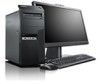
Lenovo ThinkCentre M82 Manual
 |
View all Lenovo ThinkCentre M82 manuals
Add to My Manuals
Save this manual to your list of manuals |
Lenovo ThinkCentre M82 manual content summary:
- Lenovo ThinkCentre M82 | (English) User Guide - Page 1
ThinkCentre User Guide Machine Types: 2756, 2800, 2929, 2932, 2934, 2941, 2945, 2961, 2982, 2988, 2993, 2996, 3181, 3183, 3185, 3187, 3198, 3202, 3207, 3209, 3214, 3218, 3224, 3227, 3306, 3393, and 3395 - Lenovo ThinkCentre M82 | (English) User Guide - Page 2
product it supports, be sure to read and understand the "Important safety information" on page v and Appendix A "Notices" on page 131. Fourth Edition (May 2012) © Copyright Lenovo 2012. LIMITED AND RESTRICTED RIGHTS NOTICE: If data or software is delivered pursuant a General Services Administration - Lenovo ThinkCentre M82 | (English) User Guide - Page 3
ix Power supply statement ix Cleaning and maintenance ix Chapter 1. Product overview 1 Features 1 Specifications 4 Software overview 5 Software provided by Lenovo 5 Adobe Reader 7 Antivirus software 7 Locations 7 Locating connectors, controls, and indicators on the front of your computer - Lenovo ThinkCentre M82 | (English) User Guide - Page 4
. 103 ii ThinkCentre User Guide Updating (flashing) the BIOS from your operating system 104 Recovering from a POST/BIOS update failure . . 104 Chapter 9. Preventing problems . . 105 Keeping your computer current 105 Getting the latest device drivers for your computer 105 Updating your operating - Lenovo ThinkCentre M82 | (English) User Guide - Page 5
information for the European Union 139 Appendix D. Restriction of Hazardous Substances Directive (RoHS) . . . . 141 China RoHS 141 Turkish RoHS 141 Ukraine RoHS 141 India RoHS 142 Appendix E. Ek Bilgiler 143 Appendix F. Servis istasyonlari . . . 145 Index 153 © Copyright Lenovo 2012 iii - Lenovo ThinkCentre M82 | (English) User Guide - Page 6
iv ThinkCentre User Guide - Lenovo ThinkCentre M82 | (English) User Guide - Page 7
Format (PDF) version from the Lenovo® Support Web site at http://www.lenovo.com/support. The Lenovo Support Web site also provides the Safety and Warranty Guide and this User Guide in additional languages. Service and upgrades Do not attempt to service a product yourself unless instructed to do - Lenovo ThinkCentre M82 | (English) User Guide - Page 8
requirements of the product. Never overload these devices. If power strips are used, the load should not exceed the power strip input rating. Consult an electrician for more information if you have questions about power loads, power requirements, and input ratings. vi ThinkCentre User Guide - Lenovo ThinkCentre M82 | (English) User Guide - Page 9
accumulation, then examine and remove dust from the inside of the computer including heat sink inlet fins, power supply vents, and fans. Always turn off and unplug the computer before opening the cover. If possible, avoid operating your computer within two feet of high-traffic areas. If you must - Lenovo ThinkCentre M82 | (English) User Guide - Page 10
powered speakers, air conditioner, and microwave oven away from your computer because the strong magnetic fields generated by these appliances can damage the monitor unless the jack is specifically designed for wet been disconnected at the network interface. • Use caution ThinkCentre User Guide - Lenovo ThinkCentre M82 | (English) User Guide - Page 11
remove the cover on a power supply or any part that has the following label attached. Hazardous voltage, current, and energy levels are present inside any component that has this label attached. There are no serviceable parts inside these components. If you suspect a problem with one of these parts - Lenovo ThinkCentre M82 | (English) User Guide - Page 12
x ThinkCentre User Guide - Lenovo ThinkCentre M82 | (English) User Guide - Page 13
by model type): • Intel® Core™ i3 microprocessor • Intel Core i5 microprocessor • Intel Core i7 microprocessor • Intel Celeron® microprocessor • Intel Pentium® microprocessor Memory Your computer supports up to four double data rate 3 unbuffered dual inline memory modules (DDR3 UDIMMs). Internal - Lenovo ThinkCentre M82 | (English) User Guide - Page 14
computers in order to make them easier and less expensive for businesses to monitor, maintain, update, upgrade, and repair. • Intel Matrix Storage Manager Intel Matrix Storage Manager is a device driver that provides support for SATA RAID 5 arrays and SATA RAID 10 arrays on specific Intel chipset - Lenovo ThinkCentre M82 | (English) User Guide - Page 15
(optional) • One PS/2 mouse connector (optional) • One VGA monitor connector • Three audio connectors on the rear panel (audio line-in card slot • One PCI Express x16 graphics card slot • Two PCI card slots Power supply Your computer comes with a 240-watt automatic voltage-sensing power supply. - Lenovo ThinkCentre M82 | (English) User Guide - Page 16
might be identified by Lenovo as compatible with your computer following the publication of this manual. This list is subject to change. To determine if an operating system has been certified or tested for compatibility, check the Web site of the operating system vendor. 4 ThinkCentre User Guide - Lenovo ThinkCentre M82 | (English) User Guide - Page 17
Lenovo Solution Center System Health and Diagnostics SimpleTap SimpleTap ThinkVantage Password Manager Password Vault ThinkVantage Power Manager Power Controls ThinkVantage Rescue and Recovery® Enhanced Backup and Restore ThinkVantage System Update Update and Drivers Communications - Lenovo ThinkCentre M82 | (English) User Guide - Page 18
program, do the following: 1. Click Start ➙ All Programs ➙ Lenovo ThinkVantage Tools, and double-click Enhanced Backup and Restore. 2. Follow the instructions on the screen. 3. When the installation process completes, the Enhanced Backup and Restore icon is activated. 6 ThinkCentre User Guide - Lenovo ThinkCentre M82 | (English) User Guide - Page 19
. It enables you to work across multiple monitors. Lenovo Solution Center The Lenovo Solution Center program enables you to troubleshoot and resolve computer problems. It combines diagnostic tests, system information collection, security status, and support information, along with hints and tips for - Lenovo ThinkCentre M82 | (English) User Guide - Page 20
1. Front connector, control, and indicator locations 1 Optical drive eject/close button 2 Power switch 3 Hard disk drive activity indicator 4 Power indicator 5 USB 2.0 connector (USB port 2) 6 Microphone connector 7 Headphone connector 8 USB 2.0 connector (USB port 1) 8 ThinkCentre User Guide - Lenovo ThinkCentre M82 | (English) User Guide - Page 21
1 Power cord connector 2 Serial port (Serial port 1) 3 VGA monitor connector 4 DisplayPort connector 5 USB 3.0 connectors (USB ports 5 to 8) 6 USB 2.0 connectors (USB ports 3 and 4) 7 Microphone connector 8 Audio line-out connector 9 Audio line-in connector 10 PCI Express x16 graphics card slot - Lenovo ThinkCentre M82 | (English) User Guide - Page 22
monitor, a direct-drive monitor, or other devices that use a DisplayPort connector. Used to attach an Ethernet cable for a local area network (LAN). Note: To operate the computer USB devices. Used to attach a VGA monitor or other devices that use a VGA monitor connector. 10 ThinkCentre User Guide - Lenovo ThinkCentre M82 | (English) User Guide - Page 23
computer. To open the computer cover, see "Opening the computer cover" on page 32. Figure 3. Component locations 1 Heat sink and fan assembly 2 Power supply assembly 3 Memory PCI card (installed in some models) 12 Heat sink fan duct Locating parts on the system board Note: Your computer comes with - Lenovo ThinkCentre M82 | (English) User Guide - Page 24
Parallel connector 27 PCI Express x16 graphics card slot 13 eSATA connector 28 System fan connector 14 SATA connector 3 (SATA 2.0 connector) 29 Cover presence switch connector (Intrusion switch connector) 15 Power fan connector 30 PS/2 keyboard and mouse connector 12 ThinkCentre User Guide - Lenovo ThinkCentre M82 | (English) User Guide - Page 25
connector (for connecting LED indicators and power switch) 2 Microprocessor 17 Clear CMOS (Complementary Metal Oxide Semiconductor) /Recovery jumper 3 Microprocessor fan connector 18 Front USB connector 1 (for connecting USB ports 1 and 2 on the front bezel) 4 Memory slot 1 (DIMM 1) 19 Battery - Lenovo ThinkCentre M82 | (English) User Guide - Page 26
on page 31 for instructions on how to install or replace internal drives for your computer. Figure 6 "Drive Card reader drive bay or mSATA solid state drive bay 3 Bay 3 - SATA hard disk drive bay (with a 3.5-inch hard disk drive or a 2.5-inch solid state drive installed) 14 ThinkCentre User Guide - Lenovo ThinkCentre M82 | (English) User Guide - Page 27
type and model label The machine type and model label identifies your computer. When you contact Lenovo for help, the machine type and model information helps support technicians to identify your computer and provide faster service. The following is a sample of the machine type and model label - Lenovo ThinkCentre M82 | (English) User Guide - Page 28
16 ThinkCentre User Guide - Lenovo ThinkCentre M82 | (English) User Guide - Page 29
help you optimize the use of your computer. Can I get my user guide in another language? The user guide is available in various languages on the Lenovo Support Web site at: http://www.lenovo.com/ThinkCentreUserGuides Where are my recovery discs? Lenovo provides a program that enables you to create - Lenovo ThinkCentre M82 | (English) User Guide - Page 30
in the Windows Control Panel. Adjusting audio Sound is an important part of the computer experience. Your computer has a digital audio controller built into the system board. Some models also have a high-performance audio adapter installed in one of the PCI card slots. 18 ThinkCentre User Guide - Lenovo ThinkCentre M82 | (English) User Guide - Page 31
speakers that do not require an ac power source). The audio adapter provides you with computer volume from Control Panel. To set the computer volume from Control Panel, do the following: 1. From the Windows desktop discs, DVD-RW discs, type II DVD-RAM discs, CD-RW standard and high speed discs, and - Lenovo ThinkCentre M82 | (English) User Guide - Page 32
hub, support the is powered off computer comes with a recordable DVD drive, you can use the drive to record CDs or DVDs. To record a CD or DVD, do the following: 1. Click Start ➙ All Programs ➙ Corel DVD MovieFactory Lenovo Edition. 2. Follow the instructions on the screen. 20 ThinkCentre User Guide - Lenovo ThinkCentre M82 | (English) User Guide - Page 33
For detailed information about using the Corel DVD MovieFactory program, see the help system for the program. You can also use Windows Media Player to record CDs and data DVDs. For more information, see "Help and Support" on page 127. Chapter 2. Using your computer 21 - Lenovo ThinkCentre M82 | (English) User Guide - Page 34
22 ThinkCentre User Guide - Lenovo ThinkCentre M82 | (English) User Guide - Page 35
computer equipment, and establishing healthy work habits: Lenovo is committed to providing people with disabilities greater access to information and technology. As a result, the following information provides ways to help users adjust independently and provide good support. The seat should have a - Lenovo ThinkCentre M82 | (English) User Guide - Page 36
plug the computer power cord directly into an electrical outlet. • Keep power cords and cables neatly routed away from walkways and other areas where they might get kicked accidentally. For more information about power cords, see "Power cords and power adapters" on page vi. 24 ThinkCentre User Guide - Lenovo ThinkCentre M82 | (English) User Guide - Page 37
of a recall or other severe problem. After you register your computer with Lenovo, you will receive quicker service when you call Lenovo for help. In addition, some locations offer extended privileges and services to registered users. To register your computer with Lenovo, do one of the following - Lenovo ThinkCentre M82 | (English) User Guide - Page 38
style different from the type you are currently using, you will have to purchase either electrical plug adapters or new power cords. You can order power cords directly from Lenovo. For power cord information and part numbers, go to: http://www.lenovo.com/powercordnotice 26 ThinkCentre User Guide - Lenovo ThinkCentre M82 | (English) User Guide - Page 39
and computer theft recovery solution. The software detects if changes have been made on the computer, such as hardware, software, or the computer call- and associating it with a Power-on Password, a Hard Disk Password, or both passwords beforehand, you can start the computer, log on to the system - Lenovo ThinkCentre M82 | (English) User Guide - Page 40
lenovo.com/support Figure 8. Integrated cable lock Using passwords You can set a variety of passwords through the Microsoft Windows operating system and through the BIOS of your computer to help deter unauthorized use of your computer. BIOS "Hard Disk Password" on page 98. 28 ThinkCentre User Guide - Lenovo ThinkCentre M82 | (English) User Guide - Page 41
computing security. Windows passwords Depending on your version of the Windows operating system, you can use passwords for a variety of features, including controlling login access, access to shared resources, network access, and individual user settings. For more information, see "Help and Support - Lenovo ThinkCentre M82 | (English) User Guide - Page 42
For more information about how to use your antivirus software, refer to the help system of your antivirus software. 30 ThinkCentre User Guide - Lenovo ThinkCentre M82 | (English) User Guide - Page 43
computer components carefully. Handle PCI cards, memory computer" on page 9 to identify the required connector. Then, use the instructions that come with the option to help you make the connection and install any software or device drivers that are required for the option. © Copyright Lenovo - Lenovo ThinkCentre M82 | (English) User Guide - Page 44
bezel. To remove and reinstall the front bezel, do the following: 1. Remove all media from the drives and turn off all attached devices and the computer. Then, disconnect all power cords from electrical outlets and disconnect all cables that are connected to the computer. 32 ThinkCentre User Guide - Lenovo ThinkCentre M82 | (English) User Guide - Page 45
cover. See "Opening the computer cover" on page 32. 3. Remove the front bezel by releasing the three plastic tabs on the top of the front bezel and pivoting the front bezel outward to remove it from the computer. Figure 10. Removing the front bezel Chapter 5. Installing or replacing hardware - Lenovo ThinkCentre M82 | (English) User Guide - Page 46
instructions on how to access the system board components and drives. To access the system board components and drives, do the following: 1. Remove all media from the drives and turn off all attached devices and the computer. Then, disconnect all power drive" on page 54. 34 ThinkCentre User Guide - Lenovo ThinkCentre M82 | (English) User Guide - Page 47
This section provides instructions on how to install or replace a memory module. Your computer has four slots replace a memory module, do the following: 1. Turn off the computer and disconnect all power cords from electrical outlets. 2. Open the computer cover. See "Opening the computer cover" on - Lenovo ThinkCentre M82 | (English) User Guide - Page 48
clips and gently pull the memory module out of the memory slot. Figure 12. Removing a memory module • If you are installing a memory module, open the retaining clips of the memory slot into which you want to install the memory module. Figure 13. Opening the retaining clips 36 ThinkCentre User Guide - Lenovo ThinkCentre M82 | (English) User Guide - Page 49
section provides instructions on how to install or replace a PCI card. Your computer has two standard PCI card slots, one PCI Express x1 card slot, and one PCI Express x16 graphics card slot. To install or replace a PCI card, do the following: 1. Turn off the computer and disconnect all power cords - Lenovo ThinkCentre M82 | (English) User Guide - Page 50
until it is removed from the card slot. b. If the card is held in place by a retaining latch, press the card retaining latch 1 as shown to disengage the latch. Grasp the card and gently pull it out of the slot. 5. Remove the new PCI card from its static-protective package. 38 ThinkCentre User Guide - Lenovo ThinkCentre M82 | (English) User Guide - Page 51
. Installing or replacing the card reader Attention: Do not open your computer or attempt any repair before reading and understanding the "Important safety information" on page v. This section provides instructions on how to install or replace the card reader. Note: The card reader is only available - Lenovo ThinkCentre M82 | (English) User Guide - Page 52
install the two screws to secure the card reader to the bracket. 6. Install the card reader bracket to the chassis. Then push the bracket to the left to align the screw hole in the bracket with the corresponding hole in the chassis. Figure 17. Installing the card reader 40 ThinkCentre User Guide - Lenovo ThinkCentre M82 | (English) User Guide - Page 53
bezel" on page 32. Note: You might have to remove the card reader cover 2 from the front bezel. To remove the card read cover, pivot the two retaining clips 1 that secure the card reader cover outwards and then completely disengage the card reader cover from the front bezel. Figure 19. Removing the - Lenovo ThinkCentre M82 | (English) User Guide - Page 54
screw that secures the card reader 7. Remove the two screws that secure the card reader to its bracket. Then remove the failing card reader from the bracket. 8. Install a new card reader into the bracket and install the two screws to secure the card reader to the bracket. 42 ThinkCentre User Guide - Lenovo ThinkCentre M82 | (English) User Guide - Page 55
9. Install the card reader bracket to the chassis. Then push the bracket to the left to align the screw hole in the bracket with the corresponding hole in the chassis. Figure 21. Installing the card reader Chapter 5. Installing or replacing hardware 43 - Lenovo ThinkCentre M82 | (English) User Guide - Page 56
22. Installing the screw that secures the card reader 11. Reconnect the card reader cable to one of the USB open your computer or attempt any repair before reading and understanding the "Important safety information" on page v. This section provides instructions on 44 ThinkCentre User Guide - Lenovo ThinkCentre M82 | (English) User Guide - Page 57
from the drives and turn off all attached devices and the computer. Then, disconnect all power cords from electrical outlets and disconnect all cables that are connected to the computer. 2. Open the computer cover. See "Opening the computer cover" on page 32. 3. Remove the front bezel. See "Removing - Lenovo ThinkCentre M82 | (English) User Guide - Page 58
Figure 25. Installing the mSATA solid state drive storage converter 8. Install the screw to secure the mSATA solid state drive storage converter to the chassis. 46 ThinkCentre User Guide - Lenovo ThinkCentre M82 | (English) User Guide - Page 59
" on page 14. 5. Pivot the optical drive bay upward and disconnect the card reader cable from the USB connector on the system board. See "Locating parts on the system board" on page 11. 6. Disconnect the signal cable and power cable from the mSATA solid state drive. 7. Remove the screw that secures - Lenovo ThinkCentre M82 | (English) User Guide - Page 60
Figure 27. Removing the mSATA solid state drive storage converter 8. Remove the two screws that secure the mSATA solid state drive from the storage converter. Figure 28. Removing the screws that secure the mSATA solid state drive 48 ThinkCentre User Guide - Lenovo ThinkCentre M82 | (English) User Guide - Page 61
9. Remove the mSATA solid state drive from the mini PCI Express slot on the storage converter. Figure 29. Removing the mSATA solid state drive 10. To install a new mSATA solid state drive, insert the mSATA solid state drive into the mini PCI Express slot on the storage converter, and then press the - Lenovo ThinkCentre M82 | (English) User Guide - Page 62
12. Insert the mSATA solid state drive storage converter into the chassis. Then push the converter to the left to align the screw hole in the converter with the corresponding hole in the chassis. Figure 32. Installing the mSATA solid state drive storage converter 50 ThinkCentre User Guide - Lenovo ThinkCentre M82 | (English) User Guide - Page 63
Installing the screw that secures the storage converter 14. Connect the signal cable and the power cable to the mSATA solid state drive. 15. Pivot the optical Your computer has a special type of memory that maintains the date, time, and settings for built-in features, such as parallel-port - Lenovo ThinkCentre M82 | (English) User Guide - Page 64
drive Attention: Do not open your computer or attempt any repair before reading and understanding the "Important safety information" on page v. This section provides instructions on how to install the 2.5-inch solid state drive into the 3.5-inch hard disk drive bracket. 52 ThinkCentre User Guide - Lenovo ThinkCentre M82 | (English) User Guide - Page 65
the corresponding holes in the adapter. Figure 37. Installing the solid state drive with the adapter into the hard disk drive bracket 3. Connect the signal cable and the power cable to the solid state drive. 4. Install the solid state drive into the hard disk drive bay. See "Replacing the hard disk - Lenovo ThinkCentre M82 | (English) User Guide - Page 66
v. This section provides instructions on how to replace the hard disk drive. Note: Depending on your model type, your computer might come with a the signal cable and the power cable from the hard disk drive to completely remove the hard disk drive from the chassis. 54 ThinkCentre User Guide - Lenovo ThinkCentre M82 | (English) User Guide - Page 67
the corresponding holes in the hard disk drive. Important: Do not touch the circuit board 3 on the bottom of the hard disk drive. 8. Connect the signal cable and the power cable to the new hard disk drive. Chapter 5. Installing or replacing hardware 55 - Lenovo ThinkCentre M82 | (English) User Guide - Page 68
all power cords from electrical outlets. 2. Open the computer cover. See "Opening the computer cover" on page 32. 3. Remove the front bezel. See "Removing and reinstalling the front bezel" on page 32. 4. Remove the hard disk drive. See "Replacing the hard disk drive" on page 54. 56 ThinkCentre User - Lenovo ThinkCentre M82 | (English) User Guide - Page 69
5. Press the blue retaining clip to pivot the optical drive bay upward. Figure 41. Pivoting the optical drive bay 6. Disconnect the signal cable and the power cable from the rear of the optical drive. Chapter 5. Installing or replacing hardware 57 - Lenovo ThinkCentre M82 | (English) User Guide - Page 70
7. Press the optical drive lock 1 and slide the optical drive out of the rear of the drive bay assembly. Figure 42. Removing the old optical drive 8. Install the optical drive retainer on the side of the new optical drive. Figure 43. Installing the optical drive retainer 58 ThinkCentre User Guide - Lenovo ThinkCentre M82 | (English) User Guide - Page 71
position. Figure 44. Installing a new optical drive 10. Connect the signal cable and the power cable to the rear of the optical drive. What to do next computer or attempt any repair before reading and understanding the "Important safety information" on page v. This section provides instructions - Lenovo ThinkCentre M82 | (English) User Guide - Page 72
. b. When handling the heat sink and fan assembly, do not touch the thermal grease on the bottom of the heat sink and fan assembly. 60 ThinkCentre User Guide - Lenovo ThinkCentre M82 | (English) User Guide - Page 73
6. Pivot the two plastic retaining clips that secure the heat sink fan duct outward. Then remove the heat sink fan duct from the failing heat sink and fan assembly. Figure 46. Removing the heat sink fan duct 7. Place the new heat sink and fan assembly on the system board so that the four screws are - Lenovo ThinkCentre M82 | (English) User Guide - Page 74
instructions on how to replace the power supply assembly. Although there are no moving parts in your computer after the power cord has been disconnected, the following warnings are required for your safety and proper Underwriters Laboratories (UL) certification. CAUTION: 62 ThinkCentre User Guide - Lenovo ThinkCentre M82 | (English) User Guide - Page 75
components. If you suspect a problem with one of these parts, contact a service technician. To replace the power supply assembly, do the following: 1. Remove all media from the drives and turn off all attached devices and the computer. Then, disconnect all power cords from electrical outlets and - Lenovo ThinkCentre M82 | (English) User Guide - Page 76
5. Pivot the two plastic retaining clips that secure the heat sink fan duct outward, and then lift the heat sink fan duct out of the chassis. Figure 48. Removing the heat sink fan duct 64 ThinkCentre User Guide - Lenovo ThinkCentre M82 | (English) User Guide - Page 77
6. Pivot the optical drive upward and disconnect the power supply assembly cables from all drives and from power connectors 1 , 2 and 3 on the system board. Figure 49. Power connectors on the system board Note: You might also need to release the power supply assembly cables from some cable clips or - Lenovo ThinkCentre M82 | (English) User Guide - Page 78
the new power supply assembly in place. Note: Use only screws provided by Lenovo. Figure 51. Installing the power supply assembly 10. Connect the new power supply assembly cables to all drives and the system board. See "Locating parts on the system board" on page 11. 66 ThinkCentre User Guide 56 78 - Lenovo ThinkCentre M82 | (English) User Guide - Page 79
" on page 87. Replacing the microprocessor Attention: Do not open your computer or attempt any repair before reading and understanding the "Important safety information" on page v. This section provides instructions on how to replace the microprocessor. CAUTION: The heat sink and microprocessor - Lenovo ThinkCentre M82 | (English) User Guide - Page 80
grease on the bottom of the heat sink and fan assembly get in contact with anything. 5. Lift the small handle 1 and open the retainer 2 to access the microprocessor 3 . Figure 53. Accessing the microprocessor 6. and socket might look different from the one illustrated. 68 ThinkCentre User Guide - Lenovo ThinkCentre M82 | (English) User Guide - Page 81
not drop anything onto the microprocessor socket while it is exposed. The socket pins must be kept as clean as possible. 7. Ensure that the small handle is in the raised position and the microprocessor retainer is fully open. 8. Remove the protective cover that protects the gold contacts of the new - Lenovo ThinkCentre M82 | (English) User Guide - Page 82
instructions on how to replace the cover presence switch (intrusion switch). To replace the cover presence switch, do the following: 1. Turn off the computer and disconnect all power cords from electrical outlets. 2. Open the computer cover. See "Opening the computer 11. 70 ThinkCentre User Guide - Lenovo ThinkCentre M82 | (English) User Guide - Page 83
6. Remove the screw that secures the cover presence switch and remove the cover presence switch from the chassis. Figure 57. Removing the cover presence switch 7. Position the new cover presence switch so that the screw hole in the cover presence switch is aligned with the corresponding hole in the - Lenovo ThinkCentre M82 | (English) User Guide - Page 84
repair before reading and understanding the "Important safety information" on page v. This section provides instructions on how to replace the internal speaker. Note: The internal speaker is only available in some models. To replace the internal speaker, do the following: 72 ThinkCentre User Guide - Lenovo ThinkCentre M82 | (English) User Guide - Page 85
1. Turn off the computer and disconnect all power cords from electrical outlets. 2. Open the computer cover. See "Opening the computer cover" on page 32. 3. Remove the front bezel. See "Removing and reinstalling the front bezel" on page 32. 4. Locate the internal speaker. See "Locating components" - Lenovo ThinkCentre M82 | (English) User Guide - Page 86
not open your computer or attempt any repair before reading and understanding the "Important safety information" on page v. This section provides instructions on how to replace the front audio and USB assembly. To replace the front audio and USB assembly, do the following: 74 ThinkCentre User Guide - Lenovo ThinkCentre M82 | (English) User Guide - Page 87
from the drives and turn off all attached devices and the computer. Then, disconnect all power cords from electrical outlets and disconnect all cables that are connected to the computer. 2. Open the computer cover. See "Opening the computer cover" on page 32. 3. Remove the front bezel. See "Removing - Lenovo ThinkCentre M82 | (English) User Guide - Page 88
instructions on how to replace the system fan assembly. To replace the system fan assembly, do the following: 1. Remove all media from the drives and turn off all attached devices and the computer. Then, disconnect all power and push the rubber mounts through the holes. 76 ThinkCentre User Guide - Lenovo ThinkCentre M82 | (English) User Guide - Page 89
the installation or replacement, go to "Completing the parts replacement" on page 87. Replacing the WiFi units Attention: Do not open your computer or attempt any repair before reading and understanding the "Important safety information" on page v. Chapter 5. Installing or replacing hardware 77 - Lenovo ThinkCentre M82 | (English) User Guide - Page 90
card. Figure 64. Disconnecting the Bluetooth cable Note: The Bluetooth cable connects the Bluetooth connector on the WiFi adapter card to the front USB connector on the system board to support the Bluetooth function. 4. Rotate the PCI card retainer to the open position. 78 ThinkCentre User Guide - Lenovo ThinkCentre M82 | (English) User Guide - Page 91
slot. If necessary, alternate moving each side of the card a small amount until it is removed from the card slot. Removing the WiFi card module To remove the WiFi card module, do the following: 1. Remove the WiFi adapter card from the computer, and then disconnect the front and rear WiFi antenna - Lenovo ThinkCentre M82 | (English) User Guide - Page 92
67. Removing the screws that secure the WiFi card module 3. Pull the WiFi card module out of the mini PCI Express slot to remove it from the WiFi adapter card. Figure 68. Removing the WiFi card module Installing the WiFi units To install the WiFi units, do the following: 80 ThinkCentre User Guide - Lenovo ThinkCentre M82 | (English) User Guide - Page 93
slot, and then install the two screws to secure the WiFi card module to the WiFi adapter card. Figure 69. Installing the WiFi card module 2. Connect the front antenna cable and rear antenna cable to the WiFi card module. Figure 70. Connecting the WiFi antenna cables Chapter 5. Installing or - Lenovo ThinkCentre M82 | (English) User Guide - Page 94
computer and disconnect all power cords from electrical outlets. 2. Install the rear WiFi antenna to the rear WiFi antenna cable connector attached on the rear of the computer. 3. Adjust the angle of the rear antenna to lower the risk of breaking the antenna by accident. 82 ThinkCentre User Guide - Lenovo ThinkCentre M82 | (English) User Guide - Page 95
replacement" on page 87. Removing the rear WiFi antenna To remove the rear WiFi antenna, do the following: 1. Turn off the computer and disconnect all power cords from electrical outlets. 2. Straighten the rear WiFi antenna so that it can be more easily twisted. Chapter 5. Installing or replacing - Lenovo ThinkCentre M82 | (English) User Guide - Page 96
the computer cover" on page 32. 3. Remove the front bezel. See "Removing and reinstalling the front bezel" on page 32. 4. Remove the hard disk drive. See "Replacing the hard disk drive" on page 54. 5. Peel off the paper that protects the sticker on the front antenna. 84 ThinkCentre User Guide - Lenovo ThinkCentre M82 | (English) User Guide - Page 97
Figure 74. Peeling off the paper that protects the sticker 6. Stick the front antenna to the front panel as shown. Then insert the front antenna cable through the hole in the front panel. Figure 75. Installing the front WiFi antenna Chapter 5. Installing or replacing hardware 85 - Lenovo ThinkCentre M82 | (English) User Guide - Page 98
and cable from the front of the computer. Figure 76. Removing the front WiFi antenna What to do next: • To work with another piece of hardware, go to the appropriate section. • To complete the installation or replacement, go to "Completing the parts replacement" on page 87. 86 ThinkCentre User Guide - Lenovo ThinkCentre M82 | (English) User Guide - Page 99
" on page v. This section provides instructions on how to replace the keyboard or mouse. To replace the keyboard or mouse, do the following: 1. Remove any media from the drives. Then, turn off all attached devices and the computer. 2. Disconnect all power cords from electrical outlets. 3. Disconnect - Lenovo ThinkCentre M82 | (English) User Guide - Page 100
CRU or will come a few days after the CRU arrives. Obtaining device drivers You can obtain device drivers for operating systems that are not preinstalled at http://www.lenovo.com/support. Installation instructions are provided in readme files with the device-driver files. 88 ThinkCentre User Guide - Lenovo ThinkCentre M82 | (English) User Guide - Page 101
or reinstalling device drivers • Solving recovery problems Notes: 1. The recovery information in this chapter only applies to the computers that have the Rescue and Recovery program or the Product Recovery program installed. If the Enhanced Backup and Restore icon in the Lenovo ThinkVantage Tools - Lenovo ThinkCentre M82 | (English) User Guide - Page 102
, do the following: 1. From the Windows desktop, click Start ➙ All Programs ➙ Lenovo ThinkVantage Tools ➙ Enhanced Backup and Restore. The Rescue and Recovery program opens. 2. In the Rescue and Recovery main window, click the Launch advanced Rescue and Recovery arrow. 90 ThinkCentre User Guide - Lenovo ThinkCentre M82 | (English) User Guide - Page 103
provides instructions on how to perform a recovery operation using the Rescue and Recovery program. To perform a recovery operation using the Rescue and Recovery program on the Windows 7 operating system, do the following: 1. From the Windows desktop, click Start ➙ All Programs ➙ Lenovo ThinkVantage - Lenovo ThinkCentre M82 | (English) User Guide - Page 104
following instructions to use the rescue medium: 1. Attach the USB hard disk drive to one of the USB connectors on your computer. 2. Repeatedly press and release the F12 key when turning on the computer. When the Please select boot device window opens, release the F12 key. 92 ThinkCentre User Guide - Lenovo ThinkCentre M82 | (English) User Guide - Page 105
file, refer to your Windows Help and Support information system for detailed information about how to install the device driver. Note: If you need updated device drivers, see "Getting the latest device drivers for your computer" on page 105 for more information. Chapter 6. Recovery information 93 - Lenovo ThinkCentre M82 | (English) User Guide - Page 106
For more information about reinstalling device drivers that came with your computer, see "Reinstalling preinstalled applications and device drivers" on page 93. Solving recovery problems If you are unable to access the Rescue and Recovery workspace or the Windows environment, do one of the following - Lenovo ThinkCentre M82 | (English) User Guide - Page 107
It is important to create a rescue medium and a set of recovery media as early as possible and store them in a safe place for future use. Chapter 6. Recovery information 95 - Lenovo ThinkCentre M82 | (English) User Guide - Page 108
96 ThinkCentre User Guide - Lenovo ThinkCentre M82 | (English) User Guide - Page 109
on page 97. Then, follow the instructions on the screen. You can use either the keyboard or the mouse to navigate through BIOS menu choices. The keys used to perform access to your computer and data. The following types of passwords are available: • Power-On Password © Copyright Lenovo 2012 97 - Lenovo ThinkCentre M82 | (English) User Guide - Page 110
user name • Not be a common word or a common name • Be significantly different from your previous passwords Power-On Password When a Power-On Password is set, you are prompted to type a valid password each time the computer is turned on. The computer program" on page 97. 98 ThinkCentre User Guide - Lenovo ThinkCentre M82 | (English) User Guide - Page 111
) This section provides instructions on how to erase lost or forgotten passwords, such as a user password. To erase a lost or forgotten password, do the following: 1. Remove all media from the drives and turn off all attached devices and the computer. Then, disconnect all power cords from electrical - Lenovo ThinkCentre M82 | (English) User Guide - Page 112
enabled, you can wake up your computer by doing one of the following: • Pressing the power switch • Enabling the wake up on alarm feature The wake up on alarm feature enables your computer to wake up at a set time. To enable the wake up on alarm feature, do the following: 100 ThinkCentre User Guide - Lenovo ThinkCentre M82 | (English) User Guide - Page 113
Enter. Then follow the instructions on the screen. 4. Press F10 to save changes and exit the Setup Utility program. Press Enter when prompted to confirm the exit. • Enabling the after power loss feature The after power loss feature enables your computer to wake up when the power supply resumes after - Lenovo ThinkCentre M82 | (English) User Guide - Page 114
Enter. When the Reset Without Saving window shows, select Yes, and then press Enter to exit the Setup Utility program. • If you want to return to the default settings, press F9 to load the default settings, and then press F10 to save and exit the Setup Utility program. 102 ThinkCentre User Guide - Lenovo ThinkCentre M82 | (English) User Guide - Page 115
to create a system-program-update disc. Go to: http://www.lenovo.com/support To update (flash) the BIOS from a disc, do the following: 1. Turn off your computer. 2. Repeatedly press and release the F12 key when turning on the computer. When the Startup Device Menu window opens, release the F12 key - Lenovo ThinkCentre M82 | (English) User Guide - Page 116
and reinstall the PCI card if removed. 8. Close the computer cover and reconnect the power cords for the computer and monitor to electrical outlets. See "Completing the parts replacement" on page 87. 9. Turn on the computer and then insert the POST and BIOS update (flash update) disc into the - Lenovo ThinkCentre M82 | (English) User Guide - Page 117
. The device drivers provided on the Windows Web site have not been tested by Lenovo and using them might cause unexpected problems. Obtain updated device drivers from Lenovo. 1. Go to http://www.lenovo.com/support. 2. Click Download & Drivers. 3. Select the machine type of your computer from the - Lenovo ThinkCentre M82 | (English) User Guide - Page 118
on your computer up-to-date. Update packages are stored on Lenovo servers and can be downloaded from the Lenovo Support Web site. Update packages can contain applications, device drivers, BIOS flashes, or software updates. When the System Update program connects to the Lenovo Support Web site - Lenovo ThinkCentre M82 | (English) User Guide - Page 119
It is a good practice to clean your computer periodically to protect the surfaces and ensure trouble-free operation. CAUTION: Be sure to turn off the computer and monitor power switches before cleaning the computer and monitor screen. Computer Use only mild cleaning solutions and a damp cloth - Lenovo ThinkCentre M82 | (English) User Guide - Page 120
your computer current " on page 105 for more information. • Keep a log book. Entries might include major software or hardware changes, device-driver updates, intermittent problems and what you did to resolve them, and any minor issues you might have experienced. A log book can help you or a Lenovo - Lenovo ThinkCentre M82 | (English) User Guide - Page 121
information to help you troubleshoot your computer problems. Note: If you cannot correct the problem, have the computer serviced. For a list of service and support telephone numbers, refer to the Safety and Warranty Guide that comes with your computer or go to the Lenovo Support Web site at http - Lenovo ThinkCentre M82 | (English) User Guide - Page 122
provided with your computer. For your safety, do not operate the computer with the cover removed. 2. Run the diagnostic program to ensure that your computer is operating correctly. 3. Reinstall the new hardware option or software following the manufacturer's instructions. 110 ThinkCentre User Guide - Lenovo ThinkCentre M82 | (English) User Guide - Page 123
mouse, or pointing device problems" on page 115 • "Monitor problems" on page 116 • "Networking problems" on page 118 • "Option problems" on page 121 • "Performance and lockup problems" on page 122 • "Printer problems" on page 123 • "Serial port problems" on page 123 • "Software problems" on page 124 - Lenovo ThinkCentre M82 | (English) User Guide - Page 124
with the application or game for instructions on setting sound-card settings. • If these actions do not correct the problem, run the Lenovo Solution Center program. If you need technical assistance, see Chapter 11 "Getting information, help, and service" on page 127. CD problems Select your symptom - Lenovo ThinkCentre M82 | (English) User Guide - Page 125
might have a problem with your CD or DVD drive or the cabling to your CD or DVD drive. Ensure that the power cable and signal cable are securely connected to the drive. Unable to use a startable (bootable) recovery medium, such as the Product Recovery CD, to start your computer Symptom: Unable to - Lenovo ThinkCentre M82 | (English) User Guide - Page 126
, such as AntiVirus or Desktop Themes. • Ensure that video resolution is set to less than 1152 x 864. If these actions do not correct the problem, run the Lenovo Solution Center program. If you need technical assistance, see Chapter 11 "Getting information, help, and service" on page 127. Invalid - Lenovo ThinkCentre M82 | (English) User Guide - Page 127
do not correct the problem, have the computer and keyboard serviced. See Chapter 11 "Getting information, help, and service" on page 127 for connector on the computer. Depending on the type of mouse you have, the mouse cable will connect to either the Chapter 10. Troubleshooting and diagnostics 115 - Lenovo ThinkCentre M82 | (English) User Guide - Page 128
to the documentation that comes with your monitor. Select your symptom from the following list: • "Wrong characters appear on the screen" on page 117 • "The monitor works when you turn on the computer, but goes blank after some period of computer inactivity" on page 117 116 ThinkCentre User Guide - Lenovo ThinkCentre M82 | (English) User Guide - Page 129
the settings might solve the problem. If these actions do not correct the problem, run the Lenovo Solution Center program. If you need technical assistance, see Chapter 11 "Getting information, help, and service" on page 127. The monitor works when you turn on the computer, but goes blank when you - Lenovo ThinkCentre M82 | (English) User Guide - Page 130
on page 119 • "If your computer is a Gigabit Ethernet model, it cannot connect to the network at 1000 Mbps. Instead, it connects at 100 Mbps" on page 119 Your computer cannot connect to the network Symptom: Your computer cannot connect to the network. Actions: Ensure that: 118 ThinkCentre User Guide - Lenovo ThinkCentre M82 | (English) User Guide - Page 131
next to an adapter name under Network adapters, you might not use the correct driver or the driver is not enabled. To update the driver, right-click the highlighted adapter. 5. Click Update Driver Software, and then follow the instructions on the screen. • The switch port and the adapter have the - Lenovo ThinkCentre M82 | (English) User Guide - Page 132
. • Check Network Name (SSID), and your encryption information. Use Access Connections to verify this case-sensitive information. A wireless WAN problem Message: Unauthorized WAN card is plugged in - Power off and remove the WAN card. Action: The WAN card is not supported on this computer. Remove it - Lenovo ThinkCentre M82 | (English) User Guide - Page 133
option and any required device drivers are installed correctly. If these actions do not correct the problem, run the Lenovo Solution Center program. If you need technical assistance, see Chapter 11 "Getting information, help, and service" on page 127. Chapter 10. Troubleshooting and diagnostics 121 - Lenovo ThinkCentre M82 | (English) User Guide - Page 134
2. Click Programs. 3. Click Turn Windows features on or off. 4. A list of optional Windows components is displayed. Follow the instructions on the screen. • 1. Click Start ➙ Computer. 2. Right-click your C drive fragmented files Symptom: Excessive number of fragmented files 122 ThinkCentre User Guide - Lenovo ThinkCentre M82 | (English) User Guide - Page 135
the computer serviced. See Chapter 11 "Getting information, help, and service" on page 127. Serial port problems Use this information to troubleshoot the serial port and devices attached to the serial port. Symptom: Serial port cannot be accessed. Actions: Chapter 10. Troubleshooting and diagnostics - Lenovo ThinkCentre M82 | (English) User Guide - Page 136
. It is accessible from the Windows Start menu. • To determine if problems are caused by newly installed software, verify that: - Your computer has the minimum memory requirements needed to use the software. See the information supplied with the software to verify memory requirements. (If you just - Lenovo ThinkCentre M82 | (English) User Guide - Page 137
11 "Getting information, help, and service" on page 127. Lenovo Solution Center The Lenovo Solution Center program enables you to troubleshoot and resolve computer problems. It combines diagnostic tests, system information collection, security status, and support information, along with hints and - Lenovo ThinkCentre M82 | (English) User Guide - Page 138
126 ThinkCentre User Guide - Lenovo ThinkCentre M82 | (English) User Guide - Page 139
your computer. Help and Support The Windows Help and Support information system guides you to various help and support information from Lenovo and Microsoft, such as updating drivers, accessing ThinkVantage Technologies, and accessing user manuals. To access the Windows Help and Support information - Lenovo ThinkCentre M82 | (English) User Guide - Page 140
on the Lenovo Support Web site at: http://www.lenovo.com/support This Web site is updated with the latest support information such as the following: • Drivers and software • Diagnostic solutions • Product and service warranty • Product and parts details • User guides and manuals • Knowledge base - Lenovo ThinkCentre M82 | (English) User Guide - Page 141
of parts not manufactured for or by Lenovo or non-warranted Lenovo parts • Identification of software problem sources • Configuration of BIOS as part of an installation or upgrade • Changes, modifications, or upgrades to device drivers • Installation and maintenance of network operating systems (NOS - Lenovo ThinkCentre M82 | (English) User Guide - Page 142
130 ThinkCentre User Guide - Lenovo ThinkCentre M82 | (English) User Guide - Page 143
to state or imply that only that Lenovo product, program, or service may be used. Any functionally equivalent product, program, or service that does not infringe any Lenovo intellectual property right may be used instead. However, it is the user's responsibility to evaluate and verify the operation - Lenovo ThinkCentre M82 | (English) User Guide - Page 144
States, other countries, or both: Lenovo The Lenovo logo Rescue and Recovery ThinkCentre ThinkVantage Microsoft, Windows, and Windows Vista are trademarks of the Microsoft group of companies. Intel, Intel Core, Celeron, and Pentium are trademarks of Intel Corporation in the United States, other - Lenovo ThinkCentre M82 | (English) User Guide - Page 145
to Lenovo personal computer machine types 2756, 2800, 2929, 2932 , 2934, 2941, 2945, 2961, 2982, 2988, 2993, 2996, 3181, 3183, 3185, 3187, 3198, 3202, 3207, 3209, 3214, 3218, 3224, 3227, 3306 instructions the user is service representative for help. Lenovo - Lenovo ThinkCentre M82 | (English) User Guide - Page 146
installation of option cards from other Lenovo (Deutschland) GmbH, Gropiusplatz 10, D-70563 Stuttgart. Informationen in Hinsicht EMVG Paragraf 4 Abs. (1) 4: Das Gerät erfüllt die Schutzanforderungen nach EN 55024 und EN 55022 Klasse B. Korea Class B compliance statement 134 ThinkCentre User Guide - Lenovo ThinkCentre M82 | (English) User Guide - Page 147
which connect to the power mains with rated current less than or equal to 20 A per phase Lenovo product service information for Taiwan Lenovo Support Web site in electronic format. To access electronic copies of the documentation, go to http://www.lenovo.com/support and click User Guides and Manuals - Lenovo ThinkCentre M82 | (English) User Guide - Page 148
136 ThinkCentre User Guide - Lenovo ThinkCentre M82 | (English) User Guide - Page 149
Lenovo products applies to countries with WEEE and e-waste regulations (for example, European Directive 2002/96/EC, India for reclaiming these end of life products. Users of electrical and electronic equipment (EEE) with them for the return, recycle, and recovery of WEEE and to minimize any potential - Lenovo ThinkCentre M82 | (English) User Guide - Page 150
for collecting and recycling a disused computer or monitor. Disposing of disused lithium batteries from Lenovo computers A button-shaped lithium battery is installed on the system board of your Lenovo computer to provide power to the computer clock while the computer is off or disconnected from the - Lenovo ThinkCentre M82 | (English) User Guide - Page 151
concerned in the battery (Pb for lead, Hg for mercury, and Cd for cadmium). Users of batteries and accumulators must not dispose of batteries and accumulators as unsorted municipal waste, collection and treatment, go to: http://www.lenovo.com/recycling Appendix C. WEEE and recycling information 139 - Lenovo ThinkCentre M82 | (English) User Guide - Page 152
140 ThinkCentre User Guide - Lenovo ThinkCentre M82 | (English) User Guide - Page 153
Appendix D. Restriction of Hazardous Substances Directive (RoHS) China RoHS Turkish RoHS The Lenovo product meets the requirements of the Republic of Turkey Directive on the Restriction of the Use of Certain Hazardous Substances in Electrical and Electronic Equipment ( - Lenovo ThinkCentre M82 | (English) User Guide - Page 154
India RoHS RoHS compliant as per E-Waste (Management & Handling) Rules, 2011. 142 ThinkCentre User Guide - Lenovo ThinkCentre M82 | (English) User Guide - Page 155
Appendix E. Ek Bilgiler 1. İmalatçı ya da ithalatçı firmaya ilişkin bilgiler: Ürünün ithalatçı firması, Lenovo Technology B.V. Merkezi Hollanda Türkiye İstanbul Şubesi'dir. Adresi ve telefonu şöyledir: Uner Plaza Eski Üsküdar Yolu Erkut Sokak. No: 4 / 1 Kat: 3 Kozyatağı Kadıkoy, İSTANBUL, Tü - Lenovo ThinkCentre M82 | (English) User Guide - Page 156
. 13. İthal edilmiş mallarda, yurt dışındaki üretici firmanın unvanı ve açık adresi ile diğer erişim bilgileri (telefon, telefaks ve e-posta vb.): Lenovo (Singapore) Pte. Ltd. 151 Lorong Chuan No: 02-01 New Tech Park Singapore, 556741 Tel: 65-6827-1000 Faks: 65-6827-1100 144 ThinkCentre User Guide - Lenovo ThinkCentre M82 | (English) User Guide - Page 157
No: 14 Balgat Ankara Posta kodu: 06520 Web Adresi: http://www.destek.as/ Telefon: 312 295 21 28 Faks no: 312 295 21 20 © Copyright Lenovo 2012 145 - Lenovo ThinkCentre M82 | (English) User Guide - Page 158
14200 Web Adresi: http://www.ercoskun.com.tr/ Telefon: 374 212 58 46 Faks no: 374 212 70 98 BURSA Monitor Digital Bilgisayar Ltd. Şti. Adresi: Mudanya Yolu, Şehit Mümin Mutlu Sokak, No:2 Bolu Posta kodu: 16160 Web Adresi .tr/ Telefon: 412 223 94 36 Faks no: 422 224 55 07 146 ThinkCentre User Guide - Lenovo ThinkCentre M82 | (English) User Guide - Page 159
ERZİNCAN Erzincan Bigisayar Adresi: Hükümet Caddesi, No:33/1 Erzincan Web Adresi: http://www.erzincanbilgisayar.com/ Telefon: 446 223 89 87 Faks no: 446 224 24 34 ERZURUM Şark Bilgisayar Elektronik San. ve Tic. Ltd. Şti. Adresi: Yukarı Mumcu Caddesi, No:9 Erzurum Posta kodu: 25100 Web Adresi: http - Lenovo ThinkCentre M82 | (English) User Guide - Page 160
San. ve Tic. Ltd. Şti. Adresi: Kısıklı Caddesi, Türksoy Sokak, No: 1 Altunizade / İstanbul Web Adresi: http://netservis.com.tr/ Telefon: 216 554 64 00 148 ThinkCentre User Guide - Lenovo ThinkCentre M82 | (English) User Guide - Page 161
Novatek Bilgisayar Sistemleri San.ve Tic.Ltd. Şti. Adresi: Raşit Rıza Sokak, Yıldırım İş Hanı, No: 1 Kat: 1 Mecidiyeköy İstanbul Posta Kodu: 80300 Web Adresi: http://www.novateknoloji.com/ Telefon: 212 356 75 77 Faks no: 212 356 75 88 Peritus Bilgisayar Sist. Dış Tic.San.Ltd. Şti. Adresi: Ziverbey - Lenovo ThinkCentre M82 | (English) User Guide - Page 162
:159/13 Samsun Posta kodu: 55060 Web Adresi: http://www.vipbilgiislem.com.tr Telefon: 362 230 88 52 Faks no: 362 234 77 22 150 ThinkCentre User Guide - Lenovo ThinkCentre M82 | (English) User Guide - Page 163
ŞANLIURFA Bilban Bilgisayar Eğitim Tic. San. Ltd. Şti. Adresi: Kızılay İşhanı, Kat:1-2 Şanlıurfa Web Adresi: http://www.bilban.com.tr/ Telefon: 414 215 05 52 Faks no: 414 212 22 12 TRABZON IBM Türk Ltd. Şti. Adresi: Kahramanmaraş Cad. İpekyolu İş Merk. Kat:4 No: 7 Trabzon Web Adresi: http://www.tr. - Lenovo ThinkCentre M82 | (English) User Guide - Page 164
152 ThinkCentre User Guide - Lenovo ThinkCentre M82 | (English) User Guide - Page 165
customer support center 128 D deleting a password 98 device drivers 88 devices, handling static-sensitive 31 diagnostics program, using 128 diagnostics, troubleshooting 109 DisplayPort connector 10 documentation, using 128 © Copyright Lenovo 2012 drivers, device 88 drives bays 14 specifications 14 - Lenovo ThinkCentre M82 | (English) User Guide - Page 166
99 passwords, using 97 PCI card 37 154 ThinkCentre User Guide installing, replacing 37 physical specifications 4 power features 3 power supply assembly replacing 62 power-on self-test (POST) 103 Power-On, Password 98 programs, updating system 103 purchasing additional services 129 R rear connectors - Lenovo ThinkCentre M82 | (English) User Guide - Page 167
92 diagnostic program 128 documentation 128 other services 129 passwords 97 Setup Utility 97 V VGA monitor connector 10 video subsystem 1 viewing and changing settings 97 W warranty information 127 WiFi units, WiFi adapter card, WiFi card module, WiFi antenna cable, replacing 77 © Copyright Lenovo - Lenovo ThinkCentre M82 | (English) User Guide - Page 168
156 ThinkCentre User Guide - Lenovo ThinkCentre M82 | (English) User Guide - Page 169
- Lenovo ThinkCentre M82 | (English) User Guide - Page 170
-
 1
1 -
 2
2 -
 3
3 -
 4
4 -
 5
5 -
 6
6 -
 7
7 -
8
-
9
-
10
-
11
-
12
-
13
-
14
-
15
-
16
-
17
-
18
-
19
-
20
-
21
-
22
-
23
-
24
-
25
-
26
-
27
-
28
-
29
-
30
-
31
-
32
-
33
-
34
-
35
-
36
-
37
-
38
-
39
-
40
-
41
-
42
-
43
-
44
-
45
-
46
-
47
-
48
-
49
-
50
-
51
-
52
-
53
-
54
-
55
-
56
-
57
-
58
-
59
-
60
-
61
-
62
-
63
-
64
-
65
-
66
-
67
-
68
-
69
-
70
-
71
-
72
-
73
-
74
-
75
-
76
-
77
-
78
-
79
-
80
-
81
-
82
-
83
-
84
-
85
-
86
-
87
-
88
-
89
-
90
-
91
-
92
-
93
-
94
-
95
-
96
-
97
-
98
-
99
-
100
-
101
-
102
-
103
-
104
-
105
-
106
-
107
-
108
-
109
-
110
-
111
-
112
-
113
-
114
-
115
-
116
-
117
-
118
-
119
-
120
-
121
-
122
-
123
-
124
-
125
-
126
-
127
-
128
-
129
-
130
-
131
-
132
-
133
-
134
-
135
-
136
-
137
-
138
-
139
-
140
-
141
-
142
-
143
-
144
-
145
-
146
-
147
-
148
-
149
-
150
-
151
-
152
-
153
-
154
-
155
-
156
-
157
-
158
-
159
-
160
-
161
-
162
-
163
-
164
-
165
-
166
-
167
-
168
-
169
-
170
 |
 |
ThinkCentre
User Guide
Machine Types:
2756, 2800, 2929, 2932, 2934, 2941, 2945, 2961,
2982, 2988, 2993, 2996, 3181, 3183, 3185, 3187, 3198, 3202, 3207,
3209, 3214, 3218, 3224, 3227, 3306, 3393, and 3395