
Olympus STYLUS TOUGH-6020 STYLUS TOUGH-3000 Instruction Manual (English)
Olympus STYLUS TOUGH-6020 Manual
 |
UPC - 769118339999
View all Olympus STYLUS TOUGH-6020 manuals
Add to My Manuals
Save this manual to your list of manuals |
Olympus STYLUS TOUGH-6020 manual content summary:
- Olympus STYLUS TOUGH-6020 | STYLUS TOUGH-3000 Instruction Manual (English) - Page 1
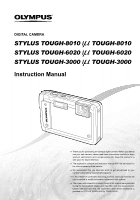
TOUGH-8010 / TOUGH-8010 μ STYLUS TOUGH-6020 / TOUGH-6020 μ STYLUS TOUGH-3000 / TOUGH-3000 Instruction Manual ● Thank you for purchasing an Olympus digital camera. Before you start to use your new camera, please read these instructions carefully to enjoy optimum performance and a longer service - Olympus STYLUS TOUGH-6020 | STYLUS TOUGH-3000 Instruction Manual (English) - Page 2
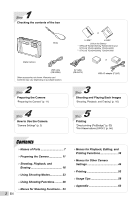
on purchase location. 2 Step Preparing the Camera "Preparing the Camera" (p. 11) 4 Step How to Use the Camera "Camera Settings" (p. 3) or LI-50B*1 LI-42B*2 Lithium Ion Battery *1 STYLUS TOUGH-8010/μ TOUGH-8010 and STYLUS TOUGH-6020/μ TOUGH-6020 *2 STYLUS TOUGH-3000/μ TOUGH-3000 or AV cable (CB - Olympus STYLUS TOUGH-6020 | STYLUS TOUGH-3000 Instruction Manual (English) - Page 3
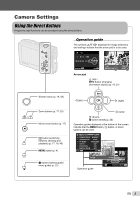
(left) I (right) Zoom buttons (p. 17, 20) Movie record button (p. 17) q button (switching between shooting and playback) (p. 17, 18, 45) m button (p. 4) E button (camera guide/ menu guide) (p. 22) A button G (down) / D button (erase) (p. 20) Operation guides displayed at the bottom of the screen - Olympus STYLUS TOUGH-6020 | STYLUS TOUGH-3000 Instruction Manual (English) - Page 4
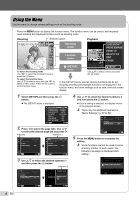
and press the A button. In the [SETUP] menu, various camera functions can be set, including shooting and playback functions not displayed in NORMAL SHADOW ADJUST AUTO AF MODE FACE/iESP 1 ESP/ ESP 2 FINE ZOOM OFF 3 DIGITAL ZOOM OFF EXIT MENU SET OK 2 Press H to select the page tabs. Use - Olympus STYLUS TOUGH-6020 | STYLUS TOUGH-3000 Instruction Manual (English) - Page 5
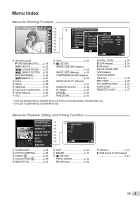
ZOOM p. 35 DIGITAL ZOOM p. 35 R (Still images p. 35 R (Movies p. 36 IMAGE STABILIZER (Still images)/ IS MOVIE MODE (Movies p. 36 REC VIEW p. 36 PIC ORIENTATION*1 .........p. 37 ICON GUIDE p. 37 REMOTE FLASH*2 p. 37 *1 STYLUS TOUGH-8010/μ TOUGH-8010 and STYLUS TOUGH-6020/μ TOUGH-6020 only - Olympus STYLUS TOUGH-6020 | STYLUS TOUGH-3000 Instruction Manual (English) - Page 6
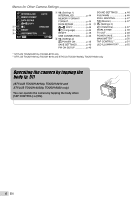
CONTROL*2 p.51 LED ILLUMINATOR*2......... p.52 *1 STYLUS TOUGH-8010/μ TOUGH-8010 only *2 STYLUS TOUGH-8010/μ TOUGH-8010 and STYLUS TOUGH-6020/μ TOUGH-6020 only Operating the camera by tapping the body (p. 51) (STYLUS TOUGH-8010/μ TOUGH-8010 and STYLUS TOUGH-6020/μ TOUGH-6020 only) You can operate - Olympus STYLUS TOUGH-6020 | STYLUS TOUGH-3000 Instruction Manual (English) - Page 7
Names of Parts Camera unit 1 3 6 2 7 8 4 5 9 STYLUS TOUGH-6020/ μ TOUGH-6020 1 10 STYLUS TOUGH-3000/ μ TOUGH-3000 1 11 1 Battery/card/connector cover lock p. 11 2 LOCK knob*1 p. 11 3 HDMI mini connector p. 49 4 Multi-connector........... p. 12, 13, 49, 53 5 Battery/card/connector - Olympus STYLUS TOUGH-6020 | STYLUS TOUGH-3000 Instruction Manual (English) - Page 8
Movie record button p. 17 11 Strap eyelet p. 8 12 Arrow pad p. 3 INFO button (changing information display p. 18, 21 D button (erase p. 20 13 E button (camera guide/menu guide) ......... p. 22 14 m button p. 3, 4 *1 STYLUS TOUGH-8010/μ TOUGH-8010 and STYLUS TOUGH-6020/μ TOUGH-6020 Attaching - Olympus STYLUS TOUGH-6020 | STYLUS TOUGH-3000 Instruction Manual (English) - Page 9
recording time (movies p. 17 21 Altitude/water depth*2 p. 50 22 Atmospheric/ hydraulic pressure*2 p. 50 23 Image size (movies) ... p. 33, 66, 67, 68 24 Histogram p. 18 25 AF target mark p. 16 26 Camera shake warning 27 Aperture value p. 16 28 Shutter speed p. 16 *1 STYLUS TOUGH-8010/μ TOUGH - Olympus STYLUS TOUGH-6020 | STYLUS TOUGH-3000 Instruction Manual (English) - Page 10
of images (still images p. 18 Elapsed time/total recording time (movies p. 19 7 Histogram p. 18 8 Shutter speed p. 16 9 Aperture value p. 16 10 ISO p. 31 11 Exposure compensation p. 30 12 White balance p. 30 * STYLUS TOUGH-8010/μ TOUGH-8010 only 13 Compression (still images) p. 33, 66 - Olympus STYLUS TOUGH-6020 | STYLUS TOUGH-3000 Instruction Manual (English) - Page 11
Preparing the Camera Inserting the battery 1 STYLUS TOUGH-8010/ μ TOUGH-8010 3 LOCK knob STYLUS TOUGH-6020/ μ TOUGH-6020 STYLUS TOUGH-3000/ μ TOUGH-3000 2 3 STYLUS TOUGH-8010/ μ TOUGH-8010 1 2 3 STYLUS TOUGH-6020/ μ TOUGH-6020 STYLUS TOUGH-3000/ μ TOUGH-3000 1 2 2 1 1 Battery/card/ - Olympus STYLUS TOUGH-6020 | STYLUS TOUGH-3000 Instruction Manual (English) - Page 12
Doing so will erase the camera instruction manual and the PC software (ib) data that are stored on the internal memory. Check that your computer meets the following system requirements: Windows XP (SP2 or later)/ Windows Vista/Windows 7 Refer to the PC software (ib) help guide for details on how to - Olympus STYLUS TOUGH-6020 | STYLUS TOUGH-3000 Instruction Manual (English) - Page 13
the indicator lamp turns off (STYLUS TOUGH-8010/μ TOUGH-8010, STYLUS TOUGH-6020/μ TOUGH-6020: up to 3 hours, STYLUS TOUGH-3000/ μ TOUGH-3000: up to 2.5 hours). If the indicator lamp does not light, the AC adapter is not connected to the camera correctly, or the battery, camera, or AC adapter may be - Olympus STYLUS TOUGH-6020 | STYLUS TOUGH-3000 Instruction Manual (English) - Page 14
with system other than Windows XP (SP2 or later)/ Windows Vista/Windows 7 Connect the camera to the computer and copy the instruction manual PDF file for your language in the "Manual" folder in the internal memory of the camera. Setting the date, time and time zone The date and time set here are - Olympus STYLUS TOUGH-6020 | STYLUS TOUGH-3000 Instruction Manual (English) - Page 15
area directly. 2 STYLUS TOUGH-8010/ μ TOUGH-8010 1 STYLUS TOUGH-6020/ μ TOUGH-6020 STYLUS TOUGH-3000/ μ TOUGH-3000 1 2 3 2 Close the battery/card/connector cover firmly so that lock makes the clicking sound. "Number of storable pictures (still images)/ Continuous recording length (movies) in - Olympus STYLUS TOUGH-6020 | STYLUS TOUGH-3000 Instruction Manual (English) - Page 16
function menu screen and then set the shooting mode to P. "Using the Menu" (p. 4) Current shooting mode display PROGRAM AUTO P Vertical grip When holding the camera, take care not to cover the flash with your fingers, etc. 3 Press the shutter button halfway down to focus on the subject. ● When the - Olympus STYLUS TOUGH-6020 | STYLUS TOUGH-3000 Instruction Manual (English) - Page 17
halfway down. 2 Press the movie record button again to stop recording. Sound will also be recorded. When recording sound in a movie, the sound of the lens triggering and camera operating may be recorded. STYLUS TOUGH-3000/μ TOUGH-3000: During sound recording, only the digital zoom can be used. To - Olympus STYLUS TOUGH-6020 | STYLUS TOUGH-3000 Instruction Manual (English) - Page 18
ZOOM] (p. 35) The zoom bar appearance identifies the status of the fine zoom/digital zoom. When using optical zoom Optical zoom range When using fine zoom When using digital zoom Fine zoom range Digital zoom range Changing the shooting information display The display of the screen information can - Olympus STYLUS TOUGH-6020 | STYLUS TOUGH-3000 Instruction Manual (English) - Page 19
Select a movie, and press the A button. 4/30 MOVIE PLAY OK '10/02/26 12:30 Movie Operations during movie playback Elapsed time/ Total recording time 00:12/00:34 During playback Pausing and restarting playback Press the A button to pause playback. During pause, fast forward or reverse, press the - Olympus STYLUS TOUGH-6020 | STYLUS TOUGH-3000 Instruction Manual (English) - Page 20
Erasing images during playback (Single image erase) 1 Display the image you want to erase and press G (D). ERASE BACK MENU ALL ERASE SEL. IMAGE ERASE CANCEL SET OK Index view, close-up view, and event index Index view enables quick selection of a desired image. Close-up view (up to 10× magnifi - Olympus STYLUS TOUGH-6020 | STYLUS TOUGH-3000 Instruction Manual (English) - Page 21
time the button is pressed. Normal 10 4/30 Playing back panorama images Panorama images that were combined together using [AUTO] or [MANUAL] can be scrolled for viewing. "Creating panoramic images (p mode)" (p. 25) 1 Select a panorama image during playback. "Viewing images" (p. 18) 4/30 REPLAY - Olympus STYLUS TOUGH-6020 | STYLUS TOUGH-3000 Instruction Manual (English) - Page 22
option is displayed. "Using the Menu" (p. 4) Using the camera guide Use the camera guide to look up camera operations. 1 Press the E button in the standby mode screen or the playback screen. IN-CAMERA MANUAL Search Learn about the camera History Message EXIT SET OK Submenu 2 Search Learn about - Olympus STYLUS TOUGH-6020 | STYLUS TOUGH-3000 Instruction Manual (English) - Page 23
the changed setting is not reflected in the actual shot. 1 Set the shooting mode to M. The icon changes depending on the scene that the camera automatically selects. Using the best mode for the shooting scene (s mode) 1 Set the shooting mode to s. SCENE MODE 0.0 WB AUTO 4 14M 2 Press G to go to - Olympus STYLUS TOUGH-6020 | STYLUS TOUGH-3000 Instruction Manual (English) - Page 24
The camera takes a picture using the optimum settings for the scene conditions. *1 When the subject is dark, noise reduction is automatically activated. This approximately doubles the shooting time during which no other pictures can be taken. *2 STYLUS TOUGH-8010/μ TOUGH-8010 and STYLUS TOUGH-6020 - Olympus STYLUS TOUGH-6020 | STYLUS TOUGH-3000 Instruction Manual (English) - Page 25
the shots so that the target marks and pointers overlap, and the camera automatically releases the shutter. Three frames are taken and combined by the camera. The user composes the shots using the guide frame and manually releases the shutter. The frames that were taken are combined into a panorama - Olympus STYLUS TOUGH-6020 | STYLUS TOUGH-3000 Instruction Manual (English) - Page 26
slowly while keeping it straight, and stop the camera where the pointer and target mark overlap. ● The camera releases the shutter automatically. AUTO 2 Press the shutter button to take the first frame. Joint areas MANUAL MANUAL 1 2 1 2 CANCEL MENU SAVE OK To combine only two pictures - Olympus STYLUS TOUGH-6020 | STYLUS TOUGH-3000 Instruction Manual (English) - Page 27
is possible for up to 10 frames. Refer to the PC software (ib) help guide for details on how to make panorama images. 2 Point the camera toward the subject. Check the frame appearing around the face detected by the camera, and then press the shutter button to take the picture. ● The unedited image - Olympus STYLUS TOUGH-6020 | STYLUS TOUGH-3000 Instruction Manual (English) - Page 28
button to set. Shooting closeups (Macro shooting) This function enables the camera to focus and shoot subjects at close distances. 1 Select the macro option details, see "Using an external flash" (p. 37). * STYLUS TOUGH-8010/μ TOUGH-8010 only [REMOTE CONTROL] and [SLAVE] are not displayed when [ - Olympus STYLUS TOUGH-6020 | STYLUS TOUGH-3000 Instruction Manual (English) - Page 29
, this function enables shooting as close as the following distances. MACRO This enables the camera to shoot subjects at close distances. STYLUS TOUGH-8010/μ TOUGH-8010, STYLUS TOUGH-3000/ STYLUS TOUGH-6020/μ TOUGH-6020 μ TOUGH-3000 20 cm (7.9 in.) 10 cm (3.9 in.) When the zoom is at the most - Olympus STYLUS TOUGH-6020 | STYLUS TOUGH-3000 Instruction Manual (English) - Page 30
self-timer after it starts Press the m button. Adjusting the brightness (Exposure compensation) The standard brightness (appropriate exposure) set by the camera based on the shooting mode (except for M) can be adjusted brighter or darker to obtain a desired shot. 1 Select the exposure compensation - Olympus STYLUS TOUGH-6020 | STYLUS TOUGH-3000 Instruction Manual (English) - Page 31
the s mode is set to [H MACRO]). * STYLUS TOUGH-8010/μ TOUGH-8010 and STYLUS TOUGH-6020/μ TOUGH-6020 only Selecting the ISO sensitivity Abbreviation for the International Organization for Standardization. ISO standards specify the sensitivity for digital cameras and film, thus codes such as "ISO - Olympus STYLUS TOUGH-6020 | STYLUS TOUGH-3000 Instruction Manual (English) - Page 32
fixed to [ISO AUTO]. Using the LED illuminator (STYLUS TOUGH-8010/μ TOUGH-8010 and STYLUS TOUGH-6020/μ TOUGH-6020 only) In a dark location, the LED illuminator if no operation is performed for approx. 30 seconds. Even when the camera's power is turned off, if F is pressed until the LED illuminator - Olympus STYLUS TOUGH-6020 | STYLUS TOUGH-3000 Instruction Manual (English) - Page 33
NORMAL Shooting at high quality. Shooting at normal quality. *1 STYLUS TOUGH-8010/μ TOUGH-8010 and STYLUS TOUGH-6020/μ TOUGH-6020 only *2 STYLUS TOUGH-3000/μ TOUGH-3000 only "Number of storable pictures (still images)/Continuous recording length (movies) in the internal memory and SD/SDHC memory - Olympus STYLUS TOUGH-6020 | STYLUS TOUGH-3000 Instruction Manual (English) - Page 34
fixed to [ESP]. Selecting the focusing area [AF MODE] I (Shooting menu 1) X AF MODE Available shooting modes: P M s P p Q Submenu 2 Application FACE/iESP*1 The camera focuses automatically. (If a face is detected, it is shown by a white frame*1; when the shutter button is pressed halfway and the - Olympus STYLUS TOUGH-6020 | STYLUS TOUGH-3000 Instruction Manual (English) - Page 35
/ μ TOUGH-8010, STYLUS TOUGH-6020/ μ TOUGH-6020 STYLUS TOUGH-3000/ μ TOUGH-3000 Approx. 25× (max.) Approx. 18× (max.) The setting is not available when [FINE ZOOM] is set to [ON]. [DIGITAL ZOOM] is not available when [a SUPER MACRO] (p. 28) or [N S-MACRO LED] (p. 28) is selected. Recording sound - Olympus STYLUS TOUGH-6020 | STYLUS TOUGH-3000 Instruction Manual (English) - Page 36
ON Application No sound is recorded. Sound is recorded. When recording sound in a movie, the sound of the lens triggering and camera operating may be recorded. STYLUS TOUGH-3000/μ TOUGH-3000: When set to [ON], only the digital zoom can be used during movie recording. To record the movie with the - Olympus STYLUS TOUGH-6020 | STYLUS TOUGH-3000 Instruction Manual (English) - Page 37
orientation of the camera during shooting is recorded with images. Images are automatically rotated during playback. Icon guide PROGRAM AUTO P Functions can be changed manually. 0.0 WB AUTO ISO AUTO 4 14M Using an external flash [REMOTE FLASH] (STYLUS TOUGH-8010/μ TOUGH-8010 only) J (Shooting - Olympus STYLUS TOUGH-6020 | STYLUS TOUGH-3000 Instruction Manual (English) - Page 38
before using some function. Refer to the PC software (ib) help guide for details on how to use the PC software (ib). For details on installing the PC software (ib), see "Battery charge and camera setup" (p. 11). Playing back pictures automatically [SLIDESHOW] SLIDESHOW Submenu - Olympus STYLUS TOUGH-6020 | STYLUS TOUGH-3000 Instruction Manual (English) - Page 39
The following functions can be performed when data created with the PC software (ib) is imported back to the camera. Refer to the PC software (ib) help guide for details on how to use the PC software (ib). [PHOTO SURFING] Information of persons or shooting locations and new Collections can be added - Olympus STYLUS TOUGH-6020 | STYLUS TOUGH-3000 Instruction Manual (English) - Page 40
Retouching the skin and eyes [BEAUTY FIX] BEAUTY FIX Depending on the picture, the editing may not be effective. Submenu 1 Submenu 2 Application [CLEAR SKIN], ALL ― [SPARKLE EYE] and [DRAMATIC EYE] are applied together. CLEAR SKIN SOFT/AVG/ HARD Makes skin look smooth and translucent. - Olympus STYLUS TOUGH-6020 | STYLUS TOUGH-3000 Instruction Manual (English) - Page 41
For information on using the menus, see "Using the Menu" (p. 4). Changing the color tone of image [COLOR EDIT] EDIT X COLOR EDIT Submenu 2 Application BLACK & WHITE This changes the image to black and white. SEPIA This changes the image to a sepia tone. HIGH SATURATION This increases the - Olympus STYLUS TOUGH-6020 | STYLUS TOUGH-3000 Instruction Manual (English) - Page 42
]. Before erasing pictures from a memory card, insert the card into the camera and select [AUTO] for [INTERNAL/SD]. "Selecting a storage device [ (DPOF)" (p. 56) Print reservation can be set only for still images that are recorded to the card. Set [INTERNAL/SD] to [AUTO]. Protecting images [0] q ( - Olympus STYLUS TOUGH-6020 | STYLUS TOUGH-3000 Instruction Manual (English) - Page 43
image. 2 Aim the microphone toward the sound source. STYLUS TOUGH-8010/μ TOUGH-8010 Microphone STYLUS TOUGH-6020/μ TOUGH-6020 Microphone STYLUS TOUGH-3000/μ TOUGH-3000 Microphone 3 Press the A button. ● Recording starts. ● The camera adds (records) sound for approx. 4 seconds while playing back the - Olympus STYLUS TOUGH-6020 | STYLUS TOUGH-3000 Instruction Manual (English) - Page 44
FORMAT Before formatting, check that no important data is left in the internal memory or card. If the internal memory is formatted, the camera instruction manual and the PC software (ib) data that are stored on the internal memory are erased. If necessary, store the backup before formatting. Cards - Olympus STYLUS TOUGH-6020 | STYLUS TOUGH-3000 Instruction Manual (English) - Page 45
following cases: ● Computers with USB ports installed using an expansion card, etc. ● Computers without a factory-installed OS and home-built computers Turning on the camera with the q button [q POWER ON] s (Settings 2) X q POWER ON Submenu 2 YES NO Application Pressing the q button turns on the - Olympus STYLUS TOUGH-6020 | STYLUS TOUGH-3000 Instruction Manual (English) - Page 46
sounds (operation sounds, shutter sound, and warning sounds) and mute sound during playback. Selects the operating sound and volume of the camera buttons (except the shutter button). Selects the type and volume of the shutter sound. Selects the warning sound volume. Selects the image playback volume - Olympus STYLUS TOUGH-6020 | STYLUS TOUGH-3000 Instruction Manual (English) - Page 47
Approximately once a year is recommended. For best results, wait at least one minute after taking or viewing pictures before performing pixel mapping. If the camera is turned off during pixel mapping, be sure to perform it again. To adjust the CCD and the image processing function Press the A button - Olympus STYLUS TOUGH-6020 | STYLUS TOUGH-3000 Instruction Manual (English) - Page 48
. Submenu 2 VIDEO OUT HDMI OUT HDMI CONTROL Submenu 3 NTSC PAL 480p/576p 720p 1080i OFF ON Application Connecting the camera to a TV in North America, Taiwan, Korea, Japan, and so on. Connecting the camera to a TV in European countries, China, and so on. Set the playback format. Operate with the - Olympus STYLUS TOUGH-6020 | STYLUS TOUGH-3000 Instruction Manual (English) - Page 49
cable 1 On the camera, select the digital signal format that will be connected ([480p/576p]/[720p]/ [1080i]). 2 Connect the TV and camera. When set to [1080i setting of the TV, refer to the TV's instruction manual. When the camera is connected to the computer or other device via USB cable, do not - Olympus STYLUS TOUGH-6020 | STYLUS TOUGH-3000 Instruction Manual (English) - Page 50
[POWER SAVE]. When the camera is not being used for approx. 10 seconds, the monitor automatically turns off to save battery power. To resume standby mode Press any button. Displaying the current altitude/water depth (atmospheric/hydraulic pressure) [MANOMETER] (STYLUS TOUGH-8010/μ TOUGH-8010 only - Olympus STYLUS TOUGH-6020 | STYLUS TOUGH-3000 Instruction Manual (English) - Page 51
depth, and press the A button to set. CALIBRATE 1200 m BACK MENU SET OK Operating the camera by tapping the body [TAP CONTROL] (STYLUS TOUGH-8010/μ TOUGH-8010 and STYLUS TOUGH-6020/μ TOUGH-6020 only) t (Settings 3) X TAP CONTROL Submenu 2 OFF ON CALIBRATE Application Cancels [TAP CONTROL]. [TAP - Olympus STYLUS TOUGH-6020 | STYLUS TOUGH-3000 Instruction Manual (English) - Page 52
twice. Take a picture: Tap the back of the camera twice (Only for the [a SNOW] mode). Using the LED illuminator as an auxiliary light [LED ILLUMINATOR] (STYLUS TOUGH-8010/μ TOUGH-8010 and STYLUS TOUGH-6020/μ TOUGH-6020 only) t (Settings 3) X LED ILLUMINATOR Submenu 2 OFF ON Application Disables - Olympus STYLUS TOUGH-6020 | STYLUS TOUGH-3000 Instruction Manual (English) - Page 53
you can print images directly without using a computer. To find out if your printer supports PictBridge, refer to the printer's instruction manual. *1 PictBridge is a standard for connecting digital cameras and printers of different makers and printing out pictures directly. The printing modes, paper - Olympus STYLUS TOUGH-6020 | STYLUS TOUGH-3000 Instruction Manual (English) - Page 54
Changing the printer's settings for printing [CUSTOM PRINT] 1 Follow Steps 1 and 2 for [EASY PRINT] (p. 53). 2 Press the A button. 3 Use FG to select the print mode, and press the A button. PRINT MODE SELECT PRINT ALL PRINT MULTI PRINT ALL INDEX PRINT ORDER EXIT MENU SET OK 5 Use FG to select - Olympus STYLUS TOUGH-6020 | STYLUS TOUGH-3000 Instruction Manual (English) - Page 55
Submenu Submenu 5 6 Application - Olympus STYLUS TOUGH-6020 | STYLUS TOUGH-3000 Instruction Manual (English) - Page 56
print shop supporting DPOF by using only the print reservations on the card without a computer or a camera. *1 DPOF is a standard for storing automatic printout information from digital cameras. Print reservations can be set only for the images stored on the card. Insert a card with recorded images - Olympus STYLUS TOUGH-6020 | STYLUS TOUGH-3000 Instruction Manual (English) - Page 57
Reserving one print each of all images on the card [U] Resetting the print reservation data for selected images 1 Follow Steps 1 and 2 in [ - Olympus STYLUS TOUGH-6020 | STYLUS TOUGH-3000 Instruction Manual (English) - Page 58
is displayed on the screen, and you are unsure of what to do, refer to the information below to fix the problem(s). Troubleshooting Battery "The camera does not work even when batteries are installed". ● Insert recharged batteries in the correct direction. "Inserting the battery" (p. 11), "Battery - Olympus STYLUS TOUGH-6020 | STYLUS TOUGH-3000 Instruction Manual (English) - Page 59
tray has been removed. Do not operate the printer while making the print settings on the camera. *4 This camera may be unable to print images taken by other cameras. THE IMAGE CANNOT BE EDITED Problem with selected image Use photo retouch software, etc. to edit the image on a computer. BATTERY - Olympus STYLUS TOUGH-6020 | STYLUS TOUGH-3000 Instruction Manual (English) - Page 60
picture. Pressing the shutter button halfway (p. 16) ● Set [AF MODE] (p. 34) to [FACE/iESP] ● Taking a picture in [AF TRACKING] mode (p. 34) The camera tracks the subject movement automatically to focus on it continuously. ● Taking a picture of subjects where autofocus is difficult In the following - Olympus STYLUS TOUGH-6020 | STYLUS TOUGH-3000 Instruction Manual (English) - Page 61
SNOW]* (p. 24) * STYLUS TOUGH-8010/μ TOUGH-8010 and STYLUS TOUGH-6020/μ TOUGH-6020 only ● Taking pictures Taking pictures with the optical zoom Avoid using digital zoom (p. 35) to take pictures. ● shooting Taking pictures by pivoting with the camera at the center prevents shifting of the image - Olympus STYLUS TOUGH-6020 | STYLUS TOUGH-3000 Instruction Manual (English) - Page 62
with high picture quality on a high-definition TV" ● Connect the camera to the TV using an HDMI cable (commercially available) ● "To play back camera images on a TV" (p. 48) Editing "Erasing the sound recorded to a still image" ● Record over the sound with silence when playing back the image "Adding - Olympus STYLUS TOUGH-6020 | STYLUS TOUGH-3000 Instruction Manual (English) - Page 63
, USB-AC adapter (included), Charger (sold separately) • This camera uses one Olympus lithium ion battery*. No other type of batteries can be used. * STYLUS TOUGH-8010/μ TOUGH-8010, STYLUS TOUGH-6020/μ TOUGH-6020: LI-50B STYLUS TOUGH-3000/μ TOUGH-3000: LI-42B Caution: There is a risk of explosion if - Olympus STYLUS TOUGH-6020 | STYLUS TOUGH-3000 Instruction Manual (English) - Page 64
the camera and set the battery to the charger. * STYLUS TOUGH-8010/μ TOUGH-8010, STYLUS TOUGH-6020/μ TOUGH-6020: LI-50C STYLUS TOUGH-3000/μ TOUGH-3000 internal memory) also corresponds to the film that records images in a film camera. Otherwise, the recorded images (data) can be erased, and retouching - Olympus STYLUS TOUGH-6020 | STYLUS TOUGH-3000 Instruction Manual (English) - Page 65
SD/SDHC memory cards (for more information, visit the Olympus website) Readout/recording process of the card During shooting, the current memory indicator lights in red while the camera is writing data. Never open the battery/card/ connector cover or unplug the USB cable. This can not only damage - Olympus STYLUS TOUGH-6020 | STYLUS TOUGH-3000 Instruction Manual (English) - Page 66
continuous recording camera to a computer or other device to save the images, and then erase the images in the internal memory or card. [ERASE] (p. 20, 42), [ERASE EVENT] (p. 42), [SEL. IMAGE] (p. 42), [ALL ERASE] (p. 42), [MEMORY FORMAT]/ [FORMAT] (p. 44) STYLUS TOUGH-8010/μ TOUGH-8010, μ TOUGH - Olympus STYLUS TOUGH-6020 | STYLUS TOUGH-3000 Instruction Manual (English) - Page 67
STYLUS TOUGH-6020 Still pictures IMAGE SIZE 6 4288×3216 4 3264×2448 n 2560×1920 3 2048×1536 2 1600×1200 1 1280×960 7 L 1280×720 8 640×480 9 320×240 IMAGE QUALITY L M L M L Continuous recording length Internal memory SD/SDHC memory card (1GB) With sound Without sound With sound Without sound - Olympus STYLUS TOUGH-6020 | STYLUS TOUGH-3000 Instruction Manual (English) - Page 68
STYLUS TOUGH-3000/μ TOUGH-3000 Still pictures IMAGE SIZE 5 3968×2976 4 3264×2448 n 2560×1920 3 2048×1536 2 1600×1200 1 1280× 1280×720 8 640×480 9 320×240 IMAGE QUALITY L M L M L Continuous recording length Internal memory SD/SDHC memory card (1GB) With sound Without sound With sound Without - Olympus STYLUS TOUGH-6020 | STYLUS TOUGH-3000 Instruction Manual (English) - Page 69
Wireless RC Flash System STYLUS TOUGH-8010/μ TOUGH-8010 only You can take pictures with a wireless flash when using a flash compatible with the Olympus Wireless RC Flash System. This enables multi-flash photography using multiple flash units compatible with this system. The camera's built-in flash is - Olympus STYLUS TOUGH-6020 | STYLUS TOUGH-3000 Instruction Manual (English) - Page 70
cover costs associated with the service or repair of your camera. For additional information on our warranty, please visit to the Olympus website for your local area. Please observe the following care instructions for your camera. *1 As determined by Olympus pressure testing equipment in accordance - Olympus STYLUS TOUGH-6020 | STYLUS TOUGH-3000 Instruction Manual (English) - Page 71
NOT REMOVE COVER (OR BACK). NO USER-SERVICEABLE PARTS INSIDE. REFER SERVICING TO QUALIFIED OLYMPUS SERVICE PERSONNEL. DANGER WARNING CAUTION An exclamation mark enclosed in a triangle alerts you to important operating and maintenance instructions in the documentation provided with the product. If - Olympus STYLUS TOUGH-6020 | STYLUS TOUGH-3000 Instruction Manual (English) - Page 72
camera, contact an authorized distributor or service center. Do not try to remove the card by force. CAUTION • Stop using the camera The camera uses a lithium ion battery specified by Olympus. Charge battery carefully as described in the operating instructions. • If rechargeable batteries have not - Olympus STYLUS TOUGH-6020 | STYLUS TOUGH-3000 Instruction Manual (English) - Page 73
and on again before further operation. • Always observe the operating environment restrictions described in the camera's manual. Battery Handling Precautions • This camera uses a lithium ion battery specified by Olympus. Do not use any other type of battery. • If the battery's terminals get wet or - Olympus STYLUS TOUGH-6020 | STYLUS TOUGH-3000 Instruction Manual (English) - Page 74
Olympus reserves all rights to this manual recording or the use of any type of information storage and retrieval system, without the prior written permission of Olympus for a Class B digital device, pursuant to with the instructions, may OLYMPUS-supplied USB cable should be used to connect the camera - Olympus STYLUS TOUGH-6020 | STYLUS TOUGH-3000 Instruction Manual (English) - Page 75
For customers in North and South America For customers in USA Declaration of Conformity Model Number : STYLUS TOUGH-8010/ μ TOUGH-8010 STYLUS TOUGH-6020/ μ TOUGH-6020 STYLUS TOUGH-3000/ μ TOUGH-3000 Trade Name : OLYMPUS Responsible Party : Address Telephone Number : 3500 Corporate - Olympus STYLUS TOUGH-6020 | STYLUS TOUGH-3000 Instruction Manual (English) - Page 76
the Product (unless it is a model on which Olympus does not place and record serial numbers). 3 A detailed description of the problem. 4 Sample prints, negatives, digital prints (or files on disk) if available and related to the problem. When service is completed, the Product will be returned to you - Olympus STYLUS TOUGH-6020 | STYLUS TOUGH-3000 Instruction Manual (English) - Page 77
is not mentioned in the Handling Care or other sections of the instructions, etc.) b. Any defect that occurs due to repair, modification, cleaning, etc. performed by anyone other than Olympus or an Olympus authorized service station. c. Any defect or damage that occurs due to transport, a fall, shock - Olympus STYLUS TOUGH-6020 | STYLUS TOUGH-3000 Instruction Manual (English) - Page 78
period to the dealer where the product was purchased or any Olympus authorized service station listed in the instructions and request the necessary repairs. 2 The customer shall transport the product to the dealer or Olympus authorized service station at his own risk and shall be responsible for any - Olympus STYLUS TOUGH-6020 | STYLUS TOUGH-3000 Instruction Manual (English) - Page 79
refer to the appended list for the authorized international Olympus service network. Disclaimer of Warranty Olympus makes no representations or warranties, either expressed or • The standards for camera file systems referred to in this manual are the "Design rule for Camera File system/DCF" standards - Olympus STYLUS TOUGH-6020 | STYLUS TOUGH-3000 Instruction Manual (English) - Page 80
TOUGH-8010/μ TOUGH-8010, STYLUS TOUGH-6020/ μ TOUGH-6020: Olympus lens 5.0 to 25.0 mm, f3.9 to 5.9 (equivalent to 28 to 140 mm on a 35 mm camera) STYLUS TOUGH-3000/μ TOUGH-3000: Olympus lens 5.0 to 18.2 mm, f3.5 to 5.1 (equivalent to 28 to 102 mm on a 35 mm camera) Photometric system : Digital - Olympus STYLUS TOUGH-6020 | STYLUS TOUGH-3000 Instruction Manual (English) - Page 81
65.0 mm (H) × 23.4 mm (D) (3.7 × 2.2 × 0.8 in.) (excluding protrusions) : STYLUS TOUGH-8010/μ TOUGH-8010: 215 g (7.6 oz) (including battery and card) STYLUS TOUGH-6020/μ TOUGH-6020: 178 g (6.3 oz) (including battery and card) STYLUS TOUGH-3000/μ TOUGH-3000: 159 g (5.6 oz) (including battery and card - Olympus STYLUS TOUGH-6020 | STYLUS TOUGH-3000 Instruction Manual (English) - Page 82
has been tested for use with this product in temperatures up to -10°C (14°F). Olympus lithium ion battery STYLUS TOUGH-8010/μ TOUGH-8010, STYLUS TOUGH-6020/μ TOUGH-6020: LI-50B STYLUS TOUGH-3000/μ TOUGH-3000: LI-42B ● The number of storable still pictures is reduced in low temperatures. HDMI - Olympus STYLUS TOUGH-6020 | STYLUS TOUGH-3000 Instruction Manual (English) - Page 83
VN678203
-
 1
1 -
 2
2 -
 3
3 -
 4
4 -
 5
5 -
 6
6 -
 7
7 -
8
-
9
-
10
-
11
-
12
-
13
-
14
-
15
-
16
-
17
-
18
-
19
-
20
-
21
-
22
-
23
-
24
-
25
-
26
-
27
-
28
-
29
-
30
-
31
-
32
-
33
-
34
-
35
-
36
-
37
-
38
-
39
-
40
-
41
-
42
-
43
-
44
-
45
-
46
-
47
-
48
-
49
-
50
-
51
-
52
-
53
-
54
-
55
-
56
-
57
-
58
-
59
-
60
-
61
-
62
-
63
-
64
-
65
-
66
-
67
-
68
-
69
-
70
-
71
-
72
-
73
-
74
-
75
-
76
-
77
-
78
-
79
-
80
-
81
-
82
-
83
 |
 |
Instruction Manual
STYLUS TOUGH-8010 /
μ
TOUGH-8010
STYLUS TOUGH-6020 /
μ
TOUGH-6020
STYLUS TOUGH-3000 /
μ
TOUGH-3000
DIGITAL CAMERA
●
Thank you for purchasing an Olympus digital camera. Before you start to
use your new camera, please read these instructions carefully to enjoy
optimum performance and a longer service life. Keep this manual in a
safe place for future reference.
●
The application software and instruction manual PDF
fi
le are stored on
the internal memory of the camera.
●
We recommend that you take test shots to get accustomed to your
camera before taking important photographs.
●
In the interest of continually improving products, Olympus reserves the
right to update or modify information contained in this manual.
●
The screen and camera illustrations shown in this manual were produced
during the development stages and may differ from the actual product.
Unless otherwise speci
fi
ed, the explanation about these illustrations is
provided for STYLUS TOUGH-8010/
μ
TOUGH-8010.