
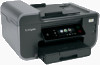
Lexmark Pinnacle Pro901 User's Guide
Lexmark Pinnacle Pro901 Manual
 |
View all Lexmark Pinnacle Pro901 manuals
Add to My Manuals
Save this manual to your list of manuals |
Lexmark Pinnacle Pro901 manual content summary:
- Lexmark Pinnacle Pro901 | User's Guide - Page 1
Pro900 Series User's Guide November 2009 Machine type(s): 4444 Model(s): 301, 30E www.lexmark.com - Lexmark Pinnacle Pro901 | User's Guide - Page 2
replacing supplies 13 Ordering ink cartridges...13 Using genuine Lexmark ink cartridges...13 Replacing ink cartridges...14 Ordering paper and other supplies...15 Recycling Lexmark products...15 Using the printer control panel buttons and menus 16 Using the printer control panel...16 Understanding - Lexmark Pinnacle Pro901 | User's Guide - Page 3
images...60 Adjusting copy quality...60 Making a copy lighter or darker...60 Collating copies using the printer control panel...61 Repeating an image on one page...61 Copying multiple pages on one sheet ...61 Making a duplex copy...62 Canceling copy jobs...63 Scanning 64 Tips for scanning...64 - Lexmark Pinnacle Pro901 | User's Guide - Page 4
Maintaining the printer 132 Maintaining ink cartridges...132 Cleaning the exterior of the printer...134 Cleaning the scanner glass...134 Cleaning the touch screen...135 Troubleshooting 136 Before you troubleshoot...136 Using the Service Center to solve printer problems 136 If Troubleshooting does - Lexmark Pinnacle Pro901 | User's Guide - Page 5
Print troubleshooting...145 Copy and scan troubleshooting...146 E-mail troubleshooting...148 Fax troubleshooting...149 Memory card troubleshooting...155 Network troubleshooting...157 Notices 176 Product information...176 Edition notice...176 Power consumption...179 Index 192 Contents 5 - Lexmark Pinnacle Pro901 | User's Guide - Page 6
service or repairs, other than those described in the user documentation, to a professional service cord regularly for signs of such problems. Remove the power cord from the printer, unplug the power cord from the wall outlet and disconnect all cables from the printer INSTRUCTIONS. Safety information 6 - Lexmark Pinnacle Pro901 | User's Guide - Page 7
printer, read the User's Guide carefully, and make sure you check the latest updates on our Web site. We're committed to delivering performance and value with our printers, and we want to make sure you're satisfied. If you do encounter any problems along the way, one of our knowledgeable support - Lexmark Pinnacle Pro901 | User's Guide - Page 8
. These features clean the printhead nozzles to improve the quality of your prints. Recycling • Return ink cartridges for reuse or recycling through the Lexmark Cartridge Collection Program. To return an ink cartridge, go to www.lexmark.com/recycle. Follow the instructions to request a postage-paid - Lexmark Pinnacle Pro901 | User's Guide - Page 9
• Caring for and maintaining the printer • Troubleshooting and solving problems User's Guide The User's Guide is available on the installation software CD. For updates, check our Web site at http://support.lexmark.com. Creating and customizing printer solutions, depending on your SmartSolutions - Lexmark Pinnacle Pro901 | User's Guide - Page 10
telephone numbers and hours of operation for your region or country can be found on the Support Web site (http://support.lexmark.com) or on the printed warranty that came with your printer. Warranty information varies by country or region: • In the US-See the Statement of Limited Warranty included - Lexmark Pinnacle Pro901 | User's Guide - Page 11
< < LINE EXT 5 6 7 9 8 Use the 1 Scanner unit 2 Ink cartridge access 3 Ethernet port 4 USB port 5 LINE Port To • Access the ink cartridges and printhead. • Remove paper jams. Install, replace, or remove ink cartridges. Connect your printer to a computer, a local network, an external DSL, or - Lexmark Pinnacle Pro901 | User's Guide - Page 12
Use the 8 Duplex unit 9 Printhead access To • Print on both sides of a sheet of paper. • Remove paper jams. Install the printhead. Note: The carrier moves to the printhead access area when no printhead is installed in the printer. About your printer 12 - Lexmark Pinnacle Pro901 | User's Guide - Page 13
for a single use only. After use, return this cartridge to Lexmark for remanufacturing, refilling, or recycling. 2 Available only on the Lexmark Web site at www.lexmark.com. Using genuine Lexmark ink cartridges Lexmark printers, ink cartridges, and photo paper are designed to perform together for - Lexmark Pinnacle Pro901 | User's Guide - Page 14
Replacing ink cartridges Make sure you have a new ink cartridge or cartridges before you begin. You must install new cartridges immediately after removing the old ones or the ink remaining in the printhead nozzles may dry out. 1 Turn on your printer. 2 Open the printer. Note: The printhead moves to - Lexmark Pinnacle Pro901 | User's Guide - Page 15
, go to www.lexmark.com Recycling Lexmark products To return Lexmark products to Lexmark for recycling: 1 Visit our Web site at www.lexmark.com/recycle. 2 Find the product type you want to recycle, and then select your country from the list. 3 Follow the instructions on the computer screen - Lexmark Pinnacle Pro901 | User's Guide - Page 16
to Power Saver mode. Press and hold for three seconds to turn off the printer. 2 Back • Return to the previous screen. • Exit from one menu level to a higher one. 3 Touch screen display • Navigate the printer menus. Note: The display is turned off in Power Saver mode. • Change settings. • View - Lexmark Pinnacle Pro901 | User's Guide - Page 17
is referred to as the home screen. Use the home screen selections to initiate an action, such as copying or faxing, or to change printer settings. 1 2 34 5 Display item 1 Copy AA 2 Scan A Copy Scan Fax Memory Smart Device Solutions 12 9 8 7 6 Description Access the copy menu and make - Lexmark Pinnacle Pro901 | User's Guide - Page 18
Description 5 SmartSolutions Open the SmartSolutions menu. 6 Ink levels icon • Display the current ink levels of the installed cartridges. • Access cartridge maintenance and information functions. 7 Setup icon Access the setup menu and change printer settings. 8 2-Sided icon Print on both - Lexmark Pinnacle Pro901 | User's Guide - Page 19
Type and change the paper type setting: 1 Touch . Note: All the instructions in this guide start from the home screen. 2 Touch Copy. 3 Touch More Options. 4 by reducing the printer power consumption (as much as 28 percent on some printer models) compared to the default printer settings. To save - Lexmark Pinnacle Pro901 | User's Guide - Page 20
you want to activate, and then touch Accept. • Power Saver after 10 Minutes • Screen Dim • 2-Sided Printing Note: If you select 2-Sided Printing, then the printer prints on both sides of the paper (duplex) for copy and fax jobs, and for printing in Windows. Resetting to factory settings Resetting to - Lexmark Pinnacle Pro901 | User's Guide - Page 21
Web only)1 • Linux Fedora 10 (Web only)1 1 The printer driver for this operating system is available only at http://support.lexmark.com. Using the Windows printer software Software installed during printer installation When you set up the printer using the installation software CD, all the necessary - Lexmark Pinnacle Pro901 | User's Guide - Page 22
) Lexmark Service Center (referred to as Service Center) To • Launch applications or programs. • Access the Fax Solutions software. • Scan or e-mail a photo or document. • Edit scanned documents. • Scan documents to PDF. • Adjust settings for the printer. • Order supplies. • Maintain ink cartridges - Lexmark Pinnacle Pro901 | User's Guide - Page 23
and schedule print jobs. Printer Services dialog (not available in Mac OS X v10.5 or later) • Access the printer utility. • Troubleshoot. • Order ink or supplies. • Contact Lexmark. • Check the printer software version installed on thecomputer. Printer software Applications are installed along - Lexmark Pinnacle Pro901 | User's Guide - Page 24
over a network. Lexmark Printer Utility (referred to as Printer Utility) • Get help with cartridge installation. • Print a test page. • Print an alignment page. • Clean the printhead nozzles. • Order ink or supplies. • Register the printer. • Contact technical support. Lexmark Wireless Setup - Lexmark Pinnacle Pro901 | User's Guide - Page 25
All Programs or Programs, and then select the printer program folder from the list. 3 Select Printer Home. 4 Choose your printer from the printer drop-down list. 5 From the Support tab, select Check for updates. 6 Follow the instructions on the computer screen. Enabling automatic software updates - Lexmark Pinnacle Pro901 | User's Guide - Page 26
the desktop. 3 Double-click Install. 4 Follow the instructions on the installation dialog. Using the World Wide Web 1 Go to the Lexmark Web site at www.lexmark.com. 2 From the Drivers & Downloads menu, click Driver Finder. 3 Select your printer, and then select your operating system. 4 Download the - Lexmark Pinnacle Pro901 | User's Guide - Page 27
. • If you are using specialty paper, you follow the instructions that came with it. Note: To avoid jams, make sure the paper does not buckle when you adjust the paper guides. 1 Pull tray completely out of the printer. 2 Move the paper guides to the sides of tray. 3 1 2 Loading paper and original - Lexmark Pinnacle Pro901 | User's Guide - Page 28
out, the first stop accommodates A4-size paper. When the extension is fully out, it accommodates legal-size paper. 4 Load the paper. 5 Adjust the paper guides to rest gently against the left, right, and bottom edges of the paper. 1 2 3 Loading paper and original documents 28 - Lexmark Pinnacle Pro901 | User's Guide - Page 29
the tray. Note: If you extended the tray to accommodate A4- or legal-size paper, then the tray sticks out from the front of the printer when inserted. 7 Flip up the paper stop to catch the paper as it exits. Note: If you loaded A4- or legal-size paper, then extend - Lexmark Pinnacle Pro901 | User's Guide - Page 30
Loading envelopes or photo paper 1 Pull tray completely out of the printer. 2 Move the paper guides to the sides of tray. 3 1 2 3 Use the envelope icon and the photo paper outline on the bottom of the tray to help you position envelopes - Lexmark Pinnacle Pro901 | User's Guide - Page 31
with the printable side facedown. (If you are not sure which side is the printable side, then see the instructions that came with the envelopes or photo paper.) 5 Adjust the paper guides to rest gently against the left, right, and bottom edges of the envelopes or photo paper. 1 1 6 Insert the tray - Lexmark Pinnacle Pro901 | User's Guide - Page 32
Make sure • The paper is designed for use with inkjet printers. • The paper guides rest against the left, right, and bottom edges of the paper which side is the printable side, then see the instructions that came with the paper.) • The paper guides rest against the left, right, and bottom edges of - Lexmark Pinnacle Pro901 | User's Guide - Page 33
for use with inkjet printers. • The print side envelopes in landscape orientation. • The paper guides rest against the left, right, and bottom The top of the labels feeds into the printer first. • The paper guides rest against the left, right, and down. • The paper guides rest against the left - Lexmark Pinnacle Pro901 | User's Guide - Page 34
sure 10 iron-on transfers • You follow the loading instructions that came with the iron-on transfers. • The print side of the transfers faces down. • The paper guides rest against the edges of the transfers. Note: For best results, load transfers one at a time. 25 index cards, photo papers, or - Lexmark Pinnacle Pro901 | User's Guide - Page 35
first. • If your printer has more than one paper tray, then load banner paper in Tray 1. To load banner paper: 1 Pull the tray completely out of the printer. 2 Remove all paper from the tray. 3 Move the paper guides as though you were loading legal-size paper. 4 Squeeze the lever and pull to extend - Lexmark Pinnacle Pro901 | User's Guide - Page 36
original document into the ADF for scanning, copying, and faxing. You can load A4-, letter-, or legal-size paper into the ADF. 1 Adjust the paper guide on the ADF tray to the width of the original document. 2 Load the original document faceup and top edge first into the ADF until you - Lexmark Pinnacle Pro901 | User's Guide - Page 37
in the ink cartridges. • Remove each sheet as it is printed when printing photos or when working with specialty media. • Select the borderless setting when printing photos. Printing basic documents Printing a document 1 Load the paper in the printer. 2 Send the print job: For Windows users a With - Lexmark Pinnacle Pro901 | User's Guide - Page 38
option is available only when you are printing multiple copies. • To prevent smudging when printing photos, remove each photo as it exits the printer, and then let it dry before stacking. For Windows users 1 With a document open, click File Print. 2 Click Properties, Preferences, Options, or Setup - Lexmark Pinnacle Pro901 | User's Guide - Page 39
Reverse page order or Reverse option. 6 Click Print. Printing multiple pages on one sheet For Windows users 1 With a document open, click File Print. a document open, choose File > Print. 2 From the Printer pop-up menu, choose the printer. 3 If necessary, click the disclosure triangle. 4 From the - Lexmark Pinnacle Pro901 | User's Guide - Page 40
menu, choose the number of page images that you want to print on one sheet. • From the Layout Direction menu, choose a layout direction. • If supported by the printer. For more information, see "Supported memory cards and file types" on page 44. • The computer must contain applications that support - Lexmark Pinnacle Pro901 | User's Guide - Page 41
orientation. • Make sure the same orientation is also selected in the software application. Printing labels 1 Load the label sheets in the printer. 2 Send the print job: For Windows users a With a document open, click File Print. b Click Properties, Preferences, Options, or Setup. Printing 41 - Lexmark Pinnacle Pro901 | User's Guide - Page 42
mm of the edge of the label sheet. • Make sure the paper guide or paper guides rest against the edges of the label sheet. • Use full label sheets . Printing on custom-size paper Before beginning these instructions, load the custom-size paper in the printer. For Windows users 1 With a document open, - Lexmark Pinnacle Pro901 | User's Guide - Page 43
. • If necessary, connect the memory card to the adapter that came with it. • Make sure that the memory card inserted is supported by the printer. For more information, see "Supported memory cards and file types" on page 44. • The flash drive uses the same port that is used for a PictBridge camera - Lexmark Pinnacle Pro901 | User's Guide - Page 44
the display prompting you to choose which memory device to use. Supported memory cards and file types Memory Card File Type • Secure PRO Duo (with adapter) Images: • xD-Picture Card • JPEG • xD-Picture Card (Type H) • TIFF • xD-Picture Card (Type M) Printing photos using the printer - Lexmark Pinnacle Pro901 | User's Guide - Page 45
. 7 Press . Note: For best results, allow the prints to dry at least 24 hours before stacking, displaying, or storing. Editing photos using the printer control panel 1 Load photo paper. 2 Insert a memory card or flash drive. The Memory Device screen appears on the display. 3 Touch View Photos. The - Lexmark Pinnacle Pro901 | User's Guide - Page 46
memory device is connected to the computer, then the application automatically launches. Follow the instructions on the computer screen to transfer the photos to the computer or to print. If the printer is using a Wireless connection (selected models only) a From the Memory Device screen, touch More - Lexmark Pinnacle Pro901 | User's Guide - Page 47
, then the camera is detected as a flash drive, or an error message is displayed on the printer control panel. For more information, see the camera documentation. • The printer reads only one memory device at a time. Warning-Potential Damage: Do not touch any cables, any network adapter, any - Lexmark Pinnacle Pro901 | User's Guide - Page 48
date, and then touch Accept. The proof sheet prints. 5 Follow the instructions on the proof sheet to select which photos to print, the number of scanner glass. 8 Touch Scan Proof Sheet, and then touch Continue. The printer scans the proof sheet and then starts printing the photos. Note: For best - Lexmark Pinnacle Pro901 | User's Guide - Page 49
For more information about the required software, see the documentation for your PDA. Setting up a connection between your printer and a Bluetooth-enabled device Note: The printer does not support printing files from your computer using a Bluetooth connection. You need to set up a connection between - Lexmark Pinnacle Pro901 | User's Guide - Page 50
• Low-Allow Bluetooth devices to connect and send print jobs to your printer without requiring users to enter a pass key. • High-Require users to pass key on the Bluetooth device before connecting and sending print jobs to the printer. 4 The Bluetooth Pass Key menu opens on the display if you set the - Lexmark Pinnacle Pro901 | User's Guide - Page 51
from a Bluetooth-enabled device Note: The printer does not support printing files from your computer using a Bluetooth any cables, any network adapter, any connector, the USB Bluetooth adapter, or the printer in the areas shown while actively printing, reading, or writing from a Bluetooth-enabled - Lexmark Pinnacle Pro901 | User's Guide - Page 52
available only on selected printer models, supports letter- and A4-size paper. If you purchased a model without automatic duplex, or if you need to print duplex using other paper sizes, then see the instructions for printing on both sides of the paper (duplexing) manually. For Windows users 1 With - Lexmark Pinnacle Pro901 | User's Guide - Page 53
the Advanced tab. 4 From the 2-Sided Printing section, select Manual. Note: The Print Instruction Page to Assist in Reloading item is selected automatically. 5 Click OK. The printer prints the odd-numbered pages and the instruction sheet. 6 Flip and reload the paper, following the directions on - Lexmark Pinnacle Pro901 | User's Guide - Page 54
should be selected automatically from the Print dialog when you send a print job. If you have to manually select your printer, then it is not the default printer. To set the default printer: For Windows users 1 Click , or click Start and then click Run. 2 In the Start Search or Run box, type control - Lexmark Pinnacle Pro901 | User's Guide - Page 55
3 Select the printer from the Default Printer pop-up menu, or select the printer and click Make Default, depending on your operating system. Changing the printing mode To conserve ink, you can change the default printing mode for all print jobs to Quick Print. It uses less ink and is ideal for - Lexmark Pinnacle Pro901 | User's Guide - Page 56
Print, Normal, or Best. Note: Printing using Quick Print uses less ink and is ideal for printing text documents. Pausing print jobs For Windows users you want to pause all print jobs in the queue, then click Pause Printer or Stop Jobs, depending on your operating system. Resuming print jobs For - Lexmark Pinnacle Pro901 | User's Guide - Page 57
click the document name, and then select Cancel. • If you want to cancel all print jobs in the queue, then click Printer Cancel All Documents. For Macintosh users 1 Click the printer icon on the Dock. 2 From the print queue dialog, choose the job you want to cancel, and then click Delete. Printing - Lexmark Pinnacle Pro901 | User's Guide - Page 58
on selected models. If you purchased a printer without an ADF, then load original documents copying • When using the ADF, adjust the paper guide on the ADF to the width of the original document From the home screen, you can press to print one copy of the original document using the default settings. - Lexmark Pinnacle Pro901 | User's Guide - Page 59
make single-sided copies of the two-sided document. • Select 2-Sided to 2-Sided to make two-sided copies (like the original document). 5 Press . 6 Follow the instructions on the display. Copying 59 - Lexmark Pinnacle Pro901 | User's Guide - Page 60
Touch Accept to save the setting. • If you select Borderless, then the printer will reduce or enlarge the document or photo as necessary to print a use photo paper and set the paper type to Photo, or let the printer automatically detect the paper type. • If you select Poster, then select the - Lexmark Pinnacle Pro901 | User's Guide - Page 61
Collating copies using the printer control panel If you print multiple copies of a 16 times, and then touch Accept. 5 Press . Copying multiple pages on one sheet The Pages per Sheet setting lets you copy multiple pages on one sheet by printing smaller images of each page. For example, you can - Lexmark Pinnacle Pro901 | User's Guide - Page 62
then touch Accept. You may choose to copy one, two, or four page images on a printer models, supports letter- and A4-size paper. If you purchased a model without automatic duplex, or if you need to make duplex copies using other paper sizes, then see the instructions for making a duplex copy manually - Lexmark Pinnacle Pro901 | User's Guide - Page 63
6 Remove the paper from the paper exit tray, and then reload the paper to print the other side of the document. 1 2 3 7 Press . Canceling copy jobs To cancel a copy job, press . Scanning stops and the printer returns to the previous menu. Copying 63 - Lexmark Pinnacle Pro901 | User's Guide - Page 64
only on selected models. If you purchased a printer without an ADF, then load original documents or • When using the ADF, adjust the ADF paper guide to the width of the original document. • When you want to scan multiple pages and save them as one file. Scanning to a local or network computer 1 Load - Lexmark Pinnacle Pro901 | User's Guide - Page 65
From the home screen, navigate to Scan to Memory Device: Scan > Scan to Memory Device 3 Insert the flash drive or memory card. Notes: • The printer reads only one memory device at a time. • If a flash drive is inserted into the USB port while a memory card is in the card slot, then a message appears - Lexmark Pinnacle Pro901 | User's Guide - Page 66
Macintosh users 1 Load a photo or photos facedown on the scanner glass. 2 From the Finder desktop, double-click the printer program folder. 3 Double-click the printer Center to open the All-In-One Center. 4 From the "What is being scanned?" menu on the main screen, select Photo. 5 From the "How will - Lexmark Pinnacle Pro901 | User's Guide - Page 67
document faceup into the ADF or facedown on the scanner glass. 2 From the Finder desktop, double-click the printer program folder. 3 Double-click the printer Center to open the All-In-One Center. 4 From the "What is being scanned?" menu on the main screen, select a document type other than Photo - Lexmark Pinnacle Pro901 | User's Guide - Page 68
document faceup into the ADF or facedown on the scanner glass. 2 From the Finder desktop, double-click the printer program folder. 3 Double-click the printer Center to open the All-In-One Center. 4 From the "What is being scanned?" menu on the main screen, select a document type. 5 From the "How - Lexmark Pinnacle Pro901 | User's Guide - Page 69
document faceup into the ADF or facedown on the scanner glass. 2 From the Finder desktop, double-click the printer program folder. 3 Double-click the printer Center to open the All-In-One Center. 4 From the "What is being scanned?" menu on the main screen, choose a document type. 5 Customize the - Lexmark Pinnacle Pro901 | User's Guide - Page 70
application list, and how do I update it? When you scan a file, you can choose which application to use to open it on your computer. The printer downloads this application list from your computer when scanning for the first time. If you do not see the application you want on the list - Lexmark Pinnacle Pro901 | User's Guide - Page 71
the display: • If your e-mail address matches one of the domains on the list, then the printer automatically assigns the SMTP server settings. Note: Password. For more information, contact your e-mail provider or your system support person. Note: The Authentication Type screen may not appear on the - Lexmark Pinnacle Pro901 | User's Guide - Page 72
contact your e-mail provider or your system support person. 3 To check if the SMTP list Creating an e-mail contact list using the printer control panel 1 From the home screen, navigate , and then select whether you want to add a contact manually or import a contact: - Address Book-Import a contact - Lexmark Pinnacle Pro901 | User's Guide - Page 73
or change list to import the contact. 8 Click OK. For Macintosh users 1 From the Finder desktop, double-click the printer folder. 2 Double-click the AIO Setup Utility for your printer. 3 Click the Contacts tab. 4 Click the Individuals tab to add contacts. 5 Click to open the Address Book. Note: To - Lexmark Pinnacle Pro901 | User's Guide - Page 74
clippings). Tips for e-mailing • When using the ADF, adjust the paper guide on the ADF to the width of the original document. • When printer to communicate with the SMTP server. If the printer cannot connect to the Internet, then contact your system support person. The printer supports only one - Lexmark Pinnacle Pro901 | User's Guide - Page 75
the recipients: • Enter E-mail Address-Enter the e-mail address manually. • Address Book-Touch Sort by Name or Sort by Group drive or memory card. The Memory Device screen appears on the display. Notes: • The printer reads only one memory device at a time. • If a flash drive is inserted into the USB - Lexmark Pinnacle Pro901 | User's Guide - Page 76
the photo you want to attach. c Touch Continue. 6 Touch an option to enter or select the recipients: • Enter E-mail Address-Enter the e-mail address manually. • Address Book-Touch Sort by Name or Sort by Group, and then select the contact. • History-Select the name or e-mail address from the history - Lexmark Pinnacle Pro901 | User's Guide - Page 77
fax line EXT LINE To connect: Connect the cable from the wall jack to the port of the printer. Tips for this setup: • You can set the printer to receive faxes automatically (Auto Answer On) or manually (Auto Answer Off). • If you want to receive faxes automatically (Auto Answer On), then set the - Lexmark Pinnacle Pro901 | User's Guide - Page 78
telephone wall jack EXT LINE PHONE LINE To connect: 1 Connect the cable from the wall jack to the port of the printer. 2 Remove the protective plug from the port of the printer, and then connect the answering machine to the port. Connected to different wall jacks EXT LINE PHONE LINE Faxing 78 - Lexmark Pinnacle Pro901 | User's Guide - Page 79
on the line and takes over the call. • If you subscribe to a distinctive ring service provided by your telephone company, then make sure that you set the correct ring pattern for the printer. Otherwise, the printer will not receive faxes even if you have set it to receive faxes automatically. Setup - Lexmark Pinnacle Pro901 | User's Guide - Page 80
ring service, then make sure that you set the correct ring pattern for the printer. Otherwise, the printer will not receive faxes even if you have set it to receive faxes automatically. • If you have only one telephone number on your line, then you need to set the printer to receive faxes manually - Lexmark Pinnacle Pro901 | User's Guide - Page 81
the computer to the DSL HPN port on the DSL filter. 4 To connect a telephone to the printer, remove the protective plug from the port of the printer and then connect the telephone to the port. Scenario 3: VoIP telephone service To connect: 1 Connect one end of a telephone cable to the port of the - Lexmark Pinnacle Pro901 | User's Guide - Page 82
Scenario 4: Digital telephone service through a cable provider Setup 1: Printer is connected directly to a cable modem Follow this setup if you normally connect your telephone to a cable modem. To connect: 1 Connect one end of a telephone cable to the port of the printer. 2 Connect the other end of - Lexmark Pinnacle Pro901 | User's Guide - Page 83
to plug your devices into the cable modem. Your cable telephone service comes from the wall jacks. To connect: 1 Connect the cable from the wall jack to the port of the printer. 2 Remove the protective plug from the port of the printer, and then connect the telephone to the port. Scenario 5: Country - Lexmark Pinnacle Pro901 | User's Guide - Page 84
a non-RJ-11 wall jack EXT LINE To connect: 1 Connect one end of a telephone cable to the port of the printer. 2 Connect the other end of the cable to the RJ-11 adapter, and then connect the adapter to the wall jack. 3 If you want to - Lexmark Pinnacle Pro901 | User's Guide - Page 85
the wrap plug and connect the device to the port of the printer. EXT LINE Connecting the printer in countries that use serial connection In some countries or regions, a telephone or answering machine into the port of the printer. This is called serial connection. Austria Belgium Denmark France - Lexmark Pinnacle Pro901 | User's Guide - Page 86
EXT LINE To connect: Connect the cable from the wall jack to the port of the printer. Connecting the printer to a wall jack in Germany The German wall jack has two kinds of ports. The N ports are for fax machines, modems, and answering machines. The F port is for telephones. NFN Faxing 86 - Lexmark Pinnacle Pro901 | User's Guide - Page 87
LINE NFN PHONE LINE To connect: 1 Connect one end of a telephone cable to the port of the printer. 2 Connect the other end of the cable without sender information, so make sure that you enter this information in your printer. Setting the fax header 1 From the home screen, navigate to Your Fax - Lexmark Pinnacle Pro901 | User's Guide - Page 88
Home. 4 Click the Fax tab, and then click Set up the printer to fax. The Fax Setup Wizard opens. 5 Run the Fax Setup Wizard. Make sure you select the correct telephone service and connection. The wizard configures optimal fax settings based on your connection. Note: If you want to configure the - Lexmark Pinnacle Pro901 | User's Guide - Page 89
fax history on the screen. • Print activity logs. Activity logs let you view the sent and received fax history of your printer. • Set the printer to receive faxes automatically or manually. Turn Auto Answer to On or Off. • Adjust the ringing volume. • Set the number of rings. This is important if - Lexmark Pinnacle Pro901 | User's Guide - Page 90
, when you add contacts to the fax software, the printer automatically saves them to the printer Address Book. You can save up to 89 contacts and you need to import contacts from the phone books on your computer that are supported by the fax software. In addition to the software Address Book, you may - Lexmark Pinnacle Pro901 | User's Guide - Page 91
. c Touch Add Group Member, and then select whether you want to add a contact manually or import a contact: • Address Book-Import a contact from the Address Book. • ADF is available only on selected models. If you purchased a printer without an ADF, load original documents or photos on the scanner - Lexmark Pinnacle Pro901 | User's Guide - Page 92
facedown on the scanner glass. • When using the ADF, adjust the paper guide on the ADF to the width of the original document. • When using the From the Printer Name menu, select the fax version of your printer, and then click OK. The Send Fax Wizard appears. 3 Follow the instructions on the computer - Lexmark Pinnacle Pro901 | User's Guide - Page 93
set the printer to receive faxes manually (Auto Answer Off), then make sure that the ringer volume is not set to Off. • If you have set the printer to ring service provided by your telephone company, then make sure that you set the correct ring pattern for the printer. Otherwise, the printer will - Lexmark Pinnacle Pro901 | User's Guide - Page 94
printer or *9* Warning-Potential Damage: Do not touch the cables or the and ports while actively receiving a fax. Tips: • The default code for answering faxes manually up the printer to fax. The Fax Setup Wizard opens. e Run the wizard. Make sure you select the correct telephone service and - Lexmark Pinnacle Pro901 | User's Guide - Page 95
Detection (DRPD) service offered by telephone companies, then your fax number is the number that you assigned to the printer. Make sure that If the printer is sharing a line with an answering machine, then set the printer to pick up on the greater number of rings. Because you have only one line, - Lexmark Pinnacle Pro901 | User's Guide - Page 96
, and IdentaRing. How can I check the dial tone? A dial tone lets you know if the telephone line is working or if the printer is properly connected to the telephone line. If you encounter problems sending and receiving faxes, then make sure you can hear a dial tone on the line and through the - Lexmark Pinnacle Pro901 | User's Guide - Page 97
ring service. This feature allows you to have multiple telephone numbers on one telephone line not have distinctive ring service, then set the printer to receive faxes manually (Auto Answer Off). transmission. The receiving fax machine may not support high resolutions and may not be able to - Lexmark Pinnacle Pro901 | User's Guide - Page 98
the time you want to send the fax, and then touch Accept. 5 Touch to save the scheduled fax. The printer sends the fax at the designated time. Do not turn off the printer or unplug it from the telephone line before the scheduled time. How do I send a fax using a phone calling card - Lexmark Pinnacle Pro901 | User's Guide - Page 99
a fax, then touch For All. • If you want to save on ink and print a report only when a fax job is unsuccessful, then touch On Error. 3 Touch Accept. How do I view the fax history of the printer? You can view the fax history of the printer on the touch screen. You can also print reports of - Lexmark Pinnacle Pro901 | User's Guide - Page 100
): a Touch . b Touch Block No ID. c Touch ON, and then touch Accept. Can I retrieve failed faxes? The printer saves an incoming fax to the printer memory before it prints the fax. If the printer runs out of ink or runs out of paper, then you can print the fax later after resolving the error. The - Lexmark Pinnacle Pro901 | User's Guide - Page 101
is compatible with IEEE 802.11 b/g/n routers that are Wi-Fi certified. Supported network security options The printer supports three wireless security options: no security, WEP, and WPA/WPA2. No Security It is not recommended to use no security at all on a home wireless - Lexmark Pinnacle Pro901 | User's Guide - Page 102
networks with wireless access points and network cards that support WPA. Most newer wireless network equipment also offers WPA2 printer on a wireless network To set up the printer for wireless printing, you need to know: • The name of your wireless network. This is also known as the Service - Lexmark Pinnacle Pro901 | User's Guide - Page 103
after a minute, then launch the CD manually: a Click , or click Start and then click Run. b In the Start Search or Run box, type D:\setup.exe, where D is the letter of your CD or DVD drive. 3 Follow the instructions on the Welcome screen to set up the printer. For Macintosh users 1 Close all open - Lexmark Pinnacle Pro901 | User's Guide - Page 104
Guide to find out if your printer has Ethernet capability. • Solid orange means one of the following: - The printer has not yet been configured for a wireless network. - The printer the printer to your wireless network 1 Set up your printer for wireless networking using the setup instructions - Lexmark Pinnacle Pro901 | User's Guide - Page 105
guide that came with the box, or from the box Web page. If you have already changed the key for your wireless network, use the key you created. 4 Follow the instructions on your screen to complete installation. Assigning a static IP address The printer to assign to the printer in the IP Address - Lexmark Pinnacle Pro901 | User's Guide - Page 106
Finder desktop, double-click the printer folder. 2 Double-click Wireless Setup Assistant. 3 Follow the instructions on the computer screen. Advanced configure the printer for use on that network. Note: The printer can communicate on only one wireless network at a time. Configuring the printer for - Lexmark Pinnacle Pro901 | User's Guide - Page 107
prompted to choose a connection option, and then click Next. 7 Follow the instructions for setting up a wireless ad hoc network. As part of the setup: Create a network name or SSID for the network between the computer and your printer. b Write down the name of your network. Be sure to use the - Lexmark Pinnacle Pro901 | User's Guide - Page 108
installation. Note: Do not connect the installation or network cables until instructed to do so by the setup software. 25 When the available security information you created beginning in step 13. The installer will configure the printer for use with your computer. 26 Store a copy of your network - Lexmark Pinnacle Pro901 | User's Guide - Page 109
a printer to an existing ad hoc wireless network Note: The printer can communicate on only one wireless network at a time. Configuring the printer for printer program folder from the list. 3 Select Printer Home. 4 Click the Settings tab. 5 Click Wireless setup utility link. 6 Follow the instructions - Lexmark Pinnacle Pro901 | User's Guide - Page 110
drivers are installed on the computer. See related topics on troubleshooting specific connection types if you encounter difficulties during configuration. Note: The printer supports one active local connection (USB) and one active network connection (Ethernet or wireless) at a time. It is not - Lexmark Pinnacle Pro901 | User's Guide - Page 111
7 Click the Wireless setup utility link. 8 Follow the instructions on the computer screen to set up the printer wirelessly. Using the printer locally (USB) Select the connection type that describes how you currently access your printer: If the printer is currently set up for Ethernet 1 Attach a USB - Lexmark Pinnacle Pro901 | User's Guide - Page 112
the drivers are installed on the computer. See related topics on troubleshooting specific connection types if you encounter difficulties during configuration. Note: The printer supports one active local connection (USB) and one active network connection (Ethernet or wireless) at a time. It is not - Lexmark Pinnacle Pro901 | User's Guide - Page 113
after a minute, then click the CD icon on the desktop. 5 Double-click the Lexmark Extras folder. 6 Double-click Lexmark Setup Assistant. 7 Follow the instructions on the computer screen for configuring the printer wirelessly. 8 A second print queue will be created. Remove the Ethernet queue if you - Lexmark Pinnacle Pro901 | User's Guide - Page 114
and Print Sharing. See the Windows documentation for instructions on enabling File and Print Sharing. b Install the printer software on all computers that will print to the printer. 2 Identify the printer: a On the computer that is attached to the printer, do one of the following: 1 Click , or click - Lexmark Pinnacle Pro901 | User's Guide - Page 115
with Mac OS X users. or To let Windows computers on the network use any printer connected to your Macintosh computer, double-click Sharing your printers with Windows users. 5 Follow the instructions on the computer screen. Note: Windows users should see the Windows documentation for information on - Lexmark Pinnacle Pro901 | User's Guide - Page 116
appear after a minute, do one of the following: a Click , or click Start and then click Run. b In the Start Search or Run box, type D:\setup.exe, where D is the letter of your CD or DVD drive. 3 Follow the instructions on the computer screen to set up the printer, selecting Ethernet connection when - Lexmark Pinnacle Pro901 | User's Guide - Page 117
administrator access to the wireless access point on your network, and are unable to locate the information in the manual, contact your system support person. What is an SSID? A Service Set Identifier (SSID) is the name that identifies a wireless network. All devices on the network must know the - Lexmark Pinnacle Pro901 | User's Guide - Page 118
Web page associated with the wireless access point, or consult your system support person. Note: The WEP key or WPA passphrase is not the same up. Five common examples appear below. Note: The printers in the following diagrams represent printers with internal print servers built in to them so that - Lexmark Pinnacle Pro901 | User's Guide - Page 119
network is connected to the Internet through a DSL or cable modem. Internet Scenario 2: Wireless network with Internet access • All computers and printers connect to the network using a wireless access point or wireless router. • The wireless access point connects the network to the Internet through - Lexmark Pinnacle Pro901 | User's Guide - Page 120
Internet access • A computer is directly connected to a printer without going through a wireless router. • This configuration is referred to as an ad hoc network. • The network has no connection to the Internet. Note: Most computers can connect to only one wireless network at a time. If you access - Lexmark Pinnacle Pro901 | User's Guide - Page 121
may be horizontal or vertical. 2 Attach the small, square connector to the printer. 3 Continue following the on-screen instructions. How are infrastructure and ad hoc networks different? Wireless networks can operate in one of two modes: infrastructure or ad hoc. In infrastructure mode, all devices - Lexmark Pinnacle Pro901 | User's Guide - Page 122
is being received. Many factors can affect the signal strength. One factor is interference from other wireless devices or other devices signal received by your computer can also affect the connectivity of the printer with the network during configuration. When you installed the wireless adapter in - Lexmark Pinnacle Pro901 | User's Guide - Page 123
conditions. If you think signal strength is a problem between your access point and the printer, try one or more of the following: Notes: • printer closer to the computer if they seem to have trouble communicating. MOVE THE PRINTER CLOSER TO THE WIRELESS ACCESS POINT/WIRELESS ROUTER If the printer - Lexmark Pinnacle Pro901 | User's Guide - Page 124
connected to the same wireless network. If the SSIDs are not the same, then run the utility again to set up the printer on the wireless network used by the computer. For Macintosh users with an AirPort base station In Mac OS X version 10.5 1 From the Apple menu, - Lexmark Pinnacle Pro901 | User's Guide - Page 125
key or WPA passphrase in a safe place for future reference. Can I use my printer on a USB and a network connection at the same time? Yes; the printer supports a simultaneous USB and network connection. The printer can be configured in the following ways: • Locally attached (connected to a computer - Lexmark Pinnacle Pro901 | User's Guide - Page 126
a new device to the router's list of allowed addresses. If your network uses MAC address filtering, be sure to add the MAC address of the printer to the list of allowed devices. How do I find the MAC address? Most network equipment has a unique hardware identification number to distinguish it from - Lexmark Pinnacle Pro901 | User's Guide - Page 127
This Mac. 2 Click More Info. 3 From the Contents pane, choose Network. 4 If you are connected over a wireless network, choose AirPort from the Active Services list. How to locate a printer IP address • You can locate the printer IP address by viewing the printer network setup page. Networking 127 - Lexmark Pinnacle Pro901 | User's Guide - Page 128
asked during wireless setup to manually enter an address and other network information after selecting your printer from the available list. What is a key index? A wireless access point (wireless router) can be configured with as many as four WEP keys. Only one - Lexmark Pinnacle Pro901 | User's Guide - Page 129
the SmartSolutions Web site (http://smartsolutions.lexmark.com) to your printer. It lets you create one-touch custom solutions to streamline repetitive copying Cartridge Finder View information on local stores where you can purchase cartridges, with options to print or e-mail cartridge and - Lexmark Pinnacle Pro901 | User's Guide - Page 130
computer using pre-defined settings. * You can select one or more of these solutions as your printer screen saver. Examples: • If you are a -click the printer program folder. b Click Visit Lexmark SmartSolutions. Using a Web browser a Open a Web browser. b Type smartsolutions.lexmark.com in - Lexmark Pinnacle Pro901 | User's Guide - Page 131
3 Add your printer. 4 Use the Web site to create, customize, and download solutions to your printer. For more information, see the SmartSolutions User's Guide on the Web site. Using SmartSolutions 131 - Lexmark Pinnacle Pro901 | User's Guide - Page 132
the printer Maintaining ink cartridges In addition to the following tasks that you can perform, your printer performs an align the printhead. Using the printer control panel 1 Load plain paper. 2 From the home screen, navigate to Align Printer: > More Options > Align Printer. An alignment - Lexmark Pinnacle Pro901 | User's Guide - Page 133
clean them only when necessary. • Deep cleaning uses more ink, so try the Clean Printhead option first to save ink. • If the ink levels are too low, you must replace the ink cartridges before you can clean the printhead nozzles. Using the printer control panel From the home screen, navigate to Clean - Lexmark Pinnacle Pro901 | User's Guide - Page 134
cartridges. 6 Follow the instructions on the computer screen. For Macintosh users 1 From the Finder desktop, double-click the printer program folder. 2 Select Printer the finish of the printer. 4 Wipe only the outside of the printer, making sure to remove any ink residue that has accumulated on - Lexmark Pinnacle Pro901 | User's Guide - Page 135
, unplug the power cord from the wall outlet and disconnect all cables from the printer before proceeding. 2 Wipe the touch screen with the cloth that came with your printer or with another clean, dry, lint-free cloth. Warning-Potential Damage: Do not use liquids, household cleaners, or detergents - Lexmark Pinnacle Pro901 | User's Guide - Page 136
All Programs or Programs, and then select the printer program folder from the list. 3 Select Printer Home. 4 From the Support tab, select Service Center. If Troubleshooting does not solve your problem Visit our Web site at http://support.lexmark.com to find the following: • Knowledgebase articles - Lexmark Pinnacle Pro901 | User's Guide - Page 137
Defaults 2 Touch Yes. The printer resets and starts the initial printer setup. 3 Complete the initial printer setup. Printhead errors If the "Before you troubleshoot" checklist does not solve the problem, then try the following: REMOVE AND REINSERT THE PRINTHEAD 1 Open the printer and lift the latch - Lexmark Pinnacle Pro901 | User's Guide - Page 138
, and then close the latch until it clicks. 5 Close the printer. Note: If removing and reinserting the printhead does not resolve the error, then contact technical support. Software did not install If you encountered problems while installing, or if your printer does not appear in the list in the - Lexmark Pinnacle Pro901 | User's Guide - Page 139
the "Before you troubleshoot" checklist does not solve the problem, then try one or more of the following: MAKE SURE THE INK CARTRIDGES ARE INSERTED CORRECTLY 1 Turn the printer on, and then open the printer. 2 Make sure the cartridges are inserted correctly. The cartridges should click firmly into - Lexmark Pinnacle Pro901 | User's Guide - Page 140
port. REMOVE AND REINSTALL THE PRINTER SOFTWARE Printer is printing blank pages Blank pages may be caused by improperly installed ink cartridges. REINSTALL THE INK CARTRIDGES AND DEEP CLEAN AND ALIGN THE PRINTHEAD 1 Reinstall the ink cartridges, see "Replacing ink cartridges" on page 14 for more - Lexmark Pinnacle Pro901 | User's Guide - Page 141
them to get other jobs to print, then the computer and printer may not be communicating. RESTART THE COMPUTER AND TRY AGAIN Cannot print through USB If the "Before you troubleshoot" checklist does not solve the problem, then try one or more of the following: CHECK THE USB CONNECTION 1 Check the - Lexmark Pinnacle Pro901 | User's Guide - Page 142
to tear the paper while removing it. 4 Press to turn the printer back on. Paper jam in the duplex unit Note: The parts inside the printer are sensitive. Avoid unnecessarily touching these parts while clearing jams. 1 Push caution when accessing this area for clearing a paper jam. Troubleshooting 142 - Lexmark Pinnacle Pro901 | User's Guide - Page 143
pull it out. Note: Be careful not to tear the paper while removing it. 3 Reinsert the duplex unit. 4 Touch DONE or press , depending on your printer model. 5 From your computer, resume the print job. Paper jam in the ADF (selected models only) Note: The parts inside the - Lexmark Pinnacle Pro901 | User's Guide - Page 144
the print side facedown. (If you are not sure which side is the printable side, see the instructions that came with the paper.) • Check the loading instructions for your paper or specialty media. REMOVE EACH PAGE AS IT IS PRINTED ADJUST THE PAPER GUIDES TO FIT THE LOADED PAPER Troubleshooting 144 - Lexmark Pinnacle Pro901 | User's Guide - Page 145
photo open, choose File > Print. 2 From the Printer pop-up menu, choose the printer. 3 If necessary, click Advanced. 4 From the print troubleshoot" checklist does not solve the problem, then try one or more of the following: CHECK THE INK LEVELS Replace low or empty ink cartridges. Troubleshooting - Lexmark Pinnacle Pro901 | User's Guide - Page 146
THE PRINTER SOFTWARE MAKE SURE THE INK CARTRIDGES ARE PROPERLY INSTALLED ALIGN THE PRINTHEAD CLEAN OR DEEP CLEAN THE PRINTHEAD NOZZLES Note: If these solutions do not remove the streaks or lines on the printed image, then contact technical support. Print speed is slow If the "Before you troubleshoot - Lexmark Pinnacle Pro901 | User's Guide - Page 147
unit. Poor copy or scanned image quality If the "Before you troubleshoot" checklist does not solve the problem, then try one or more of the following: CLEAN THE SCANNER GLASS ADJUST THE SCAN QUALITY FROM THE PRINTER SOFTWARE REVIEW THE TIPS FOR COPYING, SCANNING, AND IMPROVING PRINT QUALITY USE - Lexmark Pinnacle Pro901 | User's Guide - Page 148
NOT BEING USED USE A LOWER SCANNING RESOLUTION Cannot scan to a computer over a network If the "Before you troubleshoot" checklist does not solve the problem, then try one or more of the following: MAKE SURE THE PRINTER AND THE DESTINATION COMPUTER ARE CONNECTED TO THE SAME NETWORK MAKE SURE THE - Lexmark Pinnacle Pro901 | User's Guide - Page 149
server. CHECK YOUR NETWORK CONNECTION Make sure the printer is connected to an Ethernet or wireless network. Your network inbox. Cannot attach files SELECT A SUPPORTED FILE TYPE (JPEG OR PDF) MAKE SURE THE FILE SIZE IS NOT TOO LARGE Fax troubleshooting • "Fax troubleshooting checklist" on page 150 • " - Lexmark Pinnacle Pro901 | User's Guide - Page 150
. Do not use a line splitter. Cannot send faxes If the "Fax troubleshooting checklist" does not solve the problem, then try one or more of the following: MAKE SURE THAT YOU HAVE REGISTERED YOUR USER INFORMATION IN THE PRINTER If you did not enter your user information during initial setup, then - Lexmark Pinnacle Pro901 | User's Guide - Page 151
PRINTER TO SCAN THE ORIGINAL DOCUMENT BEFORE DIALING THE NUMBER The printer printer memory. The printer can then retrieve it and automatically redial the number. To set the printer enables the printer to transmit does not support color fax, machine can support. To make . If the printer is in an - Lexmark Pinnacle Pro901 | User's Guide - Page 152
Cannot receive faxes If the "Fax troubleshooting checklist" does not solve the problem, then try one or more of the following: MAKE printer picks up on the correct distinctive ring, if you subscribe to a distinctive ring service. MAKE SURE THAT THE PRINTER IS CONNECTED TO AN ANALOG PORT The printer - Lexmark Pinnacle Pro901 | User's Guide - Page 153
Answer Code: > Fax Setup > Ringing and Answering > Manual Answer Code 2 Copy the manual answer code that appears on the touch screen. Cannot run the fax software The printer must be connected to a telephone, DSL, VoIP, or cable service before you can configure the fax settings in the fax software - Lexmark Pinnacle Pro901 | User's Guide - Page 154
receiving fax machine does not support data compression. Fax modems compress printer may be Turn off the printer, turn it back on, and busy, or the fax modem may have then resend the fax. encountered problems printer to fax" section. The printer cannot detect a dial tone. See the "Fax troubleshooting - Lexmark Pinnacle Pro901 | User's Guide - Page 155
can be used in the printer. • Make sure the memory card is not damaged. • Make sure memory card contains supported file types. Nothing happens when a memory card is inserted If the "Memory card troubleshooting checklist" does not solve the problem, then try one or more of the following: REINSERT - Lexmark Pinnacle Pro901 | User's Guide - Page 156
Photos do not transfer from a memory card across a wireless network If the "Memory card troubleshooting checklist" does not solve the problem, then try one or more of the following: MAKE SURE THAT BOTH THE PRINTER AND THE DESTINATION COMPUTER ARE TURNED ON AND READY SELECT THE CORRECT COMPUTER NAME - Lexmark Pinnacle Pro901 | User's Guide - Page 157
lost when connected to Virtual Private Network (VPN)" on page 160 Network troubleshooting checklist Before beginning to troubleshoot the wireless printer, verify the following: General Networking Make sure: • The printer, the computer, and the wireless access point are all plugged in and turned - Lexmark Pinnacle Pro901 | User's Guide - Page 158
's Guide. You can access the User's Guide from the link at the bottom of the installation screen. RECONNECT THE POWER SUPPLY 1 Turn off the printer. 2 Unplug the power cord from the power outlet. 3 Remove the power supply from the back of the printer and then plug it back in. Troubleshooting 158 - Lexmark Pinnacle Pro901 | User's Guide - Page 159
call Customer Support. • If there is no activity on Device Manager, there may be a problem with your computer and its USB support. The computer printer will not print wirelessly, then a firewall could be the problem. If there is a firewall (other than the Windows firewall) on the computer, try one - Lexmark Pinnacle Pro901 | User's Guide - Page 160
If you encountered problems while installing, or if your printer does not appear in the printers folder or as a printer option when sending a print job, then you can try uninstalling and reinstalling the software. Before you reinstall the software, check the troubleshooting checklist, and then - Lexmark Pinnacle Pro901 | User's Guide - Page 161
having trouble printing, try placing the computer and printer no more than 100 feet apart. CHECK THE WIRELESS SIGNAL QUALITY Print the network setup page and check the signal quality. If the signal quality is listed as good or excellent, then another factor is causing the problem. Troubleshooting - Lexmark Pinnacle Pro901 | User's Guide - Page 162
this so that the printer can be added. Note printer. If the SSIDs are the same, then the computer and the printer are connected to the same wireless network. If the SSIDs are not the same, then run the utility again to set up the printer on the wireless network used by the computer. Troubleshooting - Lexmark Pinnacle Pro901 | User's Guide - Page 163
and the WEP key or WPA passphrase in a safe place for future reference. MAKE SURE YOUR OS IS COMPATIBLE WITH WIRELESS PRINTING THROUGH AIRPORT The printer only supports wireless printing through AirPort base stations for Mac OS X 10.5 or later. Troubleshooting 163 - Lexmark Pinnacle Pro901 | User's Guide - Page 164
printer does not print, then try one or printer folder opens. 4 Right-click the printer in the folder with the matching name and model number followed by "(Network)." 5 Select Use Printer Online from the menu. 6 Close the Printers or Printers and Faxes window and try printing again. Troubleshooting - Lexmark Pinnacle Pro901 | User's Guide - Page 165
until its settings are changed. These are possible solutions. Try one or more of the following: CHECK NETWORK NAME Make sure network name. If you set a new network name, you must reset the printer and computer SSID to the same network name. CHECK SECURITY KEYS If you on a keyboard. Troubleshooting 165 - Lexmark Pinnacle Pro901 | User's Guide - Page 166
AND/OR PRINTER CLOSER TO trouble printing, try placing the computer and printer no more printer in the MAC address filter list. This will allow the printer The printer possible solutions. Try one or more of the COMPUTER AND/OR PRINTER CLOSER TO THE trouble printing, try placing the computer and printer - Lexmark Pinnacle Pro901 | User's Guide - Page 167
uses MAC address filtering, make sure that you include the MAC address of the printer in the MAC address filter list. This will allow the printer to operate on the network. For more information, see "How do I find cmd. c Press Enter, or click OK. The Command Prompt window opens. Troubleshooting 167 - Lexmark Pinnacle Pro901 | User's Guide - Page 168
printer did not connect to the wireless network. Turn off and then restart the printer OK. d Select the appropriate connection from the ones shown. e Right-click the connection, and then pane, choose Network. d From the Active Services list, choose AirPort. The bottom pane Troubleshooting 168 - Lexmark Pinnacle Pro901 | User's Guide - Page 169
does not respond, then nothing is displayed. You can use Network Diagnostics to help resolve the problem. MAKE SURE YOUR COMPUTER CAN COMMUNICATE WITH THE PRINTER For Windows users 1 Obtain the printer IP address by printing a network setup page. 2 Click , or click Start and then click Run. 3 In - Lexmark Pinnacle Pro901 | User's Guide - Page 170
resolve the problem. • You may need to change the settings of your printer. Run the Wireless Setup Assistant again. CONFIGURE THE PRINTER FOR to connect the printer to the computer again using the installation cable as part of the setup process. 6 Follow the instructions on the computer screen - Lexmark Pinnacle Pro901 | User's Guide - Page 171
If the laptop and/or printer still does not receive a valid IP address, there is a problem with your wireless network. Try the following: • Make sure your wireless access point (wireless router) is turned on and is working. • Remove any objects that could be blocking the signal. Troubleshooting 171 - Lexmark Pinnacle Pro901 | User's Guide - Page 172
If you are not sure how to do this, refer to the manual that came with your wireless router for more information. If the printer and computer have valid IP addresses and the network is operating correctly, continue troubleshooting. MAKE SURE THE WIRELESS PORT IS SELECTED Note: This solution applies - Lexmark Pinnacle Pro901 | User's Guide - Page 173
communications issues You may notice that your printer works for a short time and then stops working, although apparently nothing has changed on your wireless network. Many different issues can interrupt network communications, and sometimes more than one problem exists at the same time. These are - Lexmark Pinnacle Pro901 | User's Guide - Page 174
problems when more than one network is operating in the same area with the same SSID. The printer . Refer to the manual that came with your printer, do the following: 1 Complete the wireless setup, allowing the printer you want to assign to the printer in the IP Address field. if the printer Web page - Lexmark Pinnacle Pro901 | User's Guide - Page 175
UPDATES If you are having trouble printing from one particular computer, check the Web of the same type and see if network communications improve. If this solves the problem, you may want to upgrade your older devices with newer network adapters. PURCHASE A IEEE specifications. Troubleshooting 175 - Lexmark Pinnacle Pro901 | User's Guide - Page 176
and verification of operation in conjunction with other products, programs, or services, except those expressly designated by the manufacturer, are the user's responsibility. For Lexmark technical support, visit http://support.lexmark.com. For information on supplies and downloads, visit www - Lexmark Pinnacle Pro901 | User's Guide - Page 177
Lexmark and Lexmark with diamond design are trademarks of Lexmark used in accordance with the instructions, may cause harmful interference to encouraged to try to correct the interference by one or more of the following measures: • service representative for additional suggestions. Notices 177 - Lexmark Pinnacle Pro901 | User's Guide - Page 178
may result in a violation of FCC regulations. Any questions regarding this compliance information statement should be directed to: Director of Lexmark Technology & Services Lexmark International, Inc. 740 West New Circle Road Lexington, KY 40550 (859) 232-3000 Noise emission levels The following - Lexmark Pinnacle Pro901 | User's Guide - Page 179
of our products. If you have further questions about recycling options, visit the Lexmark Web site at www.lexmark.com for your local sales office phone number. Product disposal Do not dispose of the printer or supplies in the same manner as normal household waste. Consult your local authorities - Lexmark Pinnacle Pro901 | User's Guide - Page 180
after delivering a fixed amount of ink. A variable amount of ink will remain in the cartridge when replacement is required. After this single use, the license to use the print cartridge terminates, and the used cartridge must be returned only to Lexmark for remanufacturing, refilling or recycling - Lexmark Pinnacle Pro901 | User's Guide - Page 181
or provided by Lexmark for use in connection with your Lexmark product. The term "Software Program" includes machine-readable instructions, audio/visual or as a result of, the Software Program. b Copying. You may make one (1) copy of the Software Program solely for purposes of backup, archiving, or - Lexmark Pinnacle Pro901 | User's Guide - Page 182
OR CONTRACT, TORT (INCLUDING NEGLIGENCE OR STRICT LIABILITY), AND EVEN IF LEXMARK, OR ITS SUPPLIERS, AFFILIATES, OR REMARKETERS HAVE BEEN ADVISED OF THE payment of any taxes including, without limitation, any goods and services and personal property taxes, resulting from this Agreement or your Use - Lexmark Pinnacle Pro901 | User's Guide - Page 183
with the terms of this License Agreement, any other written agreement signed by you and Lexmark relating to your Use of the Software Program). To the extent any Lexmark policies or programs for support services conflict with the terms of this License Agreement, the terms of this License Agreement - Lexmark Pinnacle Pro901 | User's Guide - Page 184
Road, Lexington, KY, 40550 USA. The authorized representative is: Lexmark International Technology Hungária Kft., 8 Lechner Ödön fasor, Millennium be provided to your telephone company. This equipment uses the RJ-11C Universal Service Order Code (USOC) jack. A plug and jack used to connect this - Lexmark Pinnacle Pro901 | User's Guide - Page 185
service. If you experience trouble with this equipment, for repair or warranty information, contact Lexmark International, Inc. at www.lexmark.com or your Lexmark been identified as a major nationwide problem. It is recommended that the AC surge arrestor is defined as one that is suitably rated, and - Lexmark Pinnacle Pro901 | User's Guide - Page 186
conditions for the Facsimile User Instructions. The grant of a services. This equipment shall not be set up to make automatic calls to the Telecom's 111 Emergency Service period for any single manual call initiation, and • The equipment shall go seconds between the end of one attempt and the beginning of - Lexmark Pinnacle Pro901 | User's Guide - Page 187
in Switzerland. Utilisation de ce produit en Suisse Cet appareil nécessite l'utilisation d'un filtre de tonalité de facturation suisse (nº de référence Lexmark : 14B5109 ou 80D1877) devant être installé sur toute ligne recevant des impulsions de comptage en Suisse. Ce filtre doit être utilisé pour - Lexmark Pinnacle Pro901 | User's Guide - Page 188
the antenna provided. Use of any other antenna is strictly prohibited per regulations of Industry Canada. To prevent radio interference to the licensed service, this device is intended to be operated indoors and away from windows to provide maximum shielding. Equipment (or its transmit antenna) that - Lexmark Pinnacle Pro901 | User's Guide - Page 189
International, Inc., 740 West New Circle Road, Lexington, KY, 40550 USA. The authorized representative is: Lexmark International Technology Hungária Kft., 8 Lechner Ödön fasor, Millennium Tower III, 1095 Budapest HUNGARY, A declaration of conformity to the requirements of the Directives is available - Lexmark Pinnacle Pro901 | User's Guide - Page 190
šuje, že výrobek tento výrobek je ve shodě se základními požadavky a dalšími příslušnými ustanoveními směrnice 1999/5/ES. Dansk Lexmark International, Inc. erklærer herved, at dette produkt overholder de væsentlige krav og øvrige relevante krav i direktiv 1999/5/EF. Deutsch English Hiermit erkl - Lexmark Pinnacle Pro901 | User's Guide - Page 191
, Inc. izjavlja, da je ta izdelek v skladu z bistvenimi zahtevami in ostalimi relevantnimi določili direktive 1999/5/ES. Svenska Härmed intygar Lexmark International, Inc. att denna produkt står i överensstämmelse med de väsentliga egenskapskrav och övriga relevanta bestämmelser som framgår av - Lexmark Pinnacle Pro901 | User's Guide - Page 192
150 cartridges, ink ordering 13 using genuine Lexmark 13 printer 136 checking ink levels 132 checking the dial tone 96 checklist before you troubleshoot 136 fax troubleshooting 150 memory card troubleshooting 155 choosing a splitter, faxing 95 cleaning exterior of the printer 134 cleaning printhead - Lexmark Pinnacle Pro901 | User's Guide - Page 193
lighter or darker 60 multiple page images on one sheet 61 on both sides of the paper 62 copying, manual 62 extending drying time 52 faxing 99 printing, automatic 52 printing, manual 53 duplex the printer cleaning 134 e-mail setting up 71 e-mail settings configuring 71 e-mail troubleshooting cannot - Lexmark Pinnacle Pro901 | User's Guide - Page 194
network 115 information needed for setting up printer on wireless network 102 informational solutions 129 infrastructure network 121 ink conserving 7 ink cartridge access location 10 ink cartridges ordering 13 replacing 14 using genuine Lexmark 13 ink levels checking 132 inserting a memory card or - Lexmark Pinnacle Pro901 | User's Guide - Page 195
112 Macintosh printer software using 23 maximum sending speed setting 89 memory card inserting 43 printing documents from 40 printing photos using the proof sheet 48 scanning to 65 supported types 44 memory card cannot be inserted 155 memory card slot location 10 memory card troubleshooting cannot - Lexmark Pinnacle Pro901 | User's Guide - Page 196
receiving faxes Auto Answer setting 93, 94 automatically 93 manually 94 tips 93, 94 recycling 7 Lexmark products 15 WEEE statement 178 redial attempts setting 89 redial time setting 89 reducing an image 60 repeating an image 61 replacing ink cartridges 14 reports fax history 99 reports, fax setting - Lexmark Pinnacle Pro901 | User's Guide - Page 197
33 tray loading paper 27 troubleshooting checking an unresponsive printer 136 contacting technical support 136 fax checklist 150 Service Center 136 solving basic printer problems 136 wireless network 157 troubleshooting, copy scanner unit does not close 147 troubleshooting, copy and scan cannot scan - Lexmark Pinnacle Pro901 | User's Guide - Page 198
USB 141 incorrect language appears on display 137 page does not print 139 printer does not respond 140 printer printing blank pages 140 printhead error 137 software did not install 138 troubleshooting, wireless cannot print over wireless network 160 changing wireless settings after installation (Mac - Lexmark Pinnacle Pro901 | User's Guide - Page 199
wireless troubleshooting cannot print over wireless network 160 changing wireless settings after installation (Mac) 106 changing wireless settings after installation (Windows) 106 photos do not print from memory card across wireless network 156 printer and computer on different networks 124 printer
-
 1
1 -
 2
2 -
 3
3 -
 4
4 -
 5
5 -
 6
6 -
 7
7 -
8
-
9
-
10
-
11
-
12
-
13
-
14
-
15
-
16
-
17
-
18
-
19
-
20
-
21
-
22
-
23
-
24
-
25
-
26
-
27
-
28
-
29
-
30
-
31
-
32
-
33
-
34
-
35
-
36
-
37
-
38
-
39
-
40
-
41
-
42
-
43
-
44
-
45
-
46
-
47
-
48
-
49
-
50
-
51
-
52
-
53
-
54
-
55
-
56
-
57
-
58
-
59
-
60
-
61
-
62
-
63
-
64
-
65
-
66
-
67
-
68
-
69
-
70
-
71
-
72
-
73
-
74
-
75
-
76
-
77
-
78
-
79
-
80
-
81
-
82
-
83
-
84
-
85
-
86
-
87
-
88
-
89
-
90
-
91
-
92
-
93
-
94
-
95
-
96
-
97
-
98
-
99
-
100
-
101
-
102
-
103
-
104
-
105
-
106
-
107
-
108
-
109
-
110
-
111
-
112
-
113
-
114
-
115
-
116
-
117
-
118
-
119
-
120
-
121
-
122
-
123
-
124
-
125
-
126
-
127
-
128
-
129
-
130
-
131
-
132
-
133
-
134
-
135
-
136
-
137
-
138
-
139
-
140
-
141
-
142
-
143
-
144
-
145
-
146
-
147
-
148
-
149
-
150
-
151
-
152
-
153
-
154
-
155
-
156
-
157
-
158
-
159
-
160
-
161
-
162
-
163
-
164
-
165
-
166
-
167
-
168
-
169
-
170
-
171
-
172
-
173
-
174
-
175
-
176
-
177
-
178
-
179
-
180
-
181
-
182
-
183
-
184
-
185
-
186
-
187
-
188
-
189
-
190
-
191
-
192
-
193
-
194
-
195
-
196
-
197
-
198
-
199
 |
 |

Pro900 Series User's Guide
November 2009
www.lexmark.com
Machine type(s):
4444
Model(s):
301, 30E