
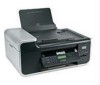
Lexmark X6650 User's Guide
Lexmark X6650 - LEX ALL IN ONE PRINTER WIRELESS Manual
 |
UPC - 836367006047
View all Lexmark X6650 manuals
Add to My Manuals
Save this manual to your list of manuals |
Lexmark X6650 manual content summary:
- Lexmark X6650 | User's Guide - Page 1
5600-6600 Series User's Guide 2008 www.lexmark.com - Lexmark X6650 | User's Guide - Page 2
- Lexmark X6650 | User's Guide - Page 3
printer software...30 Installing printer software ...30 Installing the optional XPS driver (Windows Vista users only 31 Using the Windows printer software...32 Using the Macintosh printer software ...43 Using a digital phone service ...44 Installing the printer on a wireless network (selected - Lexmark X6650 | User's Guide - Page 4
installation...48 Switching between USB and wireless connections (Windows only 49 Switching between USB and wireless connections (Macintosh only 50 Advanced wireless setup...51 Creating an ad hoc wireless network ...51 Adding a printer original documents on the scanner glass 70 Loading original - Lexmark X6650 | User's Guide - Page 5
over a network...96 Canceling scan jobs...96 Copying 98 Making copies...98 Copying photos...98 Enlarging or reducing images...98 Adjusting copy quality...99 Making a copy lighter or darker...99 Collating copies using the printer control panel 100 Repeating an image on one page...101 Contents 5 - Lexmark X6650 | User's Guide - Page 6
manual printer 111 Maintaining print cartridges...111 Installing print cartridges...111 Removing a used print cartridge ...112 Refilling print cartridges...113 Using genuine Lexmark print cartridges...113 Aligning print cartridges ...114 Cleaning the print cartridge nozzles...114 Checking ink - Lexmark X6650 | User's Guide - Page 7
settings...119 Troubleshooting 121 Using the printer troubleshooting software (Windows only 121 Setup troubleshooting...121 Incorrect language appears on the display...121 Power button is not lit ...122 Software did not install...122 Page does not print...123 Solving printer power problems ...126 - Lexmark X6650 | User's Guide - Page 8
Notices 153 Product information...153 Edition notice...153 European EC directives conformity statement for radio products 156 Power consumption...163 Index 168 Contents 8 - Lexmark X6650 | User's Guide - Page 9
to a professional service person. This product is designed, tested, and approved to meet strict global safety standards with the use of specific Lexmark components. The safety features of some parts may not always be obvious. Lexmark is not responsible for the use of other replacement parts. CAUTION - Lexmark X6650 | User's Guide - Page 10
setup instructions. Printed Networking Guide / Fax Guide Additional setup instructions. Note: Your printer may not come with these publications. Electronic User's Guide Complete instructions for using the printer. The electronic version installs automatically with the printer software. Windows - Lexmark X6650 | User's Guide - Page 11
that came with your printer. E-mail support For e-mail support, visit our Web site: www.lexmark.com. 1 Click SUPPORT. 2 Click Technical Support. 3 Select your printer family. 4 Select your printer model. 5 From the Support Tools section, click e- Mail Support. 6 Complete the form, and then - Lexmark X6650 | User's Guide - Page 12
be free of defects in printer, or set forth at printer. materials and workmanship for a www.lexmark.com. period of 12 months after the 1 Click SUPPORT. original date of purchase. 2 Click Warranty Information. 3 Click Statement of Limited Warranty for Inkjet & All-In-One Printers. 4 Scroll - Lexmark X6650 | User's Guide - Page 13
use the setup documentation and the printer software CD that came with the printer. 1 Unpack the printer. Note: Contents, such as the number of print cartridges, may vary by model. 9 8 1 2 3 76 5 1 4 2 3 1 Power cord 2 Telephone cord 3 Printer software CD 4 USB cable or installation cable Note - Lexmark X6650 | User's Guide - Page 14
2 Remove tape and packing material from all areas of the printer. 3 Raise the printer control panel. 4 If a stick-on overlay for your language needs to be installed, peel off the covering from the back of the overlays to expose the adhesive. 5 Place the stick-on overlays on the recessed areas of the - Lexmark X6650 | User's Guide - Page 15
exit tray. 2 1 7 Raise the paper support, and then press down on the paper adjustment lever to extend the paper guides. 8 Load paper, and then pull up the paper adjustment lever to adjust the paper guides. The paper guides should rest against the edges of the paper. 12 Setting up the printer 15 - Lexmark X6650 | User's Guide - Page 16
. 2 1 CAUTION-SHOCK HAZARD: Read the safety information included with this product before connecting power or making any cabling connections. 10 If the printer does not automatically turn on, press . 11 If prompted, set the language. 1 2 1 Press the arrow buttons until the language that you - Lexmark X6650 | User's Guide - Page 17
. 14 Set the fax number and fax name. a Enter a fax number, and then press to save. b Enter a fax name, and then press to save. 15 Open the printer, and then press down on the print cartridge carrier levers. to save. 16 Open the color cartridge foil, and then remove the cartridge from the pack. 17 - Lexmark X6650 | User's Guide - Page 18
the right carrier, and then close the color cartridge carrier lid. 19 If a black print cartridge is included in the box contents, open the black cartridge foil, and then remove the cartridge from the pack. Note: You may need to purchase a black print cartridge separately. Setting up the printer 18 - Lexmark X6650 | User's Guide - Page 19
20 Remove the tape from the black print cartridge, insert the cartridge in the left cartridge carrier, and then close the black cartridge carrier lid. 21 Close the printer. 22 Press . An alignment page prints. Setting up the printer 19 - Lexmark X6650 | User's Guide - Page 20
may differ from the one shown. • Streaks on the alignment page are normal and do not indicate a problem. Understanding the parts of the printer 2 4 3 5 6 1 7 8 9 10 W I F I PRINTING WI F I PRINTING 15 14 Use the 1 Paper adjustment lever 2 Paper support 3 Paper guides 4 Paper feed guard - Lexmark X6650 | User's Guide - Page 21
these items on the scanner glass. 7 Automatic Document Feeder (ADF) output tray Hold documents as they exit from the ADF. 8 Automatic Document Feeder (ADF) paper guide Keep paper straight when feeding into the ADF. 9 Printer control panel Operate the printer. 10 Paper exit tray Hold paper - Lexmark X6650 | User's Guide - Page 22
Use the 1 Top cover 2 Scanner glass 3 Scanner unit 4 Print cartridge carrier 5 EXT Port 6 LINE Port EXT LINE 7 Power supply with port 5 6 7 8 9 To Access the scanner glass. Scan and copy photos and documents. • Access the print cartridges. • Remove paper jams. Install, replace, or remove a print - Lexmark X6650 | User's Guide - Page 23
the USB port except when plugging in or removing a USB cable or installation cable. Connect the printer to a wireless network. Using the printer control panel buttons and menus Using the printer control panel The printer control panel contains: • Power on/off button • Two-line display that shows - Lexmark X6650 | User's Guide - Page 24
11 10 9 87 1 23 4 5 6 Press To 1 Setup Access the setup menu and change printer settings. Note: The Copy, Scan, and Photo button lights are off when this button is selected. 2 Address Book Access fax numbers from a saved list of numbers. 3 Redial/Pause In Fax mode: • Insert a three-second - Lexmark X6650 | User's Guide - Page 25
Note: Press to switch to Power Saver mode. Press and hold turn off the printer. for two seconds to 7 6 Press 1 2 3 4 1 23 4 5 To • Decrease a number. • Delete a letter or number. • Move the cursor one place to the left. • Scroll through menus, submenus, or settings on the display. • Select - Lexmark X6650 | User's Guide - Page 26
Setup menu to the top level of the previous mode. • Clear current settings or error messages, and return to default settings. 6 Color / Black Switch to color mode or black-and-white mode. 7 Start a print, scan, or copy job, depending on which mode is selected. Using the printer menus A number - Lexmark X6650 | User's Guide - Page 27
you insert a memory • Ink Levels device into the printer. • Clean Cartridges • Align Cartridges • Print Test Page Device Setup Easy Photo • Print • 20 • Print All • Print Date Range • Scan Sheet Network Setup (appears only if the printer has an Save Photos internal wireless print server) • - Lexmark X6650 | User's Guide - Page 28
default settings apply only to print, copy, and scan jobs that you initiate from the printer. 1 From the printer control panel, press . 2 Press the arrow the default photo print size for the printer, and then press . 9 Press until you exit Setup, or press another mode button. Changing temporary settings - Lexmark X6650 | User's Guide - Page 29
Temporary settings Copy menu Scan menu Fax menu Photo menu • Copies • Resize • Lighter/Darker • Quality • Copies per Sheet minutes of inactivity or after turning off the printer. 1 From the printer control panel, press . 2 Press the arrow buttons until Device Setup appears, and then press . 3 Press - Lexmark X6650 | User's Guide - Page 30
drive. In Windows XP and earlier a Click Start. b Click Run. c Type D:\setup.exe, where D is the letter of your CD or DVD drive. 3 Follow the instructions on the Welcome screen to set up the printer. Using Macintosh 1 Close all open software applications. 2 Insert the installation software CD. If - Lexmark X6650 | User's Guide - Page 31
the menu selection, and then click Drivers & Downloads. 3 Choose the printer and the printer driver for your operating system. 4 Follow the instructions on the screens to download the driver and install the printer software. Installing the optional XPS driver (Windows Vista users only) The XML Paper - Lexmark X6650 | User's Guide - Page 32
automatically with the printer software if you choose not to install the Lexmark Productivity Studio. • Print black or text-only Web pages to save ink. • Schedule automatic printing of Web pages. • Access Picnik and edit photos online. • Print, scan, or convert local files from Windows. Access your - Lexmark X6650 | User's Guide - Page 33
Use the Lexmark Service Center To • Troubleshoot the printer. • Access the printer maintenance functions. • Contact customer support. Printing Preferences Notes: • This program is installed automatically with the printer software. • You may be prompted to install this program from the Web, - Lexmark X6650 | User's Guide - Page 34
computer over a network. Lexmark Printer Utility • Get help with cartridge installation. • Print a test page. • Print an alignment page. • Clean the print cartridge nozzles. • Order ink or supplies. • Register the printer. • Contact customer support. Lexmark Wireless Setup Assistant Set up the - Lexmark X6650 | User's Guide - Page 35
Windows XP and earlier 1 Click Start. 2 Click Run. 3 Type D:\setup.exe, where D is the letter of your CD or DVD drive. c Follow the instructions on the computer screen. Using Macintosh a Insert the installation software France • Portugal To connect your printer to an answering machine or other - Lexmark X6650 | User's Guide - Page 36
2 Connect the adapter to the telephone line that came with the printer. Note: The UK adapter is shown. Your adapter may look different, : 1 Remove the plug from the EXT port on the back of the printer. Note: Once this plug is removed, any country- or region-specific equipment you connect to the - Lexmark X6650 | User's Guide - Page 37
• Hungary • Poland • Romania • Russia • Slovenia • Spain • Turkey To connect an answering machine or other telecommunications equipment to the printer: 1 Remove the plug from the back of the printer. Note: Once this plug is removed, any country- or region-specific equipment that you connect to the - Lexmark X6650 | User's Guide - Page 38
There is a plug installed in the EXT port of the printer. This plug is necessary for the proper functioning of the printer. Note: Do not printer with equipment such as a telephone, an answering machine, or a computer modem. If problems occur, see "Setup troubleshooting" on page 121. Note: The printer - Lexmark X6650 | User's Guide - Page 39
printer to receive both incoming voice messages and faxes. Note: Setup steps may vary depending on your country or region. For more information on connecting the printer cords • A telephone wall jack 2 Connect one telephone cord into the LINE port of the printer, and then plug it into an active - Lexmark X6650 | User's Guide - Page 40
directly to a telephone wall jack Connect the printer directly to a telephone wall jack to send and receive faxes without using a computer. 1 Make sure you have a telephone cord and a telephone wall jack. 2 Connect one end of the telephone cord into the LINE port of the printer. Setting up the - Lexmark X6650 | User's Guide - Page 41
without using a computer. 1 Make sure you have a telephone cord (provided with the product) and a telephone wall jack. 2 Connect one end of the telephone cord into the LINE port of the printer. 3 Connect the other end of the telephone cord into the N slot of an active telephone wall jack. 4 If you - Lexmark X6650 | User's Guide - Page 42
answering machine and the other N slot of the telephone wall jack. Connecting to a computer with a modem Connect the printer to a computer with a modem to send faxes from the software application. Note: Setup steps may vary depending on your country or region. For more information on connecting the - Lexmark X6650 | User's Guide - Page 43
computer. Note: Setup steps may vary depending on your country or region. For more information on connecting the printer to telecommunications equipment, telephone cords • A telephone wall jack 2 Connect one telephone cord to the LINE port of the printer, and then plug it into an active telephone - Lexmark X6650 | User's Guide - Page 44
to a DSL filter or router that will support analog use. For more information, contact your DSL provider. • If you are using a PBX telephone service, make sure you are connecting to an analog connection on the PBX. If none exists, consider installing an analog telephone line for the fax machine - Lexmark X6650 | User's Guide - Page 45
10 or 26 hexadecimal characters. Hexadecimal characters are A-F, a-f, and 0-9. or • Exactly 5 or 13 ASCII characters. ASCII characters are letters, numbers , or contact your system support person. Installing the printer on a wireless network Before you install the printer on a wireless network, make - Lexmark X6650 | User's Guide - Page 46
of your CD or DVD drive. In Windows XP and earlier a Click Start. b Click Run. c Type D:\setup.exe, where D is the letter of your CD or DVD drive. 2 Follow the instructions on the Welcome screen to set up the printer. Using Macintosh 1 Insert the installation software CD. If the Welcome screen does - Lexmark X6650 | User's Guide - Page 47
Macintosh 1 Insert the installation software CD. 2 Wait for the Welcome screen to appear. Note: If the Welcome screen does not appear after a minute, click the CD icon on the desktop. 3 Double-click Install. 4 Follow the on-screen instructions for installing a configured printer on a new computer - Lexmark X6650 | User's Guide - Page 48
the instructions on your screen to complete installation. Assigning a static IP address The printer will be assigned an IP address automatically through DHCP on most wireless networks. If the printer is not automatically assigned an IP address, the installation software will prompt you to manually - Lexmark X6650 | User's Guide - Page 49
USB connection) 1 Do one of the following: • In Windows Vista, click . • In Windows XP and earlier, click Start. 2 Click All Programs or Programs, and then select the printer program folder from the list. 3 Click Tools Œ Lexmark Wireless Setup Utility. 4 Follow the instructions on the Welcome screen - Lexmark X6650 | User's Guide - Page 50
is currently set up locally (using USB connection) 1 From the Finder desktop, double-click the printer folder. 2 Double-click Lexmark Wireless Setup Assistant. 3 Follow the on-screen instructions for configuring the printer wirelessly. Note: There is no need to remove the USB cable connecting the - Lexmark X6650 | User's Guide - Page 51
connect the installation or network cables until instructed to do so by the setup software. 9 When the available networks are displayed, provide the network name and the security information you created in step 6. The installer will configure the printer for use with your computer. 10 Store a copy - Lexmark X6650 | User's Guide - Page 52
Windows XP third-party software to learn how to create an ad hoc network. 10 Select the Use Windows to configure so you can refer to it when running the wireless setup. Be sure to use the exact spelling and capitalization windows. Installing the printer on a wireless network (selected models only) 52 - Lexmark X6650 | User's Guide - Page 53
Do not connect the installation or network cables until instructed to do so by the setup software. 25 When the available networks are displayed, provide the network name and the security information you created beginning in step 13. The installer will configure the printer for use with your computer - Lexmark X6650 | User's Guide - Page 54
supported by your router. Refer to your router documentation for instructions. Using Windows Vista For information on using Windows Vista to set up the printer using WPS, refer to the documentation that came with the operating system. Note: Lexmark recommends that you use the installation software - Lexmark X6650 | User's Guide - Page 55
or installed that lets it receive and transmit radio waves. What types of wireless network security are available? The wireless printer supports 10 or 26 hexadecimal characters. Hexadecimal characters are A-F, a-f, and 0-9 or • Exactly 5 or 13 ASCII characters. ASCII characters are letters, numbers, - Lexmark X6650 | User's Guide - Page 56
associated with the wireless access point, or consult your system support person. Note: The WEP key or WPA passphrase is not installed in them. There are many different ways a network can be set up. Five common examples appear below. Note: The printers in the following diagrams represent printers - Lexmark X6650 | User's Guide - Page 57
with Internet access • All computers and printers connect to the network using a wireless access point or wireless router. • The wireless access point connects the network to the Internet through a DSL or cable modem. Internet Installing the printer on a wireless network (selected models only - Lexmark X6650 | User's Guide - Page 58
can connect to only one wireless network at a time. If you access the Internet over a wireless connection, you will lose Internet access if you are connect to an ad hoc network. Why do I need an installation cable? When setting up the printer on your wireless network, the printer will need to - Lexmark X6650 | User's Guide - Page 59
on the back of the printer. This connection allows you to configure the printer for a networked or locally attached installation. 1 Attach the large, printer. 3 Continue following the on-screen instructions. How are infrastructure and ad hoc networks different? Wireless networks can operate in one - Lexmark X6650 | User's Guide - Page 60
number Lexmark recommends setting up a network in infrastructure mode using the installation CD that came with the printer. Infrastructure mode is the recommended setup printer with the network during configuration. When you installed the wireless adapter in your computer, the adapter software - Lexmark X6650 | User's Guide - Page 61
point and the printer. To determine if the printer is receiving a strong signal from the access point, print a network setup page. The Quality certain conditions. If you think signal strength is a problem between your access point and the printer, try one or more of the following: Notes: • The - Lexmark X6650 | User's Guide - Page 62
printer supports a simultaneous USB and network connection. The printer instead of its software. The MAC address is displayed as a hexadecimal number in this number to distinguish it from other devices on the network. This is called the Media Access Control (MAC) address. Installing the printer - Lexmark X6650 | User's Guide - Page 63
the same network have the same IP address. An IP address is a group of four numbers separated by periods. An example of an IP address is 192.168.100.110. What locate a computer IP address using Windows 1 Do one of the following: Installing the printer on a wireless network (selected models only) 63 - Lexmark X6650 | User's Guide - Page 64
version 10.4 and earlier a From the Show pop-up menu, select AirPort. b Click TCP/IP. The IP address appears as four sets of numbers separated by periods, such as 192.168.0.100. How to locate a printer IP address • You can locate the printer IP address by viewing the printer network setup page. How - Lexmark X6650 | User's Guide - Page 65
Select the same key index on your printer as you are using on your wireless access point. Installing the printer on a wireless network (selected models only) 65 - Lexmark X6650 | User's Guide - Page 66
specialty paper, you follow the instructions that came with it. • You do not force paper into the printer. 2 Before loading paper the first time, press down on the paper adjustment lever to extend the paper guides. 3 Load the paper vertically in the center of the paper support, and then move the - Lexmark X6650 | User's Guide - Page 67
load up to 10 envelopes. 1 2 Make sure: • The print side of the envelopes faces you. • The stamp location is in the upper left corner. • The envelopes are designed for use with inkjet printers. • The envelopes are loaded in the center of the paper support. • The paper guides rest against the edges - Lexmark X6650 | User's Guide - Page 68
to avoid ink smudging. Iron-on transfers You can load up to 10 transfers. Make sure: • You follow the loading instructions that came with the iron-on transfers. • The print side of the transfers faces you. • The transfers are loaded in the center of the paper support. • The paper guides rest against - Lexmark X6650 | User's Guide - Page 69
off only the number of pages needed to print the banner. • You place the required stack of banner paper on a flat surface behind the printer. • The leading edge of the banner paper feeds into the printer first. • The paper is loaded in the center of the paper support. • The paper guides rest against - Lexmark X6650 | User's Guide - Page 70
Loading original documents on the scanner glass You can scan and then print photos, text documents, magazine articles, newspapers, and other publications. You can scan a document for faxing. You can also scan three-dimensional objects for use in catalogs, brochures, or product flyers. Note: Place - Lexmark X6650 | User's Guide - Page 71
scanned image. Loading original documents into the Automatic Document Feeder You can load up to 25 sheets of an original document into the Automatic Document Feeder (ADF) for scanning ) into the ADF. Place these items on the scanner glass. 1 Adjust the paper guide on the ADF tray to the width of the - Lexmark X6650 | User's Guide - Page 72
3 Load the original document faceup and top edge first into the ADF until you hear a beep. The document feeds into the ADF. WI F I PRINTING Note: Preview is not supported when using the ADF. You can preview one page at a time when using the scanner. Loading paper 72 - Lexmark X6650 | User's Guide - Page 73
paper • A4-size paper • Legal-size paper Make sure • You adjust the paper guide on the ADF tray to the width of the original document. • The original document is printed with metallic ink particles. • You avoid embossed designs. Using the automatic paper type sensor The printer is equipped with - Lexmark X6650 | User's Guide - Page 74
. d Click Print. Printing Web pages If you chose to install the Lexmark Toolbar software for your Web browser, then you can use it to create a printer-friendly version of any Web page. Notes: • For Windows, the software supports Microsoft Internet Explorer 5.5 or later or a compatible version of - Lexmark X6650 | User's Guide - Page 75
copies of a document Using Windows 1 With a document open, click File ΠPrint. 2 Click Properties, Preferences, Options, or Setup. 3 From the Copies section of the Print Setup tab, enter the number of copies that you want to print. 4 Click OK to close any printer software dialogs. 5 Click OK or - Lexmark X6650 | User's Guide - Page 76
Print Setup tab, select Print Last Page First. 4 Click OK to close any printer software dialogs. 5 Click OK or Print. Using Macintosh 1 With a document open, click File ΠPrint. 2 From the Printer pop-up menu, choose the printer. 3 Do one of the following: For Mac OS X versions 10.5 and 10.4 a From - Lexmark X6650 | User's Guide - Page 77
OK to close any printer software dialogs. 6 Click OK or Print. Using Macintosh 1 With a document open, click File Œ Print. 2 From the print options pop-up menu, choose Layout. • From the Pages per Sheet pop-up menu, choose the number of page images that you want to print on one sheet. • From the - Lexmark X6650 | User's Guide - Page 78
"everyday" heavyweight inkjet photo paper designed for use with Lexmark printers, but compatible with all brands of inkjet printers. Although inexpensive, it offers excellent image quality and outstanding value. • Lexmark PerfectFinishTM Photo Paper-A high-quality photo paper specifically designed - Lexmark X6650 | User's Guide - Page 79
Printing envelopes 1 Load the envelopes in the printer. 1 2 2 Do one of the following: Using Windows a With a document open, click File ΠPrint. b Click Properties, Preferences, Options, or Setup. c From the Media Type list of the Print Setup tab, select Plain. d From the Paper Size list, select the - Lexmark X6650 | User's Guide - Page 80
avoid ink smudging. Printing on custom-size paper Before beginning these instructions, load the custom-size paper in the printer. For more information, see the "Loading Paper" chapter. Using Windows 1 With a document open, click File ΠPrint. 2 Click Properties, Preferences, Options, or Setup. The - Lexmark X6650 | User's Guide - Page 81
Managing print jobs Pausing print jobs Using the printer folder in Windows 1 Do one of the following: In Windows Vista a Click . b Click Control Panel. c Under Hardware and Sound, click Printer. In Windows XP a Click Start. b Click Printers and Faxes. In Windows 2000 a Click Start. b Click Settings - Lexmark X6650 | User's Guide - Page 82
b Click Control Panel. c Under Hardware and Sound, click Printer. In Windows XP a Click Start. b Click Printers and Faxes. In Windows 2000 a Click Start. b Click Settings Œ Printers. 2 Right-click the printer name, and then select Open. 3 Do one of the following: • If you want to resume a particular - Lexmark X6650 | User's Guide - Page 83
in the queue, then click Resume Printer. Using Mac OS X version 10.4 and earlier 1 From the menu bar, click Go Œ Utilities Œ Print Center or Printer Setup Utility. The Printer List dialog appears. 2 Double-click the printer. The print queue dialog appears. 3 Do one of the following: • If you want - Lexmark X6650 | User's Guide - Page 84
, and then select Cancel. • If you want to cancel all print jobs in the queue, click Printer Œ Cancel All Documents. Using the taskbar in Windows 1 Double-click the printer icon in the taskbar. 2 Do one of the following: • If you want to cancel a particular print job, right-click the document name - Lexmark X6650 | User's Guide - Page 85
card. • Insert the card with the brand name label facing up. • If there is an arrow on the card, make sure it points toward the printer. • If needed, make sure you connect the memory card to the adapter that came with it before inserting it into the slot. 1 2 Slot Memory card - Lexmark X6650 | User's Guide - Page 86
your flash drive does not fit directly into the port. 2 Wait for the printer to recognize that a flash drive is installed. When the flash drive is recognized, the message Storage Device Detected appears. If the printer does not read the flash drive, remove and reinsert it. Warning-Potential Damage - Lexmark X6650 | User's Guide - Page 87
sure which side is the printable side, see the instructions that came with the paper.) 2 From the printer control panel, press . 3 Insert a memory card, photo numbers that are on the proof sheet. If you want to check the photo numbers of the photos before printing, then print a proof sheet. 6 Do one - Lexmark X6650 | User's Guide - Page 88
the instructions that came with the paper.) 2 To print the photos: Using Windows a Do one of the following: • In Windows Vista, click . • In Windows XP and earlier, click Start. b Click All Programs or Programs, and then select the printer program folder from the list. c Select Lexmark Productivity - Lexmark X6650 | User's Guide - Page 89
: 1 Do one of the following: • In Windows Vista, click . • In Windows XP and earlier, click Start. 2 Click All Programs or Programs, and then select the printer program folder from the list. 3 Click Lexmark Productivity Studio. 4 From the Photo Printing section of the main screen, click Download to - Lexmark X6650 | User's Guide - Page 90
is incorrect, then the camera is detected as a USB storage device, or an error message will be displayed on the printer control panel. For more information, see the camera documentation. • The printer reads only one media device at a time. Warning-Potential Damage: Do not touch the USB cable - Lexmark X6650 | User's Guide - Page 91
the instructions on the proof sheet to select which photos to print, the number of copies per photo, red-eye reduction, page layout, print options, and paper size. Note: When making selections, make sure to fill in the circles completely. 8 Load the proof sheet facedown on the scanner glass. Scan - Lexmark X6650 | User's Guide - Page 92
DPOF) is a feature available on some digital cameras. If your camera supports DPOF, then you can specify which photos to print, how many of instructions that came with the paper.) 2 Insert a memory card. When the printer detects the memory card, the message Memory Card Detected appears on the printer - Lexmark X6650 | User's Guide - Page 93
options on scanning and customizing scanned images, see the Help associated with the programs installed with the printer software. Scanning original documents You can scan and then print photos, text documents, magazine articles, newspapers, and other publications. You can also scan a document for - Lexmark X6650 | User's Guide - Page 94
image. 3 Do one of the following: • In Windows Vista, click . • In Windows XP and earlier, click Start. 4 Click All Programs or Programs, and then select the printer program folder from the list. 5 Click Lexmark Productivity Studio. 6 From the main screen, click Scan. 7 Follow the instructions - Lexmark X6650 | User's Guide - Page 95
) into the ADF. Place these items on the scanner glass. • Adjust the paper guide on the ADF tray to the width of the original document. • When using the scanner glass, close the top cover to avoid dark edges on the scanned image. 2 From the printer control panel, press . 3 Press the arrow buttons to - Lexmark X6650 | User's Guide - Page 96
) into the ADF. Place these items on the scanner glass. • Adjust the paper guide on the ADF tray to the width of the original document. • When using the scanner glass, close the top cover to avoid dark edges on the scanned image. 3 From the printer control panel, press . 4 Press the arrow buttons - Lexmark X6650 | User's Guide - Page 97
Using Windows To cancel a scan job started in the Lexmark Productivity Studio, click Stop on the computer screen. Using Macintosh To cancel a scan job started in the Lexmark All-in-One Center, click Cancel on the computer screen. Scanning 97 - Lexmark X6650 | User's Guide - Page 98
glass. • Adjust the paper guide on the ADF tray to the width of the original document. • When using the scanner glass, close the top cover to avoid dark edges on the scanned image. 3 From the printer control panel, press . 4 Press the arrow buttons to select the number of copies, and then press - Lexmark X6650 | User's Guide - Page 99
into the ADF. Place these items on the scanner glass. • Adjust the paper guide on the ADF tray to the width of the original document. • When using the scanner glass, close the top cover to avoid dark edges on the scanned image. 3 From the printer control panel, press . 4 Press until Quality appears - Lexmark X6650 | User's Guide - Page 100
glass. • Adjust the paper guide on the ADF tray to the width of the original document. • When using the scanner glass, close the top cover to avoid dark edges on the scanned image. 3 From the printer control panel, press . 4 Press the arrow buttons to select the number of copies, and then press - Lexmark X6650 | User's Guide - Page 101
the paper guide on the ADF tray to the width of the original document. • When using the scanner glass, close the top cover to avoid dark edges on the scanned image. 3 From the printer control panel, press . 4 Press until Copies per Sheet appears. 5 Press the arrow buttons to choose the number of - Lexmark X6650 | User's Guide - Page 102
that you want to copy have been saved to the printer memory. 10 When asked if you want to scan another page, press the arrow buttons until No appears, and then press to start printing. Canceling a copy job 1 Press . Scanning stops and the scanner bar returns to its home position. 2 Press to turn off - Lexmark X6650 | User's Guide - Page 103
Place these items on the scanner glass. • Adjust the paper guide on the ADF tray to the width of the original document. • When using the scanner glass, close the top cover to avoid dark edges on the scanned image. 3 From the printer control panel, press . 4 Enter a fax number, or press Address Book - Lexmark X6650 | User's Guide - Page 104
) into the ADF. Place these items on the scanner glass. • Adjust the paper guide on the ADF tray to the width of the original document. • When using the scanner glass, close the top cover to avoid dark edges on the scanned image. 3 From the printer control panel, press Dialtone. You can now hear - Lexmark X6650 | User's Guide - Page 105
the setting that you want appears, and then press to save the setting. When the number of rings you set is detected, the printer automatically receives the incoming fax. Receiving a fax manually 1 Make sure the printer is on and is connected to a working telephone line. 2 Make sure that Auto Answer - Lexmark X6650 | User's Guide - Page 106
and then press . Customizing dial settings Setting up the Address Book 1 From the printer control panel, press . 2 Press the arrow buttons until Fax Setup appears, and then press . 3 Press again. 4 To add a fax number to your Address Book: a Press the arrow buttons until Add appears, and then press - Lexmark X6650 | User's Guide - Page 107
to a single telephone line. If you subscribe to this service, you can program your printer to have a distinctive ring pattern and phone number for incoming faxes. 1 From the printer control panel, press . 2 Press the arrow buttons until Fax Setup appears, and then press . 3 Press the arrow buttons - Lexmark X6650 | User's Guide - Page 108
. Setting a fax manual answer code 1 From the printer control panel, press . 2 Press the arrow buttons until Fax Setup appears, and then press system. Ordinarily, when dialing a fax number, the printer waits to recognize the dial tone and then dials the fax number. However, this method of dialing may - Lexmark X6650 | User's Guide - Page 109
then press . The user default settings list prints, which lists each fax setting in the printer, the value it is numbers and/or all faxes which do not include a Caller ID number. 1 To turn on the Block List feature: a From the printer control panel, press . b Press the arrow buttons until Fax Setup - Lexmark X6650 | User's Guide - Page 110
the fax number in the Fax Number field, and then press to save. f Use the keypad to enter the name of the person associated with the fax number in the network users from changing the fax settings of the printer. 1 From the printer control panel, press . 2 Press the arrow buttons until Device Setup - Lexmark X6650 | User's Guide - Page 111
Maintaining print cartridges Installing print cartridges 1 Open the printer, and then press down on the cartridge carrier levers. 2 Remove the used print cartridge or cartridges. 3 If you are installing new print cartridges, remove the tape from the back and bottom of the color cartridge, insert the - Lexmark X6650 | User's Guide - Page 112
the cartridge in the left carrier, and then close the black cartridge carrier lid. Warning-Potential Damage: Do not touch the gold contact area on the back or the metal nozzles on the bottom of the cartridge. 5 Close the printer, making sure to keep your hands out from underneath the scanner unit - Lexmark X6650 | User's Guide - Page 113
to the printer. For best results, use Lexmark supplies. Using genuine Lexmark print cartridges Lexmark printers, print cartridges, and photo paper are designed to perform together for superior print quality. If you receive an Out of Original Lexmark Ink message, the original Lexmark ink in the - Lexmark X6650 | User's Guide - Page 114
Do one of the following: • In Windows Vista, click . • In Windows XP and earlier, click Start. 3 Click All Programs or Programs, and then select the printer program folder from the list. 4 From the printer folder, click Maintenance Œ Align Cartridges. 5 Click Print. 6 Follow the instructions on the - Lexmark X6650 | User's Guide - Page 115
one of the following: • In Windows Vista, click . • In Windows XP and earlier, click Start. 3 Click All Programs or Programs, and then select the printer program folder from the list. 4 From the printer folder, click Maintenance Œ Clean Cartridges. 5 Click Print. A page prints, forcing ink through - Lexmark X6650 | User's Guide - Page 116
one of the following: • In Windows Vista, click . • In Windows XP and earlier, click Start. 2 Click All Programs or Programs, and then select the printer program folder from the list. 3 Select Lexmark Service Center. 4 Check the ink levels of the cartridges on the Printer Maintenance page. Install - Lexmark X6650 | User's Guide - Page 117
you are ready to install them. • Do not remove a cartridge from the printer except to replace, clean, or store it in an airtight container. The cartridges do not print correctly if left exposed for an extended period of time. Cleaning the scanner glass 1 Dampen a clean, lint-free cloth with water - Lexmark X6650 | User's Guide - Page 118
damage to your printer. 5 Make sure the paper support and paper exit tray are dry before beginning a new print job. Ordering supplies Ordering print cartridges Lexmark 5600-6600 Series models (except Lexmark 5690 and Lexmark 6690) Item Black cartridge Black cartridge2 Part number 36A 36 Average - Lexmark X6650 | User's Guide - Page 119
and Lexmark print cartridges. Item Description Lexmark Photo Paper Lexmark PerfectFinish Photo Paper • Letter • A4 • 4 x 6 in. • 10 x 15 cm • Letter • A4 • 4 x 6 in. • 10 x 15 cm •L USB cable Part number 1021294 Resetting to factory settings Resetting all settings You can reset your printer - Lexmark X6650 | User's Guide - Page 120
8 Enter the time, and then press . 9 Enter a fax number and fax name, and then press . Initial Setup Complete appears on the display. Maintaining the printer 120 - Lexmark X6650 | User's Guide - Page 121
the printer troubleshooting software (Windows only) The Lexmark Service Center provides step-by-step troubleshooting help and contains links to printer maintenance tasks and customer support. To open the Lexmark Service Center, use one of these methods: Method 1 Method 2 If it appears on an error - Lexmark X6650 | User's Guide - Page 122
the software. These are some other possible solutions. Try one or more of the following: MAKE SURE YOUR OPERATING SYSTEM IS SUPPORTED The following operating systems are supported: Windows Vista, Windows XP, Windows 2000 with Service Pack 3 or later, and Mac OS X versions 10.5, 10.4 and 10 - Lexmark X6650 | User's Guide - Page 123
In Windows Vista, click . • In Windows XP and earlier, click Start. 4 Click Computer or My Computer. 5 Double-click the CD or DVD drive icon. 6 If necessary, double-click setup.exe. 7 Follow the instructions on the computer screen to install the software. 8 When the installation is completed, enable - Lexmark X6650 | User's Guide - Page 124
2 1 2 3 Reinsert the cartridges. CHECK PRINTER DEFAULT AND PAUSE SETTINGS Using Windows 1 Do one of the following: In Windows Vista a Click . b Click Control Panel. c Under Hardware and Sound, click Printer. In Windows XP a Click Start. b Click Printers and Faxes. In Windows 2000 a Click Start - Lexmark X6650 | User's Guide - Page 125
all print jobs in the queue, then click Resume Printer. For Mac OS X version 10.4 and earlier 1 From the Finder desktop, click Go Œ Utilities Œ Print Center or Printer Setup Utility. The Printer List dialog appears. 2 Double-click the printer. The print queue dialog appears. • Make sure that the - Lexmark X6650 | User's Guide - Page 126
and reinstall the printer software. Using Windows 1 Do one of the following: • In Windows Vista, click . • In Windows XP and earlier, click Start. 2 Click All Programs or Programs, and then select the printer program folder from the list. 3 Select Uninstall. 4 Follow the instructions on the computer - Lexmark X6650 | User's Guide - Page 127
the software. If the software still does not install correctly, visit our Web site at www.lexmark.com to check for the latest software. 1 In all countries or regions except the United States, select your country or region. 2 Click the links for drivers or downloads. 3 Select your printer family - Lexmark X6650 | User's Guide - Page 128
is within the range of the wireless network. For most networks, the printer should be within 100 feet (30 meters) of the wireless access point (wireless router). • The Wi-Fi indicator light is lit. • The printer driver is installed on the computer from which you are performing a task. • The correct - Lexmark X6650 | User's Guide - Page 129
network setup page prints. Wireless configuration does not continue after the USB cable is attached Check the USB cable If the configuration software does not allow you to continue configuring your printer wirelessly after you attach the USB cable, there may be a problem with the cable. Try one or - Lexmark X6650 | User's Guide - Page 130
point: 1 Do one of the following: In Windows Vista a Click . b Click All Programs ΠAccessories. c Click Command Prompt. In Windows XP and earlier a of numbers separated by periods, such as 192.168.2.134. b Type the user name and password of the router when prompted. c Click OK. Troubleshooting 130 - Lexmark X6650 | User's Guide - Page 131
driver on the computer or before running the wireless setup on the computer. To check if the computer is currently connected to a VPN, open your VPN Client software and check your VPN connections. If you do not have a VPN Client software installed, check the connections manually using the Windows - Lexmark X6650 | User's Guide - Page 132
to the documentation that came with your printer for details on printing a network setup page. Make sure the SSID the printer is using matches the wireless network SSID. If you are not sure how to find the network SSID, use one of the following: Using Windows 1 Type the IP address of the wireless - Lexmark X6650 | User's Guide - Page 133
. 2 Type your user name and password when 10 or 26 hexadecimal characters. Hexadecimal characters are A-F, a-f, and 0-9. or • Exactly 5 or 13 ASCII characters. ASCII characters are letters, numbers, and symbols found on a keyboard. ASCII characters in a WEP key are case-sensitive. Troubleshooting - Lexmark X6650 | User's Guide - Page 134
print, make sure you allow those programs to run. • Temporarily disable the firewall and install the wireless printer on the computer. Re-enable the firewall when you have completed the wireless installation. Wi-Fi indicator light is not lit CHECK POWER Make sure the light is on. Troubleshooting 134 - Lexmark X6650 | User's Guide - Page 135
ALLOW THE WIRELESS INSTALLATION TO COMPLETE Do not attempt to print, remove the installation CD, or detach the installation cable until you see the Wireless Setup Successful screen. ENABLE THE PRINTER Confirm that the printer is enabled. 1 Do one of the following: In Windows Vista a Click . b Click - Lexmark X6650 | User's Guide - Page 136
2000 a Click Start. b Click Settings ΠPrinters. 2 Right-click the printer named Lexmark XXXX Series (Network), where XXXX is the model number of your printer. 3 Select Use Printer Online from the menu. 4 Close the Printers or Printers and Faxes window and try printing again. SELECT THE WIRELESS - Lexmark X6650 | User's Guide - Page 137
-Fi indicator light is blinking orange during installation (Windows only) When the Wi-Fi indicator light is blinking orange, it indicates that the printer has been set up for wireless networking but cannot connect to the network for which it has been configured. The printer may be unable to join the - Lexmark X6650 | User's Guide - Page 138
might also start with the numbers 10 or 169. This is determined by your operating system or wireless network software. 2 Ping the access point. a Do one of the following: In Windows Vista 1 Click . 2 Click All Programs ΠAccessories. 3 Click Command Prompt. In Windows XP and earlier 1 Click Start - Lexmark X6650 | User's Guide - Page 139
In Windows XP and earlier, click Start. 2 Click All Programs or Programs, and then select the printer program folder from the list. 3 Click Tools ΠLexmark Wireless Setup Utility. Note: You may be prompted to connect the printer to the computer again using the installation cable as part of the setup - Lexmark X6650 | User's Guide - Page 140
100-150 feet. You can find the signal strength of the network on the network setup page. CHECK SECURITY KEYS If you are using WEP security A valid WEP key is: • Exactly 10 or 26 hexadecimal characters. Hexadecimal characters are A-F, a-f, and 0-9. or • Exactly 5 or 13 ASCII characters. ASCII - Lexmark X6650 | User's Guide - Page 141
the MAC address of the printer in the MAC address filter list. This will allow the printer to operate on the network. . e Click TCP/IP. • The IP address appears as four sets of numbers separated by periods, such as 192.168.0.100. • The "Router" entry 10.168.0.100 e Click Ping. Troubleshooting 141 - Lexmark X6650 | User's Guide - Page 142
is displayed. You can use Network Diagnostics to help resolve the problem. RUN THE WIRELESS SETUP AGAIN 1 From the Finder desktop, double-click the printer folder. 2 Double-click Lexmark Wireless Setup Assistant. 3 Follow the instructions on the computer screen. Wi-Fi indicator light is still orange - Lexmark X6650 | User's Guide - Page 143
signal on the printer network setup page. CHECK MAC ADDRESS If your network uses MAC address filtering, make sure that you include the MAC address of the printer in the MAC address filter list. This will allow the printer to operate on the network. Wireless print server not installed You may see - Lexmark X6650 | User's Guide - Page 144
print server is reset to factory default settings. To verify, print a network setup page. Fax troubleshooting Cannot send or receive a fax These are possible solutions. Try one of the following: CHECK MESSAGES If an error message is displayed, follow the instructions on the error message dialog - Lexmark X6650 | User's Guide - Page 145
installing an analog telephone line for the fax machine. For more information on faxing when using a PBX telephone service, see the instructions for setting up the printer to fax while behind a PBX. VERIFY DIAL TONE • Place a test call to the telephone number JAMS Check for and clear any paper jams. - Lexmark X6650 | User's Guide - Page 146
press the arrow buttons until On appears, and then press to save the setting. CHECK INK Check the ink levels, and install a new cartridge if necessary. CHECK WHETHER FAX FORWARDING IS SELECTED 1 From the printer control panel, press . 2 Press the arrow buttons until Fax Setup appears, and then press - Lexmark X6650 | User's Guide - Page 147
scanner glass. CHECK THE DIAL PREFIX SETTING 1 From the printer control panel, press . 2 Press the arrow buttons until Fax Setup instructions for setting up Speed Dial. • As an alternative, dial the telephone number manually. MAKE SURE THE PRINTER DETECTS DIAL TONE • See the instructions - Lexmark X6650 | User's Guide - Page 148
a problem with the quality of the telephone line connection. • Increase the fax scan resolution. CHECK INK Check the ink levels, and install a new print cartridge if necessary. DECREASE THE TRANSMISSION SPEED 1 From the printer control panel, press . 2 Press the arrow buttons until Fax Setup appears - Lexmark X6650 | User's Guide - Page 149
may need to switch the pattern for the printer to display Caller ID information. For more information, see the instructions for setting up Caller ID. Fax Error The fax machines have stopped communicating. Resend the fax. There may have been a problem with the quality of the telephone line connection - Lexmark X6650 | User's Guide - Page 150
one or more of the following: CHECK THE PHONE LINE Resend the fax. There may have been a problem with the quality of the telephone line connection. DECREASE THE TRANSMISSION SPEED 1 From the printer control panel, press . 2 Press the arrow buttons until Fax Setup the number of times the printer will - Lexmark X6650 | User's Guide - Page 151
TIME See the instructions for sending a broadcast fax at a scheduled time. Phone Line Error These are possible causes and solutions. Try one or more of the following: REVIEW DIGITAL PHONE SERVICE CHECKLIST The fax modem is an analog device. Certain devices can be connected to the printer so that - Lexmark X6650 | User's Guide - Page 152
to the telephone number to which you want to send a fax to make sure that it is working correctly. • If the telephone line is being used by another device, wait until the other device is finished before sending the fax. MAKE SURE THE PRINTER DETECTS DIAL TONE • See the instructions for sending a fax - Lexmark X6650 | User's Guide - Page 153
include technical inaccuracies or typographical errors. Changes are periodically made services, except those expressly designated by the manufacturer, are the user's responsibility. For Lexmark technical support, visit support.lexmark.com. For information on supplies and downloads, visit www.lexmark - Lexmark X6650 | User's Guide - Page 154
and PerfectFinish are trademarks of Lexmark International, Inc. All other trademarks are the property of their respective owners. Licensing notices The following document can be viewed from the \Drivers\XPS directory on the installation software CD: Zopen.PDF. Federal Communications Commission (FCC - Lexmark X6650 | User's Guide - Page 155
be directed to: Director of Lexmark Technology & Services Lexmark International, Inc. 740 West New Circle Road Lexington, KY 40550 (859) 232-3000 Exposure to radio frequency radiation The following notice is applicable if your printer has a wireless network card installed. The radiated output power - Lexmark X6650 | User's Guide - Page 156
, Lexmark International, Inc., S.A., Boigny, France. This product satisfies the Class B limits of EN 55022 and safety requirements of EN 60950. European EC directives conformity statement for radio products The following notices are applicable if your printer has a wireless network card installed - Lexmark X6650 | User's Guide - Page 157
. A declaration of conformity with the requirements of the directives is available from the Director of Manufacturing and Technical Support, Lexmark International, S. A., Boigny, France. The following restrictions apply: Country/region Restriction All countries/regions This product is for indoor - Lexmark X6650 | User's Guide - Page 158
sem gerðar eru í tilskipun 1999/5/EC. Italiano Con la presente Lexmark International, Inc. dichiara che questo questo prodotto è conforme ai requisiti dBA Printing 50 Scanning 40 Copying Ready 50 inaudible Values are subject to change. See www.lexmark.com for current values. Notices - Lexmark X6650 | User's Guide - Page 159
Lexmark Web site at www.lexmark.com for your local sales office phone number. Product disposal Do not dispose of the printer setup documentation for more information. The Ringer Equivalence Number (REN) is used to determine the number that temporary discontinuance of service may be required. If - Lexmark X6650 | User's Guide - Page 160
until the problem is resolved. This equipment contains no user serviceable parts. For repair and warranty information, contact Lexmark International, install an appropriate AC surge arrestor in the AC outlet to which this device is connected. An appropriate AC surge arrestor is defined as one - Lexmark X6650 | User's Guide - Page 161
. Notice to users of the New Zealand telephone network The following are special conditions for the Facsimile User Instructions. The grant : • There shall be no more than 10 call attempts to the same number within any 30 minute period for any single manual call initiation, and • The equipment shall - Lexmark X6650 | User's Guide - Page 162
Using this product in Switzerland This product requires a Swiss billing tone filter (Lexmark part number 14B5109 or 80D1877) to be installed on any line which receives metering pulses in Switzerland. The Lexmark filter must be used, as metering pulses are present on all analog telephone lines in - Lexmark X6650 | User's Guide - Page 163
scanning hard-copy documents. Lexmark 5600 Series: 9.67; Lexmark 6600 Series: 11.80 Ready The product is waiting for a print job. Lexmark 5600 Series: 7.4; Lexmark which still consumes a small amount of power, then to completely stop product power consumption, disconnect the power supply cord from - Lexmark X6650 | User's Guide - Page 164
or its suppliers, governs your use of any Software Program installed on or provided by Lexmark for use in connection with your Lexmark product. The term "Software Program" includes machine-readable instructions, audio/visual content (such as images and recordings), and associated media, printed - Lexmark X6650 | User's Guide - Page 165
. You may Use one (1) copy of the Software Program. The term "Use" means storing, loading, installing, executing, or displaying the Software Program. If Lexmark has licensed the Software Program to you for concurrent use, you must limit the number of authorized users to the number specified in your - Lexmark X6650 | User's Guide - Page 166
EVEN IF THE ABOVE-STATED REMEDIES FAIL OF THEIR ESSENTIAL PURPOSE. 10 TERM. This License Agreement is effective unless terminated or rejected. information you provide in relation to support services performed with respect to the Software Program and requested by you. Lexmark agrees not to use this - Lexmark X6650 | User's Guide - Page 167
with the terms of this License Agreement, any other written agreement signed by you and Lexmark relating to your Use of the Software Program). To the extent any Lexmark policies or programs for support services conflict with the terms of this License Agreement, the terms of this License Agreement - Lexmark X6650 | User's Guide - Page 168
28 temporary settings 28 changing wireless settings after installation (Mac) 48 Index 168 changing wireless settings after installation (Windows) 48 checking ink levels 115 cleaning exterior of the printer 117 cleaning print cartridge nozzles 114 Club Internet 47 collating copies 100 Communication - Lexmark X6650 | User's Guide - Page 169
10 infrastructure network 59 ink levels, checking 115 inserting flash drives 86 memory cards 85 installation cable 58, 59 installing network printer 64 print cartridges 111 printer software 30, 126 installing printer on wireless network (Macintosh) 45 on wireless network (Windows) 45 installing - Lexmark X6650 | User's Guide - Page 170
installation (Windows) 130 network scanning 96 network security 56 network setup page printing 129 networking finding IP address of computer 63 finding IP address of computer (Mac) 63 finding IP address of printer 63 IP addresses 63 newspapers, loading on scanner glass 70 no answer error message - Lexmark X6650 | User's Guide - Page 171
121 page does not print 123 power button is not lit 122 software did not install 122 setup, printer 13 software removing and reinstalling 126 Service Center 121 XPS driver 31 software did not install 122 solving printer communication problems 126 SSID ad hoc 51 locating 55 wireless network 54 Index - Lexmark X6650 | User's Guide - Page 172
74 Web site finding 10 WEP 55 ad hoc 51 WEP key key index 64 locating 54 Windows installing printer on wireless network 45 Windows software Abbyy Sprint OCR 32 Fast Pics 32 Fax Setup Utility 32 Fax Solutions software 32 Printing Preferences 32 Productivity Studio 32 Service Center 32 Toolbar 32 - Lexmark X6650 | User's Guide - Page 173
does not show up in printer selection list during installation (Windows) 130 printer cannot connect to wireless network is green printer does not print 135 Wi-Fi indicator light is still orange 142 Wi-Fi Protected Setup 54 WPA 55 WPA key locating 54 WPA2 55 WPS 54 X XPS driver installing 31 Index
-
 1
1 -
 2
2 -
 3
3 -
 4
4 -
 5
5 -
 6
6 -
 7
7 -
8
-
9
-
10
-
11
-
12
-
13
-
14
-
15
-
16
-
17
-
18
-
19
-
20
-
21
-
22
-
23
-
24
-
25
-
26
-
27
-
28
-
29
-
30
-
31
-
32
-
33
-
34
-
35
-
36
-
37
-
38
-
39
-
40
-
41
-
42
-
43
-
44
-
45
-
46
-
47
-
48
-
49
-
50
-
51
-
52
-
53
-
54
-
55
-
56
-
57
-
58
-
59
-
60
-
61
-
62
-
63
-
64
-
65
-
66
-
67
-
68
-
69
-
70
-
71
-
72
-
73
-
74
-
75
-
76
-
77
-
78
-
79
-
80
-
81
-
82
-
83
-
84
-
85
-
86
-
87
-
88
-
89
-
90
-
91
-
92
-
93
-
94
-
95
-
96
-
97
-
98
-
99
-
100
-
101
-
102
-
103
-
104
-
105
-
106
-
107
-
108
-
109
-
110
-
111
-
112
-
113
-
114
-
115
-
116
-
117
-
118
-
119
-
120
-
121
-
122
-
123
-
124
-
125
-
126
-
127
-
128
-
129
-
130
-
131
-
132
-
133
-
134
-
135
-
136
-
137
-
138
-
139
-
140
-
141
-
142
-
143
-
144
-
145
-
146
-
147
-
148
-
149
-
150
-
151
-
152
-
153
-
154
-
155
-
156
-
157
-
158
-
159
-
160
-
161
-
162
-
163
-
164
-
165
-
166
-
167
-
168
-
169
-
170
-
171
-
172
-
173
 |
 |

5600-6600 Series User's Guide
2008
www.lexmark.com