
Compaq Presario 8000 Compaq Presario S0000 / 8000 Series Computers User's Guid
Compaq Presario 8000 - Desktop PC Manual
 |
View all Compaq Presario 8000 manuals
Add to My Manuals
Save this manual to your list of manuals |
Compaq Presario 8000 manual content summary:
- Compaq Presario 8000 | Compaq Presario S0000 / 8000 Series Computers User's Guid - Page 1
Recovery If you need to restore the original software on your PC, Compaq has provided a convenient solution right on your hard drive. We call See the chapter "Using Application Recovery and System Recovery" for complete instructions. Compaq Presario S0000 / 8000 Series Computers User's Guide - Compaq Presario 8000 | Compaq Presario S0000 / 8000 Series Computers User's Guid - Page 2
user's guide - Compaq Presario 8000 | Compaq Presario S0000 / 8000 Series Computers User's Guid - Page 3
ANY MANDATORY STATUATORY RIGHTS APPLICABLE TO THE SALE OF THIS PRODUCT OR SERVICE TO YOU. HP assumes no responsibility for the use or reliability of Other brand or product names are trademarks of their respective holders. HP supports lawful use of technology and does not endorse or encourage the use - Compaq Presario 8000 | Compaq Presario S0000 / 8000 Series Computers User's Guid - Page 4
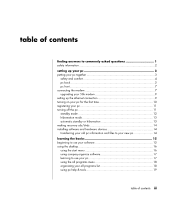
to your new pc 14 learning the basics 15 beginning to use your software 15 using the desktop 16 using the start menu 16 using compaq organize software 17 learning to use your pc 17 using the all programs menu 18 organizing your all programs list 18 using pc help & tools - Compaq Presario 8000 | Compaq Presario S0000 / 8000 Series Computers User's Guid - Page 5
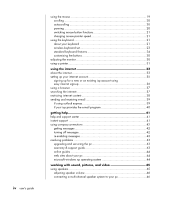
40 getting help 41 help and support center 41 instant support 41 using compaq connections 42 getting messages 42 turning off messages 42 re-enabling messages 43 resolving problems 43 upgrading and servicing the pc 43 warranty & support guide 43 online guides 44 web sites about your pc - Compaq Presario 8000 | Compaq Presario S0000 / 8000 Series Computers User's Guid - Page 6
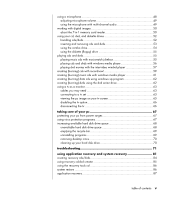
volume 49 using the microphone with multi-channel audio 49 working with digital images 50 about the 7-in-1 memory card reader 50 using your cd, dvd, desktop icons 70 cleaning up your hard disk drive 70 troubleshooting 71 using application recovery and system recovery 81 creating recovery cds - Compaq Presario 8000 | Compaq Presario S0000 / 8000 Series Computers User's Guid - Page 7
recovery discs 89 starting system recovery using recovery discs 89 upgrading and servicing the pc 91 preparing the pc 91 removing or upgrading a drive a drive 99 upgrading or replacing memory 102 removing a memory module 102 replacing or adding a memory module 103 removing or installing an - Compaq Presario 8000 | Compaq Presario S0000 / 8000 Series Computers User's Guid - Page 8
doesn't work, page 41 • Keeping your PC healthy, page 67 • Going back a day (System Restore), page 86 • Recovering your PC, page 81 • Adding memory, page 91 NOTE: This guide contains details on options that may not be included with your PC. Your PC may look different from the illustrations in this - Compaq Presario 8000 | Compaq Presario S0000 / 8000 Series Computers User's Guid - Page 9
to the power supply, have a qualified person repair or replace it. All other components are user-serviceable. WARNING: Electrostatic discharge (ESD) can damage disk drives, add-in cards, and other components. If inside the card wrapper, if possible, but never on the card wrapper. 2 user's guide - Compaq Presario 8000 | Compaq Presario S0000 / 8000 Series Computers User's Guid - Page 10
the mouse and connect each to the PC. NOTE: Your PC uses active speakers only. Active speakers have a power cord and connect to the green Audio Out connector on the back of the PC. Passive speakers have no power cord or power switch. 4 Position speakers (select monitor models include speakers - Compaq Presario 8000 | Compaq Presario S0000 / 8000 Series Computers User's Guid - Page 11
6 Turn on the monitor. Turn on the PC. Turn on the speakers. Follow the onscreen instructions and complete the initial windows until you see the desktop. Refer to "turning on your pc for Refer to the Safety & Comfort Guide for important ergonomic information. 0-15˚ 50-70 cm (20-28 inches) 0-15˚ 4 - Compaq Presario 8000 | Compaq Presario S0000 / 8000 Series Computers User's Guid - Page 12
port F Parallel port G Monitor H USB 2.0 K Ethernet L Microphone M Audio out N Audio in O Modem (to telephone line wall jack) P Telephone computer safety warning Guide: • Click Start, choose All Programs, choose PC Help & Tools, and then click Safety & Comfort Guide. Or • Type http://www.compaq. - Compaq Presario 8000 | Compaq Presario S0000 / 8000 Series Computers User's Guid - Page 13
memory, or add-in card, the PC automatically loads the correct driver for the device. NOTE: For peripherals that are not Plug and Play, follow the instructions that came with your peripheral device to load the appropriate driver devices Audio Line Out (powered speakers) Audio Line - Compaq Presario 8000 | Compaq Presario S0000 / 8000 Series Computers User's Guid - Page 14
A Top optical drive B Second optical drive C Diskette (floppy) drive D On light E On button F Hard disk drive activity indicator light G FireWire (IEEE 1394) H Audio in K USB 2.0 (two shown) L Microphone pc front The front of your computer has the drives, the On button and hard disk drive activity - Compaq Presario 8000 | Compaq Presario S0000 / 8000 Series Computers User's Guid - Page 15
and send or receive e-mail and faxes using telephone dial-up, you must connect your telephone service line to the modem, which is inside the PC. The quick setup poster shows you how to only) C Back of PC D Modem/telephone cable E Wall jack F Telephone (not provided) BA C D E F 8 user's guide - Compaq Presario 8000 | Compaq Presario S0000 / 8000 Series Computers User's Guid - Page 16
telephone service line driver can be upgraded to enable certain V.92 features. For information, go to the Support Web site listed in the Warranty & Support Guide, click the support link, type modem upgrade into the Search box, and then click the arrow to the right of the box. Follow the instructions - Compaq Presario 8000 | Compaq Presario S0000 / 8000 Series Computers User's Guid - Page 17
network cable into the Ethernet connector (A) on the back of the PC. WARNING: Do not plug the telephone service line cable or modem cable into the Ethernet connector. Although the plug looks similar to the plug on the the Power button on the speakers, if they are present. A IN 10 user's guide - Compaq Presario 8000 | Compaq Presario S0000 / 8000 Series Computers User's Guid - Page 18
models only). Register so you can receive changes, updates, and support. You can register any of these ways: • Double-click the registration icon on your desktop, and follow the onscreen instructions. • Register online at http://www.compaq.com/register turning off the pc For best results, turn off - Compaq Presario 8000 | Compaq Presario S0000 / 8000 Series Computers User's Guid - Page 19
and download information from the Internet automatically, if you set it to do so. To put the PC in standby mode manually: 1 Press the Standby button on the keyboard, if it is present. The screen goes dark, and the PC Turn Off Computer, and then click Restart. 2 Turn on the PC again. 12 user's guide - Compaq Presario 8000 | Compaq Presario S0000 / 8000 Series Computers User's Guid - Page 20
in hibernation mode, it saves everything that is in PC memory to the hard disk drive, turns off the monitor your programs, folders, and documents are restored to the screen. To put the PC into hibernation manually: 1 Click Start on the taskbar. 2 Click Turn Off Computer. 3 Press and hold down the - Compaq Presario 8000 | Compaq Presario S0000 / 8000 Series Computers User's Guid - Page 21
PC - check the operating system, memory, and other requirements listed for the the manufacturer's documentation or customer service information for help if you need See the built-in Microsoft Windows Help and Support Center, described on page 41; search services offered under Move My Data. 14 user - Compaq Presario 8000 | Compaq Presario S0000 / 8000 Series Computers User's Guid - Page 22
about the Microsoft Windows XP operating system is in the printed manuals and online Help. For Microsoft Windows, you can also press on your keyboard (select models only), to open the built-in Help and Support Center. For help with specific software, refer to the onscreen Help within the program - Compaq Presario 8000 | Compaq Presario S0000 / 8000 Series Computers User's Guid - Page 23
• Select programs or documents. • Open the Help and Support Center. • Start a search. • Run a program. • Open the Control Panel to view or change settings. D A B C Click Presario Info Center to view information about your PC. (See button to turn off the PC or to restart it. 16 user's guide - Compaq Presario 8000 | Compaq Presario S0000 / 8000 Series Computers User's Guid - Page 24
your PC (select models only): 1 Click Start. 2 Choose Help and Support. 3 Choose Compaq Presario PC Help. For onscreen instructions to run tests for PC-related problems or to get help from a Support analyst, open Instant Support (select models only): 1 Click Start on the taskbar, and click Help - Compaq Presario 8000 | Compaq Presario S0000 / 8000 Series Computers User's Guid - Page 25
3 Move the mouse pointer to where you want the item, and then release the mouse button. (If you have problems dropping the item into a folder, drag it to your desktop, and then drag it to the folder.) To copy Delete. Click Delete Shortcut to confirm you want to delete the shortcut. 18 user's guide - Compaq Presario 8000 | Compaq Presario S0000 / 8000 Series Computers User's Guid - Page 26
The PC Help & Tools folder (select models only) in the All Programs menu contains special utilities for PC owners. This folder also contains any onscreen guides included with your PC. To see the items in the PC Help & Tools folder: 1 Click Start on the taskbar. 2 Choose All Programs. 3 Choose PC - Compaq Presario 8000 | Compaq Presario S0000 / 8000 Series Computers User's Guid - Page 27
release it), and then quickly click it again. B A C 20 user's guide NOTE: Your mouse may look different from the one shown here. You can switch " on page 21. If your mouse does not work properly, refer to "troubleshooting" on page 71. scrolling Click the left mouse button to place the cursor - Compaq Presario 8000 | Compaq Presario S0000 / 8000 Series Computers User's Guid - Page 28
NOTE: Panning only works if the window's horizontal scroll bar is active. Panning does not work with some software programs. switching mouse button functions To switch the functions of the right and left mouse buttons: 1 Click the Start button. 2 Click Control Panel. 3 Click Printers and Other - Compaq Presario 8000 | Compaq Presario S0000 / 8000 Series Computers User's Guid - Page 29
speaker sound. • Customize the buttons to open programs and connect to Internet Web sites. • Get support information. • Find a file or program on the hard disk drive. internet keyboard 2 This keyboard enables programs and connect to Internet Web sites. • Get support information. 22 user's guide - Compaq Presario 8000 | Compaq Presario S0000 / 8000 Series Computers User's Guid - Page 30
B Caps lock on C Scroll lock on D Receiver activity A light (D) on the receiver indicates receiver activity. ABC D If your keyboard does not work properly, refer to "troubleshooting" on page 71. learning the basics 23 - Compaq Presario 8000 | Compaq Presario S0000 / 8000 Series Computers User's Guid - Page 31
. • Pressing F3 displays a search window. F1 and F3 are available at all times. Other function key operations vary by software program. edit keys l l 24 user's guide The edit keys are Insert, Home, Page Up, Delete End, and Page Down. Use these keys to insert and delete text and to quickly move - Compaq Presario 8000 | Compaq Presario S0000 / 8000 Series Computers User's Guid - Page 32
arrow keys l l The arrow keys are controls for up, down, right, and left. You can use these keys instead of the mouse to move the cursor for navigation in a Web page, in a document, or in a game. numeric keys l l Press the Num Lock key to lock and unlock the numeric key functions: • When the - Compaq Presario 8000 | Compaq Presario S0000 / 8000 Series Computers User's Guid - Page 33
of the main keys.) These buttons operate a CD or DVD player, connect you to the Internet, or provide quick access to specific functions. 26 user's guide - Compaq Presario 8000 | Compaq Presario S0000 / 8000 Series Computers User's Guid - Page 34
Esc key, or press standby again. May take 10-30 seconds before screen reappears. Switches between the PC users. Links to Compaq Web site. Opens the Help and Support Center. Opens an imaging software program. Can be reconfigured. Music Video Starts MusicMatch Jukebox or Windows Media Player. Can be - Compaq Presario 8000 | Compaq Presario S0000 / 8000 Series Computers User's Guid - Page 35
. a open and close disc tray(s) b record c play or pause d stop e skip to the previous track f skip to the next track media control keys a b d c a e f 28 user's guide - Compaq Presario 8000 | Compaq Presario S0000 / 8000 Series Computers User's Guid - Page 36
reconfigured to open any site or software program. Takes you to the Help and Support Center. C Search Opens a Web site that helps you locate information on the , Webcasts, entertainment news, and reviews. G My Presario Takes you to the My Presario Club Web site, featuring a variety of discounts, - Compaq Presario 8000 | Compaq Presario S0000 / 8000 Series Computers User's Guid - Page 37
+F5 key combination, the PC display appears on the next device. If Alt+F5 does not work, restart the PC and try again. 30 user's guide - Compaq Presario 8000 | Compaq Presario S0000 / 8000 Series Computers User's Guid - Page 38
using a printer Refer to the user manual that came with your printer for instructions on connecting and using the printer. Printers receive instructions from your PC via software called printer drivers. In many cases your PC automatically finds the necessary printer driver. If it does not, follow - Compaq Presario 8000 | Compaq Presario S0000 / 8000 Series Computers User's Guid - Page 39
32 user's guide - Compaq Presario 8000 | Compaq Presario S0000 / 8000 Series Computers User's Guid - Page 40
up your Internet account. Use the Internet to search for and to find information or services on the Web, or to use an e-mail program to get, read, or of computers that communicate with each other through telephone lines, digital service, or cable lines. Each Internet computer is independent, and its - Compaq Presario 8000 | Compaq Presario S0000 / 8000 Series Computers User's Guid - Page 41
used by individuals, companies, governments, and organizations. These individuals and groups have created millions of Web pages in support of their activities. A Web page is a file or group of files that a user can access by using e-mail, see "sending and receiving e-mail" on page 39. 34 user's guide - Compaq Presario 8000 | Compaq Presario S0000 / 8000 Series Computers User's Guid - Page 42
speed, or broadband connection, refer to "setting up the ethernet connection" on page 9 for instructions. 2 Choose an ISP. Before you can connect to the Internet, you must sign up with an Internet Service Provider (ISP). Compaq has made arrangements with leading ISPs in your area to help you sign up - Compaq Presario 8000 | Compaq Presario S0000 / 8000 Series Computers User's Guid - Page 43
icon on the desktop. Or 1 Click Start on the taskbar. 2 Choose All Programs. Choose Online Services. 3 Click Easy Internet Sign-up. Follow the onscreen instructions. NOTE: Your modem cable must be connected to the telephone service line in order for Easy Internet Sign-up to find and obtain updated - Compaq Presario 8000 | Compaq Presario S0000 / 8000 Series Computers User's Guid - Page 44
to the Internet, your browser displays the home Web page. You can go to a different Web site by entering its address (such as http://www.compaq.com) in the address box in the Web browser and pressing Enter on your keyboard. Or, you can use the browser Search tool to search - Compaq Presario 8000 | Compaq Presario S0000 / 8000 Series Computers User's Guid - Page 45
they must enter the Content Advisor password that you have set. This means that any unrated page, even Help and Support or Internet Explorer, is not viewable if the user doesn't know the password. To allow access to an unrated works as a toggle to turn the Content Advisor on and off. 38 user's guide - Compaq Presario 8000 | Compaq Presario S0000 / 8000 Series Computers User's Guid - Page 46
sending and receiving e-mail E-mail (electronic mail) allows you to send and receive letters, pictures, postcards, and even music and video clips. Your PC comes with an e-mail program from Microsoft called Outlook Express (select models only). You may also use e-mail programs from other vendors. - Compaq Presario 8000 | Compaq Presario S0000 / 8000 Series Computers User's Guid - Page 47
more information about using your e-mail program, go to the Help menu within the program. if your isp provides the e-mail program Follow the ISP's instructions to install its Web browser and e-mail program and to set up and use your e-mail account. You will then be able to send and - Compaq Presario 8000 | Compaq Presario S0000 / 8000 Series Computers User's Guid - Page 48
Start on the taskbar and choose Help and Support. 2 Choose Compaq Presario PC Help. instant support When you need assistance to solve a PC-related problem, use Instant Support (select models only). With Instant Support you can run tests or submit a problem for help over the Internet. When you submit - Compaq Presario 8000 | Compaq Presario S0000 / 8000 Series Computers User's Guid - Page 49
desktop. View messages as they arrive or read them later. The Compaq Connections Support messages are also available to you through the Support Web site under the information for your PC model. Refer to your Warranty & Support Guide for Web site information. getting messages After you view or close - Compaq Presario 8000 | Compaq Presario S0000 / 8000 Series Computers User's Guid - Page 50
to "troubleshooting" on page 71. upgrading and servicing the pc Information about the internal parts of the PC chassis is in the chapter "upgrading and servicing the pc." Some model PCs have this servicing information printed as a separate guide and included with the PC. warranty & support guide The - Compaq Presario 8000 | Compaq Presario S0000 / 8000 Series Computers User's Guid - Page 51
and information for your PC. To view online manuals for your PC: 1 Type the Support Web address from your Warranty & Support Guide into your browser address box, and press the Enter key on your keyboard. 2 In the search box, type your product name and number (Compaq 2000, for example) and click the - Compaq Presario 8000 | Compaq Presario S0000 / 8000 Series Computers User's Guid - Page 52
and no power cord) or active (power button or power cord). Your PC supports only active (powered) speaker systems; the speaker system must have its own output. Connect your speaker system to the PC and then configure the audio software for sound output. Refer to "connecting a multi-channel speaker - Compaq Presario 8000 | Compaq Presario S0000 / 8000 Series Computers User's Guid - Page 53
Audio Devices, if it is present, and then double-click Sounds and Audio Devices to open the Sounds and Audio to your pc Multi-channel audio speakers plug into the Audio In, Audio Out, and Mic connectors PC and the speakers. 2 Connect the three audio cable plugs from the speaker system to the - Compaq Presario 8000 | Compaq Presario S0000 / 8000 Series Computers User's Guid - Page 54
(stereo) output. To hear all speakers from DVD movies recorded with multi-channel audio, change the audio properties for WinDVD to match your speaker configuration (if your InterVideo WinDVD program supports more than two channels): 1 Insert a DVD, or start InterVideo WinDVD Player (see "playing - Compaq Presario 8000 | Compaq Presario S0000 / 8000 Series Computers User's Guid - Page 55
48 user's guide 3 Click the Audio tab. 4 Click the option for the number of speakers to and the back connector is ready to use unless you have the multi-channel audio speakers option. For PCs with the multi-channel audio speakers option, the microphone connector in the front of the PC, if present, - Compaq Presario 8000 | Compaq Presario S0000 / 8000 Series Computers User's Guid - Page 56
. To use the microphone connector on the back of the PC with a multi-channel audio speaker system, you must disconnect the cables for the multi-channel speakers and change the audio configuration to a 2-channel audio system. Refer to "configuring the multi-channel sound manager" on page 47 to set - Compaq Presario 8000 | Compaq Presario S0000 / 8000 Series Computers User's Guid - Page 57
four horizontal card slots which accept the memory cards and the microdrive disk drive. Card CompactFlash™ SD) Memory Card MultiMediaCard (MMC) Memory Stick® (MS) Memory Card SmartMedia™ (SM) Memory Card 4- the 7-In-1 memory card reader from your PC; you must restart the PC to see your memory card reader - Compaq Presario 8000 | Compaq Presario S0000 / 8000 Series Computers User's Guid - Page 58
C E Card CompactFlash type I media CompactFlash type II media IBM Microdrive disk drive Secure Digital (SD) Memory Card MultiMediaCard (MMC) Memory Stick (MS) Memory Card SmartMedia (SM) Memory Card Insert Receptacle edge (holes) Receptacle edge (holes) Receptacle edge (holes) Facing up Facing up - Compaq Presario 8000 | Compaq Presario S0000 / 8000 Series Computers User's Guid - Page 59
Diskette (floppy) What it does Reads audio and data CD discs. Reads and records (burns) audio and data CD discs. Reads audio and data CD and DVD discs. Reads and records (burns) audio and data CD and DVD discs. Combines the surface of the disc. • Store discs at room temperature. 52 user's guide - Compaq Presario 8000 | Compaq Presario S0000 / 8000 Series Computers User's Guid - Page 60
inserting and removing cds and dvds CAUTION: Use only standard shaped discs in your drives. Using non-standard discs, such as heart-shaped discs or business card discs, may damage your drive. To insert a CD or DVD: 1 With your PC turned on, press the Eject button (A) near the drive to open the disc - Compaq Presario 8000 | Compaq Presario S0000 / 8000 Series Computers User's Guid - Page 61
of two drives into one: Either a DVD+RW/+R drive (dvd writer) and a CD-RW drive, or a DVD-ROM drive and a CD-RW drive. 54 user's guide - Compaq Presario 8000 | Compaq Presario S0000 / 8000 Series Computers User's Guid - Page 62
drive until it locks in place. 3 You can copy files from or to the diskette. Refer to the Windows Explorer section of Windows Help for instructions on copying files to and from a diskette. 4 When you are ready to remove the diskette, check that the light on the drive is off. This - Compaq Presario 8000 | Compaq Presario S0000 / 8000 Series Computers User's Guid - Page 63
Internet - MusicMatch Jukebox displays the song titles from memory. To play a music CD: 1 Insert the music CD into the drive. • The MusicMatch Jukebox window opens. If the Audio CD wizard window opens, select MusicMatch Jukebox from All Programs, and then click Windows Media Player. 56 user's guide - Compaq Presario 8000 | Compaq Presario S0000 / 8000 Series Computers User's Guid - Page 64
the Playlist. You can also control the CD by using the media control buttons on the keyboard (select models). 3 When you click the Media Guide or the Radio Tuner features, Windows Media Player connects to the Internet and obtains information about the CD selections or streaming radio stations. For - Compaq Presario 8000 | Compaq Presario S0000 / 8000 Series Computers User's Guid - Page 65
are playing a movie full screen and the WinDVD control panel is hidden, you can redisplay it by clicking anywhere in the video window. 58 user's guide To use the WinDVD control panel: • To see what a button does on the control panel, place the mouse pointer on the button; the button title - Compaq Presario 8000 | Compaq Presario S0000 / 8000 Series Computers User's Guid - Page 66
permanent. Once the code locks, you can play DVDs from that country/region only. If the country/region code locks, and you need help, contact Support. WinDVD is not pre-set to a particular country/region - the country/region code of the first DVD movie you play determines your DVD country/region - Compaq Presario 8000 | Compaq Presario S0000 / 8000 Series Computers User's Guid - Page 67
the CD-RW disc; see "getting started with recordnow!" on page 60. 2 Click the Audio Projects tab at the top of the RecordNow! window. 3 Click a project option: • Audio CD for Car or Home CD Player • Exact Copy • Jukebox CD 4 Follow the onscreen instructions to finish recording your disc. 60 user - Compaq Presario 8000 | Compaq Presario S0000 / 8000 Series Computers User's Guid - Page 68
Data Disc • Exact Copy • Erase Disc 4 Follow the onscreen instructions to finish. You can add new data files to a CD-R with windows media player NOTE: HP supports lawful use of technology and does not Player to copy music files to a portable device or memory card. Use a CD-R disc if you are going - Compaq Presario 8000 | Compaq Presario S0000 / 8000 Series Computers User's Guid - Page 69
62 user's guide To create a music CD using Windows Media Player: 1 Click Start on the taskbar, choose All Programs, and then click Windows Media Player. 2 Click Copy to CD or Device. 3 Follow the onscreen instructions to select the music files and the CD or device. For more information on this - Compaq Presario 8000 | Compaq Presario S0000 / 8000 Series Computers User's Guid - Page 70
a DVD player), or play games on your TV. cables you may need To connect a TV to the PC, you may need a video cable and an audio cable (not provided, purchase separately). The type of video cable you need depends on your TV: • If your TV has an S-video jack, you need - Compaq Presario 8000 | Compaq Presario S0000 / 8000 Series Computers User's Guid - Page 71
back of the PC. 3 To have sound come from your TV instead of from your PC, plug an audio cable into the Audio input jack (Line In) on the TV and plug the other end of the audio cable into the Audio Out jack (green connector) on the back of the PC. 64 user - Compaq Presario 8000 | Compaq Presario S0000 / 8000 Series Computers User's Guid - Page 72
the PC selects the TV-out option. Some options and menus in this procedure may be different for your PC. 1 Make sure the video and audio cables are connected before you turn on the TV and the PC. 2 Turn on the TV. Press the Video/TV button on your remote control - Compaq Presario 8000 | Compaq Presario S0000 / 8000 Series Computers User's Guid - Page 73
TV option. See the previous procedure. 2 Turn off the TV and the PC. 3 Remove the video cable from the TV and the PC. 4 Remove the audio cable from the TV and the PC. 5 Reconnect your PC speaker cable to the Line Out jack (lime green connector) on the back of the - Compaq Presario 8000 | Compaq Presario S0000 / 8000 Series Computers User's Guid - Page 74
example voltage spikes, power outages, or brownouts may cause software problems. Symptoms of voltage spikes include a flickering video display, unexpected PC outlet and the PC power cord. using virus protection programs Compaq provides a virus-scanning software program to help protect your PC - Compaq Presario 8000 | Compaq Presario S0000 / 8000 Series Computers User's Guid - Page 75
68 user's guide The virus-scanning program manufacturer provides free virus scan updates through your Internet connection for an initial period after your PC purchase. You can purchase a subscription service for updates after the initial free period expires. You should take the following - Compaq Presario 8000 | Compaq Presario S0000 / 8000 Series Computers User's Guid - Page 76
left of the screen, if it is not already selected. 5 Select the program to uninstall. 6 Click the Change/Remove button, and then follow the onscreen instructions. taking care of your pc 69 - Compaq Presario 8000 | Compaq Presario S0000 / 8000 Series Computers User's Guid - Page 77
tab, click Customize Desktop. 6 Under Desktop cleanup, click Clean Desktop Now. 7 Follow the onscreen instructions. Retrieve a desktop icon by opening the Unused Desktop Shortcuts folder on your desktop and dragging the icon OK, and then click Yes. 8 Click OK to close the window. 70 user's guide - Compaq Presario 8000 | Compaq Presario S0000 / 8000 Series Computers User's Guid - Page 78
(Monitor) • Hard Disk Drive • Hardware Installation • Internet Access • Keyboard and Mouse • Memory • Power • Miscellaneous Some of the symptoms listed may not apply to your PC. For problems relating specifically to the monitor or printer, refer to the equipment documentation. troubleshooting 71 - Compaq Presario 8000 | Compaq Presario S0000 / 8000 Series Computers User's Guid - Page 79
audio Symptom No sound is produced. Problem Audio Devices, if it is present, and then double-click Sounds and Audio Audio Out (green) connector on the PC. Unplug the headphones. cd-rom, cd-rw, dvd-rom, or dvd writer drive Symptom Problem driver. stores. Driver program the problem drive. 5 - Compaq Presario 8000 | Compaq Presario S0000 / 8000 Series Computers User's Guid - Page 80
drive during startup. Press the Help ? button on the keyboard to open the Help & Support Center, or refer to the Warranty & Support Guide to contact Support for replacement details. When drive activity stops, remove the diskette and press the Spacebar. The PC should start up. troubleshooting 73 - Compaq Presario 8000 | Compaq Presario S0000 / 8000 Series Computers User's Guid - Page 81
the Help & Support Center, or refer to the Warranty & Support Guide to contact Support for replacement details in this table. display (monitor) Symptom Problem Solution Screen is blank, and monitor Monitor instructions. See your monitor documentation for the best resolution for your monitor - Compaq Presario 8000 | Compaq Presario S0000 / 8000 Series Computers User's Guid - Page 82
Problem Support Center, or refer to the Warranty & Support Guide to contact Support for replacement details. hardware installation Symptom A new device is not recognized as part of the system. Problem Device driver driver. Solution Install the device driver from the the instructions for driver - Compaq Presario 8000 | Compaq Presario S0000 / 8000 Series Computers User's Guid - Page 83
button and follow the onscreen instructions in the device troubleshooter wizard. 10 Restart the PC. Click Start, click Turn Off Computer, and then click Restart. internet access Symptom Cannot connect to the Internet. Problem Internet Service Provider (ISP) account is not set up properly - Compaq Presario 8000 | Compaq Presario S0000 / 8000 Series Computers User's Guid - Page 84
is enabled. 7 If there are further problems, click the Troubleshoot button and follow the onscreen instructions. You may want to remove the AOL on the keyboard to open the Help & Support Center, or refer to the Warranty & Support Guide to contact Support for replacement details. Press the Num Lock - Compaq Presario 8000 | Compaq Presario S0000 / 8000 Series Computers User's Guid - Page 85
message is displayed. Problem All memory in the PC is being used by open programs, and memory is needed for a desired task. Solution Close all open programs, and then try desired task again. Or Restart your PC: 1 Click the Start button. 2 Click Turn Off Computer. 3 Select Restart. 78 user's guide - Compaq Presario 8000 | Compaq Presario S0000 / 8000 Series Computers User's Guid - Page 86
If the problem persists, replace the battery. See the "upgrading and servicing the pc" for instructions, or refer to the Warranty & Support Guide to contact Support for replacement details. If you encounter printer problems, refer to the documentation that came with your printer. troubleshooting 79 - Compaq Presario 8000 | Compaq Presario S0000 / 8000 Series Computers User's Guid - Page 87
80 user's guide - Compaq Presario 8000 | Compaq Presario S0000 / 8000 Series Computers User's Guid - Page 88
discs before you need them. You should also make the Compaq Recovery Tools CD. This CD contains utilities that allow you memory and to clear some tracking information. This may eliminate some problems that can remain after performing a Restart. Refer to "turning off the pc" on page 11. • Driver - Compaq Presario 8000 | Compaq Presario S0000 / 8000 Series Computers User's Guid - Page 89
Support. • Application and Driver Recovery If the problem with the PC seems to be with only one program or one driver, it may be that the application program or the driver program is damaged. You can reinstall individual factoryinstalled application programs and driver programs by using the Compaq - Compaq Presario 8000 | Compaq Presario S0000 / 8000 Series Computers User's Guid - Page 90
, try the method listed as #1, then #2, and then #3. Problem/Status You installed a new application or device driver. An application does not work. A device driver does not work. PC stops responding or does not work. You replaced the hard disk drive or removed the partition. Microsoft System - Compaq Presario 8000 | Compaq Presario S0000 / 8000 Series Computers User's Guid - Page 91
/DVD can install the operating system and software on your PC hard disk drive if the software becomes corrupted or is accidentally erased. 84 user's guide - Compaq Presario 8000 | Compaq Presario S0000 / 8000 Series Computers User's Guid - Page 92
problem. The recovery discs set is a complete image of the original PC hard disk drive contents and is matched to your PC model number. The discs set contains the operating system, drivers 5 Click Compaq Recovery CD-DVD Creator. The creator window appears. 6 Follow the onscreen instructions. Label - Compaq Presario 8000 | Compaq Presario S0000 / 8000 Series Computers User's Guid - Page 93
allows you to create (burn) a Recovery Tools CD. After you make the Compaq Recovery Tools CD, you can use it to: • Read instructions to use each utility on the Recovery Tools CD. • Start the System Recovery information, type System Restore into the Search box in Help and Support. 86 user's guide - Compaq Presario 8000 | Compaq Presario S0000 / 8000 Series Computers User's Guid - Page 94
PC Help & Tools. 6 Click Compaq Application Recovery, and then click Yes. 7 Click Application Installation or Driver Installation, and then click Next. 8 Select the driver or application program to install, and then click Install. 9 Follow the onscreen instructions. 10 Repeat steps 7 through 9 to - Compaq Presario 8000 | Compaq Presario S0000 / 8000 Series Computers User's Guid - Page 95
to use the Compaq System Recovery program as System Recovery program. WARNING: The Compaq System Recovery program will delete any choose PC Help & Tools, and then click Compaq System Recovery. 3 Wait until the System Recovery the onscreen instructions to display, and then follow those instructions. 6 - Compaq Presario 8000 | Compaq Presario S0000 / 8000 Series Computers User's Guid - Page 96
the System Recovery program: When the black screen with the Compaq logo appears, press the F10 key on the keyboard. for the onscreen instructions to display, and then follow those instructions. 6 Complete reinstall the operating system, programs, and drivers from the recovery discs. However, you - Compaq Presario 8000 | Compaq Presario S0000 / 8000 Series Computers User's Guid - Page 97
The PC starts the recovery; wait for the onscreen instructions to display, and then follow those instructions. • For standard recovery, press R. Click Next to ejects. Remove the disc. 9 After the PC restarts, a series of startup screens appear.s To proceed with the initial Microsoft Windows guide - Compaq Presario 8000 | Compaq Presario S0000 / 8000 Series Computers User's Guid - Page 98
upgrading and servicing the pc This chapter describes procedures for accessing the internal parts of the PC and installing components. NOTE: The procedures for the S0000 and 8000 series models are the same except where noted. IN 8000 series model and S0000 series model preparing the pc Before you - Compaq Presario 8000 | Compaq Presario S0000 / 8000 Series Computers User's Guid - Page 99
access panel to the PC chassis. Slide the access panel back (2) about 1 inch (2.5 cm), and then lift it up and off the unit. 92 user's guide removing the pc access panel on the S0000 series model - Compaq Presario 8000 | Compaq Presario S0000 / 8000 Series Computers User's Guid - Page 100
the pc access panel on the 8000 series 8 Remove the front bezel by following the appropriate method for your PC model: • To remove the front bezel from the S0000 series model, gently pry the top section chassis (2). removing the front bezel from the S0000 series upgrading and servicing the pc 93 - Compaq Presario 8000 | Compaq Presario S0000 / 8000 Series Computers User's Guid - Page 101
bezel from the 8000 series removing or upgrading a drive Depending on your PC configuration, you may have up to four of the following storage drives in your PC. • CD-ROM or CD-RW drive • DVD-ROM or DVD+RW/+R drive • Hard disk drive • Diskette drive • 7-In-1 memory guide - Compaq Presario 8000 | Compaq Presario S0000 / 8000 Series Computers User's Guid - Page 102
, CD-RW drive, or 7-In-1 memory card reader (select models only) 3 Diskette (floppy) drive 4 Hard disk drive locating drive positions drive positions on the S0000/8000 series (S0000 shown) removing a drive 1 sound cable (3). disconnecting the optical drive cables upgrading and servicing the pc 95 - Compaq Presario 8000 | Compaq Presario S0000 / 8000 Series Computers User's Guid - Page 103
disconnecting the 7-in-1 memory card reader cable disconnecting the diskette (floppy) drive cables 96 user's guide disconnecting the hard disk drive cables - Compaq Presario 8000 | Compaq Presario S0000 / 8000 Series Computers User's Guid - Page 104
• To release an optical drive or diskette drive from the chassis of the 8000 series, slide the drive lock mechanism (1) to unlock the drive in the drive bay and pull the drive out of the drive bay (2). removing an optical or diskette drive from the 8000 series upgrading and servicing the pc 97 - Compaq Presario 8000 | Compaq Presario S0000 / 8000 Series Computers User's Guid - Page 105
8000 series and you removed a hard disk drive, a 7-In-1 memory card reader, or an optical drive, you are also finished with this task. If you have the 8000 series adapter (3) by sliding the drive back and then up. Ensure that the guide screws (4) (left and right sides) are left in the drive adapter. - Compaq Presario 8000 | Compaq Presario S0000 / 8000 Series Computers User's Guid - Page 106
, except when you are replacing a diskette drive on the 8000 series, or the 7-In-1 memory card reader on the S0000 series. If you are replacing a diskette drive on the 8000 series, before starting step 1 in the following instructions, you need to fit the diskette drive in a diskette drive adapter - Compaq Presario 8000 | Compaq Presario S0000 / 8000 Series Computers User's Guid - Page 107
place. sliding the drive into the drive bay on the S0000/8000 (S0000 shown) 3 Reconnect the power and data cables to your drive as indicated in the following illustrations. reconnecting the 7-in-1 memory card reader cable on the S0000 series 100 user's guide reconnecting the diskette drive cables - Compaq Presario 8000 | Compaq Presario S0000 / 8000 Series Computers User's Guid - Page 108
add a new diskette (floppy) drive on the 8000 series, you need to reassemble the adapter around the diskette drive. (The S0000 series does not need an adapter.) 1 Lower the diskette the diskette drive. Ensure that the guide screws (4) are installed in the adapter. upgrading and servicing the pc 101 - Compaq Presario 8000 | Compaq Presario S0000 / 8000 Series Computers User's Guid - Page 109
1 4 2 replacing the diskette drive adapter on the 8000 series upgrading or replacing memory Your PC comes with random access memory (RAM), which temporarily stores data and instructions on your PC. You can install memory expansion modules in the memory expansion slots in the PC. The procedures for - Compaq Presario 8000 | Compaq Presario S0000 / 8000 Series Computers User's Guid - Page 110
as the memory originally installed in your PC. CAUTION: When handling a memory module, be careful not to touch any of the contacts. Doing so may damage the module. 1 Open both latches of the memory module socket (1). opening the latches on the memory module socket upgrading and servicing the pc - Compaq Presario 8000 | Compaq Presario S0000 / 8000 Series Computers User's Guid - Page 111
screen is displayed after replacing or adding a memory module, the memory is installed incorrectly or it is the wrong type of memory. Remove and reinstall the memory module. removing or installing an expansion card An is needed to remove, replace, or add an expansion card. 104 user's guide - Compaq Presario 8000 | Compaq Presario S0000 / 8000 Series Computers User's Guid - Page 112
an expansion card from the S0000 series, continue to step 2. • To remove an expansion card from the 8000 series, skip to step 3. 2 On the S0000 series, on the rear of the chassis. 5 Remove the expansion card from either an S0000 or 8000 series by holding the card at each end and carefully rocking it - Compaq Presario 8000 | Compaq Presario S0000 / 8000 Series Computers User's Guid - Page 113
to step 4. • If you have an 8000 series, skip to step 5. 4 For the S0000 series, replace the expansion cover bracket (1) and screw (2). 106 user's guide replacing the expansion bracket cover on the S0000 series 5 For both the S0000 and 8000 series, complete the procedure described in "reassembling - Compaq Presario 8000 | Compaq Presario S0000 / 8000 Series Computers User's Guid - Page 114
the 8000 series, lay the chassis on the side with the open side up. Place the front bezel in the correct position. Ensure the slots (2) are aligned correctly, and rotate the bezel toward the chassis (1) until it snaps into place. replacing the front bezel on the 8000 series upgrading and servicing - Compaq Presario 8000 | Compaq Presario S0000 / 8000 Series Computers User's Guid - Page 115
for the thumbscrew(s) align with the hole in the chassis (2), and replace the thumbscrew(s). replacing the side access panel on the S0000 series replacing the side access panel on the 8000 series 3 Reconnect the power cable (1) to the PC, and plug the cable into an electrical outlet (2). 108 user - Compaq Presario 8000 | Compaq Presario S0000 / 8000 Series Computers User's Guid - Page 116
telephone connectors into the network interface card (NIC) (sometimes labeled as an Ethernet connector). 6 Turn on the PC by pressing the On button. upgrading and servicing the pc 109 - Compaq Presario 8000 | Compaq Presario S0000 / 8000 Series Computers User's Guid - Page 117
110 user's guide - Compaq Presario 8000 | Compaq Presario S0000 / 8000 Series Computers User's Guid - Page 118
adjusting speaker volume, 46, 72 All Programs menu, 18 America Online, troubleshooting, 77 Application Recovery, 82, 87 warning, 87 autoscrolling, mouse, 20 available hard disk space increasing, 68 B browsing the Internet, 37 buttons Compaq, 27 customizing, 30 Eject, 53 E-Mail, 28 Help, 27 mouse, 19 - Compaq Presario 8000 | Compaq Presario S0000 / 8000 Series Computers User's Guid - Page 119
driver recovery, 82 driver rollback, 81 DSL (Digital Subscriber Line), 34 DVD country/region codes, 59 creating, 62 discs, 62 inserting, 53 keyboard button, 28 opening drive, 53 playing, 57 removing, 54 terminology, 57 troubleshooting, 71 DVD drive installation, 94 DVD player, multi-channel audio - Compaq Presario 8000 | Compaq Presario S0000 / 8000 Series Computers User's Guid - Page 120
installation instructions, 91 62 Help and Support opening, 17 Help troubleshooting, 77 types of buttons, 26 using, 21 wireless, 23 keyboard keys alphanumeric, 24 arrow, 25 edit, 24 function keys, 24 numeric, 25 L latch drive bracket, 97 LEDs, defined, 23 logging off, 16 M manuals, online, 44 memory - Compaq Presario 8000 | Compaq Presario S0000 / 8000 Series Computers User's Guid - Page 121
, 17 problem turning on, 79 running tests, 41 setting it up, 3 settings, 16 sleep mode. See hibernation mode standby mode, about, 12 standby mode, automatic, 13 standby mode, manual, 12 System Recovery, 82 System Restore, 82 transferring files and settings to new PC, 14 troubleshooting, 71 - Compaq Presario 8000 | Compaq Presario S0000 / 8000 Series Computers User's Guid - Page 122
, 69 solving common problems, 71 sound manager, multi-channel, 45, 46 sound, troubleshooting, 72 speaker volume, adjusting, 46 speakers, 45 multi-channel, 45 special offers, 42 Standby button, 27 standby mode automatic, 13 manual, 12 Start button, 16 Start menu contents, 16 Support messages, 42 - Compaq Presario 8000 | Compaq Presario S0000 / 8000 Series Computers User's Guid - Page 123
. (See also Internet) browser programs, 37 page, 34 searching the, 37 Windows Media Player, 56 creating CDs, 61 Help, 57, 62 Windows XP, 15 device drivers, 79 Help, 44 WinDVD, 47 control panel, 58 starting, 57 wireless keyboard, 23 wireless mouse, 19 working in comfort, 4 writing CD, 59, 61, 62 DVD
-
 1
1 -
 2
2 -
 3
3 -
 4
4 -
 5
5 -
 6
6 -
 7
7 -
8
-
9
-
10
-
11
-
12
-
13
-
14
-
15
-
16
-
17
-
18
-
19
-
20
-
21
-
22
-
23
-
24
-
25
-
26
-
27
-
28
-
29
-
30
-
31
-
32
-
33
-
34
-
35
-
36
-
37
-
38
-
39
-
40
-
41
-
42
-
43
-
44
-
45
-
46
-
47
-
48
-
49
-
50
-
51
-
52
-
53
-
54
-
55
-
56
-
57
-
58
-
59
-
60
-
61
-
62
-
63
-
64
-
65
-
66
-
67
-
68
-
69
-
70
-
71
-
72
-
73
-
74
-
75
-
76
-
77
-
78
-
79
-
80
-
81
-
82
-
83
-
84
-
85
-
86
-
87
-
88
-
89
-
90
-
91
-
92
-
93
-
94
-
95
-
96
-
97
-
98
-
99
-
100
-
101
-
102
-
103
-
104
-
105
-
106
-
107
-
108
-
109
-
110
-
111
-
112
-
113
-
114
-
115
-
116
-
117
-
118
-
119
-
120
-
121
-
122
-
123
 |
 |

Compaq Presario
S0000 / 8000 Series Computers
User’s
Guide
System Recovery
If you need to restore the original software on your PC, Compaq has
provided a convenient solution right on your hard drive.
We call this part of your hard drive the
“
recovery partition
.
”
The recovery
partition takes up some space on your hard drive.
•
No more hunting for lost CDs
•
Easy to use
—
simple one-button launch
—
no need to wait by the PC
loading CDs
•
Get up and running faster
—
your PC can recover the information
directly from the hard drive more quickly
If you want a set of recovery CDs, you can create them from this recovery
partition using the Recovery CD/DVD Creator application (select models
only).
See the chapter
“
Using Application Recovery and System Recovery
”
for
complete instructions.