
HP Superdome SX2000 Installation Guide, Sixth Edition - HP Integrity Superdome
HP Superdome SX2000 Manual
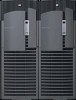 |
View all HP Superdome SX2000 manuals
Add to My Manuals
Save this manual to your list of manuals |
HP Superdome SX2000 manual content summary:
- HP Superdome SX2000 | Installation Guide, Sixth Edition - HP Integrity Superdome - Page 1
Installation Guide HP Integrity Superdome/sx2000 and HP 9000 Superdome/sx2000 Servers HP Part Number: A9834-9004D_ed6 Published: March 2010 Edition: 6 - HP Superdome SX2000 | Installation Guide, Sixth Edition - HP Integrity Superdome - Page 2
HP products and services are set forth in the express warranty statements accompanying such products and services. Nothing herein should be construed as constituting an additional warranty. HP warranty information website: http://h20341.www2.hp.com/integrity/w1/en/resources/warranty-information.html - HP Superdome SX2000 | Installation Guide, Sixth Edition - HP Integrity Superdome - Page 3
Conventions...9 Related Information...9 Publishing History...10 HP contact information...10 Documentation feedback...10 1 Installing Support Management Station 47 Installing the SMS Support Shelf...47 Connecting the SMS to the Superdome 48 SMS Software and Superdome Firmware Downloading Procedure - HP Superdome SX2000 | Installation Guide, Sixth Edition - HP Integrity Superdome - Page 4
the System...55 Connecting to the MP...55 Powering On the System 48 V Power Supply 58 Booting the HP Integrity Superdome/sx2000 to an EFI Shell 58 Booting an HP 9000 sx2000 Server to BCH 60 Verifying the System...60 Running JET Software...62 Running JUST ...62 Power Cycling After Using JET - HP Superdome SX2000 | Installation Guide, Sixth Edition - HP Integrity Superdome - Page 5
Pallet 19 1-6 Power Supply Mounting Screws Location 20 1-7 I/O Chassis Mounting Screws...20 1-8 Shipping Strap Location...22 1-9 Removing the 1-47 HP Integrity Superdome/sx2000 EFI Boot Manager 59 1-48 EFI Shell Prompt...59 1-49 HP Integrity Superdome/sx2000 Partitions at System Firmware Console - HP Superdome SX2000 | Installation Guide, Sixth Edition - HP Integrity Superdome - Page 6
1-53 Attaching Rear Kick Plates...64 1-54 Cell Board Ejectors...65 1-55 Front EMI Panel Flange and Cabinet Holes 65 1-56 Reinstalling the Back EMI Panel...66 6 List of Figures - HP Superdome SX2000 | Installation Guide, Sixth Edition - HP Integrity Superdome - Page 7
List of Tables 1-1 Available Power Options...25 1-2 Power Cord Option 6 and 7 Details 25 1-3 4- and 5-Wire Voltage Ranges...41 7 - HP Superdome SX2000 | Installation Guide, Sixth Edition - HP Integrity Superdome - Page 8
List of Examples 1-1 Directory Example...49 1-2 Directory Example...49 8 List of Examples - HP Superdome SX2000 | Installation Guide, Sixth Edition - HP Integrity Superdome - Page 9
" means you must select the Create Partition menu item from the Partition menu. • Example screen output is represented using this font. Related Information Further information on HP server hardware management, Microsoft® Windows®, and diagnostic support tools are available through the following - HP Superdome SX2000 | Installation Guide, Sixth Edition - HP Integrity Superdome - Page 10
website has manuals, tutorials, FAQs, and other reference material. See www.hp.com/go/bizsupport. Website for HP Technical Support HP's IT resource errors or document product changes. The latest version of this document is available on line at: www.hp.com/go/bizsupport First Edition Second Edition - HP Superdome SX2000 | Installation Guide, Sixth Edition - HP Integrity Superdome - Page 11
Include the document title and manufacturing part number. All submissions become the property of HP Documentation feedback 11 - HP Superdome SX2000 | Installation Guide, Sixth Edition - HP Integrity Superdome - Page 12
12 - HP Superdome SX2000 | Installation Guide, Sixth Edition - HP Integrity Superdome - Page 13
describes installation of HP Integrity Superdome/sx2000 and HP 9000/sx2000 systems. Installers must have received adequate training, be knowledgeable about the product, and have a good overall background in electronics and customer hardware installation. Introduction The instructions in this chapter - HP Superdome SX2000 | Installation Guide, Sixth Edition - HP Integrity Superdome - Page 14
the customer site. NOTE: To identify each item by part number, see the sales order packing slip. One of the large overpack containers is labeled "Open Me First." This box contains the Solution Information Manual and DDCAs. The unpacking instructions are in the plastic bag taped to the cabinet. The - HP Superdome SX2000 | Installation Guide, Sixth Edition - HP Integrity Superdome - Page 15
Inspecting the Shipping Containers for Damage HP shipping containers are designed to protect their contents under normal shipping conditions. After the equipment arrives at the customer site, carefully inspect each carton for - HP Superdome SX2000 | Installation Guide, Sixth Edition - HP Integrity Superdome - Page 16
corners, scratches, bent panels, and loose components. NOTE: HP recommends keeping the shipping container and the packaging material. If fails to meet specifications, notify the nearest HP Sales and Service Office. If damage occurred in transit, notify the carrier as well. HP will arrange for - HP Superdome SX2000 | Installation Guide, Sixth Edition - HP Integrity Superdome - Page 17
and install the system: • Standard hand tools, such as a adjustable-end wrench • ESD grounding strap • Digital voltmeter capable of reading ac 20, T-25, and T-30 Torx drivers • 9-pin to 25-pin serial cable (HP part number 24542G) • 9-pin to 9-pin null modem cable Unpacking the Cabinet WARNING! Use - HP Superdome SX2000 | Installation Guide, Sixth Edition - HP Integrity Superdome - Page 18
1. Position the packaged cabinet so that a clear area about three times the length of the package (about 12 feet or 3.66 m) is available in front of the unit, and at least 2 feet (0.61 m) are available on the sides. Figure 1-3 Front of Cabinet Container WARNING! Do not stand directly in front of the - HP Superdome SX2000 | Installation Guide, Sixth Edition - HP Integrity Superdome - Page 19
3. Lift the cardboard corrugated top cap off the shipping box. 4. Remove the corrugated sleeves surrounding the cabinet. CAUTION: Cut the plastic wrapping material off rather than pulling it off. Pulling the plastic covering off creates an ESD hazard to the hardware. 5. Remove the stretch wrap, the - HP Superdome SX2000 | Installation Guide, Sixth Edition - HP Integrity Superdome - Page 20
replacing the damaged part. If you find extensive damage, you might need to repack and return the entire cabinet to HP. Inspecting the Cabinet Figure 1-6 Power Supply Mounting Screws Location 3. Verify that the I/O chassis mounting screws are in place and secure (Figure 1-7). Inspect all components - HP Superdome SX2000 | Installation Guide, Sixth Edition - HP Integrity Superdome - Page 21
Unpacking and Inspecting the System 21 - HP Superdome SX2000 | Installation Guide, Sixth Edition - HP Integrity Superdome - Page 22
Moving the Cabinet Off the Pallet 1. Remove the shipping strap that holds the BPSs in place during shipping (Figure 1-8 (page 22)). Failure to remove the shipping strap will obstruct air flow into the BPS and FEPS. Figure 1-8 Shipping Strap Location 2. Remove the pallet mounting brackets and pads on - HP Superdome SX2000 | Installation Guide, Sixth Edition - HP Integrity Superdome - Page 23
Figure 1-9 Removing the Mounting Brackets WARNING! Do not remove the bolts on the mounting brackets that attach to the pallet. These bolts prevent the cabinet from rolling off the back of the pallet. 3. On the other side of the pallet, remove only the bolt on each mounting bracket that is attached - HP Superdome SX2000 | Installation Guide, Sixth Edition - HP Integrity Superdome - Page 24
Figure 1-10 Positioning the Ramps WARNING! Do not attempt to roll a cabinet without help. The cabinet can weigh as much as 1400 pounds (635 kg). Three people are required to roll the cabinet off the pallet. Position one person at the rear of the cabinet and one person on each side. WARNING! Do not - HP Superdome SX2000 | Installation Guide, Sixth Edition - HP Integrity Superdome - Page 25
each PDCA installed. Table 1-2 Power Cord Option 6 and 7 Details PDCA Part Number Attached Power Cord Attached Plug A5201-69023 (Option 6) OLFLEX 190 ( HP Sales and Support Office regarding shipment. Before shipping, place a tag on the container or equipment to identify the owner and the service - HP Superdome SX2000 | Installation Guide, Sixth Edition - HP Integrity Superdome - Page 26
move the cabinets and related equipment to the installation site but not into the final location. If the system is to be placed at the end of a row, you must add side bezels before positioning the cabinet in its final location. Check the path from where the system was unpacked to - HP Superdome SX2000 | Installation Guide, Sixth Edition - HP Integrity Superdome - Page 27
2. Remove the cardboard from the blower housing (Figure 1-13). This cardboard protects the housing baffle during shipping. If it is not removed, the fans can not work properly. Figure 1-13 Removing Protective Cardboard from the Housing NOTE: Double-check that the protective cardboard has been - HP Superdome SX2000 | Installation Guide, Sixth Edition - HP Integrity Superdome - Page 28
4. Using the handles on the housing labeled Blower 0 Blower 1, align the edge of the housing over the edge at the top front of the cabinet, and slide it into place until the connectors at the back of each housing are fully mated (Figure 1-15). Then tighten the thumbscrews at the front of the housing - HP Superdome SX2000 | Installation Guide, Sixth Edition - HP Integrity Superdome - Page 29
installation sequence, especially if the cabinet is to be positioned at the end of a row of cabinets or between cabinets. Attaching the Side Skins remove the side skins from their boxes and protective coverings. 2. From the end of the brackets at the back of the cabinet, position the side skin with - HP Superdome SX2000 | Installation Guide, Sixth Edition - HP Integrity Superdome - Page 30
Figure 1-17 Attaching the Rear Side Skin 3. Attach the skin without the lap joint (Front) over the top bracket and under the bottom bracket and gently slide the skin into position. 30 Installing the System - HP Superdome SX2000 | Installation Guide, Sixth Edition - HP Integrity Superdome - Page 31
Figure 1-18 Attaching the Front Side Skins 4. Push the side skins together, making sure the skins overlap at the lap joint. Attaching the Blower Side Bezels The bezels are held on at the top by the bezel lip, which fits over the top of the blower housing frame, and are secured at the bottom by tabs - HP Superdome SX2000 | Installation Guide, Sixth Edition - HP Integrity Superdome - Page 32
step 4 for the skins on the other side of the cabinet. 6. To secure the side bezels to the side skins, attach the blower bracket locks (HP part number A5201-00268) to the front and back blowers using a T-20 driver. There are two blower bracket locks on the front blowers and two on - HP Superdome SX2000 | Installation Guide, Sixth Edition - HP Integrity Superdome - Page 33
, and a key lock. To install the front door, you must connect the control panel ribbon cable from the chassis to the control panel and mount the two plastic bezels onto the metal chassis door. IMPORTANT: The procedure in this section requires two people and must be performed with the front metal - HP Superdome SX2000 | Installation Guide, Sixth Edition - HP Integrity Superdome - Page 34
provided. Insert all screws loosely, then tighten them after the bezel is aligned. 5. While another person holds the upper door bezel near the door chassis, attach the ribbon cable to the back of the control panel on the bezel and tighten the two flathead screws (Figure 1-22). 34 Installing the - HP Superdome SX2000 | Installation Guide, Sixth Edition - HP Integrity Superdome - Page 35
shoulder studs on the upper door bezel into the holes on the front door metal chassis. 8. Using a T-10 driver, secure the upper door bezel to the metal the blower housing frame, hooking the lip of the bezel onto the cross support of the blower housing while holding the bottom of the bezel. Rotate the - HP Superdome SX2000 | Installation Guide, Sixth Edition - HP Integrity Superdome - Page 36
on the right side of the front door. 2. Position the bezel over the blower housing frame, hooking the lip of the bezel onto the cross support of the blower housing (Figure 1-24 (page 37)). 36 Installing the System - HP Superdome SX2000 | Installation Guide, Sixth Edition - HP Integrity Superdome - Page 37
the site ground point through the power cord receptacle wiring. HP does not recommend cabinet grounding. Treat cabinet grounding as auxiliary energy to the cabinet. If the product ground connects to a phase, the server is over 200 volts above ground, presenting a lethal shock hazard to anyone coming - HP Superdome SX2000 | Installation Guide, Sixth Edition - HP Integrity Superdome - Page 38
To verify that the product ground connects to the site AC power supply ground, follow these steps: 1. Ensure that the site AC power supply circuit breakers serving the cabinet are set to OFF. 2. Ensure that the cabinet main circuit breaker is set to OFF. 3. Touch one test probe to the site AC power - HP Superdome SX2000 | Installation Guide, Sixth Edition - HP Integrity Superdome - Page 39
Figure 1-25 PDCA Assembly for Options 6 and 7 Figure 1-26 A 4-Wire Connector Setting Up the System 39 - HP Superdome SX2000 | Installation Guide, Sixth Edition - HP Integrity Superdome - Page 40
Figure 1-27 A 5-Wire Connector To install the PDCA, follow these steps: WARNING! Make sure the circuit breaker on the PDCA is OFF. 1. Remove the rear PDCA bezel by removing the four retaining screws. 2. Run the power cord down through the appropriate opening in the floor tile. 3. Insert the PDCA - HP Superdome SX2000 | Installation Guide, Sixth Edition - HP Integrity Superdome - Page 41
41) to make sure the voltages conform to the specifications for the PDCA and local electrical specifications. If the voltage values do not match the specifications, have the customer contact an electrician to troubleshoot the problem. Figure 1-29 Checking PDCA Test Points (5-Wire) Table 1-3 4- and - HP Superdome SX2000 | Installation Guide, Sixth Edition - HP Integrity Superdome - Page 42
NOTE: If you use a UPS, see applicable UPS documentation for information to connect the server and to check the UPS output voltage. UPS User Manual documentation is shipped with the UPS and is available at www.hp.com/go/bizsupport. 1. Verify that site power is OFF. 2. Open the site circuit breakers - HP Superdome SX2000 | Installation Guide, Sixth Edition - HP Integrity Superdome - Page 43
11. Check that the indicator LED on each power supply is lit. See Figure 1-31. Figure 1-31 Power Supply Indicator LED Removing the EMI Panels Remove the front and back electromagnetic interference (EMI) panels to access ports and to visually check whether components are in place and the LEDs are - HP Superdome SX2000 | Installation Guide, Sixth Edition - HP Integrity Superdome - Page 44
1. Using a T-20 driver, loosen the captive screw at the top center of the front EMI panel (Figure 1-32). Figure 1-32 Removing Front EMI Panel Screw 2. Use the handle provided to remove the EMI panel and set it aside. When in position, the EMI panels (front and back) are tightly in place. Removing - HP Superdome SX2000 | Installation Guide, Sixth Edition - HP Integrity Superdome - Page 45
from the cable connector corresponds to the color of the cabinet where the other end of the cable is attached. In Figure 1-34, the dotted lines show important not only for the initial installation, but also to aid in future service calls. The most efficient use of space is to route cables so that - HP Superdome SX2000 | Installation Guide, Sixth Edition - HP Integrity Superdome - Page 46
Figure 1-35 Routing I/O Cables To route cables through the cable groomer at the bottom rear of the cabinet, follow these steps: 1. Remove the cable access plate at the bottom of the groomer. 2. Beginning at the front of the cabinet, route the cables using the following pattern: a. Route the first - HP Superdome SX2000 | Installation Guide, Sixth Edition - HP Integrity Superdome - Page 47
. The SMS software and 3 Revisions of Superdome Firmware history are preloaded at the factory. NOTE: The SMS Shelf may or may not be installed in the factory prior to shipping. Installing the SMS Support Shelf 1. Unpack the SMS rp5700 PC and Support Shelf from their respective shipping containers - HP Superdome SX2000 | Installation Guide, Sixth Edition - HP Integrity Superdome - Page 48
. If needed, see the following section for the procedures to capture the SMS SW and Superdome firmware files. SMS Software and Superdome Firmware Downloading Procedure Go to the following URL (requires authentication): http://intranet.hp.com/tsg/WW2/CESL/Pages/SMS-SW-FW.aspx Select the STSD SMS & FW - HP Superdome SX2000 | Installation Guide, Sixth Edition - HP Integrity Superdome - Page 49
Superdome Firmware Instructions NOTE: Reference to pa or ia denotes two firmware types: one for PARISC Processors (pa) and one for Itanium Processors (ia). This is applicable for the sx1000, the sx2000, and the Legacy Servers. The Legacy Servers will only have the PARISC Processors (pa) installed. - HP Superdome SX2000 | Installation Guide, Sixth Edition - HP Integrity Superdome - Page 50
documentation for setting up and configuring these tools is available at: www.hp.com/go/bizsupport Once you are at the website, select "Event Information : 1. Verify that the ac voltage at the input source is within specifications for each cabinet being installed. 2. Ensure the following: • The ac - HP Superdome SX2000 | Installation Guide, Sixth Edition - HP Integrity Superdome - Page 51
Figure 1-36 Front Panel with HKP and Present LEDs Turning On Housekeeping Power 51 - HP Superdome SX2000 | Installation Guide, Sixth Edition - HP Integrity Superdome - Page 52
existing SMS configuration, make the appropriate modifications to add in the Superdome/sx2000 SMS LAN configuration. Unlike earlier systems, which required the MP to be connected to the private LAN, the sx2000 system MP now connects to the customer's LAN through the appropriate - HP Superdome SX2000 | Installation Guide, Sixth Edition - HP Integrity Superdome - Page 53
the RJ-45 LAN cable to the LAN port on the MP (Figure 1-38). Figure 1-38 MP LAN Connection Location 2. Connect the other end of the LAN cable to the customer-designated LAN port. Obtain the IP address for the MP from the customer. Connect the dial-up modem - HP Superdome SX2000 | Installation Guide, Sixth Edition - HP Integrity Superdome - Page 54
TIP: Write down the information, as it may be required for future troubleshooting. If you are not already in the Command Menu, enter ma to alphanumerics, dash (-), under score (_), period (.), or the space character. HP recommends that the name be a derivative of the complex name. For example - HP Superdome SX2000 | Installation Guide, Sixth Edition - HP Integrity Superdome - Page 55
MP Before powering on the cabinet, you need to open several windows connected to the MP. Then switch the 48 V on and boot each partition to the EFI prompt, (the BCH prompt in the case of an HP 9000/sx2000 server). To connect to the MP, follow these steps: Booting and Verifying the System 55 - HP Superdome SX2000 | Installation Guide, Sixth Edition - HP Integrity Superdome - Page 56
MP prompts (Figure 1-41). Figure 1-41 Logging In The MP Main Menu appears (Figure 1-42). Figure 1-42 Main MP Menu 3. Repeat steps 1 and 2 for each partition. 4. In one window bring up the command prompt by entering cm at the MP> prompt (Figure 1-43). 56 Installing the System - HP Superdome SX2000 | Installation Guide, Sixth Edition - HP Integrity Superdome - Page 57
status. Figure 1-44 MP Virtual Front Panel 6. From the VFP menu, enter s to select the whole system, or enter the partition number to select a particular partition. An output similar to Figure 1-45 appears. In this example, no status is listed because the system 48 V has not been switched on - HP Superdome SX2000 | Installation Guide, Sixth Edition - HP Integrity Superdome - Page 58
Superdome/sx2000 to an EFI Shell". 3. For HP 9000/sx2000 systems, follow the procedure in "Booting an HP 9000 sx2000 Server to BCH". Booting the HP Integrity Superdome/sx2000 to an EFI Shell After powering on or using the CM bo command, all partition console windows show activity while the firmware - HP Superdome SX2000 | Installation Guide, Sixth Edition - HP Integrity Superdome - Page 59
HP Integrity Superdome/sx2000 EFI Boot Manager Use the up and down arrow keys on the keyboard to highlight EFI Shell (Built-in) and press Enter. Do this for all partitions the EFI firmware console. The VFP indicates that each partition is at system firmware console (Figure 1-49). Booting and Verifying - HP Superdome SX2000 | Installation Guide, Sixth Edition - HP Integrity Superdome - Page 60
HP Integrity Superdome/sx2000 Partitions at System Firmware Console Booting an HP 9000 sx2000 Server to BCH After you power on the server or use the MP BO command to boot an nPartition past boot-is-blocked (BIB), the nPartition console shows activity while the firmware [ALL||] ScRoll - HP Superdome SX2000 | Installation Guide, Sixth Edition - HP Integrity Superdome - Page 61
. Observe Power Switch: on and Power: enabled (Figure 1-51). Figure 1-51 Power Status Window Figure 1-51 shows that cells are installed in slots 0 and 4. In the cabinet, verify that cells are physically located in slots 0 and 4. 3. Press one more time to observe the power status (Figure 1-52 - HP Superdome SX2000 | Installation Guide, Sixth Edition - HP Integrity Superdome - Page 62
Cells column with the cells located inside the cabinet. Running JET Software To ensure that the network diagnostic is enabled at the MP prompt, enter the nd command; MP:CM>nd. You must run nd to run scan and to do firmware of the UGUY board. IMPORTANT: You must resolve any problems you find as - HP Superdome SX2000 | Installation Guide, Sixth Edition - HP Integrity Superdome - Page 63
User Guide, JUST Users Guide, and other related documentation for testing located in: • \opt\scansw\docs\stt directory on the Windows® Support Management Station • /opt/scansw/docs/stt directory on the HP-UX Support environment (ODE) documentation for instructions. Attaching the Rear Kick Plates - HP Superdome SX2000 | Installation Guide, Sixth Edition - HP Integrity Superdome - Page 64
inspect the system to verify that all components are in place and secure. 2. Check that the cables are secured and routed properly. 3. Check that the cell board ejectors are secure (Figure 1-54). If the ejectors are broken or open, the - HP Superdome SX2000 | Installation Guide, Sixth Edition - HP Integrity Superdome - Page 65
Figure 1-54 Cell Board Ejectors 4. Reinstall the front EMI panel (Figure 1-55). Figure 1-55 Front EMI Panel Flange and Cabinet Holes a. Hook the flange at the lower corners of - HP Superdome SX2000 | Installation Guide, Sixth Edition - HP Integrity Superdome - Page 66
Inspect circuit boards. Verify that all circuit boards are installed and properly seated and that the circuit board retainers properly. • Perform final check. Inspect the area to ensure that all parts, tools, and other items used to install the system are disposed of HP. 66 Installing the System - HP Superdome SX2000 | Installation Guide, Sixth Edition - HP Integrity Superdome - Page 67
, 53 customer signoff, 66 D damage returning equipment, 25 shipping containers, 15 discharge electrostatic, 13 door installation back, 33 front, 33 E ejectors cell board, 64 electrostatic discharge, 13 EMI panel installing, 65 removing, 43 equipment returning, 25 G gateway address, 54 Gold Book, 66 - HP Superdome SX2000 | Installation Guide, Sixth Edition - HP Integrity Superdome - Page 68
customer LAN parameters, 54 exiting the main menu, 55 invoking a partition console, 58 invoking the virtual front panel, 57 physical connection to preparation verification, 14 skins, attaching, 29 subnet mask, 54 Support Management Station private LAN IP address, 53 private LAN port designations
-
 1
1 -
 2
2 -
 3
3 -
 4
4 -
 5
5 -
 6
6 -
 7
7 -
8
-
9
-
10
-
11
-
12
-
13
-
14
-
15
-
16
-
17
-
18
-
19
-
20
-
21
-
22
-
23
-
24
-
25
-
26
-
27
-
28
-
29
-
30
-
31
-
32
-
33
-
34
-
35
-
36
-
37
-
38
-
39
-
40
-
41
-
42
-
43
-
44
-
45
-
46
-
47
-
48
-
49
-
50
-
51
-
52
-
53
-
54
-
55
-
56
-
57
-
58
-
59
-
60
-
61
-
62
-
63
-
64
-
65
-
66
-
67
-
68
 |
 |

Installation Guide
HP Integrity Superdome/sx2000 and HP 9000
Superdome/sx2000 Servers
HP Part Number: A9834-9004D_ed6
Published: March 2010
Edition: 6