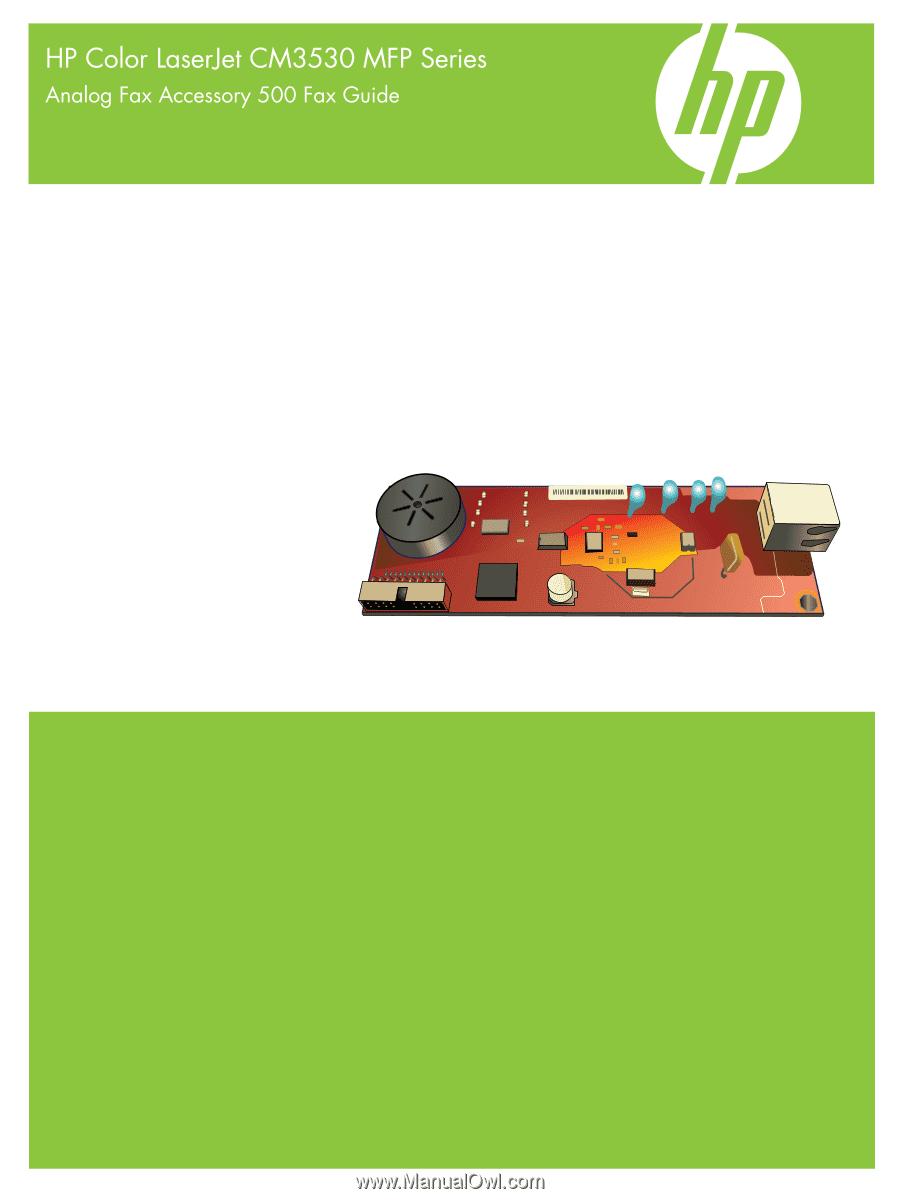
HP CM3530 HP Color LaserJet CM3530 MFP Series - Analog Fax Accessory 500 Fax G
HP CM3530 - Color LaserJet MFP Laser Manual
 |
UPC - 884420196501
View all HP CM3530 manuals
Add to My Manuals
Save this manual to your list of manuals |
HP CM3530 manual content summary:
- HP CM3530 | HP Color LaserJet CM3530 MFP Series - Analog Fax Accessory 500 Fax G - Page 1
- HP CM3530 | HP Color LaserJet CM3530 MFP Series - Analog Fax Accessory 500 Fax G - Page 2
- HP CM3530 | HP Color LaserJet CM3530 MFP Series - Analog Fax Accessory 500 Fax G - Page 3
HP Color LaserJet CM3530 MFP Series Analog Fax Accessory 500 Fax Guide - HP CM3530 | HP Color LaserJet CM3530 MFP Series - Analog Fax Accessory 500 Fax G - Page 4
to change without notice. The only warranties for HP products and services are set forth in the express warranty statements accompanying such products and services. Nothing herein should be construed as constituting an additional warranty. HP shall not be liable for technical or editorial errors - HP CM3530 | HP Color LaserJet CM3530 MFP Series - Analog Fax Accessory 500 Fax G - Page 5
1 Setup Introduction ...2 Conventions used in this guide ...3 HP LaserJet Analog Fax Accessory 500 features 4 Parts included settings Remote fax configuration ...12 Web browser ...12 HP Web Jetadmin ...12 HP MFP Digital Sending Software Configuration Utility 13 Send fax settings ...14 Set the - HP CM3530 | HP Color LaserJet CM3530 MFP Series - Analog Fax Accessory 500 Fax G - Page 6
faxes (incoming faxes 21 Set fit-to-page ...21 Set the paper tray ...22 Block incoming faxes ...22 Create a blocked-fax list 22 Remove numbers 30 Status message bar ...31 Send a fax ...32 Send a fax - enter numbers manually 32 Send a fax using speed dial 33 Search a speed-dial list by name 33 - HP CM3530 | HP Color LaserJet CM3530 MFP Series - Analog Fax Accessory 500 Fax G - Page 7
networks ...46 4 Solve fax problems Is your fax set up Troubleshooting menu 63 Settings in the Resets menu 64 Firmware upgrades ...65 Appendix A Service and support Hewlett-Packard limited warranty statement 68 Customer support ...69 Appendix B Specifications Fax accessory product specifications - HP CM3530 | HP Color LaserJet CM3530 MFP Series - Analog Fax Accessory 500 Fax G - Page 8
...76 Material restrictions ...76 Disposal of waste equipment by users in private households in the European Union ...... 76 For ...80 Industry Canada CS-03 requirements 80 EU Statement for Telecom Operation 81 New Zealand Telecom Statements ...82 EMI statement (Taiwan) ...83 VCCI statement (Japan - HP CM3530 | HP Color LaserJet CM3530 MFP Series - Analog Fax Accessory 500 Fax G - Page 9
1 Setup ● Introduction ● Conventions used in this guide ● HP LaserJet Analog Fax Accessory 500 features ● Parts included with the fax accessory ● Verify fax operation ● Required fax settings ENWW 1 - HP CM3530 | HP Color LaserJet CM3530 MFP Series - Analog Fax Accessory 500 Fax G - Page 10
the HP MFP Digital Sending Software User Guide or the HP MFP Digital Sending Software Support Guide. If both the analog fax accessory and the LAN fax are installed, only one fax can be enabled at a time. You should save this guide so that you can refer back to instructions on specific fax features - HP CM3530 | HP Color LaserJet CM3530 MFP Series - Analog Fax Accessory 500 Fax G - Page 11
Conventions used in this guide Throughout this guide, several tips, notes, cautions, and warnings alert you about important information. TIP: Tips provide helpful hints or shortcuts. NOTE: Notes provide important information to explain a concept or to complete a task. CAUTION: Cautions indicate - HP CM3530 | HP Color LaserJet CM3530 MFP Series - Analog Fax Accessory 500 Fax G - Page 12
HP LaserJet Analog Fax Accessory 500 features Send-fax features Receive-fax features Advanced fax features Remote fax configuration Security features ● Speed dials ● Fax address book ● Resolution and image Embedded Web server ● HP Web Jetadmin ● HP MFP Digital Sending Software ● PIN for fax - HP CM3530 | HP Color LaserJet CM3530 MFP Series - Analog Fax Accessory 500 Fax G - Page 13
(cords vary depending on the country/region) NOTE: The Send Fax Driver allows you to send a fax directly from your PC to a network connected MFP. Installation of this driver is optional. See the Send Fax Driver Guide on the CD for further instructions. ENWW Parts included with the fax accessory 5 - HP CM3530 | HP Color LaserJet CM3530 MFP Series - Analog Fax Accessory 500 Fax G - Page 14
is installed and operating correctly, the fax icon displays on the MFP control panel. If the fax accessory has just been installed but has not been configured, the fax icon is grayedout. If this occurs, use the instructions that follow to configure the fax accessory. 6 Chapter 1 Setup ENWW - HP CM3530 | HP Color LaserJet CM3530 MFP Series - Analog Fax Accessory 500 Fax G - Page 15
guide fax accessory might read some of these settings from the MFP; therefore, a value may already be set. You Fax Configuration Wizard The Fax Configuration Wizard guides you through a step-by-step procedure and the fax menu does not display. Only one fax feature, either LAN fax or analog fax, - HP CM3530 | HP Color LaserJet CM3530 MFP Series - Analog Fax Accessory 500 Fax G - Page 16
date and time The date and time setting for the fax accessory is the same value as the MFP date and time setting. If this is the first time you are turning on the MFP, you are prompted for this information. To verify or change the date and time settings, complete the - HP CM3530 | HP Color LaserJet CM3530 MFP Series - Analog Fax Accessory 500 Fax G - Page 17
7. Touch the text box to display the keyboard. 8. Using the keyboard, type the phone number, and then touch OK. 9. Touch Save to save the header phone number. 10. Touch Company Name and repeat the process. ENWW Required fax settings 9 - HP CM3530 | HP Color LaserJet CM3530 MFP Series - Analog Fax Accessory 500 Fax G - Page 18
10 Chapter 1 Setup ENWW - HP CM3530 | HP Color LaserJet CM3530 MFP Series - Analog Fax Accessory 500 Fax G - Page 19
2 Set fax settings ● Remote fax configuration ● Send fax settings ● Receive fax settings ● Set the error correction mode ● Set the modem volume ● Set the ringer volume ENWW 11 - HP CM3530 | HP Color LaserJet CM3530 MFP Series - Analog Fax Accessory 500 Fax G - Page 20
with a network-connected computer by using the HP MFP Digital Sending Software Configuration Utility (DSS). These tools provide access to or the Advanced Fax Settings sections. For information about a specific setting, select the context help next to the setting. 4. After you have made changes to - HP CM3530 | HP Color LaserJet CM3530 MFP Series - Analog Fax Accessory 500 Fax G - Page 21
you can also configure multiple devices. For more information about the HP MFP Digital Sending Software Configuration Utility, see the HP MFP Digital Sending Software User Guide or the HP MFP Digital Sending Software Support Guide. NOTE: Depending on the capabilities and settings of your fax method - HP CM3530 | HP Color LaserJet CM3530 MFP Series - Analog Fax Accessory 500 Fax G - Page 22
Send fax settings Set the dial tone detection The detect dial tone setting determines whether the fax checks for a dial tone before sending a fax. 1. On the control panel, scroll to and touch the Administration icon to open the Administration menu. 2. Scroll to touch Initial Setup to open the - HP CM3530 | HP Color LaserJet CM3530 MFP Series - Analog Fax Accessory 500 Fax G - Page 23
5. Touch Dialing Mode to see the dialing mode settings. 6. Touch Tone (default) to set the fax for tone dialing, or touch Pulse to set the fax for pulse dialing. 7. Touch Save. Set a dialing prefix The dialing prefix setting allows you to enter a prefix number (such as a "9" to access an outside - HP CM3530 | HP Color LaserJet CM3530 MFP Series - Analog Fax Accessory 500 Fax G - Page 24
redial settings (the first one at 26,400 bps and, if that fails, a second one at 14,400 bps). fax resolution setting determines the maximum resolution supported by the receiving fax. The fax lower dpi than previous MFP model default resolution settings. For example, previous MFP models had a default - HP CM3530 | HP Color LaserJet CM3530 MFP Series - Analog Fax Accessory 500 Fax G - Page 25
7. Touch Save. Set billing codes The billing-code setting, when enabled, prompts the user to enter a number when sending a fax. This number is placed in the billing , the preferred setting. However, JBIG might cause compatibility problems when communicating with some older fax machines, in which case - HP CM3530 | HP Color LaserJet CM3530 MFP Series - Analog Fax Accessory 500 Fax G - Page 26
Sharpness setting specifies the sharpness that the scanner uses when the MFP scans your original. Sharpness enhances the edges of the original sharpness of the image. 5. Touch OK to accept the setting. Change the background setting If you are faxing a document that is printed on colored paper, you - HP CM3530 | HP Color LaserJet CM3530 MFP Series - Analog Fax Accessory 500 Fax G - Page 27
Number Speed Dial Matching If this feature is enabled, the MFP tries to match any fax number entered with existing entries in about configuring the SMTP server, see the product user guide. Enable the Fax Archive feature 1. Open the one of these options: ● Archive to Fax Number ● Archive to - HP CM3530 | HP Color LaserJet CM3530 MFP Series - Analog Fax Accessory 500 Fax G - Page 28
6. Type the fax number in the Fax Archive Number: field. -orType the e-mail address in the Fax Archive Email Address: field. 7. In the When to Archive Faxes area, select one of these options: ● Send and Receive ● Send ● Receive 8. Click the OK button. 20 Chapter 2 Set fax settings ENWW - HP CM3530 | HP Color LaserJet CM3530 MFP Series - Analog Fax Accessory 500 Fax G - Page 29
NOTE: The default setting range for rings-to-answer is country/region-specific. 1. On the control panel, touch the Administration icon to open the received image is larger than that page size, the MFP attempts to scale the image to fit the page. If this setting is disabled, an incoming image larger - HP CM3530 | HP Color LaserJet CM3530 MFP Series - Analog Fax Accessory 500 Fax G - Page 30
5. Touch Enabled (default) to enable fit-to-page, or touch Disabled to disable fit-to-page. 6. Touch Save. Set the paper tray The paper tray setting selects the MFP paper tray to pull paper from for printing faxes. 1. On the control panel, scroll to and touch the Administration icon to open the - HP CM3530 | HP Color LaserJet CM3530 MFP Series - Analog Fax Accessory 500 Fax G - Page 31
is being held at the fax machine dialed, that fax is transmitted to the MFP and printed. If no fax is held, a No Fax is Available message will be displayed. If the fax machine does not support the polling feature, a Poll Invalid error message will be shown. Change notification settings Notification - HP CM3530 | HP Color LaserJet CM3530 MFP Series - Analog Fax Accessory 500 Fax G - Page 32
4. Select a notification setting: ● Touch None to turn off notification. ● Touch This job to enable notification for the current job. ● Touch On error to enable error notification only for the current job. 5. Touch Print to receive a printed notification, or touch E-mail to receive an e-mail - HP CM3530 | HP Color LaserJet CM3530 MFP Series - Analog Fax Accessory 500 Fax G - Page 33
sent again. You should turn off error correction only if you are having trouble sending or receiving a fax and if you are willing to accept the errors might be useful when you are trying to send a fax overseas or receive one from overseas, or if you are using a satellite telephone connection. 1. On - HP CM3530 | HP Color LaserJet CM3530 MFP Series - Analog Fax Accessory 500 Fax G - Page 34
Set the modem volume 1. On the control panel, scroll to and touch the Administration icon to open the Administration menu. 2. Scroll to and touch Initial Setup to display the Initial Setup menu. 3. Touch Fax Setup to display the Fax Setup menu. 4. Touch Fax Send Settings to display the Fax Send - HP CM3530 | HP Color LaserJet CM3530 MFP Series - Analog Fax Accessory 500 Fax G - Page 35
Set the ringer volume 1. On the control panel, scroll to and touch the Administration icon to open the Administration menu. 2. Scroll to and touch Initial Setup to display the Initial Setup menu. 3. Touch Fax Setup to display the Fax Setup menu. 4. Touch Fax Receive Settings to display the Fax - HP CM3530 | HP Color LaserJet CM3530 MFP Series - Analog Fax Accessory 500 Fax G - Page 36
28 Chapter 2 Set fax settings ENWW - HP CM3530 | HP Color LaserJet CM3530 MFP Series - Analog Fax Accessory 500 Fax G - Page 37
3 Use Fax ● Fax feature screen ● Status message bar ● Send a fax ● Cancel a fax ● Receive faxes ● Create or delete speed dial lists ● Voice Calls and Retries ● Secure settings ● Set fax forwarding ● Scheduling fax printing (memory lock) ● Use Fax over VoIP networks ENWW 29 - HP CM3530 | HP Color LaserJet CM3530 MFP Series - Analog Fax Accessory 500 Fax G - Page 38
List 4 Backspace/Delete Number 5 Status Message Bar 6 Access Phone Book 7 Speed Dial Search by Number 8 Alert Message - touch to display 9 Help - touch to display help selections 10 Speed Dial - Edit Key 11 Speed Dial - Search by Name 12 Speed Dial List (scroll to display other - HP CM3530 | HP Color LaserJet CM3530 MFP Series - Analog Fax Accessory 500 Fax G - Page 39
1 When the Recipient Number Entry Box is pressed, a pop up is displayed which includes the PIN button for adding special character brackets ([ ]) to hide a PIN number, and a Pause button to insert a comma for a two second pause. Figure 3-2 Recipient number entry box Status message bar While sending - HP CM3530 | HP Color LaserJet CM3530 MFP Series - Analog Fax Accessory 500 Fax G - Page 40
Send a fax To send a fax, you can use one of three basic methods to enter numbers: ● Enter numbers manually. ● Enter numbers using speed dial. ● Enter numbers using the phone book (available only if HP MFP Digital Sending Software Configuration Utility is installed and the phone book has been - HP CM3530 | HP Color LaserJet CM3530 MFP Series - Analog Fax Accessory 500 Fax G - Page 41
Start button on the control panel. 7. If the fax recipient number matches one or more saved speed dials, the matched speed dials are displayed and you "Would you like to keep your current settings?". If you press Yes, the MFP returns you to the Fax screen and the settings you made are retained. This - HP CM3530 | HP Color LaserJet CM3530 MFP Series - Analog Fax Accessory 500 Fax G - Page 42
To configure the MFP for use with the HP MFP Digital Sending Configuration software, see the HP MFP Digital Sending Software User Guide or the HP MFP Digital Sending Software Support Guide. Also, when Authentication is enabled from the HP MFP Digital Sending Configuration software, your personal fax - HP CM3530 | HP Color LaserJet CM3530 MFP Series - Analog Fax Accessory 500 Fax G - Page 43
search feature to complete a name search of the fax phone book that is supplied through the Digital Sending Service (DSS) and the Address Book Manager (ABM). Check the HP Web site to determine if firmware updates are available for your MFP model. NOTE: If you are not using DSS, the fax phone book - HP CM3530 | HP Color LaserJet CM3530 MFP Series - Analog Fax Accessory 500 Fax G - Page 44
Cancel a fax Cancel the current fax transmission The Cancel Current Transmission menu item only appears if an outgoing fax call is in progress. NOTE: The cancel operation may require up to 30 seconds to complete. 1. On the control panel, press the red Stop button to display the Cancel Fax menu. NOTE - HP CM3530 | HP Color LaserJet CM3530 MFP Series - Analog Fax Accessory 500 Fax G - Page 45
the following options: ● Selecting the number of rings-to-answer ● Printing date, time, and page number on faxes (stamp) ● Selecting input paper tray and destination bin ● Forwarding faxes to another number ● Blocking faxes from certain numbers ● Schedule the printing of faxes (memory lock) For - HP CM3530 | HP Color LaserJet CM3530 MFP Series - Analog Fax Accessory 500 Fax G - Page 46
Create or delete speed dial lists Speed dial allows you to assign a speed dial name to a single number or a group of numbers and then send a fax to that number or numbers by selecting the speed dial name. Create a speed dial list 1. On the control panel, touch the Fax icon to display the Fax screen. - HP CM3530 | HP Color LaserJet CM3530 MFP Series - Analog Fax Accessory 500 Fax G - Page 47
6. Touch OK to return to the Speed Dials screen. 7. Touch OK to return to the Fax screen. Add a number to an existing speed dial list 1. On the control panel, touch the Fax icon to display the Fax screen. 2. Touch Speed Dials to display the Speed Dial screen. 3. Touch the Speed Dial number of the - HP CM3530 | HP Color LaserJet CM3530 MFP Series - Analog Fax Accessory 500 Fax G - Page 48
60. NOTE: A Fax Call Report only generates Job numbers for final attempts. If one of these reports is printed manually from the menu and the last call was neither the final attempt nor a Voice a T.30 report to print. For more information, see Service settings on page 63. 40 Chapter 3 Use Fax ENWW - HP CM3530 | HP Color LaserJet CM3530 MFP Series - Analog Fax Accessory 500 Fax G - Page 49
must be used to access fax forwarding. Only one PIN can be created to access these secure HP Service Support for information about how to reset the PIN. For more information, see Customer support on type the new PIN (at least four digits), and then touch OK. 9. Using the keypad, confirm the new PIN, - HP CM3530 | HP Color LaserJet CM3530 MFP Series - Analog Fax Accessory 500 Fax G - Page 50
Set fax forwarding Use the forward fax setting to forward all received faxes to another fax number. When forward fax is enabled, the receiving MFP prints the fax (if fax printing is disabled, the fax prints when the printing is enabled), and also forwards the fax to the fax forward - HP CM3530 | HP Color LaserJet CM3530 MFP Series - Analog Fax Accessory 500 Fax G - Page 51
see the Retrieve Job menu description in the MFP user guide. NOTE: Retrieved stored faxes can be accessed one. NOTE: Always save your PIN in a secure place. If you loose your PIN, you must contact HP Service Support for information on how to reset the PIN. For more information, see Customer support - HP CM3530 | HP Color LaserJet CM3530 MFP Series - Analog Fax Accessory 500 Fax G - Page 52
Printing menu. If you do not have a PIN, you will be prompted to create one. 6. Touch Fax Printing Mode, then touch Use fax printing schedule. 7. Touch Create time or the print end time. To edit both, touch Back after editing one to return to the previous menu and then select the other. 8. Touch - HP CM3530 | HP Color LaserJet CM3530 MFP Series - Analog Fax Accessory 500 Fax G - Page 53
h. A prompt appears asking to apply the changes to all scheduled days. Touch Yes, to apply the changes to all scheduled days, or touch No to apply the changes only to the currently selected scheduled date. i. Touch Save. 9. Touch Print End Time to set the scheduled time when faxes will not print ( - HP CM3530 | HP Color LaserJet CM3530 MFP Series - Analog Fax Accessory 500 Fax G - Page 54
quality, so a fax transmission is more sensitive to a VoIP environment. The following are suggested changes in settings for the HP LaserJet Analog Fax Accessory 500 when it is connected to a VoIP service: ● Start off with the fax set in V.34 mode and with Error Correction Mode (ECM) turned on. The - HP CM3530 | HP Color LaserJet CM3530 MFP Series - Analog Fax Accessory 500 Fax G - Page 55
4 Solve fax problems ● Is your fax set up correctly? ● Check fax accessory status ● Fax feature is not operating ● General fax problems ● Problems with receiving faxes ● Problems with sending faxes ● Error codes ● Fax error messages ● Fax logs and reports ● Service settings ● Firmware upgrades ENWW - HP CM3530 | HP Color LaserJet CM3530 MFP Series - Analog Fax Accessory 500 Fax G - Page 56
help identify the cause of any fax related problems you are encountering: ● Are you using the phone cord supplied with the fax accessory? This fax accessory has been tested with the supplied phone cord to meet RJ11 specifications lines: A phone system feature where a new call "rolls over" to the next - HP CM3530 | HP Color LaserJet CM3530 MFP Series - Analog Fax Accessory 500 Fax G - Page 57
Does your phone line have a call-waiting feature? If the fax telephone line has an activated call-waiting feature, a call-waiting notice can interrupt a fax call in progress, which causes a communication error. Ensure that a call-waiting feature is not active on the fax telephone line. ENWW Is - HP CM3530 | HP Color LaserJet CM3530 MFP Series - Analog Fax Accessory 500 Fax G - Page 58
however, HP Digital Sending utility has either disabled the MFP fax feature or has enabled LAN fax. When LAN fax is enabled, the analog-fax feature is disabled. Only one fax feature, either LAN fax or analog fax, can be enabled at a time. NON-OPERATIONAL / ENABLED/DISABLED1 A firmware failure has - HP CM3530 | HP Color LaserJet CM3530 MFP Series - Analog Fax Accessory 500 Fax G - Page 59
HP MFP Digital Sending Software Configuration utility to enable the analog-fax feature. Check the fax accessory status, see Check fax accessory status on page 50. If the status is NON-OPERATIONAL, new firmware your HP service representative for service, see Customer support on page 69. The MFP is - HP CM3530 | HP Color LaserJet CM3530 MFP Series - Analog Fax Accessory 500 Fax G - Page 60
. Use the HP MFP Digital Sending Software Configuration utility to enable the phone book feature. one page, set the overlay header to page. overlay mode. Document stops feeding in the middle of There might be a jam in the ADF. faxing. If there is a jam, see the MFP user guide for instructions - HP CM3530 | HP Color LaserJet CM3530 MFP Series - Analog Fax Accessory 500 Fax G - Page 61
option. See Send a fax - enter numbers manually on page 32. If there is a poor phone MFP stops printing as soon as it is low on toner or runs out of toner. Any faxes received are stored in memory and print after the toner has been replaced. For other MFP printing problems, see the MFP user guide - HP CM3530 | HP Color LaserJet CM3530 MFP Series - Analog Fax Accessory 500 Fax G - Page 62
Faxes are not printing on the MFP. Cause The incoming fax was interrupted. Solution a fax error, no action is needed to be taken. Ensure that those calling feature. A call-waiting notice can interrupt a fax call in progress, which causes a communication error. 54 Chapter 4 Solve fax problems ENWW - HP CM3530 | HP Color LaserJet CM3530 MFP Series - Analog Fax Accessory 500 Fax G - Page 63
with sending faxes Problem Cause Solution Faxes quit during sending. The fax machine to which you are sending might be malfunctioning. Try sending to the fax log. Print the fax activity log, and check the Result column for jobs with a Pending designation. ENWW Problems with sending faxes 55 - HP CM3530 | HP Color LaserJet CM3530 MFP Series - Analog Fax Accessory 500 Fax G - Page 64
report, and the T.30 Protocol Trace (see Service settings on page 63). Print one of these three reports to obtain the error code. A detailed description of the error codes and the appropriate action can be found at www.hp.com by searching for HP LaserJet Analog Fax Accessory 500. 56 Chapter 4 Solve - HP CM3530 | HP Color LaserJet CM3530 MFP Series - Analog Fax Accessory 500 Fax G - Page 65
HP LaserJet on the MFP control panel; support to help identify the problem. The detailed fax listing is called a Fax T.30 Trace and can be printed for the last fax, or it can be set to print whenever a fax error occurs. To print or configure the Fax T.30 Trace, touch Administration, Troubleshooting - HP CM3530 | HP Color LaserJet CM3530 MFP Series - Analog Fax Accessory 500 Fax G - Page 66
was cancelled by user at None. control panel of MFP. Fax sent successfully , contact service. to MFP. Lost service. Unable to read or write the fax image file to disk; could be corrupt MFP disk or no space available on the MFP's disk. Try resending fax; if the error persists, contact service - HP CM3530 | HP Color LaserJet CM3530 MFP Series - Analog Fax Accessory 500 Fax G - Page 67
or did not proceed as expected. Have fax resent; if the error persists, contact service. Unable to read or write image Have fax resent; if the error file to disk; could be corrupt persists, contact service. MFP disk or no space on disk. Incompatible page width or Have fax resent; if the - HP CM3530 | HP Color LaserJet CM3530 MFP Series - Analog Fax Accessory 500 Fax G - Page 68
printed indication other than the touchscreen status-bar message, that a fax failed to be transmitted unless you print a fax activity log. 60 Chapter 4 Solve fax problems ENWW - HP CM3530 | HP Color LaserJet CM3530 MFP Series - Analog Fax Accessory 500 Fax G - Page 69
from the log). The database fax entries include any fax session as an entry. For example, a fax session could be a sent fax, received fax, or firmware upgrades. Depending on the activity, there might be fewer than 500 entries in the report (unless you sent 500 faxes without receiving any faxes or - HP CM3530 | HP Color LaserJet CM3530 MFP Series - Analog Fax Accessory 500 Fax G - Page 70
steps. 1. On the control panel, touch the Administration icon to open the Fax menu. 2. Scroll to and touch Resets to open the menu. 3. Scroll to and touch Clear Fax Activity Log. 4. Touch Yes to clear all entries . 4. Touch Speed Dial List to print the report. 62 Chapter 4 Solve fax problems ENWW - HP CM3530 | HP Color LaserJet CM3530 MFP Series - Analog Fax Accessory 500 Fax G - Page 71
other information that might be useful in troubleshooting a particular problem related to sending or receiving a FAX. The report contents might be requested by an HP service representative when trying to determine the cause of a problem and will help to determine the appropriate action. (For error - HP CM3530 | HP Color LaserJet CM3530 MFP Series - Analog Fax Accessory 500 Fax G - Page 72
to select (negotiate with the other modem) any of the supported baud rates up to 33,600 bps. The Off setting sets the baud rate to 14,400 bps. This setting remains set, until changed. Speaker mode: This service setting has two modes, Normal and Diagnostic. In Normal mode, the modem speaker is - HP CM3530 | HP Color LaserJet CM3530 MFP Series - Analog Fax Accessory 500 Fax G - Page 73
Firmware upgrades The firmware on the fax accessory can be updated. Fax firmware updates occur as part of an overall product firmware update. See the product user guide for more information. ENWW Firmware upgrades 65 - HP CM3530 | HP Color LaserJet CM3530 MFP Series - Analog Fax Accessory 500 Fax G - Page 74
66 Chapter 4 Solve fax problems ENWW - HP CM3530 | HP Color LaserJet CM3530 MFP Series - Analog Fax Accessory 500 Fax G - Page 75
A Service and support ● Hewlett-Packard limited warranty statement ● Customer support ENWW 67 - HP CM3530 | HP Color LaserJet CM3530 MFP Series - Analog Fax Accessory 500 Fax G - Page 76
new or equivalent in performance to new. HP warrants to you that HP software will not fail to execute its programming instructions HP has a support presence for this product and where HP has marketed this product. The level of warranty service you receive may vary according to local standards. HP - HP CM3530 | HP Color LaserJet CM3530 MFP Series - Analog Fax Accessory 500 Fax G - Page 77
Country/region phone numbers are on the flyer that was in the your country/region box with your product or at www.hp.com/support/. Have the product name, serial number, date of purchase, and problem description ready. Get 24-hour Internet support www.hp.com/go/mfpfaxaccessory500 ENWW Customer - HP CM3530 | HP Color LaserJet CM3530 MFP Series - Analog Fax Accessory 500 Fax G - Page 78
70 Appendix A Service and support ENWW - HP CM3530 | HP Color LaserJet CM3530 MFP Series - Analog Fax Accessory 500 Fax G - Page 79
B Specifications ● Fax accessory product specifications ● Replacement parts and accessories ENWW 71 - HP CM3530 | HP Color LaserJet CM3530 MFP Series - Analog Fax Accessory 500 Fax G - Page 80
Fax accessory product specifications Environmental specifications Operating environment Storage environment Fax specifications Fax compatibility Phone connector Compression methods Transmission speeds and standards supported Modem speed Speed dialing Fax resolution, (send and receive) ● - HP CM3530 | HP Color LaserJet CM3530 MFP Series - Analog Fax Accessory 500 Fax G - Page 81
Replacement parts and accessories You can obtain replacement parts for the fax accessory by contacting your sales representative or your Hewlett-Packard dealer. ENWW Replacement parts and accessories 73 - HP CM3530 | HP Color LaserJet CM3530 MFP Series - Analog Fax Accessory 500 Fax G - Page 82
74 Appendix B Specifications ENWW - HP CM3530 | HP Color LaserJet CM3530 MFP Series - Analog Fax Accessory 500 Fax G - Page 83
products (US) ● Telephone Consumer Protection Act (US) ● Canadian DOC regulations ● Industry Canada CS-03 requirements ● EU Statement for Telecom Operation ● New Zealand Telecom Statements ● EMI statement (Taiwan) ● VCCI statement (Japan) ● EMI statement (Korea) ● Substances Table (China) ENWW 75 - HP CM3530 | HP Color LaserJet CM3530 MFP Series - Analog Fax Accessory 500 Fax G - Page 84
HP product does not contain added mercury. This HP product does not contain a battery. Disposal of waste equipment by users collection point for the recycling of waste electrical and electronic equipment. The separate collection and recycling of your waste equipment at the time of disposal will help - HP CM3530 | HP Color LaserJet CM3530 MFP Series - Analog Fax Accessory 500 Fax G - Page 85
Name: HP Analog Fax Accessory 500 Regulatory Model Number:2) Product Options BOISB-0703-00 All conforms to the following Product Specifications: Safety environment this product may cause radio interference in which case the user may be required to take adequate measures." 4) Telecom approvals - HP CM3530 | HP Color LaserJet CM3530 MFP Series - Analog Fax Accessory 500 Fax G - Page 86
instruction manual, may cause harmful interference to radio communications. Operation of this equipment in a residential area is likely to cause harmful interference in which case the user or modifications to the printer that are not expressly approved by HP could void the user's authority to operate - HP CM3530 | HP Color LaserJet CM3530 MFP Series - Analog Fax Accessory 500 Fax G - Page 87
for you to make the necessary modifications in order to maintain uninterrupted service. If trouble is experienced with this equipment, please see the numbers in this manual for repair and (or) warranty information. If the trouble is causing harm to the telephone network, the telephone company may - HP CM3530 | HP Color LaserJet CM3530 MFP Series - Analog Fax Accessory 500 Fax G - Page 88
compliance with the above conditions may not prevent degradation of service in some situations. Repairs to certified equipment should be coordinated by a representative designated by the supplier. Any repairs or alterations made by the user to this equipment, or equipment malfunctions, may give the - HP CM3530 | HP Color LaserJet CM3530 MFP Series - Analog Fax Accessory 500 Fax G - Page 89
customer in preparation of its connection to the PSTN. Please follow the instructions provided in the user manual. If you experience network compatibility issues, please contact your equipment supplier or HewlettPackard help desk in the country/region of operation. Connecting to a PSTN termination - HP CM3530 | HP Color LaserJet CM3530 MFP Series - Analog Fax Accessory 500 Fax G - Page 90
device connected to the same line. This equipment shall not be set up to make automatic calls to the Telecom "111" Emergency Service. This product has not been tested to ensure compatibility with the FaxAbility distinctive ring service for New Zealand. 82 Appendix C Regulatory information ENWW - HP CM3530 | HP Color LaserJet CM3530 MFP Series - Analog Fax Accessory 500 Fax G - Page 91
EMI statement (Taiwan) VCCI statement (Japan) EMI statement (Korea) ENWW EMI statement (Taiwan) 83 - HP CM3530 | HP Color LaserJet CM3530 MFP Series - Analog Fax Accessory 500 Fax G - Page 92
Substances Table (China) 84 Appendix C Regulatory information ENWW - HP CM3530 | HP Color LaserJet CM3530 MFP Series - Analog Fax Accessory 500 Fax G - Page 93
colored 12 contacting HP 69 conventions, document 3 country/region 8 customer support 69 D 12 end-of-life disposal 76 environmental specifications 72 error codes 56 error correction mode FCC regulations 78 features, description 4 feeding problems 52 firmware upgrades 65 fit-to-page 21 forwarding - HP CM3530 | HP Color LaserJet CM3530 MFP Series - Analog Fax Accessory 500 Fax G - Page 94
mercury-free product 76 MFP. See multifunction product modem speed 53, 72 multifunction product 1 N not configured 7 notes 3 notification settings 23 O overlay header setting 14 P paper tray selection 22 parts 5 pause, when dialing 32 PBX systems troubleshooting 55 phone book 34 phone lines - HP CM3530 | HP Color LaserJet CM3530 MFP Series - Analog Fax Accessory 500 Fax G - Page 95
- HP CM3530 | HP Color LaserJet CM3530 MFP Series - Analog Fax Accessory 500 Fax G - Page 96
-
 1
1 -
 2
2 -
 3
3 -
 4
4 -
 5
5 -
 6
6 -
 7
7 -
8
-
9
-
10
-
11
-
12
-
13
-
14
-
15
-
16
-
17
-
18
-
19
-
20
-
21
-
22
-
23
-
24
-
25
-
26
-
27
-
28
-
29
-
30
-
31
-
32
-
33
-
34
-
35
-
36
-
37
-
38
-
39
-
40
-
41
-
42
-
43
-
44
-
45
-
46
-
47
-
48
-
49
-
50
-
51
-
52
-
53
-
54
-
55
-
56
-
57
-
58
-
59
-
60
-
61
-
62
-
63
-
64
-
65
-
66
-
67
-
68
-
69
-
70
-
71
-
72
-
73
-
74
-
75
-
76
-
77
-
78
-
79
-
80
-
81
-
82
-
83
-
84
-
85
-
86
-
87
-
88
-
89
-
90
-
91
-
92
-
93
-
94
-
95
-
96
 |
 |