
Kyocera TASKalfa 3050ci 3050ci/3550ci/4550ci/5550ci Operation Guide Rev-2.2011
Kyocera TASKalfa 3050ci Manual
 |
View all Kyocera TASKalfa 3050ci manuals
Add to My Manuals
Save this manual to your list of manuals |
Kyocera TASKalfa 3050ci manual content summary:
- Kyocera TASKalfa 3050ci | 3050ci/3550ci/4550ci/5550ci Operation Guide Rev-2.2011 - Page 1
3T0A5S0Kcai /lfa3550ci 4550ci / 5550ci OPERATION GUIDE - Kyocera TASKalfa 3050ci | 3050ci/3550ci/4550ci/5550ci Operation Guide Rev-2.2011 - Page 2
Guide (This Guide) • FAX Operation Guide • Card Authentication Kit (B) Operation Guide • Data Security Kit (E) Operation Guide • Command Center RX Operation Guide • Printer Driver User Guide • Network FAX Driver Operation Guide • KM-NET for Direct Printing Operation Guide • KMnet Viewer User Guide - Kyocera TASKalfa 3050ci | 3050ci/3550ci/4550ci/5550ci Operation Guide Rev-2.2011 - Page 3
in This Guide The sections of this guide and parts of the machine marked with symbols are safety warnings meant to protect the user, other Please contact your service representative to order a replacement if the safety warnings in this Operation Guide are illegible or if the guide itself is missing - Kyocera TASKalfa 3050ci | 3050ci/3550ci/4550ci/5550ci Operation Guide Rev-2.2011 - Page 4
BEAM (USA xxvi Safety Instructions Regarding the Disconnection of Power xxvii Legal Restriction on Copying/Scanning xxix Legal and Safety Information Operation Login/Logout 3-2 Enter key and Quick No. Search key 3-4 Touch Panel Display 3-5 Original Preview 3-6 Selecting Color Mode - Kyocera TASKalfa 3050ci | 3050ci/3550ci/4550ci/5550ci Operation Guide Rev-2.2011 - Page 5
32 EcoPrint 4-34 Single Color 4-34 Color Balance 4-35 Hue Scan 4-43 Auto Image Rotation 4-44 Negative Image 4-44 Mirror Image 4-45 Job Finish Notice 4-46 File Name Entry 4-48 Priority Override 4-48 Repeat Copy 4-49 OHP Backing Sheet 4-51 5 Printing Printing - Printing - Kyocera TASKalfa 3050ci | 3050ci/3550ci/4550ci/5550ci Operation Guide Rev-2.2011 - Page 6
for Waiting Jobs 8-12 Reordering Print Jobs 8-12 Checking the Remaining Amount of Toner and Paper (Paper/Supplies 8-13 Device/Communication 8-14 9 Default Setting (System Menu) Common Settings 9-2 Copy 9-41 Send 9-44 Document Box/Removable Memory 9-53 Printer 9-55 Report 9-62 - Kyocera TASKalfa 3050ci | 3050ci/3550ci/4550ci/5550ci Operation Guide Rev-2.2011 - Page 7
(Enlarged Touch Panel Display 9-110 10 Management User Login Setting 10-2 Job Accounting Setting 10-20 11 Maintenance Regular Maintenance 11-2 Cleaning 11-15 12 Troubleshooting Solving Malfunctions 12-2 Responding when Error Messages 12-8 Clearing Paper Jams 12-22 Appendix - Kyocera TASKalfa 3050ci | 3050ci/3550ci/4550ci/5550ci Operation Guide Rev-2.2011 - Page 8
) Install the printer driver on your computer *1 Loading Paper...2-27 Placing Originals on the Platen...2-44 Operation Copying Functions ...4-1 Printing Documents Stored in Removable USB Memory... 7-22 *1: For more information, refer to the Printer Driver User Guide. vi Printing Printing from - Kyocera TASKalfa 3050ci | 3050ci/3550ci/4550ci/5550ci Operation Guide Rev-2.2011 - Page 9
Administrator tasks To send documents You can send scanned images via a network. Or, you can also store scanned images in USB memory. It sends. What you want to do Send as E-mail Send to Folder (SMB) Saving Documents to USB Memory Connecting Cables Network Setup (LAN Cable Connection) Plug in - Kyocera TASKalfa 3050ci | 3050ci/3550ci/4550ci/5550ci Operation Guide Rev-2.2011 - Page 10
(Basic)...3-1 on the FAX System (V) Operation Guide About Network FAX...9-1 on the FAX System (V) Operation Guide Internet Fax (i-FAX) (Optional)...8-1 on the FAX System (V) Operation Guide *1:For more information, refer to the Network FAX Driver Operation Guide. *2: If the destination is - Kyocera TASKalfa 3050ci | 3050ci/3550ci/4550ci/5550ci Operation Guide Rev-2.2011 - Page 11
4-11) Collate/Offset (page 3-15) Staple/Punch Staple (page 3-19) Punch (page 3-21) Paper Output (page 4-13) Density (page 3-9) Original Image (page 3-10) Color Selection Auto Color (page 3-7) Full Color (page 3-7) Black & White (page 3-7) Single Color (page 4-34) EcoPrint (page 4-34 - Kyocera TASKalfa 3050ci | 3050ci/3550ci/4550ci/5550ci Operation Guide Rev-2.2011 - Page 12
Repeat (page 4-29) Text Stamp (page 4-31) Bates Stamp (page 4-32) Continuous Scan (page 4-43) Auto Image Rotation (page 4-44) Negative Image (page 4-44) Mirror 24) Folder Path Entry (page 3-25) FAX No. Entry (refer to Fax Operation Guide) i-FAX Addr Entry (refer to Fax Operation Guide) WSD Scan ( - Kyocera TASKalfa 3050ci | 3050ci/3550ci/4550ci/5550ci Operation Guide Rev-2.2011 - Page 13
Guide) Density (page 6-19) Original Image (page 6-18) Scan Resolution (page 6-20) FAX TX Resolution (refer to Fax Operation Guide) Color refer to Fax Operation Guide) FAX Direct Transmission (refer to Fax Operation Guide) FAX Polling RX (refer to Fax Operation Guide) Send and Print (page 6-36) Send - Kyocera TASKalfa 3050ci | 3050ci/3550ci/4550ci/5550ci Operation Guide Rev-2.2011 - Page 14
(page 6-19) Original Image (page 6-18) Scan Resolution (page 6-20) Color Selection (page 6-23) Sharpness (page 6-21) Scan (page 6-24) Job Finish Notice (page 6-35) File Name Entry (page 6-28) Open Print Functions Paper Selection (page 4-3) Collate/Offset (page 3-15) Staple/Punch Staple - Kyocera TASKalfa 3050ci | 3050ci/3550ci/4550ci/5550ci Operation Guide Rev-2.2011 - Page 15
(page 3-10) Color Selection (page 6-23) Sharpness (page 4-39) Background Density Adj. (page 4-40) Prevent Bleed-thru (page 4-42) Destination (page 3-40) Functions Sending Size (page 6-4) File Format (page 6-14) FAX TX Resolution (refer to Fax Operation Guide) Centering (page 6-7) FAX - Kyocera TASKalfa 3050ci | 3050ci/3550ci/4550ci/5550ci Operation Guide Rev-2.2011 - Page 16
Original Orientation (page 6-12) Storing Size (page 7-4) Prevent Bleed-thru (page 6-25) Density (page 6-19) Original Image (page 6-18) Scan Resolution (page 6-20) Color Selection (page 6-23) Sharpness (page 6-21) Background Density Adj. (page 6-22) Zoom (page 6-6) Centering (page 6-7) xiv - Kyocera TASKalfa 3050ci | 3050ci/3550ci/4550ci/5550ci Operation Guide Rev-2.2011 - Page 17
4-31) Bates Stamp (page 4-32) Encrypted PDF Password (page 7-23) JPEG/TIFF Print (page 7-23) XPS Fit to Page (page 7-23) Color/ Image Quality Color Selection (page 6-23) FAX Box (refer to Fax Operation Guide) Program (page 3-56) Printing Jobs (page 8-3) Sending Jobs (page 8-5) Storing Jobs - Kyocera TASKalfa 3050ci | 3050ci/3550ci/4550ci/5550ci Operation Guide Rev-2.2011 - Page 18
9-13) Punch Waste Full Error (page 9-14) Paper Mismatch Error (page 9-14) Inserted Paper Mismatch (page 9-14) Paper Jam before Staple (page 9-14) Paper Output (page 9-15) Orientation Confirmation (page 9-16) Color Toner Empty Action (page 9-16) Function Defaults Original Orientation (page - Kyocera TASKalfa 3050ci | 3050ci/3550ci/4550ci/5550ci Operation Guide Rev-2.2011 - Page 19
9-27) XPS Fit to Page (page 9-27) Continuous Scan (page 9-27) PDF/A (page 9-28) File Name Entry (page 9-28) E-mail Subject/Body (page 9-29) Repeat Copy (page 9-29) USB Keyboard Type (page 9-30) System Stamp (page 9-30) Manual Staple (page 9-39) Customize Status Display (page 9-40) Low Toner Alert - Kyocera TASKalfa 3050ci | 3050ci/3550ci/4550ci/5550ci Operation Guide Rev-2.2011 - Page 20
Check for New Dest. (page 9-45) Color Type (page 9-45) Default Screen (page 9-46) Send and Forward (page Guide) Quick Setup Registration (page 9-54) FAX (refer to Fax Operation Guide) Printer Emulation (page 9-55) Color Setting (page 9-56) Gloss Mode (page 9-56) EcoPrint (page 9-57) Toner - Kyocera TASKalfa 3050ci | 3050ci/3550ci/4550ci/5550ci Operation Guide Rev-2.2011 - Page 21
page 9-97) WSD Scan (page 9-98) WSD Print (page 9-98) Enhanced WSD (page 9-98) Enhanced WSD (SSL) (page 9-99) Secure Protocol SSL (page 9-99) IPP Security (page 9-100) HTTP Security (page 9-100) LDAP Security (page 9-101) SMTP Security (page 9-101) POP3 Security (User 1) (page 9-102) POP3 - Kyocera TASKalfa 3050ci | 3050ci/3550ci/4550ci/5550ci Operation Guide Rev-2.2011 - Page 22
) Error Job Skip (page 9-78) Error Clear System Initialization (page 9-68) Display Brightness (page 9-69) Silent Mode (page 9-69) Auto Color Correction (page 9-69) Color Print Position (page 9-73) Print Report Status Page (page 9-62) Font List (page 9-62) Network Status (page 9-63) Service - Kyocera TASKalfa 3050ci | 3050ci/3550ci/4550ci/5550ci Operation Guide Rev-2.2011 - Page 23
65) Address Book (page 9-79) One Touch Key (page 9-83) Print List (refer to Fax Operation Guide) Address Book Defaults Sort (page 9-85) Narrow Down (page 9-85) User Login Setting User Login (page 10-2) Local User List (page 10-5) Local Authorization (page 10-9) Group Group Authorization - Kyocera TASKalfa 3050ci | 3050ci/3550ci/4550ci/5550ci Operation Guide Rev-2.2011 - Page 24
Default Setting Unknown ID Job (page 10-10) User Property(page 10-9) Application (page 9-109) Internet (page 9-86) Apply Limit (page 10-26) Copy/Printer Count (page 10-24) Default Counter Limit (page 10-26) Count by Paper Size (page 10-30) xxii - Kyocera TASKalfa 3050ci | 3050ci/3550ci/4550ci/5550ci Operation Guide Rev-2.2011 - Page 25
Environment The service environmental conditions are as follows: • Temperature: 50 to 90.5 °F (10 to 32.5 °C) (But humidity the humidity of your room if the message is displayed. • Avoid locations near a window or with exposure to direct sunlight. • Avoid locations with vibrations. • Avoid locations - Kyocera TASKalfa 3050ci | 3050ci/3550ci/4550ci/5550ci Operation Guide Rev-2.2011 - Page 26
. Do not attempt to force open or destroy the toner container or the waste toner box. Other precautions Return the exhausted toner container and waste toner box to your dealer or service representative. The collected toner container and waste toner box will be recycled or disposed in accordance with - Kyocera TASKalfa 3050ci | 3050ci/3550ci/4550ci/5550ci Operation Guide Rev-2.2011 - Page 27
/EN 60825-1:2007. Caution: Performance of procedures other than those specified in this manual may result in hazardous radiation exposure. These labels are attached to the laser scanner unit inside the machine and are not in a user access area. The label shown below is attached on the right side of - Kyocera TASKalfa 3050ci | 3050ci/3550ci/4550ci/5550ci Operation Guide Rev-2.2011 - Page 28
Services) in 1968. This indicates that the product is safe to use during normal operation and maintenance. The laser optical system on the right. 3050ci 3550ci 4550ci 5550ci 3. Optical unit When checking service personnel, follow the maintenance instructions in the other section of this manual. - Kyocera TASKalfa 3050ci | 3050ci/3550ci/4550ci/5550ci Operation Guide Rev-2.2011 - Page 29
some countries the radio tag technology used in this equipment to identify the toner container may be subject to authorization and the use of this equipment may consequently be restricted. Other precautions (for users in California, the United States) This product contains a CR Coin Lithium Battery - Kyocera TASKalfa 3050ci | 3050ci/3550ci/4550ci/5550ci Operation Guide Rev-2.2011 - Page 30
(the United States) 3050ci/3550ci/4550ci/5550ci MULTIFUNCTIONAL PRODUCT LIMITED WARRANTY Kyocera Mita America, Inc. and Kyocera Mita Canada, Ltd. (both referred to as "Kyocera") warrant the Customer's new color Multifunctional Product (referred to as "MFP"), and the new accessories installed with - Kyocera TASKalfa 3050ci | 3050ci/3550ci/4550ci/5550ci Operation Guide Rev-2.2011 - Page 31
Legal Restriction on Copying/Scanning It may be prohibited to copy/scan copyrighted material without permission of the copyright owner. Copying/Scanning the following items is prohibited and may be penalized by law. It may not be limited to these items. Do not knowingly copy/scan the items that are - Kyocera TASKalfa 3050ci | 3050ci/3550ci/4550ci/5550ci Operation Guide Rev-2.2011 - Page 32
Trade Names xxxi • Energy Saving Control Function xxxviii • Automatic 2-Sided Copy Function xxxviii • Paper Recycling xxxviii • Energy Star (ENERGY STAR®) Program xxxviii • About this Operation Guide xxxix xxx - Kyocera TASKalfa 3050ci | 3050ci/3550ci/4550ci/5550ci Operation Guide Rev-2.2011 - Page 33
part of this guide without the prior written consent of Kyocera Mita Corporation is prohibited. Regarding Trade Names • PRESCRIBE and KPDL are trademarks of Kyocera Corporation. • Microsoft, Windows, Windows XP, Windows Server 2003, Windows Vista, Windows Server 2008, Windows 7 and Internet Explorer - Kyocera TASKalfa 3050ci | 3050ci/3550ci/4550ci/5550ci Operation Guide Rev-2.2011 - Page 34
lgpl.html) software as part of its firmware. You can get the source code, and you are permitted to copy, redistribute and modify it under the terms DAMAGES (INCLUDING, BUT NOT LIMITED TO, PROCUREMENT OF SUBSTITUTE GOODS OR SERVICES; LOSS OF USE, DATA, OR PROFITS; OR BUSINESS INTERRUPTION) HOWEVER - Kyocera TASKalfa 3050ci | 3050ci/3550ci/4550ci/5550ci Operation Guide Rev-2.2011 - Page 35
:-). 4 If you include any Windows specific code (or a derivative thereof) from the apps directory (application code) you must include an acknowledgment DAMAGES (INCLUDING, BUT NOT LIMITED TO, PROCUREMENT OF SUBSTITUTE GOODS OR SERVICES; LOSS OF USE, DATA, OR PROFITS; OR BUSINESS INTERRUPTION) HOWEVER - Kyocera TASKalfa 3050ci | 3050ci/3550ci/4550ci/5550ci Operation Guide Rev-2.2011 - Page 36
to use the Fonts on up to three printers. If you need to have access to the fonts on more than three printers, you need to acquire a multiuser license agreement does not warrant that the Software is free from all bugs, errors and omissions. The parties agree that all other warranties, expressed or - Kyocera TASKalfa 3050ci | 3050ci/3550ci/4550ci/5550ci Operation Guide Rev-2.2011 - Page 37
are met: - Redistributions of source code must retain the above copyright notice, this NOT LIMITED TO, PROCUREMENT OF SUBSTITUTE GOODS OR SERVICES; LOSS OF USE, DATA, OR PROFITS; OR "Licensor" shall mean the copyright owner or entity authorized by the copyright owner that is granting the License. - Kyocera TASKalfa 3050ci | 3050ci/3550ci/4550ci/5550ci Operation Guide Rev-2.2011 - Page 38
of the copyright owner. For the purposes of this definition, "submitted" means any form of electronic, verbal, or written communication sent to the Licensor or its representatives, including but not limited to communication on electronic mailing lists, source code control systems, and issue tracking - Kyocera TASKalfa 3050ci | 3050ci/3550ci/4550ci/5550ci Operation Guide Rev-2.2011 - Page 39
to use the trade names, trademarks, service marks, or product names of the Licensor charge a fee for, acceptance of support, warranty, indemnity, or other liability printed page" as the copyright notice for easier identification within third-party archives. Copyright [yyyy] [name of copyright owner - Kyocera TASKalfa 3050ci | 3050ci/3550ci/4550ci/5550ci Operation Guide Rev-2.2011 - Page 40
of paper used. For more information see Duplex on page 3-13. Paper Recycling This device supports the recycled paper which reduces the load on the environment. Your sales or service representative can provide information about recommended paper types. Energy Star (ENERGY STAR®) Program We have - Kyocera TASKalfa 3050ci | 3050ci/3550ci/4550ci/5550ci Operation Guide Rev-2.2011 - Page 41
- Default Setting (System Menu) Describes the System Menu options for general machine operation. Chapter 10 - Management Explains user login administration and job accounting. Chapter 11 - Maintenance Describes cleaning and toner replacement. Chapter 12 - Troubleshooting Explains how to handle error - Kyocera TASKalfa 3050ci | 3050ci/3550ci/4550ci/5550ci Operation Guide Rev-2.2011 - Page 42
reference. Indicates items that are required or prohibited so as to avoid problems. NOTE: IMPORTANT: Indicates what must be observed to prevent injury or it. CAUTION: Description of Operation Procedure In this Operation Guide, continuous operation of the keys on the touch panel is as follows - Kyocera TASKalfa 3050ci | 3050ci/3550ci/4550ci/5550ci Operation Guide Rev-2.2011 - Page 43
Originals and Paper Sizes This section explains the notation used in this guide when referring to sizes of originals or paper sizes. As with A4, B5 and Letter, which may be used either in the horizontal or vertical - Kyocera TASKalfa 3050ci | 3050ci/3550ci/4550ci/5550ci Operation Guide Rev-2.2011 - Page 44
xlii - Kyocera TASKalfa 3050ci | 3050ci/3550ci/4550ci/5550ci Operation Guide Rev-2.2011 - Page 45
1 Part Names This chapter identifies the machine parts and operation panel keys. • Operation Panel 1-2 • Machine 1-4 1-1 - Kyocera TASKalfa 3050ci | 3050ci/3550ci/4550ci/5550ci Operation Guide Rev-2.2011 - Page 46
in the Copy screen or Send screen. Displays help guidance. Returns settings to their default states. Displays the System Menu. Displays number of sheets printed and number of pages scanned. Lights or blinks when an error occurs and a job is stopped. Blinks while the machine is accessing the hard - Kyocera TASKalfa 3050ci | 3050ci/3550ci/4550ci/5550ci Operation Guide Rev-2.2011 - Page 47
. Lit when the machine's main power is on. Scans all documents in black & white. Scans all documents in full color. Automatically recognizes whether a document is color or black & white and then scans the document. Perform user switching authentication and logout. Displays the Interrupt Copy - Kyocera TASKalfa 3050ci | 3050ci/3550ci/4550ci/5550ci Operation Guide Rev-2.2011 - Page 48
Machine Part Names 1 2 3 5-h 4 5-b 5-c 5-d 5-a 5-e 5 5-f 5-g 5-j 5-i 1 Platen Cover (Option) 2 Mailbox (Option) 3 Front Cover 4 Document Finisher (Option) 5 Cassette 1 to 7 (Cassette 3 to 7 are Options) • 5-a: Cassette 1 • 5-b: Cassette 2 • 5-c: Cassette 3 • 5-d: Cassette 4 • 5-e: - Kyocera TASKalfa 3050ci | 3050ci/3550ci/4550ci/5550ci Operation Guide Rev-2.2011 - Page 49
(A2) 8 USB Interface Connector (B1) 9 Option Interface 10 Original Size Indicator Plates 11 Slit Glass 12 Toner Container (Black) 13 Toner Container (Magenta) 14 Toner Container (Cyan) 15 Toner Container (Yellow) 16 Document Processor (Option) 17 Platen 18 Clip Holder 19 Operation Panel 20 Handles - Kyocera TASKalfa 3050ci | 3050ci/3550ci/4550ci/5550ci Operation Guide Rev-2.2011 - Page 50
31 32 35 36 37 38 33 39 40 41 34 26 Paper Length Guide 27 (Paper Width Guide) Lock 28 Inner Tray 29 USB Port (A1) 30 Right Cover 1 Lever Right Cover 2 Lever 36 Right Cover 2 37 Paper Width Guide 38 Support Tray Section of the Multi Purpose Tray 39 Multi Purpose Tray 40 Right Cover 3 Lever 41 Right - Kyocera TASKalfa 3050ci | 3050ci/3550ci/4550ci/5550ci Operation Guide Rev-2.2011 - Page 51
2 Preparation before Use This chapter explains the preparations before using this equipment for the first time as well as the procedures for loading paper and originals. • Check the Accessories 2-2 • Determining the Connection Method and Preparing Cables 2-3 • Connecting Cables 2-5 • Power On/Off - Kyocera TASKalfa 3050ci | 3050ci/3550ci/4550ci/5550ci Operation Guide Rev-2.2011 - Page 52
Operation Guide (This Guide) FAX Operation Guide Card Authentication Kit (B) Operation Guide Data Security Kit (E) Operation Guide Command Center RX Operation Guide Printer Driver User Guide Network FAX Driver Operation Guide KM-NET for Direct Printing Operation Guide KMnet Viewer User Guide File - Kyocera TASKalfa 3050ci | 3050ci/3550ci/4550ci/5550ci Operation Guide Rev-2.2011 - Page 53
-T, 100BASE-TX or 10BASE-T) Administrator's PC Command Center RX Network settings, Scanner default settings, User and destination registration Printing MFP Network Send E-mail Sends the image data of scanned originals to the desired recipient as a file attached to an E-mail message. USB - Kyocera TASKalfa 3050ci | 3050ci/3550ci/4550ci/5550ci Operation Guide Rev-2.2011 - Page 54
interface /Network FAX* Printer USB interface LAN (10BASE-T or 100BASE-TX, 1000BASE-T Shielded) USB2.0 compatible cable (Hi-Speed USB compliant, Max. 5.0 m, Shielded) * Function available when using optional fax kit. For details on Network FAX, refer to the Fax System (V) Operation Guide. 2-4 - Kyocera TASKalfa 3050ci | 3050ci/3550ci/4550ci/5550ci Operation Guide Rev-2.2011 - Page 55
Preparation before Use Connecting Cables Connecting LAN Cable (Optional) Follow the steps below to connect a LAN cable to the machine. 2 1 When the machine is powered up, first press the Power key on the operation panel. Check that the Power indicator, the processing indicator and the memory - Kyocera TASKalfa 3050ci | 3050ci/3550ci/4550ci/5550ci Operation Guide Rev-2.2011 - Page 56
Preparation before Use Connecting USB Cable Follow the steps below to connect a USB cable to the machine. 1 When the machine is powered up, first press the Power key on the operation panel. Check that the Power indicator, the processing indicator and the memory indicator are off. After this, turn - Kyocera TASKalfa 3050ci | 3050ci/3550ci/4550ci/5550ci Operation Guide Rev-2.2011 - Page 57
Power On/Off Power On When the main power indicator is lit... (Recovery from sleep) Press the Power key. Preparation before Use 2 When the main power indicator is off... Open the main power switch cover and turn the main power switch on. NOTE: If the optional Data Security Kit is installed, a - Kyocera TASKalfa 3050ci | 3050ci/3550ci/4550ci/5550ci Operation Guide Rev-2.2011 - Page 58
Preparation before Use Power Off Before turning off the main power switch, press the Power key on the operation panel to off. Make sure that the Power key, the processing indicator and the memory indicator are off before turning off the main power switch. If you will not switch of the main power - Kyocera TASKalfa 3050ci | 3050ci/3550ci/4550ci/5550ci Operation Guide Rev-2.2011 - Page 59
Mode when using the optional fax, the machine automatically wakes up and starts printing. To resume, perform one of the following actions. The 30/30 ppm switches the machine into Low Power Mode if left idle for a preset time. The default preset time is 3 minutes (for the 30/30 ppm, 35/35 ppm, or 45 - Kyocera TASKalfa 3050ci | 3050ci/3550ci/4550ci/5550ci Operation Guide Rev-2.2011 - Page 60
indicator. This status is referred to as Sleep. If print data is received during Sleep, the print job is performed while the touch panel remains unlit. When using Sleep if left idle for a preset time in the Low Power Mode. The default preset time is 30 minutes (for the 30/30 ppm model), 45 minutes ( - Kyocera TASKalfa 3050ci | 3050ci/3550ci/4550ci/5550ci Operation Guide Rev-2.2011 - Page 61
the Language for Display [Language] Select the language displayed on the touch panel. Use the procedure below to select the language. 2 1 Press the System Menu key. 2 Press [Common Settings] and then [Change] of Language. Common Settings - Language Set the language to use for the touch panel - Kyocera TASKalfa 3050ci | 3050ci/3550ci/4550ci/5550ci Operation Guide Rev-2.2011 - Page 62
on page 10-5 for the default login user name and password. Be sure to set the time difference before setting the date and time. If you change Date/Time setting, trial functions will be unavailable. For details, refer to Optional Function on page 9-109. 1 Press the System Menu key. Date/Timer - Time - Kyocera TASKalfa 3050ci | 3050ci/3550ci/4550ci/5550ci Operation Guide Rev-2.2011 - Page 63
the user authentication screen appears. Enter a login user name and password, and press [Login]. Refer to Adding a User (Local User List) on page 10-5 for the default login user name and password. TCP/IP (IPv4) Setup (by Entering IP Addresses) Set up TCP/IP (IPv4) to connect to the Windows network - Kyocera TASKalfa 3050ci | 3050ci/3550ci/4550ci/5550ci Operation Guide Rev-2.2011 - Page 64
refer to Restart Network on page 9-103. DHCP Settings Select whether or not to use the DHCP server. The default setting is On. Use the procedure below. 1 Press the System Menu key. 2 Press [System], [Next] of Network and then [Next] of TCP/IP Setting. 3 Press [Change] of TCP/IP. 4 Press [On] and - Kyocera TASKalfa 3050ci | 3050ci/3550ci/4550ci/5550ci Operation Guide Rev-2.2011 - Page 65
Preparation before Use Auto-IP Settings Select whether or not to use Auto-IP. The default setting is On. Use the procedure below. 2 1 Press the System Menu key. 2 Press [System], [Next] of Network and then [Next] of TCP/IP Setting. 3 Press [Change] of TCP/IP. 4 Press [On] and then press [OK]. - Kyocera TASKalfa 3050ci | 3050ci/3550ci/4550ci/5550ci Operation Guide Rev-2.2011 - Page 66
following softwares are supported: • KX driver • KX (XPS) printer driver • Mini printer driver (PCL/KPDL) • TWAIN driver • WIA driver • Network FAX driver • File Management Utility • KM-NET for Direct Printing • KMnet Viewer • Font NOTE: Installation on Windows must be done by a user logged on with - Kyocera TASKalfa 3050ci | 3050ci/3550ci/4550ci/5550ci Operation Guide Rev-2.2011 - Page 67
Agreement and read the License Agreement. Click Accept. 2 3 Click Install Software. 4 Click Express Mode. 5 Select the print system to be installed and click Next. NOTE: If the print system detection window appears and the installer fails to detect the machine, verify that it is connected to the - Kyocera TASKalfa 3050ci | 3050ci/3550ci/4550ci/5550ci Operation Guide Rev-2.2011 - Page 68
If the Windows security window appears, click Install this driver software anyway. 8 A message appears saying that the printer has been installed successfully. Click Finish. This completes the printer driver installation procedure. Follow the on-screen instructions to restart the system, if required - Kyocera TASKalfa 3050ci | 3050ci/3550ci/4550ci/5550ci Operation Guide Rev-2.2011 - Page 69
to the operating system. 1 Insert the DVD. Double-click the Kyocera icon. 2 Double-click either OS X 10.2 and 10.3 Only, OS X 10.4 Only or OS X 10.4 or higher depending on your Mac OS version. 3 Double-click Kyocera OS X vx.x. 4 Install the printer driver as directed by the instructions in the - Kyocera TASKalfa 3050ci | 3050ci/3550ci/4550ci/5550ci Operation Guide Rev-2.2011 - Page 70
is used, the machine is automatically recognized and connected. 5 Open System Preferences and click Print & Fax. 6 Click the plus symbol (+). 7 Click the and printer name. Click Add. NOTE: When using a Bonjour connection, select [Default] and click the item that appears in "Printer Name". The driver - Kyocera TASKalfa 3050ci | 3050ci/3550ci/4550ci/5550ci Operation Guide Rev-2.2011 - Page 71
Preparation before Use 8 Select the options available for the machine and click Continue 2 9 The selected machine is added. 2-21 - Kyocera TASKalfa 3050ci | 3050ci/3550ci/4550ci/5550ci Operation Guide Rev-2.2011 - Page 72
Use 1 Select the Start Button of the Windows display, All Programs, Kyocera and then TWAIN Driver Setting. TWAIN Driver screen appears. 2 Click Add. 3 4 5 7 6 8 3 Enter the machine name in the Name field. 4 Select this machine from the list. To scan in a document stored in a custom box, select - Kyocera TASKalfa 3050ci | 3050ci/3550ci/4550ci/5550ci Operation Guide Rev-2.2011 - Page 73
from WIA Drivers, and click Properties. 3 4 5 6 3 Enter the machine name or the host name. 4 When using SSL, select the checkbox beside SSL. 5 When user login administration is enabled, select the checkbox beside Authentication, and enter a Login User Name (up to 64 characters) and Password (up - Kyocera TASKalfa 3050ci | 3050ci/3550ci/4550ci/5550ci Operation Guide Rev-2.2011 - Page 74
Fax System (V) Operation Guide. The optional Fax Kit is required in order to make use of fax functionality. To change settings in Command Center RX, you must log in as an administrator of the machine. The default factory settings are set as shown below. Login User Name: Admin Login Password: Admin - Kyocera TASKalfa 3050ci | 3050ci/3550ci/4550ci/5550ci Operation Guide Rev-2.2011 - Page 75
as E-mail attachments. To use this function, this machine must be connected to a mail server using the SMTP protocol. 2 Before sending images scanned with this machine as E-mail attachments, check the following: • The network environment used to connect this machine to the mail server A full - Kyocera TASKalfa 3050ci | 3050ci/3550ci/4550ci/5550ci Operation Guide Rev-2.2011 - Page 76
User Name Login Password SMTP Security POP before SMTP Timeout Test E-mail Size Limit Sender Address Signature Domain Restriction Description Enables or disables SMTP protocol. To use E-mail, this protocol must be enabled. Set the SMTP Port Number or use the SMTP default port 25. Enter the SMTP - Kyocera TASKalfa 3050ci | 3050ci/3550ci/4550ci/5550ci Operation Guide Rev-2.2011 - Page 77
IMPORTANT: • The number of sheets that can be held varies depending on your environment. • For clearer and brighter color copies, use special color paper. You should not use inkjet printer paper or any paper with a special surface coating. (Such paper may cause paper jams or other faults.) 2-27 - Kyocera TASKalfa 3050ci | 3050ci/3550ci/4550ci/5550ci Operation Guide Rev-2.2011 - Page 78
already used for copying), do not use paper that is stapled or clipped together. This may damage the machine or cause and high humidity as dampness can be a cause of problems. Seal any remaining paper after loading in the multi prints like logo or company name, refer to the Paper on Appendix-12. - Kyocera TASKalfa 3050ci | 3050ci/3550ci/4550ci/5550ci Operation Guide Rev-2.2011 - Page 79
paper, recycled paper or color paper. Cassette 1 and 64 g/m2 plain paper). 2 The following paper sizes are supported: A3, B4, A4, A4-R, B5, B5-R, A5-R, paper (such as recycled or colored paper), always specify the 356 × 220 mm paper, contact a service technician. 1 Pull the cassette out toward - Kyocera TASKalfa 3050ci | 3050ci/3550ci/4550ci/5550ci Operation Guide Rev-2.2011 - Page 80
the paper width adjusting tab and move the paper width guides to fit the paper. 4 Align the paper flush against page 2-28) Be sure that the paper length and width guides rest securely against the paper. If there is a gap, readjust the guides to fit the paper. IMPORTANT: • Before loading the paper - Kyocera TASKalfa 3050ci | 3050ci/3550ci/4550ci/5550ci Operation Guide Rev-2.2011 - Page 81
Preparation before Use 5 Press the (Paper Width Guide) Lock to lock. 2 6 Insert the indication on the sheet so as to match the size and type of paper to be placed. (The indication is printed on both sides of the sheet.) NOTE: Fold the sheet in half and use with the side you want - Kyocera TASKalfa 3050ci | 3050ci/3550ci/4550ci/5550ci Operation Guide Rev-2.2011 - Page 82
sizes are supported: A4, B5, Letter. IMPORTANT: • When using media types other than plain paper (such as recycled or colored paper), always the Paper Size Guide (A) clamp and remove. Pull the Paper Size Guide (A) up and out. Paper Size Guide (A) 3 Insert the Paper Size Guide (A) into the slot - Kyocera TASKalfa 3050ci | 3050ci/3550ci/4550ci/5550ci Operation Guide Rev-2.2011 - Page 83
bottom of the cassette), and lock the hook (it will make a "click" sound). Gently try moving the Paper Size Guide (B) to verify that it is fixed. B5 Open the Paper Size Guide (B) as shown, insert into the slot marked B5 (on the bottom of the cassette), and lock the hook (it will - Kyocera TASKalfa 3050ci | 3050ci/3550ci/4550ci/5550ci Operation Guide Rev-2.2011 - Page 84
the level indicator (see illustration below). • When loading the paper, keep the print side facing up. 7 Insert the indication on the sheet so as to match the size and type of paper to be placed. (The indication is printed on both sides of the sheet.) NOTE: Fold the sheet in half and - Kyocera TASKalfa 3050ci | 3050ci/3550ci/4550ci/5550ci Operation Guide Rev-2.2011 - Page 85
to 3,000 sheets of plain paper (80 g/m2). The following paper sizes are supported: A4, B5, Letter. Pull the cassette out toward you until it stops in. NOTE: The default paper size setting is A4. If you need the paper size changed to B5 or Letter, contact your service representative. IMPORTANT: • - Kyocera TASKalfa 3050ci | 3050ci/3550ci/4550ci/5550ci Operation Guide Rev-2.2011 - Page 86
the multi purpose tray when you print on any special paper. IMPORTANT: When using media types other than plain paper (such as recycled or colored paper), always specify the media Ledger to Legal, extend the support tray section of the multi purpose tray until the mark "∆" is fully appeared. 2-36 - Kyocera TASKalfa 3050ci | 3050ci/3550ci/4550ci/5550ci Operation Guide Rev-2.2011 - Page 87
in the multi-purpose tray. (Refer to Before Loading Paper on page 2-28) 2 4 Insert the paper along the paper width guides into the tray until it stops. IMPORTANT: Keep the print side facing up. Curled paper must be uncurled before use. Straighten the top edge if it is curled. When loading paper - Kyocera TASKalfa 3050ci | 3050ci/3550ci/4550ci/5550ci Operation Guide Rev-2.2011 - Page 88
4 Size 3 7/8"×7 1/2" 4 1/8"×9 1/2" 3 7/8"×8 7/8" 3 5/8"×6 1/2" 110×220 (mm) 229×324 (mm) 162×229 (mm) 162×114 (mm) 235×105 (mm) 1 Open the multi purpose tray. 2 Adjust the paper width guides to the width of the envelope. 2-38 - Kyocera TASKalfa 3050ci | 3050ci/3550ci/4550ci/5550ci Operation Guide Rev-2.2011 - Page 89
3 Insert along the paper width guide all the way in as shown. When you load envelopes or cardstock in the multi purpose tray Load envelopes with the print side facing down. e.g.) When printing the address. Preparation before Use 2 Close the flap. Return postcard (Oufuku hagaki) Cardstock Portrait - Kyocera TASKalfa 3050ci | 3050ci/3550ci/4550ci/5550ci Operation Guide Rev-2.2011 - Page 90
and for the optional paper feeder (cassettes 3 to 7) is [Auto], and the default media type setting is [Plain]. To fix the type of paper to be used in , the available media types for printing received faxes are as shown below. Plain, Recycled, Bond, Vellum, Color, Thick, High Quality, Rough and Custom 1 - Kyocera TASKalfa 3050ci | 3050ci/3550ci/4550ci/5550ci Operation Guide Rev-2.2011 - Page 91
Preparation before Use 1 Press the System Menu key. Common Settings - Paper Size Set cassette paper size. Auto Standard Sizes 1 6 Preprinted Letterhead Custom 2 Custom 7 Rough Bond Custom 3 Custom 8 Status Vellum Thick Custom 4 Color High Quality Custom 5 Cancel OK 10/10/2010 10:10 2-41 - Kyocera TASKalfa 3050ci | 3050ci/3550ci/4550ci/5550ci Operation Guide Rev-2.2011 - Page 92
Action on page 9-11. NOTE: If the optional FAX kit is installed and the multi purpose tray is used to print a received FAX, the available media types are as shown below. Plain, Labels, Recycled, Bond, Vellum, Color, Coated, Cardstock, Envelope, Thick, High Quality, Rough and Custom 1 to 8 2-42 - Kyocera TASKalfa 3050ci | 3050ci/3550ci/4550ci/5550ci Operation Guide Rev-2.2011 - Page 93
Preparation before Use 1 Press the System Menu key. 2 Common Settings - Paper Size Set the multi-purpose tray paper size. Letterhead Envelope Custom 1 Custom 2 Custom 6 Custom 7 Status Vellum Cardstock Thick Custom 3 Custom 8 Labels Color Coated Custom 4 Cancel OK 10/10/2010 10:10 2-43 - Kyocera TASKalfa 3050ci | 3050ci/3550ci/4550ci/5550ci Operation Guide Rev-2.2011 - Page 94
in the open position. Shadows may be produced around the edges and in the middle of open-faced originals. 2 Place the original. Put the scanning side facedown and align it flush against the original size indicator plates with the back left corner as the reference point. NOTE: For details on - Kyocera TASKalfa 3050ci | 3050ci/3550ci/4550ci/5550ci Operation Guide Rev-2.2011 - Page 95
Preparation before Use Original size indicator plates (Inch models) 2 (Metric models) 3 Close the platen Cover or the optional document processor. IMPORTANT: Do not push the platen cover forcefully when you close it. Excessive pressure may crack the platen glass. CAUTION: Do not leave the platen - Kyocera TASKalfa 3050ci | 3050ci/3550ci/4550ci/5550ci Operation Guide Rev-2.2011 - Page 96
guides (4) Original table (5) Original eject table (6) Original stopper (7) Opening handle (7) Originals Supported by the Document Processor The document processor supports jam). • Originals bound with clips or staples (Remove the clips or staples and straighten curls, wrinkles or creases before - Kyocera TASKalfa 3050ci | 3050ci/3550ci/4550ci/5550ci Operation Guide Rev-2.2011 - Page 97
eject table. Originals left on the original eject table may cause the new originals to jam. 2 1 Adjust the original width guides. 2 Place the originals. Put the side to be scanned (or the first side of two-sided originals) face-up. Slide the leading edge into the document processor as far as it - Kyocera TASKalfa 3050ci | 3050ci/3550ci/4550ci/5550ci Operation Guide Rev-2.2011 - Page 98
Original placement indicator Preparation before Use The original placement indicator is lit or unlit depending on how originals are placed. Indications and their status are as follows. • Green lit: Original is placed properly. • Green blinking: Original is not placed properly. Remove and place - Kyocera TASKalfa 3050ci | 3050ci/3550ci/4550ci/5550ci Operation Guide Rev-2.2011 - Page 99
3 Basic Operation This chapter explains the following operations. • Login/Logout 3-2 • Enter key and Quick No. Search key 3-4 • Touch Panel Display 3-5 • Original Preview 3-6 • Selecting Color Mode 3-7 • Copying 3-8 • Sending 3-23 • Confirmation Screen of Destinations 3-29 • Preparation for - Kyocera TASKalfa 3050ci | 3050ci/3550ci/4550ci/5550ci Operation Guide Rev-2.2011 - Page 100
to use the machine. NOTE: You will be unable to login if you forget your login user name or login password. In this event, login with administrator privileges and change your login user name or login password. If the guest authentication setting is enabled, the Authentication/Logout key must - Kyocera TASKalfa 3050ci | 3050ci/3550ci/4550ci/5550ci Operation Guide Rev-2.2011 - Page 101
on page 10-17. 3 10/10/2010 10:10 To logout from the machine, press the Authentication/ Logout key to return to the login user name/login password entry screen. Users are automatically logged out in the following circumstances: • When the machine is put to Sleep by pressing the Power key. • When - Kyocera TASKalfa 3050ci | 3050ci/3550ci/4550ci/5550ci Operation Guide Rev-2.2011 - Page 102
GGG HHH III 0009 OK 0010 JJJ 1/1 1/100 Destination Address Book E-mail Addr Entry Folder Path Entry FAX No. Entry i-FAX Addr Entry WSD Scan Destination Status Quick Setup Org./Sending Data Format Color/ Image Quality Advanced Setup Program 10/10/2010 10:10 2 In the number entry screen - Kyocera TASKalfa 3050ci | 3050ci/3550ci/4550ci/5550ci Operation Guide Rev-2.2011 - Page 103
source and output tray. Press Start key to start printing. Copies Press [Cancel] to change settings. 3 Staple /Punch Shortcut 4 Shortcut 5 Shortcut 6 Quick Setup Status Org./Paper/ Finishing Color/ Image Quality Layout/Edit Advanced Setup Program 10/10/2010 10:10 Remaining amount of toner - Kyocera TASKalfa 3050ci | 3050ci/3550ci/4550ci/5550ci Operation Guide Rev-2.2011 - Page 104
Off Combine Density Off Staple /Punch Quick Setup Status Org./Paper/ Finishing Color/ Image Quality Layout/Edit Advanced Setup Shortcut 3 Shortcut 4 Shortcut 5 Shortcut 6 Program 10/10/2010 10:10 2 Press [Preview]. 3 The machine starts scanning the original. When scanning is completed, the - Kyocera TASKalfa 3050ci | 3050ci/3550ci/4550ci/5550ci Operation Guide Rev-2.2011 - Page 105
Sending/Storing: You can select Auto Color (Color/ Gray), Auto Color (Color/B & W), Full Color or Grayscale (page 623). You can also change the default color mode for copying and sending/storing. For details, refer to Color Selection (Copy) on page 9-19 or Color Selection (Send/ Store) on page 9-19 - Kyocera TASKalfa 3050ci | 3050ci/3550ci/4550ci/5550ci Operation Guide Rev-2.2011 - Page 106
the platen or in the optional document processor. NOTE: For loading instructions, refer to Loading Originals on page 2-44. Copies Copy Image Shortcut Duplex Zoom Off Combine Density Off Staple /Punch Quick Setup Status Org./Paper/ Finishing Color/ Image Quality Layout/Edit Advanced Setup - Kyocera TASKalfa 3050ci | 3050ci/3550ci/4550ci/5550ci Operation Guide Rev-2.2011 - Page 107
is explained below. 1 Press the Copy key. 3 2 Place the originals on the platen. 3 Set the original on the platen and press [Color/ Image Quality] -> [Density]. Copies 4 Adjust density pressing [-3] (Lighter) to [+3] (Darker). You can change the density level [-3] Density (Lighter) to - Kyocera TASKalfa 3050ci | 3050ci/3550ci/4550ci/5550ci Operation Guide Rev-2.2011 - Page 108
not set) On (original type is set) Printer Output Book/Magazine For mixed text and photo documents printed on this machine originally. For mixed text and photos printed in a magazine, etc. For photos printed on this machine originally. For photos printed in a magazine, etc. Suitable for photographs - Kyocera TASKalfa 3050ci | 3050ci/3550ci/4550ci/5550ci Operation Guide Rev-2.2011 - Page 109
: 129 % Automatically reduces or enlarges the original image suitably to the selected paper size. 3 A3: 141 % A4 Statement-R: 64 % Manual Zoom 25 % A5: 70 % Manually reduces or enlarges the original image in 1% increments between 25% and 400%. 400 % Preset Zoom Reduces or enlarges at preset - Kyocera TASKalfa 3050ci | 3050ci/3550ci/4550ci/5550ci Operation Guide Rev-2.2011 - Page 110
XY Zoom Basic Operation Select vertical and horizontal magnifications individually. Reduce or enlarge original images in 1% increments between 25% and 400%. Y X The procedure for using zoom copying is explained below. 1 Press the Copy key. 2 Place the originals on the platen. 3 Set the - Kyocera TASKalfa 3050ci | 3050ci/3550ci/4550ci/5550ci Operation Guide Rev-2.2011 - Page 111
the second sides are rotated 180°. Produces two-sided copies from two-sided originals. The optional document processor is required. NOTE: The paper sizes supported in Two-sided to Two-sided are A3, B4, A4, A4-R, B5, B5-R, A5-R, Ledger, Legal, Letter, Letter-R, Executive, StatementR, Oficio II, 216 - Kyocera TASKalfa 3050ci | 3050ci/3550ci/4550ci/5550ci Operation Guide Rev-2.2011 - Page 112
from left to right. • Binding Right: Originals with facing pages are copied from right to left. NOTE: The following sizes of originals and paper are supported in Two-sided to One-sided and Book to Onesided. Original: A3, B4, A4-R, B5-R, A5-R, Ledger, Letter-R and 8K. Paper: A4, B5, Letter and - Kyocera TASKalfa 3050ci | 3050ci/3550ci/4550ci/5550ci Operation Guide Rev-2.2011 - Page 113
scanned, replace it with the next one. Then, press the Start key. After scanning all originals, press [Finish Scan 1 3 2 1 3 2 1 Scan multiple originals and deliver complete sets of finisher is not installed, when you use offsetting, printed copies are produced after rotating each set (or page - Kyocera TASKalfa 3050ci | 3050ci/3550ci/4550ci/5550ci Operation Guide Rev-2.2011 - Page 114
Copy (each set) Collate/Offset Copies Collate Off On When you use offsetting, printed copies are segregated after each set of copies (or after each page). NOTE: The optional document finisher is required. The paper sizes supported in Offset are A3, B4, A4, B5, Letter, Legal, Ledger, Oficio II - Kyocera TASKalfa 3050ci | 3050ci/3550ci/4550ci/5550ci Operation Guide Rev-2.2011 - Page 115
set to [Off] The Copying screen appears on the touch panel during printing. Copies 1 Press [Reserve Next]. Job No.: 000021 Scanner Setting Scanned Pages Job Name: doc20081010101034 User Name: ----Printer Setting Copies The default screen for copying appears. A4 100% 2-sided Top Edge on Top - Kyocera TASKalfa 3050ci | 3050ci/3550ci/4550ci/5550ci Operation Guide Rev-2.2011 - Page 116
seconds in interrupt copy mode, interrupt copying is automatically canceled and printing resumes. You can change the delay until interrupt copying is canceled Duplex Zoom Off Combine Density Off Staple /Punch Quick Setup Status Org./Paper/ Finishing Color/ Image Quality Layout/Edit Advanced - Kyocera TASKalfa 3050ci | 3050ci/3550ci/4550ci/5550ci Operation Guide Rev-2.2011 - Page 117
refer to 1,000-sheet Finisher (Option) on page Appendix-28 or 4,000-sheet Finisher (Option) on page Appendix-29. 3 The following stapling options and orientations are available. Original Orientation: Top Edge (Back Edge) Original Orientation: Top Edge (Back Edge) Original Orientation: Original - Kyocera TASKalfa 3050ci | 3050ci/3550ci/4550ci/5550ci Operation Guide Rev-2.2011 - Page 118
the originals, either [Top Edge on Top] or [Top Edge on Left]. Then press [OK]. 6 Press [OK]. 7 Press the Start key. Copying begins. Mixed Size Stapling Even with mixed paper sizes, if the sizes have the same width or same length as shown in the combinations below, the output can be - Kyocera TASKalfa 3050ci | 3050ci/3550ci/4550ci/5550ci Operation Guide Rev-2.2011 - Page 119
Basic Operation Punch Punch holes in sets of finished copies in preparation for binding. NOTE: Requires the optional document finisher and punching unit. For details on paper sizes that can be punched, refer to Hole Punch Unit (Option) on page Appendix-29. 3 The orientations of the original and - Kyocera TASKalfa 3050ci | 3050ci/3550ci/4550ci/5550ci Operation Guide Rev-2.2011 - Page 120
the Copy key. 2 Place the originals on the platen. 3 Press [Org./Paper/Finishing]and then press [Staple/Punch]. 4 Select the type of hole punching. 5 Press [Original Orientation] to choose orientation of the begins. If all original pages have been scanned, press [Finish Scan]. Copying begins. 3-22 - Kyocera TASKalfa 3050ci | 3050ci/3550ci/4550ci/5550ci Operation Guide Rev-2.2011 - Page 121
in a folder of an FTP server...page 3-25 • Send to Document Box: Sends a document stored in a document box on this machine...page 7-7 • Image Data Scanning with TWAIN / WIA: Scan the document using a TWAIN or WIA compatible application program...Refer to the TWAIN/WIA Driver Operation Guide NOTE - Kyocera TASKalfa 3050ci | 3050ci/3550ci/4550ci/5550ci Operation Guide Rev-2.2011 - Page 122
GGG HHH III 0009 0010 JJJ 1/100 Destination Status Quick Setup Org./Sending Data Format Color/ Image Quality Advanced Setup Address Book E-mail Addr Entry Folder Path Entry FAX No. Entry i-FAX Addr Entry WSD Scan Program 10/10/2010 10:10 4 Enter destination E-mail address and press [OK - Kyocera TASKalfa 3050ci | 3050ci/3550ci/4550ci/5550ci Operation Guide Rev-2.2011 - Page 123
8 Press the Start key. Sending begins. Send to Folder (Folder Path Entry) Stores a scanned original image file in the specified shared folder of any PC. Stores a scanned original image in a folder of an FTP server. NOTE: • Refer to Creating a Shared Folder on page 3-32 for details on how to share - Kyocera TASKalfa 3050ci | 3050ci/3550ci/4550ci/5550ci Operation Guide Rev-2.2011 - Page 124
Test OK 10/10/2010 10:10 4 Enter host name, path, login user name and login password. Press the key of each item to first display the entry screen. To search for a folder on a PC on the network, press [Search SMB Host] or [Windows Network]. If you pressed [Search SMB Host], you can enter the - Kyocera TASKalfa 3050ci | 3050ci/3550ci/4550ci/5550ci Operation Guide Rev-2.2011 - Page 125
in brackets [ ]. (e.g., [3ae3:9a0:cd05:b1d2:28a:1fc0:a1:10ae]:140) Enter Destination. Folder Path Entry SMB Host Name FTP Path Login User Name Login Password Add to Addr Book Status Search SMB Host Next Dest. Windows Network Cancel Destination Connection Test OK 10/10/2010 10:10 6 Upon - Kyocera TASKalfa 3050ci | 3050ci/3550ci/4550ci/5550ci Operation Guide Rev-2.2011 - Page 126
FFF GGG HHH III 0009 0010 JJJ 1/100 Destination Status Quick Setup Org./Sending Data Format Color/ Image Quality Advanced Setup Address Book E-mail Addr Entry Folder Path Entry FAX No. Entry i-FAX Addr Entry WSD Scan Program 10/10/2010 10:10 8 Press [OK] to register the entry in the - Kyocera TASKalfa 3050ci | 3050ci/3550ci/4550ci/5550ci Operation Guide Rev-2.2011 - Page 127
Basic Operation Confirmation Screen of Destinations When selecting [On] for Destination Check before Send (page 9-44), the confirmation screen of destinations appears after pressing the Start key. Follow the steps below to confirm the destinations. Destination A OFFICE Status Destination 1 - Kyocera TASKalfa 3050ci | 3050ci/3550ci/4550ci/5550ci Operation Guide Rev-2.2011 - Page 128
be set on the machine and create a folder to receive the document on your computer. Screens of Windows 7 are used in the following explanation. System Properties. Check the computer name in the window that appears. In Windows XP, right-click My Computer and select Properties. The System Properties - Kyocera TASKalfa 3050ci | 3050ci/3550ci/4550ci/5550ci Operation Guide Rev-2.2011 - Page 129
Basic Operation Checking what to enter for [Login User Name] Check the domain name and user name for logging onto Windows. 1 From the Start menu, select All Programs (or Programs), Accessories and then Command Prompt. The Command Prompt window appears. 3 2 At the Command Prompt, enter "net - Kyocera TASKalfa 3050ci | 3050ci/3550ci/4550ci/5550ci Operation Guide Rev-2.2011 - Page 130
is a workgroup in System Properties, configure the settings below to limit folder access to a specific user or group. 1 From the Start menu, select Control Panel, Appearance and Personalization, and then Folder Options. In Windows XP, click My Computer and select Folder Options in Tools. 2 Click - Kyocera TASKalfa 3050ci | 3050ci/3550ci/4550ci/5550ci Operation Guide Rev-2.2011 - Page 131
checkbox and click the Permissions button. The Permissions for scannerdata dialog box appears. In Windows XP, select Share this folder and click the Permissions button. 3 4 Click the Add button. 5 Enter the user name in the text box and click the OK button. Click the location button and select - Kyocera TASKalfa 3050ci | 3050ci/3550ci/4550ci/5550ci Operation Guide Rev-2.2011 - Page 132
Advanced Sharing screen to close the screen. 8 Click the Security tab and then click the Edit button. In Windows XP, click the Security tab and then click the Add button. 9 Select the entered user, make sure that checkmarks appear in allow Modify and allow Read & execute, and click the close button - Kyocera TASKalfa 3050ci | 3050ci/3550ci/4550ci/5550ci Operation Guide Rev-2.2011 - Page 133
appears in the search results. Check the address bar. The third and following text strings (f ) should be entered for the path. In Windows XP, double-click the scannerdata folder and check the address bar. The text string to the right of the third backslash (\) should be entered in Path. (Example - Kyocera TASKalfa 3050ci | 3050ci/3550ci/4550ci/5550ci Operation Guide Rev-2.2011 - Page 134
for SMB transmission. NOTE: Log on to Windows with administrator privileges. Checking file and printer sharing 1 From the Start menu, select Control Panel, System and Security, and Allow a program through Windows Firewall. NOTE: If the User Account Control dialog box appears, click the Continue - Kyocera TASKalfa 3050ci | 3050ci/3550ci/4550ci/5550ci Operation Guide Rev-2.2011 - Page 135
Adding a port Basic Operation 1 From the Start menu, select Control Panel, System and Security, and Check firewall status. 3 2 Click Advanced settings. 3 Click Inbound Rules. 4 Click New Rule. 5 Select Port and click Next. 3-37 - Kyocera TASKalfa 3050ci | 3050ci/3550ci/4550ci/5550ci Operation Guide Rev-2.2011 - Page 136
Basic Operation 6 Select TCP, select Specific local ports, enter "139", and click Next. 7 Select Allow the connection and click Next. 8 Make sure all checkboxes are selected and click Next. 3-38 - Kyocera TASKalfa 3050ci | 3050ci/3550ci/4550ci/5550ci Operation Guide Rev-2.2011 - Page 137
9 Enter "Scan to SMB" in "Name" and click Finish. 3 NOTE: In Windows XP or Windows Vista, follow the procedure below to set the port. 1 From the Start menu, select Control Panel, System and Security (or Security Center), and then Check Firewall Status) (or Windows Firewall). If the User Account - Kyocera TASKalfa 3050ci | 3050ci/3550ci/4550ci/5550ci Operation Guide Rev-2.2011 - Page 138
book screen appears when you press the Send key. For details, refer to Default Screen on page 9-46. When the optional fax kit has been installed, you Data Format Color/ Image Quality Advanced Setup Address Book E-mail Addr Entry Folder Path Entry FAX No. Entry i-FAX Addr Entry WSD Scan Program 10 - Kyocera TASKalfa 3050ci | 3050ci/3550ci/4550ci/5550ci Operation Guide Rev-2.2011 - Page 139
0003 TUVW Group1 0004 Group2 0005 Group3 Sort Name Detail [email protected] [email protected] ABC DEF GHI JKL MNO PQRS TUV WXYZ 0-9 E-mail Folder FAX i-FAX Search(Name) Search(No.) 1/2 Register/Edit Address Book Detail Group Status Cancel OK 10/10/2010 10:10 Basic Operation 3 Keys used - Kyocera TASKalfa 3050ci | 3050ci/3550ci/4550ci/5550ci Operation Guide Rev-2.2011 - Page 140
Format Color/ Image Quality Advanced Setup Address Book E-mail Addr Entry Folder Path Entry FAX No. Entry i-FAX Addr Entry WSD Scan and print at the same time. Procedures are the same as used in specifying the destinations of respective types. Continue to enter E-mail address or folder path - Kyocera TASKalfa 3050ci | 3050ci/3550ci/4550ci/5550ci Operation Guide Rev-2.2011 - Page 141
or sharing among multiple users. Document Box contains four printer driver if printing with PIN security is required. In this event, you need to enter the access code to print the stored jobs. Print data will be stored in the hard disk after printing. This will allow printing of the same print - Kyocera TASKalfa 3050ci | 3050ci/3550ci/4550ci/5550ci Operation Guide Rev-2.2011 - Page 142
The Proof and Hold feature produces only a single proof print of multiple-print job and holds printing of the remaining copies. Printing a multiple-print job in Proof and Hold using the printer driver allows only a single copy to be printed while maintaining the document data in the Job Box. To - Kyocera TASKalfa 3050ci | 3050ci/3550ci/4550ci/5550ci Operation Guide Rev-2.2011 - Page 143
password. Refer to Adding a User (Local User List) on page 10-5 for the default login user name and password. No. 0001 Name SALES Owner document list screen appears. You can use this screen for tasks such as printing and sending documents. For more information on using the document list, refer to - Kyocera TASKalfa 3050ci | 3050ci/3550ci/4550ci/5550ci Operation Guide Rev-2.2011 - Page 144
. 0001 Name SALES Saves the document in the selected box. Custom Box Status Listing the boxes by name in alphabetical order. Owner Anonymous Used ---- 1/1 Listing the boxes by owner in alphabetical order. A box can be searched for by Box Name. Search(Name) Search(No.) Add/Edit Box A box can - Kyocera TASKalfa 3050ci | 3050ci/3550ci/4550ci/5550ci Operation Guide Rev-2.2011 - Page 145
order. 3 Selecting more than one document at a time. Selecting documents by checking checkboxes. Box: 0001 0002 0003 File Name 2008101010574501 2008101010574511 2008101010574521 Print Send Join Status Date and Time Size 2010/10/10 09:40 21 MB Search(Name) 2010/10/10 09:50 21 MB 2010/10 - Kyocera TASKalfa 3050ci | 3050ci/3550ci/4550ci/5550ci Operation Guide Rev-2.2011 - Page 146
Add/Edit Box No. Name 0001 SALES Owner Anonymous Used ---- Search(Name) Search(No.) password, enter the correct password. Status Box: 123456 Box No.: 0001 Box Name: SALES Box Password: [OK]. Change Overwrite Setting: Permit Delete after Printed: Off Change Change Cancel Save 10/10/2010 - Kyocera TASKalfa 3050ci | 3050ci/3550ci/4550ci/5550ci Operation Guide Rev-2.2011 - Page 147
you have zoomed in, you can use these keys to move the displayed area. Preview: 2007040410574501 No. Size : A4 Resol. : 300x300dpi Color : Full Color In multiple-page documents, you can change pages by entering the desired page number. 1/6 In multiple-page documents, you can use these - Kyocera TASKalfa 3050ci | 3050ci/3550ci/4550ci/5550ci Operation Guide Rev-2.2011 - Page 148
vary depending on user privilege as follows: Accessibility Operation Box information Access level Creating a box Changing box owner Deleting a box Others Owner Changing box number Others Owner Renaming a box Others Owner Changing the password to a box Others Owner Adjusting the box - Kyocera TASKalfa 3050ci | 3050ci/3550ci/4550ci/5550ci Operation Guide Rev-2.2011 - Page 149
Permission: Private Overwrite Setting: Permit Delete after Printed: Off Change Change Change When user login administration is enabled, the owner of a box with user privileges set can change the following box information: the box name, the box password, the permission, the auto file deletion and - Kyocera TASKalfa 3050ci | 3050ci/3550ci/4550ci/5550ci Operation Guide Rev-2.2011 - Page 150
]. The current print job is canceled. Canceling printing from a computer To cancel a print job executed using the printer driver before the printer begins printing, do the following: 1 Double-click the printer icon ( ) displayed on the taskbar at the bottom right of the Windows desktop to display - Kyocera TASKalfa 3050ci | 3050ci/3550ci/4550ci/5550ci Operation Guide Rev-2.2011 - Page 151
, refer to the Fax System (V) Operation Guide. Function Copying Sending Default Registration 1: Paper Selection 2: Zoom 3: Density 4: Duplex 5: Combine 6: Staple/Punch 1: Color Selection 2: Scan Resolution 3: Density 4: 2-sided/Book Original 5: Continuous Scan 6: File Format Functions Available - Kyocera TASKalfa 3050ci | 3050ci/3550ci/4550ci/5550ci Operation Guide Rev-2.2011 - Page 152
after Transmitted 3: FAX TX Resolution 4: Sending Size 1: Paper Selection 2: Delete after Printed 3: Collate/Offset 4: Duplex 5: Combine 6: Staple/Punch Functions Available for Registration • Color Selection • Resolution • Density • 2-sided/Book Original • Original Orientation • Original Image - Kyocera TASKalfa 3050ci | 3050ci/3550ci/4550ci/5550ci Operation Guide Rev-2.2011 - Page 153
Copy - Original Image Add Original Image to the Quick Setup screen. Off Key 1 Key 4 Key 2 Key 5 Key 3 Key 6 Status Cancel Basic Operation 3 Press [Key 3] here as the key to set replacement location. 4 Press [OK]. A confirmation screen appears. Press [Yes]. The Original Image Quality function - Kyocera TASKalfa 3050ci | 3050ci/3550ci/4550ci/5550ci Operation Guide Rev-2.2011 - Page 154
03 Confidential Stamp Default Registration Copying function Color: Black & White Combine: [2 in 1] Continuous Scan: [On] Color: [Black] Stamp Position: [Center] Display Pattern: [Transparent] NOTE: Up to 50 functions combining copying and sending can be registered in the program. If user login - Kyocera TASKalfa 3050ci | 3050ci/3550ci/4550ci/5550ci Operation Guide Rev-2.2011 - Page 155
each function to call up the program registered for the function. 13 14 15 16 17 18 19 20 Quick Setup Status Org./Paper/ Finishing Color/ Image Quality Layout/Edit Advanced Setup Program 10/10/2010 10:10 3 Place the originals and press the Start key. Copying is performed according to - Kyocera TASKalfa 3050ci | 3050ci/3550ci/4550ci/5550ci Operation Guide Rev-2.2011 - Page 156
Basic Operation Registering Shortcuts (Copy, Send, and Document Box Settings) Add shortcuts in the Quick Setup screen for easy access to the frequently used functions. A function name linked to a registered shortcut can be changed as necessary. You can register up to 6 shortcuts for copying - Kyocera TASKalfa 3050ci | 3050ci/3550ci/4550ci/5550ci Operation Guide Rev-2.2011 - Page 157
Basic Operation Using the Internet Browser This section explains how to use the Internet browser. NOTE: To use the internet browser, internet browser must be set to [On] in Internet Browser Setting on page 9-86. 3 Launching and Exiting the Browser Use the procedure below to launch and exit the - Kyocera TASKalfa 3050ci | 3050ci/3550ci/4550ci/5550ci Operation Guide Rev-2.2011 - Page 158
Operation Using the Browser Screen The operations available in the Internet browser screen are shown below. Title bar Displays the page title. KYOCERA MITA Search box Pressing the text box displays a keyboard. You can then perform a search by entering a keyword and pressing the [Search]. Close - Kyocera TASKalfa 3050ci | 3050ci/3550ci/4550ci/5550ci Operation Guide Rev-2.2011 - Page 159
) as when the power key is pressed on the operation panel. When using Weekly Timer, do not turn off the main power switch. 3 NOTE: When user management is enabled, you must log in with administrator authority to use this feature. Be sure to set the time before using Weekly Timer. For - Kyocera TASKalfa 3050ci | 3050ci/3550ci/4550ci/5550ci Operation Guide Rev-2.2011 - Page 160
check the number of sheets printed and scanned. Counter Printed Pages Copy Black&White: Full Color: SingleColor: Total: Printer 300 200 100 600 FAX 600 500 100 1200 Total 100 100 0 200 1000 800 200 2000 Scanned Pages Copy FAX Originals: 600 Print Status Page Printed Pages by Paper Size - Kyocera TASKalfa 3050ci | 3050ci/3550ci/4550ci/5550ci Operation Guide Rev-2.2011 - Page 161
4-34 • Color Balance 4-35 • Hue Adjustment 4-36 • One-touch Image Adjust 4-37 • Sharpness 4-39 • Background Density Adj 4-40 • Saturation 4-41 • Prevent Bleed-thru 4-42 • Continuous Scan 4-43 • Auto Image Rotation 4-44 • Negative Image 4-44 • Mirror Image 4-45 • Job Finish Notice 4-46 - Kyocera TASKalfa 3050ci | 3050ci/3550ci/4550ci/5550ci Operation Guide Rev-2.2011 - Page 162
originals being scanned. Be sure mm increments), Vertical: 50 to 297 mm (in 1 mm increments) * For instructions on how to specify the custom original sizes (Custom 1 to 4), refer to page 9-4. ** The input units can be changed in the System menu. Refer to Measurement on page 9-12. Use the procedure - Kyocera TASKalfa 3050ci | 3050ci/3550ci/4550ci/5550ci Operation Guide Rev-2.2011 - Page 163
Copying Functions Original Size Standard Sizes 1 Standard Sizes 2 Others Original Zoom Paper : 210x297m m : 100% : A4 Size Entry Preview Status Add Shortcut Copies X (50 - 432) 297 mm # Keys Y (50 - 297) 210 mm If [Size Entry] is selected, press [+] or [-] to specify the - Kyocera TASKalfa 3050ci | 3050ci/3550ci/4550ci/5550ci Operation Guide Rev-2.2011 - Page 164
Color, Prepunched***, Letterhead***, Thick (106 g/m2 or more), Envelope, Coated, High Quality, Custom 1 to 8*** * For instructions System menu. Refer to Measurement on page 9-12. *** For instructions on how to specify the custom paper types 1 to 8, refer to Media Type Setting on page 9-8. To print - Kyocera TASKalfa 3050ci | 3050ci/3550ci/4550ci/5550ci Operation Guide Rev-2.2011 - Page 165
]. Status Cancel OK 10/10/2010 10:10 6 Select paper type, and press [OK]. 7 Press [OK]. 8 Press [OK]. 9 Press the Start key to start scanning the originals. 10 If the specified size of paper is not loaded in the paper source cassette or multi purpose tray, a confirmation screen appears. When - Kyocera TASKalfa 3050ci | 3050ci/3550ci/4550ci/5550ci Operation Guide Rev-2.2011 - Page 166
this operation, up to 30 originals of different sizes can be placed in the document processor at the same time. Supported Combinations of Originals Originals of the Same Width The supported combinations of originals are as follows. Ledger and Letter (A3 and A4) Ledger (A3) Letter (A4) Ledger and - Kyocera TASKalfa 3050ci | 3050ci/3550ci/4550ci/5550ci Operation Guide Rev-2.2011 - Page 167
metric models only) Place all originals of different widths. The supported combinations of originals are as follows. NOTE: When mixing the the following combination: A4-R, B5-R, and Folio, make sure to set the System Menu key -> Common Settings -> Original / Paper Settings -> Original Auto Detect - Kyocera TASKalfa 3050ci | 3050ci/3550ci/4550ci/5550ci Operation Guide Rev-2.2011 - Page 168
so that their left sides and top sides are aligned, and place the originals in alignment with the far width guide. If the originals are not aligned in this way, they may not be scanned correctly, and skewing or original jams may result. 3 Press [Org./Paper/Finishing] and then [Mixed Size Originals - Kyocera TASKalfa 3050ci | 3050ci/3550ci/4550ci/5550ci Operation Guide Rev-2.2011 - Page 169
mode • Memo mode 4 • Page numbering • Booklets • Stapling/Punch (optional feature) • 2-sided/Book Original • Text Orientation Confirmation on page 9-16 setting in the System Menu, the selection screen for original orientation appears default setting for the original orientation, refer to Original Orientation - Kyocera TASKalfa 3050ci | 3050ci/3550ci/4550ci/5550ci Operation Guide Rev-2.2011 - Page 170
Copying Functions Use the procedure below to select the orientation when placing the originals on the platen. 1 Press the Copy key. 2 Place the originals on the platen. 3 Press [Org./Paper/Finishing] and then [Original Orientation]. Original Orientation Select the orientation of the original - Kyocera TASKalfa 3050ci | 3050ci/3550ci/4550ci/5550ci Operation Guide Rev-2.2011 - Page 171
Copying Functions Fold You can fold finished copies. NOTE: Folding requires the optional 4,000 sheet document finisher and the folding unit. For details on paper sizes and numbers of sheets that can be folded, refer to Center-Folding Unit (Option) on page Appendix-30. The following folding - Kyocera TASKalfa 3050ci | 3050ci/3550ci/4550ci/5550ci Operation Guide Rev-2.2011 - Page 172
then [Fold]. Copies 4 Select the fold method. Fold Off Bi-Fold Tri-Fold Original Zoom Paper : A4 : 100% : A4 Preview Status Add Shortcut Staple NOTE: To use saddle stitching, press [Bi-Fold] and then [Saddle Stitch]. For more information on saddle stitching, refer to Booklet on page 4-20 - Kyocera TASKalfa 3050ci | 3050ci/3550ci/4550ci/5550ci Operation Guide Rev-2.2011 - Page 173
1 to 7 in the optional mailbox (tray 1 is the top tray) * This cannot be selected when the optional document finisher is installed. NOTE: To change the default destination for copies, refer to Paper Output on page 9-15 for details. When [Heavy 3] (164 g/m2 - ) or higher is set in Paper Weight and - Kyocera TASKalfa 3050ci | 3050ci/3550ci/4550ci/5550ci Operation Guide Rev-2.2011 - Page 174
Copying Functions Combine This mode allows you to copy 2 or 4 originals combined onto a single page. 2-in-1 mode or 4-in-1 mode. The page boundary of each original can be indicated. NOTE: Combine mode is available for the copy paper sizes of A3, B4, A4, A4-R, B5, B5-R, A5-R, Folio, Ledger, Legal, - Kyocera TASKalfa 3050ci | 3050ci/3550ci/4550ci/5550ci Operation Guide Rev-2.2011 - Page 175
Copying Functions 4-in-1 Mode For copying four originals onto a single sheet. This mode can be used with Duplex mode to copy eight originals onto one sheet. The following 4-in-1 options and output orientations are available. Original Copy Orientation of Original Platen Document processor 4 - Kyocera TASKalfa 3050ci | 3050ci/3550ci/4550ci/5550ci Operation Guide Rev-2.2011 - Page 176
placed on the platen, replace the original and press the Start key. After scanning all originals, press [Finish Scan] to start copying. Margin/Centering Shift the original image to make space on . NOTE: You can set the default margin width. Refer to Margin Default on page 9-24 for details. 4-16 - Kyocera TASKalfa 3050ci | 3050ci/3550ci/4550ci/5550ci Operation Guide Rev-2.2011 - Page 177
mm # Keys Top/Bottom (-18 - +18) +6 mm # Keys Cancel OK 10/10/2010 10:10 If you selected [Auto], press [OK]. If you pressed [Manual], enter the margins in the displayed screen and then press [OK]. Margin/Centering Off Margin Centering Original Zoom Paper : A4 : 100% : A4 Preview Status - Kyocera TASKalfa 3050ci | 3050ci/3550ci/4550ci/5550ci Operation Guide Rev-2.2011 - Page 178
below. Input units Inch Models Metric Models Border Erase Range 0 to 2"(in 0.01" increments) 0 mm to 50 mm (in 1-mm increments) NOTE: To specify the default width value of Border Erase, refer to Border Erase - Kyocera TASKalfa 3050ci | 3050ci/3550ci/4550ci/5550ci Operation Guide Rev-2.2011 - Page 179
Copying Functions Border Erase to Back Page When scanning a 2-sided original, this allows you to erase the page Do Not Erase No Border Erase performed on the back page 4 NOTE: You can change the default setting for Border Erase to Back Page. For details, refer to Paper Selection on page 9-41. - Kyocera TASKalfa 3050ci | 3050ci/3550ci/4550ci/5550ci Operation Guide Rev-2.2011 - Page 180
as small brochures or pamphlets. A booklet, such as a magazine, is made by folding at the center. You can copy the cover page onto colored paper or fold them in two with staples in the center). This is limited to the A3, B4, A4-R, Ledger, Legal, Letter-R, 8K. The supported original and paper sizes - Kyocera TASKalfa 3050ci | 3050ci/3550ci/4550ci/5550ci Operation Guide Rev-2.2011 - Page 181
from two-sided originals. 4 Finishing Binding Top Binding Left Binding Right Binding Top Off Staple /Fold Top Edge on Top Original Orientation Press [Book>>Booklet] to produce a booklet after pressing the Start key. After scanning all originals, press [Finish Scan] to start copying. 4-21 - Kyocera TASKalfa 3050ci | 3050ci/3550ci/4550ci/5550ci Operation Guide Rev-2.2011 - Page 182
last page onto colored paper or thick paper Cover] or [Front and Back Covers]. Cover Print the cover pages using an other paper source. Select ]. * Set paper source for cover in System Menu. 5 Press [OK]. Original Zoom Paper scanning all originals, press [Finish Scan] to start copying. 4-22 - Kyocera TASKalfa 3050ci | 3050ci/3550ci/4550ci/5550ci Operation Guide Rev-2.2011 - Page 183
Press the Copy key. 2 Press [Layout/Edit] and then [Form Overlay]. 3 Press [Scan New Form] to use the first page of originals as a form. NOTE: You can form from the list and press [OK]. NOTE: To return to a higher level folder, press [Up]. 4 Press [OK]. 5 Place the originals. Place the original for - Kyocera TASKalfa 3050ci | 3050ci/3550ci/4550ci/5550ci Operation Guide Rev-2.2011 - Page 184
Set the density of the color of the printed page number. Set the display method of the printed page number. [Transparent], [ Clipping], or [Overwrite] can be selected. Registered font sizes are displayed. For details on registering font sizes, refer to System - Kyocera TASKalfa 3050ci | 3050ci/3550ci/4550ci/5550ci Operation Guide Rev-2.2011 - Page 185
select font and display settings for the page numbering. 9 If you do not want page numbering through to the last page, press [Last Page]. Select Manual and use [+] or [-] to enter the final page to be numbered (a negative number of pages counting backwards from the last page). Then press [OK]. You - Kyocera TASKalfa 3050ci | 3050ci/3550ci/4550ci/5550ci Operation Guide Rev-2.2011 - Page 186
Ledger, Legal, Oficio II, 216×340mm, Letter, Letter-R, Statement-R, Folio, 8K, 16K and 16K-R. Layout A Reduces images of each original page for printing onto half of a page, leaving the other half blank for notes. Original Layout B Copy Reduces images of two original pages for copying onto half - Kyocera TASKalfa 3050ci | 3050ci/3550ci/4550ci/5550ci Operation Guide Rev-2.2011 - Page 187
Types of Page Boundary Lines The following boundary lines are available. Copying Functions 4 None Solid Dotted Borders (Cropmark) Use the procedures below to insert page boundary lines on your copies. 1 Press the Copy key. 2 Place the originals on the platen. 3 Press [Layout/Edit] and then - Kyocera TASKalfa 3050ci | 3050ci/3550ci/4550ci/5550ci Operation Guide Rev-2.2011 - Page 188
Copying Functions Poster Original Copy To use this device to make copies larger than the maximum paper size, use Poster mode to separate and copy an enlarged image onto multiple pages. The completed copies have overlapping areas. A single large page can be created by pasting those areas together - Kyocera TASKalfa 3050ci | 3050ci/3550ci/4550ci/5550ci Operation Guide Rev-2.2011 - Page 189
Image Repeat Copying Functions Tiles the 1 copied sheet with an original image. You can also specify the area of the original to repeat. Image Repeat Copies the original image multiple times onto 1 sheet at a specified magnification. 4 You can also specify how much of the original is - Kyocera TASKalfa 3050ci | 3050ci/3550ci/4550ci/5550ci Operation Guide Rev-2.2011 - Page 190
Copying Functions 7 Press [+] or [-] to input the area of the original to be repeated. With metric models, you can enter the border width directly using the numeric keys after pressing [#Keys]. Y1: Length from top left of platen to top edge of repeat area X1: Length from Height from top left of - Kyocera TASKalfa 3050ci | 3050ci/3550ci/4550ci/5550ci Operation Guide Rev-2.2011 - Page 191
system settings. For details, see Printing Jobs on page 9-31. The items that may be configured are as follows. Item Detail 4 Stamp Method Each Print Page Stamp on each printed density of the color of the printed text stamp. Display Pattern Set the display method of the printed text stamp. [ - Kyocera TASKalfa 3050ci | 3050ci/3550ci/4550ci/5550ci Operation Guide Rev-2.2011 - Page 192
: This cannot be set when Bates Stamp is set in the system settings. For details, see Printing Jobs on page 9-31. The items that may be configured are as follows. Item Detail Position Font Size Style Font Color Density Display Pattern Selectable positions are [Top Left], [Top Middle], [Top - Kyocera TASKalfa 3050ci | 3050ci/3550ci/4550ci/5550ci Operation Guide Rev-2.2011 - Page 193
User Name Serial Number Delete 5 Press [Date], [User Name], [Serial Number], [Numbering], [Text 1], or [Text 2], and set additional information to be printed below it and enter the text string to be printed. Status Add Shortcut 1 Numbering Default Top Left Position 9 pt Black Font Cancel Top - Kyocera TASKalfa 3050ci | 3050ci/3550ci/4550ci/5550ci Operation Guide Rev-2.2011 - Page 194
EcoPrint to save toner when printing. Use this function for test copies or any other occasion where high quality print is unnecessary. The procedure for making copies using EcoPrint is explained below. 1 Press the Copy key. 2 Place the originals on the platen. 3 Press [Color/Image Quality] and - Kyocera TASKalfa 3050ci | 3050ci/3550ci/4550ci/5550ci Operation Guide Rev-2.2011 - Page 195
: This feature can be used with full color copying and auto color copying. Follow the steps below to adjust color balance. 1 Press the Copy key. 2 Place the originals on the platen. 4 3 Press [Color/Image Quality] and then press [Color Balance]. Color Balance Off On Original Zoom Paper : A4 - Kyocera TASKalfa 3050ci | 3050ci/3550ci/4550ci/5550ci Operation Guide Rev-2.2011 - Page 196
Press [All] or [Individual]. Hue Adjustment Off All Individual Original Zoom Paper : A4 : 100% : A4 Preview Status Add Shortcut Copies Adjust hue for all colors. Red Yellow Magenta Green Blue Cancel Cyan OK 10/10/2010 10:10 5 When [All] is selected, press [ ] or [ ] to adjust the hue - Kyocera TASKalfa 3050ci | 3050ci/3550ci/4550ci/5550ci Operation Guide Rev-2.2011 - Page 197
that may be configured are as follows. Item Detail Portrait Photo Portrait 1 Gives skin color a warm, rosy look. Before After 4 Portrait 2 Gives skin color a tanned look. Portrait 3 Gives skin color a whiter look. Landscape Photo (Blue) Blue 1 Makes blue more vivid. Blue 2 Makes blue - Kyocera TASKalfa 3050ci | 3050ci/3550ci/4550ci/5550ci Operation Guide Rev-2.2011 - Page 198
[One- touch Image Adjust]. 4 Select the image. After selecting [Portrait Photo], [Landscape Photo (Blue)], or [Landscape Photo (Green)], press [Color Shade], select from the 3 colors, and press [OK]. 5 Press [OK]. Status Add Shortcut Cancel OK 10/10/2010 10:10 6 Press the Start key. Copying - Kyocera TASKalfa 3050ci | 3050ci/3550ci/4550ci/5550ci Operation Guide Rev-2.2011 - Page 199
. Sharpness All Text/Fine Line Original Zoom Paper : A4 : 100% : A4 Preview Status Add Shortcut Copies Blur Sharpen -3 -2 -1 01 2 3 3 Press [Color/Image Quality] and then Press [Sharpness]. 4 Press [All] or [Text/Fine Line]. 5 When [All] is selected, press [-3] to [3] (Blur - Sharpen - Kyocera TASKalfa 3050ci | 3050ci/3550ci/4550ci/5550ci Operation Guide Rev-2.2011 - Page 200
. The smaller the number becomes lighter the background becomes. If the ground color is obtrusive, select [Auto]. If [Auto] does not remove the ground color, select [Manual] and adjust the density of the ground color. Follow the steps below to use background density adjust. 1 Press the Copy - Kyocera TASKalfa 3050ci | 3050ci/3550ci/4550ci/5550ci Operation Guide Rev-2.2011 - Page 201
The procedure for adjusting the saturation is explained below. 1 Press the Copy key. 4 2 Place the originals on the platen. Saturation 3 Press [Color/Image Quality] and then press [Saturation]. 4 Press [-3] to [3] (Grayish - Vivid) to adjust the Copies saturation. 5 Press [OK]. Place original - Kyocera TASKalfa 3050ci | 3050ci/3550ci/4550ci/5550ci Operation Guide Rev-2.2011 - Page 202
bleed-thru copying is explained below. Prevent Bleed-thru Copies Hide background colors and image bleed-through when scanning thin original. 1 Press the Copy key. 2 Place the originals on the platen. 3 Press [Color/Image Quality] and then press [Prevent Bleed-thru]. 4 Press [On]. Prevent Bleed - Kyocera TASKalfa 3050ci | 3050ci/3550ci/4550ci/5550ci Operation Guide Rev-2.2011 - Page 203
original(s). Place the originals and press Start key. Press [Finish Scan] to start copying. Job No.:000021 Scanner Setting Job Name:doc20080505113414 Original Size Original Orientation Original Image Copies User Name: ----Finishing pages 2-sided/Book Original Zoom Density Status Border - Kyocera TASKalfa 3050ci | 3050ci/3550ci/4550ci/5550ci Operation Guide Rev-2.2011 - Page 204
clockwise prior to copying. NOTE: To set Auto Image Rotation as the default mode, refer to Auto Image Rotation on page 9-24. The procedure start copying. Negative Image Inverts black and white portions of the image for printing. NOTE: This function is only available for black and white copy mode. - Kyocera TASKalfa 3050ci | 3050ci/3550ci/4550ci/5550ci Operation Guide Rev-2.2011 - Page 205
Copying Functions Mirror Image Copies the mirrored image of the original. Use the procedure below to make mirror image copies. 1 Press the Copy key. 2 Place the originals on the platen. 3 Press [Advanced Setup] and then [Mirror Image]. 4 4 Press [On] to select Mirror Image. 5 Press [OK]. 6 - Kyocera TASKalfa 3050ci | 3050ci/3550ci/4550ci/5550ci Operation Guide Rev-2.2011 - Page 206
desk, saving the time spent waiting beside the machine to finish. NOTE: The user's PC should be configured in advance so that E-mail can be used. For [Job Finish Notice]. Job Finish Notice Off Address Book Address Entry User A Destination Detail Copies Detail [email protected] Address Book 4 To - Kyocera TASKalfa 3050ci | 3050ci/3550ci/4550ci/5550ci Operation Guide Rev-2.2011 - Page 207
Job Finish Notice Off Address Book Address Entry E-mail Address Status Add Shortcut Copying Functions Copies To directly enter the E-mail address, press [Address Entry]. Press [E-mail Address], enter the address and press [OK]. 5 Press [OK]. 6 Press the Start key to start copying. Upon - Kyocera TASKalfa 3050ci | 3050ci/3550ci/4550ci/5550ci Operation Guide Rev-2.2011 - Page 208
Copying Functions File Name Entry Names a copy job. Add other information such as date and time or job number as necessary. You can check a job history or job status using the job name, date and time, or job number specified here. Use the procedure below to assign a name to your copy job. 1 Press - Kyocera TASKalfa 3050ci | 3050ci/3550ci/4550ci/5550ci Operation Guide Rev-2.2011 - Page 209
Jobs Retained on page 4-50). You can select Repeat Copy as the default setting. Refer to Repeat Copy on page 9-29. Giving a file name password, press [# Keys] and enter a 4-digit password. IMPORTANT: If you forget the pass code, Repeat Copy will be unavailable. Make a note of the pass code - Kyocera TASKalfa 3050ci | 3050ci/3550ci/4550ci/5550ci Operation Guide Rev-2.2011 - Page 210
jobs that can be retained in the document box. Use the procedure below to change the maximum number of copy jobs retained. 1 Press the System Menu key. 2 Press [Document Box/Removable Memory] and then [Next] of Job Box. 3 Press [Change] of Repeat Copy Job Retention. Document Box/Removable Memory - Kyocera TASKalfa 3050ci | 3050ci/3550ci/4550ci/5550ci Operation Guide Rev-2.2011 - Page 211
Copying Functions OHP Backing Sheet When two or three OHP transparencies are stacked on top of each other, static electricity may make them difficult to handle. When using OHP Backing Sheet, a paper sheet is automatically inserted between each transparency, making them easier to handle. Also, the - Kyocera TASKalfa 3050ci | 3050ci/3550ci/4550ci/5550ci Operation Guide Rev-2.2011 - Page 212
Copying Functions OHP Backing Sheet Off Blank Sheet Original Zoom Paper : A4 : 100% : A4 Preview Status Add Shortcut Copied Sheet Copies Select the paper source to feed paper. Auto A4 Plain A3 Plain A4 Plain A4 Plain A4 Plain A4 Plain A4 Plain Cancel OK 10/10/2010 10:10 4 Press [ - Kyocera TASKalfa 3050ci | 3050ci/3550ci/4550ci/5550ci Operation Guide Rev-2.2011 - Page 213
5 Printing This chapter explains the functions available for printing. For details on Using the Document Box, refer to the Chapter 7 - Document Box. • Printing - Printing from Applications 5-2 • Using a Job Box 5-6 5-1 - Kyocera TASKalfa 3050ci | 3050ci/3550ci/4550ci/5550ci Operation Guide Rev-2.2011 - Page 214
Printing Printing - Printing from Applications Follow the steps below to print documents from applications. NOTE: To print the document from applications, install the printer driver on your computer from the supplied DVD (Product Library). 1 Create a document using an application. 2 Click File and - Kyocera TASKalfa 3050ci | 3050ci/3550ci/4550ci/5550ci Operation Guide Rev-2.2011 - Page 215
Printing Printer driver print settings screen The printer driver print settings screen allows you to configure a variety of print-related settings. For more information, refer to the Printer Driver User Guide on the DVD. 1 5 2 3 No. Description 1 Quick Print Provides icons that can be used to - Kyocera TASKalfa 3050ci | 3050ci/3550ci/4550ci/5550ci Operation Guide Rev-2.2011 - Page 216
Printing Printer Driver Help The printer driver includes Help. To learn about print settings, open the printer driver print settings screen and display Help as explained below. 1 Click the ? button in the upper right corner of the screen and then click the item you - Kyocera TASKalfa 3050ci | 3050ci/3550ci/4550ci/5550ci Operation Guide Rev-2.2011 - Page 217
as a custom media type in the system menu, and select that type in Media Type in the printer driver before printing. (Refer to Specifying Paper Size and To print on multiple sheets, place each sheet after the previous sheet is printed, and press [Continue]. After pressing [Continue], support the - Kyocera TASKalfa 3050ci | 3050ci/3550ci/4550ci/5550ci Operation Guide Rev-2.2011 - Page 218
the access code on the operation panel, ensuring confidentiality of the print job. The data will be deleted upon completion of print job or after the main power switch is turned off. Refer to the Printer Driver User Guide on how to print a job as Private Print using the printer driver. For details - Kyocera TASKalfa 3050ci | 3050ci/3550ci/4550ci/5550ci Operation Guide Rev-2.2011 - Page 219
job, so that you can print a job without anyone else seeing it, or restrict printing to approved users. When the access code is used, the job is not printed until a user prints it at the printing system's operation panel. Refer to the Printer Driver User Guide on how to print a job as Proof and Hold - Kyocera TASKalfa 3050ci | 3050ci/3550ci/4550ci/5550ci Operation Guide Rev-2.2011 - Page 220
Printing 5-8 - Kyocera TASKalfa 3050ci | 3050ci/3550ci/4550ci/5550ci Operation Guide Rev-2.2011 - Page 221
21 • Background Density Adj 6-22 • Color Selection 6-23 • Continuous Scan 6-24 • Prevent Bleed-thru 6-25 • Border Erase 6-26 • File Name Entry 6-28 • E-mail Subject/Body 6-29 • WSD Scan 6-30 • Scanning using TWAIN 6-32 • Job Finish Notice 6-35 • Send and Print 6-36 • Send and Store 6-36 - Kyocera TASKalfa 3050ci | 3050ci/3550ci/4550ci/5550ci Operation Guide Rev-2.2011 - Page 222
Original Size Select the size of originals that will serve as the basis for scanning. Be sure to select the original size when using originals of nonstandard sizes. refer to Custom Original Size on page 9-4. ** The input units can be changed in the System menu. Refer to Measurement on page 9-12. 6-2 - Kyocera TASKalfa 3050ci | 3050ci/3550ci/4550ci/5550ci Operation Guide Rev-2.2011 - Page 223
Sending Functions Use the procedure below to select the original size when sending scanned images. 1 Press the Send key. 2 Place the originals on the platen. 3 Press [Org./Sending Data Format] and then [Original Size]. Original Size Original Zoom Send : - Kyocera TASKalfa 3050ci | 3050ci/3550ci/4550ci/5550ci Operation Guide Rev-2.2011 - Page 224
Sending Functions Sending Size Select the sending size (the size of image to be sent). The table below lists the sizes. Item Standard Sizes 1 Standard Sizes 2 Others Detail Select from Same as Original Size or Standard Size. Select from standard size except Standard Sizes 1. Select from Hagaki. - Kyocera TASKalfa 3050ci | 3050ci/3550ci/4550ci/5550ci Operation Guide Rev-2.2011 - Page 225
Sending Functions Use the procedure below to select the size for transmission when sending scanned images. 1 Press the Send Key. 2 Place the originals on the platen. 3 Press [Org./Sending Data Format] and then [Sending Size]. Sending Size Standard Sizes 1 Standard - Kyocera TASKalfa 3050ci | 3050ci/3550ci/4550ci/5550ci Operation Guide Rev-2.2011 - Page 226
by automatically zooming it depending on the sending size. The table below lists the available options. Item 100% Auto Detail No Zoom (to be scanned at actual size) Zoomed automatically according to the specified sending size. NOTE: When zooming in or out, see Sending Size on page 6-4 when - Kyocera TASKalfa 3050ci | 3050ci/3550ci/4550ci/5550ci Operation Guide Rev-2.2011 - Page 227
with a margin equally created at each of the page Top/Bottom and Left/Right. Use the procedure below to center the image when sending a scanned image. 1 Press the Send key. 2 Place the originals on the platen. 3 Press [Advanced Setup] and then [Centering]. 4 Press [On]. Centering is performed - Kyocera TASKalfa 3050ci | 3050ci/3550ci/4550ci/5550ci Operation Guide Rev-2.2011 - Page 228
Sending Functions Mixed Size Originals Using the optional document processor, the originals of different sizes can be placed in a batch and sent. In this operation, up to 30 originals of different sizes can be placed in the document processor at the same time. Originals of the Same Width When the - Kyocera TASKalfa 3050ci | 3050ci/3550ci/4550ci/5550ci Operation Guide Rev-2.2011 - Page 229
are as follows. NOTE: When mixing the original sizes as using the following combination: A4-R, B5-R, and Folio, make sure to set the System Menu key -> Common Settings -> Original / Paper Settings -> Original Auto Detect to [On] for [Folio]. For more information, refer to Original Auto Detect - Kyocera TASKalfa 3050ci | 3050ci/3550ci/4550ci/5550ci Operation Guide Rev-2.2011 - Page 230
below to send mixed size originals as a batch. 1 Press the Send key. 2 Place the original into the document processor. Mixed Size Originals Destination Scan all sheets in the document processor, even if differently sized, then send. *Up to 30 sheets can be placed in the document processor for - Kyocera TASKalfa 3050ci | 3050ci/3550ci/4550ci/5550ci Operation Guide Rev-2.2011 - Page 231
Only when the optional document processor is used. 6 Use the procedure below to select the original type and binding direction when sending scanned originals. 1 Press the Send key. 2 Place the originals on the platen. 3 Press [Org./Sending Data Format] and then [2- sided/Book Original]. 2-sided - Kyocera TASKalfa 3050ci | 3050ci/3550ci/4550ci/5550ci Operation Guide Rev-2.2011 - Page 232
is set on the platen. • 2-sided/Book Original • Border Erase NOTE: If [On] is selected as the Orientation Confirmation (page 9-16) setting in the System Menu, the selection screen for original orientation appears when you select any of the above functions. When placing the original on the platen - Kyocera TASKalfa 3050ci | 3050ci/3550ci/4550ci/5550ci Operation Guide Rev-2.2011 - Page 233
Sending Functions Use the procedure below to select the orientation when placing the originals on the platen for sending. 1 Press the Send key. 2 Place the originals on the platen. 3 Press [Org./Sending Data Format] and then [Original Orientation]. Original Orientation Select the orientation - Kyocera TASKalfa 3050ci | 3050ci/3550ci/4550ci/5550ci Operation Guide Rev-2.2011 - Page 234
Low Quality (High Comp.) to Auto Color (Color/Grayscale), Full 5 High Quality (Low Comp.) Color, Grayscale XPS 1 Low Quality (High Comp.) to 5 High Quality (Low Comp.) Auto Color (Color/Grayscale), Auto Color (Color/Black and White), Full Color, Grayscale, Black and White High Comp. Compression - Kyocera TASKalfa 3050ci | 3050ci/3550ci/4550ci/5550ci Operation Guide Rev-2.2011 - Page 235
TIFF JPEG Image Quality Compression Ratio Priority Standard Quality Priority When the color mode in scanning has been selected for Grayscale or Full Color, set the image quality. Original Zoom Send : A4 : 100% : A4 Preview XPS High Comp. PDF Off PDF/A Off Encryption If you selected [PDF - Kyocera TASKalfa 3050ci | 3050ci/3550ci/4550ci/5550ci Operation Guide Rev-2.2011 - Page 236
and later or Acrobat 5.0 and later. 5 When you enter the password to open the PDF file, select [On] of Password to Open Document. Password Off to Edit/Print Document On Password Confirmation 6 Press [Password], enter a password (up to 256 characters) and then press [OK]. Detail NOTE: Refer - Kyocera TASKalfa 3050ci | 3050ci/3550ci/4550ci/5550ci Operation Guide Rev-2.2011 - Page 237
Changes Allowed Not Allowed Not Allowed Copying of Text/Images/Others Disable Enable 11 Restrict the access level of the PDF file. Press [ ] of Printing Allowed to select the item (the scope of limit). The item to be displayed differs according to the version of Acrobat selected in Compatibility - Kyocera TASKalfa 3050ci | 3050ci/3550ci/4550ci/5550ci Operation Guide Rev-2.2011 - Page 238
for black and white mode. Use the procedures below to select the quality when sending scanned originals. 1 Press the Send key. 2 Place the originals on the platen. 3 Press [Color/Image Quality] and then [Original Image]. Original Image Text+Photo Photo Destination Select original image - Kyocera TASKalfa 3050ci | 3050ci/3550ci/4550ci/5550ci Operation Guide Rev-2.2011 - Page 239
the procedure below to adjust the density when scanning the originals. You can adjust density using 13 levels. The procedures for adjusting the density is explained below. 1 Press the Send key. 2 Place the originals on the platen. 3 Press [Color/Image Quality] and then [Density]. Density Auto - Kyocera TASKalfa 3050ci | 3050ci/3550ci/4550ci/5550ci Operation Guide Rev-2.2011 - Page 240
is explained below. 1 Press the Send key. 2 Place the originals on the platen. 3 Press [Color/Image Quality] and then [Scan Resolution]. Scan Resolution Select fineness of scanning resolution. The larger the number, the better the image resolution. Destination 4 Select the resolution. 5 Press - Kyocera TASKalfa 3050ci | 3050ci/3550ci/4550ci/5550ci Operation Guide Rev-2.2011 - Page 241
printed photos). Text/Fine Line Normal Make letters and lines appear sharper. Sharpen Only text and fine lines are emphasized. 6 Use the procedure below to set the sharpness when sending scanned images. 1 Press the Send key. 2 Place the originals on the platen. 3 Press [Color/Image - Kyocera TASKalfa 3050ci | 3050ci/3550ci/4550ci/5550ci Operation Guide Rev-2.2011 - Page 242
lighter the background becomes.If the ground color is obtrusive, select [Auto]. If [Auto] does not remove the ground color, select [Manual] and adjust the density of the ground color. Use the procedure below to set the background density when sending scanned images. 1 Press the Send key. 2 Place - Kyocera TASKalfa 3050ci | 3050ci/3550ci/4550ci/5550ci Operation Guide Rev-2.2011 - Page 243
the originals on the platen. 3 Press [Color/Image Quality] and then [Color Selection]. Color Selection Destination 4 Select the color mode to be used for scanning. Select scanning color. Use [Auto Color] to automatically produce color originals in full color and black & white originals in black - Kyocera TASKalfa 3050ci | 3050ci/3550ci/4550ci/5550ci Operation Guide Rev-2.2011 - Page 244
Original • Density • Original Image • Scan Resolution • Color Selection • Sending Size • Zoom • Border Erase • Prevent Bleed-thru • FAX TX Resolution (For details, refer to Fax System (V) Operation Guide.) The procedure for using continuous scanning when sending scanned images is explained below - Kyocera TASKalfa 3050ci | 3050ci/3550ci/4550ci/5550ci Operation Guide Rev-2.2011 - Page 245
[Prevent Bleed-thru]. Destination 4 Press [On]. Prevent Bleed-thru is selected. Prevent Bleed-thru 5 Press [OK]. Hide background colors and image bleed-through when scanning thin original. 6 Original Zoom Send : A4 : 100% : A4 Preview Status Add Shortcut Off On Cancel OK 10/10/2010 - Kyocera TASKalfa 3050ci | 3050ci/3550ci/4550ci/5550ci Operation Guide Rev-2.2011 - Page 246
Sending Functions Border Erase Use Border Erase to remove black shadows that appear around the outside of the original when scanning and sending originals. The following options can be selected. Border Erase Sheet Erases black borders around the single sheet original. Original Border Erase Book - Kyocera TASKalfa 3050ci | 3050ci/3550ci/4550ci/5550ci Operation Guide Rev-2.2011 - Page 247
same setting as the front page No Border Erase performed on the back page Use the procedure below to erase borders when sending scanned originals. 1 Press the Send key. 2 Place the originals on the platen. 6 3 Press [Advanced Setup] and then [Border Erase]. Border Erase Off Border Original - Kyocera TASKalfa 3050ci | 3050ci/3550ci/4550ci/5550ci Operation Guide Rev-2.2011 - Page 248
images. A job number and the date and time can be added. You can specify a default for the document name. Use the procedure below to assign names to scanned documents that you are sending. 1 Press the Send key. 2 Place the originals on the platen. 3 Press [Advanced Setup] and then [File Name - Kyocera TASKalfa 3050ci | 3050ci/3550ci/4550ci/5550ci Operation Guide Rev-2.2011 - Page 249
Sending Functions E-mail Subject/Body When sending E-mail, enter the subject and body of the E-mail. Use the procedure below to enter the subject and body for an E-mail message and then send the E-mail. 1 Press the Send key. 2 Place the originals on the platen. 3 Press [Advanced Setup] and - Kyocera TASKalfa 3050ci | 3050ci/3550ci/4550ci/5550ci Operation Guide Rev-2.2011 - Page 250
operating the computer, refer to the computer's help or the operation guide of your software. Installing Driver Software (for Windows 7) 1 Click Start and then Network in the computer. 2 Right-click the machine's icon (Kyocera: XXX:XXX) and then click Install. Procedure Using this machine NOTE - Kyocera TASKalfa 3050ci | 3050ci/3550ci/4550ci/5550ci Operation Guide Rev-2.2011 - Page 251
, file format, etc., as necessary. 7 Press the Start key. Sending begins and the software installed on the computer is activated. 6 Procedure Using WSD Scan from Your Computer 1 Press the Send Key. The send screen appears. NOTE: Depending on the settings, the address book screen may appear. In - Kyocera TASKalfa 3050ci | 3050ci/3550ci/4550ci/5550ci Operation Guide Rev-2.2011 - Page 252
be used for two types of scanning: scanning a document placed in the machine, and scanning a document that has been stored in a custom box. The procedure for scanning using the TWAIN driver is explained as an example. The WIA driver is used in the same way. Scanning a document placed in the machine - Kyocera TASKalfa 3050ci | 3050ci/3550ci/4550ci/5550ci Operation Guide Rev-2.2011 - Page 253
scanned. Scanning a document stored in a custom box NOTE: To scan a document stored in a custom box, select a model name with (Box) from Model in the TWAIN driver to be scanned from the Box List. If a password has been set for the box, the password entry screen appears. Enter the password and click - Kyocera TASKalfa 3050ci | 3050ci/3550ci/4550ci/5550ci Operation Guide Rev-2.2011 - Page 254
the document data, delete the data from the Custom Box. Invert the document data color to start scanning. 5 Click the OK button. 6 Select the document data to be scanned from Document List. Enter the document data name in the Search [Name] to find the data having the same document data name or - Kyocera TASKalfa 3050ci | 3050ci/3550ci/4550ci/5550ci Operation Guide Rev-2.2011 - Page 255
be notified of the completion of a job while working at a remote desk, saving the time spent waiting beside the machine to finish. NOTE: The user's PC should be configured in advance so that E-mail can be used. For details, refer to Command Center RX (Settings for E-mail) on page 2-24. E- - Kyocera TASKalfa 3050ci | 3050ci/3550ci/4550ci/5550ci Operation Guide Rev-2.2011 - Page 256
the Start key. Transmission begins and a copy of the transmitted document is printed. Send and Store When you send originals, this feature allows you to copy is to be stored. If a password entry screen for the Custom Box appears, enter the password. You can view information on the selected Custom - Kyocera TASKalfa 3050ci | 3050ci/3550ci/4550ci/5550ci Operation Guide Rev-2.2011 - Page 257
the default login user name and password. Click Settings -> Advanced -> Secure Protocols in the Command Center RX. Be sure that SSL of Secure Protocol Settings is On and one or more effective encryption are selected in Clientside Settings. For details, refer to the Command Center RX Operation Guide - Kyocera TASKalfa 3050ci | 3050ci/3550ci/4550ci/5550ci Operation Guide Rev-2.2011 - Page 258
originals. NOTE: This cannot be set when Text Stamp is set in the system settings. For details, see Sending Jobs on page 9-34. The items ] can be set. Set the density of the color of the printed text stamp. Set the display method of the printed text stamp. [Transparent], [Clipping], or [Overwrite] - Kyocera TASKalfa 3050ci | 3050ci/3550ci/4550ci/5550ci Operation Guide Rev-2.2011 - Page 259
. NOTE: This cannot be set when Bates Stamp is set in the system settings. For details, see Sending Jobs on 6 page 9-34. The items ] can be set. Set the density of the color of the printed bates stamp. Set the display method of the printed bates stamp. [Transparent], [Clipping], or [Overwrite] - Kyocera TASKalfa 3050ci | 3050ci/3550ci/4550ci/5550ci Operation Guide Rev-2.2011 - Page 260
Setup] and then press [Bates Stamp]. Copies Bates Stamp Off On Stamp [Date] Date Numbering User Name Text 1 Serial Number Text 2 Delete Text 1 Change Text 2 Each Print Page Numbering Default Top Left Position Status Add Shortcut Change 9 pt Black Font Cancel Date Format Top Edge on - Kyocera TASKalfa 3050ci | 3050ci/3550ci/4550ci/5550ci Operation Guide Rev-2.2011 - Page 261
Item RGB sRGB Detail Send color document in RGB. Match the color reproduction space between sRGB compatible systems. Selecting RGB displays the color profile values set on the machine. 1 Press System Menu key. 2 Press [Send] and [Change] of Color Type. Send - Color Type 3 Select [RGB] or [sRGB - Kyocera TASKalfa 3050ci | 3050ci/3550ci/4550ci/5550ci Operation Guide Rev-2.2011 - Page 262
folder. Unlike regular transmission functions, this application lets you use metadata such as the scan date and time and the data format. NOTE: The first time you use FMU Connection, you must enable it in the system Management Utility User Guide on the DVD. Using FMU Connection to scan an original - Kyocera TASKalfa 3050ci | 3050ci/3550ci/4550ci/5550ci Operation Guide Rev-2.2011 - Page 263
7 Document Box This chapter explains the typical procedure for utilizing Document Box. • Using a Custom Box 7-2 • Job Box 7-14 • Printing Documents Stored in Removable USB Memory 7-22 • Saving Documents to USB Memory (Scan to USB 7-24 • Removing USB Memory 7-26 7-1 - Kyocera TASKalfa 3050ci | 3050ci/3550ci/4550ci/5550ci Operation Guide Rev-2.2011 - Page 264
user login administration is enabled. For details on User Logon privileges, refer to User user box. 1 Press the Document Box key. 2 Press [Custom Box] and then [Add/Edit Box]. No. 0001 Name SALES Owner press [OK]. Item Box No Box Name Box Password Usage Restriction Detail Enter the box number by - Kyocera TASKalfa 3050ci | 3050ci/3550ci/4550ci/5550ci Operation Guide Rev-2.2011 - Page 265
printing is complete. To delete the document, press [On]. To retain the document, press [Off]. NOTE: If user login administration is enabled, "Owner below. 1 Press the System Menu key. 2 Press [Document Box/Removable Memory], [Next] of Custom Box, [Next] of Default Setting and then [Change] - Kyocera TASKalfa 3050ci | 3050ci/3550ci/4550ci/5550ci Operation Guide Rev-2.2011 - Page 266
in a custom box is explained below. No. 0001 Name SALES Owner Anonymous 1 Press the Document Box key. 2 Place the originals in 18) • 2-sided/Book Original (page 6-11) • Scan Resolution (page 6-20) • Original Orientation (page 6-12) • Color Selection (page 6-23) • Storing Size (page 7-4) - Kyocera TASKalfa 3050ci | 3050ci/3550ci/4550ci/5550ci Operation Guide Rev-2.2011 - Page 267
Box key. 2 Press [Custom Box], select the box containing the document you want to print and press [Open]. NOTE: If a custom box is protected by a password, enter the correct password. Box: 0001 0002 0003 File Name 2008101010574501 2008101010574511 2008101010574521 Date and Time Size 2010/10 - Kyocera TASKalfa 3050ci | 3050ci/3550ci/4550ci/5550ci Operation Guide Rev-2.2011 - Page 268
features The features below can be selected when printing a document. • Paper Selection (page 4-3) • Collate/Offset (page 3-15) • Page # (page 4-24) • Job Finish Notice (page 4-46) • Staple (page 3-19) • Punch (page 3-21) • Paper Output (page 4-13) • Combine (page 4-14) • Margin/Centering (page - Kyocera TASKalfa 3050ci | 3050ci/3550ci/4550ci/5550ci Operation Guide Rev-2.2011 - Page 269
NOTE: If a custom box is protected by a password, enter the correct password. Box: 0001 0002 0003 File Name 2008101010574501 2008101010574511 To deselect, press the checkbox again and remove the checkmark. 7 Print Send Join Status Move/Copy Delete Store File Close 10/10/2010 - Kyocera TASKalfa 3050ci | 3050ci/3550ci/4550ci/5550ci Operation Guide Rev-2.2011 - Page 270
Resolution (refer to Fax Operation Guide) • Centering (page 6-7) • FAX Delayed Transmission (refer to Fax Operation Guide) • Job Finish Notice (page page 6-19) • Original Image (page 6-18) • Resolution (page 6-18) • Color Selection (page 6-23) • Sharpness (page 6-21) • Background Density Adj. (page - Kyocera TASKalfa 3050ci | 3050ci/3550ci/4550ci/5550ci Operation Guide Rev-2.2011 - Page 271
], select the box containing the document you want to overlay the image into and print, and then press [Open]. NOTE: If a custom box is protected by a password, enter the correct password. Box: 0001 0002 0003 File Name 2008101010574501 2008101010574511 2008101010574521 Date and Time Size 2010 - Kyocera TASKalfa 3050ci | 3050ci/3550ci/4550ci/5550ci Operation Guide Rev-2.2011 - Page 272
you want to move or copy and press [Open]. NOTE: If a custom box is protected by a password, enter the correct password. Box: 0001 0002 0003 File Name 2008101010574501 2008101010574511 2008101010574521 Print Send Join Status Date and Time Size 2010/10/10 09:40 21 MB Search(Name) 2010/10 - Kyocera TASKalfa 3050ci | 3050ci/3550ci/4550ci/5550ci Operation Guide Rev-2.2011 - Page 273
Document No. Name Owner 0001 Document1 Administrator To copy the document to USB memory, select the destination folder and press [Next]. If necessary, set the saved password, enter the correct password. Box: 0001 0002 0003 File Name 2008101010574501 2008101010574511 2008101010574521 Print - Kyocera TASKalfa 3050ci | 3050ci/3550ci/4550ci/5550ci Operation Guide Rev-2.2011 - Page 274
Join Confirm the order of documents to combine. File Name 2008101010574501 2008101010574511 2008101010574521 Date and Time 2010/10/10 09:40 2010/10/10 09:50 2010/10/10 10:10 Size 21 MB 21 MB 21 MB 1/1 Up Down Document Box 5 Arrange the documents into the order in which they are to be joined. - Kyocera TASKalfa 3050ci | 3050ci/3550ci/4550ci/5550ci Operation Guide Rev-2.2011 - Page 275
the document you want to delete and press [Open]. NOTE: If a custom box is protected by a password, enter the correct password. Box: 0001 0002 0003 File Name 2008101010574501 2008101010574511 2008101010574521 Print Send Join Date and Time Size 2010/10/10 09:40 21 MB Search(Name) 2010/10 - Kyocera TASKalfa 3050ci | 3050ci/3550ci/4550ci/5550ci Operation Guide Rev-2.2011 - Page 276
Box Private Print/Stored Job Private Print/Stored Job Box stores the print data which is printed by using the printer driver as a Private Print/ Stored Job. Refer to the Printer Driver User Guide on how to print a job as Private Print or Stored Job using the printer driver. Printing a Document in - Kyocera TASKalfa 3050ci | 3050ci/3550ci/4550ci/5550ci Operation Guide Rev-2.2011 - Page 277
Driver User Guide on how to print a job as Quick Copy or Proof and Hold Print job using the printer driver. Quick Copy Job Retention To maintain free space on the hard disk, you can set the maximum number of stored jobs. Use the procedure below to set the number of stored jobs. 1 Press the System - Kyocera TASKalfa 3050ci | 3050ci/3550ci/4550ci/5550ci Operation Guide Rev-2.2011 - Page 278
Hold] and press [Open]. 4 Select the creator of the document and press [Open]. Status Close 10/10/2010 10:10 5 Select the document to print, and press [Print]. User: Print File Name 1File 2File 3File 4File 5File Status Date and Time Size 2010/10/10 09:40 21 MB 2010/10/10 09:45 - Kyocera TASKalfa 3050ci | 3050ci/3550ci/4550ci/5550ci Operation Guide Rev-2.2011 - Page 279
5 2 1 1/2 1 1 3 Select the creator of the document and press [Open]. 7 Open Status Close 10/10/2010 10:10 4 Select the document to delete and press [Delete]. User: Print File Name 1File 2File 3File 4File 5File Status Date and Time Size 2010/10/10 09:40 21 MB 2010/10/10 09:45 30 - Kyocera TASKalfa 3050ci | 3050ci/3550ci/4550ci/5550ci Operation Guide Rev-2.2011 - Page 280
to specify the maximum number of stored jobs. 1 Press the System Menu key. 2 Press [Document Box/Removable Memory], [Next] Print Delete Status Close 10/10/2010 10:10 5 If the document is protected by a password, enter the password using the numeric keys. 6 Press [Start Print] to start printing - Kyocera TASKalfa 3050ci | 3050ci/3550ci/4550ci/5550ci Operation Guide Rev-2.2011 - Page 281
setting specifies that documents, such as Private Printing, Quick Copying, or Proof and Hold Printing, saved temporarily in the job box the procedure below to set automatic deletion for temporary documents. 7 1 Press the System Menu key. 2 Press [Document Box/Removable Memory], [Next] of Job Box - Kyocera TASKalfa 3050ci | 3050ci/3550ci/4550ci/5550ci Operation Guide Rev-2.2011 - Page 282
MB 30 MB 1/1 Detail 5 Press [Store File]. Print Delete Store File Status Close 10/10/2010 10:10 6 If necessary, select the image quality of original, scanning density, etc. before the original is scanned. 7 Press the Start key. The original is scanned and stored in the Form for Form Overlay - Kyocera TASKalfa 3050ci | 3050ci/3550ci/4550ci/5550ci Operation Guide Rev-2.2011 - Page 283
key. 2 Press [Job Box]. 3 Select [Form for Form Overlay] and press [Open]. 4 Select the form to delete and press [Delete]. The delete confirmation screen appears. Print Delete Store File 7 Status Close 10/10/2010 10:10 5 Press [Yes]. The form is deleted. 7-21 - Kyocera TASKalfa 3050ci | 3050ci/3550ci/4550ci/5550ci Operation Guide Rev-2.2011 - Page 284
folder levels, including the root folder. • Use USB memory properly formatted by this machine. • Plug the USB memory directly into the USB Port (A1). We do not guarantee that USB memory printing is error free if a USB hub is used. Printing (Print) Print ] and follow the instructions on the screen. - Kyocera TASKalfa 3050ci | 3050ci/3550ci/4550ci/5550ci Operation Guide Rev-2.2011 - Page 285
4-46) • Staple (page 3-19) • Punch (page 3-21) • Paper Output (page 4-13) • Priority Override (page 4-48) • Fold (page 4-11) • Text Stamp (page 4-31) • Bates Stamp (page 4-32) • Encrypted PDF Password (page 7-23) • JPEG/TIFF Print (page 7-23) • XPS Fit to Page(page 7-23) • Color Selection (page - Kyocera TASKalfa 3050ci | 3050ci/3550ci/4550ci/5550ci Operation Guide Rev-2.2011 - Page 286
Document Box Saving Documents to USB Memory (Scan to USB) This function allows you to store scanned image files in USB memory connected to the machine. You can store files in PDF, TIFF, JPEG, XPS or high-compression PDF format. NOTE: The maximum number of the storable files is 100. Storing Documents - Kyocera TASKalfa 3050ci | 3050ci/3550ci/4550ci/5550ci Operation Guide Rev-2.2011 - Page 287
folder levels, including the root folder. 4 Press [Store File]. Removable Memory Name 1 Document 2 Document 3 Document 4 Document 5 Document Print Density (page 6-19) • Original Image (page 6-18) • Scan Resolution (page 6-20) • Color Selection (page 6-23) • Sharpness (page 6-21) • Background - Kyocera TASKalfa 3050ci | 3050ci/3550ci/4550ci/5550ci Operation Guide Rev-2.2011 - Page 288
damaging the data or USB memory. 1 Press the Document Box key. 2 Press [Removable Memory]. 3 Press [Remove Memory]. Removable Memory Name 1 Document 2 Document 3 Document 4 Document 5 Document Print Delete Date and Time 2010/10/10 09:30 2010/10/10 09:40 2010/10/10 09:50 2010/10/10 10:00 2010 - Kyocera TASKalfa 3050ci | 3050ci/3550ci/4550ci/5550ci Operation Guide Rev-2.2011 - Page 289
how to check the status and history of jobs and cancel the jobs being processed or waiting to be printed. This chapter also explains how to check the remaining amount of toner and paper and the status of devices, and how to cancel the fax communication. • Checking Job Status 8-2 • Checking Job - Kyocera TASKalfa 3050ci | 3050ci/3550ci/4550ci/5550ci Operation Guide Rev-2.2011 - Page 290
• E-mail reception • Printing from Document Box • Printing data from removable memory • Application • Job Report /List • FAX transmission • i-FAX transmission • E-mail • Folder • Application • Multiple destination • Sending Job FAX using Delayed transmission • Scan • FAX • i-FAX • Printer • Join Box - Kyocera TASKalfa 3050ci | 3050ci/3550ci/4550ci/5550ci Operation Guide Rev-2.2011 - Page 291
Icons that indicate the job type Copy job Printer job Job from Document Box FAX reception i-FAX User Name User Name for the executed job 6 Status Status of job InProcess: The status before starting to print. Printing: Printing Waiting: Print Waiting Pause: Pausing print job or error - Kyocera TASKalfa 3050ci | 3050ci/3550ci/4550ci/5550ci Operation Guide Rev-2.2011 - Page 292
on page 8-12) In the list, select the job that you want to move up the job queue and press this key. (Refer to Reordering Print Jobs on page 8-12) Select the job for displaying detailed information from the list, and press this key. (Refer to Checking the Detailed Information of - Kyocera TASKalfa 3050ci | 3050ci/3550ci/4550ci/5550ci Operation Guide Rev-2.2011 - Page 293
[email protected] 3 4 User Name 5 Log Status InProcess 6 1/1 8 Cancel 9 Priority Override 10 Detail Printing Jobs Status Sending Jobs Storing FAX Sending Job E-mail Sending Job Folder Sending Job Application 4 Destination 5 User Name Sending Job Multiple Destination (Either - Kyocera TASKalfa 3050ci | 3050ci/3550ci/4550ci/5550ci Operation Guide Rev-2.2011 - Page 294
14:47 doc20070225144758 1 23 4 User Name 5 Status InProcess 6 1/1 8 Cancel 9 Detail Printing Jobs Status Sending Jobs Storing Jobs Device Job Scan Storing Job Printer Storing Job FAX Storing Job i-FAX Join Box Document Copy Box Document Job name or file name is displayed. User - Kyocera TASKalfa 3050ci | 3050ci/3550ci/4550ci/5550ci Operation Guide Rev-2.2011 - Page 295
a job's information. 1 Press the Status/Job Cancel key. 2 Press [Printing Jobs], [Sending Jobs], or [Storing Jobs]. Status Status Scheduled Job Job No. Accepted Time Type Job Name 438 14:47 [email protected] User Name Log Status InProcess To check the scheduled transmission, press [Sending Jobs - Kyocera TASKalfa 3050ci | 3050ci/3550ci/4550ci/5550ci Operation Guide Rev-2.2011 - Page 296
Detail Job No.: 000081 Job Type All Type Destination doc20070404131415 User01 Status Sending Waiting 1/2 Detail Status Status / Job Cancel Status/Destination is displayed when address is selected. Press [Detail] to display the list. Press [ ] or [ ], select a destination and press [Detail]. - Kyocera TASKalfa 3050ci | 3050ci/3550ci/4550ci/5550ci Operation Guide Rev-2.2011 - Page 297
• i-FAX reception • E-mail reception • Printing from Document Box • Job Report / List • Printing data from removable memory Sending Jobs • FAX 8 • i-FAX • E-mail • Folder • Application • Multiple destination Storing Jobs • Scan • FAX • i-FAX • Printer • Join Box Document • Copy Box - Kyocera TASKalfa 3050ci | 3050ci/3550ci/4550ci/5550ci Operation Guide Rev-2.2011 - Page 298
the job finish history. 1 Press the Status/Job Cancel key. 2 Press [Printing Jobs], [Sending Jobs] or [Storing Jobs] and then [Log]. Status Status Log 000084 01/25 14:30 doc20070225143034 User Name Result Completed Completed Completed 1/1 Error Completed Detail 3 Select the job - Kyocera TASKalfa 3050ci | 3050ci/3550ci/4550ci/5550ci Operation Guide Rev-2.2011 - Page 299
10/10 09:15 doc20081010091510 000003 10/10 09:20 doc20081010092015 User Name AAAAA Status InProcess AAAAA Waiting BBBBB Waiting 1/1 2 Press [Pause All Print Jobs] on the Printing Jobs Status screen. Printing is paused. Pause All Print Jobs Cancel Priority Override Move Up Detail - Kyocera TASKalfa 3050ci | 3050ci/3550ci/4550ci/5550ci Operation Guide Rev-2.2011 - Page 300
the Status/Cancel key. 2 Press the [Printing Jobs]. Status Status Log Job Type All Job No. Accepted Time Type Job Name 000001 10/10 09:10 doc20081010091015 000002 10/10 09:15 doc20081010091510 000003 10/10 09:20 doc20081010092015 User Name AAAAA Status InProcess AAAAA Waiting BBBBB - Kyocera TASKalfa 3050ci | 3050ci/3550ci/4550ci/5550ci Operation Guide Rev-2.2011 - Page 301
100% 100% 100% 100% 100% 100% Others Type Staple A Status OK Device/ Communication Paper/Supplies 10/10/2010 10:10 The items you can check are described below. Remaining amount of toner 8 You can check the remaining amount of each color toner levels from 100 to 0% (1% increments). Status of - Kyocera TASKalfa 3050ci | 3050ci/3550ci/4550ci/5550ci Operation Guide Rev-2.2011 - Page 302
. Scanner The status of an original scanning in the document processor (optional) or the error information (paper jam, opened cover, etc.) is displayed. Printer Error information such as paper jam, out of toner, or out of paper, and status such as waiting or printing are displayed. Hard Disk The - Kyocera TASKalfa 3050ci | 3050ci/3550ci/4550ci/5550ci Operation Guide Rev-2.2011 - Page 303
Ready. Printer Ready. Removable Memory Not connected. Format Remove FAX Port 1 Dialing... Line Off Manual RX FAX Printing Jobs , refer to Canceling FAX Communication on page 8-16 in the section afterwards. • Press [Manual RX] to start a fax. Use this function when you want to talk to the - Kyocera TASKalfa 3050ci | 3050ci/3550ci/4550ci/5550ci Operation Guide Rev-2.2011 - Page 304
the fax communication. 1 Press the Status/Job Cancel key. Status Scanner Ready. Printer Ready. Removable Memory Not connected. Format Remove FAX Port 1 Dialing... Line Off Manual RX FAX Printing Jobs Status Log Sending Jobs Hard Disk Overwriting... Storing Jobs FAX Port 2 Receiving - Kyocera TASKalfa 3050ci | 3050ci/3550ci/4550ci/5550ci Operation Guide Rev-2.2011 - Page 305
9 Default Setting (System Menu) This chapter explains how to configure various settings of the machine using the menus on the operation panel. • Common Settings 9-2 • Copy 9-41 • Send 9-44 • Document Box/Removable Memory 9-53 • Printer 9-55 • Report 9-62 • Adjustment/Maintenance 9-66 • Date/ - Kyocera TASKalfa 3050ci | 3050ci/3550ci/4550ci/5550ci Operation Guide Rev-2.2011 - Page 306
15 • Orientation Confirmation ...9-16 • Color Toner Empty Action ...9-16 • Function Defaults ...9-16 • USB Keyboard Type ...9-30 • System Stamp ...9-30 • Manual Staple ...9-39 • Customize Status Display ...9-40 • Low Toner Alert Level ...9-40 NOTE: If user login administration is enabled, you can - Kyocera TASKalfa 3050ci | 3050ci/3550ci/4550ci/5550ci Operation Guide Rev-2.2011 - Page 307
fax kit is installed. Use the procedure below to select the default startup screen. 1 Press the System Menu key. 2 Press [Common Settings] and then [Change] of Default Screen. 3 Select the screen to be displayed as the default screen. NOTE: The application names appear if the applications are - Kyocera TASKalfa 3050ci | 3050ci/3550ci/4550ci/5550ci Operation Guide Rev-2.2011 - Page 308
Default Setting (System Menu) Sound Set options for buzzer sound during the machine and touch panel keys are pressed. Emit a sound when a print job is normally completed. Emit a sound when the warm-up is completed. Emit a sound when errors occur. USB Keyboard Off, On Emit a sound when a USB - Kyocera TASKalfa 3050ci | 3050ci/3550ci/4550ci/5550ci Operation Guide Rev-2.2011 - Page 309
Default Setting (System Menu) Up to four custom original sizes can be added. Use the procedure below to set a custom original size. 1 Press the System , Rough, Vellum, Labels, Recycled, Preprinted, Bond, Cardstock, Color, Prepunched, Letterhead, Thick, Envelope, Coated, High Quality, Custom - Kyocera TASKalfa 3050ci | 3050ci/3550ci/4550ci/5550ci Operation Guide Rev-2.2011 - Page 310
Default Setting (System Vellum** (60 to 105 g/m2 or less), Recycled, Preprint***, Bond**, Color**, Prepunched***, Letterhead***, Thick (106 g/m2 and more)**, High Quality, Custom cannot be selected when Heavy 4 is set. *** To print on preprinted or prepunched paper or on letterhead, refer to - Kyocera TASKalfa 3050ci | 3050ci/3550ci/4550ci/5550ci Operation Guide Rev-2.2011 - Page 311
Default Setting (System Recycled, Preprint**, Bond, Cardstock, Color, Prepunched**, Letterhead**, Envelope, Thick Custom 1- 8 from Media Type. To print on preprinted or prepunched paper or on letterhead paper sizes and media types for manual paper feed. 1 Press the System Menu key. 2 Press [Common - Kyocera TASKalfa 3050ci | 3050ci/3550ci/4550ci/5550ci Operation Guide Rev-2.2011 - Page 312
Y Y (default) N Y Y Y (default) N Y** Y** Y** (default) Y** Y** Y** Y** (defaut) Y Y N N Y Y*** N Y Y*** N Y** Y** N Y** Y**,*** N N N N N N N N N N Y** (default) Y Y Y Y Y Y*** N * The maximum number of sheets that can be stapled varies depending - Kyocera TASKalfa 3050ci | 3050ci/3550ci/4550ci/5550ci Operation Guide Rev-2.2011 - Page 313
Default Setting (System Menu) For Custom 1-8, settings for duplex printing and media type name can be changed. Duplex Name Item Prohibit Permit Description Duplex printing not allowed. Duplex printing allowed. Change names for Custom 1-8. Names should be not more than 15 characters. Selecting - Kyocera TASKalfa 3050ci | 3050ci/3550ci/4550ci/5550ci Operation Guide Rev-2.2011 - Page 314
Use the procedure below to set automatic detection of originals. 1 Press the System Menu key. 2 Press [Common Settings], [Next] of Original / Paper and 11x15" respectively. 4 Press [OK]. Media for Auto (Color/B&W) Select a default media type for auto paper selection when [Auto] is selected - Kyocera TASKalfa 3050ci | 3050ci/3550ci/4550ci/5550ci Operation Guide Rev-2.2011 - Page 315
Default Setting (System Menu) Paper Source for Cover Select the paper source for cover paper set and the combination of copying functions. In such a case, select [Adjust Print Direction] to adjust the print direction. When paper orientation is not important, select [Speed Priority]. The table - Kyocera TASKalfa 3050ci | 3050ci/3550ci/4550ci/5550ci Operation Guide Rev-2.2011 - Page 316
Default Setting (System Menu) If you select [Adjust Print Direction], load paper according to the steps below. Example: copying on Letterhead Original Paper Finished Cassette Multi Purpose Tray Original Paper Finished Cassette Multi Purpose - Kyocera TASKalfa 3050ci | 3050ci/3550ci/4550ci/5550ci Operation Guide Rev-2.2011 - Page 317
Default Setting (System Menu) Error Handling Select whether to cancel or continue the job when an error has occurred. The possible errors and what to do for the errors are as follows. Duplexing Error Select what to do when duplex printing is not possible for the selected paper sizes and media types - Kyocera TASKalfa 3050ci | 3050ci/3550ci/4550ci/5550ci Operation Guide Rev-2.2011 - Page 318
Default Setting (System Menu) Punch Waste Full Error Select what to do when the punch waste box becomes full during printing. Item Ignore Display Error Description Printing continues without punching. Error message to cancel printing is displayed. NOTE: This setting is displayed when an optional - Kyocera TASKalfa 3050ci | 3050ci/3550ci/4550ci/5550ci Operation Guide Rev-2.2011 - Page 319
Default Setting (System Menu) Paper Output Select the output tray respectively for copy jobs, print jobs from Custom Box, the output tray. 1 Press the System Menu key. 2 Press [Common Settings] and then [Next] of Paper Output. 3 Press [Change] of Copy/Custom Box, Printer, or FAX Port 1 or FAX - Kyocera TASKalfa 3050ci | 3050ci/3550ci/4550ci/5550ci Operation Guide Rev-2.2011 - Page 320
Press the System Menu key. 2 Press [Common Settings] and [Change] of Orientation Confirmation. 3 Select the default for [Off] or [On]. 4 Press [OK]. Color Toner Empty Action Select whether printing is prohibited or the Print in Black and White setting is used for printing once the color toner runs - Kyocera TASKalfa 3050ci | 3050ci/3550ci/4550ci/5550ci Operation Guide Rev-2.2011 - Page 321
. 4 Press [OK]. Original Image (Copy) Select the default original document type for copying. The available default settings are shown below. Item Description 9 Text+Photo (Printer) For mixed text and photo documents printed on this machine originally. Text+Photo (Magazine) For mixed text - Kyocera TASKalfa 3050ci | 3050ci/3550ci/4550ci/5550ci Operation Guide Rev-2.2011 - Page 322
. 1 Press the System Menu key. 2 Press [Common Settings], [ ], [Next] of Function Defaults and then [Change] of Org. Image (Send/Store). 3 Select [Text+Photo], [Photo], [Text] or [Text (for OCR)] for the default. 4 Press [OK]. Scan Resolution Select the default scanning resolution. The options - Kyocera TASKalfa 3050ci | 3050ci/3550ci/4550ci/5550ci Operation Guide Rev-2.2011 - Page 323
(System Menu) Color Selection (Copy) Select the default copying color mode setting. The available default settings are shown below. Color mode Auto Color Full Color Black & White Description Automatically recognize whether documents are color or black and white. Scan document in full color. Scan - Kyocera TASKalfa 3050ci | 3050ci/3550ci/4550ci/5550ci Operation Guide Rev-2.2011 - Page 324
Default Setting (System Menu) File Format Select the default file type to send the scanned originals. The available default settings are shown below. Item PDF TIFF JPEG XPS High Comp. PDF Description Send files in PDF format. Send files in TIFF format. Send files in JPEG format. Send files in XPS - Kyocera TASKalfa 3050ci | 3050ci/3550ci/4550ci/5550ci Operation Guide Rev-2.2011 - Page 325
density. Set to auto adjustment. Set to (Darker 5) in manual adjustment. Use the procedure below to select the default Backgrnd Density (Copy). 1 Press the System Menu key. 2 Press [Common Settings], [ ], [Next] of Function Defaults, [ ] and then [Change] of Backgrnd Density (Copy). 3 Select the - Kyocera TASKalfa 3050ci | 3050ci/3550ci/4550ci/5550ci Operation Guide Rev-2.2011 - Page 326
-through. Use the procedure below to select the default Prevent Bleed(Send/Store). 1 Press the System Menu key. 2 Press [Common Settings], [ ], [Next] of Function Defaults, [ ] and then [Change] of Prevent Bleed(Send/ Store). 3 Set the default Prevent Bleed(Send/Store). 4 Press [OK]. Zoom Select - Kyocera TASKalfa 3050ci | 3050ci/3550ci/4550ci/5550ci Operation Guide Rev-2.2011 - Page 327
. Use the procedure below to specify the border erase setting for the back side of the original page. 1 Press the System Menu key. 2 Press [Common Settings], [ ], [Next] of Function Defaults, [ ] and then [Change] of Border Erase to Back Page. 3 Press [Same as Front Page] or [Do Not Erase]. 4 Press - Kyocera TASKalfa 3050ci | 3050ci/3550ci/4550ci/5550ci Operation Guide Rev-2.2011 - Page 328
mm to 18 mm (in 1 mm increments) Use the procedure below to set the default margin width. 1 Press the System Menu key. 2 Press [Common Settings], [ ], [Next] of Function Defaults, [ ] and then [Change] of Margin Default. 3 Use the [+] or [-] to enter the margin widths for Left/Right and Top/Bottom - Kyocera TASKalfa 3050ci | 3050ci/3550ci/4550ci/5550ci Operation Guide Rev-2.2011 - Page 329
procedure below to select the default Toner SaveLevel(EcoPrint). 1 Press the System Menu key. 2 Press [Common Settings], [ ], [Next] of Function Defaults, [ ] twice, and then [Change] of Toner SaveLevel(EcoPrint). 3 Select from [1] to [5] for the default Toner SaveLevel(EcoPrint). 9 4 Press [OK - Kyocera TASKalfa 3050ci | 3050ci/3550ci/4550ci/5550ci Operation Guide Rev-2.2011 - Page 330
setting. 1 Press the System Menu key. 2 Press [Common Settings], [ ] and [Next] of Function Defaults. Press [ ] twice and then [Change] of Color TIFF Compression. 3 Select [TIFF V6] or [TTN2]. 4 Press [OK]. Image Quality (File Format) Select the default PDF/TIFF/JPEG/XPS file quality. Five options - Kyocera TASKalfa 3050ci | 3050ci/3550ci/4550ci/5550ci Operation Guide Rev-2.2011 - Page 331
printing XPS file. Use the procedure below to set the default XPS Fit to Page settings. 1 Press the System Menu key. 2 Press [Common Settings], [ ], [Next] of Function Defaults. Press [ ] twice and [Change] of XPS Fit to Page. 3 Select [Off] or [On] for the default. 4 Press [OK]. Continuous Scan - Kyocera TASKalfa 3050ci | 3050ci/3550ci/4550ci/5550ci Operation Guide Rev-2.2011 - Page 332
Menu) Use the procedure below to select the default settings for continuous scanning. 1 Press the System Menu key. 2 Press [Common Settings], [ ], [Next] of Function Defaults, [ ] twice and then [Change] of Continuous Scan. 3 Select [Off] or [On] for the default. 4 Press [OK]. PDF/A Set the PDF file - Kyocera TASKalfa 3050ci | 3050ci/3550ci/4550ci/5550ci Operation Guide Rev-2.2011 - Page 333
Default Setting (System Menu) E-mail Subject/Body Set the subject and body automatically entered (default subject and body) when sending the scanned originals by E-mail. In addition, set the template for entering the body text. One of three templates can be set. NOTE: Refer to Send as E- - Kyocera TASKalfa 3050ci | 3050ci/3550ci/4550ci/5550ci Operation Guide Rev-2.2011 - Page 334
Select [US-English], [US-English with Euro], [French] or [German]. 4 Press [OK]. System Stamp The following header, footer, and stamp settings can be selected in System Stamp Settings. • Basic • Printing Jobs • Sending Jobs • Storing Jobs Basic Select displayed stamp settings. Text (Text Stamp) Set - Kyocera TASKalfa 3050ci | 3050ci/3550ci/4550ci/5550ci Operation Guide Rev-2.2011 - Page 335
, the Text Stamp settings cannot be changed when printing. Edit Text Stamp Set the default text stamp. Use the procedure below to Edit a Text Stamp. 1 Press the System Menu key. 2 Press [Common Settings] > [ ] > [Next] in System Stamp > [Next] in Printing Jobs > [Change] in Edit Text Stamp. 3 Press - Kyocera TASKalfa 3050ci | 3050ci/3550ci/4550ci/5550ci Operation Guide Rev-2.2011 - Page 336
Default Setting (System Menu) 4 Press [Stamp Method] and set the stamp method for the text stamp. The following settings can be selected. Item Each Print Page Each Original Page Description Stamp on each printed the color of the printed text stamp. Set the display method of the printed text stamp - Kyocera TASKalfa 3050ci | 3050ci/3550ci/4550ci/5550ci Operation Guide Rev-2.2011 - Page 337
Set the default Bates Stamp. Use the procedure below to set an Edit Bates Stamp 1 Press the System Menu key. 2 Press [Common Settings] > [ ] > [Next] in System Stamp > [Next] in Printing Jobs > [Change] in Edit Bates Stamp 3 Set the bates stamp to print. Items that can be set are [Date], [User Name - Kyocera TASKalfa 3050ci | 3050ci/3550ci/4550ci/5550ci Operation Guide Rev-2.2011 - Page 338
Stamp settings cannot be changed when sending. Edit Text Stamp Set the default text stamp. Use the procedure below to Edit a Text Stamp. 1 Press the System Menu key. 2 Press [Common Settings] > [ ] > [Next] in System Stamp > [Next] in Sending Jobs > [Change] in Edit Text Stamp. 3 Press [Keyboard - Kyocera TASKalfa 3050ci | 3050ci/3550ci/4550ci/5550ci Operation Guide Rev-2.2011 - Page 339
the default Bates Stamp. Use the procedure below to set an Edit Bates Stamp 1 Press the System Menu key. 2 Press [Common Settings] > [ ] > [Next] in System Stamp > [Next] in Sending Jobs > [Change] in Edit Bates Stamp 3 Set the bates stamp to print. Items that can be set are [Date], [User Name - Kyocera TASKalfa 3050ci | 3050ci/3550ci/4550ci/5550ci Operation Guide Rev-2.2011 - Page 340
Default Setting (System Menu) 7 Press [Font] and select font and display settings for the Bates Stamp to be printed. The following settings can be selected. Size Style Item Font Color Density Display Pattern Description Set the font size of the Bates Stamp to be printed. Set the font style of - Kyocera TASKalfa 3050ci | 3050ci/3550ci/4550ci/5550ci Operation Guide Rev-2.2011 - Page 341
default text stamp. Use the procedure below to Edit a Text Stamp. 1 Press the System Menu key. 2 Press [Common Settings] > [ ] > [Next] in System Set the density of the color of the printed text stamp. Display Pattern Set the display method of the printed text stamp. [Transparent], [Clipping - Kyocera TASKalfa 3050ci | 3050ci/3550ci/4550ci/5550ci Operation Guide Rev-2.2011 - Page 342
Set the default Bates Stamp. Use the procedure below to set an Edit Bates Stamp 1 Press the System Menu key. 2 Press [Common Settings] > [ ] > [Next] in System Stamp > [Next] in Storing Jobs > [Change] in Edit Bates Stamp 3 Set the bates stamp to print. Items that can be set are [Date], [User Name - Kyocera TASKalfa 3050ci | 3050ci/3550ci/4550ci/5550ci Operation Guide Rev-2.2011 - Page 343
be used. Use the procedure below to select the default setting for Manual Staple. 1 Press the System Menu key. 2 Press [Common Settings] > [ ] > [Next] in Manual Staple > [Change] in Manual Staple. 3 Select the default setting for Manual Staple. 4 If you selected [On] in 3, set the time until - Kyocera TASKalfa 3050ci | 3050ci/3550ci/4550ci/5550ci Operation Guide Rev-2.2011 - Page 344
in Low Toner Alert Level. If the user authentication screen appears, enter your login user name and password and then press [Login]. For this, you need to login with administrator privileges. Refer to Adding a User (Local User List) on page 10-5 for the default login user name and password. 3 Press - Kyocera TASKalfa 3050ci | 3050ci/3550ci/4550ci/5550ci Operation Guide Rev-2.2011 - Page 345
Default Setting (System Menu) Copy The following settings are available for copying functions. • Paper Selection ...9-41 • Auto Paper Selection ...9-42 • Auto % Priority ...9-42 • Reserve Next Priority ...9-43 • Preset Limit ...9-43 • Quick Setup Registration ...9-43 NOTE: If user login - Kyocera TASKalfa 3050ci | 3050ci/3550ci/4550ci/5550ci Operation Guide Rev-2.2011 - Page 346
to the function screen and press the Reset key. Use the procedure below to specify the automatic zoom priority. 1 Press the System Menu key. 2 Press [Copy] and [Change] of Auto % Priority. 3 Select the default for [Off] or [On]. 4 Press [OK]. 5 Move to the copy screen and press the Reset key. 9-42 - Kyocera TASKalfa 3050ci | 3050ci/3550ci/4550ci/5550ci Operation Guide Rev-2.2011 - Page 347
select the default Reserve Next Priority setting. 1 Press the System Menu key. 2 Press [Copy] and [Change] of Reserve Next Priority. 3 Select the default for Staple/Punch, Density, Duplex, Combine, Collate/Offset, Original Image, Original Size, Original Orientation, Continuous Scan, Color - Kyocera TASKalfa 3050ci | 3050ci/3550ci/4550ci/5550ci Operation Guide Rev-2.2011 - Page 348
(System Menu) Send The sending settings allow you to specify the following sending function options. • Quick Setup Registration ...9-44 • Dest. Check before Send ...9-44 • Color Type ...9-45 • Entry Check for New Dest. ...9-45 • Default Screen ...9-46 • Send and Forward ...9-46 NOTE: If user login - Kyocera TASKalfa 3050ci | 3050ci/3550ci/4550ci/5550ci Operation Guide Rev-2.2011 - Page 349
Default Setting (System Menu) Color Type Set the color type when you send color documents. The table below shows the available settings. Item RGB sRGB Description Send color documents in RGB. Allows you to match the color space for machines that support sRGB. Selecting RGB displays the color - Kyocera TASKalfa 3050ci | 3050ci/3550ci/4550ci/5550ci Operation Guide Rev-2.2011 - Page 350
Default Screen. 3 Press [Destination] or [Address Book]. 4 Press [OK]. Send and Forward You can set whether transmission copies are forwarded to a specified address when documents are sent. The table below shows the available settings. • Forward • Destination • Color Setting • Scan the System Menu - Kyocera TASKalfa 3050ci | 3050ci/3550ci/4550ci/5550ci Operation Guide Rev-2.2011 - Page 351
are to be forwarded. Use the procedure below to set the default Destination. 1 Press the System Menu key. 2 Press [Send] > [Next] of Send on entering characters. 9 Specifying a folder Select [FTP] or [SMB], press [Host Name], [Path], [Login User Name], and [Login Password], enter each item, and press - Kyocera TASKalfa 3050ci | 3050ci/3550ci/4550ci/5550ci Operation Guide Rev-2.2011 - Page 352
want to specify in the screen that appears, and press [Next]. The login user name and login password entry screen appears. After you enter the login user name and login password name, the shared folders appear. Select the folder that you want to specify and press [Next]. The address of the selected - Kyocera TASKalfa 3050ci | 3050ci/3550ci/4550ci/5550ci Operation Guide Rev-2.2011 - Page 353
same resolution as the resolution for fax transmission. Use the procedure below to set the default Scan Resolution. 1 Press the System Menu key. 2 Press [Send] > [Next] of Send and Forward > [Change] of Scan Resolution. 3 Select the resolution. 4 Press [OK]. File Format Select the file format of - Kyocera TASKalfa 3050ci | 3050ci/3550ci/4550ci/5550ci Operation Guide Rev-2.2011 - Page 354
the procedure below to set the default File Format. 1 Press the System Menu key. 2 Press [Send] > [Next] of Send and Forward > [Change] of File Format. 3 Select the file format from [PDF], [TIFF], [JPEG], [XPS], and [High Comp. PDF]. When the color mode in scanning has been selected for Grayscale or - Kyocera TASKalfa 3050ci | 3050ci/3550ci/4550ci/5550ci Operation Guide Rev-2.2011 - Page 355
Default Setting (System Menu) 10 Press [Detail]. 11 Restrict the access level of the PDF file. Press [ ] of Printing Allowed to select the item (the scope of limit). The item to be displayed differs according to the version of Acrobat selected in Compatibility in - Kyocera TASKalfa 3050ci | 3050ci/3550ci/4550ci/5550ci Operation Guide Rev-2.2011 - Page 356
to the end of the file name. E-mail Subject Set the subject of forwarded e-mails. Use the procedure below to set the default E-mail Subject. 1 Press the System Menu key. 2 Press [Send] > [Next] of Send and Forward > [Change] of E-mail Subject. 3 Enter a maximum of 60 characters for the e-mail - Kyocera TASKalfa 3050ci | 3050ci/3550ci/4550ci/5550ci Operation Guide Rev-2.2011 - Page 357
Default Setting (System Menu) Document Box/Removable Memory The following settings are available for Document Box. • Custom Box ...9-53 • Default Setting ...9-53 • Job Box ...9-53 • Quick Setup Registration ...9-54 Custom Box Creates a new box, edits a box, or checks details of a box in the - Kyocera TASKalfa 3050ci | 3050ci/3550ci/4550ci/5550ci Operation Guide Rev-2.2011 - Page 358
as follows. Store File Quick Setup Color Selection, Storing Size, Density, 2-sided/Book Original, Resolution, Zoom, Original Orientation, Original Size, Original Image, Continuous Scan, Background Density Adj. Print Quick Setup Paper Selection, Collate/Offset, Staple/Punch, Duplex, Combine, Delete - Kyocera TASKalfa 3050ci | 3050ci/3550ci/4550ci/5550ci Operation Guide Rev-2.2011 - Page 359
Menu) Printer Printing from computers, settings are generally made on the application software screen. However, the following settings are available for configuring the defaults to customize the machine. • Emulation ...9-55 • Color Setting ...9-56 • Gloss Mode ...9-56 • EcoPrint ...9-57 • Toner - Kyocera TASKalfa 3050ci | 3050ci/3550ci/4550ci/5550ci Operation Guide Rev-2.2011 - Page 360
of KPDL error report When an error has occurred during printing in KPDL emulation mode, set whether or not the error report is output. The default setting is Off (not output). Use the procedure below to specify the KPDL error report setting. 1 Press the System Menu Key. 2 Press [Printer] > [Change - Kyocera TASKalfa 3050ci | 3050ci/3550ci/4550ci/5550ci Operation Guide Rev-2.2011 - Page 361
test copies where lighter printing is not a problem. Use the procedure below to specify the EcoPrint setting. 1 Press the System Menu key. 2 Press [Printer] and [Change] of EcoPrint. 3 Press [Off] or [On]. 4 Press [OK]. Toner SaveLevel(EcoPrint) Select the default Toner SaveLevel(EcoPrint). One of - Kyocera TASKalfa 3050ci | 3050ci/3550ci/4550ci/5550ci Operation Guide Rev-2.2011 - Page 362
sided Bind LongEdge], or [2-sided Bind ShortEdge]. 4 Press [OK]. Copies Set the default number of copies, from 1 to 999. Use the procedure below to specify the default number of copies. 1 Press the System Menu key. 2 Press [Printer] and [Change] of Copies. 3 Press [+],[-] or the numeric keys to set - Kyocera TASKalfa 3050ci | 3050ci/3550ci/4550ci/5550ci Operation Guide Rev-2.2011 - Page 363
orientation, Portrait or Landscape. Portrait Printer Default Setting (System Menu) Landscape Printer Use the procedure below to set the default orientation for printing. 1 Press the System Menu key. 2 Press [Printer] and [Change] of Orientation. 3 Press [Portrait] or [Landscape]. 4 Press [OK - Kyocera TASKalfa 3050ci | 3050ci/3550ci/4550ci/5550ci Operation Guide Rev-2.2011 - Page 364
Default Setting (System Menu) LF Action Set the line feed action when the machine receives the line feed code (character code whether the job name set in the printer driver is displayed. Use the procedure below to set the Job Name. 1 Press the System Menu key. 2 Press [Printer], [ ] and [Change] of - Kyocera TASKalfa 3050ci | 3050ci/3550ci/4550ci/5550ci Operation Guide Rev-2.2011 - Page 365
Default Setting (System Menu) User Name Set whether the user name set in the printer driver is displayed. Use the procedure below to set the User Name. 1 Press the System Menu key. 2 Press [Printer], [ ] and [Change] of User Name. 3 Select [Off] or [On]. 4 Press [OK]. Paper Feed Mode While printing - Kyocera TASKalfa 3050ci | 3050ci/3550ci/4550ci/5550ci Operation Guide Rev-2.2011 - Page 366
Default Setting (System Menu) Report Print reports to check the machine settings and status. Default settings for printing the result reports can also be configured. NOTE: If user login administration is enabled, you can only print by logging in with administrator privileges. Print Report Printable - Kyocera TASKalfa 3050ci | 3050ci/3550ci/4550ci/5550ci Operation Guide Rev-2.2011 - Page 367
Default Setting (System Menu) Network Status Check the information including firmware version, network address and protocol. Network Status Page Firmware Version Service Status More detailed information is available than on the Status Page. Service personnel usually print the service status pages - Kyocera TASKalfa 3050ci | 3050ci/3550ci/4550ci/5550ci Operation Guide Rev-2.2011 - Page 368
Default Setting (System Menu) Report for Job Canceled before Sending Print a send result report when the job is canceled before being sent. 1 Press the System Menu key. 2 Press [Report], [Next] of Result Report Setting, [Next] of Send Result Report and then [Change] of Canceled before Sending. 3 - Kyocera TASKalfa 3050ci | 3050ci/3550ci/4550ci/5550ci Operation Guide Rev-2.2011 - Page 369
Default Setting (System Menu) Send Log History You can also send the log history to the specified destinations manually. Use the procedure below to send the log history manually. 1 Press the System Menu key. 2 Press [Report], [Next] of Sending Log History and then [Start] of Send Log History. When - Kyocera TASKalfa 3050ci | 3050ci/3550ci/4550ci/5550ci Operation Guide Rev-2.2011 - Page 370
• Silent Mode ...9-69 • Auto Color Correction...9-69 • Color Registration...9-69 • Calibration Cycle...9-71 • Tone Curve Adjustment...9-72 • Calibration...9-72 • Developer Refresh...9-73 • Laser Scanner Cleaning...9-73 • First Print Position...9-73 NOTE: If user login administration is enabled, you - Kyocera TASKalfa 3050ci | 3050ci/3550ci/4550ci/5550ci Operation Guide Rev-2.2011 - Page 371
spots appear on images in copies. NOTE: Drum Refresh cannot be performed while printing. Execute Drum Refresh after the printing is done. Use the procedure below to refresh the drum. 1 Press the System Menu key. 2 Press [ ], [Adjustment/Maintenance]. 3 Press [Next] of Drum Refresh. 4 Press [Start - Kyocera TASKalfa 3050ci | 3050ci/3550ci/4550ci/5550ci Operation Guide Rev-2.2011 - Page 372
] and then [Change] of Correcting Black Line. 3 Press [Off], [On(Low)] or [On(High)]. 4 Press [OK]. System Initialization Initialize the hard disk installed on the machine to return it to the factory defaults.. Refer to System Initialization on page 9-91 about the initialization procedures. 9-68 - Kyocera TASKalfa 3050ci | 3050ci/3550ci/4550ci/5550ci Operation Guide Rev-2.2011 - Page 373
moving it to a new location, color drift during printing may occur. Use this function to correct the color position of each of cyan, magenta and yellow to resolve color drift. Auto registration and manual registration are available for Color Registration. Color drift can be largely corrected through - Kyocera TASKalfa 3050ci | 3050ci/3550ci/4550ci/5550ci Operation Guide Rev-2.2011 - Page 374
the edge with the arrows toward the back. 5 Press [Start] to scan the chart. 6 When scanning is finished, color printing position correction starts. 7 When color printing position correction ends, press [OK]. Manual Correction To perform more detailed correction, follow the steps below. 1 Display - Kyocera TASKalfa 3050ci | 3050ci/3550ci/4550ci/5550ci Operation Guide Rev-2.2011 - Page 375
Default Setting (System Menu) 4 Find the location on each chart where 2 lines most closely match. If this is the 0 position, registration for that color is not required. Auto Clear has been activated, or during printing or while processing Color Registration, Calibration... Remaining: xx seconds - Kyocera TASKalfa 3050ci | 3050ci/3550ci/4550ci/5550ci Operation Guide Rev-2.2011 - Page 376
Default Setting (System Menu) Tone Curve Adjustment After prolonged use, or from the effects of surrounding temperature or humidity, the hue of printed color output may shift or color drift may occur. Use this function to correct color settings when the color of a finished copy does not match the - Kyocera TASKalfa 3050ci | 3050ci/3550ci/4550ci/5550ci Operation Guide Rev-2.2011 - Page 377
& White Priority Color Priority Auto Description Default of the first print time. Speed up the first print time of black and white printing. Speed up the first print time of color printing. Automatically detects the appropriate position depending on your usage. 1 Press the System Menu key. 2 Press - Kyocera TASKalfa 3050ci | 3050ci/3550ci/4550ci/5550ci Operation Guide Rev-2.2011 - Page 378
in with administrator privileges. If user login administration is disabled, the user authentication screen appears. Enter a login user name and password, and press [Login]. Refer to Adding a User (Local User List) on page 10-5 for the default login user name and password. Date/Time Set the date - Kyocera TASKalfa 3050ci | 3050ci/3550ci/4550ci/5550ci Operation Guide Rev-2.2011 - Page 379
setting. NOTE: Refer to page 9-16 for the default settings. 9 Auto Panel Reset Select to use Auto Panel Reset or not. Use the procedure below to specify the auto panel reset setting. 1 Press the System Menu key. 2 Press [ ], [Date/Timer] and then [Change] of Auto Panel Reset. 3 Press [Off] or - Kyocera TASKalfa 3050ci | 3050ci/3550ci/4550ci/5550ci Operation Guide Rev-2.2011 - Page 380
Default Setting (System Menu) Panel Reset Timer If you select [On] for Auto Panel for Auto Panel Reset, the time display does not appear. Use the procedure below to set the reset time. 1 Press the System Menu key. 2 Press [ ], [Date/Timer] and then [Change] of Panel Reset Timer. 3 Press [+] or [-] to - Kyocera TASKalfa 3050ci | 3050ci/3550ci/4550ci/5550ci Operation Guide Rev-2.2011 - Page 381
the time until Auto Sleep is turned on. 4 Press [OK]. Auto Error Clear If an error occurs during printing, the print job stops to wait for the next step to be taken by the user. In the Auto Error Clear mode, automatically clear the error after a set amount of time elapses. For details, refer to - Kyocera TASKalfa 3050ci | 3050ci/3550ci/4550ci/5550ci Operation Guide Rev-2.2011 - Page 382
Default Setting (System Menu) Interrupt Clear Timer Set the period after which to the end of the job queue. The procedure for setting the Error Job Skip is explained below. 1 Press the System Menu key. 2 Press [ ], [Date/Timer], [ ] and then [Change] of Error Job Skip. 3 Press [Off] or [On]. 4 If you - Kyocera TASKalfa 3050ci | 3050ci/3550ci/4550ci/5550ci Operation Guide Rev-2.2011 - Page 383
Default Setting (System Menu) Edit Destination (Address Book/Adding One Touch Keys) Save frequently used destinations to the Address Book or One Touch Keys. The saved destinations can be changed. The destinations are available for Send as E-mail, Send to Folder, and Fax Transmission (optional). - Kyocera TASKalfa 3050ci | 3050ci/3550ci/4550ci/5550ci Operation Guide Rev-2.2011 - Page 384
be entered. NOTE: Refer to the Character Entry Method on page Appendix-9 for details on entering characters. The Folder (FTP) Address Press [Change] of Host Name, Path, Login User Name and Login Password, enter the information for each item and press [OK]. The table below explains the items to be - Kyocera TASKalfa 3050ci | 3050ci/3550ci/4550ci/5550ci Operation Guide Rev-2.2011 - Page 385
Default Setting (System Menu) The Folder (SMB) Address Press [Change] of Host Name, Path, Login User Name and Login Password, enter the information for each item and press [OK]. The table below explains the items to be entered. Item Description Max. No. of Characters Host - Kyocera TASKalfa 3050ci | 3050ci/3550ci/4550ci/5550ci Operation Guide Rev-2.2011 - Page 386
Default Setting (System Menu) Group Compile two or more contacts into a group. Designations in the contacts and 500 numbers for groups. If you specify an address number that is already in use, an error message appears when you press [Save] and the number cannot be registered. If you set "0000" as - Kyocera TASKalfa 3050ci | 3050ci/3550ci/4550ci/5550ci Operation Guide Rev-2.2011 - Page 387
Default Setting (System Menu) Editing a Destination Edit/delete the destinations (Contacts) you added to the Address Book. Use the procedure below to edit a destination. 1 Press the System Menu key. 2 Press [Edit Destination] and then [Add/Edit] of Address Book. 3 Select a destination or group to - Kyocera TASKalfa 3050ci | 3050ci/3550ci/4550ci/5550ci Operation Guide Rev-2.2011 - Page 388
Default Setting (System Menu) 3 Select a One Touch Key number (0001 to 1000) for the destination destinations you added to One Touch Key. Use the procedure below to edit the One Touch key. 1 Press the System Menu key. 2 Press [Edit Destination] and then [Add/Edit] of One Touch Key. 3 Select a One - Kyocera TASKalfa 3050ci | 3050ci/3550ci/4550ci/5550ci Operation Guide Rev-2.2011 - Page 389
. Displays only folder (SMB or FTP) destinations. Displays only FAX destinations. Displays only i-FAX destinations. Displays only groups. Use the procedure below to specify the Narrow Down settings. 1 Press the System Menu key. 2 Press [Edit Destination], [Next] of Address Book Defaults and then - Kyocera TASKalfa 3050ci | 3050ci/3550ci/4550ci/5550ci Operation Guide Rev-2.2011 - Page 390
System Menu key. 2 Press [ ] and then [Internet]. NOTE: If the user authentication screen appears, enter your login user name and password and then press [Login]. For this, you need to login with administrator privileges. Refer to Adding a User (Local User List) on page 10-5 for the default login - Kyocera TASKalfa 3050ci | 3050ci/3550ci/4550ci/5550ci Operation Guide Rev-2.2011 - Page 391
System Menu key. 2 Press [ ] and then [Internet]. NOTE: If the user authentication screen appears, enter your login user name and password and then press [Login]. For this, you need to login with administrator privileges. Refer to Adding a User (Local User List) on page 10-5 for the default login - Kyocera TASKalfa 3050ci | 3050ci/3550ci/4550ci/5550ci Operation Guide Rev-2.2011 - Page 392
System Menu key. 3 Press [ ] and then [Application]. NOTE: If the user authentication screen appears, enter your login user name and password and then press [Login]. For this, you need to login with administrator privileges. Refer to Adding a User (Local User List) on page 10-5 for the default login - Kyocera TASKalfa 3050ci | 3050ci/3550ci/4550ci/5550ci Operation Guide Rev-2.2011 - Page 393
the System Menu key. 2 Press [ ] and then [Application]. NOTE: If the user authentication screen appears, enter your login user name and password and then press [Login]. For this, you need to login with administrator privileges. Refer to Adding a User (Local User List) on page 10-5 for the default - Kyocera TASKalfa 3050ci | 3050ci/3550ci/4550ci/5550ci Operation Guide Rev-2.2011 - Page 394
System Menu key. 2 Press [ ] and then [Application]. NOTE: If the user authentication screen appears, enter your login user name and password and then press [Login]. For this, you need to login with administrator privileges. Refer to Adding a User (Local User List) on page 10-5 for the default login - Kyocera TASKalfa 3050ci | 3050ci/3550ci/4550ci/5550ci Operation Guide Rev-2.2011 - Page 395
[Start] of System Initialization. NOTE: If the user authentication screen appears, enter your login user name and password and then press [Login]. For this, you need to login with administrator privileges. Refer to Adding a User (Local User List) on page 10-5 for the default login user name and - Kyocera TASKalfa 3050ci | 3050ci/3550ci/4550ci/5550ci Operation Guide Rev-2.2011 - Page 396
Default Setting (System Menu) Network The following network settings are available. • Host Name ...9-92 • TCP/IP ...9-92 • TCP/IP (IPv4) Setup ...9-93 • TCP/IP (IPv6) Setup ...9-94 • Protocol Detail ...9-96 • NetWare ...9-97 • AppleTalk ...9-97 • WSD Scan ...9-98 • WSD Print ...9-98 • Enhanced WSD - Kyocera TASKalfa 3050ci | 3050ci/3550ci/4550ci/5550ci Operation Guide Rev-2.2011 - Page 397
Default Setting (System Menu) TCP/IP (IPv4) Setup Set up TCP/IP (IPv4) to connect to the Windows network. Set the IP addresses, subnet masks, and gateway addresses. The default settings are "TCP/IP Protocol: On, DHCP: On, Bonjour: Off, Auto-IP: On". This section explains the Bonjour Settings - Kyocera TASKalfa 3050ci | 3050ci/3550ci/4550ci/5550ci Operation Guide Rev-2.2011 - Page 398
The default settings are "TCP/IP Protocol: On, TCP/IP (IPv6): Off. IMPORTANT: After changing the setting, restart the network from the system menu Press [OK]. Manual Setting (IPv6) Manually specify the IP address, prefix length, and gateway address of TCP/IP (IPv6). The manual setting is available - Kyocera TASKalfa 3050ci | 3050ci/3550ci/4550ci/5550ci Operation Guide Rev-2.2011 - Page 399
RA (Stateless). The RA (Stateless) settings are available when selecting [On] for TCP/IP (IPv6). The default setting is On. IMPORTANT: After changing the setting, restart the network from the system menu, or turn the machine OFF and then ON. For detailed information on restarting the network, refer - Kyocera TASKalfa 3050ci | 3050ci/3550ci/4550ci/5550ci Operation Guide Rev-2.2011 - Page 400
Default Setting (System Menu) Protocol Detail The table below lists the network related function settings. The network related functions are available when TCP/IP is On. Item Description Default [On], set the SMB default Port Number. Use the SMB default port 139. For Windows Vista, use 445. Port - Kyocera TASKalfa 3050ci | 3050ci/3550ci/4550ci/5550ci Operation Guide Rev-2.2011 - Page 401
frame type you want to use. 5 Press [OK]. AppleTalk Select the Apple Talk network connection. The default setting is On. IMPORTANT: After changing the setting, restart the network from the system menu, or turn the machine OFF and then ON. For detailed information on restarting the network, refer - Kyocera TASKalfa 3050ci | 3050ci/3550ci/4550ci/5550ci Operation Guide Rev-2.2011 - Page 402
Press the System Menu key. 2 Press [System], [Next] of Network and then [Change] of WSD Print. 3 Press [On] or [Off]. 4 Press [OK]. Enhanced WSD Set whether to use our proprietary web services. The WIA driver, TWAIN driver, and Network driver use this Enhanced WSD Web service. The default setting is - Kyocera TASKalfa 3050ci | 3050ci/3550ci/4550ci/5550ci Operation Guide Rev-2.2011 - Page 403
Menu) Enhanced WSD (SSL) Set whether to use our proprietary web services over SSL. SSL must be set to "On" in SSL on page 9-99. The default setting is On. IMPORTANT: After changing the setting, restart the network from the system menu, or turn the machine OFF and then ON. For detailed information - Kyocera TASKalfa 3050ci | 3050ci/3550ci/4550ci/5550ci Operation Guide Rev-2.2011 - Page 404
level. This setup is available when SSL is On. The default setting is HTTP or HTTPS. NOTE: HTTP or HTTPS must be set to [On] in Protocol Detail on page 9-96. IMPORTANT: After changing the setting, restart the network from the system menu, or turn the machine OFF and then ON. For - Kyocera TASKalfa 3050ci | 3050ci/3550ci/4550ci/5550ci Operation Guide Rev-2.2011 - Page 405
this port. Use explicit mode for data communication. Select this if the server supports the start TLS command. This uses the same port (389) as LDAP. Use the procedure below. 1 Press the System Menu key. 2 Press [System], [Next] of Network, [Next] of Secure Protocol, and then [Change] of LDAP - Kyocera TASKalfa 3050ci | 3050ci/3550ci/4550ci/5550ci Operation Guide Rev-2.2011 - Page 406
[System], [Next] of Network, and then [Change] of IPSec. NOTE: If the user authentication screen appears, enter your login user name and password and then press [Login]. For this, you need to login with administrator privileges. Refer to Adding a User (Local User List) on page 10-5 for the default - Kyocera TASKalfa 3050ci | 3050ci/3550ci/4550ci/5550ci Operation Guide Rev-2.2011 - Page 407
Menu) LAN Interface Specify the settings for the LAN interface to be used. The default setting is Auto. IMPORTANT: After changing the setting, restart the network from the system menu, or turn the machine OFF and then ON. For detailed information on restarting the network, refer to Restart Network - Kyocera TASKalfa 3050ci | 3050ci/3550ci/4550ci/5550ci Operation Guide Rev-2.2011 - Page 408
host). The default setting is Unblock. Use the procedure below to specify the USB Host setting. 1 Press the System Menu key. 2 Press [System], [Next] of Interface Block Setting and then [Change] of USB Host. NOTE: If the user authentication screen appears, enter your login user name and password and - Kyocera TASKalfa 3050ci | 3050ci/3550ci/4550ci/5550ci Operation Guide Rev-2.2011 - Page 409
the guard pattern in a document. (Refer to the Printer Driver User Guide for details.) We suggest you confirm how the machine performs this function in your environment. Canceled. copy Print the guard send pattern using KX or fax DRIVER. 9 Machine Operation after Detecting the Document Guard - Kyocera TASKalfa 3050ci | 3050ci/3550ci/4550ci/5550ci Operation Guide Rev-2.2011 - Page 410
[System] and then [Change] of Document Guard. NOTE: If the user authentication screen appears, enter your login user name and password and then press [Login]. For this, you need to login with administrator privileges. Refer to Adding a User (Local User List) on page 10-5 for the default login user - Kyocera TASKalfa 3050ci | 3050ci/3550ci/4550ci/5550ci Operation Guide Rev-2.2011 - Page 411
Default Setting (System Menu) Data Security Settings related to data stored in the machine's tracking • Network certificates • Startup screen of machine changed by service technician • Fax settings set by user • Transmission restriction settings • Encryption key settings • Communication logs - Kyocera TASKalfa 3050ci | 3050ci/3550ci/4550ci/5550ci Operation Guide Rev-2.2011 - Page 412
System], [Next] of Data Security and then [Next] of Data Sanitization. NOTE: If the user authentication screen is displayed, enter your login user name and password, and press [Login]. You must log in with administrator authority. Refer to Adding a User (Local User List) on page 10-5 for the default - Kyocera TASKalfa 3050ci | 3050ci/3550ci/4550ci/5550ci Operation Guide Rev-2.2011 - Page 413
[System] and then [Next] of Optional Function. NOTE: If the user authentication screen appears, enter your login user name and password and then press [Login]. For this, you need to login with administrator privileges. Refer to Adding a User (Local User List) on page 10-5 for the default login user - Kyocera TASKalfa 3050ci | 3050ci/3550ci/4550ci/5550ci Operation Guide Rev-2.2011 - Page 414
[System] and then [Next] of Optional Function. NOTE: If the user authentication screen appears, enter your login user name and password and then press [Login]. For this, you need to login with administrator privileges. Refer to Adding a User (Local User List) on page 10-5 for the default login user - Kyocera TASKalfa 3050ci | 3050ci/3550ci/4550ci/5550ci Operation Guide Rev-2.2011 - Page 415
10 Management This chapter explains the following operations. • User Login Setting 10-2 • Job Accounting Setting 10-20 10-1 - Kyocera TASKalfa 3050ci | 3050ci/3550ci/4550ci/5550ci Operation Guide Rev-2.2011 - Page 416
System Menu key. 2 Press [User Login/Job Accounting]. 3 If the user authentication screen appears, enter your login user name and password and then press [Login]. For this, you need to login with administrator privileges. Refer to Adding a User (Local User List) on page 10-5 for the default login - Kyocera TASKalfa 3050ci | 3050ci/3550ci/4550ci/5550ci Operation Guide Rev-2.2011 - Page 417
/logout key must be pressed when logging in. Login Use the procedure below to login. Enter login user name and password. Login to: Login User Name Local abcdef Login Password ******** Check Counter Status # Keys # Keys Cancel ID Card Login Login 10/10/2010 10:10 1 When the machine - Kyocera TASKalfa 3050ci | 3050ci/3550ci/4550ci/5550ci Operation Guide Rev-2.2011 - Page 418
the numeric keys. 4 Enter the login password and press [OK]. NOTE: If Job Accounting is enabled, you can browse the number of pages printed and the number of pages scanned by pressing [Check Counter]. If Network Authentication is selected as the user authentication method, either Local or Network - Kyocera TASKalfa 3050ci | 3050ci/3550ci/4550ci/5550ci Operation Guide Rev-2.2011 - Page 419
Management Adding a User (Local User List) This adds a new user. You can add Up to 1,000 users (including the default login user name). The table below explains the user information to be registered. Item Description User Name* Login User Name* Login Password Access Level* Account Name E-mail - Kyocera TASKalfa 3050ci | 3050ci/3550ci/4550ci/5550ci Operation Guide Rev-2.2011 - Page 420
System Menu key. 3 Press [User Login/Job Accounting]. 4 If the user authentication screen appears, enter your login user name and password and then press [Login]. For this, you need to login with administrator privileges. Refer to Adding a User (Local User List) on page 10-5 for the default login - Kyocera TASKalfa 3050ci | 3050ci/3550ci/4550ci/5550ci Operation Guide Rev-2.2011 - Page 421
Change Status Print Restriction (Color): Off Copy Restriction (Color): Off Send Restriction: Off Storing Restr. in Box: Off Change Change Change Change Close 10/10/2010 10:10 10 Enter the login password and press [OK]. 11 Press [Confirm Password]. 12 Enter the same login password to confirm - Kyocera TASKalfa 3050ci | 3050ci/3550ci/4550ci/5550ci Operation Guide Rev-2.2011 - Page 422
System Menu key. 2 Press [User Login/Job Accounting]. 3 If the user authentication screen appears, enter your login user name and password and then press [Login]. For this, you need to login with administrator privileges. Refer to Adding a User (Local User List) on page 10-5 for the default login - Kyocera TASKalfa 3050ci | 3050ci/3550ci/4550ci/5550ci Operation Guide Rev-2.2011 - Page 423
System Menu key. 2 Press [User Login/Job Accounting]. 3 If the user authentication screen appears, enter your login user name and password and then press [Login]. For this, you need to login with administrator privileges. Refer to Adding a User (Local User List) on page 10-5 for the default login - Kyocera TASKalfa 3050ci | 3050ci/3550ci/4550ci/5550ci Operation Guide Rev-2.2011 - Page 424
System Menu key. 2 Press [User Login/Job Accounting]. 3 If the user authentication screen appears, enter your login user name and password and then press [Login]. For this, you need to login with administrator privileges. Refer to Adding a User (Local User List) on page 10-5 for the default login - Kyocera TASKalfa 3050ci | 3050ci/3550ci/4550ci/5550ci Operation Guide Rev-2.2011 - Page 425
on the installation DVD for Windows Server OS (under \SUPPORT\TOOLS). Use the procedure below. 1 Press the System Menu key. 2 Press [User Login/Job Accounting]. 3 If the user authentication screen appears, enter your login user name and password and then press [Login]. For this, you need to - Kyocera TASKalfa 3050ci | 3050ci/3550ci/4550ci/5550ci Operation Guide Rev-2.2011 - Page 426
System Menu key. 2 Press [User Login/Job Accounting]. 3 If the user authentication screen appears, enter your login user name and password and then press [Login]. For this, you need to login with administrator privileges. Refer to Adding a User (Local User List) on page 10-5 for the default login - Kyocera TASKalfa 3050ci | 3050ci/3550ci/4550ci/5550ci Operation Guide Rev-2.2011 - Page 427
the user belongs. Set usage authority for each user. Use of the following items can be restricted. Print Restriction: Select whether or not use of the print function of the printer is prohibited. Print Restriction (Color): Select whether or not use of the print function (color) of the printer is - Kyocera TASKalfa 3050ci | 3050ci/3550ci/4550ci/5550ci Operation Guide Rev-2.2011 - Page 428
System Menu key. 2 Press [User Login/Job Accounting]. 3 If the user authentication screen appears, enter your login user name and password and then press [Login]. For this, you need to login with administrator privileges. Refer to Adding a User (Local User List) on page 10-5 for the default login - Kyocera TASKalfa 3050ci | 3050ci/3550ci/4550ci/5550ci Operation Guide Rev-2.2011 - Page 429
System Menu key. 2 Press [User Login/Job Accounting]. 3 If the user authentication screen appears, enter your login user name and password and then press [Login]. For this, you need to login with administrator privileges. Refer to Adding a User (Local User List) on page 10-5 for the default login - Kyocera TASKalfa 3050ci | 3050ci/3550ci/4550ci/5550ci Operation Guide Rev-2.2011 - Page 430
mail Cancel Simple Authenticat Type 30 sec. Search Timeout Off LDAP Security OK 10/10/2010 10:10 4 Press [Next] of User Login Setting, [Change] of Obtain NW User Property. 5 Press [On]. 6 Press [Server Name]. 7 Enter the LDAP server name or the IP address and press [OK]. 8 Press [# keys] to - Kyocera TASKalfa 3050ci | 3050ci/3550ci/4550ci/5550ci Operation Guide Rev-2.2011 - Page 431
System Menu key. 2 Press [User Login/Job Accounting]. 3 If the user authentication screen appears, enter your login user name and password and then press [Login]. For this, you need to login with administrator privileges. Refer to Adding a User (Local User List) on page 10-5 for the default login - Kyocera TASKalfa 3050ci | 3050ci/3550ci/4550ci/5550ci Operation Guide Rev-2.2011 - Page 432
B 03 No. C Add/Edit Delete 1/2 4 Press [Next] of User Login Setting, [Next] of Simple Login Settings, and then [Next] of Simple Login Key. 5 Press [Add/Edit]. Status Simple Login Key: Display Name: Guest Password Login: ********** Change Change User: Guest Icon: Detail Close 10/10/2010 10:10 - Kyocera TASKalfa 3050ci | 3050ci/3550ci/4550ci/5550ci Operation Guide Rev-2.2011 - Page 433
Parakeet Moon Cancel OK 10/10/2010 10:10 Specifying the user from network users 9 Press [Login User Name] and [Login Password], enter the information of the user to be registered, and press [OK]. If you are specifying a user for whom a domain is set in network authentication, press the Domain - Kyocera TASKalfa 3050ci | 3050ci/3550ci/4550ci/5550ci Operation Guide Rev-2.2011 - Page 434
System Menu key. 2 Press [User Login/Job Accounting]. 3 If the user authentication screen appears, enter your login user name and password and then press [Login]. For this, you need to login with administrator privileges. Refer to Adding a User (Local User List) on page 10-5 for the default login - Kyocera TASKalfa 3050ci | 3050ci/3550ci/4550ci/5550ci Operation Guide Rev-2.2011 - Page 435
number of pages printed and the number of pages scanned. When the screen to enter the login user name and password appears If user login administration is enabled, the screen to enter the login user name and password appears. Enter a login user name and password to login. (Refer to Login/Logout on - Kyocera TASKalfa 3050ci | 3050ci/3550ci/4550ci/5550ci Operation Guide Rev-2.2011 - Page 436
Restriction (Total): Off Print Restr. (Full Color): Off Change Change 1/2 Cancel Save 10/10/2010 10:10 1 Press the System Menu key. 2 Press [User Login/Job Accounting]. 3 If the user authentication screen appears, enter your login user name and password and then press [Login]. For this, you - Kyocera TASKalfa 3050ci | 3050ci/3550ci/4550ci/5550ci Operation Guide Rev-2.2011 - Page 437
Restriction (Total): Off Print Restr. (Full Color): Off Change Change 1/2 Cancel Save 10/10/2010 10:10 1 Press the System Menu key. 2 Press [User Login/Job Accounting]. 3 If the user authentication screen appears, enter your login user name and password and then press [Login]. For this, you - Kyocera TASKalfa 3050ci | 3050ci/3550ci/4550ci/5550ci Operation Guide Rev-2.2011 - Page 438
System Menu key. 2 Press [User Login/Job Accounting]. 3 If the user authentication screen appears, enter your login user name and password and then press [Login]. For this, you need to login with administrator privileges. Refer to Adding a User (Local User List) on page 10-5 for the default login - Kyocera TASKalfa 3050ci | 3050ci/3550ci/4550ci/5550ci Operation Guide Rev-2.2011 - Page 439
[Total] selected for Copy/Printer Count Item Print Restriction (Total) Print Restr. (Full Color) Print Restr. (SingleColor) Scan Restriction (Others) FAX TX Restriction FAX Port Restriction Detail Limits the total number of sheets used for copying and printing. Limits the number of sheets used - Kyocera TASKalfa 3050ci | 3050ci/3550ci/4550ci/5550ci Operation Guide Rev-2.2011 - Page 440
System Menu key. 2 Press [User Login/Job Accounting]. 3 If the user authentication screen appears, enter your login user name and password and then press [Login]. For this, you need to login with administrator privileges. Refer to Adding a User (Local User List) on page 10-5 for the default login - Kyocera TASKalfa 3050ci | 3050ci/3550ci/4550ci/5550ci Operation Guide Rev-2.2011 - Page 441
the optional fax kit is installed. [Total] selected for Copy/Printer Count Item Detail Print Restriction (Total) Print Restr. (Full Color) Print Restr. (SingleColor) Scan Restriction (Others) FAX TX Restriction Sets the default restriction on the total number of sheets used for copying and - Kyocera TASKalfa 3050ci | 3050ci/3550ci/4550ci/5550ci Operation Guide Rev-2.2011 - Page 442
User Login/Job Accounting - Copy Restriction (Total) Set the default limit value for restricting use of the functions and white, full-color and single-color copying as well as the total pages used. • For printing, you can check the pages used for black and white and full-color printing as well as the - Kyocera TASKalfa 3050ci | 3050ci/3550ci/4550ci/5550ci Operation Guide Rev-2.2011 - Page 443
. Refer to Adding a User (Local User List) on page 10-5 for the default login user name and password. 4 Press [Next] of Job Accounting Setting and then [Next] of Total Job Accounting. User Login/Job Accounting - Total Job Accounting Printed Pages: Check Scanned Pages: Check FAX Transmission - Kyocera TASKalfa 3050ci | 3050ci/3550ci/4550ci/5550ci Operation Guide Rev-2.2011 - Page 444
System Menu key. 2 Press [User Login/Job Accounting]. 3 If the user authentication screen appears, enter your login user name and password and then press [Login]. For this, you need to login with administrator privileges. Refer to Adding a User (Local User List) on page 10-5 for the default login - Kyocera TASKalfa 3050ci | 3050ci/3550ci/4550ci/5550ci Operation Guide Rev-2.2011 - Page 445
Management User Login/Job Accounting - Paper Size 1 Select the paper sizes and types to count. Off A3 A4 On A5 B4 B5 Folio Ledger Legal Letter Statement Plain - Kyocera TASKalfa 3050ci | 3050ci/3550ci/4550ci/5550ci Operation Guide Rev-2.2011 - Page 446
System Menu key. 3 Press [User Login/Job Accounting]. 4 If the user authentication screen appears, enter your login user name and password and then press [Login]. For this, you need to login with administrator privileges. Refer to Adding a User (Local User List) on page 10-5 for the default login - Kyocera TASKalfa 3050ci | 3050ci/3550ci/4550ci/5550ci Operation Guide Rev-2.2011 - Page 447
Pages Copy Black&White: Full Color: SingleColor: Total: Printer 300 200 100 600 FAX 600 500 100 1200 Total 100 100 0 200 1000 800 200 2000 Scanned Pages Copy FAX Originals: 600 Print Status Page Printed Pages by Paper Size Status Others 200 Total 1000 1800 Close 10/10/2010 10:10 - Kyocera TASKalfa 3050ci | 3050ci/3550ci/4550ci/5550ci Operation Guide Rev-2.2011 - Page 448
Management 10-34 - Kyocera TASKalfa 3050ci | 3050ci/3550ci/4550ci/5550ci Operation Guide Rev-2.2011 - Page 449
11 Maintenance This chapter describes cleaning and toner replacement. • Regular Maintenance 11-2 • Cleaning 11-15 11-1 - Kyocera TASKalfa 3050ci | 3050ci/3550ci/4550ci/5550ci Operation Guide Rev-2.2011 - Page 450
convenience, operation of the recycling system for used toner containers, and planning and development of toner container or the waste toner box. Dangerous sparks may cause burns. Installation procedures of the toner container is same for every color. The procedures here represent the yellow toner - Kyocera TASKalfa 3050ci | 3050ci/3550ci/4550ci/5550ci Operation Guide Rev-2.2011 - Page 451
Maintenance 3 Remove the toner container and insert it into the provided plastic disposal bag. 4 Remove the new toner container from the box. 11 5 Hold the toner container vertically and hit the upper part about 3 times. Invert the toner container so that the other end is up, and hit in the same way - Kyocera TASKalfa 3050ci | 3050ci/3550ci/4550ci/5550ci Operation Guide Rev-2.2011 - Page 452
release lever to the horizontal position. 9 Close the front cover. NOTE: Return the exhausted toner container and waste toner box to your dealer or service representative. The collected toner container and waste toner box will be recycled or disposed in accordance with the relevant regulations 11-4 - Kyocera TASKalfa 3050ci | 3050ci/3550ci/4550ci/5550ci Operation Guide Rev-2.2011 - Page 453
box available for replacement. When the touch panel shows "Check waste toner box.", immediately replace the waste toner box. CAUTION: Do not attempt to incinerate the toner container or the waste toner box. Dangerous sparks may cause burns. 1 Open the front cover. 2 Press the release button (1) and - Kyocera TASKalfa 3050ci | 3050ci/3550ci/4550ci/5550ci Operation Guide Rev-2.2011 - Page 454
Maintenance 4 Insert into the provided plastic disposal bag. 5 Gently remove the new waste toner box from its packaging and open the cap. 6 Install a new waste toner box. 11-6 - Kyocera TASKalfa 3050ci | 3050ci/3550ci/4550ci/5550ci Operation Guide Rev-2.2011 - Page 455
locks in place with a clicking sound. 8 Close the front cover. NOTE: Return the exhausted toner container and waste toner box to your dealer or service representative. The collected toner container and waste toner box will be recycled or disposed in accordance with the relevant regulations. 11 11-7 - Kyocera TASKalfa 3050ci | 3050ci/3550ci/4550ci/5550ci Operation Guide Rev-2.2011 - Page 456
-sheet finisher, and center-fold unit. If a message displays indicating that staples have run out, the staple cartridge holder need to be replenished with staples. NOTE: If the Staple Unit runs out of staples, contact your service representative or the place of purchase. Follow the steps below to - Kyocera TASKalfa 3050ci | 3050ci/3550ci/4550ci/5550ci Operation Guide Rev-2.2011 - Page 457
Maintenance 4 Insert the new staple cartridge into the staple cartridge holder. 5 Re-install the staple cartridge holder. The staple cartridge holder will click into place when it has been inserted correctly. 6 Close the front cover. 11 11-9 - Kyocera TASKalfa 3050ci | 3050ci/3550ci/4550ci/5550ci Operation Guide Rev-2.2011 - Page 458
Holder A NOTE: See page 11-11 to refill staple cartridge holder B/C of the optional folding unit. 1 Open the front cover 1. 2 Remove the staple cartridge holder. 3 Remove the empty staple cartridge from the staple cartridge holder. NOTE: The staple cartridge can only be removed when it contains no - Kyocera TASKalfa 3050ci | 3050ci/3550ci/4550ci/5550ci Operation Guide Rev-2.2011 - Page 459
when it has been inserted correctly. 6 Close the front cover 1. Refilling Staple Cartridge Holders B/C (Option) Follow the steps below to refill staples for the optional folding unit. Follow the same procedure to refill staple cartridge holders B and C. 1 Open the front cover 1 and 2. 11 2 Remove - Kyocera TASKalfa 3050ci | 3050ci/3550ci/4550ci/5550ci Operation Guide Rev-2.2011 - Page 460
3 Open the stopper and remove the empty staple cartridge. NOTE: The staple cartridge can only be removed when it contains no more staples. 4 Insert the new staple cartridge into the staple cartridge holder and close the stopper. 5 Re-install the staple cartridge holder. When re-installing, align the - Kyocera TASKalfa 3050ci | 3050ci/3550ci/4550ci/5550ci Operation Guide Rev-2.2011 - Page 461
hole punch scraps when removing the container. 3 Dispose of the hole punch scraps appropriately. 11 4 Re-install the punch waste box. Align it with the guides in the Document Finisher. 5 Close the front cover. 11-13 - Kyocera TASKalfa 3050ci | 3050ci/3550ci/4550ci/5550ci Operation Guide Rev-2.2011 - Page 462
waste hole punch scraps when removing the container. 3 Dispose of the hole punch scraps appropriately. 4 Re-install the punch waste box. Align it with the guides in the Document Finisher. 5 Close the front cover 1. 11-14 - Kyocera TASKalfa 3050ci | 3050ci/3550ci/4550ci/5550ci Operation Guide Rev-2.2011 - Page 463
Maintenance Cleaning Clean the machine regularly to ensure optimum output quality. CAUTION: For safety, always unplug the power cord before cleaning the machine. Platen Cover / Glass Platen Wipe the backside of the platen cover, the inside of the document processor and the glass platen with a soft - Kyocera TASKalfa 3050ci | 3050ci/3550ci/4550ci/5550ci Operation Guide Rev-2.2011 - Page 464
cleaning. When using the document processor that features dual scanning, clean the dual scanning unit also. The slit glass requires cleaning. 1. Open document processor. 2. Clean the slit glass surface and the white reading guide on the document processor with the dry accessory cloth. 3. Close the - Kyocera TASKalfa 3050ci | 3050ci/3550ci/4550ci/5550ci Operation Guide Rev-2.2011 - Page 465
(b) on the document processor. b 4 If you are using the dual scan document processor, open the top cover of the document processor and wipe the glass (scanning unit). 5 Wipe the white roller. 11 6 Close the document processor top cover and return the cleaning cloth to the cleaning cloth compartment - Kyocera TASKalfa 3050ci | 3050ci/3550ci/4550ci/5550ci Operation Guide Rev-2.2011 - Page 466
Separator Clean the separator regularly (at least monthly) to ensure optimum output quality. 1 Open the front cover. Maintenance 2 Remove the cleaning brush (blue colored). 3 Pull up the lever and open the right cover 1. 4 As shown in the figure, clean dirt from the separator by moving the brush - Kyocera TASKalfa 3050ci | 3050ci/3550ci/4550ci/5550ci Operation Guide Rev-2.2011 - Page 467
Transfer Roller Maintenance 5 Press the specified position of the right cover 1 to close. 6 Put away the cleaning brush and close the front cover. 1 Open the front cover. 2 Remove the cleaning brush (blue colored). 11 3 Pull up the lever and open the right cover 1. 11-19 - Kyocera TASKalfa 3050ci | 3050ci/3550ci/4550ci/5550ci Operation Guide Rev-2.2011 - Page 468
Maintenance 4 As shown in the figure, clean dirt from the transfer roller by moving the brush from side to side along the roller while rotating the roller by turning the gear at the right end of the roller. 5 Press the specified position of the right cover 1 to close. 6 Put away the cleaning brush - Kyocera TASKalfa 3050ci | 3050ci/3550ci/4550ci/5550ci Operation Guide Rev-2.2011 - Page 469
12 Troubleshooting This chapter explains how to solve problems with the machine. • Solving Malfunctions 12-2 • Responding when Error Messages 12-8 • Clearing Paper Jams 12-22 12-1 - Kyocera TASKalfa 3050ci | 3050ci/3550ci/4550ci/5550ci Operation Guide Rev-2.2011 - Page 470
Troubleshooting Solving Malfunctions The table below provides general guidelines for problem solving. If a problem occurs with your machine, look into the checkpoints and perform procedures indicated on the following pages. If the problem persists, contact your Service Representative. Symptom An - Kyocera TASKalfa 3050ci | 3050ci/3550ci/4550ci/5550ci Operation Guide Rev-2.2011 - Page 471
Troubleshooting Symptom Checkpoints Corrective Actions Printouts are too dark. Copies have a moire pattern (dots grouped together in patterns and not aligned uniformly). Printouts are not clear. Dirt on the print the original width guides securely before placing the originals. Check the position of - Kyocera TASKalfa 3050ci | 3050ci/3550ci/4550ci/5550ci Operation Guide Rev-2.2011 - Page 472
Troubleshooting Symptom Paper often jams. Printouts have black lines. Checkpoints Is the paper loaded correctly? - Is the paper of the supported slit glass and the Dual scanning area. Run [Laser Scanner printer cable. 2-27 xli 2-29 2-36 - 3-2 2-3 2-3 Resume printing. Check that the printer driver - Kyocera TASKalfa 3050ci | 3050ci/3550ci/4550ci/5550ci Operation Guide Rev-2.2011 - Page 473
scan resolution other than 200×100dpi Normal or 200×400dpi Super Fine when sending an image. Reference Page - Open the right cover and check for - toner -color - printout. - Run [Drum Refresh]. 9-67 Run [Drum Refresh]. Run [Calibration]. Run [Color Registration]. 9-67 12 9-72 9-69 Print - Kyocera TASKalfa 3050ci | 3050ci/3550ci/4550ci/5550ci Operation Guide Rev-2.2011 - Page 474
copies Adjust the color balance. When printing from a computer Adjust the color using the printer driver. Connect the folder. Check the domain name and login user name.** Delete the domain name and backslash ("\") from the [Login User Name]. Check the login password. Configure exceptions for Windows - Kyocera TASKalfa 3050ci | 3050ci/3550ci/4550ci/5550ci Operation Guide Rev-2.2011 - Page 475
computer to the same time. Reference Page - Refer to Responding to Send Error. 12-18 * You can also enter a full computer name as the host name (for example, pc001.abcdnet.com). ** You can also enter login user names in the following formats: Domain_name/user_name (for example, abcdnet/james - Kyocera TASKalfa 3050ci | 3050ci/3550ci/4550ci/5550ci Operation Guide Rev-2.2011 - Page 476
staple Is the acceptable number of Press [Continue] to print without - count exceeded.* sheets exceeded? using Staple. Press [Cancel] to cancel the job. Activation error - further repeat copy is available. Press [Continue] to print scanned pages. Press [Cancel] to cancel the job. Cannot - Kyocera TASKalfa 3050ci | 3050ci/3550ci/4550ci/5550ci Operation Guide Rev-2.2011 - Page 477
30 Is the account information Enter the correct user ID and - (user ID, password) used to password. For a domain access the shared folder to environment, the domain name must which the scanned image is be specified. to be sent incorrect? [User ID]@[Domain Name] Example: sa720XXXX@km Cannot - Kyocera TASKalfa 3050ci | 3050ci/3550ci/4550ci/5550ci Operation Guide Rev-2.2011 - Page 478
Enter the correct user ID and - (user ID, password) used to password. For a domain access the shared folder to environment, the domain name must which the scanned image is be specified. to be sent incorrect? [User ID]@[Domain Name] Example: sa720XXXX@km * When Auto Error Clear is set - Kyocera TASKalfa 3050ci | 3050ci/3550ci/4550ci/5550ci Operation Guide Rev-2.2011 - Page 479
Troubleshooting Error Message Checkpoints Corrective Actions Reference Page Check the main unit right tray. Check the paper in the multi purpose tray. Check the side feeder. Check waste toner box. Confidential document was detected. Empty the punch waste box. Error occurred at cassette #. Error - Kyocera TASKalfa 3050ci | 3050ci/3550ci/4550ci/5550ci Operation Guide Rev-2.2011 - Page 480
Login User - Name or Password. The login user name or password - was incorrect when processing the job externally. The job is canceled. Press [End]. Incorrect password. Is an incorrect password Enter the correct password. ― entered? Install the punch - waste box. Follow the instructions - Kyocera TASKalfa 3050ci | 3050ci/3550ci/4550ci/5550ci Operation Guide Rev-2.2011 - Page 481
Troubleshooting Error Message Checkpoints Corrective Actions Reference Page KPDL error.* - PostScript error has occurred. - The job is canceled. Press [End]. Machine failure. - Internal error has occurred. Make a - note of the error code displayed on the touch panel. Call service. - Kyocera TASKalfa 3050ci | 3050ci/3550ci/4550ci/5550ci Operation Guide Rev-2.2011 - Page 482
the removable 7-22 memory. The job stopped. Press [End]. Possible error codes are as follows: 01: The amount of data that can be saved at once has been exceeded. Restart the system or turn the power OFF/ON. If the error still occurs, the removable memory is not compatible with the machine - Kyocera TASKalfa 3050ci | 3050ci/3550ci/4550ci/5550ci Operation Guide Rev-2.2011 - Page 483
be indicated on the touch panel. Leave the machine on and follow the instructions to remove the jammed staple. System error. - System error has occurred. Follow - the instructions on the touch panel. * When Auto Error Clear is set to [On], processing resumes automatically after a set amount of - Kyocera TASKalfa 3050ci | 3050ci/3550ci/4550ci/5550ci Operation Guide Rev-2.2011 - Page 484
Troubleshooting Error Message Checkpoints The cover is open. Is there any cover which processor. Replace the toner container to our 11-2 specified toner container. It is almost time to replace the toner - container. Obtain a new toner container. Remove the paper. Printing then - resumes. - Kyocera TASKalfa 3050ci | 3050ci/3550ci/4550ci/5550ci Operation Guide Rev-2.2011 - Page 485
Troubleshooting Error Message Warning for high - temperature. Adjust the room temperature. Warning for low - temperature. Adjust the room temperature. Warning low memory. - Waste toner box - almost full. Checkpoints You cannot use this system toner box. Obtain a new waste toner box - Kyocera TASKalfa 3050ci | 3050ci/3550ci/4550ci/5550ci Operation Guide Rev-2.2011 - Page 486
on the Command Center RX. - SMTP login user name and login password - POP3 login user name and login password Check the FTP settings. - Login user name and login password NOTE: If the sender is a domain user, specify the domain name. - Path - Folder share permissions of the recipient Check the - Kyocera TASKalfa 3050ci | 3050ci/3550ci/4550ci/5550ci Operation Guide Rev-2.2011 - Page 487
Troubleshooting Error Code 1104 Error Message Corrective : If the address is rejected by the domain, you cannot send i-FAX. FAX System (V) Operation Guide Chapter 8 "Internet Faxing (i-FAX) (Option)" Select [On] of the SMB settings server name of the POP3 user - SMTP server name 12 12-19 - Kyocera TASKalfa 3050ci | 3050ci/3550ci/4550ci/5550ci Operation Guide Rev-2.2011 - Page 488
Troubleshooting Error Code 2102 2103 2201 2202 2203 2231 2204 3101 3201 Error Message Corrective Actions Reference Page Failed to send via FTP. Failed to send is not operating properly. - The server is not operating properly. Check the SMTP user authentication - method of the recipient. 12-20 - Kyocera TASKalfa 3050ci | 3050ci/3550ci/4550ci/5550ci Operation Guide Rev-2.2011 - Page 489
Troubleshooting Error Code 0007 4201 4701 5101 5102 5103 5104 7101 7102 7103 720f 9181 Error Message - - Corrective Actions Reference Page Turn the main power switch off and - back on. If this error occurs several times, make a note of the displayed error code and contact your service - Kyocera TASKalfa 3050ci | 3050ci/3550ci/4550ci/5550ci Operation Guide Rev-2.2011 - Page 490
Troubleshooting Clearing Paper Jams Paper jam. JAM 1. Remove the paper from the paper ejector. 2. Open main unit right cover 1 and remove the paper. Remove the paper from the multi purpose tray. 3. Open fuser component in the machine. Clearing instructions will also be displayed. Paper jam - Kyocera TASKalfa 3050ci | 3050ci/3550ci/4550ci/5550ci Operation Guide Rev-2.2011 - Page 491
Troubleshooting After you remove the jam, the machine will warm up again and the error message will be cleared. The machine resumes with the page that was printing when the jam occurred. Precautions with Paper Jams • Do not reuse jammed papers. • If the paper tears during removal, be sure to remove - Kyocera TASKalfa 3050ci | 3050ci/3550ci/4550ci/5550ci Operation Guide Rev-2.2011 - Page 492
Troubleshooting 4 Remove the jammed paper. If the paper tears, remove every loose scrap from inside the machine. 5 Push cassette 1 back in place securely. 6 Press the specified - Kyocera TASKalfa 3050ci | 3050ci/3550ci/4550ci/5550ci Operation Guide Rev-2.2011 - Page 493
3 Pull out cassette 2. Troubleshooting 4 Remove the jammed paper. If the paper tears, remove every loose scrap from inside the machine. 5 Push cassette 2 back in place securely. 6 Close right cover 3. - Kyocera TASKalfa 3050ci | 3050ci/3550ci/4550ci/5550ci Operation Guide Rev-2.2011 - Page 494
2 Open right cover 4. Troubleshooting 3 Remove the jammed paper. If the paper tears, remove every loose scrap from inside the machine. 4 Pull out the cassette in use. 5 Remove the jammed paper. 6 Push the cassette back in place securely. 7 Close right cover 4. 12-26 - Kyocera TASKalfa 3050ci | 3050ci/3550ci/4550ci/5550ci Operation Guide Rev-2.2011 - Page 495
Large Capacity Feeder (1,500-sheet x 2) Troubleshooting 1 If you are using the optional side feeder, pull up the release lever and separate the side feeder from the multifunction machine. 2 Open right cover 4. 3 - Kyocera TASKalfa 3050ci | 3050ci/3550ci/4550ci/5550ci Operation Guide Rev-2.2011 - Page 496
Troubleshooting 5 Remove the jammed paper. 6 Pull out the paper feed unit (B1). 7 Open the paper feed unit cover (B2) and remove the jammed paper. 8 Close the - Kyocera TASKalfa 3050ci | 3050ci/3550ci/4550ci/5550ci Operation Guide Rev-2.2011 - Page 497
Troubleshooting Multi Purpose Tray Follow the steps below to clear paper jams in the multi purpose tray. 1 Remove all sheets of paper from the multi purpose - Kyocera TASKalfa 3050ci | 3050ci/3550ci/4550ci/5550ci Operation Guide Rev-2.2011 - Page 498
Troubleshooting 5 Press the specified position to close right cover 1. Inside the Right Covers 1, 3 and 4 Follow the steps below to clear paper jams inside right cover 1, 3 or 4 - Kyocera TASKalfa 3050ci | 3050ci/3550ci/4550ci/5550ci Operation Guide Rev-2.2011 - Page 499
Troubleshooting 4 Remove the jammed paper. If the paper tears, remove every loose scrap from inside the machine. 5 If you are using the optional document finisher, follow step on page 12-40 to remove jammed paper in the optional bridge unit. 6 Close the right cover. 12 12-31 - Kyocera TASKalfa 3050ci | 3050ci/3550ci/4550ci/5550ci Operation Guide Rev-2.2011 - Page 500
Troubleshooting Duplex unit Follow the steps below to clear paper jams in the duplex unit. 1 Pull up right cover 1 lever and open the right cover 1. 2 Remove the jammed paper. 3 Press the specified position to close left cover 1. 12-32 - Kyocera TASKalfa 3050ci | 3050ci/3550ci/4550ci/5550ci Operation Guide Rev-2.2011 - Page 501
Troubleshooting Duplex Unit and Cassette 1 Follow the steps below to clear paper jams in duplex unit and cassette 1. 1 Pull up right cover 1 lever and open the right cover 1. 2 Remove the jammed paper. 3 Press the specified position to close right cover 1. 12 4 Open the right cover 2. 12-33 - Kyocera TASKalfa 3050ci | 3050ci/3550ci/4550ci/5550ci Operation Guide Rev-2.2011 - Page 502
Troubleshooting 5 Remove the jammed paper. If the paper tears, remove every loose scrap from inside the machine. 6 Close the right cover 2. 7 Pull out cassette 1 and remove - Kyocera TASKalfa 3050ci | 3050ci/3550ci/4550ci/5550ci Operation Guide Rev-2.2011 - Page 503
Troubleshooting Fixing unit Follow the steps below to clear paper jams in the fixing unit. 1 Pull up right cover 1 lever and open the right cover 1. 2 Remove the jammed paper. 3 Open the fuser cover. 12 CAUTION: The fixing unit is extremely hot. Take sufficient care when working in this area, as - Kyocera TASKalfa 3050ci | 3050ci/3550ci/4550ci/5550ci Operation Guide Rev-2.2011 - Page 504
Troubleshooting 5 If jammed paper is seen through the paper ejection slot, pull it toward your side to remove it. 6 Push the fuser cover back in place, and press the specified position to close right cover 1. Optional Document Processor Follow the steps below to clear paper jams in - Kyocera TASKalfa 3050ci | 3050ci/3550ci/4550ci/5550ci Operation Guide Rev-2.2011 - Page 505
Troubleshooting 3 Remove the jammed original. If the original tears, remove every loose . If you are using the document processor, go to step 4. If you are using the document processor (Dual scan DP), go to step 6. 4 Lift up the reverse unit. 5 Remove the jammed original. If the original tears - Kyocera TASKalfa 3050ci | 3050ci/3550ci/4550ci/5550ci Operation Guide Rev-2.2011 - Page 506
Troubleshooting Optional Job Separator Follow the steps below to clear paper jams machine. 2 Pull up right cover 1 lever and open the right cover 1. 3 Press the lever and open the fuser cover. CAUTION: The fixing unit is extremely hot. Take sufficient care when working in this area, as there is a - Kyocera TASKalfa 3050ci | 3050ci/3550ci/4550ci/5550ci Operation Guide Rev-2.2011 - Page 507
Right Job Separator Troubleshooting 5 Press the indicated position to close right cover 1. 1 If jammed paper is seen through the paper ejection slot of the right job separator, pull it - Kyocera TASKalfa 3050ci | 3050ci/3550ci/4550ci/5550ci Operation Guide Rev-2.2011 - Page 508
Troubleshooting Bridge Unit (Option) If a paper jam occurs in the optional bridge unit, follow the steps below to remove the jam. 1 Pull out the relay unit. 2 - Kyocera TASKalfa 3050ci | 3050ci/3550ci/4550ci/5550ci Operation Guide Rev-2.2011 - Page 509
Troubleshooting 1,000-sheet Finisher (Option) If a paper jam occurs in the optional 1,000-sheet finisher, follow the steps below to remove the jam. 1 If jammed paper is seen through the paper ejection slot, pull it toward your side to remove it. 2 Open the front cover. 3 Open feed guide D1 and - Kyocera TASKalfa 3050ci | 3050ci/3550ci/4550ci/5550ci Operation Guide Rev-2.2011 - Page 510
Troubleshooting 5 Turn the conveyor knob to the left to feed the paper along to enable easy removal. 6 Close the open feed guides, and close the top and front covers. 4,000-sheet Finisher (Option) If a paper jam occurs in the optional 4,000-sheet finisher, follow the steps below - Kyocera TASKalfa 3050ci | 3050ci/3550ci/4550ci/5550ci Operation Guide Rev-2.2011 - Page 511
Tray A Troubleshooting 1 If jammed paper is seen through the paper ejection slot, pull it toward your side to remove it. 2 Open the front cover 1. 3 Open the conveyor guide (D6) and remove the jammed paper. 4 Close the conveyor guide (D6). 5 Open the conveyor guide (D4) and remove the jammed - Kyocera TASKalfa 3050ci | 3050ci/3550ci/4550ci/5550ci Operation Guide Rev-2.2011 - Page 512
Tray B Troubleshooting NOTE: If it is difficult to remove the jammed paper, turn feed knob D3 until the jammed paper is in a location where it is easy to remove. 6 Close the conveyor guide (D4) and front cover 1. 1 If jammed paper is seen through the paper ejection slot, pull it toward your side to - Kyocera TASKalfa 3050ci | 3050ci/3550ci/4550ci/5550ci Operation Guide Rev-2.2011 - Page 513
Tray C Troubleshooting 4 Turn the conveyor knob (D3) to the left to feed the paper along to enable easy removal. 5 Close the conveyor guide (D2) and front cover 1. 1 Open the upper left cover. 2 Remove the jammed paper. 12 3 Close the upper left cover. 12-45 - Kyocera TASKalfa 3050ci | 3050ci/3550ci/4550ci/5550ci Operation Guide Rev-2.2011 - Page 514
Conveyor / Inner Tray Troubleshooting 1 Open the front cover 1. 2 Open the conveyor guide (D2). Mailbox (Option) 3 Turn the conveyor knob (D3) to the left to feed the paper along to enable easy removal. 4 Follow step 2 onward on page - Kyocera TASKalfa 3050ci | 3050ci/3550ci/4550ci/5550ci Operation Guide Rev-2.2011 - Page 515
Center-Folding Unit (Option) Ejection Section Troubleshooting 1 Lift up the folding tray and remove any jammed paper. 2 Push the folding unit release lever and pull out the folding unit. 3 Press the release - Kyocera TASKalfa 3050ci | 3050ci/3550ci/4550ci/5550ci Operation Guide Rev-2.2011 - Page 516
Conveyor Section Troubleshooting 1 Open the front cover 1 and 2. 2 Open the conveyor guide (D7) and remove the jammed paper. 3 Turn feed knob D5 until the jammed paper is in a location where it is easy to remove. If there is no paper jam in the conveyor guide (D7), proceed to the following step. 4 - Kyocera TASKalfa 3050ci | 3050ci/3550ci/4550ci/5550ci Operation Guide Rev-2.2011 - Page 517
Troubleshooting Cassette 5 (Option) If a paper jam occurs in cassette 5 when you are using the optional side feeder (3,000-sheet), side feeder (500sheet x 3), or large capacity side - Kyocera TASKalfa 3050ci | 3050ci/3550ci/4550ci/5550ci Operation Guide Rev-2.2011 - Page 518
Troubleshooting Side Feeder (500-sheet x 3) or Large Capacity Side Feeder (500, 1,500-sheet x2) 1 Pull up the release lever and separate the side feeder from the - Kyocera TASKalfa 3050ci | 3050ci/3550ci/4550ci/5550ci Operation Guide Rev-2.2011 - Page 519
5 Pull out cassette 5. Troubleshooting 6 Remove the jammed paper. 7 Push the cassette back in place securely. 8 Close the top cover and right cover 1. 9 Connect to the multifunction machine. Cassette 6,7 (Option) - Kyocera TASKalfa 3050ci | 3050ci/3550ci/4550ci/5550ci Operation Guide Rev-2.2011 - Page 520
3 Open the right cover 2. Troubleshooting 4 Remove the jammed paper. 5 Pull out the cassette in use. 6 Remove the jammed paper. 7 Push the cassette back in place securely. 8 Close the right cover 2. 9 Connect to the multifunction machine. 12-52 - Kyocera TASKalfa 3050ci | 3050ci/3550ci/4550ci/5550ci Operation Guide Rev-2.2011 - Page 521
Troubleshooting Large Capacity Side Feeder (500, 1,500-sheet x2) 1 Pull up the release lever and separate the side feeder from the multifunction machine. 2 Follow steps 2 to 5 - Kyocera TASKalfa 3050ci | 3050ci/3550ci/4550ci/5550ci Operation Guide Rev-2.2011 - Page 522
Troubleshooting 6 Remove the jammed paper. 7 Pull out the paper feed unit (B1). 8 Open the paper feed unit cover (B2) and remove the jammed paper. 9 Close the - Kyocera TASKalfa 3050ci | 3050ci/3550ci/4550ci/5550ci Operation Guide Rev-2.2011 - Page 523
the steps below to remove jammed staples. 1,000-sheet Finisher 1 Open the front cover. 2 Remove the staple cartridge holder. 3 Open the cover plate (A) of the staple cartridge holder and remove any jammed staples. A 12 4 Close the cover (A) plate of the staple cartridge holder into its original - Kyocera TASKalfa 3050ci | 3050ci/3550ci/4550ci/5550ci Operation Guide Rev-2.2011 - Page 524
4,000-sheet Finisher Staple cartridge holder A Troubleshooting 5 Re-install the staple cartridge holder. The staple cartridge holder will click into place when it has been inserted correctly. 6 Close the front cover. 1 Open the front cover 1. 2 Remove the staple cartridge holder A. 3 Open the - Kyocera TASKalfa 3050ci | 3050ci/3550ci/4550ci/5550ci Operation Guide Rev-2.2011 - Page 525
4 Close the cover (A) plate of the staple cartridge holder into its original position. 5 Re-install the staple cartridge holder. The staple cartridge holder will click into place when it has been inserted correctly. 6 Close the front cover 1. Staple cartridge holder B/C Follow the steps below to - Kyocera TASKalfa 3050ci | 3050ci/3550ci/4550ci/5550ci Operation Guide Rev-2.2011 - Page 526
cartridge holder into its original position. 5 Re-install the staple cartridge holder. When re-installing, align the triangle marks on the staple cartridge holder and the staple unit. The staple cartridge holder will click into place when it has been inserted correctly. 6 Close the front cover - Kyocera TASKalfa 3050ci | 3050ci/3550ci/4550ci/5550ci Operation Guide Rev-2.2011 - Page 527
Appendix • Optional Equipment Appendix-2 • Character Entry Method Appendix-9 • Paper Appendix-12 • Specifications Appendix-21 • Glossary Appendix-32 Appendix-1 - Kyocera TASKalfa 3050ci | 3050ci/3550ci/4550ci/5550ci Operation Guide Rev-2.2011 - Page 528
Equipment Overview of Optional Equipment The following optional equipment is available for the machine. Mailbox Document Processor Document Processor (Dual scan DP) Platen Cover Right Job Separator 4,000-sheet Finisher Hole Punch Unit Inner Job Separator 1,000-sheet Finisher Hole Punch - Kyocera TASKalfa 3050ci | 3050ci/3550ci/4550ci/5550ci Operation Guide Rev-2.2011 - Page 529
** If neither a document finisher nor a side feeder is installed on a 30/30 ppm model or a 35/35 ppm model, the toppling prevention kit must be installed. Expansion Memory FAX Kit Key Counter Gigabit Ethernet Board Document Table Appendix-3 - Kyocera TASKalfa 3050ci | 3050ci/3550ci/4550ci/5550ci Operation Guide Rev-2.2011 - Page 530
large-capacity document finisher capable of holding large print runs and of separating and offsetting multiple copies of a printout into individual copies. It can also staple or hole-punch (optional) the offset printouts. User can select manual staple by operation button. A mail box and folding unit - Kyocera TASKalfa 3050ci | 3050ci/3550ci/4550ci/5550ci Operation Guide Rev-2.2011 - Page 531
) 50 sheets 30 sheets Use the buttons on the stapling control section of the Finisher (optional) for manual stapling. Stapling position lamps Stapling position button Stapling button / lamp 1 Press the stapling position button on the stapling control section. The shutter of the paper exit area - Kyocera TASKalfa 3050ci | 3050ci/3550ci/4550ci/5550ci Operation Guide Rev-2.2011 - Page 532
. When multiple computer users share the printer, each user can print to a specified tray. Installs on the 4,000-sheet finisher. NOTE: To deliver output to the mail box, change the Paper Output selection on the operation panel or in the printer driver, or change in the default settings. (For details - Kyocera TASKalfa 3050ci | 3050ci/3550ci/4550ci/5550ci Operation Guide Rev-2.2011 - Page 533
to Fax System (V) Operation Guide. Expansion Memory Image storage memory (128 MB) that allows the machine to receive more pages of incoming faxed originals. Expansion memory should only be installed or removed by the service the network printing demands on Windows, Macintosh, - Kyocera TASKalfa 3050ci | 3050ci/3550ci/4550ci/5550ci Operation Guide Rev-2.2011 - Page 534
contain important confidential or personal information. When a document is printed from a computer, this feature imprints a special pattern on keyboard on the MFP. Please contact your dealer or service representative for information on keyboards that are compatible with your MFP before you purchase - Kyocera TASKalfa 3050ci | 3050ci/3550ci/4550ci/5550ci Operation Guide Rev-2.2011 - Page 535
the steps as explained below. NOTE: Keyboard Layout QWERTY, QWERTZ and AZERTY are available as keyboard layouts the same as a PC keyboard. Press the System Menu key, [Common Settings] and then [Change] of Keyboard Layout to choose the desired layout. QWERTY layout is used here as an example. You - Kyocera TASKalfa 3050ci | 3050ci/3550ci/4550ci/5550ci Operation Guide Rev-2.2011 - Page 536
No. Display/Key 10 [Cancel] 11 [OK] Description Press to cancel entered characters and return to the screen before the entry. Press to finalize entry and return to the screen before the entry. Upper-case Letter Entry Screen Use the keyboard to enter. Limit: 128 characters Input: 0 characters - Kyocera TASKalfa 3050ci | 3050ci/3550ci/4550ci/5550ci Operation Guide Rev-2.2011 - Page 537
Entering Characters Follow the steps shown below to enter List A-1 for example. 1 Press [Upper-case]. Use the keyboard to enter. L Limit: 128 characters Input: 1 characters Backspace ! @ # $ % ^ & * ( ) _ + ˜ QW E R T Y U I O P { } | A S D F G H J K L : " Z - Kyocera TASKalfa 3050ci | 3050ci/3550ci/4550ci/5550ci Operation Guide Rev-2.2011 - Page 538
ppm or 35/35ppm) 60 to 256 g/m2 (for the 45/45 ppm or 55/50ppm) Supported paper sizes A3, B4, A4, A4-R, B5, B5-R, A5-R, Ledger, Legal, Oficio II m2) 500 (80 g/m2) Cassettes 2 and the optional paper feeder (500-sheet x 2) Supported types Plain paper: 60 to 220 g/m2 (for the 30/30 ppm or 35/35ppm) - Kyocera TASKalfa 3050ci | 3050ci/3550ci/4550ci/5550ci Operation Guide Rev-2.2011 - Page 539
paper (60 to 300 g/m2) Colored paper (60 to 300 g/m2) Postcards Oufuku hagaki (return postcard) Envelopes Transparency (OHP film) Supported paper sizes A4, A4-R, B5, may be wrinkled. Supported Paper Use standard copy paper for regular copiers or laser printers. The printing quality will be affected - Kyocera TASKalfa 3050ci | 3050ci/3550ci/4550ci/5550ci Operation Guide Rev-2.2011 - Page 540
following table lists the specifications of paper that is supported with this machine. Refer to the subsequent sections for Choose recycled paper that gives the best printing results and contains low levels of paper dust. We are not responsible for the problems occurred from the use of paper that - Kyocera TASKalfa 3050ci | 3050ci/3550ci/4550ci/5550ci Operation Guide Rev-2.2011 - Page 541
may accidentally be supplied at once, causing jams. Basis Weight In countries that use the metric system, basis weight is the weight in grams of one sheet of paper one square meter in and may also cause blurring or other printing problems if the toner fails to adhere correctly. Appendix-15 - Kyocera TASKalfa 3050ci | 3050ci/3550ci/4550ci/5550ci Operation Guide Rev-2.2011 - Page 542
paper is electrostatically charged so that the toner adheres. Choose paper that can be discharged quickly so that copies do not cling together. Whiteness: Paper whiteness affects print contrast. Use whiter paper for sharper, brighter copies. Quality: Machine problems may occur if sheet sizes are not - Kyocera TASKalfa 3050ci | 3050ci/3550ci/4550ci/5550ci Operation Guide Rev-2.2011 - Page 543
than regular paper to cause printing problems. Before purchasing special paper in volume, try testing a sample to ensure the print quality is satisfactory. General precautions when printing onto special paper are given below. Note that we are not responsible for any harm to the user or damage to the - Kyocera TASKalfa 3050ci | 3050ci/3550ci/4550ci/5550ci Operation Guide Rev-2.2011 - Page 544
envelopes with a grommet for winding a string to close the flap or envelopes with an open or film-covered window. If paper jams occur, load fewer envelopes at once. To prevent paper jams when printing onto multiple envelopes, do not allow more than ten envelopes to remain in the output tray at once - Kyocera TASKalfa 3050ci | 3050ci/3550ci/4550ci/5550ci Operation Guide Rev-2.2011 - Page 545
may cause a failure. When printing onto labels, you must be liable for the print quality and possible trouble. Top sheet Adhesive layer Carrier sheet until the label is used. This composition of labels may cause more problems. The label surface must be covered completely with the top sheet. Gaps - Kyocera TASKalfa 3050ci | 3050ci/3550ci/4550ci/5550ci Operation Guide Rev-2.2011 - Page 546
to 200°C or 392°F). Preprinted Paper Preprinted paper must conform to the specifications listed on page 2 of the Appendix. The colored ink must be able to withstand the heat of printing. It must be resistant to silicone oil as well. Do not use paper with a treated surface such as glossy paper used - Kyocera TASKalfa 3050ci | 3050ci/3550ci/4550ci/5550ci Operation Guide Rev-2.2011 - Page 547
Printing Method Supported Original Types Original Feed System ), Rough, Vellum, Labels, Recycled, Preprinted, Bond, Cardstock, Color (Colour), Prepunched, Letterhead, Thick, Coated, Envelope, High Quality Minimum: Statement-R/A6-R Manual mode: 25 to 400%, 1% increments Auto mode: Preset Zoom - Kyocera TASKalfa 3050ci | 3050ci/3550ci/4550ci/5550ci Operation Guide Rev-2.2011 - Page 548
model 45/45 ppm model 55/50 ppm model First Print Time (A4, feed from Cassette) Black and White Full color Warm-up Time Power on (22°C/71.6°F, 60%) Low : 30 seconds or less 55/50 ppm model: 30 seconds or less Full color copying 30 sheets/min 21 sheets/min 15 sheets/min 18 sheets/min 30 sheets - Kyocera TASKalfa 3050ci | 3050ci/3550ci/4550ci/5550ci Operation Guide Rev-2.2011 - Page 549
Tray Capacity Inner tray with optional inner job separator with optional right job separator Continuous Copying Image Write System Main Memory Standard Maximum Hard Disk Interface Standard Option Resolution Operating Environment Temperature Humidity Altitude Brightness Dimension - Kyocera TASKalfa 3050ci | 3050ci/3550ci/4550ci/5550ci Operation Guide Rev-2.2011 - Page 550
multi purpose tray) Power Source Options Printer Description 38 29/64 × 30 Printing Speed Resolution Operating System Interface Standard Page Description Language Description Same as Copying Speed. 600 × 600 dpi Windows XP, Windows Server 2003, Windows Vista, Windows 7 , Windows Server 2008, Mac - Kyocera TASKalfa 3050ci | 3050ci/3550ci/4550ci/5550ci Operation Guide Rev-2.2011 - Page 551
Scan to SMB Scan to FTP, FTP over SSL Scan to E-mail *1 When using the dual scan document processor (except TWAIN and WIA scanning) *2 Available Operating System : Windows XP, Windows Server 2003, Windows Vista, Windows Server 2008, Windows 7 *3 Available Operating System : Windows Vista, Windows - Kyocera TASKalfa 3050ci | 3050ci/3550ci/4550ci/5550ci Operation Guide Rev-2.2011 - Page 552
Document Processor (Option) Item Original Feed Method Supported Original Types Paper Size Paper Weight Loading Capacity Dimensions (W) × (D) × (H) Weight Document Processor Automatic feed Description Document Processor (Dual scan DP) Sheet originals Maximum: Ledger/A3 Minimum: Statement-R/A5-R - Kyocera TASKalfa 3050ci | 3050ci/3550ci/4550ci/5550ci Operation Guide Rev-2.2011 - Page 553
× 706.6 × 315 mm Approx. 63.93 lbs / Approx. 29 kg Side Feeder (500-sheet x 3) (Option) Item Paper Supply Method Paper Size Supported Paper Dimensions (W) × (D) × (H) Weight Description Feed & reverse roller method (No. Sheets: 500, 80 g/m2, 3 cassettes/No. Sheets: 550, 64 g/m2, 3 cassettes) A3 - Kyocera TASKalfa 3050ci | 3050ci/3550ci/4550ci/5550ci Operation Guide Rev-2.2011 - Page 554
. / Approx. 25 kg 1,000-sheet Finisher (Option) Item Description Number of Trays Paper Size (80 g/ m2) Tray A (Nonstapling) Tray B Supported Paper Weight Stapling Number of Sheets Media types Dimensions (W) × (D) × (H) Weight 2 tray A3, B4, Ledger, Legal, Oficio II, 12 × 18", 8K: 500 sheets - Kyocera TASKalfa 3050ci | 3050ci/3550ci/4550ci/5550ci Operation Guide Rev-2.2011 - Page 555
of Trays Paper Size (80 g/ m2) Tray A (NonStapling) Tray B Tray C Stapling Maximum Number Media types Dimensions (W) × (D) × (H) Weight 3 trays A3, B4 Plain, Transparency, Preprinted, Bond, Recycled, Rough, Letterhead, Color (Colour), Prepunched, Thick, Coated, High Quality 1,000-sheet - Kyocera TASKalfa 3050ci | 3050ci/3550ci/4550ci/5550ci Operation Guide Rev-2.2011 - Page 556
Mailbox (Option) Item Description Number of Trays Paper Size (80 g/m2) Dimensions (W) × (D) × (H) Weight 7 A3, B4, Ledger, Legal: 50 sheets A4, A4-R, B5, B5-R, A5-R, Letter, Letter-R, 216 × 340 mm, Exective, Folio, 8K, 16K, 16K-R, Statement-R, Oficio II: 100 sheets 20 1/16 × 15 3/4 × 18 1/2" 510 - Kyocera TASKalfa 3050ci | 3050ci/3550ci/4550ci/5550ci Operation Guide Rev-2.2011 - Page 557
256 g/m2 Paper type: Plain, Preprinted, Bond, Rough, Recycled, Letterhead, Color (Colour), Prepunch, Coated, Thick, High Quality, Custom 1 to 8 17 - 256 g/m2 Paper type: Plain, Preprinted, Bond, Rough, Recycled, Letterhead, Color (Colour), Prepunch, Coated, Thick, High Quality, Custom 1 to 8 14 27 - Kyocera TASKalfa 3050ci | 3050ci/3550ci/4550ci/5550ci Operation Guide Rev-2.2011 - Page 558
Mac OS, is a network protocol. AppleTalk enables file/printer same size as originals when printing Auto Sleep A mode designed . If a firewall is enabled, the user must check that UDP port 5353 is Windows XP Service Pack 2 or later, the Windows firewall will be set up correctly for Bonjour. Default - Kyocera TASKalfa 3050ci | 3050ci/3550ci/4550ci/5550ci Operation Guide Rev-2.2011 - Page 559
supports printed per inch (25.4 mm). EcoPrint Mode A printing mode that helps save toner. Copies made in this mode are thus lighter than normal. Emulation The function to interpret and execute other printers , without any other colors. Gray levels are displayed are having problems getting the - Kyocera TASKalfa 3050ci | 3050ci/3550ci/4550ci/5550ci Operation Guide Rev-2.2011 - Page 560
been adopted by IBM for its OS/2 and Microsoft for its Windows as a standard protocol for file sharing and printing services. NetWare Novell's network management software that is able to run on a variety of operating systems. PDF/A This is "ISO 19005-1. Document management - Electronic document file - Kyocera TASKalfa 3050ci | 3050ci/3550ci/4550ci/5550ci Operation Guide Rev-2.2011 - Page 561
The page lists machine conditions, such as the memory capacity, total number of prints and scans, and paper source settings. Subnet Mask The subnet mask is a way of protocol and expands the available address space, which resolves the problem of the lack of addresses under IPv4, while also introducing - Kyocera TASKalfa 3050ci | 3050ci/3550ci/4550ci/5550ci Operation Guide Rev-2.2011 - Page 562
transfer rate is 480 Mbps. This machine is equipped with USB 2.0 for high-speed data transfer. WIA (Windows Imaging Acquisition) A function to import images supported after Windows Me/XP from digital cameras and other peripheral devices.This function replaces what TWAIN used to do. The feature is - Kyocera TASKalfa 3050ci | 3050ci/3550ci/4550ci/5550ci Operation Guide Rev-2.2011 - Page 563
Adj. 9-67 Calibration 9-72 Color Calibration Cycle 9-71 Color Registration 9-69 Correcting Black Lines 9-68 Density Adjustment 9-66 Developer Refresh 9-73 Display Brightness 9-69 Drum Refresh 9-67 First Print Position 9-73 Laser Scanner Cleaning 9-73 Silent Mode 9-69 System Initialization 9-68 Tone - Kyocera TASKalfa 3050ci | 3050ci/3550ci/4550ci/5550ci Operation Guide Rev-2.2011 - Page 564
Dual scanning area 11 Color Toner Empty Action 9-16 Customize Status Display 9-40 Default Screen 9-3 Error Handling 9-13 Function Defaults 9-16 Language 9-2 Low Toner Alert Level 9-40 Manual Staple 9-39 Orientation Confirmation 9-16 Original/Paper Settings 9-4 Paper Output 9-15 Sound 9-4 System - Kyocera TASKalfa 3050ci | 3050ci/3550ci/4550ci/5550ci Operation Guide Rev-2.2011 - Page 565
Bleed(Send/Store) 9-22 Prevent Bleed-thru (Copy) 9-21 Repeat Copy 9-29 Scan Resolution 9-18 Toner SaveLevel(EcoPrint) 9-25 XPS Fit to Page 9-27 Zoom 9-22 Default Gateway Appendix-32 Default Setting Apply Limit 10-26 Copier/Printer Count 10-24 Count by Paper Size 10-30 Density 6-19 Copy 3-9 Send - Kyocera TASKalfa 3050ci | 3050ci/3550ci/4550ci/5550ci Operation Guide Rev-2.2011 - Page 566
Check for New Dest. 9-45 Error Handling Duplexing Error 9-13 Finished Pages Exceeded 9-13 Finishing Error 9-13 Inserted Paper Mismatch 9-14 No Staple Error 9-13 Paper Jam before Staple 9-14 Paper Mismatch Error 9-14 Punch Waste Full Error 9-14 Error Job Skip 9-78 Error Messages 12-8 Expansion Memory - Kyocera TASKalfa 3050ci | 3050ci/3550ci/4550ci/5550ci Operation Guide Rev-2.2011 - Page 567
Image Repeat 4-29 Included Guides 2 Inner Job Separator Appendix-6 Inner Tray 1-6 Installing Macintosh 2-19 Software 2-16 Windows 2-16 Interface Block 29 Job Accounting 10-20 Print Accounting Report 10-32 Total Job Accounting 10-29 Job Box Form for Form Overlay 7-20 Private Print/Stored Job Box 7-14 - Kyocera TASKalfa 3050ci | 3050ci/3550ci/4550ci/5550ci Operation Guide Rev-2.2011 - Page 568
Print Restriction (Color) 10-5 Send Restriction 10-5 Storing Restr. in Box 10-5 Storing Restr. in Memory 10-5 Login 3-2, 10-3 Logout 3-2, 10-3 Long document 5-5 Low Power Timer 9-76 LPD Protocol Detail 9-96 M Mailbox 1-4, Appendix-6 Main Power Switch 1-6 Management 10-1 Manual Staple Manual Staple - Kyocera TASKalfa 3050ci | 3050ci/3550ci/4550ci/5550ci Operation Guide Rev-2.2011 - Page 569
Appendix-6 Overview Appendix-2 Paper Feeder (500-sheet x2) Appendix-4 Printed Document Guard Kit Appendix- 8 Right Job Separator Appendix-6 Side Feeder Cassette 9-6 Checking the Remaining Amount of Paper 8-13 Custom 9-5 Default Paper Source 9-9 Loading Envelopes 2-38 Loading in the Cassettes 2- - Kyocera TASKalfa 3050ci | 3050ci/3550ci/4550ci/5550ci Operation Guide Rev-2.2011 - Page 570
-8 Printer Driver Appendix-34 Printer Settings Color Setting 9-56 Copies 9-58 CR Action 9-60 Duplex 9-58 EcoPrint 9-57 Emulation 9-55 Form Feed Timeout 9-59 Gloss Mode 9-56 Job Name 9-60 LF Action 9-60 Orientation 9-59 Override A4/Letter 9-57 Paper Feed Mode 9-61 Toner SaveLevel(EcoPrint) 9-57 User - Kyocera TASKalfa 3050ci | 3050ci/3550ci/4550ci/5550ci Operation Guide Rev-2.2011 - Page 571
POP Security (User 2) 9-102 POP Security (User 3) 9-102 SMTP Security 9-101 SSL 9-99 Send Default Screen 9-46 Dest. Check before Send 9-44 Entry Check for New Dest. 9-45 File Format 6-14 Original Image 6-18 Original Size 6-2 Print 6-36 Sending Size 6-4 Store 6-36 Send and Forward Color Setting 9-48 - Kyocera TASKalfa 3050ci | 3050ci/3550ci/4550ci/5550ci Operation Guide Rev-2.2011 - Page 572
20 Staple Jam 12-55 1,000-sheet Finisher 12-55 4,000-sheet Finisher 12-56 Status / Job Cancel 8-1 Status Page 9-62, Appendix-35 Subnet Mask Appendix-35 Supplies Checking the Remaining Amount 8-13 Support Tray Section of the Multi Purpose Tray 1-6 Switching the Language 2-11 Symbols i System Document - Kyocera TASKalfa 3050ci | 3050ci/3550ci/4550ci/5550ci Operation Guide Rev-2.2011 - Page 573
Obtain NW User Property 10-15 User Login 10-2 User Login/Job Accounting Job Accounting Setting 10-20 Unknown ID Job 10-10 User Login Setting 10-2 W Waste Toner Box 1-5 Status 8-13 Waste Toner Tray 1-5 Weekly Timer 3-61 WIA Appendix-36 WSD Print Setup 9-98 WSD Scan 6-30 Setup 9-98 X XPS File formats - Kyocera TASKalfa 3050ci | 3050ci/3550ci/4550ci/5550ci Operation Guide Rev-2.2011 - Page 574
Index Index-12 - Kyocera TASKalfa 3050ci | 3050ci/3550ci/4550ci/5550ci Operation Guide Rev-2.2011 - Page 575
We recommend the use of our own brand supplies. We will not be liable for any damage caused by the use of third party supplies in this machine. - Kyocera TASKalfa 3050ci | 3050ci/3550ci/4550ci/5550ci Operation Guide Rev-2.2011 - Page 576
- Kyocera TASKalfa 3050ci | 3050ci/3550ci/4550ci/5550ci Operation Guide Rev-2.2011 - Page 577
- Kyocera TASKalfa 3050ci | 3050ci/3550ci/4550ci/5550ci Operation Guide Rev-2.2011 - Page 578
Rev.2 2011.5 2LCKMEN102
-
 1
1 -
 2
2 -
 3
3 -
 4
4 -
 5
5 -
 6
6 -
 7
7 -
8
-
9
-
10
-
11
-
12
-
13
-
14
-
15
-
16
-
17
-
18
-
19
-
20
-
21
-
22
-
23
-
24
-
25
-
26
-
27
-
28
-
29
-
30
-
31
-
32
-
33
-
34
-
35
-
36
-
37
-
38
-
39
-
40
-
41
-
42
-
43
-
44
-
45
-
46
-
47
-
48
-
49
-
50
-
51
-
52
-
53
-
54
-
55
-
56
-
57
-
58
-
59
-
60
-
61
-
62
-
63
-
64
-
65
-
66
-
67
-
68
-
69
-
70
-
71
-
72
-
73
-
74
-
75
-
76
-
77
-
78
-
79
-
80
-
81
-
82
-
83
-
84
-
85
-
86
-
87
-
88
-
89
-
90
-
91
-
92
-
93
-
94
-
95
-
96
-
97
-
98
-
99
-
100
-
101
-
102
-
103
-
104
-
105
-
106
-
107
-
108
-
109
-
110
-
111
-
112
-
113
-
114
-
115
-
116
-
117
-
118
-
119
-
120
-
121
-
122
-
123
-
124
-
125
-
126
-
127
-
128
-
129
-
130
-
131
-
132
-
133
-
134
-
135
-
136
-
137
-
138
-
139
-
140
-
141
-
142
-
143
-
144
-
145
-
146
-
147
-
148
-
149
-
150
-
151
-
152
-
153
-
154
-
155
-
156
-
157
-
158
-
159
-
160
-
161
-
162
-
163
-
164
-
165
-
166
-
167
-
168
-
169
-
170
-
171
-
172
-
173
-
174
-
175
-
176
-
177
-
178
-
179
-
180
-
181
-
182
-
183
-
184
-
185
-
186
-
187
-
188
-
189
-
190
-
191
-
192
-
193
-
194
-
195
-
196
-
197
-
198
-
199
-
200
-
201
-
202
-
203
-
204
-
205
-
206
-
207
-
208
-
209
-
210
-
211
-
212
-
213
-
214
-
215
-
216
-
217
-
218
-
219
-
220
-
221
-
222
-
223
-
224
-
225
-
226
-
227
-
228
-
229
-
230
-
231
-
232
-
233
-
234
-
235
-
236
-
237
-
238
-
239
-
240
-
241
-
242
-
243
-
244
-
245
-
246
-
247
-
248
-
249
-
250
-
251
-
252
-
253
-
254
-
255
-
256
-
257
-
258
-
259
-
260
-
261
-
262
-
263
-
264
-
265
-
266
-
267
-
268
-
269
-
270
-
271
-
272
-
273
-
274
-
275
-
276
-
277
-
278
-
279
-
280
-
281
-
282
-
283
-
284
-
285
-
286
-
287
-
288
-
289
-
290
-
291
-
292
-
293
-
294
-
295
-
296
-
297
-
298
-
299
-
300
-
301
-
302
-
303
-
304
-
305
-
306
-
307
-
308
-
309
-
310
-
311
-
312
-
313
-
314
-
315
-
316
-
317
-
318
-
319
-
320
-
321
-
322
-
323
-
324
-
325
-
326
-
327
-
328
-
329
-
330
-
331
-
332
-
333
-
334
-
335
-
336
-
337
-
338
-
339
-
340
-
341
-
342
-
343
-
344
-
345
-
346
-
347
-
348
-
349
-
350
-
351
-
352
-
353
-
354
-
355
-
356
-
357
-
358
-
359
-
360
-
361
-
362
-
363
-
364
-
365
-
366
-
367
-
368
-
369
-
370
-
371
-
372
-
373
-
374
-
375
-
376
-
377
-
378
-
379
-
380
-
381
-
382
-
383
-
384
-
385
-
386
-
387
-
388
-
389
-
390
-
391
-
392
-
393
-
394
-
395
-
396
-
397
-
398
-
399
-
400
-
401
-
402
-
403
-
404
-
405
-
406
-
407
-
408
-
409
-
410
-
411
-
412
-
413
-
414
-
415
-
416
-
417
-
418
-
419
-
420
-
421
-
422
-
423
-
424
-
425
-
426
-
427
-
428
-
429
-
430
-
431
-
432
-
433
-
434
-
435
-
436
-
437
-
438
-
439
-
440
-
441
-
442
-
443
-
444
-
445
-
446
-
447
-
448
-
449
-
450
-
451
-
452
-
453
-
454
-
455
-
456
-
457
-
458
-
459
-
460
-
461
-
462
-
463
-
464
-
465
-
466
-
467
-
468
-
469
-
470
-
471
-
472
-
473
-
474
-
475
-
476
-
477
-
478
-
479
-
480
-
481
-
482
-
483
-
484
-
485
-
486
-
487
-
488
-
489
-
490
-
491
-
492
-
493
-
494
-
495
-
496
-
497
-
498
-
499
-
500
-
501
-
502
-
503
-
504
-
505
-
506
-
507
-
508
-
509
-
510
-
511
-
512
-
513
-
514
-
515
-
516
-
517
-
518
-
519
-
520
-
521
-
522
-
523
-
524
-
525
-
526
-
527
-
528
-
529
-
530
-
531
-
532
-
533
-
534
-
535
-
536
-
537
-
538
-
539
-
540
-
541
-
542
-
543
-
544
-
545
-
546
-
547
-
548
-
549
-
550
-
551
-
552
-
553
-
554
-
555
-
556
-
557
-
558
-
559
-
560
-
561
-
562
-
563
-
564
-
565
-
566
-
567
-
568
-
569
-
570
-
571
-
572
-
573
-
574
-
575
-
576
-
577
-
578
 |
 |
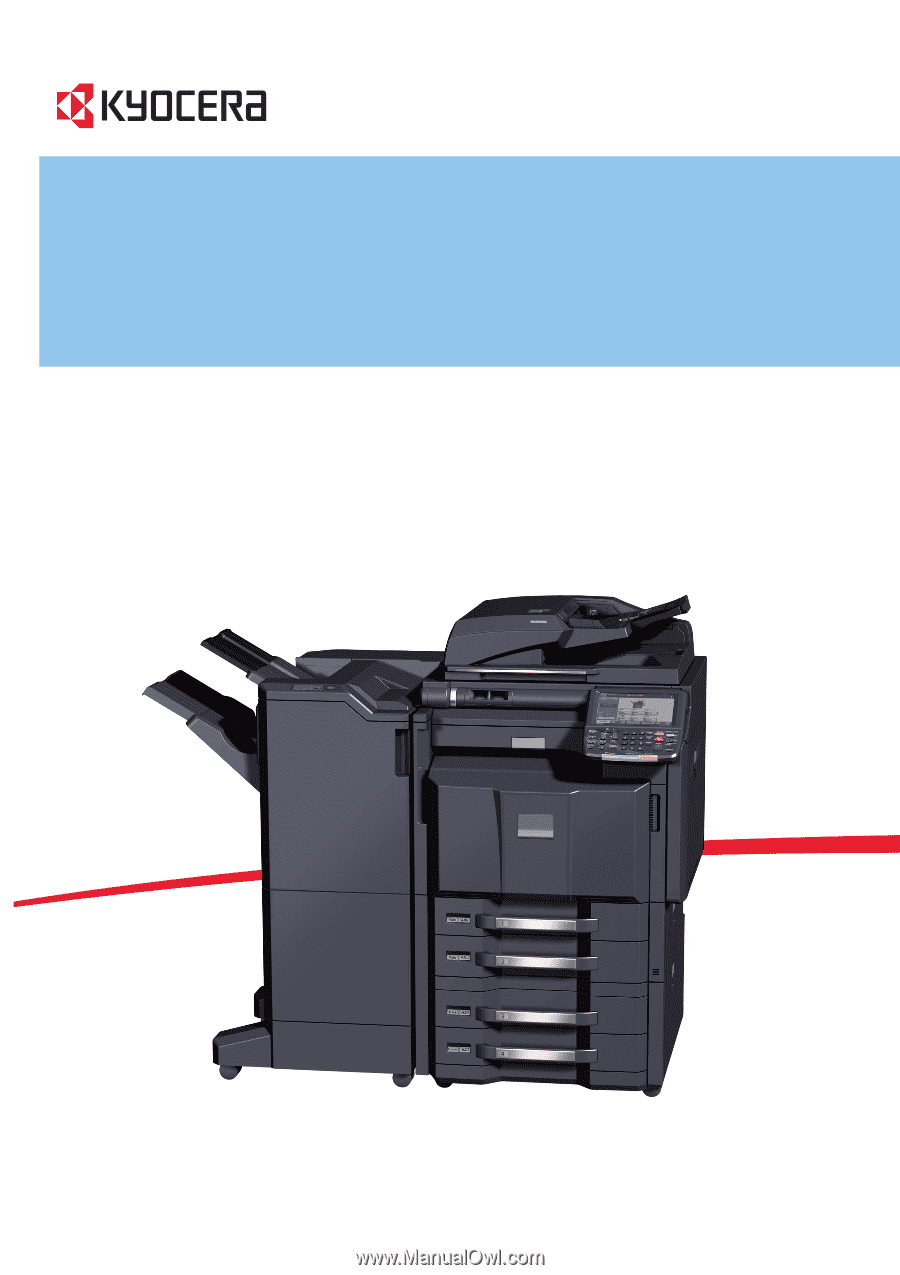
OPERATION GUIDE
TASKalfa
3050ci / 3550ci
4550ci / 5550ci