
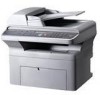
Samsung SCX 4725FN User Manual (ENGLISH)
Samsung SCX 4725FN - B/W Laser - All-in-One Manual
 |
UPC - 635753613117
View all Samsung SCX 4725FN manuals
Add to My Manuals
Save this manual to your list of manuals |
Samsung SCX 4725FN manual content summary:
- Samsung SCX 4725FN | User Manual (ENGLISH) - Page 1
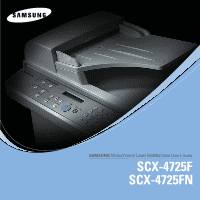
SCX-4725F SCX-4725FN - Samsung SCX 4725FN | User Manual (ENGLISH) - Page 2
direct or indirect damages, arising from or related to use of this manual. • SCX-4725F and SCX-4725FN are model names of Samsung Electronics Co., Ltd. • Samsung and Samsung logo are trademarks of Samsung Electronics Co., Ltd. • Centronics is a trademark of Centronics Data Computer Corporation. • PCL - Samsung SCX 4725FN | User Manual (ENGLISH) - Page 3
/in www.samsung.com/id www.samsung.com/it www.samsung.com/ latin www.samsung.com/jp www.samsung.com/lv www.samsung.com/lt www.samsung.com/lu www.samsung.com/my www.samsung.com/mx www.samsung.com/nl www.samsung.com/nz www.samsung.com/ latin www.samsung.com/no www.samsung.com/ latin www.samsung.com/ph - Samsung SCX 4725FN | User Manual (ENGLISH) - Page 4
1 800 588 889 WEB SITE www.samsung.com/es www.samsung.com/se www.samsung.com/ch www.samsung.com/tw www.samsung.com/th www.samsung.com/ latin www.samsung.com/tr www.samsung.com/ae www.samsung.com/uk www.samsung.com/us www.samsung.ua www.samsung.com/ kz_ru www.samsung.com/ latin www.samsung.com/vn - Samsung SCX 4725FN | User Manual (ENGLISH) - Page 5
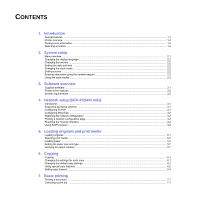
using the number keypad ...2.3 Using the save modes ...2.3 3. Software overview Supplied software ...3.1 Printer driver features ...3.2 System requirements ...3.2 4. Network setup (SCX-4725FN only) Introduction ...4.1 Supported operating systems ...4.1 Configuring TCP/IP ...4.1 Configuring EtherTalk - Samsung SCX 4725FN | User Manual (ENGLISH) - Page 6
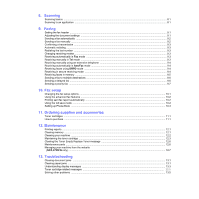
Replace Toner message 12.6 Maintenance parts ...12.6 Managing your machine from the website (SCX-4725FN only) ...12.7 13. Troubleshooting Clearing document jams ...13.1 Clearing paper jams ...13.1 Understanding display messages ...13.3 Toner cartridge-related messages ...13.5 Solving other problems - Samsung SCX 4725FN | User Manual (ENGLISH) - Page 7
14. Specifications General specifications ...14.1 Printer specifications ...14.1 Scanner and copier specifications ...14.2 Facsimile specifications ...14.2 Index - Samsung SCX 4725FN | User Manual (ENGLISH) - Page 8
there is never any human access to laser radiation above a Class I level during normal operation, user maintenance or prescribed service condition. WARNING Never operate or service the printer with the protective cover removed from Laser/ Scanner assembly. The reflected beam, although invisible, can - Samsung SCX 4725FN | User Manual (ENGLISH) - Page 9
use. When the printer does not receive user is encouraged to try to correct the interference by one service. FCC Information to the User This device complies with Part accordance with the instructions, may cause harmful telephone line may result in problems making and receiving telephone calls, - Samsung SCX 4725FN | User Manual (ENGLISH) - Page 10
could void the user's authority to service dispatcher of your intentions. The dispatcher will give you further instructions the event of problems, you should contact the Euro QA Lab of Samsung Electronics Co., be suitable. However, some buildings (mainly old ones) do not have normal 13 amp plug - Samsung SCX 4725FN | User Manual (ENGLISH) - Page 11
GOODS OR SERVICES; LOSS OF as the author of the parts of the library used. This Windows specific code (or a derivative thereof) from the apps directory (application code) you must include an acknowledgement: "This product includes software written by Tim Hudson ([email protected])" THIS SOFTWARE - Samsung SCX 4725FN | User Manual (ENGLISH) - Page 12
iv - Samsung SCX 4725FN | User Manual (ENGLISH) - Page 13
overview of features supported by your machine. (I: Installed, NA: Not Available) Features SCX-4725F SCX-4725FN IEEE 1284 Parallel NA NA USB 2.0 I I PostScript Emulation NA I Network Interface (Ethernet 10/100 Base TX) Duplex Printing1 NA I NA NA Macintosh Driver NA I 1. Printing - Samsung SCX 4725FN | User Manual (ENGLISH) - Page 14
10 output support 4 scanner lid 11 scanner glass 5 document output tray 12 manual tray 6 control panel 13 toner cartridge 7 output tray 14 manual tray paper width guides 1. Automatic document feeder is used as ADF in this user's guide. * The figure above shows an SCX-4725FN. 1 rear cover - Samsung SCX 4725FN | User Manual (ENGLISH) - Page 15
the document resolution for the current fax job. 5 Favorite Copy: Allows you to use one of the special copy features, 15 Broadcasting: Allows you to send a fax to To: Allows you to access a list of the PC software programs that an image can be scanned to. 10 Upper Level: Sends you back to the - Samsung SCX 4725FN | User Manual (ENGLISH) - Page 16
ready. Online User's Guide Printer Driver Help Provides you with step-by-step instructions for using your machine's full features, and contains information for maintaining your machine, troubleshooting, and installing accessories. This user's guide also contains the Software Section providing you - Samsung SCX 4725FN | User Manual (ENGLISH) - Page 17
on your machine and step-by-step instructions for setting up the machine's systems. SCX-4725FN. Paper Setting Paper Size Paper Type Machine Setup Machine ID Date & Time Clock Mode Language Select Country Power Save Ignore Toner Job Maintenance Clean Drum Auto Cleaning Notify Toner CLR Empty Msg. - Samsung SCX 4725FN | User Manual (ENGLISH) - Page 18
time a key is pressed. • Alarm Sound: Turns the alarm sound on or off. With this option set to On, an alarm tone sounds when an error occurs or fax communication ends. 2.2 - Samsung SCX 4725FN | User Manual (ENGLISH) - Page 19
the life of the toner cartridge beyond what one would experience in the normal mode, but it reduces print quality. To turn this mode on or off, press Toner Save. Note When PC-printing, you can also turn on or off Toner Save mode in the printer properties. See the Software Section. 2.3 - Samsung SCX 4725FN | User Manual (ENGLISH) - Page 20
Power Save mode Power Save mode allows your machine to reduce power consumption when it is not in actual use. You can select a length of time for which the machine waits after a job is printed before it switches to a reduced power state. 1 Press Menu until Machine Setup appears on the top line of - Samsung SCX 4725FN | User Manual (ENGLISH) - Page 21
and alerts you when an error occurs during printing. • SmarThru1: This is the accompanying Windows-based software for your multifunctional machine. • User's Guide in PDF • Set IP: Use this program to set your machine's TCP/IP addresses. Linux • Printer driver: Use this driver to run your machine - Samsung SCX 4725FN | User Manual (ENGLISH) - Page 22
overview of features supported by your printer drivers: Feature Toner save Print quality option Poster printing Multiple pages per sheet (N-up) Fit to page printing Scale printing Watermark Overlay PCL 6 Windows O O O O O O O O PostScript (SCX-4725FN only) Windows Macintosh O X O O Linux - Samsung SCX 4725FN | User Manual (ENGLISH) - Page 23
working with large scanned images. • The Linux scanner driver supports the optical resolution at maximum. Macintosh (SCX-4725FN only) Item Requirements Operating system RAM Free disk space Connection Macintosh 10.3 ~ 10.4 128 MB 200 MB USB interface, Network interface 3.3 - Samsung SCX 4725FN | User Manual (ENGLISH) - Page 24
your machine to a network is available only on the SCX-4725FN. This chapter gives you step-by-step instructions for setting up your machine for network connections. This chapter includes: • Introduction • Supported operating systems • Configuring TCP/IP • Configuring EtherTalk • Restoring the - Samsung SCX 4725FN | User Manual (ENGLISH) - Page 25
when Manual appears. problem MAC address which is the hardware serial number of the network printer card or interface. Especially, it is for the network administrator to set several network IPs at the same time. 1 Insert the driver CD provided along with your machine. 4.2 - Samsung SCX 4725FN | User Manual (ENGLISH) - Page 26
this program. 6 From the Windows Start menu, select Programs > Samsung Network Printer Utilities > SetIP. 7 Select the name of your printer and click " ". Note If you cannot find your printer name click " list. " to refresh the 8 Enter the network card's MAC address, IP address, subnet mask - Samsung SCX 4725FN | User Manual (ENGLISH) - Page 27
the original face down on the scanner glass and align it with the registration guide at the top left corner of the glass. 3 Close the scanner lid. Notes • Leaving the scanner lid open while copying may affect copy quality and toner consumption. • Dust on the scanner glass may cause black spots on - Samsung SCX 4725FN | User Manual (ENGLISH) - Page 28
machine supports print media weights as follows: - 60 to 90 g/m2 bond for the tray - 60 to 165 g/m2 bond for the manual user's guide. Caution Using print media that does not meet these specifications may cause problems, requiring repairs. Such repairs are not covered by Samsung's warranty or service - Samsung SCX 4725FN | User Manual (ENGLISH) - Page 29
Supported print media types and sizes Type Plain paper Size Letter Legal inches) 110 x 220 mm (4.33 x 8.66 inches) 75 to 90 g/m2 (20 lb to 24 lb bond) 1 sheet for the manual tray Envelope C5 162 x 229 mm (6.38 x 9.02 inches) Transparency Envelope C6 Letter, A4 114 x 162 mm (4.49 x 6.38 - Samsung SCX 4725FN | User Manual (ENGLISH) - Page 30
manual tray B5, A5, A6 All sizes supported by • tray the machine • manual tray Letter, A4, Legal • tray • manual grade paper specifically recommended for use in laser printers. • Avoid using the following media types peel-off adhesive strip or with more than one flap that folds over to seal must - Samsung SCX 4725FN | User Manual (ENGLISH) - Page 31
use only labels designed for use in laser printers. • When selecting labels, consider the mm wide or 148 mm long. • In the software application, set margins at least 6,4 mm away from Squeeze the paper length guide and pull it out to extend the tray. 1 2 1 tray 2 paper length guide 2 If you are - Samsung SCX 4725FN | User Manual (ENGLISH) - Page 32
length guide and adjust it to the length of the paper. Notes • If you experience problems with paper feed, place one sheet at a time in the manual tray guide, it may cause paper jams. 6 After loading paper, set the paper type and size for the tray. See page 5.7 for copying and faxing or the Software - Samsung SCX 4725FN | User Manual (ENGLISH) - Page 33
next section for copying and faxing or the Software Section for PC-printing. Note The settings made from the printer driver override the settings on the control panel. Tips on using the manual tray • Load only one sheet of print media at a time in the manual tray. • To prevent paper jams, do not add - Samsung SCX 4725FN | User Manual (ENGLISH) - Page 34
step instructions for copying documents. This chapter includes: • Copying • Changing the settings for each copy • Changing the default copy settings • Using special copy features • Setting copy timeout Copying 1 Load originals face up into the ADF, or place a single original face down on the scanner - Samsung SCX 4725FN | User Manual (ENGLISH) - Page 35
a copied image from 25% to 400% when you copy original documents from the scanner glass, or from 25% to 100% from the ADF. To select from the copy job. For example, if you make 2 copies of a 3 page original, one complete 3 page document will print followed by a second complete document. This copy - Samsung SCX 4725FN | User Manual (ENGLISH) - Page 36
begins scanning the front side and shows Set BackSide. 4 Open the scanner lid and turn the original over. Note If you press Stop/Clear up copying Your machine can print 2 or 4 original images reduced to fit onto one sheet of paper. This copy feature is available only when you load originals into - Samsung SCX 4725FN | User Manual (ENGLISH) - Page 37
paper (3x3). You can paste the printed pages together to make one poster-sized document. This copy feature is available only when you place originals on the scanner glass. 1 Place a single original face down on the scanner glass. For details about loading an original, see page 5.1. 2 Press Favorite - Samsung SCX 4725FN | User Manual (ENGLISH) - Page 38
print spooler, such as the printer group in Windows, delete the job as follows: 1 Click the Windows Start menu. 2 For Windows 98/2000/Me, select Settings and then Printers. For Windows XP(32/64bit)/2003(32/64bit), select Printers and Faxes. 3 Double-click the Samsung SCX-4725 Series icon. 4 From the - Samsung SCX 4725FN | User Manual (ENGLISH) - Page 39
. A new message window opens with the image attached. • My Documents: Saves the scanned image in the default folder, My Documents, on your computer. • SmarThru: Sends the scanned image to SmarThru™, installed with the printer driver. Note You can add more TWAIN-compliant software for scanning, such - Samsung SCX 4725FN | User Manual (ENGLISH) - Page 40
redialing • Redialing the last number Receiving a fax • Changing receiving modes • Receiving automatically in Fax mode • Receiving manually in Tel mode • Receiving manually using an extension telephone • Receiving automatically in Ans/Fax mode • Receiving faxes using DRPD mode • Receiving in secure - Samsung SCX 4725FN | User Manual (ENGLISH) - Page 41
printer. Originals containing extremely fine detail. Super Fine mode is enabled only if the machine with which you are communicating also supports supports color fax reception and you send the fax manually. . 5 If an original is placed on the scanner glass, load another original and press 1 to add - Samsung SCX 4725FN | User Manual (ENGLISH) - Page 42
error message appears on the display. For a list of error messages and their meanings, see page 13.3. If you receive an error If an original is placed on the scanner glass, load another original and press company service which enables an user to , see page 10.1. Receiving manually in Tel mode You can - Samsung SCX 4725FN | User Manual (ENGLISH) - Page 43
the reception is completed. Receiving manually using an extension telephone This End DRPD [Setup]. If the DRPD setup fails, DRPD Ring Error appears. Press Enter when DRPD Mode appears and start over from Ring is a telephone company service which enables an user to use a single telephone line - Samsung SCX 4725FN | User Manual (ENGLISH) - Page 44
2 Press the Scroll buttons until Secure Receive appears and press Enter. 3 Press the Scroll buttons until On appears and press Enter. 4 Enter a four-digit password you want to use and press Enter. Note You can activate secure receiving mode without setting a password, but cannot protect your faxes. - Samsung SCX 4725FN | User Manual (ENGLISH) - Page 45
appears and press Enter. 4 Press the Scroll buttons until the fax job you want appears and press Enter. 5 If an original is placed on the scanner glass, load another original and press 1 to add another page. When you have finished, press 2 at the Another Page ? prompt. The machine scans the original - Samsung SCX 4725FN | User Manual (ENGLISH) - Page 46
memory before transmission. The display shows memory capacity and the number of pages being stored in memory. 7 If an original is placed on the scanner glass, load another original and press 1 to add another page. When you have finished, press 2 at the Another Page ? prompt. The machine shows the - Samsung SCX 4725FN | User Manual (ENGLISH) - Page 47
feature set to Off, the machine cannot reduce the original to fit onto one page. The original will be divided and printed in actual size on It is preset to 9 at the factory. DRPD Mode1 This mode enables a user to use a single telephone line to answer several different telephone numbers. In this - Samsung SCX 4725FN | User Manual (ENGLISH) - Page 48
makes sure any faxes you send are sent smoothly to any other ECM-equipped fax machine. Sending a fax using ECM may take more time. 1. Error Correction Mode Printing sent fax report automatically You can set the machine to print a report with detailed information about the previous 50 communication - Samsung SCX 4725FN | User Manual (ENGLISH) - Page 49
you are prompted to enter a destination number while sending a fax, enter the speed dial number at which you stored the number you want. • For a one-digit (0-9) speed dial number, press and hold the corresponding digit button on the number keypad. • For a two- or three-digit speed dial number, press - Samsung SCX 4725FN | User Manual (ENGLISH) - Page 50
you are prompted to enter a destination number while sending a fax, enter the group dial number at which you stored the number you want. • For a one-digit (0-9) group dial number, press and hold the corresponding digit button on the number keypad. • For a two- or three-digit group dial number, press - Samsung SCX 4725FN | User Manual (ENGLISH) - Page 51
you can order the following types of toner cartridge for your machine: Type Average Yield1 Part number High yield 3,000 Standard pages SCX-D4725A 1. Declared yield value in accordance with ISO/IEC 19752. How to purchase To order Samsung-authorized supplies or accessories, contact your local - Samsung SCX 4725FN | User Manual (ENGLISH) - Page 52
toner cartridge • Clearing the Toner Empty Replace Toner message • Maintenance parts • Managing your machine from the website (SCX-4725FN . This list shows the status of the user-selectable options. You may print this list to after sending faxes for more than one location. • Power Failure Report: - Samsung SCX 4725FN | User Manual (ENGLISH) - Page 53
the toner cartridge is replaced or if print and scan quality problems toner cartridge. Use the handle on the cartridge to avoid touching this area. 3 Pull the manual tray out. 4 With a dry lint-free cloth, wipe away any dust and spilled toner from the toner cartridge area and the toner cartridge - Samsung SCX 4725FN | User Manual (ENGLISH) - Page 54
water. 2 Open the scanner lid. Maintaining the toner cartridge Toner cartridge storage To get the most from the toner cartridge, keep the following guidelines in mind: • Do not remove the toner cartridge from its package until ready for use. • Do not refill the toner cartridge. The machine warranty - Samsung SCX 4725FN | User Manual (ENGLISH) - Page 55
Open the front cover. 2 Pull the toner cartridge out. 4 Hold the toner cartridge by the handle and slowly insert the cartridge into the opening in the machine. Tabs on the sides of the cartridge and corresponding grooves within the machine will guide the cartridge into the correct position until it - Samsung SCX 4725FN | User Manual (ENGLISH) - Page 56
within the machine will guide the cartridge into the correct position until it locks into place completely. 6 Close the front cover. Make sure that the cover is securely closed. Cleaning the drum If there are streaks or spots on your print, the OPC drum of the toner cartridge may require cleaning - Samsung SCX 4725FN | User Manual (ENGLISH) - Page 57
will be permanently written to the memory of the toner cartridge, and this menu will be disappeared from the Maintenance menu. Maintenance parts To avoid print quality and paper feed problems resulting from worn parts and to maintain your printer in top working condition, the following items will - Samsung SCX 4725FN | User Manual (ENGLISH) - Page 58
Managing your machine from the website (SCX-4725FN only) If you have connected your machine to a network and set up TCP/IP network parameters correctly, you can manage the machine via Samsung's SyncThru™ Web Service, an embedded web server. Use SyncThru™ Web Service to: • View the machine's device - Samsung SCX 4725FN | User Manual (ENGLISH) - Page 59
Troubleshooting This chapter gives helpful information for what to do if you encounter an error. This chapter includes: • Clearing document jams • Clearing paper jams • Understanding display messages • Toner cartridge-related messages • Solving other problems jams, use the scanner glass for thick, - Samsung SCX 4725FN | User Manual (ENGLISH) - Page 60
out the jammed paper gently and slowly. Follow the instructions in the following sections to clear the jam. from the machine. 1 Open the front cover and pull the toner cartridge out. 2 If necessary, pull the manual tray out. 3 Remove the jammed paper by gently pulling it 13.2 - Samsung SCX 4725FN | User Manual (ENGLISH) - Page 61
the adjustable guides are window or the control panel display to indicate the machine's status or errors. Refer to the tables below to understand the messages' meaning and correct the problem if necessary. Messages and their meanings are listed in alphabetical order. Note When you call for service - Samsung SCX 4725FN | User Manual (ENGLISH) - Page 62
the power cord and plug it back in. If the problem persists, please call for service. A problem has occurred in the LSU (Laser Scanning Unit). Unplug the power cord and plug it back in. If the problem persists, please call for service. The receiving fax machine has not answered after several - Samsung SCX 4725FN | User Manual (ENGLISH) - Page 63
cannot be guaranteed, and the product support is no longer provided. Message Toner Empty Replace Toner Toner Exhausted Replace Toner Toner Low Meaning The toner in the cartridge has run out. The lifespan of the toner cartridge is reached. The toner cartridge is almost empty. Suggested solutions - Samsung SCX 4725FN | User Manual (ENGLISH) - Page 64
printer. Select Samsung SCX-4725 Series PCL 6 as your default printer in your Windows. Check the machine for the following: • The front cover is not closed. Close the cover. • Paper is jammed. Clear the paper jam. See page 13.1. • No paper is loaded. Load paper. See page 5.5. • The toner cartridge - Samsung SCX 4725FN | User Manual (ENGLISH) - Page 65
in Adobe Illustrator. The setting in the software application is wrong. Select Download as Bitmap in the TrueType Options window of the graphic properties and print the document again. The printer does not print PDF file correctly. Some parts of graphics, text or illustrations are missing - Samsung SCX 4725FN | User Manual (ENGLISH) - Page 66
cartridge and install a new one. See page 12.4. • Parts of the machine may have toner on them. If the defects occur on the back of the page, the problem will likely correct itself after a few more pages. • The fusing assembly may be damaged. Contact a service representative. 13.8 - Samsung SCX 4725FN | User Manual (ENGLISH) - Page 67
the paper type and quality. See page 5.7. • Remove the toner cartridge and install a new one. See page 12.4. • If the problem persists, the machine may require repair. Contact a service representative. Character voids are white areas within parts of characters that should be solid black: • If you - Samsung SCX 4725FN | User Manual (ENGLISH) - Page 68
The high altitude may affect the print quality such as loose toner or light imaging. You can set this option through the Printer tab in printer driver's properties. Refer to the Software Section for details. Copying problems Condition Suggested solutions Copies are too light or too dark. Smears - Samsung SCX 4725FN | User Manual (ENGLISH) - Page 69
printer mode through the BIOS setting. It will help to increase the speed. For details about how to set BIOS, refer to your computer user's guide. Fax problems can cause line errors. • Check your machine by making a copy. • The toner cartridge may be empty. Replace the toner cartridge, referring to - Samsung SCX 4725FN | User Manual (ENGLISH) - Page 70
98/Me/2000/XP(32/64bit)/2003 (32/64bit) User's Guide that came with your PC for further information on Windows error messages. Common PostScript problems (SCX-4725FN only) The following situations are PS language specific and may occur when several printer languages are being used. Note To receive - Samsung SCX 4725FN | User Manual (ENGLISH) - Page 71
your system. Open Unified Driver configurator, switch to Scanners configuration, then press Drivers. Make sure that driver with a name corresponding to your machine's name is listed in the window. Check if the port is not busy. Since functional components of MFP (printer and scanner) share the same - Samsung SCX 4725FN | User Manual (ENGLISH) - Page 72
of the driver keeps the port locked and therefore unavailable for subsequent print jobs. If this situation occurred, please, try to release the port. Common Macintosh problems (SCX-4725FN only) Problem Suggested solutions The printer does not print PDF file correctly. Some parts of graphics - Samsung SCX 4725FN | User Manual (ENGLISH) - Page 73
method Printing speed1 Laser Beam Printing Up to 24 ppm in A4 (24 ppm in Letter) First print out time 10 seconds (from ready) Print resolution Up to 1,200 x 1,200 dpi effective output Printer language OS Compatibility2 PCL 6, PS 3 (SCX-4725FN only), SPL (for Linux only) Windows 98/Me/2000 - Samsung SCX 4725FN | User Manual (ENGLISH) - Page 74
Switched Telephone Network (PSTN) or behind PABX Data coding MH/MR/MMR/JBIG/JPEG/ECM (Error Correction Mode) Modem speed Transmission speed 33.6 Kbps Approx. 3 seconds/page1 Maximum document length Scanner glass: 297 mm Automatic document glass: 356 mm Resolution Standard: 203 x 98 dpi Fine - Samsung SCX 4725FN | User Manual (ENGLISH) - Page 75
5.1 scanner glass 5.1 loading paper manual tray 5.6 tray 5.5 M machine ID, set 9.1 Macintosh problems 13.14 manual tray, load paper 5.6 memory, clear 12.1 N network configuration print 4.2 restore 4.2 network interface, reset 4.2 network setup EtherTalk 4.2 operating systems 4.1 TCP/IP 4.1 new toner - Samsung SCX 4725FN | User Manual (ENGLISH) - Page 76
mode 9.4 in Tel mode 9.3 receiving modes, change 9.3 redialing automatically 9.3 manually 9.3 replacement parts 12.6 replacing ADF rubber pad 12.6 toner cartridge 12.4 reports, print 12.1 ringer 2.3 S scan power save mode 2.4 scanner glass cleaning 12.3 loading documents 5.1 scanning, to application - Samsung SCX 4725FN | User Manual (ENGLISH) - Page 77
Samsung Printer Software section - Samsung SCX 4725FN | User Manual (ENGLISH) - Page 78
SECTION CONTENTS Chapter 1: INSTALLING PRINTER SOFTWARE IN WINDOWS Installing Printer Software ...4 Installing Software for Local Printing 4 Installing Software for Network Printing 7 Reinstalling Printer Software 10 Removing Printer Software ...11 Chapter 2: BASIC PRINTING Printing a Document - Samsung SCX 4725FN | User Manual (ENGLISH) - Page 79
WINDOWS POSTSCRIPT DRIVER (SCX-4725FN ONLY) Printer Settings ...22 Advanced ...22 Using Help ...22 Chapter 5: SHARING THE PRINTER LOCALLY Setting Up a Host Computer 23 Setting Up a Client Computer 23 Chapter 6: USING SMART PANEL Understanding Smart Panel ...24 Opening the Troubleshooting Guide - Samsung SCX 4725FN | User Manual (ENGLISH) - Page 80
WITH A MACINTOSH (SCX-4725FN ONLY) Installing Software for Macintosh 37 Setting Up the Printer ...38 For a Network-connected Macintosh 38 For a USB-connected Macintosh 38 Printing ...39 Printing a Document ...39 Changing Printer Settings 39 Printing Multiple Pages on One Sheet of Paper 40 - Samsung SCX 4725FN | User Manual (ENGLISH) - Page 81
list. • View User's Guide: Allows you to view the User's Guide. If your computer doesn't have Adobe Acrobat, click on this option and it will automatically install Adobe Acrobat Reader for you. 4 Select Typical installation for a local printer. Click Next. 4 Installing Printer Software in Windows - Samsung SCX 4725FN | User Manual (ENGLISH) - Page 82
installation window that appears in this User's Guide may differ depending on the printer and interface in use. 5 After the installation is finished, a window asking complete, if your printer driver doesn't work properly, reinstall the printer driver. See "Reinstalling Printer Software" on page 10. - Samsung SCX 4725FN | User Manual (ENGLISH) - Page 83
printer is not already connected to the computer, the following window will appear. 5 Select your printer and click Next. • After connecting the printer, click Next. • If you don't want to connect the printer installation window that appears in this User's Guide may differ depending on the printer - Samsung SCX 4725FN | User Manual (ENGLISH) - Page 84
list. • View User's Guide: Allows you to view the User's Guide. If your computer doesn't have Adobe Acrobat, click on this option and it will automatically install Adobe Acrobat Reader for you. 4 Select Typical installation for a network printer. Click Next. 7 Installing Printer Software in Windows - Samsung SCX 4725FN | User Manual (ENGLISH) - Page 85
Click Next. • If necessary, select a language from the drop-down list. • View User's Guide: Allows you to view the User's Guide. If your computer doesn't have Adobe Acrobat, click on this option and it will automatically install Adobe Acrobat Reader for you. 8 Installing Printer Software in Windows - Samsung SCX 4725FN | User Manual (ENGLISH) - Page 86
. After selecting the components, the following window appears. You can also change the printer name, set the printer to be shared on the network, set the printer as the default printer, and change the port name of each printer. Click Next. To install this software on a server, select the Setting up - Samsung SCX 4725FN | User Manual (ENGLISH) - Page 87
from Samsung. If you so desire, select the corresponding checkbox(es) and click Finish. Otherwise, just click Finish. Reinstalling Printer Software You can reinstall the software if installation fails. 1 Start Windows. 2 From the Start menu select Programs or All Programs → your printer driver name - Samsung SCX 4725FN | User Manual (ENGLISH) - Page 88
The reinstallation window that appears in this User's Guide may differ depending on the printer and interface in use. 5 Select the components you want to reinstall and click Next. If you installed the printer software for local printing and you select your printer driver name, the window asking you - Samsung SCX 4725FN | User Manual (ENGLISH) - Page 89
Favorite Setting - Using Help Printing a Document NOTES: • Your printer driver Properties window that appears in this User's Guide may differ depending on the printer in use. However the composition of the printer properties window is similar. • Check the Operating System(s) that are compatible with - Samsung SCX 4725FN | User Manual (ENGLISH) - Page 90
review and change the settings needed for your print job. Your printer properties window may differ, depending on your operating system. This Software User's Guide shows the Properties window for Windows XP. Your printer driver Properties window that appears in this User's Guide One Sheet of - Samsung SCX 4725FN | User Manual (ENGLISH) - Page 91
like envelopes and transparencies. You have to load one sheet at a time into the Manual Tray or Multi-Purpose Tray. If the paper source is set to Auto Selection, the printer automatically picks up print material in the following tray order: Manual Tray or Multi-Purpose Tray, Tray n. 4 Type Set - Samsung SCX 4725FN | User Manual (ENGLISH) - Page 92
Enhance: Image Mode allows the user to enhance printouts. Toner Save Mode Selecting this option extends the life of your toner cartridge and reduces your cost per page without a significant reduction in print quality. Some printers do not support this feature. • Printer Setting: If you select this - Samsung SCX 4725FN | User Manual (ENGLISH) - Page 93
. The following procedure is for Windows XP. For other Windows OS, refer to the corresponding Windows User's Guide or online help. 1 Click the Windows Start menu. 2 Select Printers and Faxes. 3 Select your printer driver icon. 4 Right-click on the printer driver icon and select Properties. 5 Click - Samsung SCX 4725FN | User Manual (ENGLISH) - Page 94
that can be activated by clicking the Help button in the printer properties window. These help screens give detailed information about the printer features provided by the printer driver. You can also click from the upper right corner of the window, and then click on any setting. 17 Basic Printing - Samsung SCX 4725FN | User Manual (ENGLISH) - Page 95
printer driver Properties window that appears in this User's Guide may differ depending on the printer in use. However the composition of the printer properties window up to 16 pages on one sheet. 1 To change the print settings from your software application, access printer properties. See "Printing - Samsung SCX 4725FN | User Manual (ENGLISH) - Page 96
onto 4, 9, or 16 sheets of paper, for the purpose of pasting the sheets together to form one poster-size document. 1 To change the print settings from your software application, access printer properties. See "Printing a Document" on page 12. 2 Click the Layout tab, select Poster Printing in the - Samsung SCX 4725FN | User Manual (ENGLISH) - Page 97
printer, and they can be modified, or you can add new ones to the list. Using an Existing Watermark 1 To change the print settings from your software application, access printer Print window. Deleting a Watermark 1 To change the print settings from your software application, access printer properties - Samsung SCX 4725FN | User Manual (ENGLISH) - Page 98
To change the print settings from your software application, access printer properties. See "Printing a Document" on until printing begins. The selected overlay downloads with your print job and prints on your that you no longer use. 1 In the printer properties window, click the Extras tab. 2 Click the - Samsung SCX 4725FN | User Manual (ENGLISH) - Page 99
, you can review and change the settings needed for your print job. Your printer properties window may differ, depending on your operating system. This Software User's Guide shows the Properties window for Windows XP. Your printer driver Properties window that appears in this User's Guide may differ - Samsung SCX 4725FN | User Manual (ENGLISH) - Page 100
Specifications in your Printer User's Guide. • If you need to know the exact name of your printer, you can check the supplied CD-ROM. Setting Up a Host Computer 1 Start Windows. 2 From the Start menu select Printers and Faxes. 3 Double-click your printer driver icon. 4 From the Printer menu, select - Samsung SCX 4725FN | User Manual (ENGLISH) - Page 101
toner cartridge online. 3 Troubleshooting Guide You can view Help to solve problems. 4 Printer Setting You can configure various printer settings in the Printer Settings Utility window. NOTES: If you connect your printer to a network, the SyncThru Web Service window appears instead of the Printer - Samsung SCX 4725FN | User Manual (ENGLISH) - Page 102
, click the Apply(or Send) button. NOTES: If you connect your printer to a network, the SyncThru Web Service window appears instead of the Printer Settings Utility window. Using Onscreen Help File Use the help feature by refering the window which appears when you click the Help button at the bottom - Samsung SCX 4725FN | User Manual (ENGLISH) - Page 103
Scanning Using Samsung SmarThru • Scanning Process with TWAIN-enabled Software • Scanning Using the WIA Driver NOTES: • Check the Operating System(s) that are compatible with your printer. Please refer to the OS Compatibility section of Printer Specifications in your Printer User's Guide. • You can - Samsung SCX 4725FN | User Manual (ENGLISH) - Page 104
Samsung SmarThru, you will see the SmarThru 4 icon on your desktop. Double-click the SmarThru 4 icon. Double-click this icon. The SmarThru 4 window opens. Make sure that your printer and white or color copies of an image if your machine supports it, and customize the copy settings. •Print Allows you - Samsung SCX 4725FN | User Manual (ENGLISH) - Page 105
NOTE: You need to follow the program's instructions for acquiring an image. Please refer to the user's guide of the application. Scanning Using the WIA Driver Your machine also supports the Windows Image Acquisition (WIA) driver for scanning images. WIA is one of the standard components provided by - Samsung SCX 4725FN | User Manual (ENGLISH) - Page 106
Driver 1 Make sure that you connect your machine to your computer. Turn both the computer and the machine on. 2 When the Administrator Login window appears, type in root in the Login field and enter the system password. NOTE: You must log in as a super user (root) to install the printer software - Samsung SCX 4725FN | User Manual (ENGLISH) - Page 107
Linux Driver 1 When the Administrator Login window appears, type in root in the Login field and enter the system password. NOTE: You must log in as a super user (root) to install the printer software. If you are not a super user, ask your system administrator. 2 Insert the printer software CD - Samsung SCX 4725FN | User Manual (ENGLISH) - Page 108
and select Samsung Unified Driver and then Unified Driver Configurator. 2 Press each button on the Modules pane to switch to the corresponding configuration window. Printers Configuration button Scanners Configuration button Ports Configuration button Printers Configuration Printers configuration - Samsung SCX 4725FN | User Manual (ENGLISH) - Page 109
that is used by Samsung printer and scanner drivers. The drivers address their devices via so-called MFP ports. The current status of any MFP port can be viewed via the Ports Configuration. The port sharing prevents you from accessing one functional block of the MFP device, while another block - Samsung SCX 4725FN | User Manual (ENGLISH) - Page 110
various properties for your machine as a printer. 1 Open the Unified Driver Configurator. If necessary, switch to Printers configuration. 2 Select your machine on the available printers list and click Properties. 3 The Printer Properties window opens. Printing a Document Printing from Applications - Samsung SCX 4725FN | User Manual (ENGLISH) - Page 111
scan a document using the Unified Driver Configurator window. 1 Double-click the Unified Driver Configurator on your desktop. 2 Click the button to switch to Scanners Configuration. 3 Select the scanner on the list. Click your scanner. When you have only one MFP device and it is connected to - Samsung SCX 4725FN | User Manual (ENGLISH) - Page 112
Advanced button enables you to set the page size manually. If you want to use one of the preset scan option settings, select from the Job Type drop- down list. 2 The next time you open the Scanner Properties window, the saved setting is automatically selected for the scan job. To Printer in Linux - Samsung SCX 4725FN | User Manual (ENGLISH) - Page 113
the image out. Zooms the image in. Allows you to scale the image size; you can enter the size manually, or set the rate to scale proportionally, vertically, or horizontally. Allows you to rotate the image; you can Image Manager application, refer to the onscreen help. 36 Using Your Printer in Linux - Samsung SCX 4725FN | User Manual (ENGLISH) - Page 114
Make sure that your printer supports a network interface by referring to Printer Specifications in your Printer User's Guide. This chapter includes: • Installing Software for Macintosh • Setting Up the Printer • Printing • Scanning Installing Software for Macintosh The PostScript driver CD-ROM that - Samsung SCX 4725FN | User Manual (ENGLISH) - Page 115
Macintosh NOTE: Some printers do not support a network interface. Before connecting your printer, make sure that your printer supports a network interface by referring to Printer Specifications in your Printer User's Guide. 1 Follow the instructions on "Installing Software for Macintosh" on - Samsung SCX 4725FN | User Manual (ENGLISH) - Page 116
in this User's Guide may differ depending on the printer in use. However the composition of the printer properties window is similar. • You can check your printer name in the supplied CDROM. Printing a Document When you print with a Macintosh, you need to check the printer software setting in - Samsung SCX 4725FN | User Manual (ENGLISH) - Page 117
Select Printer Features from the Presets drop-down list to access the following features: ▲ Mac OS 10.3 Image Mode Image Mode allows the user to it takes to print a document. Printing Multiple Pages on One Sheet of Paper You can print more than one page on a single sheet of paper. This feature - Samsung SCX 4725FN | User Manual (ENGLISH) - Page 118
want to scan documents using other software, you will need to use TWAIN-compliant software, such as Adobe PhotoDeluxe or window and set the scan options. • Scan and save your scanned image. NOTE: You need to follow the program's instructions for acquiring an image. Please refer to the User's Guide - Samsung SCX 4725FN | User Manual (ENGLISH) - Page 119
install printer driver Macintosh 37 Windows 4 installing Linux software 29 L Layout properties, set Macintosh 39 Windows 13 Linux driver, install 29 printer properties 33 printing 33 scanning 34 M Macintosh driver install 37 uninstall 37 printing 39 scanning 41 setting up the printer 38 MFP driver - Samsung SCX 4725FN | User Manual (ENGLISH) - Page 120
Linux 34 SmarThru 26 TWAIN 28 WIA driver 28 scanning from Macintosh 41 setting darkness 15 favorites 17 image mode 15 resolution Macintosh 40 Windows 15 toner save 15 true-type option 15 software install Macintosh 37 Windows 4 reinstall Windows 10 system requirements Macintosh 37 uninstall Macintosh - Samsung SCX 4725FN | User Manual (ENGLISH) - Page 121
www.samsungprinter.com Rev. 3.00
-
 1
1 -
 2
2 -
 3
3 -
 4
4 -
 5
5 -
 6
6 -
 7
7 -
8
-
9
-
10
-
11
-
12
-
13
-
14
-
15
-
16
-
17
-
18
-
19
-
20
-
21
-
22
-
23
-
24
-
25
-
26
-
27
-
28
-
29
-
30
-
31
-
32
-
33
-
34
-
35
-
36
-
37
-
38
-
39
-
40
-
41
-
42
-
43
-
44
-
45
-
46
-
47
-
48
-
49
-
50
-
51
-
52
-
53
-
54
-
55
-
56
-
57
-
58
-
59
-
60
-
61
-
62
-
63
-
64
-
65
-
66
-
67
-
68
-
69
-
70
-
71
-
72
-
73
-
74
-
75
-
76
-
77
-
78
-
79
-
80
-
81
-
82
-
83
-
84
-
85
-
86
-
87
-
88
-
89
-
90
-
91
-
92
-
93
-
94
-
95
-
96
-
97
-
98
-
99
-
100
-
101
-
102
-
103
-
104
-
105
-
106
-
107
-
108
-
109
-
110
-
111
-
112
-
113
-
114
-
115
-
116
-
117
-
118
-
119
-
120
-
121
 |
 |
SCX-4725F
SCX-4725FN