
Canon VIXIA HF R32 VIXIA HF R30 / HF R32 / HF R300 Instruction Manual
Canon VIXIA HF R32 Manual
 |
View all Canon VIXIA HF R32 manuals
Add to My Manuals
Save this manual to your list of manuals |
Canon VIXIA HF R32 manual content summary:
- Canon VIXIA HF R32 | VIXIA HF R30 / HF R32 / HF R300 Instruction Manual - Page 1
PUB. DIE-0412-000 HD Camcorder Instruction Manual & % - Canon VIXIA HF R32 | VIXIA HF R30 / HF R32 / HF R300 Instruction Manual - Page 2
type of batteries are attached. Use only the same type of batteries. • Do not expose batteries or product to NO USER-SERVICEABLE PARTS INSIDE. REFER SERVICING TO QUALIFIED SERVICE PERSONNEL. The lightning flash user to the presence of important operating and maintenance (servicing) instructions in - Canon VIXIA HF R32 | VIXIA HF R30 / HF R32 / HF R300 Instruction Manual - Page 3
HD Camcorder, VIXIA HF R32 / VIXIA HF R30 / VIXIA HF tested and found to comply with the limits for class B digital problems are associated with using low-power wireless devices. There is no proof, however, that these low power wireless devices are absolutely safe. Low-power wireless devices emit low - Canon VIXIA HF R32 | VIXIA HF R30 / HF R32 / HF R300 Instruction Manual - Page 4
Canon HD Camcorder VIXIA HF R32 / VIXIA HF R30 / VIXIA HF R300 and all its accessories. 1 Read these instructions. 2 Keep these instructions. 3 Heed all warnings. 4 Follow all instructions of time. 11 Refer all servicing to qualified service personnel. Servicing is required when the apparatus has - Canon VIXIA HF R32 | VIXIA HF R30 / HF R32 / HF R300 Instruction Manual - Page 5
, Mac OS • YouTube is camcorder's settings, onscreen displays and in this manual signifies Wi-Fi Protected Setup. • DLNA, the DLNA Logo and DLNA CERTIFIED are trademarks, service marks, or certification marks of the Digital Full HD 1080" refers to Canon camcorders compliant with high-definition video - Canon VIXIA HF R32 | VIXIA HF R30 / HF R32 / HF R300 Instruction Manual - Page 6
supplied software Network Utility (A 156). You can also send your recordings wirelessly to an FTP server (A 156), for example to send your videos from your vacation spot to a networkattached storage drive back home. • You can upload your recordings wirelessly, directly from your camcorder to YouTube - Canon VIXIA HF R32 | VIXIA HF R30 / HF R32 / HF R300 Instruction Manual - Page 7
-in memory or a memory card onto an external hard drive connected directly to the camcorder. With no need for a computer, this is a very convenient way to save backup copies of your recordings. Image Stabilization Dynamic IS (A 97) compensates for camcorder shake when you shoot video while walking - Canon VIXIA HF R32 | VIXIA HF R30 / HF R32 / HF R300 Instruction Manual - Page 8
Enjoying Your Recordings on Other Devices Connect the camcorder to an HDTV (A 127) Eye-Fi Use an Eye-Fi card (A 146) to wirelessly upload recordings to your computer or a video sharing Web site. Upload your AVCHD movies* (A 142) or MP4 movies (A 148) to the Web. MP4 Upload MP4 movies to your - Canon VIXIA HF R32 | VIXIA HF R30 / HF R32 / HF R300 Instruction Manual - Page 9
Enjoying Your Recordings Using the Camcorder's Wi-Fi Functions Play video wirelessly directly from the memory on AVCHD- and DLNA-compatible you can even upload videos while traveling! Upload your recordings wirelessly to YouTube and Facebook (A 160) to share your videos with friends and family. 9 - Canon VIXIA HF R32 | VIXIA HF R30 / HF R32 / HF R300 Instruction Manual - Page 10
contents „ Introduction 6 Exciting Features and New Functions 14 About this Manual 16 Getting to Know the Camcorder 16 Supplied Accessories and CD-ROMs 18 Names of Parts „ Preparations 20 Getting Started 20 Charging the Battery Pack 23 Using the Grip Belt 24 Opening the Lens Cover - Canon VIXIA HF R32 | VIXIA HF R30 / HF R32 / HF R300 Instruction Manual - Page 11
Within/Between Stories 86 Selecting a Story's Thumbnail Image 87 Changing a Story's Title 89 Advanced Functions 89 Recording in Manual Mode 91 Selecting the Video Quality (Recording Mode) 94 Selecting the Frame Rate 95 Special Scene Recording Programs and Programmed AE 97 Advanced - Canon VIXIA HF R32 | VIXIA HF R30 / HF R32 / HF R300 Instruction Manual - Page 12
111 Using Headphones 112 Using an External Microphone 113 Audio Mix 114 Capturing Video Snapshot Scenes and Photos from a Movie 116 Dividing Scenes „ Photos 118 Viewing Photos 120 Deleting Photos 122 Slideshow „ External Connections 123 Terminals on the Camcorder 124 Connection Diagrams 127 Playback - Canon VIXIA HF R32 | VIXIA HF R30 / HF R32 / HF R300 Instruction Manual - Page 13
: Onscreen Icons and Displays 187 Trouble? 187 Troubleshooting 194 List of Messages 205 Do's and Don'ts 205 Handling Precautions 209 Maintenance/Others 210 Using the Camcorder Abroad 211 General Information 211 Accessories 212 Optional Accessories 216 Specifications 220 Index Table of contents - Canon VIXIA HF R32 | VIXIA HF R30 / HF R32 / HF R300 Instruction Manual - Page 14
Manual Thank you for purchasing the Canon VIXIA HF R32 / VIXIA HF R30 / VIXIA HF R300. Please read this manual carefully before you use the camcorder and retain it for future reference. Should your camcorder fail to operate correctly, refer to Troubleshooting (A 187). Conventions Used in this Manual - Canon VIXIA HF R32 | VIXIA HF R30 / HF R32 / HF R300 Instruction Manual - Page 15
Timer] > [i On [X] • < will appear on the screen. • Repeat, selecting [j Off], to turn off the self timer. Movies: In record pause mode, press Y. The camcorder starts recording after a 10-second countdown. The countdown appears on the screen. The names of physical buttons and switches on the - Canon VIXIA HF R32 | VIXIA HF R30 / HF R32 / HF R300 Instruction Manual - Page 16
Getting to Know the Camcorder Supplied Accessories and CD-ROMs The following accessories are supplied with the camcorder: XCA-110 Compact Power Adapter* BP-709 Battery PackW XIFC-300PCU/S USB Cable HTC-100/S HDMI CableW XQuick Guide XWi-Fi Basic Setup Guide** * CA-110E including power cord, in - Canon VIXIA HF R32 | VIXIA HF R30 / HF R32 / HF R300 Instruction Manual - Page 17
is also supplied. Refer to this Startup Guide for details about the supplied software. • Canon VIXIA CD-ROM. Contains the following components. - Instruction Manual - The full-version instruction manual of the camcorder (this PDF file). - ImageBrowser EX - This CD-ROM contains an automatic installer - Canon VIXIA HF R32 | VIXIA HF R30 / HF R32 / HF R300 Instruction Manual - Page 18
5 3 VIDEO SNAP (video snapshot) button (A 72) 4 ACCESS indicator (A 44) 5 Memory card slot Memory card slot (A 39) A a START/STOP button (A 44) A s DC IN terminal (A 20) A d Grip belt (A 23) A f Wi-Fi antenna (&/% only) As Ad Af Ag Front view A g Lens cover switch (A 24) A h Stereo microphone - Canon VIXIA HF R32 | VIXIA HF R30 / HF R32 / HF R300 Instruction Manual - Page 19
(A 24, 26) S q POWER button S a ON/OFF (CHG) (charge) indicator: Green - On Orange - Standby (A 51) Red - Charging (A 20) S s Battery attachment unit (A 20) S d Serial number Back view Sq Sa S f Tripod socket (A 206) S g BATTERY RELEASE switch (A 21) Ss Bottom view Sd Sf Sg Introduction Š 19 - Canon VIXIA HF R32 | VIXIA HF R30 / HF R32 / HF R300 Instruction Manual - Page 20
before plugging the power cord into the power outlet. 2 Connect the compact power adapter to the camcorder's DC IN terminal. 3 Attach the battery pack to the camcorder. Press the battery pack softly into the battery attachment unit and slide it up until it clicks in place. ᕃ ᕄ DC IN terminal For - Canon VIXIA HF R32 | VIXIA HF R30 / HF R32 / HF R300 Instruction Manual - Page 21
. • If the indicator flashes, refer to Troubleshooting (A 190). To remove the battery pack 1 Slide d in the direction of the arrow and hold it pressed down. ᕄ 2 Slide the battery pack and then pull it out. ᕃ BATTERY RELEASE switch IMPORTANT • Turn off the camcorder before connecting or - Canon VIXIA HF R32 | VIXIA HF R30 / HF R32 / HF R300 Instruction Manual - Page 22
day of use, or the day before, to ensure a full charge. • Optional battery packs for this camcorder can display the remaining battery time. The first time you use an optional battery pack, fully charge it and then use the camcorder until the battery pack is completely exhausted. Doing so will ensure - Canon VIXIA HF R32 | VIXIA HF R30 / HF R32 / HF R300 Instruction Manual - Page 23
the padded handgrip's flap and detach the strap from the Velcro pad. 2 Pull the strap to remove it first from the front bracket on the camcorder, then to unthread it from the handgrip and finally to remove it from the rear bracket on the - Canon VIXIA HF R32 | VIXIA HF R30 / HF R32 / HF R300 Instruction Manual - Page 24
90 degrees downward. • You can rotate the panel 180 degrees toward the lens. Rotating the LCD panel 180 degrees can be useful to allow the camcorder to include yourself in the picture when recording with the self timer. 180° 180° 90° Subject can monitor the LCD screen 24 Š Preparations - Canon VIXIA HF R32 | VIXIA HF R30 / HF R32 / HF R300 Instruction Manual - Page 25
• About the LCD screen: The screen is produced using extremely high-pre- cision manufacturing techniques, with more than 99.99% of the pixels operating to specification. Less than 0.01% of the pixels may occasionally misfire or appear as black, red, blue or green dots. This has no effect on the - Canon VIXIA HF R32 | VIXIA HF R30 / HF R32 / HF R300 Instruction Manual - Page 26
to select a setting from the menus, to select the subject whom the camcorder will recognize as the main subject of the scene, etc. Drag While or to adjust slider controls like the volume. IMPORTANT • The camcorder uses a pressure-sensitive touch screen. Press firmly when using touch operations - Canon VIXIA HF R32 | VIXIA HF R30 / HF R32 / HF R300 Instruction Manual - Page 27
168). HOME Menu Operating modes: The HOME menu is the gateway to most of the camcorder's functions and settings. After you press , the HOME menu will appear and you can select ] menus, which gives you access to settings such as the video quality (recording mode) and LCD brightness. Preparations Š 27 - Canon VIXIA HF R32 | VIXIA HF R30 / HF R32 / HF R300 Instruction Manual - Page 28
on how to set the camera mode, refer to Recording (A 31). • [ Recording Standard] - This camcorder can record movies in either the AVCHD or MP4 recording standard. Use this menu to select the standard that best suits your needs. You can also use Story Creator mode (A 67) when choosing to record - Canon VIXIA HF R32 | VIXIA HF R30 / HF R32 / HF R300 Instruction Manual - Page 29
In mode Touch to scroll up or down Touch the control button of the desired function Drag your finger up and down along the scroll bar to display the rest of the panel You may need to drag your finger up and down along the scroll bar or touch [ ] and [ ] to find the control button of the desired - Canon VIXIA HF R32 | VIXIA HF R30 / HF R32 / HF R300 Instruction Manual - Page 30
[Other Settings] Menus Operating modes: * * In mode, access to functions is limited. 1 Press menu. to open the HOME 2 Touch [ Other Settings] to open the [ Other Settings] menus. 3 Touch the tab of the desired menu. 4 Drag your finger up and down to bring the setting you want to change into - Canon VIXIA HF R32 | VIXIA HF R30 / HF R32 / HF R300 Instruction Manual - Page 31
of the settings while you concentrate on recording (A 44). Great for beginners or if you just prefer not to bother with detailed camcorder settings. (Manual mode) Enjoy full access to menus, settings and advanced functions (A 89). Give your recordings a cinematic look and use cinema-look filters to - Canon VIXIA HF R32 | VIXIA HF R30 / HF R32 / HF R300 Instruction Manual - Page 32
AVCHD using Story Creator (A 67), which allows you to create compelling video stories. Because Story Creator mode records in AVCHD, your movies will look or sharing on the Web. NOTES • You can adjust the video quality using the r > [Recording Mode] setting. • Some portable devices may not - Canon VIXIA HF R32 | VIXIA HF R30 / HF R32 / HF R300 Instruction Manual - Page 33
) mode and playback mode. You can press T when the camcorder is off to turn it on directly in playback mode. Playback mode Operation Playing back movies (A 53). Viewing photos (A 118). NOTES • &/% When switching to a playback mode, the memory selected for playback will be the same currently used - Canon VIXIA HF R32 | VIXIA HF R30 / HF R32 / HF R300 Instruction Manual - Page 34
. NOTES • You can adjust the date and time later on with the q > [Date/Time] setting. • When you do not use the camcorder for about 3 months, the built-in rechargeable lithium battery may discharge completely and the date and time setting may be lost. In such case, recharge the built-in lithium - Canon VIXIA HF R32 | VIXIA HF R30 / HF R32 / HF R300 Instruction Manual - Page 35
Changing the Language The default language of the camcorder is English. You can set it to one of 27 languages. Operating modes: 1 Press . 2 Select the desired language. [ Other Settings] > q > [Language !] > Desired language > [OK] > [X] NOTES • - Canon VIXIA HF R32 | VIXIA HF R30 / HF R32 / HF R300 Instruction Manual - Page 36
Changing the Time Zone Change the time zone to match your location. The default setting is New York. Operating modes: 1 Press . 2 Open the [Time Zone/DST] screen. [ Other Settings] > q > [Time Zone/DST] 3 Touch ["] to set the home time zone, or [#] to set the time zone of your destination when - Canon VIXIA HF R32 | VIXIA HF R30 / HF R32 / HF R300 Instruction Manual - Page 37
available Secure Digital (SD) cards with this camcorder. As of December 2011, the movie recording function has been tested using SD/SDHC/SDXC memory cards made by Panasonic, Toshiba and SanDisk. For the latest information on cards that can be used, visit your local Canon Web site. Memory card type - Canon VIXIA HF R32 | VIXIA HF R30 / HF R32 / HF R300 Instruction Manual - Page 38
Cards You can use SDXC memory cards with this camcorder. When using memory cards with other devices, such as digital recorders, computers and card readers, make sure that the external device is compatible with SDXC cards. The table below summarizes compatibility by computer operating system, as - Canon VIXIA HF R32 | VIXIA HF R30 / HF R32 / HF R300 Instruction Manual - Page 39
Card Make sure to initialize (A 42) all memory cards before using them with this camcorder. 1 Turn off the camcorder. ᕃ Make sure the ON/OFF (CHG) indicator is off. 2 Open the memory card slot cover. 3 Insert the memory card at a slight angle, with the label facing toward the lens, all the way - Canon VIXIA HF R32 | VIXIA HF R30 / HF R32 / HF R300 Instruction Manual - Page 40
front and back sides that are not interchangeable. Inserting a memory card facing the wrong direction can cause a malfunction of the camcorder. Be sure to insert the memory card as described in step 3. &/% Selecting the Memory (Built-in Memory/Memory Card) for the Recordings You can select to record - Canon VIXIA HF R32 | VIXIA HF R30 / HF R32 / HF R300 Instruction Manual - Page 41
the relay recording so if the built-in memory becomes full while recording movies, the recording will continue uninterrupted on the memory card. Operating modes: 1 Insert a memory card that contains no video recordings into the memory card slot. 2 Press . 3 Activate the relay recording. [ Other - Canon VIXIA HF R32 | VIXIA HF R30 / HF R32 / HF R300 Instruction Manual - Page 42
camcorder for the first time. You can also initialize a memory card or the built-in memory (&/% only) to permanently delete all the recordings it contains. &/% At the time of purchase, the built-in memory camcorder until the initialization is completed. 2 Press . 3 Initialize the memory the memory. - Canon VIXIA HF R32 | VIXIA HF R30 / HF R32 / HF R300 Instruction Manual - Page 43
important recordings in advance using an external device (A 128). • Initializing a memory card will permanently erase any Software Guide (PDF file) of the supplied PIXELA's software. - Mac OS users: Use Finder to transfer music files from the [MUSIC] folder on the supplied VIXIA CD-ROM to the memory - Canon VIXIA HF R32 | VIXIA HF R30 / HF R32 / HF R300 Instruction Manual - Page 44
Quick Start. To enjoy full access to menus and more advanced functions, refer to Recording in Manual Mode (A 89). Basic Recording Shooting Video and Taking Photos in AUTO Mode With mode, you can take great-looking videos and photos by let- ting the camcorder automatically adjust settings based - Canon VIXIA HF R32 | VIXIA HF R30 / HF R32 / HF R300 Instruction Manual - Page 45
the camcorder. • &/% By default, movies and photos are recorded in the built-in ᕄ memory. You can select the ᕃ memory that camcorder to mode. [ Camera Mode] > [N] > [OK] To record video Press Y to begin recording. • Press Y again to pause the recording. • The ACCESS indicator will flash - Canon VIXIA HF R32 | VIXIA HF R30 / HF R32 / HF R300 Instruction Manual - Page 46
on the screen and the ACCESS indicator will flash as the photo is recorded. However, if you best settings to record them. - Story Creator (A 67) to transform your movies into compelling video camcorder will automatically detect certain characteristics of the subject, background, lighting - Canon VIXIA HF R32 | VIXIA HF R30 / HF R32 / HF R300 Instruction Manual - Page 47
Smart AUTO icons Background → (color of the icon) Subject ↓ Bright* (gray) Blue skies* (light blue) Vivid colors* Sunsets (green/red) (orange) People (stationary) ( ) ( ) ( )- People (moving) ( ) ( ) ( )- Subjects other than people, such as landscapes ( ) ( ) ( ) Close objects / - Canon VIXIA HF R32 | VIXIA HF R30 / HF R32 / HF R300 Instruction Manual - Page 48
not recording movies and when you are not using the camcorder. • Observe the following precautions while the ACCESS indicator is on or flashing. Failing to do so may result in permanent data loss or damage to the memory. - Do not open the memory card slot cover. - Do not disconnect the power source - Canon VIXIA HF R32 | VIXIA HF R30 / HF R32 / HF R300 Instruction Manual - Page 49
) and quality cannot be changed. At this size, a 1 GB memory card can hold approximately 670 photos. However, the actual number of photos lever on the camcorder or using the zoom controls on the touch screen. You can also select the zoom type (optical, advanced or digital). Operating modes: - Canon VIXIA HF R32 | VIXIA HF R30 / HF R32 / HF R300 Instruction Manual - Page 50
closer to the V/U icons for faster zooms. 3 Touch [X] to hide the zoom controls. Selecting the Zoom Type The camcorder offers three types of zoom - optical, advanced and digital. Operating modes: * * In mode, [Zoom Type] will be set to [ Optical]. [FUNC.] > [Zoom Type] > Desired zoom type 50 - Canon VIXIA HF R32 | VIXIA HF R30 / HF R32 / HF R300 Instruction Manual - Page 51
zoom, the camcorder processes the image beyond the range of the optical zoom to obtain a larger zoom without any deterioration in image quality. At full wide angle, the angle of view with advanced zoom is wider than the angle of view with optical zoom. [ Digital] For digital zoom (light blue area - Canon VIXIA HF R32 | VIXIA HF R30 / HF R32 / HF R300 Instruction Manual - Page 52
is closed while the ACCESS indicator is on or flashing or while the HOME menu or menus contained therein (not including the [ Main Functions] panel) are being displayed. The camcorder may also not enter standby mode when the battery charge is too low. Check that the ON/OFF (CHG) indicator changes to - Canon VIXIA HF R32 | VIXIA HF R30 / HF R32 / HF R300 Instruction Manual - Page 53
to movies, including playback, advanced shooting, using Story Creator and other advanced functions. For details about basic video shooting, refer to AUTO Mode (A 44). Basic Playback Playing Back Video You can use the s > [Data Code] setting to choose whether to display the recording date (and other - Canon VIXIA HF R32 | VIXIA HF R30 / HF R32 / HF R300 Instruction Manual - Page 54
scenes per page. ! Open the index selection screen. " Memory being read. # Recording date**. $ Division line between recording it back. • For AVCHD movies, the camcorder will play back the scene selected and continue until the index screen. For MP4 movies, the camcorder will play back only one scene. • - Canon VIXIA HF R32 | VIXIA HF R30 / HF R32 / HF R300 Instruction Manual - Page 55
along the [Speaker Volume]* bar to adjust the volume and touch [K]. * When q > [AV/Headphones] is set to [Ó Headphones], adjust the [Head- phone Volume] bar instead. Video Š 55 - Canon VIXIA HF R32 | VIXIA HF R30 / HF R32 / HF R300 Instruction Manual - Page 56
's operating mode. • You may not be able to play back with this camcorder movies recorded on a memory card using another device. NOTES • Depending on the recording conditions, you may notice brief stops in video or sound playback between scenes. • During fast/slow playback, you may notice some - Canon VIXIA HF R32 | VIXIA HF R30 / HF R32 / HF R300 Instruction Manual - Page 57
the [ Movies] index screen. & Current scene / Total number of scenes recorded on the selected date. ' Touch the scene in the front to play it back. Video Š 57 - Canon VIXIA HF R32 | VIXIA HF R30 / HF R32 / HF R300 Instruction Manual - Page 58
date or by story, or photos, for example). &/% You can also select the memory from which you want to play back your recordings. Operating modes: In any index screen ! &/% Touch the tab of the desired memory: built-in memory or memory card. " Touch a control button to select the content you want to play - Canon VIXIA HF R32 | VIXIA HF R30 / HF R32 / HF R300 Instruction Manual - Page 59
[ Photos] Photos' index screen. [z SD Movies] (&/% only when a memory card is selected) Scenes that were converted to standard definition to upload them order. In the gallery, you can find your scenes grouped as video stories. If you record movies using the Story Creator function (A 67 - Canon VIXIA HF R32 | VIXIA HF R30 / HF R32 / HF R300 Instruction Manual - Page 60
. Deleting scenes allows you also to free up space on the memory. Deleting a Single Scene Operating modes: 1 Play back the scene Movies] index screen. For AVCHD movies, to delete all the scenes recorded on a specific date, drag your finger left/right until the desired date appears in the title Video - Canon VIXIA HF R32 | VIXIA HF R30 / HF R32 / HF R300 Instruction Manual - Page 61
select the scene you want to delete. 3 Touch the orange [ ] icon on the left to open the [Edit Scene] screen. 4 Delete the scene. [ ] > [Yes] > [OK] > [K] Video Š 61 - Canon VIXIA HF R32 | VIXIA HF R30 / HF R32 / HF R300 Instruction Manual - Page 62
. 4 Delete all applicable scenes. [Set] > [Yes]* > [OK] > [K] * Touch [Stop] to interrupt the operation while it is in progress. Some scenes may be deleted nevertheless. 62 Š Video - Canon VIXIA HF R32 | VIXIA HF R30 / HF R32 / HF R300 Instruction Manual - Page 63
The two preexisting stories, [Unsorted] and [Video Snapshot], cannot be deleted. 1 Open the flashing (while scenes are being deleted). - Do not open the memory card slot cover. - Do not disconnect the power source or turn off the camcorder. - Do not change the camcorder's operating mode. Video - Canon VIXIA HF R32 | VIXIA HF R30 / HF R32 / HF R300 Instruction Manual - Page 64
NOTES • To delete all movies and make all recordable space available again you may prefer to initialize the memory (A 42). Selecting the Playback Starting Point If you have a very long scene, you may want to frame in the timeline ruler to start playing back the scene from that point. 64 Š Video - Canon VIXIA HF R32 | VIXIA HF R30 / HF R32 / HF R300 Instruction Manual - Page 65
to display the previous 5 frames. ' Current scene / Total number of scenes. ( Currently selected interval between frames. To change the interval between frames [6 sec] > Desired interval > [K] Video Š 65 - Canon VIXIA HF R32 | VIXIA HF R30 / HF R32 / HF R300 Instruction Manual - Page 66
Onscreen Displays and Data Code With every scene or photo recorded, the camcorder keeps a data code. For AVCHD movies, the data code includes date/time of recording, ] > Desired option > [X] NOTES • The data code will appear when the screen is touched, regardless of the selected option. 66 Š Video - Canon VIXIA HF R32 | VIXIA HF R30 / HF R32 / HF R300 Instruction Manual - Page 67
Compelling Stories Story Creator is a helpful function that offers suggestions for typical scenes in a number of situations. With Story Creator, creating interesting video stories is as easy as selecting one of the story themes, such as [Travel], [Party] or [Kids & Pets], and following the suggested - Canon VIXIA HF R32 | VIXIA HF R30 / HF R32 / HF R300 Instruction Manual - Page 68
[OK]. • A new story will be created and the camcorder will enter record pause mode. The selected story scene category be recorded under the story and story scene currently selected. • You can also record video snapshot scenes (A 72). ! Shooting tip for the current category. " Recommended length of - Canon VIXIA HF R32 | VIXIA HF R30 / HF R32 / HF R300 Instruction Manual - Page 69
To exit Story Creator mode 1 Press . 2 Touch [ Recording Standard] and then select a different recording standard. NOTES • When recording video snapshot scenes, you can have the camcorder automatically link the length of video snapshot scenes to the recommended length of story scenes with the r - Canon VIXIA HF R32 | VIXIA HF R30 / HF R32 / HF R300 Instruction Manual - Page 70
Cinema Mode and Cinema-Look Filters In (cinema) mode, the camcorder will adjust the frame rate and several other picture-related settings to give your recordings a cine- matic > [OK] • The selected cinema-look filter will be applied and its number will appear on the control button. 70 Š Video - Canon VIXIA HF R32 | VIXIA HF R30 / HF R32 / HF R300 Instruction Manual - Page 71
Options ( Default value) The camcorder offers 7 cinemalook filters. Select the desired filter while previewing the effect on the screen. [1: Cinema Standard] [2: Vivid] [3: $ Brief description (onscreen guidance) NOTES • Photos cannot be recorded while the camcorder is set to mode. Video Š 71 - Canon VIXIA HF R32 | VIXIA HF R30 / HF R32 / HF R300 Instruction Manual - Page 72
Snapshot Length] setting. Operating modes: 1 Press V. • A blue border appears on the screen. • Press V again to return to normal video recording mode. 2 Press Y. • The camcorder records for a few seconds (the blue frame serves as a visual progress bar) and then automatically returns to record pause - Canon VIXIA HF R32 | VIXIA HF R30 / HF R32 / HF R300 Instruction Manual - Page 73
in the following procedures. 3 Press Y to record movies with your decorations. You can add decorations even while recording a scene. 4 Touch [X] to exit the decoration screen. Video Š 73 - Canon VIXIA HF R32 | VIXIA HF R30 / HF R32 / HF R300 Instruction Manual - Page 74
. Image mix can be used in combination with the pens, stamps and animated stamps. ' [Ý]** In recording mode: pause the live video. Touch [Ý] again to restore the live video. You can add decorations to and record the frozen image. In playback mode: pause the playback. Touch [Ð] to resume playing back - Canon VIXIA HF R32 | VIXIA HF R30 / HF R32 / HF R300 Instruction Manual - Page 75
* The freehand drawings and stamps will be saved in the built-in memory (&/ % only) or on a memory card (' only). To load a previously saved canvas In the decoration screen: [Ó] > [&Load]* or [* Load]* > [Yes] > [K] * The camcorder will apply the last freehand drawings and stamps that were saved in - Canon VIXIA HF R32 | VIXIA HF R30 / HF R32 / HF R300 Instruction Manual - Page 76
image mix Operating modes: 1 Touch [Ü] to open the [Select Image] screen. 2 Touch [+] or [-] to select a different image mix frame. &/% You can touch one of the memory icons at the bottom of the screen to read image mix frames saved on a different - Canon VIXIA HF R32 | VIXIA HF R30 / HF R32 / HF R300 Instruction Manual - Page 77
use has a blue or green area, which will be replaced by the live video using Chroma Key mixing. Refer to About the image files for the Image Mix an image used for Chroma Key Blue/Green area that will be replaced by the live video To use the Chroma Key function 1 Open the [Select Image] screen of the - Canon VIXIA HF R32 | VIXIA HF R30 / HF R32 / HF R300 Instruction Manual - Page 78
and image files you may have saved. (&/% The image mix frames that come pre-installed in the built-in memory will be restored after it is initialized.) • When q > [Autostart Decoration] is set to [i On], the screen and gallery. For MP4 movies, decorations will not appear in thumbnails. 78 Š Video - Canon VIXIA HF R32 | VIXIA HF R30 / HF R32 / HF R300 Instruction Manual - Page 79
from the Gallery You can play back recordings made using Story Creator to play them back as a single compelling video story following the order of the story's script. Regular scenes and video snapshot scenes recorded without using Story Creator, will appear in the gallery under the [Unsorted] or - Canon VIXIA HF R32 | VIXIA HF R30 / HF R32 / HF R300 Instruction Manual - Page 80
camcorder will return to the gallery. • During the playback of a story other than [Unsorted] or [Video flashing. Failing to do so may result in permanent data loss. - Do not open the memory card slot cover. - Do not disconnect the power source or turn off the camcorder. - Do not change the camcorder - Canon VIXIA HF R32 | VIXIA HF R30 / HF R32 / HF R300 Instruction Manual - Page 81
a scene, touch [X] and then touch [Off]. This will also leave the current the scene unrated. Rating Scenes from the List of Scenes Operating modes: 1 Press . Video Š 81 - Canon VIXIA HF R32 | VIXIA HF R30 / HF R32 / HF R300 Instruction Manual - Page 82
. Playback with Background Music You can play back movies (or a photo slideshow) using one of the supplied music tracks as background music. Operating modes: 82 Š Video - Canon VIXIA HF R32 | VIXIA HF R30 / HF R32 / HF R300 Instruction Manual - Page 83
The supplied VIXIA CD-ROM contains 3 music tracks you can use as background music. &/%: The music files come pre-installed in the built-in memory. You can mix the original audio and the background music and . % Listen to the music track selected. Touch again (Ñ) to stop the playback. Video Š 83 - Canon VIXIA HF R32 | VIXIA HF R30 / HF R32 / HF R300 Instruction Manual - Page 84
, touch [Í] or [Î] to select the track you want to delete. [ ] > [Yes] IMPORTANT • If you use copyrighted songs and music tracks in your video creations, remember that music under copyright may not be used without permission from the copyright holder, except for cases permitted under applicable laws - Canon VIXIA HF R32 | VIXIA HF R30 / HF R32 / HF R300 Instruction Manual - Page 85
details, refer to the Software Guide (PDF file) of the supplied PIXELA's software. - Mac OS users: Use Finder to transfer music files from the [MUSIC] folder on the supplied VIXIA CD-ROM to the memory card. Refer to About left to open the [Edit Scene] screen and touch [Copy] or [Move]. Video Š 85 - Canon VIXIA HF R32 | VIXIA HF R30 / HF R32 / HF R300 Instruction Manual - Page 86
in progress. 3 This step is not necessary when moving a scene. NOTES • You cannot copy or move scenes to the two preexisting stories, [Unsorted] and [Video Snapshot]. Selecting a Story's Thumbnail Image Initially, the image used as the story's thumbnail is the first frame of the first scene in the - Canon VIXIA HF R32 | VIXIA HF R30 / HF R32 / HF R300 Instruction Manual - Page 87
on. The title can be up to 14 characters long (available characters are limited). The title of the two preexisting stories, [Unsorted] and [Video Snapshot] cannot be changed. Operating modes: 1 Open the gallery. [G] > [ Gallery] 2 Select the story whose title you want to change. Drag your finger - Canon VIXIA HF R32 | VIXIA HF R30 / HF R32 / HF R300 Instruction Manual - Page 88
• We recommend using the supplied stylus pen to enter characters. • &/% When you import files with the supplied software VideoBrowser using the option to join and import music and video files from the gallery, some special characters in the story's title will be changed to an underscore (_) in the - Canon VIXIA HF R32 | VIXIA HF R30 / HF R32 / HF R300 Instruction Manual - Page 89
Advanced Functions Recording in Manual Mode When the camcorder is set to mode, you can enjoy full access to the menus and manually adjust the exposure, focus, white balance and many more of the camcorder's settings to your preference. Even in this mode, though, the camcorder can help you with - Canon VIXIA HF R32 | VIXIA HF R30 / HF R32 / HF R300 Instruction Manual - Page 90
• Photos cannot be recorded while the digital zoom is activated (light blue area on the zoom bar) or while fading in or fading out a scene. Reviewing the Latest Scene Recorded You can review the last 4 seconds of the last scene recorded with the camcorder without switching to playback mode. While - Canon VIXIA HF R32 | VIXIA HF R30 / HF R32 / HF R300 Instruction Manual - Page 91
another operation such as opening a menu. Selecting the Video Quality (Recording Mode) The camcorder offers 5 recording modes for recording AVCHD movies and 2 for MP4 movies. Changing the recording mode will change the recording time available on the memory. For AVCHD movies, select MXP or FXP mode - Canon VIXIA HF R32 | VIXIA HF R30 / HF R32 / HF R300 Instruction Manual - Page 92
be saved on AVCHD discs. Use an external Blu-ray Disc recorder to copy MXP movies onto Blu-ray discs. &/% Alternatively, you can use the supplied software VideoBrowser to create AVCHD discs*. • The camcorder uses a variable bit rate (VBR) to encode video so the actual recording times will vary - Canon VIXIA HF R32 | VIXIA HF R30 / HF R32 / HF R300 Instruction Manual - Page 93
For AVCHD movies: Recording mode → Memory ↓ 4 GB Memory card MXP 20 min. 8 GB Memory card/ % Built-in memory1 16 GB Memory card 32 GB Memory card/ & Built-in memory1 40 55 min. 1 &/% At the time of purchase, the built-in memory contains about 70 MB of music files (background music), 5 MB of - Canon VIXIA HF R32 | VIXIA HF R30 / HF R32 / HF R300 Instruction Manual - Page 94
value) [ 30P] 30 frames per second, progressive. [» 24P] 24 frames per second, progressive. NOTES • The frame rate can be set independently for and modes. 94 Š Video - Canon VIXIA HF R32 | VIXIA HF R30 / HF R32 / HF R300 Instruction Manual - Page 95
in a very bright ski resort or capturing the full colors of a sunset or a fireworks display becomes as procedure is not necessary. Options ( Default value) [ú SCN: Portrait] The camcorder uses a large aperture, to achieve a sharp focus on the subject while subject being underexposed. Video Š 95 - Canon VIXIA HF R32 | VIXIA HF R30 / HF R32 / HF R300 Instruction Manual - Page 96
Sunset] To record sunsets in vibrant colors. [Œ SCN: Low Light] To record in low-light situations. [œ SCN: Spotlight] To record spotlit scenes. or in shaded places. Check the image on the screen. • [Œ SCN: Low Light]: - Moving subjects may leave a trailing afterimage. - Picture quality may not be - Canon VIXIA HF R32 | VIXIA HF R30 / HF R32 / HF R300 Instruction Manual - Page 97
more effective as the zoom approaches full wide angle. [ Standard] Compensates for a lower degree of camcorder shake, such as when shooting while remaining stationary, and is suitable for shooting natural-looking scenes. [j Off] Use this setting when the camcorder is mounted on a tripod. Video Š 97 - Canon VIXIA HF R32 | VIXIA HF R30 / HF R32 / HF R300 Instruction Manual - Page 98
By default, the custom control button (A 180) is set to [È Powered IS]. NOTES • If the degree of camcorder shake is too high, the image stabilizer may not be able to fully compensate. • [ Dynamic] is available appear on the screen. • Repeat, selecting [OFF], to turn off pre-recording. 98 Š Video - Canon VIXIA HF R32 | VIXIA HF R30 / HF R32 / HF R300 Instruction Manual - Page 99
the memory will start 3 seconds before Y was pressed. NOTES • The camcorder will not record the full 3 Review Recording]. - Opening the [Other Settings] menus. Face Detection The camcorder program other than [ü SCN: Night Scene], [Œ SCN: Low Light] or [Š SCN: Fireworks]. By default, face detection - Canon VIXIA HF R32 | VIXIA HF R30 / HF R32 / HF R300 Instruction Manual - Page 100
in the picture, the camcorder will automatically select one camcorder's settings for that person using the Touch & Track function. NOTES Main subject • The camcorder digital zoom is activated at more than 144x zoom. • When face detection is activated, the slowest shutter speed used by the camcorder - Canon VIXIA HF R32 | VIXIA HF R30 / HF R32 / HF R300 Instruction Manual - Page 101
sure face detection is activated (A 99). Face detection is always activated in mode. 2 Point the camcorder at a moving subject and touch the subject on the touch screen. • A white double frame will contrast. - Fast moving subjects. - When shooting indoors with insufficient lighting. Video Š 101 - Canon VIXIA HF R32 | VIXIA HF R30 / HF R32 / HF R300 Instruction Manual - Page 102
Faders The camcorder offers two professional looking transition effects to fade-in the [Old Movies] cinema-look filter in mode. - When recording scenes with decorations. - When recording video snapshot scenes. - While pre-recording is activated. • You can select whether to fade to/from a black - Canon VIXIA HF R32 | VIXIA HF R30 / HF R32 / HF R300 Instruction Manual - Page 103
lights may appear too bright or glaring (overexposed). To correct this, you can adjust the exposure manually (I) will flash and the manually without activating the Touch AE function. • The manual adjustment dial appears and the adjustment value is set at ±0. • Touch [n] again to return the camcorder - Canon VIXIA HF R32 | VIXIA HF R30 / HF R32 / HF R300 Instruction Manual - Page 104
exposure. • When shooting subjects with a strong light source behind them, the camcorder automatically corrects for the backlight*. You can turn the following subjects. In such case, focus manually. • Reflective surfaces • Subjects with low contrast or without vertical lines Operating modes: • - Canon VIXIA HF R32 | VIXIA HF R30 / HF R32 / HF R300 Instruction Manual - Page 105
You have the option to further adjust the focus manually as necessary. • You can touch [D] instead to adjust the focus manually without activating the Touch AF function. • The manual focus controls appear. • Touch [D] again to return the camcorder to autofocus. 3 Touch and hold [F] or [E] to adjust - Canon VIXIA HF R32 | VIXIA HF R30 / HF R32 / HF R300 Instruction Manual - Page 106
camcorder can focus at a shorter distance (up to 50 cm (1.6 ft.) from the subject at full you zoom in to full telephoto and bring the camcorder up close to the tele macro function. • The camcorder will automatically adjust the zoom to off the camcorder. - Pressing T. - Setting the camcorder to - Canon VIXIA HF R32 | VIXIA HF R30 / HF R32 / HF R300 Instruction Manual - Page 107
balance function helps you to accurately reproduce colors under different lighting conditions so that white objects will always look truly camcorder at a white object, so it fills the whole screen, and touch [Set WB]. When the adjustment is completed, Å stops flashing and disappears. The camcorder - Canon VIXIA HF R32 | VIXIA HF R30 / HF R32 / HF R300 Instruction Manual - Page 108
you change locations or the lighting or other conditions change. - Depending on the light source, Å may keep flashing. The result will still be camcorder starts recording after a 10-second countdown. The countdown appears on the screen. Photos: In record pause mode, touch [PHOTO]. • The camcorder - Canon VIXIA HF R32 | VIXIA HF R30 / HF R32 / HF R300 Instruction Manual - Page 109
. - Closing the LCD panel to set the camcorder to standby mode. Audio Recording Level You can adjust the audio recording level of the built-in or an external microphone. You can display the audio level indicator while recording. Operating modes: Manual Adjustment of the Audio Recording Level 1 Open - Canon VIXIA HF R32 | VIXIA HF R30 / HF R32 / HF R300 Instruction Manual - Page 110
will be displayed only after activating the manual adjustment of the audio recording level. You are using a microphone connected to the MIC terminal including the WM-V1 Wireless Microphone, the audio gets distorted, activate the microphone attenuator with the p > [Microphone Attenuator] setting. • We - Canon VIXIA HF R32 | VIXIA HF R30 / HF R32 / HF R300 Instruction Manual - Page 111
audio level while recording. The headphones are connected to the AV OUT/× terminal, which is used for both the headphones and the audio/video output. Before connecting the headphones, follow the procedure below to change the function of the terminal from AV output to × (headphones) output. Operating - Canon VIXIA HF R32 | VIXIA HF R30 / HF R32 / HF R300 Instruction Manual - Page 112
subjects at a distance exceeding the practical range of the built-in microphone. You can also mix and record audio from the WM-V1 with audio from the built-in microphone. For details on connecting and using the WM-V1, refer to the instruction manual supplied with the microphone. 112 Š Video - Canon VIXIA HF R32 | VIXIA HF R30 / HF R32 / HF R300 Instruction Manual - Page 113
an external microphone is connected to the camcorder, p > [Wind Screen] will automatically be set to [j Off à]. • If the audio level is too high and the sound gets distorted, adjust the audio recording level manually (A 109) or activate the microphone attenuator with the p > [Microphone Attenuator - Canon VIXIA HF R32 | VIXIA HF R30 / HF R32 / HF R300 Instruction Manual - Page 114
more of the sound from the built-in microphone) or [EXT] (more of the sound from the external microphone) or drag your finger along the audio mix bar to adjust the mix balance as desired. 5 Touch [X] to set the audio mix and close the menu. Capturing Video Snapshot Scenes and Photos from a Movie You - Canon VIXIA HF R32 | VIXIA HF R30 / HF R32 / HF R300 Instruction Manual - Page 115
to the same memory that contains the source scene. • Video snapshot scenes cannot be captured from any of the following types of scenes. - Scenes shorter than 1 second - &/% Scenes that were edited using the supplied software VideoBrowser and were then transferred back to the camcorder. • When the - Canon VIXIA HF R32 | VIXIA HF R30 / HF R32 / HF R300 Instruction Manual - Page 116
Photos will be recorded on the memory selected for recording photos. Dividing Scenes You can divide scenes in order to leave out the best parts and later cut out the 5 Divide the scene. [µ Divide] > [Yes] • The video from the division point to the end of the scene will appear as a new scene - Canon VIXIA HF R32 | VIXIA HF R30 / HF R32 / HF R300 Instruction Manual - Page 117
cut. • The following scenes cannot be divided: - Video snapshot scenes and other scenes that are too short (less than 3 seconds). - &/% Scenes that were edited using the supplied software VideoBrowser and were then transferred back to the camcorder. • Scenes cannot be divided within 1 second from - Canon VIXIA HF R32 | VIXIA HF R30 / HF R32 / HF R300 Instruction Manual - Page 118
Photos Refer to this chapter for details on viewing photos and other photo-related operations. Viewing Photos Operating modes: 1 Press T. 2 Open the [ Photos] index screen, if it is not displayed. [G] > [ Photos] 3 Look for the photo you want to play back. Move the zoom lever toward T to show 15 - Canon VIXIA HF R32 | VIXIA HF R30 / HF R32 / HF R300 Instruction Manual - Page 119
! Open the [G Index Selection] screen (A 58). " Memory being read. # Drag your finger left/right for the next/previous index page*. $ Display the next/previous index page. * While browsing through index pages, a larger - Canon VIXIA HF R32 | VIXIA HF R30 / HF R32 / HF R300 Instruction Manual - Page 120
precautions while the ACCESS indicator is on or flashing. Failing to do so may result in permanent data loss. - Do not open the memory card slot cover. - Do not disconnect the power source or turn off the camcorder. - Do not change the camcorder's operating mode. • The following image files may not - Canon VIXIA HF R32 | VIXIA HF R30 / HF R32 / HF R300 Instruction Manual - Page 121
the photos. IMPORTANT • Be careful when deleting photos. Deleted photos cannot be recovered. • Photos that were protected with other devices cannot be deleted with this camcorder. Photos Š 121 - Canon VIXIA HF R32 | VIXIA HF R30 / HF R32 / HF R300 Instruction Manual - Page 122
Slideshow You can play a slideshow of all the photos and even set it to music. Operating modes: 1 Open the [ Photos] index screen. [G] > [ Photos] 2 Select the music track to use during the photo slideshow. Refer to steps 3 and 4 of Playback with Background Music (A 83). 3 Touch the photo that - Canon VIXIA HF R32 | VIXIA HF R30 / HF R32 / HF R300 Instruction Manual - Page 123
receptacle. You can use the supplied USB cable to connect to a computer or other digital devices with standard-A receptacles; or use the optional UA-100 USB Adapter to connect to the camcorder an external hard drive or similar storage device with a standard-A cable (&/ % only). * When connecting an - Canon VIXIA HF R32 | VIXIA HF R30 / HF R32 / HF R300 Instruction Manual - Page 124
Type: Digital Quality: High definition Output only Connect to a high-definition TV (HDTV) with an HDMI input terminal. If your HDTV supports HDMI-CEC an external device, as this may damage the camcorder. - While the camcorder is connected to an HDTV using connection !, there will be no video output - Canon VIXIA HF R32 | VIXIA HF R30 / HF R32 / HF R300 Instruction Manual - Page 125
audio/video input terminals. Change the following settings on the camcorder: digital video recorder to copy your recordings, or to an external hard drive to easily save a perfect copy of an entire memory (&/% only). 1 Mini-B 2 &/% only Mini-B USB Cable (supplied) Standard-A (computer, digital - Canon VIXIA HF R32 | VIXIA HF R30 / HF R32 / HF R300 Instruction Manual - Page 126
files from the supplied VIXIA Disc to a memory card in the camcorder in order to use them as background music. For details, refer to the Software Guide (PDF file) of the supplied PIXELA's software. - To save your recordings on a computer. - To save a memory onto an external hard drive. • Sound from - Canon VIXIA HF R32 | VIXIA HF R30 / HF R32 / HF R300 Instruction Manual - Page 127
connected HDTV. Refer to the TV's instruction manual. • You can also play video directly from your memory card on AVCHDcompatible HDTVs and digital recorders with a card slot compatible with the type of memory used*. • We recommend powering the camcorder using the compact power adapter. • Connection - Canon VIXIA HF R32 | VIXIA HF R30 / HF R32 / HF R300 Instruction Manual - Page 128
index screen. • Check that you have selected the & (built-in memory) tab. • For AVCHD movies, to copy all the scenes recorded on a specific date, drag your finger left/right until the desired date appears in the [Yes]. 2 After selecting all the desired scenes, touch [OK]. 128 Š External Connections - Canon VIXIA HF R32 | VIXIA HF R30 / HF R32 / HF R300 Instruction Manual - Page 129
story to the front. [G] > [ Gallery] > Desired story • Check that you have selected the & (built-in memory) tab. 2 Select the rating of the stories you want to copy. [Story Details] > [Select by Rating] > want to copy. 2 Touch the screen to display the playback controls. External Connections Š 129 - Canon VIXIA HF R32 | VIXIA HF R30 / HF R32 / HF R300 Instruction Manual - Page 130
Screen Operating modes: 1 Open the [ Photos] index screen. Check that you have selected the & (built-in memory) tab. 2 Copy the photos. [Edit] > [Copy (&'*)] > Desired option* > [Yes]** > [OK] [Select] Select individual photos to copy. [All Photos] Copy all the photos. 130 Š External Connections - Canon VIXIA HF R32 | VIXIA HF R30 / HF R32 / HF R300 Instruction Manual - Page 131
writing. - If the file numbering is at maximum (A 176). - If there is no memory card in the memory card slot. • Scenes that were edited using the supplied software VideoBrowser and were then transferred back to the camcorder cannot be copied to the memory card. • If there is not enough space on the - Canon VIXIA HF R32 | VIXIA HF R30 / HF R32 / HF R300 Instruction Manual - Page 132
instructions in the Software Guide (PDF file) to install the supplied PIXELA's software. Connecting the Camcorder to a Computer 1 Power the camcorder using the compact power adapter. If the camcorder is connected to the computer while it is powered only by the battery pack, previously saved video - Canon VIXIA HF R32 | VIXIA HF R30 / HF R32 / HF R300 Instruction Manual - Page 133
to you features optimized for this camcorder. The 'ImageBrowser EX' User Guide will also be installed with the software. POINTS TO CHECK • Before installing the software, make sure your computer is connected to the Internet. 1 Turn on the computer. 2 Insert the VIXIA CD-ROM into the computer's disc - Canon VIXIA HF R32 | VIXIA HF R30 / HF R32 / HF R300 Instruction Manual - Page 134
, All Programs > Canon Utilities > ImageBrowser EX Mac OS: In the Dock, on the Desktop. If you cannot find the icon, check your Internet connection and install the software again. First-time connection to a computer running Windows Windows users only: The first time you connect the camcorder to the - Canon VIXIA HF R32 | VIXIA HF R30 / HF R32 / HF R300 Instruction Manual - Page 135
supplied software to save your recordings on the computer and, if necessary, to transfer back previously saved video files to the camcorder. • Observe the following precautions while the ACCESS indicator is on or flashing. Failing to do so may result in permanent data loss. - Do not open the memory - Canon VIXIA HF R32 | VIXIA HF R30 / HF R32 / HF R300 Instruction Manual - Page 136
's Safely Remove Hardware function (Windows) or Eject function (Mac OS) to end the connection to the camcorder. Disconnect the USB cable, set the camcorder to mode and restore the connection. &/% Memory Save: Saving an Entire Memory onto an External Hard Drive You can easily save all the movies and - Canon VIXIA HF R32 | VIXIA HF R30 / HF R32 / HF R300 Instruction Manual - Page 137
Remove Hard Drive] > [Yes] IMPORTANT • Make sure you power the camcorder with the compact power adapter before you save a memory to the external hard drive. If the compact power adapter becomes disconnected, the connection between the camcorder and the hard drive will end, which may lead to the - Canon VIXIA HF R32 | VIXIA HF R30 / HF R32 / HF R300 Instruction Manual - Page 138
> [Safely Remove Hard Drive] > [Yes] To delete a memory save folder With the external hard drive connected to the camcorder: 1 Select the memory save folder you want to delete. 2 Press . 3 Delete the memory save folder. [ Other Settings] > q > [Delete Memory Save Folder] > [Yes] > [OK] 138 - Canon VIXIA HF R32 | VIXIA HF R30 / HF R32 / HF R300 Instruction Manual - Page 139
hard drive's access indicator is on or flashing. - Do not disconnect the USB cable. - Do not disconnect the camcorder or the external hard drive. - Do not change the camcorder's operating mode. Initializing the External Hard Drive 1 Power the camcorder using the compact power adapter. Do not - Canon VIXIA HF R32 | VIXIA HF R30 / HF R32 / HF R300 Instruction Manual - Page 140
definition. If the external digital video recorder has an SD memory card slot*, you can use the memory card to copy your movies without connecting the camcorder. * Make sure the external device is compatible with the type of memory card used. Connecting 1 Power the camcorder using the compact power - Canon VIXIA HF R32 | VIXIA HF R30 / HF R32 / HF R300 Instruction Manual - Page 141
or a digital video recorder with analog audio/video inputs. Video output will be in standard definition, although the original scenes are in high definition. Connecting Connect the camcorder to the VCR using Connection ". Refer to Connection Diagrams (A 125). Recording 1 External recorder: Load - Canon VIXIA HF R32 | VIXIA HF R30 / HF R32 / HF R300 Instruction Manual - Page 142
the instructions in the Software Guide (PDF file) to install the supplied PIXELA's software. Converting Scenes into Standard Definition from the [ Screen Movies] Index Operating modes: 1 Power the camcorder using the compact power adapter. 2 Make sure there is a memory card in the memory card - Canon VIXIA HF R32 | VIXIA HF R30 / HF R32 / HF R300 Instruction Manual - Page 143
5 Review the conversion settings and touch [Next]. • If a copyright notice appears, read it , touch [OK]. To select the bit rate (step 5) Using a higher bit rate will result in better video quality for the converted scenes, while a lower bit rate will result in smaller file sizes and faster uploads. - Canon VIXIA HF R32 | VIXIA HF R30 / HF R32 / HF R300 Instruction Manual - Page 144
a long scene, you can have the camcorder divide it into 10-minute SD movies story • Check that you have selected the & (built-in memory) tab. 2 Select the rating of the stories you want [K] 3 Touch [Edit Story] > [Convert HD'SD (%)] and continue the conversion to standard External Connections - Canon VIXIA HF R32 | VIXIA HF R30 / HF R32 / HF R300 Instruction Manual - Page 145
Click the YouTube icon in the menu panel and follow the software's instructions to upload your SD movies to the Web. For details about using the software, click to open the Software Guide (PDF file). IMPORTANT • While the camcorder is connected to the computer, do not open the memory card slot - Canon VIXIA HF R32 | VIXIA HF R30 / HF R32 / HF R300 Instruction Manual - Page 146
Fi card, you can automatically upload movies to your favorite video sharing Web site. You will need to have installed the software supplied with your Eye-Fi card and completed all the required configuration setup in advance. Refer to the instruction manual of the Eye-Fi card. Also, note that not all - Canon VIXIA HF R32 | VIXIA HF R30 / HF R32 / HF R300 Instruction Manual - Page 147
, the wireless upload may fail and the video files will be registered as incomplete uploads. • About power saving when using an Eye-Fi card: - Wireless communication drains the power of the battery pack faster than usual. We recommend powering the camcorder using the compact power adapter. - While - Canon VIXIA HF R32 | VIXIA HF R30 / HF R32 / HF R300 Instruction Manual - Page 148
movies to YouTube and photos to Facebook from your computer. Additionally, you can use CANON iMAGE GATEWAY* to create video podcasts, make photo albums and more. * This service may not be available in all countries/regions. Installation Install the software before you connect the camcorder to the - Canon VIXIA HF R32 | VIXIA HF R30 / HF R32 / HF R300 Instruction Manual - Page 149
iOS devices. Wi-Fi connection Infrastructure mode Connect the camcorder to an access point on a Wi-Fi network (A 151). Use this connection if you plan to save your recordings on a computer or FTP server (A 156) and then upload videos to YouTube and Facebook (A 160). Access point Computer Wi-Fi - Canon VIXIA HF R32 | VIXIA HF R30 / HF R32 / HF R300 Instruction Manual - Page 150
Wi-Fi connection Ad hoc mode Connect the camcorder to an iOS device (A 161). Use this connection type if you plan to upload videos to YouTube and Facebook on the go (A 160). iOS device Wi-Fi connection Infrastructure mode Connect the camcorder to an access point on a Wi-Fi network (A 151). Use - Canon VIXIA HF R32 | VIXIA HF R30 / HF R32 / HF R300 Instruction Manual - Page 151
does not support WPS or you wish to manually configure settings, refer to Manual Setup (A 153). Refer also to the instruction manual of your involved. Wi-Fi antenna • When using the camcorder's Wi-Fi functions, do not cover the right side of the camcorder with your hand or other object. The Wi - Canon VIXIA HF R32 | VIXIA HF R30 / HF R32 / HF R300 Instruction Manual - Page 152
Some wireless routers that support WPS do not have camcorder's screen, enter it into your wireless router's setup screen. In most cases, the wireless router's setup screen is accessed using your Web browser. For details about how to activate the Wi-Fi protected setup, refer to the instruction manual - Canon VIXIA HF R32 | VIXIA HF R30 / HF R32 / HF R300 Instruction Manual - Page 153
it will contain only the keys necessary for this step. Manual Setup Perform this procedure to wirelessly connect the camcorder to the wireless router (using infrastructure mode) if your router does not support WPS, you wish to manually configure settings, or if your wireless router's network name - Canon VIXIA HF R32 | VIXIA HF R30 / HF R32 / HF R300 Instruction Manual - Page 154
a stealth function that do not broadcast their network name will not be detected by the camcorder. To use such an access point, touch [Enter Manually] and perform the procedure described in To manually enter a wireless access point (A 155). • If the desired access point is protected, the C icon will - Canon VIXIA HF R32 | VIXIA HF R30 / HF R32 / HF R300 Instruction Manual - Page 155
. • To assign the IP address manually, touch [Manual] and perform the procedure in To manually assign an IP address (A 153). • A screen to test the settings will appear. 6 Select whether to test the settings. • You can touch [Check Current Configuration] to review the network settings. • If you - Canon VIXIA HF R32 | VIXIA HF R30 / HF R32 / HF R300 Instruction Manual - Page 156
the files to YouTube and Facebook (A Software Guide' (PDF file on the PIXELA disc in the folder \Network Utility\Manual\English). For FTP servers: • Correctly configured FTP server, such as a Macintosh computer or network-attached storage (NAS) drive. You will need to enter the IP address, port, user - Canon VIXIA HF R32 | VIXIA HF R30 / HF R32 / HF R300 Instruction Manual - Page 157
appear. In such case, continue to step 4; otherwise, skip to step 5. 4 Touch [Í] or [Î] to select the specific computer you want to use for transferring files wirelessly from the camcorder and then touch [OK]. 5 When the confirmation screen appears, save the settings of the connection point. [Yes - Canon VIXIA HF R32 | VIXIA HF R30 / HF R32 / HF R300 Instruction Manual - Page 158
Server] and [21] for [Port] > [OK] > Enter the user name and password > [OK] > Enter [/] for [Destination Folder] > Current Configuration] to review the network settings. Transferring Recordings 1 Power the camcorder using the compact • You can select more than one memory. • Touch [All files] to - Canon VIXIA HF R32 | VIXIA HF R30 / HF R32 / HF R300 Instruction Manual - Page 159
off the camcorder. - Do not change the camera mode. - Do not connect the optional WM-V1 Wireless Microphone. • If Network Utility will be saved in the Videos folder on the computer by default. If folder will automatically be added to the software's Library. • MP4 movies transferred using Network - Canon VIXIA HF R32 | VIXIA HF R30 / HF R32 / HF R300 Instruction Manual - Page 160
Software Guide' (PDF file on the PIXELA disc in the folder \Network Utility\Manual\English). Operating modes: * * Photos can be uploaded to Facebook only. 1 Set the camcorder to playback mode and then open the index screen that contains the recordings you want to upload. 2 Select the service - Canon VIXIA HF R32 | VIXIA HF R30 / HF R32 / HF R300 Instruction Manual - Page 161
, it can take some time to upload video files. Uploading Videos Using an iOS Device You can connect the camcorder to an iOS device* to upload your recordings to YouTube and Facebook even when you are away from your home network. Make sure you have downloaded and are using the Movie Uploader app - Canon VIXIA HF R32 | VIXIA HF R30 / HF R32 / HF R300 Instruction Manual - Page 162
camcorder to playback mode and then press . 2 Set up a new connection point. [ Wi-Fi] > [Wi-Fi Setup] > [Network Setup] > [ ] > [Set Up New]* * To replace the current settings, touch [Edit] instead and then manually touch [Check Current Configuration] to review the network settings. 6 Save the - Canon VIXIA HF R32 | VIXIA HF R30 / HF R32 / HF R300 Instruction Manual - Page 163
has not established a connection to the iOS device. Uploading Videos 1 Camcorder: Set the camcorder to playback mode and then press . 2 Camcorder: Select the ad hoc Wi-Fi connection. [ Wi-Fi] > [DLNA Media Server]* > [ ] > [OK] * If the memory card slot cover is open, the option will not be - Canon VIXIA HF R32 | VIXIA HF R30 / HF R32 / HF R300 Instruction Manual - Page 164
recommend using a LAN cable to connect the HDTV or media player. Look for the DLNA Certified logo on the HDTV and refer to the instruction manual of the HDTV for details on connecting it to the network. Operating modes: 1 Set the camcorder to playback mode and then press . 164 Š Wi-Fi Functions - Canon VIXIA HF R32 | VIXIA HF R30 / HF R32 / HF R300 Instruction Manual - Page 165
Digital Media Player: Select your camcorder model from the list and then play back your recordings. • The ACCESS indicator blinks during the connection. • Refer to the DLNA device's instruction manual for details on the procedure. 5 Play back the videos in the folder that appears (built-in memory - Canon VIXIA HF R32 | VIXIA HF R30 / HF R32 / HF R300 Instruction Manual - Page 166
access point to IEEE802.11n and activate channel bonding. Refer to its instruction manual for details. If these do not improve playback, the cause may be due to conditions unique to the surrounding area. Use the supplied HDMI cable to connect the camcorder to the device. 166 Š Wi-Fi Functions - Canon VIXIA HF R32 | VIXIA HF R30 / HF R32 / HF R300 Instruction Manual - Page 167
a device that allows wireless devices, like your camcorder, to connect to a wired network (including access point. DLNA Digital Living Network Alliance. on a computer that allows users to transfer files to and each device connected to the network. SSID Service Set Identifier. This is simply the - Canon VIXIA HF R32 | VIXIA HF R30 / HF R32 / HF R300 Instruction Manual - Page 168
Additional Information This chapter contains troubleshooting advice, screen messages, Sunset], [Œ SCN: Low Light], [œ SCN: Spotlight], [Š SCN: Fireworks] - z - 95 [Ä White Balance] [à Automatic], [¼ Daylight], [ Tungsten], [Å Custom WB] - z z 107 [< Focus] [D] (manual focus): Toggle on or - Canon VIXIA HF R32 | VIXIA HF R30 / HF R32 / HF R300 Instruction Manual - Page 169
Zoom Type] [ Optical], [ Advanced], [ Digital] - z z 50 [ä Mic. Level] [m] (automatic), [n] (manual) [Audio Level Indicator]: Toggle on or off Toggle on or off, [Ý] (pause live video) zz - [ß] (minimize toolbar) zzz [z Pre REC] [ON], [OFF] - z z 98 [v Review Recording] - - z z 90 1 The - Canon VIXIA HF R32 | VIXIA HF R30 / HF R32 / HF R300 Instruction Manual - Page 170
- Mode Control Button &/% From the built-in memory: [Copy (%)] &/% From the built-in memory: [Convert HD'SD (%)] [Delete] [Divide] &/% [ Network - - 142 [Select], [All Scenes] , [Select], [All Scenes] - YouTube, Facebook [Select], [This Scene], [This Scene] 60 [All Scenes] [All Scenes - Canon VIXIA HF R32 | VIXIA HF R30 / HF R32 / HF R300 Instruction Manual - Page 171
by scene rating> - - 129 &/% - From the built-in memory: [Convert HD'SD (%)] - 144 [Delete] or [ ] [This Scene] stories, [Unsorted] and [Video Snapshot]. [Edit] Panel - Mode Control Button &/% From the built-in memory: [Copy (%)] [Delete] - Canon VIXIA HF R32 | VIXIA HF R30 / HF R32 / HF R300 Instruction Manual - Page 172
[ Other Settings] Menus When the camcorder is in the p menu. mode, you will not be able to access p ]* [k Automatic], [j Off à] [Microphone Attenuator]* [k Automatic], [i On å] [Audio Mix]* [j Off], [i On], [INT] [EXT] [Internal Microphone]/[MIC Terminal Input] * Option available only - Canon VIXIA HF R32 | VIXIA HF R30 / HF R32 / HF R300 Instruction Manual - Page 173
is magnified to help you focus manually (A 104). • Using focus when recording movies under fluorescent lights, change the setting to reduce low-frequency sounds, we recommend setting the wind screen to [j Off à]. [Microphone Attenuator]: Helps prevent audio distortions. [k Automatic]: The camcorder - Canon VIXIA HF R32 | VIXIA HF R30 / HF R32 / HF R300 Instruction Manual - Page 174
used when recording the scene or photo. [TV Type]: When you connect the camcorder to a TV using the optional STV-250N Stereo Video Cable, select the setting according to the type of TV in order to display the picture in full and in the correct aspect ratio. [+ 4:3 TV]: TV sets with 4:3 aspect ratio - Canon VIXIA HF R32 | VIXIA HF R30 / HF R32 / HF R300 Instruction Manual - Page 175
- [Frame Rate]1 [´ 60i (Standard)], [· PF30], [¹ PF24] z - - - 94 [ 30P], [» 24P] -z- - &/% [Rec Media for Photos] [&] (built-in memory), [*] (memory card) z z z2 - 40 [Video Snapshot Length]1 [C 2 sec], [D 4 sec], [F 8 sec] z - z2 - 72, 114 [Story Length-Based]: Toggle on or z - - - off - Canon VIXIA HF R32 | VIXIA HF R30 / HF R32 / HF R300 Instruction Manual - Page 176
the only option available when an external hard drive is connected to the camcorder. [Rate Scenes (Recording)]: memory capacity listed in the specifications. [x.v.Color]: Uses a color space with an extended gamut to achieve deeper colors, closer to real life. • Use this function to record video - Canon VIXIA HF R32 | VIXIA HF R30 / HF R32 / HF R300 Instruction Manual - Page 177
higher than that of the last file on the memory card. • We recommend using the [n Continuous] External Hard Drive Info]: When the camcorder is connected to an external : - , Ú Headphones: z , Ö [Notification Sounds] [÷ High Volume], z [ø Low Volume], [j Off] y A zzz - z z z 35 zzz - zzz - - Canon VIXIA HF R32 | VIXIA HF R30 / HF R32 / HF R300 Instruction Manual - Page 178
[R Faders], [Ò Decoration], [z Pre REC], [v Review Recording] [i On], [j Off] zz - - z 42 &/% - [Initialize ]2 &/% - [Delete Memory Save Folder]2 [Time Zone/DST] ["] (home time - z z 138 z z z z 36 [Date/Time] [Battery Info]3 [Date/Time]: - [Date Format]: [Y.M.D], [M.D,Y], [D.M.Y] (Y- - Canon VIXIA HF R32 | VIXIA HF R30 / HF R32 / HF R300 Instruction Manual - Page 179
in mode. 2 Option available only after connecting an external hard drive to the camcorder. 3 Option available only when using the optional BP-718 or BP-727 Battery Pack. 4 Option available only after having inserted an Eye-Fi card into the memory card slot. [Output Onscreen Displays]: When set - Canon VIXIA HF R32 | VIXIA HF R30 / HF R32 / HF R300 Instruction Manual - Page 180
set Quick Start to [Off], for example, if the camcorder is set on a fixed position and you want to keep recording video with the LCD panel closed in order to conserve the battery's power. [Battery Info]: When you are using an optional battery pack that is com- patible with Intelligent System, this - Canon VIXIA HF R32 | VIXIA HF R30 / HF R32 / HF R300 Instruction Manual - Page 181
may be required on the TV itself to activate the HDMI-CEC function. Refer to the TV's instruction manual. • Correct operation of the HDMI-CEC function cannot be guaranteed even when connecting the camcorder to compatible TV sets. If you cannot use the remote control of the TV, set [Control for - Canon VIXIA HF R32 | VIXIA HF R30 / HF R32 / HF R300 Instruction Manual - Page 182
115) 6 Control button [?]: Displays a shooting tip for the current story scene 7 Memory operation (A 186) 8 Intelligent IS (A 48) 9 Remaining battery level; also remaining battery time when using an optional battery pack (A 186) A q Zoom (A 50) A a Recording mode (A 91) A s Recording standard (A 31 - Canon VIXIA HF R32 | VIXIA HF R30 / HF R32 / HF R300 Instruction Manual - Page 183
Cinema mode A h Recording program (A 95) A j Manual exposure (A 103) A k Manual focus (A 104) lA Face detection (A 99) qS recording time * On the memory card & In the built-in memory* ( Relay recording* (A 41) * &/% only. S j Frame rate (A 94) S k Fader (A 102) S l Microphone attenuator (A 173) D - Canon VIXIA HF R32 | VIXIA HF R30 / HF R32 / HF R300 Instruction Manual - Page 184
Playing Movies (during playback) AVCHD movies: MP4 movies: D k Eye-Fi wireless communication (A 146) D l Scene number F q Playback control buttons (A 55) F a Data code (A 66, 174) F s Volume and background music balance controls (A 55, 84) F d File number (A 176) F f Volume controls (A 56) 184 Š - Canon VIXIA HF R32 | VIXIA HF R30 / HF R32 / HF R300 Instruction Manual - Page 185
Viewing Photos gF Control button [Edit]: Open the Edit panel (A 171) hF Current photo / Total number of photos F j Control button [h]: Photo jump (A 119) F k Control button [Ð]: Slideshow (A 122) F l Control button [f]: Return to the [ Photos] index screen (A 118) Additional Information Š 185 - Canon VIXIA HF R32 | VIXIA HF R30 / HF R32 / HF R300 Instruction Manual - Page 186
percentage of the full charge of the battery pack. • When the battery charge becomes low, will appear in yellow. When the battery pack is exhausted, will appear in red. Replace or charge the battery pack. Depending on the condition of the camcorder or battery, the actual battery charge may - Canon VIXIA HF R32 | VIXIA HF R30 / HF R32 / HF R300 Instruction Manual - Page 187
" box before going on to the more detailed problems and solutions. Consult your dealer or a Canon Service Center if the problem persists. CHECK THIS FIRST Power supply • Is the battery charged? Is the compact power adapter correctly con- nected to the camcorder? (A 20) Recording • Did you turn the - Canon VIXIA HF R32 | VIXIA HF R30 / HF R32 / HF R300 Instruction Manual - Page 188
the end of its battery life. Buy a new battery pack. Recording Pressing Y will not start recording. - You cannot record while the camcorder is writing previous recordings onto the memory (while the ACCESS indicator is on or flashing). Wait until the camcorder has finished. - The memory is full or it - Canon VIXIA HF R32 | VIXIA HF R30 / HF R32 / HF R300 Instruction Manual - Page 189
hot or it becomes hot after using it only for a short while, it may indicate a problem with the camcorder. Consult a Canon Service Center. Cannot create a new story. - A memory can contain a maximum of 98 user-created stories. Delete some stories from the gallery (A 63) or select a different - Canon VIXIA HF R32 | VIXIA HF R30 / HF R32 / HF R300 Instruction Manual - Page 190
so the remaining battery charge cannot be displayed. * lights up in red. - A memory card error occurred. Turn off the camcorder. Remove and reinsert the memory card. Initialize the memory card if the display does not change back to normal. - The memory card is full. Replace the memory card or - Canon VIXIA HF R32 | VIXIA HF R30 / HF R32 / HF R300 Instruction Manual - Page 191
problem still persists, remove the battery pack and disconnect all other power sources from the camcorder. Then, reset all the camcorder's settings to default values (A 179). Video actual levels. Activate the microphone attenuator (A 173) or adjust the audio recording level manually (A 109). There - Canon VIXIA HF R32 | VIXIA HF R30 / HF R32 / HF R300 Instruction Manual - Page 192
wireless transfer in a place with good signal conditions. - Contact the card manufacturer's customer care. Connections with External Devices Video noise appears on the TV screen. - When using the camcorder in a room where a TV is located, keep a distance between the compact power adapter and the - Canon VIXIA HF R32 | VIXIA HF R30 / HF R32 / HF R300 Instruction Manual - Page 193
differs depend- ing on the type of TV. Refer to the instruction manual of the connected TV. The computer does not recognize the camcorder even though the camcorder is connected correctly. - Disconnect the USB cable and turn off the camcorder. After a short while, turn it on again and restore the - Canon VIXIA HF R32 | VIXIA HF R30 / HF R32 / HF R300 Instruction Manual - Page 194
Messages for Connecting to an External Hard Drive (A 201) for external hard drive related messages. Refer camcorder. In the event of a malfunction, recordings may be lost so back up your recordings regularly. &/% Built-in memory error - The built-in memory could not be read. Contact a Canon Service - Canon VIXIA HF R32 | VIXIA HF R30 / HF R32 / HF R300 Instruction Manual - Page 195
for use with this camcorder. - If you are using a battery pack recommended by Canon for use with this camcorder, there may be a problem with the camcorder or battery pack. Consult a Canon Service Center. &/% Cannot convert - Cannot access the memory card. Check the memory card and make sure it - Canon VIXIA HF R32 | VIXIA HF R30 / HF R32 / HF R300 Instruction Manual - Page 196
Initialize the memory card with this camcorder (A 42). Cannot record - You cannot capture video snapshot scenes from scenes recorded or edited using another device. - There is a problem with the memory. If this message appears often without apparent reason, contact a Canon Service Center. &/% Cannot - Canon VIXIA HF R32 | VIXIA HF R30 / HF R32 / HF R300 Instruction Manual - Page 197
and initialize the memory (A 42). Change the battery pack - Battery pack is exhausted. Replace or charge the battery pack. Check the memory card - Cannot access the memory card. Check the memory card and make sure it is inserted correctly. - A memory card error occurred. The camcorder cannot record - Canon VIXIA HF R32 | VIXIA HF R30 / HF R32 / HF R300 Instruction Manual - Page 198
a video configuration that is not supported (PAL or SECAM). Play back the recordings in the memory card with the device originally used to record them. Memory card cover is open - After inserting a memory card, close the memory card slot cover. Memory card is full - The memory card is full. Delete - Canon VIXIA HF R32 | VIXIA HF R30 / HF R32 / HF R300 Instruction Manual - Page 199
device. Cannot copy the scene. - Scenes that were not recorded with this camcorder cannot be copied to the memory card. - Scenes that were edited using the supplied PIXELA's software (&/% only) or other software cannot be copied or divided. Scene recorded using another device. Cannot divide the - Canon VIXIA HF R32 | VIXIA HF R30 / HF R32 / HF R300 Instruction Manual - Page 200
camcorder is updating the memory. Wait until the operation ends and do not disconnect the compact power adapter or remove the battery video on this memory card, it memory card reader or decrease the number of photos and MP4 movies on the memory card to fewer than 2,500 (Windows), or 1,000 (Mac - Canon VIXIA HF R32 | VIXIA HF R30 / HF R32 / HF R300 Instruction Manual - Page 201
the wireless signal. Try using the camcorder in a location farther away from such appliances. - Turn off the camcorder and wireless router. After a short while, turn them on again and try to send the data again. If the problem persists contact a Canon Service Center. Additional Information Š 201 - Canon VIXIA HF R32 | VIXIA HF R30 / HF R32 / HF R300 Instruction Manual - Page 202
FTP server - Check that the FTP server's user name and password are correctly configured in the camcorder. They are case sensitive so make sure to ) - Make sure Network Utility is running properly. If the problem persists turn off the camcorder and computer. After a short while, turn them on again. - Canon VIXIA HF R32 | VIXIA HF R30 / HF R32 / HF R300 Instruction Manual - Page 203
, turn it on again. If the problem persists contact a Canon Service Center. Unable to complete WPS. - Turn off the camcorder and wireless router. After a short while, turn them on again and try again. If the problem persists, perform the Wi-Fi network setup manually (A 153). Unable to complete WPS - Canon VIXIA HF R32 | VIXIA HF R30 / HF R32 / HF R300 Instruction Manual - Page 204
signal. Try using the camcorder in a location farther away from such appliances. - Turn off the camcorder and wireless router. After a short while, turn them on again and perform the Wi-Fi network setup again. If the problem persists contact a Canon Service Center. 204 Š Additional Information - Canon VIXIA HF R32 | VIXIA HF R30 / HF R32 / HF R300 Instruction Manual - Page 205
to an external device such as a computer or digital video recorder (A 128) and save them on a regular basis. This will protect your important recordings in case of damage and create more free space on the memory. Canon shall not be liable for any data loss. • Do not carry the camcorder by the LCD - Canon VIXIA HF R32 | VIXIA HF R30 / HF R32 / HF R300 Instruction Manual - Page 206
lighting equipment. • Do not disassemble the camcorder. If the camcorder does not function properly, consult qualified service personnel. • Handle the camcorder with care. Do not subject the camcorder use the camcorder for a long time, store it in a place free of dust, in low humidity, and - Canon VIXIA HF R32 | VIXIA HF R30 / HF R32 / HF R300 Instruction Manual - Page 207
may cause a poor contact between the battery pack and the camcorder. Wipe the terminals with a soft cloth. Long-term storage • Store battery packs in a dry place at temperatures no higher than 30 °C (86 °F). • To extend the battery life of the battery pack, discharge it completely before storing it - Canon VIXIA HF R32 | VIXIA HF R30 / HF R32 / HF R300 Instruction Manual - Page 208
memory card. • Secure Digital (SD) memory cards have a physical switch to prevent writing on the card so as to avoid the accidental erasure of the card's content. To write-protect the memory card set the switch to the LOCK position. LOCK switch Built-in Rechargeable Lithium Battery The camcorder - Canon VIXIA HF R32 | VIXIA HF R30 / HF R32 / HF R300 Instruction Manual - Page 209
cloth. • Condensation may form on the surface of the screen when the temper- ature changes suddenly. Wipe it with a soft dry cloth. Condensation Moving the camcorder rapidly between hot and cold temperatures may cause condensation (water droplets) to form on its internal surfaces. Stop using the - Canon VIXIA HF R32 | VIXIA HF R30 / HF R32 / HF R300 Instruction Manual - Page 210
expose the camcorder to sudden or extreme changes in tem- perature. • Remove the memory card and battery pack. Then, place the camcorder in an operate the camcorder and to charge battery packs in any country with power supply between 100 and 240 V AC, 50/60 Hz. Consult a Canon Service Center for - Canon VIXIA HF R32 | VIXIA HF R30 / HF R32 / HF R300 Instruction Manual - Page 211
* 8 IFC-300PCU/S* or IFC-400PCU USB 2 CA-110 Compact Power Adapter Cable 3 BP-709 Battery Pack* Aq HTC-100/S* or HTC-100 HDMI Cable 7 Memory card Aa STV-250N Stereo Video Cable * Supplied with the camcorder; not available as an optional accessory. ** &/% only. Additional Information Š 211 - Canon VIXIA HF R32 | VIXIA HF R30 / HF R32 / HF R300 Instruction Manual - Page 212
Canon video accessories. You can also obtain genuine accessories for your Canon camcorder by calling: 1-800-828-4040, Canon U.S.A. Information Center. Use of genuine Canon accessories malfunction of non-genuine Canon accessories (e.g., a leakage and/or explosion of a battery pack). Please note that - Canon VIXIA HF R32 | VIXIA HF R30 / HF R32 / HF R300 Instruction Manual - Page 213
battery pack. Battery pack→ Charging conditions↓ BP-709 BP-718 BP-727 Using the camcorder 170 min. 310 min. 450 min. Using the CG-700 Battery those for SP recording mode. &/% Recording AVCHD movies using the built-in memory Battery pack BP-709 BP-718 Recording mode MXP FXP XP+ SP LP MXP - Canon VIXIA HF R32 | VIXIA HF R30 / HF R32 / HF R300 Instruction Manual - Page 214
min. 100 min. 105 min. 105 min. 105 min. Playback 255 min. 265 min. 275 min. 275 min. 280 min. Recording AVCHD movies using a memory card Battery Recording pack mode Recording (maximum) Recording (typical)* Playback MXP 50 min. 25 min. 75 min. FXP 50 min. 25 min. 75 min. BP-709 XP - Canon VIXIA HF R32 | VIXIA HF R30 / HF R32 / HF R300 Instruction Manual - Page 215
memory onto the device. Check in advance the USB cable supplied with your external hard drive. A s SC-2000 Soft Carrying Case A handy camcorder bag with padded compartments and plenty of space for accessories. This mark identifies genuine Canon video accessories. When you use Canon video equipment - Canon VIXIA HF R32 | VIXIA HF R30 / HF R32 / HF R300 Instruction Manual - Page 216
Specifications VIXIA HF R32 / VIXIA HF R30 / VIXIA HF R300 - Values given are approximate figures. System • Recording System Movies: AVCHD Video compression: MPEG-4 AVC/H.264; Audio compression: Dolby Digital 2ch MP4 Video compression: MPEG-4 AVC/H.264 Audio compression: MPEG-2 AAC-LC (2ch) - Canon VIXIA HF R32 | VIXIA HF R30 / HF R32 / HF R300 Instruction Manual - Page 217
Manual focus • Minimum Focusing Distance 1 m (3.3 ft.); 50 cm (1.6 ft.) with tele macro on at full telephoto; 1 cm (0.39 in.) at full wide angle • White Balance Auto white balance, Custom white balance or Preset white balance settings: Daylight, Tungsten • Minimum Illumination 0.4lx ([SCN: Low Light - Canon VIXIA HF R32 | VIXIA HF R30 / HF R32 / HF R300 Instruction Manual - Page 218
64 dBV (with 600 Ω microphone) / 5 kΩ or more Wi-Fi (&/% only) • Standard: Complies with the IEEE 802.11b/g/n protocol • Frequency: 2.4 GHz • Supported channels: 1 - 11 • Encryption methods: WEP-64/WEP-128, TKIP/AES Power/Others • Power supply (rated) 3.6 V DC (battery pack), 5.3 V DC (compact power - Canon VIXIA HF R32 | VIXIA HF R30 / HF R32 / HF R300 Instruction Manual - Page 219
The specifications of the music files compatible with the camcorder are as follows. Audio encoding: Linear PCM Audio sampling: 48 kHz, 16 bits, 2 channels Minimum length: 1 second File type: WAV The music data is saved in the memory under the following folders. &/% In the built-in memory: \CANON - Canon VIXIA HF R32 | VIXIA HF R30 / HF R32 / HF R300 Instruction Manual - Page 220
(recording program 96 Built-in backup battery 208 C Camera mode 31 Capturing photos/video snapshot scenes from a movie 114 Chroma key 77 Cinema mode 70 Cinema-look filters 70 Condensation 209 Connections to external devices 124 Copying recordings to a memory card 128 D Data code 66, 174 - Canon VIXIA HF R32 | VIXIA HF R30 / HF R32 / HF R300 Instruction Manual - Page 221
LCD touch screen 24, 26 Low light (recording program) . . . . 96 M Main Functions panel 28, 168 Maintenance 209 Manual exposure 103 Manual focus 104 Manual mode 89 Markers 173 Memory card 37, 40, 207 Memory save 136 MIC terminal 112, 113 Microphone attenuator 173 N Night scene (recording - Canon VIXIA HF R32 | VIXIA HF R30 / HF R32 / HF R300 Instruction Manual - Page 222
V Video snapshot 72 Volume 55 W White balance 107 Wide angle 49 Wi-Fi functions 149 Wind screen 173 Y YouTube 160 Z Zoom 49 Advanced zoom 49 Zoom speed 49, 172 * &/% only. 222 Š Additional Information - Canon VIXIA HF R32 | VIXIA HF R30 / HF R32 / HF R300 Instruction Manual - Page 223
follow operating instructions; B) If the Equipment is defective as a result of leaking batteries, sand, dirt or water damage; C) If defects or damages are caused by the use of unauthorized parts or by service other than by Canon USA's factory service centers or authorized service facilities; D) If - Canon VIXIA HF R32 | VIXIA HF R30 / HF R32 / HF R300 Instruction Manual - Page 224
KIND AGAINST CANON USA BE GREATER THAN THE PURCHASE PRICE OF THE EQUIPMENT SOLD BY CANON USA AND CAUSING THE EQUIPMENT NOT CAUSED DIRECTLY BY THE NEGLIGENCE OF CANON USA. (SOME STATES DO NOT ALLOW THE NOT APPLY TO YOU).THIS WARRANTY SHALL NOT EXTEND TO ANYONE OTHER THAN THE ORIGINAL PURCHASER OF - Canon VIXIA HF R32 | VIXIA HF R30 / HF R32 / HF R300 Instruction Manual - Page 225
the instruction manual; ii) the use of accessories, attachments, products, supplies, parts or devices with the Equipment that do not conform to Canon specifications or that cause abnormally frequent service problems; iii) repairs or services performed by any party other than a Canon Service Facility - Canon VIXIA HF R32 | VIXIA HF R30 / HF R32 / HF R300 Instruction Manual - Page 226
Kowloon, Hong Kong Tel: +852 3191 2333, Fax: +852 2428 3963 For support concerning the supplied PIXELA's software, please call PIXELA customer support (see the back cover of the Startup Guide for PIXELA's software). © 2012 CANON INC. PUB. DIE-0412-000 30-2, Shimomaruko 3-chome, Ohta-ku, Tokyo 146
-
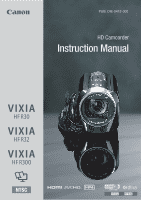 1
1 -
 2
2 -
 3
3 -
 4
4 -
 5
5 -
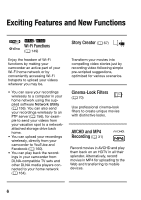 6
6 -
 7
7 -
8
-
9
-
10
-
11
-
12
-
13
-
14
-
15
-
16
-
17
-
18
-
19
-
20
-
21
-
22
-
23
-
24
-
25
-
26
-
27
-
28
-
29
-
30
-
31
-
32
-
33
-
34
-
35
-
36
-
37
-
38
-
39
-
40
-
41
-
42
-
43
-
44
-
45
-
46
-
47
-
48
-
49
-
50
-
51
-
52
-
53
-
54
-
55
-
56
-
57
-
58
-
59
-
60
-
61
-
62
-
63
-
64
-
65
-
66
-
67
-
68
-
69
-
70
-
71
-
72
-
73
-
74
-
75
-
76
-
77
-
78
-
79
-
80
-
81
-
82
-
83
-
84
-
85
-
86
-
87
-
88
-
89
-
90
-
91
-
92
-
93
-
94
-
95
-
96
-
97
-
98
-
99
-
100
-
101
-
102
-
103
-
104
-
105
-
106
-
107
-
108
-
109
-
110
-
111
-
112
-
113
-
114
-
115
-
116
-
117
-
118
-
119
-
120
-
121
-
122
-
123
-
124
-
125
-
126
-
127
-
128
-
129
-
130
-
131
-
132
-
133
-
134
-
135
-
136
-
137
-
138
-
139
-
140
-
141
-
142
-
143
-
144
-
145
-
146
-
147
-
148
-
149
-
150
-
151
-
152
-
153
-
154
-
155
-
156
-
157
-
158
-
159
-
160
-
161
-
162
-
163
-
164
-
165
-
166
-
167
-
168
-
169
-
170
-
171
-
172
-
173
-
174
-
175
-
176
-
177
-
178
-
179
-
180
-
181
-
182
-
183
-
184
-
185
-
186
-
187
-
188
-
189
-
190
-
191
-
192
-
193
-
194
-
195
-
196
-
197
-
198
-
199
-
200
-
201
-
202
-
203
-
204
-
205
-
206
-
207
-
208
-
209
-
210
-
211
-
212
-
213
-
214
-
215
-
216
-
217
-
218
-
219
-
220
-
221
-
222
-
223
-
224
-
225
-
226
 |
 |
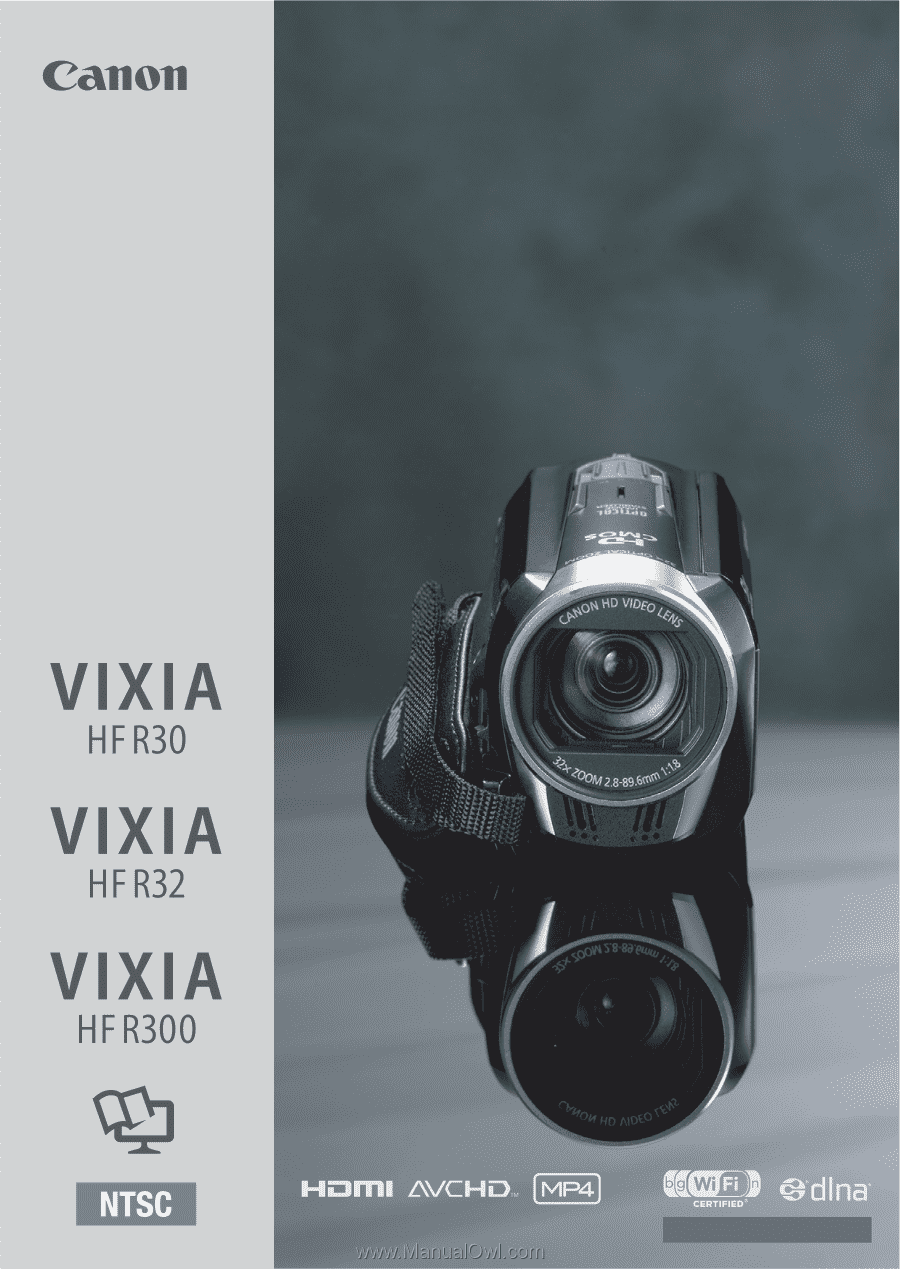
PUB. DIE-0412-000
HD Camcorder
Instruction Manual
&
%