
Samsung CLX-3185FN User Manual (user Manual) (ver.2.00) (English)
Samsung CLX-3185FN Manual
 |
View all Samsung CLX-3185FN manuals
Add to My Manuals
Save this manual to your list of manuals |
Samsung CLX-3185FN manual content summary:
- Samsung CLX-3185FN | User Manual (user Manual) (ver.2.00) (English) - Page 1
CLX-318x Series Multi-Functional Printer User's Guide imagine the possibilities Thank you for purchasing a Samsung product. - Samsung CLX-3185FN | User Manual (user Manual) (ver.2.00) (English) - Page 2
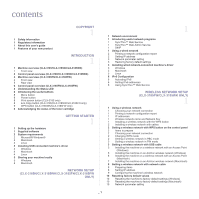
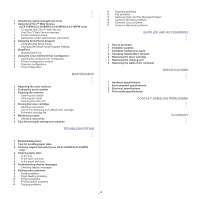
toner cartridge GETTING STARTED 1 1 Setting up the hardware 1 Supplied software 2 System requirements 2 Microsoft® Windows® 2 Macintosh 3 Linux 3 Installing USB connected machine's driver 3 Windows 4 Macintosh 4 Linux 5 Sharing your machine locally 5 Windows 6 Macintosh NETWORK SETUP (CLX-3185N - Samsung CLX-3185FN | User Manual (user Manual) (ver.2.00) (English) - Page 3
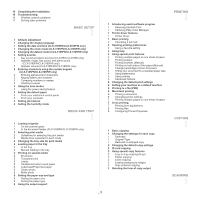
the paper size 6 Setting the paper type 6 Using the output support _ 2 1 Introducing useful software program 1 Samsung AnyWeb Print 1 Samsung Easy Color Manager 1 Printer driver features 1 Printer driver 1 Basic printing 2 Canceling a print job 2 Opening printing preferences 2 Using a favorite - Samsung CLX-3185FN | User Manual (user Manual) (ver.2.00) (English) - Page 4
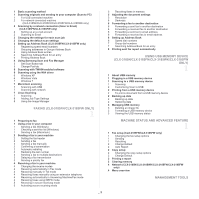
software 6 Scanning using the WIA driver 6 Windows XP 6 Windows Vista 7 Windows 7 7 Macintosh scanning 7 Scanning with USB 7 Scanning with network 7 Linux Scanning 7 Scanning 8 Adding Job Type Settings 8 Using the Image Manager FAXING (CLX-3185FN/CLX manually in Tel mode 4 Receiving faxes manually - Samsung CLX-3185FN | User Manual (user Manual) (ver.2.00) (English) - Page 5
3 Cleaning the scan unit 4 Storing the toner cartridge 4 Handling instructions 4 Use of non-Samsung and refilled toner cartridge 4 Estimated cartridge life 4 Maintenance parts 4 Checking replacables 4 Tips for moving & storing your machine TROUBLESHOOTING 1 1 Redistributing toner 1 Tips for avoiding - Samsung CLX-3185FN | User Manual (user Manual) (ver.2.00) (English) - Page 6
is not responsible for any direct or indirect damages, arising from or related to use of this user's guide. • Samsung and the Samsung logo are trademarks of Samsung Electronics Co., Ltd. • Microsoft, Windows, Windows Vista, Windows 7, and Windows Server 2008 R2 are either registered trademarks or - Samsung CLX-3185FN | User Manual (user Manual) (ver.2.00) (English) - Page 7
machine. Also, follow all warnings and instructions marked on the machine and in the all icons and signs used in the user's guide Warning Hazards or unsafe practices that may result is grounded to prevent electric shock. Call the service center for help. Follow directions explicitly. Operating - Samsung CLX-3185FN | User Manual (user Manual) (ver.2.00) (English) - Page 8
/or injury to your pet. If the machine does not operate properly after these instructions have been followed, unplug the machine from all interface connections and request assistance from qualified service personnel. ► Otherwise, this could result in electric shock or fire. Operating method Caution - Samsung CLX-3185FN | User Manual (user Manual) (ver.2.00) (English) - Page 9
Installation / Moving Warning Do not place the machine in an area with dust, humidity or water leaks. ► This could result in electric shock or fire. Caution When moving the machine, turn the power off and disconnect all cords; then lift the machine with at least two people. ► The machine could fall - Samsung CLX-3185FN | User Manual (user Manual) (ver.2.00) (English) - Page 10
or fire. Do not remove any covers or guards that are fastened with screws. ► The machine should only be repaired by a Samsung service technician. Supply usage Caution Do not disassemble the toner cartridge. ► Toner dust can be dangerous if inhaled or ingested. Do not burn any of the supplies such as - Samsung CLX-3185FN | User Manual (user Manual) (ver.2.00) (English) - Page 11
power or energy output: 5 mW WARNING Never operate or service the printer with the protective cover removed from Laser/Scanner assembly. The reflected beam, although invisible, can damage your you need additional information about ozone, contact your local Samsung dealer. Regulatory information_ 1 - Samsung CLX-3185FN | User Manual (user Manual) (ver.2.00) (English) - Page 12
contains advanced energy conservation technology that reduces power consumption when it is not in active use. When the printer does not receive data for an extended period of time, power consumption is automatically lowered. ENERGY STAR and the ENERGY STAR mark are registered U.S. marks. - Samsung CLX-3185FN | User Manual (user Manual) (ver.2.00) (English) - Page 13
countries with separate battery return systems.) This marking on the battery, manual or packaging indicates that the batteries in this product should not be and, if not installed and used in accordance with the instructions, may cause harmful interference to radio communications. However, there is - Samsung CLX-3185FN | User Manual (user Manual) (ver.2.00) (English) - Page 14
, may be present (embedded) in your printer system. This section is only applicable if these devices are present. Refer to the system label to verify the presence of wireless devices. Wireless devices that may be in your system are only qualified for use in the United States of America if an FCC ID - Samsung CLX-3185FN | User Manual (user Manual) (ver.2.00) (English) - Page 15
the same phone line as your machine, you may experience transmission and reception problems with all the equipment. It is recommended that no other equipment, except to advise the emergency service dispatcher of your intentions. The dispatcher will give you further instructions on how to actually - Samsung CLX-3185FN | User Manual (user Manual) (ver.2.00) (English) - Page 16
with the essential requirements and other relevant provisions of: CLX-3185 Series: R&TTE Directive (1999/5/EC) The declaration of conformity may be consulted at www.samsung.com/printer, go to Support > Download center and enter your printer (MFP) name to browse the EuDoC. January 1, 1995: Council - Samsung CLX-3185FN | User Manual (user Manual) (ver.2.00) (English) - Page 17
PBXs of the European countries: In the event of problems, you should contact the Euro QA Lab of Samsung Electronics Co., Ltd. in the first instance. The the system label. The power output of the wireless device or devices that may be embedded in you printer is well below the RF exposure limits as - Samsung CLX-3185FN | User Manual (user Manual) (ver.2.00) (English) - Page 18
. Modification to a wireless device will void the authorization to use it. Contact manufacturer for service. Only use drivers approved for the country in which the device will be used. See the manufacturer System Restoration Kit, or contact manufacturer Technical Support for additional information - Samsung CLX-3185FN | User Manual (user Manual) (ver.2.00) (English) - Page 19
DAMAGES (INCLUDING, BUT NOT LIMITED TO, PROCUREMENT OF SUBSTITUTE GOODS OR SERVICES; LOSS OF USE, DATA, OR PROFITS; OR BUSINESS INTERRUPTION) HOWEVER NEGLIGENCE OR OTHERWISE) ARISING IN ANY WAY OUT OF THE USE OF THIS SOFTWARE, EVEN IF ADVISED OF THE POSSIBILITY OF SUCH DAMAGE. The licence and - Samsung CLX-3185FN | User Manual (user Manual) (ver.2.00) (English) - Page 20
China only Regulatory information_ 10 - Samsung CLX-3185FN | User Manual (user Manual) (ver.2.00) (English) - Page 21
Regulatory information_ 11 - Samsung CLX-3185FN | User Manual (user Manual) (ver.2.00) (English) - Page 22
problem using the machine, refer to the troubleshooting chapter (See "Troubleshooting" on page 1). •Terms used in this user's guide to printer or MFP. The following table offers the conventions of this guide. the surface of the drum located in the toner cartridge or imaging unit. a. pages per minute - Samsung CLX-3185FN | User Manual (user Manual) (ver.2.00) (English) - Page 23
the printer driver and instructions for setting up the options for printing (See "Using help" on page 3). Samsung website Downloadable software If you have Internet access, you can get help, support, machine drivers, manuals, and order information from the Samsung website, www.samsung.com/printer - Samsung CLX-3185FN | User Manual (user Manual) (ver.2.00) (English) - Page 24
with Hi-Speed USB 2.0 interface and network interface. • Your machine is equipped with wireless network interface (CLX-3185FW/CLX-3185WK only). Copy originals in several formats • Your machine can copy multiple image copies from the original document on a single page (See "2-up or 4-up copying - Samsung CLX-3185FN | User Manual (user Manual) (ver.2.00) (English) - Page 25
802.11b/n/g wireless LAN ● ● SyncThru™ Web Service ● ● ● ● Print Screen ● Automatic Document Feeder (ADF) ● ● ( ●: Included, ○: Optional, Blank: Not available) •CLX-3180K, CLX-3185, CLX-3185K and CLX-3186 are the same machine despite the name difference. This User's Guide is written on - Samsung CLX-3185FN | User Manual (user Manual) (ver.2.00) (English) - Page 26
10 This illustration may differ from your machine depending on its model. 1 Scanner lid 5 Front door 2 USB porta 6 Output support 3 Tray 1 7 Control panel 4 Front door handle 8 Toner cartridges a. CLX-3185N/CLX-3185WK only 9 Waste toner container 10 Imaging unit 11 Scanner glass 12 Scan - Samsung CLX-3185FN | User Manual (user Manual) (ver.2.00) (English) - Page 27
Rear view 5 4 3 This illustration may differ from your machine depending on its model. 1 Rear door handle 2 Rear door 3 Power cord receptacle a. CLX-3185N/CLX-3185WK only 4 USB port 5 Network porta 1 2 Introduction_ 2 - Samsung CLX-3185FN | User Manual (user Manual) (ver.2.00) (English) - Page 28
14 Toner Color The toner colors shown below LCD display co-works with the display messages (See "Acknowledging the status of the toner cartridge" on memory device (CLX-3185N/CLX-3185FN/CLX-3185WK/CLX-3185FW only)" on page 1). If your wireless access point supports Wi-Fi Protected Setup™(WPS), you - Samsung CLX-3185FN | User Manual (user Manual) (ver.2.00) (English) - Page 29
width guides 5 Tray 1 2 Document feeder input tray 6 Front door handle 3 Document feeder output tray 7 Front door 4 USB port 8 Document output tray 9 Control panel 10 Document feeder cover 11 Toner cartridges 12 Waste toner container 14 15 16 13 Imaging unit 14 Scanner lid 15 Scanner glass - Samsung CLX-3185FN | User Manual (user Manual) (ver.2.00) (English) - Page 30
Rear view 7 6 5 4 3 1 2 This illustration may differ from your machine depending on its model. 1 Rear door handle 5 Network port 2 Rear door 6 Telephone line socket 3 Power cord receptacle 7 Extension telephone socket (EXT) 4 USB port Introduction_ 5 - Samsung CLX-3185FN | User Manual (user Manual) (ver.2.00) (English) - Page 31
Eco Copy (CLX-3185FN) 2 Direct USB (CLX-3185FW) Reduces toner consumption and paper usage (See "Eco Copy button (CLX-3185/CLX-3185N/CLX-3185FN only)" and the number of copies. 15 Wireless LED (CLX-3185FW) Shows the current status of the wireless network connection (See "Understanding the Status - Samsung CLX-3185FN | User Manual (user Manual) (ver.2.00) (English) - Page 32
the toner cartridge" on page 9). Allows you to directly print files stored on a USB memory device when it is inserted into the USB port on the front of your machine (See "Using USB memory device (CLX-3185N/CLX-3185FN/CLX-3185WK/CLX-3185FW only)" on page 1). If your wireless access point supports Wi - Samsung CLX-3185FN | User Manual (user Manual) (ver.2.00) (English) - Page 33
non-genuine Samsung toner cartridges will not be covered under the machine warranty. Check the message on the display. Follow the instructions in the message or refer to troubleshooting part (See "Understanding display messages" on page 5). If the problem persists, call a service representative - Samsung CLX-3185FN | User Manual (user Manual) (ver.2.00) (English) - Page 34
button. To perform this function, refer to "Wireless network setup (CLX-3185FW/CLX-3185WK only)" on page 1. Acknowledging the status of the toner cartridge The status of toner cartridges is indicated by the Status LED and the LCD display. If the toner cartridge is low or needs to be replaced, the - Samsung CLX-3185FN | User Manual (user Manual) (ver.2.00) (English) - Page 35
is occasionally updated for reasons like the release of new operating system and etc. If needed, download the latest version from the Samsung website (www.samsung.com/printer). •Installed software may be different depending on each model. Printing is suitable for altitudes under 1,000 m (3,281 ft - Samsung CLX-3185FN | User Manual (user Manual) (ver.2.00) (English) - Page 36
CLX-3185FN/CLX-3185FW only) • SetIP: Use this program to set your machine's TCP/IP addresses. Macintosh • Printer driver: Use this driver to take full advantage of your machine's features. • Scanner driver: TWAIN driver GB) 16 GB • Support for DirectX® 9 software. •Windows Terminal Services - Samsung CLX-3185FN | User Manual (user Manual) (ver.2.00) (English) - Page 37
images. •The Linux scanner driver supports the optical resolution at maximum. Installing USB connected machine's driver window appears in Windows Vista, click Run Setup.exe in Install or run program field, Software Only allows you to install the supplied software such as Smart Panel. Follow the guide - Samsung CLX-3185FN | User Manual (user Manual) (ver.2.00) (English) - Page 38
is done, click Quit. Linux You need to download Linux software packages from the Samsung website to install the printer software (http://www.samsung.com/printer). Follow the steps below to install the software. Installing the Unified Linux Driver 1.Make sure that the machine is connected to your - Samsung CLX-3185FN | User Manual (user Manual) (ver.2.00) (English) - Page 39
install the machine software. If you are not a super user, ask your system administrator. 3.From the Samsung website, download and unpack the software, you have to use the driver in the text mode. Follow the steps 3 to 4 and then follow the instructions on the terminal screen. Installing the Printer - Samsung CLX-3185FN | User Manual (user Manual) (ver.2.00) (English) - Page 40
the file you want to print and start printing. Macintosh The following steps are for Mac OS X 10.5 ~ 10.6. Refer to Mac Help for other versions. Setting up a host computer 1.Install your printer driver (See "Macintosh" on page 4). 2.Open the Applications folder > System Preferences, and click Print - Samsung CLX-3185FN | User Manual (user Manual) (ver.2.00) (English) - Page 41
step-by-step instructions for setting up the network connected machine and software. This chapter includes: • Network environment • Introducing useful network programs • Using a wired network • Installing wired network-connected machine's driver • IPv6 Configuration Supported optional devices and - Samsung CLX-3185FN | User Manual (user Manual) (ver.2.00) (English) - Page 42
's MAC address from the Network Configuration Report and enter it without the colons. For example, 00:15:99:29:51:A8 becomes 0015992951A8. •IP Address: Enter a new IP address for your printer. For example, if your computer's IP address is 192.168.1.150, Network setup (CLX-3185N/CLX-3185WK/CLX - Samsung CLX-3185FN | User Manual (user Manual) (ver.2.00) (English) - Page 43
instructions printer driver installation. 1.Print the machine's network configuration report to find your machine's MAC address. 2.Open the /opt/Samsung the SyncThru™ Web Service. 3.Click Login on software CD into your CD-ROM drive. Network setup (CLX-3185N/CLX-3185WK/CLX-3185FN/CLX-3185FW only)_ 3 - Samsung CLX-3185FN | User Manual (user Manual) (ver.2.00) (English) - Page 44
CLX-3185WK/CLX-3185FW, you can access Wireless Setting and Installation menu. The Wireless Setting and Installation allows you to install a wireless Software Only allows you to install the supplied software such as Smart Panel. Follow the instruction software without connection of the printer driver - Samsung CLX-3185FN | User Manual (user Manual) (ver.2.00) (English) - Page 45
need to download Linux software packages from the Samsung website to install the printer software (http://www.samsung.com/printer). To install other software: •See "Installing the SmartPanel" on page 5. •See "Installing the Printer Settings Utility" on page 5. Install Linux Driver and add network - Samsung CLX-3185FN | User Manual (user Manual) (ver.2.00) (English) - Page 46
arrow until On appears and press OK. 6. Turn the machine off and turn it on again. 7. Reinstall your printer driver. Setting IPv6 addresses Machine supports the following IPv6 addresses for network printing and managements. • Link-local Address: Self-configured local IPv6 address (Address starts - Samsung CLX-3185FN | User Manual (user Manual) (ver.2.00) (English) - Page 47
wireless network setup 1. (clx-3185fw/clx-3185wk only) This chapter gives you step-by-step instructions for setting up the wireless network connected machine and software. This chapter includes: • Using a wireless network • Setting a wireless network with WPS button on the control panel • Setting - Samsung CLX-3185FN | User Manual (user Manual) (ver.2.00) (English) - Page 48
program in the supplied software CD. Only Windows and Macintosh operating system are supported (See "Setting a wireless network with USB cable" on page 3). You can also install a wireless network in Printer Settings Utility with a USB cable after installing driver (Windows and Macintosh operating - Samsung CLX-3185FN | User Manual (user Manual) (ver.2.00) (English) - Page 49
point • Network-connected computer • Software CD that provided with your machine • The machine installed with a wireless network interface • USB cable Creating the infrastructure network in Windows When the items are ready, follow below steps: Wireless network setup (CLX-3185FW/CLX-3185WK only)_ 3 - Samsung CLX-3185FN | User Manual (user Manual) (ver.2.00) (English) - Page 50
software searches the wireless network. If the searching has failed, you may check if the USB cable is connected between the computer and machine properly, and follow the instruction manually Samsung, click On-line Registration. 16.Click Finish. Wireless network setup (CLX-3185FW/CLX-3185WK only)_ 4 - Samsung CLX-3185FN | User Manual (user Manual) (ver.2.00) (English) - Page 51
the instruction on the window. 7.After searching the wireless network, a list of wireless network your machine has searched appears. If you want to use the Samsung default ad-hoc setting, select the last wireless network on the list, which Network Name(SSID) is portthru and Signal is Printer Self - Samsung CLX-3185FN | User Manual (user Manual) (ver.2.00) (English) - Page 52
Setting and Installation option and then click OK. 14.The software searches the wireless network. If the searching has failed, you may check if the USB cable is connected between the computer and machine properly, and follow the instruction on the window. 15.After searching, the window shows the - Samsung CLX-3185FN | User Manual (user Manual) (ver.2.00) (English) - Page 53
the instruction on the window. 15.After searching the wireless network, a list of wireless network your machine has searched appears. If you want to use the Samsung default ad-hoc setting, select the last wireless network on the list, which Network Name(SSID) is portthru and Link Quality is Printer - Samsung CLX-3185FN | User Manual (user Manual) (ver.2.00) (English) - Page 54
Installing the program 1.Insert the software CD provided with your machine. When the driver CD runs automatically, close that Samsung Printers > SetIP > SetIP. 4.Click on the icon (third from left) in the SetIP window to open the TCP/IP configuration window. Wireless network setup (CLX-3185FW/CLX - Samsung CLX-3185FN | User Manual (user Manual) (ver.2.00) (English) - Page 55
ID: admin •Password: sec00000 6.When the SyncThru™ Web Service window opens, click Settings > Network Settings. 7.Click Wireless > Wizard. Wizard will help you setup the wireless network configuration. However, if you want to set the wireless network directly, select Custom. 8.Select the one Network - Samsung CLX-3185FN | User Manual (user Manual) (ver.2.00) (English) - Page 56
it for future reference. You are now ready to use your new Samsung wireless printer on your network. Troubleshooting Solving problems that might occur during wireless setting and installing the machine driver Wireless network problems If problems occur while using the machine on a network, check the - Samsung CLX-3185FN | User Manual (user Manual) (ver.2.00) (English) - Page 57
address: 255.255.255.0 -Gateway address: 192.168.1.1 Solving other problems If problems occur while using the machine on a network, check the followings. For information on access point (or wireless router), refer to its own user's guide. • Your computer, access point or machine may not be turned - Samsung CLX-3185FN | User Manual (user Manual) (ver.2.00) (English) - Page 58
Printer Software CD. 2. Double-click the Smart Panel icon on the Windows task bar (or Notification Area in Linux). You can also click Smart Panel on the status bar in Mac OS X. 3. Click Printer Setting. If your machine is connected to the network, you can set the altitude via SyncThru™ Web Service - Samsung CLX-3185FN | User Manual (user Manual) (ver.2.00) (English) - Page 59
the ringer volume, you can select Off, Low, Mid, and High. Key sound and alarm sound (CLX-3185/CLX-3185N only) 1. Press Menu on the control panel. 2. Press the left/right arrow until System Setup appears and press OK. 3. Press the left/right arrow until Sound/Volume appears and press OK. 4. Select - Samsung CLX-3185FN | User Manual (user Manual) (ver.2.00) (English) - Page 60
arrow until System Setup appears and press OK. 3. Press the left/right arrow until Machine Setup appears and press , you can select other printer drivers connected with the selected printer. 5.Click Paper tab. users need to change the default setting manually each time they want to print using - Samsung CLX-3185FN | User Manual (user Manual) (ver.2.00) (English) - Page 61
driver with the provided Printer Software CD. 2. Double-click the Smart Panel icon on the Windows task bar (or Notification Area in Linux). You can also click Smart Panel on the status bar in Mac OS X. 3. Click Printer Setting. If your machine is connected to the network, you can set the humidity - Samsung CLX-3185FN | User Manual (user Manual) (ver.2.00) (English) - Page 62
size and type • Using the output support Illustrations on this user's guide may differ from your machine depending on images. 1. Lift and open the scanner lid. 3. Close the scanner lid. •Leaving the scanner lid open while copying may affect copy quality and toner consumption. •Dust on the scanner - Samsung CLX-3185FN | User Manual (user Manual) (ver.2.00) (English) - Page 63
more vibrant images. • Surface guide. •Using print media that does not meet these specifications may cause problems or require repairs. Such repairs are not covered by Samsung's warranty or service printer may lead to overheating of the unit and, in rare cases may cause a fire. Media sizes supported - Samsung CLX-3185FN | User Manual (user Manual) (ver.2.00) (English) - Page 64
from the tray if necessary. guide. 2. Pressing and unlatching the guide lock in the top of the tray, pull the tray out manually. 1 If the paper paper in the tray, the paper length guide can be pushed to inside, load paper enough. •If you experience problems with paper feed, load a paper into the - Samsung CLX-3185FN | User Manual (user Manual) (ver.2.00) (English) - Page 65
guides for manual feeding in the tray. To use manual feeding in the tray, you must adjust the paper length/width guide properly. Tips on using the manual feeding method •If you select Manual Feeder for Source from your software paper jams and print quality problems (See "Print media specifications" - Samsung CLX-3185FN | User Manual (user Manual) (ver.2.00) (English) - Page 66
quality problems. •Depending on the selection or storage conditions of the transparency, jam or image scratch might occur. Labels To avoid damaging the machine, use only labels designed for laser printers. 1 Acceptable 2 Unacceptable • Envelopes with a peel-off adhesive strip or with more than - Samsung CLX-3185FN | User Manual (user Manual) (ver.2.00) (English) - Page 67
) long. • In software applications, set the margins the machine driver override the support The surface of the output tray may become hot if you print a large number of pages at once. Make sure that you do not touch the surface, and do not allow children near it. Illustrations on this user's guide - Samsung CLX-3185FN | User Manual (user Manual) (ver.2.00) (English) - Page 68
The printed pages stack on the output support and it will help the printed pages to align. Media and tray_ 7 - Samsung CLX-3185FN | User Manual (user Manual) (ver.2.00) (English) - Page 69
> All programs > Samsung Printers > Samsung Easy Color Manager > Download the latest version to link the website where the tool is available for the download. This tool is available only for Windows and Macintosh operating systems. Printer driver features Your printer drivers support the following - Samsung CLX-3185FN | User Manual (user Manual) (ver.2.00) (English) - Page 70
Samsung AnyWeb Print will save your time for screen-captured images or printing the image. Click Start > All programs > Samsung Printers > Samsung AnyWeb Print > Download input box. 3. Click Add. When you save Presets, all current driver settings are saved. If you click Add, the Add button changes to - Samsung CLX-3185FN | User Manual (user Manual) (ver.2.00) (English) - Page 71
the driver. If you want to search information via a keyword, click the Samsung tab in To change the print settings from your software application, access Printing Preferences (See "Opening by pasting the sheets together. Printing booklets (Manual) This feature prints your document on both sides - Samsung CLX-3185FN | User Manual (user Manual) (ver.2.00) (English) - Page 72
window. If your machine does not have a duplex unit, you should complete the printing job manually. The machine prints every other page of the document first. After that, a message appears on your computer. Follow the on-screen instructions to complete the printing job. Change percentage of your - Samsung CLX-3185FN | User Manual (user Manual) (ver.2.00) (English) - Page 73
option is not applicable with the printer language you are using. 1. To change the print settings from your software application, access Printing Preferences (See color documents in grayscale. •Toner Save: Adjusting this option extends the life of your toner cartridges and reduces your cost per - Samsung CLX-3185FN | User Manual (user Manual) (ver.2.00) (English) - Page 74
need to check the printer driver setting in each application you Setup. 3. Choose your paper size, orientation, scaling or other options, and make sure that your machine is selected. 4. Choose the number of copies you want and indicate which pages you want to print. 5. Click Print. Changing printer - Samsung CLX-3185FN | User Manual (user Manual) (ver.2.00) (English) - Page 75
. Select Printer Features from the drop-down list to access the following features. •Fine Edge: It allows users to emphasize edges of texts and fine lines for improving readability and align color channel registration in color printing mode. •RGB Color: You can adjust the appearance of images by - Samsung CLX-3185FN | User Manual (user Manual) (ver.2.00) (English) - Page 76
change the various properties for your machine. 1. Open the Unified Driver Configurator. If necessary, switch to Printers configuration. 2. Select your machine from the available printers list and click Properties. 3. The Printer Properties window opens. •General: This option allows you to change - Samsung CLX-3185FN | User Manual (user Manual) (ver.2.00) (English) - Page 77
instructions for copying documents. This chapter includes: • Basic copying • Changing the settings for each copy • Changing the default copy settings •The supported with an ADF such as CLX-3185FN and CLX-3185FW. 1. Press (Copy) image from 25% to 400% when you copy original documents from the scanner - Samsung CLX-3185FN | User Manual (user Manual) (ver.2.00) (English) - Page 78
CLX-3185FN and CLX-3185FW, press (Copy) and Menu in order on the control panel. 2. Press the left/right arrow until Copy Setup The original must be placed on the scanner glass to use this feature. 1. Press ID ) Your machine can print 2 or 4 original images reduced to fit onto one sheet of paper. 1 2 - Samsung CLX-3185FN | User Manual (user Manual) (ver.2.00) (English) - Page 79
determined by the original image and paper size. This copy feature is available only when you place originals on the scanner glass. 1. Depending on the model, the operating procedure may differ. •For CLX-3185 and CLX-3185N, press Menu on the control panel. •For CLX-3185FN and CLX-3185FW, press (Copy - Samsung CLX-3185FN | User Manual (user Manual) (ver.2.00) (English) - Page 80
4. Press the left/right arrow until Copy Collation appears and press OK. 5. Press the left/right arrow until On appears and press OK to save the selection. •On: Prints output in sets to match the sequence of originals. •Off: Prints output sorted into stacks of individual pages. 6. Press Stop/Clear - Samsung CLX-3185FN | User Manual (user Manual) (ver.2.00) (English) - Page 81
each scan job • Changing the default scan settings • Setting up Address Book (CLX-3185FN/CLX-3185FW only) • Using Samsung Scan and Fax Manager • Scanning with TWAIN-enabled software • Scanning using the WIA driver • Macintosh scanning • Linux Scanning •The maximum resolution that can be achieved - Samsung CLX-3185FN | User Manual (user Manual) (ver.2.00) (English) - Page 82
For network connected machine (CLX-3185N/CLX-3185FN/CLX-3185FW/CLX-3185WK only) Make sure the printer driver is installed on your computer using the software CD, since the printer driver includes the scan program (See "Installing wired network-connected machine's driver" on page 3). 1. Make sure - Samsung CLX-3185FN | User Manual (user Manual) (ver.2.00) (English) - Page 83
image is to be saved. If you select TIFF or PDF, CLX-3185FN and CLX-3185FW, press (Scan) and Menu in order on the control panel. 2. Press the left/right arrow until Scan Setup CLX-3185FN/CLX-3185FW only) You can set up address book with the email addresses you use frequently via SyncThru™ Web Service - Samsung CLX-3185FN | User Manual (user Manual) (ver.2.00) (English) - Page 84
sec00000 If you do not use the SyncThru™ Web Service for five minutes, it automatically gets logged out. 6. Samsung Scan and Fax Manager If you have installed the printer driver, the Samsung Scan and Fax Manager program is installed too. For program information and the scanner's status, start Samsung - Samsung CLX-3185FN | User Manual (user Manual) (ver.2.00) (English) - Page 85
image JPEG, PDF and not support this Scanner Select when your machine is connected via network port. •Auto detection on the network: Automatically detects your machine. •IP or Host name: Enter in your machine's IP address to detect your machine. Scan Assistant When you press Quick Scan in Samsung - Samsung CLX-3185FN | User Manual (user Manual) (ver.2.00) (English) - Page 86
standard components provided by Microsoft Windows XP and works with digital cameras and scanners. Unlike the TWAIN driver, the WIA driver allows you to scan and easily adjust images without using additional software. The WIA driver works only on Windows XP/Vista with a USB port. Windows XP 1. Make - Samsung CLX-3185FN | User Manual (user Manual) (ver.2.00) (English) - Page 87
•Scan process differ according to TWAIN-compliant software. Please refer to the user's guide of the software. •If scanning does not operate in Image Capture, update Mac OS to the latest version. Image Capture operates properly in Mac OS X 10.3.9 or higher and Mac OS X 10.4.7 or higher. Scanning with - Samsung CLX-3185FN | User Manual (user Manual) (ver.2.00) (English) - Page 88
in progress on the first scanner, you may select the second scanner, set the device options and start the image acquisition simultaneously. 4. Click Properties for the image. •Scan Area: This option allows you to select the page size. The Advanced button enables you to set the page size manually. If - Samsung CLX-3185FN | User Manual (user Manual) (ver.2.00) (English) - Page 89
you canceled. Scroll Crop Allows you to scroll through the image. Crops the selected image area. Zoom Out Zooms the image out. Zoom In Zooms the image in. Scale Rotate Allows you to scale the image size; you can enter the size manually, or set the rate to scale proportionally, vertically, or - Samsung CLX-3185FN | User Manual (user Manual) (ver.2.00) (English) - Page 90
your Internet service provider for use on DSL Micro-filter. depending on your application. 3. Select Samsung Network PC Fax from the Print window 4. Click Print or OK. Then, a windows like the image below will appear. 1 Line port 2 Micro filter 3 DSL modem / Telephone line Supported optional - Samsung CLX-3185FN | User Manual (user Manual) (ver.2.00) (English) - Page 91
Mac OS X 10.3 or 10.4, select PDF and Fax PDF. 3. Select CLX-3180 Series fax-USB from the drop-down list in Printer directly from your computer, use Samsung Network PC Fax (See scanner glass, the machine shows the message asking to place another page. Sending a fax manually the fax setup options" on - Samsung CLX-3185FN | User Manual (user Manual) (ver.2.00) (English) - Page 92
how to enter alphanumeric characters, see "Entering characters using the number keypad (CLX-3185FN/CLX-3185FW only)" on page 2. If you do not want to assign memory before transmission. 13. If an original is placed on the scanner glass, select Yes to add another pages. Load another original and - Samsung CLX-3185FN | User Manual (user Manual) (ver.2.00) (English) - Page 93
before transmission. 9. If an original is placed on the scanner glass, select Yes to add another pages. Load another rings, see "Fax setup (CLX-3185FN/CLX-3185FW only)" on page 1. Receiving manually in Tel mode You can feature is often used by answering services who answer telephones for many - Samsung CLX-3185FN | User Manual (user Manual) (ver.2.00) (English) - Page 94
service until Fax Setup appears and Setup. If the DRPD setup printer Originals containing extremely fine detail. Super Fine mode is enabled only if the machine with which you are communicating also supports support Super Fine resolution, the machine transmits using the highest resolution mode supported - Samsung CLX-3185FN | User Manual (user Manual) (ver.2.00) (English) - Page 95
that your machine is in Fax mode. Speed dial numbers You can store up to 240 frequently-used fax numbers in speed dial numbers. Faxing (CLX-3185FN/CLX-3185FW only)_ 6 - Samsung CLX-3185FN | User Manual (user Manual) (ver.2.00) (English) - Page 96
Back. 6.Enter the name you want and press OK. For details on how to enter alphanumeric characters (See "Entering characters using the number keypad (CLX-3185FN/CLX-3185FW only)" on page 2). 7.Enter the fax number you want and press OK. 8.Press Stop/Clear to return to ready mode. Editing speed dial - Samsung CLX-3185FN | User Manual (user Manual) (ver.2.00) (English) - Page 97
operations, including time and dates. 1. Press (Fax) on the control panel. 2. Press Menu on the control panel. 3. Press the left/right arrow until Fax Setup appears and press OK. 4. Press the left/right arrow until Auto Report appears and press OK. 5. Press the left/right arrow until On appears and - Samsung CLX-3185FN | User Manual (user Manual) (ver.2.00) (English) - Page 98
clx-3185n/clx-3185fn/clx-3185wk/clx , downloaded music . Your machine supports USB memory devices guide may differ from your machine depending on its options or models. Check your model name. You can scan a document and save the scanned image original face down on the scanner glass. For details about - Samsung CLX-3185FN | User Manual (user Manual) (ver.2.00) (English) - Page 99
format in which the image is to be saved. When you select TIFF or PDF, you can select files. File types supported by Direct Print option • PRN: Only files created by provided driver with your machine OK. For CLX-3185N, Setup Data option is only available. For CLX-3185FN/3185FW, Setup Data and Address - Samsung CLX-3185FN | User Manual (user Manual) (ver.2.00) (English) - Page 100
to the machine. 9. Press Stop/Clear to return to ready mode. Managing USB memory You can delete image files stored on a USB memory device one by one or all at once by reformatting the device. /Clear to return to ready mode. Using USB memory device (CLX-3185N/CLX-3185FN/CLX-3185WK/CLX-3185FW only)_ 3 - Samsung CLX-3185FN | User Manual (user Manual) (ver.2.00) (English) - Page 101
is not applicable to your machine. Fax setup (CLX-3185FN/CLX-3185FW only) Changing the fax setup options Your machine provides you with various user Press Stop/Clear to return to ready mode. Option ECM Mode Send Report Image TCR Description This mode helps with poor line quality and makes sure any - Samsung CLX-3185FN | User Manual (user Manual) (ver.2.00) (English) - Page 102
using a dot-matrix printer. • Super Fine: you are communicating also supports the Super Fine CLX-3185, CLX-3185N and CLX-3185WK, press Menu on the control panel. •For CLX-3185FN and CLX-3185FW, press (Copy) and Menu in order on the control panel. 2. Press the left/right arrow until Copy Setup - Samsung CLX-3185FN | User Manual (user Manual) (ver.2.00) (English) - Page 103
images. You can improve the copy quality by selecting the document type for the current copy job. You can cut toner your machine. When SyncThru™ Web Service opens, click Information > Print to your machine. Option All settings Fax Setup Copy Setup Description Clears all of the data stored - Samsung CLX-3185FN | User Manual (user Manual) (ver.2.00) (English) - Page 104
transmission speed. Selects this option to use the wireless network (See "Wireless network setup (CLX-3185FW/CLX-3185WK only)" on page 1). Reverts the Send Report Image TCR Receiving Receive Mode Ring To Answer Stamp RCV Name RCV Start Code Auto Reduction Discard Size Junk Fax Setup DRPD Mode - Samsung CLX-3185FN | User Manual (user Manual) (ver.2.00) (English) - Page 105
Machine Fax Nob Date & Timeb Clock Modeb Language Default Mode Power Save Timeout Altitude Adj. Auto Continue Import Setting Export Setting Paper Setup Paper Size Paper Type Sound/Volume Key Sound Alarm Sound Speakerb Ringerb Report All Report Configuration Supplies Info Address Bookb Send Reportb - Samsung CLX-3185FN | User Manual (user Manual) (ver.2.00) (English) - Page 106
100M Half 100M Full Wirelessd WPS Setting WLAN Setting WLAN Default WLAN Signal Clear Setting Network Info. a. CLX-3185/CLX-3185N/CLX-3185FN only b. CLX-3185FN/CLX-3185FW only c. CLX-3185N/CLX-3185FN/CLX-3185FW/CLX-3185WK only d. CLX-3185WK/CLX-3185FW only Machine status and advanced feature_ 6 - Samsung CLX-3185FN | User Manual (user Manual) (ver.2.00) (English) - Page 107
Service (CLX-3185N/CLX-3185WK/CLX-3185FN/CLX-3185FW only) • Using the Smart Panel program • SmarThru • Using the Linux Unified Driver Configurator Supported are printed and amount of toner left in the cartridge. •Usage Counters: This related to your machine. -Printer: You can set settings related - Samsung CLX-3185FN | User Manual (user Manual) (ver.2.00) (English) - Page 108
and setting contact information for sending emails. You can also connect to Samsung website or download drivers by selecting the Link menu. •Firmware Upgrade: You can upgrade your machine's firmware. •Contact Information: You can view the contact information. •Link: You can view the links to - Samsung CLX-3185FN | User Manual (user Manual) (ver.2.00) (English) - Page 109
Buy Now 2 You can order replacement toner cartridge(s) from online. User's Guide You can view the online User's Guide. This button changes to Troubleshooting 3 Guide when error occurs. You can directly open the troubleshooting section in the user's guide. Printer Setting 4 You can configure - Samsung CLX-3185FN | User Manual (user Manual) (ver.2.00) (English) - Page 110
Configuration 2 Scanners Configuration 3 Ports Configuration To use the on screen help, click Help. 3. After changing the configurations, click Exit to close the Unified Driver Configurator. Printers configuration window Printers configuration has the two tabs: Printers and Classes. Printers tab - Samsung CLX-3185FN | User Manual (user Manual) (ver.2.00) (English) - Page 111
access of "consumer" applications to these devices via the single I/O port. The Unified Linux Driver package provides an appropriate port sharing mechanism that is used by Samsung printer and scanner drivers. The drivers talk to their devices via so-called machine ports. The current status of any - Samsung CLX-3185FN | User Manual (user Manual) (ver.2.00) (English) - Page 112
cartridge. Default setting is recommended for getting best color quality. 7. Press Stop/Clear to return to ready mode. If you have moved the machine, it is strongly recommended to operate this menu manually. Finding the serial number When you call for service or register as a user on the Samsung - Samsung CLX-3185FN | User Manual (user Manual) (ver.2.00) (English) - Page 113
of the machine using the groove on the front of the imaging unit. Do not touch the green surface of the drum located in the imaging unit. Use the handle on the cartridge to avoid touching this area. 8. Insert the waste toner container into position and then push it to make sure that it is firmly - Samsung CLX-3185FN | User Manual (user Manual) (ver.2.00) (English) - Page 114
scan unit at the start of each day and during the day as needed. The procedure may differ depending on your model. Check your model name. The following procedure is for CLX-3185, CLX-3185N and CLX-3185WK. 1. Slightly dampen a soft, lint-free cloth or paper towel with water. 2. Open the scanner lid - Samsung CLX-3185FN | User Manual (user Manual) (ver.2.00) (English) - Page 115
• Never manually rotate the drum, especially in the reverse direction; this can cause internal damage and toner spillage. Use of non-Samsung and refilled toner cartridge Samsung Electronics does not recommend or approve the use of non-Samsung brand toner cartridges in your printer including generic - Samsung CLX-3185FN | User Manual (user Manual) (ver.2.00) (English) - Page 116
Tips for avoiding paper jams • Clearing original document jams (CLX-3185FN/CLX-3185FW only) • Clearing paper jams • Understanding display messages • Solving other problems Redistributing toner When the toner cartridge is near the end of its life, • White streaks or light printing occurs. • Prepare - Samsung CLX-3185FN | User Manual (user Manual) (ver.2.00) (English) - Page 117
CLX-3185FW only) When an original document jams in the document feeder, a warning message appears on the display. To avoid tearing the document, remove the jammed document slowly and carefully. To prevent document jams, use the scanner See "In the fuser unit area" on page 3. Inside the machine - Samsung CLX-3185FN | User Manual (user Manual) (ver.2.00) (English) - Page 118
the paper, pull the jammed paper out slowly and carefully. Follow the instructions in the following sections to clear the jam. In the tray Click this the paper in this area, check the fuser area around the toner cartridge (See "In the fuser unit area" on page 3). 4. Insert the tray 1 back into the - Samsung CLX-3185FN | User Manual (user Manual) (ver.2.00) (English) - Page 119
go to the next step. 3. Open the rear door. The fuser area is hot. Take care when removing paper from the machine. 6. Open the scan unit first and then inner cover. 1 2 Troubleshooting_ 4 - Samsung CLX-3185FN | User Manual (user Manual) (ver.2.00) (English) - Page 120
size. •[color] indicates the color of toner or imaging unit. Message Meaning Suggested solutions [COMM. Error] [Incompatible] [Line Busy] [Line Error] BOOTP problem Auto IP Run BOOTP problem Reconfigure DHCP The machine has a communication problem. The machine has received a fax from which - Samsung CLX-3185FN | User Manual (user Manual) (ver.2.00) (English) - Page 121
(CLX-3185FN/CLX-3185 FW only)" on page 2). Close the door until it locks into place. Turn the power button off and on. If the problem persists, call a service representative. Turn the power button off and on. If the problem persists, call a service representative. Reinstall the toner cartridge two - Samsung CLX-3185FN | User Manual (user Manual) (ver.2.00) (English) - Page 122
guarantee non-genuine Samsung toner cartridge's quality. Service or repair required as a result of using non-genuine Samsung toner cartridges will not be covered under the machine warranty. The fuser unit has almost reached its estimated life. The imaging unit has almost reached its estimated - Samsung CLX-3185FN | User Manual (user Manual) (ver.2.00) (English) - Page 123
The engine in your printer is checking some problems detected. The machine cannot detect a toner cartridge. Too many faxes are received. Suggested solutions Please wait a few minutes. Remove the toner hopper sheet from the toner cartridge (See "Replacing the toner cartridge" on page 2). Or open - Samsung CLX-3185FN | User Manual (user Manual) (ver.2.00) (English) - Page 124
and reconnect it. -For Local Printing -For Network Printing (CLX-3185N/CLX-3185FN/CLX-3185FW only) Condition Suggested solutions Paper sticks together. • Ensure that the paper guides are against both fail to feed correctly. sides of the envelopes. Paper feeding problems Condition Paper jams - Samsung CLX-3185FN | User Manual (user Manual) (ver.2.00) (English) - Page 125
problems 4). • The toner cartridge is not installed. Install the toner cartridge. If a system error occurs, contact a service representative. The printer driver may be incorrectly installed. The machine is malfunctioning. Repair the machine software (See "Installing USB connected machine's driver - Samsung CLX-3185FN | User Manual (user Manual) (ver.2.00) (English) - Page 126
1). If necessary, replace the toner cartridge (See "Replacing the toner cartridge" on page 2). Check the file to ensure that it does not contain blank pages. Contact a service representative. Printing the PDF file as an image may solve this problem. Turn on Print As Image from the Acrobat printing - Samsung CLX-3185FN | User Manual (user Manual) (ver.2.00) (English) - Page 127
paper path may need cleaning. Contact a service representative. If black vertical streaks appear on the page: • The drum inside the toner cartridge has probably been scratched. Remove the toner cartridge and install a new one (See "Replacing the toner cartridge" on page 2). If white vertical streaks - Samsung CLX-3185FN | User Manual (user Manual) (ver.2.00) (English) - Page 128
toner cartridge may be installed improperly. Remove the cartridge and reinsert it. • The toner cartridge may be defective. Remove the toner cartridge and install a new one (See "Replacing the toner cartridge" on page 2). • If the problem persists, the machine may require repair. Contact a service - Samsung CLX-3185FN | User Manual (user Manual) (ver.2.00) (English) - Page 129
unit (See "Cleaning the scan unit" on page 3). Copy image is skewed. • Ensure that the original is face down on the scanner fresh supply. Check/adjust the paper guides, if necessary. • Ensure that Suggested solution Toner cartridge • scanned image. Set your computer to the ECP printer mode - Samsung CLX-3185FN | User Manual (user Manual) (ver.2.00) (English) - Page 130
"Spool 32" or "Illegal Operation" messages appear. Suggested solutions Exit all software applications. Remove all software from the printer's startup group, then restart Windows. Reinstall the printer driver. Close all other applications, reboot Windows and try printing again. Troubleshooting_ 15 - Samsung CLX-3185FN | User Manual (user Manual) (ver.2.00) (English) - Page 131
Guide that came with your computer for further information on Windows error messages. Common Linux problems condition Suggested solutions The machine does not print. • Check if the printer driver print" -> "Setup printer" and edit problem is solved in AFPL Ghostscript v. 8.52 or above. Download - Samsung CLX-3185FN | User Manual (user Manual) (ver.2.00) (English) - Page 132
from the Acrobat printing options. It will take longer to print when you print a PDF file as an image. Update your Mac OS to Mac OS X 10.3.3. or higher. Mac OS cannot create the font during the cover page printing. The English alphabet and numbers are displayed normally on the cover page. Make sure - Samsung CLX-3185FN | User Manual (user Manual) (ver.2.00) (English) - Page 133
Replacing the toner cartridge • Replacing the imaging unit • Replacing the waste toner container •Illustrations on this user's guide may differ You can also visit www.samsung.com/supplies, and then select your country/region to obtain the information on calling for service. b. Region A: Albania, - Samsung CLX-3185FN | User Manual (user Manual) (ver.2.00) (English) - Page 134
Platen Scan: Displays the number of pages scanned using the scanner glass. •Imaging Unit: Displays the number of pages scanned and printed. •Transfer 3. Grasp the handles on the toner cartridge and pull to remove the cartridge from the machine. 4. Take a new toner cartridge out of its package. Don't - Samsung CLX-3185FN | User Manual (user Manual) (ver.2.00) (English) - Page 135
knife or scissors to open the imaging unit package. •Do not touch the drum located in the imaging unit. Use the handle on the cartridge to avoid touching this area. •Be careful not to scratch the surface of imaging unit. •To prevent damage, do not expose the imaging unit to light for more than a few - Samsung CLX-3185FN | User Manual (user Manual) (ver.2.00) (English) - Page 136
imaging unit, push imaging unit in to the machine. Replacing the waste toner container When the life span of the waste toner container has expired, the Smart Panel program window appears on the computer, indicating the waste toner of toner cartridges, open and close the front door. If the problem - Samsung CLX-3185FN | User Manual (user Manual) (ver.2.00) (English) - Page 137
. 7. Close the front door firmly. If the front door is not completely closed, the machine will not operate. Please, make sure all toner cartridges are installed properly. If any toner cartridge is installed improperly, the front door do not close. 8. Turn the machine on. Supplies and accessories_ 5 - Samsung CLX-3185FN | User Manual (user Manual) (ver.2.00) (English) - Page 138
www.samsung.com/printer for possible changes in information. Hardware specifications Dimensions Weight Item Height Depth Width Machine with consumables Description • CLX-3185/CLX-3185N/CLX-3185WK: 310 mm (12.2 inches) • CLX-3185FN/CLX-3185FW: 344 mm (13.5 inches) • CLX-3185/CLX-3185N/CLX-3185WK - Samsung CLX-3185FN | User Manual (user Manual) (ver.2.00) (English) - Page 139
Ready mode Power save mode Power off mode AC 110 - 127 V AC 220 - 240 V Less than 350 W Less than 60 W • CLX-3185/CLX-3185N: Less than 8 W • CLX-3185WK/CLX-3185FN/CLX-3185FW: Less than 11 W Less than 0.45 W a. See the rating label on the machine for the correct voltage (V), frequency (hertz) and - Samsung CLX-3185FN | User Manual (user Manual) (ver.2.00) (English) - Page 140
) paper for the tray 5 sheets for manual feeding in the tray 5 sheets for manual feeding in the tray 1 sheet for manual feeding in the tray a. If media weight level of smoothness. d. Recommended media: Transparency for a color laser printers by Xerox 3R91331 (A4) or Xerox 3R2780 (Letter). e. - Samsung CLX-3185FN | User Manual (user Manual) (ver.2.00) (English) - Page 141
samsung.com www.samsung.com www.samsung.com www.samsung.com www.samsung.com www.samsung.com www.samsung.com www.samsung.com www.samsung.com www.samsung.com www.samsung.com www.samsung.com www.samsung.ua www.samsung.com/ua_ru www.samsung.com www.samsung.com www.samsung.com www.samsung.com www.samsung - Samsung CLX-3185FN | User Manual (user Manual) (ver.2.00) (English) - Page 142
-33 80820-SAMSUNG (726-7864) 1-800-682-3180 www.samsung.com www.samsung.com www.samsung.com www.samsung.com QATAR 800-2255 REP. DOMINICA 1-800-751-2676 www.samsung.com RUSSIA SINGAPORE SLOVAKIA 8-800-555-55-55 1800-SAMSUNG (726-7864) 0800-SAMSUNG (726-7864) www.samsung.ru www.samsung.com www - Samsung CLX-3185FN | User Manual (user Manual) (ver.2.00) (English) - Page 143
guide. 802.11 802.11 is a set of standards for wireless toner usage measurement on printing. For example, 5% coverage means that an A4 sided paper has about 5% image or text on it. So, if the paper or original has complicated images is a scanning unit that will when taking a printer out of its box - Samsung CLX-3185FN | User Manual (user Manual) (ver.2.00) (English) - Page 144
media access control (MAC)/data link layer service on your machine. FTP A File Transfer Protocol (FTP) is a commonly used protocol for exchanging files over any network that supports the TCP/IP protocol (such as the Internet or an intranet). Fuser Unit The part of a laser printer that fuses the toner - Samsung CLX-3185FN | User Manual (user Manual) (ver.2.00) (English) - Page 145
the most visible service, the internal website to hundreds of printers, and also supports access control, authentication scanner and etc. MH Modified Huffman (MH) is a compression method for decreasing the amount of data that needs to be transmitted between the fax machines to transfer the image - Samsung CLX-3185FN | User Manual (user Manual) (ver.2.00) (English) - Page 146
green or rust colored and has a cylinder shape. An imaging unit containing a drum slowly wears the drum surface by its usage in the printer, and it should be replaced appropriately since it gets worn from contact with the cartridge development brush, cleaning mechanism, and paper. Originals The - Samsung CLX-3185FN | User Manual (user Manual) (ver.2.00) (English) - Page 147
contains toner. Toner is a powder used in laser printers and photocopiers, which forms the text and images on the printed paper. Toner can be fused by by a combination of heat/pressure from the fuser, causing it to bind to the fibers in the paper. TWAIN An industry standard for scanners and software - Samsung CLX-3185FN | User Manual (user Manual) (ver.2.00) (English) - Page 148
the copy setup 2 clone copy 3 collation 3 n-up copy 2 poster copy 3 reducing or enlarging copies 1 D date and time setting 1 default settings changing the default mode 2 setting a fax header 2 tray setting 6 direct USB 3, 6, 7 display 3, 6 document feeder 1 duplex printing (manual) printer driver - Samsung CLX-3185FN | User Manual (user Manual) (ver.2.00) (English) - Page 149
USB cable connected 4 printer properties 8 printing 7 scanning 7 supplied software 2 system requirements 3 unified driver configurator 3 using SetIP 3 loading in the document feeder 1 originals on the scanner glass 1 special media 4 M Macintosh common Macintosh problems 17 driver installation for - Samsung CLX-3185FN | User Manual (user Manual) (ver.2.00) (English) - Page 150
copying problems 14 paper feeding problems 9 power problems 8 printing quality problems 11 R rear view (CLX-3185/CLX-3185N) 2 rear view (CLX-3185FN/CLX-3185FW) 5 redial/pause 6 regulatiory information 1 resolution faxing 5 S safety information 1 symbols 1 scan to button 3 scan/email 7 scanner glass - Samsung CLX-3185FN | User Manual (user Manual) (ver.2.00) (English) - Page 151
Web Service general information 1 T toner cartridge estimated life 4 handling instructions 4 non-Samsung and refilled 4 redistributing toner 1 storing 4 toner color 3, 7 tray adjusting the width and length 2 changing the tray size 2 setting the paper size and type 6 TWAIN, scan 6 U USB cable driver
-
 1
1 -
 2
2 -
 3
3 -
 4
4 -
 5
5 -
 6
6 -
 7
7 -
8
-
9
-
10
-
11
-
12
-
13
-
14
-
15
-
16
-
17
-
18
-
19
-
20
-
21
-
22
-
23
-
24
-
25
-
26
-
27
-
28
-
29
-
30
-
31
-
32
-
33
-
34
-
35
-
36
-
37
-
38
-
39
-
40
-
41
-
42
-
43
-
44
-
45
-
46
-
47
-
48
-
49
-
50
-
51
-
52
-
53
-
54
-
55
-
56
-
57
-
58
-
59
-
60
-
61
-
62
-
63
-
64
-
65
-
66
-
67
-
68
-
69
-
70
-
71
-
72
-
73
-
74
-
75
-
76
-
77
-
78
-
79
-
80
-
81
-
82
-
83
-
84
-
85
-
86
-
87
-
88
-
89
-
90
-
91
-
92
-
93
-
94
-
95
-
96
-
97
-
98
-
99
-
100
-
101
-
102
-
103
-
104
-
105
-
106
-
107
-
108
-
109
-
110
-
111
-
112
-
113
-
114
-
115
-
116
-
117
-
118
-
119
-
120
-
121
-
122
-
123
-
124
-
125
-
126
-
127
-
128
-
129
-
130
-
131
-
132
-
133
-
134
-
135
-
136
-
137
-
138
-
139
-
140
-
141
-
142
-
143
-
144
-
145
-
146
-
147
-
148
-
149
-
150
-
151
 |
 |

CLX-318x Series
Multi-Functional Printer
User’s Guide
imagine the possibilities
Thank you for purchasing a Samsung product.