
Lexmark X6570 User's Guide
Lexmark X6570 - MULTIFUNCTION - COLOR Manual
 |
UPC - 836367002285
View all Lexmark X6570 manuals
Add to My Manuals
Save this manual to your list of manuals |
Lexmark X6570 manual content summary:
- Lexmark X6570 | User's Guide - Page 1
6500 Series User's Guide May 2007 www.lexmark.com - Lexmark X6570 | User's Guide - Page 2
in the user documentation, to a professional service person. This product is designed, tested, and approved to meet strict global safety standards with the use of specific Lexmark components. The safety features of some parts may not always be obvious. Lexmark is not responsible for the use of - Lexmark X6570 | User's Guide - Page 3
Setting up to fax while behind a PBX ...36 Using a digital phone service...36 Understanding the control panel...36 Using the control panel...36 Saving settings language control panel 42 Installing the printer software...43 Understanding the printer software 43 Turning printing voice notification - Lexmark X6570 | User's Guide - Page 4
networks ...56 Tips for using network adapters ...57 Advanced wireless setup...57 Creating an ad hoc wireless network using Windows 57 Adding a printer to an existing ad hoc wireless network using Windows 59 Loading paper and original documents 60 Loading paper...60 Using the automatic paper type - Lexmark X6570 | User's Guide - Page 5
sides of the paper (duplexing) automatically 75 Printing on both sides of the paper (duplexing) manually 76 Changing printer settings...76 Saving and deleting print settings...76 Resetting printer software to factory default settings 77 Working with photos 78 Retrieving and managing photos...78 - Lexmark X6570 | User's Guide - Page 6
Changing the Gamma Value of a photo or image 89 Despeckling a photo ...89 Changing the Brightness / Contrast settings of a photo 90 Applying a color effect to a photo ...90 Changing the Exposure setting of a photo 90 Removing wavy patterns from scanned photos, magazines, or newspapers 90 - Lexmark X6570 | User's Guide - Page 7
a fax while listening to a call (On Hook Dial 115 Sending a broadcast fax at a scheduled time 115 Receiving a fax...116 Receiving a fax manually...116 Setting a fax manual answer code ...116 Using Caller ID from the control panel...116 Using Caller ID from the software...117 Receiving a fax - Lexmark X6570 | User's Guide - Page 8
printer 130 Removing a used print cartridge...130 Installing print cartridges...130 Refilling print cartridges...132 Using genuine Lexmark print cartridges 132 Aligning print cartridges...133 Cleaning the print cartridge Solving printer communication problems 142 Wireless troubleshooting...142 - Lexmark X6570 | User's Guide - Page 9
Check printer ports (Windows users only 153 Print troubleshooting...154 cartridges...158 Ink levels seem incorrect ...158 Ink printer status...163 Settings are not saved...163 Checking printer readiness...164 Checking the Spool Settings for banner printing 164 Resolving font problems ...164 Printer - Lexmark X6570 | User's Guide - Page 10
to factory default settings 172 Jams and misfeeds troubleshooting 172 How to clear and avoid paper jams ...172 Paper jam in the printer ...173 Paper jam in the paper support ...173 Paper or specialty media misfeeds...173 Printer does not feed paper, envelopes, or specialty media 174 Banner - Lexmark X6570 | User's Guide - Page 11
Sided Paper Type Error...196 File Not Supported...196 Unsupported Paper Size ...197 Error messages on the computer screen 197 Clearing error messages ...197 Left/Right Cartridge Missing ...197 Communication not available ...197 General Printing Problem ...198 Ink Low ...198 Out of Memory...198 Out - Lexmark X6570 | User's Guide - Page 12
Networking glossary 212 Index...214 12 - Lexmark X6570 | User's Guide - Page 13
The User's Guide gives you instructions for setting up You can find this document in the printer box or on the hardware and software (on Windows operating Lexmark Web site at www.lexmark.com. systems) and some basic instructions for using the printer. Note: If your printer supports Macintosh - Lexmark X6570 | User's Guide - Page 14
Faxing (if supported by your printer) follow these instructions: • Maintaining the printer 1 Insert the CD. • Connecting the printer to a network (if supported by The installation screen appears. your printer) Note: If necessary, click ŒAll Programs Œ • Troubleshooting problems with printing - Lexmark X6570 | User's Guide - Page 15
notice. For the most recent phone numbers available, see the printed warranty statement that shipped with your printer. E-mail support For e-mail support, visit our Web site: www.lexmark.com. E-mail support varies by country or region, and may not be available in some instances. 1 Click CUSTOMER - Lexmark X6570 | User's Guide - Page 16
operating system-dependent. For complete descriptions: • Windows users-See the User's Guide. • Macintosh users-If your product supports Macintosh, see the Mac Help installed with the printer software. Wireless network compatibility Your printer contains an IEEE 802.11g wireless print server. Your - Lexmark X6570 | User's Guide - Page 17
Checking the box contents 1 2 3 4 1 2 3 5 8 7 6 Name Description 1 Black print cartridge 2 Color print cartridge Cartridges to be installed into the printer. Note: Cartridge combinations vary depending on the product purchased. 3 Telephone cord Use for faxing. For more information - Lexmark X6570 | User's Guide - Page 18
Understanding the parts of the printer 12 11 1 14 2 3 13 4 5 6 10 98 7 Use the To 1 Paper support Load paper. 2 Paper feed guard Prevent items from falling into the paper slot. 3 Paper guides Keep paper straight when feeding. 4 Automatic Document Feeder (ADF) tray Load original - Lexmark X6570 | User's Guide - Page 19
, replace, or remove a print cartridge. 3 Power supply with port Plug the power cord into the power supply at the back of the printer and then into the wall outlet. 4 Duplex cover • Print on both sides of a sheet of paper. • Remove paper jams. 5 Lexmark N2050 (internal wireless print server - Lexmark X6570 | User's Guide - Page 20
. To Connect additional devices, such as data/fax modem, telephone, or answering machine to the printer. Note: Remove the plug to access the port. Connect the printer to a computer using a USB cable. Warning: Do not touch the USB port except when plugging in or removing a USB cable or installation - Lexmark X6570 | User's Guide - Page 21
2 Remove all tape and packing material from all areas of the printer. 3 Raise the control panel. 4 Extend the paper exit tray. 5 Raise the paper support. 21 - Lexmark X6570 | User's Guide - Page 22
6 Extend the paper guides. 7 Load paper. 8 Connect the power cord. 9 Make sure the power is on. 2 1 22 - Lexmark X6570 | User's Guide - Page 23
want appears on the display. b Press to save. 11 If prompted, set the country/region. 121 a Using the control panel of the printer, press or repeatedly until the country or region you want appears on the display. b Press to save. 12 Open the printer. 13 Press down on the cartridge carrier levers. 23 - Lexmark X6570 | User's Guide - Page 24
14 Remove the tape from the black print cartridge, and insert it in the left cartridge carrier. 15 Close the black cartridge carrier lid 16 Remove the tape from the color print cartridge, and insert it in the right cartridge carrier. 17 Close the color cartridge lid. 24 - Lexmark X6570 | User's Guide - Page 25
and not an indication of a problem. Installing the printer on additional network computers If you are installing your network printer for use with multiple computers on the network, insert the installation CD into each additional computer, and follow the instructions on the computer screen. • You - Lexmark X6570 | User's Guide - Page 26
Before you unpack the printer or attach anything, locate 3 Follow the instructions on the computer screen to set up the printer. Your security software may notify you that Lexmark software is trying This is necessary for the printer to work properly. Lexmark XXXX Series Installation Welcome... Click - Lexmark X6570 | User's Guide - Page 27
fax Using an RJ11 adapter Country/region • United Kingdom • Ireland • Finland • Norway • Denmark • Italy • Sweden • Netherlands • France • Portugal To connect your printer to an answering machine or other telecommunications equipment, use the telephone line adapter included in the box with the - Lexmark X6570 | User's Guide - Page 28
shown, will not function properly. 2 Connect your telecommunications equipment directly to the EXT port on the back of the printer. Warning: Do not touch cables or the printer in the area shown while actively sending or receiving a fax. Country/region • Saudi Arabia • United Arab Emirates • Egypt - Lexmark X6570 | User's Guide - Page 29
, will not function properly. 2 Connect your telecommunications equipment directly to the EXT port on the back of the printer. Warning: Do not touch cables or the printer in the area shown while actively sending or receiving a fax. Country/region • Germany • Austria • Switzerland There is a plug - Lexmark X6570 | User's Guide - Page 30
with equipment such as a telephone, an answering machine, or a computer modem. If problems occur, see "Setup Troubleshooting" on page 137. Note: The printer is an analog device that works best when directly connected to the wall jack. Other devices (such as a telephone or answering machine) can - Lexmark X6570 | User's Guide - Page 31
2 Connect one telephone cord into the LINE port of the printer, and then plug it into an active telephone wall jack. 3 Remove the protective plug from the EXT port of the printer. 4 Connect a second telephone cord from the telephone to the answering machine. 5 Connect a third telephone cord from the - Lexmark X6570 | User's Guide - Page 32
computer. 1 Make sure you have a telephone cord and a telephone wall jack. 2 Connect one end of the telephone cord into the LINE port of the printer. 3 Connect the other end of the telephone cord into an active telephone wall jack. Connecting directly to a telephone wall jack in Germany Connect the - Lexmark X6570 | User's Guide - Page 33
line (not provided) between the answering machine and the other N slot of the telephone wall jack. Connecting to a computer with a modem Connect the printer to a computer with a modem to send faxes from the software application. Note: Setup steps may vary depending on your country or region. For - Lexmark X6570 | User's Guide - Page 34
Connect a second telephone cord from the computer modem to the EXT port of the printer. Connecting to a telephone Connect a telephone to the printer to use the fax line as a normal telephone line. Then set up the printer wherever your telephone is located to make copies or to send and receive faxes - Lexmark X6570 | User's Guide - Page 35
depending on your country or region. For more information on connecting the printer to telecommunications equipment, see the related topic, "Using an RJ11 adapter jack 2 Connect one telephone cord to the LINE port of the printer, and then plug it into an active telephone wall jack. 3 Remove the protective plug - Lexmark X6570 | User's Guide - Page 36
an ISDN telephone service, connect the printer to an analog telephone port (an R-interface port) on an ISDN terminal adapter. For more information and to request an R-interface port, contact your ISDN provider. • If you are using DSL, connect to a DSL filter or router that will support analog use - Lexmark X6570 | User's Guide - Page 37
default screen and print photos. Note: The mode is selected when the button light is on. 7 Settings Access the settings default screen and change printer settings. Note: Other button lights are off when this button is selected. 8 Lighter / Darker Adjust the brightness of a copy, fax, or photo - Lexmark X6570 | User's Guide - Page 38
Press To 1 • Return to the previous screen. • Delete a letter or number. 2 • Decrease a number. • Delete a letter or number. • Scroll through menus, submenus, or settings on the display. 3 • Select a menu or submenu item that appears on the display. • Feed or eject paper. 4 • Increase a - Lexmark X6570 | User's Guide - Page 39
. • Select letters when creating a Speed Dial list. • Type numbers to enter or edit the date and time shown on the display. 2 Auto Answer Set the printer to answer all incoming calls when the button light is on. 3 Redial / Pause In Fax mode: • Display the last number dialed. Press or to view - Lexmark X6570 | User's Guide - Page 40
Current appears. 7 Press . Understanding the Settings menu The Settings menu lets you perform maintenance functions and also change and save various printer settings. For information on saving temporary and other settings, see "Saving settings" on page 39. 1 From the control panel, press Settings - Lexmark X6570 | User's Guide - Page 41
Ink Level to view the ink level of the color cartridge. Press or to view the ink level of the black (or photo) cartridge. • Clean Cartridges to clean the print cartridge nozzles. • Align Cartridges to align the cartridge set the number of minutes before the printer, if left unused, enters the Power - Lexmark X6570 | User's Guide - Page 42
. • Network Time to choose whether to enable the time server. Installing another language control panel These instructions apply only if you received one or more additional language control panels with the printer. 1 Lift the scanner unit. 2 Grasp the control panel at the front. Lift and rotate it - Lexmark X6570 | User's Guide - Page 43
Go to the Lexmark Web site at www.lexmark.com. 2 From the home page, navigate through the menu selection, and then click Drivers & Downloads. 3 Choose the printer and the printer driver for your operating system. 4 Follow the instructions on the computer screen to download the driver and install the - Lexmark X6570 | User's Guide - Page 44
ΠLexmark 6500 Series. 3 Select Productivity Studio. Click the Productivity Studio icon for the task you want to complete. Depending on the printer you Send a photo or document as an attachment to an e-mail message. Download photos from a memory card, flash drive, CD, or digital camera to - Lexmark X6570 | User's Guide - Page 45
Select printer fax settings for: • Dialing and Sending • Ringing and Answering • Fax Printing/Reports • Speed Dial and Group Dial numbers The Solution Center is a complete guide to such printing features as printing photos, troubleshooting printing problems, installing print cartridges, and - Lexmark X6570 | User's Guide - Page 46
a new print cartridge. • Order new print cartridges. • Print a test page. • Clean print cartridges to fix horizontal streaks. • Align print cartridges to fix blurry edges. • View ink levels. • Troubleshoot other ink problems. Turning printing voice notification on or off The printer has a voice - Lexmark X6570 | User's Guide - Page 47
instructions to install the internal wireless print server: 1 Turn off your printer, and then unplug the power cord from the wall outlet. Warning: Failure to unplug the printer can cause damage to your printer guides on the left and right, and then slide the wireless print server into the printer - Lexmark X6570 | User's Guide - Page 48
"Installing an optional internal wireless print server" in the "Setting up the printer" chapter. 2 Click Start ΠPrograms or All Programs ΠLexmark 6500 Series. 3 Click Wireless Setup. 4 Click Start. 5 Follow the instructions on the computer screen. 6 Click Finish to complete the installation. What - Lexmark X6570 | User's Guide - Page 49
built in or installed in them. There are different ways a network can be set up. Five common examples appear below. Note: The printers in the following diagrams represent Lexmark printers with Lexmark internal print servers built in or installed in them so that they can communicate over a network - Lexmark X6570 | User's Guide - Page 50
network is connected to the Internet through a DSL or a cable modem. Internet Scenario 2: Computer, laptop, and printer connected wirelessly with Internet • A computer, a laptop, and a printer are connected wirelessly to a wireless router. • The network is connected to the Internet through a DSL or - Lexmark X6570 | User's Guide - Page 51
security keys or passwords used with the network security encryption type Note: You must know this information in order to properly set up the printer for use on the wireless network. To obtain these settings, see the documentation that came with your wireless router or consult the person who - Lexmark X6570 | User's Guide - Page 52
and print server are located on another network (called a subnet), you must manually enter an IP address during printer software installation. Direct IP printing 1 Connect the printer to an external print server using a USB cable. 2 Connect the print sever to the network using an Ethernet cable - Lexmark X6570 | User's Guide - Page 53
• The port is set to a USB port. • File is not set as the port. Windows Vista users only: 1 Click Start icon Œ Control Panel Œ Printers. 2 Right-click the Lexmark 6500 Series icon. 3 From the sidebar menu, select Properties. 4 Click the Ports tab. 5 Make sure: • The port is set to a USB port. • File - Lexmark X6570 | User's Guide - Page 54
cartridges, and align the cartridges. 7 Look at the W-Ffi Indicator on your printer and select the matching option on the software screen. 8 Follow the instructions Web pages using shortcuts on the Toolbar, select Install the Lexmark Toolbar. 14 Click Finish. IP addresses Finding IP addresses An - Lexmark X6570 | User's Guide - Page 55
manually assigned IP addresses for the other network devices. • You want to assign a specific IP address. • You move the printer to a remote subnet. • The printer is listed as Unconfigured in the Configuration Utility. Contact your system support the printer on a network Follow the instructions for - Lexmark X6570 | User's Guide - Page 56
that may have direct network attached printers. If the software detects a direct network attached printer, you must first highlight the printer in the window, and then click Configure to manually assign an IP address to the printer. Contact your system support person for more information. Note: The - Lexmark X6570 | User's Guide - Page 57
router). A network set up this way is called an infrastructure network. If you have an infrastructure network in your home, you should configure your printer for use on that network. If you don't have a wireless access point (wireless router) or would like to set up a standalone network between your - Lexmark X6570 | User's Guide - Page 58
4 Follow the instructions in the "Set up a wireless ad hoc network" wizard. As part of the setup: a Create a network name or SSID for the network between the computer and your printer. b Write the name of your network in the space provided. Be sure to use the exact spelling and capitalization. c Go - Lexmark X6570 | User's Guide - Page 59
your security keys" in the "Wireless troubleshooting" section of the "Troubleshooting" chapter. 17 Type the same security printer to an existing ad hoc wireless network using Windows 1 Click Start ΠPrograms or All Programs ΠLexmark 6500 Series. 2 Click Wireless Setup. 3 Follow the instructions - Lexmark X6570 | User's Guide - Page 60
instructions that came with it. • You do not force paper into the printer. 2 Before loading paper the first time, slide the paper guides out toward the edges of the paper support to avoid ink smudging. 3 Load the paper vertically in the center of the paper support, and adjust the paper guides to rest - Lexmark X6570 | User's Guide - Page 61
ink smudging. Loading labels You can load up to 25 sheets of labels at a time. 1 Load labels with the print side facing you and the top of the sheet fed into the printer The labels are loaded in the center of the paper support. • The paper guides rest against the edges of the labels. Note: Labels - Lexmark X6570 | User's Guide - Page 62
have a removable strip, each strip should face away from you and down toward the printer. 2 Make sure: • The transparencies are loaded in the center of the paper support. • The paper guides rest against the edges of the transparencies. Notes: • Transparencies with paper backing sheets are - Lexmark X6570 | User's Guide - Page 63
of banner paper on the top cover. 4 Feed the leading edge of the banner paper into the printer first. 5 Make sure: • The paper is loaded in the center of the paper support. • The paper guides rest against the edges of the paper. Loading original documents on the scanner glass You can scan and - Lexmark X6570 | User's Guide - Page 64
Note: The maximum scan area for the scanner glass is 216 x 297 mm (8.5 x 11.7 in.). 1 Open the top cover. 2 Place the original document or item facedown on the scanner glass in the lower right corner. Note: Photos should be loaded as shown. 3 Close the top cover to avoid dark edges on the scanned - Lexmark X6570 | User's Guide - Page 65
items, or thin media (such as magazine clippings) into the Automatic Document Feeder. Place these items on the scanner glass. 2 Adjust the paper guide on the Automatic Document Feeder tray against the edges of the paper. Automatic Document Feeder paper capacity Load up to Make sure 25 sheets of - Lexmark X6570 | User's Guide - Page 66
paper • Preprinted forms • Letterhead paper Make sure • The document is loaded text side up. • The paper guide is against the edge of the paper. • The paper size fits within these dimensions: Width: - 210.0 • You do not use media printed with metallic ink particles. • You avoid embossed designs. 66 - Lexmark X6570 | User's Guide - Page 67
OK or Print. Printing a Web page You can use the Toolbar to create a printer-friendly version of any Web page. 1 Load paper. 2 Open a Web page using you want to check or change your print settings: a From the toolbar area, click Lexmark ΠPage Setup. b Adjust the print settings. c Click OK. 4 If you - Lexmark X6570 | User's Guide - Page 68
which side is the printable side, see the instructions that came with the paper.) 2 Open a Web If no number appears next to Photos: a From the Lexmark logo drop-down menu, select Options. b Select the Advanced size you want, the blank paper size in the printer, and the number of copies. 6 If you want - Lexmark X6570 | User's Guide - Page 69
document files from a memory card or flash drive To print document files, the printer must be connected to a computer, and both the printer and computer must be on. Also, the computer must contain applications that support the file formats of the documents you want to print. 1 Insert a memory card - Lexmark X6570 | User's Guide - Page 70
Color or Start Black to begin printing. Pausing print jobs 1 For Windows Vista, click ΠControl Panel ΠPrinter. For Windows XP, click Start ΠSettings ΠPrinters and Faxes. 2 Right-click the Lexmark 6500 Series icon. 3 Select Pause. Canceling print jobs 1 In Windows Vista, click ΠControl Panel - Lexmark X6570 | User's Guide - Page 71
with a glossy finish. It is best when used with genuine Lexmark evercolorTM 2 ink, providing photos that are fade- and water-resistant. • Lexmark Photo Paper-An outstanding "everyday" heavyweight inkjet photo paper designed for use with Lexmark printers, but compatible with all brands of inkjet - Lexmark X6570 | User's Guide - Page 72
• To avoid paper jams, do not force the cards into the printer. • To prevent smudging, remove each card as it exits, and let poster pages. Click pages to select or cancel them. 8 Click OK to close any printer software dialogs that are open. 9 Print the document. Note: Certain programs may cause text - Lexmark X6570 | User's Guide - Page 73
be bound to make a booklet. When printing with a heavier paper stock, select a smaller number of Printed sheets per bundle. 7 Click OK to close any printer software dialog boxes that are open. 8 Print the document. Assembling a booklet 1 Flip the printed stack of papers over in the paper exit tray - Lexmark X6570 | User's Guide - Page 74
transfers. 2 With an image open, click File ΠPrint. 3 Click Properties, Preferences, Options, or Setup. 4 From the Print Layout tab, select Mirror if you want the printer software to flip the image. Select Normal if you have a program that automatically flips the image. 5 Click OK to close any - Lexmark X6570 | User's Guide - Page 75
tab. The Duplexing area is on the lower portion of the dialog. The options under the Duplexing drop-down box are "Use Printer Settings," "On," "Off," and "Manual." Select To Use Printer Settings Control two-sided printing using the button. Press to turn the light on or off. • When the light is on - Lexmark X6570 | User's Guide - Page 76
. 3 Click the Print Layout tab. 4 From the Duplexing area, select Manual from the drop-down box. 5 Select the Print manual duplex instructions check box. 6 Press . 7 The printer prints the odd-numbered pages and the instruction sheet, which describes how to flip and reload the paper. 8 Following the - Lexmark X6570 | User's Guide - Page 77
2000, Windows XP, or Windows Vista users 1 In Windows Vista, click ΠControl Panel ΠPrinter. In Windows 2000 and Windows XP, click Start ΠSettings ΠPrinters or Printers and Faxes. 2 Right-click the Lexmark 6500 Series icon. 3 Click Printing Preferences. 4 Click the Save Settings menu. 5 From the - Lexmark X6570 | User's Guide - Page 78
to indicate the memory card is being read or is transmitting data. Warning: Do not touch cables, any network adapter, the memory card, or the printer in the area shown while actively printing, reading, or writing from a memory card. A loss of data can occur. Also, do not remove a memory card while - Lexmark X6570 | User's Guide - Page 79
does not read the memory card, remove and reinsert it. For more information, see "Memory card troubleshooting" on page 176. Notes: • The printer recognizes one active media device at a time. • If you insert more than one memory card, a message appears on the display prompting you to remove all - Lexmark X6570 | User's Guide - Page 80
to recognize. Understanding the Photo Card menu 1 If necessary, press Photo Card, or insert a memory card or a flash drive into the printer. 2 Press or repeatedly until the menu item you want appears, and then press . 3 Press or repeatedly until the submenu item you want or the setting - Lexmark X6570 | User's Guide - Page 81
using a computer. You can connect a PictBridge-enabled digital camera to the printer, and use the camera to control printing photos. 1 Insert one end of other end of the cable into the PictBridge port on the front of the printer. Notes: • Make sure the PictBridge-enabled digital camera is set to the - Lexmark X6570 | User's Guide - Page 82
USB cable that came with the digital camera. b Insert the other end of the cable into the PictBridge port on the front of the printer. Note: The PictBridge port is marked with the PictBridge symbol. The message, PictBridge camera detected. Press display. to change settings. appears on the Warning - Lexmark X6570 | User's Guide - Page 83
instructions on the computer screen. Transferring all photos from a memory card using the computer 1 Insert a memory card into the printer with the label facing the printer to select the printer. Note: For a network connection, you must manually open the application and select the printer you want to - Lexmark X6570 | User's Guide - Page 84
Library. Transferring selected photos from a memory card using the computer 1 Insert a memory card into the printer with the label facing the printer control panel. The Lexmark Imaging Studio software launches automatically on your computer. Note: For a wireless network connection, you must first - Lexmark X6570 | User's Guide - Page 85
to transfer. For more information, see "Inserting a memory card" on page 78. 2 Insert a flash drive into the PictBridge port on the front of the printer. For more information, see "Inserting a flash drive" on page 79. Which device is to be displayed? appears on the display. 3 Press or repeatedly - Lexmark X6570 | User's Guide - Page 86
appears on the display indicating that copying is complete. Warning: Do not touch cables, any network adapter, the memory card or flash drive, or the printer in the area shown while actively printing, reading, or writing from a memory card or flash drive. A loss of data can occur. Also, do not - Lexmark X6570 | User's Guide - Page 87
the Tools menu, click Preferences. 3 Click Transfer Settings. a Select "Skip Save option and go automatically to", and choose to Automatically Save, Manually Save, or Print your photos from the photo storage device connected to your computer. b Click Browse to choose a different folder to transfer - Lexmark X6570 | User's Guide - Page 88
Reduction to let the software reduce the red-eye effect automatically. If you are not satisfied with the results, continue with the steps below. 4 Click Manual Red-Eye Reduction. 5 Move the cursor across the photo, and place it over an affected eye. 6 Click to reduce the red-eye effect. Blurring - Lexmark X6570 | User's Guide - Page 89
Enhancing a photo The Enhance feature lets you make subtle adjustments to the brightness, contrast, and sharpness of an image. 1 From the Productivity Studio Welcome Screen, click File ΠOpen to select the image you want to edit. 2 With an image open, click the Enhancements tab. 3 Click Enhance. 4 - Lexmark X6570 | User's Guide - Page 90
Changing the Brightness / Contrast settings of a photo 1 From the Productivity Studio Welcome Screen, click File ΠOpen to select the image you want to edit. 2 With an image open, click Enhancements. 3 Click Brightness/Contrast. 4 Adjust the brightness and contrast settings. You can preview the - Lexmark X6570 | User's Guide - Page 91
side is the printable side, see the instructions that came with the paper.) 2 Insert a Transfer Photos to your computer using the Lexmark Imaging Studio. b If you are using select a print quality. 8 From the Paper Size in the Printer drop-down list, select the paper size. 9 To select multiple - Lexmark X6570 | User's Guide - Page 92
10 Select the copy quality from the Quality drop-down list. 11 Select the paper size from the Paper Size in Printer drop-down list. Paper sizes supported Dimensions A4 210 x 297 millimeters Letter 8.5 x 11 inches Greeting cards 4 x 8 inches (10.16 x 20.32 centimeters) 12 Click Print Now. 13 - Lexmark X6570 | User's Guide - Page 93
device 1 Load photo paper with the glossy or printable side facing you. (If you are not sure which side is the printable side, see the instructions that came with the paper.) 2 Insert a memory card or flash drive that contains the images you want to print. 3 Press or repeatedly until Print Photos - Lexmark X6570 | User's Guide - Page 94
93. 1 Load photo paper with the glossy or printable side facing you. (If you are not sure which side is the printable side, see the instructions that came with the paper.) For more information, see "Loading paper" on page 60. 2 Insert a memory card or flash drive that contains the images you - Lexmark X6570 | User's Guide - Page 95
are the settings used for Pictbridge printing if no explicit selection is made from the camera. 3 Follow the instructions in the camera documentation to select and print photos. Note: If the printer is turned off while the camera is connected, you must disconnect and then reconnect the camera. 95 - Lexmark X6570 | User's Guide - Page 96
the photo print settings you select in the camera match your current printer settings. 1 Load photo paper with the glossy or printable side facing you. (If you are not sure which side is the printable side, see the instructions that came with the paper.) 2 Insert a memory card. 3 Press or repeatedly - Lexmark X6570 | User's Guide - Page 97
3 Press or repeatedly until Photo Effects appears. 4 Press . 5 Press or repeatedly until the color effect you want appears. Note: Color effect selections include Auto Enhance, Sepia, Antique Grey, and Antique Brown. 6 Press . Note: The selected color effect applies to all the photos you print until - Lexmark X6570 | User's Guide - Page 98
Copying Understanding the Copy menu To understand and use the Copy menu: 1 From the control panel, press Copy Mode. The copy default screen appears. 2 If you do not want to change a setting, press Start Color or Start Black. 3 If you want to change a setting, press . 4 Press or repeatedly until the - Lexmark X6570 | User's Guide - Page 99
with the other side facedown on the scanner glass, and then press . The printer scans the next page-or the other side of the original document-and then on both sides of the paper using the Automatic Document Feeder (ADF) The printer has a built-in duplex unit that lets you copy on both sides of - Lexmark X6570 | User's Guide - Page 100
document. 8 If you are copying a two-sided original document, the printer will display this message: Reload the Original in the Automatic Document Feeder (If you are not sure which side is the printable side, see the instructions that came with the paper.) 2 Place a photo facedown on the scanner - Lexmark X6570 | User's Guide - Page 101
in the right pane. 6 From the Quality drop-down list, select the copy quality. 7 From the Paper Size in Printer drop-down list, select the paper size. 8 From the Paper Type in Printer drop-down list, select the paper type. 9 To select multiple prints of a photo, or to select photo sizes other - Lexmark X6570 | User's Guide - Page 102
1 Load photo paper with the glossy or printable side facing you. (If you are not sure which side is the printable side, see the instructions that came with the paper.) 2 Place a photo facedown on the scanner glass in the lower right corner. For more information, see "Loading original documents - Lexmark X6570 | User's Guide - Page 103
or heavyweight matte paper, with the glossy or printable side facing you. (If you are not sure which side is the printable side, see the instructions that came with the paper.) 2 Load an original document facedown on the scanner glass. 3 From the control panel, press Copy Mode. 4 Press . 103 - Lexmark X6570 | User's Guide - Page 104
(If you are not sure which side is the printable side, see the instructions that came with the paper.) 2 Load an original document or photo facedown size you want appears and press . • If you select Borderless, the printer will reduce or enlarge the document or photo as necessary to print a - Lexmark X6570 | User's Guide - Page 105
If you set a PIN during network setup and are being asked for it: 1 Enter the PIN using the keypad. 2 Press . 5 Wait until the printer has finished downloading the scan applications list. 6 Press or repeatedly until destination to which you want to scan to appears. 7 Press Start Color or Start Black - Lexmark X6570 | User's Guide - Page 106
into your default word-processing application. You can now edit the document. Scanning images for editing 1 Make sure the printer is connected to a computer, and both the printer and the computer are on. 2 Load an original document facedown on the scanner glass. 3 From the desktop, double-click - Lexmark X6570 | User's Guide - Page 107
Scanning multiple photos at one time using the computer 1 Place the photos facedown on the scanner glass. Note: For best results, place photos with the most space possible between the photos and the edges of the scan area. 2 From the desktop, double-click the Productivity Studio icon. 3 Click Scan. - Lexmark X6570 | User's Guide - Page 108
11 Enter a file name for your PDF and select a storage location. 12 Click Save. Canceling a scan job To cancel a job being scanned on the scanner glass, go to the control panel, and press . To cancel a scan job started in the Productivity Studio, click Scan and then click Stop. Customizing scan - Lexmark X6570 | User's Guide - Page 109
settings" on page 39. Scanning to a computer over a network Make sure: • The printer is connected to the network through a print server, and the printer and computer receiving the scan are on. • The printer is configured to scan over a network (Direct IP Printing). 1 Load an original document - Lexmark X6570 | User's Guide - Page 110
Use the descreening feature to help remove wavy patterns from images scanned from magazines or newspapers. 1 Make sure the printer is connected to a computer, and both the printer and the computer are on. 2 Load an original document faceup into the Automatic Document Feeder (ADF) or facedown on - Lexmark X6570 | User's Guide - Page 111
• From the Color Depth: area, select the color depth from the drop-down list. • From the Scan Resolution (Dots per inch): area, select the resolution value from the drop-down list. • Click Auto-crop the scanned item to use the slider to select your cropped value. • Click Select area to be scanned to - Lexmark X6570 | User's Guide - Page 112
2 From the desktop, double-click the Productivity Studio icon. 3 Click E-mail. 4 Select from the Photo, Several Photos, or Document options. 5 Click Start. 6 If you are scanning a photo, select the Photo Size from the Send Quality and Speed area. 7 Click Create E-mail to have your images attached to - Lexmark X6570 | User's Guide - Page 113
Dial entry (1- 89) or Group Dial entry (90-99). Notes: • For instructions on how to add Speed Dial or Group Dial numbers using the computer, see "Setting up Speed Dial" on page 128. • For instructions on how to add Speed Dial or Group Dial numbers using the control panel, - Lexmark X6570 | User's Guide - Page 114
of your fax. 11 Click Send. Sending a fax using the control panel Make sure the printer is on. 1 Load an original document facedown on the scanner glass. 2 From the 89) or Group Dial entry (90-99). Notes: • For instructions on how to add Speed Dial or Group Dial numbers using the computer, see "Setting - Lexmark X6570 | User's Guide - Page 115
Start Color or Start Black. Sending a fax while listening to a call (On Hook Dial) The manual dialing feature lets you dial a telephone number while listening to the call through a speaker on the printer. It is useful when you must navigate an automated answering system or enter a calling card - Lexmark X6570 | User's Guide - Page 116
To receive a fax if you have set up a manual answer code, enter the code on the telephone after you answer from the control panel Caller ID is a service provided by some telephone companies that identifies the telephone country or region is shown. The printer supports two distinct Caller ID patterns: Pattern - Lexmark X6570 | User's Guide - Page 117
of the person who is calling. If you subscribe to this service, it works with the printer. When you receive a fax, the telephone number or name of of patterns defined for the selected country or region is shown. The printer supports two distinct Caller ID patterns: Pattern 1 (FSK) and Pattern 2 - Lexmark X6570 | User's Guide - Page 118
does. For example, if you set the answering machine to answer calls after three rings, set the printer to answer calls after five rings. Receiving a two-sided fax The printer has a built-in duplex unit that lets you print received faxes on both sides of the paper. Note: For two-sided printing - Lexmark X6570 | User's Guide - Page 119
Mode. 2 Press . 3 Press or repeatedly until Phone Book appears. 4 Press . 5 Press or repeatedly until the setting you want appears. 6 Press , and follow the instructions on the display. Use this View Add Remove Modify Print To View Phone Book entries. Create a new Speed Dial or Group Dial entry - Lexmark X6570 | User's Guide - Page 120
Note: For instructions on how to add Speed Dial or Group Dial entries to the Phone Book using the computer, see "Setting up Speed Dial" on page 128. - Lexmark X6570 | User's Guide - Page 121
The following screen appears. 121 - Lexmark X6570 | User's Guide - Page 122
4 Click each tab, and change the settings as needed. Tab Dialing and Sending Ringing and Answering Fax Printing / Reports Speed Dial Cover Page Options • Select the telephone line format you want to use. • Enter a dialing prefix. • Select a dialing volume. • Enter your name and fax number. Notes: - Lexmark X6570 | User's Guide - Page 123
and print names and fax numbers of individuals or groups. On Hook Dial Dial a telephone number while listening to the call through a speaker on the printer. This is useful when you must navigate an automated answering system before sending your fax. Delay Fax Enter a specific time to send a fax - Lexmark X6570 | User's Guide - Page 124
OK to save the setting. The Auto Answer light on the control panel comes on. When the number of rings you set is detected, the printer automatically receives the incoming fax. Setting up a fax footer using the control panel 1 From the control panel, press Fax Mode. 2 Press . 3 Press or repeatedly - Lexmark X6570 | User's Guide - Page 125
10 Press . 11 During the initial setup of your printer, you were prompted to enter the date and time. If you have not entered this information: a Press Settings. b Press . c Press or repeatedly until Device Setup - Lexmark X6570 | User's Guide - Page 126
methods: Method 1 a Do one of the following: • In Windows Vista, click . • In Windows XP and earlier, click Start. b Click Programs orAll Programs Œ Lexmark 6500 Series. c Click Fax Solutions. Method 2 a Do one of the following: • In Windows Vista, click . • In Windows XP and earlier, click Start - Lexmark X6570 | User's Guide - Page 127
provided by some telephone companies that assigns multiple phone numbers to a single telephone line. If you subscribe to this service, you can program your printer to have a distinctive ring pattern and phone number for incoming faxes. 1 From the desktop, double-click the Productivity Studio icon - Lexmark X6570 | User's Guide - Page 128
OK to save the setting. The Auto Answer light on the control panel comes on. When the number of rings you set is detected, the printer automatically receives the incoming fax. Setting up Speed Dial 1 From the desktop, double-click the Productivity Studio icon. 2 From the Settings area of the Welcome - Lexmark X6570 | User's Guide - Page 129
Printing fax activity reports 1 From the desktop, double-click the Productivity Studio icon. 2 From the Settings area of the Welcome Screen, click Fax History and Settings. The Fax Solution Software appears. 3 On the toolbar, click Tools ΠFax History. 4 Click the Print Report button to print. 129 - Lexmark X6570 | User's Guide - Page 130
position, unless the printer is busy. 3 Press down on the cartridge carrier latch to raise the cartridge carrier lid. 4 Remove the used print cartridge. Note: If you are removing both cartridges, repeat step 3 and step 4 for the second cartridge. Installing print cartridges 1 Open the printer. 130 - Lexmark X6570 | User's Guide - Page 131
levers. 3 Remove the used print cartridge or cartridges. For more information, see "Removing a used print cartridge" on page 130. 4 If you are installing new print cartridges, remove the tape from the back and bottom of the black cartridge, and insert the cartridge in the left carrier. Warning: Do - Lexmark X6570 | User's Guide - Page 132
to the printer. For best results, use Lexmark supplies. Using genuine Lexmark print cartridges Lexmark printers, print cartridges, and photo paper are designed to perform together for superior print quality. If you receive an Out of Original Lexmark Ink message, the original Lexmark ink in the - Lexmark X6570 | User's Guide - Page 133
, select the check box, and click Close. • If you are using the printer without a computer, press Cancel. Lexmark's warranty does not cover damage caused by non-Lexmark ink or print cartridges. Aligning print cartridges 1 Load plain paper. 2 From the control panel, press Settings. 3 Press or - Lexmark X6570 | User's Guide - Page 134
times. 11 If print quality is still not satisfactory, replace the print cartridges. Preserving the print cartridges • Keep a new cartridge in its packaging until you are ready to install it. • Do not remove a cartridge from the printer except to replace, clean, or store it in an airtight container - Lexmark X6570 | User's Guide - Page 135
any ink residue that has accumulated on the paper exit tray. Warning: Using a damp cloth to clean the interior may cause damage to your printer. 5 Make sure the paper support and paper exit tray are dry before beginning a new print job. Ordering supplies Ordering print cartridges Lexmark 6500 - Lexmark X6570 | User's Guide - Page 136
images, use Lexmark Photo Paper or Lexmark PerfectfinishTM Photo Paper. Do not use Lexmark Premium Photo Paper. Your print cartridges are not Lexmark N2050 in the printer lets you print and scan on a wireless network. For more information, go to www.lexmark.com Paper Lexmark Photo Paper Lexmark - Lexmark X6570 | User's Guide - Page 137
, and is lit. • The Wi-Fi indicator light is green. • The printer driver is installed on the computer from which you are performing a task. • The correct printer port is selected. Setup Troubleshooting Incorrect language appears on the display These are possible solutions. Try one of the following - Lexmark X6570 | User's Guide - Page 138
operating system The following operating systems are supported: • Windows Vista • Windows XP • Windows 2000 with Service Pack 3 or later • Mac OS 2 Firmly plug the square end of the USB cable into the back of the printer. 3 Firmly plug the rectangular end of the USB cable into the USB port of - Lexmark X6570 | User's Guide - Page 139
Remove and then load paper. Check ink Check the ink levels, and install new print cartridges if necessary. Check cartridges 1 Remove the print cartridges. 2 Make sure the sticker and tape have been removed. 1 2 3 Reinsert the cartridges. Check printer default and pause settings 1 Click: • In - Lexmark X6570 | User's Guide - Page 140
is PictBridge-enabled. Check USB cable Use only the USB cable that came with the camera. Remove memory cards Remove any memory cards from the printer. Check messages If an error message appears on the display, see "Error messages on the computer screen" on page 197. Understanding Warning levels - Lexmark X6570 | User's Guide - Page 141
, visit our Web site at www.lexmark.com to check for the latest software. 1 In all countries or regions except the United States, select your country or region. 2 Click the links for drivers or downloads. 3 Select your printer family. 4 Select your printer model. 5 Select your operating system - Lexmark X6570 | User's Guide - Page 142
the Customer Support Center. the USB port is not enabled. For more information, see 1 Click Start ΠPrograms or All Programs Πthe computer documentation. Lexmark 6500 Series. 2 Click Solution Center. 3 Click the Contact Information tab. Solving printer communication problems The printer and - Lexmark X6570 | User's Guide - Page 143
during installation" in "Wireless troubleshooting." Check if printer driver is installed Make sure the printer driver is installed on the computer from instructions on the computer screen. Note: You must install the printer driver on each computer that uses the network printer. Check if printer - Lexmark X6570 | User's Guide - Page 144
port is selected. 1 Click: • In Windows Vista: Œ Control Panel Œ Printers. • In Windows XP: Start Œ Settings Œ Printers and Faxes. • In Windows 2000 and earlier: Start Œ Settings Œ Printers. 2 Right-click the Lexmark 6500 Series icon. 3 Click Properties Œ Ports. 4 Verify that XXXX_Series_nnnnnn_P1 - Lexmark X6570 | User's Guide - Page 145
letters. 2 Click Start ΠPrograms or All Programs ΠLexmark 6500 Series. 3 Click Wireless Setup. Note: You may be prompted to connect the printer to the computer again using the installation cable as part of the setup process. 4 Follow the instructions on the computer screen, including typing in the - Lexmark X6570 | User's Guide - Page 146
information, see "Check your security keys" on page 142. Check MAC address If your network uses MAC address filtering, provide the MAC address for the printer to your network. If you need help finding the MAC address, see "Finding the MAC address" on page 51. Ping the wireless access point (wireless - Lexmark X6570 | User's Guide - Page 147
Start. 2 Click Start ΠPrograms or All Programs ΠLexmark 6500 Series. 3 Click Wireless Setup. Note: You may be prompted to connect the printer to the computer again using the installation cable as part of the setup process. 4 Follow the instructions on the computer screen. Wi-Fi indicator light is - Lexmark X6570 | User's Guide - Page 148
power • Make sure the printer power light is on. For more information, see "Power button is not lit" in the "Troubleshooting" chapter. • Make sure the angles for your printer and/or wireless access point (wireless router) antennas. Check network name The network name, or SSID (Service Set Identifer) - Lexmark X6570 | User's Guide - Page 149
" for Windows or Mac in the "Wireless troubleshooting" section. Run the wireless setup again If your wireless settings have changed, you will need to run the printer wireless setup again. Some reasons your settings may have changed include your having manually changed your WEP or WPA keys, channel - Lexmark X6570 | User's Guide - Page 150
: Click Start. 2 Click Start ΠPrograms or All Programs ΠLexmark 6500 Series. 3 Click Wireless Setup. Note: You may be prompted to connect the printer to the computer again using the installation cable as part of the setup process. 4 Follow the instructions on the computer screen. Check whether the - Lexmark X6570 | User's Guide - Page 151
. 3 Firmly plug the square end of the USB cable into the USB port on the back of the printer. 4 Cancel the software installation. 5 Click Start ΠPrograms or All Programs ΠLexmark 6500 Series. 6 Click Wireless Setup Utility. 7 Follow the prompts on the computer screen to reinstall the software - Lexmark X6570 | User's Guide - Page 152
network name, see the documentation that came with your computer. • To reset the printer name: 1 Click Start Œ Programs or All Programs Œ Lexmark 6500 Series. 2 Click Wireless Setup Utility. 3 Follow the instructions on the computer screen, and enter the new network name when prompted. Ping the - Lexmark X6570 | User's Guide - Page 153
cable as part of the setup process. 3 Follow the instructions on the computer screen. Check printer ports (Windows users only) Make sure the correct printer port is selected. 1 Click Start ΠControl Panel ΠPrinters. 2 Right-click Lexmark XXXX, where XXXX is the model series number of your - Lexmark X6570 | User's Guide - Page 154
troubleshooting Partial 4 x 6 in. (10 x 15 cm) photo prints when using a PictBridge-enabled digital camera Make sure photo size and paper size are set correctly The printer support. Lexmark Photo Paper or Lexmark PerfectFinish Photo Paper. Do not use Lexmark Premium Photo Paper. Your print cartridges - Lexmark X6570 | User's Guide - Page 155
• Streaks • White lines in print These are possible solutions. Try one or more of the following: Check ink Check the ink levels, and install new print cartridges if necessary. Review steps to improve print quality See "Improving print quality" on page 154. Remove sheets as they are printed To - Lexmark X6570 | User's Guide - Page 156
Each paper brand accepts ink differently and prints with color variations. If you are printing photos or other high-quality images, for best results use Lexmark PerfectFinish Photo Paper or Lexmark Photo Paper. Do not use Lexmark Premium Photo Paper. Your print cartridges are not compatible with - Lexmark X6570 | User's Guide - Page 157
are printed when you select the Borderless feature when you are printing on plain paper. Make sure the paper size matches the printer setting 1 From the software application, click File ΠPrint. 2 Click Properties, Preferences, Options, or Setup. 3 Click Paper Setup. 4 Check the paper size. Print - Lexmark X6570 | User's Guide - Page 158
ΠPrograms or All Programs ΠLexmark 6500 Series. 3 Click Solution Center. 4 If an exclamation point (!) appears on a cartridge, the ink level is low. Install a new cartridge. For more information, see "Installing print cartridges" on page 130. For cartridge-ordering information, see "Ordering paper - Lexmark X6570 | User's Guide - Page 159
ink than text documents, ink cartridges. Make sure the cartridges are properly installed With the front of the printer facing you, check for proper print cartridge installation. If you are using a color cartridge back of the printer. 3 Check that using. The printer prints a blank the printer Windows - Lexmark X6570 | User's Guide - Page 160
Lexmark 6500 Series. 3 Click Solution Center. 4 If an exclamation point (!) appears on either of the print cartridges, the ink level is low. Install a new cartridge the correct printer is selected When printing from an application, make sure the selected printer is the correct printer you want to - Lexmark X6570 | User's Guide - Page 161
or All Programs ΠLexmark 6500 Series. 3 Click Solution Center. 4 Click the Maintenance tab. 5 Click Align to fix blurry edges. Are the print cartridges clean? You may need to clean the print cartridge nozzles. Printouts have alternating bands of light and dark print If the printer pauses frequently - Lexmark X6570 | User's Guide - Page 162
Printer Status is: • Cannot Communicate, the problem could be hardware or printer software settings. • Ready or Busy Printing, the problem may be with the printer printing transparencies Align the print cartridges 1 Do one of the Œ Programs or All Programs Œ Lexmark 6500 Series. 3 Click Solution - Lexmark X6570 | User's Guide - Page 163
on the print catridges You may need to clean the print cartridge nozzles. Checking the printer status Windows Vista users only 1 Click ŒControl Panel Œ Printer. 2 Make sure: • The printer icon does not say Paused. If the printer is paused, right-click the icon, and then click Resume Printing - Lexmark X6570 | User's Guide - Page 164
think you have solved the problem, test the solution by sending a document to print. Make sure the printer has paper and is properly loaded Make sure you have followed the correct loading instructions for your printer. Remove the sticker and tape from the print cartridges 1 Lift the scanner unit - Lexmark X6570 | User's Guide - Page 165
breaks may change with the font. Use the program that created the document to fix these problems, and then save the changes for the next time you print. Printer is busy printing another job Wait until the printer has finished printing all other print jobs before sending this job to print. Ready or - Lexmark X6570 | User's Guide - Page 166
6 If the test page did not print at all or has quality problems, attend to any error messages that appear on the screen. Test page the cartridges are properly installed With the front of the printer facing you, check for proper print cartridge installation. If you are using a color cartridge, make - Lexmark X6570 | User's Guide - Page 167
external device connected between the computer and the printer, make sure it supports bidirectional communication. Disconnect the printer from the external device, and connect it directly to the computer. If the printer works, there may be a problem with the print server. See the documentation that - Lexmark X6570 | User's Guide - Page 168
on the computer. To verify the USB port: 1 In Windows Vista, click Œ Control Panel Œ Printers (under Hardware and Sound). In Windows XP, click Start Œ Settings ŒPrinters and Faxes. 2 Right-click the Lexmark 6500 Series icon. 3 From the sidebar menu, select Properties. 4 Click the Ports tab. 5 Make - Lexmark X6570 | User's Guide - Page 169
the host computer, but you still cannot print, try to locate the printer from the remote computer. Windows 2000, Windows XP, or Windows Vista users: 1 Open the Printers or Printers and Faxes folder. 2 Right-click the Lexmark 6500 Series icon. 3 Click Properties. 4 Click the Ports tab, and then click - Lexmark X6570 | User's Guide - Page 170
CD for Windows. The installation screen appears. 3 Click Install. 4 When the Existing Printer Driver Found dialog box appears, select Update the existing driver software. Bidirectional communication is not established The printer and computer may not be able to exchange data. These are possible - Lexmark X6570 | User's Guide - Page 171
end of the installation cable into the USB port on the back of the printer. Contact network support Contact your system support person to make sure the printer is connected to a working network connection. Check power Make sure the printer is connected to a power source and is turned on. For more - Lexmark X6570 | User's Guide - Page 172
appears. 5 Press . Jams and misfeeds troubleshooting How to clear and avoid paper jams To clear the paper path: 1 Pull firmly on the paper to remove it. If you cannot reach the paper because it is too far into the printer, lift the scanner unit to open the printer. 2 Pull the paper out. 3 Close - Lexmark X6570 | User's Guide - Page 173
manually 1 Press to turn off the printer. 2 Firmly grasp the paper, and gently pull it out. 3 Press to turn the printer back on. Paper jam in the paper support 1 Press to turn off the printer per paper type • Specific loading instructions for supported paper and specialty media Remove each page - Lexmark X6570 | User's Guide - Page 174
are possible solutions. Try one or more of the following: Clear banner paper jams 1 Press to turn off the printer. 2 Remove the jammed banner paper from the printer. Review banner printing checklist • Use only the number of sheets needed for the banner. • Select the following settings to enable - Lexmark X6570 | User's Guide - Page 175
? Check the type of paper you are using. Some low-quality papers may be too thin or too slick to be fed correctly into the printer. For more information, see "Choosing compatible specialty paper types" on page 71. Are you loading the paper correctly? For more information, see "Loading paper" on - Lexmark X6570 | User's Guide - Page 176
type Check the paper size and type to make sure the paper is supported by the printer. If you are using automatic duplexing, use only letter- or A4- see "Paper jam in the duplex unit" on page 175. Memory card troubleshooting Memory card cannot be inserted These are possible solutions. Try one or more - Lexmark X6570 | User's Guide - Page 177
card. Check to see if the memory card contains photos Insert a memory card that contains photos. Make sure the USB cable is connected If the printer is connected to the computer through a USB cable: 1 Check the USB cable for any obvious damage. 2 Firmly plug the square end of the USB cable - Lexmark X6570 | User's Guide - Page 178
information, see the "Working with photos" chapter in the User's Guide: Comprehensive Version. Check memory card placement Make sure you inserted the , use your configuration cable to connect your printer to your computer. Copy troubleshooting Copier does not respond These are possible solutions - Lexmark X6570 | User's Guide - Page 179
Check the ink levels, and install a new print cartridge if necessary. Clean the scanner glass If the scanner glass is dirty, gently wipe it with a clean, lint-free cloth dampened with water. Review steps to improve print quality See "Improving print quality" on page 154. Adjust the brightness of - Lexmark X6570 | User's Guide - Page 180
lines up with the arrows in the lower right corner of the scanner glass. Scan troubleshooting Scanner does not respond These are possible solutions. Try one or more of the light is not on, make sure the printer is plugged into a properly grounded outlet. Make sure the power cord is properly - Lexmark X6570 | User's Guide - Page 181
USB cable connection 1 Check the USB cable for any obvious damage. 2 Firmly plug the square end of the USB cable into the back of the printer. 3 Firmly plug the rectangular end of the USB cable into the USB port of the computer. The USB port is marked with the USB symbol - Lexmark X6570 | User's Guide - Page 182
messages If an error message is displayed, see "Error messages on the printer display" on page 191. Clean the scanner glass If the scanner glass Click Custom Settings. 5 Select a higher scan resolution. 6 Click Start. Review steps to improve print quality See "Improving print quality" on page 154. - Lexmark X6570 | User's Guide - Page 183
troubleshooting Cannot send or receive a fax These are possible solutions. Try one of the following: Check messages If an error message is displayed, follow the instructions hear a dial tone, connect the printer to that wall jack. Review digital phone service checklist The fax modem is an analog device - Lexmark X6570 | User's Guide - Page 184
the keypad sequence for temporarily disabling Call Waiting. Do you have Voice Mail service? Voice Mail offered through your local telephone company may disrupt fax transmissions. To enable both Voice Mail and the printer to answer calls: • See "Setting the distinctive ring" on page 127. Setting - Lexmark X6570 | User's Guide - Page 185
If the Auto Answer light is on: • The printer will answer after the preset number of telephone rings. • If you are using a distinctive ring, see "Setting the distinctive ring" on page 127. Check ink Check the ink levels, and install a new cartridge if necessary. Check whether Fax Forwarding is - Lexmark X6570 | User's Guide - Page 186
for the number that you want to dial. See "Setting up Speed Dial" on page 128. • As an alternative, dial the telephone number manually. Be sure the printer is detecting a dial tone • See "Sending a fax while listening to a call (On Hook Dial)" on page 115. • Check the Dial Method setting. 1 Listen - Lexmark X6570 | User's Guide - Page 187
: Review checklist for sender • Check that the quality of the original document is satisfactory. • Resend the fax. There may have been a problem with the quality of the telephone line connection. • Increase the fax scan resolution. Check ink Check the ink levels, and install a new print cartridge - Lexmark X6570 | User's Guide - Page 188
on page 116. Changing Caller ID pattern using the control panel The printer supports two distinct Caller ID patterns: Pattern 1 (FSK) and Pattern have been a problem with the quality of the telephone line connection. Fax Mode Unsupported The receiving fax machine does not support the type of fax - Lexmark X6570 | User's Guide - Page 189
you reset the transmission speed. 11 Resend the fax. 12 If the problem persists, repeat the previous steps to send the fax at successively lower Try one or more of the following: Change redial settings The printer automatically redials three times at 2-minute intervals. You can change the - Lexmark X6570 | User's Guide - Page 190
Use phone line checklist • Resend the fax. There may have been a problem with the quality of the telephone line connection. • Place a test call wait until the other device is finished before sending the fax. Make sure the printer detects dial tone • See "Sending a fax while listening to a call (On - Lexmark X6570 | User's Guide - Page 191
one or more of the following: Review digital phone service checklist The fax modem is an analog device. Certain devices can be connected to the printer so that digital telephone services can be used. • If you are using an ISDN telephone service, connect the printer to an analog telephone port (an - Lexmark X6570 | User's Guide - Page 192
button is not lit, press . 6 Reinsert the print cartridges and close the cartridge carrier lids. 7 Close the scanner unit. If the error does not reappear, the problem has been corrected. If the problem reappears, one of the cartridges is not working properly. Continue with the following procedure to - Lexmark X6570 | User's Guide - Page 193
is not lit, press . 6 Reinsert the print cartridge and close the cartridge carrier lid. 7 Close the scanner unit. 8 If the error: • Does not reappear, the problem has been corrected. • Reappears, replace the print cartridge with a new one, close the cartridge carrier lid, and close the scanner unit - Lexmark X6570 | User's Guide - Page 194
If the error: • Does not reappear, the problem has been corrected. • Reappears, replace the print cartridge with a new one, close the cartridge carrier lid, and close the scanner unit. Left Cartridge Missing / Right Cartridge Missing One or both print cartridges are missing or not installed properly - Lexmark X6570 | User's Guide - Page 195
on the memory device using the proof sheet" on page 93. No valid photo image files detected No supported images have been found on the memory card or flash drive. The printer will read photos created using the JPEG format. For more information, see the documentation that came with the digital - Lexmark X6570 | User's Guide - Page 196
on the memory device using the proof sheet" on page 93. Problems reading the memory card • See "Memory card cannot be inserted" on Supported The computer failed to find an application to support the file that you want to print. Make sure that the memory card or flash drive inserted into the printer - Lexmark X6570 | User's Guide - Page 197
digital camera is not supported by the printer. 1 From the control instructions on the Canceling Printing dialog box. Left/Right Cartridge Missing ? This message indicates that one of the necessary cartridges is missing. You need to install a print cartridge. Communication not available The printer - Lexmark X6570 | User's Guide - Page 198
established" on page 170. To find the problem without establishing bidirectional communication, see "Checking printer readiness" on page 164. Ink Low A print cartridge is almost out of ink. Install a new cartridge. For more information, see "Installing print cartridges" on page 130. To order a new - Lexmark X6570 | User's Guide - Page 199
information on supported file types, see the User's Guide on the CD that came with your printer. Paper Jam The printer has a paper jam, and you must clear the paper path. Note: To avoid paper jams, do not force paper into the printer. Multiple All-In-Ones found Multiple Lexmark printers, attached - Lexmark X6570 | User's Guide - Page 200
in conjunction with other products, programs, or services, except those expressly designated by the manufacturer, are the user's responsibility. For Lexmark technical support, visit support.lexmark.com. For information on supplies and downloads, visit www.lexmark.com. If you don't have access to - Lexmark X6570 | User's Guide - Page 201
not installed and used in accordance with the instructions, may cause harmful interference to radio communications. Services Lexmark International, Inc. 740 West New Circle Road Lexington, KY 40550 (859) 232-3000 Exposure to radio frequency radiation The following notice is applicable if your printer - Lexmark X6570 | User's Guide - Page 202
following notices are applicable if your printer has a wireless network card installed. . To prevent radio interference to the licensed service, this device is intended to be operated indoors by the Director of Manufacturing and Technical Support, Lexmark International, Inc., S.A., Boigny, France. - Lexmark X6570 | User's Guide - Page 203
. A declaration of conformity with the requirements of the directives is available from the Director of Manufacturing and Technical Support, Lexmark International, S. A., Boigny, France. The following restrictions apply: Country/region Restriction All countries/regions This product is for indoor - Lexmark X6570 | User's Guide - Page 204
subject to change. See www.lexmark.com for current values. Product disposal Do not dispose of the printer or supplies in the same manner be provided to your telephone company. This equipment uses the RJ-11C Universal Service Order Code (USOC) jack. A plug and jack used to connect this equipment - Lexmark X6570 | User's Guide - Page 205
service. If you experience trouble with this equipment, for repair or warranty information, contact Lexmark International, Inc. at www.lexmark.com or your Lexmark AC power sources. This has been identified as a major nationwide problem. It is recommended that the customer install an appropriate AC - Lexmark X6570 | User's Guide - Page 206
the Facsimile User Instructions. The grant of services. This equipment shall not be set up to make automatic calls to the Telecom's 111 Emergency Service any 30 minute period for any single manual call initiation, and • The equipment facturation suisse (nº de référence Lexmark : 14B5123) devant être - Lexmark X6570 | User's Guide - Page 207
table represent time-averaged measurements. Instantaneous power draws may be substantially higher than the average. Values are subject to change. See www.lexmark.com for current values. Power Saver This product is designed with an energy-saving mode called Power Saver. The Power Saver Mode is - Lexmark X6570 | User's Guide - Page 208
print cartridges, programs, data, and removable storage media (unless directed otherwise by Lexmark). For further explanation of your warranty alternatives and the nearest Lexmark authorized servicer in your area, contact Lexmark at (800) 332-4120, or on the World Wide Web at http://support.lexmark - Lexmark X6570 | User's Guide - Page 209
ALL INFORMATION, SPECIFICATIONS, PRICES, AND SERVICES ARE SUBJECT TO CHANGE AT ANY ink. A variable amount of ink will remain in the cartridge when replacement is required. After this single use, the license to use the print cartridge terminates, and the used cartridge must be returned only to Lexmark - Lexmark X6570 | User's Guide - Page 210
the number of authorized users to the number specified in your agreement with Lexmark. You may not separate the components of the Software Program for use on agreement, shrinkwrap license, or electronic license terms at the time of download. Use of the Freeware by you shall be governed entirely by - Lexmark X6570 | User's Guide - Page 211
with the terms of this License Agreement, any other written agreement signed by you and Lexmark relating to your Use of the Software Program). To the extent any Lexmark policies or programs for support services conflict with the terms of this License Agreement, the terms of this License Agreement - Lexmark X6570 | User's Guide - Page 212
received The name of a wireless network. When you connect a printer to a wireless network, the printer needs to use the same SSID as the network. Also referred to as network name or BSS (Basic Service Set). An IP address assigned manually by you A device similar to a network hub that can connect - Lexmark X6570 | User's Guide - Page 213
Fi WPA (Wi-Fi Protected Access) WPA2 An address assigned to a network printer or print server by the manufacturer. To find the UAA, print a network helps prevent unauthorized access to a wireless network. WPA is not supported on ad hoc wireless networks. Other possible security settings are WEP - Lexmark X6570 | User's Guide - Page 214
Automatic Document Feeder (ADF) 18 output tray 18 paper guide 18 B banner paper jams 174 banner paper, loading 63 banner printing problems checking spool settings 164 banner, printing 74 bidirectional communication, establishing 170 black ink low 192 blank or incorrect page prints 159 blocking host - Lexmark X6570 | User's Guide - Page 215
printer 135 cleaning print cartridge nozzles 133 collating copies 103 color effects applying 90 color effects, applying to photos 96 color ink copy settings modifying 104 copy troubleshooting copied item does not match cover 19 duplexing automatically 75 manually 76 understanding 75 duplexing copies - Lexmark X6570 | User's Guide - Page 216
error 1206 193 failed to connect 190 fax error 188 fax mode unsupported 188 file not supported 196 general printing problem 198 ink low 198 left cartridge error 193 left cartridge incorrect 193 left cartridge missing 194 memory full 194 no images have been selected 194 no photo/paper size selection - Lexmark X6570 | User's Guide - Page 217
54 print cartridges 130 printer on a network 55 printer software 43, 141 software and sharing printer on network 55 internal wireless print server installing 47 IP address, assigning 54 iron-on transfers, loading 62 iron-on transfers, printing 74 J jams and misfeeds troubleshooting banner paper - Lexmark X6570 | User's Guide - Page 218
the paper support 173 paper jam in the printer 173 paper or specialty media misfeeds 173 paper support 18 18 paper guides 18 paper support 18 PictBridge port 18 power supply port 19 print cartridge carrier 19 62 Photo Greeting Cards button 44 photo ink low 192 Photo Packages 92 Photo Packages - Lexmark X6570 | User's Guide - Page 219
quality, improving 154 print settings saving and deleting 76 print speed is slow 157 print troubleshooting cannot print documents from a flash drive 172 improving print quality 154 ink levels seem incorrect 158 ink levels seem to go down quickly 159 partial 4x6in. (10x15cm) photo prints when using - Lexmark X6570 | User's Guide - Page 220
116 recycling WEEE statement 207 reducing an image 104 red-eye automatic reduction 88 manual reduction 88 refilling print cartridges 132 remote fax error 189 removing an external device 167 removing print cartridges 130 repeating an image 103 reports fax activity 129 fax confirmation 129 reverse - Lexmark X6570 | User's Guide - Page 221
or photo copies 180 poor copy quality 179 scanner unit does not close 178 troubleshooting, error messages 2-sided paper type error 196 alignment error 191 black ink low 192 cartridge error 192 clear carrier jam 192 color ink low 192 could not detect a proof sheet 195 cover open 193 error 1104 193 - Lexmark X6570 | User's Guide - Page 222
) 175 paper jam in the duplex unit 175 paper jam in the paper support 173 paper jam in the printer 173 paper or specialty media misfeeds 173 printer does not feed paper, envelopes, or specialty media 174 troubleshooting, memory card memory card cannot be inserted 176 nothing happens when memory card - Lexmark X6570 | User's Guide - Page 223
networks 56 wireless network connection using 53 wireless network printer does not print 143 wireless printer is no longer working 148 Wireless Setup Utility cannot communicate with printer during installation 151 wireless troubleshooting changing wireless settings after installation 149 check
-
 1
1 -
 2
2 -
 3
3 -
 4
4 -
 5
5 -
 6
6 -
 7
7 -
8
-
9
-
10
-
11
-
12
-
13
-
14
-
15
-
16
-
17
-
18
-
19
-
20
-
21
-
22
-
23
-
24
-
25
-
26
-
27
-
28
-
29
-
30
-
31
-
32
-
33
-
34
-
35
-
36
-
37
-
38
-
39
-
40
-
41
-
42
-
43
-
44
-
45
-
46
-
47
-
48
-
49
-
50
-
51
-
52
-
53
-
54
-
55
-
56
-
57
-
58
-
59
-
60
-
61
-
62
-
63
-
64
-
65
-
66
-
67
-
68
-
69
-
70
-
71
-
72
-
73
-
74
-
75
-
76
-
77
-
78
-
79
-
80
-
81
-
82
-
83
-
84
-
85
-
86
-
87
-
88
-
89
-
90
-
91
-
92
-
93
-
94
-
95
-
96
-
97
-
98
-
99
-
100
-
101
-
102
-
103
-
104
-
105
-
106
-
107
-
108
-
109
-
110
-
111
-
112
-
113
-
114
-
115
-
116
-
117
-
118
-
119
-
120
-
121
-
122
-
123
-
124
-
125
-
126
-
127
-
128
-
129
-
130
-
131
-
132
-
133
-
134
-
135
-
136
-
137
-
138
-
139
-
140
-
141
-
142
-
143
-
144
-
145
-
146
-
147
-
148
-
149
-
150
-
151
-
152
-
153
-
154
-
155
-
156
-
157
-
158
-
159
-
160
-
161
-
162
-
163
-
164
-
165
-
166
-
167
-
168
-
169
-
170
-
171
-
172
-
173
-
174
-
175
-
176
-
177
-
178
-
179
-
180
-
181
-
182
-
183
-
184
-
185
-
186
-
187
-
188
-
189
-
190
-
191
-
192
-
193
-
194
-
195
-
196
-
197
-
198
-
199
-
200
-
201
-
202
-
203
-
204
-
205
-
206
-
207
-
208
-
209
-
210
-
211
-
212
-
213
-
214
-
215
-
216
-
217
-
218
-
219
-
220
-
221
-
222
-
223
 |
 |
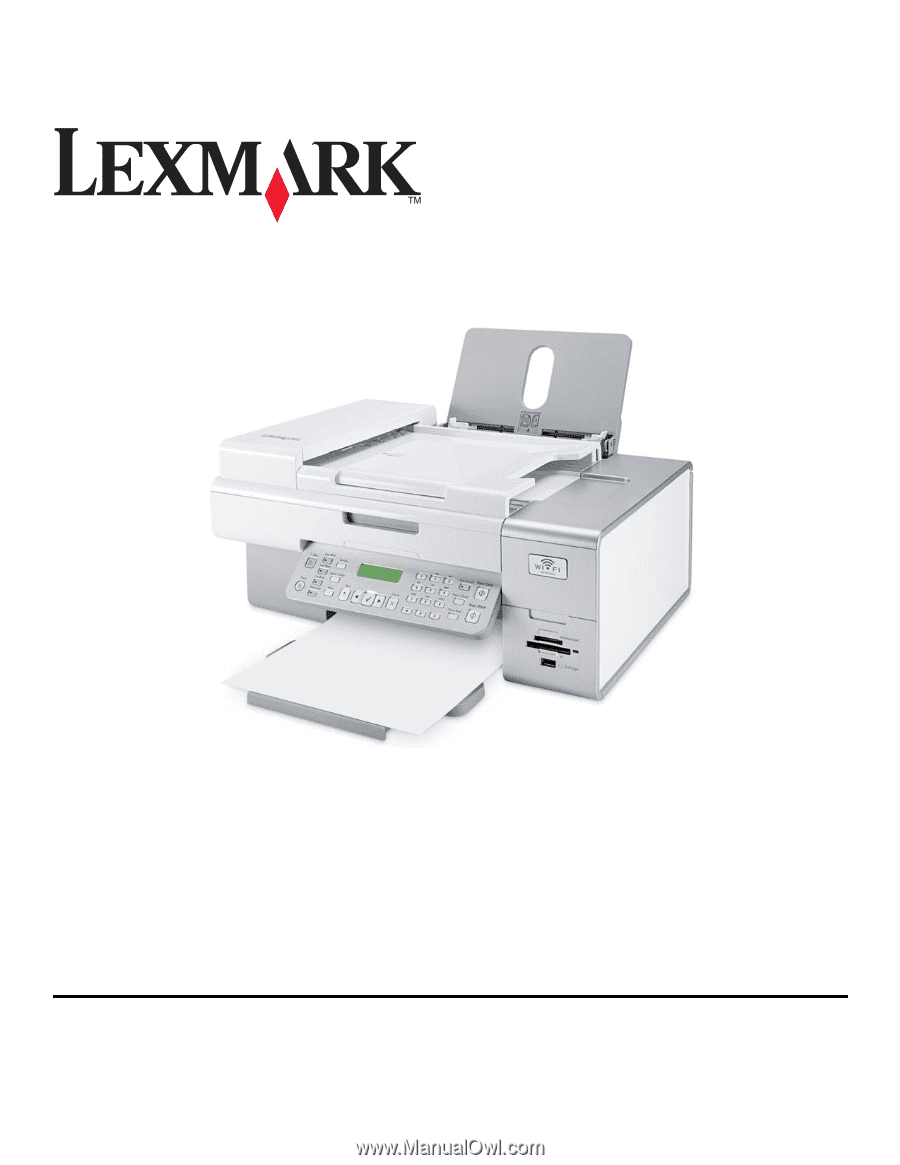
6500 Series User's Guide
May 2007
www.lexmark.com