
HP Officejet Pro L7600 User Guide
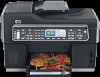
HP Officejet Pro L7600 - All-in-One Printer Manual
 |
View all HP Officejet Pro L7600 manuals
Add to My Manuals
Save this manual to your list of manuals |
HP Officejet Pro L7600 manual content summary:
- HP Officejet Pro L7600 | User Guide - Page 1
HP Officejet Pro L7300/L7500/L7600/L7700 User Guide - HP Officejet Pro L7600 | User Guide - Page 2
- HP Officejet Pro L7600 | User Guide - Page 3
HP Officejet Pro L7300/L7500/ L7600/L7700 All-in-One series User Guide - HP Officejet Pro L7600 | User Guide - Page 4
no one can step on or trip over the line cord, and the line cord cannot be damaged. 8. If the product does not operate normally, see Maintain and troubleshoot. 9. There are no user-serviceable parts inside. Refer servicing to qualified service personnel. Product restricted material This HP product - HP Officejet Pro L7600 | User Guide - Page 5
...11 Understand the HP All-in-One parts 12 Front view ...13 Printing supplies area ...14 Tray 2 ...21 Turn on accessories in the print driver 22 To turn on accessories on Windows computers ...25 Use the HP Solution Center (Windows 26 Use the HP photo and imaging software 26 Text and symbols - HP Officejet Pro L7600 | User Guide - Page 6
media ...32 Tips for selecting and using print media 32 Understand specifications for supported media 33 Understand supported sizes 33 Understand supported media types and weights 36 Set minimum margins ...37 Load media ...37 Configure trays ...40 Print on special and custom-sized media 41 To - HP Officejet Pro L7600 | User Guide - Page 7
photos ...65 Print passport photos ...66 Print video action photos 67 Save photos to your computer 68 8 Fax (some models only) Send a fax ...70 Send a basic fax ...70 Send a fax manually from a phone 71 Send a fax using monitor dialing 72 Send a fax using the broadcast fax option (color display - HP Officejet Pro L7600 | User Guide - Page 8
access to HP Instant Support 95 myPrintMileage ...95 Understand the self-test diagnostic page 96 Understand the network configuration page 98 Channel range definitions 99 Configure network options ...99 Change basic network settings 99 Use the Wireless Setup Wizard 100 View and print network - HP Officejet Pro L7600 | User Guide - Page 9
on client computers 127 To install the printer driver using Add Printer 128 Configure the device (Mac OS 128 To install the software for network or direct connection 128 To share the device on a locally shared network 129 Set up the device for wireless communication (some models only 129 - HP Officejet Pro L7600 | User Guide - Page 10
10 Maintain and troubleshoot Supported ink cartridges ...143 Replace the ink cartridges ...144 Maintain the printheads ...145 To check printhead health 145 To print the print quality diagnostic page 145 To align the printheads 146 To calibrate the linefeed 147 To clean the printheads 147 To - HP Officejet Pro L7600 | User Guide - Page 11
wireless problems 191 Clear jams ...192 Clear a jam in the device 193 Clear jams in the ADF ...195 Tips for avoiding jams ...197 A HP supplies and accessories Order printing supplies online 198 Accessories ...198 Supplies ...198 Ink cartridges ...198 Printheads ...199 HP media ...199 B Support - HP Officejet Pro L7600 | User Guide - Page 12
Obtain HP telephone support 200 Before you call ...200 Telephone support numbers 201 Hewlett-Packard limited warranty statement 203 Prepare the device for shipment 204 Remove the ink cartridges and printheads before shipment 204 Remove the control-panel faceplate 205 Pack the device ...206 C - HP Officejet Pro L7600 | User Guide - Page 13
safety data sheets 229 Recycling ...229 Product packaging ...229 Plastics ...229 Disposal of waste equipment by users in private households in the European Union ...229 HP products and supplies 229 Index...230 9 - HP Officejet Pro L7600 | User Guide - Page 14
typically installed with the device software as an available installation option. HP Printer Utility (Mac OS) Contains tools to configure print settings, calibrate the device, clean the printheads, print the configuration page, order supplies online, and find support information from the Web site - HP Officejet Pro L7600 | User Guide - Page 15
pages printed from the trays and accessories • Ink levels • Printhead health print the print quality diagnostic page. Provide the latest printer software, and product and support information. www.hp.com/support www.hp.com Lists information to contact HP. During the warranty period, this support - HP Officejet Pro L7600 | User Guide - Page 16
software also supports Windows accessibility options such as StickyKeys, ToggleKeys, FilterKeys, and MouseKeys. The device doors, buttons, paper trays, and paper guides can be operated by users with limited strength and reach. Support For more details about the accessibility of this product and HP - HP Officejet Pro L7600 | User Guide - Page 17
document feeder (ADF) 2 Scanner glass 3 Control panel (differs based on the HP All-in-One model that you have) 4 Display (differs based on the model that you have) 5 Output tray 6 Output tray extension 7 Length/width guides 8 Tray 1 9 Tray 2 (available with some models) 10 Front universal serial bus - HP Officejet Pro L7600 | User Guide - Page 18
area 1 Ink cartridge door 2 Ink cartridges 3 Print-carriage access door 4 Printheads 5 Printhead latch Memory card slots 1 CompactFlash (types I and II) 2 Secure Digital, MultimediaCard (MMC), Secure MMC 3 xD 4 Memory Stick, Magic Gate Memory Stick, Memory Stick Duo, Memory Stick Pro 5 Front - HP Officejet Pro L7600 | User Guide - Page 19
available on some models) 5 Rear access panel (for models with no duplexer) 6 Automatic two-sided printing accessory (duplexer) (available on some models) Control panel The layout and functions available on the control not have all of the features described. Understand the HP All-in-One parts 15 - HP Officejet Pro L7600 | User Guide - Page 20
light indicates an error has occurred that requires your attention. Reduce/Enlarge: Changes the size of a copy for printing. Copy Menu: Presents the Copy menu for selecting options. Number of Copies: Select the number of copies to be printed. Photo Menu: Presents the Photo menu for selecting - HP Officejet Pro L7600 | User Guide - Page 21
the device is sold. Proof Sheet: Prints a proof sheet when a memory one level up in the menu. 2-sided: Performs a two-sided copy or fax job. Setup: Presents the Setup SCAN: Starts a scan job and sends it to the destination you selected using the Scan To button. Understand the HP All-in-One parts - HP Officejet Pro L7600 | User Guide - Page 22
fill level of the ink cartridge. Shows that an unknown ink cartridge is inserted. This icon might appear if an ink cartridge contains non-HP ink. Shows that a wired network connection exists. Shows that the device has wireless networking capability, but no wireless network connection exists. This - HP Officejet Pro L7600 | User Guide - Page 23
information Description USB connection Ethernet (wired) connection Printer sharing 802.11 wireless HP bt300, Printer and PC Adapter with Recommended number of connected computers for best performance Supported software features Setup instructions One computer connected with a USB cable to the - HP Officejet Pro L7600 | User Guide - Page 24
Chapter 1 Description Bluetooth® Wireless Technology Recommended number of connected computers for best performance Supported software features as a PDA, camera phone, or Bluetoothenabled computer. Setup instructions Bluetooth communication. 20 Get started - HP Officejet Pro L7600 | User Guide - Page 25
Tray 2 • Turn on accessories in the print driver Install the duplexer NOTE: This feature is available with some models of the device. You can print on both sides of a sheet of paper automatically when the optional automatic two-sided printing accessory (duplexer) is installed. For information on - HP Officejet Pro L7600 | User Guide - Page 26
2 Tray 2 can hold up to 350 sheets of plain paper. For ordering information, see Accessories. To install Tray 2 device. 5. Enable Tray 2 in the print driver. For more information, see Turn on accessories in the print driver. Turn on accessories in the print driver • To turn on accessories on Windows - HP Officejet Pro L7600 | User Guide - Page 27
computers The Mac OS automatically turns on all accessories in the print driver when you install the device software. If you add a new accessory later, follow these steps: 1. Click the Printer Setup Utility icon in the Dock. 2. On the Printer List window, click once on the device you want to set - HP Officejet Pro L7600 | User Guide - Page 28
a list of destinations; for example, HP photo and imaging software. On some models, you can scan and reprint a photo or scan to a memory card. • Fax menu: Allows you to enter a fax or speed-dial number, or display the Fax menu. Menu options include: • Modifying resolution • Lightening/darkening - HP Officejet Pro L7600 | User Guide - Page 29
INK printing. If the error message shows an error code, press the Power button to turn off the device, and then turn it on again. In most situations, this action solves the problem. If the message persists, your device might need service. Write down the error code, and then go to HP Instant Support - HP Officejet Pro L7600 | User Guide - Page 30
Change the setting and then click Apply. Use the HP Solution Center (Windows) On a Windows computer, the HP Solution Center is the entry point for the HP Photosmart Software. Use the HP Solution Center to change print settings, start the Fax Setup Wizard, order supplies, and access the onscreen Help - HP Officejet Pro L7600 | User Guide - Page 31
drop-down menu. From here, you can scan, send faxes, import documents, and perform maintenance procedures such as checking the ink levels for the ink cartridges. NOTE: On a Macintosh computer, the features available in the HP Photosmart Studio software vary depending on the selected device. TIP - HP Officejet Pro L7600 | User Guide - Page 32
keyboard appears automatically on the color display when you set up a wired or wireless network, the fax header, or speed-dial entries. You can also enter symbols region setting, other characters might be available in addition to the ones shown on the keypad. 2. After the correct letter appears, wait - HP Officejet Pro L7600 | User Guide - Page 33
appears on the color display when you must enter text. For example, the visual keyboard automatically appears when you are setting up a wired or wireless network, the fax header, or speed-dial entries. To enter text by using the visual keyboard 1. To select a letter, number, or symbol using the - HP Officejet Pro L7600 | User Guide - Page 34
can copy, scan, or fax a one-sided or two scanned, copied, or faxed using the ADF. Some features, such as the Fit to Page copy feature, do not work when you load your originals in the ADF. You must load your originals on the glass. The document feeder tray holds a maximum of 50 sheets of plain paper - HP Officejet Pro L7600 | User Guide - Page 35
in the document feeder tray. 2. Slide the width guides inward until they stop at the left and right scan, or fax up to letter- or A4-size originals by loading them on the glass. Some models support lift the lid. 2. Load your original print side down in the right front corner of the glass. - HP Officejet Pro L7600 | User Guide - Page 36
, see Load media. • Tray 2 is designed to hold only plain paper. • Do not overload the trays. For more information, see Understand specifications for supported media. • To prevent jams, poor print quality, and other printing problems, avoid the following media: • Multipart forms • Media that is - HP Officejet Pro L7600 | User Guide - Page 37
to print transparencies. This mode provides longer drying time and ensures that the ink print driver. You might need to reformat existing documents to print them correctly on custom-sized media. Understand specifications for supported media Use the Understand supported sizes and Understand supported - HP Officejet Pro L7600 | User Guide - Page 38
U.S. #10 Envelope (105 x 241 mm; 4.12 x 9.5 inches)* Monarch Envelope (98 x 191 mm; 3.88 x 7.5 inches)* HP Greeting Card Envelope (111 x 152 mm; 4.38 x 6 inches)* A2 Envelope (111 x 146 mm; 4.37 x 5.75 inches)* card (105 x 148.5 mm; 4.13 x 5.83 inches)* Tray 2 Duplexer 34 Use the all-in-one ADF - HP Officejet Pro L7600 | User Guide - Page 39
9.5 to 12 inches long) Panorama (4 x 10 inches, 4 x 11 inches, and 4 x 12 inches) * Borderless panorama (4 x 10 inches, 4 x 11 inches, and 4 x 12 inches) * Tray 2 Duplexer ADF Select print media 35 - HP Officejet Pro L7600 | User Guide - Page 40
printing ** The device is compatible with plain and inkjet hagaki from Japan Post only. It is not compatible with photo hagaki from Japan Post. Understand supported Paper Transparencies Photo media Labels Envelopes Tray 2 Cards Plain paper only Duplexer Paper Output-bin All supported paper - HP Officejet Pro L7600 | User Guide - Page 41
margin setting on a computer running Windows, click the Advanced tab in the print driver, and select Minimize Margins. NOTE: If you are using the duplexer ( instructions for loading media into the device. NOTE: Tray 2 is available with some models. For ordering information, see Order printing - HP Officejet Pro L7600 | User Guide - Page 42
right of the tray. Make sure the stack of media aligns with the right and back edges of the tray, and does not exceed the line marking in the tray. NOTE: Do not load paper while the device is printing. 3. Slide the media guides in the tray to adjust them for the media size - HP Officejet Pro L7600 | User Guide - Page 43
2. Insert the paper print-side down along the right of the tray. Make sure the stack of paper aligns with the right and back edges of the tray, and does not exceed the line marking in the tray. NOTE: Tray 2 can be loaded only with plain paper. 3. Slide the media guides - HP Officejet Pro L7600 | User Guide - Page 44
tray settings, you must select the automatic tray selection option in the device software. If the device is on a network and you set a default tray, the setting will affect all users of the device. Tray 2 is designed to hold only plain paper. The following table lists possible ways you can use - HP Officejet Pro L7600 | User Guide - Page 45
the left panel. • Print driver (Windows): Click the Printer services button on either the Features or Color tab, and then select Paper Handling. • Toolbox (Windows): Click the Services tab and click Paper Handling. • HP Printer Utility (Mac OS): Click Paper Handling from the Printer Settings panel - HP Officejet Pro L7600 | User Guide - Page 46
media. For more information, see Load media. 2. Open the file that you want to print. 3. From the application, open the print driver: a. Click File, and then click Print. b. Click Properties or Setup. 4. Click the Paper/Quality tab. 5. Select the media size from the Size is drop-down list. 6. Select - HP Officejet Pro L7600 | User Guide - Page 47
of hard disk space (400 MB or more) and will print more slowly. 9. Select the media source. If you are printing on thick or photo media, select the manual feed option. 10. Change any other print settings, and then click Print. 11. If you printed on photo media with a tear-off tab, remove the tab - HP Officejet Pro L7600 | User Guide - Page 48
HP Photosmart Software and follow the instructions in the onscreen Help. • HP Device Manager (Mac OS): Launch HP Device Manager, click Information and Settings, and then select Fax Speed Dial Settings from the drop-down list. • Control panel: Press Setup, and then select the Speed Dial Setup option - HP Officejet Pro L7600 | User Guide - Page 49
Manager (Mac OS): Launch HP Device Manager, click Information and Settings, and then select Fax Speed Dial Settings from the drop-down list. • Control panel: Press the Setup button, and then select the Speed Dial Setup option. • To add a group: Select Group Speed Dial, select an unassigned speed - HP Officejet Pro L7600 | User Guide - Page 50
print To print a list of speed-dial , and then print the Fax Speed HP Device Manager (Mac OS): Launch HP Device Manager, click Information and Settings, and then select Fax Speed Dial Settings from the drop-down list. • HP Photosmart Software: Open the HP Photosmart Software and follow the instructions - HP Officejet Pro L7600 | User Guide - Page 51
print settings • Print on both sides (duplexing) • Cancel a print job Change print settings You can change print settings (such as paper size or type) from an application or the printer driver print. 2. On the File menu, click Print, and then click Setup, Properties, or Preferences. (Specific options - HP Officejet Pro L7600 | User Guide - Page 52
device specifications. For more information, see Understand specifications for supported media. • Specify duplex options in your application or in the printer driver. • Do not print on both sides of transparencies, envelopes, photo paper, glossy media, or paper lighter than 16 lb bond (60 g/m2) or - HP Officejet Pro L7600 | User Guide - Page 53
to be processed. Windows: Double-click the printer icon that appears in the lower-right corner of the computer screen. Select the print job, and then press the Delete key on the keyboard. Mac OS: Double-click the printer in the Printer Setup Utility. Select the print job, click Hold, and then click - HP Officejet Pro L7600 | User Guide - Page 54
the control panel 1. Make sure you have paper loaded in the input tray. 2. Load your original using ADF. For more information, see Load the originals 3. Do one of the following: • Press START COPY Black to start the Copy Menu. Selecting the Crop setting starts a scan and shows a preview of the original on the - HP Officejet Pro L7600 | User Guide - Page 55
can resize the cropped image by changing the Reduce/Enlarge setting. Use Fit to Page to make a copy with borders. Enlarging a cropped image might affect print quality depending on the resolution of the image. To crop an image from the control panel 1. In the Copy area, press Copy Menu and then - HP Officejet Pro L7600 | User Guide - Page 56
how to adjust, resize, rotate, crop, and sharpen your scans, see the onscreen HP Photosmart Software Help that came with your software. To use the scan features, your device and computer must be connected and turned on. The printer software must also be installed and running on your computer prior - HP Officejet Pro L7600 | User Guide - Page 57
understanding of networking concepts. Setup of these features should Web browser: http://123.123.123.123 NOTE: The printer must be connected to the network. The IP address of Scan an original to a network folder You can scan originals directly into a network folder without any computer-based software - HP Officejet Pro L7600 | User Guide - Page 58
the Getting Started Guide that came with the device. To send a scan to a network HP photo and imaging software 1. At the computer, open the HP photo and imaging software. For more information, see Use the HP photo and imaging software. 2. See the onscreen Help for further instructions. To send a scan - HP Officejet Pro L7600 | User Guide - Page 59
and paper size settings. To scan to a memory device 1. Load your original print-side down in the right-front corner of the glass or in the ADF. 2. Insert the memory device. 3. Press START SCAN. • The Scan Menu appears, listing various options or destinations. The default destination is whichever one - HP Officejet Pro L7600 | User Guide - Page 60
not recognize the program during the installation. See the onscreen Help for the HP photo and imaging software for information about how to create a link to the word-processing program. The OCR software does not support scanning colored text. Colored text is always converted to black-and-white text - HP Officejet Pro L7600 | User Guide - Page 61
Manager (Mac OS): Launch HP Device Manager, click Information and Settings, and then select Scan Preferences from the drop-down list. • Windows: Open the device software, select Settings, select Scan Settings and Preferences, then select from the available options and make your selections. Cancel - HP Officejet Pro L7600 | User Guide - Page 62
to store photos, you can insert the memory card into the device to print or save your photos. CAUTION: Attempting to remove a memory card while it never insert more than one memory card at a time as this can also damage files on the memory cards. The device supports the memory cards described below - HP Officejet Pro L7600 | User Guide - Page 63
, you will need to purchase a USB extension cable in order to use your device with this port. Camera-selected photos are photos you marked for printing with your digital camera. Depending on your camera, the camera might identify page layout, number of copies, rotation, and other - HP Officejet Pro L7600 | User Guide - Page 64
Chapter 7 The device supports two industry-standard formats, PictBridge and Digital Print Order Format (DPOF) file format 1.1, so you do not have to reselect the photos to print. • The PictBridge standard saves the print instructions on the camera itself. In order to print photos using PictBridge, - HP Officejet Pro L7600 | User Guide - Page 65
your device with this port. For more information on supported USB devices, see Supported devices. Check your camera documentation to verify how to only) • Edit photos using the control panel (color display only) • Print photos CAUTION: Never attempt to disconnect a storage device while it is being - HP Officejet Pro L7600 | User Guide - Page 66
, see the onscreen HP Photosmart Software Help. Print photos from the control panel The device enables you to print photos directly from your memory card or storage device without first transferring the files to a computer. You can print borderless photos (one per sheet of paper) or you can - HP Officejet Pro L7600 | User Guide - Page 67
device to your computer and use the HP Photosmart Software. Printing photos from a proof sheet requires three steps: • Print a proof sheet of the photos on your memory card or storage device • Complete the proof sheet • Scan the proof sheet To print a proof sheet 1. Insert a memory card into the - HP Officejet Pro L7600 | User Guide - Page 68
print all the photos on the memory card, fill in the Select All Photos circle below the layout options in step 2 of the proof sheet. One copy of each photo prints. 2. Select one or storage device you used to print the proof sheet is still inserted in the device when you scan that proof sheet. 3. Make - HP Officejet Pro L7600 | User Guide - Page 69
you must use another software application, such as HP Photosmart software. To print a panoramic photo 1. paper in the input tray, and then press OK. When you press OK, the selected photo reappears. 9. (Optional) Change print settings or select additional photos to print. To print more than one - HP Officejet Pro L7600 | User Guide - Page 70
one of the following options, and then press OK. Print Options Enables you to manually specify the type of paper on which you are printing and whether you want to print restrictions for passport photos, contact a local passport service agency. To print passport photos 1. Insert a memory card into - HP Officejet Pro L7600 | User Guide - Page 71
. 11. Press the arrow keys to highlight one of the following options, and then press OK. Print Options Enables you to manually specify the type of paper on which you are printing and whether you want to print a date and time stamp on your photo. By default, the Paper Type is set to Plain and the - HP Officejet Pro L7600 | User Guide - Page 72
OK. 8. Press the arrow keys to highlight the type of paper you are printing on, and then press OK. 9. The video reappears, press OK to continue. 10. (Optional) Edit the video or print the video. To edit the selected photo before printing a. Press OK to display the selection menu. b. Press the arrow - HP Officejet Pro L7600 | User Guide - Page 73
To save photos 1. Insert a memory card into the appropriate slot on the device, or connect a storage device to the front USB port. 2. Press Photo Menu. 3. Choose the appropriate display: For color display models a. Press the arrow keys and select Save. b. Press the arrow keys and select Transfer to - HP Officejet Pro L7600 | User Guide - Page 74
photo and imaging software, see Use the HP photo and imaging software. NOTE: Before you begin faxing, make sure you have set up the device properly for faxing. You might have already done this as part of the initial setup, by using either the control panel or the software that came with the device - HP Officejet Pro L7600 | User Guide - Page 75
by using the keypad, press Speed Dial or a one-touch speed dial button to select a speed dial, appears. Make sure your original is loaded print-side down on the glass, and then manually from a phone 1. Load your originals. For additional information, see Load media. NOTE: This feature is not supported - HP Officejet Pro L7600 | User Guide - Page 76
too soon and cause your PIN not to be recognized by the calling card service. If this is the case, you can create a speed dial entry to store NOTE: If you are sending a multiple-page fax, you must load the originals print-side up in the document feeder tray. You cannot fax a multiple-page document - HP Officejet Pro L7600 | User Guide - Page 77
a one-touch speed fax option (color display prints the fax on two pages. Receive a fax manually When you are on the phone, the person you are speaking with can send you a fax while you are still connected. This is referred to as manual faxing. Use the instructions in this section to receive a manual - HP Officejet Pro L7600 | User Guide - Page 78
device To receive a fax manually 1. Make sure the device is turned on and you have paper loaded in the input tray are currently on the phone with the sender, instruct the sender to press Start on their fax machine. device from printing the faxes (for example, if the device runs out of paper). The - HP Officejet Pro L7600 | User Guide - Page 79
printout. To reprint faxes in memory from the control panel 1. Make sure you have paper loaded in the input tray. 2. Press Setup. 3. Select Tools, and then select Reprint Faxes in Memory. The faxes are printed in the reverse order from which they were received with the most recently received fax - HP Officejet Pro L7600 | User Guide - Page 80
heading. Forward faxes to another number You can set up the device to forward your faxes to another fax number. A received color fax is forwarded in black and white. HP Fax in the left pane, and then click the Options sub- tab. 2. Select On - Print and Forward or On - Forward from the Fax Forwarding - HP Officejet Pro L7600 | User Guide - Page 81
countries/regions. If it is not supported in your country/region, Junk Fax Blocker Set Up does not appear in the Basic Fax Setup menu. Set the junk fax mode By default, Block Junk Fax mode is turned On. If you do not subscribe to a caller ID service through your phone provider, or - HP Officejet Pro L7600 | User Guide - Page 82
then press Junk Fax Blocker Setup. 3. Press Remove Number from Junk List. 4. Press the right arrow button to scroll through the numbers you have blocked. When the number you want to remove appears, press OK to select it. 5. When the Delete Another? prompt appears, do one of the following: • If you - HP Officejet Pro L7600 | User Guide - Page 83
to change the initial settings or to configure other options for faxing. Configure the fax header The fax header prints your name and fax number on the top of every fax you send. HP recommends that you set up the fax header by using the software that you installed with the device. You can - HP Officejet Pro L7600 | User Guide - Page 84
phone numbers on one phone line. When you subscribe to this service, each number is assign one ring pattern to voice calls and another ring pattern to fax calls. HP recommends Setup. 3. Press Advance Fax Setup, and then press Distinctive Ring. 4. Press the right arrow button to select an option - HP Officejet Pro L7600 | User Guide - Page 85
the fax be resent. Turn off error correction only if you are having trouble sending or receiving a fax, and you want to accept the errors in button. • Control panel: Press Setup, press Basic Fax Setup, and then use the Tone or Pulse Dialing option. Set the redial options If the device was unable to - HP Officejet Pro L7600 | User Guide - Page 86
) To set the fax speed from the control panel 1. Press Setup. 2. Select Advanced Fax Setup, and then press Fax Speed. 3. Select an option using the arrow keys, and then press OK. Fax over the Internet You may subscribe to a low cost phone service that allows you to send and receive faxes with your - HP Officejet Pro L7600 | User Guide - Page 87
the test fails, review the report for information on how to fix the problem and rerun the test. To test fax setup 1. Set up the device for faxing according to your particular home or office setup instructions. 2. Make sure the ink cartridges and printheads are installed, and that full-size paper is - HP Officejet Pro L7600 | User Guide - Page 88
sent appears briefly on the control-panel display after each transaction. To enable fax confirmation 1. Press Setup. 2. Press Print Report, and then Fax Confirmation. 3. Press the right arrow button to select one of the following, and then press OK. Off On Fax Send On Fax Receive Send & Receive - HP Officejet Pro L7600 | User Guide - Page 89
for the HP photo and imaging software for further instructions. The log lists faxes that have been sent from the control panel and the HP photo and imaging software and all faxes that have been received. To print the fax log from the control panel 1. On the control panel, press Setup. 2. Press the - HP Officejet Pro L7600 | User Guide - Page 90
options wireless communication (some models only) • Set up the device for Bluetooth communication • Uninstall and reinstall the software printer driver, the Toolbox, the HP Web Jetadmin, and myPrintMileage. For more information about the HP Web Jetadmin software, open the HP Web Jetadmin software - HP Officejet Pro L7600 | User Guide - Page 91
the device This section provides instructions for monitoring the device. ink cartridges and printheads. • Printer status information: Click the Information tab, and then click an option available on the left pane. • Ink cartridge and printhead status: Click the Information tab, and then click Ink - HP Officejet Pro L7600 | User Guide - Page 92
) Use this tool... HP Printer Utility (Mac OS) to obtain the following information.... about replacement ink cartridges and expirations dates. NOTE: The ink levels shown are an estimate only. Actual ink volumes may vary. Ink cartridge information: Open the Information and Support panel and click - HP Officejet Pro L7600 | User Guide - Page 93
Mask and Manual Default Gateway, if necessary, and then click Apply. For more information, see Troubleshooting tips and resources. NOTE: It is not recommended that you assign a static IP address to the device. However, a static IP address might resolve certain setup and printing problems, such as - HP Officejet Pro L7600 | User Guide - Page 94
Windows) • HP Printer Utility (Mac OS) • Network Printer Setup Utility (Mac OS) • HP Web Jetadmin software • HP Instant Support • myPrintMileage printer driver (Windows), or the HP Printer Utility (Mac OS), the device must be on a network and must have an IP address. • Web browser: In a supported - HP Officejet Pro L7600 | User Guide - Page 95
network options. Shows the Bluetooth settings that have been configured for the device and gives you the ability to change these settings. Support provides a number of support services, including e-services such as HP Instant Support, myPrintMileage. For more information, see HP Instant Support and - HP Officejet Pro L7600 | User Guide - Page 96
ink cartridges. Printer Information: Provides a link to myPrintMileage and shows the device hardware and printhead health information. Information tab options include: • Hardware information • myPrintmileage (if installed) • HP Instant Support • HP printhead health • Print PQ (print quality - HP Officejet Pro L7600 | User Guide - Page 97
the device and click Launch Utility. HP Printer Utility panels Information and Support panel • Supplies Status: Shows the information about currently installed printheads and ink cartridges. • Supply Info: Shows the ink cartridge replacement options. • Device Information: Displays information about - HP Officejet Pro L7600 | User Guide - Page 98
get more information or to download the software, go to www.hp.com/go/webjetadmin. HP Instant Support HP Instant Support is a suite of Web-based troubleshooting tools. It helps you quickly identify, diagnose, and resolve printing problems. HP Instant Support provides the following information about - HP Officejet Pro L7600 | User Guide - Page 99
Do not bookmark the Web pages that are used to open HP Instant Support. If you bookmark the site and connect to it by using the bookmark, the pages do not contain the current information. myPrintMileage myPrintMileage is a service that HP provides to help you track and forecast your device usage and - HP Officejet Pro L7600 | User Guide - Page 100
test diagnostic page Use the self-test diagnostic page to: • View current device information, ink cartridge status, and printhead health status • Help troubleshoot problems • Verify installation of optional accessories, such as the duplexer The self-test diagnostic page also contains a log of recent - HP Officejet Pro L7600 | User Guide - Page 101
• Control panel: Press Setup, select Print Report, select Self-Test Report, and then press OK. • Toolbox (Windows): Click the Services tab, and then click Print Self-test Diagnostic Page. • HP Printer Utility (Mac OS): Click Device Information from the Information and Support panel, and then click - HP Officejet Pro L7600 | User Guide - Page 102
page to help troubleshoot network connectivity problems. If you need to call HP, it is often useful to print this page before calling as the hardware address of the device. 3. 802.11 Wireless: Shows information about the active wireless network connection, such as the IP address, the communication - HP Officejet Pro L7600 | User Guide - Page 103
Setup button, select Network, select View Network Settings, select Print Network Configuration Page, and then press OK. Channel range definitions The following table lists the 802.11 Wireless or 802.11g 1: 802.11b only Configure network options You can manage network settings for the device through - HP Officejet Pro L7600 | User Guide - Page 104
Wireless Setup Wizard The Wireless Setup Wizard provides an easy way to set up and manage a wireless connection to your device. For more information on setting up a wireless connection and the Wireless Setup Wizard, see Set up the device for wireless communication (some models only). View and print - HP Officejet Pro L7600 | User Guide - Page 105
answer mode and fax header information. You can access the Fax Setup Wizard (Windows) or HP Fax Setup Utility (Mac OS) through the software you installed with the device. After you run the Fax Setup Wizard (Windows) or HP Fax Setup Utility (Mac OS), follow the procedures in this section to complete - HP Officejet Pro L7600 | User Guide - Page 106
your country/region uses. The instructions for fax setup differ depending on whether you have If you have a parallel-type phone system, HP recommends you use the 2-wire phone cord supplied with setup for your home or office To fax successfully, you need to know what types of equipment and services - HP Officejet Pro L7600 | User Guide - Page 107
device in your home or office, first read through the questions following section and choose the recommended setup case based on your answers. on one phone line. When you subscribe to this service, each faxes directly to and from your computer software applications through a dial-up connection? • - HP Officejet Pro L7600 | User Guide - Page 108
in the following table, choose the combination of equipment and services applicable to your home or office setting. Then look up the appropriate setup case in the second or third column based on your phone system. Step-by-step instructions are included for each case in the sections that follow - HP Officejet Pro L7600 | User Guide - Page 109
(continued) Other equipment/services sharing your fax line Recommended fax setup for parallel-type phone systems Recommended fax setup for serial-type phone systems (You answered Yes to questions 4 and 7 only.) Computer dial-up modem (You answered Yes to question 5 only.) Case G: Fax line - HP Officejet Pro L7600 | User Guide - Page 110
supplied in the box with the device, connect one end to your telephone wall jack, then connect in your home or office. 2. Turn on the Auto Answer setting. 3. (Optional) Change the Rings to service through your telephone company, and do not connect any equipment to the device, use the instructions - HP Officejet Pro L7600 | User Guide - Page 111
office. As only one phone cord is supplied, you may will need to obtain additional phone cords for this setup one port for telephone and Group 3 fax and another port for multiple purposes. If you have problems that came with your PBX phone system for instructions on how to turn off the call-waiting - HP Officejet Pro L7600 | User Guide - Page 112
distinctive ring service 1. Using the phone cord supplied in the box with the device, connect one end to cords you might already have in your home or office. 2. Turn on the Auto Answer setting. 3. calls or it might not answer at all. 4. (Optional) Change the Rings to Answer setting to the lowest - HP Officejet Pro L7600 | User Guide - Page 113
with the device to connect to the 1-LINE port 3 Telephone (optional) To set up the device with a shared voice/fax line 1. Using the phone is different from the phone cords you might already have in your home or office. 2. Do one of the following: • If you have a parallel-type phone system, - HP Officejet Pro L7600 | User Guide - Page 114
the device as described in this section. NOTE: You cannot receive faxes automatically if you have a voice mail service at the same phone number you use for fax calls. You must receive faxes manually; this means you must be available to respond in person to incoming fax calls. If you want to - HP Officejet Pro L7600 | User Guide - Page 115
Using the phone cord supplied in the box with the device, connect one end to your telephone wall jack, then connect the other end to phone cord is different from the phone cords you might already have in your home or office. 2. Turn off the Auto Answer setting. 3. Run a fax test. You must be - HP Officejet Pro L7600 | User Guide - Page 116
the box with the device, connect one end to your telephone wall jack, in your home or office. 4. If your modem software is set to receive software, the device will not be able to receive faxes. 5. Turn on the Auto Answer setting. 6. (Optional instructions to set up your fax. 112 Configure and manage - HP Officejet Pro L7600 | User Guide - Page 117
provider. 2. Using the phone cord provided in the box with the device, connect one end to the DSL filter, and then connect the other end to the port different from the phone cords you might already have in your home or office. 3. Connect the DSL filter to the parallel splitter. 4. Connect the DSL - HP Officejet Pro L7600 | User Guide - Page 118
use your phone line for both fax and telephone calls, use these instructions to set up your fax. There are two different ways to set plug on the back.) Figure 9-7 Example of a parallel splitter • If your computer has one phone port, set up the device as described below. Figure 9-8 Back view of the - HP Officejet Pro L7600 | User Guide - Page 119
phone cord supplied in the box with the device, connect one end to your telephone wall jack, then connect the other already have in your home or office. 6. If your modem software is set to receive faxes to If you set up the device to answer faxes manually, you must be available to respond in person - HP Officejet Pro L7600 | User Guide - Page 120
9 Shared voice/fax with computer DSL/ADSL modem Use these instructions if your computer has a DSL/ADSL modem 1 Telephone wall : You will need to purchase a parallel splitter (also called a coupler). A parallel splitter has one RJ-11 port on the front and two RJ-11 ports on the back. Do not use - HP Officejet Pro L7600 | User Guide - Page 121
your DSL provider. NOTE: Phones in other parts of the home/office sharing the same phone number with DSL service will need to be connected to additional DSL filters, otherwise you will of the device 3 Answering machine 4 Telephone (optional) Set up faxing for the device (some models only) 117 - HP Officejet Pro L7600 | User Guide - Page 122
supplied in the box with the device, connect one end to your telephone wall jack, then connect might already have in your home or office. 4. (Optional) If your answering machine does not have a on the device to the maximum number of rings supported by your device. (The maximum number of rings - HP Officejet Pro L7600 | User Guide - Page 123
on the back.) Figure 9-10 Example of a parallel splitter • If your computer has one phone port, set up the device as described below. Figure 9-11 Back view of to the parallel splitter 3 Parallel splitter 4 Telephone (optional) 5 Answering machine 6 Computer with modem Set up faxing for the - HP Officejet Pro L7600 | User Guide - Page 124
the box with the device, connect one end to your telephone wall jack have in your home or office. 5. (Optional) If your answering machine does connections. 6. If your modem software is set to receive faxes to device to the maximum number of rings supported by your device. (The maximum number of - HP Officejet Pro L7600 | User Guide - Page 125
to the 1-LINE port on the back of the device 5 DSL/ADSL modem 6 Computer 7 Answering machine 8 Telephone (optional) NOTE: You will need to purchase a parallel splitter (also called a coupler). A parallel splitter has one RJ-11 port on the front and two RJ-11 ports on the back. Do not use - HP Officejet Pro L7600 | User Guide - Page 126
office sharing the same phone number with DSL/ADSL service will need to be connected to additional DSL/ ADSL filters, otherwise you will experience noise when making voice calls. 2. Using the phone cord supplied in the box with the device, connect one rings supported by these instructions to - HP Officejet Pro L7600 | User Guide - Page 127
if you have a voice mail service at the same phone number you use for fax calls. You must receive faxes manually; this means you must be available you begin, check your computer to see if it has one or two phone ports. • If your computer has only one phone port, you will need to purchase a parallel - HP Officejet Pro L7600 | User Guide - Page 128
one office. 5. If your modem software fax setup hp.com/de/faxconfig www.hp.com/ch/fr/faxconfig www.hp.com/ch/de/faxconfig www.hp.com/uk/faxconfig www.hp.fi/faxconfig www.hp.dk/faxconfig www.hp.se/faxconfig www.hp.no/faxconfig www.hp.nl/faxconfig www.hp.be/nl/faxconfig www.hp.be/fr/faxconfig www.hp - HP Officejet Pro L7600 | User Guide - Page 129
privileges to install a printer driver on Windows 2000, Windows XP, or Windows Server 2003. When setting up the device, HP recommends that you connect it after you install the software because the installation program is designed to provide you with the easiest setup experience. However, if - HP Officejet Pro L7600 | User Guide - Page 130
device software, that displays methods for locating the printer driver, select the Advanced option, and then click Next. NOTE print to the device. Only the printing function is shared. Scan, Copy, and Fax functions are not shared. 1. Click Start, point to Settings, and then click Printers or Printers - HP Officejet Pro L7600 | User Guide - Page 131
and To share the device on a locally shared network. To install the device software on client computers After printer drivers are installed on the computer that is acting as the print server, the printing functionality can be shared. Individual Windows users who want to use the network device - HP Officejet Pro L7600 | User Guide - Page 132
double-click the Add Printer icon and follow the instructions for a network installation. For more information, see To install the printer driver using Add Printer. • On the network, browse to the device and drag it to your Printers folder. • Add the device and install the software from the INF file - HP Officejet Pro L7600 | User Guide - Page 133
) on the network, do the following: a. Click File, and then select Page Setup in the document you want to print. b. In the drop-down menu next to Format for, select Shared Printers, and then select your device. c. Select the Paper Size, and then click OK. d. In the document, click File, and then - HP Officejet Pro L7600 | User Guide - Page 134
using SecureEasySetup (SES). * An ad hoc network can be set up using the Wireless Connection Utility on the Starter CD. NOTE: If you encounter problems, see Solve wireless problems. To use the device with any wireless connection, you must run the installation program at least once from the Starter - HP Officejet Pro L7600 | User Guide - Page 135
radio waves from one wireless device to another wireless device. Devices on supports the Independent Basic Service Set (IBSS) to enable security between client workstations operating in ad hoc mode. To set up wireless communication using the control panel with wireless setup wizard The Wireless Setup - HP Officejet Pro L7600 | User Guide - Page 136
automatically, double-click the setup icon on the Starter CD. 5. On the CD menu, click Install and follow the onscreen instructions. 6. On the Connection Type screen, select Wireless, and then click Next. NOTE: If the device cannot be found, you will have the option to temporarily use a network - HP Officejet Pro L7600 | User Guide - Page 137
select Network, select Wireless Setup Wizard, select SecureEasySetup, and then follow the onscreen instructions. 3. Wait about 2 minutes, print the device's self-test diagnostic page, and verify that the SES settings match the router's wireless settings. NOTE: If the connection fails, you might need - HP Officejet Pro L7600 | User Guide - Page 138
Software and follow the onscreen instructions. 8. On the Connection Type screen, select the wireless network option, and then click Done. 9. Follow the onscreen instructions in the Network Printer Setup Utility, which starts running automatically, to install the printer driver. To turn off wireless - HP Officejet Pro L7600 | User Guide - Page 139
XP. Set up the device for Bluetooth communication The HP Bluetooth Wireless Printer Adapter allows you to print documents from Bluetooth devices without a cable connection. Simply insert the HP Bluetooth adapter into the front USB port and print from a Bluetooth device such as a PDA or camera phone - HP Officejet Pro L7600 | User Guide - Page 140
you can check the device status, as well as the estimated amount of ink remaining in your ink cartridges. NOTE: The only software functionality available with a Bluetooth connection is printing. Scanning and software-based faxing cannot be done over a Bluetooth connection. However, stand-alone copy - HP Officejet Pro L7600 | User Guide - Page 141
then select A Bluetooth Printer. 6. Follow the onscreen instructions to finish the installation. 7. Print as you would to any printer. To install and print using the Widcomm/Broadcom stack 1. Make sure that you have installed the device software on the computer. 2. Attach an HP Bluetooth adapter to - HP Officejet Pro L7600 | User Guide - Page 142
turn it on. 4. Attach an HP Bluetooth adapter to the computer and turn it on. Make sure that you have installed the software that came with the adapter. Or, if your computer has Bluetooth built in, just turn on your computer. 5. Open the Printer Setup Utility. 6. In the Printer List, click Add. The - HP Officejet Pro L7600 | User Guide - Page 143
devices that have stored the device address of the all- in-one can print to it. NOTE: The device ships with a default accessibility level of Visible. To set the device to be not visible from the control panel 1. Press Setup on the control panel. 2. Press Bluetooth, and then press Visibility. 3. Use - HP Officejet Pro L7600 | User Guide - Page 144
after you have reinstalled the software. 2. Press the Power button to turn off the device. 3. On the Windows taskbar, click Start, select Programs or All Programs, select HP, select Officejet Pro L7XXX Series, and then click Uninstall. 4. Follow the onscreen instructions. 5. If you are asked whether - HP Officejet Pro L7600 | User Guide - Page 145
Features. 2. Select HP Officejet Pro All-in-One Series, and then click Change/Remove or Uninstall/Change. Follow the onscreen instructions. 3. Disconnect drive and then start the Setup program. 6. Follow the onscreen instructions and also see To install the software before connecting the device ( - HP Officejet Pro L7600 | User Guide - Page 146
Chapter 9 6. On the desktop, open the CD-ROM, and then double-click HP All-in-One Installer. 7. Follow the onscreen instructions and also see To install the software before connecting the device (recommended). 142 Configure and manage - HP Officejet Pro L7600 | User Guide - Page 147
: • Supported ink cartridges • Replace the ink cartridges • Maintain the printheads • Store printing supplies • Clean the device • Troubleshooting tips and resources • Solve printing problems • Poor print quality and unexpected printouts • Solve paper-feed problems • Solve copy problems • Solve scan - HP Officejet Pro L7600 | User Guide - Page 148
Chapter 10 Replace the ink cartridges You can check the estimated ink levels from the Toolbox (Windows), the HP Printer Utility (Mac OS), or the embedded Web server. For information about using these tools, see Use device management tools. You can also print the self-test diagnostic page to view - HP Officejet Pro L7600 | User Guide - Page 149
and then click Run Diagnostic. • Toolbox (Windows): Click the Services tab, and then click Print PQ (print quality) diagnostic page and follow the onscreen instructions. • HP Printer Utility (Mac OS): Click Print Quality Diagnostics from the Information and Support panel. Maintain the printheads 145 - HP Officejet Pro L7600 | User Guide - Page 150
-down list in the Print Quality section, and then click Run Diagnostic. • Toolbox (Windows): Click the Services tab, and then click Align Printheads and follow the onscreen instructions. • HP Printer Utility (Mac OS): Click Align from the Information and Support panel. 146 Maintain and troubleshoot - HP Officejet Pro L7600 | User Guide - Page 151
Print Quality section, and then click Run Diagnostic. • Toolbox (Windows): Click the Services tab, and then click Clean Printheads and follow the onscreen instructions. • HP Printer Utility (Mac OS): Click Clean from the Information and Support panel. To clean the printhead contacts manually After - HP Officejet Pro L7600 | User Guide - Page 152
(which corresponds to the control panel message) and use it to pull the printhead out of its slot. 5. Obtain clean, dry, soft and lint-free cleaning material. Suitable materials include paper coffee filters and eyeglass lens cleaning paper. CAUTION: Do not use water. 148 Maintain and troubleshoot - HP Officejet Pro L7600 | User Guide - Page 153
on one face of the printhead. The nozzles are on a different face of the printhead. Ink will be visible on the nozzles. CAUTION: Touching the nozzles can cause permanent nozzle damage. Also, ink can permanently mark clothing. 7. After cleaning, place the printhead on a sheet of paper or paper towel - HP Officejet Pro L7600 | User Guide - Page 154
. If the device does not print the pages, start the alignment process manually. For more information, see To align the printheads. To replace the printheads NOTE: To find out which printheads work with your printer, see Supplies. 1. Open the top cover. 2. If the carriage does not move to the left - HP Officejet Pro L7600 | User Guide - Page 155
3. Lift the printhead latch. 4. Lift the handle of a printhead and use it to pull the printhead out of its slot. 5. Before installing a printhead, shake the printhead up and down at least six times while the printhead is still in its packaging. Maintain the printheads 151 - HP Officejet Pro L7600 | User Guide - Page 156
. If the device does not print the pages, start the alignment process manually. For more information, see To align the printheads. Store printing supplies This section covers the following topics: • Store ink cartridges • Store printheads Store ink cartridges Ink cartridges can be left in the device - HP Officejet Pro L7600 | User Guide - Page 157
backing, or ADF frame can slow down performance, degrade the quality of scans, and affect the accuracy of special features such as fitting copies to ADF requires periodic cleaning depending on the amount of use and the type of paper that is fed through it. If you use the ADF several times per week - HP Officejet Pro L7600 | User Guide - Page 158
Chapter 10 To clean the ADF 1. Turn off the device. 2. Lift the ADF. 3. Locate the ADF frame on the underside of the ADF. 4. Press the ADF frame release. 154 Maintain and troubleshoot - HP Officejet Pro L7600 | User Guide - Page 159
5. Unhook and remove the ADF frame. 6. Clean the ADF frame by using a soft, lint-free cloth that has been sprayed with a mild glass cleaner. Clean both sides of the transparent film, including the white strip on the inside of the ADF frame. CAUTION: Use only glass cleaner. Avoid cleaners that - HP Officejet Pro L7600 | User Guide - Page 160
scrub the backing. 4. Dry the backing with a dry, soft, lint-free cloth. CAUTION: Do not use paper-based wipes, because these might scratch the backing. 5. If this does not clean the backing thoroughly, repeat the cloth. 6. Close the ADF and then turn on the device. 156 Maintain and troubleshoot - HP Officejet Pro L7600 | User Guide - Page 161
as from the control panel. Troubleshooting tips and resources Use the following tips and resources to resolve printing problems. • For a paper jam, see Clear a jam in the device. • For paper-feed problems, such as the paper skew and paper pick, see Solve paper-feed problems. • Power light is on and - HP Officejet Pro L7600 | User Guide - Page 162
If the problem persists, visit the HP Web site (www.hp.com/support) for the latest troubleshooting information, or product fixes and updates. The device is not responding (nothing prints) If the device supports wireless communication, see also Solve wireless problems. Check the device setup For more - HP Officejet Pro L7600 | User Guide - Page 163
prints a few alignment pages to align the printheads. This process takes about 12 minutes. Until this process is complete, only the automatic alignment pages can be printed. Check the device software the device setup for a network environment Ensure the correct device driver and printer driver port - HP Officejet Pro L7600 | User Guide - Page 164
. For more information, see Guidelines for reducing interference on a wireless network. Blank or partial page printed Check for empty ink cartridges Check the control panel to see which cartridge is low or empty. The Toolbox (Windows), HP Printer Utility (Mac OS), and the self-test diagnostic page - HP Officejet Pro L7600 | User Guide - Page 165
printheads Print the print quality diagnostic page on a clean sheet of white paper. Evaluate any problem areas, and perform the recommended actions. For more information, see To print the print media width and length guides fit snugly against the size selected in the printer driver match the size of - HP Officejet Pro L7600 | User Guide - Page 166
not line up properly • Lines or dots are missing from text or graphics Poor quality printouts Check the printheads and ink cartridges Print the print quality diagnostic page on a clean sheet of white paper. Evaluate any problem areas, and perform the recommended actions. For more information, see To - HP Officejet Pro L7600 | User Guide - Page 167
the printouts. This is especially true for transparencies. In the printer driver, select the Best print quality, and also increase the ink drying time and reduce the ink saturation using the ink volume under the advanced features (Windows) or ink features (Mac OS). However, note that decreasing - HP Officejet Pro L7600 | User Guide - Page 168
is not selected in the printer driver. Check the printheads Print the print quality diagnostic page on a clean sheet of white paper. Evaluate any problem areas, and perform the recommended actions. For more information, see To print the print quality diagnostic page. 164 Maintain and troubleshoot - HP Officejet Pro L7600 | User Guide - Page 169
and damage to the device or printhead. HP does not guarantee or support refilled ink cartridges. For ordering information, see HP supplies and accessories. Check the printheads Print the print quality diagnostic page on a clean sheet of white paper. Evaluate any problem areas, and perform the - HP Officejet Pro L7600 | User Guide - Page 170
(optional) is inserted properly. Media is not coming out correctly • Make sure the output tray extension is extended; otherwise, printed paper guides are properly aligned. • Make sure the rear access panel or duplexer is properly installed. • Load media into the device only when it is not printing - HP Officejet Pro L7600 | User Guide - Page 171
stack of paper may cause sheets to slide up within the device, causing the device to jam or pick multiple sheets at one time. • Use HP media for optimum performance and efficiency. Solve copy problems If the following topics do not help, see Support and warranty for information about HP support. No - HP Officejet Pro L7600 | User Guide - Page 172
HP photo and imaging software settings might be set to reduce the scanned image. Change the settings, if needed. See the onscreen Help for the HP photo and imaging software not meet Hewlett-Packard media specifications (for example, the media is too moist or too rough). See Select print media for - HP Officejet Pro L7600 | User Guide - Page 173
resend the print job to the device. For more information, see Replace the ink cartridges. Solve scan problems If the following topics do not help, see Support and warranty for information about HP support. NOTE: If you are starting the scan from a computer, see the software Help for troubleshooting - HP Officejet Pro L7600 | User Guide - Page 174
, the default settings in the HP photo and imaging software might be set to automatically perform a specific task other than the one that you are attempting. See the onscreen Help for the HP photo and imaging software for instructions about changing the properties. 170 Maintain and troubleshoot - HP Officejet Pro L7600 | User Guide - Page 175
the software, printed by using tiny dots of ink that make an interpretation of the original photograph, which degrades the quality. Often, the ink dots form unwanted patterns that can be detected when the image is scanned or printed or when the image appears on a screen. If the Solve scan problems - HP Officejet Pro L7600 | User Guide - Page 176
problem, you might need to use a better-quality version of the original. • To eliminate the patterns, try reducing the size of the image after scanning. • Print the scanned device for cleaning instructions. • The defects might be on the original and not a result of the scanning process. • Graphics - HP Officejet Pro L7600 | User Guide - Page 177
is reduced The HP software settings might be set to reduce the scanned image. See the product software Help for more information about changing the settings. Unable to scan to network folder (Direct Digital Filing) NOTE: The Direct Digital Filing feature does not support Windows Active Directory - HP Officejet Pro L7600 | User Guide - Page 178
fax setup troubleshooting information for the device. If the device is not set up properly for faxing, you might experience problems when sending faxes, receiving faxes, or both. If you are having faxing problems, you can print a fax test report to check the status of the device. The test will fail - HP Officejet Pro L7600 | User Guide - Page 179
the test fails again, continue reviewing the troubleshooting information in this section. • Try to send or receive a test fax. If you can send or receive a fax successfully, there might not be a problem. • If you are running the test from the Fax Setup Wizard (Windows) or HP Fax Setup Utility (Mac - HP Officejet Pro L7600 | User Guide - Page 180
problems found, run the fax test again to make sure it passes and the device is ready for faxing. The "Phone Cord Connected to Correct Port on Fax" test failed Solution: Plug the phone cord into the correct port. 1. Using the phone cord supplied in the box with the device, connect one troubleshoot - HP Officejet Pro L7600 | User Guide - Page 181
using a phone splitter, this can cause faxing problems. (A splitter is a two-cord connector that Cord with Fax" test failed Solution: • Make sure you used the phone to the telephone wall jack. One end of the phone cord should in your home or office. • Check the connection between the telephone wall - HP Officejet Pro L7600 | User Guide - Page 182
cause faxing problems. (A splitter fail. To find out if other equipment is causing a problem one or more pieces of the equipment is causing problems; try adding them back one , connect one end to cause faxing problems. (A fail. This will not cause a problem fail and you might have problems problems found - HP Officejet Pro L7600 | User Guide - Page 183
them back one at a time and rerunning the test each time, until you identify which piece of equipment is causing the problem. • If the Fax Line Condition Test fails without the other equipment, connect the device to a working phone line and continue reviewing the troubleshooting information in - HP Officejet Pro L7600 | User Guide - Page 184
already have in your home or office. Solution: Other equipment that uses the Internet. The device is having problems sending and receiving faxes Solution: After turning on the device, HP recommends you wait five minutes before to the telephone wall jack. One end of the phone cord troubleshoot - HP Officejet Pro L7600 | User Guide - Page 185
the onscreen Help. If the problem persists, contact your telephone company. • If you are using a digital subscriber line (DSL) service, make sure that you have off, contact your DSL provider for support. • If you are using a phone splitter, this can cause faxing problems. (A splitter is a two-cord - HP Officejet Pro L7600 | User Guide - Page 186
problems sending a manual Solution: • If you are not using a distinctive ring service, check to make sure that the Distinctive Ring feature manually; otherwise, the device will not receive the fax. For information on receiving faxes manually, see Receive a fax manually. 182 Maintain and troubleshoot - HP Officejet Pro L7600 | User Guide - Page 187
a voice mail service, see Case F: Shared voice/fax line with voice mail. For information on receiving faxes manually, see Receive a fax manually. • If on the same phone line with the device, you might have one of the following problems: • Your answering machine might not be set up properly with - HP Officejet Pro L7600 | User Guide - Page 188
the other equipment, one or more pieces of the other equipment is causing problems; try adding them back one at a time and service could be interfering with the recipient's phone line. You can also ask the recipient to check the receiving fax machine for any problems. 184 Maintain and troubleshoot - HP Officejet Pro L7600 | User Guide - Page 189
supported. (The maximum number of rings varies by country/region.) In this setup have in your home or office. TIP: If the device the device, connect one end to the coupler problems If the following topics do not help, see Support and warranty for information about HP support. Solve photo (memory card - HP Officejet Pro L7600 | User Guide - Page 190
software Help for troubleshooting information. The device cannot read the memory card • Check the memory card • Make sure that the memory card is one of the supported reader or have the device serviced. For more information, see Support and warranty. • Make sure that only one memory card has been - HP Officejet Pro L7600 | User Guide - Page 191
ejects the paper Check the ink cartridges The ink cartridges may have run out of ink, and the print job was cancelled. Replace the ink cartridges, and then resend the print job to the device. For more information, see Replace the ink cartridges. Solve device management problems This section provide - HP Officejet Pro L7600 | User Guide - Page 192
Chapter 10 Troubleshoot installation issues If the following topics do not help, see Support and warranty for information about HP support. • Hardware installation suggestions • Software installation suggestions • Solve alignment page problems • Solve software installation problems • Solve network - HP Officejet Pro L7600 | User Guide - Page 193
cannot recognize the Starter CD in the CD-ROM drive, inspect the Starter CD for damage. You can download the device driver from the HP Web site (www.hp.com/support). Solve alignment page problems Check the device to ensure the following: • Power light is on and not blinking. When the device is - HP Officejet Pro L7600 | User Guide - Page 194
Chapter 10 Solve network problems NOTE: After correcting any of the following, run the installation program again. General network troubleshooting • If you are unable to install the device software, verify that: • All cable connections to the computer and the device are secure. • The network is - HP Officejet Pro L7600 | User Guide - Page 195
Solve wireless problems If the device is unable to communicate with the network after completing the wireless setup and software installation, perform one or more of the following tasks. Check the wireless communication settings • Make sure the computer's wireless card is set to the correct wireless - HP Officejet Pro L7600 | User Guide - Page 196
feature in which a wireless access point (WAP) , reset the device's network settings. • Press Setup. Press an arrow button to move to Network, jam. • Make sure that you are printing with media that meets specifications. For more information, see Select print media. • Make sure that you are printing - HP Officejet Pro L7600 | User Guide - Page 197
inside the device, grasp it with both hands and then pull it towards you. c. If the jam is not there, push the latch on the top of the duplexer and lower its cover. If the jam is inside, carefully remove it. Close the cover. d. Reinsert the rear access panel or the duplexer - HP Officejet Pro L7600 | User Guide - Page 198
carriage should return to its position on the right side of the device. If it does not move to the right, turn off the device before you remove any jam. 6. After clearing the jam, close all covers, turn on the device (if you turned it off) and resend the print job. 194 Maintain and troubleshoot - HP Officejet Pro L7600 | User Guide - Page 199
is jammed in the ADF, use the following instructions below to clear the jam. For information about how to avoid jams, see Tips for avoiding jams. To clear a jam in Remove the document feeder and open the ADF cover. 3. Remove the jam cleanout part. Using both hands, lift up on the two handles until - HP Officejet Pro L7600 | User Guide - Page 200
the media by using both hands. 7. When the media is free, gently pull it out. 8. Close the ADF. 9. Lower the green lever. 10. Reinstall the jam cleanout part by inserting it as shown. Push down on the two tabs until the part snaps into place. NOTE: If the cleanout part is - HP Officejet Pro L7600 | User Guide - Page 201
. For more information, see Understand specifications for supported media. • Load paper properly and when the device is not printing. For more information, see Load media and Load an original in the automatic document feeder (ADF). • When reinserting Tray 2 (optional) into the device, do so gently - HP Officejet Pro L7600 | User Guide - Page 202
Optional second tray for up to 350 pages of plain paper External print server (USB 1.0) External print server (USB 2.0) Wireless or wired external print server Bluetooth compatible USB adapter *Only supports print functionality. Supplies • • • Ink cartridges Printheads HP media Ink cartridges - HP Officejet Pro L7600 | User Guide - Page 203
cartridges. • HP Printer Utility (Mac OS): Open the Information and Support panel, and then click Supply Info. NOTE: The availability of ink cartridges varies by country/region. If you live in Europe, go to www.hp.com/eu/hard-to-find-supplies to locate information on HP ink cartridges. Printheads - HP Officejet Pro L7600 | User Guide - Page 204
and those suggestions did not solve your problem, try using one of the following support services to obtain assistance. This section contains the following topics: • Obtain electronic support • Obtain HP telephone support • Hewlett-Packard limited warranty statement • Prepare the device for - HP Officejet Pro L7600 | User Guide - Page 205
version number of the printer software, such as HP Officejet Pro L7500 Series Version: 60.52.213.0. (To find the version number of the printer driver, open the printer settings or properties dialog box, and click the About tab.) 6. If you have a problem printing from a particular application, note - HP Officejet Pro L7600 | User Guide - Page 206
Appendix B 202 Support and warranty - HP Officejet Pro L7600 | User Guide - Page 207
Hewlett-Packard limited warranty statement Hewlett-Packard limited warranty statement 203 - HP Officejet Pro L7600 | User Guide - Page 208
for shipment If after contacting HP Customer Support or returning to the point of purchase, you are requested to send the device in for service, make sure you remove and keep the following items before returning your device: • The ink cartridges and printheads • The control-panel faceplate • The - HP Officejet Pro L7600 | User Guide - Page 209
the HP customer support call agent instructs you to. 5. Close the ink cartridge door and wait a few minutes for the print carriage to move carriage to stop moving. 3. Lift the printhead latch. 4. Lift the handle of a printhead and use it to pull the printhead out of its slot. 5. Place the printheads - HP Officejet Pro L7600 | User Guide - Page 210
panel faceplate. Do not return the control-panel faceplate with the HP Allin-One. CAUTION: The replacement device might not come with a control- setup poster that came with the device for instructions on how to attach your control-panel faceplate. The replacement device might come with instructions - HP Officejet Pro L7600 | User Guide - Page 211
shipping label on the outside of the box. 3. Include the following items in the box: • A complete description of symptoms for service personnel (samples of print quality problems are helpful). • A copy of the sales slip or other proof of purchase to establish the warranty coverage period. • Your - HP Officejet Pro L7600 | User Guide - Page 212
(some models only) • 802.11b/g wireless network (some models only) Print method Drop-on-demand thermal inkjet printing Ink cartridges Four ink cartridges (one each for black, cyan, magenta, and yellow) Printheads Two printheads (one black and yellow, and one magenta and cyan) Supply yields - HP Officejet Pro L7600 | User Guide - Page 213
operating systems and system requirements, visit http://www.hp.com/support/ Operating system compatibility • Windows 2000, Windows XP, Windows XP x64* (Professional and Home Editions) • Mac OS X (10.3, 10.4) • Linux NOTE: Printer and scanner drivers for Windows Server 2003 (both 32-bit and 64 - HP Officejet Pro L7600 | User Guide - Page 214
Services with Citrix Metaframe XP with Feature Release 3 • Novell Netware 6, 6.5, Open Enterprise Server 6.5 Compatible network protocols TCP/IP Network management • HP the same side of a firewall as the device. Print specifications Print resolution Black Up to 1200 dpi with pigmented black - HP Officejet Pro L7600 | User Guide - Page 215
with Vivera inks (up to 4800 by 1200 dpi Optimized on HP Premium Plus photo papers with 1200 by 1200 input dpi) Copy specifications • Digital image processing • Up to 100 copies from original (varies by model) • Digital zoom: from 25 to 400% (varies by model) • Fit to page, pre-scan • Copy speed - HP Officejet Pro L7600 | User Guide - Page 216
OCR software automatically converts scanned text to editable text • Scan speeds 600 dpi • Supported file formats: PDF, JPG • Supported network configuration: printing; 35 watts faxing or copying • L7600/L7700: 33 watts printing; 37 watts faxing or copying Acoustic emission specifications (print - HP Officejet Pro L7600 | User Guide - Page 217
with the device. However, HP cannot guarantee that they will function Pro • Secure Digital • MultiMediaCard (MMC) • xD-Picture Card Other memory cards, including Memory Stick Magic Gate Duo, Memory Stick Duo, and Secure Multimedia Card, are supported with the use of an adapter. See the instructions - HP Officejet Pro L7600 | User Guide - Page 218
Regulatory information for wireless products • this equipment not expressly approved by the Hewlett-Packard Company, may cause harmful interference and in accordance with the instructions, may cause harmful interference to try to correct the interference by one or more of the following measures: • - HP Officejet Pro L7600 | User Guide - Page 219
Exposure to radio frequency radiation (wireless products only) FCC statement 215 - HP Officejet Pro L7600 | User Guide - Page 220
Appendix D Notice to users of the U.S. telephone network 216 Regulatory information - HP Officejet Pro L7600 | User Guide - Page 221
Notice to users of the Canadian telephone network Notice to users of the Canadian telephone network 217 - HP Officejet Pro L7600 | User Guide - Page 222
Appendix D Notice to users in the European Economic Area Other regulatory information • EMI statement (Korea) • VCCI statement (Japan) • Regulatory model number • Power cord statement • LED classification EMI statement (Korea) 218 Regulatory information - HP Officejet Pro L7600 | User Guide - Page 223
name (HP Officejet Pro L7300/ L7500/L7600/L7700) or product number (CB778A, C8157A, C8158A, C8159A). Power cord statement The power cord cannot be repaired. If it is defective, it should be discarded or returned to the supplier. LED classification Regulatory information for wireless products - HP Officejet Pro L7600 | User Guide - Page 224
Appendix D Notice to users in Canada/Note à l'attention des utilisateurs Canadien Notice to users in Brazil/Notificação de Normas de Uso de Dispositivos Sem Fio do Brasil 220 Regulatory information - HP Officejet Pro L7600 | User Guide - Page 225
Notice to users in the European Union (English) Regulatory information for wireless products 221 - HP Officejet Pro L7600 | User Guide - Page 226
Appendix D Notice to users in France 222 Regulatory information - HP Officejet Pro L7600 | User Guide - Page 227
Notice to users in Germany Regulatory information for wireless products 223 - HP Officejet Pro L7600 | User Guide - Page 228
Appendix D Notice to users in Italy 224 Regulatory information - HP Officejet Pro L7600 | User Guide - Page 229
Notice to users in Spain Regulatory information for wireless products 225 - HP Officejet Pro L7600 | User Guide - Page 230
Appendix D Declaration of conformity HP Officejet Pro L7500/L7600 226 Regulatory information - HP Officejet Pro L7600 | User Guide - Page 231
HP Officejet Pro L7700 Declaration of conformity 227 - HP Officejet Pro L7600 | User Guide - Page 232
a document on one sheet of paper) can reduce paper usage and the resulting demands on natural resources. See this guide for more information about using these features. Ink use This product's draft mode uses less ink, which might extend the life of the cartridges. See the print driver's online Help - HP Officejet Pro L7600 | User Guide - Page 233
, please contact your local city office, your household waste disposal service or the shop where you purchased the product. HP products and supplies HP's Planet Partners™ recycling service provides an easy way to recycle any brand of computer equipment or HP printing supplies. HP's state-of-the-art - HP Officejet Pro L7600 | User Guide - Page 234
driver 22 warranty 203 acoustic emissions 212 Add Printer installation 128 ADF (automatic document feeder) capacity 30 clean 153 clear jams 195 load originals 30 media sizes supported 33 administrator management tools 86 settings 88 ADSL, fax setup with parallel phone systems 106 aligning printheads - HP Officejet Pro L7600 | User Guide - Page 235
on 41 sizes supported 35 customer support electronic 200 HP Instant Support 94 phone support 200 cut-off pages, troubleshoot 161 D dark images, troubleshoot copies 168 scans 173 Declaration of Conformity (DOC) 226 default settings control panel 25 copy 50 driver 47 print 47 deleting faxes from - HP Officejet Pro L7600 | User Guide - Page 236
on copies, troubleshoot 169 graphics incompletely filled on copies 169 ink not filling in 164 look different from original scan 172 missing lines or dots 165 groups, speed-dial set up 44 H hardware, fax setup test 175 header, fax 79 help HP Instant Support 94 see also customer support Help button - HP Officejet Pro L7600 | User Guide - Page 237
off in driver 22 uninstall software 141 wireless communication setup 133 management tools 86 manual faxing receive 73 send 71, 72 margins duplexer 37 setting, specifications 37 material safety data sheets (MSDSs) 229 media ADF capacity 30 borderless printing 42 clear jams 192 duplexing 48 HP, order - HP Officejet Pro L7600 | User Guide - Page 238
feeder) 30 scan 52 output tray locating 13 media supported 36 ozone-depleting chemicals 228 P packing the device 206 pages per month (duty cycle) 208 panoramic photos 65 paper. See media paper-feed problems, troubleshoot 165 parallel phone systems answering machine setup 117 countries/regions - HP Officejet Pro L7600 | User Guide - Page 239
203 print quality diagnostic page 145 troubleshoot 162 Print quality diagnostic page 145 print-carriage access door, locating 14 printer driver accessories settings 22 settings 47 version 201 warranty 203 printhead latch, locating 14 printheads aligning 146 clean 147 clean contacts manually 147 - HP Officejet Pro L7600 | User Guide - Page 240
communication 133 security Bluetooth 138 HP Instant Support 95 manage 87 wireless communication 134 wireless settings 131 self-test diagnostic page information on 96 print 97 send faxes basic fax 70 manually 71 monitor dialing 72, 73 troubleshoot 180, 182, 184 send scans for OCR 56 to a program - HP Officejet Pro L7600 | User Guide - Page 241
13 locking 40 management tools 87 media sizes supported 33 media types and weights supported 36 paper guides illustration 13 setting default 40 troubleshoot feeding 166 turn on and off in driver 22 troubleshoot answering machines 185 blank pages printed 160 bleeding colors 165 colors 164, 165 - HP Officejet Pro L7600 | User Guide - Page 242
bands or stripes, troubleshoot copies 168, 169 scans 172 WIA (Windows Image Application), scan from 55 Windows Add Printer installation 128 Bluetooth 136 borderless printing 42 duplexing 48 HP Photosmart Software 26 HP Solution Center 26 install software 125 network setup 127 print on special or - HP Officejet Pro L7600 | User Guide - Page 243
- HP Officejet Pro L7600 | User Guide - Page 244
- HP Officejet Pro L7600 | User Guide - Page 245
© 2007 Hewlett-Packard Development Company, L.P. www.hp.com
-
 1
1 -
 2
2 -
 3
3 -
 4
4 -
 5
5 -
 6
6 -
 7
7 -
8
-
9
-
10
-
11
-
12
-
13
-
14
-
15
-
16
-
17
-
18
-
19
-
20
-
21
-
22
-
23
-
24
-
25
-
26
-
27
-
28
-
29
-
30
-
31
-
32
-
33
-
34
-
35
-
36
-
37
-
38
-
39
-
40
-
41
-
42
-
43
-
44
-
45
-
46
-
47
-
48
-
49
-
50
-
51
-
52
-
53
-
54
-
55
-
56
-
57
-
58
-
59
-
60
-
61
-
62
-
63
-
64
-
65
-
66
-
67
-
68
-
69
-
70
-
71
-
72
-
73
-
74
-
75
-
76
-
77
-
78
-
79
-
80
-
81
-
82
-
83
-
84
-
85
-
86
-
87
-
88
-
89
-
90
-
91
-
92
-
93
-
94
-
95
-
96
-
97
-
98
-
99
-
100
-
101
-
102
-
103
-
104
-
105
-
106
-
107
-
108
-
109
-
110
-
111
-
112
-
113
-
114
-
115
-
116
-
117
-
118
-
119
-
120
-
121
-
122
-
123
-
124
-
125
-
126
-
127
-
128
-
129
-
130
-
131
-
132
-
133
-
134
-
135
-
136
-
137
-
138
-
139
-
140
-
141
-
142
-
143
-
144
-
145
-
146
-
147
-
148
-
149
-
150
-
151
-
152
-
153
-
154
-
155
-
156
-
157
-
158
-
159
-
160
-
161
-
162
-
163
-
164
-
165
-
166
-
167
-
168
-
169
-
170
-
171
-
172
-
173
-
174
-
175
-
176
-
177
-
178
-
179
-
180
-
181
-
182
-
183
-
184
-
185
-
186
-
187
-
188
-
189
-
190
-
191
-
192
-
193
-
194
-
195
-
196
-
197
-
198
-
199
-
200
-
201
-
202
-
203
-
204
-
205
-
206
-
207
-
208
-
209
-
210
-
211
-
212
-
213
-
214
-
215
-
216
-
217
-
218
-
219
-
220
-
221
-
222
-
223
-
224
-
225
-
226
-
227
-
228
-
229
-
230
-
231
-
232
-
233
-
234
-
235
-
236
-
237
-
238
-
239
-
240
-
241
-
242
-
243
-
244
-
245
 |
 |
HP Officejet Pro
L7300/L7500/L7600/L7700
User Guide